Пост на тот случай, когда у вас Roblox тоже выдал ошибку «an error occurred while starting» и не хочет запускаться. Данная оказия случается не очень часто, но, как оказывает практика (и статистика запросов в поисковиках), рано или поздно с ней приходится разбираться многим пользователям.
С другой стороны, проблему тоже нельзя назвать очень сложной и в подавляющем большинстве случаев устраняется она вполне себе стандартными способами. Вот о них мы сейчас и расскажем. Итак,..
что делать, если Roblox показывает ошибку «an error occurred while starting»
Значит, по порядку, от простого к сложному (в плане объема работы):
#1 — перезагружаем роутер
Приём простейший, но в данном случае, весьма действенный. Поскольку Roblox при запуске автоматом подключается к интернету, то любой сбой в работе сети в этот момент действительно может помешать приложению нормально запуститься.
Потому если видим ошибку запуска Roblox , то идем к роутеру и жмем на нём кнопку «Reset«. Либо, если таковая не обнаружилась, просто выключаем прибор из розетки, ждем 1 минуту, потом включаем, возвращаемся к игре и пробуем зайти еще раз.
#2 — отключаем функцию «Использовать прокси-сервер для локальных подключений»
Для этого:
- на клавиатуре жмем «Win + R«, в строке «Выполнить» пишем inetcpl.cpl и жмем Enter;
- в открывшемся окне снимаем галочку в чек-боксе «Использовать прокси-сервер для локальных подключений«;
- и кликаем ОК внизу окна.
#3 — на время отключаем антивирус
Как мы уже сказали, на этапе запуска приложению Roblox требуется подключение к интернету. Антивирус по каким-то своим «убеждениям» может этому воспрепятствовать. Таким образом, чтобы этот конфликт устранить, проще всего на время отключить антивирус.
У большинства современных антивирусных программ добраться до «выключателя» можно через иконку в трее (правом нижнем углу экрана Windows).
Другими словами, находим иконку, кликаем по ней правой кнопкой мыши и в появившемся меню жмем строчку с названием вроде «Приостановить защиту» или «Выход«. Если ничего похожего в меню не оказалось, то тогда двойным кликом по той же иконке в трее открываем главное окно настроек антивируса и уже находим нужную кнопку там.
Не пропустите: КОГДА ЗАРАБОТАЕТ ROBLOX И КАК ПОИГРАТЬ ОНЛАЙН НА «МАШИНЕ ВРЕМЕНИ»
#4 — добавляем Roblox в «белый список» Защитника Windows
Причиной ошибки «error occurred while starting» может быть также штатный Защитник Windows 10. В таком случае урегулировать проблемку можно путем добавления приложения Roblox в список разрешенных программ Защитника. Делается это так:
- если в систему вы зашли не через учетную запись администратора, то надо перезайти;
- заходим в «Настройки» Windows, кликаем «Обновление и безопасность«, потом — «Безопасность Windows» (слева) и кнопку «Открыть Центр безопасности Защитника» (справа);
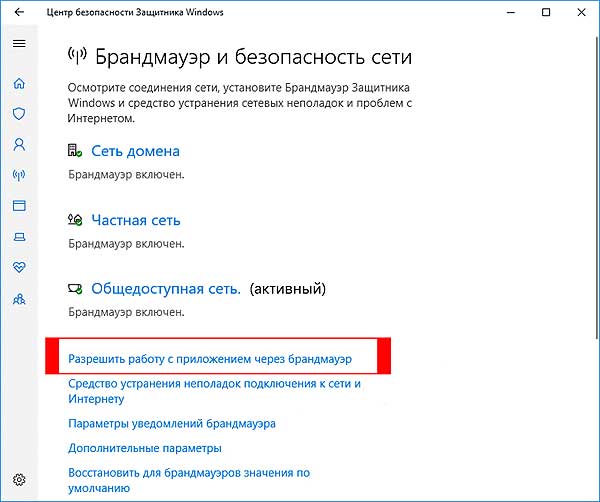
- дале кликаем «Брандмауэр и безопасность сети» и в следующем окне — ссылку «Разрешить работу с приложениями через брандмауэр«;
- жмем кнопку «Изменить параметры«, указываем Roblox и кликаем «Добавить«;
- после того, как приложение будет добавлено в «белый список» Защитника, устанавливаем для него разрешения и жмем OK.
#5 — переустанавливаем Roblox
Данная мера, само собой, целесообразна, если предыдущие четыре должного эффекта не возымели, и приложение настойчиво запускаться не желает. Потому далее:
- с клавиатуры жмем Win+R, в строке «Выполнить» пишем appwiz.cpl;
- в списке программ находим и выделяем Roblox и затем кликаем кнопку «Удалить«;
- подтверждаем команду, дожидаемся завершения процедуры удаления и перезагружаем комп;
- после заходим на страницу игры в Microsoft Store и заново скачиваем Roblox;
- находим установочный файл, кликаем по нему правой кнопкой мыши и в меню выбираем «Свойства«;
- в окне «Свойств» открываем вкладку «Совместимость«, активируем опцию «Запустить программу в режиме совместимости с«, в меню выбираем версию ОС и жмем кнопку «Применить» внизу окна.

Любое приложение, которое функционирует под управлением операционной системы от Microsoft, не может быть идеальным. Так и наша игра иногда выдает сбой и отказывается запускаться. В ходе приведенной ниже инструкции будет дан ответ на вопрос, почему вылетает Роблокс и что делать в таких случаях.
Содержание
- Причины ошибки
- Способы решения
- Проверка подключения
- Вирусы на компьютере
- Сбой маршрутизатора
- Очистка кеша
- Правильный запуск Roblox
- Переустановка игры
Причины ошибки
Причин, по которым Roblox может вылетать на ПК, существует огромное количество. Вот лишь самые распространенные из них:
- Повреждение игрового клиента.
- Сбой в работе операционной системы.
- Неполадки с подключением к сети.
- Блокировка со стороны маршрутизатора.
- Неправильная работа антивируса.
- Деятельность вредоносного программного обеспечения.
Способы решения
Для всех озвученных выше причин у нас есть инструкции по решению проблем. Переходя от варианта к варианту, добейтесь того результатов, когда игра начнет запускаться корректно, и ошибка перестанет возникать.
Проверка подключения
В причинах возникновения ошибки, когда вылетает Роблокс, мы указали нестабильное подключение к сети. Соответственно, для того чтобы исключить такую ситуацию, достаточно обновить страничку при помощи сочетания горячих клавиш «Ctrl» + «F5». Если содержимое отобразится нормально, значит, причина не в этом.

Вирусы на компьютере
Также давайте проверим наш компьютер на отсутствие вредоносного кода и, если таковой имеется, удалим его. Для этого надежнее и проще всего воспользоваться штатным антивирусом Windows 10/11:
- Открываем меню «Пуск» и, воспользовавшись поисковым инструментом, находим программу под названием «Защита от вирусов и угроз».

- В левой части окна переключаемся на вкладку антивируса, а в правой выбираем ссылку с названием «Параметры сканирования».

- Переключаем режим работы антивируса в положение, отмеченное цифрой «1», после чего запускаем анализ.

- Дальше останется лишь дождаться завершения проверки ПК на вирусы.

Пока идет сканирование, лучше всего не запускать какие-либо программы и, вообще, не пользовался компьютером. В результате процесс пройдет гораздо быстрее, и вы сможете перейти к проверке работоспособности Roblox.
Сбой маршрутизатора
Если ваш ПК соединен с сетью при помощи беспроводного или проводного роутера, последний тоже может стать причиной ошибки, когда игра вылетает при запуске. Что мы можем сделать:
- В первую очередь можно попробовать сбросить роутер к заводским настройкам.
- Также вы можете обновить прошивку устройства до актуальной.
- Еще один полезный метод – выбор менее загруженного частотного диапазона.

Для того чтобы попасть в панель администрирования маршрутизатора, достаточно перейти по одному из приведенных в таблице ниже адресов.
| Модель маршрутизатора | Адрес для входа в панель администрирования |
| D-Link: | 192.168.0.1 |
| Asus: | 192.168.1.1 |
| Xiaomi: | 192.168.1.1 |
| Linksys: | 192.168.1.1 |
| Tenda: | 192.168.0.1 |
| Netis: | 192.168.1.1 |
Следует учитывать, что логин и пароль для входа чаще всего написаны на обратной стороне устройства.
Очистка кеша
Если предыдущий способ не дал результата и Роблокс продолжает вылетать, давайте попробуем очистить временные файлы игры:
- Запустите утилиту под названием «Выполнить» при помощи сочетания горячих клавиш «Win» + «R». В маленьком окошке введите команду «%USERPROFILE%AppDataLocalRobloxlogs» и нажмите «ОК».

- Откроется каталог с временными файлами. Тут нам нужно выделить все содержимое и удалить данные при помощи контекстного меню или клавиши «Delete».

Готово. Можете проверять, запускается ли игра корректно.
Правильный запуск Roblox
Давайте попробуем решить проблему при помощи еще одного действенного варианта:
- Запустите меню «Пуск», при помощи поиска найдите Roblox, после чего сделайте правый клик на ярлыке запуска и выберите ссылку «Перейти к расположению файла».

- В результате мы попадем в папку, которая содержит ярлык Роблокс. Опять делаем правый клик и из контекстного меню выбираем пункт «Свойства».

- Откроется маленькое окошко, в котором нам в первую очередь необходимо переключиться на вкладку «Совместимость», после чего:
- Установить флажок напротив пункта «Запустить программу в режиме совместимости с Windows 7».
- Активировать режим запуска от имени администратора.
- Сохранить настройки, сделав клик по «ОК».

Многие из вас спрашивают, почему вылетает Роблокс на телефоне? Тут все проще, скачайте правильную версию игры и установите ее по инструкции, которую найдете на странички по той же ссылке.
Переустановка игры
Предыдущий вариант не оказался действенным, и игра при запуске продолжает выдавать ошибку? Тогда давайте просто попробуем переустановить Роблокс:
- Лучше всего скачивать и устанавливать игру из фирменного магазина от Microsoft. Такой вариант подойдет только тем, кто работает с Windows 10 и новее. Так вот, открываем меню «Пуск», активируем поисковую строку и находим магазин приложений Microsoft Store.

- Прописываем название и из выпадающего списка выбираем нужную позицию.

- Когда мы попадем на домашнюю страничку игры, нажимаем кнопку автоматической установки.

После того как все нужные для работы Roblox файлы будут скачаны, вы сможете запустить игру по ярлыку, который появится в меню «Пуск».
Естественно, перед кем, как устанавливать игру из магазина от Microsoft, предварительно необходимо удалить старую версию. Очень важно делать это правильно. Рекомендуем прочитать короткую пошаговую инструкцию по теме.
( 4 оценки, среднее 4.25 из 5 )
Если вы тоже столкнулись с сообщением об ошибке и задаетесь вопросом, как исправить ошибку «Произошла ошибка при запуске Roblox», есть вероятность, что с вашим соединением возникли проблемы.
Мы постарались найти наиболее распространенных виновников этой ошибки и составили следующее простое руководство, которое поможет вам ее преодолеть.
Roblox — это платформа для создания игр, с помощью которой вы можете создавать свои собственные игры или играть в игры, разработанные другими пользователями Roblox.
Почему Roblox продолжает говорить об ошибке при запуске?
Это распространенное сообщение об ошибке, которое игроки Roblox получают, когда у них плохое подключение к Интернету. Это может быть вызвано проблемами с вашим интернет-провайдером, а также проблемами с конфигурацией сети.
Многие пользователи сообщают об этой проблеме после изменения настроек маршрутизатора. Мы можем только сделать вывод, что они могли по ошибке заблокировать доступ к Roblox, и в этом случае должен помочь простой сброс настроек по умолчанию.
В то же время также возможно, что ваши настройки прокси-сервера блокируют приложение или ваш пакет интернет-протокола (TCP/IP) поврежден.
Также возможно, что серверы Roblox не работают, и в этом случае вам просто нужно набраться терпения, пока они не решат проблему. Вы можете проверить страницу Roblox Downdetector, чтобы узнать, есть ли какие-либо сбои в работе.
Сторонние приложения, такие как антивирусы или брандмауэры, также могут мешать работе, поэтому обязательно проверьте и настройте параметры безопасности.
Быстрая подсказка:
Игра в Roblox в специальном игровом браузере, таком как Opera GX, может значительно повлиять на игровой процесс. Даже если приведенные ниже шаги по устранению неполадок могут помочь вам решить проблему, рассмотрите возможность перехода на Opera GX.
Кроме того, с интеграцией Discord и Twitch вы можете оставаться на связи со своими друзьями по игре. Блокировщик рекламы остановит любую навязчивую рекламу, и вы будете защищены с помощью встроенного VPN.
Как исправить ошибки запуска Roblox?
- Сбросьте свой маршрутизатор
- Отмените выбор настройки прокси-сервера
- Сбросить TCP-IP с помощью Netsh
- Отключить антивирусное программное обеспечение
- Добавьте Roblox в список разрешенных приложений брандмауэра Windows.
- Переустановите Роблокс
1. Сбросьте настройки маршрутизатора
Сброс маршрутизатора — это простое исправление, которое, как подтвердили некоторые пользователи Roblox, работает. Поскольку для работы Roblox требуется сетевое соединение, неудивительно, что сброс маршрутизатора может исправить ошибку, возникшую при запуске сообщения. Поэтому нажмите кнопку сброса на маршрутизаторе, чтобы сбросить его.
2. Отмените выбор настройки прокси-сервера.
- Некоторые пользователи Roblox запустили Roblox, отменив выбор настройки прокси-сервера в Windows. Чтобы отменить выбор этой опции в Windows 10, нажмите кнопку Cortana «Введите здесь для поиска» на панели задач.
- Введите ключевое слово Internet options, чтобы открыть окно состояния сети ниже.

- Выберите вкладку «Подключения»

- Нажмите кнопку настроек локальной сети
- Снимите флажок «Использовать прокси-сервер для вашей локальной сети», если он установлен.
- Затем нажмите кнопку OK, чтобы закрыть окно.

3. Сбросьте TCP-IP с помощью Netsh
- Введите cmd на панели задач и откройте командную строку.

- Введите следующую команду:
netsh int ip reset c:esetlo.txtи нажмите. Enter

- Дождитесь завершения командной строки и перезагрузите компьютер.
Эта ошибка также может быть вызвана поврежденным набором протоколов Интернета (обычно известным как TCP/IP). Используйте приведенную выше команду, а затем попробуйте снова запустить Roblox.
4. Отключите антивирусное программное обеспечение
Как уже упоминалось, для запуска Roblox требуется подключение. Таким образом, возможно, антивирусное программное обеспечение блокирует Roblox. Отключение антивирусного программного обеспечения гарантирует, что этого не произойдет.
Многочисленные антивирусные утилиты включают в себя отключающие параметры в контекстных меню на панели задач, которые вы можете выбрать, чтобы временно отключить антивирусное программное обеспечение.
Кроме того, вы, безусловно, можете отключить большинство антивирусных пакетов через их основные окна. Откройте главное окно антивирусной утилиты и просмотрите ее меню настроек, которое, вероятно, будет включать параметр отключения или выключения.
5. Добавьте Roblox в список разрешенных приложений брандмауэра Windows.
Ошибка Roblox при запуске также может быть связана с брандмауэром Защитника Windows. Некоторые пользователи исправили проблему, добавив Roblox в список разрешенных приложений брандмауэра Защитника Windows. Вот как вы можете добавить Roblox в список разрешенных приложений брандмауэра в Windows 10.
- Введите Брандмауэр Защитника Windows в поле поиска на панели задач и откройте панель.
- Выберите Разрешить приложение через брандмауэр Защитника Windows, чтобы открыть окно на снимке ниже.

- Нажмите кнопку Изменить настройки.
- Нажмите кнопку Разрешить другое приложение, чтобы открыть окно Добавить приложение.
- Нажмите «Обзор» и выберите, чтобы добавить Roblox.

- Нажмите кнопку «Добавить», чтобы добавить Roblox в список приложений.
- Убедитесь, что вы установили оба флажка Roblox в списке разрешенных приложений.
- Затем нажмите кнопку ОК.
6. Переустановите Роблокс
Переустановка Roblox также может исправить несколько сообщений об ошибках. Приложение могло быть повреждено со временем, поэтому новая переустановка может решить эту проблему.
- Введите «Добавить или удалить» на панели задач, чтобы открыть панель настроек «Установка и удаление программ».

- Найдите Roblox, выберите его и нажмите кнопку «Удалить».

Дождитесь завершения процесса и перезагрузите наш компьютер.
Если вы хотите убедиться, что все файлы, связанные с Roblox, удалены, вы можете использовать специальное программное обеспечение для удаления, которое найдет и удалит все записи реестра и другие ненужные файлы.
- Чтобы переустановить приложение, откройте приложение Microsoft Store и найдите Roblox.

- Нажмите на нее и выберите «Установить». Дождитесь завершения процесса и попробуйте запустить его снова.

Содержание
- Что делать, если Roblox выдает ошибку «an error occurred while starting» и не запускается
- Ошибка — An error occurred while starting roblox
- Как исправить ситуацию?
- [SOLVED] An error occurred while starting Roblox 2022
- Fix 1: Reset your router
- Fix 2: Reset TCP-IP with Netsh
- Fix 3: Disable proxy settings
- Fix 4: Disable antivirus software
- Fix 5: Reinstall Roblox
- Bonus: tricks to get cheap Robux
- Решение: ошибки an error occurred while starting roblox в программе Roblox
- Roblox ошибка ID 148
Что делать, если Roblox выдает ошибку «an error occurred while starting» и не запускается
Пост на тот случай, когда у вас Roblox тоже выдал ошибку «an error occurred while starting» и не хочет запускаться. Данная оказия случается не очень часто, но, как оказывает практика (и статистика запросов в поисковиках), рано или поздно с ней приходится разбираться многим пользователям.
С другой стороны, проблему тоже нельзя назвать очень сложной и в подавляющем большинстве случаев устраняется она вполне себе стандартными способами. Вот о них мы сейчас и расскажем. Итак.
что делать, если Roblox показывает ошибку «an error occurred while starting»
Значит, по порядку, от простого к сложному (в плане объема работы):
#1 — перезагружаем роутер
Приём простейший, но в данном случае, весьма действенный. Поскольку Roblox при запуске автоматом подключается к интернету, то любой сбой в работе сети в этот момент действительно может помешать приложению нормально запуститься.
Потому если видим ошибку запуска Roblox , то идем к роутеру и жмем на нём кнопку «Reset«. Либо, если таковая не обнаружилась, просто выключаем прибор из розетки, ждем 1 минуту, потом включаем, возвращаемся к игре и пробуем зайти еще раз.
#2 — отключаем функцию «Использовать прокси-сервер для локальных подключений»
- на клавиатуре жмем «Win + R«, в строке «Выполнить» пишем inetcpl.cplи жмем Enter;
- в открывшемся окне снимаем галочку в чек-боксе «Использовать прокси-сервер для локальных подключений«;
- и кликаем ОК внизу окна.
#3 — на время отключаем антивирус
Как мы уже сказали, на этапе запуска приложению Roblox требуется подключение к интернету. Антивирус по каким-то своим «убеждениям» может этому воспрепятствовать. Таким образом, чтобы этот конфликт устранить, проще всего на время отключить антивирус.
У большинства современных антивирусных программ добраться до «выключателя» можно через иконку в трее (правом нижнем углу экрана Windows).
Другими словами, находим иконку, кликаем по ней правой кнопкой мыши и в появившемся меню жмем строчку с названием вроде «Приостановить защиту» или «Выход«. Если ничего похожего в меню не оказалось, то тогда двойным кликом по той же иконке в трее открываем главное окно настроек антивируса и уже находим нужную кнопку там.
#4 — добавляем Roblox в «белый список» Защитника Windows
Причиной ошибки «error occurred while starting» может быть также штатный Защитник Windows 10. В таком случае урегулировать проблемку можно путем добавления приложения Roblox в список разрешенных программ Защитника. Делается это так:
- если в систему вы зашли не через учетную запись администратора, то надо перезайти;
- заходим в «Настройки» Windows, кликаем «Обновление и безопасность«, потом — «Безопасность Windows» (слева) и кнопку «Открыть Центр безопасности Защитника» (справа);

- дале кликаем «Брандмауэр и безопасность сети» и в следующем окне — ссылку «Разрешить работу с приложениями через брандмауэр«;
- жмем кнопку «Изменить параметры«, указываем Roblox и кликаем «Добавить«;
- после того, как приложение будет добавлено в «белый список» Защитника, устанавливаем для него разрешения и жмем OK.
#5 — переустанавливаем Roblox
Данная мера, само собой, целесообразна, если предыдущие четыре должного эффекта не возымели, и приложение настойчиво запускаться не желает. Потому далее:
Источник
Ошибка — An error occurred while starting roblox
Иногда приложения и игры могут давать сбой. Одной из распространенных ошибок в Роблоксе стало «an error occurred while starting roblox». Возникает тогда, когда пользователь запустил игру, но произошла системная ошибка. Решить её можно при помощи нескольких методов.
Как исправить ситуацию?
Первый способ, который помог множеству игроков – удалить и переустановить игру. Чтобы избавиться от всех программных компонентов, пользователь должен зайти в «Удаление или изменение программ» и отыскать среди списка Роблокс. После этого пройтись по всем папкам, где может находиться игра. Полное удаление гарантирует, что переустановить снова можно верно и без различных проблем.
Второй способ: отключение антивируса. Как и в первом, переустановить игру придется. Иногда программы по защите компьютера от различных вредоносных файлов, могут отреагировать на самые безобидные объекты. Если Роблокс был установлен, то его можно занести в безопасные приложения и открыть при помощи прав Администратора. В некоторых случаях проблема заключается в обновлении игры.
Третий метод: отключить прокси-сервер. Такая проблема встречается не у всех, но может повлиять на возможность запуска. Решается на примере Windows : зайти в настройки сети в нижней панели и перейти в «Центр управления сетями и общим доступом». В открывшемся окне найти пункт «Свойства браузера» и перейти на вкладку «Подключение». В разделе «Настройка сети», снять галочку с пункта «Использовать прокси-сервер». Если же отметка не была установлена, то нажать два раза и перезапустить устройство.
Источник
[SOLVED] An error occurred while starting Roblox 2022
Updated: 2 months ago
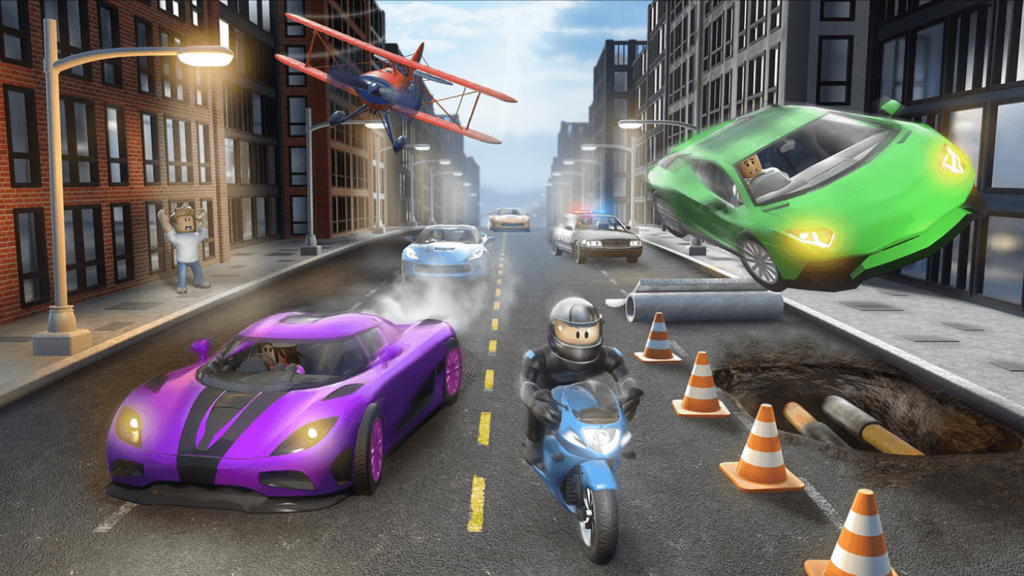
Yes, even in 2021, many players still receive the error An error occurred when starting Roblox! That can really get you out of nowhere. Actually, the causes are related to internet connection issues. That means you may either have poor internet connectivity or your antivirus software is stopping Roblox from launching. To get rid of the error, you can try the methods below:
Fix 1: Reset your router
To troubleshoot your internet, one of the straightforward methods is to reset your router. Simply press the reset button on your router to reset it. Then launch your game to check if it’s starting.
If that error message is still popping up, try the next fix below.
Fix 2: Reset TCP-IP with Netsh
If resetting the router didn’t help you solve your problem, resetting TCP /IP may help as your Internet Protocol may have been corrupted. To do this, follow the instructions below:
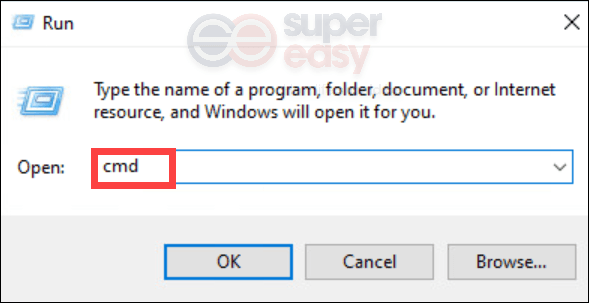
1) On your keyboard, press the Windows + R keys simultaneously to open the Run box.
2) Type or paste cmd and press Enter.
3) At the command prompt, enter the following command, and then press Enter.
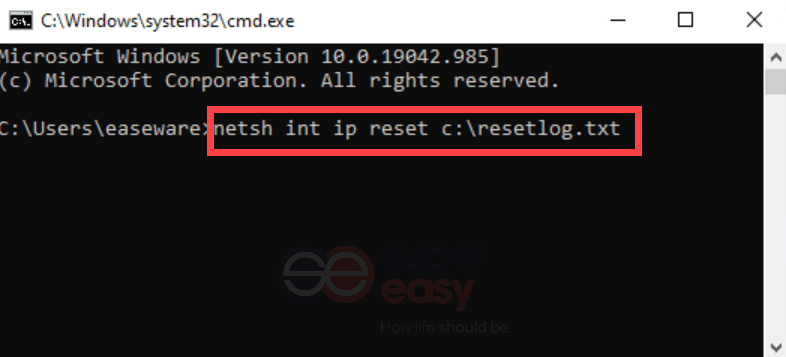
When the action is complete, restart your computer and launch Roblox. If your problem persists, try the next fix below.
Fix 3: Disable proxy settings
Some users may have used a proxy server for some reason or just accidentally. But this can hamper the internet connection and your Roblox would fail to launch. To check if that’s your case, follow the steps below:
1) On your keyboard, press the Windows + R keys simultaneously to open the Run box.
2) Type or paste inetcpl.cpl and press Enter.
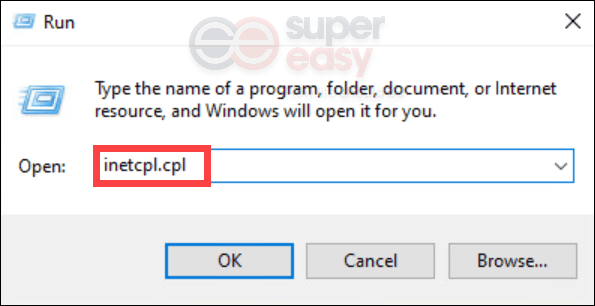
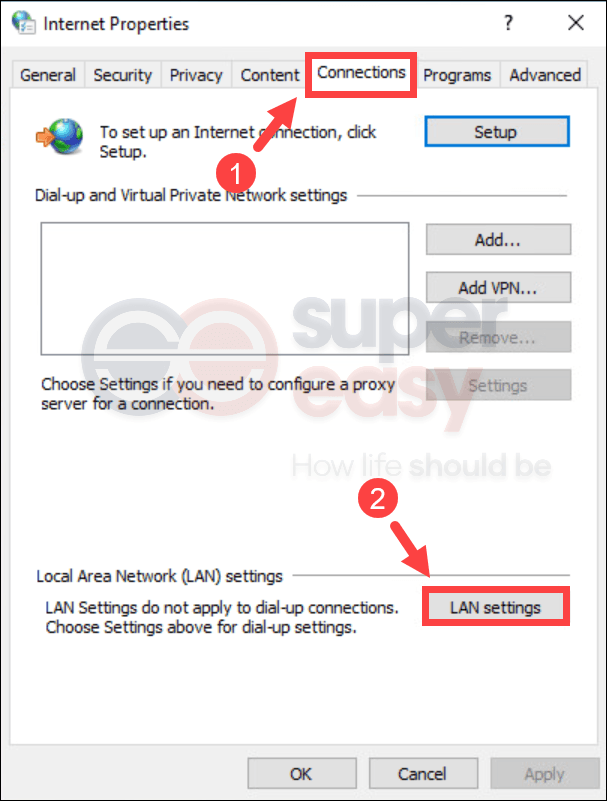
3) Select the Connections tab. Then click on the LAN settings button.
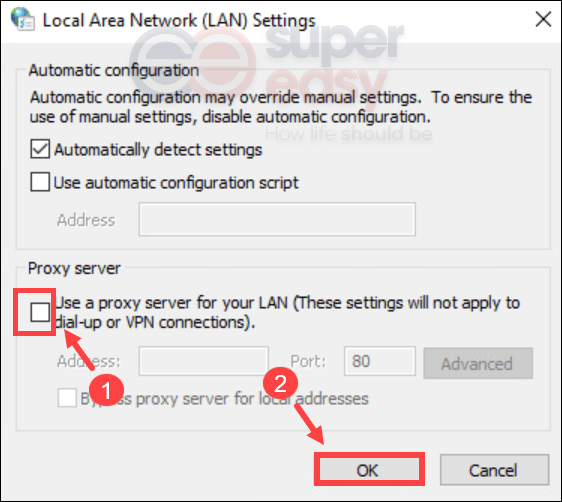
4) Uncheck the option Use a proxy server for your LAN. Then click OK.
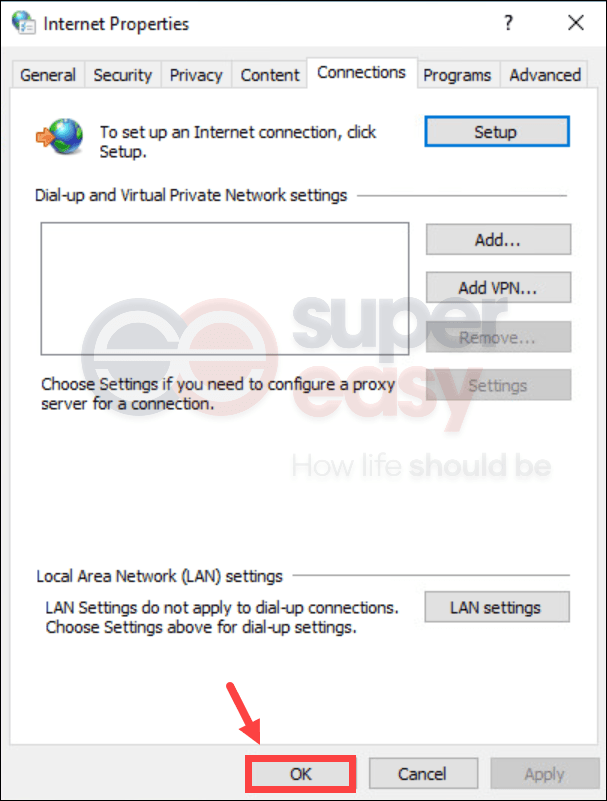
5) Click OK to close the window.
Now launch your Roblox games. If your problem persists, proceed to the next fix.
Fix 4: Disable antivirus software
Users might have some antivirus software installed on their system in order to protect their computer from malware attacks. But sometimes they would block your game from launching or accessing the internet. Therefore, we would suggest you disable those antivirus software before starting Roblox.
To disable antivirus software, simply click on the up arrow icon near the system tray, right-click on the program, and choose the option to disable or exit the program. Once you’ve done this, play Valheim and check if your problem has been resolved.
For further troubleshooting, you might need to temporarily disable Windows firewall in case it’s blocking your game from accessing the internet or launching:
1) On your keyboard, press the Windows + R keys simultaneously to open the Run dialog box.
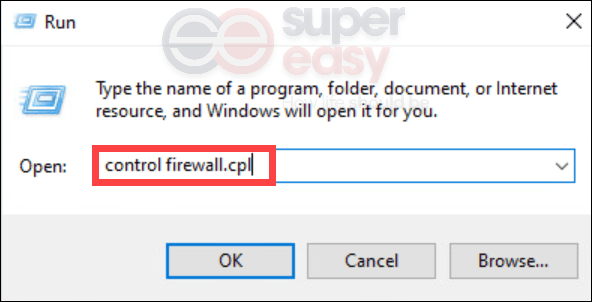
2) Type or paste control firewall.cpl and click OK.
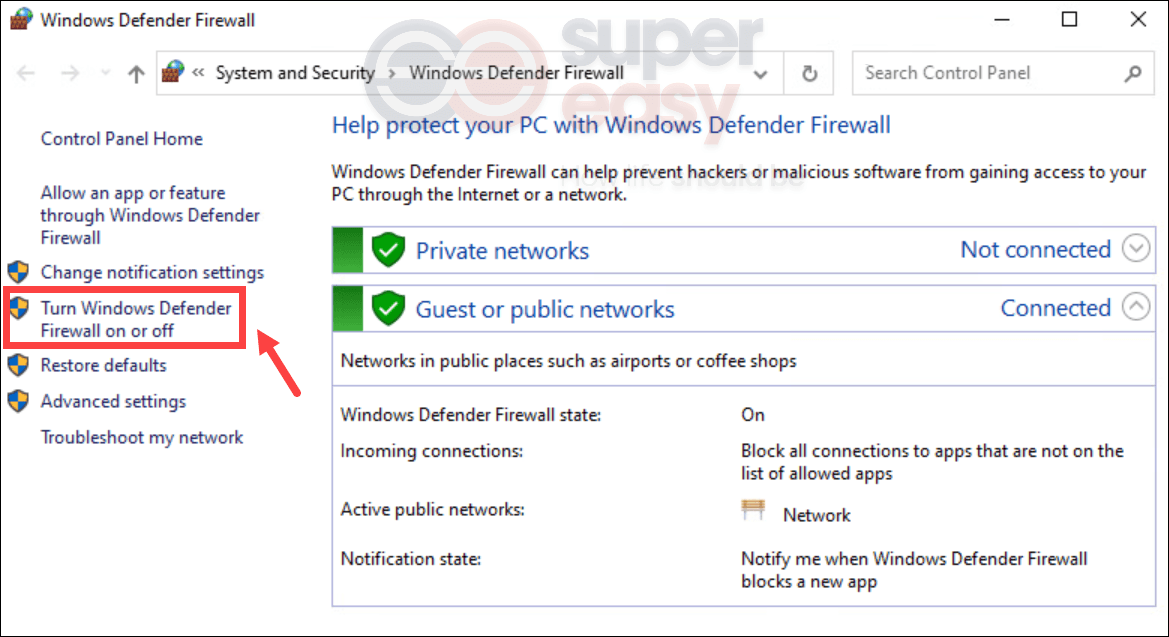
3) Click Turn Windows Defender Firewall on or off.
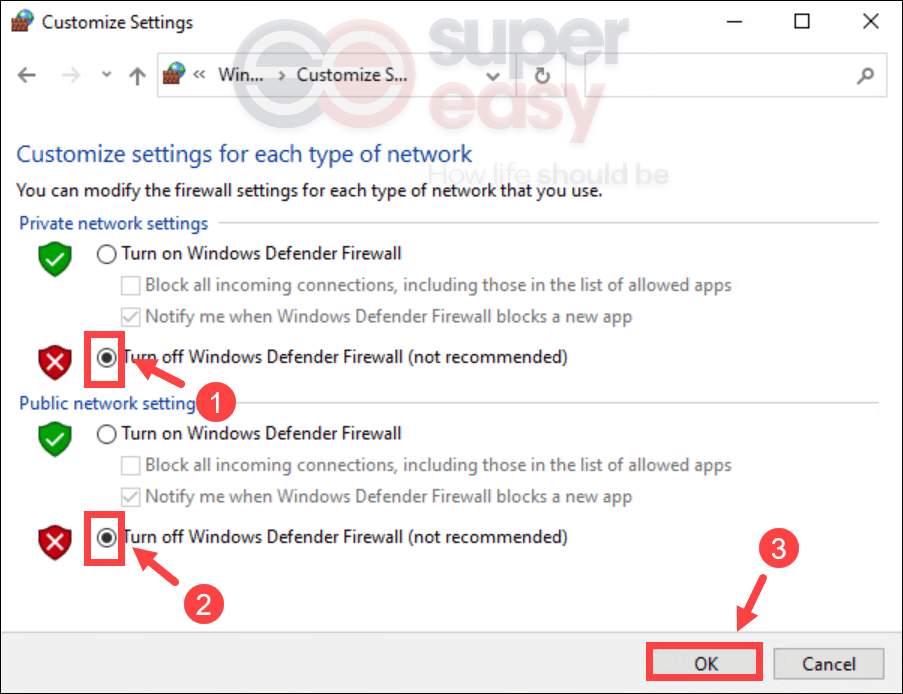
4) Select Turn off Windows Defender Firewall (not recommended) for Private Network and Public network. Then click OK.
Now launch your Roblox games. If you still receive the error, you may need to consider reinstalling Roblox. Read on and find out how.
Fix 5: Reinstall Roblox
To reinstall Roblox, take these steps:
1) Click on the Start button in the lower left of the screen.
2) In the Search box, type programs and features. Then click Add or remove programs that appears at the top of your search list.
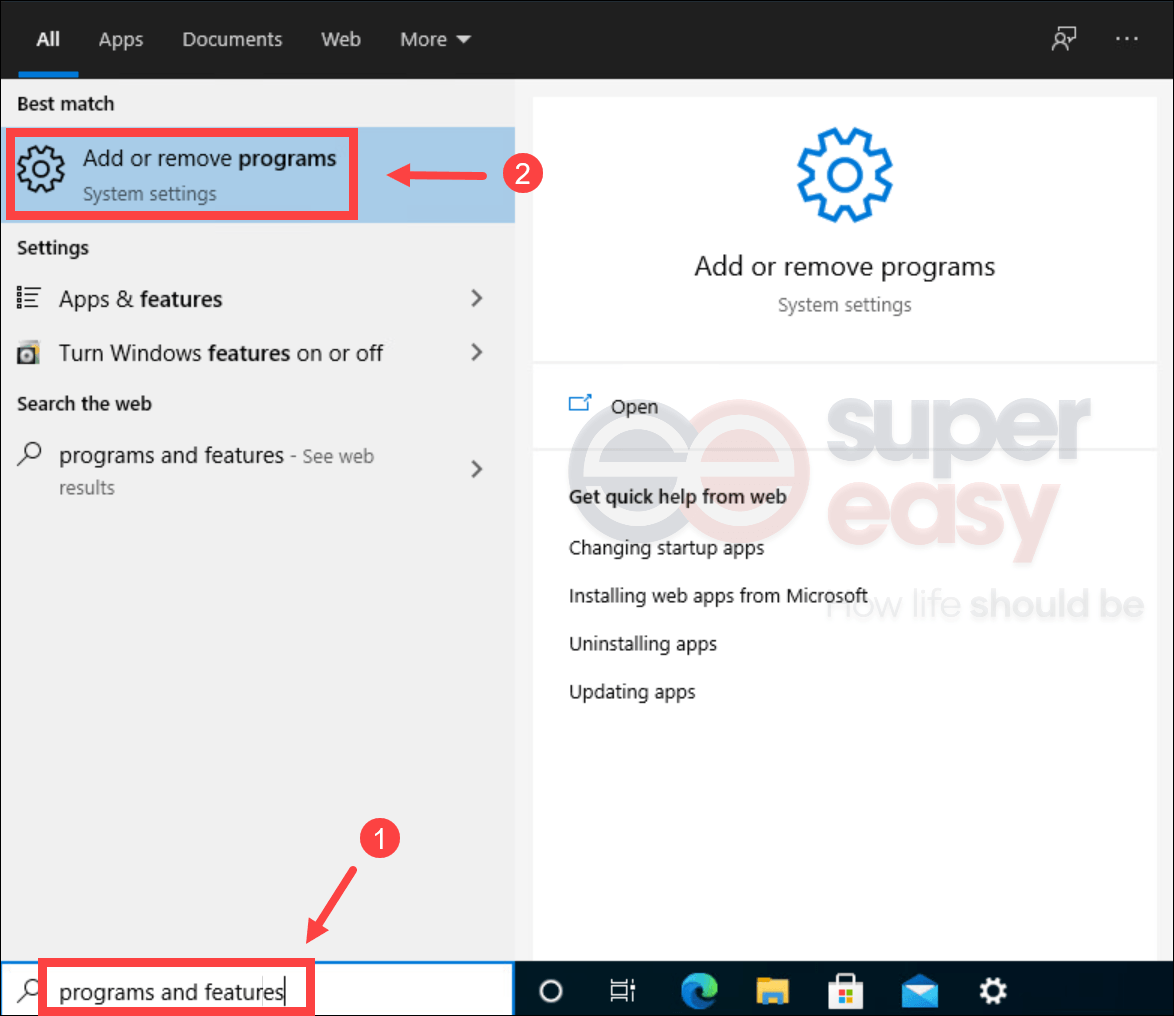
3) In the window that pops up, scroll down until you see Roblox. Click it and click on the Uninstall button.
After uninstalling Roblox, you can fully remove the Roblox folder in case there are some corrupted or outdated files left over. To do this, press the Windows + E keys simultaneously to open the File Explorer. Then navigate to this folder: C:Users(Your Windows Username)AppDataLocal. From there, delete the Roblox folder.
After deleting game files, reinstall the game and try running it.
Bonus: tricks to get cheap Robux
Plan to purchase Robux to obtain new clothes, accessories, and gear for your avatar but don’t want to pay for the full price? Using a promo code! To get one, simply search online. But you’ll need to verify the validity, terms and conditions. It may turn out that the code you find isn’t working. To save the hassle, we recommend you use Coupert, a free and legit browser extension that automatically tells you if there are promo codes available when you’re purchasing Robux.
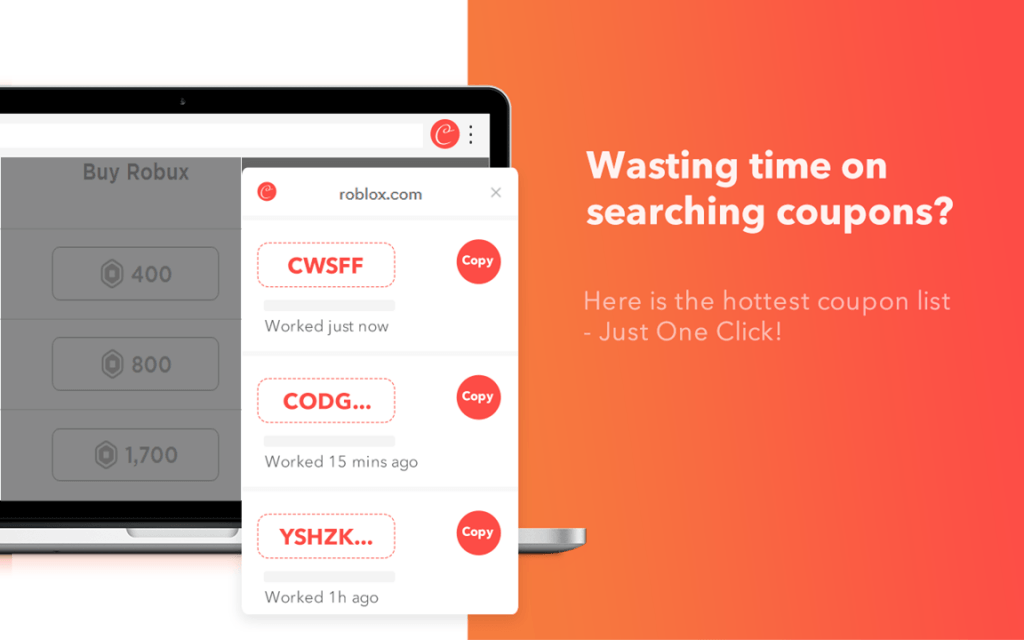
- Add Coupert to your browser.
- Navigate to the robux purchasing page from roblox.com or Amazon and choose the amount of Robux you want to purchase. Upon checkout, an alert will pop up telling you if there are available promo codes and apply the best discount for you automatically. If there are no codes showing up, click on the Coupert icon on the top right. Then copy the codes that appear.
If you purchase Robux from Amazon, you can first claim an Amazon gift card for free. Free-to-join veteran survey sites such as Toluna can allow you to earn points by taking various surveys. When you rack up 75,000 points, you can redeem a $25 Amazon gift card.
Источник
Решение: ошибки an error occurred while starting roblox в программе Roblox
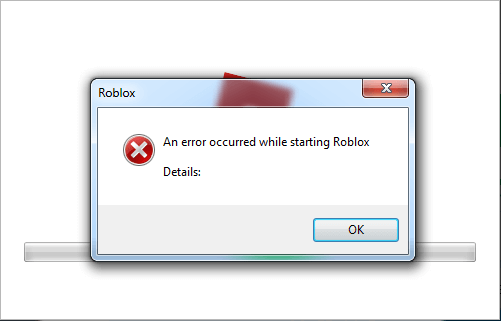
Приводим варианты решения ошибки an error occurred while starting roblox в программе roblox. Чаще всего проблема возникает при запуске, при начальной загрузке. И делает невозможным дальнейшую работу. Чтобы исправить проблему попробуйте:
- Заново переустановите программу. Удалите предыдущую версию, перейдите на сайт разработчика по ссылке: roblox.com/Download, скачайте последнюю версию и установите. ВНИМАНИЕ! Запустите установку программы от имени администратора (для этого кликните по установочному файлу правой кнопкой мыши и выбирите пункт «Запуск от имени администратора»). Права админа помогут программе установиться программе правильно.
- Чаще всего первое решение помогает, но если это не помогло вам, запустите приложение в режиме совместимости с Windows 8 / 8.1 (перейдите в свойства ярлыка с программой, выберите вкладку «Совместимость» и включите флажок «Запустить эту программу в режиме совместимости для. » Windows 8 / 8.1)
- Запустите уже установленное приложение от имени администратора (как это сделать описано выше) чтобы приложение не вылетало при запуске
Roblox ошибка ID 148
Ошибка с ID 148 (Полный текст ошибки: Failed to connect to the Game. (ID = 148:Roblox version is out of date. Please uninstall and try again.) решается следующими способами:
- Перезайдите в свой аккаунт. Выйдите и введите заново свой логин и пароль.
- Сбросьте настройки Internet Explorer. Для этого перейдите в Панель управления, и найдите Свойства обозревателя:
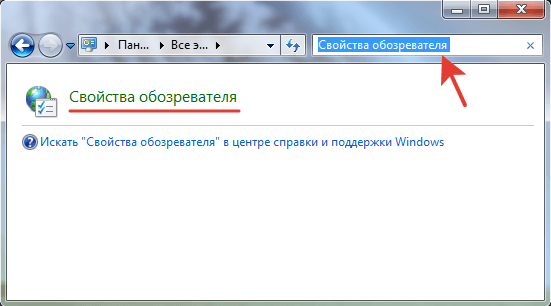
Затем в появившемся окне выберите вкладку «Свойства» и затем «Сброс..».
И далее установите галочку «Удалить личные настройки» и кнопку «Сброс».
Готово. - Вероятно выиспользуете устаревшую версию приложения. Скачайте и установите последнюю версию приложения (инструкция в начале статьи).
- Проверьте, не используется ли для подключения к серверам игры прокси сервер.
Если ни одно из приведенных выше решений не помогло вам, напишите об этом в комментариях и мы постараемся вам помочь. Так же если вы решили проблему другим способом, так же поделитесь этим в комметариях со всеми.
Источник
Иногда приложения и игры могут давать сбой. Одной из распространенных ошибок в Роблоксе стало «an error occurred while starting roblox». Возникает тогда, когда пользователь запустил игру, но произошла системная ошибка. Решить её можно при помощи нескольких методов.
Как исправить ситуацию?
Первый способ, который помог множеству игроков – удалить и переустановить игру. Чтобы избавиться от всех программных компонентов, пользователь должен зайти в «Удаление или изменение программ» и отыскать среди списка Роблокс. После этого пройтись по всем папкам, где может находиться игра. Полное удаление гарантирует, что переустановить снова можно верно и без различных проблем.
Второй способ: отключение антивируса. Как и в первом, переустановить игру придется. Иногда программы по защите компьютера от различных вредоносных файлов, могут отреагировать на самые безобидные объекты. Если Роблокс был установлен, то его можно занести в безопасные приложения и открыть при помощи прав Администратора. В некоторых случаях проблема заключается в обновлении игры.
Третий метод: отключить прокси-сервер. Такая проблема встречается не у всех, но может повлиять на возможность запуска. Решается на примере Windows: зайти в настройки сети в нижней панели и перейти в «Центр управления сетями и общим доступом». В открывшемся окне найти пункт «Свойства браузера» и перейти на вкладку «Подключение». В разделе «Настройка сети», снять галочку с пункта «Использовать прокси-сервер». Если же отметка не была установлена, то нажать два раза и перезапустить устройство.
Roblox is a massive platform that spans the website client and the game launcher, so it’s no surprise that players experience issues from time to time. Here’s a list of all the known error codes with potential fixes and/or reasons for the error.
Players may experience issues on both the Roblox website and the Roblox game launcher. Having trouble with issues that aren’t related to this list? We also have a guide on How to check Roblox server status with methods to quickly check if your Roblox issues are related to your home connection, or if downtime occurs worldwide.
Check out these error codes for issues related to the Roblox website.
| Error | Description | Fix/Reason for Error |
| 503 | The request could not be satisfied. | Occurs during a Roblox outage or downtime. Does not involve website maintenance. |
| 504 | This page isn’t working: roblox.com took too long to respond.» (Chrome) | Web-host timeout. Most likely caused by Roblox maintenance/downtime. Or, user experiencing faulty internet connection. |
| Access Denied | 403 — You don’t have permission to view this page. | User attempted to view a restricted page. |
| An error occurred, please try again. | Error | Invalid IP or attempting to load on some VPNs. |
| Avatar Page Error | The avatar page is temporarily unavailable. | Avatar page is unavailable because of technical difficulties. |
| Bad Request | 400 | There was a problem with your request. | Occurs when web request made by device is incorrect. |
| Down For Maintenance | We’re making things more awesome. Be back soon.
This site is currently offline for maintenance and upgrades. Please check back soon! Our payment system is currently under maintenance. Please check back shortly! |
Closed maintenance or Roblox admins are fixing something on the site. |
| Game Pass Loading Error | Failed to load Game Passes. Please try again later. | Caused due to Roblox issues or user is experiencing faulty internet connection. |
| Internal Server Error | 500 | An unexpected error occurred | Internal error on server. Contact customer service at [email protected] if issue persists. |
| Item Owned | Item Owned: You already own this item. | User attempted to purchase an item they already own. |
| Library Error | Library temporarily unavailable, please try again later. | User entered an invalid Category # in the URL bar. |
| Maximum Friends Error | Unable to process request. That user currently has the max number of Friends allowed. | The user you are attempting to friend has reached max limit of friends allowed on account. |
| Page cannot be found or no longer exists | 404 | Page Not found | URL was typed incorrectly or user attempted to reach a profile with a terminated account. |
| Registration error | Sorry, an error occured. | Issues occurred on Roblox‘s end or user experiencing faulty internet connection. |
| Something went wrong | Error | An unexpected error occurred. Please try again later. | Error number in the error page URL was changed to a non-existent number. |
| Too Many Redirects | The page isn’t redirecting properly (Firefox)
This page isn’t working; www.roblox.com redirected you too many times (Chrome) |
Occurs on accounts with a poison ban. |
| Unable to join | Unable to join: You cannot join this VIP server because this game is private | User attempted to join a VIP server on a private/under review game. |
| Updating Avatar Error | Items you don’t own in this outfit: (X) | User attempted to wear a limited hat that has traded or sold. User is wearing a previously deleted item. |
Check out these error codes for all issues related to Roblox games and the game launcher.
| Error | Description | Fix/Reason for Error |
| Client Crash | An unexpected error occurred and Roblox needs to quit. We’re sorry! | Possible causes: ran out of memory, high ping, extreme lag, connecting to a game while using a known exploit. |
| Connection Fail | Failed to download or apply critical settings, please check your internet connection. Error info: (error info) | User lost internet or DNS resolution failed while connecting to Roblox. |
| Error starting game | An error occurred trying to launch the game. Please try again later
Mobile version (Android): |
User experiencing faulty internet connection or Roblox undergoing maintenance. Player may also have attempted to join a game while their account was disabled. |
| HttpSend RequestFailed | An error occured while starting roblox.’Details: HttpSendRequest Failed.
Error: A connection with the server could not be established. |
Roblox having trouble communicating certain bits of information to servers. |
| Loading Error 0x1 (Intentional) (Unused) | Roblox cannot startup. User code = 0x1 | User violated Roblox terms of service. |
| Purchase Error | #1: This item is not currently for sale. Your account has not been charged.
#2: Your purchase failed because your account does not have enough Robux. Your account has not been charged. #3: Your purchase of [name of item] failed because something went wrong. Your account has not been charged. Please try again later. |
#1: User attempted to purchase an offsale item.
#2: User did not have enough Robux. #3: Something went wrong during purchase. Try again later. |
| 6 | An error occurred while starting Roblox; Details: … Error Code: 6 | Launcher timed out while downloading a new Roblox version or launching a game. Most likely occurred due to faulty internet connection or anti-virus detections. |
| 256/274 | Developer has shut down all game servers or game server has shut down for other reasons, please reconnect (Error Code: 256)
The game’s developer has temporarily shut down the server. Please try again. (Error Code: 274) |
Occurs when a developer manually closed a game server, a VIP server owner shut down the VIP server, or when a player is banned while in-game. |
| 260 | There was a problem receiving data, please reconnect. (Error Code: 260) | No data being received by Roblox web servers. |
| 261 | Error while receiving data, please reconnect. (Error Code: 261
There was a problem streaming data, please reconnect. (Error Code: 261) |
Occurred due to faulty internet connect, Roblox downtime, or other unknown issues. |
| 262 | There was a problem sending data, please reconnect. (Error Code: 262) | Game could not load after data failed to send. |
| 264 | The same account launched the game from a different device. Reconnect if you prefer to use this device. (Error Code: 264)
You are already playing a game. Please shut down the other game and try again. (Error Code: 264) |
Occurs when a second client starts on the same account. Meaning, an unknown user might be signed onto user’s account. Account might be compromised. |
| 266 | Your connection timed out. Check your internet connection and try again. (Error Code: 266) | User’s connection lagged or was AFK for a long time. |
| 267 | You were kicked from this game: [Reason] (Error Code: 267)
You have been kicked from the game (Error Code: 267) |
User was kicked from a game session using a script. Most likely occurred due to a script inserted by game developer. |
| 268 | You have been kicked by the server. Please close and rejoin another game (Error Code: 268)
You have been kicked due to unexpected client behavior. (Error Code: 268) |
Occurs due to general connection issues, user employed exploits, or user experiencing lag. Can also occur due to compatibility issues depending on the operating system. |
| 271 | #1: Server was shut down due to no active players. (Error Code: 271)
#2: You have been kicked by the server, please reconnect. (Error Code: 271) #3: Unable to find instance |
#1: All players in server were inactive at the same time.
#2: Player joined server while server was attempting to shut down. #3: Old version of inactive players issue. |
| 272 | Disconnected due to the Security Key Mismatch (Error Code: 272)
Lost connection due to an error. (Error Code: 272) |
Can occur due to user exploiting in games. |
| 273 | Disconnected from the game, possibly due to the game joined from another device (Error Code: 273)
The same account launched the game from a different device. Reconnect if you prefer to use this device. (Error Code: 273) |
Same as error 264, except user also joined a game while banned or warned. |
| 275 | Roblox has shut down the server for maintenance. Please try again. (Error Code: 275)
Roblox has shut down this game server for maintenance (Error Code: 275) |
Roblox closed due to maintenance or game was deleted while user was playing. |
| 277 | Lost connection to the game server, please reconnect (Error Code: 277)
Please check your internet connection and try again. (Error Code: 277) |
May occur due to these issues: User’s IP address changed, user turned off WiFi, user experienced additional general internet issues |
| 278 | You were disconnected for being idle 20 minutes (Error Code: 278) | Player was AFK for more than 20 minutes while in a game. |
| 279 | #1: Failed to connect to the Game. (ID = 17: Connection attempt failed.) (Error Code: 279)
#2: Failed to connect to the Game. (ID = 146: Illegal teleport destination.) #3: Failed to connect to the game. (ID = 148: Roblox version is out of date. Please uninstall and try again.) |
#1: Client unable to connect to game server, Roblox is down, or additional issues.
#2: Client attempted to teleport to an inactive place in game world. #3: Launcher or client must be updated or re-installed. |
| 280 | Your version of Roblox may be out of date. Please update Roblox and try again. (Error Code: 280) | Client needs updating. Check PC’s date and time are correct if issue persists. |
| 517 | This game is currently unavailable. Please try again later. (Error Code: 517)
This game has ended. (Error Code: 517) |
Client attempted to join a server while server was closing. May also occur if Roblox was uninstalled while user was in-game. |
| 522 | Followed user has left the game (Error Code: 522)
«The user you attempted to join has left the game (Error Code: 522) |
User attempted to join a player’s game after the player they are joining has left. |
| 523 | The status of the game has changed and you no longer have access. Please try again later. (Error Code: 523)
This game is restricted. (Error Code: 523) |
Server has shut down. |
| 524 | Not authorized to join this game. (Error Code: 524)
«You do not have permission to join this game. (Error Code: 524) |
Occurs during Roblox downtime, attempted to join a blocked VIP server, or attempted to join as a Guest. |
| 529 | An Http error has occurred. Please close the client and try again. (Error Code: 529)
We are experiencing technical difficulties. Please try again later. (Error Code: 529) |
Occurs when Roblox servers are down or slow. |
| 769 | Teleport Failed: Unknown exception. (Error Code: 769)
Teleport failed due to an unexpected error. (Error Code: 769) |
In-game teleportation failed for various reasons. Also occurs if reconnecting to game failed. |
| 770 | #1: Game’s root place is not active. (Error Code: 770)
#2: Attempted to teleport to a place that does not exist. (Error Code: 770) #3: Teleport Failed. Unknown error. (Error Code: 770) |
#1: Player attempted to join an inactive part of game.
#2: Player attempted to teleport to an inactive or deleted section of game. #3: Common in games that use teleport. |
| 771 | Teleport failed, the server is no longer available. (Error Code: 771) | Player attempted to teleport to an inactive or deleted section of game. |
| 772 | Teleport failed, the server is full. (Error Code: 772) | Player attempted to teleport to a full game server. |
| 773 | Teleport Failed: This game has not been approved, yet. (Error Code: 773)
Teleport Failed: Attempted to teleport to a place that is restricted. (Error Code: 773) |
Player attempted to teleport to a non-approved game, or a game where player was not permitted to join. |
Looking for free Roblox rewards? We have a ton of them in our Roblox Game Codes post! You can also get a bunch of free stuff via our Roblox Promo Codes page.
Roblox is a massive platform that spans the website client and the game launcher, so it’s no surprise that players experience issues from time to time. Here’s a list of all the known error codes with potential fixes and/or reasons for the error.
Players may experience issues on both the Roblox website and the Roblox game launcher. Having trouble with issues that aren’t related to this list? We also have a guide on How to check Roblox server status with methods to quickly check if your Roblox issues are related to your home connection, or if downtime occurs worldwide.
Check out these error codes for issues related to the Roblox website.
| Error | Description | Fix/Reason for Error |
| 503 | The request could not be satisfied. | Occurs during a Roblox outage or downtime. Does not involve website maintenance. |
| 504 | This page isn’t working: roblox.com took too long to respond.» (Chrome) | Web-host timeout. Most likely caused by Roblox maintenance/downtime. Or, user experiencing faulty internet connection. |
| Access Denied | 403 — You don’t have permission to view this page. | User attempted to view a restricted page. |
| An error occurred, please try again. | Error | Invalid IP or attempting to load on some VPNs. |
| Avatar Page Error | The avatar page is temporarily unavailable. | Avatar page is unavailable because of technical difficulties. |
| Bad Request | 400 | There was a problem with your request. | Occurs when web request made by device is incorrect. |
| Down For Maintenance | We’re making things more awesome. Be back soon.
This site is currently offline for maintenance and upgrades. Please check back soon! Our payment system is currently under maintenance. Please check back shortly! |
Closed maintenance or Roblox admins are fixing something on the site. |
| Game Pass Loading Error | Failed to load Game Passes. Please try again later. | Caused due to Roblox issues or user is experiencing faulty internet connection. |
| Internal Server Error | 500 | An unexpected error occurred | Internal error on server. Contact customer service at [email protected] if issue persists. |
| Item Owned | Item Owned: You already own this item. | User attempted to purchase an item they already own. |
| Library Error | Library temporarily unavailable, please try again later. | User entered an invalid Category # in the URL bar. |
| Maximum Friends Error | Unable to process request. That user currently has the max number of Friends allowed. | The user you are attempting to friend has reached max limit of friends allowed on account. |
| Page cannot be found or no longer exists | 404 | Page Not found | URL was typed incorrectly or user attempted to reach a profile with a terminated account. |
| Registration error | Sorry, an error occured. | Issues occurred on Roblox‘s end or user experiencing faulty internet connection. |
| Something went wrong | Error | An unexpected error occurred. Please try again later. | Error number in the error page URL was changed to a non-existent number. |
| Too Many Redirects | The page isn’t redirecting properly (Firefox)
This page isn’t working; www.roblox.com redirected you too many times (Chrome) |
Occurs on accounts with a poison ban. |
| Unable to join | Unable to join: You cannot join this VIP server because this game is private | User attempted to join a VIP server on a private/under review game. |
| Updating Avatar Error | Items you don’t own in this outfit: (X) | User attempted to wear a limited hat that has traded or sold. User is wearing a previously deleted item. |
Check out these error codes for all issues related to Roblox games and the game launcher.
| Error | Description | Fix/Reason for Error |
| Client Crash | An unexpected error occurred and Roblox needs to quit. We’re sorry! | Possible causes: ran out of memory, high ping, extreme lag, connecting to a game while using a known exploit. |
| Connection Fail | Failed to download or apply critical settings, please check your internet connection. Error info: (error info) | User lost internet or DNS resolution failed while connecting to Roblox. |
| Error starting game | An error occurred trying to launch the game. Please try again later
Mobile version (Android): |
User experiencing faulty internet connection or Roblox undergoing maintenance. Player may also have attempted to join a game while their account was disabled. |
| HttpSend RequestFailed | An error occured while starting roblox.’Details: HttpSendRequest Failed.
Error: A connection with the server could not be established. |
Roblox having trouble communicating certain bits of information to servers. |
| Loading Error 0x1 (Intentional) (Unused) | Roblox cannot startup. User code = 0x1 | User violated Roblox terms of service. |
| Purchase Error | #1: This item is not currently for sale. Your account has not been charged.
#2: Your purchase failed because your account does not have enough Robux. Your account has not been charged. #3: Your purchase of [name of item] failed because something went wrong. Your account has not been charged. Please try again later. |
#1: User attempted to purchase an offsale item.
#2: User did not have enough Robux. #3: Something went wrong during purchase. Try again later. |
| 6 | An error occurred while starting Roblox; Details: … Error Code: 6 | Launcher timed out while downloading a new Roblox version or launching a game. Most likely occurred due to faulty internet connection or anti-virus detections. |
| 256/274 | Developer has shut down all game servers or game server has shut down for other reasons, please reconnect (Error Code: 256)
The game’s developer has temporarily shut down the server. Please try again. (Error Code: 274) |
Occurs when a developer manually closed a game server, a VIP server owner shut down the VIP server, or when a player is banned while in-game. |
| 260 | There was a problem receiving data, please reconnect. (Error Code: 260) | No data being received by Roblox web servers. |
| 261 | Error while receiving data, please reconnect. (Error Code: 261
There was a problem streaming data, please reconnect. (Error Code: 261) |
Occurred due to faulty internet connect, Roblox downtime, or other unknown issues. |
| 262 | There was a problem sending data, please reconnect. (Error Code: 262) | Game could not load after data failed to send. |
| 264 | The same account launched the game from a different device. Reconnect if you prefer to use this device. (Error Code: 264)
You are already playing a game. Please shut down the other game and try again. (Error Code: 264) |
Occurs when a second client starts on the same account. Meaning, an unknown user might be signed onto user’s account. Account might be compromised. |
| 266 | Your connection timed out. Check your internet connection and try again. (Error Code: 266) | User’s connection lagged or was AFK for a long time. |
| 267 | You were kicked from this game: [Reason] (Error Code: 267)
You have been kicked from the game (Error Code: 267) |
User was kicked from a game session using a script. Most likely occurred due to a script inserted by game developer. |
| 268 | You have been kicked by the server. Please close and rejoin another game (Error Code: 268)
You have been kicked due to unexpected client behavior. (Error Code: 268) |
Occurs due to general connection issues, user employed exploits, or user experiencing lag. Can also occur due to compatibility issues depending on the operating system. |
| 271 | #1: Server was shut down due to no active players. (Error Code: 271)
#2: You have been kicked by the server, please reconnect. (Error Code: 271) #3: Unable to find instance |
#1: All players in server were inactive at the same time.
#2: Player joined server while server was attempting to shut down. #3: Old version of inactive players issue. |
| 272 | Disconnected due to the Security Key Mismatch (Error Code: 272)
Lost connection due to an error. (Error Code: 272) |
Can occur due to user exploiting in games. |
| 273 | Disconnected from the game, possibly due to the game joined from another device (Error Code: 273)
The same account launched the game from a different device. Reconnect if you prefer to use this device. (Error Code: 273) |
Same as error 264, except user also joined a game while banned or warned. |
| 275 | Roblox has shut down the server for maintenance. Please try again. (Error Code: 275)
Roblox has shut down this game server for maintenance (Error Code: 275) |
Roblox closed due to maintenance or game was deleted while user was playing. |
| 277 | Lost connection to the game server, please reconnect (Error Code: 277)
Please check your internet connection and try again. (Error Code: 277) |
May occur due to these issues: User’s IP address changed, user turned off WiFi, user experienced additional general internet issues |
| 278 | You were disconnected for being idle 20 minutes (Error Code: 278) | Player was AFK for more than 20 minutes while in a game. |
| 279 | #1: Failed to connect to the Game. (ID = 17: Connection attempt failed.) (Error Code: 279)
#2: Failed to connect to the Game. (ID = 146: Illegal teleport destination.) #3: Failed to connect to the game. (ID = 148: Roblox version is out of date. Please uninstall and try again.) |
#1: Client unable to connect to game server, Roblox is down, or additional issues.
#2: Client attempted to teleport to an inactive place in game world. #3: Launcher or client must be updated or re-installed. |
| 280 | Your version of Roblox may be out of date. Please update Roblox and try again. (Error Code: 280) | Client needs updating. Check PC’s date and time are correct if issue persists. |
| 517 | This game is currently unavailable. Please try again later. (Error Code: 517)
This game has ended. (Error Code: 517) |
Client attempted to join a server while server was closing. May also occur if Roblox was uninstalled while user was in-game. |
| 522 | Followed user has left the game (Error Code: 522)
«The user you attempted to join has left the game (Error Code: 522) |
User attempted to join a player’s game after the player they are joining has left. |
| 523 | The status of the game has changed and you no longer have access. Please try again later. (Error Code: 523)
This game is restricted. (Error Code: 523) |
Server has shut down. |
| 524 | Not authorized to join this game. (Error Code: 524)
«You do not have permission to join this game. (Error Code: 524) |
Occurs during Roblox downtime, attempted to join a blocked VIP server, or attempted to join as a Guest. |
| 529 | An Http error has occurred. Please close the client and try again. (Error Code: 529)
We are experiencing technical difficulties. Please try again later. (Error Code: 529) |
Occurs when Roblox servers are down or slow. |
| 769 | Teleport Failed: Unknown exception. (Error Code: 769)
Teleport failed due to an unexpected error. (Error Code: 769) |
In-game teleportation failed for various reasons. Also occurs if reconnecting to game failed. |
| 770 | #1: Game’s root place is not active. (Error Code: 770)
#2: Attempted to teleport to a place that does not exist. (Error Code: 770) #3: Teleport Failed. Unknown error. (Error Code: 770) |
#1: Player attempted to join an inactive part of game.
#2: Player attempted to teleport to an inactive or deleted section of game. #3: Common in games that use teleport. |
| 771 | Teleport failed, the server is no longer available. (Error Code: 771) | Player attempted to teleport to an inactive or deleted section of game. |
| 772 | Teleport failed, the server is full. (Error Code: 772) | Player attempted to teleport to a full game server. |
| 773 | Teleport Failed: This game has not been approved, yet. (Error Code: 773)
Teleport Failed: Attempted to teleport to a place that is restricted. (Error Code: 773) |
Player attempted to teleport to a non-approved game, or a game where player was not permitted to join. |
Looking for free Roblox rewards? We have a ton of them in our Roblox Game Codes post! You can also get a bunch of free stuff via our Roblox Promo Codes page.