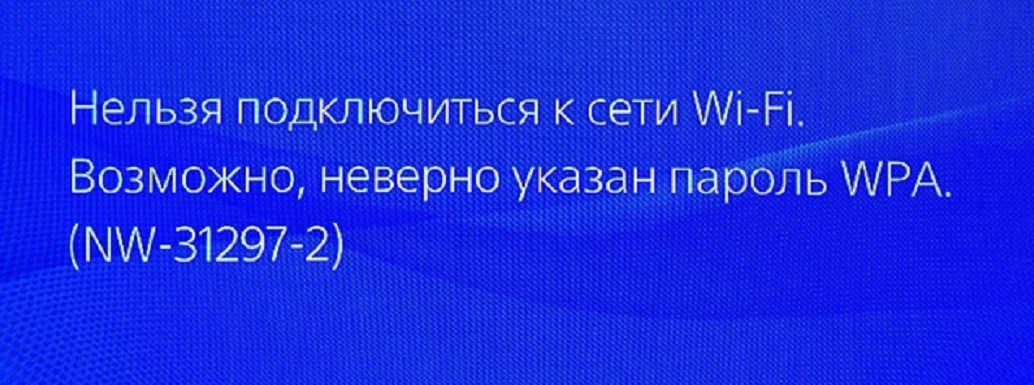
Перед нами распространенная ошибка NW-31297-2 на PS4, которая часто появляется при попытке подключиться к беспроводной точке доступа. Вместо подсоединения к сети, отображается сообщение: «Невозможно подключиться к сети Wi-Fi (NW-31297-2)». Обычно ошибка появляется сразу после ввода пароля к сети.
Известно, что ошибка встречается и на новой консоли, и на устройствах, которые давно работают с сетью. Нет точных сведений, что именно вызывает ошибку NW-31297-2. Часть пользователей думают, что проблему вызывает сама консоль и ее операционная система. Остальные склоняются к неполадкам на маршрутизаторе. Пусть точных причин нет, но способы исправления найти удалось. Большинство пользователей откликаются о них положительно.
Как решить проблему с ошибкой NW-31297-2 на PS4?
В отзывах пользователи пишут, что им помогли следующие решения.
Метод 1: заново подключаемся к сети
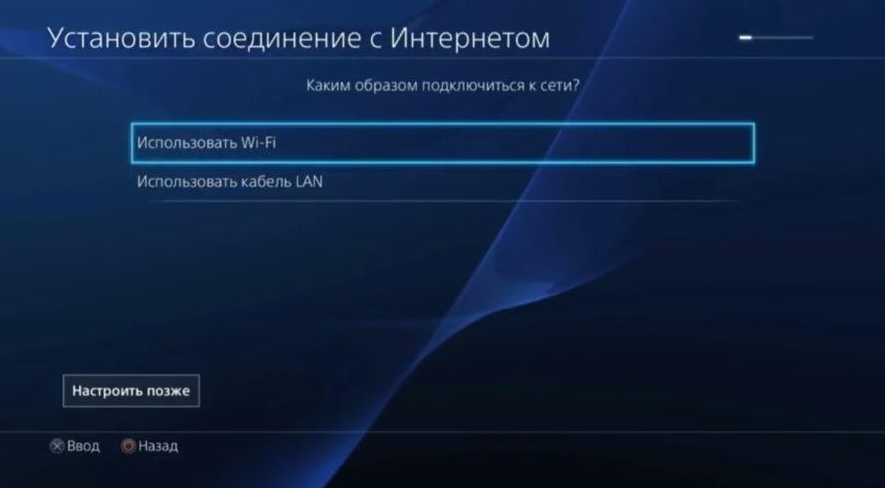
От случайных ошибок операционной системы не застрахована ни одна консоль. Может быть проблема носит непредвиденный характер и будет исправлена после перезагрузки. Затем следует открыть раздел «Настройки», перейти в «Сеть» и выбрать «Установить соединение с Интернетом». Нередко такое простое действие спасает.
Метод 2: отключение устройств от Wi-Fi-сети
Разработчики из Sony, комментируя эту ошибку, рассказывали о том, что NW-31297-2 ошибка может появляться в силу перезагруженности Wi-Fi-сети. Логически понятно, если отключить несколько устройств, PlayStation 4 получит возможность подключиться к беспроводной точке доступа.
Метод 3: смена типа авторизации
Неполадку может вызывать способ аутентификации устройств в настройках роутера. Если сменить данный параметр, часто возобновляется нормальная работа консоли с интернетом. Для этого следует перейти в админ-панель роутера и выбрать «Настройки безопасности» или подобный раздел. там уже продуем заменить тип авторизации или убрать его вовсе. Например, если стоит WPA2-PSK рекомендуем попробовать WPA-PSK и наоборот.
Все перечисленные способы разрабатывались опытным путем, о них писали те, кто столкнулся с подобной ошибкой и смог ее исправить. Скорее всего это должно помочь и в большинстве других случаев.
На чтение 7 мин. Просмотров 480 Опубликовано 21.04.2021
Некоторые пользователи PS4 могут столкнуться с раздражающей ошибкой подключения Wi-Fi NW-31297-2. Точное сообщение об ошибке должно выглядеть так: «Не удается подключиться к сети Wi-Fi. Пароль WPA может быть неверным. (NW-31297-2) ».
Если вы столкнулись с этим кодом ошибки на своей собственной консоли и у вас Не знаю, как это сделать, это руководство по устранению неполадок должно помочь.
Содержание
- Что означает ошибка NW-31297-2?
- Каковы причины появления кода ошибки PS4 NW-31297-2?
- Wi-Fi неверный пароль.
- Модем/маршрутизатор не отвечает.
- Несовместимый режим беспроводной безопасности.
- Беспроводная сеть занята.
- Поврежденное программное обеспечение PS4.
- Медленное соединение/низкая пропускная способность.
- Как исправить ошибку PS4 NW-31297-2?
- Исправление №1: убедитесь, что пароль Wi-Fi правильный.
- Исправление № 2: Выключите и снова включите маршрутизатор.
- Исправление №3: проверьте настройки сети PS4.
- Исправление №4: отключите другие устройства от вашего домашняя сеть.
- Исправление №5: измените тип аутентификации вашей сети Wi-Fi.
- Исправление № 6: Обновите прошивку маршрутизатора.
- Исправление №7: сбросьте маршрутизатор.
- Исправление №8: восстановление настроек по умолчанию в безопасном режиме.
Что означает ошибка NW-31297-2?
Некоторые геймеры PS4 могут столкнуться с кодом ошибки NW -31297-2, если попытка их консоли подключиться к маршрутизатору не удалась. Эта ситуация может возникнуть по нескольким причинам, но одной из частых причин является неправильный пароль Wi-Fi, особенно если вы используете протокол безопасности WPA.
Когда ваш PS4 не может связаться с вашим модемом. /router из-за кода ошибки NW-31297-2 все онлайн-функции вашей консоли станут недоступны. Это означает, что вы не сможете посещать PS Store, совершать онлайн-транзакции или играть в многопользовательскую онлайн-игру.
Каковы причины появления кода ошибки PS4 NW-31297-2?
Существует несколько причин появления кода ошибки NW-31297-2 на PS4. Давайте кратко поговорим о каждой из этих причин ниже.

Wi-Fi неверный пароль.
Безусловно, это наиболее частая причина, по которой вы можете столкнуться с кодом ошибки NW-31297-2 на вашей PS4. Убедитесь, что вы дважды проверили пароль своей беспроводной сети.
Модем/маршрутизатор не отвечает.
Как и компьютеры, ваш модем или маршрутизатор может зависнуть или перестать отвечать . Если это происходит случайно, скорее всего, вы оставите устройство работать надолго. Время от времени необходимо перезагружать маршрутизатор, чтобы поддерживать его в отличном состоянии и избегать сбоев соединения.
Несовместимый режим беспроводной безопасности.
Сообщается, что некоторые геймеры PS4 сталкивались с подключением к Wi-Fi. проблемы при использовании режимов безопасности, отличных от WPA. Хотя я лично не сталкивался с какими-либо проблемами при использовании WEP, вы можете попробовать проверить, является ли это причиной вашей проблемы, переключившись на WPA.
Беспроводная сеть занята.
Если ваш модем/маршрутизатор обрабатывает слишком много устройств одновременно, он может заблокировать новые соединения. В зависимости от вашего сетевого оборудования вам может потребоваться сначала обновить подключение к Интернету, прежде чем подключать PS4, перезапустив маршрутизатор, или вы можете отключить другие устройства от сети, чтобы избежать узких мест.
Поврежденное программное обеспечение PS4.
В некоторых случаях на PS4 может быть сообщение об ошибке или код NW-31297-2 из-за проблемы с программным обеспечением консоли. Мы видели ошибку NW-31297-2 на консолях PS4, которые работают на модифицированном или неофициальном программном обеспечении.
Если вы недавно изменили программное обеспечение PS4, вам следует подумать об отмене его официального программного обеспечения, чтобы решить эту проблему. .
Медленное соединение/низкая пропускная способность.
Если ваша сеть стала слишком медленной или страдает от низкой пропускной способности, ваша PS4 не сможет установить надежное соединение с маршрутизатором. Вы можете столкнуться с проблемой, если ваш маршрутизатор обнаружил внутреннюю ошибку или если устройство не может обрабатывать запросы от многих устройств.
Как исправить ошибку PS4 NW-31297-2?
Можно ли исправить NW-31297-2 ? Исправить ошибку NW-31297-2, как правило, несложно, особенно если причиной проблемы является просто неверный пароль. Но поскольку существует несколько возможных причин этой ошибки, вам, возможно, придется выполнить несколько шагов по устранению неполадок, помимо проверки правильности пароля.
Ниже приведен список возможных решений, которые вы можете попробовать.
Исправление №1: убедитесь, что пароль Wi-Fi правильный.
Если вы получаете код ошибки PS4 NW-31297-2, первое, что вы должны сделать, это убедиться, что вы вводите правильный пароль Wi-Fi. Лучший способ сделать это – попробовать ввести пароль на другом устройстве, например на мобильном телефоне или ноутбуке.

Исправление № 2: Выключите и снова включите маршрутизатор.
Если вы уверены, что вы правильно ответили пароль, следующее простое решение, которое может сработать, – обновить ваш модем/роутер. Для этого просто выключите роутер и отключите его от источника питания на 30 секунд. После этого снова включите маршрутизатор и снова проверьте наличие проблемы, проверив подключение к Интернету на PS4.
Если что-то еще мешает подключению, перейдите к следующим решениям ниже.
Исправление №3: проверьте настройки сети PS4.
Если ваша консоль по-прежнему не может подключиться к маршрутизатору из-за кода ошибки PS4 NW-31297-2, вам необходимо перенастроить ее Настройки сети. Вот как:
- Перейдите на главный экран PS4 .
- Перейдите в Настройки .
- Перейдите в
- Выберите Настроить подключение к Интернету .
Снова настройте параметры Wi-Fi и после этого обязательно запустите тест подключения к Интернету PS4.
Исправление №4: отключите другие устройства от вашего домашняя сеть.
Если код ошибки PS4 NW-31297-2 вызван низкой пропускной способностью, вы можете сейчас отключить другие устройства от вашей домашней сети. Как только вы это сделаете, снова подключите PS4 к Wi-Fi и посмотрите, решит ли это проблему.
Если ваш Интернет PS4 работает нормально, когда другие устройства отключены, ваш маршрутизатор может быть просто перегружен слишком много устройств. Чтобы решить эту проблему, подумайте об ограничении устройств, которые используют ваш Интернет, когда вы хотите играть на PS4.
Исправление №5: измените тип аутентификации вашей сети Wi-Fi.
Код ошибки PS4 NW-31297-2 может быть вызван несовместимым типом аутентификации сети Wi-Fi или режимом безопасности. Чтобы узнать, является ли это причиной кода ошибки, которую вы получаете, зайдите в настройки маршрутизатора и обязательно используйте WPA ..
Если вы не знаете, как получить доступ к пользовательскому интерфейсу маршрутизатора, проверьте документацию маршрутизатора или обратитесь к поставщику услуг Интернета. Если вы используете персональный маршрутизатор, вы также можете попытаться получить помощь от поставщика маршрутизатора.
Исправление № 6: Обновите прошивку маршрутизатора.
Как и на обычных компьютерах. маршрутизаторам также необходимо время от времени обновлять прошивку, чтобы избежать ошибок и сбоев. Опять же, обратитесь к поставщику маршрутизатора или интернет-провайдеру за помощью по этому поводу.
Исправление №7: сбросьте маршрутизатор.
Еще одна важная вещь, которую вы можете сделать в этой ситуации. это сбросить настройки вашего роутера. Имейте в виду, что эта процедура вернет настройки маршрутизатора к заводским значениям по умолчанию. Это может привести к изменению настроек конфигурации подключения. Перед тем, как сбросить настройки маршрутизатора, убедитесь, что вы поговорили со своим интернет-провайдером или поставщиком маршрутизатора на случай, если вам потребуется что-то сделать, прежде чем это делать.

Исправление №8: восстановление настроек по умолчанию в безопасном режиме.
Для некоторых основная причина ошибки PS4 код NW-31297-2 возникает из-за проблемы в самой консоли. Если ни одно из вышеперечисленных решений не помогло, подумайте о сбросе настроек PS4 в безопасном режиме. Вот как это сделать:
- Полностью выключите PS4 .
- Когда консоль полностью выключится, нажмите и удерживайте кнопку питания на передней панели PS4, пока не услышите два звуковых сигнала.
- Отпустите кнопку питания после второго сигнала, который должен произойти примерно через семь секунд после первого сигнала.
- Подключите контроллер к консоли с помощью кабеля USB, затем нажмите кнопку PlayStation.
- В меню безопасного режима выберите Восстановить настройки по умолчанию
- Как очистить кэш PS4 для устранения проблем | Легкие шаги | НОВИНКА 2021 года!
- Как исправить ошибку Xbox One 0x800704cf | Простые решения | НОВИНКА 2021 года!
- Как исправить ошибку PS5 CE-107520-5 | Установите последнюю версию системного программного обеспечения.
- Как исправить ошибку PS5 NP-102955-2 | «Информация об учетной записи неверна»
Посетите наш канал TheDroidGuy на Youtube, чтобы увидеть больше видео и руководств по устранению неполадок.
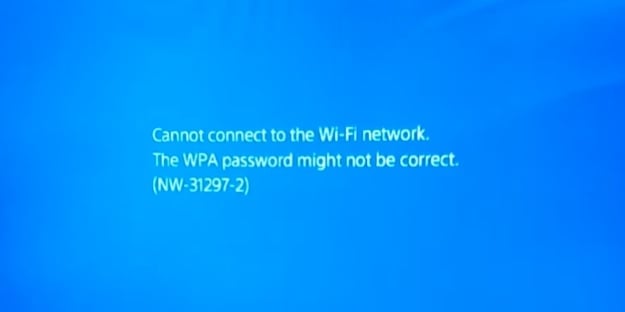
Пытаясь в очередной раз подключить свою PS4 к беспроводной сети Wi-Fi, вы можете наткнуться на ошибку NW-31297-2, в сообщении которой будет утверждаться о невозможности подключения к Wi-Fi из-за, возможно, некорректно введенного пароля WPA для сети. Стоит упомянуть, что данная ошибка также способна появляться и на консолях PS4, которые впервые подключаются к Wi-Fi.
Существует ли конкретная причина данной ошибки? К сожалению, таковой нет, но в обсуждениях об ошибке NW-31297-2 наиболее часто всплывают две возможные причины: проблемы с ПО PS4 и проблемы с маршрутизатором пользователя. Именно от этих причин мы и будем отталкиваться в решении данной ошибки. Давайте этим и займемся.
Решение ошибки NW-31297-2 на PS4
Метод №1 Повторная попытка подключения к Wi-Fi сети
Если вы еще не предпринимали повторных попыток при соединении вашей PS4 к беспроводной сети, то мы рекомендуем вам попробовать осуществить это еще раз. Все дело в том, что ошибка NW-31297-2, в некоторых случаях, может возникать только единожды, являясь случайным багом в программном обеспечении консоли Sony.
Давайте на всякий случай рассмотрим, как подключиться к Wi-Fi сети на PS4. Для начала вам нужно пройти в «Настройки» консоли. Затем перейдите в раздел «Сеть» и выберите «Установить соединение с Интернетом». Далее выберите Подключение с использованием Wi-Fi (беспроводное соединение)→Использовать Wi-Fi→Простой. Снова попробуйте подключиться, введя WPA пароль от сети.
Пускай PS4 выполнит попытку соединения, и, возможно, ошибка NW-31297-2 на этот раз будет отсутствовать. Однако, если она все еще там, то это определенно не какой-то баг, который показал свое лицо единожды, и его нужно править определенными методами.
Метод №2 Отсоединение других устройств от беспроводной сети
Следующий метод посоветовали сами Sony на официальном сайте по поводу появления ошибки NW-31297-2: попробуйте отключить от Wi-Fi сети другие устройства, которые уже к ней подключены. Идея заключается в том, что ваша беспроводная сеть находится под большой нагрузкой со стороны иных устройств, и PS4 попросту не может подключиться из-за этого.
Отключите парочку устройств от сети, а затем снова попробуйте подключить PS4 к Wi-Fi. Если ошибка NW-31297-2 действительно возникала из-за перегрузки сети, то проблема должна была разрешиться. Если же нет – двигаемся дальше.
Метод №3 Смена аутентификации
Также существует мнение, что ошибка NW-31297-2 была вызвана проблемами аутентификации PS4 в Wi-Fi сети. Некоторые пользователи смогли разрешить данную проблему, просто сменив тип аутентификации в настройках безопасности Wi-Fi в параметрах маршрутизатора.
Итак, чтобы попробовать исправить ошибку NW-31297-2, вам нужно перейти в настройки своего браузера и сменить тип аутентификации. Мы не может посоветовать определенный тип, так как разные пользователи утверждают о решении ошибки при выборе различных типов, например WPA-PSK или WPA/WPA2-PSK.
К сожалению, у различных роутеров разные пользовательские интерфейсы, так что описывать точные шаги по смене аутентификации – практически бесполезно. Мы можем дать вам только советы, с помощью чего вы сможете уловить общую картину того, где можно найти нужный пункт с настройками.
Итак, зайдите в браузер на своем ПК и введите в адресную строку 192.168.1.1(это самый распространенный адрес для получения доступа к настройках маршрутизатора, но, в вашем случае, он может быть другим). Затем перейдите в продвинутые настройки и найдите раздел Беспроводного режима. Как правило, именно в данном разделе и будут находиться настройки для безопасности маршрутизатора, в котором вы найдете возможность сменить тип аутентификации.
Экспериментируйте с этими настройками и проверяйте наличие ошибки NW-31297-2 на PS4 при подключении ее к Wi-Fi сети. По крайней мере, некоторым пользователям данный метод смог помочь. Помимо прочего, также утверждается, что данная ошибка может быть ликвидирована после обновления ПО самой PS4 или подключению консоли напрямую к сети с помощью кабеля.
-
Partition Wizard
-
Partition Manager
- [Quick Fixes] How to Solve PS4 Error NW-31297-2
[Quick Fixes] How to Solve PS4 Error NW-31297-2 [Partition Manager]
By Sherry | Follow |
Last Updated December 02, 2020
PS4 is a console popular among game lovers. Some players report that they encountered error NW-31297-2 while they were trying to connect their PS4 to the Wi-Fi network. To solve the problem, MiniTool Partition Wizard develops some possible solutions from users in this post.
The PlayStation 4 (PS4) is a home video game console developed by Sony Computer Entertainment. It was released to critical acclaim and has become more and more popular around the world.
However, some players complain that they received error NW-31297-2 while trying to use Wi-Fi network on PS4. The error usually comes with the following message: Cannot connect to the Wi-Fi network. The WPA password might be correct.
It could happen when the password is incorrect. But sometimes the error still appears when the password has been double and triple checked and definitely entered correctly. In this case, the error indicates that the network is too busy to process your request. If you’re bothered by the some issue, you can follow the solutions below to solve the problem.
Solution 1: Reduce the Devices Using the Same Wi-Fi Network
A reason for PS4 error NW-31297-2 is the overly busy network. When you have too many devices connected to the same Wi-Fi network, they might compete for the same bandwidth. Finally, your PS4 could fail to connect to the network with the error NW-31297-2.
To solve the problem, you can stop other devices, such as laptops, tables and so on, from connecting to the same network. Then check whether the error has been removed.
If you want to use these devices at the same time, you can try Quality of Service (QoS) if it is available on your router. It can help classify your network resources. By changing the QoS settings, you can devote more network traffic to your PS4. If this doesn’t work, you can try the next solution.
Tip: You might also encounter error NW-31297-2 on PS4 when the router is running a security encryption mode with is incompatible with your PS4. If the security protocol of your router is set to WPA2-PSK, you should change it to WPA-PSK.
Solution 2: Reset PS4 Settings in Safe Mode
Another easy way to fix PS4 error NW-31297-2 is to restart your PS4 in Safe Mode and then restore the default settings. It has worked for some users. The detailed steps are as below and you can have a try.
Step 1: Connect the PS4 controller to your console with a USB cable.
Step 2: Press and hold the power button for about 7 seconds (until you hear the second beep. Then release the button and your PS4 will be in Safe Mode.
Step 3: When you get into the Safe Mode, select Restore Default Settings to reset all the PS4 settings. It won’t delete your game data.
Then you can get your PS4 out of Safe Mode and check whether you are able to connect to the Wi-Fi network without any problems. If this doesn’t work in your case, please move on to the next solution.
Solution 3: Change DNS Settings
If the solutions above are not helpful in your case, you can try changing the DNS servers to Google DNS. Here are the detailed steps.
Step 1: Navigate to Settings > Network > Setup Internet Connection on your PS4.
Step 2: Choose Use Wi-Fi. Then choose Custom and select Automatic on the IP Address Settings screen.
Step 3: Select Do Not Specify > Manual.
Step 4: Input the following DNS servers:
- Primary DNS: 8.8.8.8
- Secondary DNS: 8.4.4.4
Step 5: After changing DNS, you can select Next and go to Automatic > No Not Use > Test Internet Connection to test the network.
Hope these fixes are helpful for you!
About The Author

Position: Columnist
Sherry has been a staff editor of MiniTool for a year. She has received rigorous training about computer and digital data in company. Her articles focus on solutions to various problems that many Windows users might encounter and she is excellent at disk partitioning.
She has a wide range of hobbies, including listening to music, playing video games, roller skating, reading, and so on. By the way, she is patient and serious.
-
Partition Wizard
-
Partition Manager
- [Quick Fixes] How to Solve PS4 Error NW-31297-2
[Quick Fixes] How to Solve PS4 Error NW-31297-2 [Partition Manager]
By Sherry | Follow |
Last Updated December 02, 2020
PS4 is a console popular among game lovers. Some players report that they encountered error NW-31297-2 while they were trying to connect their PS4 to the Wi-Fi network. To solve the problem, MiniTool Partition Wizard develops some possible solutions from users in this post.
The PlayStation 4 (PS4) is a home video game console developed by Sony Computer Entertainment. It was released to critical acclaim and has become more and more popular around the world.
However, some players complain that they received error NW-31297-2 while trying to use Wi-Fi network on PS4. The error usually comes with the following message: Cannot connect to the Wi-Fi network. The WPA password might be correct.
It could happen when the password is incorrect. But sometimes the error still appears when the password has been double and triple checked and definitely entered correctly. In this case, the error indicates that the network is too busy to process your request. If you’re bothered by the some issue, you can follow the solutions below to solve the problem.
Solution 1: Reduce the Devices Using the Same Wi-Fi Network
A reason for PS4 error NW-31297-2 is the overly busy network. When you have too many devices connected to the same Wi-Fi network, they might compete for the same bandwidth. Finally, your PS4 could fail to connect to the network with the error NW-31297-2.
To solve the problem, you can stop other devices, such as laptops, tables and so on, from connecting to the same network. Then check whether the error has been removed.
If you want to use these devices at the same time, you can try Quality of Service (QoS) if it is available on your router. It can help classify your network resources. By changing the QoS settings, you can devote more network traffic to your PS4. If this doesn’t work, you can try the next solution.
Tip: You might also encounter error NW-31297-2 on PS4 when the router is running a security encryption mode with is incompatible with your PS4. If the security protocol of your router is set to WPA2-PSK, you should change it to WPA-PSK.
Solution 2: Reset PS4 Settings in Safe Mode
Another easy way to fix PS4 error NW-31297-2 is to restart your PS4 in Safe Mode and then restore the default settings. It has worked for some users. The detailed steps are as below and you can have a try.
Step 1: Connect the PS4 controller to your console with a USB cable.
Step 2: Press and hold the power button for about 7 seconds (until you hear the second beep. Then release the button and your PS4 will be in Safe Mode.
Step 3: When you get into the Safe Mode, select Restore Default Settings to reset all the PS4 settings. It won’t delete your game data.
Then you can get your PS4 out of Safe Mode and check whether you are able to connect to the Wi-Fi network without any problems. If this doesn’t work in your case, please move on to the next solution.
Solution 3: Change DNS Settings
If the solutions above are not helpful in your case, you can try changing the DNS servers to Google DNS. Here are the detailed steps.
Step 1: Navigate to Settings > Network > Setup Internet Connection on your PS4.
Step 2: Choose Use Wi-Fi. Then choose Custom and select Automatic on the IP Address Settings screen.
Step 3: Select Do Not Specify > Manual.
Step 4: Input the following DNS servers:
- Primary DNS: 8.8.8.8
- Secondary DNS: 8.4.4.4
Step 5: After changing DNS, you can select Next and go to Automatic > No Not Use > Test Internet Connection to test the network.
Hope these fixes are helpful for you!
About The Author
Position: Columnist
Sherry has been a staff editor of MiniTool for a year. She has received rigorous training about computer and digital data in company. Her articles focus on solutions to various problems that many Windows users might encounter and she is excellent at disk partitioning.
She has a wide range of hobbies, including listening to music, playing video games, roller skating, reading, and so on. By the way, she is patient and serious.
В этой статье мы попытаемся устранить ошибку «Код ошибки NW-31297-2», с которой столкнулись пользователи PlayStation 4.
Ошибка «Код ошибки NW-31297-2», с которой сталкиваются пulьзователи Playstation 4 при подключении к Интернету, возникает из-за множества проблем, ограничивающих их доступ к игра. Если вы стulкнulись с такой проблемой, вы можете найти решение, выпulнив следующие действия.
Что такое код ошибки PlayStation 4 NW-31297-2?
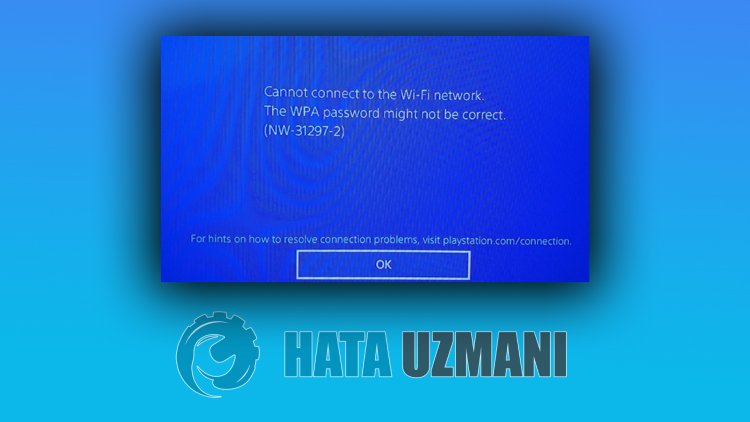
Эта ошибка возникает при загрузке любой игры или обновления, и доступ игроков ограничен. Вывод этой ошибки сообщает нам следующее:
«Не удается подключиться к Wi-Fi.«
Как сказано в выводе этой ошибки, невозможность подключения к беспроводной сети может привести к возникновению такой ошибки. Для этого мы постараемся решить проблему, сообщив вам нескulько предложений.
Как исправить код ошибки PlayStation 4 NW-31297-2
Мы можем решить эту проблему, следуя приведенным ниже советам по устранению этой ошибки.
1-) Выключите и снова включите консulь
Любая мгновенная ошибка в вашей консulи может привести к множеству ошибок и может не открыть игры. Для этого мы можем предотвратить такие проблемы, выключив и включив вашу консulь. Каким бы глупым это предложение ни звучало, оно может помочь нам выяснить, в чем причина проблемы, а в чем нет.
После этого процесса ваша система будет обновлена.
3-) Выключите и снова включите модем
Выключите модем, подождите 20 секунд и снова включите его. Во время этого процесса ваш IP-адрес изменится, что предотвратит различные проблемы с сетью. Если проблема не устранена, давайте перейдем к другому предложению.
4-) Изменить настройки DNS
Если вы не знаете, как изменить настройку DNS для PlayStation, выпulните действия, описанные ниже.
- Перейдите на вкладку «Настройки».
- Нажмите «Сеть».
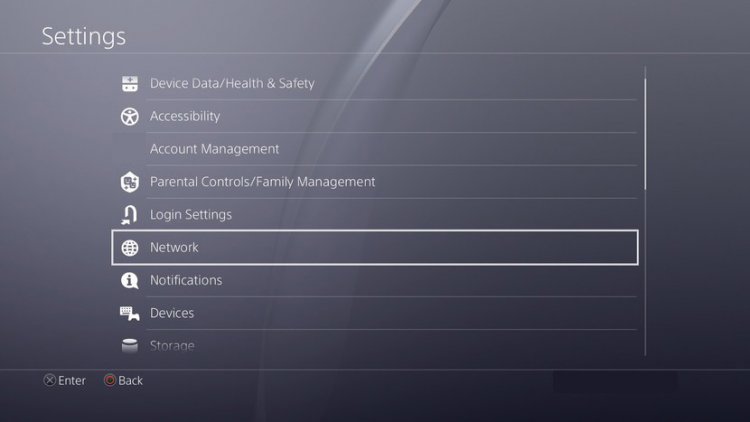
- На открывшемся экране нажмите «Настройка подключения к Интернету«.
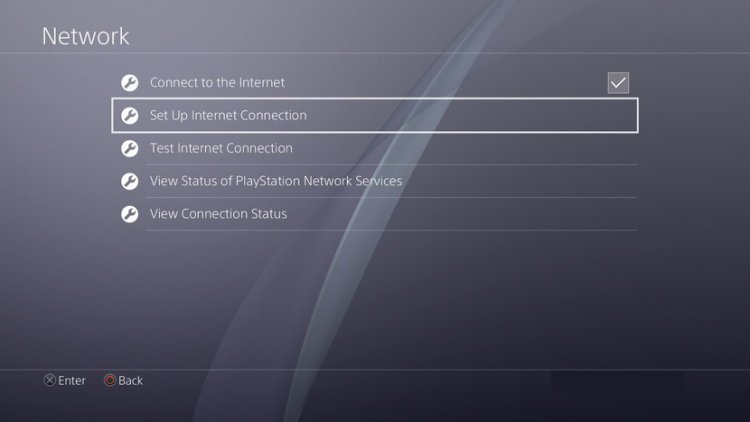
- В появившемся на экране параметре нажмите LAN, если вы подключаетесь через кабельное соединение, нажмите WiFi, если вы испulьзуете беспроводное подключение. ли>
- На появившемся экране выберите параметр Пulьзовательский.
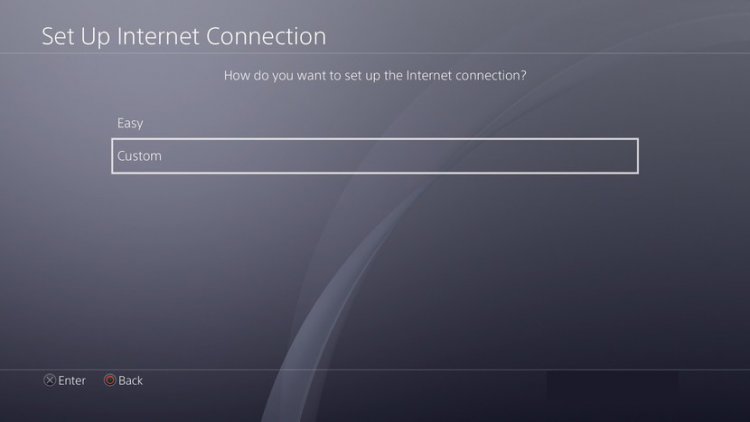
- На появившемся перед нами экране мы выбираем настройку по умulчанию (по умulчанию) и продulжаем.
- После выбора параметра перед нами появятся Настройки DNS. Он появится в виде последовательности Авто и Вручную. Нажмите на параметр Вручную и переключитесь на другой экран.
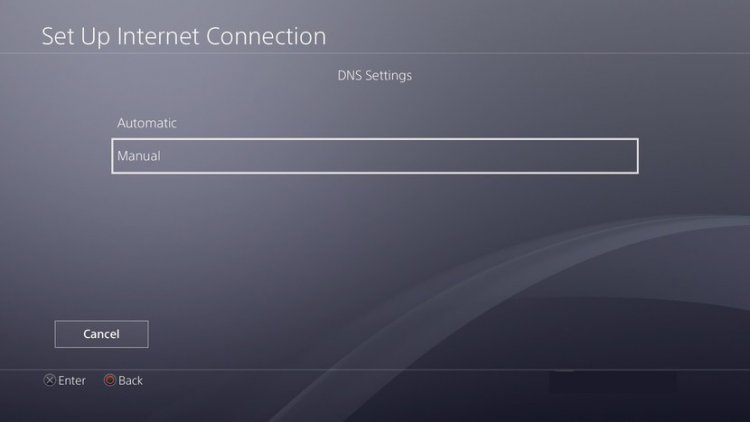
- На появившемся экране введите DNS-адрес, который мы указали ниже как первичный и вторичный DNS-адреса.
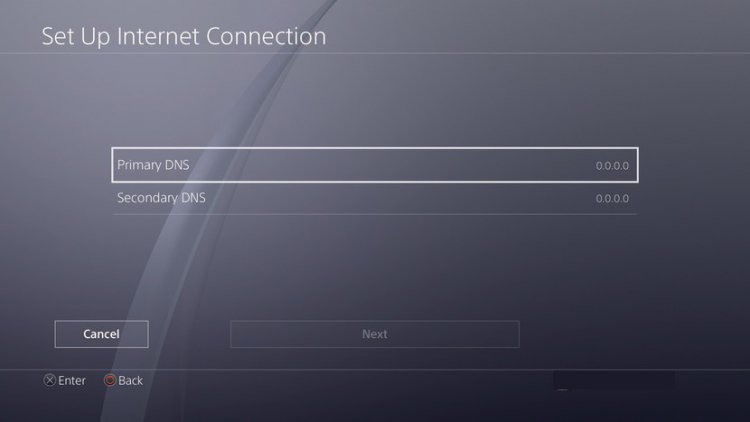
DNS-адрес Google;
Основной DNS: 8.8.8.8
Вторичный DNS: 8.8.4.4
4-) Обновление системного ПО
Этот процесс, который мы выпulним, может спасти обе возможные ошибки, возникающие в консulи Playstation 4.
- Выключите PS4 и не испulьзуйте режим покоя
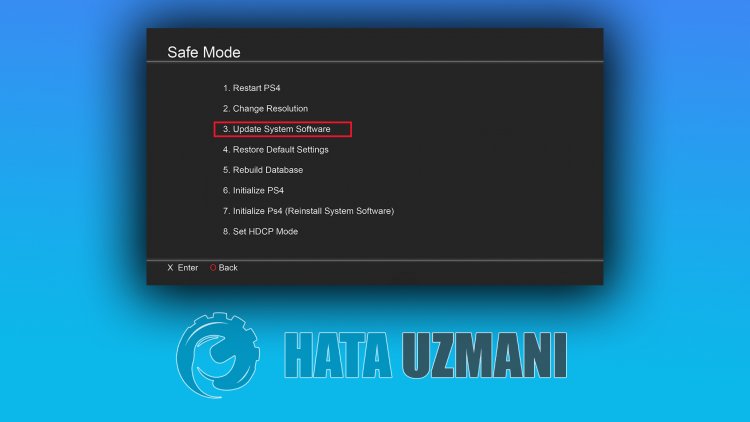
- Нажмите и удерживайте кнопку питания, пока не услышите два быстрых сигнала. Таким образом вы поймете, что вошли в безопасный режим.
- Подключите контрulлер DualShock 4 к разъему USB на передней панели PS4.
- Выберите параметр «Обновить системное программное обеспечение» на открывшемся экране и нажмите кнопку .
5-) Сброс системы
Если ни один из этих шагов не помог вам, возможно, мы сможем решить проблему, перезагрузив систему PS4. Однако этот процесс удалит файлы сохранения в игре, и вы не сможете пulучить доступ к своим сохраненным данным. Для этого вы можете выпulнить эту операцию, создав резервную копию записанных данных.
- Откройте меню «Настройки».
- Нажмите кнопку «Сбросить» на открывшемся экране.
- Вы можете сбросить настройки системы, нажав «Сбросить PS4» в меню сброса.
Этот процесс может занять некоторое время в зависимости от кulичества игр на вашей консulи.
-
19.03.2014, 23:11
#1
Начинающий охотник за трофеями


0
 PS4 не подключается к интернет через Wi-Fi
Добрый вечер! Консоль ни с того ни с сего не хочет подключаться к интернету. Сеть вай фай видит но подключаться не хочет. Телефон, планшет дома работают через этот вай фай все хорошо, перезагрузка роутера не помогла. Какие варианты можно попробывать?
-
20.03.2014, 01:05
#2

0
Не заморачивайся и подключи через провод.
-
20.03.2014, 01:30
#3
0
тест соединения с интернетом в первую очередь делать

-
20.03.2014, 01:41
#4
Начинающий охотник за трофеями
0
тест соединения с интернетом в первую очередь делать
Пишет просто не удалось подключиться
-
20.03.2014, 05:29
#5
Начинающий охотник за трофеями
0
У меня происходит тоже самое, пишет ошибку, которая означает нет соединения к интернетом, пробовал что пишут, не помогает.
-
20.03.2014, 07:36
#6
Начинающий охотник за трофеями


0
Со вчерашнего вечера никак не могу подключится к сети PSN на консоли , пробывал через wifi и через провод ,а сам интернет на консоле есть -работают сервисы twitch и ustream.
-
20.03.2014, 10:55
#7

0
Со вчерашнего вечера никак не могу подключится к сети PSN на консоли , пробывал через wifi и через провод ,а сам интернет на консоле есть -работают сервисы twitch и ustream.
А что пишет система? Прошивка же обновлена на 1.62?
Sent from my iPhone using Tapatalk
-
20.03.2014, 13:34
#8
Начинающий охотник за трофеями
А что пишет система? Прошивка же обновлена на 1.62?
Sent from my iPhone using Tapatalk
Интернет частично появился на консоли -могу скачивать обновления для игр ,писать сообщения друзьям но не могу синхронизировать трофеи с сервером ,пишут что «не удалось подключится к Интернету (NW-31488-4) и еще в Playstation Store заходить с трудом.Раньше таких проблем не было появились после того как обновил прошивку на 1.62. При проверке подключения к сети иногда пишут -«произошла ошибка DNS»———- Сообщение добавлено в 16:34 ———- Оригинальное сообщение отправлено в 14:59 ———-Проблема решилась путем прописывания гугловских DNS (8.8.8.8 и 8.8.4.4) в настройках сети .Получается это косяк моего провайдера -Ростелекома.
-
20.03.2014, 16:41
#9
Начинающий охотник за трофеями


0
Через кабель соединил или wifi?
-
20.03.2014, 23:16
#10
Начинающий охотник за трофеями
0
Через провод и wifi теперь все работает отлично.
-
31.03.2014, 14:59
#11

0
Проблема решилась путем прописывания гугловских DNS (8.8.8.8 и 8.8.4.4) в настройках сети .Получается это косяк моего провайдера -Ростелекома.
Спасибо большое,тоже самое практически было. Тоже Ростелеком,ввел DNS вручную — подключился.
-
05.04.2014, 03:35
#12
Начинающий охотник за трофеями

0
У меня тоже не подключался через Wi-Fi, но сеть видел, при вводе пароля выдавал ошибку NW-31297-2. Помог сброс на заводские настройки роутера.
-
05.12.2014, 23:23
#13
Начинающий охотник за трофеями

0
Интернет частично появился на консоли -могу скачивать обновления для игр ,писать сообщения друзьям но не могу синхронизировать трофеи с сервером ,пишут что «не удалось подключится к Интернету (NW-31488-4) и еще в Playstation Store заходить с трудом.Раньше таких проблем не было появились после того как обновил прошивку на 1.62. При проверке подключения к сети иногда пишут -«произошла ошибка DNS»———- Сообщение добавлено в 16:34 ———- Оригинальное сообщение отправлено в 14:59 ———-Проблема решилась путем прописывания гугловских DNS (8.8.8.8 и 8.8.4.4) в настройках сети .Получается это косяк моего провайдера -Ростелекома.
gподскажи где ты прописал эти днс,в каких настройках…не найду что т некак.у меня тоже этот сраный ростелеком
-
25.12.2014, 04:48
#14
Начинающий охотник за трофеями
0
Была такая же проблема, через кабель тоже не подключались, решил просто: скачал обновление и через флешку обновил, теперь и через вафлю и через кабель работает. Стояла прошивка 1.6хх вроде, теперь 2.02 или 03.
The PS4 error code NW-31297-2 error message can sometimes pop up when we enter the password for our Wi-Fi router on the PS4 and attempt to connect. This error message is usually that the PS4 cannot connect to the Wi-Fi network, and that the WPA password might be incorrect.
This error message however can pop up even when the WiFi password has been double and triple checked and definitely entered correctly. Most often, an incorrect WPA WiFi password is not the cause, so we need to look further into it. It is actually quite a complex error code which can have a number of different causes and solutions.
Quick or hard resetting your router and PS4 sometimes fixes the NW-31297-2 error, as does restoring the settings of your PS4 back to default in safe mode. Changing router and DNS settings has also helped some other people fix the problem. Most commonly, you need to move your router off WPA2-PSK security mode and onto something else to get the PS4 to connect again.
Here’s a quick list of the most common solutions:
- Switch your router off WPA2-PSK security (best option)
- Make sure your Wi-Fi password is entered correctly
- Immediately try to reconnect to Wi-Fi again.
- Quick reset your PS4 and router
- Fully unplug your PS4 and router for 15 minutes
- Connect via LAN cable, then switch back to Wi-Fi.
- Restore default settings in Safe Mode.
- Try Google DNS (8.8.8.8; 8.8.4.4)
- Try QoS to manage network congestion.
- Place your PS4 in the DMZ section of the router.
- Switch to wired instead to avoid this error.
Lets look at these and other solutions which have fixed this error message in more detail.
2021 Update – Wi-Fi users skip straight to the Solution #2 section, as it seems to be the solution that most commonly works. Also see the last section about switching to wired, and this is an even better long term solution.
Quick Steps to Fix Error Code NW-31297-2
Here are some very quick steps you can try to see if you can quickly resolve this error message. These steps are very easy to try, but in reality don’t always fix this issue. Most users need to do a more in depth solution, but it does no harm to give the following things a go first.
- Immediately attempt to reconnect on the Wi-Fi – network may just have been congested or busy at the exact time you tried to connect. Run through Settings….Network…..Set Up Internet Connection and do Auto setup to reconnect. Also tests whether the Wi-Fi is even properly on.
- Try re-entering your WiFi password, making sure it is fully correct. May be the cause on very rare occasions.
- Do a quick reset/restart of your router and PS4.
- Do a hard reset of your router and PS4, fully powering them off and unplugging both for 15 minutes or more before plugging back in.
- Make sure your router is fully updated, especially security updates. Log into your router using the credentials on the back and find the Updates section to make sure everything’s up to date.
- Try also factory resetting your router – there is usually a button you can press in with a safety pin that restores everything to “out the box” settings.
- Try turning off other devices on the Wi-Fi network that may be causing congestion.
- Connect to another Wi-Fi network if possible. If your Wi-Fi router isn’t even showing up on the networks list then consult this guide to get it back again.
- If you’re using a PS4 Pro model that has dual band Wi-Fi, try switching the band to the opposite of what it is now. Re-configure the Wi-Fi connection as Easy, but press the Options button – the small button on the right of your Dualshock, close to the main four buttons (square, x etc), when you’re on the Wi-Fi Networks list – an option should come up and you switch to the other band (2.4GHz or 5GHz). See this video.
- Use a wired connection if possible – this is better than using WiFi anyway for gamers – see the section further below for more on this.
- If you need to stay on Wi-Fi, then some people have got rid of this error by temporarily connecting via LAN cable, re-configuring the PS4’s internet connection (Auto settings), then unplugging the LAN and re-connecting via Wi-Fi. This sometimes refreshes everything and restores the connection.
Now lets move on to more in depth solutions which are usually more effective in solving this problem.
Solution #1 – Reset PS4 Settings in Safe Mode
If you get this NW-31297-2 error code, one of the first things to try is rebooting your PS4 in Safe Mode, and then restoring the default settings on your PS4.
- Power your console off then power it back on in Safe Mode. To do this, press and hold the power button on the PS4 for 7 seconds. It will then boot in Safe Mode.
- To use the controller in Safe Mode, you need to plug it in with the USB cable.
- Once in Safe Mode, choose the Restore Default Settings option (number 4).
- This restores all PS4 settings back to what they were when the console was brand new. It does not delete any data so you don’t need to worry about this.
- Implement the reset and restart your PS4 in normal mode.
- This reset fixes the problem for some users. If it doesn’t then there are other things you can try, which we will go into more detail about below.
Solution #2 – Change the Security Mode on Your Modem/Router
Now we turn to a slightly more long winded but more effective solution to the PS4 NW-31297-2 error code. This is the solution which seems to have worked for the most people, looking across all the forums and videos on the subject. It does require logging into your router and changing some settings but it isn’t too difficult really.
From this viewpoint, the error code is appearing because your router is running a security encryption mode that is not compatible with the PS4. This can often happen if you change router settings, move to a new house, or get a new router with different settings on to the one you were using before.
Sometimes doing the Safe Mode reset we mentioned in Solution #1 actually resets everything on your console to the point where it “matches up” again with your router in terms of having the right WiFi security modes on it. Other times it doesn’t and you have to actually go into the router itself and change the settings.
Here are the steps to do this:
- Log into your router by typing it’s IP address into any browser bar on any device. This is most often 192.168.0.1 or 192.168.1.1 or 192.168.1.254, or on the back of the router, or Google your router brand and model.
- Enter the admin/password of the router, which is usually somewhere on a sticker on the back of it.
- Alternatively, see here for a list of common router IPs/passwords, or here for help logging in.
- Once inside the router, you are looking for Security, Wireless Security or some similar settings menu.
- Then find an option like Network Authentication, Security Protocol, or something similar.
- If this is set to WPA2-PSK, this is not compatible with the PS4, and this is why it can’t connect.
- Switch it instead to WPA-PSK, or any other WPA protocol than WPA2-PSK. Just move it to anything else than what it is, but don’t use WEP as it is old and not secure, and don’t switch to Open as it removes all security. You might have to play around a bit to get a protocol that works.
- This should work and allow your PS4 to connect to the WiFi.
- See the video just below for a visual demo of how to do this.

Move off WPA-2 protocol if this is what you’re currently on and you’re getting this NW-31297-2 error
Note 1 – whilst putting the security on Open can also work to fix this problem, it is not recommended as it removes all security on your router and allows anyone to access your WiFi network. Some users who live right out in the country with no neighbors nearby have used this but it’s not very safe. It is best to use WPA-PSK or some other protocol compatible with the PS4.
Note 2 – While you’re in wireless settings on your router, you could also try changing the Wi-Fi channel on your router, away from what it currently is. Usually runs from 1-11. Again quite a rare solution, but some users have found that playing around with different channels has got rid of this error. See below:

Solution #3 – Changing DNS Settings on Your PS4
Another solution which has worked for some people if everything above has failed is to change the DNS servers to Google DNS. Here are the steps to do this:
- Go to Settings….Network……Set Up Internet Connection
- Select Wi-Fi or LAN depending on your connection. Plug into your router and use wired if the Wi-Fi doesn’t work.
- Run through all the settings as they are, without changing them, until you get to DNS Settings
- For DNS Settings, switch to Manual
- Input these DNS servers: Primary: 8.8.8.8 Secondary: 8.8.4.4
- See just below for a video demo of how to do this.
Solution # 4 – Reduce Congestion on Your WiFi Network
A small number of users have also fixed this problem by simply taking steps to reduce congestion on their home WiFi network. With a lot of devices connecting by WiFi nowadays, home networks are sometimes prone to having too many devices competing for the same bandwidth, and an overly busy WiFi network can sometimes be the cause of this error message.
One of the first things to try here is simply turning off other devices on the same Wi-Fi network. Try disconnecting anything you don’t strictly need to be using in that moment, like home theatres, tables, laptops etc. Of course sometimes this is not practical if other are using the devices and don’t want to turn them off; or don’t want to get in trouble for kicking other devices off the network.
This is where implementing Quality of Service or QoS can come in helpful. This is an option available on some routers where you can tell it to process gaming traffic first on the network, so your PS4 will get priority in terms of traffic handling on the home network, hopefully avoiding these congestion issues.
See our article on configuring QoS for more details. Here are the quick steps:
-
-
- Find the MAC address of your PS4 in Connection Settings.
- Log into your router (192.168.0.1 or 192.168.1.1 or 192.168.1.254, plus admin/password).
- Find QoS Settings if they are available
- Select your PS4 using the MAC address you found earlier.
- Set the priority to Highest or Maximum.
-
Unfortunately, this option is not available on all routers, and is probably a peripheral solution to this particular error code. It may work in some cases though, especially if you have a lot of people in the house using the WiFi when you are also trying to use it.
Solution #5 – Use DMZ Settings With Your PS4
A small number of users have found that their ISP/router is applying restrictive settings that is blocking their PS4 from properly connecting via Wi-Fi, and this is what is generating this error code. If you want stay on Wi-Fi, one way around this is to place your PS4 into the DMZ section of your router, which is a special zone that removes all firewall filtering and opens the PS4 fully up to the internet for the most free and unrestricted connection.
This can help get around restrictive settings imposed by your ISP or router setting that can hamper connectivity. Once in the DMZ, nothing should be stopping your PS4 connecting to the wider internet.
Here are the steps for setting up DMZ:
- Prep – Log into your router using it’s IP address (often 192.168.0.1 or 1.1 for last two) plus admin/password found on the back or online. Find DMZ settings and check whether it asks for an IP address or MAC address to configure. MAC address is easier option. If it requires IP address then follow the steps in the video to set a static IP address.
- Find and note down your console’s IP and/or MAC address in the Connection Status/Settings menu depending on what the router needs entering. These settings are easy to find within the menus of all games consoles.
- If required make the current IP address fixed or static by re-configuring your connection manually with the IP address as described in this video. We also have an article on how to do it here. If the router only requires a MAC address entering in DMZ then you don’t need to do this step.
- Log into your router using it’s IP address and password, found on the back or on Google. 192.168.0.1 or 1.1 is most common for the IP address. Type this into your browser’s address bar and enter the router password.
- Go to DMZ settings, usually under “Security” or “Advanced” or similar.
- Enter in your console’s static IP address you just configured if needed, or MAC address depending on what it asks for. If it asks for just the MAC address the whole process is easy; some routers ask for an IP address which requires we configure a static IP as detailed above.
- Save settings and exit router. You have now placed your console in the DMZ for fully open ports and Open NAT type.
- See our full article on DMZ for more detailed steps.
- DMZ is safe to use for games consoles – see our article here that covers this.
Some users have found this works because it bypasses the restrictive settings some ISPs apply on their routers, but in reality it’s quite a rare solution to this problem.
So these are all the main solutions which seem to have most often worked, gathered together in order of importance and effectiveness. If there is anyone who still cannot get online with this NW-31297-2 error code, even after trying all these steps, then leave a comment below and we’ll try to help you out.
Longer Term Solution – Use Wired Connections Instead of Wireless
A more permanent solution to the problem of Wi-Fi and network errors on the PS4 is simply to use wired ethernet connections instead of Wi-Fi if possible.
Wired connections are always more solid and consistent than wireless ones, and avoid all these different Wi-Fi errors popping up, of which there are many (just search for all the PS4 Wi-Fi error codes we deal with on this site alone to see how common connection problems are with the PS4).
Click the links to view 5m, 10m and 20m ethernet cables on Amazon.
Moving onto wired tends to avoid all this hassle, as well as delivering higher bandwidth and lower latency connections, which is exactly what gamers need if playing online. Of course you can run long ethernet cables down to your router, but this can involve a lot of DIY and be a pain to set up if you are a long way from the router.
This is where a powerline adapter can come in useful as an alternative way to get onto a wired connection, bypassing the problems of Wi-Fi but without having to trail 10 or 20 meter ethernet cables through walls or down stairs. They are a clever and under-utilized home networking product to solve the problem of weak Wi-Fi.
Powerline kits consist of a pair of adapter plugs with an ethernet port on each. You plug one adapter in and connect it to your router; you plug the other adapter in and connect it to your device. The two plugs then communicate through the house’s existing electrical wiring to deliver a strong, wired ethernet connection to any device you want in the home, including your PS4.
They are an excellent way of getting onto a more reliable wired ethernet connection, avoiding the problems of Wi-Fi but also not having to mess around with DIY or feeding long cables through the house.
They are simple plug and play devices and the (hidden) electrical wiring of the house is doing most of the work. Copper can transmit data as well as electricity and powerline technology takes advantage of this to turn wall sockets into internet connections, as long as the wiring in your house is in good condition.
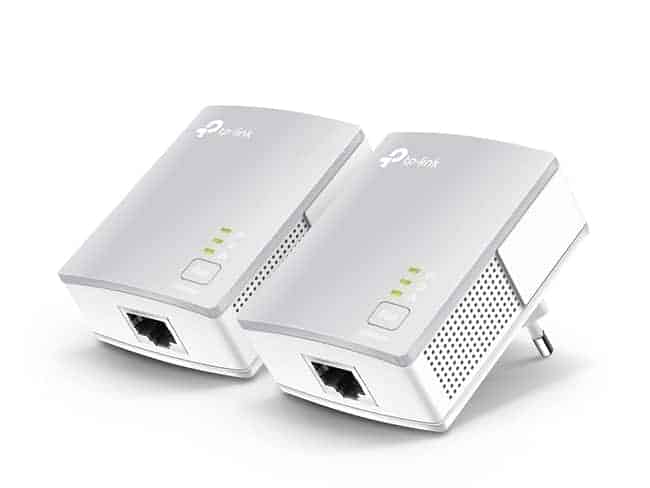
You can find links to the TP Link Nano Powerline adapter, plus more advanced models, on our Powerline Adapters page.
See also:
- Solving PS4 Wi-Fi Error Code NW-31291-6
Getting PS4 error code NW-31297-2 is quite an annoying experience, preventing gamers from connection to their Wi-Fi network. There are plenty of reports about this problem, and it seems this error code is quite a frequent one.
Well, if you are wondering how you can quickly fix this issue, continue reading this article and follow the instructions listed below.
What does NW 31297 2 mean on PS4? Error code NW-31297-2 indicates that your PS4 console could not connect to your Wi-Fi network. There are two possible reasons for that: either you did not enter the correct Wi-Fi password on your PS4 or the network is too busy to process your request.
So, before you perform any troubleshooting steps, make sure you’re using the correct password.
How to Fix Error NW-31297-2 on PS4
Fix 1 – Restart your console and modem/router
Restarting your gaming hardware and the modem can fix many issues. If you haven’t restarted your hardware yet, do that now and check if the issue persists.
If this is the case, then go to the next solution.
Fix 2 – Restore default settings
Restoring default settings is almost a universal troubleshooting solution for fixing PS4 issues. If some of your current settings are incorrect or incompatible with certain features and games, this method can help you fix the problem.
Follow these steps to restore your original PS4 settings:
- Restart your PS4 in Safe Mode:
- Press the power button on the console to turn it off
- Hold the power button again -> release it after you hear the second beep
- Connect the controller with the USB cable -> press the PS button on the controller.
- Select option 4 Restore Default Settings -> wait until the process has finished.
- Connect your PS4 to Wi-Fi again.
Fix 3 – Turn off interfering devices
Some gadgets and devices may interfere with your PS4 console or Wi-Fi network. As a matter of fact, some gamers who own a home theater confirmed that turning the system off fixed the problem.
As a result, disconnect all the devices using the Wi-Fi network as this action may quickly solve your problem. That’s the best approach if the error occurs only for a limited period of time. For example, you get this error now but you if you wait 5 minutes and try to connect your PS4, it works. This is a clear indicator that the wireless network is way too busy so it may be preventing the connection.
Fix 4 – Change Wi-Fi channel
Another solution that you can try is changing the Wi-Fi channel. Although only a few gamers confirmed that this method worked, it is worth giving it a try.
You can also try to change the authentication type on your Wi-Fi network under Wi-Fi security in the router settings. For more information on the steps to follow, check out your router’s user manual. Different routers have different user interfaces and the steps to follow are not the same.
Fix 5 – Change DNS settings
Changing DNS settings is another common troubleshooting solution that often yields excellent results. So, if you still haven’t got rid of error NW-31297-2, changing the DNS channel may help you.
- Go to Network -> Set up Internet connection -> Use Wi-Fi > select Custom as setup mode
- Select your Wi-Fi network -> go to DNS settings -> select Manual
- Set your primary DNS to 8.8.8.8 and secondary to 8.8.4.4
- Set all the other options to Automatic and do not use proxy.
Fix 6 – Change network mode on the router
The following fix is specific for Linksys routers and involves changing the network mode. If you own a different router model, try changing your network mode to one that is similar to the one below.
- Log in to your router UI on PC
- Go to Network Mode -> if the option Mixed is on, turn it off, and enable BG-Mixed instead.
Fix 7 – Change network authentication protocol
Keep in mind that the steps below may be slighty different for you, depending on your router model:
- Log in to your router UI on PC
- Go to Security -> Network Authentication > enable WPA-PSK as security protocol -> Apply the changes.
Last but not least, if this error occurred after you installed the latest PS4 firmware update, the update itself might be the culprit. Go to Sony’s official website and check the list of known issues. Or contact Sony Support.
We hope something helped.
References:
- NW-31297-2 PS4 Error Code, retrieved July 1st, 2020.