Hello, I have managed to install Python 3.4, and Numpy using PIP install.
For some reason, I cannot get scipy to install/run properly. I use ‘pip install scipy’ , and I get the following error below.
Can someone advise? My machine is 64-bit Windows 10.
Kind regards
C:Python34>pip install scipy
Collecting scipy
Using cached scipy-0.19.0.zip
Installing collected packages: scipy
Running setup.py install for scipy … error
Complete output from command c:python34python.exe -u -c «import setuptools, tokenize;file=’C:UsersKiannAppDataLocalTemppip-build-0gb8i_zmscipysetup.py’;f=getattr(tokenize, ‘open’, open)(file);code=f.read().replace(‘rn’, ‘n’);f.close();exec(compile(code, file, ‘exec’))» install —record C:UsersKiannAppDataLocalTemppip-18a4dpkj-recordinstall-record.txt —single-version-externally-managed —compile:
Note: if you need reliable uninstall behavior, then install
with pip instead of using setup.py install:
  - `pip install .`       (from a git repo or downloaded source
                           release)
  - `pip install scipy`   (last SciPy release on PyPI)


lapack_opt_info:
lapack_mkl_info:
  libraries mkl_rt not found in ['c:\python34\lib', 'C:\', 'c:\python34\libs']
  NOT AVAILABLE

openblas_lapack_info:
  libraries openblas not found in ['c:\python34\lib', 'C:\', 'c:\python34\libs']
  NOT AVAILABLE

atlas_3_10_threads_info:
Setting PTATLAS=ATLAS
c:python34libsite-packagesnumpydistutilssystem_info.py:1051: UserWarning: Specified path C:projectsnumpy-wheelswindows-wheel-builderatlas-buildsatlas-3.11.38-sse2-64lib is invalid.
  pre_dirs = system_info.get_paths(self, section, key)
<class 'numpy.distutils.system_info.atlas_3_10_threads_info'>
  NOT AVAILABLE

atlas_3_10_info:
<class 'numpy.distutils.system_info.atlas_3_10_info'>
  NOT AVAILABLE

atlas_threads_info:
Setting PTATLAS=ATLAS
<class 'numpy.distutils.system_info.atlas_threads_info'>
  NOT AVAILABLE

atlas_info:
<class 'numpy.distutils.system_info.atlas_info'>
  NOT AVAILABLE

c:python34libsite-packagesnumpydistutilssystem_info.py:572: UserWarning:
    Atlas (http://math-atlas.sourceforge.net/) libraries not found.
    Directories to search for the libraries can be specified in the
    numpy/distutils/site.cfg file (section [atlas]) or by setting
    the ATLAS environment variable.
  self.calc_info()
lapack_info:
  libraries lapack not found in ['c:\python34\lib', 'C:\', 'c:\python34\libs']
  NOT AVAILABLE

c:python34libsite-packagesnumpydistutilssystem_info.py:572: UserWarning:
    Lapack (http://www.netlib.org/lapack/) libraries not found.
    Directories to search for the libraries can be specified in the
    numpy/distutils/site.cfg file (section [lapack]) or by setting
    the LAPACK environment variable.
  self.calc_info()
lapack_src_info:
  NOT AVAILABLE

c:python34libsite-packagesnumpydistutilssystem_info.py:572: UserWarning:
    Lapack (http://www.netlib.org/lapack/) sources not found.
    Directories to search for the sources can be specified in the
    numpy/distutils/site.cfg file (section [lapack_src]) or by setting
    the LAPACK_SRC environment variable.
  self.calc_info()
  NOT AVAILABLE

Running from scipy source directory.
non-existing path in 'scipy\integrate': 'quadpack.h'
Traceback (most recent call last):
  File "<string>", line 1, in <module>
  File "C:UsersKiannAppDataLocalTemppip-build-0gb8i_zmscipysetup.py", line 416, in <module>
    setup_package()
  File "C:UsersKiannAppDataLocalTemppip-build-0gb8i_zmscipysetup.py", line 412, in setup_package
    setup(**metadata)
  File "c:python34libsite-packagesnumpydistutilscore.py", line 135, in setup
    config = configuration()
  File "C:UsersKiannAppDataLocalTemppip-build-0gb8i_zmscipysetup.py", line 336, in configuration
    config.add_subpackage('scipy')
  File "c:python34libsite-packagesnumpydistutilsmisc_util.py", line 1001, in add_subpackage
    caller_level = 2)
  File "c:python34libsite-packagesnumpydistutilsmisc_util.py", line 970, in get_subpackage
    caller_level = caller_level + 1)
  File "c:python34libsite-packagesnumpydistutilsmisc_util.py", line 907, in _get_configuration_from_setup_py
    config = setup_module.configuration(*args)
  File "scipysetup.py", line 15, in configuration
    config.add_subpackage('linalg')
  File "c:python34libsite-packagesnumpydistutilsmisc_util.py", line 1001, in add_subpackage
    caller_level = 2)
  File "c:python34libsite-packagesnumpydistutilsmisc_util.py", line 970, in get_subpackage
    caller_level = caller_level + 1)
  File "c:python34libsite-packagesnumpydistutilsmisc_util.py", line 907, in _get_configuration_from_setup_py
    config = setup_module.configuration(*args)
  File "scipylinalgsetup.py", line 20, in configuration
    raise NotFoundError('no lapack/blas resources found')
numpy.distutils.system_info.NotFoundError: no lapack/blas resources found

----------------------------------------
Command «c:python34python.exe -u -c «import setuptools, tokenize;file=’C:UsersKiannAppDataLocalTemppip-build-0gb8i_zmscipysetup.py’;f=getattr(tokenize, ‘open’, open)(file);code=f.read().replace(‘rn’, ‘n’);f.close();exec(compile(code, file, ‘exec’))» install —record C:UsersKiannAppDataLocalTemppip-18a4dpkj-recordinstall-record.txt —single-version-externally-managed —compile» failed with error code 1 in C:UsersKiannAppDataLocalTemppip-build-0gb8i_zmscipy
при установке scipy через pip с :
pip install scipy
Pip не удается построить scipy и выдает следующую ошибку:
Cleaning up...

Command /Users/administrator/dev/KaggleAux/env/bin/python2.7 -c "import setuptools, tokenize;__file__='/Users/administrator/dev/KaggleAux/env/build/scipy/setup.py';exec(compile(getattr(tokenize, 'open', open)(__file__).read().replace('rn', 'n'), __file__, 'exec'))" install --record /var/folders/zl/7698ng4d4nxd49q1845jd9340000gn/T/pip-eO8gua-record/install-record.txt --single-version-externally-managed --compile --install-headers /Users/administrator/dev/KaggleAux/env/bin/../include/site/python2.7 failed with error code 1 in /Users/administrator/dev/KaggleAux/env/build/scipy

Storing debug log for failure in /Users/administrator/.pip/pip.log
как я могу получить scipy, чтобы построить успешно? Это может быть новая проблема с OSX Yosemite, так как я только что обновил и не имел проблем с установкой scipy раньше.
журнал отладки:
Cleaning up...

  Removing temporary dir /Users/administrator/dev/KaggleAux/env/build...

Command /Users/administrator/dev/KaggleAux/env/bin/python2.7 -c "import setuptools, tokenize;__file__='/Users/administrator/dev/KaggleAux/env/build/scipy/setup.py';exec(compile(getattr(tokenize, 'open', open)(__file__).read().replace('rn', 'n'), __file__, 'exec'))" install --record /var/folders/zl/7698ng4d4nxd49q1845jd9340000gn/T/pip-eO8gua-record/install-record.txt --single-version-externally-managed --compile --install-headers /Users/administrator/dev/KaggleAux/env/bin/../include/site/python2.7 failed with error code 1 in /Users/administrator/dev/KaggleAux/env/build/scipy

Exception information:

Traceback (most recent call last):

  File "/Users/administrator/dev/KaggleAux/env/lib/python2.7/site-packages/pip/basecommand.py", line 122, in main

    status = self.run(options, args)

  File "/Users/administrator/dev/KaggleAux/env/lib/python2.7/site-packages/pip/commands/install.py", line 283, in run

    requirement_set.install(install_options, global_options, root=options.root_path)

  File "/Users/administrator/dev/KaggleAux/env/lib/python2.7/site-packages/pip/req.py", line 1435, in install

    requirement.install(install_options, global_options, *args, **kwargs)

  File "/Users/administrator/dev/KaggleAux/env/lib/python2.7/site-packages/pip/req.py", line 706, in install

    cwd=self.source_dir, filter_stdout=self._filter_install, show_stdout=False)

  File "/Users/administrator/dev/KaggleAux/env/lib/python2.7/site-packages/pip/util.py", line 697, in call_subprocess

    % (command_desc, proc.returncode, cwd))

InstallationError: Command /Users/administrator/dev/KaggleAux/env/bin/python2.7 -c "import setuptools, tokenize;__file__='/Users/administrator/dev/KaggleAux/env/build/scipy/setup.py';exec(compile(getattr(tokenize, 'open', open)(__file__).read().replace('rn', 'n'), __file__, 'exec'))" install --record /var/folders/zl/7698ng4d4nxd49q1845jd9340000gn/T/pip-eO8gua-record/install-record.txt --single-version-externally-managed --compile --install-headers /Users/administrator/dev/KaggleAux/env/bin/../include/site/python2.7 failed with error code 1 in /Users/administrator/dev/KaggleAux/env/build/scipy
1535
21
21 ответов:
после открытия вопрос с командой SciPy мы обнаружили, что вам нужно обновить pip с помощью:
pip install --upgrade pipи
Python 3это работает:python3 -m pip install --upgrade pipдля правильной установки SciPy. Зачем? Потому что:
более старые версии pip должны быть указаны для использования колес, IIRC с —use-wheel. Или вы можете обновить сам pip, тогда он должен забрать колеса.
обновление pip решает проблему, но вы можете быть в состоянии просто используйте
--use-wheelфлаг, а также.
пользователи Microsoft Windows 64-битных установок Python должны будут загрузить 64-бит
.whlиз Scipy от здесь, простоcdв папку, которую вы загрузили иpip install scipy-0.16.1-cp27-none-win_amd64.whl
я сталкиваюсь с той же проблемой при установке Scipy под ubuntu.
Я должен был использовать команду:$ sudo apt-get install libatlas-base-dev gfortran $ sudo pip3 install scipyвы можете получить более подробную информацию здесь установка SciPy с pip
Извините, не знаю, как это сделать под OS X Yosemite.
в windows 10 большинство параметров не будет работать. Выполните следующие действия:
в Windows 10 с CMD, вы не можете скачать
scipyнепосредственно с помощью большинства известных команд, таких какwget,cloning scipy github,pip install scipy, etcдля установки, перейдите к pythonlibs .whl files , а если вы используете
python 2.7 32 bitскачать тутnumpy-1.11.2rc1+mkl-cp27-cp27m-win32.whl and scipy-0.18.1-cp27-cp27m-win32.whlилиpython 2.7 62 bitскачать тутnumpy-1.11.2rc1+mkl-cp27-cp27m-win_amd64.whl and scipy-0.18.1-cp27-cp27m-win_amd64.whlпосле загрузки,сохраните файлы под ваши
python directory, in мой случай это былc:>python27запустите:
pip install C:Python27numpy-1.11.2rc1+mkl-cp27-cp27m-win32.whl
pip install C:Python27scipy-0.18.1-cp27-cp27m-win32.whl
Примечание:
scipyдолженnumpyкак зависимость, так вот почему мы загружаемnumpyдоscipy.cp27in .whl файлы означает, что эти файлы предназначены дляpython 2.7иcp33расшифровывается какpython 3.xspeciafically >=3.3
после нахождения ответ для некоторых подсказок, я получил эту работу, делая
brew install gcc
pip install scipy
(первый из этих шагов занял 96 минут на моем 2011 Mac Book Air, поэтому я надеюсь, что вы не спешите!)
Если вы совершенно новичок в Python читать шаг за шагом или перейти непосредственно к последнему шагу.
Следуйте приведенному ниже методу для установки scipy 0.18.1 на Windows 64-бит, Python 64-бит .
Если ниже команда не работает, то продолжайте дальшеpip install scipyбудьте осторожны с версиями
Python
Windows
.whl версия numpy и scipy файлов
Сначала установите numpy и составляющей.
pip install FileName.whlдля Numpy:http://www.lfd.uci.edu/~gohlke / pythonlibs / #numpy
Для Scipy:http://www.lfd.uci.edu / ~gohlke / pythonlibs / #scipyимейте в виду имя файла (проверьте номер версии).
пример: scipy-0.18.1-cp35-cp35m-win_amd64.колесо
чтобы проверить, какая версия поддерживается вашим pip, перейдите к пункту № 2 ниже.
Если вы используете .файл колесо . Возможны следующие ошибки .
- вы используете pip версии 7.1.0, однако версия 8.1.2 доступна.
вы должны рассмотреть возможность обновления с помощью команды ‘python-m pip install —upgrade pip’
- scipy-0.15.1-cp33-none-win_amd64.колесо.колесо не поддерживается колесо на этой платформе
для вышеуказанной ошибки: запустите Python и введите :
import pip
print(pip.pep425tags.get_supported())
выход:
[(‘cp35’, ‘cp35m’, ‘win_amd64’), (‘cp35’, ‘никто’, ‘win_amd64’), (‘py3’, ‘нет’, ‘win_amd64’), (‘cp35’, ‘никто’, ‘любой’), (‘КС3’, ‘никто’, ‘любой’), (‘py35’, ‘никто’, ‘любой’), (‘py3’, ‘нет’, ‘любой’), (‘py34’, ‘никто’, ‘любой’), (‘py33’, ‘никто’, ‘любой’), (‘py32’, ‘никто’, ‘любой’), (‘py31’, ‘никто’, ‘любой’), (‘py30’, ‘нет’, ‘любой’)]
на выходе вы увидите, что cp35 есть, поэтому загрузите cp35 для numpy, а также составляющей.Дальнейшие изменения приветствуются.
вместо того, чтобы идти по более сложному маршруту загрузки конкретных пакетов. Я предпочитаю идти более быстрым путем использования Conda. у Пипа есть свои проблемы.
- Python-v (3.6.0)
- Windows 10 (64 бит)
Conda, установите conda от:https://conda.io/docs/install/quick.html#windows-miniconda-install
командная строка
C:Usersxyz>conda install -c anaconda scipy=0.18.1
Fetching package metadata .............
Solving package specifications:
план пакета для установки в окружающую среду C:UsersxyzMiniconda3:
будут установлены следующие новые пакеты:
mkl:       2017.0.1-0         anaconda
numpy:     1.12.0-py36_0      anaconda
scipy:     0.18.1-np112py36_1 anaconda
следующие пакеты будут заменены более приоритетным каналом:
conda:     4.3.11-py36_0               --> 4.3.11-py36_0 anaconda
conda-env: 2.6.0-0                     --> 2.6.0-0       anaconda
продолжить ([y] / n)? г
conda-env-2.6. 100% |###############################| Time: 0:00:00  32.92 kB/s
mkl-2017.0.1-0 100% |###############################| Time: 0:00:24   5.45 MB/s
numpy-1.12.0-p 100% |###############################| Time: 0:00:00   5.09 MB/s
scipy-0.18.1-n 100% |###############################| Time: 0:00:02   5.59 MB/s
conda-4.3.11-p 100% |###############################| Time: 0:00:00   4.70 MB/s
- скачать SciPy из http://www.lfd.uci.edu/~gohlke / pythonlibs / #scipy
- перейдите в каталог, в котором находится загруженный файл, и
pip installфайл.- перейдите в оболочку python, запустите
import scipy; он работал для меня без ошибок.
Это альтернатива Пип.
У меня также была такая же ошибка при установке составляющей С pip.затем я загрузил и установил MiniConda. А затем я использовал следующую команду для установки pytables.
conda install -c conda-forge scipyпожалуйста, обратитесь к скриншоту ниже.

лучший метод, который я мог бы предложить это
загрузите файл колеса из этого места для вашей версии python
- https://pypi.python.org/pypi/scipy
переместите файл на главный диск, например C:>
запустите Cmd и введите следующее
- pip установить scipy-1.0.0rc1-cp36-none-win_amd64.колесо
обратите внимание, что это версия, которую я использую для моего pyhton 3.6.2 он должен установить штраф
вы можете запустить эту команду после того, как убедитесь, что все ваши дополнения python обновлены
pip list --outdated
также скачать вручную и выполнить
http://www.lfd.uci.edu/~gohlke / pythonlibs
Составляющей версия подходит для вас. Рассмотрим Вашу версию Python (python —version) и ваша системная архитектура (32/64 бит). Соответственно выбираете составляющей версия.
scipy-0.18.1 —cp27-cp27m-для Win32 — для Python 2.7 32 бит
scipy-0.18.1 —cp27-cp27m- win_amd64 — для Python 2.7 64 бит
В противном случае ошибка
scipy-0.15.1-cp33-none-win_amd64.колесо.колесо не поддерживается колесо на этой платформе
появится всплывающее окно при установке.теперь измените каталог на загруженный файл и выполните команду
pip install scipy-0.15.1-cp33-none-win_amd64.whl.whl(изменить имя файла соответствующим образом)Я добавил этот ответ только потому, что ответ Аруна(нашел полезным сам) ничего не упомянул о 32/64-битном сопоставлении, с которым я столкнулся.
Если вы используете CentOS, вам нужно установить lapack-devel следующим образом:
$ yum install lapack-devel
попробуйте загрузить файл scipy по ссылке ниже
https://sourceforge.net/projects/scipy/?source=typ_redirect
Это будет a .exe файл и вам просто нужно его запустить. Но обязательно выберите версию scipy, соответствующую Вашей версии python.
когда scipy.exe-файл запускается, он найдет каталог python и будет установлен .
у меня была та же проблема, и мне удалось использовать
sudo.$ sudo pip install scipy
самый простой способ заключается в следующих шагах: исправление scipy для python [ 2.n
загрузите необходимые файлы из: http://www.lfd.uci.edu / ~gohlke / pythonlibs/
загрузите версию numpy + mkl (необходимую для запуска scipy), а затем загрузите scipy для вашего типа python (2.N python, записанный как 2n) или (3.N python, записанный как 3n), n-переменная. Примечание Вы должны знать, есть ли у вас 32-битный или 64-битный процессор.
создать каталог где-то на вашем компьютере, например [C:DIRECTORY] для установки файлов numpy + mkd.whl и scipy.колесо
как только оба файла будут загружены, найдите местоположение файла на вашем компьютере и переместите его в созданный каталог.
пример: первая установка файла необходима для scipy находится в
C:DIRECTORYnumpynumpy-0.0.0 + mkl-cp2n-cp2nm-win_amd32.колесо
пример: установка второго файла в
C:DIRECTORYscipyscipy-0.0.0-cp2n-cp2nm-win_amd32.колесо
перейдите в командную строку и выполните следующий пример для python версии 2.Н:
py -2.n -m pip install C:DIRECTORYnumpynumpy-0.0.0+mkl-cp2n-cp2nm-win_amd32.whlустановить
py -2.n -m pip install C:DIRECTORYscipyscipy-0.0.0-cp2n-cp2nm-win_amd32.whlустановить
проверьте оба модуля на вашем python IDLE следующим образом:
import numpy

import scipy
модули работают, если ошибки не возвращаются.
IFDAAS
для Windows(7 в моем случае):
- скачать scipy-0.19.1-cp36-cp36m-win32.колесо от
http://www.lfd.uci.edu/~gohlke / pythonlibs / #scipyсоздать некоторые.bat файл с содержанием
@echo off

C:Python36python.exe -m pip -V

C:Python36python.exe -m pip install scipy-0.19.1-cp36-cp36m-win32.whl

C:Python36python.exe -m pip list

pause
затем запустите этот пакетный файл.летучая мышь
- вызов оболочки python
«C:Python36pythonw.exe «C:Python36Libidlelibidle.pyw»
и проверить, если scipy был установлен сimport scipy
простой способ установить scipy на Windows 10 100% это:
Просто Пип это ====>pip install scipy==1.0.0rc2Спасибо мне позже:)
Я испытал аналогичные проблемы с Python 3.7 (3.7.0b4). Это было связано с некоторыми изменениями в отношении некоторых кодировок предположения (Python 3.6 > > Python 3.7)
в результате многие установки пакетов (например, через pip) не удалось.
вы можете проверить этот ответ:
python -m pip install --user numpy scipy matplotlib ipython jupyter pandas sympy nose
pip install scipy
The Python scipy library is among the top 100 Python libraries, with more than 29,665,551 downloads. This article will show you everything you need to get this installed in your Python environment.
- Library Link
How to Install scipy on Windows?
- Type
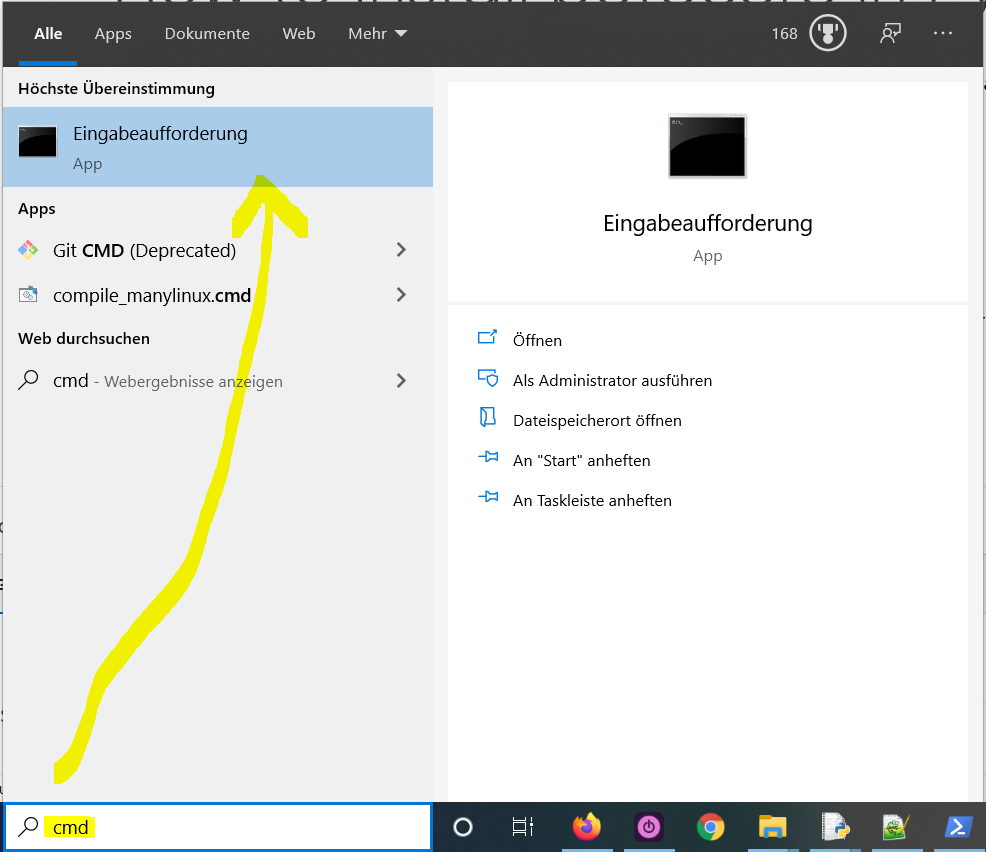
"cmd"in the search bar and hitEnterto open the command line. - Type “
pip install scipy” (without quotes) in the command line and hitEnteragain. This installs scipy for your default Python installation. - The previous command may not work if you have both Python versions 2 and 3 on your computer. In this case, try
"pip3 install scipy"or “python -m pip install scipy“. - Wait for the installation to terminate successfully. It is now installed on your Windows machine.
Here’s how to open the command line on a (German) Windows machine:
First, try the following command to install scipy on your system:
pip install scipy
Second, if this leads to an error message, try this command to install scipy on your system:
pip3 install scipy
Third, if both do not work, use the following long-form command:
python -m pip install scipy
The difference between pip and pip3 is that pip3 is an updated version of pip for Python version 3. Depending on what’s first in the PATH variable, pip will refer to your Python 2 or Python 3 installation—and you cannot know which without checking the environment variables. To resolve this uncertainty, you can use pip3, which will always refer to your default Python 3 installation.
How to Install scipy on Linux?
You can install scipy on Linux in four steps:
- Open your Linux terminal or shell
- Type “
pip install scipy” (without quotes), hit Enter. - If it doesn’t work, try
"pip3 install scipy"or “python -m pip install scipy“. - Wait for the installation to terminate successfully.
The package is now installed on your Linux operating system.
How to Install scipy on macOS?
Similarly, you can install scipy on macOS in four steps:
- Open your macOS terminal.
- Type “
pip install scipy” without quotes and hitEnter. - If it doesn’t work, try
"pip3 install scipy"or “python -m pip install scipy“. - Wait for the installation to terminate successfully.
The package is now installed on your macOS.
Given a PyCharm project. How to install the scipy library in your project within a virtual environment or globally? Here’s a solution that always works:
- Open
File > Settings > Projectfrom the PyCharm menu. - Select your current project.
- Click the
Python Interpretertab within your project tab. - Click the small
+symbol to add a new library to the project. - Now type in the library to be installed, in your example
"scipy"without quotes, and clickInstall Package. - Wait for the installation to terminate and close all pop-ups.
Here’s the general package installation process as a short animated video—it works analogously for scipy if you type in “scipy” in the search field instead:
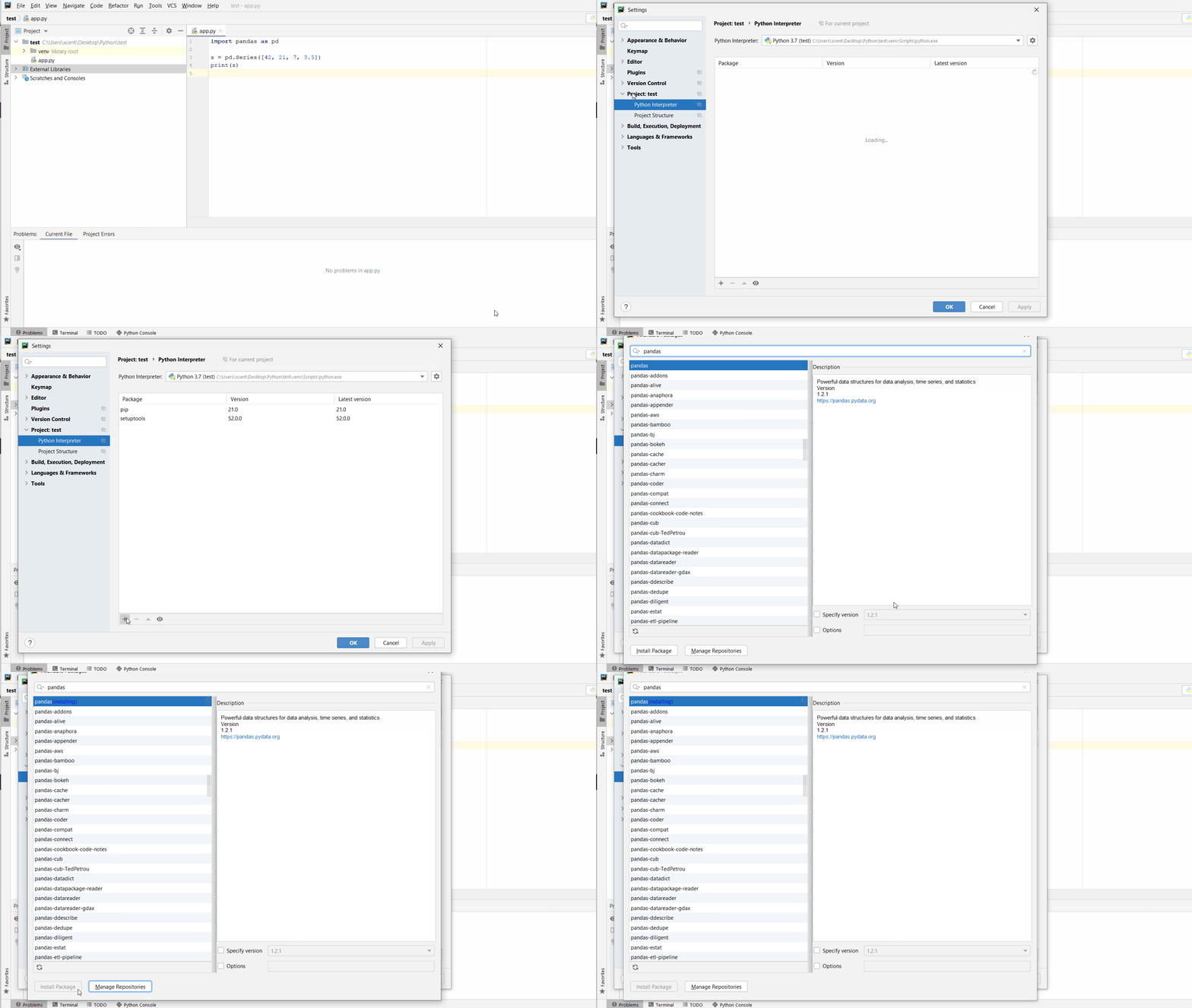
Make sure to select only “scipy” because there may be other packages that are not required but also contain the same term (false positives):
How to Install scipy in a Jupyter Notebook?
To install any package in a Jupyter notebook, you can prefix the !pip install my_package statement with the exclamation mark "!". This works for the scipy library too:
!pip install my_package
This automatically installs the scipy library when the cell is first executed.
How to Resolve ModuleNotFoundError: No module named ‘scipy’?
Say you try to import the scipy package into your Python script without installing it first:
import scipy
# ... ModuleNotFoundError: No module named 'scipy'
Because you haven’t installed the package, Python raises a ModuleNotFoundError: No module named 'scipy'.
To fix the error, install the scipy library using “pip install scipy” or “pip3 install scipy” in your operating system’s shell or terminal first.
See above for the different ways to install scipy in your environment.
Improve Your Python Skills
If you want to keep improving your Python skills and learn about new and exciting technologies such as Blockchain development, machine learning, and data science, check out the Finxter free email academy with cheat sheets, regular tutorials, and programming puzzles.
Join us, it’s fun! 🙂

While working as a researcher in distributed systems, Dr. Christian Mayer found his love for teaching computer science students.
To help students reach higher levels of Python success, he founded the programming education website Finxter.com. He’s author of the popular programming book Python One-Liners (NoStarch 2020), coauthor of the Coffee Break Python series of self-published books, computer science enthusiast, freelancer, and owner of one of the top 10 largest Python blogs worldwide.
His passions are writing, reading, and coding. But his greatest passion is to serve aspiring coders through Finxter and help them to boost their skills. You can join his free email academy here.
Scipy is a free and open-source python module. It contains a large number of inbuilt mathematical functions that can easily do scientific and technical computing. But many beginners get the error modulenotfounderror: no module named ‘scipy’. If you are also getting this error , then this entire post is for you. In this entire tutorial, you will learn how to solve the issue of modulenotfounderror: no module named ‘scipy’.
What is ModuleNotFoundError?
ModuleNotFoundError is a runtime error. Most of the coders get this error when the package is not installed in your system. Suppose you are using the python package A then you will get the error ModuleNotFoundError : no module named ‘A’ , if it is not installed in your system.
In the next section, you will know the root cause of the error and how to solve it.
The root cause of no module named ‘scipy’ error
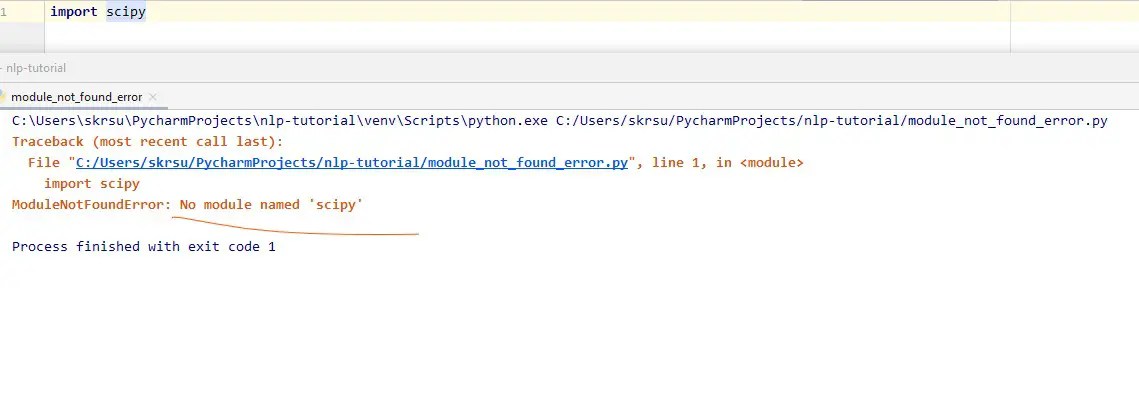
The main and root cause of the modulenotfounderror: no module named ‘scipy’ error is that you have not installed the scipy package in your system. For example, you will get the red underline below the word scipy as you have not installed the package in the pycharm environment.
import scipyOutput
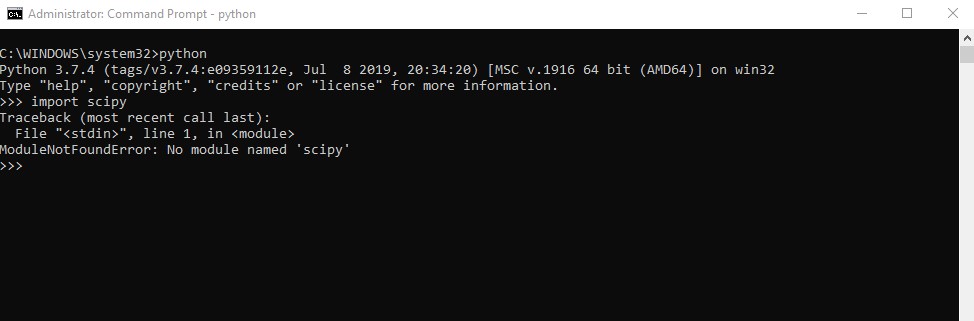
The same error you will get when you will try to import in the terminal or command prompt.
The solution for modulenotfounderror: no module named ‘scipy’
The solution for this error is very simple. You have to install scipy in your system. To install it you have to use the pip command. Which pip version you will use depends upon the python version in your system. If your python version is 3. xx then use pip3 and if 2. xx then use the pip command.
To check the version of python, use the below line of a bash command.
python --versionOutput
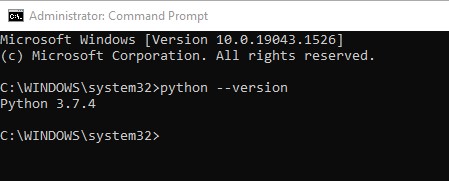
My system has 3. xx version, so I will use the pip3 command.
Open your command prompt or terminal and type the below command to install scipy package.
pip3 install scipy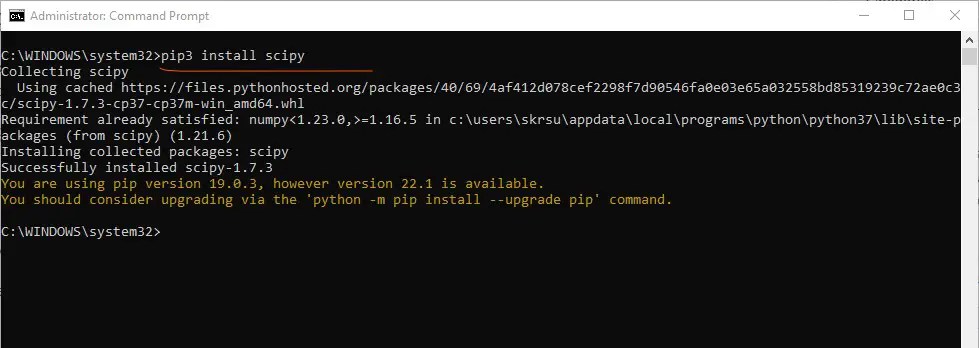
Now if you again import the scipy then you will not get the modulenotfounderror: no module named ‘scipy’ in your system.
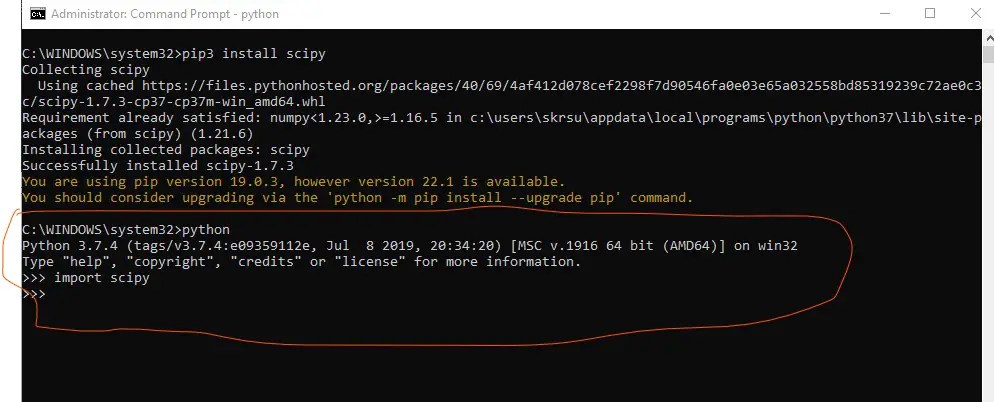
These are the methods to solve this no module named scipy error. I hope you have liked this tutorial. If you have any queries then you can contact us for more help.

Join our list
Subscribe to our mailing list and get interesting stuff and updates to your email inbox.
We respect your privacy and take protecting it seriously
Thank you for signup. A Confirmation Email has been sent to your Email Address.
Something went wrong.
Hello Guys, How are you all? Hope You all Are Fine. Today I am trying to install scipy but I am facing following error ERROR: Could not build wheels for scipy which use PEP 517 and cannot be installed directly in python. So Here I am Explain to you all the possible solutions here.
Without wasting your time, Let’s start This Article to Solve This Error.
Contents
- How ERROR: Could not build wheels for scipy which use PEP 517 and cannot be installed directly Error Occurs ?
- How To Solve ERROR: Could not build wheels for scipy which use PEP 517 and cannot be installed directly Error ?
- Solution 1: upgrade pip
- Solution 2: update pip with setuptools wheel
- Solution 3: run this command
- Solution 4: Use this command
- Summary
I am trying to install scipy but I am facing following error.
ERROR: Failed building wheel for scipy
Failed to build scipy
ERROR: Could not build wheels for scipy which use PEP 517 and cannot be installed directly
How To Solve ERROR: Could not build wheels for scipy which use PEP 517 and cannot be installed directly Error ?
- How To Solve ERROR: Could not build wheels for scipy which use PEP 517 and cannot be installed directly Error?
To Solve ERROR: Could not build wheels for scipy which use PEP 517 and cannot be installed directly Error Just update your pip and your error will be solve. pip3 install –upgrade pip. this error solved just after update pip with setuptools wheel just run below command. pip install –upgrade pip setuptools wheel.
- ERROR: Could not build wheels for scipy which use PEP 517 and cannot be installed directly
To Solve ERROR: Could not build wheels for scipy which use PEP 517 and cannot be installed directly Error Just update your pip and your error will be solve. pip3 install –upgrade pip. this error solved just after update pip with setuptools wheel just run below command. pip install –upgrade pip setuptools wheel.
Solution 1: upgrade pip
Just update your pip and your error will be solve.
pip3 install --upgrade pipthis error solved just after run below command.
pip install --upgrade pip setuptools wheelSolution 3: run this command
Just run this command.
pip install p5py
pip install PEP517
Solution 4: Use this command
Above 3 solution not worked ? Then maybe your host OS is missing pkg-config So You just need to install it with this command.
If you are using linux then run this command.
sudo apt-get install -y pkg-config
If you using windows then follow this procedure.
pip install pkgconfigThen Just re-run pip command to install scipy.
Summary
It’s all About this issue. Hope all solution helped you a lot. Comment below Your thoughts and your queries. Also, Comment below which solution worked for you?
Also, Read
- AttributeError: module ‘importlib’ has no attribute ‘util’.
ERROR: Command errored out with exit status 1:
     command: 'c:usersessaappdatalocalprogramspythonpython39python.exe' -c 'import sys, setuptools, tokenize; sys.argv[0] = '"'"'C:\Users\Essa\AppData\Local\Temp\pip-install-pfs4kvqz\kiwisolver\setup.py'"'"'; __file__='"'"'C:\Users\Essa\AppData\Local\Temp\pip-install-pfs4kvqz\kiwisolver\setup.py'"'"';f=getattr(tokenize, '"'"'open'"'"', open)(__file__);code=f.read().replace('"'"'rn'"'"', '"'"'n'"'"');f.close();exec(compile(code, __file__, '"'"'exec'"'"'))' egg_info --egg-base 'C:UsersEssaAppDataLocalTemppip-pip-egg-info-32z60gh3'
         cwd: C:UsersEssaAppDataLocalTemppip-install-pfs4kvqzkiwisolver
    Complete output (44 lines):
    WARNING: The wheel package is not available.
      ERROR: Command errored out with exit status 1:
       command: 'c:usersessaappdatalocalprogramspythonpython39python.exe' -u -c 'import sys, setuptools, tokenize; sys.argv[0] = '"'"'C:\Users\Essa\AppData\Local\Temp\pip-wheel-0tfb7rx6\cppy\setup.py'"'"'; __file__='"'"'C:\Users\Essa\AppData\Local\Temp\pip-wheel-0tfb7rx6\cppy\setup.py'"'"';f=getattr(tokenize, '"'"'open'"'"', open)(__file__);code=f.read().replace('"'"'rn'"'"', '"'"'n'"'"');f.close();exec(compile(code, __file__, '"'"'exec'"'"'))' bdist_wheel -d 'C:UsersEssaAppDataLocalTemppip-wheel-opuxdhh5'
           cwd: C:UsersEssaAppDataLocalTemppip-wheel-0tfb7rx6cppy
      Complete output (6 lines):
      usage: setup.py [global_opts] cmd1 [cmd1_opts] [cmd2 [cmd2_opts] ...]
         or: setup.py --help [cmd1 cmd2 ...]
         or: setup.py --help-commands
         or: setup.py cmd --help

      error: invalid command 'bdist_wheel'
      ----------------------------------------
      ERROR: Failed building wheel for cppy
    ERROR: Failed to build one or more wheels
    Traceback (most recent call last):
      File "c:usersessaappdatalocalprogramspythonpython39libsite-packagessetuptoolsinstaller.py", line 128, in fetch_build_egg
        subprocess.check_call(cmd)
      File "c:usersessaappdatalocalprogramspythonpython39libsubprocess.py", line 373, in check_call
        raise CalledProcessError(retcode, cmd)
    subprocess.CalledProcessError: Command '['c:\users\essa\appdata\local\programs\python\python39\python.exe', '-m', 'pip', '--disable-pip-version-check', 'wheel', '--no-deps', '-w', 'C:\Users\Essa\AppData\Local\Temp\tmp0z8qlgha', '--quiet', 'cppy>=1.1.0']' returned non-zero exit status 1.

    The above exception was the direct cause of the following exception:

    Traceback (most recent call last):
      File "<string>", line 1, in <module>
      File "C:UsersEssaAppDataLocalTemppip-install-pfs4kvqzkiwisolversetup.py", line 59, in <module>
        setup(
      File "c:usersessaappdatalocalprogramspythonpython39libsite-packagessetuptools__init__.py", line 164, in setup
        _install_setup_requires(attrs)
      File "c:usersessaappdatalocalprogramspythonpython39libsite-packagessetuptools__init__.py", line 159, in _install_setup_requires
        dist.fetch_build_eggs(dist.setup_requires)
      File "c:usersessaappdatalocalprogramspythonpython39libsite-packagessetuptoolsdist.py", line 699, in fetch_build_eggs
        resolved_dists = pkg_resources.working_set.resolve(
      File "c:usersessaappdatalocalprogramspythonpython39libsite-packagespkg_resources__init__.py", line 779, in resolve
        dist = best[req.key] = env.best_match(
      File "c:usersessaappdatalocalprogramspythonpython39libsite-packagespkg_resources__init__.py", line 1064, in best_match
        return self.obtain(req, installer)
      File "c:usersessaappdatalocalprogramspythonpython39libsite-packagespkg_resources__init__.py", line 1076, in obtain
        return installer(requirement)
      File "c:usersessaappdatalocalprogramspythonpython39libsite-packagessetuptoolsdist.py", line 758, in fetch_build_egg
        return fetch_build_egg(self, req)
      File "c:usersessaappdatalocalprogramspythonpython39libsite-packagessetuptoolsinstaller.py", line 130, in fetch_build_egg
        raise DistutilsError(str(e)) from e
    distutils.errors.DistutilsError: Command '['c:\users\essa\appdata\local\programs\python\python39\python.exe', '-m', 'pip', '--disable-pip-version-check', 'wheel', '--no-deps', '-w', 'C:\Users\Essa\AppData\Local\Temp\tmp0z8qlgha', '--quiet', 'cppy>=1.1.0']' returned non-zero exit status 1.
    ----------------------------------------
ERROR: Command errored out with exit status 1: python setup.py egg_info Check the logs for full command output.