Are you stuck at the “ModuleNotFoundError: no module named openpyxl” error? People beginning with Python often get stuck when they start to work with the openpyxl library. This is an industry-wide problem that pops up on screens of many coders starting out with Python.
This often happens due to version errors between Python and Openpyxl or due to incorrect installation. Unable to find the right solution can be a head-scratching problem, that’s why in this article we will be going through the most common errors coders encounter with openpyxl and derive solutions to each of those errors.
What is openpyxl?
The absence of a Python library to read Open XML formats created the need for openpyxl which is the current industry standard Python library to read and write excel format files.
The formats supported are: xlsx/xlsm/xltx/xltm.
Most of the time, errors encountered with openpyxl are caused due to incorrect installation. And these errors can get resolved with a simple reinstallation. Let’s look at the correct way to install openpyxl.
Installing openpyxl through package managers
By using pip
The most simple way to install any Python library is by using pip. Pip is a system software written in Python that installs and manages your Python libraries through an open-source library. Installing through pip requires knowledge of your Python version.
If you are using Python2, the syntax to install any library is:
pip install 'package_name'
Using just ‘pip’ will install any Python package for Python2 versions.
To install it for Python3, write:
Note: In newer versions of pip, mainly versions north of 3.0, pip installs packages for Python3 by default when just ‘pip’ is typed. This anomaly is found in the most newer versions of Python, and in case you are encountering it, it is advisable to degrade your Python version.
In case you have more than one Python version in your system and you are not sure if vanilla pip3 will fetch the correct version, you can use this syntax instead:
python3 -m pip install --user xlsxwriter
By using Conda
Many coders prefer using Conda over pip, for its virtual environment features. If you want to install openpyxl using Conda, type the following syntax:
conda install -c anaconda openpyxl
OR
The second syntax is mainly for the latest Conda versions (Conda 4.7.6 or higher)
Installing as per your OS
Let’s look at the different ways to install based on which operating system you use!
1. Windows
If you are using windows then the following packages are required to read and write excel files. To install them, type the following syntax:
pip install openpyxl
pip install --user xlsxwriter
pip install xlrd==1.2.0
2. Ubuntu
Linux distributions are better-suited to Python, but you may still run into some errors due to system bugs or bad installation. The safe and correct way to install openpyxl in Ubuntu is to do the following.
Type the syntax below in your terminal:
For Python2:
sudo apt-get install python-openpyxl
For Python3:
sudo apt-get install python3-openpyxl
The above case is similar to the example at the top. A lot of times, incorrect installation is caused due to the installation of openpyxl for Python2 into the systems with Python3.
Knowing your Python versions can solve most of the problem hands-on, and if the problem still persists then degrading your python version and reinstalling packages is another option.
Script path error
Many times, even after a correct installation, openpyxl may throw ‘modulenotfounderror’. It does not matter what installation manager you used, as the package gets installed correctly but the package manager installs it in some other directory. This mainly happens for a few reasons:
- Your Python scripts are kept in a different directory and your package manager installs them in a different one.
- A recent update might have changed the name or path of the directory
- A Manual installation might have created more than one script folder
- Your system cannot identify the correct script directory.
To resolve this issue, use the following syntax in the terminal:
import sys
sys.append(full path to the site-package directory)
Note: The above code redirects Python to search for import packages from the given path directory. It’s not a permanent solution but rather a turnaround method.
Completely eradicating this issue is a lengthy process as it requires identifying all the script directories and adding them to ‘path’ (The path of script directory where packages are installed). To avoid errors like this, it is important that we identify and remember where our scripts are getting installed. Knowing where the displacement has happened can solve half the problems, and the other half can get solved by installing packages that are compatible with your python version.
Conclusion
In this article, we have learned about the errors people face with openpyxl and the different ways through which it can get solved. These methods do not just work for openpyxl, but many python library packages that show ‘filenotfounderror‘. Most of the time, errors occur due to incompatible versions, bad installations, or installation in the wrong directory.
A common error you may encounter when using Python is modulenotfounderror: no module named ‘openpyxl’.
This error occurs when the Python interpreter cannot detect the openpyxl library in your current environment.
You can install openpyxl in Python 3 with python3 -m pip install openpyxl.
This tutorial goes through the exact steps to troubleshoot this error for the Windows, Mac and Linux operating systems.
Table of contents
- ModuleNotFoundError: no module named ‘openpyxl’
- What is ModuleNotFoundError?
- What is openpyxl?
- Always Use a Virtual Environment to Install Packages
- How to Install openpyxl on Windows Operating System
- How to Install openpyxl on Mac Operating System using pip
- How to Install openpyxl on Linux Operating Systems
- Installing pip for Ubuntu, Debian, and Linux Mint
- Installing pip for CentOS 8 (and newer), Fedora, and Red Hat
- Installing pip for CentOS 6 and 7, and older versions of Red Hat
- Installing pip for Arch Linux and Manjaro
- Installing pip for OpenSUSE
- openpyxl installation on Linux with Pip
- Installing openpyxl Using Anaconda
- Check openpyxl Version
- Summary
ModuleNotFoundError: no module named ‘openpyxl’
What is ModuleNotFoundError?
The ModuleNotFoundError occurs when the module you want to use is not present in your Python environment. There are several causes of the modulenotfounderror:
The module’s name is incorrect, in which case you have to check the name of the module you tried to import. Let’s try to import the re module with a double e to see what happens:
import ree
---------------------------------------------------------------------------
ModuleNotFoundError                       Traceback (most recent call last)
1 import ree

ModuleNotFoundError: No module named 'ree'
To solve this error, ensure the module name is correct. Let’s look at the revised code:
import re

print(re.__version__)
2.2.1
You may want to import a local module file, but the module is not in the same directory. Let’s look at an example package with a script and a local module to import. Let’s look at the following steps to perform from your terminal:
mkdir example_package

cd example_package

mkdir folder_1

cd folder_1

vi module.py
Note that we use Vim to create the module.py file in this example. You can use your preferred file editor, such as Emacs or Atom. In module.py, we will import the re module and define a simple function that prints the re version:
import re

def print_re_version():

    print(re.__version__)
Close the module.py, then complete the following commands from your terminal:
cd ../

vi script.py
Inside script.py, we will try to import the module we created.
import module

if __name__ == '__main__':

    mod.print_re_version()
Let’s run python script.py from the terminal to see what happens:
Traceback (most recent call last):
  File "script.py", line 1, in ≺module≻
    import module
ModuleNotFoundError: No module named 'module'
To solve this error, we need to point to the correct path to module.py, which is inside folder_1. Let’s look at the revised code:
import folder_1.module as mod

if __name__ == '__main__':

    mod.print_re_version()
When we run python script.py, we will get the following result:
2.2.1
Lastly, you can encounter the modulenotfounderror when you import a module that is not installed in your Python environment.
What is openpyxl?
openpyxl is a Python library for reading and writing Excel 2010 xlsxx/xlsm/xltx/xltm files.
The simplest way to install openpyxl is to use the package manager for Python called pip. The following installation instructions are for the major Python version 3.
Always Use a Virtual Environment to Install Packages
It is always best to install new libraries within a virtual environment. You should not install anything into your global Python interpreter when you develop locally. You may introduce incompatibilities between packages, or you may break your system if you install an incompatible version of a library that your operating system needs. Using a virtual environment helps compartmentalize your projects and their dependencies. Each project will have its environment with everything the code needs to run. Most ImportErrors and ModuleNotFoundErrors occur due to installing a library for one interpreter and trying to use the library with another interpreter. Using a virtual environment avoids this. In Python, you can use virtual environments and conda environments. We will go through how to install openpyxl with both.
How to Install openpyxl on Windows Operating System
First, you need to download and install Python on your PC. Ensure you select the install launcher for all users and Add Python to PATH checkboxes. The latter ensures the interpreter is in the execution path. Pip is automatically on Windows for Python versions 2.7.9+ and 3.4+.
You can check your Python version with the following command:
python3 --version
You can install pip on Windows by downloading the installation package, opening the command line and launching the installer. You can install pip via the CMD prompt by running the following command.
python get-pip.py
You may need to run the command prompt as administrator. Check whether the installation has been successful by typing.
pip --version
virtualenv env
You can activate the environment by typing the command:
envScriptsactivate
You will see “env” in parenthesis next to the command line prompt. You can install openpyxl within the environment by running the following command from the command prompt.
python3 -m pip install openpyxl
We use python -m pip to execute pip using the Python interpreter we specify as Python. Doing this helps avoid ImportError when we try to use a package installed with one version of Python interpreter with a different version. You can use the command which python to determine which Python interpreter you are using.
How to Install openpyxl on Mac Operating System using pip
Open a terminal by pressing command (⌘) + Space Bar to open the Spotlight search. Type in terminal and press enter. To get pip, first ensure you have installed Python3:
python3 --version
Python 3.8.8
Download pip by running the following curl command:
curl https://bootstrap.pypa.io/get-pip.py -o get-pip.py
The curl command allows you to specify a direct download link. Using the -o option sets the name of the downloaded file.
Install pip by running:
python3 get-pip.py
To install openpyxl, first create the virtual environment:
python3 -m venv env
Then activate the environment using:
source env/bin/activate
You will see “env” in parenthesis next to the command line prompt. You can install openpyxl within the environment by running the following command from the command prompt.
python3 -m pip install openpyxl
How to Install openpyxl on Linux Operating Systems
All major Linux distributions have Python installed by default. However, you will need to install pip. You can install pip from the terminal, but the installation instructions depend on the Linux distribution you are using. You will need root privileges to install pip. Open a terminal and use the commands relevant to your Linux distribution to install pip.
Installing pip for Ubuntu, Debian, and Linux Mint
sudo apt install python-pip3
Installing pip for CentOS 8 (and newer), Fedora, and Red Hat
sudo dnf install python-pip3
Installing pip for CentOS 6 and 7, and older versions of Red Hat
sudo yum install epel-release

sudo yum install python-pip3
Installing pip for Arch Linux and Manjaro
sudo pacman -S python-pip
Installing pip for OpenSUSE
sudo zypper python3-pip
openpyxl installation on Linux with Pip
To install openpyxl, first create the virtual environment:
python3 -m venv env
Then activate the environment using:
source env/bin/activate
You will see “env” in parenthesis next to the command line prompt. You can install openpyxl within the environment by running the following command from the command prompt.
Once you have activated your virtual environment, you can install openpyxl using:
python3 -m pip install openpyxl
Installing openpyxl Using Anaconda
Anaconda is a distribution of Python and R for scientific computing and data science. You can install Anaconda by going to the installation instructions. Once you have installed Anaconda, you can create a virtual environment and install openpyxl.
To create a conda environment you can use the following command:
conda create -n project python=3.8
You can specify a different Python 3 version if you like. Ideally, choose the latest version of Python. Next, you will activate the project container. You will see “project” in parentheses next to the command line prompt.
source activate project
Now you’re ready to install openpyxl using conda.
Once you have installed Anaconda and created your conda environment, you can install openpyxl using the following command:
conda install -c anaconda openpyxl
Check openpyxl Version
Once you have successfully installed openpyxl, you can check its version. If you used pip to install openpyxl, you can use pip show from your terminal.
python3 -m pip show openpyxl
Name: openpyxl
Version: 3.0.9
Summary: A Python library to read/write Excel 2010 xlsx/xlsm files
Second, within your python program, you can import openpyxl and then reference the __version__ attribute:
import openpyxl
print(openpyxl.__version__)
3.0.9
If you used conda to install openpyxl, you could check the version using the following command:
conda list -f openpyxl
# Name                    Version                   # Name                    Version                   Build  Channel
openpyxl                  3.0.5                      py_0    anaconda
Summary
Congratulations on reading to the end of this tutorial. The modulenotfounderror occurs if you misspell the module name, incorrectly point to the module path or do not have the module installed in your Python environment. If you do not have the module installed in your Python environment, you can use pip to install the package. However, you must ensure you have pip installed on your system. You can also install Anaconda on your system and use the conda install command to install openpyxl.
Go to the online courses page on Python to learn more about Python for data science and machine learning.
For further reading on missing modules in Python, go to the article:
- How to Solve Python ModuleNotFoundError: no module named ‘urllib2’.
- How to Solve ModuleNotFoundError: no module named ‘plotly’.
- How to Solve Python ModuleNotFoundError: no module named ‘psycopg2’.
- How to Solve Python ModuleNotFoundError: No module named ‘click’.
Have fun and happy researching!
Hello Guys, How are you all? Hope You all Are Fine. Today I am trying to import openpyxl but I am facing following error ImportError: No module named ‘openpyxl’ in Python. So Here I am Explain to you all the possible solutions here.
Without wasting your time, Let’s start This Article to Solve This Error.
Contents
- How ImportError: No module named ‘openpyxl’ Error Occurs ?
- How To Solve ImportError: No module named ‘openpyxl’ Error ?
- Solution 1: Install openpyxl with pip
- Solution 2: Install openpyxl with conda
- Summary
How ImportError: No module named ‘openpyxl’ Error Occurs ?
I am trying to import openpyxl but I am facing following error.
ImportError: No module named 'openpyxl'How To Solve ImportError: No module named ‘openpyxl’ Error ?
- How To Solve ImportError: No module named ‘openpyxl’ Error ?
To Solve ImportError: No module named ‘openpyxl’ Error If You Are Using Pip Then Just Install openpyxl with the help of this command: pip install openpyxl Now, Your error should be solved.
- ImportError: No module named ‘openpyxl’
To Solve ImportError: No module named ‘openpyxl’ Error If you are using anaconda then Just you need to install openpyxl in this way: conda install -c anaconda openpyxl OR Simply Use this command: conda install openpyxl Now, Your error must be solved.
Solution 1: Install openpyxl with pip
If You Are Using Pip Then Just Install openpyxl with the help of this command.
pip install openpyxlNow, Your error should be solved.
Solution 2: Install openpyxl with conda
If you are using anaconda then Just you need to install openpyxl in this way.
conda install -c anaconda openpyxlOR
Simply Use this command.
conda install openpyxlNow, Your error must be solved.
Summary
It’s all About this issue. Hope all solution helped you a lot. Comment below Your thoughts and your queries. Also, Comment below which solution worked for you?
Also, Read
- ImportError: cannot import name ‘force_text’ from ‘django.utils.encoding’
Modulenotfounderror: no module named openpyxl error occurs when openpyxl module is either not installed or misconfigured with the system path. There are many situations where we install openpyxl in any virtual environment but run the application or code base in a different virtual environment or globally. Since the installed openpyxl is pointed with a different interpreter and not available in any other virtual environment. This time the currently selected interpreter will throw the same error. Anyways In this article, How can we install openpyxl differently and fix this modulenotfounderror.
We will install this openpyxl module with pip, conda, and source code. In each section, we will also try to cover the variation.
Method 1: pip for installation openpyxl –
Use this command to install openpyxl.
pip install openpyxlWe can specify the version detail along with the command to avoid compatibility issues if any with the latest version. Since the above one will install the latest stable version of openpyxl.
pip install openpyxl==3.0.9If Admin privileges are required to run this command in Linux or a similar OS then add sudo keyword along with it. Also if you are on Windows-based OS then launch the cmd in admin mode and rerun the above command.

Method 2: conda for installation openpyxl –
If you have Anaconda installed in the system and you want to use conda ( default package manager ) then use the below command to install openpyxl.
conda install -c anaconda openpyxl
Method 3: Installation through source code –
In this step, we will first download the source code for openpyxl implementation in Python. Now we need to run –
python setup.py installIt will build the file locally and then we have to place it into site-packages folder before we import the package. It will fix the above error.
Thanks
Data Science Learner Team

Join our list
Subscribe to our mailing list and get interesting stuff and updates to your email inbox.
We respect your privacy and take protecting it seriously
Thank you for signup. A Confirmation Email has been sent to your Email Address.
Something went wrong.
Quick Fix: Python raises the ImportError: No module named 'openpyxl' when it cannot find the library openpyxl. The most frequent source of this error is that you haven’t installed openpyxl explicitly with pip install openpyxl. Alternatively, you may have different Python versions on your computer, and openpyxl is not installed for the particular version you’re using.
Problem Formulation
You’ve just learned about the awesome capabilities of the openpyxl library and you want to try it out, so you start your code with the following statement:
import openpyxl
This is supposed to import the Pandas library into your (virtual) environment. However, it only throws the following ImportError: No module named openpyxl:
>>> import openpyxl
Traceback (most recent call last):
  File "<pyshell#6>", line 1, in <module>
    import openpyxl
ModuleNotFoundError: No module named 'openpyxl'
Solution Idea 1: Install Library openpyxl
The most likely reason is that Python doesn’t provide openpyxl in its standard library. You need to install it first!
Before being able to import the Pandas module, you need to install it using Python’s package manager pip. Make sure pip is installed on your machine.
To fix this error, you can run the following command in your Windows shell:
$ pip install openpyxl
This simple command installs openpyxl in your virtual environment on Windows, Linux, and MacOS. It assumes that your pip version is updated. If it isn’t, use the following two commands in your terminal, command line, or shell (there’s no harm in doing it anyways):
$ python -m pip install --upgrade pip
$ pip install pandas
💡 Note: Don’t copy and paste the $ symbol. This is just to illustrate that you run it in your shell/terminal/command line.
Solution Idea 2: Fix the Path
The error might persist even after you have installed the openpyxl library. This likely happens because pip is installed but doesn’t reside in the path you can use. Although pip may be installed on your system the script is unable to locate it. Therefore, it is unable to install the library using pip in the correct path.
To fix the problem with the path in Windows follow the steps given next.
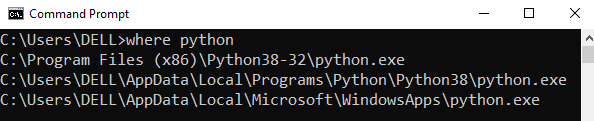
Step 1: Open the folder where you installed Python by opening the command prompt and typing where python
Step 2: Once you have opened the Python folder, browse and open the Scripts folder and copy its location. Also verify that the folder contains the pip file.
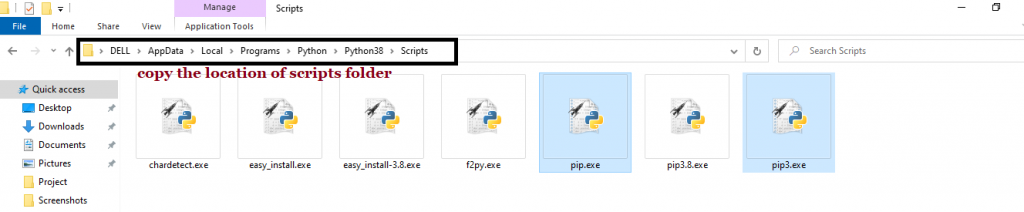
Step 3: Now open the Scripts directory in the command prompt using the cd command and the location that you copied previously.

Step 4: Now install the library using pip install openpyxl command. Here’s an analogous example:
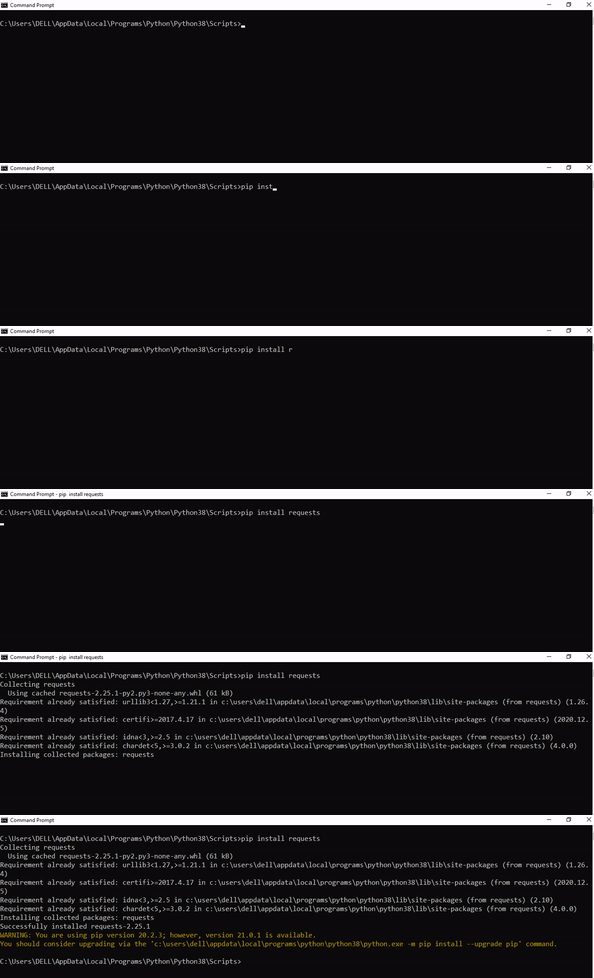
After having followed the above steps, execute our script once again. And you should get the desired output.
Other Solution Ideas
- The
ModuleNotFoundErrormay appear due to relative imports. You can learn everything about relative imports and how to create your own module in this article. - You may have mixed up Python and pip versions on your machine. In this case, to install
openpyxlfor Python 3, you may want to trypython3 -m pip install openpyxlor evenpip3 install openpyxlinstead ofpip install openpyxl - If you face this issue server-side, you may want to try the command
pip install --user openpyxl - If you’re using Ubuntu, you may want to try this command:
sudo apt install openpyxl - You can check out our in-depth guide on installing
openpyxlhere. - You can also check out this article to learn more about possible problems that may lead to an error when importing a library.
Understanding the “import” Statement
import openpyxl
In Python, the import statement serves two main purposes:
- Search the module by its name, load it, and initialize it.
- Define a name in the local namespace within the scope of the
importstatement. This local name is then used to reference the accessed module throughout the code.
What’s the Difference Between ImportError and ModuleNotFoundError?
What’s the difference between ImportError and ModuleNotFoundError?
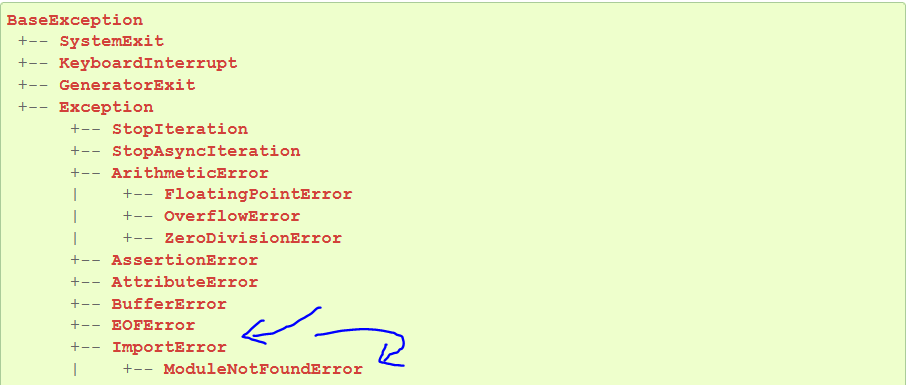
Python defines an error hierarchy, so some error classes inherit from other error classes. In our case, the ModuleNotFoundError is a subclass of the ImportError class.
You can see this in this screenshot from the docs:
You can also check this relationship using the issubclass() built-in function:
>>> issubclass(ModuleNotFoundError, ImportError)
True
Specifically, Python raises the ModuleNotFoundError if the module (e.g., openpyxl) cannot be found. If it can be found, there may be a problem loading the module or some specific files within the module. In those cases, Python would raise an ImportError.
If an import statement cannot import a module, it raises an ImportError. This may occur because of a faulty installation or an invalid path. In Python 3.6 or newer, this will usually raise a ModuleNotFoundError.
Related Videos
The following video shows you how to resolve the ImportError:
How to Fix : “ImportError: Cannot import name X” in Python?
The following video shows you how to import a function from another folder—doing it the wrong way often results in the ModuleNotFoundError:
How to Call a Function from Another File in Python?
How to Fix “ModuleNotFoundError: No module named ‘openpyxl’” in PyCharm
If you create a new Python project in PyCharm and try to import the openpyxl library, it’ll raise the following error message:
Traceback (most recent call last):
  File "C:/Users/.../main.py", line 1, in <module>
    import openpyxl
ModuleNotFoundError: No module named 'openpyxl'

Process finished with exit code 1
The reason is that each PyCharm project, per default, creates a virtual environment in which you can install custom Python modules. But the virtual environment is initially empty—even if you’ve already installed openpyxl on your computer!
Here’s a screenshot exemplifying this for the pandas library. It’ll look similar for openpyxl.
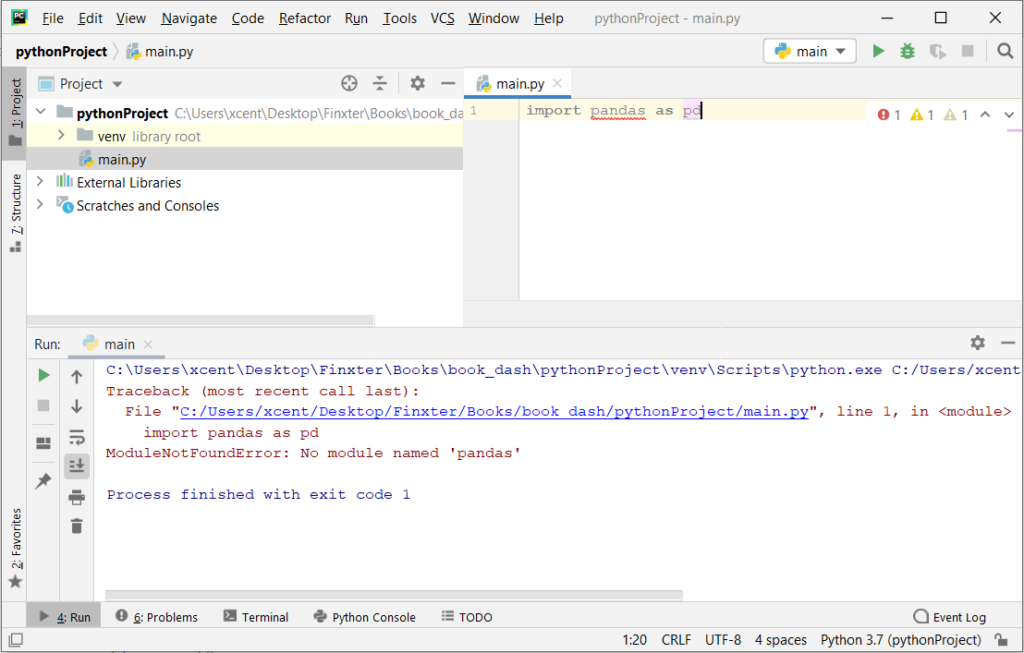
The fix is simple: Use the PyCharm installation tooltips to install Pandas in your virtual environment—two clicks and you’re good to go!
First, right-click on the pandas text in your editor:
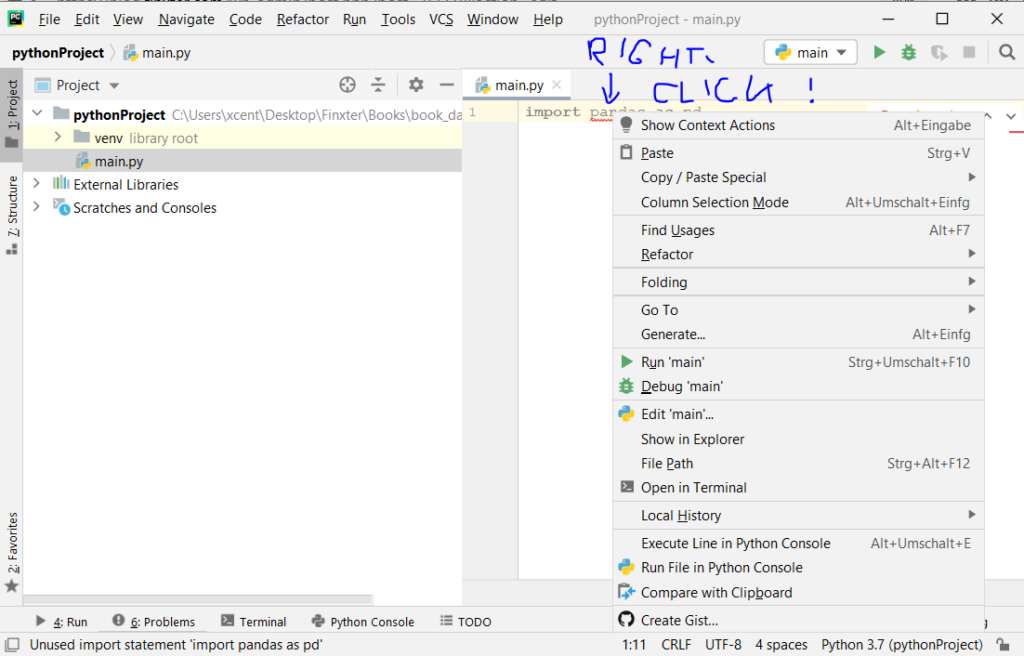
Second, click “Show Context Actions” in your context menu. In the new menu that arises, click “Install Pandas” and wait for PyCharm to finish the installation.
The code will run after your installation completes successfully.
As an alternative, you can also open the Terminal tool at the bottom and type:
$ pip install openpyxl
If this doesn’t work, you may want to set the Python interpreter to another version using the following tutorial: https://www.jetbrains.com/help/pycharm/2016.1/configuring-python-interpreter-for-a-project.html
You can also manually install a new library such as openpyxl in PyCharm using the following procedure:
- Open
File > Settings > Projectfrom the PyCharm menu. - Select your current project.
- Click the
Python Interpretertab within your project tab. - Click the small
+symbol to add a new library to the project. - Now type in the library to be installed, in your example Pandas, and click
Install Package. - Wait for the installation to terminate and close all popup windows.
Here’s an analogous example:
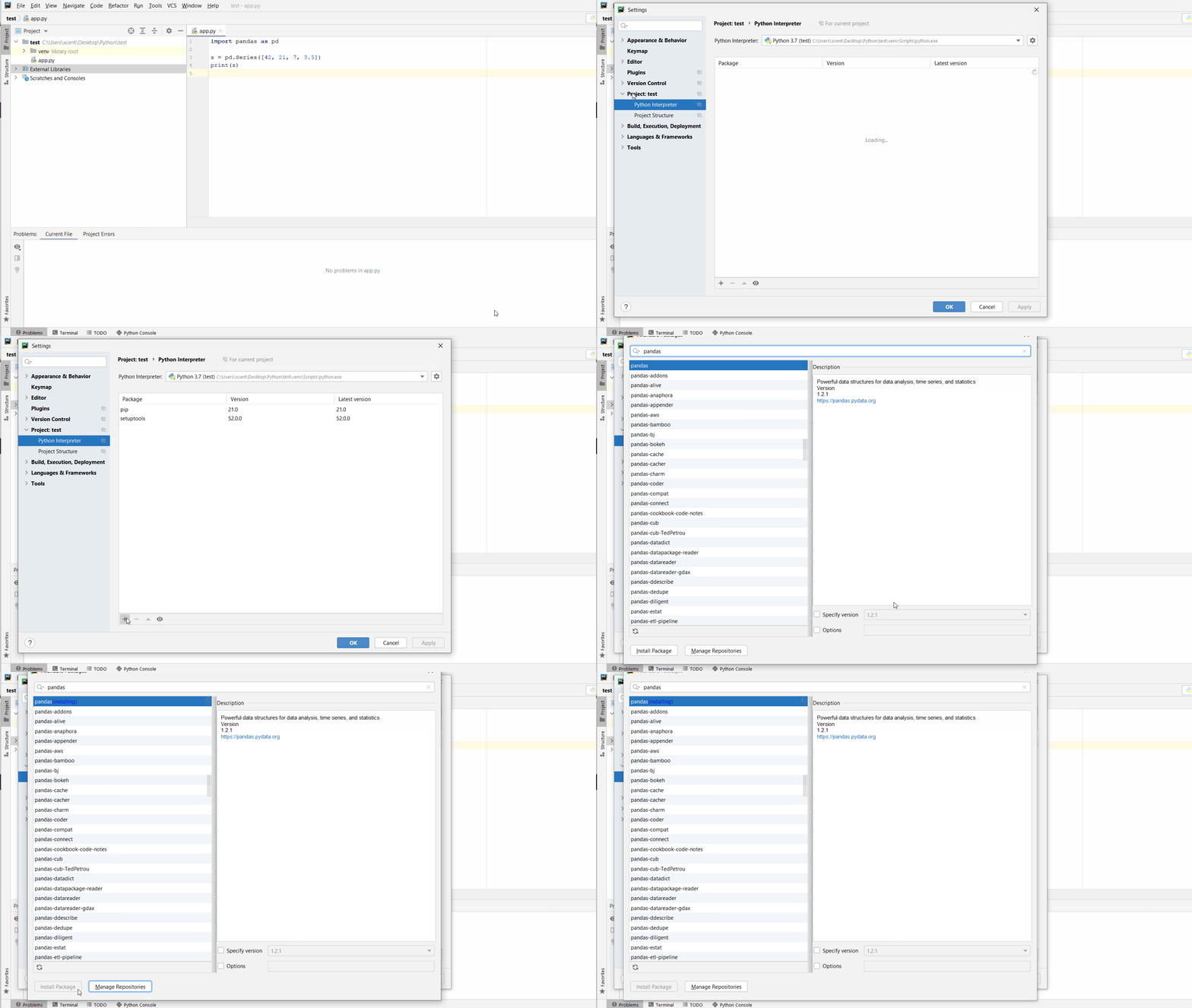
Here’s a full guide on how to install a library on PyCharm.
- How to Install a Library on PyCharm

While working as a researcher in distributed systems, Dr. Christian Mayer found his love for teaching computer science students.
To help students reach higher levels of Python success, he founded the programming education website Finxter.com. He’s author of the popular programming book Python One-Liners (NoStarch 2020), coauthor of the Coffee Break Python series of self-published books, computer science enthusiast, freelancer, and owner of one of the top 10 largest Python blogs worldwide.
His passions are writing, reading, and coding. But his greatest passion is to serve aspiring coders through Finxter and help them to boost their skills. You can join his free email academy here.

Every programming language encounters many errors. Some occur at the compile time, some at run time.
This article will discuss Python’s No module named 'openpyxl' error. A ModuleNotFoundError arises when the module we are importing is not installed or is located in another directory.
Openpyxl is a library in Python that reads and writes data from an Excel file.
Causes of the No module named 'openpyxl' Error in Python
Module Not Installed
The most common cause of this error is that the module openpyxl is not installed, and we are trying to import it into our program.
To fix this error, we need to install the module correctly. If we use Anaconda, we will use the following command to install the openpyxl module.
#Python 3.x
conda install -c anaconda openpyxl
If we are not using Anaconda, we can use the pip command to install the openpyxl module.
If we are using Python 2, use the following command.
#Python 2.x (Windows)
pip install openpyxl
If we are using Python 3, use the following command.
#Python 3.x (Windows)
pip3 install openpyxl
If pip is not set in your PATH environment variable:
python -m pip install openpyxl
On Centos:
yum install openpyxl
On Ubuntu:
sudo apt-get install openpyxl
The error can also arise if we install the openpyxl with pip if you are using Python 3 and vice versa. We should install the openpyxl using the correct pip version.
We will use the following command to check whether the openpyxl module is installed successfully.
#Python 3.x
pip list
It will show us the list of installed modules. If we find the openpyxl module in the list, it is installed successfully.
Incorrect Module Path
If the module is installed correctly, but we still face the error, the module and our Python code are located in different directories.
For example, the directory structure looks like the following.
code.py
my_folder
---module.py
In this case, we can solve the error by correctly importing the module from the other directory using the following syntax.
#Python 3.x
import my_folder.module.py
I am running the following code from Jupyter notebook.
dataDir =  r'D:\'
files = glob(os.path.join(dataDir, '*.xlsx'))
print(files)
if os.path.isfile(files[0]):
    print('ok')
df = pd.read_excel(files[0], engine='openpyxl')
which prints:
['D:\\file_index_all.xlsx', 'D:\\file_index_all2.xlsx']
ok
But I get the following error.
---------------------------------------------------------------------------
ImportError                               Traceback (most recent call last)
<ipython-input-52-5dc0ef3ce47b> in <module>
      6 if os.path.isfile(files[0]):
      7     print('ok')
----> 8 df = pd.read_excel(files[0], engine='openpyxl')

c:usersranabminiconda3libsite-packagespandasioexcel_base.py in read_excel(io, sheet_name, header, names, index_col, usecols, squeeze, dtype, engine, converters, true_values, false_values, skiprows, nrows, na_values, keep_default_na, verbose, parse_dates, date_parser, thousands, comment, skipfooter, convert_float, mangle_dupe_cols, **kwds)
    302
    303     if not isinstance(io, ExcelFile):
--> 304         io = ExcelFile(io, engine=engine)
    305     elif engine and engine != io.engine:
    306         raise ValueError(

c:usersranabminiconda3libsite-packagespandasioexcel_base.py in __init__(self, io, engine)
    819         self._io = stringify_path(io)
    820
--> 821         self._reader = self._engines[engine](self._io)
    822
    823     def __fspath__(self):

c:usersranabminiconda3libsite-packagespandasioexcel_openpyxl.py in __init__(self, filepath_or_buffer)
    482             Object to be parsed.
    483         """
--> 484         import_optional_dependency("openpyxl")
    485         super().__init__(filepath_or_buffer)
    486

c:usersranabminiconda3libsite-packagespandascompat_optional.py in import_optional_dependency(name, extra, raise_on_missing, on_version)
     90     except ImportError:
     91         if raise_on_missing:
---> 92             raise ImportError(msg) from None
     93         else:
     94             return None

ImportError: Missing optional dependency 'openpyxl'.  Use pip or conda to install openpyxl.
pandas version:
pd.__version__
1.0.1
Also one other thing I noticed despite having openpyxl 3.0.7 I can’t import it in jupyter notebook but in pycharm
import openpyxl
print(openpyxl.__version__)
shows 3.0.7