A common error you may encounter when using Python is modulenotfounderror: no module named ‘colorama’.
This error occurs if you do not install colorama before importing it or install it in the wrong environment.
You can install colorama in Python 3 with python3 -m pip install colorama.
This tutorial goes through the exact steps to troubleshoot this error for the Windows, Mac and Linux operating systems.
Table of contents
- What is ModuleNotFoundError?
- What is colorama?
- Always Use a Virtual Environment to Install Packages
- How to Install colorama on Windows Operating System
- How to Install colorama on Mac Operating System using pip
- How to Install colorama on Linux Operating Systems
- Installing pip for Ubuntu, Debian, and Linux Mint
- Installing pip for CentOS 8 (and newer), Fedora, and Red Hat
- Installing pip for CentOS 6 and 7, and older versions of Red Hat
- Installing pip for Arch Linux and Manjaro
- Installing pip for OpenSUSE
- colorama installation on Linux with Pip
- Installing colorama Using Anaconda
- Check colorama Version
- Using colorama Example
- Summary
What is ModuleNotFoundError?
The ModuleNotFoundError occurs when the module you want to use is not present in your Python environment. There are several causes of the modulenotfounderror:
The module’s name is incorrect, in which case you have to check the name of the module you tried to import. Let’s try to import the re module with a double e to see what happens:
import ree
---------------------------------------------------------------------------
ModuleNotFoundError                       Traceback (most recent call last)
1 import ree

ModuleNotFoundError: No module named 'ree'
To solve this error, ensure the module name is correct. Let’s look at the revised code:
import re

print(re.__version__)
2.2.1
You may want to import a local module file, but the module is not in the same directory. Let’s look at an example package with a script and a local module to import. Let’s look at the following steps to perform from your terminal:
mkdir example_package

cd example_package

mkdir folder_1

cd folder_1

vi module.py
Note that we use Vim to create the module.py file in this example. You can use your preferred file editor, such as Emacs or Atom. In module.py, we will import the re module and define a simple function that prints the re version:
import re

def print_re_version():

    print(re.__version__)
Close the module.py, then complete the following commands from your terminal:
cd ../

vi script.py
Inside script.py, we will try to import the module we created.
import module

if __name__ == '__main__':

    mod.print_re_version()
Let’s run python script.py from the terminal to see what happens:
Traceback (most recent call last):
  File "script.py", line 1, in ≺module≻
    import module
ModuleNotFoundError: No module named 'module'
To solve this error, we need to point to the correct path to module.py, which is inside folder_1. Let’s look at the revised code:
import folder_1.module as mod

if __name__ == '__main__':

    mod.print_re_version()
When we run python script.py, we will get the following result:
2.2.1
You can also get the error by overriding the official module you want to import by giving your module the same name.
Lastly, you can encounter the modulenotfounderror when you import a module that is not installed in your Python environment.
What is colorama?
colorama is a Python library for producing coloured terminal text and cursor positioning.
The simplest way to install colorama is to use the package manager for Python called pip. The following installation instructions are for the major Python version 3.
Always Use a Virtual Environment to Install Packages
It is always best to install new libraries within a virtual environment. You should not install anything into your global Python interpreter when you develop locally. You may introduce incompatibilities between packages, or you may break your system if you install an incompatible version of a library that your operating system needs. Using a virtual environment helps compartmentalize your projects and their dependencies. Each project will have its environment with everything the code needs to run. Most ImportErrors and ModuleNotFoundErrors occur due to installing a library for one interpreter and trying to use the library with another interpreter. Using a virtual environment avoids this. In Python, you can use virtual environments and conda environments. We will go through how to install colorama with both.
How to Install colorama on Windows Operating System
First, you need to download and install Python on your PC. Ensure you select the install launcher for all users and Add Python to PATH checkboxes. The latter ensures the interpreter is in the execution path. Pip is automatically on Windows for Python versions 2.7.9+ and 3.4+.
You can check your Python version with the following command:
python3 --version
You can install pip on Windows by downloading the installation package, opening the command line and launching the installer. You can install pip via the CMD prompt by running the following command.
python get-pip.py
You may need to run the command prompt as administrator. Check whether the installation has been successful by typing.
pip --version
virtualenv env
You can activate the environment by typing the command:
envScriptsactivate
You will see “env” in parenthesis next to the command line prompt. You can install colorama within the environment by running the following command from the command prompt.
python3 -m pip install colorama
We use python -m pip to execute pip using the Python interpreter we specify as Python. Doing this helps avoid ImportError when we try to use a package installed with one version of Python interpreter with a different version. You can use the command which python to determine which Python interpreter you are using.
How to Install colorama on Mac Operating System using pip
Open a terminal by pressing command (⌘) + Space Bar to open the Spotlight search. Type in terminal and press enter. To get pip, first ensure you have installed Python3:
python3 --version
Python 3.8.8
Download pip by running the following curl command:
curl https://bootstrap.pypa.io/get-pip.py -o get-pip.py
The curl command allows you to specify a direct download link. Using the -o option sets the name of the downloaded file.
Install pip by running:
python3 get-pip.py
To install colorama, first create the virtual environment:
python3 -m venv env
Then activate the environment using:
source env/bin/activate
You will see “env” in parenthesis next to the command line prompt. You can install colorama within the environment by running the following command from the command prompt.
python3 -m pip install colorama
How to Install colorama on Linux Operating Systems
All major Linux distributions have Python installed by default. However, you will need to install pip. You can install pip from the terminal, but the installation instructions depend on the Linux distribution you are using. You will need root privileges to install pip. Open a terminal and use the commands relevant to your Linux distribution to install pip.
Installing pip for Ubuntu, Debian, and Linux Mint
sudo apt install python-pip3
Installing pip for CentOS 8 (and newer), Fedora, and Red Hat
sudo dnf install python-pip3
Installing pip for CentOS 6 and 7, and older versions of Red Hat
sudo yum install epel-release

sudo yum install python-pip3
Installing pip for Arch Linux and Manjaro
sudo pacman -S python-pip
Installing pip for OpenSUSE
sudo zypper python3-pip
colorama installation on Linux with Pip
To install colorama, first create the virtual environment:
python3 -m venv env
Then activate the environment using:
source env/bin/activate
You will see “env” in parenthesis next to the command line prompt. You can install colorama within the environment by running the following command from the command prompt.
Once you have activated your virtual environment, you can install colorama using:
python3 -m pip install colorama
Installing colorama Using Anaconda
Anaconda is a distribution of Python and R for scientific computing and data science. You can install Anaconda by going to the installation instructions. Once you have installed Anaconda, you can create a virtual environment and install colorama.
To create a conda environment you can use the following command:
conda create -n project python=3.8
You can specify a different Python 3 version if you like. Ideally, choose the latest version of Python. Next, you will activate the project container. You will see “project” in parentheses next to the command line prompt.
source activate project
Now you’re ready to install colorama using conda.
Once you have installed Anaconda and created your conda environment, you can install colorama using the following command:
conda install -c anaconda colorama
Check colorama Version
Once you have successfully installed colorama, you can check its version. If you used pip to install colorama, you can use pip show from your terminal.
python3 -m pip show colorama
Name: colorama
Version: 0.4.4
Summary: Cross-platform colored terminal text.
Home-page: https://github.com/tartley/colorama
Second, within your python program, you can import colorama and then reference the __version__ attribute:
import colorama
print(colorama.__version__)
0.4.4
If you used conda to install colorama, you could check the version using the following command:
conda list -f colorama
# Name                    Version                   Build  Channel
colorama                  0.4.4              pyhd3eb1b0_0    anaconda
Using colorama Example
from colorama import Fore, Back, Style
print(Fore.RED + 'some red text')
print(Back.GREEN + 'and with a green background')
print(Style.DIM + 'and in dim text')
print(Style.RESET_ALL)
print('back to normal now')

Summary
Congratulations on reading to the end of this tutorial.
Go to the online courses page on Python to learn more about Python for data science and machine learning.
For further reading on missing modules in Python, go to the article:
- How to Solve ModuleNotFoundError: no module named ‘plotly’.
- How to Solve Python ModuleNotFoundError: no module named ‘psycopg2’.
- How to Solve Python ModuleNotFoundError: no module named ‘seaborn’.
Have fun and happy researching!
pip install colorama
The Python colorama library is among the top 100 Python libraries, with more than 87,783,866 downloads. This article will show you everything you need to get this installed in your Python environment.
- Library Link
Alternatively, you may use any of the following commands to install colorama, depending on your concrete environment. One is likely to work!
💡 If you have only one version of Python installed:pip install colorama💡 If you have Python 3 (and, possibly, other versions) installed:pip3 install💡 If you don't have PIP or it doesn't workcoloramapython -m pip install💡 If you have Linux and you need to fix permissions (any one):coloramapython3 -m pip installcoloramasudo pip3 install💡 If you have Linux with aptcoloramapip3 installcolorama--usersudo apt install💡 If you have Windows and you have set up thecoloramapyaliaspy -m pip install💡 If you have Anacondacoloramaconda install -c anaconda💡 If you have Jupyter Notebookcolorama!pip installcolorama!pip3 installcolorama
How to Install colorama on Windows?
- Type
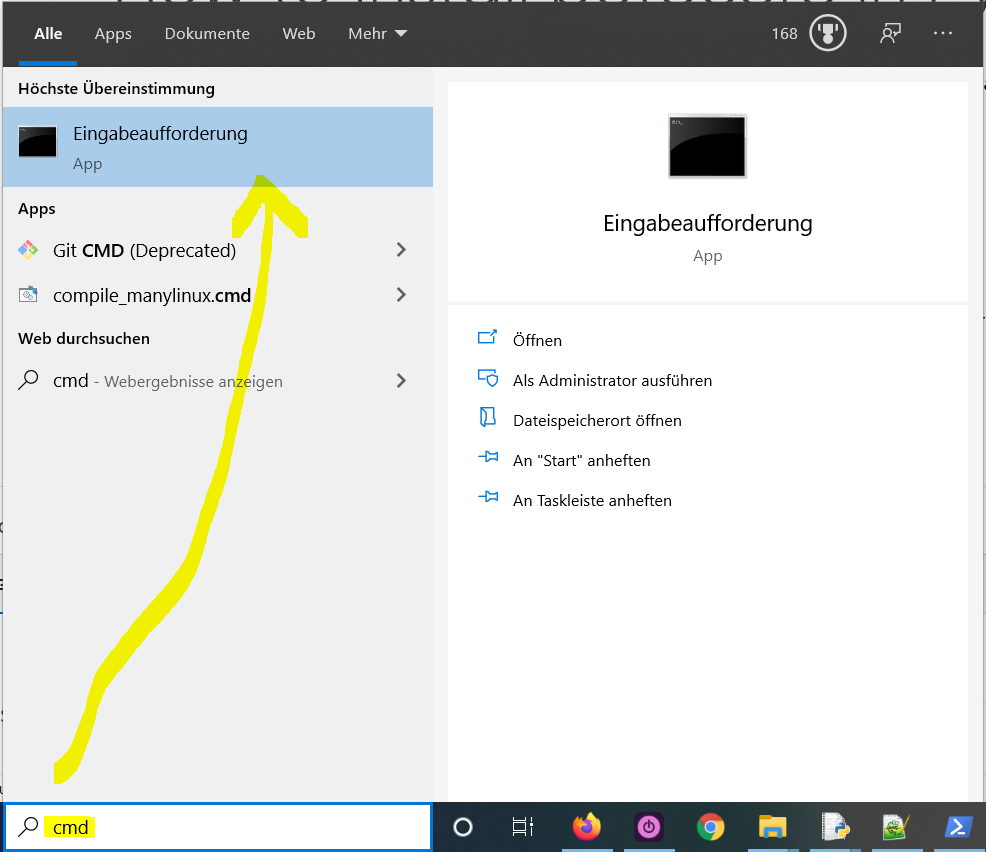
"cmd"in the search bar and hitEnterto open the command line. - Type “
pip install colorama” (without quotes) in the command line and hitEnteragain. This installs colorama for your default Python installation. - The previous command may not work if you have both Python versions 2 and 3 on your computer. In this case, try
"pip3 install colorama"or “python -m pip install colorama“. - Wait for the installation to terminate successfully. It is now installed on your Windows machine.
Here’s how to open the command line on a (German) Windows machine:
First, try the following command to install colorama on your system:
pip install colorama
Second, if this leads to an error message, try this command to install colorama on your system:
pip3 install colorama
Third, if both do not work, use the following long-form command:
python -m pip install colorama
The difference between pip and pip3 is that pip3 is an updated version of pip for Python version 3. Depending on what’s first in the PATH variable, pip will refer to your Python 2 or Python 3 installation—and you cannot know which without checking the environment variables. To resolve this uncertainty, you can use pip3, which will always refer to your default Python 3 installation.
How to Install colorama on Linux?
You can install colorama on Linux in four steps:
- Open your Linux terminal or shell
- Type “
pip install colorama” (without quotes), hit Enter. - If it doesn’t work, try
"pip3 install colorama"or “python -m pip install colorama“. - Wait for the installation to terminate successfully.
The package is now installed on your Linux operating system.
How to Install colorama on macOS?
Similarly, you can install colorama on macOS in four steps:
- Open your macOS terminal.
- Type “
pip install colorama” without quotes and hitEnter. - If it doesn’t work, try
"pip3 install colorama"or “python -m pip install colorama“. - Wait for the installation to terminate successfully.
The package is now installed on your macOS.
Given a PyCharm project. How to install the colorama library in your project within a virtual environment or globally? Here’s a solution that always works:
- Open
File > Settings > Projectfrom the PyCharm menu. - Select your current project.
- Click the
Python Interpretertab within your project tab. - Click the small
+symbol to add a new library to the project. - Now type in the library to be installed, in your example
"colorama"without quotes, and clickInstall Package. - Wait for the installation to terminate and close all pop-ups.
Here’s the general package installation process as a short animated video—it works analogously for colorama if you type in “colorama” in the search field instead:
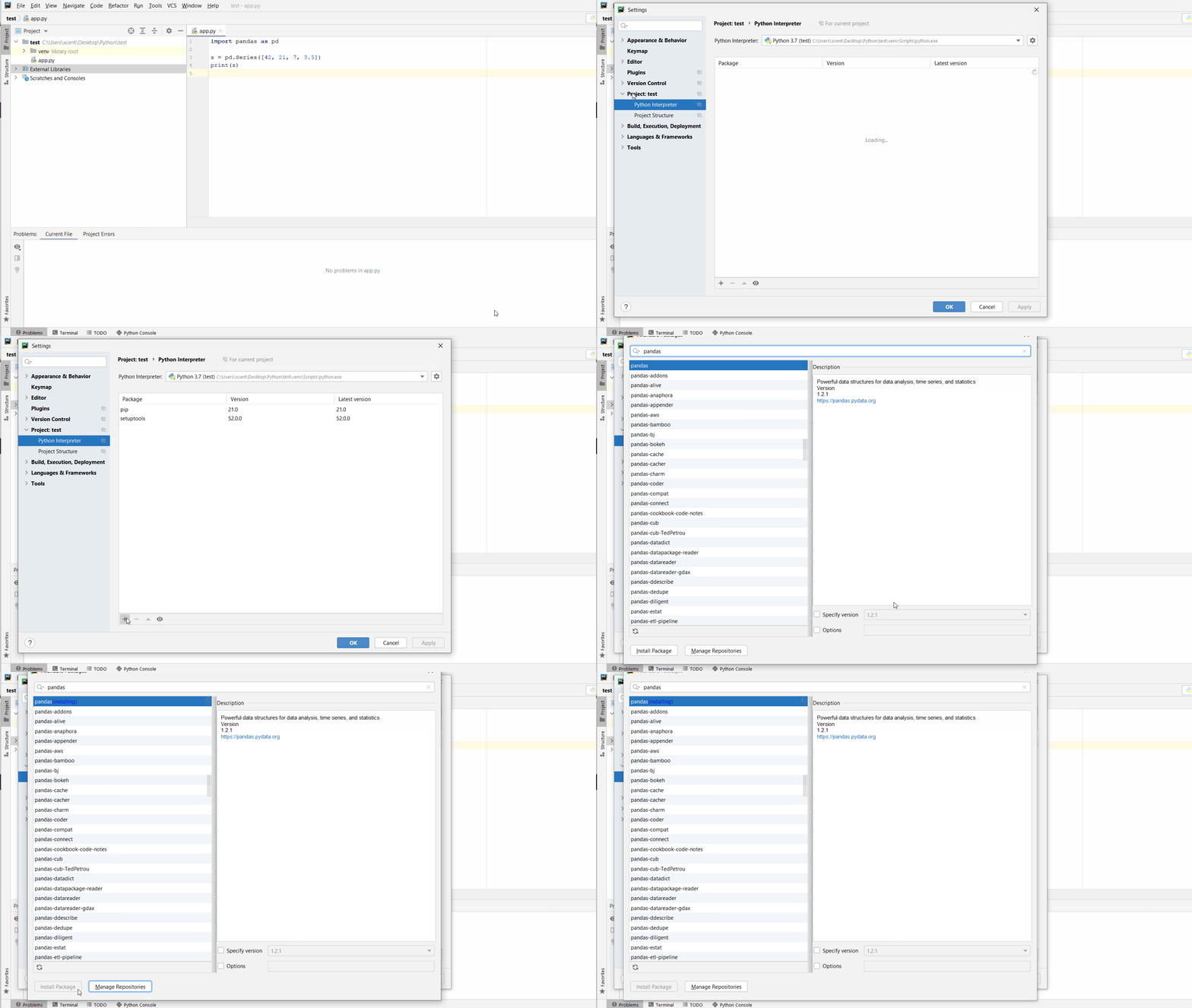
Make sure to select only “colorama” because there may be other packages that are not required but also contain the same term (false positives):
How to Install colorama in a Jupyter Notebook?
To install any package in a Jupyter notebook, you can prefix the !pip install my_package statement with the exclamation mark "!". This works for the colorama library too:
!pip install my_package
This automatically installs the colorama library when the cell is first executed.
How to Resolve ModuleNotFoundError: No module named ‘colorama’?
Say you try to import the colorama package into your Python script without installing it first:
import colorama
# ... ModuleNotFoundError: No module named 'colorama'
Because you haven’t installed the package, Python raises a ModuleNotFoundError: No module named 'colorama'.
To fix the error, install the colorama library using “pip install colorama” or “pip3 install colorama” in your operating system’s shell or terminal first.
See above for the different ways to install colorama in your environment.
Improve Your Python Skills
If you want to keep improving your Python skills and learn about new and exciting technologies such as Blockchain development, machine learning, and data science, check out the Finxter free email academy with cheat sheets, regular tutorials, and programming puzzles.
Join us, it’s fun! 🙂
Programming Humor


While working as a researcher in distributed systems, Dr. Christian Mayer found his love for teaching computer science students.
To help students reach higher levels of Python success, he founded the programming education website Finxter.com. He’s author of the popular programming book Python One-Liners (NoStarch 2020), coauthor of the Coffee Break Python series of self-published books, computer science enthusiast, freelancer, and owner of one of the top 10 largest Python blogs worldwide.
His passions are writing, reading, and coding. But his greatest passion is to serve aspiring coders through Finxter and help them to boost their skills. You can join his free email academy here.
Also experiencing this.
Here is a log from tox running on the windows-latest environment via github actions:
Collecting colorama<0.5.0,>=0.4.1; sys_platform == "win32"
  Downloading https://files.pythonhosted.org/packages/cb/fe/bfc4d807aa43a183ab387340f524a0bb086624f2c5935bd08e647b54b269/colorama-0.4.2.tar.gz
    ERROR: Command errored out with exit status 1:
     command: 'D:amicropy-climicropy-cli.toxpy37Scriptspython.EXE' -c 'import sys, setuptools, tokenize; sys.argv[0] = '"'"'C:\Users\RUNNER~1\AppData\Local\Temp\pip-install-jdcxa2nb\colorama\setup.py'"'"'; __file__='"'"'C:\Users\RUNNER~1\AppData\Local\Temp\pip-install-jdcxa2nb\colorama\setup.py'"'"';f=getattr(tokenize, '"'"'open'"'"', open)(__file__);code=f.read().replace('"'"'rn'"'"', '"'"'n'"'"');f.close();exec(compile(code, __file__, '"'"'exec'"'"'))' egg_info --egg-base 'C:UsersRUNNER~1AppDataLocalTemppip-install-jdcxa2nbcoloramapip-egg-info'
         cwd: C:UsersRUNNER~1AppDataLocalTemppip-install-jdcxa2nbcolorama
    Complete output (7 lines):
    Traceback (most recent call last):
      File "<string>", line 1, in <module>
      File "C:UsersRUNNER~1AppDataLocalTemppip-install-jdcxa2nbcoloramasetup.py", line 36, in <module>
        long_description=read_file('README.rst'),
      File "C:UsersRUNNER~1AppDataLocalTemppip-install-jdcxa2nbcoloramasetup.py", line 18, in read_file
        with open(os.path.join(os.path.dirname(__file__), path)) as fp:
    FileNotFoundError: [Errno 2] No such file or directory: 'C:\Users\RUNNER~1\AppData\Local\Temp\pip-install-jdcxa2nb\colorama\README.rst'
    ----------------------------------------
ERROR: Command errored out with exit status 1: python setup.py egg_info Check the logs for full command output.
Link to full action
I downloaded the archive from the link, the README.rst is indeed not present.
С другими модулями тоже самое.
D:Python>pip install colorama
WARNING: Retrying (Retry(total=4, connect=None, read=None, redirect=None, status=None)) after connection broken by ‘SSLError(SSLCertVerificationError(1, ‘[SSL: CERTIFICATE_VERIFY_FAILED] certificate verify failed: unable to get local issuer certificate (_ssl.c:1129)’))’: /simple/colorama/
WARNING: Retrying (Retry(total=3, connect=None, read=None, redirect=None, status=None)) after connection broken by ‘SSLError(SSLCertVerificationError(1, ‘[SSL: CERTIFICATE_VERIFY_FAILED] certificate verify failed: unable to get local issuer certificate (_ssl.c:1129)’))’: /simple/colorama/
WARNING: Retrying (Retry(total=2, connect=None, read=None, redirect=None, status=None)) after connection broken by ‘SSLError(SSLCertVerificationError(1, ‘[SSL: CERTIFICATE_VERIFY_FAILED] certificate verify failed: unable to get local issuer certificate (_ssl.c:1129)’))’: /simple/colorama/
WARNING: Retrying (Retry(total=1, connect=None, read=None, redirect=None, status=None)) after connection broken by ‘SSLError(SSLCertVerificationError(1, ‘[SSL: CERTIFICATE_VERIFY_FAILED] certificate verify failed: unable to get local issuer certificate (_ssl.c:1129)’))’: /simple/colorama/
WARNING: Retrying (Retry(total=0, connect=None, read=None, redirect=None, status=None)) after connection broken by ‘SSLError(SSLCertVerificationError(1, ‘[SSL: CERTIFICATE_VERIFY_FAILED] certificate verify failed: unable to get local issuer certificate (_ssl.c:1129)’))’: /simple/colorama/
Could not fetch URL https://pypi.org/simple/colorama/: There was a problem confirming the ssl certificate: HTTPSConnectionPool(host=’pypi.org’, port=443): Max retries exceeded with url: /simple/colorama/ (Caused by SSLError(SSLCertVerificationError(1, ‘[SSL: CERTIFICATE_VERIFY_FAILED] certificate verify failed: unable to get local issuer certificate (_ssl.c:1129)’))) — skipping
ERROR: Could not find a version that satisfies the requirement colorama (from versions: none)
ERROR: No matching distribution found for colorama
-
Вопрос заданболее года назад
-
317 просмотров
Пригласить эксперта
-
Показать ещё
Загружается…
29 янв. 2023, в 03:07
300000 руб./за проект
29 янв. 2023, в 02:16
700000 руб./за проект
29 янв. 2023, в 01:54
5000 руб./за проект
Минуточку внимания
7 ответов
Пакеты Python устанавливаются с помощью setup.py, введя следующую команду из командной строки:
python setup.py install
TJD
23 март 2012, в 21:53
Поделиться
Установка с помощью пипса — это почти всегда путь. Он будет обрабатывать загрузку пакета для вас, а также любые зависимости. Если у вас нет пипа, см. http://www.pip-installer.org/en/latest/installing.html
Тогда
pip install colorama
или
sudo pip install colorama
Ба-бах! Готово.
Travis Bear
29 янв. 2014, в 01:07
Поделиться
Я просто странная проблема с awscli и colorama. В поисках ответа я пришел сюда. Решение было:
$ sudo -H pip uninstall colorama
$ sudo -H pip install colorama
Martin Thoma
29 нояб. 2017, в 15:55
Поделиться
Если вы получили приведенную ниже ошибку в Ubuntu 18.04 ModuleNotFoundError: No module named 'rsa', попробуйте:
pip3 install colorama
Venu Pagidi
19 фев. 2019, в 10:40
Поделиться
Я также испытал эту проблему. Следуя инструкциям по установке sudo pip install colorama я получаю сообщение:
Требование уже выполнено: колорама в /usr/lib/python2.7/dist-packages.
Проблема для меня в том, что я использую python3 в своем коде заголовка #!usr/bin/env python3. Изменение на #!usr/bin/env python работает — извините, я не знаю, как заставить его работать с python 3!
Steven H
13 фев. 2019, в 13:28
Поделиться
Переустановка колорамы может не сработать сразу. Если в пакетах site-packages есть колорама .egg, вам нужно сначала удалить этот файл, а затем pip install colorama.
Raul Santelices
23 авг. 2018, в 17:52
Поделиться
если у вас есть easy_install (в большинстве случаев это будет работать)
sudo easy_install -U colorama
если вы установили пип
sudo pip install -U colorama
SaPPi
23 авг. 2018, в 16:44
Поделиться
Ещё вопросы
- 1Слушатель действий в массиве кнопок J, расположенных в 5 разных JPanels
- 0Как запустить команду exec () в фоновом режиме с сервера php-web-страницы centos?
- 1Все ваши утверждения прошли?
- 0Конец области видимости очищает переменные из памяти?
- 1Перезагрузить / обновить Kendo Treelist после встроенного обновления
- 1Панель управления мультимедиа исчезает после появления на секунду в VideoView Android
- 0AngularJS и REST: выполнить действие DELETE, отправив массив из множества элементов для удаления
- 1Javascript обратный вызов с setTimeout
- 1Тестирование активности потока с роботом
- 1Будут ли оба метода выполняться одновременно
- 1Держите кнопки в нижней части макета видимыми, когда список длинный
- 0Несколько divs для слайд-тумблера, как скрыть все с помощью кнопки закрытия?
- 1Используйте модель Google Cloud AutoML для прогнозирования изображения, которое хранится в облачном хранилище Google Cloud в функции Firebase
- 1Недостаточно памяти для обработки исключений?
- 1преобразовать кортеж dict в networkx.Graph
- 0Получение двух элементов jquery (jcarousel и accordion) для работы на одной странице
- 0PHP: групповые (многомерные, ассоциативные) значения массива и суммы по определенному ключу
- 0Array — Удалить записи со значением ноль
- 0Как отобразить данные JSON с помощью `vis.js`
- 1Звук SoundPool не меняется
- 1Мокко «описать» не определено
- 0Код HTA (vbscript) + параметры присоединения к домену
- 0Каков наилучший подход для инициализации значений, связанных с enum? [Дубликат]
- 1Утечка намерений и AlarmManager
- 0Имя файла с расширением из строки MIME
- 0Ошибки компиляции при попытке связать <boost property_tree json_parser.hpp>
- 0Объединить стол MySQL
- 1Оценка выражения in-fix — исключение NoSuchElementFound
- 0Как скопировать несколько строк из таблицы и вставить их в другую таблицу в БД MySql с помощью PHP?
- 0Как получить текст из элемента?
- 1Этаж стоимости в BST
- 1Изменить значение столбца для строк, которые удовлетворяли условиям в DataFrame
- 0использовать requirejs частично и иногда включать javascript вручную?
- 1Отладка HTTPResponse с помощью эмулятора Android
- 1(Java) Перестановка N списков с сбросом на диск
- 0Угловые часы не срабатывают
- 0Лучший способ, чем плавать: прямо в панели навигации?
- 0setTimeout срабатывает слишком быстро
- 1Как обрабатываются обзоры приложений в магазинах приложений для iPhone / Android / Blackberry
- 1Добавление значений в TTK Combobox [‘values’] без перезагрузки combobox
- 1tf.boolean_mask (2D, 2D) дает 1D результат
- 0столбец таблицы, чтобы не отталкивать другие столбцы?
- 1Сортировка ArrayList <String> с пользовательским компаратором
- 1Точность застряла на 50% керас
- 0Неверный синтаксис запроса при запросе couchdb lucene из php (с curl) нелатинскими символами
- 0Постоянный логин curl magento и получение данных
- 1Как распечатать таблицу ASCII?
- 0ПОЧЕМУ УДАЛЕНИЕ занимает намного больше времени, чем ВЫБОР (но тот же УДАЛЕНО на основе первичного ключа выполняется быстро)
- 1Как я могу использовать плагин ServiceStack RegistrationFeature с Redis?
- 1Печать PDF автоматически из кода C #
|
0 / 0 / 0 Регистрация: 25.01.2020 Сообщений: 3 |
|
|
1 |
|
|
25.01.2020, 15:26. Показов 26101. Ответов 12
Не работает pip install в Python 3.8.1 SyntaxError: invalid syntax
__________________
0 |

|
Programming Эксперт 94731 / 64177 / 26122 Регистрация: 12.04.2006 Сообщений: 116,782 |
25.01.2020, 15:26 |
|
Ответы с готовыми решениями: Не работает команда pip Не работает pip Не работает Pip
12 |
 Не работает PIP
|
5403 / 3827 / 1214 Регистрация: 28.10.2013 Сообщений: 9,554 Записей в блоге: 1 |
|
|
25.01.2020, 15:53 |
2 |
|
пишу в cmd Ты пишешь в консоли Python, а не cmd.
1 |


|
0 / 0 / 0 Регистрация: 25.01.2020 Сообщений: 3 |
|
|
25.01.2020, 15:56 [ТС] |
3 |
|
как говорится, пока сам не начнёшь разбираться…
0 |
|
5403 / 3827 / 1214 Регистрация: 28.10.2013 Сообщений: 9,554 Записей в блоге: 1 |
|
|
25.01.2020, 16:16 |
4 |
|
в общем если вам пишет invalid syntax, то проверьте PATH Неверно. SyntaxError: invalid syntax это ошибка интерпретатора. К PATH никакого отношения не имеет. Добавлено через 1 минуту
ищите в папку scripts там где установлен python, в этой папке найдите файл pip, установите его и должно всё заработать. Если pip там есть, то ничего устанавливать уже не нужно.
2 |
|
0 / 0 / 0 Регистрация: 25.01.2020 Сообщений: 3 |
|
|
26.01.2020, 12:30 [ТС] |
5 |
|
ну как так, «ты пишешь не в cmd» а комбинация вин+R и последующее написание в открывшимся окне «cmd» и нажатие enter что открывает? «если pip там есть, то ничего устанавливать не нужно» — как же мне тогда это помогло? то есть пока я не открыл файл pip, у меня на команду pip install «какая то библиотека» был ответ invalid syntax, то после у меня заработала команда pip и я смог устанавливать интересующие меня библиотеки. чудеса… но я, все равно, все не правильно делаю и пишу не cmd))) Миниатюры
0 |
|
5403 / 3827 / 1214 Регистрация: 28.10.2013 Сообщений: 9,554 Записей в блоге: 1 |
|
|
26.01.2020, 16:09 |
6 |
|
Как же тяжело учить нубов…. Ну а далее — методом тыка ты нашел файл pip, открыл cmd в каталоге Scripts и ввел команду. Это — правильно. Но описал все это ты неправильно, чем вводишь в заблуждение других. P.S. Python нужно было сразу ставить с добавлением его в PATH (для этого есть специальная галочка при установке). Тогда нет необходимости переходить в каталог Scripts для запуска pip.
3 |
|
1 / 1 / 0 Регистрация: 20.11.2020 Сообщений: 1 |
|
|
20.11.2020, 05:50 |
7 |
|
1 |

|
0 / 0 / 0 Регистрация: 09.07.2021 Сообщений: 19 |
|
|
20.12.2021, 14:48 |
8 |
|
А что мне делать, если я открываю cmd и пишу строку- pip install pytelegrambotapi.
0 |
|
Автоматизируй это!
6375 / 4122 / 1133 Регистрация: 30.03.2015 Сообщений: 12,194 Записей в блоге: 29 |
|
|
20.12.2021, 15:02 |
9 |
|
Haker_228, значит ты не хакер и как то криво установил питон (пип ставится вместе с ним)
0 |
|
0 / 0 / 0 Регистрация: 09.07.2021 Сообщений: 19 |
|
|
20.12.2021, 15:05 |
10 |
|
Welemir1, спасибо за комментарий, но лучше бы помог, а не сидел и умничал.
0 |
|
Автоматизируй это!
6375 / 4122 / 1133 Регистрация: 30.03.2015 Сообщений: 12,194 Записей в блоге: 29 |
|
|
20.12.2021, 15:11 |
11 |
|
Haker_228, я тебе и помог — установи питон, только вдумчиво. Может вот это поможет Не по теме:
сидел и умничал. ну ты же не сдержался, пока ник придумывал и я вот не устоял тоже. 1-1.
0 |
|
0 / 0 / 0 Регистрация: 09.07.2021 Сообщений: 19 |
|
|
20.12.2021, 15:15 |
12 |
|
Спасибо, но я так назвал себя в честь ника нашего учителя по информатике на сайте знакомств у него был такой ник.
0 |
|
533 / 438 / 47 Регистрация: 17.07.2013 Сообщений: 2,236 |
|
|
21.12.2021, 10:01 |
13 |
|
ХЕЕЕЕЕЛПППП, помогите Иногда вместо pip помогает conda, только ей пользоваться надо осторожно
0 |
|
IT_Exp Эксперт 87844 / 49110 / 22898 Регистрация: 17.06.2006 Сообщений: 92,604 |
21.12.2021, 10:01 |
|
Помогаю со студенческими работами здесь Не работает pip
Проблемы с PIP AdSense, PIP З.Ы. Кто не знает: PIP — "Payment in progress", "платеж в процессе". Искать еще темы с ответами Или воспользуйтесь поиском по форуму: 13 |
-
#1
Здравствуйте, не могу разобраться с проблемой модуля Colorama.
При вводе:
from colorama import init
from colorama import Fore, Back, Style
init()
print(Back.GREEN)
Получаю ошибку:
Traceback (most recent call last):
File «E:Pythontest.py», line 5, in <module>
from colorama import init
ImportError: cannot import name ‘init’ from ‘colorama’ (C:UsersHPAppDataLocalProgramsPythonPython310libsite-packagescolorama__init__.py)
Подскажите пожалуйста, как можно её устранить?
-
#2
попробуй:
Python:
from colorama import *

init()

print(Back.GREEN)
-
#3
попробуй:
Python:
from colorama import *

init()

print(Back.GREEN)
Теперь выдает другую ошибку 
ModuleNotFoundError: No module named ‘colorama’

-
#4
Теперь выдает другую ошибку
ModuleNotFoundError: No module named ‘colorama’
переводи ошибки… у тебя colorama не установлен
pip install colorama
-
#5
переводи ошибки… у тебя colorama не установлен
pip install colorama
Поняла, спасибо!
-
#6
переводи ошибки… у тебя colorama не установлен
pip install colorama
а без меня бы не узнал : (