При разработке веб-сайтов и веб-приложений можно столкнуться с ошибкой 500 internal server error. Сначала она может испугать и ввести в заблуждение, поскольку обычно веб-сервер выдает более конкретные ошибки, в которых указана точная причина проблемы, например, превышено время ожидания, неверный запрос или файл не найден, а тут просто сказано что, обнаружена внутренняя ошибка.
Но не все так страшно и в большинстве случаев проблема вполне решаема и очень быстро. В этой статье мы разберем как исправить ошибку Internal server error в Nginx.
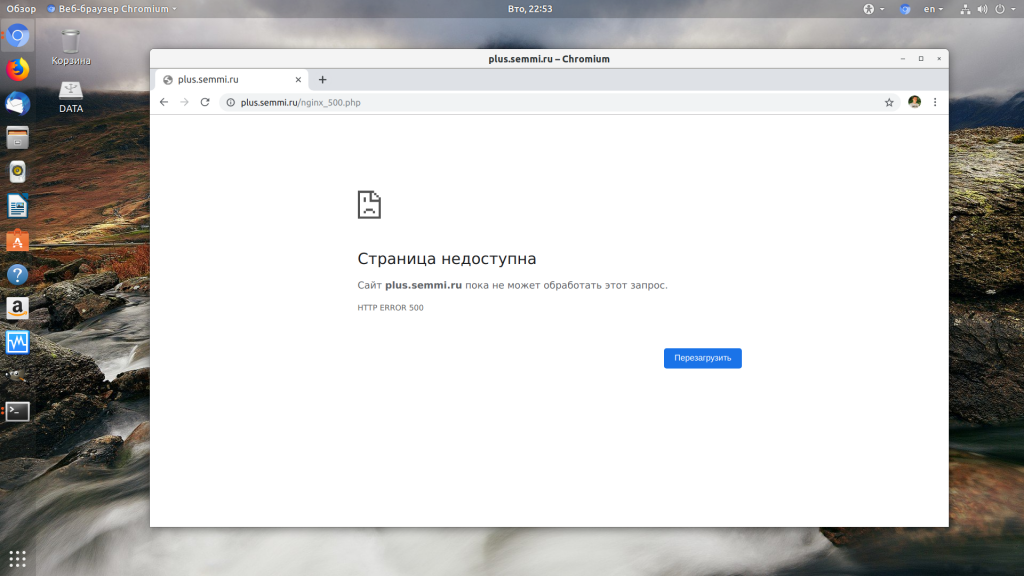
Дословно Internal server error означает внутренняя ошибка сервера. И вызвать её могут несколько проблем. Вот основные из них:
- Ошибки в скрипте на PHP — одна из самых частых причин;
- Превышено время выполнения PHP скрипта или лимит памяти;
- Неправильные права на файлы сайта;
- Неверная конфигурация Nginx.
А теперь рассмотрим каждую из причин более подробно и разберем варианты решения.
1. Ошибка в скрипте PHP
Мы привыкли к тому, что если в PHP скрипте есть ошибки, то сразу же видим их в браузере. Однако на производственных серверах отображение сообщений об ошибках в PHP отключено, чтобы предотвратить распространение информации о конфигурации сервера для посторонних. Nginx не может отобразить реальную причину ошибки, потому что не знает что за ошибка произошла, а поэтому выдает универсальное сообщение 500 internal server error.
Чтобы исправить эту ошибку, нужно сначала понять где именно проблема. Вы можете включить отображение ошибок в конфигурационном файле php изменив значение строки display_errors с off на on. Рассмотрим на примере Ubuntu и PHP 7.2:
vi /etc/php/7.2/php.ini
display_errors = On
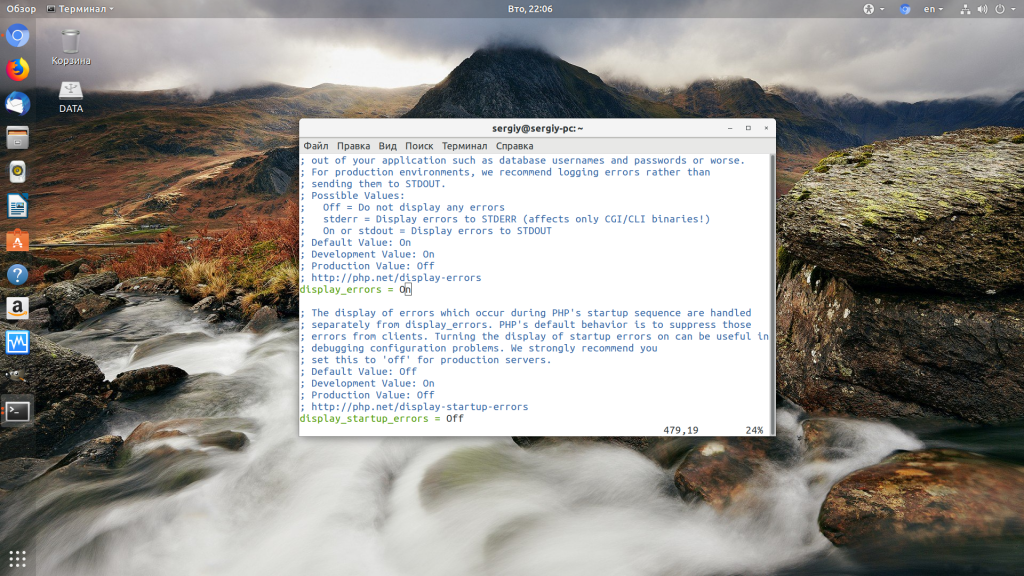
Перезапустите php-fpm:
sudo systemctl restart php-fpm
Затем обновите страницу и вы увидите сообщение об ошибке, из-за которого возникла проблема. Далее его можно исправить и отключить отображение ошибок, тогда все будет работать. Ещё можно посмотреть сообщения об ошибках PHP в логе ошибок Nginx. Обычно он находится по пути /var/log/nginx/error.log, но для виртуальных доменов может настраиваться отдельно. Например, смотрим последние 100 строк в логе:
tail -n 100 -f /var/log/nginx/error.log
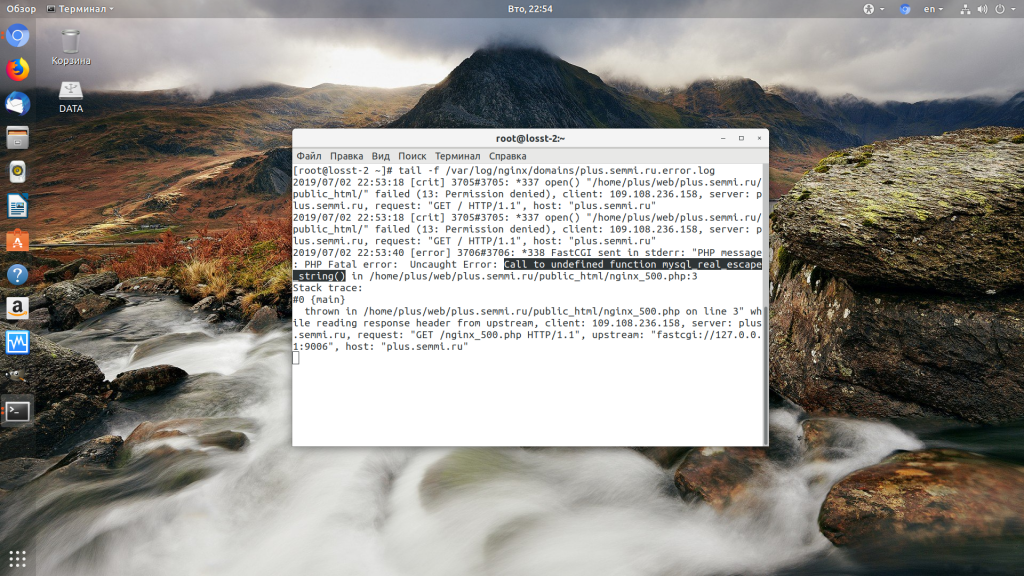
Теперь аналогично, исправьте ошибку и страница будет загружаться нормально, без ошибки 500.
2. Превышено время выполнения или лимит памяти
Это продолжение предыдущего пункта, так тоже относится к ошибкам PHP, но так, как проблема встречается довольно часто я решил вынести её в отдельный пункт. В файле php.ini установлены ограничения на время выполнения скрипта и количество оперативной памяти, которую он может потребить. Если скрипт потребляет больше, интерпретатор PHP его убивает и возвращает сообщение об ошибке.
Также подобная ошибка может возникать, если на сервере закончилась свободная оперативная память.
Если же отображение ошибок отключено, мы получаем error 500. Обратите внимание, что если время ожидания было ограничено в конфигурационном файле Nginx, то вы получите ошибку 504, а не HTTP ERROR 500, так что проблема именно в php.ini.
Чтобы решить проблему увеличьте значения параметров max_execution_time и memory_limit в php.ini:
sudo vi /etc/php/7.2/php.ini
max_execution_time 300

memory_limit 512M
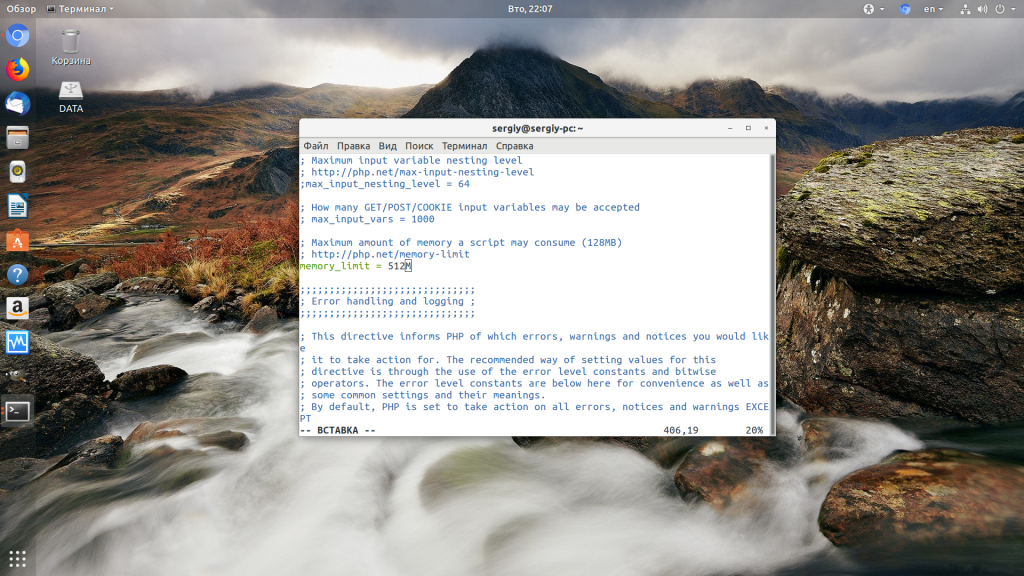
Также проблема может быть вызвана превышением других лимитов установленных для скрипта php. Смотрите ошибки php, как описано в первом пункте. После внесения изменений в файл перезапустите php-fpm:
sudo systemctl restart php-fpm
3. Неверные права на файлы
Такая ошибка может возникать, если права на файлы, к которым обращается Nginx установлены на правильно. Сервисы Nginx и php-fpm должны быть запущены от имени одного и того же пользователя, а все файлы сайтов должны принадлежать этому же пользователю. Посмотреть от имени какого пользователя запущен Nginx можно командой:
nginx -T | grep user
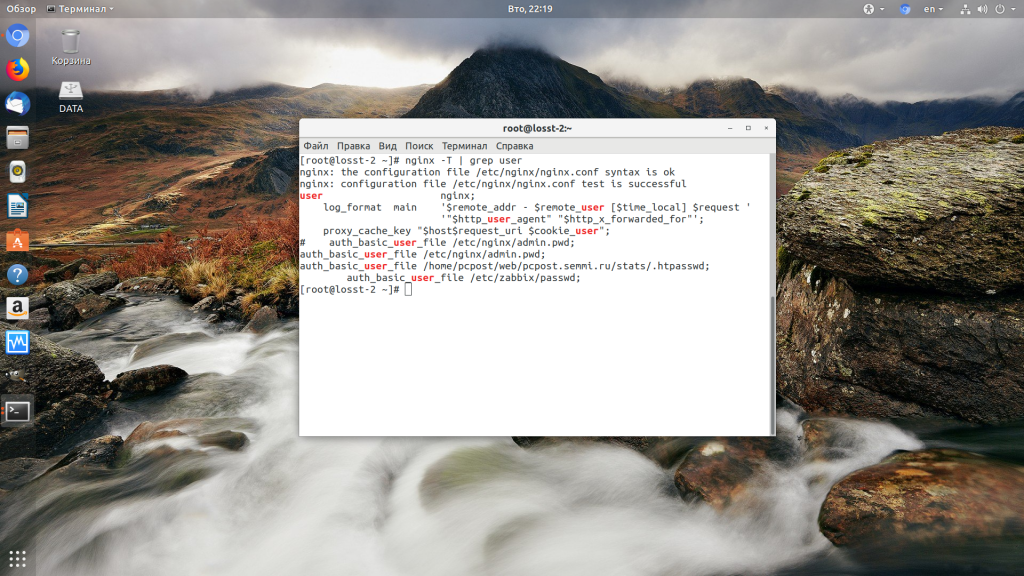
Чтобы узнать от какого пользователя запущен php-fpm посмотрите содержимое конфигурационного файла используемого пула, например www.conf:
sudo vi /etc/php-fpm.d/www.conf
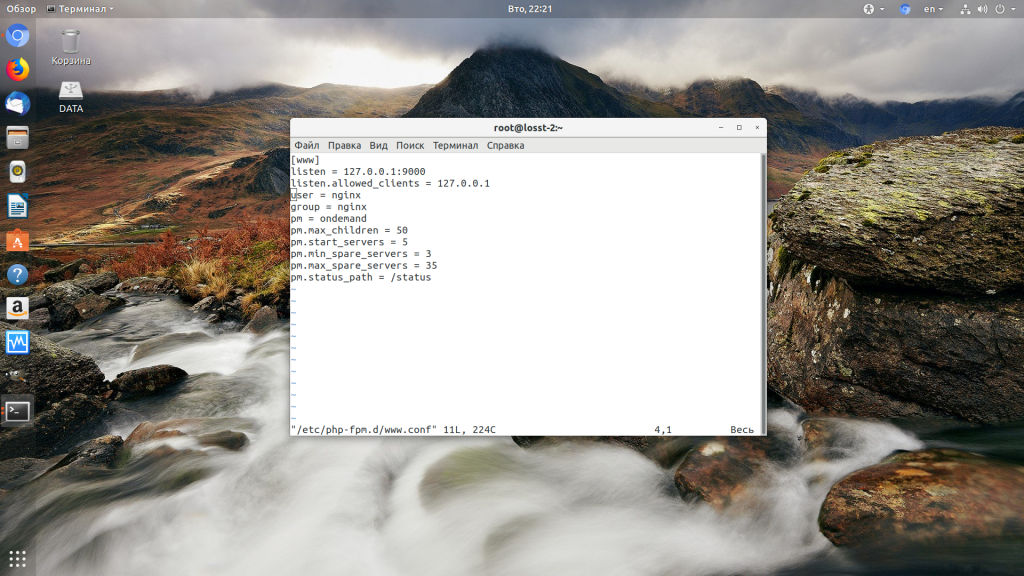
В моем случае это пользователь nginx. Теперь надо убедится, что файлы сайта, к которым вы пытаетесь обратиться принадлежат именно этому пользователю. Для этого используйте команду namei:
namei -l /var/www/site
Файлы сайта должны принадлежать пользователю, от имени которого запущены сервисы, а по пути к каталогу с файлами должен быть доступ на чтение для всех пользователей. Если файлы принадлежат не тому пользователю, то вы можете все очень просто исправить:
sudo chown nginx:nginx -R /var/www/site
Этой командой мы меняем владельца и группу всех файлов в папке на nginx:nginx. Добавить права на чтение для всех пользователей для каталога можно командой chmod. Например:
sudo chmod o+r /var/www/
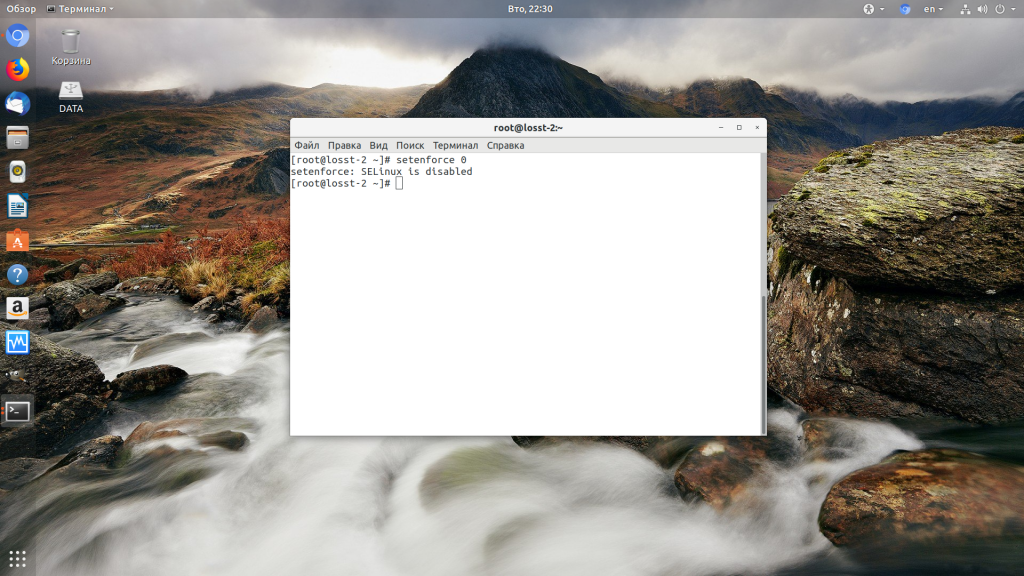
Далее все должно работать. Также, проблемы с правами может вызывать SELinux. Настройте его правильно или отключите:
setenforce 0
Выводы
В этой статье мы разобрали что делать если на вашем сайте встретилась ошибка 500 internal server error nginx. Как видите проблема вполне решаема и в большинстве случаев вам помогут действия описанные в статье. А если не помогут, напишите свое решение в комментариях!

Статья распространяется под лицензией Creative Commons ShareAlike 4.0 при копировании материала ссылка на источник обязательна .
PhpMyAdmin allows easy editing of website databases.
But, at times due to missing server modules or wrong permissions, PhpMyAdmin error 500 shows up. PhpMyAdmin will work only after fixing the real problem.
That’s why, we often get requests from customers to fix PhpMyAdmin errors as part of our Technical Support Services.
Today, we’ll see the reasons that cause PhpMyAdmin error 500 and how we fix them.
Why to use PhpMyAdmin?
In internet, a major share of websites work based on the underlying databases. Therefore, website owners often need to modify databases as part of the website management. Unfortunately, managing databases via command line can be a tedious task. That’s where editing databases via PhpMyAdmin helps.
PhpMyAdmin is nothing but a tool that helps to create, manage databases from the browser. Usually, it is secured by a username and password.
Editing database is rather simple in PhpMyAdmin. Obviously, it’s a solution that our Dedicated Engineers often suggest to customers for quick database edits. But, trouble comes when it report errors.
Reasons for error 500 in PhpMyAdmin
From our experience in managing servers, we often see errors with PhpMyAdmin at various stages. It can shows 500 errors while installation or even when users access it to modify databases.
Now, let’s see the main reasons for PhpMyAdmin error 500.
1. Missing dependency modules
PhpMyAdmin utility depends largely on certain PHP modules like php-mbstring, php-gettext, etc. Unfortunately, these modules do not come across with many standard PHP packages.
When doing a fresh installation of PhpMyAdmin, the setup will create all the required PhpMyAdmin files. But, if these related modules are missing on the server, accessing PhpMyAdmin reports “500 Internal Server Error” status code. At times, it can be even a blank page.
2. Wrong permissions
Similarly, wrong permissions of php files can also be a reason for PhpMyAdmin errors. For example, in cPanel servers, wrong permission on the files like /usr/local/cpanel/3rdparty/bin/php, /usr/local/cpanel/3rdparty/bin/php-cgi create problems with PhpMyAdmin. Any permission other than 755 will cause PhpMyAdmin to stop working.
3. PHP configuration limits
Yet another common reason for internal server error in PhpMyAdmin can be PHP limits set in the server. For security reasons, PHP limits the maximum resources a PHP process can use on the server. If any process cross these limits like memory_limit, max_input_vars, etc. it results in the error as shown.

How we fix PhpMyAdmin internal server error?
Till now we saw the top 3 reasons that can result in internal server error in PhpMyAdmin. The solution depends on the root cause for the error. We’ll now check how our Support Engineers fix each of them.
1. Missing modules
Recently, one of customers was getting 500 error during PhpMyAdmin installation on one of his domains. His Ubuntu server had Apache2.4 and PHP 7. When tried to open PhpMyAdmin for the first time, it reported internal server error.
On detailed troubleshooting, our Dedicated Engineers found that couple of PHP modules were missing on the server. Therefore, we installed the missing modules using:
apt-get install php-mbstring php7.0-mbstring php-gettextThen we restarted Apache, and PhpMyAdmin started working fine.
2. Fixing permissions
In many cases, fixing permissions will solve the PhpMyAdmin error 500. Here, we check the php binary files and set them with 755 permissions.
Recently, when a Plesk customer attempted to make a change to a database field in phpMyAdmin, the system crashed with 500 Internal Server Error.
Our Support Engineers saw the following records on /var/log/sw-cp-server/error_log file:
*1110 open() "/var/lib/sw-cp-server/body/0000000014" failed (13: Permission denied), client:, server: , request: "POST /domains/databases/phpMyAdmin/import.php HTTP/1.1"Here, the problem happened due to wrong ownership for /var/lib/sw-cp-server/ directory. Therefore, we fixed it by setting correct ownership and permission on the directory using:
chown sw-cp-server:sw-cp-server /var/lib/sw-cp-server/
chmod 700 /var/lib/sw-cp-server/
3. Setting proper PHP limits
For trouble caused by PHP limits, there will be related entries in the web server log files. Therefore, to fix PhpMyAdmin errors, our Support Engineers always check the log files as the initial step.
For example, when customer tried to open a large table via phpMyAdmin the following error displayed in the logs.
[29-Mar-2019 12:49:10] PHP Fatal error: Allowed memory size of 268435456 bytes exhausted (tried to allocate 401128 bytes) in /opt/psa/admin/htdocs/domains/databases/phpMyAdmin/libraries/DisplayResults.php on line 2852Obviously, from the error log, we could identify that insufficient PHP memory limit was causing the error. Therefore, the fix was to set proper values in the correct php.ini file, followed by a web server restart. The customer was having a Plesk server. So we increased the memory_limit, max_input_vars parameters in the file /usr/local/psa/admin/conf/php.ini.
In cPanel servers, each version of PHP on the server uses its own php.ini file. In such cases, our Dedicated Engineers ensure that we set the limits in the correct php.ini file used by the domain.
[Getting internal server error on PhpMyAdmin? We are here to fix it.]
Conclusion
In a nutshell, PhpMyAdmin error 500 shows up due to missing server modules, wrong permissions, PHP limits and so on. Today, we discussed these reasons in detail and how our Dedicated Engineers fix them and make PhpMyAdmin working.
PREVENT YOUR SERVER FROM CRASHING!
Never again lose customers to poor server speed! Let us help you.
Our server experts will monitor & maintain your server 24/7 so that it remains lightning fast and secure.
GET STARTED
var google_conversion_label = «owonCMyG5nEQ0aD71QM»;
I’m getting internal server error (HTTP Error 500) after installing phpmyadmin on a certain domain.
This is what my config.inc.php file currently reads.
<?php
/* vim: set expandtab sw=4 ts=4 sts=4: */
/**
 * phpMyAdmin sample configuration, you can use it as base for
 * manual configuration. For easier setup you can use setup/
 *
 * All directives are explained in documentation in the doc/ folder
 * or at <http://docs.phpmyadmin.net/>.
 *
 * @package PhpMyAdmin
 */

/*
 * This is needed for cookie based authentication to encrypt password in
 * cookie
 */
$cfg['blowfish_secret'] = 'a8b7c6d'; /* YOU MUST FILL IN THIS FOR COOKIE AUTH! */
/*
 * Servers configuration
 */
$i = 0;

/*
 * First server
 */
$i++;
/* Authentication type */
$cfg['Servers'][$i]['auth_type'] = 'cookie';
/* Server parameters */
$cfg['Servers'][$i]['host'] = 'localhost';
$cfg['Servers'][$i]['connect_type'] = 'tcp';
$cfg['Servers'][$i]['compress'] = false;
/* Select mysql if your server does not have mysqli */
$cfg['Servers'][$i]['extension'] = 'mysqli';
$cfg['Servers'][$i]['AllowNoPassword'] = false;

/*
 * phpMyAdmin configuration storage settings.
 */

/* User used to manipulate with storage */
// $cfg['Servers'][$i]['controlhost'] = '';
// $cfg['Servers'][$i]['controlport'] = '';
// $cfg['Servers'][$i]['controluser'] = 'pma';
// $cfg['Servers'][$i]['controlpass'] = 'pmapass';

/* Storage database and tables */
// $cfg['Servers'][$i]['pmadb'] = 'phpmyadmin';
// $cfg['Servers'][$i]['bookmarktable'] = 'pma__bookmark';
// $cfg['Servers'][$i]['relation'] = 'pma__relation';
// $cfg['Servers'][$i]['table_info'] = 'pma__table_info';
// $cfg['Servers'][$i]['table_coords'] = 'pma__table_coords';
// $cfg['Servers'][$i]['pdf_pages'] = 'pma__pdf_pages';
// $cfg['Servers'][$i]['column_info'] = 'pma__column_info';
// $cfg['Servers'][$i]['history'] = 'pma__history';
// $cfg['Servers'][$i]['table_uiprefs'] = 'pma__table_uiprefs';
// $cfg['Servers'][$i]['tracking'] = 'pma__tracking';
// $cfg['Servers'][$i]['designer_coords'] = 'pma__designer_coords';
// $cfg['Servers'][$i]['userconfig'] = 'pma__userconfig';
// $cfg['Servers'][$i]['recent'] = 'pma__recent';
// $cfg['Servers'][$i]['users'] = 'pma__users';
// $cfg['Servers'][$i]['usergroups'] = 'pma__usergroups';
// $cfg['Servers'][$i]['navigationhiding'] = 'pma__navigationhiding';
/* Contrib / Swekey authentication */
// $cfg['Servers'][$i]['auth_swekey_config'] = '/etc/swekey-pma.conf';

/*
 * End of servers configuration
 */

/*
 * Directories for saving/loading files from server
 */
$cfg['UploadDir'] = '';
$cfg['SaveDir'] = '';

/**
 * Defines whether a user should be displayed a "show all (records)"
 * button in browse mode or not.
 * default = false
 */
//$cfg['ShowAll'] = true;

/**
 * Number of rows displayed when browsing a result set. If the result
 * set contains more rows, "Previous" and "Next".
 * default = 30
 */
//$cfg['MaxRows'] = 50;

/**
 * disallow editing of binary fields
 * valid values are:
 *   false    allow editing
 *   'blob'   allow editing except for BLOB fields
 *   'noblob' disallow editing except for BLOB fields
 *   'all'    disallow editing
 * default = blob
 */
//$cfg['ProtectBinary'] = 'false';

/**
 * Default language to use, if not browser-defined or user-defined
 * (you find all languages in the locale folder)
 * uncomment the desired line:
 * default = 'en'
 */
//$cfg['DefaultLang'] = 'en';
//$cfg['DefaultLang'] = 'de';

/**
 * default display direction (horizontal|vertical|horizontalflipped)
 */
//$cfg['DefaultDisplay'] = 'vertical';


/**
 * How many columns should be used for table display of a database?
 * (a value larger than 1 results in some information being hidden)
 * default = 1
 */
//$cfg['PropertiesNumColumns'] = 2;

/**
 * Set to true if you want DB-based query history.If false, this utilizes
 * JS-routines to display query history (lost by window close)
 *
 * This requires configuration storage enabled, see above.
 * default = false
 */
//$cfg['QueryHistoryDB'] = true;

/**
 * When using DB-based query history, how many entries should be kept?
 *
 * default = 25
 */
//$cfg['QueryHistoryMax'] = 100;

/**
 * Should error reporting be enabled for JavaScript errors
 *
 * default = 'ask'
 */
//$cfg['SendErrorReports'] = 'ask';

/*
 * You can find more configuration options in the documentation
 * in the doc/ folder or at <http://docs.phpmyadmin.net/>.
 */
?>
What changes do I need to do on this file? I’ve already followed up various posts but its not helping.
It this the problem with the domain being down?
Thanks in advance.
asked Feb 11, 2014 at 10:51

7
If you are using apache2.4 and PHP 7, run
sudo apt-get install php-mbstring php7.0-mbstring php-gettext
then restart your server
sudo service apache2 restart
answered Apr 25, 2016 at 10:10

3
I know it has been a couple of years, and I noticed by your comments that still no luck. Here I run into the same 500 error after installing through apt.
I look for my Apache error log file (/var/log/apache2/error.log), and there was the following entry:
[Thu Aug 11 22:38:25.930453 2016] [:error] [pid 18138] [client ::1:35026] PHP Fatal error: require_once(): Failed opening required '/usr/share/php/php-gettext/gettext.inc' (include_path='.:/usr/share/php') in /usr/share/phpmyadmin/libraries/select_lang.lib.php on line 477
It shows that the library gettext was not found, so I intalled it:
sudo apt-get install php-gettext
And restarted Apache:
sudo service apache2 restart
That worked for me. Hope it helps.
PS: If still not working you may try to sym link the folder just in case:
sudo ln -s /usr/share/phpmyadmin /var/www/
answered Aug 11, 2016 at 20:58

RaúlRaúl
711 silver badge3 bronze badges
OK, if you have already installed packages php-mbstring and php-gettext and it still doesn’t work, first take a look to Apache logs:
tail /var/log/apache2/error.log
If you find something like this:
Fatal error: Uncaught Twig_Error_Syntax: Unexpected «apply» tag
(expecting closing tag for the «if» tag defined near line 17). in
/usr/share/phpmyadmin/templates/columns_definitions/column_virtuality.twig
on line 17
This is a known bug in phpmyadmin 4.9.4
The bug has been fixed in phpmyadmin 4.9.5 but please note that if you are under Debian 10 Buster you will need to upgrade the package php-twig to an higher version rather than the one included with Buster, or package phpmyadmin
will be kept back to 4.9.4 during system upgrades.
You can simply upgrade php-twig from next Debian version (11, Bullseye)
apt-get install php-twig/bullseye
This worked for me.
Hope this doesn’t broke something else in Deb 10 LAMP setup.
answered Apr 16, 2020 at 17:01

bytepanbytepan
3512 silver badges5 bronze badges
Ensure that your PHP version matches the used PHP module in Apache2:
php -v  //PHP 7.4.4
ls -d /etc/apache2/mods-enabled/php*.conf // php7.3.conf

sudo a2dismod php7.3  // disable 7.3
sudo a2enmod php7.4   // enable 7.4
sudo systemctl restart apache2
I installed the php-mbstring php-gettext (also excplicitly for latest PHP version), but it still wasn’t working. At least it took me hours until I noticed apache decides itself what PHP version is used.
answered Apr 6, 2020 at 20:51

User ReboUser Rebo
1,85121 silver badges29 bronze badges
After applying all the above mentioned solution, none worked for me.
This worked for me:
I thing this error comes from a phpmyadmin library
So, we need to modify following File
File Location : /usr/share/phpmyadmin/libraries/sql.lib.php
Line No : 614
run following command in ubuntu terminal
sudo nano /usr/share/phpmyadmin/libraries/sql.lib.php
Replace two codes :
Replace : (count($analyzed_sql_results[‘select_expr’] == 1)
With : (count($analyzed_sql_results[‘select_expr’]) == 1)
Replace : && ($analyzed_sql_results[‘select_expr’][0] == ‘*’)))
With : && ($analyzed_sql_results[‘select_expr’][0] == ‘*’))
answered Jun 25, 2020 at 19:46

if you want to access the mysql data from your server to your computer
you need to change
$cfg['Servers'][$i]['host'] = 'localhost';
to you server ip address.
$cfg['Servers'][$i]['host'] = 'your.server.ip.add.here';
update
$cfg['Servers'][$i]['AllowNoPassword'] = true;
$cfg['Servers'][$i]['host'] = 'your.server.ip.add.here';
$cfg['Servers'][$i]['user'] = 'db name here';
$cfg['Servers'][$i]['password'] = 'db password';
make sure that those fields are properly set up..
answered Feb 11, 2014 at 11:28

2
Ура, наконец то! PROBLEM RESOLVED
просто надо было в файле /etc/php5/apache2/php.ini
memory_limit = 128M
заменить на более большую цифру
например: memory_limit = 512M
как починить phpmyadmin или как импортировать базы данных в формате sql в обход панели vestacp через консольные команды
после распаковки бекапа перестал открываться phpmyadmin
версия phpmyadmin на старом хостинге:
Информация о версии: 3.4.11.1deb2+deb7u1
версию на новом хосте не могу сказать, ибо не знаю где смотреть
имею debian 7 установленой на virtualbox подключенную к интернету через сетевой мост.
вручную положил файл admin.2015-09-07.tar в /home/backup
набрал команду
v-restore-user admin admin.2015-09-07.tar
установилось не сразу
исправил пару ошибок возникающих из за apache2 и паролем от mysql
в итоге все все установилось.
root@debian:# v-restore-user admin admin.2015-09-07.tar
— WEB —
2015-09-14 00:09:23 default.domain
— DNS —
2015-09-14 00:09:42 default.domain
— MAIL —
2015-09-14 00:09:42 default.domain
— DB —
2015-09-14 00:09:42 admin_******
2015-09-14 00:09:42 admin_******
2015-09-14 00:09:42 admin_******
— CRON —
2015-09-14 00:09:43 7 records
— USER DIR —
2015-09-14 00:09:43 tmp
теперь настала пора переносить базы данных не созданных ранее через vestacp. пытаюсь зайти в phpmyadmin
но при переходе по локальному ip адресу
http://192.168.100.4/phpmyadmin/
выдается ошибка 500
а при переходе по статическому внешнему ip
http://xx.xx.xx.xx/phpmyadmin/
выдается пустая страница
что я пробовал?
обшарил весь форум. очень многое перепробовал. перезагружался.
chmod 777 /var/lib/php/session
такой папки нет в debian 7. есть только
/var/lib/php5 пустая папка
/var/lib/phpmyadmin в которой нету папки session. есть только
blowfish_secret.inc.php права 640
config.inc.php права 640
выставления прав 644 не дало никакого результата
в /usr/share/phpmyadmin решил не копаться
ко всем php файлам стоят права 644
результаты поиска по ключевому слову phpmyadmin
root@debian:/# find */phpmyadmin
etc/phpmyadmin
etc/phpmyadmin/htpasswd.setup
etc/phpmyadmin/lighttpd.conf
etc/phpmyadmin/phpmyadmin.desktop
etc/phpmyadmin/config.header.inc.php
etc/phpmyadmin/config.inc.php
etc/phpmyadmin/phpmyadmin.service
etc/phpmyadmin/config-db.php_
etc/phpmyadmin/config.footer.inc.php
etc/phpmyadmin/apache.conf
у всех этих файлов права 644 кроме
htpasswd.setup 640
config-db.php_
почему на конце черточка _ я фиг знает
пробовал убрать ее. ничего не поменялось
как импортировать базы данных в формате sql в обход панели vestacp через консольные команды
источник:
как починить phpmyadmin или как импортировать базы данных в формате sql в обход панели vestacp через консольные команды
@williamdes after doing that test it still doesn’t work… Do I need to refresh something?
administrador@ubuntu-server-vm-22:/$ sudo apt show phpmyadmin
[sudo] password for administrador:
Package: phpmyadmin
Version: 4:5.1.3+dfsg1-1+jammy1
Priority: optional
Section: web
Maintainer: phpMyAdmin Packaging Team <team+phpmyadmin@tracker.debian.org>
Installed-Size: 36.8 MB
Depends: dbconfig-mysql | dbconfig-no-thanks | dbconfig-common (<< 2.0.0), libjs-bootstrap4, libjs-codemirror, libjs-jquery, libjs-jquery-mousewheel, libjs-jquery-timepicker, libjs-jquery-ui, php-cli, sensible-utils, ucf, debconf (>= 0.5) | debconf-2.0, php-common, php-json, php-mysql, php-xml, php-google-recaptcha (>= 1.1), php-google-recaptcha (<< 2~~), php-nikic-fast-route (>= 1.3), php-nikic-fast-route (<< 2~~), php-phpmyadmin-motranslator (>= 5.0), php-phpmyadmin-motranslator (<< 6~~), php-phpmyadmin-shapefile (>= 2.0), php-phpmyadmin-shapefile (<< 3~~), php-phpmyadmin-sql-parser (>= 5.4), php-phpmyadmin-sql-parser (<< 6~~), php-twig-i18n-extension (>= 3.0), php-twig-i18n-extension (<< 4~~), php-phpseclib (>= 2.0), php-phpseclib (<< 3~~), php-symfony-config (>= 4.4.9), php-symfony-config (<< 6~~), php-symfony-dependency-injection (>= 4.4.9), php-symfony-dependency-injection (<< 6~~), php-symfony-expression-language (>= 4.4.9), php-symfony-expression-language (<< 6~~), php-mbstring, php-twig (>= 2.9), php-twig (<< 4~~), php-mariadb-mysql-kbs (>= 1.2), php-mariadb-mysql-kbs (<< 2~~), libjs-sphinxdoc (>= 4.3)
Recommends: apache2 | lighttpd | httpd, php-bz2, php-curl, php-gd, php-tcpdf, php-zip
Suggests: default-mysql-server | virtual-mysql-server, php-recode, www-browser, php-opcache, php-gd2, php-pragmarx-google2fa-qrcode, php-code-lts-u2f-php-server, php-paragonie-sodium-compat
Download-Size: 5,020 kB
APT-Manual-Installed: yes
APT-Sources: https://ppa.launchpadcontent.net/phpmyadmin/ppa/ubuntu jammy/main amd64 Packages