Войти
Магазин
Сообщество
Поддержка
Изменить язык
Полная версия

© Valve Corporation. Все права защищены. Все торговые марки являются собственностью соответствующих владельцев в США и других странах.
Политика конфиденциальности
| Правовая информация
| Соглашение подписчика Steam
| #footer_refunds



МАГАЗИН
СООБЩЕСТВО
О STEAM
ПОДДЕРЖКА
Установить Steam
войти
|
язык

© 2023 Valve Corporation. Все права защищены. Все торговые марки являются собственностью соответствующих владельцев в США и других странах.
НДС включён во все цены, где он применим.
Политика конфиденциальности
|
Правовая информация
|
Соглашение подписчика Steam
О Valve
| Steamworks
| Вакансии
| Дистрибуция Steam
| Подарочные карты
Когда запускаю последнюю Контру, появляется CS GO is unable to continue due to pack file. Там еще указан какой-то VPK-файл, но я без понятия, что это такое. Пробовал его удалить, но ничего не изменилось. Хотя нет, изменилось, теперь указывает другой файл. В общем, нехорошая ситуация. Кто-то сталкивался?
Решение
«CSGO is unable to continue due to pack file corruption» — это очень распространенная проблема среди игроков Counter Strike Global Offensive. Ошибка может появляться после переустановки Windows, переустановки самой CSGO либо и вовсе на ровном месте.
Для решения этой ошибки попробуйте сделать у себя на компьютере следующее:
- Проверка целостности игровых файлов. Даже в самом сообщении ошибки Valve предлагают игроку запустить проверку целостности игровых файлов, т.к. с ними явно что-то не так. Если некоторые из файлов не пройдут проверки, то Steam загрузит их заново. Обязательно перезагрузите ПК после восстановления целостности CSGO!
- Удаление папок materials и models. Перейдите в корневую папку CSGO, после чего откройте папку csgo. В этот папке удалите папки materials и models. Не переживайте: эти папки и файлы в них будут подгружены автоматически самой игрой и ее следующем запуске.
- Удаление файлов pakXXXXXX.vpk. Откройте корневую папку CSGO и удалите из нее все pak-файлы — от pak01 до pakxv_loviolence. В сообщении ошибки как раз указывается проблема с одним из таких файлов.
- Запуск клиента Steam от администратора. Странное решение, но если верить нескольким сообщениям в сети (в основном с Reddit), запуск Steam от админа может помочь в этой ситуации . Нажмите ПКМ на файл Steam.exe и выберите «Запуск от имени администратора». Теперь запустите CSGO и проверьте наличие проблемы.
- Деактивация XMP-профиля. В сети можно найти редкие сообщения, согласным которым ошибка «unable to continue due to pack file corruption» исчезла после деактивации XMP-профиля для оперативной памяти в настройках BIOS/UEFI материнской платы.
Содержание страницы — ЖМИ КНОПКУ
Ошибки в кс го
Counter Strike Global Offensive в первую очередь представляет собой игру, где пользователи нередко встречаются с различными ошибками и проблемами. Несмотря на то, что игра существует уже далеко не первый год, компания Valve до сих пор не устранила ряд ошибок, что мешают пользователям на постоянной основе. Одни проблемы могут устраняться достаточно быстро, а для других уже понадобится длительное решение. Статья расскажет про главные ошибки в игре, а также о том, как их необходимо устранять.
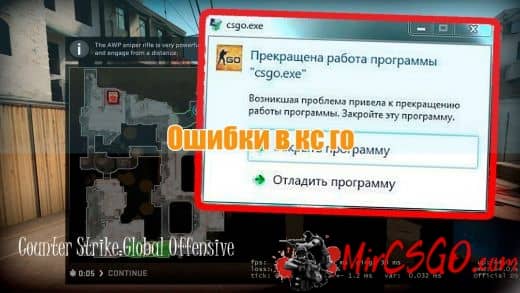
Ошибка кс го прекращение работы
Пользователь часто встречается с прекращением работы Counter Strike Global Offensive. Как правило, подобная ошибка может возникать при различных загрузках при попытке присоединения на сервер, после чего всплывает ошибка с прекращением работы игрового процесса. Основная причина, по которой может возникать такая ошибка — неправильная работа и нарушение целостность файлов самой CS:GO. Что необходимо делать в таком случае:
- Перейти к клиенту Steam, выбрав пункт библиотеки;
- Найти Counter Strike Global Offensive;
- Перейти в свойства и найти раздел с файлами;
- Выбрать пункт, что проверит целостность этих самых файлов.
После проделанных действий, клиент Steam начнет проверять сами файлы игры. Важно понимать, что подобная проверка может идти около двадцати минут на слабых компьютерах. После пройденной проверки, пользователю начнут автоматически скачиваться те файлы, что по мнению Steam являются неправильными и вызывали различные ошибки. Также необходимо знать, что клиент приведет Counter Strike Global Offensive в начальное состояние, но при этом сохранит все необходимые настройки.
В особо тяжелых случаях, проверка целостности файлов может не работать и в этом случае можно переустанавливать клиент Steam. Дело в том, что сама платформа может быть причиной неправильной работы Counter Strike Global Offensive. Безусловно, придется потратить определенное количество времени на это дело, но при этом быть уверенным, что в дальнейшем подобные ошибки и вовсе исчезнут.
Ошибка вака в кс го
Одной из самых распространенных ошибок в Counter Strike Global Offensive можно считать появление Vac. Разумеется, речь идет не про блокировку за использование различных программ, а ошибку Vac, при которой пользователю не дают возможность играть в matchmaking.

Причем vac ошибка является также одной из самых старых и бесящих пользователей ошибок, однако ее исправлением, к сожалению, никто не занимается. Как же это исправить:
- Закрыть сам игровой клиент Steam;
- Перейти в поиск программ в меню пуска;
- Набрать «cmd» и запустить от главного администратора всего компьютера;
- Прописать команду «bcdedit.exe /set {current} nx OptIn»;
- Перезагрузить персональный компьютер.
Важно понимать, что пяти минут, в случае игры в соревновательном режиме, не хватит на переподключение пользователя с такой ошибкой. Безусловно, данная ошибка существует и сейчас, а также крайне распространена для игроков. Однако, даже несмотря на это, разработчик не будет снимать каких-либо блокировок в соревновательном режиме и этого уже никто не вернет.
Ошибка кс го file game pak01
Пользователь также встречается с ошибкой, что pak01_001.vpk отличается с тем, что имеет конкретный сервер, на который игрок подключается. Причина может крыться в повреждении имеющихся файлов на компьютере, а также ошибка, вызванная оперативной памятью. В случае с повреждением файлов на компьютере, необходимо проверить все те же локальные файлы, что находятся внутри игры.

Во втором случае все намного страшнее: мог сломаться модуль от имеющейся оперативной памяти. Необходимо произвести проверку оперативной памяти, используя утилиту Memtest. Если программа обнаружит различные нарушения в работе компьютера, то необходимо уже будет обращаться в сервисный центр. Нередко решением от этой проблемы может стать переустановка Counter Strike Global Offensive.
Не запускается кс го ошибка fatal error
Порой ошибка даже не позволяет игроку оказаться в Counter Strike Global Offensive, выводя вместо любимой игры на экран различные ошибки, где Fatal Error является одной из самых распространенных. Причем сказать, чем вызвана или спровоцирована данная ошибка — сложно, а даже невозможно.

Однако, решается она достаточно просто и один из вариантов в любом случае поможет:
- Перезапуск игры, а также клиента Steam;
- Проверить целостность файлов Counter Strike Global Offensive;
- Переустановить клиент самой игры;
- Запустить клиент Steam от имени главного администратора.
Как правило, банальная перезагрузка клиента Steam, безусловно, поможет пользователю исправить эту досадную ошибку, однако в практике бывали и тяжелые случаи. Именно для тяжелых случаев и существуют все оставшиеся в вышеперечисленном списке способов исправления.
Ошибка кс го d3d device
Пользователь частенько может встретиться с ошибкой «d3d device», что не позволяет играть в Counter Strike Global Offensive. Основной причиной этой ошибки можно назвать несовместимость графической составляющей и тем, что находится в самой операционной системе.

Если говоря более простым языком, то некоторые виды графики не могут работать в том режиме, что функционировали ранее. Причем проблемы можно решить не только манипуляциями в Counter Strike Global Offensive, но и исправлением Directx. Если говорить конкретнее, то проблема решается:
- Проверить целостность файлов Counter Strike Global Offensive;
- Перезагрузка персонального компьютера;
- Добавить в параметры запуска игры «-w 1280 -h 720»;
- Обновить программное обеспечение Directx.
Как правило, любой из вышеперечисленных пунктов может помочь пользователю в решении столь неприятной проблемой. Как правило, проблема при обновлении DirectX уходит моментально.
Предыдущая
Информация КС ГОПрицелы в кс го
Следующая
Информация КС ГОзапретная зона
by Tashreef Shareef
Tashreef Shareef is a software developer turned tech writer. He discovered his interest in technology after reading a tech magazine accidentally. Now he writes about everything tech from… read more
Published on July 27, 2020
- Your Steam client may show the Client file does not match server error when playing CS: GO.
- To fix the error, try deleting additional files and folders from your Steam install directory by following the steps in the article below.
- Explore our dedicated Fix guides section for more useful resources, tips, and tricks.
- You can also check out our Gaming Hub for detailed troubleshooting guides on PC and console games.
- CPU, RAM and Network limiter with hot tab killer
- Integrated with Twitch, Discord, Instagram, Twitter and Messengers directly
- Built-in sound controls and custom music
- Custom color themes by Razer Chroma and force dark pages
- Free VPN and Ad blocker
- Download Opera GX
The client file does not match server error often occurs when third-party files are added to your CS: GO install directory that are not included with the game’s default install. As a result, the user is unable to play the CS: Go game on Steam.
According to Steam, these additional files may be added by your third-party or community server that are unique to the server.
Apart from the usual suspect, these errors can also occur due to hard drive corruption or faulty memory modules.
If you are also troubled by this error, here are a couple of troubleshooting tips to help you resolve the client file does not match server error in Steam.
The following article should help if you are experiencing any of the errors listed below:
- pure server file game pak01_104.vpk does not match the server’s file (76)
- pure server: file [game]pak01_001.vpk does not match the server’s file
- pure server: file [game]pak01_050.vpk does not match the server’s file (76)
- pure server file game pak01_042.vpk does not match the server’s file
- pure server file game pak01_082.vpk does not match the server’s file
- pure server file game pak01_096.vpk does not match the server’s file
- (pure server: file [game]pak01_022.vpk does not match the server’s file.
What to do if Pure Server game file does not match the server’s file?
1. Remove third-party files from the install directory
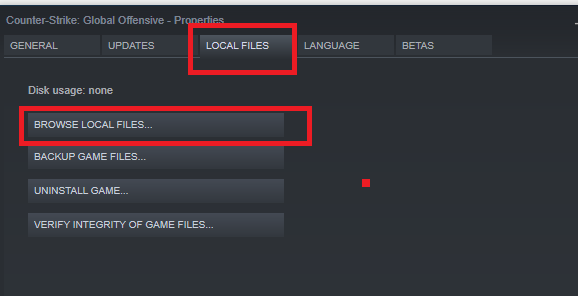
- Launch the Steam client on your PC.
- Open the Library
- Right-click on CS:GO.
- Select Manage.
- Select Browse Local Files.
- Navigate to the following location:
SteamsteamappscommonCounter-Strike Global Offensivecsgomaterials - Delete all the files in the materials
- Next, navigate to the following location:
SteamsteamappscommonCounter-Strike Global Offensivecsgomodels - Delete all the files in the models
Once all the files are deleted from these folders, verify your game files.
Verify Integrity of Game Files
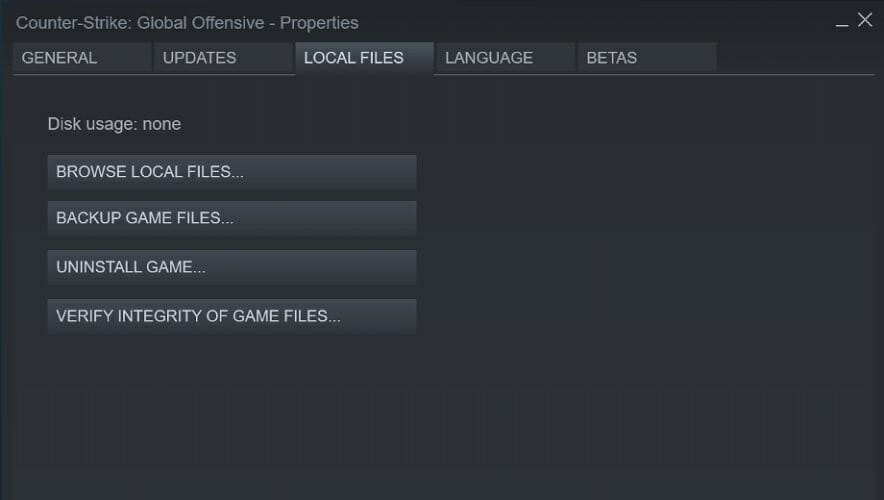
- Launch Steam.
- Right-click on CS: GO from the game library.
- Select Properties.
- Open the Local Files tab.
- Click on Verify Integrity of Game Files.
- Steam will validate the game files and show a success message.
- Click on Close.
Relaunch Steam and run CS: Go to see if the error is resolved. If not, follow the next set of steps.
Experiencing a CS: GO packet loss? Find out what is it, and how to fix it
2. Delete VPK and PAK files manually

- Open File Explorer.
- Navigate to the following location:
SteamsteamappscommonCounter-Strike Global Offensive - Delete all the files that start with PAK and ends with VPK.
- Once all the files are deleted, verify game files on Steam.
Add CS: GO folder to the antivirus exclusion list
Some PC issues are hard to tackle, especially when it comes to corrupted repositories or missing Windows files. If you are having troubles fixing an error, your system may be partially broken.
We recommend installing Restoro, a tool that will scan your machine and identify what the fault is.
Click here to download and start repairing.
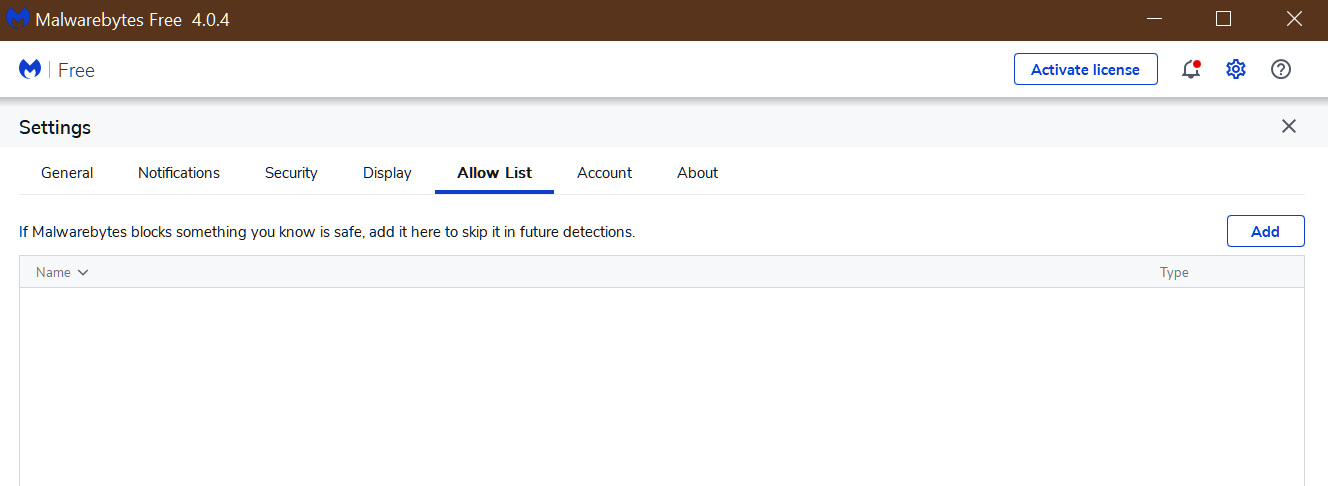
Note: These steps are for Malwarebytes antivirus. Check your antivirus documentation to access the exception list.
- Launch Malwarebytes.
- Click on Settings from the left pane.
- Open the Exclusion/Allow List
- Click the Add
- Select Allow a File or Folder.
- Select the CS: Go Global Offensive folder by navigating to the following location:
C:Program Files (x86)SteamsteamappscommonCounter-Strike Global Offensive - Click OK to save the changes.
Relaunch Steam and try connecting to CS: GO server and check if the error is resolved.
3. Check for third-party apps issues
Perform a Clean Boot
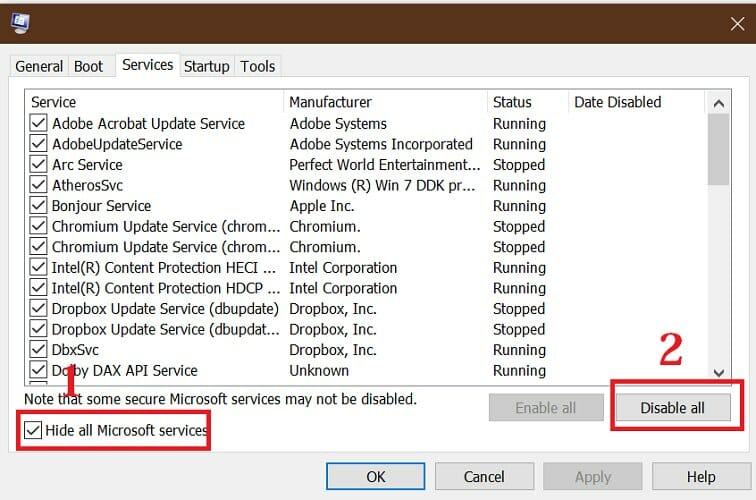
- Press the Windows Key + R.
- Type msconfig and click OK.
- In the System Properties window, open Services.
- Check the ‘Hide all Microsoft services’ box.
- Once all the Microsoft services are hidden, click the Disable All.
- Open the Task Manager – Right-click on the Taskbar and select Task Manager.
- Open the Startup
- Disable all the startup
- Go back to the System Properties
- Click Apply and OK to save the changes.
Restart the system when prompted by the computer. After the restart, launch Steam and try connecting CS: GO to the server.
You should successfully connect without the error if a third-party software was causing the issue.
If the issue is resolved, you need to find a third-party app that is causing the trouble. Third-party apps like antivirus, system cleaning apps are known to the Client file does not match server error.
Make sure that you enable all the services from the Services tab that you disabled to perform a clean boot.
4. Check your internet connection
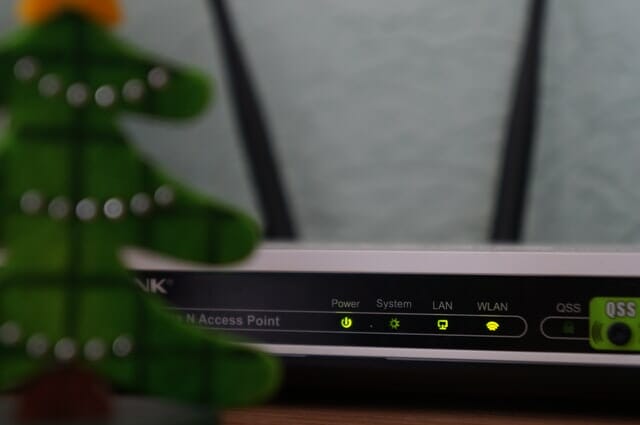
According to some reports, high ping/packet loss can also cause the Client file does not match server error. So, if you are using a WiFi or LAN connection, check the internet connection for issues.
Make sure you have a stable internet connection by using a speed testing tool. You can also use online speed testing tools to check your internet speed.
Directly connect the Ethernet cable
- If you are using a WiFi connection, try connecting your Ethernet cable directly to your PC or Laptop.
- Disconnect the Ethernet cable from your router or modem.
- Connect it to your PC.
- Try to play CS: Go and check if the error is resolved.
Perform a network restart
- Make sure your WiFi router is turned on.
- Use a paper clip or a safety pin (anything with a pointy head).
- Use it to press and hold the reset button of your router.
- You can locate the reset button at the back of your router.
- Release the button after 15 seconds.
- Leave the device idle for a few minutes.
- Power on the router and connect it to your PC.
5. Reinstall CS:GO
- Launch Steam.
- Open the Game Library.
- Go to Manage.
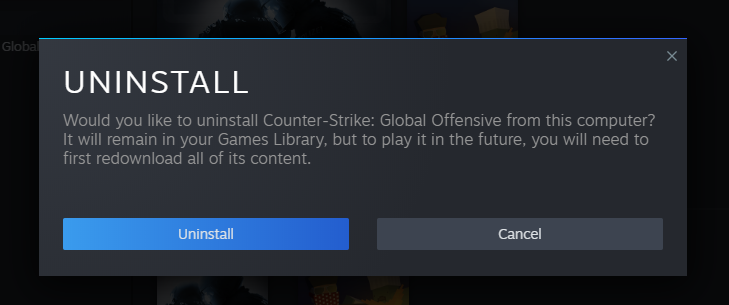
- Select Uninstall.
- When the Uninstall dialogue box appears, click on Uninstall.
- Once uninstalled, relaunch Steam.
- Search and install CS:GO.
The Client file does not match server error on Steam can occur due to several reasons. However, the most common reasons have been third-party files in the install directory.
Follow the steps in the article to fix the error for good.

Newsletter
by Tashreef Shareef
Tashreef Shareef is a software developer turned tech writer. He discovered his interest in technology after reading a tech magazine accidentally. Now he writes about everything tech from… read more
Published on July 27, 2020
- Your Steam client may show the Client file does not match server error when playing CS: GO.
- To fix the error, try deleting additional files and folders from your Steam install directory by following the steps in the article below.
- Explore our dedicated Fix guides section for more useful resources, tips, and tricks.
- You can also check out our Gaming Hub for detailed troubleshooting guides on PC and console games.
- CPU, RAM and Network limiter with hot tab killer
- Integrated with Twitch, Discord, Instagram, Twitter and Messengers directly
- Built-in sound controls and custom music
- Custom color themes by Razer Chroma and force dark pages
- Free VPN and Ad blocker
- Download Opera GX
The client file does not match server error often occurs when third-party files are added to your CS: GO install directory that are not included with the game’s default install. As a result, the user is unable to play the CS: Go game on Steam.
According to Steam, these additional files may be added by your third-party or community server that are unique to the server.
Apart from the usual suspect, these errors can also occur due to hard drive corruption or faulty memory modules.
If you are also troubled by this error, here are a couple of troubleshooting tips to help you resolve the client file does not match server error in Steam.
The following article should help if you are experiencing any of the errors listed below:
- pure server file game pak01_104.vpk does not match the server’s file (76)
- pure server: file [game]pak01_001.vpk does not match the server’s file
- pure server: file [game]pak01_050.vpk does not match the server’s file (76)
- pure server file game pak01_042.vpk does not match the server’s file
- pure server file game pak01_082.vpk does not match the server’s file
- pure server file game pak01_096.vpk does not match the server’s file
- (pure server: file [game]pak01_022.vpk does not match the server’s file.
What to do if Pure Server game file does not match the server’s file?
1. Remove third-party files from the install directory
- Launch the Steam client on your PC.
- Open the Library
- Right-click on CS:GO.
- Select Manage.
- Select Browse Local Files.
- Navigate to the following location:
SteamsteamappscommonCounter-Strike Global Offensivecsgomaterials - Delete all the files in the materials
- Next, navigate to the following location:
SteamsteamappscommonCounter-Strike Global Offensivecsgomodels - Delete all the files in the models
Once all the files are deleted from these folders, verify your game files.
Verify Integrity of Game Files
- Launch Steam.
- Right-click on CS: GO from the game library.
- Select Properties.
- Open the Local Files tab.
- Click on Verify Integrity of Game Files.
- Steam will validate the game files and show a success message.
- Click on Close.
Relaunch Steam and run CS: Go to see if the error is resolved. If not, follow the next set of steps.
Experiencing a CS: GO packet loss? Find out what is it, and how to fix it
2. Delete VPK and PAK files manually
- Open File Explorer.
- Navigate to the following location:
SteamsteamappscommonCounter-Strike Global Offensive - Delete all the files that start with PAK and ends with VPK.
- Once all the files are deleted, verify game files on Steam.
Add CS: GO folder to the antivirus exclusion list
Some PC issues are hard to tackle, especially when it comes to corrupted repositories or missing Windows files. If you are having troubles fixing an error, your system may be partially broken.
We recommend installing Restoro, a tool that will scan your machine and identify what the fault is.
Click here to download and start repairing.
Note: These steps are for Malwarebytes antivirus. Check your antivirus documentation to access the exception list.
- Launch Malwarebytes.
- Click on Settings from the left pane.
- Open the Exclusion/Allow List
- Click the Add
- Select Allow a File or Folder.
- Select the CS: Go Global Offensive folder by navigating to the following location:
C:Program Files (x86)SteamsteamappscommonCounter-Strike Global Offensive - Click OK to save the changes.
Relaunch Steam and try connecting to CS: GO server and check if the error is resolved.
3. Check for third-party apps issues
Perform a Clean Boot
- Press the Windows Key + R.
- Type msconfig and click OK.
- In the System Properties window, open Services.
- Check the ‘Hide all Microsoft services’ box.
- Once all the Microsoft services are hidden, click the Disable All.
- Open the Task Manager – Right-click on the Taskbar and select Task Manager.
- Open the Startup
- Disable all the startup
- Go back to the System Properties
- Click Apply and OK to save the changes.
Restart the system when prompted by the computer. After the restart, launch Steam and try connecting CS: GO to the server.
You should successfully connect without the error if a third-party software was causing the issue.
If the issue is resolved, you need to find a third-party app that is causing the trouble. Third-party apps like antivirus, system cleaning apps are known to the Client file does not match server error.
Make sure that you enable all the services from the Services tab that you disabled to perform a clean boot.
4. Check your internet connection
According to some reports, high ping/packet loss can also cause the Client file does not match server error. So, if you are using a WiFi or LAN connection, check the internet connection for issues.
Make sure you have a stable internet connection by using a speed testing tool. You can also use online speed testing tools to check your internet speed.
Directly connect the Ethernet cable
- If you are using a WiFi connection, try connecting your Ethernet cable directly to your PC or Laptop.
- Disconnect the Ethernet cable from your router or modem.
- Connect it to your PC.
- Try to play CS: Go and check if the error is resolved.
Perform a network restart
- Make sure your WiFi router is turned on.
- Use a paper clip or a safety pin (anything with a pointy head).
- Use it to press and hold the reset button of your router.
- You can locate the reset button at the back of your router.
- Release the button after 15 seconds.
- Leave the device idle for a few minutes.
- Power on the router and connect it to your PC.
5. Reinstall CS:GO
- Launch Steam.
- Open the Game Library.
- Go to Manage.
- Select Uninstall.
- When the Uninstall dialogue box appears, click on Uninstall.
- Once uninstalled, relaunch Steam.
- Search and install CS:GO.
The Client file does not match server error on Steam can occur due to several reasons. However, the most common reasons have been third-party files in the install directory.
Follow the steps in the article to fix the error for good.
Newsletter
#1

Отправлено 24 Ноябрь 2014 — 19:29
Ошибка Disconnect: Pure server: file [GAME]pak01_027.vpk does not match the server’s file..
Как решить? Такое у многих игроков бывает
- InFlight это нравится
- Наверх
#2
andrey50390
Отправлено 24 Ноябрь 2014 — 19:35
pak01_027.vpk В самой папке «cstrike» наверно нету.. проверял этот файл?
- Наверх
#3
InFlight
InFlight
-

- Пользователь
-

- 10 сообщений
Новичок
Отправлено 24 Ноябрь 2014 — 19:37
Тоже самое, целый день был сервер полный, после вечернего обновления после 5 секунд игры на сервере выкидывает и выбивает эту же ошибку.
У всех игроков так…
- Наверх
#4
September
Отправлено 24 Ноябрь 2014 — 20:17
pak01_027.vpk В самой папке «cstrike» наверно нету.. проверял этот файл?
Это у игроков проблемы.
- Наверх
#5
GoDtm666
GoDtm666
-

- Модератор
-

- 1 984 сообщений
Постоянный пользователь
Отправлено 24 Ноябрь 2014 — 20:41
Ждите обновления сервера.
- Наверх
#6
pihmih
pihmih
-

- Пользователь
-
- 24 сообщений
Новичок
Отправлено 24 Ноябрь 2014 — 21:03
- Наверх
#7
Venata
Отправлено 24 Ноябрь 2014 — 21:20
Обновление вышло, вы не заметили сообщения ‘Your server is out of date. Please update and restart’?
- Наверх
#8
September
Отправлено 24 Ноябрь 2014 — 22:01
sv_pure 0 исправит
Оно и так стоит
Обновление вышло, вы не заметили сообщения ‘Your server is out of date. Please update and restart’?
Где это написано?
- Наверх
#9
Dante21rus
Dante21rus
-

- Пользователь
-
- 5 сообщений
Новичок
Отправлено 25 Ноябрь 2014 — 2:54
эмм… а как обновить сервер ?
авто обновление сервера стоит вроде. или еще что — то нужно ? и где это написано ?
- Наверх