Windows OS Updates ▾
Overwolf may not launch properly or even crash when Windows is outdated. We highly recommend making sure that all Windows system updates are installed, as they are necessary for the proper operation of different components (.NET Framework, for instance). To check if there are updates available for your system, please click here.
If you have any system updates pending, please install them, restart your system and then try to launch Overwolf again.
In case you’re still unable to launch Overwolf, please try the following solutions:
Take me to…
- «Failed to start application»
- System File Checker
- Antivirus Software
- .NET Framework
- machine.config file
- «Could not find essential Overwolf files…»
- Overwolf Setup Installer
«Failed to start application» ▾

-
Please uninstall Overwolf from your system and reinstall it to the default directory, C:Program Files (x86)Overwolf.

- This issue can also be caused due to a missing Windows component — Microsoft Visual C++ Redistributable (read more about it here).
Download this component here, install it, restart your system and try to launch Overwolf again.
If these solution did not help, please try the next one, System File Checker.
System File Checker ▾
Running a system file check can fix faulty system files that are required for Overwolf to run properly.
It’s easy to run such a check — just follow these steps:
- Run CMD as administrator

- Paste the following command into the CMD and press ‘Enter’ to run it: sfc /scannow

- The process can a bit of time, that’s normal 🙂
Once the process is finished check if the issue is fixed.
If it isn’t, try to run it again with 3 additional commands, in the following sequence:
- sfc /scannow
- Dism /Online /Cleanup-Image /CheckHealth
- Dism /Online /Cleanup-Image /ScanHealth
- Dism /Online /Cleanup-Image /restoreHealth
- sfc /scannow
If that doesn’t fix the issue either, please open this folder: C:WindowsLogsCBS and send us the file called CBS.log as well as your Overwolf logs for inspection, so we can provide further assistance.
Antivirus Software ▾
- Stuck on «Preparing for first launch…»
In certain cases, Overwolf’s first launch (after installation) comes across an issue and cannot continue.
We have found this can happen due to an antivirus software called ‘SAntivirus’ (or Segurazu Antivirus) and that disabling it can solve the issue. For more information, please click here.
- Even though Overwolf is 100% safe to use and is very popular among gamers all over the world, some antivirus programs have blacklisted it in the past, and using them might prevent Overwolf from launching properly on your PC.
If upon launching Overwolf, nothing happens (the Appstore won’t open, you can’t see the dock, etc.), please follow the next steps:
- Click on the Windows key + R
- Type: «regedit» and click «Yes»
- In the file explorer to your left, start opening folders by this path:
HKEY_LOCAL_MACHINE -> SOFTWARE -> Microsoft -> Windows NT -> CurrentVersion -> Image File Execution Options
- On the file explorer to your left, look for folders named ‘overwolf.exe’ and ‘overwolflauncher.exe’
- If they exist, right-click them and choose «Delete»
- Try running Overwolf
.NET Framework ▾
Overwolf is based on .NET Framework 4.8 and later .NET versions.
It’s possible that .NET 4.8 wasn’t installed properly on your PC, in which case Overwolf won’t be able to run due to some corrupted files.
This scenario might occur due to a Windows update gone wrong, like when updating from Windows 7/8/8.1 to Windows 10, or even due to outdated drivers.
We found that the best solution as for now is reinstalling your current .NET Framework 4.8 version. This is how you can do it:
- Press the Windows key + R
- Type in: appwiz.cpl
- Click on «Turn Windows features on or off»
- Look for the «.NET Framework 4.8» and uncheck the box next to it
- Click «OK» and wait
- Once it is done close it and restart your computer
- Follow steps 1-4 in order to re-check the «.NET Framework 4.8» option
- Restart your computer
- Try running Overwolf
machine.config file ▾
Certain corruptions in .NET Framework’s machine.config files may prevent Overwolf from running.
To fix these corruptions, please follow these steps:
- Open the folder C:WindowsMicrosoft.NETFramework64v4.0.30319Config
- Locate the file called ‘machine.config‘
- Delete the file
- Locate the file ‘machine.config.default‘
- Create a copy of it (just as back up)
- Rename the original ‘machine.config.default‘ file to ‘machine.config‘
- Repeat steps 2-4 for the folder C:WindowsMicrosoft.NETFrameworkv4.0.30319Config
- Re-launch Overwolf
«Could not find essential Overwolf files…» ▾
If you received this error, please try the following solutions:
- Open the following directory C:Program Files (x86)Common FilesOverwolf.xxx.x.xx (version number) and check if it contains the following files: OverwolfHelper.exe and OverwolfHelper64.exe

If these files are missing, please reinstall Overwolf using this installer. - Open the following directory C:Program Files (x86)Overwolf, check that it contains the file Overwolf.exe and that the file is not set to run as an administrator.
If the file is missing, please make sure that it’s not getting deleted/quarantined by an anti-virus software, then reinstall Overwolf using this installer.
Overwolf Setup Installer ▾
If the above-mentioned solutions did not help you overcome the issue, please try to run the setup installer. It comes in a zipped file, so you will first need to extract it by using any program like WinZip, WinRAR or 7-Zip.
by Tashreef Shareef
Tashreef Shareef is a software developer turned tech writer. He discovered his interest in technology after reading a tech magazine accidentally. Now he writes about everything tech from… read more
Updated on March 4, 2021
- Overwolf is an excellent tool for those that want to customize their favorite games.
- If you notice that the overlay isn’t launching, continue reading the guide below.
- For more articles about this gamer’s tool, visit our dedicated Overwolf Hub.
- AVid gamers might also be interested in our Gaming page.
XINSTALL BY CLICKING THE DOWNLOAD FILE
This software will repair common computer errors, protect you from file loss, malware, hardware failure and optimize your PC for maximum performance. Fix PC issues and remove viruses now in 3 easy steps:
- Download Restoro PC Repair Tool that comes with Patented Technologies (patent available here).
- Click Start Scan to find Windows issues that could be causing PC problems.
- Click Repair All to fix issues affecting your computer’s security and performance
- Restoro has been downloaded by 0 readers this month.
Overwolf is a software platform developed for the game developers to create extensions for videos game. The end users can use the Overwolf’s app store to download the extensions fort game.
However, several users have reported Overwolf overlay not launching issue on their computer.
Overwolf client is safe to download and use. However, the issues affecting Overwolf’s launch can be due to cache problems or corrupt registry entries. Similar issues are reported by the Reddit users as well.
Hi, this is a fresh install of Overwolf installed yesterday (7/23/2016), after rebooting my PC this morning I have noticed Overwolf was not open (as I disable it on startup) and now it does not launch at all.
Follow the steps in this article to fix Overwolf not opening issues in Windows computers.
How to resolve Overwolf overlay launch issues?
1. Update Overwolf client
Overwolf client will update automatically whenever a new update is available. However, in case the automatic download did not work, you may miss out on critical bug fixes.
- To update the Overwolf client manually, do the following.
- Head to the Settings menu.
- Click the Support tab.
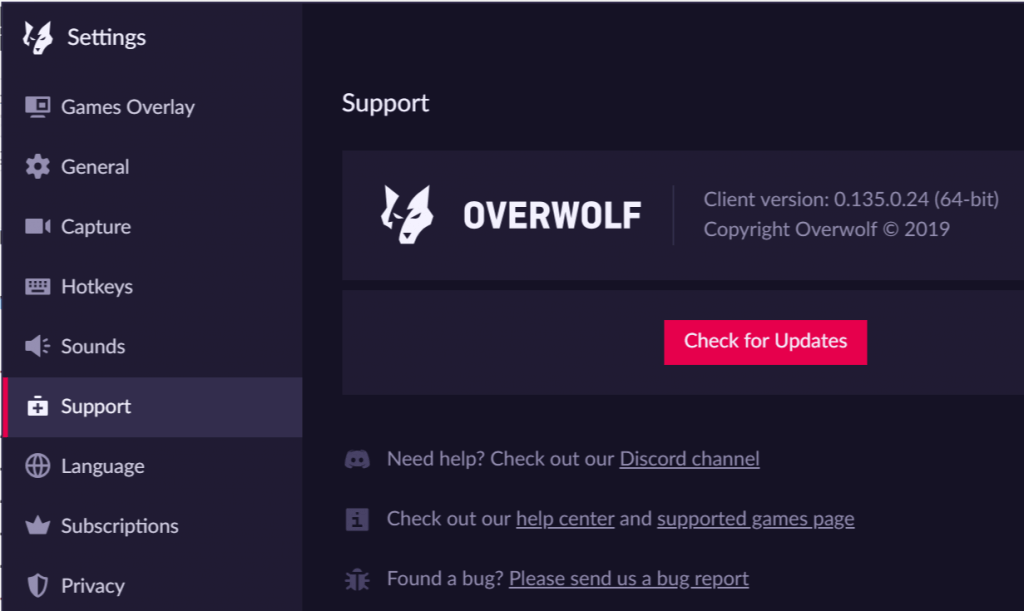
- Click on Check for updates options.
- Select Relaunch.
- Overwolf will download and install all the pending updates.
- Once the update is installed, check if the Overwolf overlay not launching issue is fixed.
2. Delete registry entries
If the issue persists, you can try to delete two registry entries that are stopping the Overwolf service from running. Here is how to do it.
- Before making any changes to your registry, create a restore point. This will allow you to restore the PC in case something goes wrong.
- Once the restore point is created, follow these steps.
Delete registry entries
- Press Windows Key + R to open Run.
- Type regedit and click OK to open the Registry editor.
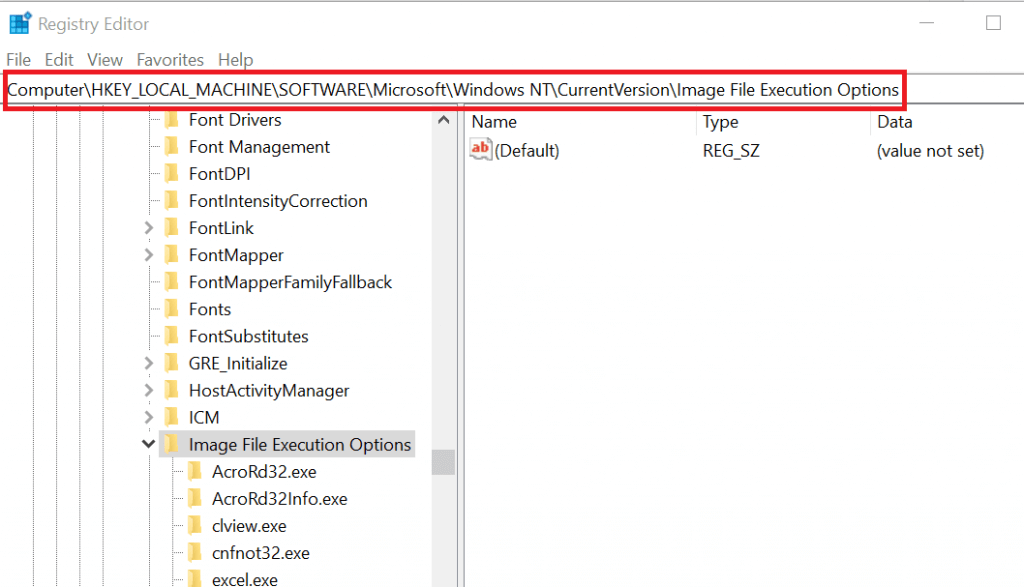
- In the Registry Editor, navigate to the following subkey:
HKEY_LOCAL_MACHINESOFTWAREMicrosoftWindows NTCurrentVersionImage File Execution Options
- Delete the following folders.
- overwolf.exe
- overwolflauncher.exe
- To delete, right-click on the folder and select Delete.
- Close the registry editor.
- Relaunch Overwolf and check if the launch issue is resolved.
3. Disable third-party software

Third-party software like the graphics enhancing software can create conflict with Overwolf. Try disabling any third-party software that is running alongside and check again.
- If you have game-enhancing software like SweetFx installed, close or disable them temporarily.
- Try to revert overclocks on your graphics card if you have any.
- Also disable third-party programs like Asus AI Suite, Razer’s Data tracking, EVGA Precision or MSI software.
- Check if any other related app is running in the background, by clicking on the Taskbar and close them.
4. Reinstall .NET Framework 4.5
- Press Windows Key + R to open Run.
- Type appwiz.cpl and click OK to open Control Panel.
- From the left pane, click on Turn Windows features on or off.
- Locate “.NET Framework 4.54.64.7” and uncheck it.
- Click OK. Wait for the uninstallation process to complete.
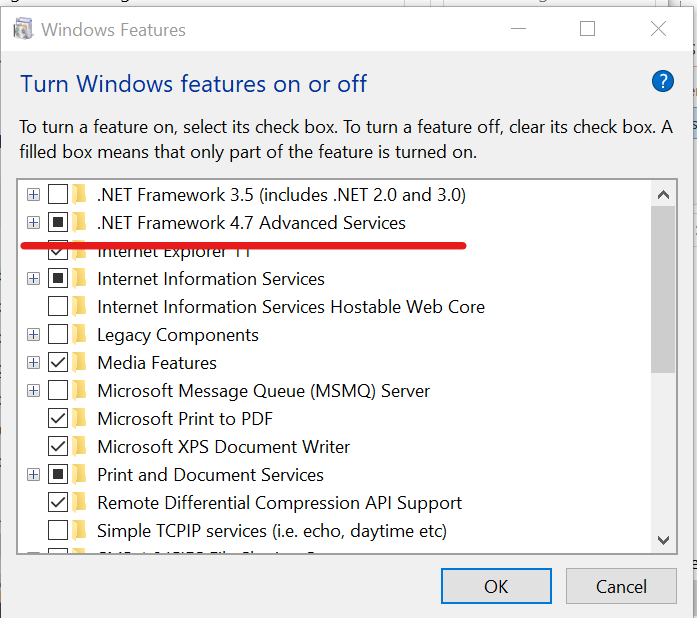
- Now close the window and restart your computer.
- After the restart, again open the Control Panel > Turn Windows features on or off.
- This time, check the “.NET FRamework 4.54.64.7” and click OK.
- This will install the software.
By following the steps in this article, you can fix the Overwolf overlay not launching issue. Do let us know which method worked for you in the comments.

Newsletter
by Tashreef Shareef
Tashreef Shareef is a software developer turned tech writer. He discovered his interest in technology after reading a tech magazine accidentally. Now he writes about everything tech from… read more
Updated on March 4, 2021
- Overwolf is an excellent tool for those that want to customize their favorite games.
- If you notice that the overlay isn’t launching, continue reading the guide below.
- For more articles about this gamer’s tool, visit our dedicated Overwolf Hub.
- AVid gamers might also be interested in our Gaming page.
XINSTALL BY CLICKING THE DOWNLOAD FILE
This software will repair common computer errors, protect you from file loss, malware, hardware failure and optimize your PC for maximum performance. Fix PC issues and remove viruses now in 3 easy steps:
- Download Restoro PC Repair Tool that comes with Patented Technologies (patent available here).
- Click Start Scan to find Windows issues that could be causing PC problems.
- Click Repair All to fix issues affecting your computer’s security and performance
- Restoro has been downloaded by 0 readers this month.
Overwolf is a software platform developed for the game developers to create extensions for videos game. The end users can use the Overwolf’s app store to download the extensions fort game.
However, several users have reported Overwolf overlay not launching issue on their computer.
Overwolf client is safe to download and use. However, the issues affecting Overwolf’s launch can be due to cache problems or corrupt registry entries. Similar issues are reported by the Reddit users as well.
Hi, this is a fresh install of Overwolf installed yesterday (7/23/2016), after rebooting my PC this morning I have noticed Overwolf was not open (as I disable it on startup) and now it does not launch at all.
Follow the steps in this article to fix Overwolf not opening issues in Windows computers.
How to resolve Overwolf overlay launch issues?
1. Update Overwolf client
Overwolf client will update automatically whenever a new update is available. However, in case the automatic download did not work, you may miss out on critical bug fixes.
- To update the Overwolf client manually, do the following.
- Head to the Settings menu.
- Click the Support tab.
- Click on Check for updates options.
- Select Relaunch.
- Overwolf will download and install all the pending updates.
- Once the update is installed, check if the Overwolf overlay not launching issue is fixed.
2. Delete registry entries
If the issue persists, you can try to delete two registry entries that are stopping the Overwolf service from running. Here is how to do it.
- Before making any changes to your registry, create a restore point. This will allow you to restore the PC in case something goes wrong.
- Once the restore point is created, follow these steps.
Delete registry entries
- Press Windows Key + R to open Run.
- Type regedit and click OK to open the Registry editor.
- In the Registry Editor, navigate to the following subkey:
HKEY_LOCAL_MACHINESOFTWAREMicrosoftWindows NTCurrentVersionImage File Execution Options
- Delete the following folders.
- overwolf.exe
- overwolflauncher.exe
- To delete, right-click on the folder and select Delete.
- Close the registry editor.
- Relaunch Overwolf and check if the launch issue is resolved.
3. Disable third-party software
Third-party software like the graphics enhancing software can create conflict with Overwolf. Try disabling any third-party software that is running alongside and check again.
- If you have game-enhancing software like SweetFx installed, close or disable them temporarily.
- Try to revert overclocks on your graphics card if you have any.
- Also disable third-party programs like Asus AI Suite, Razer’s Data tracking, EVGA Precision or MSI software.
- Check if any other related app is running in the background, by clicking on the Taskbar and close them.
4. Reinstall .NET Framework 4.5
- Press Windows Key + R to open Run.
- Type appwiz.cpl and click OK to open Control Panel.
- From the left pane, click on Turn Windows features on or off.
- Locate “.NET Framework 4.54.64.7” and uncheck it.
- Click OK. Wait for the uninstallation process to complete.
- Now close the window and restart your computer.
- After the restart, again open the Control Panel > Turn Windows features on or off.
- This time, check the “.NET FRamework 4.54.64.7” and click OK.
- This will install the software.
By following the steps in this article, you can fix the Overwolf overlay not launching issue. Do let us know which method worked for you in the comments.
Newsletter
Содержание
- ИСПРАВЛЕНИЕ: ошибка подключения к серверу Overwolf
- Как исправить ошибку подключения к серверу Overwolf?
- 1. Проверьте свой антивирус и брандмауэр
- 2. Проверьте наличие проблем с Интернетом / услугами
- 3. Очистить папку данных Overwolf
- 4. Переустановите Overwolf
- Часто задаваемые вопросы
- Оверлей Overwolf не запускается? Вот быстрое решение Overwolf Windows 10
- How to fix Overwolf Server Connection Error —> Error?
- Contents
- What is Overwolf Server Connection Error error?
- What causes Overwolf Server Connection Error error?
- How to easily fix Overwolf Server Connection Error error?
- How to fix Overwolf Connection Error —> Error?
- Contents
- What is Overwolf Connection Error error?
- What causes Overwolf Connection Error error?
- How to easily fix Overwolf Connection Error error?
ИСПРАВЛЕНИЕ: ошибка подключения к серверу Overwolf
Overwolf — популярная программная платформа, которая позволяет разработчикам создавать расширения для видеоигр, которые часто доступны в магазине приложений Overwolf.
Однако некоторые разработчики сообщали об ошибке подключения к серверу во время установки Overwolf. Ошибка установщика Overowlf обычно возникает из-за сторонней программы безопасности, создающей конфликт с программным обеспечением.
Если вас также беспокоит эта ошибка, вот несколько советов по устранению неполадок, которые помогут вам исправить ошибку подключения к серверу Overwolf в Windows.
Как исправить ошибку подключения к серверу Overwolf?
1. Проверьте свой антивирус и брандмауэр
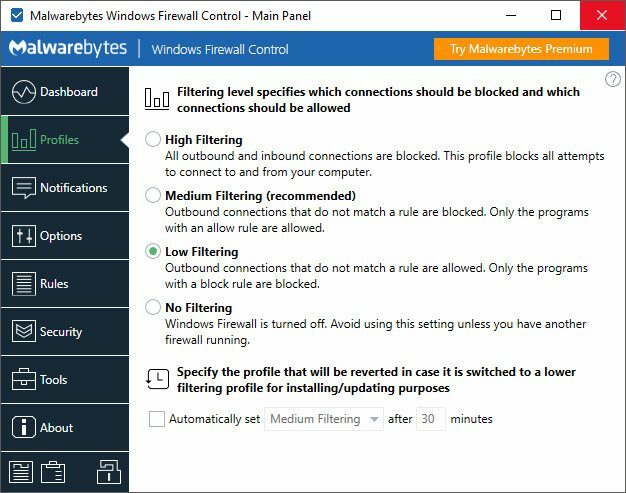
- Ваша антивирусная программа может предотвратить установку установщика Overwolf на ваш компьютер.
- Поскольку программа безопасен для загрузки и установки, попробуйте временно отключить антивирусную программу.
- На панели задач щелкните правой кнопкой мыши значок антивирусной программы и выберите закрыть / отключить.
- Запустите установщик и проверьте, завершена ли установка.
Отключить брандмауэр Защитника Windows
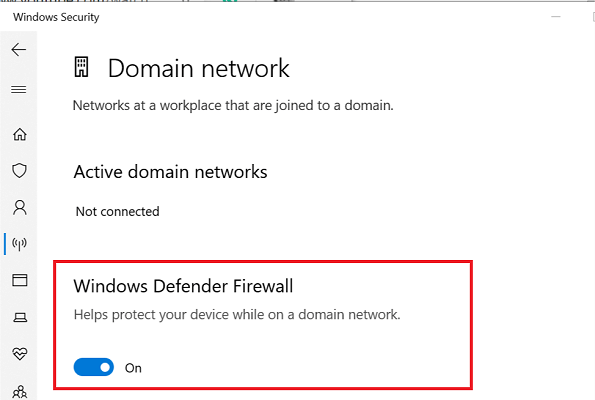
- Отключите брандмауэр, встроенный в вашу антивирусную программу.
- Отключить Брандмауэр Защитника Windows, сделайте следующее.
- Нажмите на Начинать и выберите Параметр.
- Перейти к Обновления и безопасность.
- Нажмите на Безопасность Windows таб.
- Нажмите на Межсетевой экран и защита сети вариант.
- Выберите текущую активную сеть. Вы увидите активный тег для сети.
- Под Брандмауэр Защитника Windows нажмите тумблер, чтобы выключить его.
- Запустите установщик Overwolf и проверьте, устранена ли ошибка подключения к серверу.
- Убедитесь, что вы включили брандмауэр Защитника Windows после установки приложения.
Оверлей Overwolf не остается наверху? Прочтите эти статьи, чтобы найти решение.
2. Проверьте наличие проблем с Интернетом / услугами
- Ошибка подключения к серверу может возникнуть, если серверы Overwolf неисправны.
- Обратитесь в службу поддержки или откройте заявку, чтобы проверить статус услуги.
- Если серверы Overwolf не работают, подождите и повторите попытку через некоторое время.
- Проверьте подключение к Интернету на наличие проблем.
- Установщик Overwolf требует стабильного подключения к Интернету для установки программа .
3. Очистить папку данных Overwolf
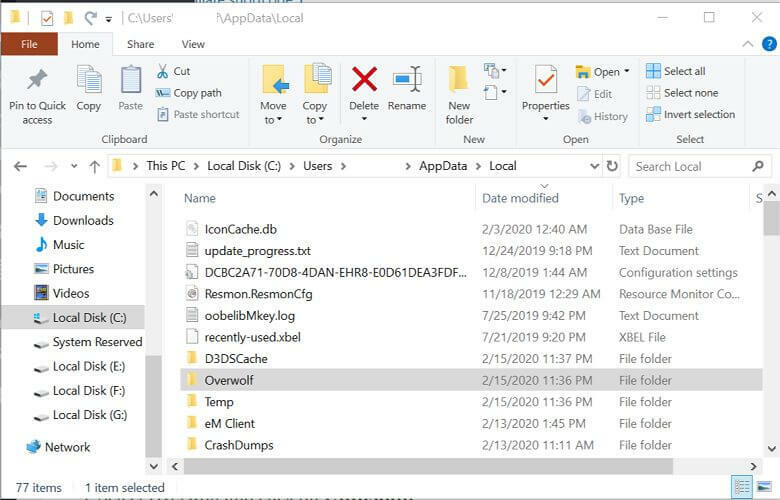
- Если вы пытаетесь обновить приложение, попробуйте очистить данные локального приложения папку, чтобы исправить проблему.
- Откройте проводник и перейдите в следующее место:
- C: UsersusernameAppDataLocal
- Найдите Overwolf папку и удалите ее.
- Запустите установщик и проверьте, решена ли проблема.
4. Переустановите Overwolf
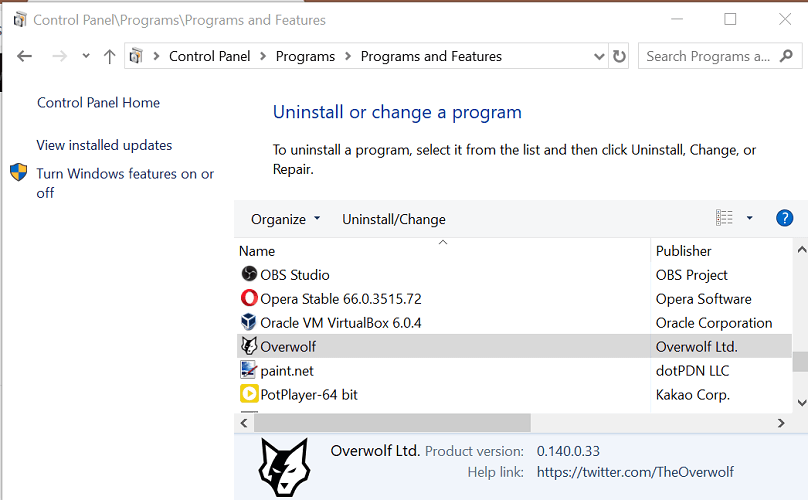
- Если проблема не исчезнет, попробуйте переустановить Overwolf с официального сайта.
- Нажмите Клавиша Windows + R, чтобы открыть Run.
- Тип контроль и нажмите ОК.
- От Панель управления, перейти к Программы> Программы и компоненты.
- Выберите Overwolf и нажмите Удалить.
- Подождите программа удалить успешно.
Ошибка подключения к серверу Overwolf является распространенной и может возникать по нескольким причинам, включая нестабильное подключение к Интернету, проблемы с сервером Overwolf, антивирус и брандмауэр. программы блокирование доступа или даже повреждение файла.
Выполнив действия, описанные в этой статье, вы сможете исправить ошибку установщика Overwolf и снова начать использовать расширения игры.
- Загрузите этот инструмент для ремонта ПК получил рейтинг «Отлично» на TrustPilot.com (загрузка начинается на этой странице).
- Нажмите Начать сканирование чтобы найти проблемы с Windows, которые могут вызывать проблемы с ПК.
- Нажмите Починить все исправить проблемы с запатентованными технологиями (Эксклюзивная скидка для наших читателей).
Restoro был загружен 0 читатели в этом месяце.
Часто задаваемые вопросы
Overwolf — это платформа для создания игровых приложений для лучших компьютерных игр, таких как World of Warcraft или League of Legends.
Оверлей Overwolf обычно должен запускаться каждый раз, когда вы запускаете поддерживаемую игру. Если этого не происходит , следуйте инструкциям, описанным в этом руководстве.
Если вы хотите полностью удалить Overwolf с вашего ПК без остатка , следуйте этому подробному руководству.
Оверлей Overwolf не запускается? Вот быстрое решение Overwolf Windows 10
Overwolf — отличный инструмент для тех, кто хочет настроить свои любимые игры.Если вы заметили, что оверлей не запускается, продолжайте читать приведенное ниже руководство.Чтобы узнать больше об эт.
Источник
How to fix Overwolf Server Connection Error —> Error?
Click here follow the steps to fix Overwolf Server Connection Error and related errors.

To Fix (Overwolf Server Connection Error) error you need to follow the steps below:
| Click ‘Fix All‘ and you’re done! | ||
|
Compatibility : Windows 7, 8, Vista, XP Limitations: This download is a free evaluation version. To unlock all features and tools, a purchase is required. Overwolf Server Connection Error Error Codes are caused in one way or another by misconfigured system files in your windows operating system. If you have Overwolf Server Connection Error errors then we strongly recommend that you Download (Overwolf Server Connection Error) Repair Tool . This article contains information that shows you how to fix Overwolf Server Connection Error both (manually) and (automatically) , In addition, this article will help you troubleshoot some common error messages related to Overwolf Server Connection Error error code that you may receive. Note: This article was updated on 2023-01-09 and previously published under WIKI_Q210794 ContentsWhat is Overwolf Server Connection Error error?The Overwolf Server Connection Error error is the Hexadecimal format of the error caused. This is common error code format used by windows and other windows compatible software and driver vendors. This code is used by the vendor to identify the error caused. This Overwolf Server Connection Error error code has a numeric error number and a technical description. In some cases the error may have more parameters in Overwolf Server Connection Error format .This additional hexadecimal code are the address of the memory locations where the instruction(s) was loaded at the time of the error. What causes Overwolf Server Connection Error error?The Overwolf Server Connection Error error may be caused by windows system files damage. The corrupted system files entries can be a real threat to the well being of your computer. There can be many events which may have resulted in the system files errors. An incomplete installation, an incomplete uninstall, improper deletion of applications or hardware. It can also be caused if your computer is recovered from a virus or adware/spyware attack or by an improper shutdown of the computer. All the above actives may result in the deletion or corruption of the entries in the windows system files. This corrupted system file will lead to the missing and wrongly linked information and files needed for the proper working of the application. How to easily fix Overwolf Server Connection Error error?There are two (2) ways to fix Overwolf Server Connection Error Error: Advanced Computer User Solution (manual update): 1) Start your computer and log on as an administrator. 2) Click the Start button then select All Programs, Accessories, System Tools, and then click System Restore. 3) In the new window, select «Restore my computer to an earlier time» option and then click Next. 4) Select the most recent system restore point from the «On this list, click a restore point» list, and then click Next. 5) Click Next on the confirmation window. 6) Restarts the computer when the restoration is finished. Novice Computer User Solution (completely automated): |
|---|


| Click ‘Fix All‘ and you’re done! |
|
Compatibility : Windows 7, 8, Vista, XP Limitations: This download is a free evaluation version. To unlock all features and tools, a purchase is required. Overwolf Connection Error Error Codes are caused in one way or another by misconfigured system files in your windows operating system. If you have Overwolf Connection Error errors then we strongly recommend that you Download (Overwolf Connection Error) Repair Tool . This article contains information that shows you how to fix Overwolf Connection Error both (manually) and (automatically) , In addition, this article will help you troubleshoot some common error messages related to Overwolf Connection Error error code that you may receive. Note: This article was updated on 2023-01-09 and previously published under WIKI_Q210794 ContentsWhat is Overwolf Connection Error error?The Overwolf Connection Error error is the Hexadecimal format of the error caused. This is common error code format used by windows and other windows compatible software and driver vendors. This code is used by the vendor to identify the error caused. This Overwolf Connection Error error code has a numeric error number and a technical description. In some cases the error may have more parameters in Overwolf Connection Error format .This additional hexadecimal code are the address of the memory locations where the instruction(s) was loaded at the time of the error. What causes Overwolf Connection Error error?The Overwolf Connection Error error may be caused by windows system files damage. The corrupted system files entries can be a real threat to the well being of your computer. There can be many events which may have resulted in the system files errors. An incomplete installation, an incomplete uninstall, improper deletion of applications or hardware. It can also be caused if your computer is recovered from a virus or adware/spyware attack or by an improper shutdown of the computer. All the above actives may result in the deletion or corruption of the entries in the windows system files. This corrupted system file will lead to the missing and wrongly linked information and files needed for the proper working of the application. How to easily fix Overwolf Connection Error error?There are two (2) ways to fix Overwolf Connection Error Error: Advanced Computer User Solution (manual update): 1) Start your computer and log on as an administrator. 2) Click the Start button then select All Programs, Accessories, System Tools, and then click System Restore. 3) In the new window, select «Restore my computer to an earlier time» option and then click Next. 4) Select the most recent system restore point from the «On this list, click a restore point» list, and then click Next. 5) Click Next on the confirmation window. 6) Restarts the computer when the restoration is finished. Novice Computer User Solution (completely automated): |
|---|


Instructions
Instructions
- Overwolf — отличное приложение для геймеров, которое может улучшить их игровой опыт.
- В приведенном ниже руководстве показано, что делать при ошибке подключения к серверу Overwolf.
- Чтобы узнать больше об этом приложении, добавьте в закладки наш посвященный Overwolf Hub.
- Заядлым геймерам также стоит заглянуть в наш выделенная игровая страница.
Для решения различных проблем с ПК мы рекомендуем Restoro PC Repair Tool:
Это программное обеспечение исправит распространенные компьютерные ошибки, защитит вас от потери файлов, вредоносных программ, сбоев оборудования и оптимизирует ваш компьютер для достижения максимальной производительности. Исправьте проблемы с ПК и удалите вирусы прямо сейчас, выполнив 3 простых шага:
- Скачать Restoro PC Repair Tool который поставляется с запатентованными технологиями (патент доступен здесь).
- Нажмите Начать сканирование чтобы найти проблемы с Windows, которые могут вызывать проблемы с ПК.
- Нажмите Починить все для устранения проблем, влияющих на безопасность и производительность вашего компьютера
- Restoro был загружен 0 читатели в этом месяце.
Overwolf — популярная программная платформа, которая позволяет разработчикам создавать расширения для видеоигр, которые часто доступны в магазине приложений Overwolf.
Однако некоторые разработчики сообщали об ошибке подключения к серверу во время установки Overwolf. Ошибка установщика Overowlf обычно возникает из-за сторонней программы безопасности, создающей конфликт с программным обеспечением.
Если вас также беспокоит эта ошибка, вот несколько советов по устранению неполадок, которые помогут вам исправить ошибку подключения к серверу Overwolf в Windows.
Как исправить ошибку подключения к серверу Overwolf?
1. Проверьте свой антивирус и брандмауэр
- Ваша антивирусная программа может предотвратить установку установщика Overwolf на ваш компьютер.
- Поскольку программа безопасен для загрузки и установки, попробуйте временно отключить антивирусную программу.
- На панели задач щелкните правой кнопкой мыши значок антивирусной программы и выберите закрыть / отключить.
- Запустите установщик и проверьте, завершена ли установка.
Отключить брандмауэр Защитника Windows
- Отключите брандмауэр, встроенный в вашу антивирусную программу.
- Отключить Брандмауэр Защитника Windows, сделайте следующее.
- Нажмите на Начинать и выберите Параметр.
- Перейти к Обновления и безопасность.
- Нажмите на Безопасность Windows таб.
- Нажмите на Межсетевой экран и защита сети вариант.
- Выберите текущую активную сеть. Вы увидите активный тег для сети.
- Под Брандмауэр Защитника Windows нажмите тумблер, чтобы выключить его.
- Запустите установщик Overwolf и проверьте, устранена ли ошибка подключения к серверу.
- Убедитесь, что вы включили брандмауэр Защитника Windows после установки приложения.
Оверлей Overwolf не остается наверху? Прочтите эти статьи, чтобы найти решение.
2. Проверьте наличие проблем с Интернетом / услугами
- Ошибка подключения к серверу может возникнуть, если серверы Overwolf неисправны.
- Обратитесь в службу поддержки или откройте заявку, чтобы проверить статус услуги.
- Если серверы Overwolf не работают, подождите и повторите попытку через некоторое время.
- Проверьте подключение к Интернету на наличие проблем.
- Установщик Overwolf требует стабильного подключения к Интернету для установки программа.
3. Очистить папку данных Overwolf
- Если вы пытаетесь обновить приложение, попробуйте очистить данные локального приложения папку, чтобы исправить проблему.
- Откройте проводник и перейдите в следующее место:
- C: UsersusernameAppDataLocal
- Найдите Overwolf папку и удалите ее.
- Запустите установщик и проверьте, решена ли проблема.
4. Переустановите Overwolf
- Если проблема не исчезнет, попробуйте переустановить Overwolf с официального сайта.
- Нажмите Клавиша Windows + R, чтобы открыть Run.
- Тип контроль и нажмите ОК.
- От Панель управления, перейти к Программы> Программы и компоненты.
- Выберите Overwolf и нажмите Удалить.
- Подождите программа удалить успешно.
Ошибка подключения к серверу Overwolf является распространенной и может возникать по нескольким причинам, включая нестабильное подключение к Интернету, проблемы с сервером Overwolf, антивирус и брандмауэр. программы блокирование доступа или даже повреждение файла.
Выполнив действия, описанные в этой статье, вы сможете исправить ошибку установщика Overwolf и снова начать использовать расширения игры.
 По-прежнему возникают проблемы?Исправьте их с помощью этого инструмента:
- Загрузите этот инструмент для ремонта ПК получил рейтинг «Отлично» на TrustPilot.com (загрузка начинается на этой странице).
- Нажмите Начать сканирование чтобы найти проблемы с Windows, которые могут вызывать проблемы с ПК.
- Нажмите Починить все исправить проблемы с запатентованными технологиями (Эксклюзивная скидка для наших читателей).
Restoro был загружен 0 читатели в этом месяце.
Часто задаваемые вопросы
-
Что такое Overwolf?
Overwolf — это платформа для создания игровых приложений для лучших компьютерных игр, таких как World of Warcraft или League of Legends.
-
Почему не запускается Overwolf?
Оверлей Overwolf обычно должен запускаться каждый раз, когда вы запускаете поддерживаемую игру. Если этого не происходит, следуйте инструкциям, описанным в этом руководстве.
-
Как полностью удалить Overwolf с моего ПК?
Если вы хотите полностью удалить Overwolf с вашего ПК без остатка, следуйте этому подробному руководству.
Содержание
- Support
- Hi, how can we help?
- Windows Insider Support Removal
- Override
- If you’re having trouble editing or saving the file, please try the following:
- Support
- Hi, how can we help?
- Overwolf Installation Troubleshooting
- Why is the installer showing the error «We have encountered a problem during the installation. «? ▾
- Why is the installation stuck on «Extracting Files»? ▾
- Installer displayed incorrectly ▾
- Why is the installer saying «Connection Error»? ▾
- Installer not starting / finishing properly ▾
- Overwolf setup installer ▾
- Clean reinstall Overwolf client ▾
- Installation file is getting removed ▾
- RivaTuner conflict ▾
- дота+ овервульф не открывается
- Overwolf
Support
Hi, how can we help?
Search the knowledge base or choose a category below
Windows Insider Support Removal
Modified on: Mon, 25 Oct, 2022 at 4:07 PM
We have decided to remove Overwolf support for Windows Insider versions due to technical issues. This means that Overwolf’s overlay will not work on systems running Windows Insider OS since the 14th of February 2022.
To check if you’re running a Windows Insider version or not, please open your system’s settings, type in ‘Windows Insider’ and click on the search result:
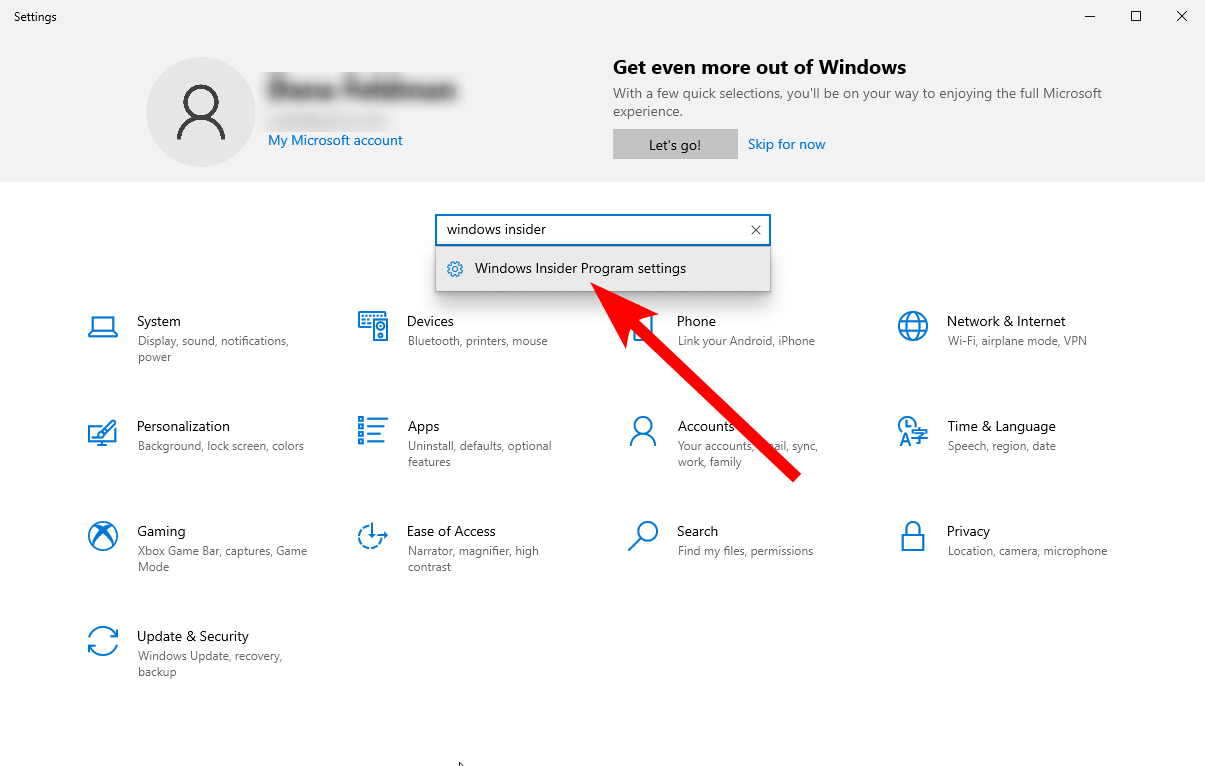
This should take you to the Insider Program settings where you will see this screen if you are not in the program:

Or this screen if you are in the program:

Override
If you are absolutely certain you wish to use Overwolf with Windows Insider, you can use the following override steps that will allow you to run Overwolf and all of its features:
If you cannot locate the ProgramData folder, please make sure to enable the View hidden files and folders option (in Windows 11, click the 3 dots at the top menu and select ‘Options’):

If you’re having trouble editing or saving the file, please try the following:

Open the file from in it (File > Open. > C:ProgramDataOverwolfSetup, make sure to set the file type to ‘All Files’):

Источник
Support
Hi, how can we help?
Search the knowledge base or choose a category below
Overwolf Installation Troubleshooting
Modified on: Sun, 19 Sep, 2022 at 5:55 PM
Why is the installer showing the error «We have encountered a problem during the installation. «? ▾
The installer may come across an issue while downloading or installing certain files. To fix this issue, please install the latest available updates for your Windows OS. To check for available updates for your system, please click here.
If you’re still experiencing the same issue after updating your system, please try to run the setup installer instead.

If Overwolf’s installer keeps getting stuck on «Extracting Files» please try to run the setup installer instead.

Installer displayed incorrectly ▾
In certain cases the installer may appear ‘broken’ and it will be displayed incorrectly.
If that happens, please contact us.

Why is the installer saying «Connection Error»? ▾
This issue is commonly caused by the following:

Installer not starting / finishing properly ▾

5. Restart your system (if asked to) and try to launch the Overwolf installer again.
Overwolf setup installer ▾
If the above-mentioned solutions did not help you overcome the issue, please try to run the setup installer (click to download ↓ ).
It comes in a zipped file, so you will first need to extract it by using any program like WinZip, WinRAR or 7-Zip.
Once the installation is complete you can go ahead and start downloading awesome apps for your games!
Clean reinstall Overwolf client ▾
If all of the above does not work, and you are still unable to install Overwolf, then let’s try doing a full clean sweep of all Overwolf files, then try to re-install it.
Once you finish uninstalling, head to C:Program Files (x86) and check if you have an Overwolf folder (you shouldn’t). Delete it, and proceed to do the following:
Once you finish, please re-download (choose your favorite app) and launch Overwolf.
Installation file is getting removed ▾

We’ve seen this happen to users who have SAntivirus installed (sometimes, without even their knowledge), but it might also happen with other software. To resolve the issue you can temporarily disable the antivirus software and redownload the installer. For more information, please visit this article.
RivaTuner conflict ▾
RivaTuner Statistics Server is a hardware monitoring program that usually comes bundled with MSI Afterburner. Sometimes, it may conflict with Overwolf and prevent it from running properly (or running at all).
To prevent any such issues, please follow the suggestions in our Overwolf and Conflicts with RivaTuner article, or close RivaTuner entirely for the duration of the installation (you may need to close MSI Afterburner first).
Источник
дота+ овервульф не открывается
16 Feb 2022 в 15:23

16 Feb 2022 в 15:23 #1
скачал овервульф а почкму-то не запускается
типа окошко не поялвется на стадии пика
ghoul✓ zxc✓ toxic✓ psycho✓ depressed✓ bipolar✓))))


16 Feb 2022 в 15:29 #2
если это обычный легальный то там Ins вроде как, но я не знаю, так-что @RapemanTV выручи молодого и сори за такое.

16 Feb 2022 в 15:29 #3
потому что оверфульв это чит, и габен оберегает тебя от плохого

16 Feb 2022 в 15:34 #4
скачал овервульф а почкму-то не запускается
типа окошко не поялвется на стадии пика
Оно тебе не надо, все это мирское
16 Feb 2022 в 15:38 #5
если это обычный легальный то там Ins вроде как, но я не знаю, так-что @RapemanTV выручи молодого и сори за такое.
что такое Ins, я не шарю реально первый раз ставлю
ghoul✓ zxc✓ toxic✓ psycho✓ depressed✓ bipolar✓))))
Источник
20 Jun 2019 в 17:30

20 Jun 2019 в 17:30 #1
how come stratz doesnt show player profiles?
Valve has asked us to comply with their wishes on privacy, which we have done.
какого лешего больше не показываются профили?
ваевале сказали что посадят нас на бутылку если мы будем давать данные о скрытых акках
короче или ждем появления нового сервиса (овер и страт это по идее разные так что теперь им надо искать другую площадку которая не зассыт действий вальвосов) или фак гэгэ, мипопикеры и прочие любители посидеть на бутылке ликуют
мб я слоупок ну и насрать
20 Jun 2019 в 17:32 #2
20 Jun 2019 в 17:33 #3
ставлю хату админа что начало лагать именно изза того что программа до сих пор не понимает какого хрена скрыты данные и пытается их достать

20 Jun 2019 в 17:35 #4
how come stratz doesnt show player profiles?
Valve has asked us to comply with their wishes on privacy, which we have done.
какого лешего больше не показываются профили?
ваевале сказали что посадят нас на бутылку если мы будем давать данные о скрытых акках
короче или ждем появления нового сервиса (овер и страт это по идее разные так что теперь им надо искать другую площадку которая не зассыт действий вальвосов) или фак гэгэ, мипопикеры и прочие любители посидеть на бутылке ликуют
мб я слоупок ну и насрать
Тебя не контрпикнут если в каждой игре будешь брать Бучку на фп
Источник
Overwolf
25 Aug 2016 в 23:02
25 Aug 2016 в 23:02 #1
Как настроить? не работает Overwolf dota plus, нажимаю выбранную комбинацию(ALT +
25 Aug 2016 в 23:24 #2
она работает в основном только во время игры.
если оперативная статистика готова к показу там в окошке так и будет написано.

25 Aug 2016 в 23:25 #3
она работает в основном только во время игры.
если оперативная статистика готова к показу там в окошке так и будет написано.
а смысл в том, чтобы видеть до начала игры всю инфу
25 Aug 2016 в 23:26 #4
когда в главном меню находишься, запускаешь ее
потом ищешь игру
и уже на этапе загрузки она будет готова тебе показать
а если запускаешь уже во время игры, она не работает
25 Aug 2016 в 23:28 #5
25 Aug 2016 в 23:32 #6
когда в главном меню находишься, запускаешь ее
потом ищешь игру
и уже на этапе загрузки она будет готова тебе показать
а если запускаешь уже во время игры, она не работает
я так понял на реплеях тоже не работает?

25 Aug 2016 в 23:34 #7
А смысл в том, что можно предсказывать пик противника и их силу отыгровки.
25 Aug 2016 в 23:35 #8
В игре используется она. Внутри игры. Иногда активируется еще в лобби, где игроки подгружаются.
Источник
Проблемы EXE, связанные с OverwolfLauncher.exe, в большинстве случаев связаны с повреждением, отсутствием или заражением исполняемого файла и часто наблюдаются на этапе запуска программного обеспечения Overwolf Overlay. Основной способ решить эти проблемы вручную — заменить файл EXE новой копией. В качестве последней меры мы рекомендуем использовать очиститель реестра для исправления всех недопустимых OverwolfLauncher.exe, расширений файлов EXE и других ссылок на пути к файлам, по причине которых может возникать сообщение об ошибке.
EXE файлы — это типы Исполнимые файлы, более широко известные в качестве формата Windows Executable File. Мы подготовили для вас несколько версий файлов OverwolfLauncher.exe, которые походят для %%os%% и нескольких выпусков Windows. Данные файлы можно посмотреть и скачать ниже. Если в настоящее время необходимая вам версия OverwolfLauncher.exe недоступна для загрузки, вы можете запросить её копию, нажав на кнопку Request (Запрос) ниже. В крайнем случае, если ниже отсутствует необходимый вам файл ниже, для получения необходимой версии вы также можете связаться с Overwolf.
Размещение вновь загруженного файла OverwolfLauncher.exe в правильном каталоге (в месте расположения исходного файла), скорее всего, решит проблему, однако, чтобы однозначно в этом убедиться, следует выполнить проверку. Проверьте результат замены файла, запустив Overwolf Overlay и проверив выводится ли возникающая ранее ошибка.
| OverwolfLauncher.exe Описание файла | |
|---|---|
| Ext: | EXE |
| Категория: | Overwolf Overlay |
| Новейшие программы: | Overwolf Overlay |
| Версия программного обеспечения: | 1.0.4.9 |
| Создано: | Overwolf |
| File: | OverwolfLauncher.exe |
| Байт: | 711400 |
| SHA-1: | 167C3837BC9239E4CE44E983C878AF74DBDC0639 |
| MD5: | d82a831b406462f96e928b6fa07912d2 |
| CRC32: |
Продукт Solvusoft
Загрузка
WinThruster 2023 — Сканировать ваш компьютер на наличие ошибок реестра в OverwolfLauncher.exe
Windows
11/10/8/7/Vista/XP
Установить необязательные продукты — WinThruster (Solvusoft) | Лицензия | Политика защиты личных сведений | Условия | Удаление
EXE
OverwolfLauncher.exe
Идентификатор статьи: 1160583
OverwolfLauncher.exe
1
2
Выберите программное обеспечение
| File | Идентификатор файла (контрольная сумма MD5) | Байт | Загрузить | |||||||||||||||
|---|---|---|---|---|---|---|---|---|---|---|---|---|---|---|---|---|---|---|
| + OverwolfLauncher.exe | d82a831b406462f96e928b6fa07912d2 | 694.73 KB | ||||||||||||||||
|
Распространенные проблемы OverwolfLauncher.exe
Усложнения Overwolf Overlay с OverwolfLauncher.exe состоят из:
- «Ошибка программы OverwolfLauncher.exe. «
- «Ошибка программного обеспечения Win32: OverwolfLauncher.exe»
- «Возникла ошибка в приложении OverwolfLauncher.exe. Приложение будет закрыто. Приносим извинения за неудобства.»
- «Не удается найти OverwolfLauncher.exe»
- «OverwolfLauncher.exe не может быть найден. «
- «Ошибка запуска программы: OverwolfLauncher.exe.»
- «OverwolfLauncher.exe не работает. «
- «OverwolfLauncher.exe выйти. «
- «Неверный путь к программе: OverwolfLauncher.exe. «
Ошибки OverwolfLauncher.exe EXE возникают во время установки Overwolf Overlay, при запуске приложений, связанных с OverwolfLauncher.exe (Overwolf Overlay), во время запуска или завершения работы или во время установки ОС Windows. Документирование проблем OverwolfLauncher.exe в Overwolf Overlay является ключевым для определения причины проблем с электронной Overwolf Overlay и сообщения о них в Overwolf.
Создатели OverwolfLauncher.exe Трудности
Проблемы OverwolfLauncher.exe могут быть отнесены к поврежденным или отсутствующим файлам, содержащим ошибки записям реестра, связанным с OverwolfLauncher.exe, или к вирусам / вредоносному ПО.
В частности, проблемы OverwolfLauncher.exe возникают через:
- Поврежденные ключи реестра Windows, связанные с OverwolfLauncher.exe / Overwolf Overlay.
- Файл OverwolfLauncher.exe поврежден от вирусной инфекции.
- Вредоносное удаление (или ошибка) OverwolfLauncher.exe другим приложением (не Overwolf Overlay).
- OverwolfLauncher.exe конфликтует с другой программой (общим файлом).
- Overwolf Overlay/OverwolfLauncher.exe поврежден от неполной загрузки или установки.
Возникли проблемы с новым Curseforge’ем? не можете найти папку для ввода модпаков а лаунчер и вовсе не запускается, тогда эта статья для вас, на связи Limoro мы начинаем.

И в первую очередь разберемся с тем, что после установки лаунчера Curseforge он просто не открывается. Это можно пофиксить открыв программу через администратора:
(ПКМ => Запуск от имени администратора)
или перезапустив компьютер, ведь Curseforge запустится самостоятельно.
Далее у много возникает траблы с папкой для скачивания модпаков. Во-первых, вам нужно выбрать путь, не имеющий русских вкладок.
Если у вас имя пользователя стоит на русском, то не спешите менять его, т.к. это может привести к печальным последствиям. Лучше создайте папку в программных файлах или в жестком деске ведь они не будут иметь неанглийских вкладок. И тогда вы уже сможете устанавливать ваши модпаки.
Пример неправильного пути (Есть русские вкладки): C:ПользователиИгорьДокументы Curseforge
Пример правильного пути (Нет русских вкладок): C:Program filesCurseforge
И третья проблема, которая может возникнуть у большинства людей, имеющие слабый ПК. Дело в том, что Overwolf и Curseforge сильно нагружают ПК работая в фоновом режиме, что может привести к долгому запуску Minecraft и в целом всех программ.
Для решения этой проблемы зайдите в диспетчер задач и зайди во клаку автозапуск и исправьте запуск приложения Overwolf на отрицательно. После таких махинаций ваш ПК будет нагружен меньше.
На этом все, надеюсь эта статья вам помогла. Если у вас остались вопросы, то с радостью жду их в комментариях под постом. На связи был Limoro!
Посмотреть статью в видеоформате:
Hey Tomzen,
What we need is that you send us a report through the Overwolf menu, this will contain details that might help us understand your problem and thus offer you a possible solution
Here’s how to do this:
-
Launch Overwolf
-
Launch any of the problematic games you mentioned
-
Once the problem occurs continue to the next step
-
Click on the wrench tool icon above the overwolf dock, this opens Overwolf’s settings window.
-
On the general page, scroll down and click the «found a bug? please let us know» link
-
Fill in email (VERY IMPORTANT)
-
Add your name and say this is in continuation to our response/request, mention what the issue was about or include the forum link if done on forum, so we’ll know it’s from you. It’s very hard to find an email from several days ago amongst the hundreds we get 🙂
-
Make sure the bottom tick box of «Include log files with my report» is checked
-
Click on the «Send» Button.
-
Close and relaunch Overwolf (to make sure it gets sent)
Let me know it’s done so I’ll look for it and see if we can find the cause 🙂
Awaiting your reply email that logs have been sent ;
Overwolf curseforge ошибка подключения
Search the knowledge base or choose a category below
CurseForge Troubleshooting
Modified on: Wed, 31 Aug, 2022 at 11:09 AM
Take me to.
Installed mod is not detected ▾
The CurseForge app is connected to the same repository as the CurseForge website, and allows many mod authors to upload their projects to it and share it with the world!
If you’re using a mod that cannot be found in the CurseForge app or website, it can mean:
- That the mod is pending review by CurseForge’s moderators, and should be available once it’s approved (check out the working hours of the moderation team here).
Or - The project is not available in the repository, and therefore will not be detected by the CurseForge app.
Why don’t certain mods get uploaded to CurseForge?
Mods and addons in the CurseForge repository are submitted and managed directly by their creators.
Some authors prefer to host their addons and mods in other sources, in which case their projects will not be available in CurseForge.
If you would like to see an addons or mods you enjoy in CurseForge, contact the authors and submit a request to them.
«Oops, that was not supposed to happen!» ▾

There are several possible causes for this issue:
Firewall/Antivirus
Firewall and/or antivirus software may block Overwolf/the CurseForge app, and thus prevent them from connecting to CurseForge’s servers.
Please check your firewall/antivirus software and unblock/provide permissions accordingly.
DNS Issues
To resolve any existing DNS issues that could affect the app’s connection to CurseForge’s servers, you can try to setchange change your IPv4 DNS server address by following these steps:
Windows ▾
- Open the Control Panel
- Click ‘Network and Internet’

Click ‘Network and Sharing Center’

Click the ‘Change adapter settings’ option in the left pane

Right-click the network interface that connects Windows to the internet, and select ‘Properties’


MacOS ▾
- Open the System Preferences

Click ‘Network’

Select your connection and click ‘Advanced’

Click the ‘+’ at the button of the ‘DNS Servers’ section

Type in 1.1.1.1

CurseForge Plugin
At times, this issue can be caused by a certain issue with CurseForge’s plugin.
To solve it, please uninstall both CurseForge and Overwolf, and reinstall them using this link.
ISP Block
Certain ISPs (Internet Service Providers) may block your connection to the CurseForge domain. Please try connecting to a different network (a mobile hotspot may work as well), or try a VPN connection.
Disabling IPv6 may resolve this issue, but please note this is a last resort solution and is generally not recommended by Microsoft.
To disable IPv6, please follow these steps:
- Open the Control Panel
- Click ‘Network and Internet’
Click ‘Network and Sharing Center’
Click the ‘Change adapter settings’ option in the left pane
Right-click the network interface that connects Windows to the internet, and select ‘Properties’
Uncheck the box for ‘Internet Protocol Version 6’

Long Loading Time / Content Not Loading At All (Intel Killer Networking Software) ▾
If the app’s screens take too long to load or do not load at all, it can as a result of a connection interference, caused by Intel Killer Networking Software (or a different program similar to it).
If you have Intel Killer Networking Software installed, please make sure to install the latest available updates, then relaunch CurseForge.
If you don’t have it installed, or if you require further assistance — please contact us and we will do our best to help!
«Missing required disk permissions for installation» ▾
To solve this issue, please open the menu to the right and select ‘Repair folder permissions’:

«This addon might be corrupt» Warning ▾
You may notice this warning message for certain addons that you currently have installed. This warning indicates that the installed addon does not match the game’s current instance, or that there may be something wrong with the addon’s files.

To resolve this issue, simply right click the addon and choose ‘Reinstall’ (or ‘Update’):

If reinstalling the mod didn’t help, please delete it, make sure you are currently set on the right instance (if you have more than one installed), search for the mod and install it again. If you are unable to find the mod when searching for it, it means that it’s not available for your currently set instance, and is meant to be installed for a different one.
Need help resolving the ‘corrupt’ warning? Contact us and we will do our best to assist you!
*You may notice the ‘corrupt’ warning being displayed despite the addon(s) working properly in-game. We are currently investigating this.
**Please note that mods in ‘Modified’ or ‘Working Copy’ states will not get automatically updated. This is not an issue, but rather made intentionally in order to protect these mods’ files from getting overwritten or deleted by updates.

***As of May 19th, 2021 a new instance of the game named ‘Burning Crusade Classic’ — These instructions are relevant for this new instance as well. Follow the Tooltip box instructions and click ‘Update All’.

Do you require further assistance?
Please export your log files through the app, send them to us and we will get back to you shortly!
Источник
Support
Hi, how can we help?
Search the knowledge base or choose a category below
CurseForge Minecraft Troubleshooting
Modified on: Thu, 1 Sep, 2022 at 9:57 AM
Take me to.
Modpack Issues
Java is required to run Minecraft modpacks. If you don’t have Java installed on your system, you will likely receive the following Windows system message when trying to launch modpacks:

Both in this case, and in cases where you do have Java but are still experiencing issues running modpacks — installing the latest Java version can solve the issue.
Please follow these steps to install the latest Java version:
- Download the latest Java version available here: https://java.com/download (your operating system should be automatically detected, or you can choose it manually here: https://www.java.com/en/download/manual.jsp).

Run the installation:

*Please note that Java will be installed by default inside the system’s Program Files directory. If you are not a Windows admin user, you may not have a permission to continue the installation, and you will need to ask a system admin to assist you with the installation:
*Please note that Java will be installed by default inside the system’s Program Files directory. If you are not a Windows admin user, you may not have a permission to continue the installation, and you will need to ask a system admin to assist you with the installation:

Restart the CurseForge app and try to launch your modpack(s) again.
«Failed to download file» in CurseForge Client / «Error Code 0» ▾
You can fix this using the ‘Repair Installation’ button — Please read more about this solution.
The System cannot find the file Specified» error (Windows OS) ▾
If you’re trying to launch modpacks but nothing is happening, or the error message «The System cannot find the file Specified» shows up, please try the following solutions:
Reinstalling the Launcher ▾
To reinstall the launcher, open the menu to your right and select ‘Repair installation’. Then, try to launch a modpack again.

Fixing the Command Prompt (cmd.exe) ▾

If the error » CMD configuration may be causing issues» shows up, it means that CurseForge cannot access the Command Prompt file (C:WindowsSystem32cmd.exe) in your system.
If the file has been modified, or its name has been changed — please restore it to its original state and try to launch your modpacks again.
If you can run the Command Prompt but it closes as soon as it starts — that could indicate a corruption due to malware. To fix the corruption, you can follow the steps in this guide, but please note that it should be done very carefully as it requires you to handle your system’s registry.

Invalid Modding Folder Path ▾
If you’ve come across an error where trying to set a modding folder, please make sure you did not select a path that is invalid, for example:
- The desktop or a folder within the desktop
- A OneDrive folder, or any folder within the OneDrive directory
- The Vanilla Minecraft directory (C:Users[user]AppDataRoaming.minecraft)
- A path that contains non-English letters
- A root folder (C:, D:, etc.), as in — the first or top-most directory in a hierarchy
If you’re not sure which directory to select, we recommend keeping the default path suggested by the app — C:Users[user]curseforge, or creating a new folder outside of the C:Users directory, like C:CurseForge or D:CurseForge and selecting that.
Import Error ▾
If you received an error when trying to import a modpack, please make sure that the modpack’s ZIP file is valid and properly structured. The ZIP must contain a manifest.json file inside it.
If you aren’t sure about the validity of the ZIP file, please reach out the creator of the modpack or send the file to us, and we will do our best to help.
Custom Profile (modpack) Not Launching ▾
If there are incompatibilities in your modpack between mods, or between the modloader and the mods you’re trying to run, you can ask for help from the Minecraft community in the official CurseForge Discord Server. Check out our article as well for extra tips!
Game/Launcher Issues
«An access violation occurred when attempting to install Minecraft launcher»▾
«An unexpected error occurred while trying to install Minecraft» ▾
Can only play Demo ▾
If you’re launching a modpack but the game’s button says ‘Play Demo’ (instead of ‘Play’), like so:

Please try to log out and back in:
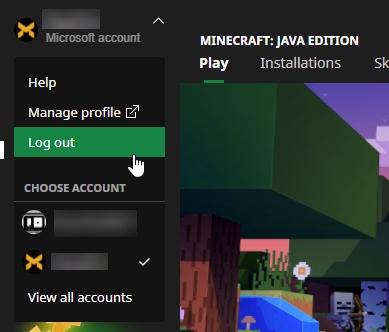
Or repair the installation from the app:
Clicking ‘Play’ in Minecraft’s Launcher Doesn’t Start the Game (McAfee Real-Time Scanning)▾
If you’re clicking ‘Play’ in Minecraft’s launcher and the game doesn’t start loading within a short time, please check if you have McAfee’s Real-Time Scanning option enabled. If so, please disable and relaunch the modpack.
«Failed to create Minecraft directories» ▾
«Failed to download Minecraft launcher due to a network error» ▾
«Failed to install Minecraft launcher» (download error) ▾
Please make sure that your network connection is stable and that your firewall/antivirus are not blocking Minecraft and/or Overwolf.
«Failed to install Minecraft launcher (parsing error)» ▾
«Failed to unzip Minecraft launcher» ▾
No sound in game ▾
If you can’t hear the game’s sounds when launching a modpack, please reload the game’s assets by pressing F3+T (after entering single/multiplayer):
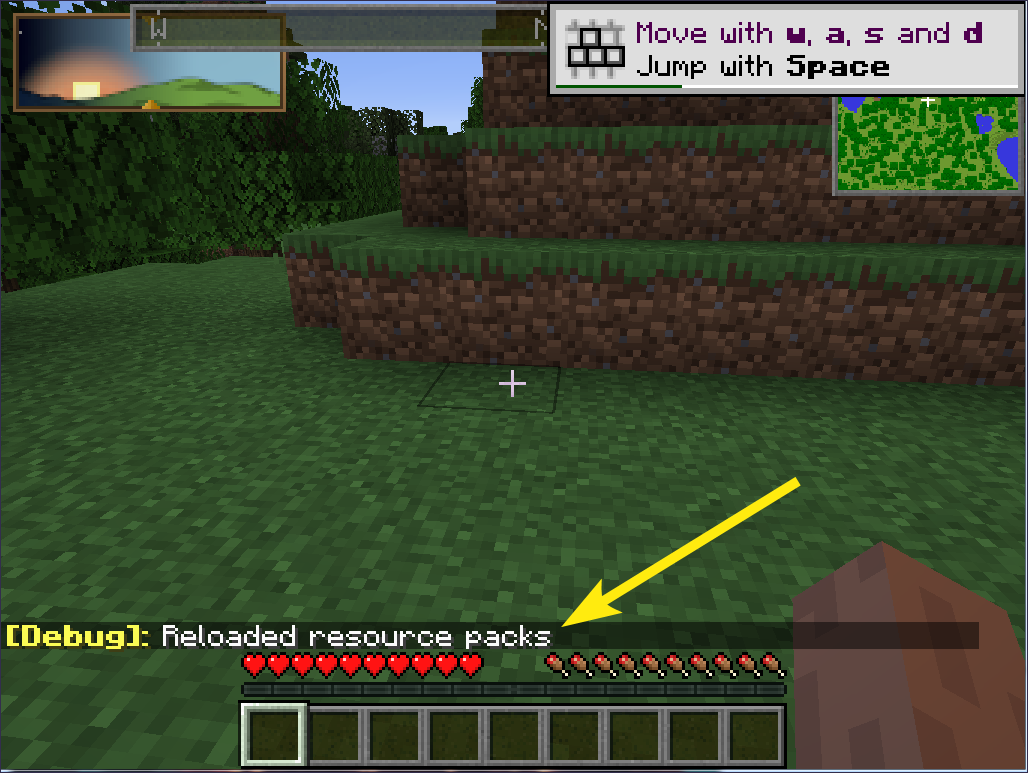
The legacy Minecraft launcher open instead of the current one ▾

If you’re seeing this legacy launcher instead of the current one when launching a modpack, please follow these steps (Windows OS):
- Open Overwolf’s installation folder (default: C:Program Files (x86)Overwolf)
- Right click the ‘OverwolfLauncher.exe’ file
- Select ‘Properties’
- Go to the ‘Compatibility’ tab
- The box for ‘Run this program in compatibility mode for:’ should be unchecked

Источник