Были ли вы когда-нибудь в ситуации, когда внезапно ваш Outlook 2016 перестает работать и вы получаете код ошибки Outlook 0x8000ffff? Не знаете, что делать? Тогда не волнуйтесь и прочтите этот блог, чтобы узнать, как вручную исправить код ошибки Microsoft Outlook 0x8000ffff. Кроме того, изучите автоматизированный способ эффективного устранения ошибки.
Прежде чем мы приступим к ее разрешению, давайте узнаем причины получения этого кода ошибки.
Как правило, это происходит, когда вы пытаетесь добавить файл данных в Outlook 2016, открыв почтовый апплет на панели управления. Вы можете получить это сообщение об ошибке в Outlook «Произошла неизвестная ошибка, код ошибки 0x8000ffff».
Ручные обходные пути для исправления кода ошибки 0x8000ffff Outlook
Вот ручные способы, которые могут помочь вам исправить неизвестную ошибку Outlook 2016 0x8000ffff:
Метод 1. Добавьте файл данных Outlook (PST)
Чтобы устранить эту проблему, добавьте файл данных в Параметры учетной записи в Outlook 2016, выполнив следующие действия.
- Откройте Outlook 2016, перейдите на вкладку Файл.
- На появившемся экране нажмите «Настройки учетной записи»> «Настройки учетной записи».
- Откроется окно настроек учетной записи. На вкладке «Файлы данных» нажмите «Добавить».
- Теперь укажите имя файла данных и нажмите ОК.
- После добавления файла данных нажмите «Закрыть», чтобы закрыть окно «Параметры учетной записи».
Если вы не можете получить доступ к Outlook, попробуйте следующее решение.
Метод 2: создайте новый профиль Outlook
Еще один способ устранить неизвестную ошибку Microsoft Outlook 0x8000ffff — это создать новый профиль в Outlook. Посмотрите, что нужно сделать, чтобы сделать то же самое.
- Закройте приложение Outlook.
- Откройте Панель управления и щелкните Почта.
- Выберите «Показать профили» в диалоговом окне «Настройка почты».
- Нажмите «Добавить», чтобы добавить новый профиль Outlook в диалоговом окне «Почта».
- Введите имя профиля в диалоговом окне «Новый профиль» и нажмите «ОК».
- В окне «Добавить учетную запись» введите данные учетной записи электронной почты для созданного вами профиля. Нажмите кнопку «Далее.
- Следуйте инструкциям на экране и завершите процесс.
- В диалоговом окне «Почта» выберите в раскрывающемся меню только что созданный профиль. Щелкните ОК.
Перезапустите приложение Outlook и проверьте, решена ли проблема. Если нет, то переходите к следующему подходу.
Метод 3: запустите средство восстановления папки «Входящие»
Если ни один из вышеперечисленных подходов не помогает исправить код ошибки Outlook 0x8000ffff, запустите инструмент scanpst.exe. Он встроен, чтобы диагностировать ошибки повреждения в файле PST. Вот как это сделать:
- Сначала закройте Outlook.
- Найдите ScanPST.exe на вашем компьютере.
- Найдя, дважды щелкните ScanPST.exe.
- Просмотрите PST-файл, который нужно восстановить.
- После того, как вы выбрали файл, нажмите кнопку «Пуск», чтобы начать процесс восстановления.
- После завершения процесса восстановления запустите Outlook и создайте новый PST в своем профиле.
- Наконец, перетащите восстановленные почтовые элементы (присутствующие в папке «Потерянные и найденные») в новый файл PST.
Примечание: Вышеупомянутый инструмент исправит только незначительные проблемы с повреждением файла Outlook PST. Чтобы восстановить сильно поврежденный файл PST, вам необходимо использовать надежный сторонний инструмент.
Восстановите поврежденные файлы PST с помощью Advanced Tool
Вы можете использовать инструмент DataHelp для восстановления поврежденного файла PST. Программное обеспечение решает сложные проблемы, связанные с повреждением и неисправностью файлов PST базы данных Outlook. Более того, утилита может даже извлекать ваши удаленные данные и сохранять их в таких форматах, как EML, MSG, PST, PDF и HTML. Программное обеспечение поддерживает версии Microsoft Outlook 2019, 2016, 2013, 2010, 2007, 2003, 2002 и 2000.
Вывод
В этом блоге мы объяснили причину получения кода ошибки Outlook 0x8000ffff и различные методы исправления ошибки. Ручные методы не могут исправить ошибку, если ваши файлы PST повреждены, тогда как автоматизированный инструмент быстро устранит ошибку.
- Remove From My Forums
-
Question
-
When I try to add pst files in Outlook 2016 I get An unknown error occurred, error code 0x8000ffff. I’ve read a bunch of posts with this same error in older versions of outlook however none of the fixes mentioned work for me. This is a brand new clean
install of Office 2016 on a new Windows 10 Enterprise PC. Any idea what would cause this or how to troubleshoot further?
John Marcum | Microsoft MVP — Enterprise Client Management
My blog: System Center Admin | Twitter:
@SCCM_Marcum | Linkedin:
John Marcum
Answers
-
Thanks Melon. I ended up opening a case with CSS REG:116021613712175. We found that I was able to add a pst if I did it through Outlook instead of the Control Panel applet. Not sure why and didn’t care to waste the support hours chasing down the root cause.
John Marcum | Microsoft MVP — Enterprise Client Management
My blog: System Center Admin | Twitter:
@SCCM_Marcum | Linkedin:
John Marcum-
Marked as answer by
Tuesday, March 8, 2016 2:37 AM
-
Marked as answer by
-
#1
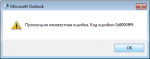
Доброго времени суток! Коллеги, помогите разобраться с microsoft outlook 2016. При попытке добавить файл данных через панель управления, windows показывает ошибку
Произошла неизвестная ошибка. Код ошибки: 0x8000ffff
Подскажите что делать?? Из за чего может быть ?
-
#3
Для временного решения этой проблемы добавьте файл данных в окне Параметров учетной записи в Outlook 2016, выполните следующие действия.
- Откройте Outlook 2016.
- На вкладке « файл » выберите Параметры учетной записии нажмите кнопку Параметры учетной записи.
- На вкладке » Файлы данных » нажмите кнопку » Добавить«.
- При необходимости добавлять в файл данных и нажмите кнопку ОК.
- Нажмите кнопку Закрыть в диалоговом окне Настройки учетной записи .
помогло! Спасибо
Running Outlook 2016 on Windows 10. Outlook originally connected to the Office 368 link and synced up as expeted, but due to license issues, had to basically removed the installed OFFICE suite and use an ISO version and then an activation key — which worked and Word, Excel etc are all working
Outlook complains that «The MS Exchange Information service in your profile is missing required information. Modify your profile to snure that you are using the correct MS Exchnage information service»
I have been into Control Panel, Mail , Data Files. I am unable to remove the Data File which was added when it connected to the Office365 profile. It says the data file is associated with a mail account. To remove it use the E-Mail Tab. Try under that, says I must create a new data location for your data. so under Data Files click ADD.
Which when I click ADD returns «an unknown error occurred, error code 0x8000ffff»
I could add another e-mail which was my hotmail address and this worked but I am still unable to remove the legacy OFFICE365 mailbox/data files. This is stopping me run OUTLOOK 2016 and then I need to re-connect to Office 365 as I now have an activated version of the product.
Help
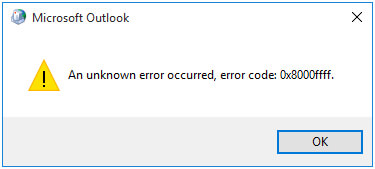
Microsoft Outlook is the most popular email client among a large number of active users. It offers you impressive features and outstanding performance. But, like any other software application, it has some drawbacks. Being an Outlook user, you’re likely to receive error messages if there’s an issue in Microsoft Outlook client. One of the most common error messages is, «An unknown error occurred, error code: 0x8000ffff«. You may encounter this error message while adding a data file in the Mail applet in Outlook 2016.
Symptom
You’re running Microsoft Outlook 2013 or 2016. You want to add new Outlook data file to your Outlook profile. You go to the Control Panel>Mail. On the Account Settings dialog box, you click the Data Files tab. Then, you click Add… to add a new Outlook data file. But when you click «Add«, you receive this error message: An unknown error occurred, error code: 0x8000ffff.
How to resolve this error code 0x8000ffff?
It’s very simple to resolve this error. To add the Outlook data file, you should follow these steps:
- Launch Microsoft Outlook 2013 or 2016.
- On the taskbar, click the File tab >Account Settings>Account Settings.
- On the Account Settings dialog box, click the Data Files tab >Add…
- Now add the Outlook data file, and then click OK.
- On the Account Settings dialog box, click Close.
If still, you’re receiving the error code, it means the Outlook data file you’re trying to add is corrupt. You should use the Inbox Repair tool to scan the Outlook data file. The Inbox Repair tool aka scanpst.exe utility is a built-in repair tool in Microsoft Outlook client.It can successfully repair PST file which is corrupt due to any reason.After that, you can add PST file to your Outlook client without any problem. If the corruption is severe, the scanpst.exe utility may fail or not work. In such a situation, you should look forward to a professional solution.
Advanced PST Repair tool
There are many vendors in the market which provide a professional solution to repair PST file. SysInfoTools PST Repair tool is one of the best recovery solutions available in the market for Outlook users. It can repair PST file in an effortless way and restore maximum possible mailbox content from it. It creates a new Outlook data file which contains all the recovered mailbox content. You can save this new file and add it to your Outlook profile with no problem.
Also Read — Resolved — Outlook 2016 Error 0x800ccc0f
Download Now Buy Now
Summary:
Read this blog to know about ‘An unknown error occurred, error code: 0x8000ffff’ in Outlook. Also, explore the most effective workarounds to fix the error. If the error occurred due to PST file corruption, using Stellar Repair for Outlook can help resolve the error.

Contents
- What Causes ‘An unknown error occurred, error code 0x8000ffff’ in Outlook 2016?
- Workarounds to Fix ‘An unknown error occurred, error code 0x8000ffff’ in Outlook 2016
- What If the Error Persists?
- Conclusion
When trying to add an Outlook data file (PST), several Outlook 2016 users have reported about receiving an error code: 0x8000ffff. The complete error message reads as:
An unknown error occurred, error code: 0x8000ffff
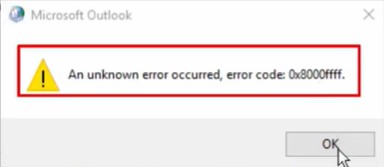
The error will prevent you from adding a new Outlook data file or even stop Outlook from opening, thus bringing your work to halt.
Also read: Error Solved: “Microsoft Outlook 2016 Has Stopped Working”
What Causes ‘An unknown error occurred, error code 0x8000ffff’ in Outlook 2016?
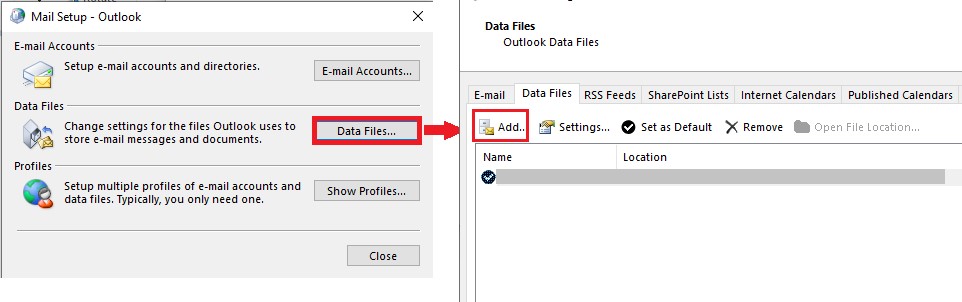
There is no evident answer as to what causes this error. However, as reported by users, it occurs when trying to add a data file in Outlook 2016 by opening the Mail applet in Control Panel and then clicking Add on the Data File tab.
Workarounds to Fix ‘An unknown error occurred, error code 0x8000ffff’ in Outlook 2016
Following are two simple workarounds that may help you fix the Outlook 2016 error 0x8000ffff:
Workaround 1 – Add the Outlook Data File (PST) via Account Settings
Note: If Outlook won’t open, skip to the next workaround.
Try adding the data file via Account Settings in Outlook 2016 by performing these steps:
Step 1: In Outlook 2016, click the File tab.
Step 2: In the screen that appears, click Account Settings > Account Settings.
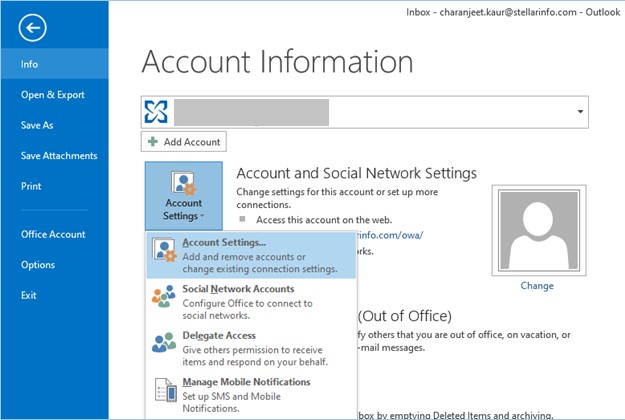
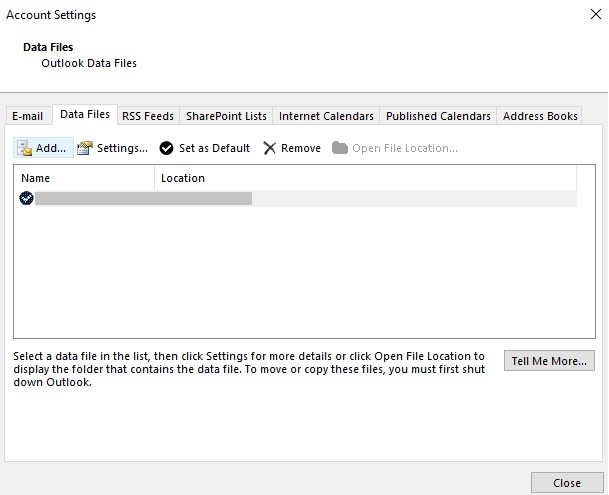
Step 3: The Account Settings window gets displayed. From the Data Files tab, click Add.
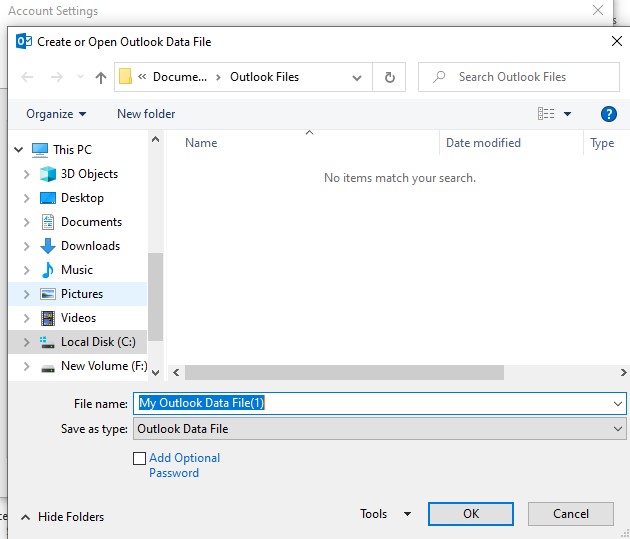
Step 4: Specify the data file name, and then click OK.
Step 5: Once the data file gets added, click Close to exit the Account Settings window.
Workaround 2 – Create a New Outlook Profile
If you cannot access Outlook, try creating a new Outlook profile to fix the error. Follow these steps to create a new profile:
Step 1: Close your Outlook application.
Step 2: Open Control Panel, and click Mail.
Step 3: From the Mail Setup dialog box, select Show Profiles.
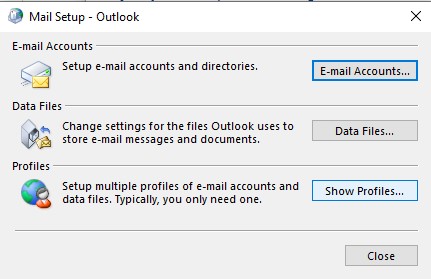
Step 4: Click Add to add a new Outlook profile in the Mail dialog box.
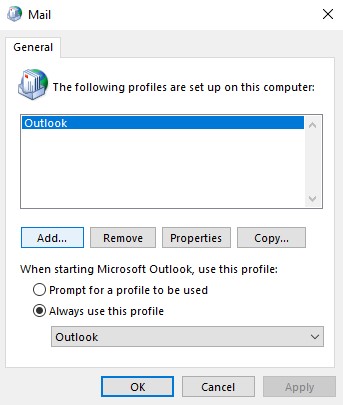
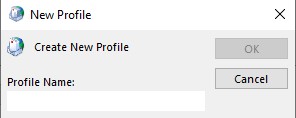
Step 5: In New Profile dialog box, enter profile name, and then click OK.
Step 6: When the Add Account window appears, enter the E-mail account details for the profile you have created. Click Next.
Step 7: Follow the prompts on screen, and choose Finish when completed.
Step 8: From the Mail dialog box, select the profile you have just created from the dropdown menu. Click OK.
Now open Outlook again and check if the issue is resolved.
What If the Error Persists?
If none of the above workarounds helps fix the Outlook unknown error 0X8000ffff, run the Microsoft built-in ‘Inbox Repair Tool (or ScanPST.exe)’ to diagnose corruption errors in the PST file. If it reports any errors, proceed with repairing the file by using the built-in repair tool. Here are the steps to do so:
- Exit Outlook.
- Look for ScanPST.exe on your computer.
Note: The ScanPST.exe location can differ based on the Outlook version you are using. To know its location, read this: How to Find Scanpst.exe in Outlook 2019, 2016, 2013, 2010 and 2007? )
- Once found, double-click ScanPST.exe.
- The Microsoft Inbox Repair Tool box is displayed. Find the PST file you need to repair by clicking Browse. You can also type its location in the ‘Enter the name of the file you want to scan’ box.
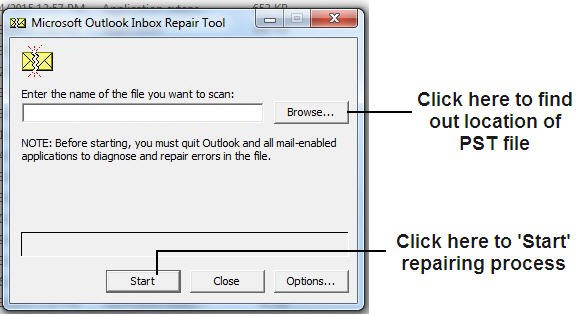
- Once you’ve selected the file, choose Start to initiate the repair process.
- After completion of the repair process, launch Outlook, and create a new PST in your profile.
- Drag and drop the recovered mail items (present in a ‘Lost and Found’ folder) to the new PST file.
In case, ScanPST.exe utility fails to fix corruption in the Outlook data file (.pst), use Stellar Repair for Outlook software to repair the corrupt PST file and recover its components. It can retrieve deleted emails and all other mail items in their original, intact form.

Unlike the ‘Inbox Repair Tool’, the PST file repair software from Stellar® can repair a severely corrupt PST file regardless of the file size. Also, the software can split and compact a large-sized Outlook data file.
Watch this video to know how to repair corrupted PST with Stellar Repair for Outlook:
Conclusion
This blog discussed the Outlook 2016 ‘an unknown error occurred, error code: 0x8000ffff’ issue. It talked about what causes the error and workarounds to fix it. But, if the workarounds fail to work for you, repairing the corrupted Outlook PST file may help resolve the issue. You can fix corruption by using the built-in Microsoft ‘ScanPST.exe’ utility. However, it may fail to repair a severely corrupt or oversized Outlook data file. A better alternative to ScanPST.exe is to use a specialized PST file repair software such as Stellar Repair for Outlook.
About The Author

Charanjeet
Charanjeet is a Technical Content Writer at Stellar®who specializes in writing about databases, e-mail recovery, and e-mail migration solutions. She loves researching and developing content that helps database administrators, organizations and novices to fix multiple problems related to MS SQL and MySQL databases and Microsoft Exchange.
Best Selling Products
Stellar Outlook PST Recovery Tool
Stellar Outlook PST recovery software is
Read More
Stellar Advanced Repair Tool for Outlook
Advanced software, trusted and recommend
Read More
Stellar Toolkit to Manage Outlook Data Files (OST/PST)
Advanced “8-in-1” software package f
Read More
Stellar Convert, Compact and Split OST File & Save as PST
Advanced tool, recommended by Microsoft
Read More
Quick Solution to Fix Outlook 2016 Error Code 0x8000ffff
Outlook is the most advanced and best email client platform across the world. But sometimes when user tries have access to Outlook then an error appears as Cannot Add PST Data File — an unknown error occurred error code 0x8000ffff. So this post concludes the outlook data file unknown error 0x8000ffff in brief with the similar types of error that come as consequence. Apart from manual solution, an automated solution is also available to fix the error effortlessly and instantly.
Cannot Add PST Data file — An Unknown Error Occurred Error Code 0x8000ffff in Outlook is the most frequent error encountered by most of the outlook user. In multiple similar cases, it has seen that user fails to determine the actual cause of the Outlook 2016 error 0x8000ffff Whether it is related to Outlook Application or Windows interruption Error. In both the cases, it is recommended to rectify the possible reason behind the outlook 2013 error code 0x8000ffff.
Let’s Check and Rectify the Possible Windows Error That Causes the Failure of Outlook
Windows Error is generally the interruption results due to the unfavorable or unexpected operations performs to handles resources available for requested process. The windows error does not have any impact on the saved data but can cause issues such as abnormal shutdown, Windows freeze, Screen continuously blinked. However, if these issues do not resolve timely then it may lead to serious consequences.
In most of the cases, the fixes of one error are unable to operate on other. For Windows related error, the solution is available but for genuine technical reasons. But When the error has occurred caused by virus attack or malware, only the automated solution can resolve them in efficient and simple manner.
The most persisting error occurs When the user wants to performs send/Receive Operation in Outlook or try to access the pst file data to read the messages but unable to do so because of error in pst file.
The Common Windows Operating System Error That Can Cause Outlook data files error code 0x8000ffff
DLL Error
A missing DLL file also causes Cannot Add PST Data file — An Unknown Error Occurred Error Code 0x8000ffff in Outlook It might be possible that any DLL files related to Outlook profile get corrupt or malfunctioned by malicious software.
Application Freeze
When the Outlook application hangs on freeze, then it is the signal that something wrong operation performed. It instantly shutdown and abort all the current task with the error. This might also possible that Windows screen starts freezing due to over utilization of system resources by other application. It must be handled manually to fix Outlook 2016 0x8000ffff
Blue Screen Error
The blue screen error is mainly caused by the bugs or viruses and also due to hardware failure or corruption in the driver software.
System File Got Corrupted
The Outlook 2016 error 0x8000ffff may also be caused due to system file damage and corruption in system files. So it is the foremost task to take immediate steps to fix the system file corruption to prevent the data from being lost or corrupted.
What to Do When the Outlook PST Data File is Severely Damaged or Corrupted!
When the Outlook PST file damaged or highly corrupted then in such case inbox repair tool fails to performs then the use of an automated solution is the only option left to fix An Unknown Error Occurred Error Code 0x8000ffff in Outlook.
The Outlook users encountered multiple issues when working with the application. In most of the cases, the Outlook data file get corrupted or turn inaccessible. Sometimes the issues are light and can easily be fixed with inbox repair tool but for the major corruption issues, an automated solution is the only option as discussed above. Outlook PST Repair tool is one such tool recommended by experts to fix outlook 2016 error 0x8000ffff and other pst file related issues.
-
Partition Wizard
-
Partition Manager
- How to Fix Error 0x8000FFFF in Windows 10?
How to Fix Error 0x8000FFFF in Windows 10? [Partition Manager]
By Linda | Follow |
Last Updated August 30, 2021
Have you encountered error 0x8000FFFF in Windows update, Outlook, and Microsoft Store? If so, this post may help you. Here are 6 solutions offered to you. You can try them to solve the problem.
Many people report they have encountered error 0x8000FFFF. This error can occur in various occasions. You may face this error when you update Windows, perform system restore, create a new folder, add a data file in the Mail applet in Outlook 2016, buy/download apps on Microsoft Store, etc.
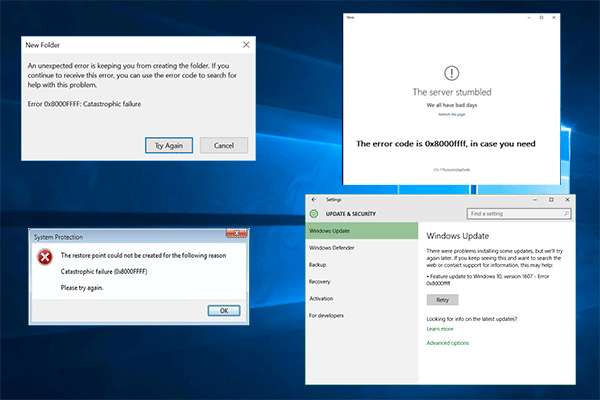
Then, how to fix the error 0x8000FFFF in Windows 10? In this post, MiniTool offers you 6 solutions. You can try them one by one.
Fix 1. Run Antivirus Software
Before you take other methods, you should make sure the 0x8000FFFF error is not caused by virus. So, you should run antivirus software like Windows Defender or other third-party software.
Here is the guide on how to run Windows Defender on Windows 10:
Step 1: Click Start button and select Settings. Then, select Security & Update.
Step 2: Choose Windows Defender and then click Open Windows Defender Security Center.
Step 3: Click Virus & threat protection and then click Quick scan.
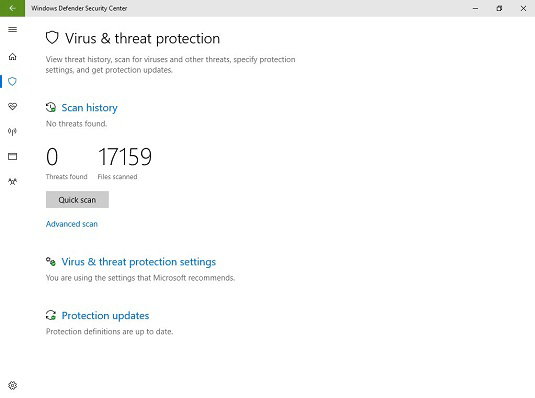
If there is no virus or this method doesn’t work, you can then try other methods to solve the 0x8000FFFF error.
Fix 2. Repair System Files with SFC and DISM
The error 0x8000FFFF may be caused by corrupt system files. If so, you should SFC or DISM to repair the system files.
Here is the tutorial on how to run SFC command:
Step 1: Type «command prompt» in Windows search box. Then, right click the Command Prompt icon and select Run as administrator.
Step 2: Type «sfc /scannow» and press Enter key.
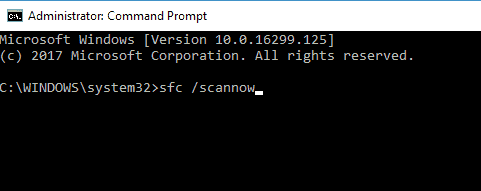
If the SFC command fails to repair system files, you can run DISM. This command should be run when your computer is connected to network. The DISM command lines are as follows:
- dism.exe /Online /Cleanup-image /Scanhealth
- dism.exe /Online /Cleanup-image /Restorehealth
Fix 3. Run Troubleshooter
If you encounter the error 0x8000FFFF while updating Windows or purchasing apps from Microsoft Store, you can try running Troubleshooter to fix it.
Here is the tutorial on how to run Windows Update Troubleshooter:
- Press «Windows + I» keys to open Settings. In that window, choose Update & Security.
- Select Troubleshootfrom the left menu and then locate Windows Update under Get up and running.
- Click Windows Updateto expand it. Then, click on the Troubleshooter button to start it.
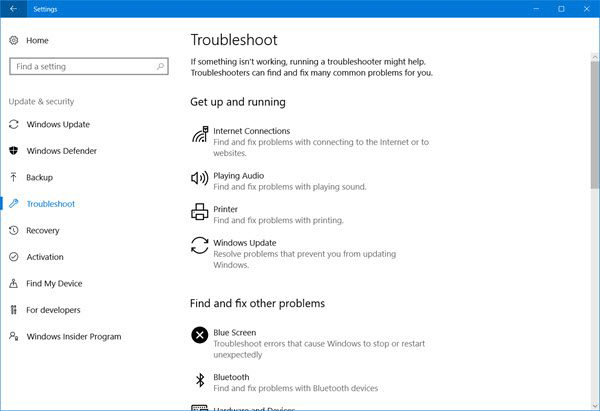
This Troubleshooter will fix any update error it detects. If you want to fix 0x8000ffff Microsoft Store error, you should locate Windows Store Apps and click the Troubleshooter button under it.
Fix 4. Clear Microsoft Store Cache
The 0x8000ffff Microsoft Store error may be caused by corrupted cache files. If so, you should clear cache for Microsoft Store. Please follow the steps below:
- Press «Windows + R» keys to call out Run dialogue box.
- In the input line, type «WSReset.exe» and then hit Enter key to run it.
Then, you can launch Microsoft Store to see whether the problem is solved.
Fix 5. Add the Data File in Account Settings
If you receive this error message «An unknown error occurred, error code: 0x8000ffff» when you add a data file in the Mail applet in Outlook 2016, you can use this method to work around it.
To work around the 0x8000ffff Outlook error, please follow the steps below:
- Open Outlook 2016.
- On the Filetab, click Account Settings, and then click Account Settings.
- On the Data Filestab, click Add.
- Add the data file as needed, and then click OK.
- Click Closeon the Account Settings
Fix 6. Change to Administrator Account
When you perform system restore, if you use a non-administrator account, system files may fail to be overwritten and therefore the error 0x8000FFFF may occur. In this case, you should switch to administrator account.
Here is the tutorial:
- Click on the Startmenu and then right click on your user profile icon.
- Select Sign outfrom the pop-up menu.
- Switch to the Administrator account and log in Windows 10 again.
About The Author

Position: Columnist
Author Linda has been working as an editor at MiniTool for 1 year. As a fresh man in IT field, she is curious about computer knowledge and learns it crazily. Maybe due to this point, her articles are simple and easy to understand. Even people who do not understand computer can gain something.
By the way, her special focuses are data recovery, partition management, disk clone, and OS migration.
-
Partition Wizard
-
Partition Manager
- How to Fix Error 0x8000FFFF in Windows 10?
How to Fix Error 0x8000FFFF in Windows 10? [Partition Manager]
By Linda | Follow |
Last Updated August 30, 2021
Have you encountered error 0x8000FFFF in Windows update, Outlook, and Microsoft Store? If so, this post may help you. Here are 6 solutions offered to you. You can try them to solve the problem.
Many people report they have encountered error 0x8000FFFF. This error can occur in various occasions. You may face this error when you update Windows, perform system restore, create a new folder, add a data file in the Mail applet in Outlook 2016, buy/download apps on Microsoft Store, etc.
Then, how to fix the error 0x8000FFFF in Windows 10? In this post, MiniTool offers you 6 solutions. You can try them one by one.
Fix 1. Run Antivirus Software
Before you take other methods, you should make sure the 0x8000FFFF error is not caused by virus. So, you should run antivirus software like Windows Defender or other third-party software.
Here is the guide on how to run Windows Defender on Windows 10:
Step 1: Click Start button and select Settings. Then, select Security & Update.
Step 2: Choose Windows Defender and then click Open Windows Defender Security Center.
Step 3: Click Virus & threat protection and then click Quick scan.
If there is no virus or this method doesn’t work, you can then try other methods to solve the 0x8000FFFF error.
Fix 2. Repair System Files with SFC and DISM
The error 0x8000FFFF may be caused by corrupt system files. If so, you should SFC or DISM to repair the system files.
Here is the tutorial on how to run SFC command:
Step 1: Type «command prompt» in Windows search box. Then, right click the Command Prompt icon and select Run as administrator.
Step 2: Type «sfc /scannow» and press Enter key.
If the SFC command fails to repair system files, you can run DISM. This command should be run when your computer is connected to network. The DISM command lines are as follows:
- dism.exe /Online /Cleanup-image /Scanhealth
- dism.exe /Online /Cleanup-image /Restorehealth
Fix 3. Run Troubleshooter
If you encounter the error 0x8000FFFF while updating Windows or purchasing apps from Microsoft Store, you can try running Troubleshooter to fix it.
Here is the tutorial on how to run Windows Update Troubleshooter:
- Press «Windows + I» keys to open Settings. In that window, choose Update & Security.
- Select Troubleshootfrom the left menu and then locate Windows Update under Get up and running.
- Click Windows Updateto expand it. Then, click on the Troubleshooter button to start it.
This Troubleshooter will fix any update error it detects. If you want to fix 0x8000ffff Microsoft Store error, you should locate Windows Store Apps and click the Troubleshooter button under it.
Fix 4. Clear Microsoft Store Cache
The 0x8000ffff Microsoft Store error may be caused by corrupted cache files. If so, you should clear cache for Microsoft Store. Please follow the steps below:
- Press «Windows + R» keys to call out Run dialogue box.
- In the input line, type «WSReset.exe» and then hit Enter key to run it.
Then, you can launch Microsoft Store to see whether the problem is solved.
Fix 5. Add the Data File in Account Settings
If you receive this error message «An unknown error occurred, error code: 0x8000ffff» when you add a data file in the Mail applet in Outlook 2016, you can use this method to work around it.
To work around the 0x8000ffff Outlook error, please follow the steps below:
- Open Outlook 2016.
- On the Filetab, click Account Settings, and then click Account Settings.
- On the Data Filestab, click Add.
- Add the data file as needed, and then click OK.
- Click Closeon the Account Settings
Fix 6. Change to Administrator Account
When you perform system restore, if you use a non-administrator account, system files may fail to be overwritten and therefore the error 0x8000FFFF may occur. In this case, you should switch to administrator account.
Here is the tutorial:
- Click on the Startmenu and then right click on your user profile icon.
- Select Sign outfrom the pop-up menu.
- Switch to the Administrator account and log in Windows 10 again.
About The Author
Position: Columnist
Author Linda has been working as an editor at MiniTool for 1 year. As a fresh man in IT field, she is curious about computer knowledge and learns it crazily. Maybe due to this point, her articles are simple and easy to understand. Even people who do not understand computer can gain something.
By the way, her special focuses are data recovery, partition management, disk clone, and OS migration.