Главная » БИОС » Ошибка видеопамяти: уведомление о проблеме и её решение
Ошибка видеопамяти: уведомление о проблеме и её решение
 О звуковых сигналах БИОС мы говорили в одной из наших предыдущих тем. Все они уведомляют о наличии какой-то критической проблемы, а самих таких наборов сигналов существует довольно много. Сегодня мы поговорим о ситуации, когда при запуске ПК Вы слышите в BIOS 8 сигналов: мы расскажем, о какой проблеме оповещают 8 сигналов в БИОС и как исправить эту ошибку.
Услышать в BIOS 8 сигналов Вы можете, если у вас стоит оболочка AMI BIOS. Такой набор звуковых сигналов уведомляет Вас о том, что во время работы компьютера произошла ошибка видеопамяти. Как правило, такая проблема возникает непосредственно во время продолжительной работы компьютера и практически не встречается во время его запуска.
Ошибка видеопамяти: решение
Ошибка видеопамяти – это ошибка, которая напрямую связана с работой видеокарты. Во время длительной эксплуатации этой детали могут возникать определенные проблемы в её работе. К этому может привести несколько факторов:
- большая запыленность видеоплаты;
- вздутие конденсаторов на блоке питания или самой видеокарте;
- почернение контактов видеокарты из-за перегорания;
- недостаточная мощность блока питания;
- проблемы с материнской платой.
Большое количество пыли устраняется очень легко: если Вы раскрыли боковую крышку системного блока и увидели много пыли – протрите видеокарту (можно и другие детали для профилактики) специальной салфеткой со спиртом (спирт никак не навредит детали).

Сразу же после этого следует снять видеоплату и рассмотреть её со всех сторон: проверить, не слышно ли запаха горечи, нет ли почерневших контактов или вздутых конденсатов. Если имеется, возможность, то большим плюсом будет проверка видеокарты на другой машине. Так, Вы сразу сможете понять, является ли проблема в самой детали или в чем-то другом.
Затрагивая тему конденсаторов, следует проверить и блок питания: из-за больших нагрузок тот, в свою очередь, может не выдерживать получаемое напряжение, а конденсаторы блока питания будут «взрываться». Об этом Вы сможете узнать по наличии жидкости на компоненте и вздутых «бочонков».

Мощность блока питания – еще один немаловажный фактор, влияющий на появление ошибки видеопамяти. Дело в том, что недостаточное количество подаваемого напряжения на видеокарту может привести к тому, что вторая будет не справляться с нагрузкой, из-за чего Вы и увидите такую ошибку. Вообще, когда Вы слышите в BIOS 8 сигналов, то Вам стоит задуматься о замене БП на более мощный (если дело состоит именно в нем).
Проблемы с материнской платой могут быть такие же, как и с видеокартой: физические или программные неполадки – всё это нужно тщательно проверить, чтобы знать, нужно ли заменять и эту деталь.
Итог
Выше мы рассмотрели основные причины, почему Вы можете столкнуться с ошибкой видеопамяти. Проверяйте все моменты очень тщательно, чтобы правильно определить, в чем именно заключается проблема и ликвидировать её.
Читайте также
Surefire fixes to get rid of this dreaded Blue Screen of Death issue
by Ivan Jenic
Passionate about all elements related to Windows and combined with his innate curiosity, Ivan has delved deep into understanding this operating system, with a specialization in drivers and… read more
Updated on November 5, 2022
Reviewed by
Vlad Turiceanu

Passionate about technology, Windows, and everything that has a power button, he spent most of his time developing new skills and learning more about the tech world. Coming… read more
- A critical memory management issue can be caused by faulty drivers or outdated OS.
- You can fix this BSOD error by updating your display drivers manually or automatically.
- Another solution is to run the problematic applications in compatibility mode.
XINSTALL BY CLICKING THE DOWNLOAD FILE
This software will repair common computer errors, protect you from file loss, malware, hardware failure and optimize your PC for maximum performance. Fix PC issues and remove viruses now in 3 easy steps:
- Download Restoro PC Repair Tool that comes with Patented Technologies (patent available here).
- Click Start Scan to find Windows issues that could be causing PC problems.
- Click Repair All to fix issues affecting your computer’s security and performance
- Restoro has been downloaded by 0 readers this month.
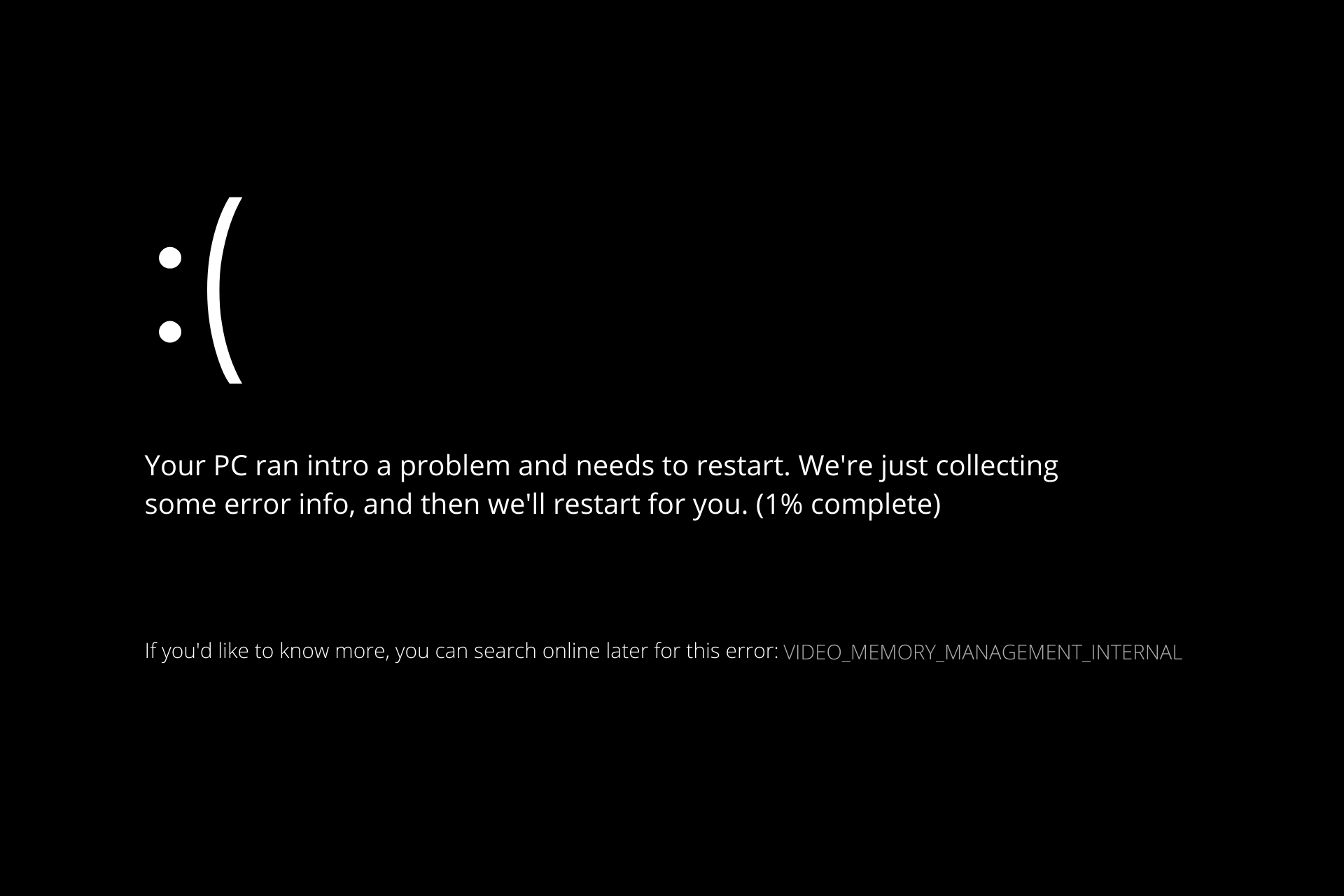
The video memory management internal error is one of the Blue Screen of Death issues on Windows 10. Users report facing this error when trying to run their favorite games.
Also, this issue can make your PC restart and lead to other problems. In this guide, we have curated the surefire fixes to fix the video memory management internal error effortlessly.
What causes video memory management internal?
While there are various errors that can lead to the video memory management internal issue, below are some of the common ones:
- Faulty display driver: If you are getting the video memory management internal error when shutting down or running a game, it might be because of your display driver. To solve this, you need to roll back or update your driver.
- Outdated PC: Some users have reported this problem on Windows 10 builds. Updating your PC to the latest version should help restore normal service here.
- Corrupt system files: Another cause of this BSoD error is corrupt or broken system files. Repairing and restoring these files should solve this problem easily.
How can I fix the video memory management internal error?
Before delving into the fixes in this guide, below are some basic troubleshooting steps that can save you stress:
- Update your BIOS from the manufacturer’s website.
- Disable any feature you have overclocked.
- Run your games in Windows Mode.
If the above preliminary checks do not solve the issue, you can explore the fixes below.
1. Rollback display driver
- Press the Windows key + X and select Device Manager.
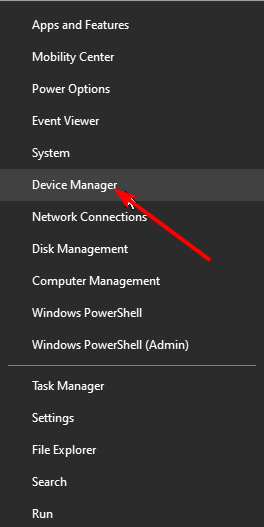
- Click the arrow next to the Display adapters and double-click the driver there.
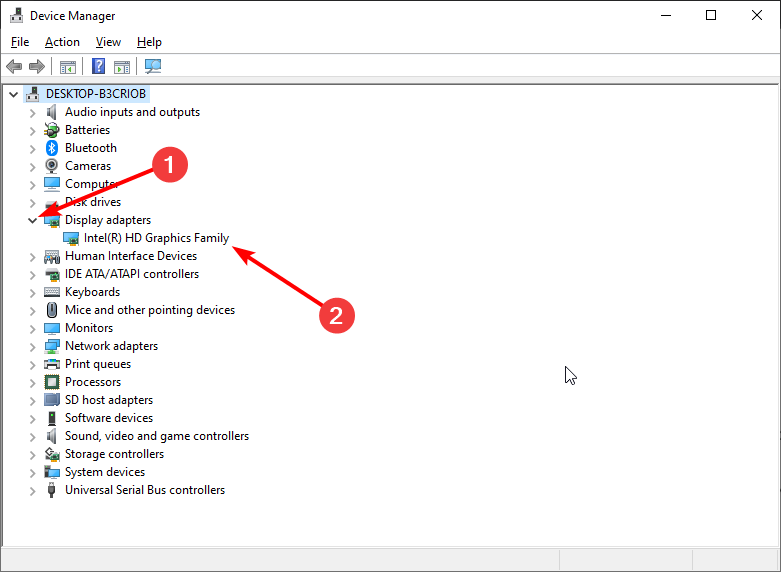
- Select the Driver tab at the top and click the Roll Back Driver button.
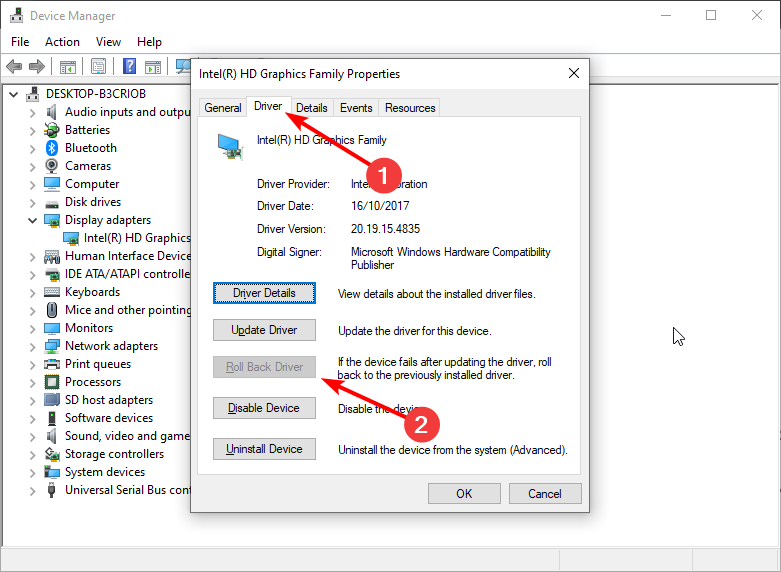
- If the button is not clickable, click the Update Driver button.
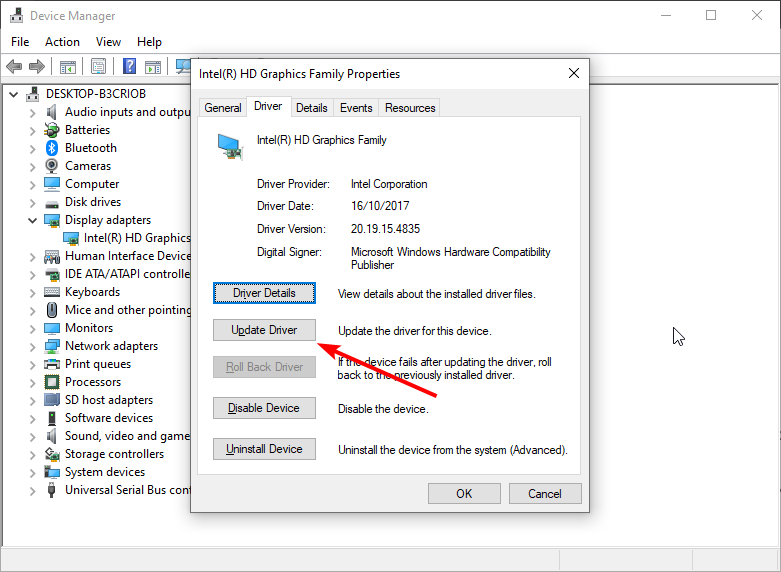
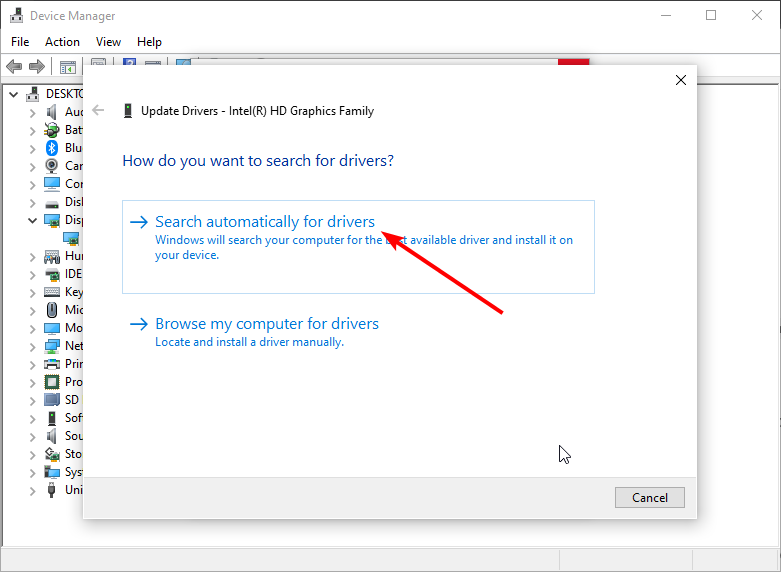
- From here, select the Search automatically for drivers option and install any available updates.
If you are getting the video memory management internal error when streaming on sites like Netflix, or while playing games, it might be due to problems with your drivers. Users with NVIDIA drivers report facing this issue.
Alternatively, you can download and install the drivers from the manufacturer’s website. This has proved effective for some users.
To make things easier, we will recommend using a dedicated tool in DriverFix. This software automatically scans and fixes outdated and broken drivers. This ensures you never face any driver-related issues on your PC.
2. Update your PC
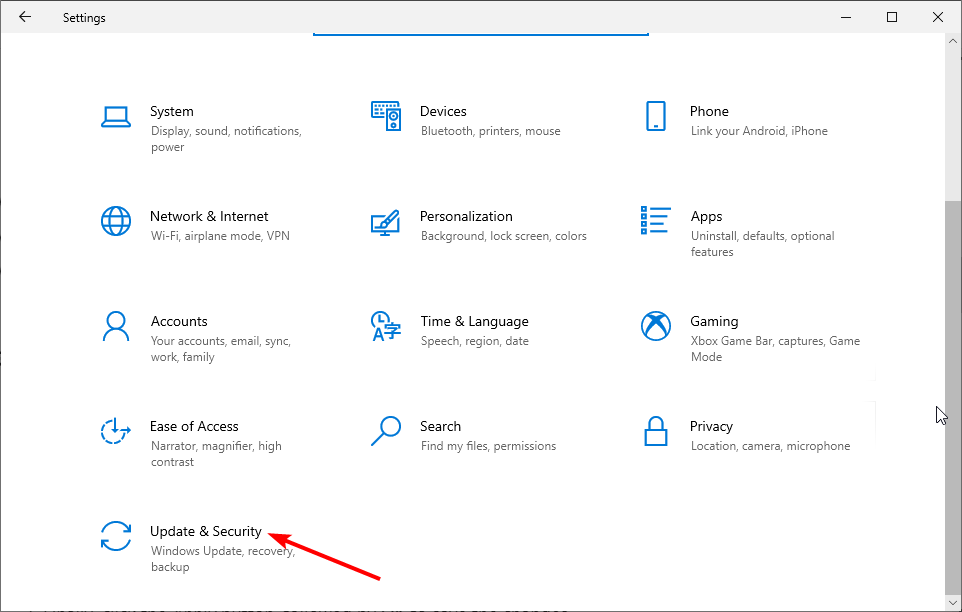
- Press the Windows key + I and select Update & Security.
- Click the Check for updates button.
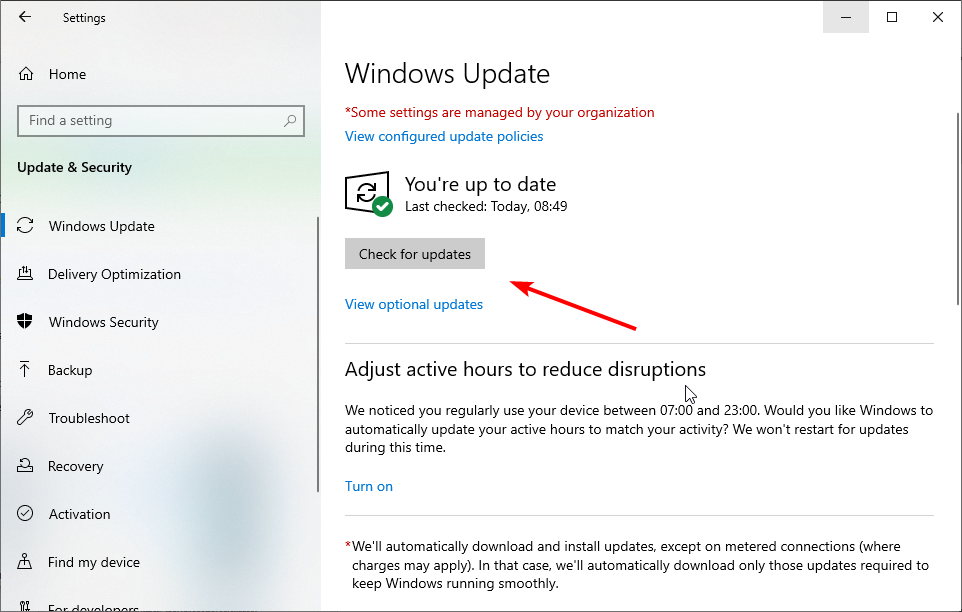
- Now, download and install any available update.
The video memory management internal error can also be caused by an outdated OS. Users have reported that installing the Windows 10 Technical Preview build 10049 solved the problem. If you can’t find this build, you can just update your PC to the latest version.
One frequent update installation error is showing the message: We couldn’t install this update, but you can try again, yet rest assured that you can correct it in no time.
3. Run applications in compatibility mode
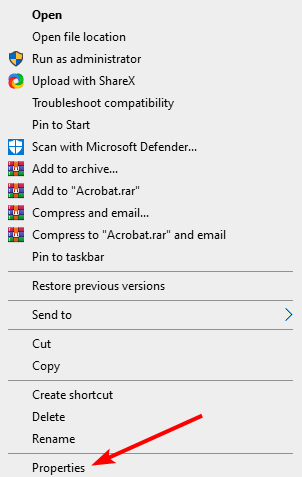
- Right-click the problematic application and choose Properties from the menu.
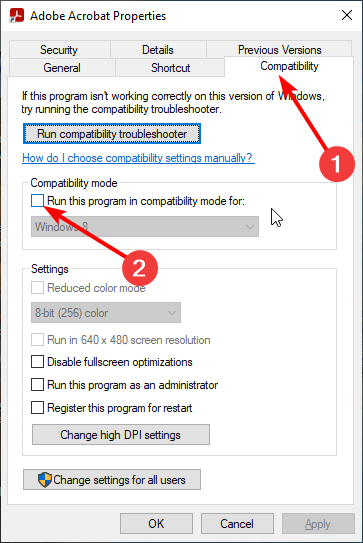
- Choose the Compatibility tab, check Run this program in compatibility mode for.
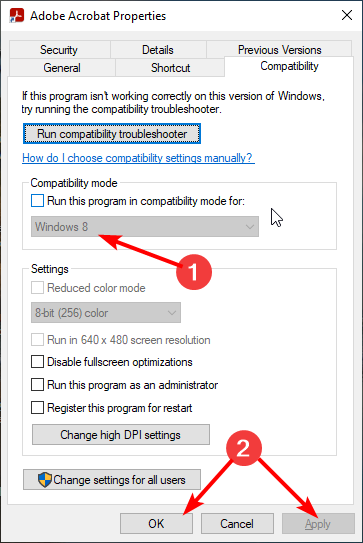
- Finally, Select Windows 10 and click Apply, followed by OK to save your settings.
Sometimes, you can encounter the video memory management internal error on Adobe Premier Pro and other apps because you are not running them in compatibility mode. The steps above should help you solve this problem effectively.
- [Solved] Memory Management error [Windows 10/11 / Nvidia]
- Werfault.exe Error on Windows 10: How to Fix & Main Causes
- Fix: Windows Cannot Access the Specified Device, Path or File
- Driver PNP Watchdog: 9 Easy Fixes For Windows
4. Repair system files
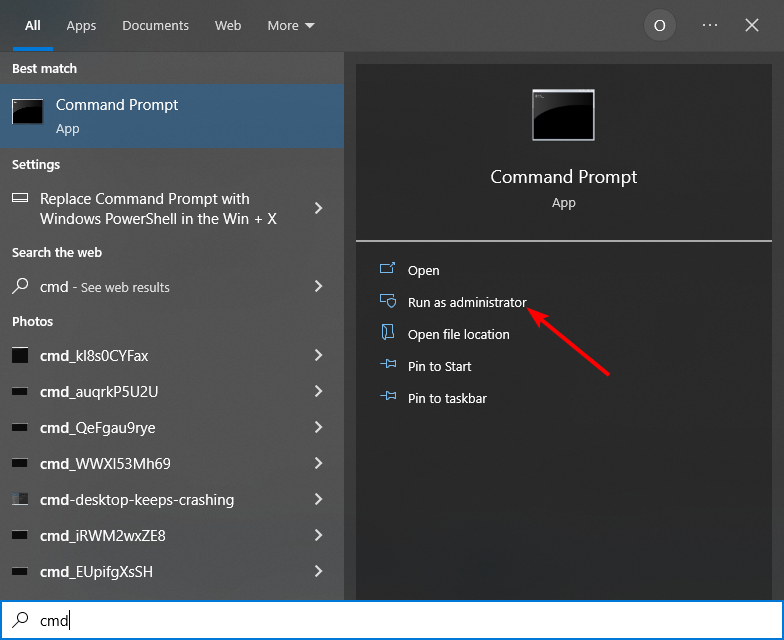
- Press the Windows key + S, type cmd, and select Run as administrator under Command Prompt.
- Type the command below and press Enter to run it:
sfc/scannow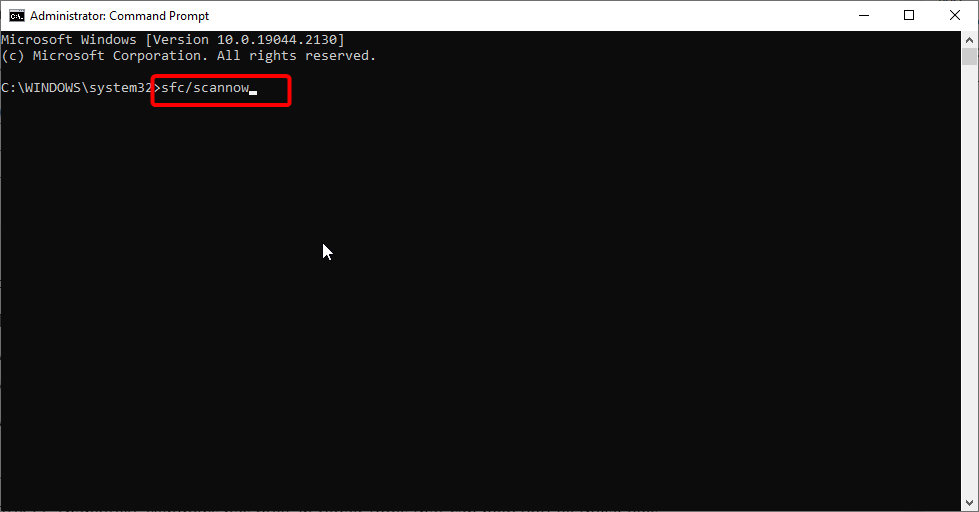
- Wait for the command to complete, type the command below and hit Enter:
DISM /Online /Cleanup-Image /RestoreHealth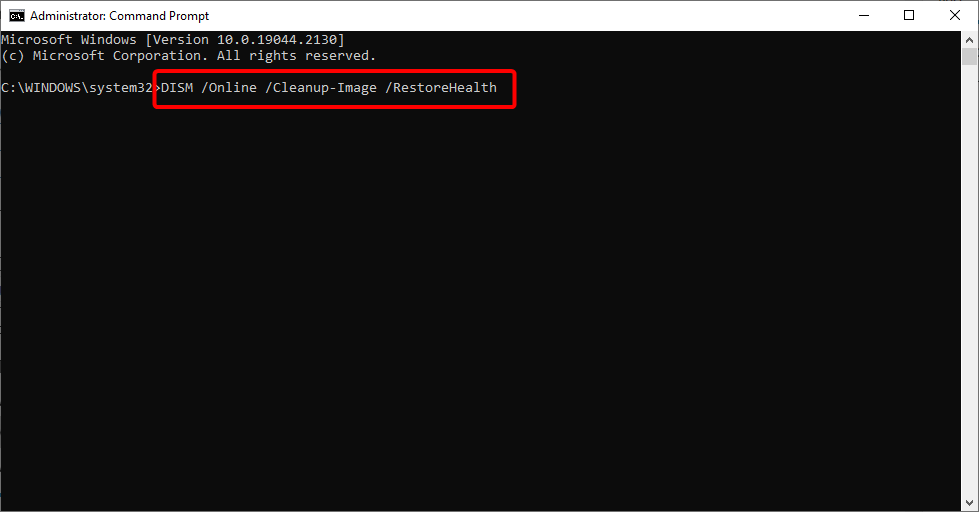
System files are important for the smooth running of your PC. If they are corrupt, it can lead to the video memory management internal BSoD error.
Alternatively, you can fix this issue using a specialized Blue Screen of Death fixer in Restoro.
This error can also appear in the form of video_memory_management_internal, and to get rid of it for good you can use a repair tool.
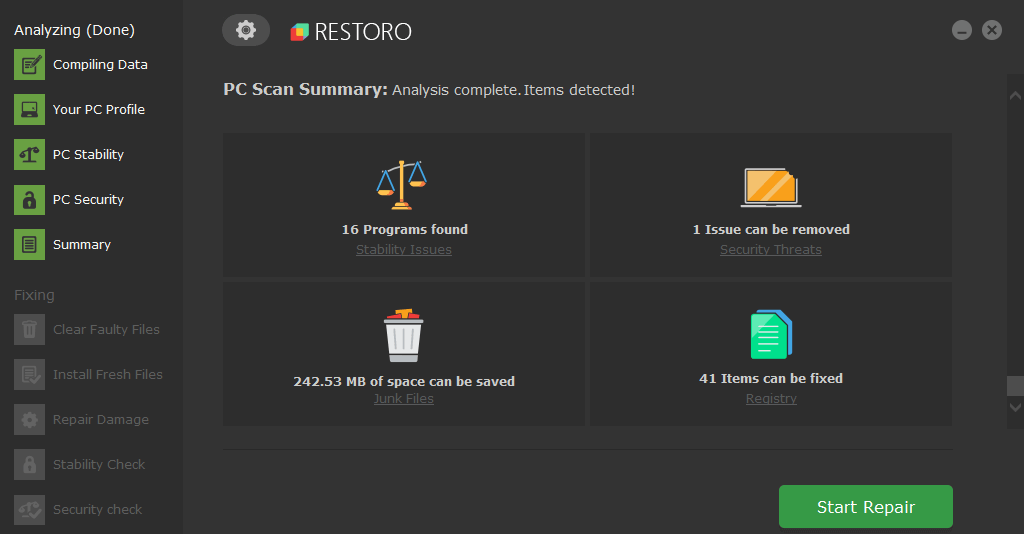
Restoro is powered by an online database that features the latest functional system files for Windows 10 PCs, allowing you to easily replace any elements that can cause a BSoD error.
This software can also help you by creating a restore point before starting the repairs, enabling you to easily restore the previous version of your system if something goes wrong.
This is how you can fix registry errors using Restoro:
- Download and install Restoro.
- Launch the application.
- Wait for the software to identify stability issues and possible corrupted files.
- Press Start Repair.
- Restart your PC for all the changes to take effect.
As soon as the fixing process is completed, your PC should work without problems, and you will not have to worry about BSoD errors or slow response times ever again.
⇒ Get Restoro
Disclaimer: This program needs to be upgraded from the free version in order to perform some specific actions.
5. Reset Windows 10
- Press the Windows key + I and choose the Update & Security option.
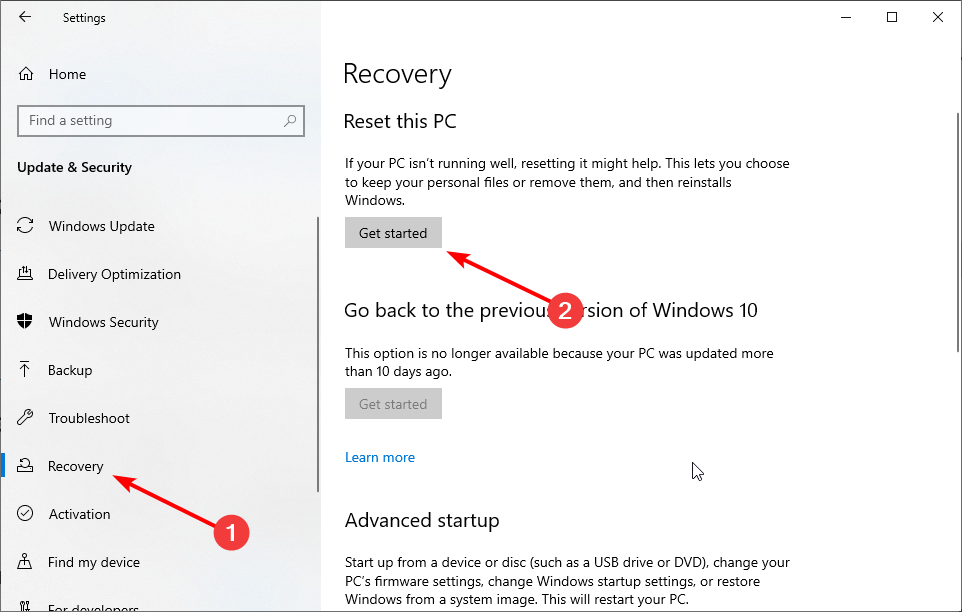
- Select Recovery in the left pane and click Get Started under Reset this PC.
- Choose whether to keep or remove your files and click the Next button.
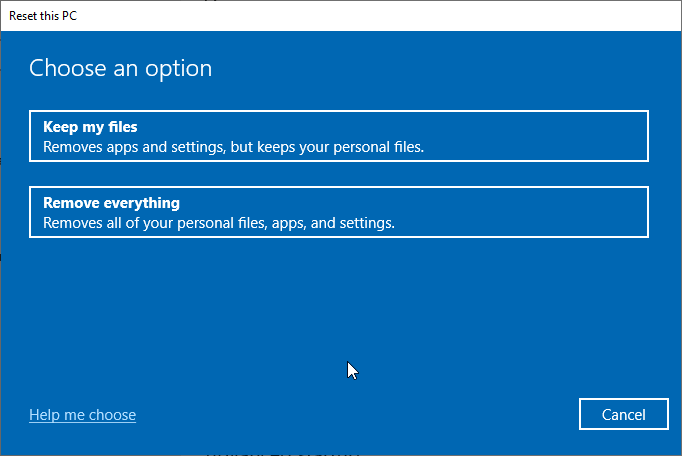
- Now, follow the onscreen instruction to complete the process.
If all the solutions above fail to solve this BSoD issue, you might need to reset your PC to default. Note that You might also need a bootable USB flash drive to complete Windows 10 reset, and you can easily create one by using Media Creation Tool.
The video memory management internal error can be frustrating, as it disrupts your activities. Thankfully, it is an issue that can be solved following the fixes in this guide.
If you have upgraded your PC to the latest OS and still facing the video memory management internal error on Windows 11, check our detailed guide to fix it quickly.
Feel free to let us know the solution that helped fix this issue in the comments below.
Still having issues? Fix them with this tool:
SPONSORED
If the advices above haven’t solved your issue, your PC may experience deeper Windows problems. We recommend downloading this PC Repair tool (rated Great on TrustPilot.com) to easily address them. After installation, simply click the Start Scan button and then press on Repair All.

Newsletter
Surefire fixes to get rid of this dreaded Blue Screen of Death issue
by Ivan Jenic
Passionate about all elements related to Windows and combined with his innate curiosity, Ivan has delved deep into understanding this operating system, with a specialization in drivers and… read more
Updated on November 5, 2022
Reviewed by
Vlad Turiceanu
Passionate about technology, Windows, and everything that has a power button, he spent most of his time developing new skills and learning more about the tech world. Coming… read more
- A critical memory management issue can be caused by faulty drivers or outdated OS.
- You can fix this BSOD error by updating your display drivers manually or automatically.
- Another solution is to run the problematic applications in compatibility mode.
XINSTALL BY CLICKING THE DOWNLOAD FILE
This software will repair common computer errors, protect you from file loss, malware, hardware failure and optimize your PC for maximum performance. Fix PC issues and remove viruses now in 3 easy steps:
- Download Restoro PC Repair Tool that comes with Patented Technologies (patent available here).
- Click Start Scan to find Windows issues that could be causing PC problems.
- Click Repair All to fix issues affecting your computer’s security and performance
- Restoro has been downloaded by 0 readers this month.
The video memory management internal error is one of the Blue Screen of Death issues on Windows 10. Users report facing this error when trying to run their favorite games.
Also, this issue can make your PC restart and lead to other problems. In this guide, we have curated the surefire fixes to fix the video memory management internal error effortlessly.
What causes video memory management internal?
While there are various errors that can lead to the video memory management internal issue, below are some of the common ones:
- Faulty display driver: If you are getting the video memory management internal error when shutting down or running a game, it might be because of your display driver. To solve this, you need to roll back or update your driver.
- Outdated PC: Some users have reported this problem on Windows 10 builds. Updating your PC to the latest version should help restore normal service here.
- Corrupt system files: Another cause of this BSoD error is corrupt or broken system files. Repairing and restoring these files should solve this problem easily.
How can I fix the video memory management internal error?
Before delving into the fixes in this guide, below are some basic troubleshooting steps that can save you stress:
- Update your BIOS from the manufacturer’s website.
- Disable any feature you have overclocked.
- Run your games in Windows Mode.
If the above preliminary checks do not solve the issue, you can explore the fixes below.
1. Rollback display driver
- Press the Windows key + X and select Device Manager.
- Click the arrow next to the Display adapters and double-click the driver there.
- Select the Driver tab at the top and click the Roll Back Driver button.
- If the button is not clickable, click the Update Driver button.
- From here, select the Search automatically for drivers option and install any available updates.
If you are getting the video memory management internal error when streaming on sites like Netflix, or while playing games, it might be due to problems with your drivers. Users with NVIDIA drivers report facing this issue.
Alternatively, you can download and install the drivers from the manufacturer’s website. This has proved effective for some users.
To make things easier, we will recommend using a dedicated tool in DriverFix. This software automatically scans and fixes outdated and broken drivers. This ensures you never face any driver-related issues on your PC.
2. Update your PC
- Press the Windows key + I and select Update & Security.
- Click the Check for updates button.
- Now, download and install any available update.
The video memory management internal error can also be caused by an outdated OS. Users have reported that installing the Windows 10 Technical Preview build 10049 solved the problem. If you can’t find this build, you can just update your PC to the latest version.
One frequent update installation error is showing the message: We couldn’t install this update, but you can try again, yet rest assured that you can correct it in no time.
3. Run applications in compatibility mode
- Right-click the problematic application and choose Properties from the menu.
- Choose the Compatibility tab, check Run this program in compatibility mode for.
- Finally, Select Windows 10 and click Apply, followed by OK to save your settings.
Sometimes, you can encounter the video memory management internal error on Adobe Premier Pro and other apps because you are not running them in compatibility mode. The steps above should help you solve this problem effectively.
- [Solved] Memory Management error [Windows 10/11 / Nvidia]
- Werfault.exe Error on Windows 10: How to Fix & Main Causes
- Fix: Windows Cannot Access the Specified Device, Path or File
- Driver PNP Watchdog: 9 Easy Fixes For Windows
- Esent Error [Event ID 455] On Windows: Quick Fix
4. Repair system files
- Press the Windows key + S, type cmd, and select Run as administrator under Command Prompt.
- Type the command below and press Enter to run it:
sfc/scannow - Wait for the command to complete, type the command below and hit Enter:
DISM /Online /Cleanup-Image /RestoreHealth
System files are important for the smooth running of your PC. If they are corrupt, it can lead to the video memory management internal BSoD error.
Alternatively, you can fix this issue using a specialized Blue Screen of Death fixer in Restoro.
This error can also appear in the form of video_memory_management_internal, and to get rid of it for good you can use a repair tool.
Restoro is powered by an online database that features the latest functional system files for Windows 10 PCs, allowing you to easily replace any elements that can cause a BSoD error.
This software can also help you by creating a restore point before starting the repairs, enabling you to easily restore the previous version of your system if something goes wrong.
This is how you can fix registry errors using Restoro:
- Download and install Restoro.
- Launch the application.
- Wait for the software to identify stability issues and possible corrupted files.
- Press Start Repair.
- Restart your PC for all the changes to take effect.
As soon as the fixing process is completed, your PC should work without problems, and you will not have to worry about BSoD errors or slow response times ever again.
⇒ Get Restoro
Disclaimer: This program needs to be upgraded from the free version in order to perform some specific actions.
5. Reset Windows 10
- Press the Windows key + I and choose the Update & Security option.
- Select Recovery in the left pane and click Get Started under Reset this PC.
- Choose whether to keep or remove your files and click the Next button.
- Now, follow the onscreen instruction to complete the process.
If all the solutions above fail to solve this BSoD issue, you might need to reset your PC to default. Note that You might also need a bootable USB flash drive to complete Windows 10 reset, and you can easily create one by using Media Creation Tool.
The video memory management internal error can be frustrating, as it disrupts your activities. Thankfully, it is an issue that can be solved following the fixes in this guide.
If you have upgraded your PC to the latest OS and still facing the video memory management internal error on Windows 11, check our detailed guide to fix it quickly.
Feel free to let us know the solution that helped fix this issue in the comments below.
Still having issues? Fix them with this tool:
SPONSORED
If the advices above haven’t solved your issue, your PC may experience deeper Windows problems. We recommend downloading this PC Repair tool (rated Great on TrustPilot.com) to easily address them. After installation, simply click the Start Scan button and then press on Repair All.
Newsletter
Иногда ваш компьютер может внезапно выйти из строя, что приведет к появлению синего экрана смерти. Вы попали в нужное место, если вы также получаете внутреннюю ошибку управления видеопамятью Windows 11.
Внутренние ошибки управления видеопамятью могут возникать в различных ситуациях. Поврежденные системные файлы, неисправный драйвер видеокарты и неисправная оперативная память — все это вероятные виновники.
Как я могу предотвратить BSoD?
Если вы используете свой компьютер достаточно долго, вы, скорее всего, столкнетесь с печально известным «Синим экраном смерти», экраном ошибки, который Windows отображает перед возобновлением работы при возникновении серьезной проблемы. Синего экрана могут быть разные причины, но наиболее вероятными являются некоторые из них.
Неисправность оборудования, будь то ваша карта памяти, жесткий диск, клавиатура, монитор, видеокарта или любое другое оборудование вашего компьютера, является одной из наиболее распространенных причин появления BSoD. Обычно они возникают, когда установлено новое оборудование, но не установлены неправильные драйверы.

Недавно установленное программное обеспечение, несовместимое с вашим компьютером, также может привести к появлению ужасного экрана ошибки. Если вы недавно установили программное обеспечение и теперь испытываете BSoD, вам следует сначала попробовать удалить программное обеспечение.
Еще один эффективный метод — своевременно обновлять все драйверы программного и аппаратного обеспечения. Драйверы часто обновляются, но если их не применять, они могут стать нестабильными и привести к сбою системы.
Кроме того, вы можете следить за своим компьютером на предмет всего, что может вызвать ужасный синий экран, используя антивирус для регулярного сканирования на наличие вредоносных программ.
Мы используем ESET в качестве надежного антивирусного программного средства и средства защиты от вредоносных программ, поэтому рекомендуем его и нашим читателям. Он обнаружит и предотвратит все угрозы, которые вступают в контакт с вашим компьютером, от каких-либо действий.
Как исправить ошибку управления памятью в Windows 11?
1. Обновите драйверы
- Щелкните правой кнопкой мыши значок « Пуск » на панели задач и выберите « Диспетчер устройств» .
- Теперь разверните раздел « Видеоадаптеры » и щелкните правой кнопкой мыши каждый полученный драйвер, чтобы выбрать « Обновить драйвер » .
DriverFix — это легкое программное решение, предназначенное для пользователей, которые хотят, чтобы их компьютер работал хорошо, не тратя время на открытие диспетчера устройств или посещение веб-сайтов каждого производителя для ручной загрузки каждого отдельного драйвера.
Поэтому мы всегда рекомендуем его нашим пользователям, чтобы их компьютеры всегда были в рабочем состоянии. Внутренней ошибки управления видеопамятью Windows 11 можно было бы избежать, если бы причиной были неисправные драйверы, и они были устранены ранее, самостоятельно или DriverFix.
2. Запустите в режиме совместимости
- Щелкните правой кнопкой мыши приложение, которое вы хотите запустить, и выберите « Свойства » .
- Теперь перейдите на вкладку « Совместимость » и установите флажок « Запустить эту программу в режиме совместимости для:» и выберите Windows 8 .
- Нажмите «Применить» и «ОК», чтобы применить сделанные изменения. Вот и все! Теперь вы сможете запустить приложение, не попадая в BSoD.
3. Восстановить поврежденные системные файлы
- Откройте командную строку от имени администратора.
- Теперь введите или вставьте следующую команду, чтобы начать восстановление системных файлов:
sfc /scannow
Сканирование SFC всегда является хорошим решением, когда вы сталкиваетесь с BSoD или другими внутренними проблемами. Он уловит любые небольшие несоответствия между вашими файлами и сразу же исправит их.
4. Сбросить Windows
- Откройте « Настройки » и перейдите в « Система », а затем « Восстановление » .
- Теперь прокрутите вниз и нажмите кнопку « Перезагрузить компьютер » .
- Наконец, выберите, сохранить ли ваши файлы или удалить их по пути.
Для получения дополнительной информации об ошибке и других решениях, которые можно применить, ознакомьтесь с нашей публикацией о том, как исправить внутреннюю ошибку управления видеопамятью в Windows 10/11.
Было ли это руководство полезным? Расскажите нам в разделе комментариев ниже, а также о том, есть ли у вас другие решения.
|
0 / 0 / 0 Регистрация: 26.02.2018 Сообщений: 12 |
|
|
1 |
|
Ошибка видеопамяти29.10.2021, 00:43. Показов 2729. Ответов 12
После включения компьютера он производит один короткий сигнал и через пару секунд один длинный и три коротких на мониторе пишет нет сигнала и вентиляторы работают шумнее чем было. По таблице моего Биоса это означает ошибка видео памяти. Всё произошло при включённом компьютере питомец перегрыз кабель VGA от системника к монитору погас монитор и системник отключился.Может кто-то знает как исправить данную ситуацию?
__________________
0 |

|
595 / 445 / 69 Регистрация: 29.04.2019 Сообщений: 2,160 |
|
|
29.10.2021, 04:43 |
2 |
|
питомец перегрыз кабель VGA от системника к монитору купить новый кабель vga
0 |


|
0 / 0 / 0 Регистрация: 26.02.2018 Сообщений: 12 |
|
|
29.10.2021, 09:48 [ТС] |
3 |
|
Купил всё равно комп не работает.
0 |
|
595 / 445 / 69 Регистрация: 29.04.2019 Сообщений: 2,160 |
|
|
29.10.2021, 10:01 |
4 |
|
По таблице моего Биоса это означает ошибка видео памяти. А что за биос у вас? и надо писать конфиг компа и модель монитора
0 |
|
0 / 0 / 0 Регистрация: 26.02.2018 Сообщений: 12 |
|
|
29.10.2021, 10:55 [ТС] |
5 |
|
БИОС UEFI. Комплектация системника в прикреплённом файле. Монитор AOC C27G1 27″. Миниатюры
0 |
|
595 / 445 / 69 Регистрация: 29.04.2019 Сообщений: 2,160 |
|
|
29.10.2021, 11:22 |
6 |
|
borul1980, ну биос у вас фирмы AMI и тот сигнал биос говорит о другом 1 длинный + 3 коротких: Неисправна видеокарта. Перезагрузитесь через Reset, проверьте кабель. Если не помогло, замените видеокарту. При чём тут видеопамять?
0 |
|
0 / 0 / 0 Регистрация: 26.02.2018 Сообщений: 12 |
|
|
29.10.2021, 11:27 [ТС] |
7 |
|
VGA ко второму монитору подключал, а остальные выводы тоже не работают. Добавлено через 2 минуты
0 |
|
595 / 445 / 69 Регистрация: 29.04.2019 Сообщений: 2,160 |
|
|
29.10.2021, 11:28 |
8 |
|
Может какая защита сработала при замыкании проводов? скорее что-то сгорело от кз. от такого там защит нет
0 |
|
0 / 0 / 0 Регистрация: 26.02.2018 Сообщений: 12 |
|
|
29.10.2021, 11:31 [ТС] |
9 |
|
Поэтому я спрашиваю что может случиться. Может кто-то понимает.
0 |
|
Модератор
20478 / 12371 / 2182 Регистрация: 23.11.2016 Сообщений: 61,810 Записей в блоге: 21 |
|
|
29.10.2021, 15:08 |
10 |
|
borul1980,
Поэтому я спрашиваю что может случиться. Может кто-то понимает. Ммм… вам конкретно по схеме? Просто я не понимаю пока степень требуемой детализации ответа. Если вы хотите узнать конкретно по плате видеокарты — что именно там сгорело — какая именно деталь — то на слух это диагностировать невозможно. Нужно брать схему, искать что там по выходу стоит, может предохранитель, или нулевики, и прозванивать. Вы сами хотите чинить? А то так сказать — может кто-то понимает… Многие понимают. Но брать в руки мультиметр и проводить замеры — точно придётся самому. И паять самому.
1 |

|
0 / 0 / 0 Регистрация: 26.02.2018 Сообщений: 12 |
|
|
29.10.2021, 15:45 [ТС] |
11 |
|
Паять и мультиметром пользоваться умею.
0 |
|
0 / 0 / 0 Регистрация: 26.02.2018 Сообщений: 12 |
|
|
29.10.2021, 15:57 [ТС] |
12 |
|
Фото подозрительной детали С5102. Миниатюры
0 |
|
kumehtar |
|
29.10.2021, 21:24
|
|
Не по теме: Лично я такое сразу в сервис несу.
0 |
|
IT_Exp Эксперт 87844 / 49110 / 22898 Регистрация: 17.06.2006 Сообщений: 92,604 |
29.10.2021, 21:24 |
|
тип видеопамяти Температура видеопамяти
Стало меньше видеопамяти RX 580 Ошибки видеопамяти Искать еще темы с ответами Или воспользуйтесь поиском по форуму: 13 |
 Ошибки видеопамяти
Ошибка VIDEO_MEMORY_MANAGEMENT_INTERNAL считается критической проблемой управления памятью, которая также приводит к появлению «Синего экрана смерти». Это может быть связано с обновлением драйверов дисплея или с несовместимостью некоторых приложений. В частности, она появляется в результате проблем с производительностью и приводит к сбоям и зависаниям системы.
Такая ситуация может произойти в результате заражения Windows вредоносным ПО, повреждения системных файлов или из-за конфликтующих программ. Кроме того, ошибка может появиться из-за отсутствия данных из библиотеки DLL или проблем управления видеопамятью. В некоторых случаях сообщение VIDEO_MEMORY_MANAGEMENT_INTERNAL появляется при запуске определённых программ или игр. Так или иначе, каждая из причин появления ошибки решаема. Ниже приведены методы по её устранению.
Решение 1: проверьте компьютер на наличие вирусов
В результате заражения ПК вредоносными программами, файлы системы могут быть повреждены, в том числе важные данные реестра Windows. Поэтому первым, и самым очевидным решением будет – проверить компьютер на наличие вирусов. Это можно сделать как встроенным Защитником Windows, так и специальным ПО.
Стоит отметить, что разработчики антивирусных программ на своих сайтах предоставляют бесплатно пробные версии своих продуктов, а также различные утилиты, исправляющие самые разные ошибки. Поэтому, в случае отсутствия такого обеспечения на компьютере можно воспользоваться бесплатными решениями. Что касается Защитника Windows, то найти его и применить можно по следующему пути:
- Нажмите правой кнопкой мыши на значок Windows (в левом нижнем углу).
- Перейдите в раздел Панель управления и выберите Защитник Windows.
- Обновите защитник, если это необходимо.
- Далее выберите Полная проверка и запустите процесс.
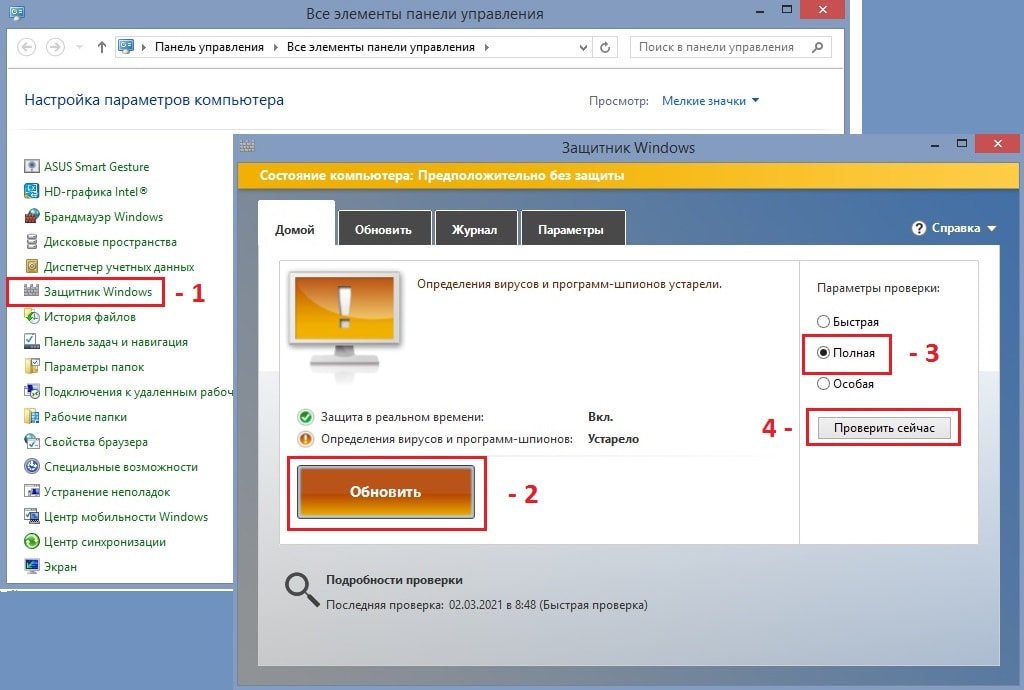
Полная проверка может занять продолжительное время, но это даст уверенность, что на компьютере нет вирусов, либо они будут найдены и удалены.
Решение 2: обновите драйверы дисплея
Как происходит процедура обновления:
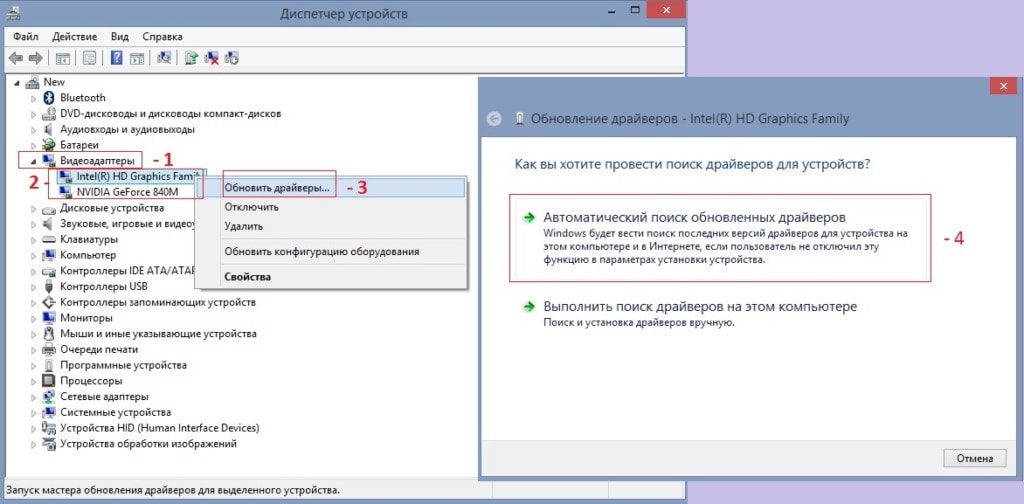
- Щёлкните правой кнопкой мыши на значок Windows и найдите Диспетчер устройств.
- Разверните раздел Видеоадаптеры.
- Выберите конкретный драйвер, и щёлкните по нему ПКМ.
- Нажмите Обновить драйвер;
- Примените Автоматический поиск обновлённых драйверов.
- Дождитесь завершения и установки программного обеспечения, а затем перезагрузите компьютер.
Решение 3: запуск программы в режиме совместимости
В некоторых случаях ошибка VIDEO_MEMORY_MANAGEMENT_INTERNAL появляется после установки и запуска определённых программ или игр. Поэтому одним из решений является включение такого приложения в режиме совместимости.
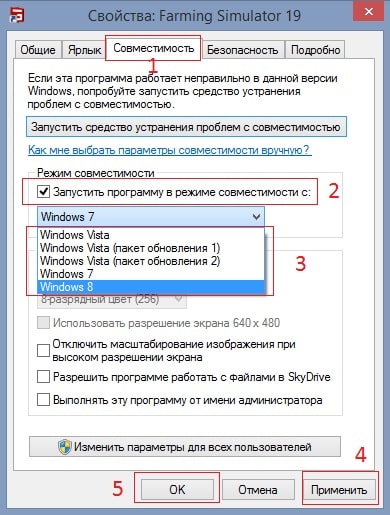
- Нажмите ПКМ по ярлыку проблемной программы и выберите Свойства
- Перейдите во вкладку Совместимость.
- Поставьте флажок «Запустить программу в режиме совместимости».
- Выберите другую версию Windows, например, 8 или 7.
- Нажмите Применить и ОК.
Решение 4: запустите средство проверки системных файлов
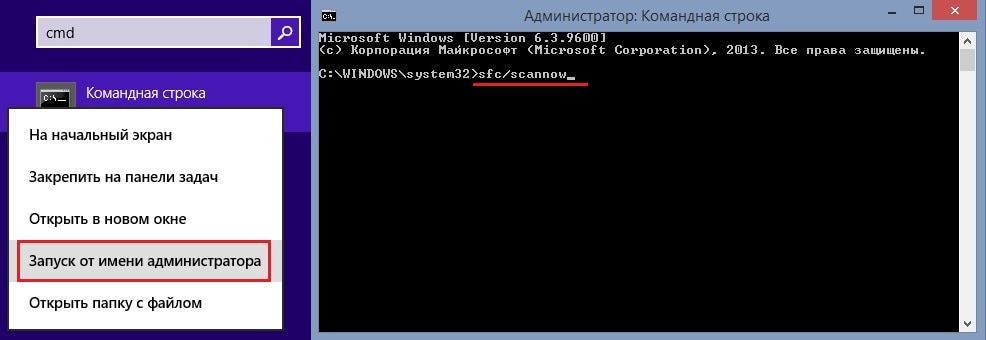
Как это сделать:
- Введите cmd в поиске Windows.
- Щелкните ПКМ по результату «Командная строка» и выберите Запуск от имени администратора.
- В открывшемся окне введите sfc/scannow и нажмите Enter.
- Дождитесь, пока Windows просканирует и восстановит все повреждённые системные файлы.