I’m running the following python script:
#!/usr/bin/python

import os,sys
from scipy import stats
import numpy as np

f=open('data2.txt', 'r').readlines()
N=len(f)-1
for i in range(0,N):
    w=f[i].split()
    l1=w[1:8]
    l2=w[8:15]
    list1=[float(x) for x in l1]
    list2=[float(x) for x in l2]
    result=stats.ttest_ind(list1,list2)
    print result[1]
However I got the errors like:
ValueError: could not convert string to float: id
I’m confused by this.
When I try this for only one line in interactive section, instead of for loop using script:
>>> from scipy import stats
>>> import numpy as np
>>> f=open('data2.txt','r').readlines()
>>> w=f[1].split()
>>> l1=w[1:8]
>>> l2=w[8:15]
>>> list1=[float(x) for x in l1]
>>> list1
[5.3209183842, 4.6422726719, 4.3788135547, 5.9299061614, 5.9331108706, 5.0287087832, 4.57...]
It works well.
Can anyone explain a little bit about this?
Thank you.

asked Dec 7, 2011 at 17:57

LookIntoEastLookIntoEast
7,58018 gold badges58 silver badges89 bronze badges
1
Obviously some of your lines don’t have valid float data, specifically some line have text id which can’t be converted to float.
When you try it in interactive prompt you are trying only first line, so best way is to print the line where you are getting this error and you will know the wrong line e.g.
#!/usr/bin/python

import os,sys
from scipy import stats
import numpy as np

f=open('data2.txt', 'r').readlines()
N=len(f)-1
for i in range(0,N):
    w=f[i].split()
    l1=w[1:8]
    l2=w[8:15]
    try:
        list1=[float(x) for x in l1]
        list2=[float(x) for x in l2]
    except ValueError,e:
        print "error",e,"on line",i
    result=stats.ttest_ind(list1,list2)
    print result[1]
answered Dec 7, 2011 at 18:00

Anurag UniyalAnurag Uniyal
84.5k39 gold badges173 silver badges217 bronze badges
0
My error was very simple: the text file containing the data had some space (so not visible) character on the last line.
As an output of grep, I had 45 instead of just 45.

answered Nov 13, 2015 at 21:01

2
This error is pretty verbose:
ValueError: could not convert string to float: id
Somewhere in your text file, a line has the word id in it, which can’t really be converted to a number.
Your test code works because the word id isn’t present in line 2.
If you want to catch that line, try this code. I cleaned your code up a tad:
#!/usr/bin/python

import os, sys
from scipy import stats
import numpy as np

for index, line in enumerate(open('data2.txt', 'r').readlines()):
    w = line.split(' ')
    l1 = w[1:8]
    l2 = w[8:15]

    try:
        list1 = map(float, l1)
        list2 = map(float, l2)
    except ValueError:
        print 'Line {i} is corrupt!'.format(i = index)'
        break

    result = stats.ttest_ind(list1, list2)
    print result[1]
answered Dec 7, 2011 at 17:59

For a Pandas dataframe with a column of numbers with commas, use this:
df["Numbers"] = [float(str(i).replace(",", "")) for i in df["Numbers"]]
So values like 4,200.42 would be converted to 4200.42 as a float.
Bonus 1: This is fast.
Bonus 2: More space efficient if saving that dataframe in something like Apache Parquet format.
answered Mar 12, 2021 at 11:49

ContangoContango
74.4k57 gold badges251 silver badges300 bronze badges
Perhaps your numbers aren’t actually numbers, but letters masquerading as numbers?
In my case, the font I was using meant that «l» and «1» looked very similar. I had a string like ‘l1919’ which I thought was ‘11919’ and that messed things up.
answered Mar 2, 2018 at 6:53

Tom RothTom Roth
1,85417 silver badges25 bronze badges
Your data may not be what you expect — it seems you’re expecting, but not getting, floats.
A simple solution to figuring out where this occurs would be to add a try/except to the for-loop:
for i in range(0,N):
    w=f[i].split()
    l1=w[1:8]
    l2=w[8:15]
    try:
      list1=[float(x) for x in l1]
      list2=[float(x) for x in l2]
    except ValueError, e:
      # report the error in some way that is helpful -- maybe print out i
    result=stats.ttest_ind(list1,list2)
    print result[1]
answered Dec 7, 2011 at 18:02

Matt FenwickMatt Fenwick
47.7k21 gold badges126 silver badges191 bronze badges
Shortest way:
df["id"] = df['id'].str.replace(',', '').astype(float) — if ‘,’ is the problem
df["id"] = df['id'].str.replace(' ', '').astype(float) — if blank space is the problem
answered Apr 26, 2021 at 13:46

Update empty string values with 0.0 values:
if you know the possible non-float values then update it.
df.loc[df['score'] == '', 'score'] = 0.0


df['score']=df['score'].astype(float)
answered Nov 24, 2021 at 7:42

I solved the similar situation with basic technique using pandas. First load the csv or text file using pandas.It’s pretty simple
data=pd.read_excel('link to the file')
Then set the index of data to the respected column that needs to be changed. For example, if your data has ID as one attribute or column, then set index to ID.
data = data.set_index("ID")
Then delete all the rows with «id» as the value instead of number using following command.
data = data.drop("id", axis=0).
Hope, this will help you.
answered Oct 3, 2019 at 14:44

I’m running the following python script:
#!/usr/bin/python

import os,sys
from scipy import stats
import numpy as np

f=open('data2.txt', 'r').readlines()
N=len(f)-1
for i in range(0,N):
    w=f[i].split()
    l1=w[1:8]
    l2=w[8:15]
    list1=[float(x) for x in l1]
    list2=[float(x) for x in l2]
    result=stats.ttest_ind(list1,list2)
    print result[1]
However I got the errors like:
ValueError: could not convert string to float: id
I’m confused by this.
When I try this for only one line in interactive section, instead of for loop using script:
>>> from scipy import stats
>>> import numpy as np
>>> f=open('data2.txt','r').readlines()
>>> w=f[1].split()
>>> l1=w[1:8]
>>> l2=w[8:15]
>>> list1=[float(x) for x in l1]
>>> list1
[5.3209183842, 4.6422726719, 4.3788135547, 5.9299061614, 5.9331108706, 5.0287087832, 4.57...]
It works well.
Can anyone explain a little bit about this?
Thank you.
asked Dec 7, 2011 at 17:57
LookIntoEastLookIntoEast
7,58018 gold badges58 silver badges89 bronze badges
1
Obviously some of your lines don’t have valid float data, specifically some line have text id which can’t be converted to float.
When you try it in interactive prompt you are trying only first line, so best way is to print the line where you are getting this error and you will know the wrong line e.g.
#!/usr/bin/python

import os,sys
from scipy import stats
import numpy as np

f=open('data2.txt', 'r').readlines()
N=len(f)-1
for i in range(0,N):
    w=f[i].split()
    l1=w[1:8]
    l2=w[8:15]
    try:
        list1=[float(x) for x in l1]
        list2=[float(x) for x in l2]
    except ValueError,e:
        print "error",e,"on line",i
    result=stats.ttest_ind(list1,list2)
    print result[1]
answered Dec 7, 2011 at 18:00
Anurag UniyalAnurag Uniyal
84.5k39 gold badges173 silver badges217 bronze badges
0
My error was very simple: the text file containing the data had some space (so not visible) character on the last line.
As an output of grep, I had 45 instead of just 45.
answered Nov 13, 2015 at 21:01
2
This error is pretty verbose:
ValueError: could not convert string to float: id
Somewhere in your text file, a line has the word id in it, which can’t really be converted to a number.
Your test code works because the word id isn’t present in line 2.
If you want to catch that line, try this code. I cleaned your code up a tad:
#!/usr/bin/python

import os, sys
from scipy import stats
import numpy as np

for index, line in enumerate(open('data2.txt', 'r').readlines()):
    w = line.split(' ')
    l1 = w[1:8]
    l2 = w[8:15]

    try:
        list1 = map(float, l1)
        list2 = map(float, l2)
    except ValueError:
        print 'Line {i} is corrupt!'.format(i = index)'
        break

    result = stats.ttest_ind(list1, list2)
    print result[1]
answered Dec 7, 2011 at 17:59
For a Pandas dataframe with a column of numbers with commas, use this:
df["Numbers"] = [float(str(i).replace(",", "")) for i in df["Numbers"]]
So values like 4,200.42 would be converted to 4200.42 as a float.
Bonus 1: This is fast.
Bonus 2: More space efficient if saving that dataframe in something like Apache Parquet format.
answered Mar 12, 2021 at 11:49
ContangoContango
74.4k57 gold badges251 silver badges300 bronze badges
Perhaps your numbers aren’t actually numbers, but letters masquerading as numbers?
In my case, the font I was using meant that «l» and «1» looked very similar. I had a string like ‘l1919’ which I thought was ‘11919’ and that messed things up.
answered Mar 2, 2018 at 6:53
Tom RothTom Roth
1,85417 silver badges25 bronze badges
Your data may not be what you expect — it seems you’re expecting, but not getting, floats.
A simple solution to figuring out where this occurs would be to add a try/except to the for-loop:
for i in range(0,N):
    w=f[i].split()
    l1=w[1:8]
    l2=w[8:15]
    try:
      list1=[float(x) for x in l1]
      list2=[float(x) for x in l2]
    except ValueError, e:
      # report the error in some way that is helpful -- maybe print out i
    result=stats.ttest_ind(list1,list2)
    print result[1]
answered Dec 7, 2011 at 18:02
Matt FenwickMatt Fenwick
47.7k21 gold badges126 silver badges191 bronze badges
Shortest way:
df["id"] = df['id'].str.replace(',', '').astype(float) — if ‘,’ is the problem
df["id"] = df['id'].str.replace(' ', '').astype(float) — if blank space is the problem
answered Apr 26, 2021 at 13:46
Update empty string values with 0.0 values:
if you know the possible non-float values then update it.
df.loc[df['score'] == '', 'score'] = 0.0


df['score']=df['score'].astype(float)
answered Nov 24, 2021 at 7:42
I solved the similar situation with basic technique using pandas. First load the csv or text file using pandas.It’s pretty simple
data=pd.read_excel('link to the file')
Then set the index of data to the respected column that needs to be changed. For example, if your data has ID as one attribute or column, then set index to ID.
data = data.set_index("ID")
Then delete all the rows with «id» as the value instead of number using following command.
data = data.drop("id", axis=0).
Hope, this will help you.
answered Oct 3, 2019 at 14:44
I’m running the following python script:
#!/usr/bin/python

import os,sys
from scipy import stats
import numpy as np

f=open('data2.txt', 'r').readlines()
N=len(f)-1
for i in range(0,N):
    w=f[i].split()
    l1=w[1:8]
    l2=w[8:15]
    list1=[float(x) for x in l1]
    list2=[float(x) for x in l2]
    result=stats.ttest_ind(list1,list2)
    print result[1]
However I got the errors like:
ValueError: could not convert string to float: id
I’m confused by this.
When I try this for only one line in interactive section, instead of for loop using script:
>>> from scipy import stats
>>> import numpy as np
>>> f=open('data2.txt','r').readlines()
>>> w=f[1].split()
>>> l1=w[1:8]
>>> l2=w[8:15]
>>> list1=[float(x) for x in l1]
>>> list1
[5.3209183842, 4.6422726719, 4.3788135547, 5.9299061614, 5.9331108706, 5.0287087832, 4.57...]
It works well.
Can anyone explain a little bit about this?
Thank you.
asked Dec 7, 2011 at 17:57
LookIntoEastLookIntoEast
7,58018 gold badges58 silver badges89 bronze badges
1
Obviously some of your lines don’t have valid float data, specifically some line have text id which can’t be converted to float.
When you try it in interactive prompt you are trying only first line, so best way is to print the line where you are getting this error and you will know the wrong line e.g.
#!/usr/bin/python

import os,sys
from scipy import stats
import numpy as np

f=open('data2.txt', 'r').readlines()
N=len(f)-1
for i in range(0,N):
    w=f[i].split()
    l1=w[1:8]
    l2=w[8:15]
    try:
        list1=[float(x) for x in l1]
        list2=[float(x) for x in l2]
    except ValueError,e:
        print "error",e,"on line",i
    result=stats.ttest_ind(list1,list2)
    print result[1]
answered Dec 7, 2011 at 18:00
Anurag UniyalAnurag Uniyal
84.5k39 gold badges173 silver badges217 bronze badges
0
My error was very simple: the text file containing the data had some space (so not visible) character on the last line.
As an output of grep, I had 45 instead of just 45.
answered Nov 13, 2015 at 21:01
2
This error is pretty verbose:
ValueError: could not convert string to float: id
Somewhere in your text file, a line has the word id in it, which can’t really be converted to a number.
Your test code works because the word id isn’t present in line 2.
If you want to catch that line, try this code. I cleaned your code up a tad:
#!/usr/bin/python

import os, sys
from scipy import stats
import numpy as np

for index, line in enumerate(open('data2.txt', 'r').readlines()):
    w = line.split(' ')
    l1 = w[1:8]
    l2 = w[8:15]

    try:
        list1 = map(float, l1)
        list2 = map(float, l2)
    except ValueError:
        print 'Line {i} is corrupt!'.format(i = index)'
        break

    result = stats.ttest_ind(list1, list2)
    print result[1]
answered Dec 7, 2011 at 17:59
For a Pandas dataframe with a column of numbers with commas, use this:
df["Numbers"] = [float(str(i).replace(",", "")) for i in df["Numbers"]]
So values like 4,200.42 would be converted to 4200.42 as a float.
Bonus 1: This is fast.
Bonus 2: More space efficient if saving that dataframe in something like Apache Parquet format.
answered Mar 12, 2021 at 11:49
ContangoContango
74.4k57 gold badges251 silver badges300 bronze badges
Perhaps your numbers aren’t actually numbers, but letters masquerading as numbers?
In my case, the font I was using meant that «l» and «1» looked very similar. I had a string like ‘l1919’ which I thought was ‘11919’ and that messed things up.
answered Mar 2, 2018 at 6:53
Tom RothTom Roth
1,85417 silver badges25 bronze badges
Your data may not be what you expect — it seems you’re expecting, but not getting, floats.
A simple solution to figuring out where this occurs would be to add a try/except to the for-loop:
for i in range(0,N):
    w=f[i].split()
    l1=w[1:8]
    l2=w[8:15]
    try:
      list1=[float(x) for x in l1]
      list2=[float(x) for x in l2]
    except ValueError, e:
      # report the error in some way that is helpful -- maybe print out i
    result=stats.ttest_ind(list1,list2)
    print result[1]
answered Dec 7, 2011 at 18:02
Matt FenwickMatt Fenwick
47.7k21 gold badges126 silver badges191 bronze badges
Shortest way:
df["id"] = df['id'].str.replace(',', '').astype(float) — if ‘,’ is the problem
df["id"] = df['id'].str.replace(' ', '').astype(float) — if blank space is the problem
answered Apr 26, 2021 at 13:46
Update empty string values with 0.0 values:
if you know the possible non-float values then update it.
df.loc[df['score'] == '', 'score'] = 0.0


df['score']=df['score'].astype(float)
answered Nov 24, 2021 at 7:42
I solved the similar situation with basic technique using pandas. First load the csv or text file using pandas.It’s pretty simple
data=pd.read_excel('link to the file')
Then set the index of data to the respected column that needs to be changed. For example, if your data has ID as one attribute or column, then set index to ID.
data = data.set_index("ID")
Then delete all the rows with «id» as the value instead of number using following command.
data = data.drop("id", axis=0).
Hope, this will help you.
answered Oct 3, 2019 at 14:44
Pandas

17 авг. 2022 г.
читать 1 мин
Одна распространенная ошибка, с которой вы можете столкнуться при использовании pandas:
ValueError : could not convert string to float: '$400.42'
Эта ошибка обычно возникает, когда вы пытаетесь преобразовать строку в число с плавающей запятой в pandas, но строка содержит одно или несколько из следующих:
- Пространства
- Запятые
- Специальные символы
Когда это происходит, вы должны сначала удалить эти символы из строки, прежде чем преобразовывать ее в число с плавающей запятой.
В следующем примере показано, как устранить эту ошибку на практике.
Как воспроизвести ошибку
Предположим, у нас есть следующие Pandas DataFrame:
import pandas as pd

#create DataFrame
df = pd.DataFrame({'store': ['A', 'B', 'C', 'D'],
 'revenue': ['$400.42', '$100.18', '$243.75', '$194.22']})

#view DataFrame
print(df)

# store revenue
#0 A $400.42
#1 B $100.18
#2 C $243.75
#3 D $194.22

#view data type of each column
print(df.dtypes )

#store object
#revenue object
#dtype: object**
Теперь предположим, что мы пытаемся преобразовать столбец revenue из строки в число с плавающей запятой:
#attempt to convert 'revenue' from string to float
df['revenue'] = df['revenue'].astype (float)

ValueError : could not convert string to float: '$400.42'
Мы получаем ошибку, так как столбец revenue содержит в строках знак доллара.
Как исправить ошибку
Способ устранения этой ошибки заключается в использовании функции replace() для замены знаков доллара в столбце revenue ничем перед выполнением преобразования:
#convert revenue column to float
df['revenue'] = df['revenue'].apply(lambda x: float(x.split()[0].replace('$','')))

#view updated DataFrame
print(df)

# store revenue
#0 A 400.42
#1 B 100.18
#2 C 243.75
#3 D 194.22

#view data type of each column
print(df.dtypes )

#store object
#revenue float64
#dtype: object
Обратите внимание, что мы можем преобразовать столбец дохода из строки в число с плавающей запятой, и мы не получаем никаких ошибок, поскольку перед выполнением преобразования мы удалили знаки доллара.
Дополнительные ресурсы
В следующих руководствах объясняется, как исправить другие распространенные ошибки в Python:
Как исправить в Python: объект ‘numpy.ndarray’ не вызывается
Как исправить: TypeError: объект ‘numpy.float64’ не вызывается
Как исправить: ошибка типа: ожидаемая строка или байтовый объект
The Python error “ValueError: could not convert string to float” occurs when you try to call float() on a string that can’t be converted to a floating point number. This can be because it has a comma or other non-number character in it. Fix it by removing the invalid characters, using a try / except block, or with regular expressions.
Python has a lot of really helpful built-in features. That’s what makes it so much more programmer-friendly than old-school languages like C. But, for as good as these built-ins are, they can’t do everything. Converting strings to numbers is a common problem, and usually Python handles this pretty well. One place it’s lacking, though, is handling non-numeric characters like dollar signs or commas, which are common in numbers that appear as strings.
Let’s say you’re working on a web scraping app. That app pulls raw HTML off of a webpage, does some parsing with something like Beautiful Soup, then pulls numbers out of the readable text, like, say, prices of things on Amazon. You’d think you could convert that to a float with the float() built-in function, but you’d be mistaken.
Let’s look at some examples of problems you might have that result in a ValueError from converting strings to floating point numbers.
❌ Problem: You have commas or other invalid characters in your string
Keeping with the example we mentioned in our intro, let’s say you have a price represented as a string and you want to convert that to a floating point number. This is a common occurrence. If you pulled that number straight from the web, it probably looks something like this: $19.95. You and I know what that value is as a floating point, but Python sure doesn’t.
Here’s an example of some code that will absolutely not work:
price = "$19.95"
price_as_float = float(price)

print(price_as_float)
Seems easy enough. All we have is a price that we want to call float() on to convert the string to a floating point number, presumably so we can do math on it, sort it, compare it, etc. You know, the normal stuff one does with prices.
But here’s what happens when we try to do this:
Traceback (most recent call last):
  File "/home/user/main.py", line 2, in <module>
    price_as_float = float(price)
ValueError: could not convert string to float: '$19.95'
Hmm… that didn’t work, did it. What options do we have? Well, there’s a couple. Let’s start with the simplest option, one that doesn’t require installing any other Python packages.
✅ Fix 1: remove currency signs and other invalid leading or trailing characters with .strip()
Python is really good at string manipulation. It has so many cool built-in features that make it a breeze. For our purposes, we can look at the .strip() method that is built in to all strings. What .strip() does is it removes the characters you provide it from the beginning or ending of the string you call it on.
If we know we just need to remove a dollar sign ($) from the beginning of a string, all we need to do is pass that to .strip() before trying to call float() on it:
price = "$19.95"
price_as_float = float(price.strip("$"))

print(price_as_float)
# -> 19.95
Nice! This gives us the result we want. But what if there’s commas and other stuff? This method won’t work… let’s look at a more complete solution for this.
✅ Fix 2: remove all invalid characters with .replace()
If your string has a bunch of weird stuff in it, or if it just has a comma (,), then it’s going to throw a wrench into our .strip() method above since it only removes characters from the beginning or end of the string. If we want to remove characters from the middle, we need .replace().
Let’s say our price is $1,999.95 this time. If we use .strip() it won’t work because there’s a comma. Here’s how we can use .replace() a couple times instead to achieve a good conversion:
price = "$1,999.95"
price_as_float = float(price.replace("$", "").replace(",", ""))

print(price_as_float)
# -> 1999.95
So, this worked, but it’s really ugly. What we did was we first replaced the “$” with an empty string, effectively stripping it out of the string altogether. Then, we did the same thing with the “,”.
Question: why did we have to use .replace() twice?
We had to use .replace() twice because it only replaces a substring, not individual characters. So if we want to remove multiple single characters, we have to call it as many times as we have characters we want to remove. For example, price.replace("$,", "") will not work. It will look for the substring "$,", which doesn’t exist in our price, and will just return the original string to us. We don’t want that.
A less janky solution is to use regular expressions. But, fair warning, they’re not for the feint of heart.
✅ Fix 3: remove invalid characters with a regular expression
This is my recommended solution which will handle a lot of other edge cases pretty elegantly. Instead of calling .strip() to only take care of stuff at the beginning or end of a string, and instead of calling .replace() a bunch of times, we can take care of it all in one go using the built-in re package.
Let’s look at the solution first then I’ll explain it:
import re

price = "$1,999.95"
price_as_float = float(re.sub(r"[^d.]", "", price))

print(price_as_float)
# -> 1999.95
That’s all there is to it. Now, what we did here was we used a regular expression to strip out everything that isn’t a digit (d) or a decimal point (.) by replacing it with an empty string using the re.sub() function. All that function does is substitute a regular expression pattern with whatever the second parameter is. In our case, it was nothing, because we want to get rid of those characters.
This also neatly sidesteps locality issues, such as having £ or €, or any other currency sign / random characters in the price. It also works if you have the price chilling out in a full sentence like this:
import re

price = "The price is $1,999.95"
price_as_float = float(re.sub(r"[^d.]", "", price))

print(price_as_float)
# -> 1999.95
Pretty cool!
❌ Problem: Your string is not a number at all
Sometimes you’re trying to parse something that just isn’t a number. This can happen if your code is being called by someone else, or something else, like another application or service. Here’s an example of our re method on something that won’t work:
import re

price = "This isn't a price at all! Haha!"
price_as_float = float(re.sub(r"[^d.]", "", price))

print(price_as_float)
When we try to run this, we’ll get the following error:
Traceback (most recent call last):
  File "/home/user/main.py", line 4, in <module>
    price_as_float = float(re.sub(r"[^d.]", "", price))
ValueError: could not convert string to float: ''
Looks like there wasn’t any price in there 🙁
What happened here? Well, our regular expression did what it was supposed to do, it stripped out everything that wasn’t a digit or a decimal point. What we were left with was an empty string, which, of course, can’t be converted to a floating point number. So how do we handle this?
Trick question, we don’t! Or rather, we handle not handling it. Make sense? No? Good.
✅ Fix: use a try / except block to test the string first
All joking aside, in this case and in almost every other situation, it’s best to use a try / except block if we’re not sure the thing we’re about to do will succeed. For our example, we’ll pair the re method with a try / except block:
import re

try:
    price = "This isn't a price at all! Haha!"
    price_as_float = float(re.sub(r"[^d.]", "", price))

    print(price_as_float)
except ValueError:
    print("Couldn't convert to float :(")

# -> Couldn't convert to float :(
This way, you tried your best, and if that wasn’t good enough, at least we can handle the error gracefully instead of crashing our whole application with a stack trace 😉
Conclusion
In this post we covered the various causes of “ValueError: could not convert string to float” as well as a few different ways to handle it. In short, it’s always caused by trying to parse a string that contains anything other than digits and one decimal point. If you know you just need to strip a currency sign, go ahead and use .strip() on the string first. If you have other stuff within the number, or if the number is part of a much longer string like a full sentence, use re to strip everything else out.
And, as always, if you’re not sure the thing will convert at all, use try / except to handle that error gracefully.
That’s all for now, happy coding!
In Python, we can only convert specific string values to float. If we try to convert an invalid string to a float, we will raise the ValueError: could not convert string to float.
To solve this error, ensure you strip the string of invalid characters like commas, spaces or brackets before passing it to the float() function.
This tutorial will go through how to solve the error with the help of code examples.
Table of contents
- ValueError: could not convert string to float
- Example
- Solution
- Example #2
- Solution
- Summary
ValueError: could not convert string to float
In Python, a value is information stored within a particular object. You will encounter a ValueError in Python when you use a built-in operation or function that receives an argument with the right type but an inappropriate value.
A string is a suitable type to convert to a float. But several string values are not suitable to convert to float:
- A value that contains non-special terms, for example, ‘nan’ is a special term, “bread” is not.
- A value that contains a commas, speech marks and other non alphanumeric characters.
- A value that contains spaces.
We can convert inf and nan to floats because they represent specific floats in Python, namely infinity and NaN (Not a Number).
Example
Consider the following CSV file called money.csv that contains the epoch timestamp and money in two accounts.
"'1645916759'",20000,18000
"'1645916790'",21000,17000
"'1645916816'",20500,17250
Next, we will write a program that will read the information from the CSV file and print it to the console. We will import the csv library to read the CSV file. Let’s look at the code:
from datetime import datetime

with open("money.csv", "r") as money:

   readf = csv.reader(money)

   for line in readf:

       time = float(line[0])

       account_one = float(line[1])

       account_two = float(line[2])

       print(f'At date: {datetime.fromtimestamp(time)}, Account one value £{account_one}, Account two value £{account_two}')
We use the datetime library to convert the epoch timestamp to a date. Let’s run the code to see the result:
---------------------------------------------------------------------------
ValueError                                Traceback (most recent call last)
      2     readf = csv.reader(money)
      3     for line in readf:
----≻ 4         time = float(line[0])
      5         account_one = float(line[1])
      6         account_two = float(line[2])
ValueError: could not convert string to float: "'1645916759'"
The error occurs because the epoch timestamp contains inverted commas, which are invalid string values to convert to a float.
Solution
We need to strip the epoch timestamp of the inverted commas using the String strip() method to solve this error. Let’s look at the revised code:
from datetime import datetime

with open("money.csv", "r") as money:

   readf = csv.reader(money)

   for line in readf:

       time = float(line[0].strip("'"))

       account_one = float(line[1])

       account_two = float(line[2])

       print(f'At date: {datetime.fromtimestamp(time)}, Account one value £{account_one}, Account two value £{account_two}')
Let’s run the code to see the result:
At date: 2022-02-26 23:05:59, Account one value £20000.0, Account two value £18000.0
At date: 2022-02-26 23:06:30, Account one value £21000.0, Account two value £17000.0
At date: 2022-02-26 23:06:56, Account one value £20500.0, Account two value £17250.0
The code successfully prints each line in the money.csv file.
Example #2
Let’s look at an example, where we write a program that converts a weight from kilograms to pounds. First, we will ask a user to insert the weight in kilograms that they want to convert to pounds:
weight = float(input("Enter the weight to convert to pounds: "))
Next, we will define the conversion value to convert kilograms to pounds:
convert_to_lbs = 2.205
Then, we will attempt to convert the kilogram value to pounds and print the result to the console.
weight_in_lbs = weight * convert_to_lbs

print(f'{weight}kg is {weight_in_lbs}lbs')
Let’s run the code to see what happens:
Enter the weight to convert to pounds: 87,50
---------------------------------------------------------------------------
ValueError                                Traceback (most recent call last)
----≻ 1 weight = float(input("Enter the weight to convert to pounds: "))
ValueError: could not convert string to float: '87,50'
We raise the ValueError because the string we input contains a comma.
Solution
To solve the error we can use a try-except block. The program will try to run the code in the “try” block, if unsuccessful, the program will run the code in the “except” block. Let’s look at the revised code:
convert_to_lbs = 2.205

try:

    weight = float(input("Enter the weight to convert to pounds: "))

    weight_in_lbs = weight * convert_to_lbs

    print(f'{weight}kg is {round(weight_in_lbs,1)}lbs')

except:

    print('Please insert a valid weight. The weight cannot contain commas, spaces or special characters')
Let’s try the code and input an invalid string:
Enter the weight to convert to pounds: 87,50
Please insert a valid weight. The weight cannot contain commas, spaces or special characters
We see that the program executes the print statement in the except block. Let’s run the code and input a valid string:
Enter the weight to convert to pounds: 87.50
87.5kg is 192.9lbs
The code successfully executes the code in the try block and prints the kilogram and the converted pound value to the console.
Summary
Congratulations on reading to the end of this tutorial! The error ValueError: could not convert string to float occurs if you try to convert a string to a float that contains invalid characters. To solve this error, check the string for characters that you can remove and use the strip() method to get rid of them. If a value has a comma instead of a decimal point, you can use replace() to replace the comma.
You can also use a try-except statement to catch the ValueError and pass. This method is useful if you are taking input from a user.
For further reading on ValueErrors, go to the articles:
- How to Solve Python ValueError: list.remove(x) x not in list
- How to Solve Python ValueError: year is out of range
For further reading on converting values, go to the article: How to Solve Python TypeError: int() argument must be a string, a bytes-like object or a number, not ‘list’
To learn more about Python for data science and machine learning, go to the online courses page on Python for the most comprehensive courses available.
Have fun and happy researching!
One common error you may encounter when using pandas is:
ValueError: could not convert string to float: '$400.42'
This error usually occurs when you attempt to convert a string to a float in pandas, yet the string contains one or more of the following:
- Spaces
- Commas
- Special characters
When this occurs, you must first remove these characters from the string before converting it to a float.
The following example shows how to resolve this error in practice.
How to Reproduce the Error
Suppose we have the following pandas DataFrame:
import pandas as pd

#create DataFrame
df = pd.DataFrame({'store': ['A', 'B', 'C', 'D'],
                   'revenue': ['$400.42', '$100.18', '$243.75', '$194.22']})

#view DataFrame
print(df)

  store  revenue
0     A  $400.42
1     B  $100.18
2     C  $243.75
3     D  $194.22

#view data type of each column
print(df.dtypes)

store      object
revenue    object
dtype: object
Now suppose we attempt to convert the revenue column from a string to a float:
#attempt to convert 'revenue' from string to float
df['revenue'] = df['revenue'].astype(float)

ValueError: could not convert string to float: '$400.42'
We receive an error since the revenue column contains a dollar sign in the strings.
How to Fix the Error
The way to resolve this error is to use the replace() function to replace the dollar signs in the revenue column with nothing before performing the conversion:
#convert revenue column to float
df['revenue'] = df['revenue'].apply(lambda x: float(x.split()[0].replace('$', '')))

#view updated DataFrame
print(df)

  store  revenue
0     A   400.42
1     B   100.18
2     C   243.75
3     D   194.22

#view data type of each column
print(df.dtypes)

store       object
revenue    float64
dtype: object
Notice that we’re able to convert the revenue column from a string to a float and we don’t receive any error since we removed the dollar signs before performing the conversion.
Additional Resources
The following tutorials explain how to fix other common errors in Python:
How to Fix in Python: ‘numpy.ndarray’ object is not callable
How to Fix: TypeError: ‘numpy.float64’ object is not callable
How to Fix: Typeerror: expected string or bytes-like object
In this short guide, I’ll show you how to solve Pandas or Python errors:
valueerror: could not convert string to float: '< "0.01'"ValueError: could not convert string to float: '2,000'ValueError: could not convert string to float: '$100.00'ValueError: Unable to parse string "$10.00" at position 0
We will see how to solve the errors above and how to identify the problematic rows in Pandas.
Setup
Let’s create an example DataFrame in order to reproduce the error:
ValueError: could not convert string to float: ‘$10.00’
import pandas as pd

df = pd.DataFrame({'day': [1, 2, 3, 4, 5],
                   'amount': ['$10.00', '20.5', '17.34', '4,2', '111.00']})
DataFrame looks like:
| day | amount | |
|---|---|---|
| 0 | 1 | $10.00 |
| 1 | 2 | 20.5 |
| 2 | 3 | 17.34 |
| 3 | 4 | 4,2 |
| 4 | 5 | 111.00 |
To convert string to float we can use the function: .astype(float). If we try to do so for the column — amount:
df['amount'].astype(float)
we will face error:
ValueError: could not convert string to float: '$10.00'
Step 2: ValueError: Unable to parse string «$10.00» at position 0
We will see similar result if we try to convert the column to numerical by method pd.to_numeric(:
pd.to_numeric(df['amount'])
error is raised:
ValueError: Unable to parse string "$10.00" at position 0
In both cases we can see the problematic value. But we are not sure if more different cases exist.
Step 3: Identify problematic non numeric values
To find which values are causing the problem we will use a simple trick. We will convert all values except the problematic ones by:
pd.to_numeric(df['amount'], errors='coerce')
This give us successfully converted float values:
0       NaN
1     20.50
2     17.34
3       NaN
4    111.00
Name: amount, dtype: float64
The ones in error will be replaced by NaN. No we can use mask to get only value which cause the error during the conversion to numerical values:
df[pd.to_numeric(df['amount'], errors='coerce').isna()]['amount']
result is:
0    $10.00
3       4,2
Name: amount, dtype: object
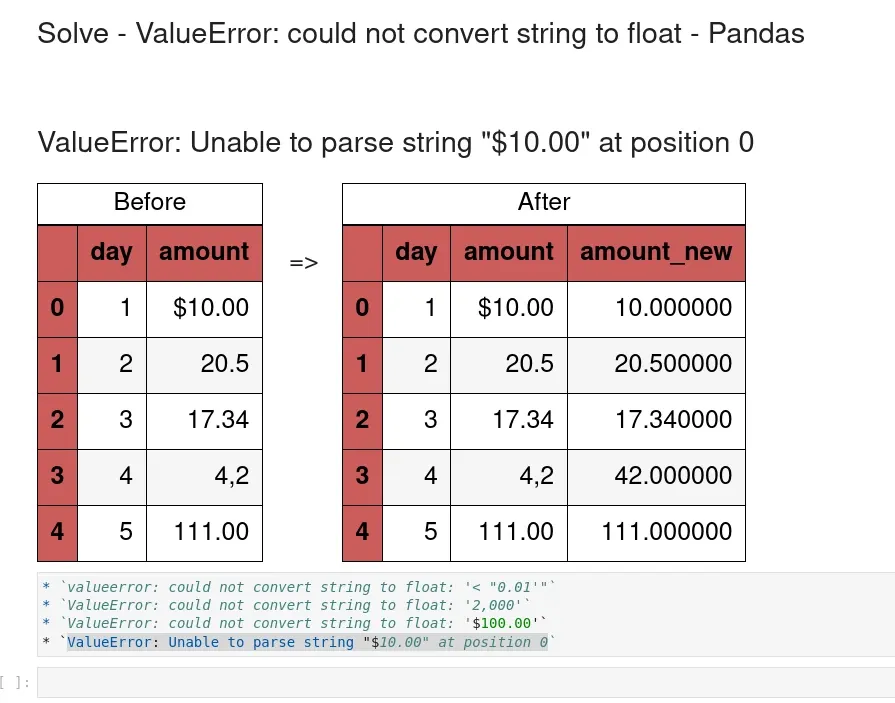
Step 4: Solve ValueError: could not convert string to float
To solve the errors:
ValueError: could not convert string to float: ‘$10.00’
ValueError: Unable to parse string «$10.00» at position 0
We have several options:
- ignore errors from invalid parsing and keep the output as it is:
pd.to_numeric(df['amount'], errors='ignore')
- convert only numeric values and
NaNfor the rest in the column:pd.to_numeric(df['amount'], errors='coerce')
- fix problematic values
In this step we are going to fix the problematic values. This can be done by replacing the non numeric symbols like:
$,— wrong decimal symbol etc
So to replace the problematic characters we can use str.replace:
df['amount'].str.replace('$', '', regex=True)
Replacing multiple characters can be done by chaining multiple functions like.(for multiple replacing values):
df['amount'].str.replace('$', '', regex=True).replace(',', '.', regex=True)
of by using regex (when all symbols are replaced by a single value):
df['amount'].str.replace('[$|,]', '', regex=True)
Finally we get only numeric values which can be converted to numeric column:
0 10.00
1 20.5
2 17.34
3 42
4 111.00
Name: amount, dtype: object
Step 5: Convert numbers and keep the rest
Finally if we like to convert only valid numbers we can use errors='coerce'. Then for all missing values we can populate them from the original column or Series:
data = pd.Series(['$10.00', '20.5', '17.34', '4,2', '111.00', np.NaN, ''])
conv_data = pd.to_numeric(data, errors='coerce').fillna(data)
conv_data
the result will be:
0    $10.00
1      20.5
2     17.34
3       4,2
4     111.0
5       NaN
6
dtype: object
While using
pd.to_numeric(['$10.00', '20.5', '17.34', '4,2', '111.00', np.NaN, ''], errors='ignore')
will keep all the values the same if there is invalid parsing:
array(['$10.00', '20.5', '17.34', '4,2', '111.00', nan, ''], dtype=object)
Conclusion
In this post, we saw how to properly convert strings to float columns in Pandas. We covered the most popular errors and how to solve them.
Finally we discussed finding the problematic cases and fixing them.

In this Python tutorial, we will discuss how to fix an error, “Could not convert string to float Python“.
In python, to convert string to float in python we can use float() method. It can only convert the valid numerical value to a floating point value otherwise it will throw an error.
Example:
my_string = '1,400'
convert = float(my_string)
print(convert)
After writing the above code (could not convert string to float python), Ones you will print ” convert ” then the output will appear as a “ ValueError: could not convert string to float: ‘1,400’ ”.
Here, we get the error because the value is not valid and we used a comma. You can refer to the below screenshot could not convert string to float python.

To solve this ValueError: could not convert string to float we need to give the valid numerical value to convert my string to float by using float() method.
Example:
my_string = '23.8'
convert = float(my_string)
print(convert)
After writing the above code (could not convert string to float python), Ones you will print ” convert ” then the output will appear as a “ 23.8 ”. Here, the float() method converts the string to float. You can refer to the below screenshot could not convert string to float python.

This is how to fix could not convert string to float python.
Read: Python find substring in string
How to fix could not convert string to float python
Let us see how to fix could not convert string to float python
In this example, we got a ValueError because the function argument is of an inappropriate type. So, when we tried to typecast a string value it throws ValueError.
Example:
str = "Hi"
print(float(str))
The normal text is not supported by the float() function in python. You can refer to the below screenshot for the error.

To fix value error: could not convert string to float python, we have to give numeric text value to convert it successfully to float. we can use the below code to solve the above error.
Example:
str = "5.45"
print(float(str))
You can refer to the below screenshot to see the output for how to fix could not convert string to float python.

You may like the following Python tutorials:
- How to handle indexerror: string index out of range in Python
- How to convert an integer to string in python
- Slicing string in Python + Examples
- Convert string to float in Python
Here we checked how to fix error, could not convert string to float python.

Python is one of the most popular languages in the United States of America. I have been working with Python for a long time and I have expertise in working with various libraries on Tkinter, Pandas, NumPy, Turtle, Django, Matplotlib, Tensorflow, Scipy, Scikit-Learn, etc… I have experience in working with various clients in countries like United States, Canada, United Kingdom, Australia, New Zealand, etc. Check out my profile.