Проблема
При установке программы Autodesk 2022 или более поздней версии появляется следующее сообщение об ошибке:
Элемент, который вы пытаетесь использовать, находится на сетевом ресурсе, который недоступен.
Нажмите кнопку «ОК», чтобы повторить попытку, или введите альтернативный путь к папке, содержащей пакет установки «*.msi», в поле ниже.
Использовать источник:
C:ProgramDataPackage Cache…
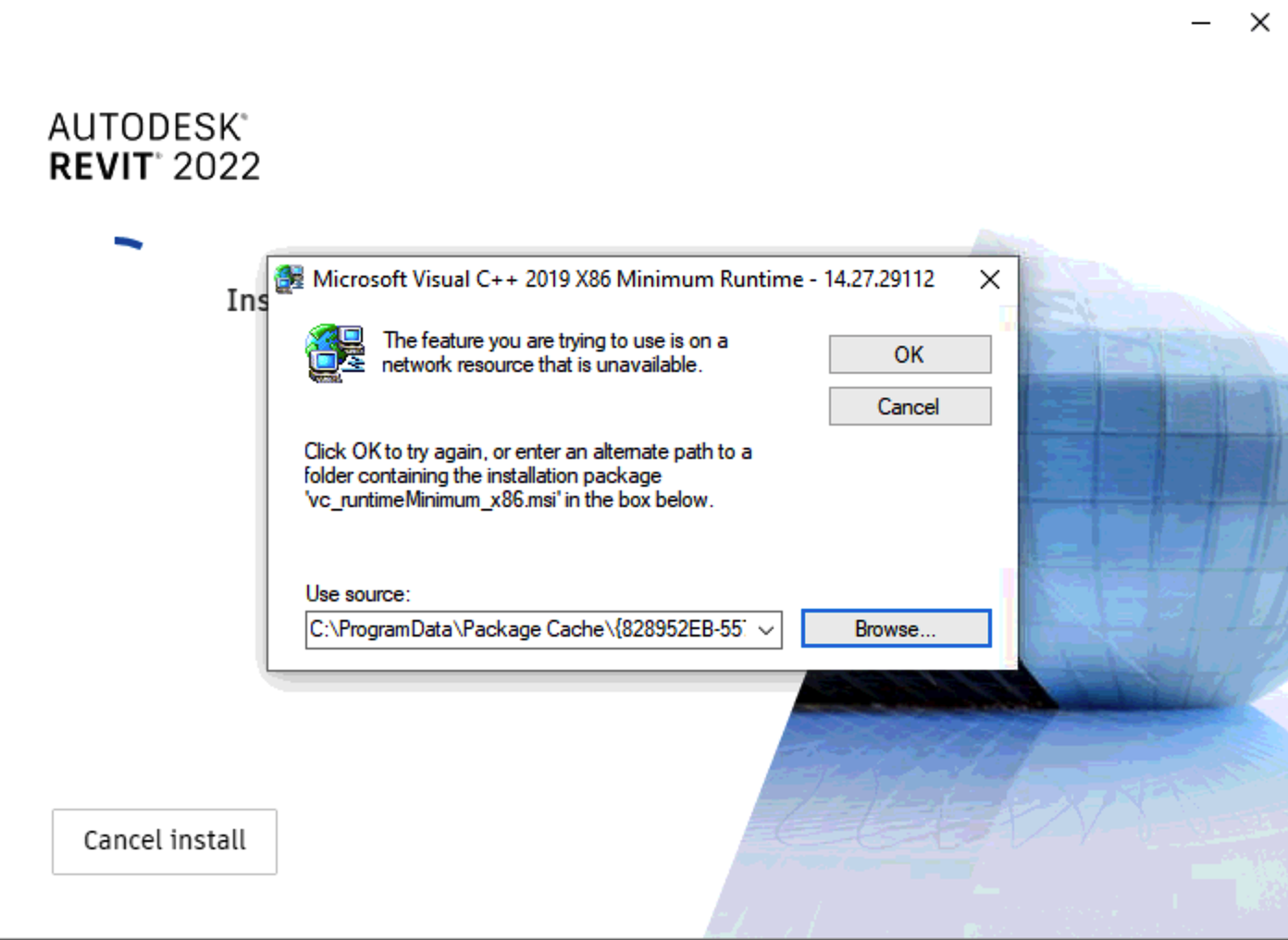
Примечание. Это может произойти с несколькими различными файлами *.msi, как показано ниже:
Для всех продуктов:
- vc_runtimeMinimum_x64.msi
- vc_runtimeMinimum_x86.msi
- vc_runtimeAdditional_x64.msi
- vc_runtimeAdditional_x86.msi
- AdSSO.msi
- Файл Autodesk Genuine Service.msi
- AutodeskGuidedTutorialPlugin.msi
Для Revit:
- PACR.msi
Для AutoCAD:
- webfileopen.msi
Причины
Поврежденные ключи реестра.
Решение
Для устранения проблемы следуйте приведенным ниже рекомендациям.
Внимание!
Проблемы, вызванные неправильным редактированием реестра Windows, могут привести к отказу операционной системы. Корпорация Майкрософт предоставляет подробную информацию о работе с реестром, которую можно найти в базе знаний Майкрософт. Используйте редактор реестра Microsoft с осторожностью и только после сохранения резервной копии реестра, как описано в статье Microsoft для вашей операционной системы. Резервное копирование и восстановление реестра в Windows и в соответствующем решении. Резервное копирование системного реестра Дополнительные сведения о реестре также содержатся в разделах справки редактора реестра Microsoft.
- Откройте реестр Windows от имени администратора, введя команду «Regedit» в меню «Пуск» Windows.
- Перейдите на веб-сайт HKEY_LOCAL_MACHINESOFTWAREClassesInstallerProducts.

- Перейдите к разделу Edit и найдите отсутствующий файл *.msi, который был вызван в сообщении об ошибке.
- Экспортируйте ключ SourceList для создания резервной копии.
- Удалите найденный ключ SourceList.
- Запустите установку программного обеспечения Autodesk еще раз.
Отсутствует или поврежден Visual C++
Удалите и переустановите все компоненты Microsoft Visual C++ с помощью панели управления. См. раздел Удаление и повторная установка распространяемых пакетов Microsoft Visual C++.
С помощью средства Microsoft для устранения неполадок при установке и удалении программ можно найти поврежденные ключи реестра
Используйте средство устранения неполадок при установке и удалении программ Microsoft, чтобы удалить неисправный компонент/компонент, если его невозможно удалить из реестра или удалить из реестра.
См. также:
- Сообщение «Компонент находится на недоступном сетевом ресурсе» при попытке применить обновление или установить программу Autodesk
- Файл AdSSO.msi не найден при переустановке программного обеспечения
Программы
Все классические программы
Windows Vista Ultimate Windows Vista Ultimate 64-bit Edition Windows Vista Enterprise Windows Vista Enterprise 64-bit Edition Windows Vista Business Windows Vista Business N Windows Vista Business 64-bit Edition Windows Vista Business N 64-bit Edition Windows Vista Home Basic Windows Vista Home Premium Windows Vista Home Premium 64-bit Edition Windows Vista Home Basic N Windows Vista Home Basic 64-bit Edition Windows Vista Home Basic N 64-bit Edition Windows Vista Starter More…Less
This article may contain a link to the Windows Installer Cleanup utility (MSICUU2.exe). If you were directed to this article to solve a problem by using the Windows Installer Cleanup utility, please contact your software manufacturer for installation support on the product, or see the following Microsoft Knowledge Base article for steps to troubleshoot uninstallation issues with products that use Windows Installer:
2438651 How to troubleshoot problems that may occur when you install, uninstall, or upgrade a program on a Windows-based computer
Symptoms
When you try to install Adobe Acrobat or Adobe Reader in Windows Vista, you receive an error message that resembles one of the following.
Message 1
The feature you are trying to use is on a network resource that is unavailable. Click OK to try again, or enter an alternate path to a folder containing the installation package ‘Adobe AdobeApplication.msi’ in the box below.
Message 2
Error 1714. The older version of Adobe [AdobeApplication] cannot be removed. Contact your technical support group.
This issue occurs when you try to install one of the following products:
-
Adobe Acrobat 6
-
Adobe Acrobat 7
-
Adobe Acrobat 3D
-
Adobe Acrobat 8
-
Adobe Reader
Cause
This issue can occur if the current installation of Acrobat or of Reader is corrupted.
Resolution
To resolve this issue, use one or more of the following methods, as appropriate for your situation.
Method 1: Install the original version of Acrobat or of Reader
Use the AdobeApplication.msi file to install the original version of Acrobat or of Reader. For example, to use the Acroread.msi file to reinstall Adobe Reader 8.0, follow these steps:
-
In the box that contains the error message, click Browse.
-
Locate and then double-click the Acroread.msi file.
Note Typically, the Acroread.msi file is located in the Program FilesAdobeReader 8.0Setup Files{GUID} folder. In this example, the GUID placeholder represents a string that resembles the following:
xxxxxxxx-xxxx-xxxx-xxxx-xxxxxxxxxxxxNote You may have to insert the installation media to locate the AdobeApplication.msi file.
-
Follow the prompts that appear on the screen to complete the installation.
-
If it is necessary, try to install the upgrade again.
Method 2: Uninstall earlier versions
Uninstall earlier versions of the application, and then install the version that you want. To do this, follow these steps:
-
Click Start
 , type Appwiz.cpl in the Start Search box, and then click Appwiz.cpl in the list of files that are found.
 -
Double-click the version of Acrobat or of Reader that you want to uninstall.
-
Click Yes if you are prompted to confirm that you want to uninstall the program.
Note If you are prompted to confirm that you want to run the run the program, click Allow.
-
Click Yes to restart the computer.
-
Repeat steps 2 through 4 for all earlier versions of Acrobat or of Reader.
-
Restart the computer.
-
Install the version of Acrobat or of Reader that you want.
Method 3: Repair the installation of Acrobat or of Reader
Repair the current installation of Acrobat or of Reader. For example, if you want to repair Adobe Reader 8.0, follow these steps.
Note You may have to insert the installation media to locate the AdobeApplication.msi file. If you installed a downloaded version of Acrobat or of Reader, you may have to download the installer files again.
-
Locate and then double-click the Acroread.msi file.
Note Typically, the Acroread.msi file is located in the Program FilesAdobeReader 8.0Setup Files{GUID} folder. In this example, the GUID placeholder represents a string that resembles the following:
xxxxxxxx-xxxx-xxxx-xxxx-xxxxxxxxxxxx
-
Click Next, click Repair, click Next, and then click Install.
-
Follow the prompts that appear on the screen to complete the installation.
-
If it is necessary, try to install the upgrade again.
Method 4: Use the Windows Installer CleanUp Utility
Use the Windows Installer CleanUp Utility to remove the files and the registry settings that make up the Windows Installer configuration information for Acrobat or for Reader. To do this, follow these steps:
-
Click Start
, type Appwiz.cpl in the Start Search box, and then click Appwiz.cpl in the list of files that are found. -
Double-click the version of Acrobat or of Reader that you want to uninstall.
-
Click Yes if you are prompted to confirm that you want to uninstall the program.
Note If you are prompted to confirm that you want to run the run the program, click Allow.
-
Click Yes to restart the computer.
-
Repeat steps 2 through 4 for each version of Acrobat or of Reader that you want to uninstall. For example, if the error that is described in the «Symptoms» section occurs when you try to upgrade an earlier version of Acrobat or of Reader, uninstall the earlier version.
-
Download and install the Windows Installer CleanUp Utility. For more information about how to download and install the Windows Installer CleanUp Utility, click the following article number to view the article in the Microsoft Knowledge Base:
290301 Description of the Windows Installer CleanUp Utility
-
Click Start
, type Msicuu2.exe in the Start Search box, and then click Msicuu2.exe in the list of files that are found. -
Click the version of Acrobat or of Reader that you want to remove, and then click Remove.
Note If the error that is described in the «Symptoms» section occurs when you try to upgrade an earlier version of Acrobat or of Reader to the current version, remove the earlier version. If the error occurs when you try to install the current version, remove the current version.
-
If the error that is described in the «Symptoms» occurs when you try to install the current version of Acrobat or of Reader, go to step 10. If the error that is described in the «Symptoms» section occurs when you try upgrade a earlier version of Acrobat or of Reader, follow these steps:
-
Reinstall the earlier version of Acrobat or of Reader.
-
Click Start
, type Appwiz.cpl in the Start Search box, and then click Appwiz.cpl in the list of files that are found. -
Double-click the version of Acrobat or of Reader that you reinstalled in step a.
-
Click Yes if you are prompted to confirm that you want to uninstall the program.
Note If you are prompted to confirm that you want to run the run the program, click Allow.
-
-
Install the current version of Acrobat or of Reader, and then install any updates that are available.
Need more help?
Issue:
When trying to apply an update or install an Autodesk desktop product, this dialog box message appears:
Windows Installer
The feature you are trying to use is on a network resource that is unavailable
Click OK to try again, or enter path to folder containing the installation package [packagename] in the box below.
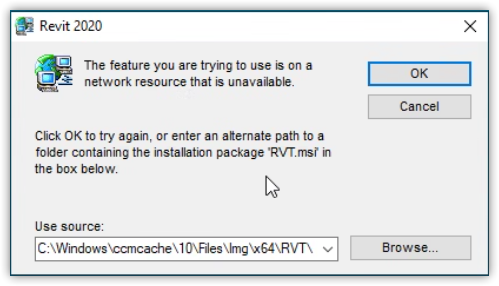
Causes:
- Corrupted install.
- The original installation files needed by the update are no longer in the original locations.
Solution:
Failed update
- Click Browse… and direct the path to the install location directory of the produce, for example: C:AutodeskRevit_2022_G1_Win_64bit_dlmx64RVT. If the install package is missing, Download your Autodesk product installer using the Autodesk Virtual Agent (AVA), the Download Now method, or the Browser Download method.
- Extract the package and reattempt the update.
Failed install
- Follow Uninstall Using Microsoft Fixit workflow to see if the tool detects the software being installed has already been installed on the system.
- Download the Autodesk product installer using the Autodesk Virtual Agent (AVA), the Download Now method, or the Browser Download method.
- Proceed with the product installation per General installation workflow for Autodesk Products.
- Install the update again.
Check Visual C++ Make sure they are current
- Check Visual C++ within installation log for failed process.
- Check Visual C++ versions are current.
- If error message or not current: How to remove and reinstall Microsoft Visual C++ Redistributables packages.
Edit the SourceList value in Windows Registry
Note: It may be necessary to consult with a system administrator to perform the below steps.
Warning:
Problems caused by improperly editing the Windows registry could render the computer operating system unusable. Microsoft provides critical information about the registry in the Microsoft Knowledge Base. Use the Microsoft Registry Editor being aware of potential risk, and only after backing up the registry as outlined for the operating system in the Microsoft article How to back up and restore the registry in Windows and in the related solution How to back up the system registry. Additional information about the registry is also contained in the Help topics in the Microsoft Registry Editor.
Rectify the installation source path. The following steps take Revit as example.
- Old path: C:DPrvt2021.1imageRVT_2021_en-USx64RVT
- New path: C:RVT
- Find the registry key to edit in HKEY_CLASSES_ROOTInstallerProducts and modify it to reflect the new path. Below example 0A4B643700120150000007C5D0680240 refers to Revit 2021. Search the registry under HKEY_CLASSES_ROOTInstallerProducts to find the correct key for the affected product:
- HKEY_CLASSES_ROOTInstallerProductsA4B643700120150000007C5D0680240SourceList
- Before
- LastUsedSource — n;1;C:DPrvt2021.1imageRVT_2021_en-USx64RVT
- After
- LastUsedSource — n;2;C:RVT
- Before
- HKEY_CLASSES_ROOTInstallerProducts0A4B643700120150000007C5D0680240SourceListNet
- Before
- 1 — C:DPrvt2021.1imageRVT_2021_en-USx64RVT
- After
- 1 — C:DPrvt2021.1imageRVT_2021_en-USx64RVT
- 2 — C:RVT
- Before
- Run the installer again.
See Also:
- «Installation complete. Some products failed to install.» during installation of an Autodesk product
- How to identify an installation failure point in the Setup.log file
- How to reinstall Microsoft Visual C++ Runtime Libraries from Autodesk software installation package.
- How to remove and reinstall Microsoft Visual C++ Runtime Libraries
- Uninstall Using Microsoft Fix it
- «Install error 1603: Fatal error during installation» while installing Autodesk software with legacy installer
Products:
All Desktop Products;
Issue:
When trying to apply an update or install an Autodesk desktop product, this dialog box message appears:
Windows Installer
The feature you are trying to use is on a network resource that is unavailable
Click OK to try again, or enter path to folder containing the installation package [packagename] in the box below.
Causes:
- Corrupted install.
- The original installation files needed by the update are no longer in the original locations.
Solution:
Failed update
- Click Browse… and direct the path to the install location directory of the produce, for example: C:AutodeskRevit_2022_G1_Win_64bit_dlmx64RVT. If the install package is missing, Download your Autodesk product installer using the Autodesk Virtual Agent (AVA), the Download Now method, or the Browser Download method.
- Extract the package and reattempt the update.
Failed install
- Follow Uninstall Using Microsoft Fixit workflow to see if the tool detects the software being installed has already been installed on the system.
- Download the Autodesk product installer using the Autodesk Virtual Agent (AVA), the Download Now method, or the Browser Download method.
- Proceed with the product installation per General installation workflow for Autodesk Products.
- Install the update again.
Check Visual C++ Make sure they are current
- Check Visual C++ within installation log for failed process.
- Check Visual C++ versions are current.
- If error message or not current: How to remove and reinstall Microsoft Visual C++ Redistributables packages.
Edit the SourceList value in Windows Registry
Note: It may be necessary to consult with a system administrator to perform the below steps.
Warning:
Problems caused by improperly editing the Windows registry could render the computer operating system unusable. Microsoft provides critical information about the registry in the Microsoft Knowledge Base. Use the Microsoft Registry Editor being aware of potential risk, and only after backing up the registry as outlined for the operating system in the Microsoft article How to back up and restore the registry in Windows and in the related solution How to back up the system registry. Additional information about the registry is also contained in the Help topics in the Microsoft Registry Editor.
Rectify the installation source path. The following steps take Revit as example.
- Old path: C:DPrvt2021.1imageRVT_2021_en-USx64RVT
- New path: C:RVT
- Find the registry key to edit in HKEY_CLASSES_ROOTInstallerProducts and modify it to reflect the new path. Below example 0A4B643700120150000007C5D0680240 refers to Revit 2021. Search the registry under HKEY_CLASSES_ROOTInstallerProducts to find the correct key for the affected product:
- HKEY_CLASSES_ROOTInstallerProductsA4B643700120150000007C5D0680240SourceList
- Before
- LastUsedSource — n;1;C:DPrvt2021.1imageRVT_2021_en-USx64RVT
- After
- LastUsedSource — n;2;C:RVT
- Before
- HKEY_CLASSES_ROOTInstallerProducts0A4B643700120150000007C5D0680240SourceListNet
- Before
- 1 — C:DPrvt2021.1imageRVT_2021_en-USx64RVT
- After
- 1 — C:DPrvt2021.1imageRVT_2021_en-USx64RVT
- 2 — C:RVT
- Before
- Run the installer again.
See Also:
- «Installation complete. Some products failed to install.» during installation of an Autodesk product
- How to identify an installation failure point in the Setup.log file
- How to reinstall Microsoft Visual C++ Runtime Libraries from Autodesk software installation package.
- How to remove and reinstall Microsoft Visual C++ Runtime Libraries
- Uninstall Using Microsoft Fix it
- «Install error 1603: Fatal error during installation» while installing Autodesk software with legacy installer
Products:
All Desktop Products;
In some cases, it is possible that the “The Feature you are Trying to Use is on a Network Resource that is Unavailable” error is preventing you from being able to uninstall an application or installing a new one. Therefore, in this article, we have listed all the different methods and workarounds that you can use to completely fix this issue on your computer.

Solution 1: Start the Windows Installer Service
- Press “Windows + R” to open up the Run dialogue box, here type in “services.msc” in the search box and press “Enter”.

Typing in “services.msc” - A Services window will appear up with a list of active services on your PC. Here locate “Windows Installer”, right-click on it, and select “Properties”.
- In the General tab click on the drop-down arrow under “Startup type” and select “Automatic”.
- Now, if the service status shows “Stopped”, click on the “Start” button, otherwise do nothing if it’s running.

Start the Windows Installer Service - Press “OK” to save the changes and return afterwards.
Solution 2: Download the package at a Different Location
The installation error you are getting could be due to a corrupted file installation file or a problem with the installation address. In this case, you try installing the file in a completely different location. Just specify the download address at the time of installation and make sure to choose a different one. If changing the download address doesn’t solve the error for you, then abandon the current file and try downloading an alternative one.
Solution 3: Remove Registry Key
- Press “Windows + R” to open up the Run dialogue box, type “regedit” in the search box, and hit the “Enter” button.

Typing “regedit” Command - The windows registry tab will appear up on your screen, here press “Yes” on the User account control prompt.
- Now you will see a list of folders on the left pane following this sequence:
Go to “Computer > HKEY_LOCAL_MACHINE > SOFTWARE > Classes > Installer”. - Next, expand the “Installer”, you will see “Products” under the installer, press the drop-down arrow beside it to expand it.
- After expanding “Products” a list of unique characters will appear representing distinct programs in your computer. When you click on one of these characters you will be able to see which program it’s representing on the right pane under “Product Name”.
- Find the program you wish to “Delete / Remove”, checking each program name one by one as instructed in step 5.
- Finally right-click on the program and select “Delete” from the context menu and hopefully, the feature you are trying to use is on a network resource that is unavailable visual c++ 2019 issue would be resolved.
Solution 4: Repairing the Suspected Program
- Press “Windows + R” to open up the Run dialogue box, type “Control Panel” in the search box, and hit “Enter”.

Typing Control Panel - In the control panel window, find and go to the “Programs and Features” section. On the new screen, you will see a list of all the programs installed on your system.
- Select the problematic program and press the “Repair” button on the top alongside Uninstall.
- Implement the instructions given next and “Restart” your computer once the repair is done.
Solution 5: Use the Program Install and Uninstall Troubleshooter
- Click this link in order to install the “Program Install and Uninstall Troubleshooter”.
- Once the troubleshooter is downloaded, go to the “Folder Location” and launch the application.
- Implement the onscreen instructions and select the “Recommended” troubleshooting option.
- Wait for the troubleshooting to get finished and then “Restart” your computer.
Solution 6: Delete Strings Of Microsoft Security Client
- Press “Windows + R” to open the run dialogue box, type “regedit” in the search box, and hit “Enter”.
Typing “regedit” - The windows registry tab will appear up, press “Yes” on the User account control prompt.
- Now you will see a list of folders on the left pane following this sequence:
Go to “Computer > HKEY_LOCAL_MACHINE > SOFTWARE > Classes > Installer>products”. - Look for “Microsoft Security Client” inside the current directory.
Note: It is represented as *random string*source list - Right-click on that random string and click on “Export” to back it up in case something goes wrong.
- Once you have exported, right-click on the random string again and select “Delete”.
- Now try running the installer again and check whether the feature you are trying to use is on a network resource that is unavailable steam issue is rectified.
Solution 7: Reinstall New Version Of Adobe Creative Suite
- Press the “Windows + R” keys together to open up the Run dialogue box, here type in “appwiz.cpl” in the dialogue box.

Typing “appwiz.cpl” - In the pop-up Programs and Features window locate the installed Adobe Creative Suite product and click on “Remove / Uninstall”.
- Next, follow the on-screen instructions to completely remove the Adobe Creative Suite product.
Note: Repeat this procedure for all of the installed versions of the Adobe Creative Suite product. - Once done now “Restart” the computer and then reinstall the Adobe Creative Suite 4.
Solution 8: Try Running Adobe CS5Clean Tool
Adobe CS5Cleaner script is designed to run in conditions only where Adobe Creative Suite 4 installation or removal does not work. It will easily help you resolve any issues related to Adobe Creative Suite software. Click here to download Adobe Creative Tool software for Windows / Mac and follow the instructions given in order to successfully resolve your error.
Implement the solutions given above carefully in order to avoid getting this error and in case of any more queries feel free to Contact Us here.
Back to top button
One of the most common issues Windows users face while trying to install or uninstall an application on any version of the Windows Operating System is one where the installation or uninstallation fails, and the user affected by the problem sees an error message that states:
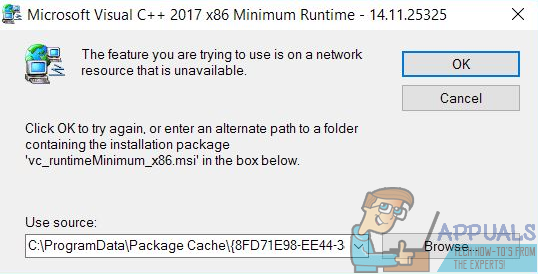
“The feature you are trying to use is on a network resource that is unavailable“
The error message advises the user to simply click on OK to retry the installation – which, in most cases, yields the same results – or manually type in an alternate path to the folder that contains the installation/uninstallation package. While the error message itself states that the feature that the installation/uninstallation package is trying to access is in a location that is, for some reason, unavailable to the installation/uninstallation process, the root of this problem is not always as simple as that.
This issue can be caused by anything from the Windows Installer service simply not running for some reason to corrupt or otherwise unrecognizable registry values belonging to the program you are trying to install or uninstall. Thankfully, though, this issue can be resolved and you can even resolve it on your own. The following are some of the most effective solutions that you can use to try and fix this problem:
Solution 1: Make sure that the Windows Installer service is running
If the Windows Installer service is not running on your computer, there’s a chance any installations and/or uninstallations you attempt will fail. If you are experiencing this problem, making sure that the Windows Installer service is running is a good place to start in your journey to getting rid of it. To make sure that the Windows Installer service is running, you need to:
- Press the Windows Logo key + R to open a Run dialog.
- Type services.msc into the Run dialog and press Enter.
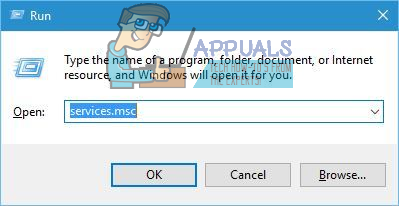
- In the Services manager, scroll down the list of services you have on your computer and locate and right-click on the Windows Installer service.

- Click on Properties in the resulting context menu.
- Open the dropdown menu located directly in front of Startup type and click on Automatic to select it.
- If the service’s Service status says Stopped, click on Start. If the service’s Service status says Started, skip this step.
- Click on Apply and then on OK.
- Close the Services manager.
- Restart your computer.
When the computer boots up, try installing or uninstalling the program you were facing this issue with before and see whether the process ends up being successful.
Solution 2: Download a different copy of the installer or download one to a different location
You might be experiencing this issue because the installer you are using to try and install or uninstall the affected program is somehow damaged or corrupted, or the directory you have downloaded it to is having problems communicating with the rest of your computer. If that’s the case, simply downloading a different copy of the installer and/or downloading one to a different location on your computer and using it to install or uninstall the affected program should be enough to get the job done.
Solution 3: Run the Program Install and Uninstall Troubleshooter
The folks at Microsoft know that Windows users sometimes face an array of different problems while trying to install and uninstall programs on basically every version of the Windows Operating System, this problem included. That being the case, Microsoft has developed and released a troubleshooter for Windows that has been expressly designed for the sole purpose of fixing the most common issues that have been known to bother Windows users while they install or uninstall programs on their computers. To run this troubleshooter, referred to as the Program Install and Uninstall Troubleshooter, you need to:
- Click here or here to download the Program Install and Uninstall Troubleshooter.
- Wait for the troubleshooter to be downloaded.
- Navigate to where you downloaded the troubleshooter and double-click on it to run it.
- Follow the onscreen instructions and go through the troubleshooter all the way to the very end.

- The troubleshooter will try to detect and repair issues such as corrupted registry values and damaged registry keys and other problems that prevent new programs from being installed and/or old ones from being uninstalled. Allow the troubleshooter to do what it has been designed to do.
Once you’ve successfully run the Program Install and Uninstall Troubleshooter, restart your computer and check to see whether or not the issue persists when the computer boots up.
Solution 4: Delete a specific registry key
- Press the Windows Logo key + R to open a Run dialog.
- Type regedit into the Run dialog and press Enter to open the Registry Editor.

- In the left pane of the Registry Editor, navigate to the following directory:
HKEY_LOCAL_MACHINE > SOFTWARE > Classes > Installer
- In the right pane of the Registry Editor, double-click on the Products sub-key under the Installer key to expand it, and then one by one, click on each of the sub-keys under the Products key to have their contents displayed in the right pane of the Registry Editor. You need to check out the Product Name registry string (REG_SZ) for each of the sub-keys under the Products key as their Value data will contain the name of the program that specific registry key is for. You need to keep going until you find the sub-key belonging to the program you are having problems installing or uninstalling.

- Once you find the sub-key belonging to the affected program, right-click on the sub-key and click on Delete.
- Click on Yes in the resulting popup to confirm the action.
- Once the sub-key belonging to the program that spits out the “The feature you are trying to use is on a network resource that is unavailable” error message whenever you are trying to install or uninstall it has been deleted, close the Registry Editor and restart the computer.
When the computer boots up, be sure to run the installer package for the installation/uninstallation of the affected program in order to check whether or not the issue has actually been resolved.

Kevin Arrows
Kevin is a dynamic and self-motivated information technology professional, with a Thorough knowledge of all facets pertaining to network infrastructure design, implementation and administration. Superior record of delivering simultaneous large-scale mission critical projects on time and under budget.

Одна из наиболее распространенных проблем, с которыми сталкиваются пользователи Windows при попытке установить или удалить приложение в любой версии операционной системы Windows, — это проблема, при которой установка или удаление не удается, и пользователь, затронутый проблемой, видит сообщение об ошибке, в котором говорится:

“Функция, которую вы пытаетесь использовать, находится на сетевом ресурсе, который недоступен“
В сообщении об ошибке пользователю предлагается просто нажать на хорошо чтобы повторить установку, что в большинстве случаев дает те же результаты, или введите вручную альтернативный путь к папке, содержащей пакет установки / удаления. Хотя в самом сообщении об ошибке указано, что функция, к которой пытается получить доступ пакет установки / удаления, находится в месте, которое по какой-то причине недоступно для процесса установки / удаления, корень этой проблемы не всегда так прост. .
Эта проблема может быть вызвана чем угодно из Установщик Windows служба просто не работает по какой-либо причине, чтобы повредить или иным образом неузнаваемые значения реестра, принадлежащие программе, которую вы пытаетесь установить или удалить. К счастью, эту проблему можно решить, и вы даже можете решить ее самостоятельно. Ниже приведены некоторые из наиболее эффективных решений, которые вы можете использовать, чтобы попытаться решить эту проблему:
Решение 1. Убедитесь, что служба установщика Windows запущена.
Если Установщик Windows служба не запущена на вашем компьютере, есть вероятность, что любые попытки установки и / или удаления не удастся. Если вы столкнулись с этой проблемой, убедитесь, что Установщик Windows service is running — хорошее начало на пути к избавлению от него. Чтобы убедиться, что Установщик Windows сервис запущен, вам необходимо:
- нажмите Эмблема Windows ключ + р открыть Бегать диалог.
- Тип sуслуги.msc в Бегать диалог и нажмите Войти.

- в Сервисы диспетчер, прокрутите список служб, имеющихся на вашем компьютере, найдите и щелкните правой кнопкой мыши Установщик Windows служба.

- Нажмите на Свойства в появившемся контекстном меню.
- Откройте раскрывающееся меню, расположенное прямо перед Тип запуска и нажмите на Автоматический выбрать его.
- Если служба Статус услуги говорит Остановлен, нажмите на Начало. Если служба Статус услуги говорит Началось, пропустить этот шаг.
- Нажмите на Подать заявление а затем на хорошо.
- Закройте Сервисы управляющий делами.
- Начать сначала твой компьютер.
Когда компьютер загрузится, попробуйте установить или удалить программу, с которой вы столкнулись с этой проблемой раньше, и посмотрите, завершится ли процесс успешным.
Решение 2. Загрузите другую копию установщика или загрузите ее в другое место
Эта проблема может возникнуть из-за того, что программа установки, которую вы используете для установки или удаления уязвимой программы, каким-то образом повреждена или повреждена, или каталог, в который вы ее загрузили, имеет проблемы с взаимодействием с остальным компьютером. В этом случае для выполнения работы достаточно просто загрузить другую копию установщика и / или загрузить ее в другое место на вашем компьютере и использовать ее для установки или удаления затронутой программы.
Решение 3. Запустите средство устранения неполадок установки и удаления программы.
Сотрудники Microsoft знают, что пользователи Windows иногда сталкиваются с множеством различных проблем при попытке установить и удалить программы практически в каждой версии операционной системы Windows, включая эту проблему. В этом случае Microsoft разработала и выпустила средство устранения неполадок для Windows, которое было специально разработано с единственной целью исправления наиболее распространенных проблем, которые, как известно, беспокоят пользователей Windows при установке или удалении программ на своих компьютерах. Чтобы запустить это средство устранения неполадок, называемое Устранение неполадок при установке и удалении программы, тебе надо:
- Нажмите Вот чтобы скачать Устранение неполадок при установке и удалении программы.
- Подождите, пока загрузится средство устранения неполадок.
- Перейдите туда, где вы скачали средство устранения неполадок, и дважды щелкните его, чтобы запустить.
- Следуйте инструкциям на экране и пройдите через средство устранения неполадок до самого конца.

- Средство устранения неполадок попытается обнаружить и устранить такие проблемы, как поврежденные значения реестра и поврежденные ключи реестра, а также другие проблемы, препятствующие установке новых программ и / или удалению старых. Позвольте средству устранения неполадок делать то, для чего оно было предназначено.
После успешного запуска Устранение неполадок при установке и удалении программы, начать сначала ваш компьютер и проверьте, сохраняется ли проблема при загрузке компьютера.
Решение 4. Удалите определенный раздел реестра.
- нажмите Эмблема Windows ключ + р открыть Бегать диалог.
- Тип regedit в Бегать диалог и нажмите Войти открыть Редактор реестра.

- На левой панели Редактор реестраперейдите в следующий каталог:
HKEY_LOCAL_MACHINE > ПРОГРАММНОЕ ОБЕСПЕЧЕНИЕ > Классы > Установщик
- На правой панели Редактор реестра, дважды щелкните значок Товары под ключ под Установщик , чтобы развернуть его, а затем один за другим щелкайте каждый из подразделов под Товары ключ, чтобы их содержимое отображалось на правой панели Редактор реестра. Вам нужно проверить наименование товара строка реестра (REG_SZ) для каждого из подключей под Товары ключ как их Данные значения будет содержать имя программы, для которой предназначен конкретный раздел реестра. Вам нужно продолжать, пока вы не найдете подключа, принадлежащий программе, при установке или удалении которой у вас возникли проблемы.

- Как только вы найдете подключ, принадлежащий затронутой программе, щелкните правой кнопкой мыши подключ и нажмите Удалить.
- Нажмите на да в появившемся всплывающем окне для подтверждения действия.
- После того, как подключ, принадлежащий программе, которая выводит сообщение об ошибке «Функция, которую вы пытаетесь использовать, находится на сетевом ресурсе, который недоступен», всякий раз, когда вы пытаетесь установить или удалить ее, был удален, закройте Редактор реестра и начать сначала компьютер.
При загрузке компьютера обязательно запустите установочный пакет для установки / удаления уязвимой программы, чтобы проверить, действительно ли проблема решена.

I’m installing SQL Server 2017 and get this error. Please help me!

J. Murray
1,37710 silver badges17 bronze badges
asked Jul 6, 2019 at 11:42

You installed SQL Native Client (or whatever product name is listed) with an MSI located on a network share at some time in the past. SQL installer is trying to modify or update that install, but can’t access the MSI.
Uninstall the listed product, then try the install again.
answered Jul 6, 2019 at 11:45

MitchMitch
20.7k6 gold badges64 silver badges83 bronze badges
I faced the same issue. I had to download and show the path to file manually. Here is the link to download MS OLE DB driver. To download latest version search in google for «ole db driver» and in this window show the path to the file manually
answered May 27, 2021 at 3:33

1.First you remove the exist Microsoft SQL Server 2012 Native Client from Control
panel “Add or Remove Programs”
2.Then download and install SQL Server 2012 Native Client newly to the machine
3.Try again the SQL Server 2017 installation
answered Aug 3, 2022 at 4:01

AdithyaAdithya
2354 silver badges9 bronze badges