В этой статье мы разберемся, как восстановить загрузчик Windows 10 или 11 на современном компьютере, на котором используется UEFI интерфейс вместо классического BIOS и таблица разделов диска GPT (вместо MBR). Повреждение загрузчика Windows может быть вызвано установкой второй ОС (Dual Boot — конфигурация), повреждением файловой систему, некорректным восстановлении Windows после сбоя, удалением скрытых разделов, вирусом-вымогателем и рядом других причин.
Данная статья содержит подробную пошаговую процедуру восстановления поврежденного или удаленного загрузчика ОС в Windows 11/10/8.1 и Windows Server 2022/2019/2016/2012R2 на компьютерах, которые работают в нативном (не legacy) режиме UEFI. Инструкцию можно использовать как для восстановления бинарных файлов загрузчика Windows, так и конфигурационного файла загрузчика EFIMicrosoftBootBCD (в случаях, когда Windows не загружается из-за отсутствия или повреждения файла конфигурацией загрузка BCD.
Содержание:
- Не загружается Windows: Boot configuration data is missing EFIMicrosoftBootBCD
- Автоматическое восстановление загрузчика Windows
- Ручное восстановление загрузчика Windows с помощью BCDBoot
Не загружается Windows: Boot configuration data is missing EFIMicrosoftBootBCD
UEFI компьютер с Windows, установленной в наивном режиме, не сможет загрузиться при повреждении EFI загрузчика Windows. При попытке загрузиться с диска с повреждённым или отсутствующим EFI загрузчиком появится BSOD (синий экран смерти) с ошибкой:
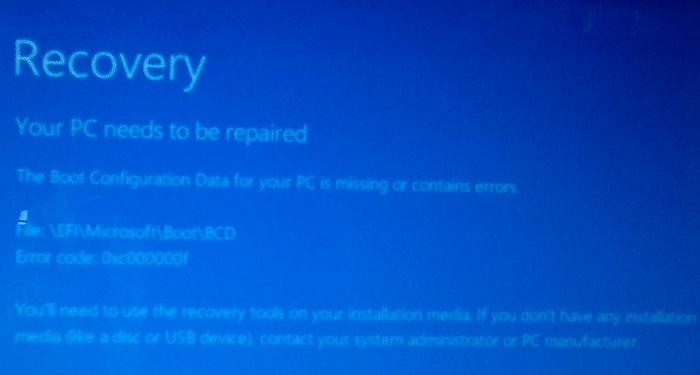
The boot configuration data for your PC is missing or contains errors.
File :EFIMicrosoftBootBCD
Error code: 0xc000000f
или
Error code: 0xc000014c
В русской версии Windows ошибка может быть такая:
Ваш компьютер нуждается в ремонте Данные конфигурации загрузки для вашего ПК отсутствуют или содержат ошибки Файл:EFIMicrosoftBootBCD Код ошибки: 0xc000000f
Эта ошибка говорит о повреждении или даже полном удалении конфигурации загрузчика Windows — Boot Configuration Data (BCD). Если вы попытаетесь восстановить загрузчик на UEFI компьютере с помощью утилиты
bcdedit
, вы получите такую ошибку:
The boot configuration data store could not be found.
The requested system device cannot be found.
Дело в том, что если Windows 10/11 установлена в нативном режиме UEFI на GPT диск, то EFI загрузчик Windows (Windows Boot Manager) хранит программу управления загрузкой и конфигурацию BCD на отдельном скрытом разделе EFI (размером 100 мб с файловой системой FAT32). Утилита bcdedit не видит этот EFI раздел, и соответственно не может управлять конфигурацией загрузчика на нем.
Если при загрузке Windows появляется только черный экран с надписью “Operating System not found”, скорее всего у вас полностью удален загрузчик Windows. Следуйте инструкции по ссылке.
Автоматическое восстановление загрузчика Windows
Процедура автоматического восстановления загрузчика, зашитая в среду восстановления Windows (WinRe), как правило, в таких случаях бессильна. Но попробовать все-же стоит:
- Загрузитесь с диска загрузочного диска, диска восстановления или установочной флешки с Windows 10 или 11;
- На экране установки нажмите кнопку Восстановление системы;
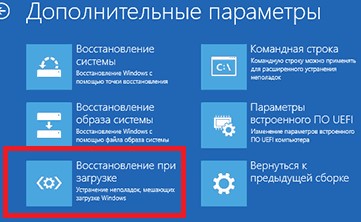
- Затем выберите пункт Поиск и устранение неисправностей -> Восстановление при загрузке и выберите ОС, загрузчик которой нужно попытаться восстановить;
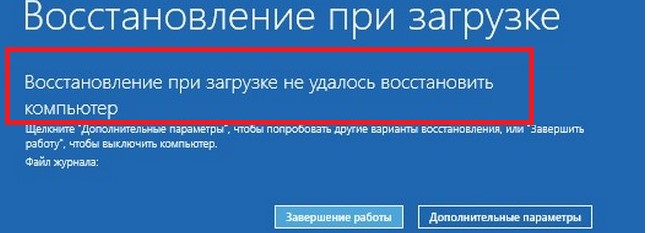
- Но скорее всего результат будет отрицательный: Восстановление при загрузке не удалось восстановить компьютер
Ручное восстановление загрузчика Windows с помощью BCDBoot
Перейдем к процедуре ручного восстановления EFI загрузчика Windows на UEFI компьютере.
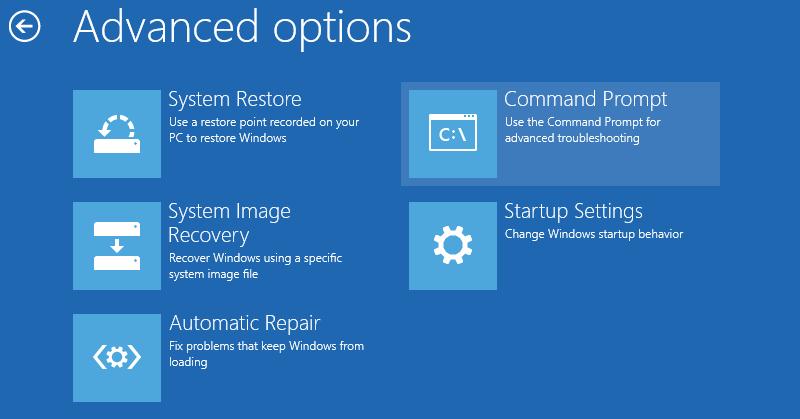
Для восстановления конфигурации загрузчика (BCD), вам нужно загрузить компьютер с оригинального установочного диска с Windows (диска восстановления или специально подготовленной установочной USB флешки с Windows ). После загрузки в среде восстановления нужно открыть окно командной строки: выберите Восстановление системы -> Диагностика -> Командная строка (System Restore -> Troubleshoot -> Command Prompt).
Командную строку также можно запустить, если у вас под рукой есть только установочный диск с Windows. Для этого достаточно на самом первом этапе установки Windows (при выборе языка и раскладки клавиатуры) нажать комбинацию клавиш Shift+F10 (или Shift+Fn+F10 на некоторых моделях ноутбуков).
В открывшейся командной строке выполните запустите утилиту управления дисками, набрав команду:
diskpart
Выведите список дисков в системе:
list disk
На этом этапе очень важно определить тип таблицы разделов на диске, на котором установлена Windows: MBR или GPT. Дело в том, что EFI загрузчик используется только на дисках с GPT разметкой.
Если у диска в столбце Gpt указана звездочка (
*
), тогда на диске используется таблица разделов GPT, если нет – MBR.
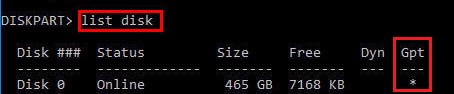
Если с помощью diskpart вы определили, что на вашем диске используется GPT разметка, следуйте дальнейшим шагам инструкции по восстановлению загрузчика.
Если у вас разметка MBR, тогда данная инструкция не применима к вашему компьютеру. Скорее всего у вас компьютер с BIOS, или в настройках UEFI включен режим совместимости Legacy/Compatibility Support Module/CSM.
На MBR дисках загрузчик хранится на отдельном разделе System Reserved, а не на EFI разделе (ни в коем случае не конвертируйте таблицу разделов MBR в GPT, пока не исправите загрузчик!!) Используйте другую инструкцию по восстановлению BCD загрузчика на MBR (Master Boot Record) диске.
Выберите диск, на котором установлена ваша Windows (если жесткий диск в системе один, его индекс должен быть равен 0):
sel disk 0
Выведите список томов и разделов в системе:
list partition
list volume
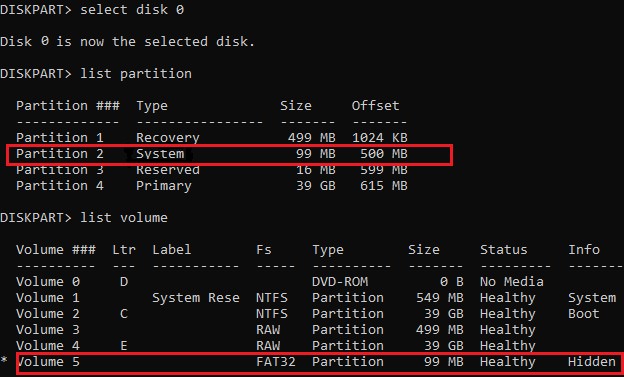
В нашем примере видно, что загрузочный раздел EFI имеет индекс Partition2 (он же Volume 5 с меткой Hidden). Проще всего определить EFI размер по файловой системе FAT32, размеру 100 Мб (это стандартный минимальный размер для Windows компьютеров, в редких случая размер раздела может быть). Чаще всего для него используется метка — System EFI или ESP/ EFI System Partion).
В нашем примере основной раздел, на который установлена Windows, имеет индекс volume 2, отформатирован в файловая система NTFS и ему назначена буква C:.
В вашем случае назначенная буква диске может отличаться. Это зависит, как вы загрузили свой компьютер в среде WinPE. Проще всего определить его по размеру. Если вы не уверены, нужно проверить что на этом диске есть каталог Windows. Выйдите из утилиты diskpart (команда exit) и выполните команду:
dir C:
Убедитесь, что на этом диске есть каталоги
Windows
,
Program Files
,
Users
и прочие.
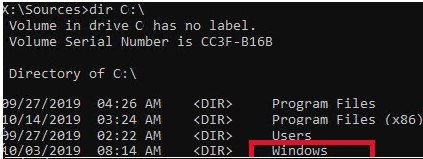
Если этих каталогов нет, значит вашему диску с Windows назначена другая буква диска. Проверьте содержимоет дисков с другими буквами.
Запомните букву диска, назначенную разделу с Windows, чуть ниже мы будем использовать ее в качестве одного из аргументов команды bcdboot.
В таблице также обязательно должен быть раздел MSR (Microsoft System Reserved) размером 16 мб в Windows 10/11 (или 128 Мб в Windows 8.1).
Назначьте скрытому EFI разделу произвольную букву диска (например, M:):
select volume 5
assign letter M:
Должна появится строка, свидетельствующая об успешном назначении буквы диска разделу EFI:
DiskPart successfully assigned the drive letter or mount point.
Завершите работу с diskpart:
exit
Перейдите в каталог с загрузчиком на скрытом разделе:
cd /d m:efimicrosoftboot
В данном случае M: это буква диска, присвоенная разделу EFI чуть выше. Если каталог EFIMicrosoftBoot отсутствует
The system cannot find the path specified
), попробуйте следующие команды:
cd /d M:Boot
или
cd /d M:ESDWindowsEFIMicrosoftBoot
На этом этапе многие рекомендуют выполнить следующие команды, которые должны перезаписать загрузочную запись раздела, найти установленные Windows и добавить их в BCD:
bootrec /fixboot
bootrec /scanos
bootrec /rebuildbcd
или даже:
bootrec /FixMbr
(восстановление MBR записи для GPT диска выглядит странным)
Все эти команды применимы только для дисков с MBR. Если ваш компьютер загружается в UEFI режиме, то на нем обязательно используется таблица разделов GPT (как раз наш случай). Поэтому при запуске команд
bootrec
вы увидите ошибку:
access is denied
Для исправления загрузочных записей на EFI разделе нужно использовать утилиту
BCDBoot
, а не bootrec.
Утилита BCDBoot позволяет восстановить файлы загрузчика на EFI разделе, скопировав их системного каталога на разделе с Windows. Конфигурация загрузчика BCD пересоздается с помощью шаблона %WINDIR%System32ConfigBCD-Template.
С помощью команды
attrib
снимите атрибуты скрытый, read-only и системный с файла BCD:
attrib BCD -s -h -r
Удалите текущий файл с конфигурацией BCD, переименовав его (так вы сохраните старую конфигурацию в качестве резервной копии):
ren BCD BCD.bak
С помощью утилиты bcdboot.exe нужно скопировать из системного каталога критические файлы среды загрузки UEFI в загрузочный EFI раздел и пересоздать конфигурацию загрузчика в хранилище BCD:
bcdboot C:Windows /l en-us /s M: /f ALL
где,
- C:Windows – путь к корневому системному каталогу Windows на диске (это ваш диск, на который была установлена ваша Windows, мы узнали его ранее с помощью команды diskpart);
- /f ALL – означает, что необходимо скопировать файлы среды загрузки Windows, включая файлы для компьютеров с UEFI и BIOS (теоретическая возможность загружаться на EFI и BIOS системах). Чтобы скопировать только EFI загрузчик, используйте команду /f UEFI;
- /l en-us — определяет языковой стандарт, который используется при инициализации хранилища BCD. По умолчанию используется en-US — английский язык (США);
- /s M: — скопировать файлы EFI загрузчика на указанный раздел;
- /с – эта новая опция BCDBoot в Windows 10, которая позволяет перезатереть имеющиеся загрузочные записи при создании нового хранилища (в том числе debugsettings). Используйте этот параметр, чтобы игнорировать старые настройки и создать полностью чистую конфигурацию BCD загрузчика;
- /v – используется для включения режима вывода подробной информации BCDBoot..
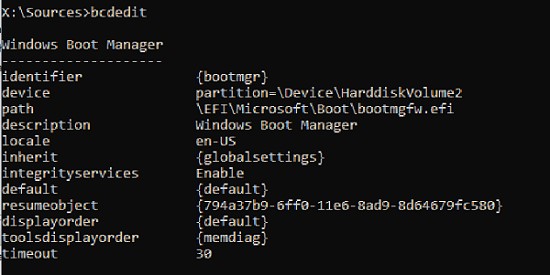
Теперь, если выполнить команду bcdedit, вы увидите следующую картину:
В секции диспетчера загрузки Windows (Windows Boot Manager) должна появится запись, указывающая на полный путь к файлу управления загрузкой UEFI. В этом примере он находится на разделе 2 (
partition=DeviceHarddiskVolume2
), путь
EFIMICROSOFTBOOTBOOTMGFW.EFI
.
Windows Boot Manager
--------------------
identifier              {bootmgr}
device                  partition=DeviceHarddiskVolume2
path                    EFIMicrosoftBootbootmgfw.efi
description             Windows Boot Manager
locale                  en-US
inherit                 {globalsettings}
bootshutdowndisabled    Yes
default                 {CURRENT}
resumeobject            {xxxxxxxx-xxxx-xxxx-xxxx-xxxxxxxxxxxx}
displayorder            {default}
toolsdisplayorder       {memdiag}
timeout                 30
Windows Boot Loader
-------------------
identifier              {current}
device                  partition=C:
path                    Windowssystem32winload.efi
description             Windows Server 10
locale                  en-US
inherit                 {bootloadersettings}
recoverysequence       {xxxxxxxx-xxxx-xxxx-xxxx-xxxxxxxxxxxx}
recoveryenabled         Yes
isolatedcontext         Yes
allowedinmemorysettings 0x15000075
osdevice                partition=C:
systemroot              Windows
resumeobject            {xxxxxxxx-xxxx-xxxx-xxxx-xxxxxxxxxxxx}
В секции Windows Boot Manager должен быть указан путь к EFI разделу (
=DeviceHarddiskVolume2
), путь к файлу управления загрузкой (bootmgfw.efi). В секции Windows Boot Loader указан раздел Windows и путь к EFI загрузчику Windows (
Windowssystem32winload.efi
). При включении компьютер передаст управление диспетчеру загрузки EFI, который запустит загрузчик Windows.
Возможные ошибки:
Перезагрузите компьютер, отключите загрузочный диск. Если вы все сделали правильно, в выборе устройств загрузки должен появиться пункт Windows Boot Manager в котором можно выбрать загрузку нужной операционной системы. Ваш EFI загрузчик и конфигурация BCD успешно восстановлены!
В некоторых случаях после восстановления BCD загрузчика, при загрузке Windows появляется ошибка
BAD SYSTEM CONFIG INFO
. Чтобы исправить ошибку:
Убедитесь, что вы не вносили недавно изменения в настройки UEFI
Загрузитесь с установочной/загрузочной флешки и измените конфигурацию загрузчика командами:
-
bcdedit /deletevalue {default} numproc -
bcdedit /deletevalue {default} truncatememory
When you boot your Windows machine, you might encounter the following message on your computer: Recovery your PC needs to be repaired Error Code: 0xc0000034. How can it be fixed? Below is 4 ways to fix the boot configuration data file is missing error. You can try the best file recovery software -MiniTool Power Data Recovery to recover lost data.
Have you ever heard of the Boot Configuration Data (BCD)? Do you know what happens if the Boot Configuration Data file is missing in Windows 10? A true example from answers.microsoft.com is shown here:
During the «setup» phase (~80%) of installing Windows RT 8.1, the Surface RT rebooted. Upon reboot, I got the following message:
«Recovery
Your PC needs to be repaired
The Boot Configuration Data file is missing some required information.
File: BCD
Error Code: 0xc0000034
You’ll need to use the recovery tools on your installation media. If you don’t have any installation media (like a disc or USB device), contact your system administrator or PC manufacturer.»
Any idea what (if anything) I can do to it?
SEE! If the Boot Configuration Data is missing in Windows 8, you cannot boot your computer normally and you’ll see an error message, as shown below.

Generally speaking, the BCD is missing error occurs when either of the following conditions is true:
1. The Windows Boot Manager (Bootmgr) entry is not present in the Boot Configuration Data (BCD) store.
Note: if your boot manager is missing, you can find answers from this post: Fix BOOTMGR Is Missing Error on PC in Windows 7/8/10.
2. The BootBCD file on the active partition is damaged or missing.
Fortunately, your data isn’t lost forever and you can get it back with an effective data recovery solution when you get the error message, «The Windows Boot Configuration Data file is missing required information». However, the bad news is that you have to do a little work to fix the BCD is missing error.
Video Tutorial: How Do I Solve — the Boot Configuration Data file for your PC is missing or contains errors?
Now, in today’s post, I am going to show you how to recover lost data when PC cannot boot and how to fix Boot Configuration Data is missing in Windows 8 and other OSs.
Part 1. Recover Data from BCD Missing Windows
If you get an error message like this you start Windows 10/8/7: «The Boot Configuration Data for your PC is missing or contains errors (as shown below),» you don’t need to worry about data loss.

Here, MiniTool Power Data Recovery, a professional file recovery software developed by a famous software development company based in Canada, offers MiniTool Power Data Recovery Bootable which can help you effectively and quickly recover lost data from BCD missing Windows.
More importantly, MiniTool Power Data Recovery is a read-only tool which can help to safely and effectively recover lost data without damaging the original data.
Note: Only the Personal and above versions offer MiniTool Bootable Media Builder.
Free Download
Now, let’s look at the detailed steps.
1) First, you need to download and install MiniTool Power Data Recovery on another computer and register it.
2) Launch MiniTool Power Data Recovery, and then click the Bootable Media icon at the top menu bar. After that, follow wizards to create bootable CD, DVD, or USB flash drives.
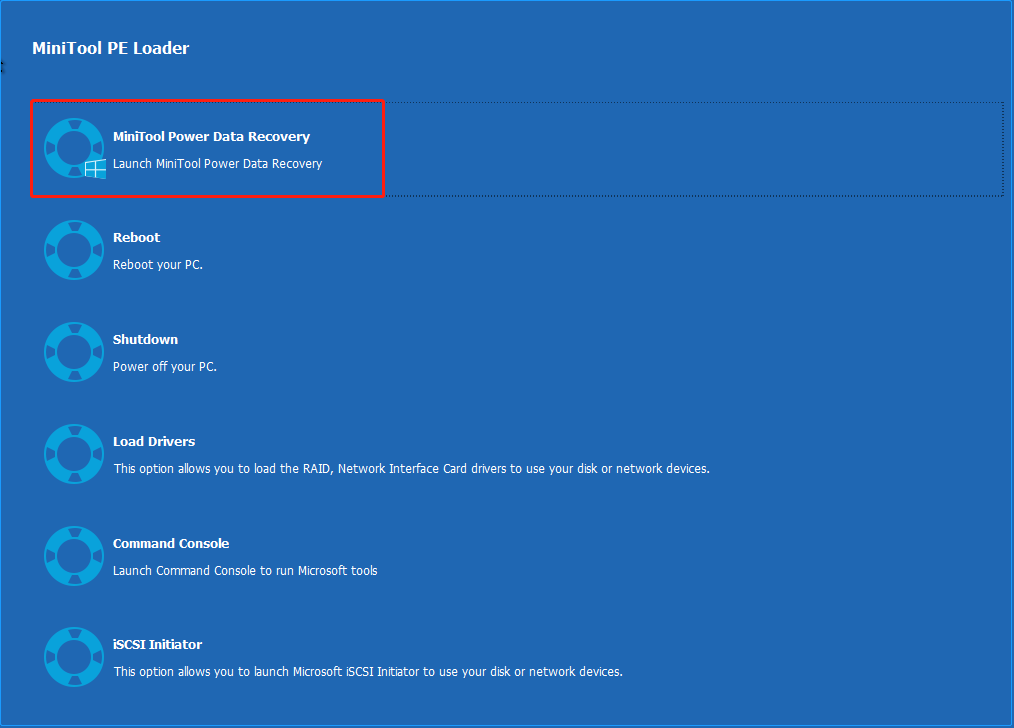
3) Boot your PC whose BCD is missing from the MiniTool bootable disk to get the MiniTool PE Loader interface as shown below.
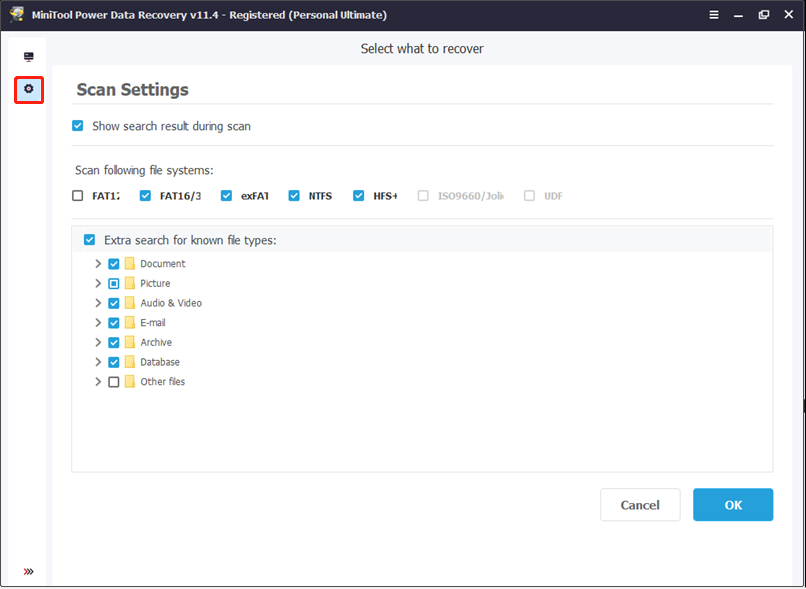
4) Select MiniTool Power Data Recovery to get its main window as follows.
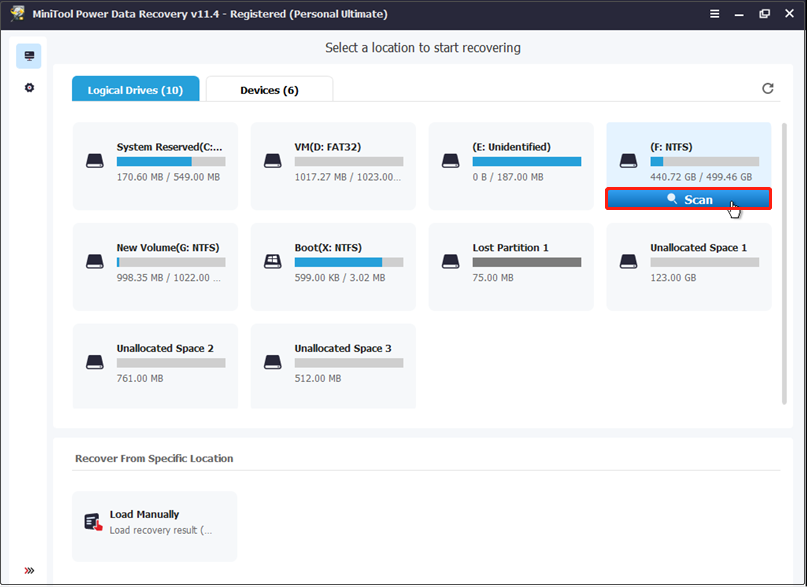
5) Now, select the target drive and click Scan to recover lost data from Windows whose Boot Configuration Data file is missing.
Note: Here, you can click on the Scan Settings icon in the left column and then specify the needed file system (such as FAT12/16/32, NTFS, and NTFS+) and file types (including Documents, Archive, Graphics/Picture, Audio, E-mail, Database and other files) before scanning.
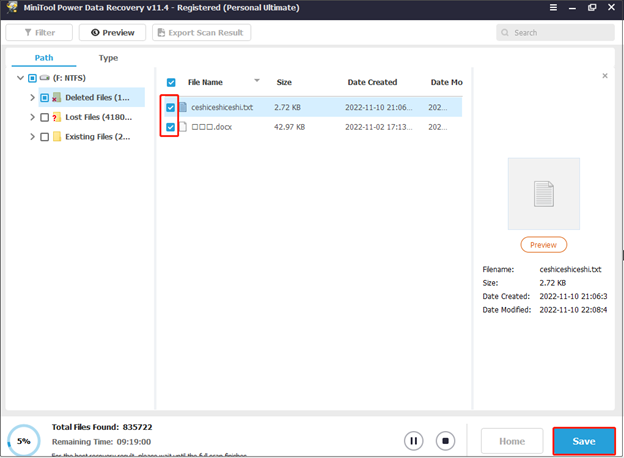
6) Select all needed files, and click on the Save button to store them in a safe place. Here, since you cannot boot your Windows because the Boot Configuration Data file is missing, you can try saving all needed files in a healthy removable drive.
«Hi! I effectively and quickly recovered lost data when Windows could not boot because of the error message, «Boot Configuration Data file is missing some required information». Here, you can try MiniTool Power Data Recovery for its excellent performance, high security and simple operations.»Click to Tweet
Part 2. How to FIX Boot Configuration Data File Is Missing Error in Windows 10
As we know, when you boot your Windows machine, it checks all the necessary configuration files required to make a successful startup. Therefore, if any of the files involved in this process are corrupted or missing, Windows will not be able to boot the system at all.
Here, if the BCD boot file is corrupted or missing, you’re likely to receive a message that reads, «The Boot Configuration Data for your PC is missing or contains errors.»
Generally speaking, «The Boot Configuration Data file is missing» is accompanied by an error code 0xc0000034 and this error is a Blue Screen of Death (BSOD) error which results in a serious problem.
Top recommendation: How Do I Solve Windows 10 Booting to a Black Screen with Ease.
Don’t worry! If your Windows 10/8.1/8 is unable to boot due to the error, «The Boot Configuration Data file is missing some required information», you can try the following 4 solutions to troubleshoot this issue.
Solution 1. Run Startup/Automatic Repair
To fix the BCD is missing issue, you can use the recovery tools on your installation media like DVD or USB to repair your Windows installation. Next, follow these steps:
1) Insert the Windows bootable installation disk and restart your PC. (Here, we use the Windows 10 installation disk for example to show how to fix the error code: 0xc0000034.)
2) When prompted to Press any key to boot from CD or DVD, press any key to continue.
3) Select your language preferences in the Windows Setup interface, and click on Next.
4) Click on Repair your computer in the bottom-left.

5) Under Choose an option, select Troubleshoot.

6) On the Advanced options screen, click on Automatic Repair.

7) Wait until the Windows Automatic Repair is complete.
Restart your Windows and check whether you still receive «The Boot Configuration Data file is missing» error message in your Windows 10. If yes, continue with the next method.
Top recommendation: How Do I Solve — Windows Automatic Repair Not Working.
Solution 2. Rebuild the BCD in Windows by using the Bootrec.exe tool
If the previous method does not resolve the problem, «The Boot Configuration Data for your PC is missing or contains errors», you can rebuild the BCD by using the Bootrec.exe tool in the Windows Recovery Environment.
1) Insert the Windows bootable drive and boot from it.
2) Select your language preferences and click Next.
3) After selecting language, press Shift + F10 to open command prompt.
4) Type the following commands and press Enter after each of them:
- bootrec.exe /Rebuildbcd
- bootrec.exe /Fixmbr
- bootrec.exe /Fixboot

5) Type the following commands in cmd if the above command fails:
- bcdedit /export C:BCD_Backup
- c:
- cd boot
- attrib bcd -s -h -r
- ren c:bootbcd bcd.old
- bootrec /RebuildBcd

6) Type exit and press Enter.
7) Finally, restart your PC.
If this method still cannot fix the Boot Configuration Data file is missing in Windows 10, then you can try the next method to fix the BCD is missing issue.
Solution 3. Set correct partition as active
Some users reported that they encountered «The Boot Configuration Data file is missing some required information» issue because they had set a wrong partition as active. To fix the Boot Configuration Data file is missing issue, they need to set the correct partition as active. But, how?
Fortunately, MiniTool Partition Wizard, the best professional partition manager for advanced users, can help to set partition as active easily and quickly. The steps are shown below.
1) Get MiniTool Partition Wizard, install it on another computer, and then launch it. Here, you can try the MiniTool Partition Wizard Pro because you cannot boot your Windows.
Buy Now
2) Choose the Bootable Media icon at the top right to launch the Bootable Media Builder. Then, follow the wizards to create a bootable CD, DVD, or USB flash drive.
3) Boot your Windows by using the bootable disc. After a successful boot, you’ll get the main interface of this professional tool.
4) Select the system partition and click on Set Active.

5) After that, click on the Apply button in the top left corner to perform all operations.
Finally, restart your Windows and then check whether you still get the Boot Configuration Data file is missing issue.
Top Recommendation:
Want to know more ways about setting a correct partition as active? Now, please refer to this post: Here Are 3 Solutions after Accidentally Marking Drive C Active.
Solution 4. Create BCD
If you still get the error code: 0xc0000034 after trying the above 3 methods, you can try the last method — creating BCD. The steps are described here.
1) Insert the Windows bootable drive to your computer and boot from it.
2) Select your language preferences and click on the Next button to continue.
3) Click on the Repair your computer.
4) Choose Troubleshoot.
5) Click on the Command Prompt.

6) Type the following command and press the Enter key.
bcdboot c:windows
7) The above command will the copy BCDboot file from the existing Windows partition to the motherboard partition and create the BCD in the same partition.
8) Restart your PC.
«I tried the above 4 solutions, and I effectively solved the Boot Configuration Data is missing error in Windows 10. If you still cannot find a suitable solution to «The Boot Configuration Data file is missing some required information» issue, try the above out.»Click to Tweet
Bottom Line
Are you still worrying about the Boot Configuration Data file is missing in Windows 8? Now, you can try the above 4 methods.
If you have any other good solutions about «The Boot Configuration Data file for your PC is missing or contains errors» issue, please share it with us in the comments below, thanks. On the other hand, should you have any questions about MiniTool software, please feel free to contact us via [email protected].We will solve it as soon as possible.
 Если ваш компьютер с Windows 8 или более поздней версией операционной системы не загружается из-за ошибки «The boot configuration data file is missing some required information», то здесь вы найдете решение проблемы.
Во время загрузки компьютера операционная система проверяет все конфигурационные файлы, необходимые для обеспечения успешного запуска. Таким образом, если любой из файлов, участвующих в этом процессе, поврежден или отсутствует, операционная система не загрузится вообще.
Сегодня в этой статье мы поговорим об одной такой проблеме, когда файл BCDboot (ответственный за загрузку системы) поврежден или отсутствует. Скорее всего, в такой ситуации вы увидите следующее сообщение об ошибке при загрузке системы:
Recovery
Your PC needs to be repaired
The Boot Configuration Data file is missing some required information.
File:BCD
Error code: 0xc0000034

Большинство пользователей, столкнувшихся с этой ситуацией, вероятно, решат воспользоваться функцией «Восстановление компьютера без удаления файлов («Refresh») или «Удаление всех данных и переустановка Windows» («Reset»). Это, однако, не поможет, поскольку при выполнении «Refresh», появится следующее сообщение:
The drive where Windows is installed is locked. Unlock the drive and try again.

А с функцией «Reset» вы получите это сообщение:
Unable to reset your PC. A required drive partition is missing.

Конечно, решить проблему можно полной переустановкой системы с форматированием жесткого диска, но это не выход и вряд ли такой вариант кого-то устроит, особенно, если проблема может быть решена другим способом, с помощью диска восстановления системы.
Если у вас есть диск восстановления системы (если такового нет, создайте его на компьютере с Windows 8.x у вашего друга, например), подключите его к вашему компьютеру, а затем загрузитесь в меню «Дополнительные параметры» («Advanced options»). Затем выберите «Командная строка» («Command prompt»).

Предыдущее действие приведет к открытию командной строки с правами администратора. Теперь, все что вам нужно сделать, это ввести следующую команду и нажать Enter:
bcdboot c:windows

Далее извлеките диск восстановления системы и перезагрузите машину. Теперь ваша система должна загрузиться без сучка и задоринки.
Дополнение:
Если не помогла команда выше:
Восстанавливаем MBR.
bootrec.exe /fixmbr
bootsect.exe /nt60 all /force
Пытаемся восстановить данные BCD с чистого листа:
Bootrec.exe / rebuildbcd
Если вам повезет, вы увидите сообщение, что все прошло нормально. Перезагрузите компьютер и попробуйте запустить Windows.
Если компьютер по-прежнему не загружается, читайте дальше.
Снова откройте меню «Дополнительные параметры» и запустите командную строку.
Примечание
Предполагается, что загрузочный диск обозначен буквой C. Если у вас другая буква диска, замените C буквой вашего диска
Выполните команды:
bootrec.exe /fixmbr
bootsect.exe /nt60 all /force
Сделайте вот так:
attrib -h -s C:bootBCD
del C:bootBCD
bcdedit /createstore c:bootbcd.temp
bcdedit.exe /store c:bootbcd.temp /create {bootmgr} /d «Windows Boot Manager»
bcdedit.exe /import c:bootbcd.temp
bcdedit.exe /set {bootmgr} device partition=C:
bcdedit.exe /timeout 10
attrib -h -s C:bootbcd.temp
del c:bootbcd.temp
При первых двух командах может произойти сбой. Это нормально, учитывая, что BCD пока не существует.
Добавьте запись загрузчика:
bcdedit.exe /create /d «Microsoft Windows» /application osloader
Если получите сообщение The entry {c0dfc4fa-cb21-11dc-81bf-005056c00008} was successfully created, значит вы на верном пути.
Теперь используйте полученное значение вместе с буквой системного диска:
bcdedit.exe /set {c0dfc4fa-cb21-11dc-81bf-005056c00008} device partition=C:
bcdedit.exe /set {c0dfc4fa-cb21-11dc-81bf-005056c00008} osdevice partition=C:
bcdedit.exe /set {c0dfc4fa-cb21-11dc-81bf-005056c00008} path Windowssystem32winload.exe
bcdedit.exe /set {c0dfc4fa-cb21-11dc-81bf-005056c00008} systemroot Windows
И впишите в загрузчик новую запись:
bcdedit.exe /displayorder {c0dfc4fa-cb21-11dc-81bf-005056c00008}
Перезагрузитесь. Все.
Отличного Вам дня!
This tutorial contains instructions to fix the following blue screen problems on a Windows 10 based computer: «Boot configuration data for your PC is missing or contains errors. File:EFIMicrosoftBootBCD. Error Code: 0x000000f» or «»Boot configuration data for your PC is missing or contains errors. File:BootBCD. Error Code: 0x000000f»
The BSOD error 0x000000f, can appear on any Windows version, commonly after an improperly computer shutdown (e.g. power outage) or after an unsuccessful Windows update.
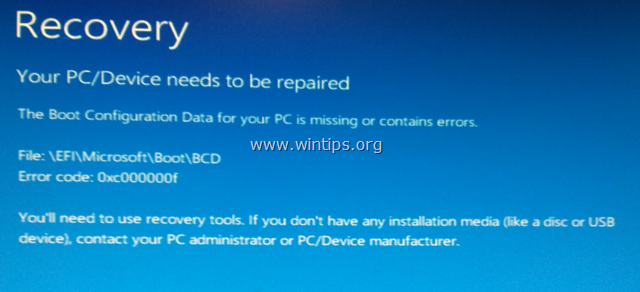
How to fix Boot Configuration Data Missing – BSOD Error 0x000000f on Windows 10 & 8 OS.
In order to resolve the 0x000000f Boot error, you need to start your computer from a Windows installation/recovery media. If you don’t own a Windows Installation Media, then you can create one (corresponding to your Windows Edition and Version) directly from Microsoft.
- How to create a Windows 10 USB boot media.
- How to create a Windows 10 DVD boot media.
Method 1. Fix Boot Configuration Data using BOOTREC tool.
Method 2. Repair Boot Configuration Data using BCDBOOT tool.
Method 1. Fix Boot Configuration Data using BOOTREC tool.
1. Power on your PC and boot from a Windows 10 installation/recovery media.
2. At the Windows Setup screen press SHIFT + F10 to access command prompt, or choose Next –> Repair your computer –> Troubleshoot –> Advanced Options –> Command Prompt.
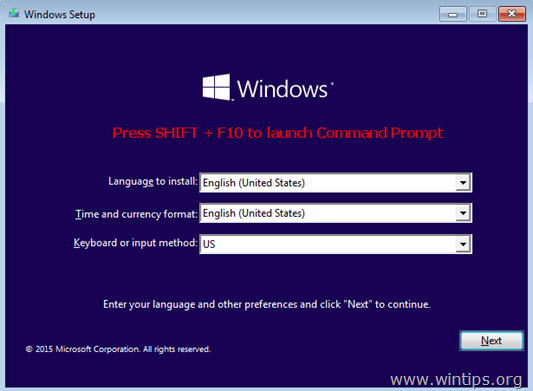
3. In command prompt type the following commands in order:
- bootrec /fixmbr
- bootrec /fixboot
- bootrec /scanos *
* Note: If after executing the «bootrec /scanos» command you receive that «Total identified Windows installations = 0» then give the following commands, before you continue to next step:
-
- bcdedit /export C:bcdbackup
- C:
- cd boot
- attrib bcd -s -h –r
- ren C:bootbcd bcd.old
4. Rebuild Boot Configuration Data:
- bootrec /rebuildbcd
5. Press «A» to Add installation to boot list and press Enter.

6. Close all windows and restart your computer. If Windows still fails to boot, then try Method-2 below.
Method 2. Repair Boot Configuration Data using BCDBOOT tool.
1. Power on your PC and boot from a Windows 10 installation/recovery media.
2. At the Windows Setup screen press SHIFT + F10 to access command prompt, or choose Next –> Repair your computer –> Troubleshoot –> Advanced Options –> Command Prompt.
3. In command prompt type the following commands in order:
- diskpart
- select disk 0
- list partition
4. Note the size in Megabytes of System Partition. *
* e.g. As you can see at the screenshot below, the partition size of System partition is 99 MB.
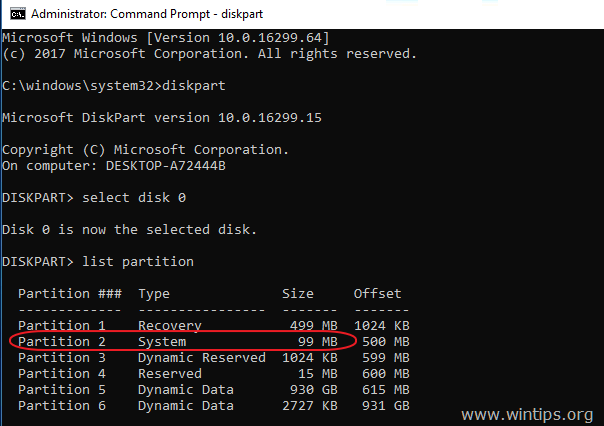
5. Find out the volume number of the system partition * and the drive letter of OS drive,** by typing this command:
- list volume
* At the previous step we found that the system partition is 99 MB. So, from the screenshot below, we understand that the System partition is the «Volume 2».
** The OS Drive, is the drive where the Windows installed. Commonly this is the «Volume 0», the largest volume on the list. At this example the OS drive is located at «C» drive letter.
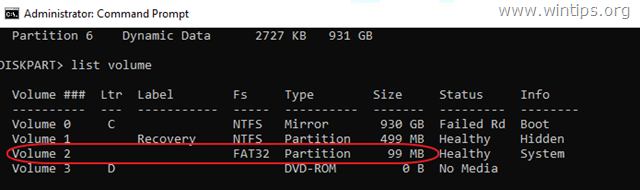
6. Select the System partition and assign a drive letter to it. Then exit DISKPART:
- select volume 2 *
- assign letter=Z
- exit
* Note: Change the Volume number according your case.
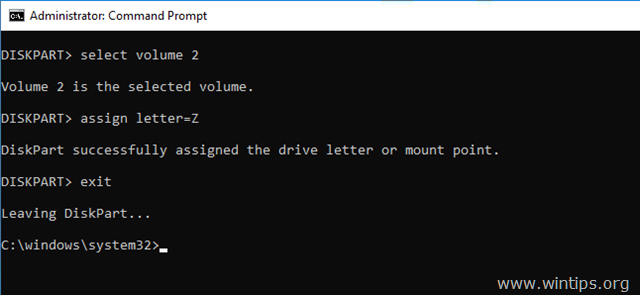
7. Finally, in command prompt give this command:
- bcdboot C:windows /s Z: /f ALL
* Note: Replace the letter «C«, according the drive letter of the OS volume at your case.
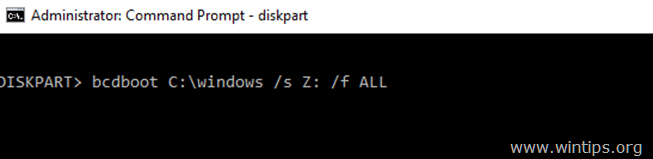
8. Close all windows, remove the Windows Recovery media and try to boot in Windows normally. If Windows doesn’t boot, then follow the same steps, but at the end, type this command:
- bcdboot C:windows /s Z: /f UEFI

9. Close all windows, remove the Recovery media and restart your system
That’s it! Let me know if this guide has helped you by leaving your comment about your experience. Please like and share this guide to help others.
If this article was useful for you, please consider supporting us by making a donation. Even $1 can a make a huge difference for us in our effort to continue to help others while keeping this site free:

If you want to stay constantly protected from malware threats, existing and future ones, we recommend that you install Malwarebytes Anti-Malware PRO by clicking below (we
do earn a commision from sales generated from this link, but at no additional cost to you. We have experience with this software and we recommend it because it is helpful and useful):
Full household PC Protection — Protect up to 3 PCs with NEW Malwarebytes Anti-Malware Premium!
Table of Contents
- Introduction
- Scenario
- What’s Boot Configuration Data?
- Solution
- Run Startup Repair
- Steps
- Rebuild the BCD file via the Bootrec.exe Tool
- What’s the Bootrec Tool?
- Steps
- Run Startup Repair
- Conclusion
- Reference
- See Also
Introduction
In this article, we will be fixing the below issue in Windows Server 2012.
The Boot Configuration Data for your PC is missing or contains errors.

Scenario
We have a Windows Server 2012 Virtual Machine, We have tried to
Extend the Operating System Partition (Active Partition) that extended properly. but unfortunately, after the first restart, we got the below error:
The Boot Configuration Data for your PC is missing or contains errors.
Cause Extending the Operating System Active Partition may damage the BootBCD file.
What’s Boot Configuration Data?
The Boot Configuration Data (BCD) is a firmware-independent database for boot-time configuration data. It is used as new Windows Boot Manager. it replaces the «boot.ini» file that was used in the old Operating System. For more details check Windows
startup process.
Solution
We have two options to solve this issue:
- Run Startup Repair.
- Rebuild the BCD file via the Bootrec.exe tool.
Run Startup Repair
Steps
- Power off the VM.
- From left side, go to VM Settings >Hardware tab > CD/DVD > Browse.
- Locate the Windows Server 2012 R2 media (ISO/DVD).
- Note: It should be the same Windows Version that already installed.

- Set the default boot device to CD/DVD as the following:
- Power on VM > Press F2 to open Bios Setup > Boot Menu > Select CD-ROM Drive and Press + to go up and — to go down.
- Press F10 to save and exit.

- The VM will be rebooted with the default option CD/DVD.
- Press any key to boot from the CD/DVD.
- At the Windows Setup Dialog, set your appropriate settings > click Next.
- Click Repair your Computer > Troubleshoot > Command Prompt.
- Navigate to the recovery folder by typing cd recovery > press Enter.
- Run Startup repair by typing startrep.exe.
- Wait until the repair finished.

Unfortunately, in this case, the startup repair couldn’t repair the issue! so we will try to Rebuild the BCD file via the Bootrec.exe tool.
Rebuild the BCD file via the Bootrec.exe Tool
What’s the Bootrec Tool?
- The Bootrec tool is the ultimate repair tool for boot problems in Windows.
- The Bootrec tool supports the following options.
- /FixMbr
- This option writes MBR to the system partition. It does not overwrite the existing partition table.
- Use this option when you must resolve MBR corruption issues, or when you have to remove the non-standard code from the MBR.
- /FixBoot
- This option writes a new boot sector to the system partition by using a boot sector that’s compatible with Windows.
- Use this option if one of the following conditions is true:
- The boot sector was replaced with a non-standard Windows boot sector.
- The boot sector is damaged.
- /ScanOs
- This option scans all disks for installations that are compatible with Windows.
- It also displays the entries that are currently not in the BCD store.
- Use this option when there are Windows installations that the Boot Manager menu does not list.
- /RebuildBcd
- This option scans all disks for installations that are compatible with Windows.
- Additionally, it lets you select the installations that you want to add to the BCD store.
- Use this option when you must completely rebuild the BCD store.
Read more at Use Bootrec.exe in the Windows RE to troubleshoot startup issues.
- /FixMbr
In our case, we will use /RebuildBcd to rebuild the Bcd file by doing the following:
Steps
- Again, click Repair your Computer > Troubleshoot > Command Prompt.
- Type the below command to rebuild he Bcd file.
- Once the operation completed successfully > close the command prompt.
- Click Continue to Exit and continue to Windows Server 2012.
- The Bcd file should be now rebuilt and the Windows should be working properly.

Conclusion
In this article:
- We have fixed The Boot Configuration Data for your PC is missing or contains errors Issue.
- We also explored
- What’s the Boot Configuration Data File?
- What’s the Bootrec Tool?
Reference
- Windows failed to start: The boot configuration data for your pc is missing or contains errors.
See Also
- Use Bootrec.exe in the Windows RE to troubleshoot startup issues
Back To Top