6 способов решить ошибку «The Application was Unable to Start Correctly (0xc000007b)» при запуске приложения в Windows 10.

Как исправить ошибку «The Application was Unable to Start Correctly (0xc000007b)»:
Существует несколько способов исправить ошибку «The Application was Unable to Start Correctly (0xc000007b)» на вашем компьютере. Вот самые интересные:

Способ 1: Простая перезагрузка компьютера может решить эту проблему.
Способ 2: Другое решение — запустить приложение с правами администратора.
Способ 3: Иногда причиной ошибки может стать Microsoft .NET framework. В таких случаях вам необходимо загрузить последнюю версию .NET с веб-сайта Microsoft. После того как вы установили фреймворк, попробуйте запустить приложение еще раз.
Способ 4: Попробуйте переустановить приложение. Для этого сначала полностью удалите приложение и почистите все файлы, а затем попробуйте снова установить.
Способ 5: Проверьте обновление Windows. Иногда обновление для Windows может устранить проблему с запуском приложения.
Способ 6: Запустить команду chkdsk в Windows. Это проверит диски на наличие ошибок и исправит их. Чтобы запустить эту команду, введите команду cmd в команде запуска из меню «Пуск». В командной строке введите chkdsk c: / f / r.
Одно из этих исправлений должно решить вашу ошибку запуска приложения The Application was Unable to Start Correctly (0xc000007b) в Windows 10.
Спасибо, что читаете! На данный момент большинство моих заметок, статей и подборок выходит в telegram канале «Левашов». Обязательно подписывайтесь, чтобы не пропустить новости мира ИТ, полезные инструкции и нужные сервисы.
Респект за пост! Спасибо за работу!
Хотите больше постов в блоге? Подборок софта и сервисов, а также обзоры на гаджеты? Сейчас, чтобы писать регулярно и радовать вас большими обзорами, мне требуется помощь. Чтобы поддерживать сайт на регулярной основе, вы можете оформить подписку на российском сервисе Boosty. Или воспользоваться ЮMoney (бывшие Яндекс Деньги) для разовой поддержки:
Заранее спасибо! Все собранные средства будут пущены на развитие сайта. Поддержка проекта является подарком владельцу сайта.
The main problem, of course, is that a DLL file is missing, or, even more likely, corrupt. If this is the case, then I have some pretty good ideas (especially if you’ve downloaded and installed a DLL manually!)…
TLDR: Delete every manually copy/pasted DLL you’ve done, uninstall old redistributable installs, and reinstall new redistributables for both 32-bit and 64-bit installs.
What To Do
This solution of copying/pasting missing DLL’s into system32, etc., used to work since I can remember in the 1990’s, but it doesn’t seem to work anymore (2020). So if you run into this problem recently, I suggest:
- Within
windowssystem32andwindowsSysWOW64, delete all files that matchms*.dll, that the operating system will allow you delete as admin. - Uninstall all Visual C++ Redistributables that you have with Windows. This prevents the «You already have this!» dialogue showing up upon reinstall, as detailed in the next step when we re-install.
- Reinstall the 2015-2019 Visual C++ Redistributable from a regularly available download site. If this does not work, download and install the others, but personally, the 2015-2019 covered everything for me. Regardless of your machine, install both x32 and x64 packages! (All Download Links: Collected VC++ Download Links; MSVCR120.dll Fix; MFC140U.dll Fix.)
How You Know It’s Working
There’s a lot of variation in coders experiencing this, so, the idea that there’s one single, possible solution is often discarded, but let’s be positive!
- If deleting the matching
ms*.dllfiles worked, then you will no longer get an error abouterror code 0xc000007b. Instead, you’ll get a message about a missing.dll. This tells you that you’re hitting the right code path! - If installing the redistributable works, then certain popular, DLL files should appear in the above-mentioned
system32andSysWO64folders. For instance:MSVCR120.dll,MSVCR140.dll,MSVCR100.dll,MSVCP100.dll,MSVCP120.dll,MSVCP140.dll, and friends.
Last, Possible Best Chances
Sometimes things don’t work according to plan (as we all in the Windows world know). You can also try the following!
- Open the «Turn Windows Features on or off» tab in Windows (supported in Windows 8-10). Uncheck the
.NET Frameworkinstallations. You’ll see a small installation go by. - Restart the system. Go to the above feature again, recheck
.NET Framework, and click «okay». If this works, you’ll see a «installing and updating .NET framework» message that takes maybe a minute or so to go by. Once this is done, I recommend a reboot again.
Good luck!
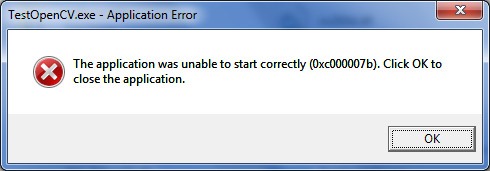
0xc00007b “the application was unable to start correctly”. This error code represents that there is something corrupted within your Windows files or a DLL file from your application files is missing. This error is really common if you are downloading something from an unauthorized source. A lot of Anti-virus engines delete the DLLs and block the application from running if they detect something suspicious.
This error code can also be triggered if you don’t have the correct redistributables installed on your computer. This can be really confusing because if you are trying to run a 32-bit application and you don’t have 32-bit DLLs you will have problems running that application. In that case, you will have to install all the VC runtimes.
In this article, we will show you some solutions that you can try to fix the 0xc00007b error code yourself. We have tried our best to collect the best working methods for you and placed them in a simpler manner. All the Methods starting from simple to advanced.
1. Run The Program As Administrator
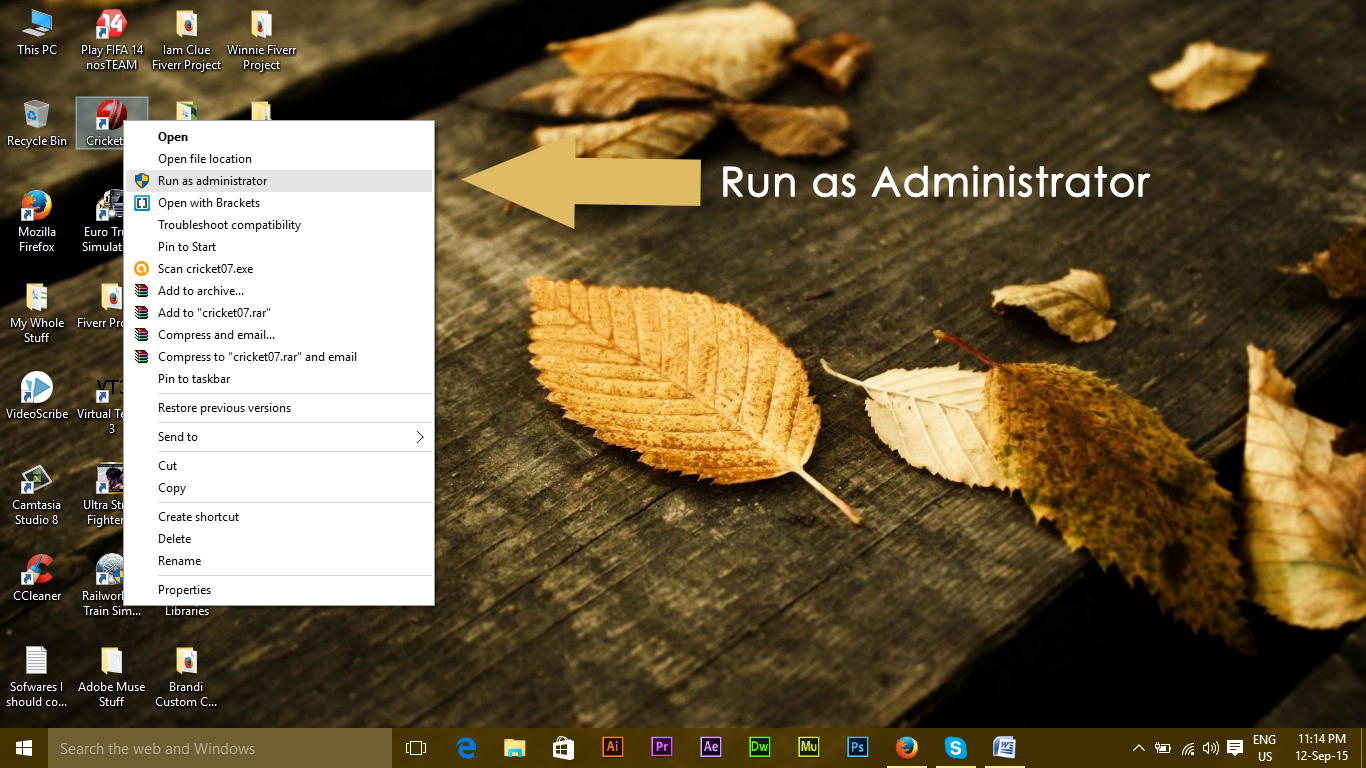
Sometimes, this error comes up due to the non-availability of administrative privileges for the application you are trying to execute. For this purpose, right-click on the application and select Run as administrative from the list. Click Yes when a new window pops up and you will find the application running smoothly.
2. Reinstall your application
Reinstalling the application which is causing the 0xc000007b error can fix up the error at various occasions. During reinstallation, turn off the antivirus program and select the additional softwares provided during the installation because these softwares might be helpful. You can skip the search bars and other offer which are not relevant.
3. Update .NET Framework
.NET Framework can also be the cause of this error message in a number of cases. So, updating the .NET Framework to the latest version might wipe out the error.
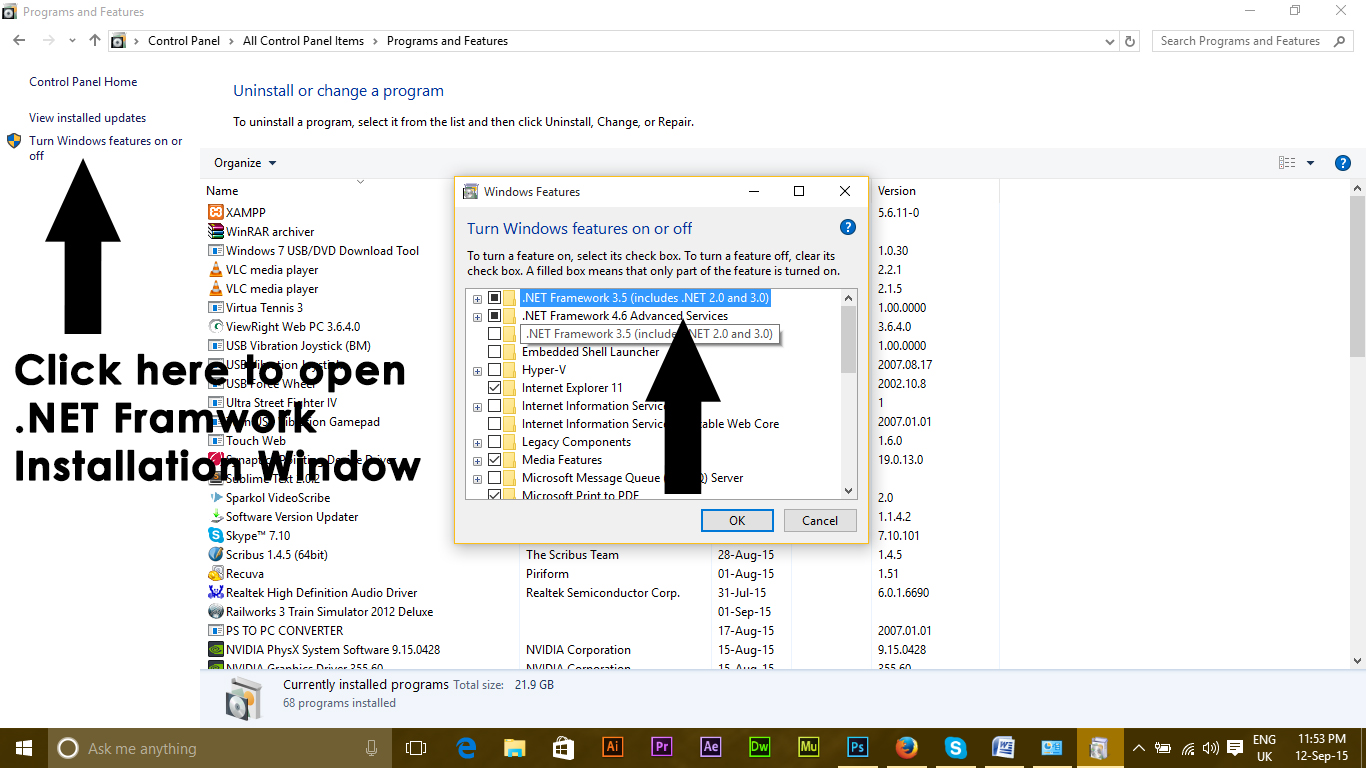
To install .NET Framework, go to Control Panel > Programs and Features and click on Turn Windows features on or off. It will open a new window with a list of Windows features. Click on the .NET Framework 3.5 and press OK. It will start the download and after the installation, your PC would restart with the error fixed up.
4. Update DLL
Updating DLL method of fixing this error is a bit complicated but it can resolve the issue caused by 0xc000007b error for sure. This method includes replacing a file called xinput1_3.dll inside the C drive. This file can be corrupted or overwritten with some other version which results in causing this error. To fix this issue, follow these instructions.
- Download dll xinput1_3.dll from DLLME (Google it)
- Extract these files using a compression tool called Winrar.
- Copy the xinput1_3.dll file from the extracted folder and paste into C: Windows SysWOW64. When prompted for replace, click on Copy and Replace and that’s all.
5. Update DirectX
If none of the methods above works; then updating/re-installing DirectX is our last resort otherwise; the Windows needs to be re-installed. You can update/reinstall DirectX from http://www.microsoft.com/en-us/download/details.aspx?id=35 – Download the setup file and run it; then follow steps on screen to reinstall it. Once done; reboot PC and test.
I would appreciate if you let us know which method has worked if any; and if nothing worked for you so we can improve our guide.
6. Reinstall the affected application
There is a slight chance that you are suffering from this problem because something went wrong during the installation of the affected application and it was not installed successfully. If that’s what happened, your only shot at fixing the problem is reinstalling the affected application, and in order to do so, you need to:
- Navigate to Control Panel > Programs > Programs and Features > Uninstall a program.
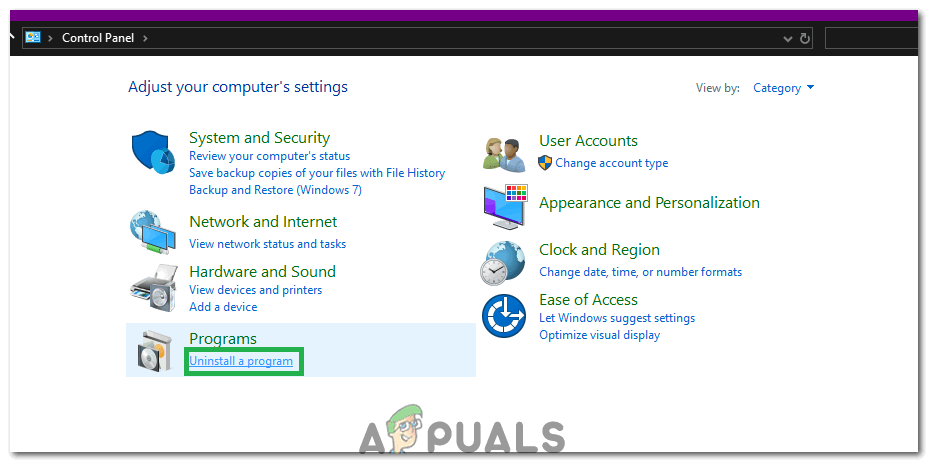
Clicking on the “Uninstall a Program” option - Locate and right-click on the affected application, and click on Uninstall.
- Go through the uninstallation wizard to uninstall the application.
- Once the application has been uninstalled, restart your computer.
- When your computer boots up, reinstall the affected application.
- When the affected application has been successfully reinstalled, try running to check whether or not the problem has been fixed.
7. Uninstall and then reinstall the Microsoft Visual C++ Redistributable
As stated before, this issue is often caused by a problem with Microsoft Visual C++. If an issue with Microsoft Visual C++ is the culprit in your case, simply uninstalling the Microsoft Visual C++ Redistributable installed on your computer and then reinstalling it should get rid of the problem. In order to do so, you need to:
- Navigate to Control Panel > Programs > Programs and Features > Uninstall a program.
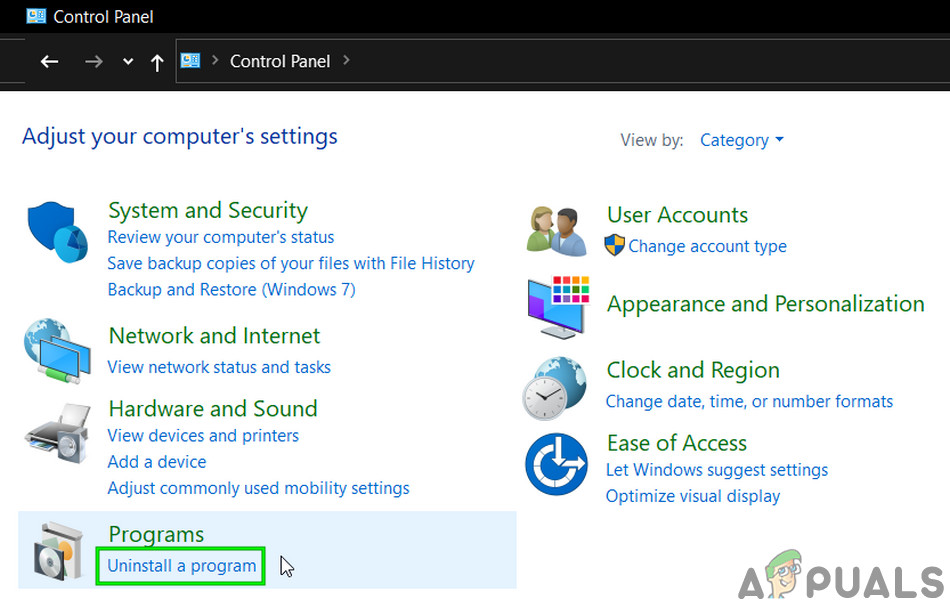
Uninstall a Program - Locate and right-click on the Microsoft Visual C++ Redistributable – x86 (if your computer has a 32-bit Operating System) or the Microsoft Visual C++ Redistributable – x64 (if your computer has a 64-bit Operating System), and click on Uninstall.
- Go through the uninstallation wizard to uninstall the redistributable(s).
- Once the redistributable(s) have been uninstalled, restart your computer.
- Download the installer for the Microsoft Visual C++ Redistributable – x86 from here (if your computer has a 32-bit Operating System) or the installer for the Microsoft Visual C++ Redistributable – x64 from here (if your computer has a 64-bit Operating System).
Note: If you uninstalled both versions of the Redistributable from your computer, download the installers for both of them. - Once the installer has been downloaded, run it and go through it to install either version of the Redistributable. If you had to download the installer for both the Redistributables, run both of them one by one.
When done, restart your computer and, once it boots up, check to see whether or not the issue still persists.
8. Run CHKDSK to scan your computer’s Hard Drive
If none of the solutions listed and described above work for you, you might want to try running CHKDSK to scan your computer’s Hard Drive for problems and fix any that are found since Hard Drive issues can also cause this problem. In order to run CHKDSK, you need to:
- Open the Start Menu.
- Search for “cmd”.
- Right-click on the search result titled cmd and click on Run as an administrator in the context menu to launch an elevated Command Prompt.
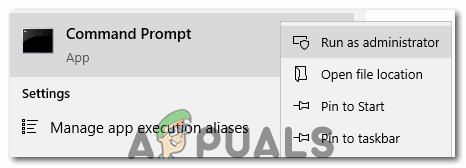
Running Command Prompt as an administrator - Type the following into the elevated Command Prompt and press Enter:
chkdsk /f /r
- You will be asked whether or not you want the scan to be scheduled for the next time the computer restarts. To confirm, type y into the elevated Command Prompt and press Enter.
- Restart the computer.
- When the computer boots up, CHKDSK will automatically start running and scanning your computer’s Hard Drive – all you need to do is be patient and wait the process out.
- Once CHKDSK is done, the computer will boot into Windows. At this point, you can check to see whether or not the issue has been fixed.
9. Update Windows
In some cases, updating Windows to the latest version might fix this issue. Therefore, in this step, we will be checking for updates. For that:
- Press “Windows” + “I” buttons simultaneously to open settings.
- In settings, click on the “Update and Security” options and select “Windows Update” from the left pane.
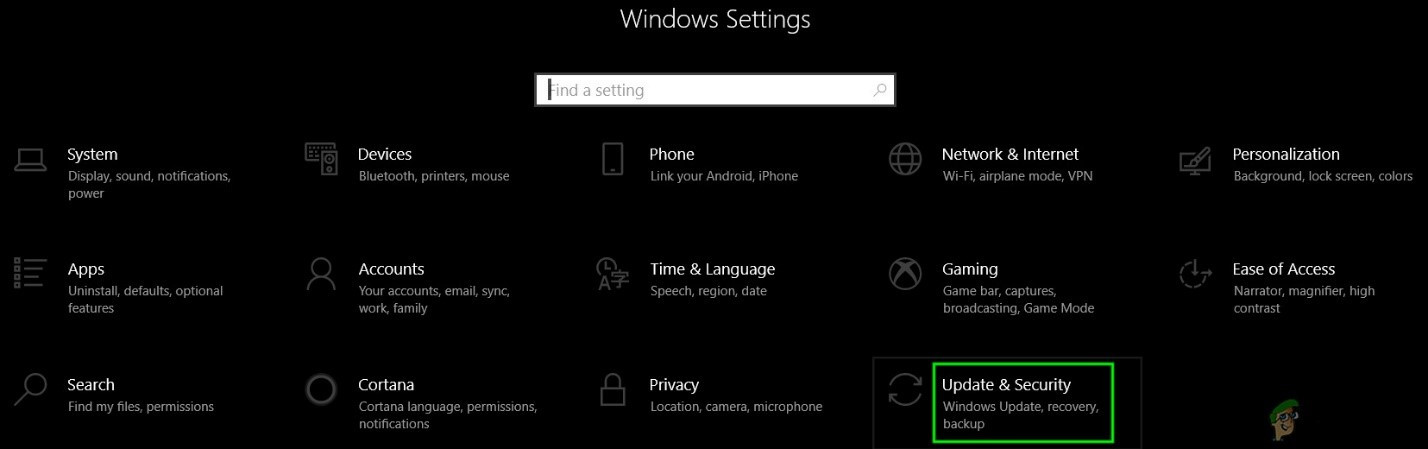
Open Update & Security in Windows Settings - Click on the “Check for Updates” option and let windows check and download any updates.
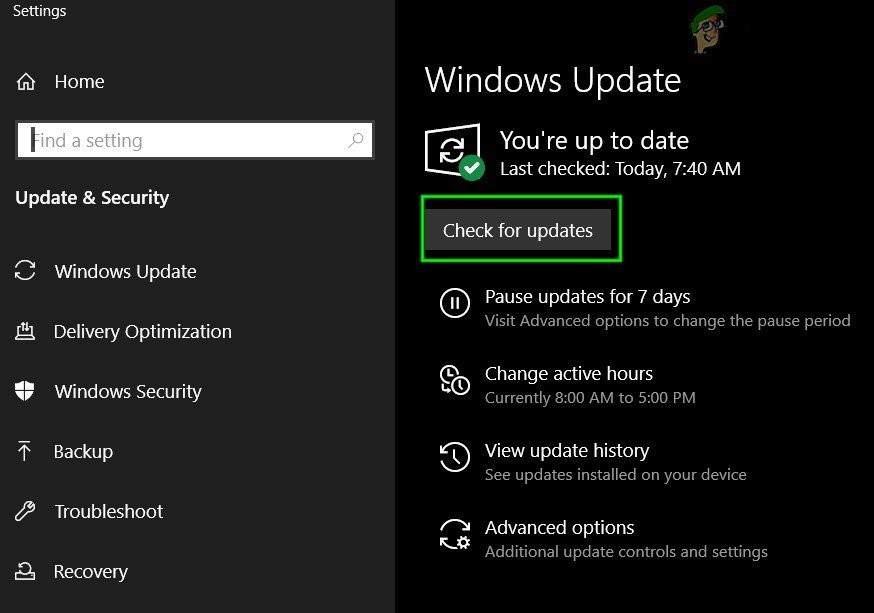
Check For Updates in Windows Update - Once the updates are downloaded, click on the “Install” option to install them on your computer.
- After this, check to see if the issue persists.
10. Running in Compatibility Mode
In some cases, the solution can be as simple as running the application in the compatibility mode for another version of Windows. The need to do so arises from the incompatibility of Windows and some applications. We can do this by following the instructions below.
- Navigate to the location of the application and right-click on its main executable.
- Select “Properties” and then click on the “Compatibility” tab.
- In the compatibility tab, click on the “Run this Program in Compatibility Mode For” dropdown and select “Windows Vista” or any other version of Windows.
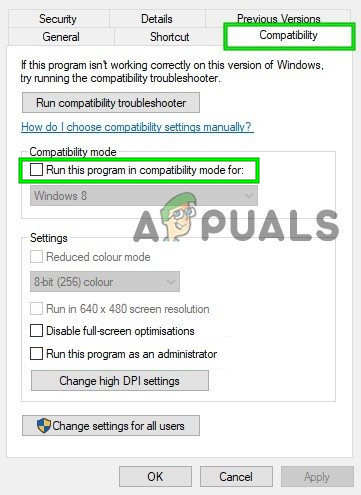
check Run this Program in Compatibility Mode - Click on “Apply” and then on “OK”.
- Check to see if the issue persists.
11: Installing “.dll” file (Only for VLC)
There seems to be a very specific solution for some users where they have been able to fix this issue by downloading and placing the “.dll” file in their System 32 folder. But this solution needs to implied with a lot of caution because System 32 is a very sensitive folder and it contains the bulk of the Windows essentials. Therefore, perform this at your own risk since “.dll” files from the internet can often be infected. In order to proceed:
- Download the “libvlc.dll“ file from the internet.
- Navigate to the download location of the file and copy it using “Ctrl” + “C” after selecting it.
- Navigate to the following location.
C:WindowsSystem32
- Press “Ctrl” + “V” in here to paste this file inside the folder.
- Allow any UAC prompts to confirm the action and check to see if the issue persists.
Note: Also, try to delete the shortcut that you are using to launch the application and create a new one.
12. Properly Reinstalling Windows VC Runtimes
This issue is also caused when your VC Runtimes are not properly installed or they have been corrupted. You can follow these steps to completely remove them from your computer and then reinstall every single one of them.
Uninstalling all runtimes:-
- Press and hold the Windows key then press the “R” key to open the Run program.
- Once the run program is opened type “Appwiz.cpl” and press enter.
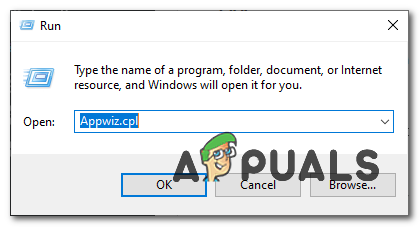
Opening Windows Uninstaller - Now find all the VC++ Redists and uninstall them one by one.
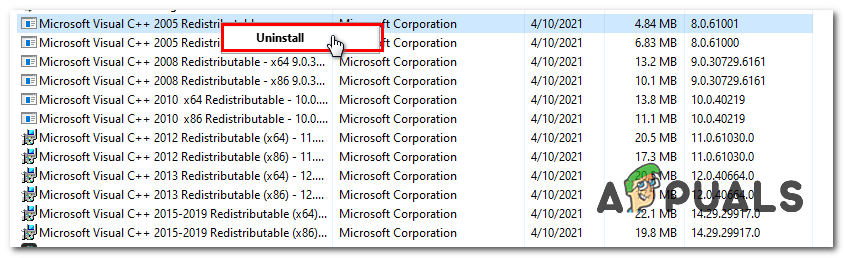
Uninstall all the VC runtimes
Clean-up of Windows components:-
Once you uninstall all the VC Runtimes use this command to clean up your WinSxS Component store.
- Press and hold the Windows key then press the “X” key to open the Start Menu.
- Now click “PowerShell (Admin)” or “Command Prompt (Admin)”
- Type this command in the Command Prompt and press enter.
Dism.exe /online /Cleanup-Image /StartComponentCleanup
Wait for the process to finish and after that restart your computer.
Reinstalling VC Runtimes:-
- After restarting your computer head over to this link (here) and download the file.
- Once the file is downloaded you will have to unzip the file.
- After unzipping the file you will have the Installers.
- Right-click on the file named “install_all.bat” and click “Run as administrator”.
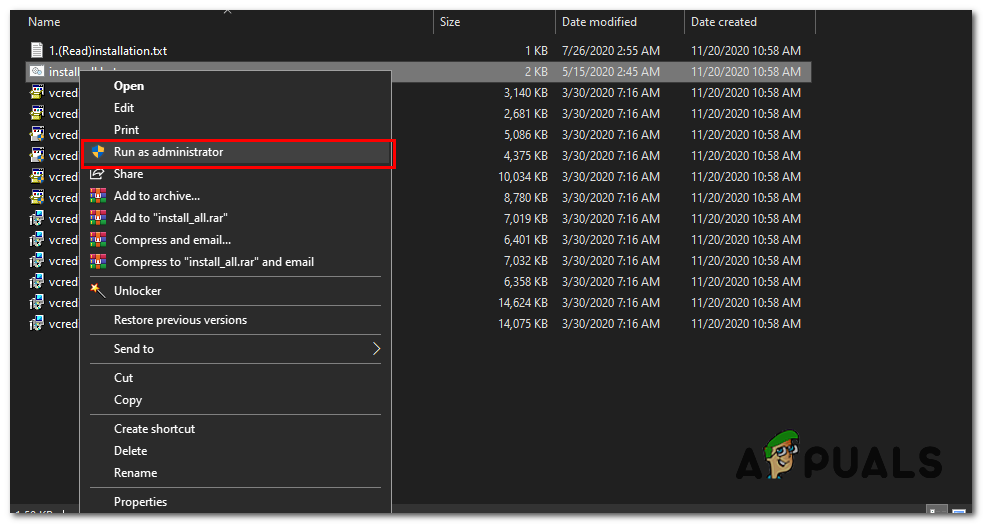
Installing all the VC Runtimes - Now, wait for all the VC Runtimes to install (this process is automated).
- Restart your computer and check to see if the issue persists.
If none of the methods shown above have helped you at all. Performing a Clean Install of your Windows will be the last resort for you. Though we suggest you try performing a repair install first but if that doesn’t work for you download the fresh ISO from the official website and perform a clean install.
14 апреля 2015 года компания Microsoft выпустила несколько обновлений безопасности. Как уже бывало ранее, некоторые пиратские копии операционной системы (ОС) после установки обновлений перестают загружаться, т.к. возникает ошибка:
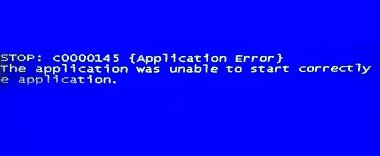
STOP: c0000145 {Application Error}
The application was unable to start correctly (0xc000000d)
Проблемное обновление, как выяснилось, вышло под номером KB3045999.
Признаки неисправности
Синий экран смерти или BSOD (Blue Screen of Death) может и не появиться, компьютер просто может уходить в перезагрузку. Загрузка в безопасном режиме никакого результата тоже может не приносить.
В этом случае во время загрузки ОС нужно удерживать клавишу F8 для возможности выбора вариантов загрузки. В отобразившемся меню при загрузке ОС нужно отключить автоматическую перезагрузку ОС при возникновении критической ошибки.
После загрузки системы и «падения» с синим экраном, нужно убедиться, что компьютер «стопорится» именно с ошибкой c0000145.
Способ исправления ошибки c0000145 номер раз
Необходимо перезагрузить компьютер и вызвать запуск системы автоматического восстановления Windows. Далее, следуя подсказкам системы, можно попробовать восстановить загрузку системы в автоматическом режиме. Или же можно сделать откат системы на дату до установки указанного выше обновления.
Способ исправления ошибки c0000145 номер два
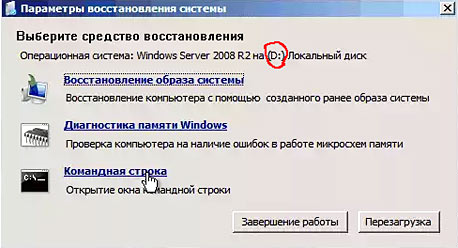
Если первый способ не помог, придется удалить обновление KB3045999 вручную. Для этого сначала нужно получить доступ к командной строке. Это можно сделать или загрузившись с установочного диска или флешки. Или же запустить встроенные средства восстановления системы прямо в Windows. Для этого во время загрузки компьютера необходимо нажать клавишу F8 и выбрать в меню пункт «Устранение неполадок компьютера«.
Первый вариант: После загрузки средств устранения неполадок компьютера можно попробовать выбрать загрузку с откатом на одну из последних точек восстановления.
Второй вариант: Выбираем в меню пункт «Командная строка» и вводим поочередно команды:
1. Вводим
DISM /Image:D: /Get-Packages
где D – буква диска, на котором установлена система (букву можно посмотреть прямо в окне отображения режимов восстановления).
2. В списке установленных обновлений находим упоминание о пакете исправлений KB3045999:
Package_for_KB3045999~31bf3856ad364e35~amd64~~6.1.1.1
3. Удаляем обновление следующим образом:
dism /image:D: /remove-package /PackageName:Package_for_KB3045999~31bf3856ad364e35~amd64~~6.1.1.1
Дальше ждём полного удаления обновления и выходим по команде:
exit
Все, можно перезагружаться. Из системы удалено обновление KB3045999.
Описанный выше способ можно применить для удаления обновлений KB2882822, KB2859537, KB2872339 которые приводят к ошибке 0xc0000005.
К ошибке BSOD c0000145 могут приводить обновления:
- KB971033;
- KB285933;
- КВ2852339;
- КВ2859537;
- KB2872339;
- KB2882822;
- KB2952664;
- KB2990214;
- KB3004394;
- KB3021917;
- KB3022345;
- KB3035583;
- KB3042553;
- KB3045999;
- KB3050265;
- KB3068708;
- КВ3060716;
- КВ3071756;
- KB3075249;
- КВ3080149;
- КВ3081195;
- КВ3088195;
- КВ3101746;
- KB3104002;
- KB3108381;
- KB3121212;
- KB3126587;
- KB3126593;
- KB3140410;
- KB3146706;
- KB3147071;
- KB3153171;
- KB3161608;
- KB3172605;
- KB3177467 * (см. комментарии);
- KB4012212.
Список актуален на сентябрь 2017 года.
Справка: Материалы данной статьи носят информационно-просветительский характер и не являются призывом или инструкцией к действию. Внесение любых модификаций пользователи делают по собственной инициативе и на свой страх и риск.
Содержание
- 1 Устранение ошибки 0xc000007b в Windows 10
- 2 Ошибка 0xc000007b x64 Windows 10 и как ее исправить
- 3 Paladins ошибка 0xc000007b на Windows 10
- 4 Как исправить ошибку 0xc000007b в Windows 10
Определенные программы при их запуске на Windows 10 могут вызывать ошибку 0xc000007b. Данная проблема вызывается разными причинами, соответственно, решений будет тоже несколько. Давайте разберемся, что могло стать источником возникновения неполадки.
Устранение ошибки 0xc000007b в Windows 10
Сразу же стоит оговориться, что перечисленные ниже варианты помогают не во всех случаях. Причиной этому становятся специфические проблемы некоторых сборок или действий пользователя, которые нельзя предугадать. Поэтому мы рассмотрим основные эффективные методы устранения ошибки, которые окажутся действенными в большинстве ситуаций.
Вы всегда (ну или почти всегда) можете обратиться к разработчику конкретного ПО. Иногда ошибка кроется вообще не в Windows, а в том, как написана программа: она может установиться, но при этом быть несовместима с Windows 10, а может перестать работать после своего обновления. Используйте обратную связь и расскажите создателю о проблеме, указав всю необходимую информацию (версию и разрядность ОС, пакет обновлений (1803, 1809 и т.д., версию проблемной программы).
Способ 1: Запуск программы с правами администратора
Некоторое ПО может требовать права администратора для запуска. Если вы только установили программу и при первой попытке запуска она выдала ошибку 0xc000007b вместо того, чтобы открыться, предоставьте ей повышенные права. Одноразовый эффект будет, если нажать по ярлыку (или самому EXE-файлу, это не имеет значения) ПКМ и выбрать пункт «Запуск от имени администратора».
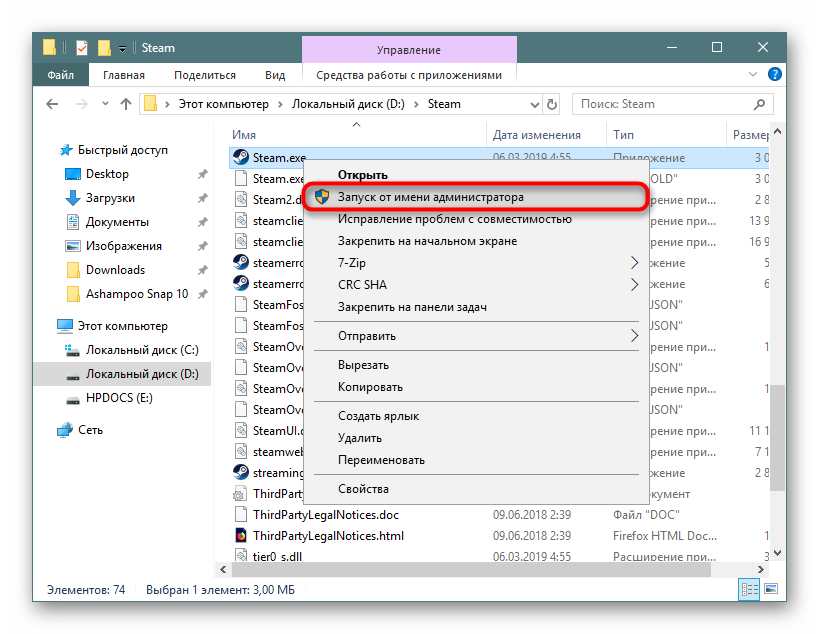
При успешном запуске предоставьте ей полномочия администратора на постоянной основе, чтобы не запускать ярлык таким образом каждый раз. Для этого кликните по нему ПКМ и выберите «Свойства».
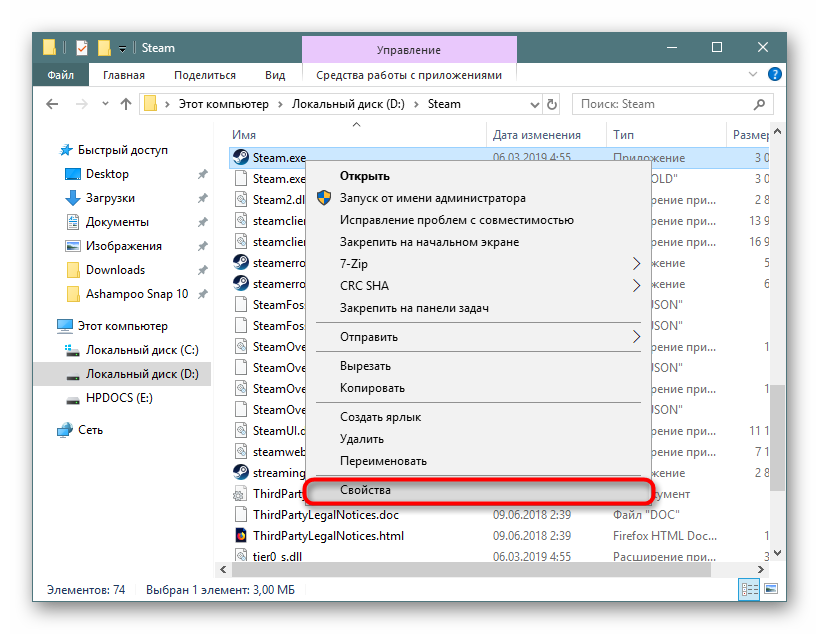
Перейдите на вкладку «Совместимость» и поставьте галочку рядом с пунктом «Запускать эту программу от имени администратора».
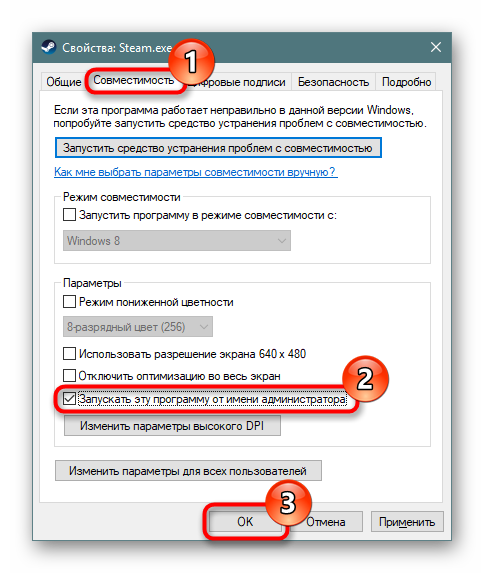
После этого проверьте работоспособность ПО.
Убедитесь, что сама учетная запись также носит статус «Администратор», а не «Стандартная».
Читайте также: Управление правами учетной записи в Windows 10
Способ 2: Решение проблем с запуском конкретной программы
Есть несколько других вариантов того, почему определенный софт отказывается открываться. Пойдем по порядку.
Добавление в исключения антивируса
Нечасто ошибка возникает только для одной программы, виновником чего становится антивирус. Просканируйте папку с проблемной игрой или приложением, используя выборочную проверку в настройках защитного ПО. Если опасные файлы не были выявлены, добавьте всю папку в исключения (также называется «белый список») антивируса.
Подробнее: Добавление программы в исключения антивируса
Рекомендуем проверить антивирусом весь компьютер, вредоносное ПО может находиться в других местах и влиять на запуск нескольких программ, о которых вы не в курсе.
Отключение антивируса на время
Противоположный вариант, который в целом не очень рекомендуется — временное отключение антивируса на момент запуска проблемной программы.
Читайте также: Отключение антивируса
Переустановка программы
Когда не запускается только одна программа (часто это какая-то игра из Steam), проще всего будет попытаться ее переустановить. При необходимости перед деинсталляцией сохраните папку с пользовательским профилем (или с сохранениями, если эта игра) в другое место. Точных инструкций здесь дать невозможно, поскольку каждое приложение удаляется по-своему, а данные юзера, если такие имеются, сохраняются в разных местах (обычно это папка AppData, но не всегда).
Удаление конфликтной программы
Учитывайте также, что если вы установили 2 похожие программы, которые в теории могут конфликтовать между собой, причина появления ошибки будет вполне обоснована. Отключите или удалите одну из последних программ, которая, по вашему мнению, привела к конфликту, и проверьте, открывается ли та, что не запускалась.
Удаление DLL-файла
Некоторые игры отображают вместо запуска ошибку 0xc000007b, исправить которую можно, заставив их создать новый DLL-файл. Речь идет о компоненте Runtime Library — «msvcp110.dll».
- Зайдите в папку
C:WindowsSysWOW64и найдите там «msvcp110.dll». - Переместите его, например, на рабочий стол.
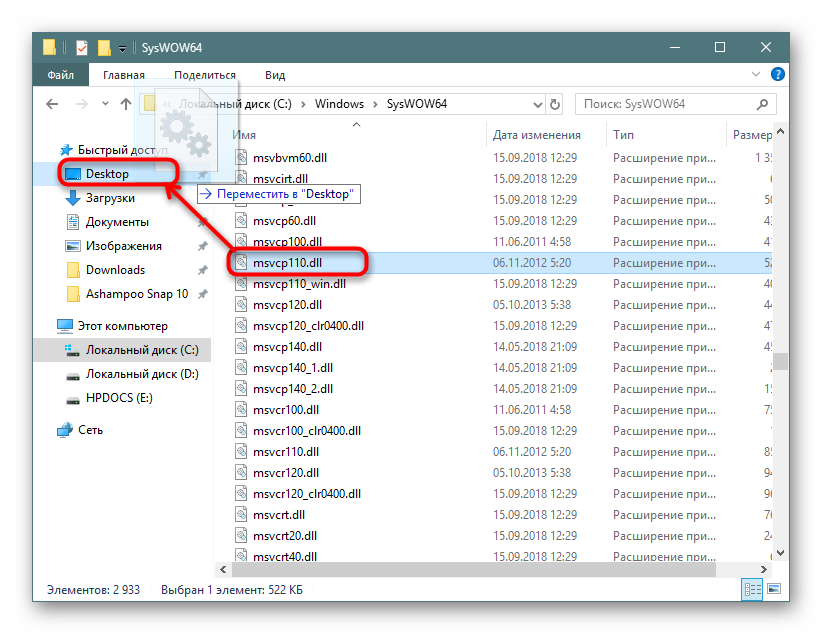
Запустите проблемное приложение, заставив тем самым его создать недостающий DLL заново. Если вдруг вы получите новую ошибку о том, что msvcp110.dll не найден, верните файл на место и переходите к другим способам.</li></ol>
Использование лицензионной версии программы
Ошибке 0xc000007b и ей аналогичным часто подвержены пиратские версии софта. Они часто работают «криво», и виной тому подмена, удаление лишнего и прочие манипуляции с файлами. Если вы хотите пользоваться каким-то ПО, лучшим способом будет честно его приобрести. К слову, то же самое касается самой Windows и разных ее любительских сборок.
Способ 3: Установка и переустановка DirectX
Вместе с Windows 10 пришло обновление компонента DirectX до 12 версии. Пользователи, с компьютерами, не поддерживающими эту версию, остаются на совместимой 11 версии.
ДиректИкс пользуются не только игры, но и определенные программы. В Windows 10 у него могут отсутствовать некоторые файлы от своих предшественников (обычно касается DirectX 9), и именно это нередко становится проблемой при запуске приложений. Кроме того, файлы даже 12 (или 11) версии в ходе обновления или других ситуаций могут оказаться поврежденными, утратив свою работоспособность. Выход здесь простой — пользователю необходимо вручную установить более старый либо обновить свежий DirectX.
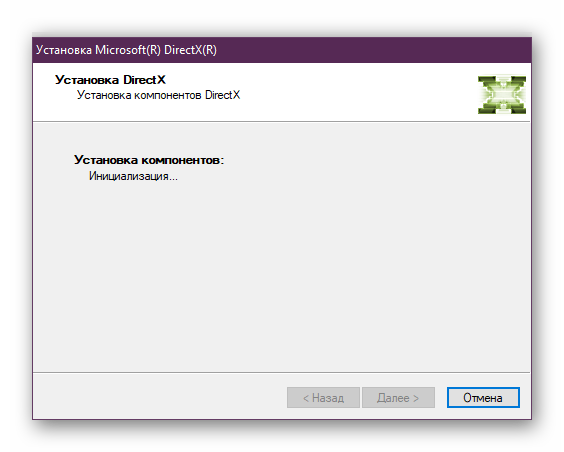
Мы предлагаем ознакомиться со статьей, в которой рассказывается о переустановке DirectX и о добавлении в систему старых версий, выпущенных с 2005 по 2010 год.
Подробнее: Установка и переустановка компонентов DirectX в Windows 10
Не всегда установка заканчивается успешно, и если это ваш случай — прочитайте следующий материал.
Подробнее: Внутренняя системная ошибка при установке DirectX
Способ 4: Обновление/откат драйвера видеокарты
Проблема касается владельцев видеокарт NVIDIA — чаще всего именно у них появляется рассматриваемая ошибка, причем она может быть как из-за устаревания версии драйвера, так и после его обновления. В зависимости от предшествовавшего действия (или бездействия) пользователя ситуация будет решаться обновлением либо, наоборот, откатом. Ниже вы найдете 2 ссылки, из которых выберите ту, что соответствует вашему случаю.
Подробнее:Обновляем драйвера видеокарты NVIDIAКак откатить драйвер видеокарты NVIDIA
Радикальным, но полезным методом будет переустановка ПО для графической карты.
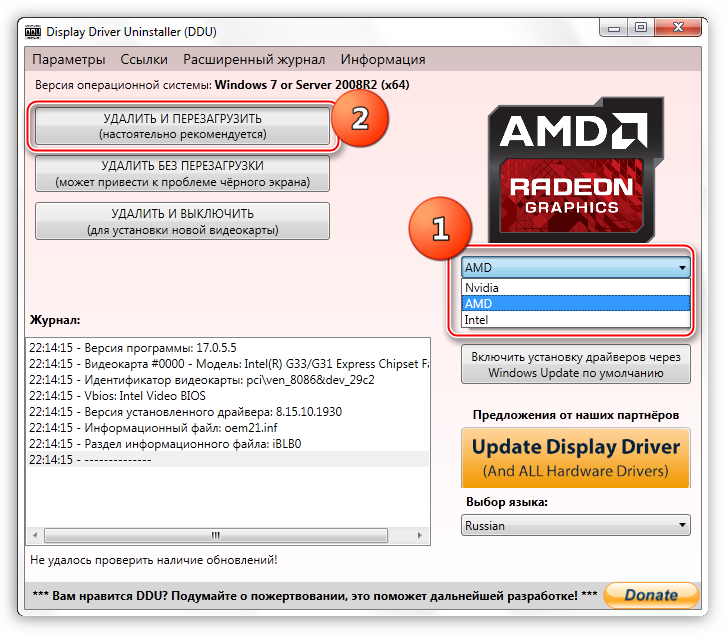
Подробнее: Переустанавливаем драйвера видеокарты
При возникновении трудностей с инсталляцией обратитесь к этим статьям:
Читайте также:Разбор ошибок при установке драйверов NVIDIAВарианты решения проблем при установке драйвера NVIDIA
Способ 5: Проверка целостности системных файлов
В операционной системе есть собственное хранилище системных файлов, которое используется для восстановления поврежденных данных. Его можно использовать как в Виндовс, так и в среде восстановления, когда полноценный запуск ОС недоступен.
Ошибка 0xc000007b при повреждении какого-либо системного файла (например, одного из носящих расширение SYS) иногда приводит к тому, что загрузиться в Windows 10 не удается, вместо этого пользователь наблюдает голубое окно с неустранимой ошибкой. Используя загрузочную флешку, можно прибегнуть к одному или двум инструментам восстановления системных файлов. Если же сама «винда» работает нормально, работать с данными компонентами будет еще проще. Подробно обе процедуры расписаны в статье по ссылке ниже.
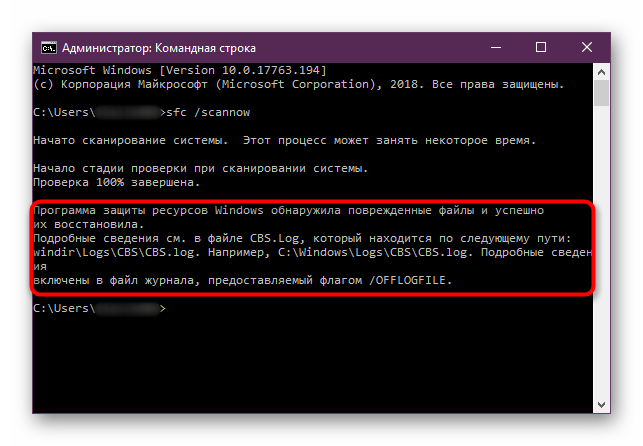
Подробнее: Использование и восстановление проверки целостности системных файлов в Windows 10
Способ 6: Установка Microsoft Visual C++
Майкрософт распространяет набор компонентов и плагинов, необходимых для запуска многих приложений и игр. Эти пакеты называются Microsoft Visual C++ Redistributable и у них есть несколько версий, необходимых для установки, так как сами программы, в зависимости от их даты создания, могут потребовать любую из них.
- Первым делом просмотрите, установлены ли у вас эти пакеты. Нажмите ПКМ по «Пуск» и перейдите в «Параметры».
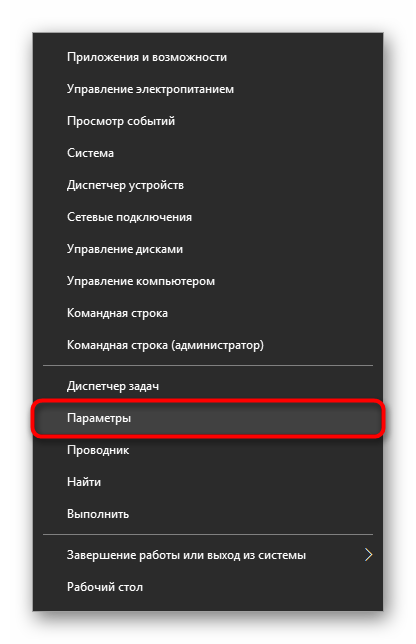
Из списка разделов выберите «Приложения».</li>
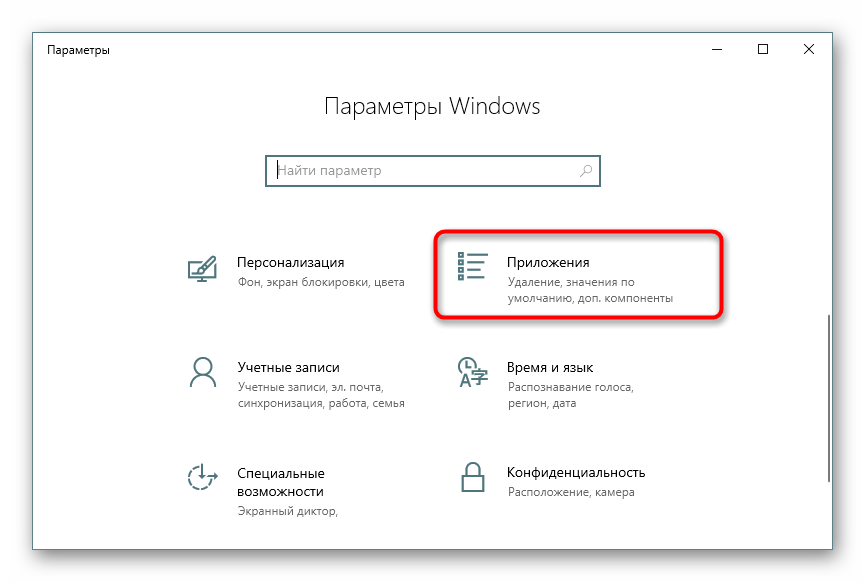
В перечне установленного ПО отыщите «Microsoft Visual C++ Redistributable». Важно знать, что один пакет — одна разрядность и один год. Так, в идеале должны быть установлены версии, начиная с 2005 и заканчивая 2017 (либо 2015). Владельцам 64-разрядных систем дополнительно нужны и 32-разрядные файлы (x86).</li>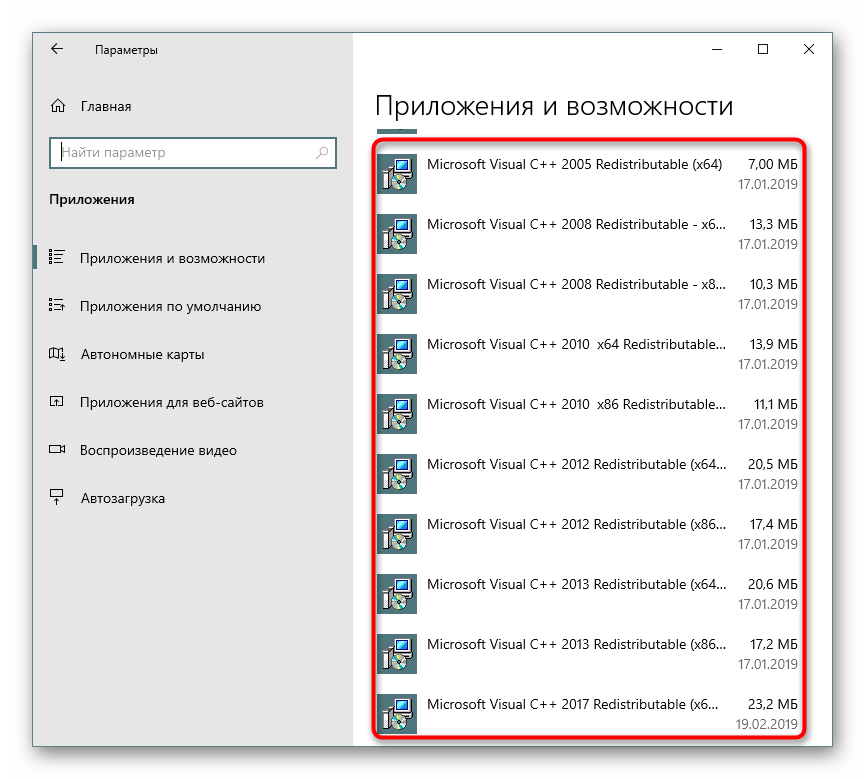 </ol>
</ol>
При отсутствии каких-либо версий скачайте их с официального сайта. В следующей статье вы найдете информацию о Microsoft Visual C++ Redistributable, а в конце — ссылки для скачивания отсутствующих пакетов с официального сайта Microsoft.
Для многих версий Microsoft Visual C++ вышли обновления (Service Pack или Update), поэтому даже при наличии базовых пакетов этих версий на компьютере рекомендуется их улучшить, установив исправления. Ссылки на последние редакции вы найдете ниже.
Устанавливается это программное обеспечение как и любое другое.
Способ 7: Установка/обновление Java
Отсутствие новой версии Java или этого ПО в принципе так же провоцирует появление ошибки 0xc000007b. Джава необходима определенным играм и приложениям, разработанным с использованием этой технологии. Проверить ее наличие в списке установленных программ можно так же, как проверяли наличие Microsoft Visual C++. Однако даже если она есть, часто требуется обновить ее вручную до последней версии.
Помните, что часто уведомления о необходимости обновления приходят на ПК автоматически, а иконка Java, готового для обновления, висит в трее. Если вы этого не наблюдаете долгое время, возможно, файлы Джава повреждены.
Способ 8: Включение Microsoft .NET Framework
Еще один набор системных файлов, представляющих собой платформу для работы с программами, написанными с использованием технологии .NET. Несмотря на то, что в Windows 10 этот пакет идет по умолчанию и обновляется вместе с ОС, Microsoft .NET Framework 3.5, включающий в себя 2.0 и 3.0 по умолчанию отключен в системе. Из-за этого старые программы, которые при установке себя не инсталлируют нужный для своей работы фреймворк, отказываются запускаться, в том числе и с рассматриваемой сегодня ошибкой. Пользователь и сам мог случайно выключить поддержку последней версии компонента. Итак, давайте рассмотрим, как включить это ПО.
- Откройте «Пуск» напишите «Панель управления» и откройте ее.
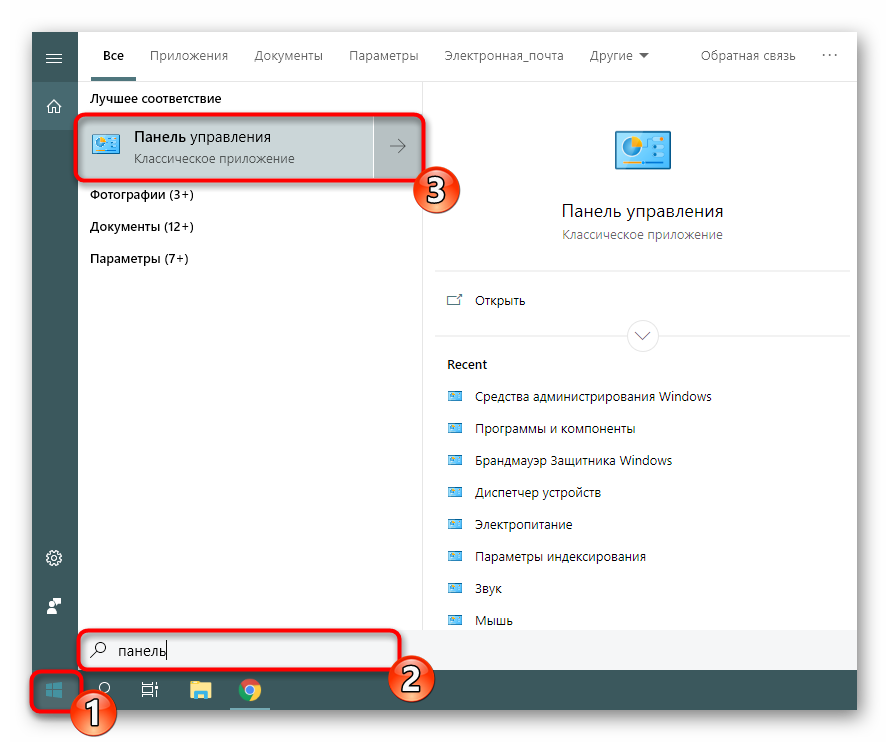
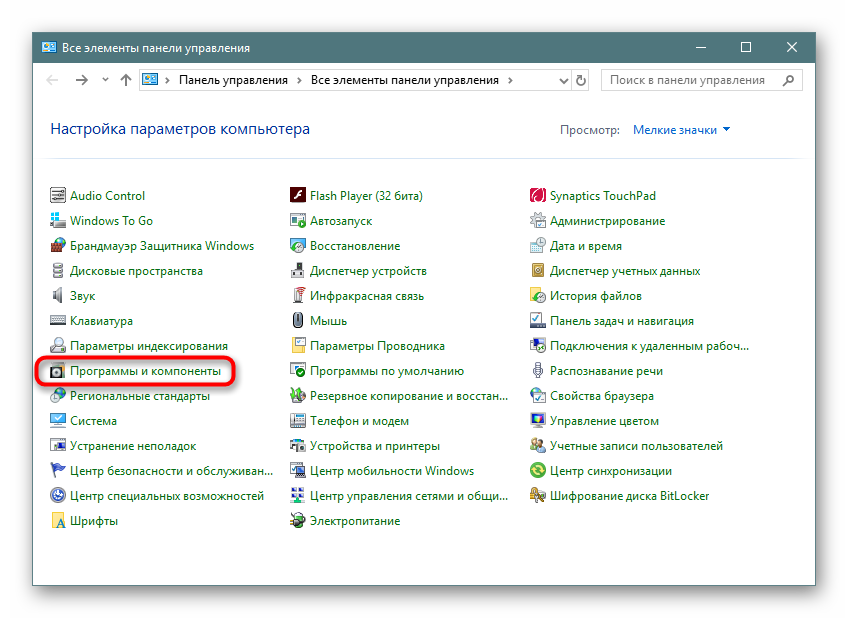
Из списка элементов выберите «Программы и компоненты».</li>
На панели слева кликните по «Включение и отключение компонентов Windows».</li>
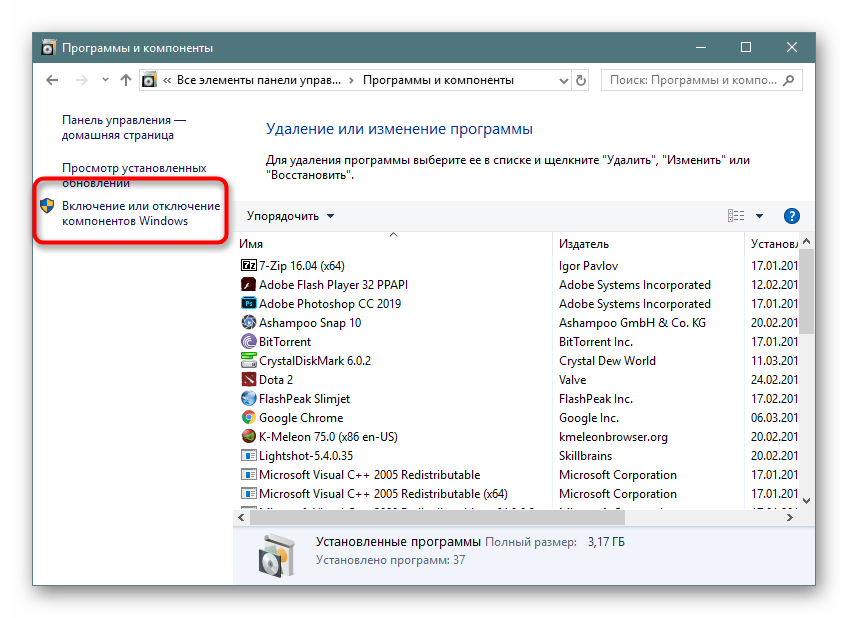
Из списка доступных компонентов найдите либо «.NET Framework 3.5» и включите его, либо то же самое сделайте с «.NET Framework 4.7» (в будущем эта версия может быть другой). В результате оба компонента должны быть помечены черным квадратом. Сохранитесь на «ОК».</li>
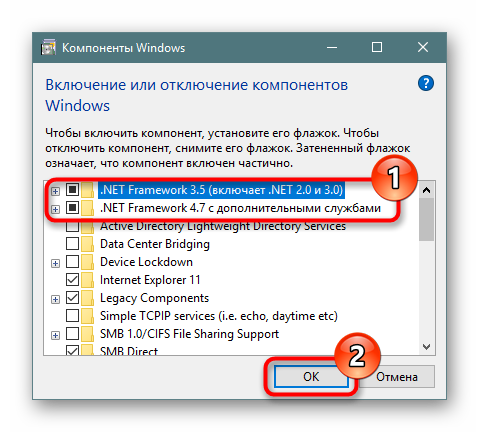
Вероятно, также понадобится задействовать внутренние компоненты фреймворка. Для этого разверните их, щелкнув по плюсику и отметив галочками дополнительные элементы.
Черные квадратики, означающие частичную активацию компонента, сменятся на галочки. Однако заметьте, что без знаний того, что вы включаете, этого лучше не делать.
</li></ol>
Способ 9: Восстановление Windows
Конфликт софта, повреждение реестра и другие неправильные действия со стороны юзера могут повлечь за собой появление ошибки 0xc000007b. В зависимости от доступных вариантов, настроенных в вашей Виндовс, восстановление может быть разным. Проще всего использовать откат до созданной ранее точки восстановления, однако если таких нет, вынужденно понадобится заняться переустановкой.
Подробнее: Откат к точке восстановления в Windows 10
Способ 10: Переустановка Windows
Когда инструмент создания точек восстановления отключен вовсе или оказался бесполезен, придется приводить Windows к заводским настройкам. Если и это оказалось безуспешным, остается лишь радикальный вариант — чистая установка операционной системы. Развернуто о разных вариантах восстановления и переустановки «десятки» читайте в статье по ссылке ниже.
Подробнее: Переустанавливаем Windows 10 с сохранением лицензии
Обращаем ваше внимание, что не только пиратский софт бывает некорректно собран их авторами. Это касается и самой операционной системы, из которой горе-сборщики любят вырезать все, что им хочется, и добавлять всякие улучшения на свой вкус. Это вполне может приводить к нестабильности ее работы и некорректном взаимодействии с программами. Поэтому если вы пользуетесь одной из таких сборок, ищите проблему конкретно в ней — вероятно, именно неумелая пересборка будет ответом на вопрос, почему появляется ошибка 0xc000007b. Скачайте чистую версию Windows 10 с официального сайта, установите ее и проверьте, как работает нужная программа или игра.
Мы рассмотрели доступные способы устранения ошибки 0xc000007b. В редких случаях юзерам не помогает ничего, даже чистая грамотная установка Win 10. Здесь остается только пробовать другую Виндовс (8 или 7) либо смотреть в сторону аппаратной диагностики комплектующих. Мы рады, что смогли помочь Вам в решении проблемы.Опишите, что у вас не получилось. Наши специалисты постараются ответить максимально быстро.
Помогла ли вам эта статья?
ГлавнаяОшибки WindowsКак решить ошибку 0xc000007b в Windows 10: пошаговое руководство
Зачастую пользователи Windows 10 при запуске системы сталкиваются с возникновением ошибки под кодом 0xc000007b. Она появляется в случае, если произошло повреждение системных файлов. Причинами этого может быть некорректная перезагрузка или выключение компьютера с сети, прерванная установка ОС или обновлений, работа вирусов и вредоносного ПО, а также удаление программа сразу из папки.
К тому же, если данный сбой происходит при запуске игры, то скорей всего отсутствует DirectX, Net Framework или Visual C++, а также возникли неполадки с драйверами видеокарты (в основном – Nvidia).
Ошибка 0xc000007b при запуске игры и приложения Windows 10
Если данная ошибка возникла при запуске приложения, то причина ее появления кроется в DLL файлах ОС. В большинстве случаев это происходит после обновления Windows 10 при запуске много раз используемой программы или игры, созданных на языке C++ (для них необходимо использование корректных библиотек).
Также ошибка может проявляться при запуске новых приложений, выпущенных после 2012 года. В частности, к ним относятся Grand Theft Auto V GTA 5, Fallout, NFS Most Wanted, X-com, Watch Dogs, Civilization 5, Far Cry 4, Dying light.
Исправление:
- Запустить Командную строку от имени Администратора.
- Ввести в строку команду sfc /scannow.
- Дождаться завершения сканирования утилитой ОС и исправить ошибки по предложенному способу.
- Провести перезагрузку ПК.
Также данную ошибку можно решить, произведя откат ОС до более ранней версии и запустить восстановление системы.
Ошибка 0xc000007b x64 Windows 10 и как ее исправить
Перед устранением ошибки под кодом 0xc000007b, рекомендуется обязательно создать точку восстановления системы, с помощью которой в случае непредвиденной ситуации можно вернуть систему в исходное положение.
Далее исправляем ошибку с помощью программы Dependecy Walker, которая сканирует игру или приложение:
- Скачать нужную версию программы под разрядность x64 ОС.
- Распаковать и произвести запуск.
- Чтобы видеть полные пути к файлам, нужно нажимать F
- Для открытия файла приложения (игры) нужно выбрать FileOpen… Далее – переход в папку с игрой, которая не работает и выбор запускаемого файла (при появлении окна с ошибкой его нужно просто закрыть).
- В открывшемся окне будут показаны Модулями все используемые игрой библиотеки при запуске. Нужно выбрать CPU.
- Необходимо скопировать имя dll файла, скачать в интернете x64-разрядную версию и скопировать ее в папку с приложением по тому самому пути, прописанному в Dependecy Walker.
После этого ошибка 0xc000007b исчезнет.
Paladins ошибка 0xc000007b на Windows 10
Чтобы устранить ошибку 0xc000007b в популярном многопользовательском шутере Paladins, требуется выполнить следующие действия:
- Вход в Виндовс 10 от имени Администратора.
- Запуск «Панель управления» — «Система и безопасность» — «Администрирование».
- В новом окне требуется открытие «Локальная политика безопасности», где выбрать «Параметры безопасности».
- Нажатие правой клавишей мыши на «Учетные записи: Состояние учетной записи Администраторы».
- Далее — «Включен» и «Ок».
- Закрытие «Политики локальной безопасности».
- Переход в «Панель управления» — «Учетные записи пользователей».
- Присвоение «Администратор» своей учетной записи и запуск игры из-под нее.
Данная ошибка не должна больше появляться.
Эти способы решения ошибки 0xc000007b в Windows 10 приемлемы и к удалению проблем при офисе 2013 и при игре GTA 5. Не стоит сразу обращаться за помощью в сервисный центр, данные неполадки можно решить вполне самостоятельно.
Похожие записи
Ntdll.dll – как исправить ошибку?
Используя прикладные программы или другие приложения, пользователи обязательно столкнутся с ошибками в их работе. Причиной этого будет являться изменение реестра, обновление программного ядра и так далее. Существует очень полезный…
Ntoskrnl.exe – как исправить ошибку?
Синий экран смерти – самый нелюбимый для пользователей эффект, который система вынуждена сделать, дабы критически быстро перезагрузить компьютер, во избежание перегрева, перегрузки, поломки и других подобных причин. Одной из причин…
Если при запуске приложения, игры на экране возникла ошибка «Ошибка при запуске приложения (0xc000007b)», то можно с уверенностью сказать, что причина в DLL файлах вашей операционной системы.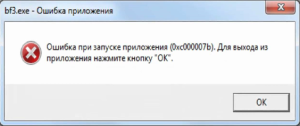
Ошибка 0xc000007b при запуске приложений в Windows 10 в большинстве случаев возникает, после того как вы обновились виндовс 10 и запускаете уже установленную любимую игру или программу, которые созданы на языке C++ и для которых нужны корректные библиотеки, особенно при запуске новых игрушек (после 2012 года выпуска), таких как Grand Theft Auto V GTA V, NFS Most Wanted, Watch Dogs, Far Cry 4, Dying light, Civilization 5, X-com, Fallout и многих других. В этом-то и заключается причина ошибки.
Как исправить ошибку 0xc000007b в Windows 10
Так как все описанные ниже операции подразумевают изменение системных файлов, то настоятельно Вам рекомендуем создать точку восстановления системы. Чтобы можно было в случае непредвиденных ситуаций безболезненно и быстро вернуть все обратно.
Сперва наперво необходимо разобраться какая всё таки разрядность вашей операционной системы. Для этого нажимаем сочетание клавиш  + Pause
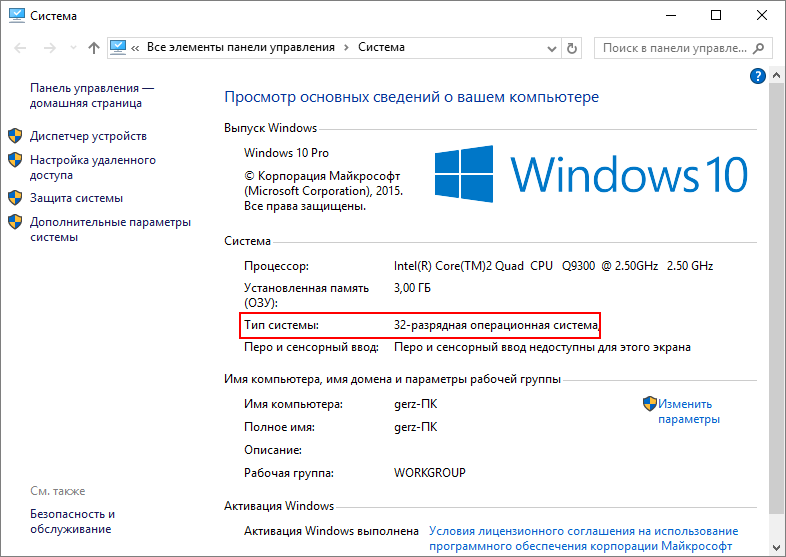 Обращаем внимание на выделенный фрагмент на рисунке Тип системы 32 или 64. В зависимости от того какие тут будут цифры, такие же должны быть и все системные файлы.
В большинстве случаев причина заключается в Распространяемом пакете Microsoft Visual C ++, когда он установлен не надлежащим образом, или же его файлы повреждены или отсутствуют (например из-за вирусов), так что, первое, что необходимо сделать это скачать Распространяемый пакет Microsoft Visual C ++ (x64) или Microsoft Visual C ++ (x32) в зависимости от разрядности Вашей операционной системы.
После загрузки файла, стандартным двойным щелчком мыши установите приложение.
Теперь перезагрузите компьютер и попытайтесь запустить вашу игру или программу, если ошибка всё же не исчезла, то вы все таки, что-то напутали с разрядностью ОС. В этом случае воспользуйтесь ниже приведенными вариантами по актуализации системных библиотек:
Способ первый (простой и быстрый)
- Загрузите этот архив (ссылка на скачивание) в нем содержаться необходимые версии библиотек для x64 и для x32 типа операционных систем
- Распакуйте содержимое архива в любую папку на любом диске. Главное не в корень диска. Будут распакованы две папки с файлами.
- Теперь необходимо загрузиться в безопасном режиме. Для этого нажимаем сочетание кнопок WIN + R
- В появившееся окошко вводим msconfig и нажимаем Enter
- Переходим к вкладке Загрузка. Выбираем здесь Безопасный режим и тайм аут в 999 сек
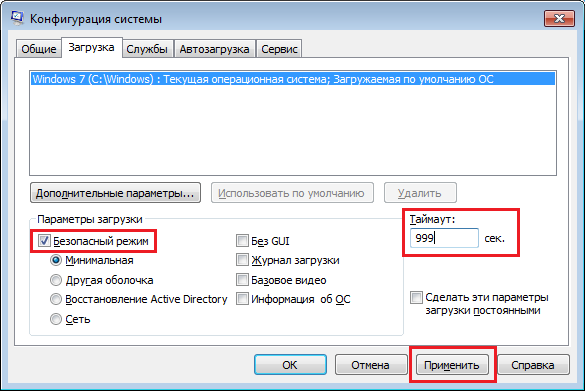
- Нажимаем Применить и Перезагрузка
- Теперь загрузившись в безопасном режиме надо скопировать эти распакованные ранее папки и вставить их в C:Windows с заменой.
- Перезагрузите компьютер и попробуйте запустить снова.
Второй способ (продвинутый универсальный)
Есть на просторах Интернета замечательная утилита Dependecy Walker, которая сканирует приложения (в нашем случае игры) на используемые библиотеки, отображая полные пути к ним и самое главное их разрядность x32(x86) или x64.
- Всё что нужно, это скачать нужную версию программы под разрядность Вашего компьютера (как это сделать писалось выше).Скачать Dependecy Walker для x32(x86)Скачать Dependecy Walker для x64
- Распаковываем и запускаем программу Dependecy Walker
- В меню выбираем ViewsFull Paths или просто нажимаем F9 для того, чтобы видеть полные пути к файлам
- Выбираем FileOpen…, чтобы открыть файл игры. Переходим в папку с неработающей игрой и выбираем запускаемый файл
- Если появилось окно об ошибке игнорируем его и закрываем
- В окне Модулями (снизу) отображены все библиотеки, которые использует наша игра при запуске. И ближе к концу таблицы есть нужная нам колонка CPU (на рисунке ниже обведена красной рамкой).
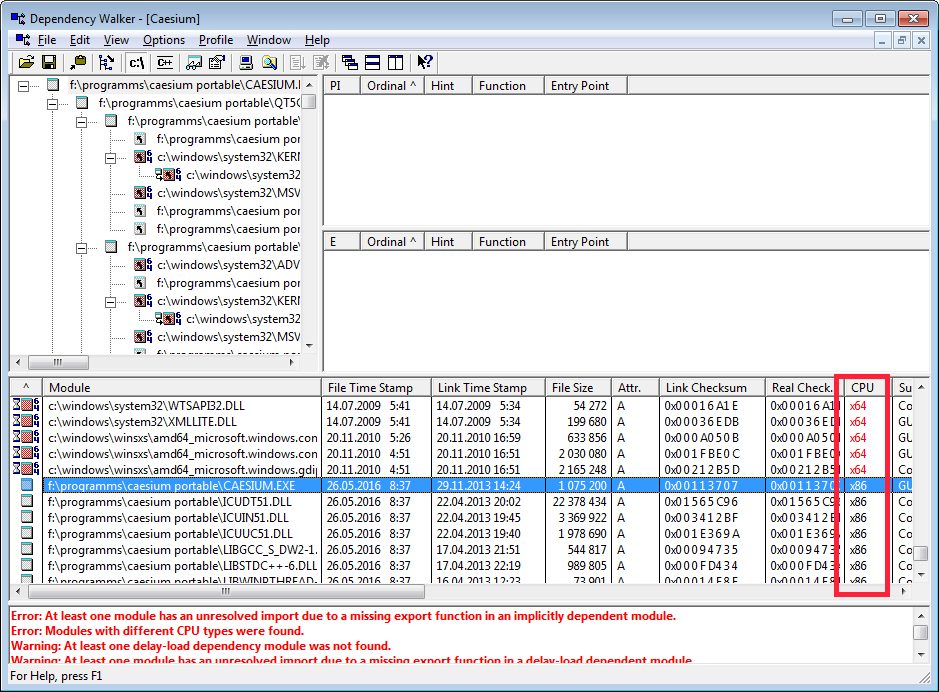
- Теперь всё что вам остается сделать это скопировать имя библиотеки (dll файла) найти в Интернете нужную вам версию с разрядностью, скачать её и скопировать в папку с игрой, а еще лучше по тому пути, по которому она прописана в Dependecy Walker Если планируется файлы копировать в папку Windows, то рекомендуем Вам сделать точную восстановления системы (описано выше)
Третий способ (глобальный)
Если первый способ не сработал, то пробуем следующее: загрузите All In One Runtimes и установите его на компьютере. Это приложение содержит все актуальные версии необходимых компонентов и библиотек для Windows 10, 8 , 7. Оно автоматически исправит все ошибки.
В любом случае независимо от результата отпишитесь в комментариях помогли вам вышеприведенные методы или нет. Если да будем собирать положительную статистику, если же нет то пытаться сообща решить вашу проблему 0xc000007b
Ошибка при запуске приложения 0xc000007bИспользуемые источники:
- https://lumpics.ru/how-to-fix-error-0xc000007b-in-windows-10-x64/
- https://howwindows.ru/errors/kak-reshit-oshibku-0xc000007b-v-windows-10-poshagovoe-ruk/
- http://allerrorcodes.ru/oshibka-pri-zapuske-prilozheniya-0xc000007b-v-windows-10-78/
Contents
- The Application Was Unable to Start Correctly 0xc000007b Error Overview
- 12 Methods to Fix 0xc000007b Error (The Application Was Unable to Start Correctly)
- Method 1. Repair corrupted Windows OS files and DLLs
- Method 2. Restart your computer
- Method 3. Run the program as administrator
- Method 4. Check & fix the disk errors automatically
- Method 5. Reinstall your application
- Method 6. Install Windows Update to fix error 0xc000007b
- Method 7. Reinstall the .NET Framework
- Method 8. Repair DirectX installation
- Method 9. Repair Microsoft Visual C++ Redistributables
- Method 10. Reinstall Microsoft Visual C++ Redistributables
- Method 11. Run the program in Compatibility mode
- Method 12. Use All in One Runtimes to fix Error 0xc000007b
- Frequently Asked Questions
The application was unable to start correctly (0xc000007b) is an error message indicating a problem when launching an application on Windows 10, 8, 8.1, or 7. The issue mostly occurs after upgrading Windows, or installing 32-bit software instead of 64-bit or vice versa. Typically, the issue is related to Microsoft Visual C++, .NET Framework or Direct X.
Since there is no magic way to identify the real cause of the problem, you will need to dedicate some time and try several methods listed below to fix 0xc000007b on Windows and be able to launch your favourite applications again.
We have noticed that the majority of people who run into this error use Windows 7 64 bit or Windows 7 32 bit versions. However, Windows 8, 8.1 or 10 users often encounter The application was unable to start correctly error as well.
Often times, the error occurs when users try to run 32-bit applications on 64-bit Windows. While practically it is possible, it often causes various system errors, such as 0xc000007b.
We’ll begin with the easier methods to apply, and proceed with techniques that can seem more advanced for beginners.
12 Methods to Fix 0xc000007b Error (The Application Was Unable to Start Correctly)
The application was unable to start correctly 0xc00007b on Windows 10, 8, 8.1, 7 or earlier can be fixed using one of the given methods.
Method 1. Repair corrupted Windows OS files and DLLs
Scan your system for FREE to detect security, hardware and stability issues. You can use the scan results and try to remove threats manually, or you can choose to get the full version of software to fix detected issues and repair virus damage to Windows OS system files automatically. Includes Avira spyware/malware detection & removal engine.
Faulty, deleted or misconfigured Windows system files can be the cause of The application was unable to start correctly 0xc00007b Windows 8 or 10 error. Besides, attempts to fix Windows Registry or system files manually and without certain IT knowledge can do even more harm. This is why we recommend downloading RESTORO, a trustworthy and powerful tool to repair your Windows OS files. In other words, it can be seen as a 0xc000007b repair utility.
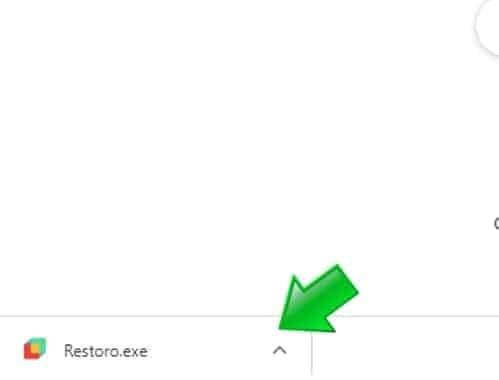
- Download RESTORO here and open the installer.
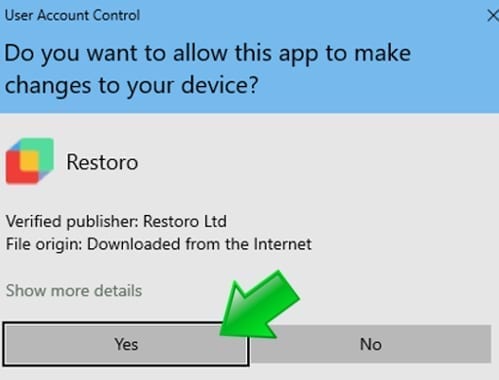
- In UAC window, press Yes.
- Click Install and follow the directions given by the installation wizard to install it correctly.
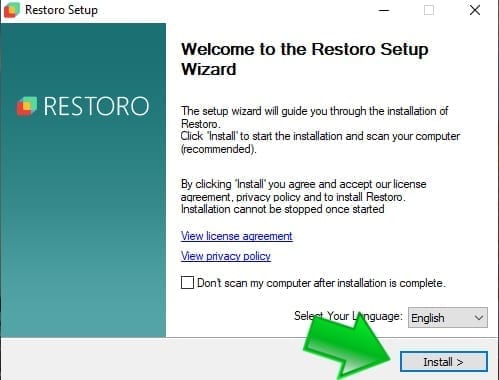
- Once the program installs, it will run an automatic system scan, overviewing three areas – system security, stability and hardware issues. This includes Registry and Windows system files’ check.
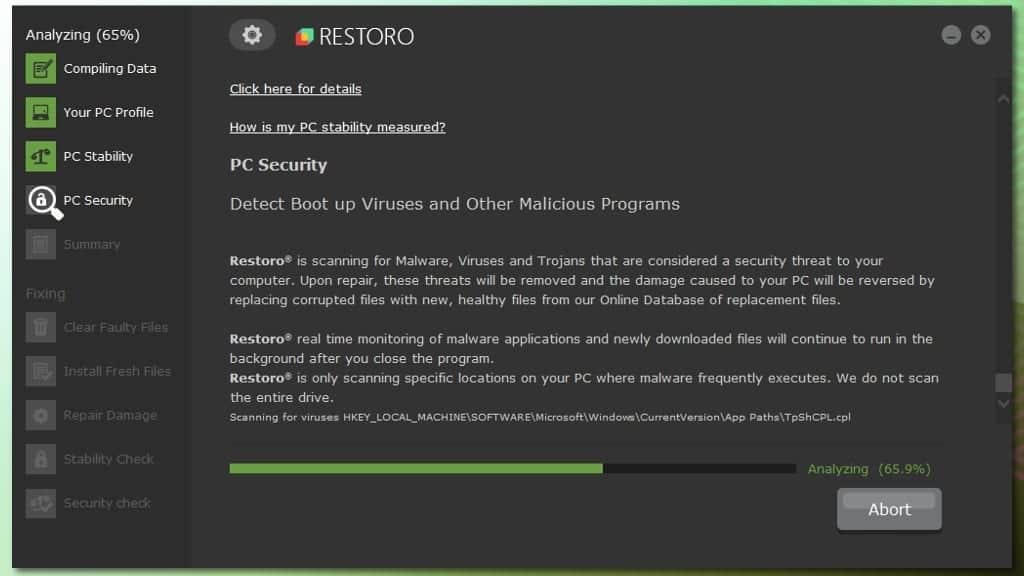
- The software will provide a report about detected issues. To fix these issues, you will need to purchase and enter the program’s license key.
Method 2. Restart your computer
It is a well-known fact that a fresh computer reboot can solve many things. Therefore, we suggest trying it as a error 0xc000007b fix on Windows 10, 8, and 7. Therefore, simply click Start > Power Button and choose Restart.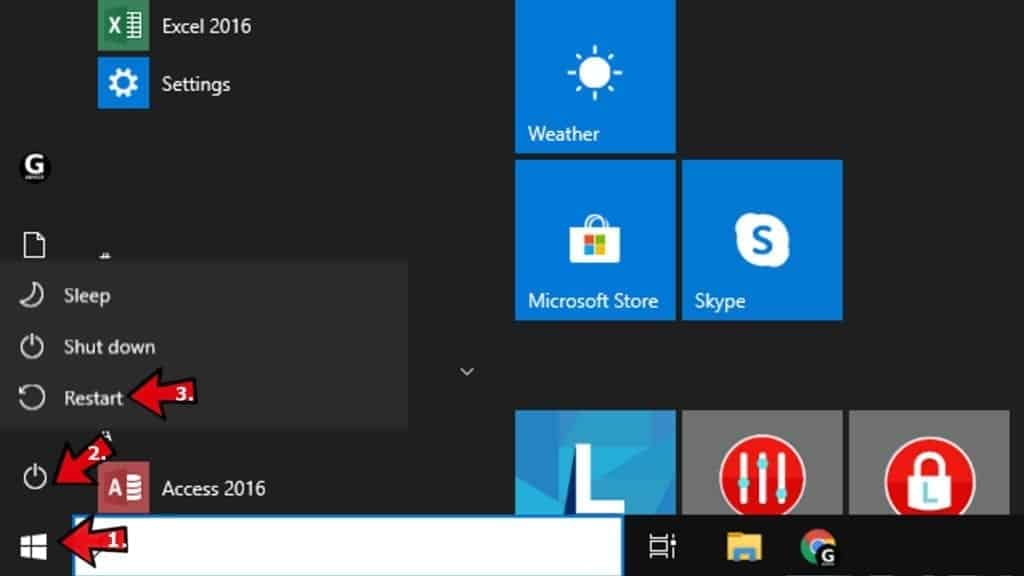
Method 3. Run the program as administrator
Running the program giving you error 0xc000007b in administrator’s mode can actually help to open it correctly. There are several ways you can attempt to run a program (such as GTA5, Far Cry 4, Assassin’s Creed, Adobe, Autocad, or others) as Admin.
3.1 Run from Windows search
- Open Windows search and type in the name of the program you want to launch.
- Once a result comes up, right-click it and choose Run as Administrator.
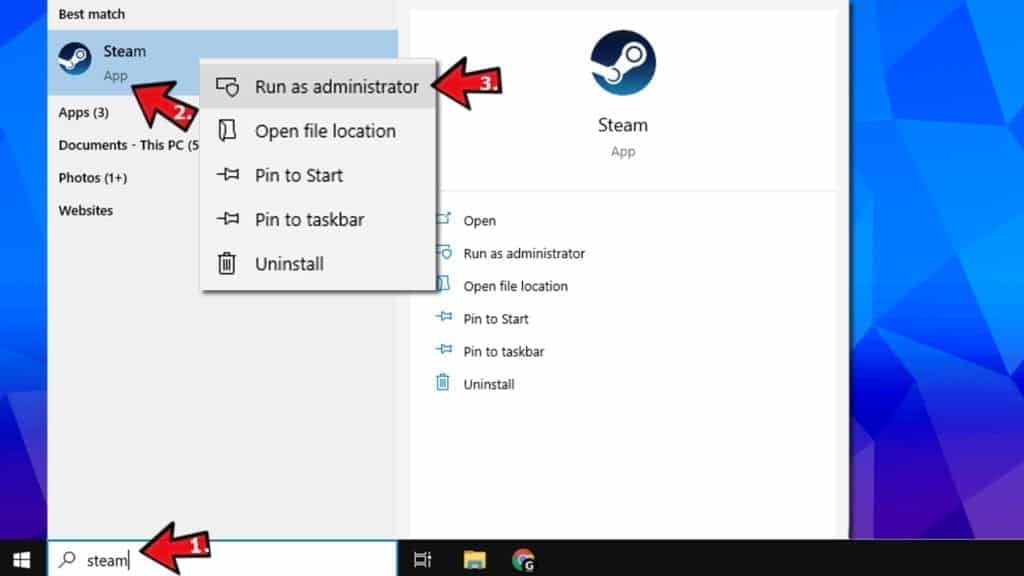
- If required, enter the admin’s password. Otherwise, if you are logged in as admin, click Yes in User Account Control window.
3.2 Run the program as admin via its settings
The second method of running the troublesome application as admin to solve The Application The application was unable to start correctly 0xc000007b Windows 8 or 10 error is to set it to always run it as Administrator. Here’s how to do it:
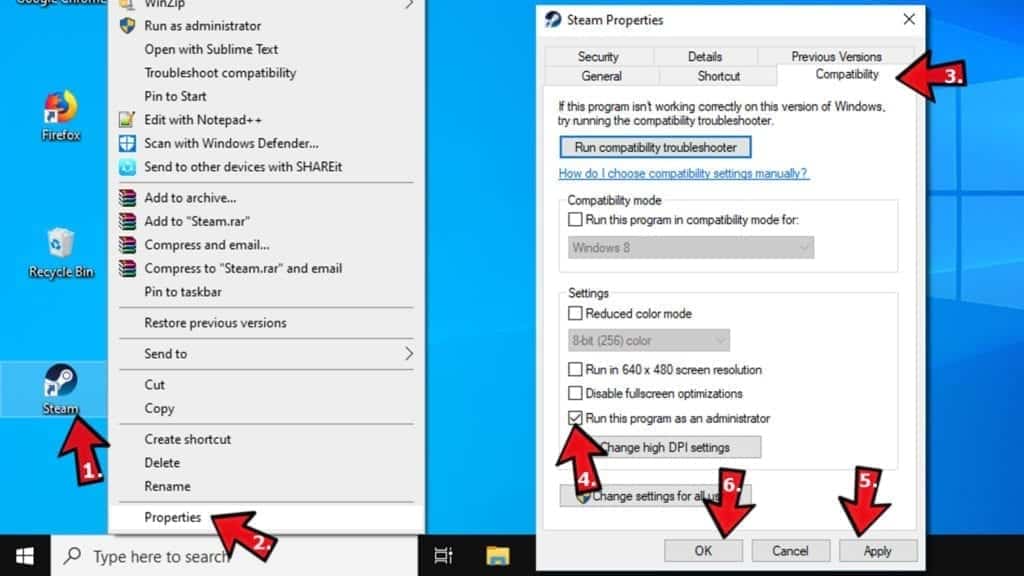
- First, you need your program’s executive file. Whether you have it on your Desktop or in a folder where it is installed (you can search for program via Windows search, right-click the result and choose Open File Location). Once you find the program launcher, right-click it.
- In a menu that appears, choose Properties.
- Next, click Compatibility tab.
- Here, put a tick on Run the program as an administrator.
- Click Apply.
- Click OK.
Method 4. Check & fix the disk errors automatically
One of the easiest methods to solve 0xc000007b error on Windows 7 or later is to run a CHKDSK command via Command Prompt with Admin’s rights. Here’s what you need to do:
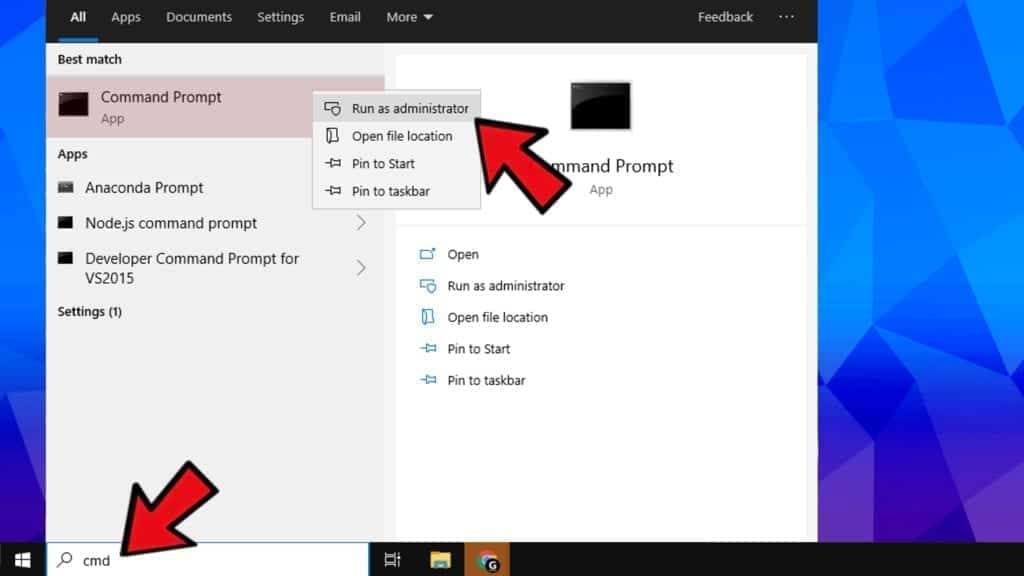
- In Windows search, type cmd, then right-click the result and choose Run as Administrator. Click Yes or enter the admin’s password, if required.
- Next, type chkdsk c: /f /r in the command prompt and press Enter.
- Type Y and press Enter again.
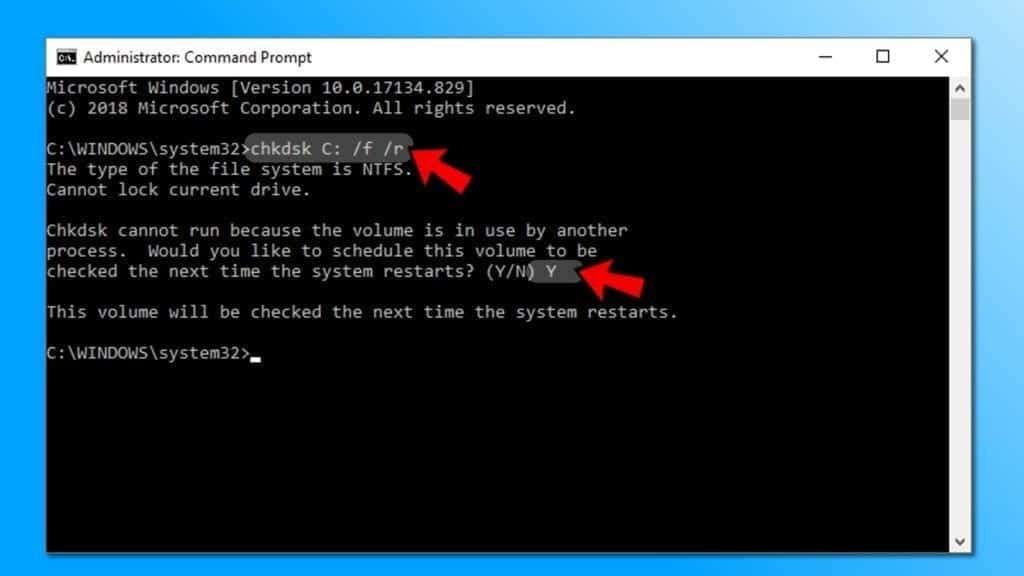
- Restart your computer.
- Try launching the program again.
Method 5. Reinstall your application
Whether you are getting The application was unable to start correctly (0xc000007b) error while launching Adobe Photoshop, Connect, GTA, Far Cry or another application, you should try uninstalling that application and reinstalling it again.
Note. Don’t use this method if you get the error frequently and with many applications. It means that the issue lies elsewhere.
- In search, type control panel and open a matching result.
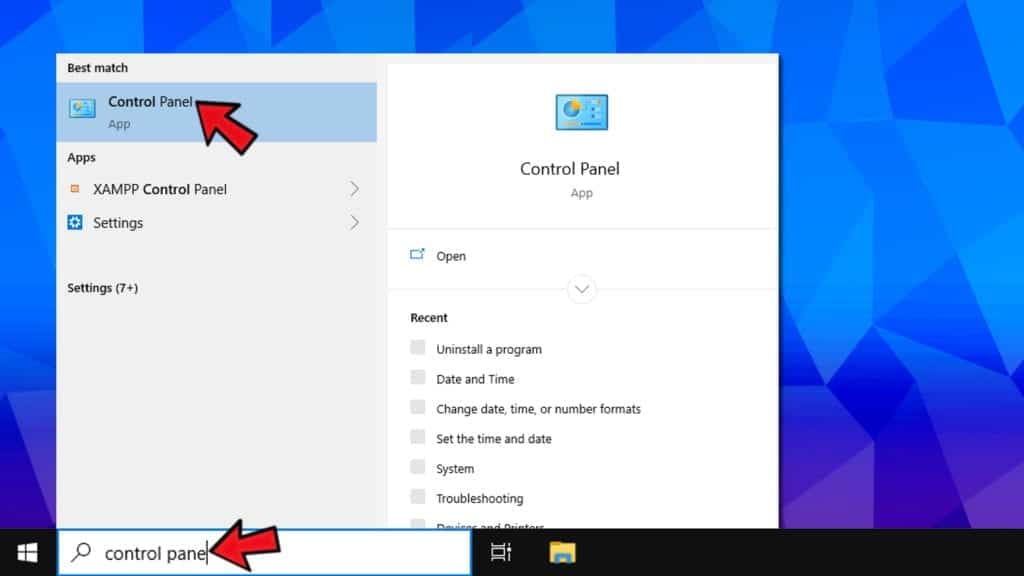
- In control panel, click on Uninstall a program.
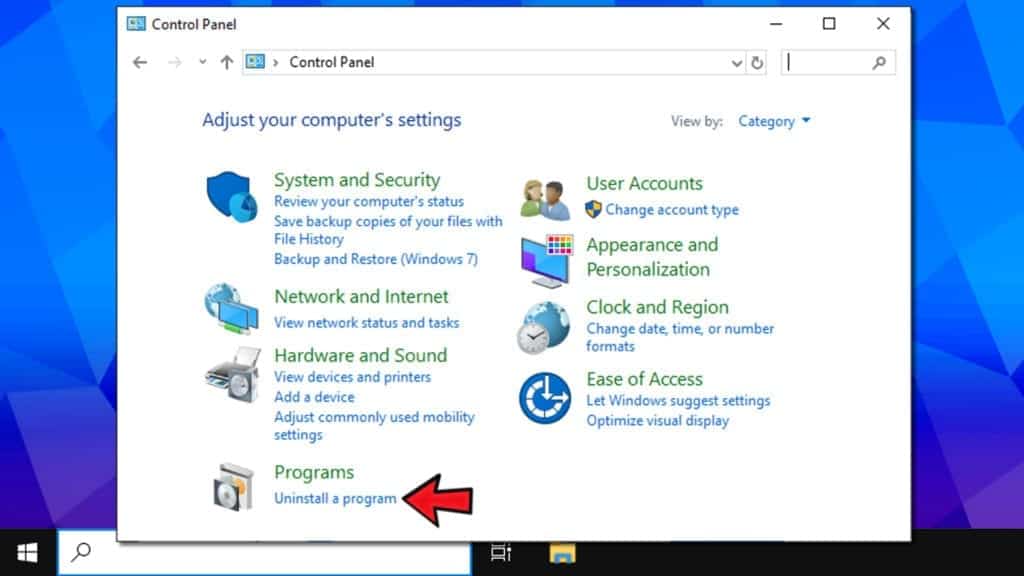
- Here, find the program which displays the said error, select it and click Uninstall. Follow instructions on your screen.
- Go to the software’s official website and download the latest installer of it. Make sure you choose the right bit version for your PC. Install it according to instructions. See if the issue persists.
Method 6. Install Windows Update to fix error 0xc000007b
A simple Windows update can refresh your operating system with required components and function as a 0xc000007b repair utility.
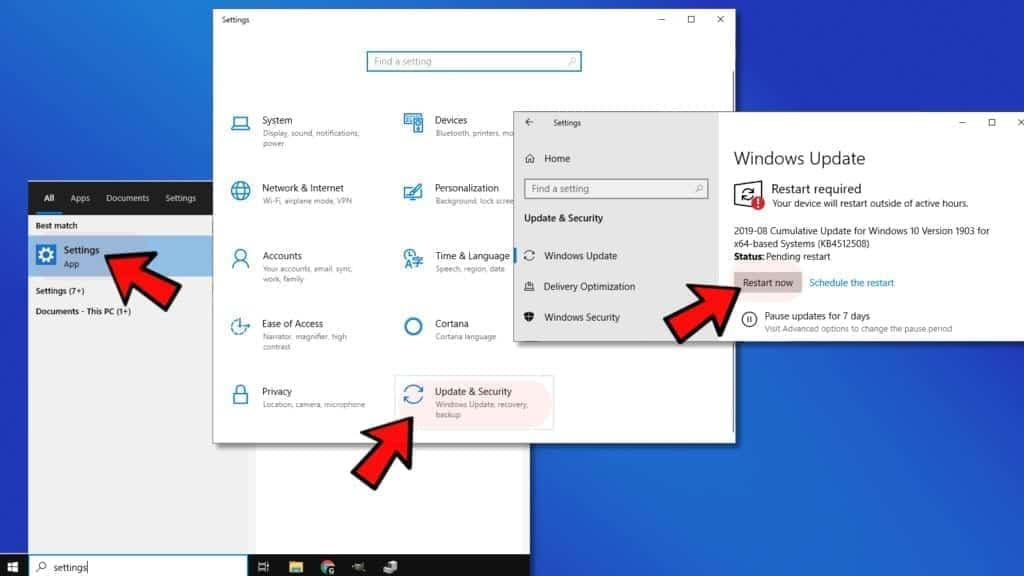
- To update Windows, open Settings (via search or Start Menu) > Update & Security.
- Here, click Check for updates or choose to Restart Now, according to information shown in Windows Update window.
Method 7. Reinstall the .NET Framework
.NET framework is a software development framework which helps to build and run programs on Windows OS. Reinstalling or upgrading to the latest version is a common practice to fix The application was unable to start correctly issue.
- Go to Microsoft’s website and see which version is marked as Recommended. Typically, it is the latest version, which is what you need. Click it.
- You will be taken to your chosen .NET framework version’s page. Here, choose to download .NET Framework (version) Runtime (or Developer, if you are a developer).
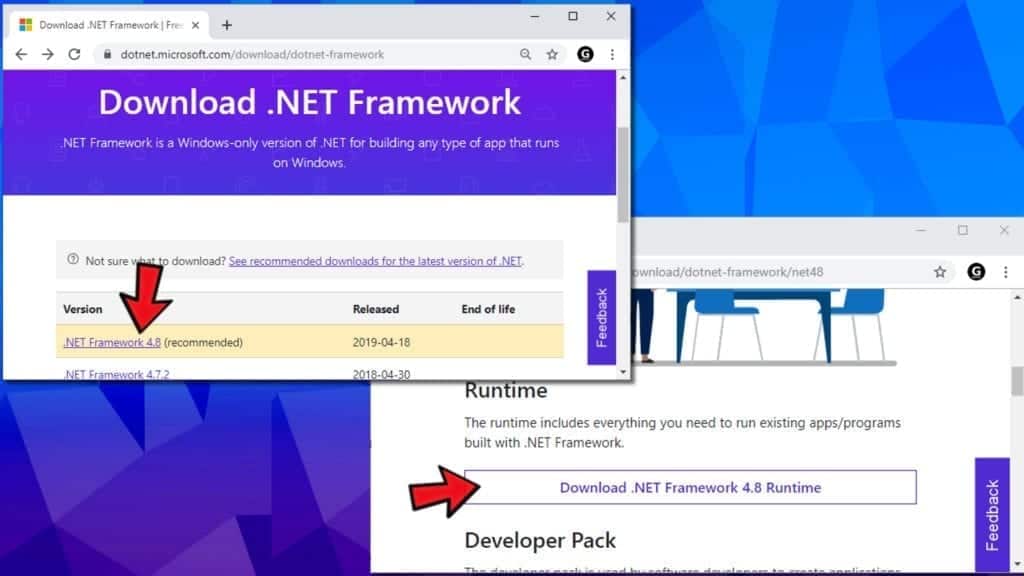
- Click on the downloaded file to open it. Click Yes in UAC window.
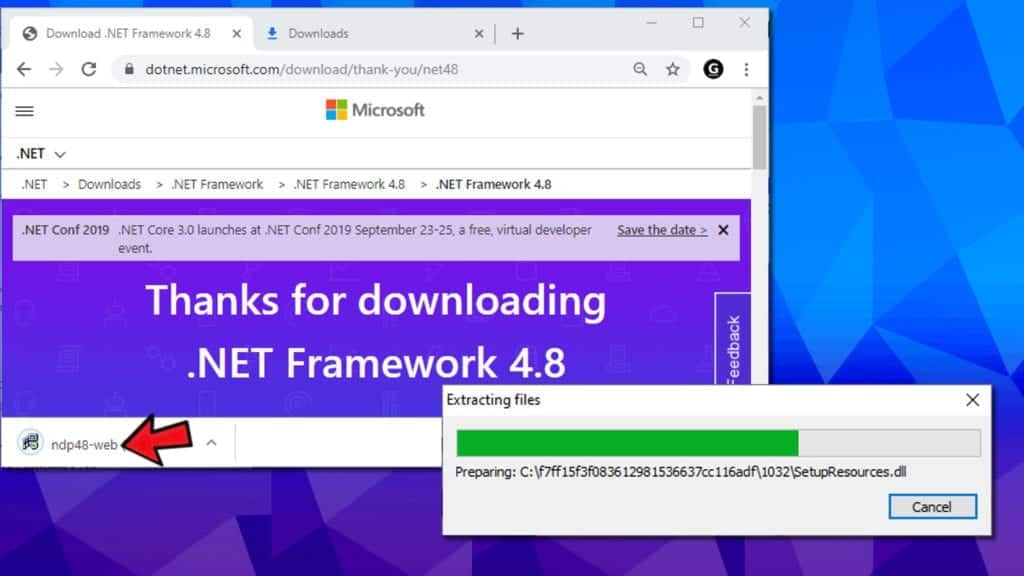
- Wait until the update will be installed, but follow the instructions on the screen carefully.
- Restart your computer and try launching the program again.
Method 8. Repair DirectX installation
Windows versions currently supported by Microsoft include DirectX which is updated via Windows updates. However, you can use this handy install/repair tool by Microsoft called DirectX End-User Runtime Web installer. But first, you need to delete some DirectX components first.
- Open C:WindowsSystem32 if you have Windows 7 32 bit and, if you have Windows 7 64 bit version, C:WindowsSysWOW64. (same instructions for other Windows versions).
- You now need to delete these files:
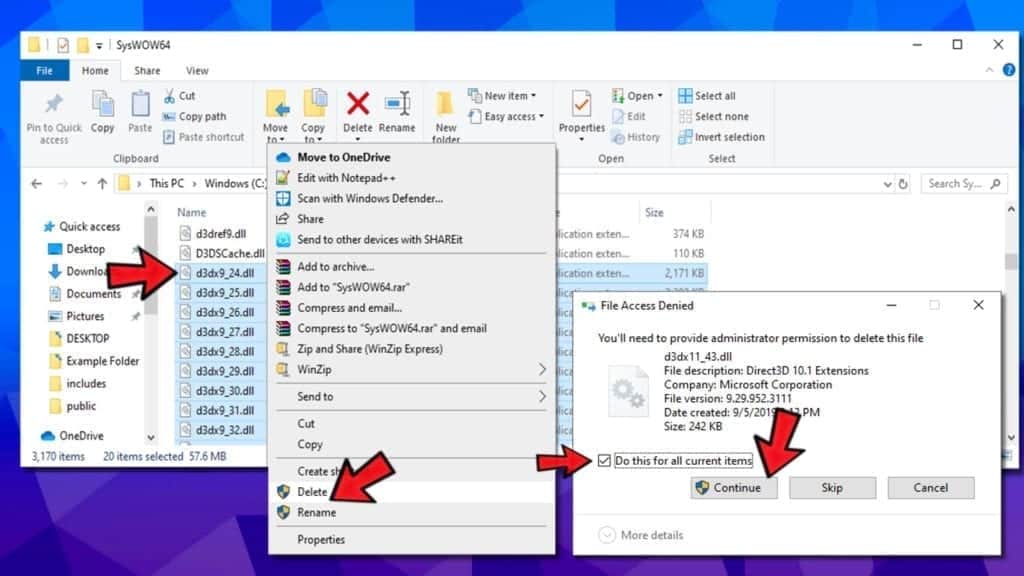
- from d3dx9_24.dll to d3dx9_43.dll;
- d3dx10.dll, then from d3dx10_33.dll to d3dx10_43.dll;
- d3dx11_42.dll and d3dx11_43.dll.
- Now, go to Microsoft’s DirectX End-User Runtime Web installer download page, choose your language and click Download.
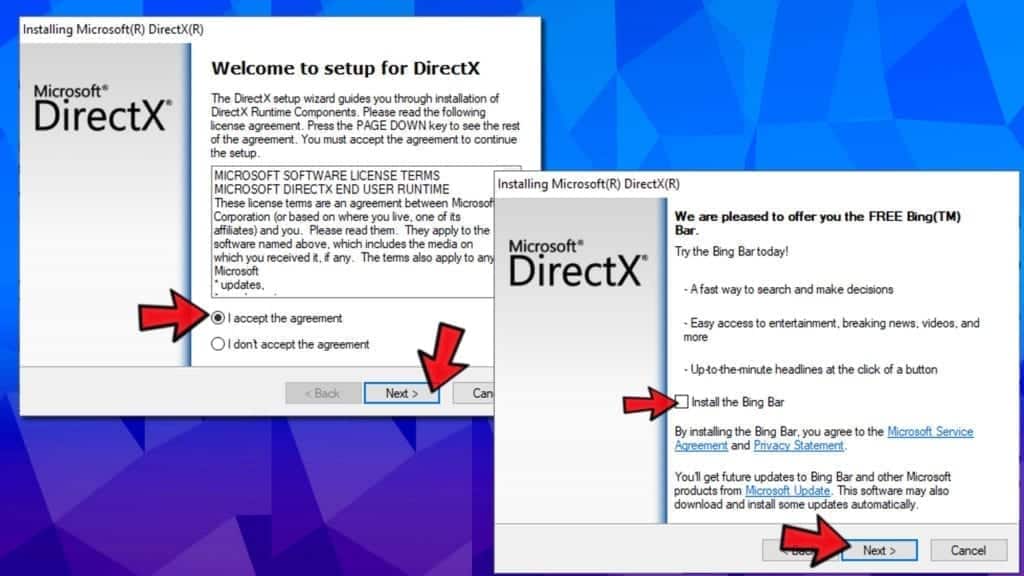
- Open the downloaded file which should be called dxwebsetup.exe. Click Yes in UAC prompt.
- The next thing you need to do is click I accept the agreement and click Next.
- Remove the tick from Install the Bing bar to avoid Bing redirects and click Next.
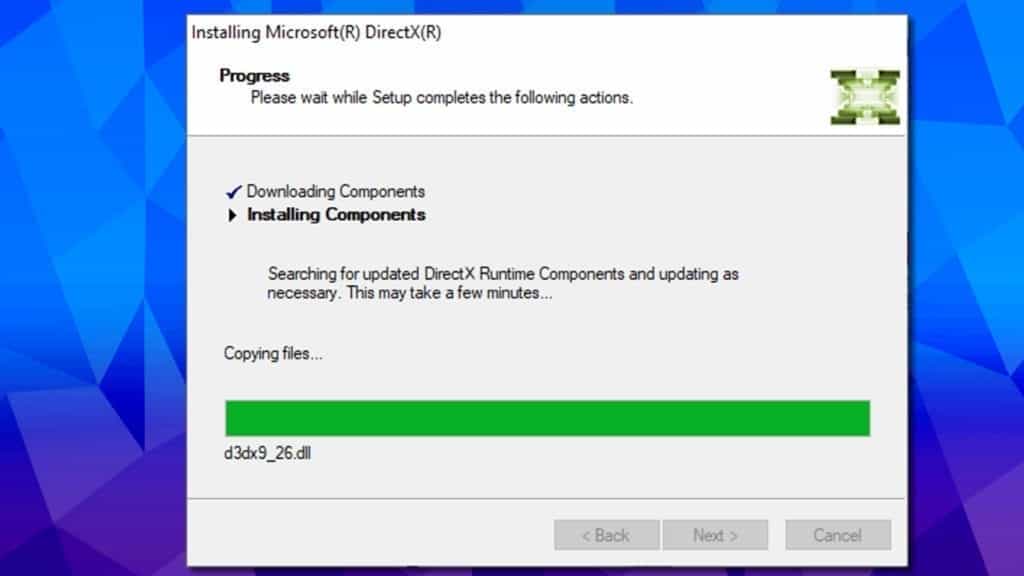
- Wait for the installer to finish fixing DirectX installation.
- Restart your PC and try running your preferred application again.
Method 9. Repair Microsoft Visual C++ Redistributables
Repairing Microsoft Visual C++ packages rather than reinstalling them is a way easier method to get rid of application was unable to start correctly 0xc000007b error. Here’s what you need to do:
- In search, type control panel. Open the matching result.
- In Control Panel, find section called Programs and click Uninstall a program under it. Depending on a Windows version, you might have to click Add or Remove Programs.
- In the top right corner, use search bar and type Microsoft Visual C++. You will see a list of packages installed on your computer. Select the first one from the list, click Change, then Repair.
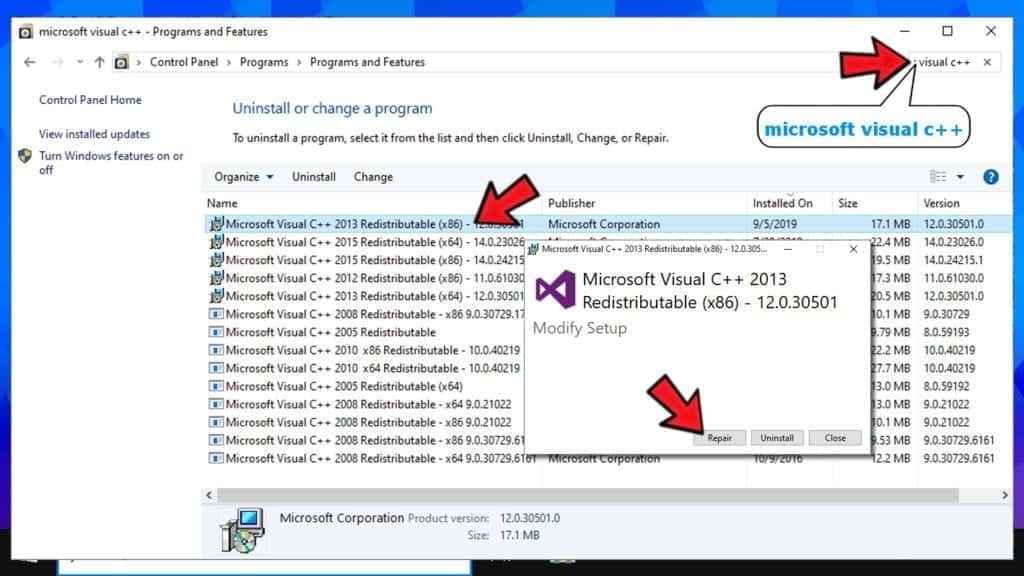
- Click Yes in the pop-up window that appears.
- Wait until the package repairs itself.
- Repeat with all Microsoft Visual C++ [year] Redistributable packages.
- Restart your computer and try running the program again.
Method 10. Reinstall Microsoft Visual C++ Redistributables
If method 9 didn’t solve the problem, follow the same steps but instead of clicking Change>Repair, choose to Uninstall and repeat this for all of the packages. Then visit Microsoft’s website and download the latest supported C++ package.
Method 11. Run the program in Compatibility mode
In case your program or game is incompatible with your operating system version due, you can run it in compatibility mode for your chosen Windows version. Thus, this can easily fix The application was unable to start correctly (0xc000007b) error. All you need to do is explained below.
- Locate the icon of the software that you cannot open (for example, GTA5 game) due to the The application was unable to start correctly 0xc000007b error, right-click the icon and choose Properties.
- In Properties, go to Compatibility tab.
- Here, you will see Compatibility mode section. Put a tick on the checkbox next to Run this program in compatibility mode for: option, and select another Windows OS version.
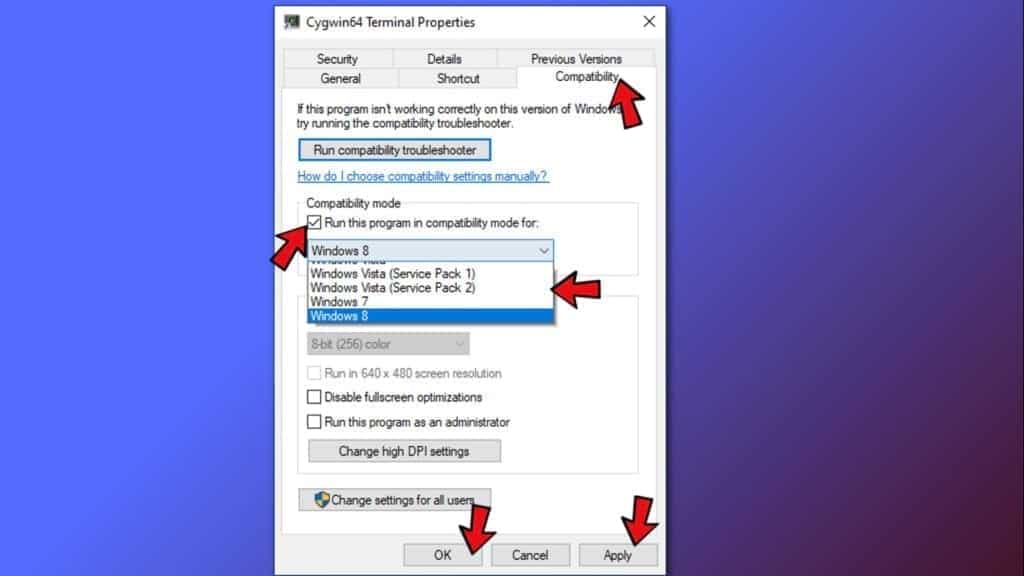
- Click Apply and OK.
- Run the program.
- Check if the issue is resolved.
NOTE: You might have to repeat the given steps to test several OS versions before you try the suitable one.
Method 12. Use All in One Runtimes to fix Error 0xc000007b
Error 0xc000007b is an error code that informs about failure to launch application on Windows. This often happens due to missing system components or runtime files. If you’re not an experienced computer technician, we recommend using the AiO Runtimes tool to help you download required components all at once without any hassle. Typically, this method is known to fix various gaming-related problems.
IMPORTANT. The download is provided by a third-party. We strongly recommend you opt-out any additional software suggested to download alongside AiO210.
- Download AiO 210 software online. Simply search for it on Google, but avoid shady-looking sites.
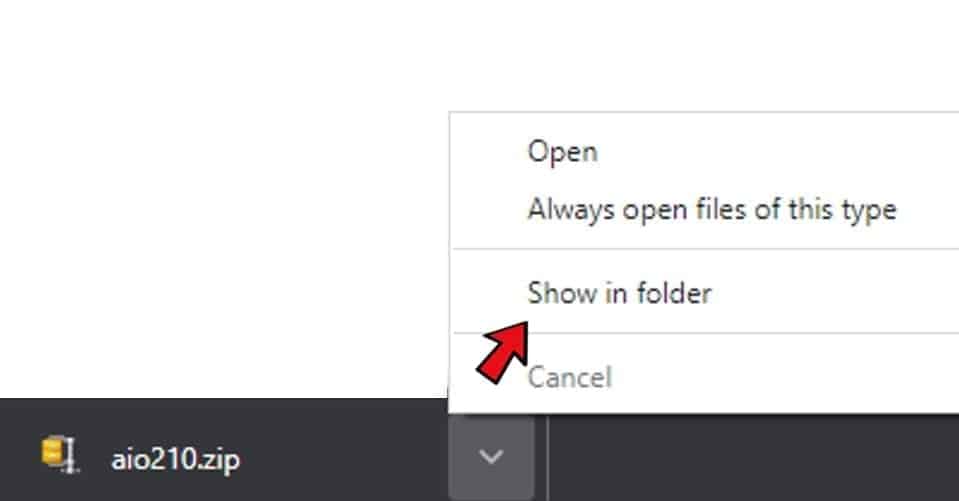
- Open the folder with your download as shown in the picture.
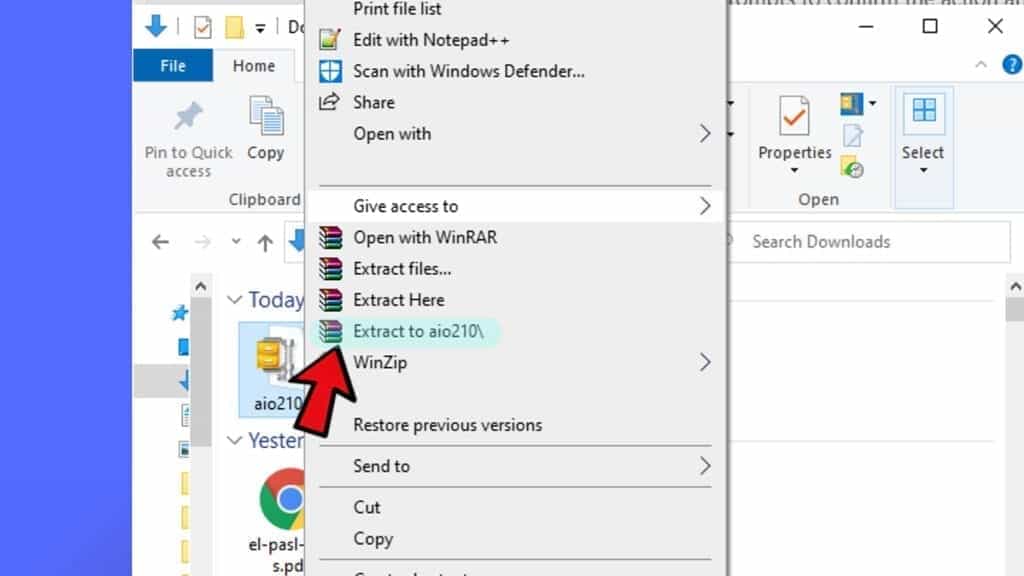
- Locate the aio210.zip file, right click it and choose Extract to aio210.
- Wait until the archive gets extracted to the specified folder.
- Open the folder, then open svcpack folder. You will find the software executable here, called aio-runtimes.exe. Double-click on it. You may need to wait a bit for AiO unstaller to unpack. Agree to changes by clicking Yes.
- Select all suggested packages and click Installieren (the software is German).
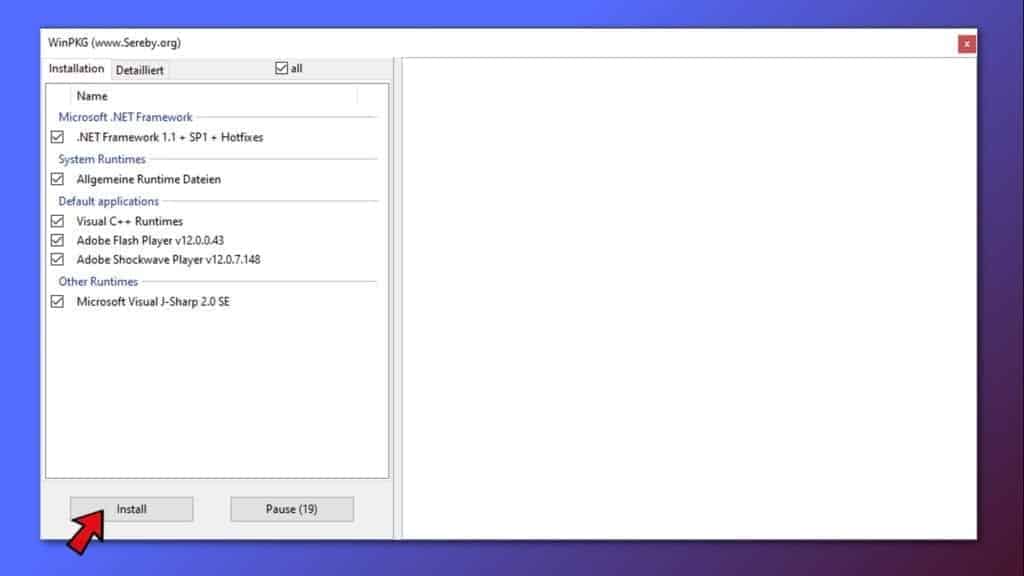
- After installing all of them, check if the 0xc000007b error persists.
FIX IT NOW
Fix PC errors, repair virus damage and identify hardware/stability issues using RESTORO – a unique PC Repair tool using a patented technology to replace damaged or missing Windows system files, which often are the real cause of annoying Windows errors. Try the FREE scan option to search for stability, security and hardware-related issues. To fix identified problems and receive hardware-related recommendations, you have to purchase the license key for the full software version.
We hope that you managed to start your preferred applications and finally get past The Application was Unable to Start Correctly 0xc000007b Windows 10 Error. In case you have discovered another workaround that solved the issue, please spend some time and share your insights to help the community fix the issue!
Frequently Asked Questions
Error 0xc000007b appears when starting games. How do I fix it?
The Application Was Unable To Start Correctly (0xc000007b) is an error that either indicates some components required to start your game are missing, or that you have downloaded the wrong version (bit-wise) for your operating system. For instance, if you’re using a 32-bit system, and you downloaded the game version for 64-bit, this might trigger the error. Most of the time, the error is related to missing or faulty components of Microsoft Visual C++, .NET Framework, Runtimes or Direct X. Ways of fixing these problems are provided in our guide.
Is there an automatic 0xc000007b repair utility available?
We recommend fixing 0xc000007b automatically with RESTORO, which fixed faulty or misconfigured Windows OS files causing the issue. Or you can try AiO software to update Runtime libraries (one of the possible fixes).
What is 0x000007b error?
0x000007b error is a hexidecimal format of 123, a code of Windows error identifying software compatibility issue. Most of the time, it informs about software version not suitable for your Windows operating system, or about missing components to run it.
How do I fix error 0xc000007b?
Our guide includes best solutions to fix error 0xc000007b:
Method 1. Repair corrupted Windows OS files and DLLs automatically;
Method 2. Restart your computer;
Method 3. Run the program as administrator (2 methods);
Method 4. Check & fix the disk errors automatically (CHKDSK);
Method 5. Reinstall your application;
Method 6. Install Windows Update to fix error 0xc000007b;
Method 7. Reinstall the .NET Framework;
Method 8. Repair DirectX installation;
Method 9. Repair Microsoft Visual C++ Redistributables to fix 0xc000007b;
Method 10. Reinstall Microsoft Visual C++ Redistributables;
Method 11. Run the program in Compatibility mode;
Method 12. Use All in One Runtimes to fix Error 0xc000007b.

Norbert Webb is the head of Geek’s Advice team. He is the chief editor of the website who controls the quality of content published. The man also loves reading cybersecurity news, testing new software and sharing his insights on them. Norbert says that following his passion for information technology was one of the best decisions he has ever made. “I don’t feel like working while I’m doing something I love.” However, the geek has other interests, such as snowboarding and traveling.
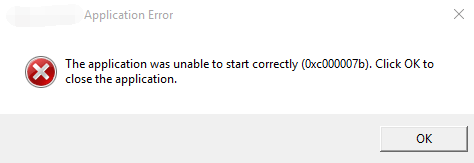
You may get an error message that says “The application was unable to start correctly” accompanied by an error code (0xc000007b). This error message appears when you are trying to open an application on Windows. Usually this happens after you upgrade from an earlier version of Windows and something goes wrong with certain files or programs.
You can try the methods below and see if they can help you get rid of this error.
1) Reboot your computer
2) Run your application as administrator
3) Reinstall your application
4) Reinstall Microsoft .NET framework (for Windows 7 or below)
5) Reinstall Microsoft Visual C++ Redistributable Packages
6) Update your Windows
7) Run check disk
8) Switch to ChromeOS
Fix 1: Reboot your computer
There can be something tiny that goes wrong in your system when you see a “The application was unable to start correctly” error. A simple reboot of your computer can fix your 0xc000007b error.
Fix 2: Run your application as administrator
When you come across a 0xc000007b error, you can try running your application as administrator and see if this is helpful.
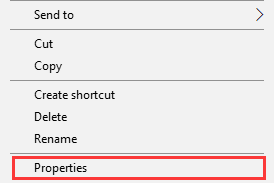
a) Right click on the application you want to open. Then select Properties.
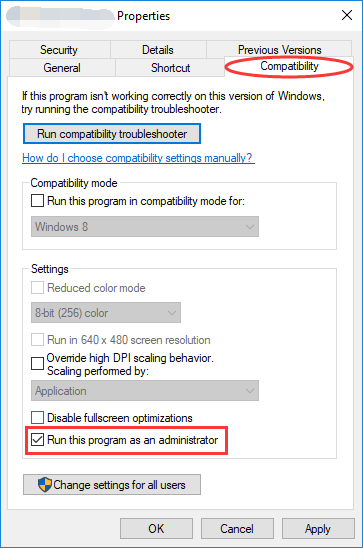
b) Go to Compatibility tab. Check Run this program as an administrator. Then hit OK.
c) Try running your application and see if this method fixes the error.
Fix 3: Reinstall your application
Sometimes the application you want to run may contain something that has corrupted. In this case, you should uninstall your application completely and then reinstall it. After that run the program and see if your problem resolves.
Fix 4: Reinstall Microsoft .NET framework
In fact, in many cases the “The application was unable to start correctly” error results from issues on Microsoft .NET framework. (.NET framework is a framework developed by Microsoft which supports applications using .Net technologies.) You may need to reinstall it to fix the issue.
* Microsoft .NET framework has been integral part of Windows 8 and 10. You cannot remove or reinstall it manually. Therefore the steps below may only apply to Windows 7 or earlier versions. For Windows 10/8 users, you can try updating your Windows to install the latest .NET framework (if any).
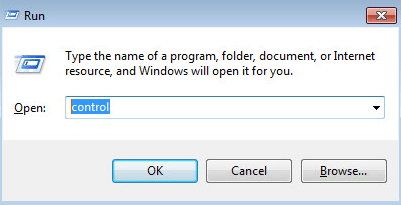
a) Press Win + R keys. Type “control” and hit OK.
b) In Control Panel, scroll down to find and open Programs and Features.
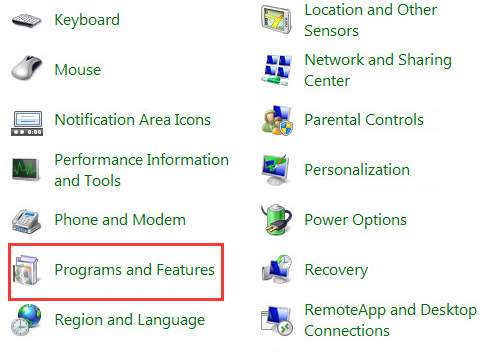
c) Single click on every item starts with “Microsoft .NET“. Click on Uninstall/Change and follow the instruction to uninstall these items.
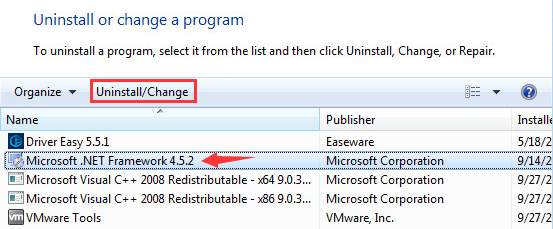
d) Go to Microsoft .NET Framework download website to download and install the framework.
Fix 5: Reinstall Microsoft Visual C++ Redistributable Packages
Microsoft Visual C++ Redistributable Package is a runtime component necessary for running of multiple applications. The files in Microsoft Visual C++ Redistributable Package usually corrupt due to many reasons. And this can cause the 0xc000007b error. In this case you need to reinstall this components.
a) Open Programs and Features (as steps a and b in the method above shows)
b) Uninstall all items with the name of “Microsoft Visual C++ 2*** Redistributable“.

c) Go to Microsoft to download and install Visual C++ Redistributable Packages.
Fix 6: Update your Windows
Updating your operating system can fix the bugs that cause troubles. In addition, some features and programs built in Windows, such as DirectX and .NET Framework, can also be updated during the process. It is recommended that you update your operating system and see if this can help you fix your 0xc000007b error.
Fix 7: Run check disk
The error can also result from hardware issues, especially from your hard drive. You should run check disk using Command Prompt and see if there is any problem on your disk.
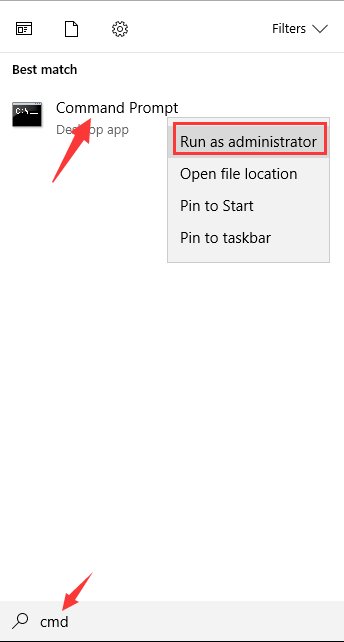
a) Click on Start menu and type “cmd“. Right click Command Prompt in the result and select Run as administrator.
b) Enter “chkdsk c: /f /r“. (This means you are going to check and repair C drive. If you want to check another drive, replace “c” with the corresponding letter of that drive.) Follow the instruction to complete the process.
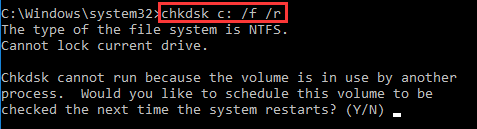
c) After that check and see if the problem is solved.
Fix 8: Switch to ChromeOS
Windows is a very old technology. Sure, Windows 10 is relatively new, but it’s still just the latest iteration of a decades-old operating system, designed for a bygone era (pre-internet).
Now that we have the internet, fast connection speeds, free cloud storage, and endless web apps (like Gmail, Google Docs, Slack, Facebook, Dropbox and Spotify), the entire Windows way of doing things – with locally installed programs and local file storage – is totally outdated.
Why is that a problem? Because when you’re constantly installing uncontrolled third-party programs, you’re constantly opening the door to viruses and other malware. (And Windows’ insecure permission system compounds this problem.)
Plus the way Windows manages installed software and hardware has always been a problem. If your computer shuts down unexpectedly, or a program installs, uninstalls or updates incorrectly, you can get ‘registry’ corruptions. That’s why Windows PCs always slow down and become unstable over time.
Also because everything’s installed and saved locally, it doesn’t take long before you run out of disk space, and your disk gets fragmented, which makes everything even slower and more unstable.
For most people, the simplest way to solve Windows problems is to ditch Windows altogether, and switch to a faster, more reliable, more secure, easier to use and cheaper operating system…
Google ChromeOS.
ChromeOS feels much like Windows, but instead of installing heaps of programs to email, chat, browse the internet, write documents, do school presentations, create spreadsheets, and whatever else you normally do on a computer, you use web apps. You don’t need to install anything at all.
That means you don’t have virus and malware problems, and your computer doesn’t slow down over time, or become unstable.
And that’s just the start of the benefits…
To learn more about the benefits of ChromeOS, and to see comparison videos and demos, visit GoChromeOS.com.
Question
Issue: How to Fix Error “The Application Was Unable To Start Correctly 0xc0000018“ on Windows?
Hello. I have an issue with Microsoft Office. I‘m running Windows 10, which I have upgraded a couple of months ago from version 7. When I try to launch or configure any of Microsoft Office apps, the error saying “The Application Was Unable To Start Correctly 0xc0000018. Click Ok To Close The Application“ shows up on my screen. Due to this purpose, I can use neither Word, nor Outlook, nor PowerPoint and others. Could you please help me with this problem?
Solved Answer
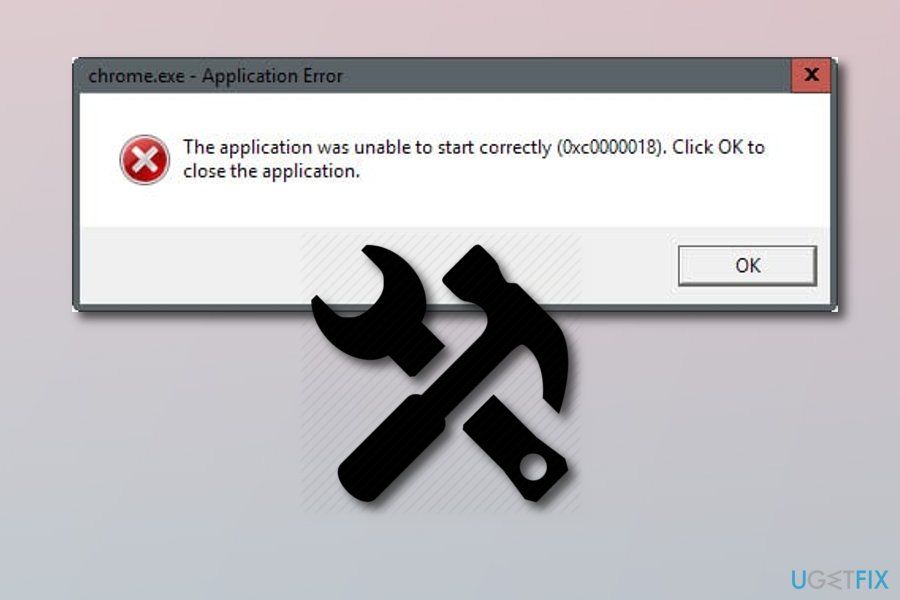 You can fix the “The Application Was Unable To Start Correctly 0xc0000018“ pop-up by performing the following methods or scanning the computer with reliable anti-malware.
“The Application Was Unable To Start Correctly 0xc0000018“ is known as Microsoft Office[1] error, which can appear on Windows 8, 7, 10, and all other versions. It is assumed that this bug might be triggered by corrupted system files, malware or software incompatibility. However, recent studies have revealed that this error message occurs when trying to launch other apps on Windows, including Chrome, VLC player, and many others.
Sometimes “The Application Was Unable To Start Correctly 0xc0000018“ pop-up may start showing when you perform some system changes. In this case, to get rid of the pop-up message and be able to use Microsoft Office applications, you should try to recall what was the last modification that you have performed and revert the system to the previous state.
However, in most of the cases, people start noticing an increased high CPU[2] usage via Task Manager[3] and the receive 0xc0000018 error when trying to start one of Microsoft Office applications or other software. We have no doubts that people who are encountering this issue feel frustrated since Microsoft Office apps, including Excel, Word, PowerPoint, Outlook, and others are used on a daily basis.
Luckily, there are some methods several things that can help to fix “The Application Was Unable To Start Correctly 0xc0000018“ error. Read the below-given steps and follow them carefully. If you have tried all of them and you are still facing the same result, try installing Reimage and performing a full system scan with this anti-malware tool[4]. It might be able to find the problem that is causing such error.
Method 1. Open Registry Editor
Fix it now!
Fix it now!
To repair damaged system, you have to purchase the licensed version of Reimage Reimage.
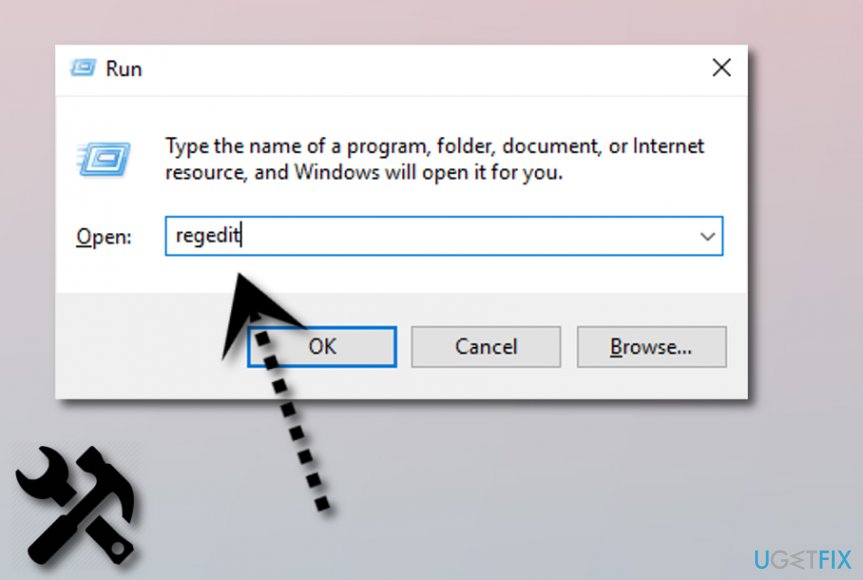 “The Application Was Unable To Start Correctly 0xc0000018“ pop-up can be fixed by entering the Registry Editor.
- Click Win key + R, type regedit, and press Enter.
- If a User Account Confirmation window shows up, click Yes or type in your password.
- Using the left pane, navigate to the following location: HKEY_LOCAL_MACHINE\SOFTWARE\Wow6432Node\ Microsoft\WindowsNT\CurrentVersion\Windows.
- Once you are on this location, find APPINIT_DLLS file, delete it by double-clicking on it and removing all characters from Value Data.
- Close Registry Editor and restart the system.
Method 2. Try Clean Boot the system
Fix it now!
Fix it now!
To repair damaged system, you have to purchase the licensed version of Reimage Reimage.
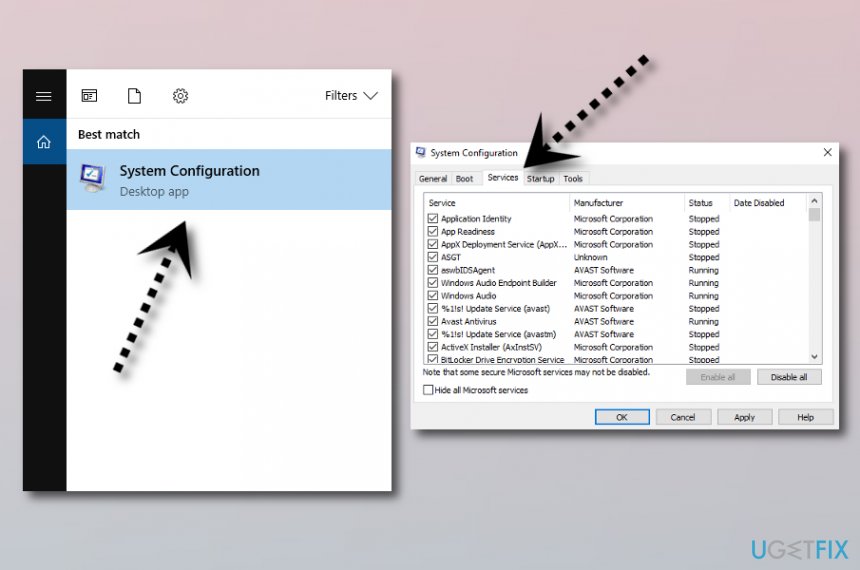 “The Application Was Unable To Start Correctly 0xc0000018“ pop-up can be taken care of by opening the System Configurations section.
- Open search, type System Configuration, and press Enter.
- Go to the Services, select Hide all Microsoft services and then Disable all.
- Open the Startup tab and select Task Manager.
- Mark all items and click Disable.
- Once done, exit Task Manager.
- On the System Configuration dialogue box, click OK.
- To finish, restart the system.
Method 3. The error might be caused by some antivirus programs
Fix it now!
Fix it now!
To repair damaged system, you have to purchase the licensed version of Reimage Reimage.
 Fix “The Application Was Unable To Start Correctly 0xc0000018“ error by updating your anti-malware tools such as Malwarebytes or McAfee.
Note that, “The Application Was Unable To Start Correctly 0xc0000018“ pop-up might appear on your computer screen if you have installed anti-malware tools such as Malwarebytes or McAfee on your computer. Technology researchers found out that these computer security tools can cause such type of error. Perform all needed updates for these programs or uninstall them and download another security tool for your computer.
Repair your Errors automatically
ugetfix.com team is trying to do its best to help users find the best solutions for eliminating their errors. If you don’t want to struggle with manual repair techniques, please use the automatic software. All recommended products have been tested and approved by our professionals. Tools that you can use to fix your error are listed bellow:
do it now!
Download Fix
Happiness
Guarantee
do it now!
Download Fix
Happiness
Guarantee
Compatible with Microsoft Windows
Compatible with OS X
Still having problems?
If you failed to fix your error using Reimage, reach our support team for help. Please, let us know all details that you think we should know about your problem.
Reimage — a patented specialized Windows repair program. It will diagnose your damaged PC. It will scan all System Files, DLLs and Registry Keys that have been damaged by security threats.Reimage — a patented specialized Mac OS X repair program. It will diagnose your damaged computer. It will scan all System Files and Registry Keys that have been damaged by security threats.
This patented repair process uses a database of 25 million components that can replace any damaged or missing file on user’s computer.
To repair damaged system, you have to purchase the licensed version of Reimage malware removal tool.

To stay completely anonymous and prevent the ISP and the government from spying on you, you should employ Private Internet Access VPN. It will allow you to connect to the internet while being completely anonymous by encrypting all information, prevent trackers, ads, as well as malicious content. Most importantly, you will stop the illegal surveillance activities that NSA and other governmental institutions are performing behind your back.
Unforeseen circumstances can happen at any time while using the computer: it can turn off due to a power cut, a Blue Screen of Death (BSoD) can occur, or random Windows updates can the machine when you went away for a few minutes. As a result, your schoolwork, important documents, and other data might be lost. To recover lost files, you can use Data Recovery Pro – it searches through copies of files that are still available on your hard drive and retrieves them quickly.
If you see this error message: ‘The application was unable to start correctly’ it’s almost certainly because you’re trying to run a game or program in Windows and there’s something not quite right on your PC or laptop.
Below are various methods, most of which are simple, which you can use to try and fix the 0xc000007b error. You may only need to use one but in some cases, you’ll need a combination of them to fix the problem.
Typically you’ll see this error when there’s a mixing of 32-bit and 64-bit versions of Windows and applications but don’t worry too much about that. Let’s get problem-solving.
Method 1. Restart your computer
Sorry to go all The IT Crowd on you but the first thing to try is restarting Windows. It sounds too simple, but it sometimes yields results.
Method 2. Update .NET framework
In most cases, it’s the Microsoft .NET framework causing the issues. You can download the latest version of .NET Framework from Microsoft.
When it’s installed (or re-installed) reboot and try your app or game again.
Method 3. Enable Administrator rights
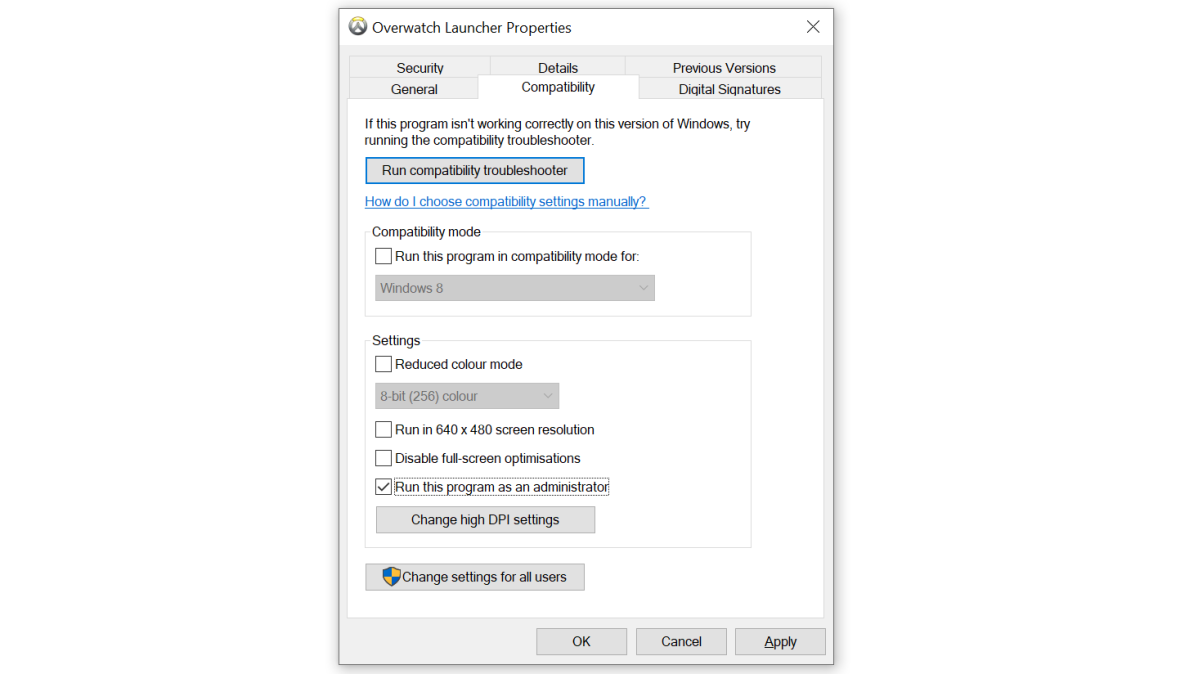
Try running the game or app with admin rights. To do that, right-click on the shortcut or the actual executable for the game, select Properties and open the Compatibility tab. Tick the ‘Run this program as an administrator’ box, and click on OK.
Chris Martin / Foundry
Method 4. Reinstall the app or game
You can uninstall and re-installing the game or program you’re trying to run – simple but sometimes the quickest and most effective way to get rid of the error.
Method 5. Update Windows
Update Windows. In many cases, Windows will automatically update, but to make sure, head to Control Panel and search for ‘Windows Update’.
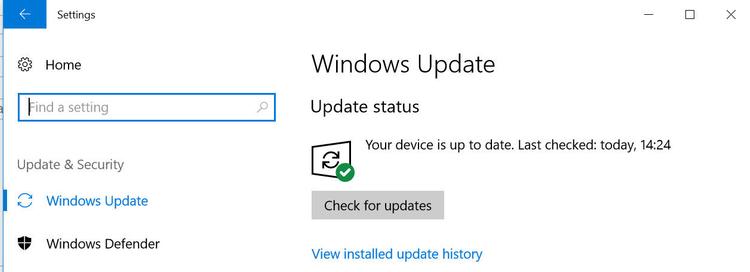
In later versions, including Windows 10/11, you can open the Settings app (just search the Start menu or click the cog icon which appears just above the Windows logo when you click it in the bottom-left of the screen).
In the Settings app, click on Update & Security then you should see a button to check for updates:
Method 6. Run ChkDsk
Run ‘chkdsk’ (ie check disk) by opening cmd (search for it or press Win+R).
In the window type “chkdsk c: /f /r”. If it is the primary windows disk, it will ask you to schedule it for the next boot. When you restart, it will do a check before getting to the login screen. Partitions or other drives can also be checked this way so choose those if that’s where the problem application is installed.
Method 7. Reinstall DirectX
This can be the fix for games that won’t load. The way to do this depends on your version of Windows and which version of DirectX you need. There are full instructions on Microsoft’s website.

Tech Advisor’s Reviews Editor, Chris has been reviewing all kinds of tech for over 10 years and specialises in audio. He also covers a range of topics including home entertainment, phones, laptops, tablets and more.