-
#1
Hello, I installed a cluster with two nodes (Prox1 and Prox2) in unicast mode.
when I access the gui of Prox1 I can not see or install anything on node 2 and vice versa equal, if I access next2 I can not do anything in prox 1. Tells me:
Error: Connection Error 595: Connection refused
thank you very much
root@prox1:~# cat /etc/pve/cluster.conf
<?xml version=»1.0″?>
<cluster name=»TELCAT» config_version=»5″><cman keyfile=»/var/lib/pve-cluster/corosync.authkey» transport=»udpu»>
</cman><clusternodes>
<clusternode name=»prox2″ votes=»1″ nodeid=»1″/>
<clusternode name=»prox1″ votes=»1″ nodeid=»2″/></clusternodes></cluster>
root@prox1:~# pvecm status
Version: 6.2.0
Config Version: 5
Cluster Name: TELCAT
Cluster Id: 4882
Cluster Member: Yes
Cluster Generation: 300
Membership state: Cluster-Member
Nodes: 2
Expected votes: 2
Total votes: 2
Node votes: 1
Quorum: 2
Active subsystems: 5
Flags:
Ports Bound: 0
Node name: prox1
Node ID: 2
Multicast addresses: 255.255.255.255
root@prox1:~# pvecm nodes
Node Sts Inc Joined Name
1 M 300 2014-01-21 23:58:22 prox2
2 M 296 2014-01-21 23:57:57 prox1

Last edited: Feb 3, 2014
udo
Famous Member
-
#2
Re: Error: Connection Error 595: Connection refused
Hi,
are both nodes in the GUI «green», or only the one where you logged in?
Any output in the logfile?
Udo
-
#3
Re: Error: Connection Error 595: Connection refused
Yes, both nodes ara «green» and i see storange and vm in left side, baut when i do «click» in the node or vm: Connection Error 595: Connection refused
the accés log:
213.96.32.175 — root@pam [22/Jan/2014:08:12:16 +0100] «GET /api2/json/nodes/prox2/openvz/100/status/current HTTP/1.1» 200 338
213.96.32.175 — root@pam [22/Jan/2014:08:12:17 +0100] «GET /api2/json/nodes/prox2/openvz/100/config HTTP/1.1» 200 341
213.96.32.175 — root@pam [22/Jan/2014:08:12:18 +0100] «GET /api2/json/nodes/prox2/openvz/100/status/current HTTP/1.1» 200 337
213.96.32.175 — root@pam [22/Jan/2014:08:12:18 +0100] «GET /api2/json/cluster/resources HTTP/1.1» 200 697
213.96.32.175 — root@pam [22/Jan/2014:08:12:18 +0100] «GET /api2/json/cluster/tasks HTTP/1.1» 200 1318
213.96.32.175 — root@pam [22/Jan/2014:08:12:21 +0100] «GET /api2/json/nodes/prox1/tasks?errors=0&start=0&limit=500 HTTP/1.1» 595 —
213.96.32.175 — root@pam [22/Jan/2014:08:12:21 +0100] «GET /api2/json/nodes/prox1/status HTTP/1.1» 595 —
213.96.32.175 — root@pam [22/Jan/2014:08:12:21 +0100] «GET /api2/json/nodes/prox1/status HTTP/1.1» 595 —
213.96.32.175 — root@pam [22/Jan/2014:08:12:22 +0100] «GET /api2/json/cluster/resources HTTP/1.1» 200 699
213.96.32.175 — root@pam [22/Jan/2014:08:12:22 +0100] «GET /api2/json/cluster/tasks HTTP/1.1» 200 1318
213.96.32.175 — root@pam [22/Jan/2014:08:12:22 +0100] «GET /api2/json/nodes/prox1/status HTTP/1.1» 595 —
213.96.32.175 — root@pam [22/Jan/2014:08:12:24 +0100] «GET /api2/json/nodes/prox1/status HTTP/1.1» 595 —
213.96.32.175 — root@pam [22/Jan/2014:08:12:26 +0100] «GET /api2/json/nodes/prox1/status HTTP/1.1» 595 —
213.96.32.175 — root@pam [22/Jan/2014:08:12:26 +0100] «GET /api2/json/cluster/tasks HTTP/1.1» 200 1318
213.96.32.175 — root@pam [22/Jan/2014:08:12:27 +0100] «GET /api2/json/cluster/resources HTTP/1.1» 200 697
213.96.32.175 — root@pam [22/Jan/2014:08:12:27 +0100] «GET /api2/json/nodes/prox1/status HTTP/1.1» 595 —
213.96.32.175 — root@pam [22/Jan/2014:08:12:29 +0100] «GET /api2/json/nodes/prox1/status HTTP/1.1» 595 —
213.96.32.175 — root@pam [22/Jan/2014:08:12:30 +0100] «GET /api2/json/cluster/resources HTTP/1.1» 200 695
213.96.32.175 — root@pam [22/Jan/2014:08:12:30 +0100] «GET /api2/json/nodes/prox1/status HTTP/1.1» 595 —
213.96.32.175 — root@pam [22/Jan/2014:08:12:31 +0100] «GET /api2/json/cluster/tasks HTTP/1.1» 200 1318
213.96.32.175 — root@pam [22/Jan/2014:08:12:32 +0100] «GET /api2/json/nodes/prox1/status HTTP/1.1» 595 —
213.96.32.175 — root@pam [22/Jan/2014:08:12:33 +0100] «GET /api2/json/nodes/prox1/status HTTP/1.1» 595 —
213.96.32.175 — root@pam [22/Jan/2014:08:12:34 +0100] «GET /api2/json/cluster/resources HTTP/1.1» 200 695
213.96.32.175 — root@pam [22/Jan/2014:08:12:34 +0100] «GET /api2/json/nodes/prox1/status HTTP/1.1» 595 —
213.96.32.175 — root@pam [22/Jan/2014:08:12:35 +0100] «GET /api2/json/cluster/tasks HTTP/1.1» 200 1318
213.96.32.175 — root@pam [22/Jan/2014:08:12:36 +0100] «GET /api2/json/nodes/prox1/status HTTP/1.1» 595 —

-
#4
Re: Error: Connection Error 595: Connection refused
what is the output of:
# cat /etc/pve/.members
-
#5
Re: Error: Connection Error 595: Connection refused
{
«nodename»: «prox2»,
«version»: 5,
«cluster»: { «name»: «TELCAT», «version»: 5, «nodes»: 2, «quorate»: 1 },
«nodelist»: {
«prox2»: { «id»: 1, «online»: 1, «ip»: «x.x.x.x»},
«prox1»: { «id»: 2, «online»: 1, «ip»: «x.x.x.x»}
}
}
The ips ara correct
-
#6
Re: Error: Connection Error 595: Connection refused
I have this issue as well. I can see some of the graphs for a Host when logged into the other host of the cluster, but I can’t see the summary.
I think it has something to do with multicast since this is the only server not located on the exact same switch, however, I’m not sure.
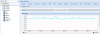
When I am logged into zwtProx1 — 2 — 3 I cannot access zwtTEST.
And when I am in zwtTEST, I cannot access zwtProx1 — 2 — 3. zwtTEST is the only host not on the same physical switch, however, zwtTEST is connect via an unmanaged switched.
-
#7
Re: Error: Connection Error 595: Connection refused
Hi, my two nodes are in the same switch and not use multicast. Use unicast. My error is «Connection refused» and your error is «no route to host»
I don’t find the problem.
any idea?
-
#8
Re: Error: Connection Error 595: Connection refused
In order to properly cluster Proxmox Host, you must have multicast enabled.
-
#9
Re: Error: Connection Error 595: Connection refused
i can’t. In the datacenter don’t permit multicast i the switch
I make test with 2 server in my office and work fine in unicast.
-
#10
Re: Error: Connection Error 595: Connection refused
Hi, i don’t find the problem…
I check all! any idea?
do you believe that it can be a problem whit the swicth? The problem is exclusive in pveproxy. The cluster, the corosync works fine.
-
#11
Re: Error: Connection Error 595: Connection refused
Hi I had the same problem, please check /etc/hosts at every node you have in cluster. IP address in hosts file must be same as real IP on machine. My problem was that I changed IPs after installation proxmox on nodes.
-
#12
Re: Error: Connection Error 595: Connection refused
/etc/host is correct in both servers
-
#13
Re: Error: Connection Error 595: Connection refused
the problem was the switch. Arrrrrrrr!!!
-
#14
Unfortunately I ran into this error too.
I like to run a two node cluster in a hosted environment.
Good news: the cluster is running both nodes are «green» in the webgui, pvecm status looks good etc etc
both nodes have two interfaces, one facing the public internet, and one connected via a crosslink cabel to the other host (10G)
I created the cluster with:
pvecm create <clustername> —bindnet0_addr <ip> —ring0_addr <ip>
directing the cluster internal traffic to the cross linked interface
the firewall allows all traffic between these both (cross linked) interfaces AND all traffic between the two external addresses
IGMP is accepted between the the cross linked interfaces.
Now when I log into the webgui of host A there are both hosts marked «green» on the left menu,
when I click on host A everything works as expected (attributes are displayed in the main window)
when I click on host B I get the «Connection Error 595: Connection refused»
(AND vice versa, I can log into webgui of host B but from there can’t access host A)
I have multicast ONLY between then cross linked interfaces,
my provider doesn’t allow multicast over the external addresses.
Might the be the reason (and if so that would be … sad and bad 😉 ?
Or do I miss any special config operation to make it work?
Any hint is appreciated!
TIA
-
#15
Is there no way to get this working?
As mentioned I have the two systems connected via a crosslink cabel and only the ip address of those interfaces configured as
—bindnet0_addr <ip> —ring0_addr <ip>
-
#16
same problem, for me pveproxy was stoped, need to run systemctl restart pveproxy.service
-
#17
same problem, for me pveproxy was stoped, need to run systemctl restart pveproxy.service
That Fixed my issue !!!!!!!!!! Thanks Alot i thought I was screwed!!!

-
#18
If anyone is facing this Connection Error 595 after creating the Proxmox Cluster, this thread may help you to resolve the RCOTI.
-
#1
Hi to all !
I use Proxmox on 3 nodes. Some days before I rebuilded my Cluster on 2 nodes (pve1 and pve2) and all is running well. Then I added the third node (pve3) to that rebuildet cluster and on the first view all is OK. On Admin-GUI all nodes are green lightning. BUT, if I try to control pve3, I get the message ‘no route to host (595)’ and nothing more. What can I do to solve that problem ?
Thanls in advance …
Telekomiker
-
#3
Hi mir,
that was it. I forgott to change the name in pve3′ /etc/hosts.
Thank you !
Best regards
Telekomiker from Germany …
-
#1
Hello! I had a problem today where I couldn’t get past ‘loading initial ramdisk`. I restored grub and the ramdisk from recovery, and was then able to boot into proxmox again. However, the web gui didn’t work, so I read that it’s because of a wrong /etc/hosts entry. I *fixed* that, and the gui came back up after a reboot.
But now none of my VMs and LXCs are accessible. Clicking on them in the gui shows «No route to host (595)». I’d like to bring them back to life, but if there isn’t anyway, can I atleast somehow save the data?

This is my current config
Code:
# $> cat /etc/network/interfaces

auto lo
iface lo inet loopback

iface enp3s0 inet manual

auto vmbr0
iface vmbr0 inet static
        address 192.168.1.4/24
        gateway 192.168.1.1
        bridge-ports enp3s0
        bridge-stp off
        bridge-fd 0
Code:
# $> cat /etc/hosts

127.0.0.1 localhost
192.168.1.4 homeserver.home.local homeserver

# The following lines are desirable for IPv6 capable hosts

::1     ip6-localhost ip6-loopback
fe00::0 ip6-localnet
ff00::0 ip6-mcastprefix
ff02::1 ip6-allnodes
ff02::2 ip6-allrouters
ff02::3 ip6-allhosts
Code:
# $# journalctl -u pvedaemon -u pveproxy -u pve-cluster

-- Journal begins at Sun 2022-11-20 20:57:59 CET, ends at Thu 2022-11-24 17:51:37 CET. --
Nov 20 20:58:03 home systemd[1]: Starting The Proxmox VE cluster filesystem...
Nov 20 20:58:04 home systemd[1]: Started The Proxmox VE cluster filesystem.
Nov 20 20:58:04 home systemd[1]: Starting PVE API Daemon...
Nov 20 20:58:06 home pvedaemon[951]: starting server
Nov 20 20:58:06 home pvedaemon[951]: starting 3 worker(s)
Nov 20 20:58:06 home pvedaemon[951]: worker 952 started
Nov 20 20:58:06 home pvedaemon[951]: worker 953 started
Nov 20 20:58:06 home pvedaemon[951]: worker 954 started
Nov 20 20:58:06 home systemd[1]: Started PVE API Daemon.
Nov 20 20:58:06 home systemd[1]: Starting PVE API Proxy Server...
Nov 20 20:58:07 home pvecm[960]: Generating public/private rsa key pair.
Nov 20 20:58:07 home pvecm[960]: Your identification has been saved in /root/.ssh/id_rsa
Nov 20 20:58:07 home pvecm[960]: Your public key has been saved in /root/.ssh/id_rsa.pub
Nov 20 20:58:07 home pvecm[960]: The key fingerprint is:
Nov 20 20:58:07 home pvecm[960]: SHA256:xxxxx root@home
Nov 20 20:58:07 home pvecm[960]: The key's randomart image is:
Nov 20 20:58:07 home pvecm[960]: +---[RSA 2048]----+
...
Nov 20 20:58:07 home pvecm[960]: +----[SHA256]-----+
Nov 20 20:58:09 home pvecm[957]: got inotify poll request in wrong process - disabling inotify
Last edited: Nov 24, 2022
When you’re trying to connect to a service on Linux, “No route to host” is one of the last things you want to hear. It’s a broad message that means your computer can’t reach the target server, whether a local server daemon running on your system or a remote server that you can’t access for whatever reason. Here we show you how to fix the “no route to host” connection error in Linux.
Why Am I Getting the “No Route to Host” error?
There are many reasons why you could be getting that error. Networking in Linux is a somewhat complicated stack that’s pretty intricate, and as a result, it’s tough to determine exactly where the issue is.
Host Is Offline/Service Isn’t Running
It may seem painfully obvious, but you should first check that the server that you’re trying to connect to is even online. It might have been taken down for maintenance or be experiencing issues.

The service itself might not have been started. If it’s your server, you can check to see if the service has been started and is running properly. To do that with Systemd, run the following command.
sudo systemctl status SERVICENAME
Wrong Port
You may be trying to connect on the incorrect port. Many system administrators choose to run commonly targeted services like SSH on different ports to help thwart would-be attackers.
If the server isn’t your own, check the available documentation or contact their support services.
For your own server, you can try using NMAP to figure out where you started your service.
sudo nmap -sS your.server.ip
If you think you used a really obscure port, you can use the -p- flag to scan them all. It will take a while though.
Iptables Is Blocking the Connection
You may have accidentally configured iptables to block connections on that port. You would receive the same message whether you configured iptables on the server or your desktop, so it’s worth checking both. To see your iptables rules, run the following command.
Your DNS Is Improperly Configured
If all else fails, you should try to ping the IP address that you’re looking to connect to. It could be that your computer isn’t connecting to a DNS server properly.
If the ping works but connecting a domain name doesn’t, you’re looking at a DNS issue.
Systemd users can run systemd-resolve --status to check the DNS servers that your system is using. It’s broken down by interface, so make sure to check the one that you’re actually trying to connect through.

In most cases your computer will discover the relevant DNS information over DHCP. If you’re using a static IP or something on your network is configured differently, you may have to set your DNS manually.
Open “/etc/systemd/resolved.conf.” In that file, uncomment the DNS line and add either the IP of your router or another known DNS server. The default fallback DNS for Systemd is Google’s DNS servers listed under FallbackDNS.
If you’re using OpenRC or another Systemd alternative, you can find your DNS information in “/etc/resolv.conf.”
If there’s nothing there, enter the IP address of your router or any other known DNS server that you’d prefer to use.
After, either restart networking or your entire computer.
The GUI Way
If you’re using a graphical desktop with Network Manager, you can edit your connection information that way. Open the applet or go through your system settings. Select your connection and find the “IPv4” tab. Switch the connection to “Manual” and manually enter in the IP address of your computer and the IP of your router as the gateway. Then, in the DNS field below, enter your router’s IP or the IP of another DNS server.
Incorrect Network or Host Configuration
There are several other configuration options that may be incorrect. Any of them would make it impossible for your computer to connect to the server.
First, make sure that your computer’s network configuration is correct. Double-check the configuration files themselves and, of course, see if you can connect to the Internet another way.
If you’re using a specific hostname to connect or you’ve set up specific hosts on either the server or the client, you need to make sure both machines can connect to each other. Check the configurations of “/etc/hosts,” “/etc/hosts.allow,” and “/etc/hosts.deny.”

Finally, check your server configuration. Something may be improperly configured on the server, preventing clients from connecting properly.
Hopefully, using these tips has allowed you to fix whatever issues were happening that caused the “No Route to Host” error. Meanwhile, you can learn how to control your Wi-Fi network in Linux or check if your firewall is blocking any incoming and outgoing connection.

John Perkins
John is a young technical professional with a passion for educating users on the best ways to use their technology. He holds technical certifications covering topics ranging from computer hardware to cybersecurity to Linux system administration.
Subscribe to our newsletter!
Our latest tutorials delivered straight to your inbox
Содержание
- 1 Правильны ли настройки вашей сети?
- 2 Хост-сервер подключен к сети?
- 3 Вы подключаетесь к нужному порту?
- 4 Правильно ли указано имя хоста?
- 5 Iptables блокирует соединение?
- 6 Заключительные мысли
Сталкивались ли вы с «No Route to Host» при попытке получить доступ к серверу в Linux? Эта ошибка подключения к услуге может раздражать, но вы можете исправить ее, как только определите причину.
«No Route to Host» (Нет маршрута к хосту) обозначает проблему в сети, обычно возникающую, когда сервер или хост не отвечает. Это может произойти из-за проблем с сетью или из-за неправильной настройки.
Правильны ли настройки вашей сети?
Прежде чем мы рассмотрим более конкретные причины этой проблемы, убедитесь в правильности настроек вашей сети. Можете ли вы подключиться к сети? Ваш DNS правильно настроен?
Запустите эту команду, чтобы узнать:
systemd-resolv –status
Если вы обнаружите там какие-либо проблемы с DNS, вернитесь к конфигурации вашей сети и, если потребуется, повторите ее. Если вы используете стандартную сеть с динамическим IP, номера DNS должны обновляться автоматически.

Чтобы вручную настроить DNS, перейдите в Network Manager и вручную введите IP-адрес на вкладке IPv4.
Если в вашем дистрибутиве Linux нет графического рабочего стола, перейдите в «/etc/systemd/resolved.conf» и найдите строку DNS.
Измените номера на номера DNS, которые вы хотите, и при необходимости сделайте другие конфигурации.
Кроме того, если вы настроили статический IP-адрес, вы можете захотеть вернуться к динамическому IP-адресу и разрешить вашей сети получать информацию о соединении через DHCP.
Не забудьте перезагрузить компьютер, прежде чем пытаться снова подключиться к хосту. Если вы по-прежнему получаете «No Route to Host», продолжайте читать.
Хост-сервер подключен к сети?
Следующим шагом является проверка того, что хост, к которому вы пытаетесь подключиться, действительно подключен. В конце концов, одной из наиболее частых причин ошибки является то, что служба не работает в результате обслуживания или какой-либо другой проблемы.
Если служба не в сети, проверьте, есть ли хост. Иногда служба может быть остановлена или не запущена с самого начала, даже если с самим сервером все в порядке.
Используя systemd, запустите команду…
sudo systemctl status servicename

Если служба работает, вам нужно искать другую причину.
Вы подключаетесь к нужному порту?
Дважды проверьте любую документацию, которую может предоставить хост. Обычно администраторы серверов блокируют порты, которые не используются для повышения безопасности сервера. Злоумышленники часто используют общие порты для нацеливания на службы Linux.
Если вы пытаетесь подключиться к своему собственному серверу, вы можете отследить службу до правильного порта. Для этого вам нужно установить средство безопасности, которое поможет вам увидеть открытые порты — NMAP.
Вот команды для установки NMAP в разных дистрибутивах Linux:
CentOS: ням установить nmap
Debian: apt-get установить nmap
Ubuntu: sudo apt-get установить nmap
После установки NMAP проверьте наличие открытых портов с помощью следующей команды:
sudo nmap -sS target-server-ip

Если у вас нет прямого доступа к серверу, вам придется связаться с хостом. Но прежде чем сделать это, рассмотрим некоторые другие возможные причины ошибки «No Route to Host» в Linux.
Правильно ли указано имя хоста?
Вы также можете получить ошибку «No Route to Host», если ваш компьютер и сервер, к которому вы пытаетесь подключиться, используют разные имена хостов. Обе машины должны быть настроены на соединение друг с другом.
Помимо обычной конфигурации хостов, вы должны обратить внимание на файлы hosts.deny и hosts.allow в «/ etc». Если вы пытаетесь подключиться к новому серверу, убедитесь, что вы правильно указали имя хоста сервера.
Iptables блокирует соединение?
iptables очень полезен, когда вы хотите настроить таблицы брандмауэра ядра Linux. Полный контроль над трафиком, который входит и выходит из вашего компьютера, великолепен.
Но из-за простой ошибки конфигурации iptables может заблокировать соединение с портом, к которому вы хотите подключиться, и вызвать ошибку «No Route to Host».
Чтобы проверить, виноват ли iptables, выполните следующую команду:
sudo iptables -S
Посмотрите, блокируют ли установленные вами правила iptables соединение. Возможно, вам придется добавить правило принятия в цепочку INPUT по умолчанию.
Чтобы очистить правила брандмауэра для внешнего брандмауэра, вы можете использовать эту команду:
iptables -F
Заключительные мысли
Как видите, может потребоваться некоторое время, чтобы добраться до сути ошибки «No Route to Host», но описанные выше шаги должны помочь вам. Хотя это может выглядеть как сложная проблема, часто это является результатом конфликтующих конфигураций или простых сетевых проблем.
Вы сталкивались с другими потенциальными причинами и исправлениями этой ошибки? Оставьте нам комментарий и расскажите нам об этом.
Overview
This issue happens when a network request is attempted to a remote host, and an error is thrown containing the phrase No route to host, or the error code EHOSTUNREACH.
Check RunBook Match
This runbook is limited to Linux hosts, although some steps may help trigger productive investigations on other OSes.
Initial Steps Overview
-
Gather information
-
Is host up?
-
Is the port open?
-
Check IPTables / NetFilter
-
Check routing tables
-
Check intervening firewalls
Detailed Steps
1) Gather information
1.1) Determine the host
Determine the host (or IP) you are trying to reach.
From here, this host will be referred to as [HOST|IP].
1.2) Determine the IP
Once you have the hostname, then you can determine the IP address by running:
which outputs, eg:
[HOST] has address 151.101.0.81
[HOST] has address 151.101.128.81
[HOST] has address 151.101.64.81
[HOST] has address 151.101.192.81
[...]
You can take the first address returned as the IP to use, eg for the above output, 151.101.0.81 would be the IP.
If you can find out the ‘correct’ IP that you are trying to reach by some means independent from your machine, do so. This might involve contacting another user, or figuring out the IP address by introspecting on the host.
1.3) Determine the port
Determine the port you are trying to reach.
If this is a ‘standard’ web request, then the port is either 80 (for http requests) or 443 (for https requests).
If the web request hits a non-standard port, then you will see :[NUMBER] in the URL, eg:
https://example.com:8443/path/to/site
would mean you are trying to contact port 8443.
This will be referred to subsequently as [PORT].
1.4) Determine the frequency of the problem
Try and work out if the problem happens every time, or is intermittent.
If it’s intermittent, consider whether there are multiple hosts that could be ultimately reached by the request (eg behind a load balancer), and whether one of these hosts is faulty.
2) Is host up?
Check whether the host you are trying to reach is up.
2.1) Use nmap
Run:
If you see output that begins like this:
Starting Nmap 7.80 ( https://nmap.org ) at 2020-06-19 10:11 BST
then you have nmap installed. If you don’t then you will need to install it. Wait for the command to return.
If you see a message in output like:
Failed to resolve "[HOST|IP]".
then this is a DNS lookup failure. See the DNS Lookup Failure runbook.
If you see output that mentions Host is up, like this:
Nmap scan report for [HOST] ([IP])
Host is up (0.016s latency).
Other addresses for [HOST] (not scanned): [IP2] [IP3]
Not shown: 998 filtered ports
PORT    STATE SERVICE
80/tcp  open  http
443/tcp open  https

Nmap done: 1 IP address (1 host up) scanned in 11.20 seconds
then the host you are trying to contact is up.
2.2) Use ping
If you can not install nmap, then you can try to ping the host:
2.3) Use nmap on the IP
If you are certain of the IP you are trying to connect to, you can try using nmap to access that host directly as per step 2.1. If the output differs from that of step 2.1, then you may have an issue with DNS lookup for the host not returning the correct IP address.
If you do, then this is likely due to a DNS server local to your network being misconfigured. Correcting this is outside the scope of this runbook, and will likely require you to contact the person responsible for that DNS server.
3) Is the port open?
There are two ways of determining this — from the client host and from the remote host.
3.1) From client
Run this command, and check the output:
If the command hangs with output like:
Trying 151.101.64.81...
then you can only say that the connection is not being explicitly rejected by the remote host. Where the connection is being stopped/dropped is impossible to say. It could be:
-
by a local firewall
-
by an intervening host/firewall
-
by the remote host’s firewall
If the request returns with a message like:
telnet: Unable to connect to remote host: Connection refused
then the request reached a remote host, and was explicitly refused.
If you connect, with a response like this:
Trying 151.101.0.81...
Connected to [HOST]
Escape character is '^]'.
Then the issue appears to be resolved. If your application is still having the same problem, then check the IP address it is trying to reach matches the IP address above.
3.2) From remote host
There are several ways to determine whether a given port is open on your host.
netstat
netstat -ln | grep -w tcp | grep -w [PORT]
If the output looks like this:
tcp 0 0 0.0.0.0:[PORT] 0.0.0.0:* LISTEN
then the port is open on all network interfaces (that’s what 0.0.0.0 means). If you see another set of numbers in place of the 0.0.0.0:[PORT], then .
Similarly, if you see something else in place of the 0.0.0.0:* (the ‘Foreign Address’), then the port may not be accessible only to clients from specific IP addresses. For example, if you see 127.0.0.1:* then it is only accessible from the localhost (using any port).
ss
ss -ln | grep -w tcp | grep -w [PORT]
Which produces similar output:
tcp LISTEN 0 128 0.0.0.0:22 0.0.0.0:*
- telnet
You can try connecting direct to the port using telnet, as per step 3.1. However be aware that this just proves that you can connect from the same host (see notes on interfaces in this section above).
3.3) Conclusions
If:
-
the port appears to be open from the point of view of the remote host
-
the port appears to be closed from the point of view of the client
this suggests that there is an intervening firewall that is blocking requests from reaching the server.
The firewall may be on the remote host.
4) Check IPTables / NetFilter
First, if you want to (optionally) know whether you are using IPTables or NetFilter, go here.
To determine your IPTables/NetFilter rules and whether they affect your port or host, run as root:
iptables -S | grep -w [PORT]
iptables -S | grep -w [IP]
iptables -S | grep -w [HOST]
If any lines match, then IPTables may be blocking or redirecting your attempts to connect to the remote server.
Understanding IPTables more deeply to fully debug this is outside the scope of this article. There are many resources on the web that attempt to explain it for various levels of experience.
5) Check routing tables
At this point, you may want to consider whether your routing tables are misconfigured.
This command gives a list of your machine’s routes:
If the ip command is unavailable, try route:
Determining whether the routing tables are correctly configured requires more network knowledge than can be reasonably placed here, and likely some knowledge of the local network topology.
There are many good resources on the internet for this, see Further Information below for links.
6) Check intervening firewalls
At this point you’ve checked connectivity at your client machine and the server. Now it is worth considering whether there is an intervening firewall between client and server blocking the connection.
- Local firewall (ie on way out)
We have already considered IPTables/NetFilter, but it is possible that there is some other kind of firewall running on your host that is preventing egress.
- If you are using AWS, or any other cloud provider…
then consider whether there are network rules set up to prevent egress. On AWS these come in the form of ‘Security Groups’ and ‘Network ACLs’.
- External/3rd party firewall
Any number of firewalls/hosts may be relaying your request to the destination host. Any of these may be blocking the request from going further.
Using traceroute might be considered at this point to determine which (and how many) hosts are being hit may help you debug further. See here for more background on this tool.
Check Resolution
If the application no longer reports this error, then this issue is resolved.
Further Steps
None.
Further Information
This error originates from the Linux kernel, eg in:
net/9p/error.c:114: {"No route to host", EHOSTUNREACH},
It can be thrown within the kernel for a number of different reasons, which makes interpreting the error tricky.
Routing tables
Owner
Ian Miell
Linux is more often than not a hassle-free operating system to use. However, no OS on the planet is immune to networking issues, and the same stands true for Linux.
In this article, we’re looking at the “no route to host” error in Linux, its causes and how you can fix the problem.
What causes the ‘no route to host’ issue?
The error is primarily triggered when the network, server or host you’re trying to connect to you is not responding. It could indicate an inactive internet connection, incorrectly set up router profiles or any number of settings that can restrict your access to the particular server you’re trying to reach.
Also read: How to change file permissions recursively using Chmod in Linux?
How to fix the ‘no route to host’ issue?
Here are six solutions to try out and fix the no route to host issue.
Check your internet connection
Minecraft requires an active internet connection to work. If you have an unstable internet connection, chances are you’re going to miss out on notifications. Suppose you’re on WiFi check to see if you’ve got internet access and strong signals. If you’re on mobile data, check to see if data is enabled and that you’ve got good network coverage.
Incorrect network or host configuration files
Linux uses a bunch of configuration files to define several rules, which it then uses to connect to either the internet or a dedicated host over the internet or even your local network. Check to see if these files are in order and allow outgoing connections. Be sure to check the following three files at least:
/etc /hosts
/etc /hosts.allow
/etc /hosts.deny
Check your services
The most obvious thing can be whether the service you’re trying to connect to you is running or not. If you’re trying to connect to an external server, check its status to see if it’s running or not.
If you’re operating a server yourself, use the systemctl command to see if the service is running.
sudo systemctl status [service name]
Also read: How to rename a directory in Linux?
Check the port
If the service is online, the next point of failure is most likely the port you’re connecting to. Most services change their default port as a security measure to avoid attackers from snooping in and causing damage. Check to see if you’re using the right port number.
If you’re using your server, try using NMAP to determine which port your service is running using the following command.
sudo nmap -sS [your server's IP]
Check IPTables
Another possible reason for the error could be IPTables blocking connections on the port the service is trying to communicate through. Check to see if the service is allowed to get through IPTables.
sudo iptables -S
DNS issues
If you can ping your server’s IP address but can’t resolve the domain name, you’re most likely facing a DNS issue. In most cases, your PC will fetch DNS information automatically using DHCP, but things can be different if you’re using static IP assignments.
Here’s how you can set up your DNS manually.
Step 1: Navigate to the following directory and open the resolved.conf file.
/etc/systemd/
Step 2: Uncomment the DNS= line and add your router’s default IP.

If you’re using OpenRC or any other systemd alternative, your DNS files will be in /etc/resolve.conf. Once you’ve updated the rules, try restarting your router and PC.
Also read: How to access command line history on Linux?

Someone who writes/edits/shoots/hosts all things tech and when he’s not, streams himself racing virtual cars.
You can contact him here: [email protected]
i’m writing a server/client c program based on AX.25 protocol.
The server creating the socket, binding Successfully and listening for coming connections.
the client running in a different thread but fails on connect with » No route to host»
Server code
#include <sys/socket.h>
#include <netax25/ax25.h>
#include <netax25/axlib.h>
#include <netax25/axconfig.h>

#include <stdio.h>
#include <arpa/inet.h>

#include <stdio.h>
#include <string.h>
#include <unistd.h>

#include <signal.h>
#include <syslog.h>

#include <sys/types.h>
#include <linux/socket.h>
#include <stdlib.h>

#include <sys/un.h>

#include <string.h>
#include <errno.h>


int main(int argc,char **argv,char **envp) {


    int ax25_socket = -1;
    unsigned char buffer[512];

    struct full_sockaddr_ax25 addr, axconnect ;

      char *port ="3";// sm0 port number:3
      char *call = "OH2BNS-8";// sm0 callsign


      bzero((char *) &addr, sizeof(struct full_sockaddr_ax25));

        addr.fsa_ax25.sax25_family = AF_AX25;
        addr.fsa_ax25.sax25_ndigis = 1;


        if (ax25_config_load_ports() == 0) {
                    printf( "Problem with axports file");
                    //return -1;
            }

        char* ax25port = (char*) ax25_config_get_addr(port);

        ax25_aton_entry( call, addr.fsa_ax25.sax25_call.ax25_call);
        ax25_aton_entry( ax25port, addr.fsa_digipeater[0].ax25_call);


        ax25_socket = socket(AF_AX25, SOCK_SEQPACKET, 0);
            if (ax25_socket < -1)
              printf( "error in create socket");

            if (bind(ax25_socket, (struct sockaddr *)&addr, sizeof(struct full_sockaddr_ax25)) < 0) {

             perror("bind--");
             return -1;
            }


            if(listen(ax25_socket,2) != 0)
            {
                printf("cannot listen on socket!n");
                        close(ax25_socket);
                        return 0;
            }
                puts("listening");
            //bzero((char *) &axconnect, sizeof(struct full_sockaddr_ax25));
                int len =sizeof(struct full_sockaddr_ax25);
            int temp_sock_desc = accept(ax25_socket, (struct sockaddr*)&axconnect, &len);
                if (temp_sock_desc == -1)
                {
                    printf("cannot accept client!n");
                    close(ax25_socket);
                    return 0;
                }


            return 0;
}
Client code
#include <sys/socket.h>
#include <netax25/ax25.h>
#include <netax25/axlib.h>
#include <netax25/axconfig.h>

#include <stdio.h>
#include <arpa/inet.h>

#include <stdio.h>
#include <string.h>
#include <unistd.h>

#include <signal.h>
#include <syslog.h>

#include <sys/types.h>
#include <linux/socket.h>
#include <stdlib.h>

#include <sys/un.h>

#include <string.h>
#include <errno.h>


int main(int argc, char *argv[])
{
    int ax25_socket = -1;
    unsigned char buffer[512];

    struct full_sockaddr_ax25 axconnect ;

    char *port ="3";// sm0 port number:3
    char *call ="OH2BNS-8";// sm0 callsign

    bzero((char *) &axconnect, sizeof(struct full_sockaddr_ax25));

    axconnect.fsa_ax25.sax25_family = AF_AX25;
    axconnect.fsa_ax25.sax25_ndigis = 1;

         if (ax25_config_load_ports() == 0) {
                printf( "Problem with axports file");
                   //return -1;
                        }


                 char* ax25port = (char*) ax25_config_get_addr(port);

                 ax25_aton_entry( call, axconnect.fsa_ax25.sax25_call.ax25_call);
                 ax25_aton_entry( ax25port, axconnect.fsa_digipeater[0].ax25_call);

                    ax25_socket = socket(AF_AX25, SOCK_SEQPACKET, 0);
                                  if (ax25_socket < -1)
                                       printf( "error in create socket");


                            if (connect(ax25_socket, (struct sockaddr *)&axconnect, sizeof(struct full_sockaddr_ax25)) != 0) {
                                        perror("--");
                                            switch (errno) {
                                                case ECONNREFUSED:
                                                    printf("*** Connection refusedr");
                                                    break;
                                                case ENETUNREACH:
                                                    printf("*** No known router");
                                                    break;
                                                case EINTR:
                                                    printf("*** Connection timed outr");
                                                    break;
                                                default:
                                                    printf("ERROR: cannot connect to AX.25 callsignr");
                                                    break;
                                            }

                                            close(ax25_socket);
                                    }
                        printf("Connected!!r");
                        int n = write(ax25_socket,"Message!!!!",18);
                                if(n = -1)
                                    {
                                            perror("write--");
                                    }


                return 0;
}