 При действиях с дисками и разделами на них с использованием командной строки и DISKPART вместо предполагаемого результата вы можете получить сообщение о том, что произошла ошибка службы виртуальных дисков с пояснениями, такими как: Указанный диск нельзя преобразовать, Устройство уже используется, Удаление не допускается для текущего загрузочного или системного тома или Нет носителя в устройстве.
В этой инструкции подробно о различных ошибках службы виртуальных дисков в DISKPART, что они означают и как можно их исправить.
Указанный диск нельзя преобразовать, к таким дискам относятся компакт-диски и DVD-диски

Ошибка службы виртуальных дисков «Указанный диск нельзя преобразовать. К таким дискам относятся компакт-диски и DVD-диски» возникает при выполнении команд преобразования дисков между таблицами разделов MBR и GPT. Основные причины:
- Вы действительно пробуете преобразовать диск, который не может быть преобразован.
- Вы хотите конвертировать жесткий диск или SSD в GPT или MBR, но предварительно не очистили его.
В последнем случае ситуацию можно исправить, при условии, что на диске (на всех его разделах) нет важных данных:
- Перед преобразованием, выбрав диск командой select disk N, очистите его командой clean — это удалить все разделы и все данные со всего физического диска.
- Используйте команды convert gpt или convert mbr для преобразования.
Для начинающих пользователей уточню:
- если диск разбит на несколько разделов, мы не можем конвертировать только один раздел, только весь физический диск целиком, поскольку «GPT» и «MBR» относится к самой структуре разделов и всему диску.
- DISKPART не позволяет выполнить преобразование на не очищенном от разделов диске.
Если вам необходимо сохранить данные, для конвертации можно использовать сторонние программы для работы с разделами на дисках (в последний раз, когда я тестировал, эта функция была доступна бесплатно в DiskGenius), а если на диске уже установлена Windows 10 или Windows 11 и необходимо преобразование в GPT, можно использовать встроенную системную утилиту mbr2gpt.exe для конвертации без потери данных.
Удаление не допускается для текущего загрузочного или системного тома, а также томов с файлами подкачки, аварийного дампа и спящего режима

Указанная в подзаголовке ошибка службы виртуальных дисков говорит именно о том, что можно прочесть в тексте: вы пробуете выполнить действие, вероятнее всего — удаление, с разделом диска, на котором находится одно из:
- Загрузчик текущей ОС Windows (например, EFI-раздел FAT32)
- Сама операционная система, из которой вы производите указанные действия: мы не можем удалить том, с которого работает Windows, запущенная в настоящий момент.
- Файл подкачки, файлы гибернации, аварийного дампа памяти, спящего режима
Чаще всего причина — именно первый случай, при условии, что у пользователя на компьютере есть более одного HDD или SSD, система установлена на одном из них и он хочет очистить и отформатировать второй, а загрузчик текущей системы находится именно на том диске.
Возможное решение здесь: отключить диск, который требуется очистить, создать раздел с загрузчиком на диске с системой (или выполнить восстановление загрузчика), как описано в статье Восстановление загрузчика Windows 11 (подойдет и для Windows 10), убедиться, что загрузка работает исправно, вернуть диск, загрузиться с использованием нового загрузочного раздела и выполнить необходимые действия с диском.
Если ситуация отличается, и ошибка возникает с диском, на котором нет системы или загрузчика, можно попробовать:
- Временно отключить файл подкачки.
- Отключить сохранение дампов памяти.
- Отключить гибернацию.
- Если вы перемещали какие-то иные системные элементы на диск, с которым нужно выполнить действие, откатите сделанные настройки.
И выполнить перезагрузку компьютера после этого.
Ещё одна возможность выполнить операции с диском или разделом — использовать командную строку в среде восстановления, как описано в инструкциях Среда восстановления Windows 11, Среда восстановления Windows 10. Ошибка в этом случае, вероятнее всего не появится (зависит от конкретных дисков и разделов), однако существует риск удалить что-то критически важное для работы текущей операционной системы.
Не допускается очистка диска, содержащего текущий загрузочный или системный тома

Причины ошибки — те же, что и в предыдущем случае, как и возможные способы решения. Чаще всего проблема в том, что раздел с загрузчиком текущей ОС находится на диске отличном от места нахождения самой ОС.
В отличие от предыдущего случая, ошибка возникает не при удалении разделов, а при попытке очистить диск полностью.

Ошибка службы виртуальных дисков: Нет носителя в устройстве — одна из самых неприятных ситуаций, чаще всего возникающих с флешками или картами памяти. Причины и сценарии появления ошибки бывают разными:
- Накопитель читался и был исправен, но при выполнении команд DISKPART через некоторое время сообщил об ошибке «Нет носителя в устройстве». Возможные причины: проблемы с подключением накопителя (в том числе флешки или карты памяти), проблемы с USB-хабом или кардридером при их использовании, проблемы с разъемами USB. Обычно после повторного подключения накопителя его можно попробовать форматировать снова: лучше использовать другие разъемы, USB 2.0 вместо 3.0, избегать использования USB-хабов. По возможности следует проверить работу с накопителем на другом компьютере или ноутбуке, так как проблема в некоторых случаях бывает вызвана неисправностями электропитания на конкретном устройстве.
- Неисправности накопителя. Для флешки или SD-карты имеет смысл проверить, смогут ли выполнить исправление и форматирование специализированные программы «для ремонта» флешек.
- Проблема с питанием, недостаток мощности при питании по USB для внешних дисков SSD/HDD.
- В устройстве действительно нет накопителя: например, некоторые кард-ридеры, даже без подключенных карт памяти могут иметь букву и определяться как диск. При операциях с такими «дисками» можно получить сообщение о том, что нет носителя в устройстве.
В некоторых случаях при такой ошибке, особенно если она происходит с разными USB-накопителями, может помочь установка оригинальных драйверов чипсета и контроллеров USB с сайта производителя материнской платы ПК или ноутбука.
Если ваша ситуация схожа, но отличается в деталях от представленных в статье выше, опишите её в подробностях — не исключено, что решение вашей проблемы также удастся найти.
- Remove From My Forums

Случайно отформатировал диск С как поставить новую операционку?
-
Вопрос
-
У меня на ноутбуке стояла Winda 8, ребенок случайно форматнул диск С, Биос не дает ставить операционку, пишет какие-то ошибки. Что делать? При установке новой Винды пишет, что не может установить в данный раздел диска(GPT). Подскажите,
пожалуйста, как реанимировать систему или еще лучше поставить новую операционку! На данный момент рабочий Биос. Заранее спасибо
Ответы
-
У вас, вы говорите, на винчестере есть recovery разделы от фирмы-производителя ноутбука. Посмотрите руководство ноутбука на наличие горячей комбинации клавиш, которую можно нажать в момент включения для восстановления
образа операционной системы.http://cherev.ru/kak-vernut-noutbuk-k-zavodskomu-sostoyaniyu-samsung/
У вас горячая клавиша или комбинация их может отличаться от преведенных в статье.
-
Изменено
25 января 2013 г. 22:44
-
Помечено в качестве ответа
piit81
26 января 2013 г. 0:08
-
Изменено
What Is DiskPart Virtual Disk Service Error
According to Microsoft, Virtual Disk Service is a Microsoft Windows service that performs query and configuration operations at the request of end users, scripts, and applications. It enables users to manage disk hard drives, volumes, etc., by running the DiskPart command prompt.
Sometimes, you will receive a DiskPart virtual disk service error while running DiskPart command to manage your disk partition, including format disk to FAT32, clean a disk, delete partitions, convert MBR disk to GPT disk or vice versa, etc.
Accordingly, the fixes toward different errors on DiskPart may differ. On this page, we list the typical Virtual Disk Service errors along with the solutions.
Common DiskPart Virtual Disk Service Errors and Solutions
Check the exact error that you are having and refer to the right solution to get rid of it from your computer immediately.
8 Common DiskPart Virtual Disk Service Errors and Fixes:
You Must-Have Tool
The best way to deal with Diskpart Virtual Disk Service errors is to try a powerful third-party disk management tool. EaseUS partition tool, which wins the praise of numerous users, is a wonderful choice. It perfectly resolves each error on your computer within a few simple clicks.
Download it, and let’s see how it works to help.
Error 1: Clean is not allowed on the disk containing the current boot, system, pagefile, crashdump or hibernation volume
Applies to:
Virtual Disk Service error:
Clean is not allowed on the disk containing the current boot, system, pagefile, crashdump or hibernation volume.
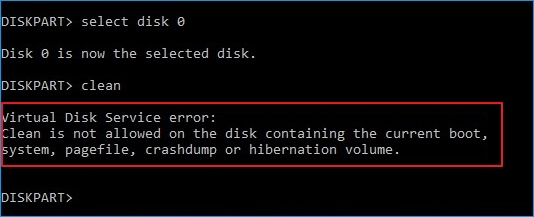
This error usually comes when you run DiskPart clean command on a system disk. If you tend to clean up the old system disk or a running system disk to reinstall the Windows OS, you’ll need to create a bootable disk using EaseUS Partition Master.
The Delete All feature in EaseUS Partition Master works the same as the clean command, which deletes all partitions that you may apply for help.
Tutorial: Two Options to Fix Virtual Disk Error — Clean is not allowed
- #1. Clean Up OS Disk — Delete All Partitions with OS
- #2. Clean Up Data Disk — Delete All Partitions
#1. Clean Up OS Disk — Delete all partitions with OS:
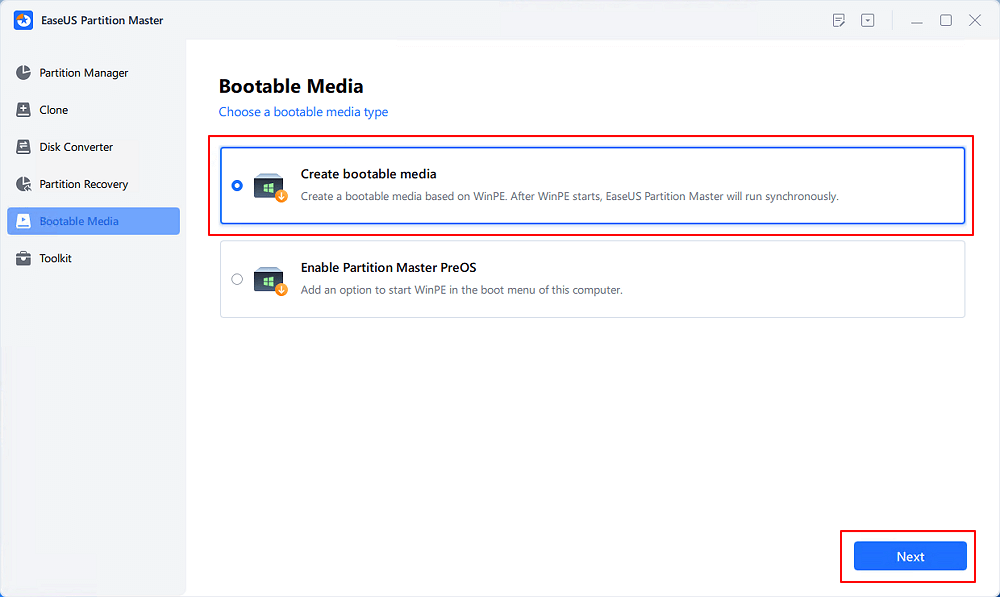
Step 1. Correctly connect a USB drive, flash drive, or a CD/DVD disc to your computer. Then, launch EaseUS Partition Master, go to the «Bootable Media» and click «Create bootable media», click «Next».
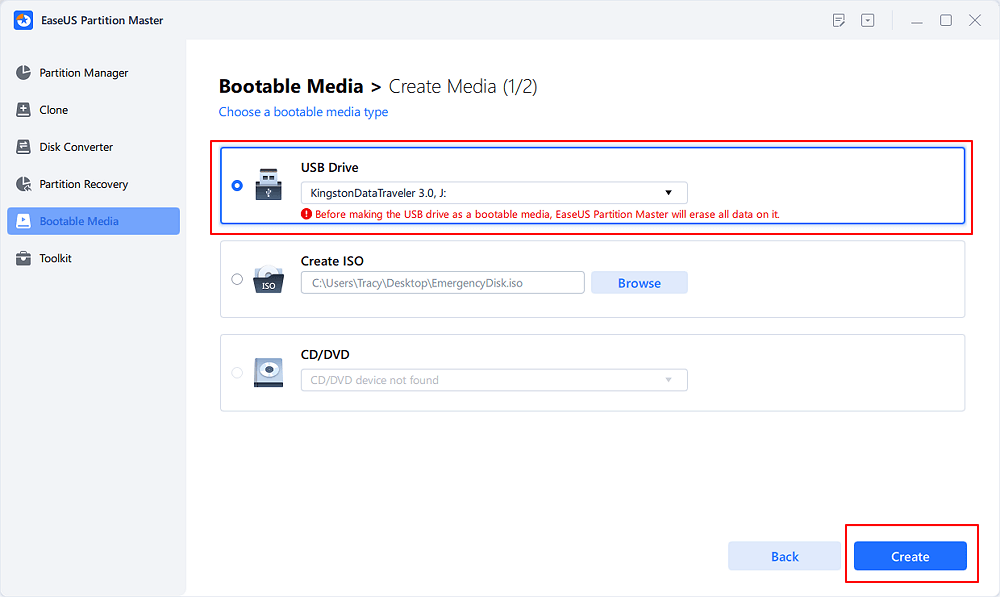
Step 2. You can choose the USB or CD/DVD when the drive is available. Once made the option, click «Proceed».
If you do not have a storage device at hand, you can also save the ISO file to a local drive, and later burn it to a storage media.
Step 3. Connect the WinPE bootable disk to the computer. Restart your computer and press F2/Del at the same time to enter BIOS. Set to boot the PC from «Removable Devices» (bootable USB disk) or «CD-ROM Drive» (bootable CD/DVD) beyond Hard Drive. Press «F10» to save and exit.
Step 4. Install and launch EaseUS Partition Master. Select the HDD or SSD which you want to wipe. And right-click to choose «Wipe Disk».
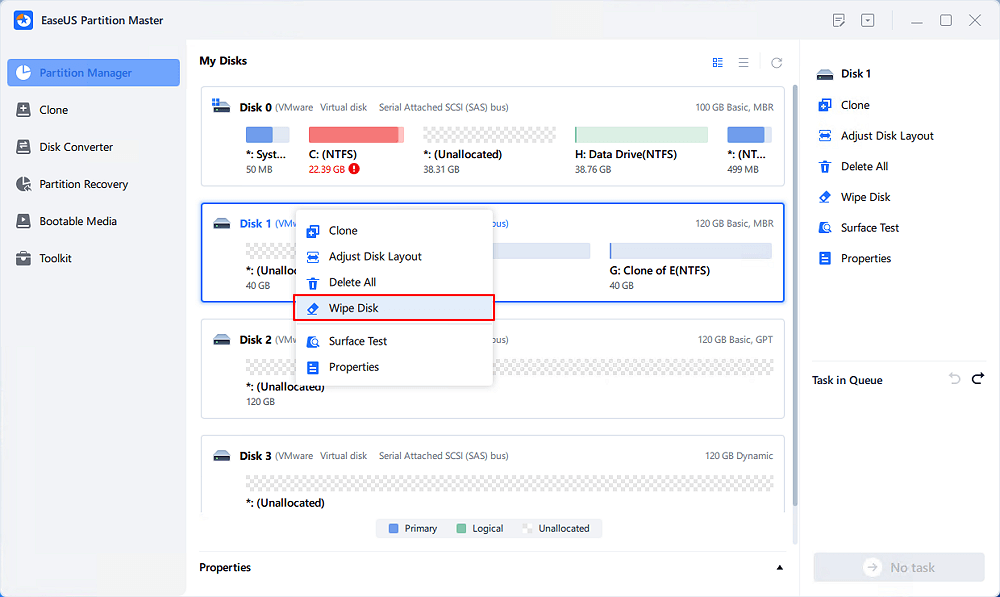
Step 5. Set the number of times to wipe data. You can set to 10 at most. Then, click «OK».
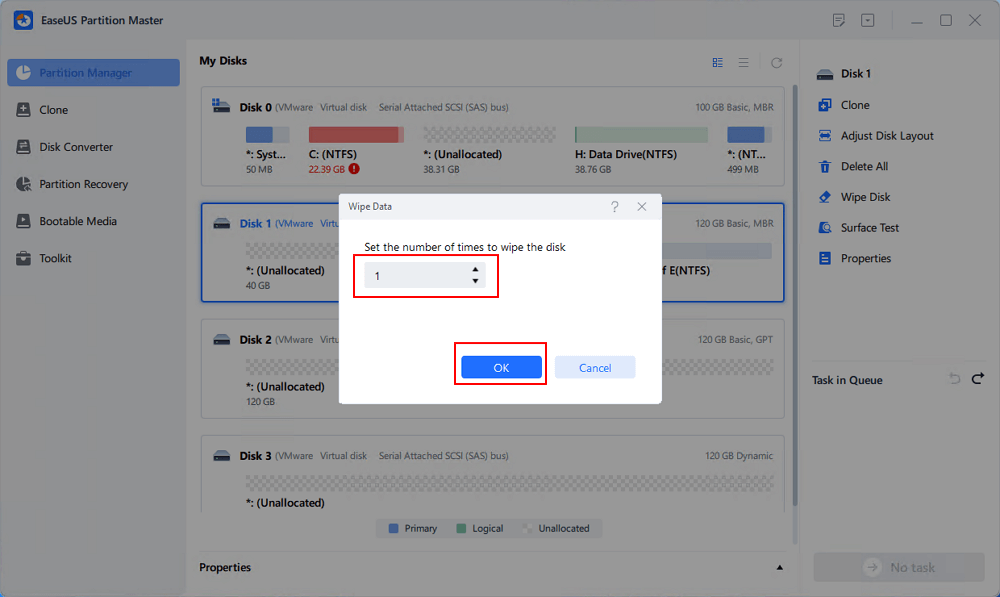
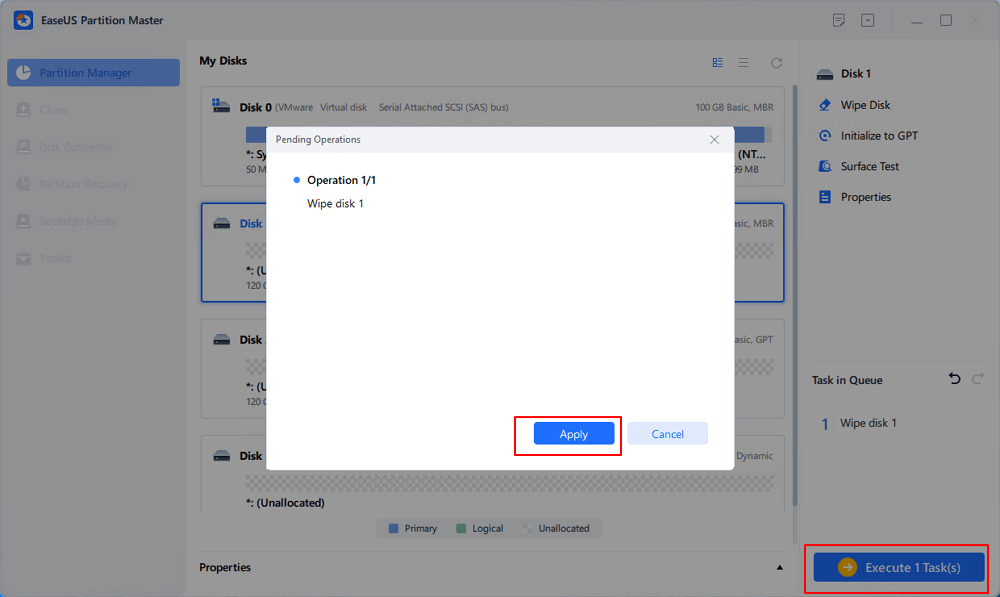
Step 6. Click «Execute 1 Task(s)» and then click «Apply» to start wiping data.
#2. Clean up and delete all existing partitions on the data disk:
Launch EaseUS Partition Master > Right-click on the target disk and select «Delete All» > Click «OK» and «Execute Operation».
Error 2: The specified disk is not convertible. CDROMs and DVDs are examples of disks that are not convertible
Applies to:
Virtual Disk Service error:
The specified disk is not convertible. CDROMs and DVDs are examples of disks that are not convertible.
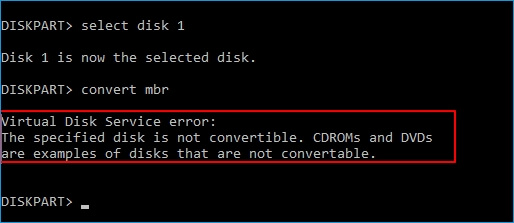
When you type list disk > select disk * > convert GPT or convert MBR but received an error message, telling that you are having a virtual disk service error on the current disk, the reason is that you have partitions existing on the drive.
So how to fix this error? You have two ways out:
Two Fixes for Virtual Disk Service Error — Specified Disk Is Not Convertible
- #1. Convert Disk to MBR/GPT without Losing Data
- #2. Clean Disk and Convert Disk to MBR/GPT
#1. Directly Convert Disk to MBR or GPT using EaseUS Partition Master
EaseUS Partition Master is an excellent DiskPart alternative tool that enables you to convert a disk to MBR or GPT without deleting partitions. No data loss issue will occur.
Follow the steps below to fix the virtual disk service error — the specified disk is not a convertible error on your own:
— Convert MBR to GPT:
Step 1. Download and launch EaseUS Partition Master on your computer.
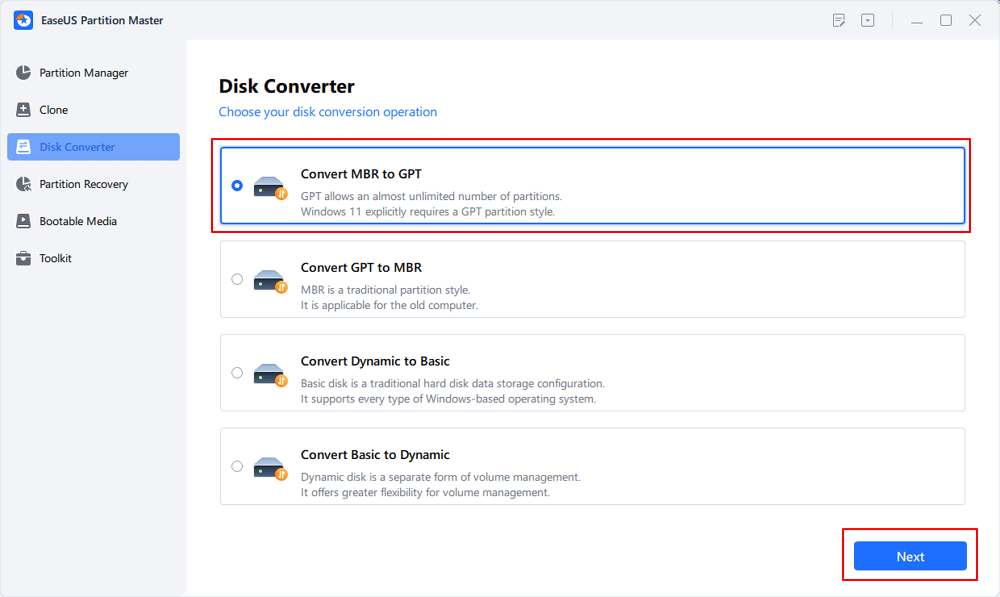
Step 2. Go to Disk Converter, select «Convert MBR to GPT» and click «Next» to continue.
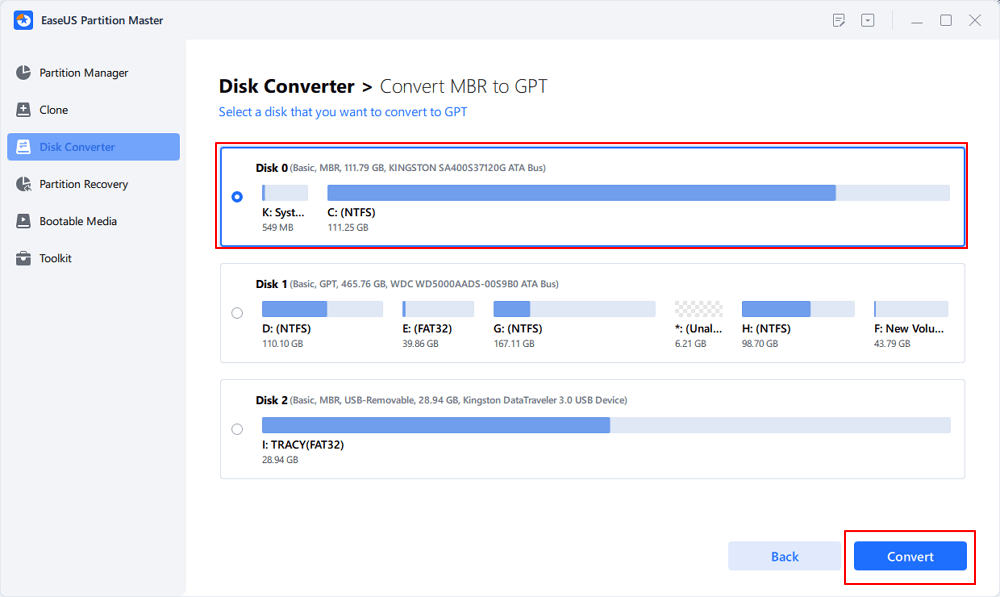
Step 3. Select the target MBR disk that you tend to convert to GPT, and click «Convert» to start the conversion.
— Convert GPT to MBR:
Right-click target GPT disk on EaseUS Partition Master > Select «Convert to MBR» > Click «OK» > «Execute Operation».
#2. Clean and Convert Disk to MBR/GPT using DiskPart Command
It requires deleting partitions before converting drive to GPT or MBR using the DiskPart conversion command. Therefore, if you have important data saved on the target disk, back up data to an external hard drive first.
Here are the steps:
Step 1. Open DiskPart by typing cmd in the Search bar, right-click Command Prompt and select «Run as Administrator».
Then type diskpart and hit Enter.
Step 2. Type the following commands and hit Enter each time:
- list disk
- select disk * (replace * with the target disk number)
- clean
- convert gpt or convert mbr
- exit
Error 3: Delete is not allowed on the current boot, system, pagefile, crashdump or hibernation volume
Applies to:
Virtual Disk Service error:
Delete is not allowed on the current boot, system, pagefile, crashdump, or hibernation volume.
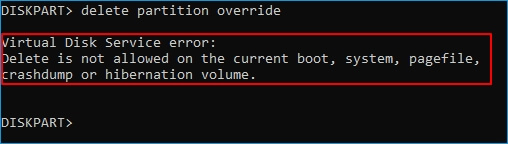
Note that this error often occurs when you set command in DiskPart to order Windows to delete the boot partition or system partition on its own. If you input the wrong volume number, retry to delete partitions again with the right volume number.
If your goal is to delete the OS partition or boot partition, try the below tutorial.
Fix: Delete Boot/System Volume via EaseUS Partition Master Bootable Disk
EaseUS Partition Master offers a safe way to help you delete the OS partition or the boot drive from its bootable disk.
- 1) You need first create an EaseUS Partition Master WinPE bootable disk.
- 2) Next, boot PC from EaseUS Partition software from the bootable disk.
- 3) Enter EaseUS Partition Master main window, right-click on the system or boot partition and choose «Delete» and click «OK».
- 4). Last, click «Execute Operation» to start deleting the boot, system, pagefile, crashdump, or hibernation volume.
Error 4: There is no media in the device
Applies to:
Virtual Disk Service error:
There is no media in the device.

When you run DiskPart to perform some operations on your target disk but receive virtual disk service error: there is no media in the device, it means that DiskPart could not find specified media. In other words, it could not load nor access the device.
2 Fixes for Virtual Disk Service Error — There Is No Media in The Device
#1. Change USB port to reconnect an external storage device or reinstall an HDD/SSD disk
#2. Update No Media Device Drive Driver:
Step 1. Right-click «This PC» and choose «Manage» > «Device Manager».
Step 2. Expand «Disk Drives», then right-click your problematic device that shows no media and select «Update Driver».
Step 3. In the new window, choose «Search automatically for updated driver software».
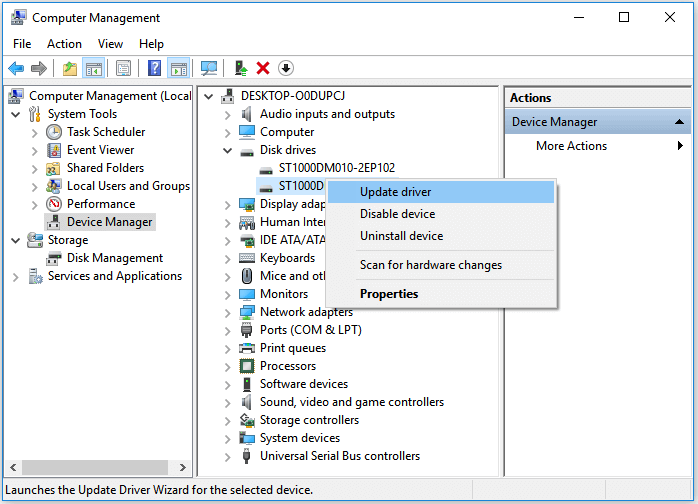
You may also refer to: There Is No Media in The (Specified) Device for further fixes.
Error 5: The volume size is too big
Applies to:
Virtual Disk Service error:
The volume size is too big.
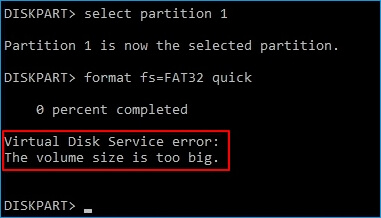
This error often occurs when you tend to format a large partition or a USB/external hard drive to the FAT32 file system using DiskPart utility. Due to the limit of the FAT32 file system, Windows doesn’t allow you to format a device larger than 32GB into FAT32. To fix this error, you have two options, as listed below.
2 Methods to Fix Virtual Disk Service Error — The Volume Size Is Too Big
- #1. Format Large Device to FAT32
- #2. Format Large Device to Other File System
#1. Using Third-Party Formatting Tool to Format Large Device to FAT32
If you tend to use a large device as a FAT32 removable drive, professional formatting tool — EaseUS Partition Master is your best shot. It breaks the limit of FAT32, enabling users to set large storage devices (more than 32GB) to FAT32 via its Format feature:
- Right-click the external drive or USB you intend to format and choose «Format».
- Set the Partition label, File system (NTFS/FAT32/EXT2/EXT3/EXT4/exFAT), and Cluster size, then click «OK».
- Click «Yes» to continue.
- Click the «Execute 1 Task(s)» button and click «Apply» to format the hard drive partition.
#2. Format Device to Other File Systems
The other fix that you can try is to change the file system, formatting your hard drive or external USB to other Windows supported format — NTFS (for internal HDD/SSD partition) or exFAT (for external hard drive):
Step 1. Right-click «This PC» and choose «Manage». Then go to «Disk Management».
Step 2. Right-click the target hard drive partition and choose «Format».
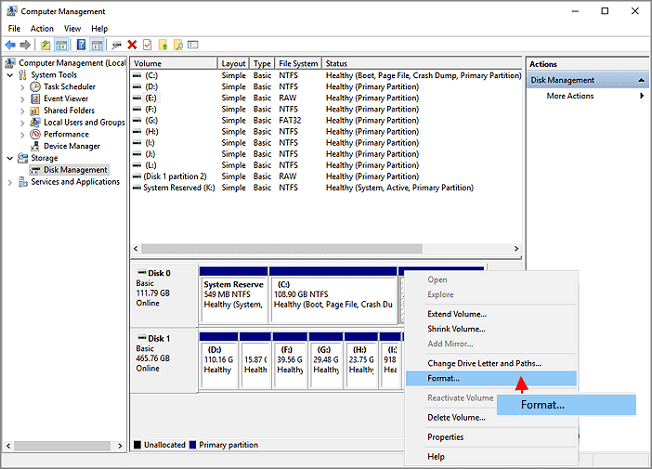
Step 3. Set the volume label, file system, and click «OK» to start formatting the drive.
Error 6: There is not enough usable space for this operation
Applies to:
Virtual Disk Service error:
There is not enough usable space for this operation.
This error often occurs when there is no unused free space or not enough unallocated space available on a hard disk for some specific operations, such as to extend a partition or to create a primary partition using DiskPart utility.
Two Fixes:
- 1]. Shrink Partition to leave unallocated space
- 2]. Extend Partition with or without unallocated space
Error 7: The service failed to initialize
Applies to:
Virtual Disk Service error:
The service failed to initialize.
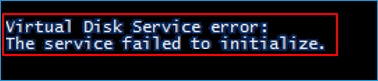
Normally, the Virtual Disk Service starts automatically on Windows PC. However, it may not start sometimes or failed to initialize.
Two Fixes:
1]. Open DiskPart utility > Type net start vds and hit Enter.
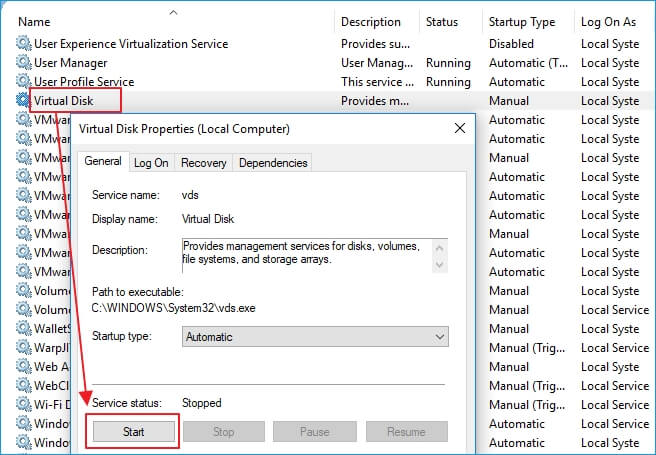
2]. Manually restart Virtual Disk Service: Type services in the Search box and hit Enter > Right-click or double-click «Virtual Disk» service > Select «Start».
This will change the Virtual Disk service startup type from Manual to Automatic, then restart Windows.
Error 8: The media is write protected.
Applies to:
Virtual Disk Service error:
The media is write protected.
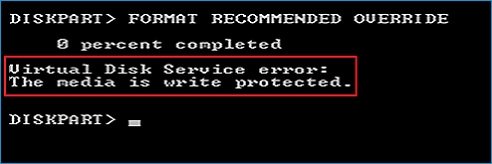
This error often occurs when a storage device is encrypted or locked due to some manual operation or device error. And the fixes toward this issue are multiple.
Full Fixes:
5 Ways to Remove Write Protection from USB, SD, internal/external hard drive in Windows 10/8/7.
Bonus Tip:
After fixing the diskpart error, you can now use this disk utility tool to manage your disks for free. And here is a guide to show you how to do so.

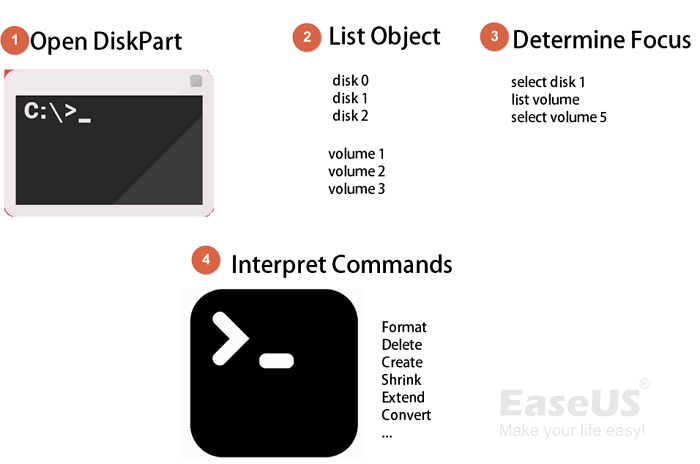
What Is Diskpart and How to Use Diskpart on Windows
After fixing the Diskpart Virtual Disk Service error, you may now apply the Diskpart to manage your disk partitions with relative command lines. This page offers you the complete guide to master and use Diskpart to partitioning hard drives on your own.
Conclusion
These are multiple solutions that can fix the typical Virtual Disk Service errors that you might encounter while manage disk partitions using Diskpart.
As we addressed, the methods to fix each error are different. You need to confirm the exact problem you are having in DiskPart to decide which method to apply. We collected the most possible ways to help you out and hope they are helpful!
If the problem that you are having is not included on this page, use the Search option at the top right corner on our homepage: https://www.easeus.com for help.
What Is DiskPart Virtual Disk Service Error
According to Microsoft, Virtual Disk Service is a Microsoft Windows service that performs query and configuration operations at the request of end users, scripts, and applications. It enables users to manage disk hard drives, volumes, etc., by running the DiskPart command prompt.
Sometimes, you will receive a DiskPart virtual disk service error while running DiskPart command to manage your disk partition, including format disk to FAT32, clean a disk, delete partitions, convert MBR disk to GPT disk or vice versa, etc.
Accordingly, the fixes toward different errors on DiskPart may differ. On this page, we list the typical Virtual Disk Service errors along with the solutions.
Common DiskPart Virtual Disk Service Errors and Solutions
Check the exact error that you are having and refer to the right solution to get rid of it from your computer immediately.
8 Common DiskPart Virtual Disk Service Errors and Fixes:
You Must-Have Tool
The best way to deal with Diskpart Virtual Disk Service errors is to try a powerful third-party disk management tool. EaseUS partition tool, which wins the praise of numerous users, is a wonderful choice. It perfectly resolves each error on your computer within a few simple clicks.
Download it, and let’s see how it works to help.
Error 1: Clean is not allowed on the disk containing the current boot, system, pagefile, crashdump or hibernation volume
Applies to:
Virtual Disk Service error:
Clean is not allowed on the disk containing the current boot, system, pagefile, crashdump or hibernation volume.
This error usually comes when you run DiskPart clean command on a system disk. If you tend to clean up the old system disk or a running system disk to reinstall the Windows OS, you’ll need to create a bootable disk using EaseUS Partition Master.
The Delete All feature in EaseUS Partition Master works the same as the clean command, which deletes all partitions that you may apply for help.
Tutorial: Two Options to Fix Virtual Disk Error — Clean is not allowed
- #1. Clean Up OS Disk — Delete All Partitions with OS
- #2. Clean Up Data Disk — Delete All Partitions
#1. Clean Up OS Disk — Delete all partitions with OS:
Step 1. Correctly connect a USB drive, flash drive, or a CD/DVD disc to your computer. Then, launch EaseUS Partition Master, go to the «Bootable Media» and click «Create bootable media», click «Next».
Step 2. You can choose the USB or CD/DVD when the drive is available. Once made the option, click «Proceed».
If you do not have a storage device at hand, you can also save the ISO file to a local drive, and later burn it to a storage media.
Step 3. Connect the WinPE bootable disk to the computer. Restart your computer and press F2/Del at the same time to enter BIOS. Set to boot the PC from «Removable Devices» (bootable USB disk) or «CD-ROM Drive» (bootable CD/DVD) beyond Hard Drive. Press «F10» to save and exit.
Step 4. Install and launch EaseUS Partition Master. Select the HDD or SSD which you want to wipe. And right-click to choose «Wipe Disk».
Step 5. Set the number of times to wipe data. You can set to 10 at most. Then, click «OK».
Step 6. Click «Execute 1 Task(s)» and then click «Apply» to start wiping data.
#2. Clean up and delete all existing partitions on the data disk:
Launch EaseUS Partition Master > Right-click on the target disk and select «Delete All» > Click «OK» and «Execute Operation».
Error 2: The specified disk is not convertible. CDROMs and DVDs are examples of disks that are not convertible
Applies to:
Virtual Disk Service error:
The specified disk is not convertible. CDROMs and DVDs are examples of disks that are not convertible.
When you type list disk > select disk * > convert GPT or convert MBR but received an error message, telling that you are having a virtual disk service error on the current disk, the reason is that you have partitions existing on the drive.
So how to fix this error? You have two ways out:
Two Fixes for Virtual Disk Service Error — Specified Disk Is Not Convertible
- #1. Convert Disk to MBR/GPT without Losing Data
- #2. Clean Disk and Convert Disk to MBR/GPT
#1. Directly Convert Disk to MBR or GPT using EaseUS Partition Master
EaseUS Partition Master is an excellent DiskPart alternative tool that enables you to convert a disk to MBR or GPT without deleting partitions. No data loss issue will occur.
Follow the steps below to fix the virtual disk service error — the specified disk is not a convertible error on your own:
— Convert MBR to GPT:
Step 1. Download and launch EaseUS Partition Master on your computer.
Step 2. Go to Disk Converter, select «Convert MBR to GPT» and click «Next» to continue.
Step 3. Select the target MBR disk that you tend to convert to GPT, and click «Convert» to start the conversion.
— Convert GPT to MBR:
Right-click target GPT disk on EaseUS Partition Master > Select «Convert to MBR» > Click «OK» > «Execute Operation».
#2. Clean and Convert Disk to MBR/GPT using DiskPart Command
It requires deleting partitions before converting drive to GPT or MBR using the DiskPart conversion command. Therefore, if you have important data saved on the target disk, back up data to an external hard drive first.
Here are the steps:
Step 1. Open DiskPart by typing cmd in the Search bar, right-click Command Prompt and select «Run as Administrator».
Then type diskpart and hit Enter.
Step 2. Type the following commands and hit Enter each time:
- list disk
- select disk * (replace * with the target disk number)
- clean
- convert gpt or convert mbr
- exit
Error 3: Delete is not allowed on the current boot, system, pagefile, crashdump or hibernation volume
Applies to:
Virtual Disk Service error:
Delete is not allowed on the current boot, system, pagefile, crashdump, or hibernation volume.
Note that this error often occurs when you set command in DiskPart to order Windows to delete the boot partition or system partition on its own. If you input the wrong volume number, retry to delete partitions again with the right volume number.
If your goal is to delete the OS partition or boot partition, try the below tutorial.
Fix: Delete Boot/System Volume via EaseUS Partition Master Bootable Disk
EaseUS Partition Master offers a safe way to help you delete the OS partition or the boot drive from its bootable disk.
- 1) You need first create an EaseUS Partition Master WinPE bootable disk.
- 2) Next, boot PC from EaseUS Partition software from the bootable disk.
- 3) Enter EaseUS Partition Master main window, right-click on the system or boot partition and choose «Delete» and click «OK».
- 4). Last, click «Execute Operation» to start deleting the boot, system, pagefile, crashdump, or hibernation volume.
Error 4: There is no media in the device
Applies to:
Virtual Disk Service error:
There is no media in the device.
When you run DiskPart to perform some operations on your target disk but receive virtual disk service error: there is no media in the device, it means that DiskPart could not find specified media. In other words, it could not load nor access the device.
2 Fixes for Virtual Disk Service Error — There Is No Media in The Device
#1. Change USB port to reconnect an external storage device or reinstall an HDD/SSD disk
#2. Update No Media Device Drive Driver:
Step 1. Right-click «This PC» and choose «Manage» > «Device Manager».
Step 2. Expand «Disk Drives», then right-click your problematic device that shows no media and select «Update Driver».
Step 3. In the new window, choose «Search automatically for updated driver software».
You may also refer to: There Is No Media in The (Specified) Device for further fixes.
Error 5: The volume size is too big
Applies to:
Virtual Disk Service error:
The volume size is too big.
This error often occurs when you tend to format a large partition or a USB/external hard drive to the FAT32 file system using DiskPart utility. Due to the limit of the FAT32 file system, Windows doesn’t allow you to format a device larger than 32GB into FAT32. To fix this error, you have two options, as listed below.
2 Methods to Fix Virtual Disk Service Error — The Volume Size Is Too Big
- #1. Format Large Device to FAT32
- #2. Format Large Device to Other File System
#1. Using Third-Party Formatting Tool to Format Large Device to FAT32
If you tend to use a large device as a FAT32 removable drive, professional formatting tool — EaseUS Partition Master is your best shot. It breaks the limit of FAT32, enabling users to set large storage devices (more than 32GB) to FAT32 via its Format feature:
- Right-click the external drive or USB you intend to format and choose «Format».
- Set the Partition label, File system (NTFS/FAT32/EXT2/EXT3/EXT4/exFAT), and Cluster size, then click «OK».
- Click «Yes» to continue.
- Click the «Execute 1 Task(s)» button and click «Apply» to format the hard drive partition.
#2. Format Device to Other File Systems
The other fix that you can try is to change the file system, formatting your hard drive or external USB to other Windows supported format — NTFS (for internal HDD/SSD partition) or exFAT (for external hard drive):
Step 1. Right-click «This PC» and choose «Manage». Then go to «Disk Management».
Step 2. Right-click the target hard drive partition and choose «Format».
Step 3. Set the volume label, file system, and click «OK» to start formatting the drive.
Error 6: There is not enough usable space for this operation
Applies to:
Virtual Disk Service error:
There is not enough usable space for this operation.
This error often occurs when there is no unused free space or not enough unallocated space available on a hard disk for some specific operations, such as to extend a partition or to create a primary partition using DiskPart utility.
Two Fixes:
- 1]. Shrink Partition to leave unallocated space
- 2]. Extend Partition with or without unallocated space
Error 7: The service failed to initialize
Applies to:
Virtual Disk Service error:
The service failed to initialize.
Normally, the Virtual Disk Service starts automatically on Windows PC. However, it may not start sometimes or failed to initialize.
Two Fixes:
1]. Open DiskPart utility > Type net start vds and hit Enter.
2]. Manually restart Virtual Disk Service: Type services in the Search box and hit Enter > Right-click or double-click «Virtual Disk» service > Select «Start».
This will change the Virtual Disk service startup type from Manual to Automatic, then restart Windows.
Error 8: The media is write protected.
Applies to:
Virtual Disk Service error:
The media is write protected.
This error often occurs when a storage device is encrypted or locked due to some manual operation or device error. And the fixes toward this issue are multiple.
Full Fixes:
5 Ways to Remove Write Protection from USB, SD, internal/external hard drive in Windows 10/8/7.
Bonus Tip:
After fixing the diskpart error, you can now use this disk utility tool to manage your disks for free. And here is a guide to show you how to do so.
What Is Diskpart and How to Use Diskpart on Windows
After fixing the Diskpart Virtual Disk Service error, you may now apply the Diskpart to manage your disk partitions with relative command lines. This page offers you the complete guide to master and use Diskpart to partitioning hard drives on your own.
Conclusion
These are multiple solutions that can fix the typical Virtual Disk Service errors that you might encounter while manage disk partitions using Diskpart.
As we addressed, the methods to fix each error are different. You need to confirm the exact problem you are having in DiskPart to decide which method to apply. We collected the most possible ways to help you out and hope they are helpful!
If the problem that you are having is not included on this page, use the Search option at the top right corner on our homepage: https://www.easeus.com for help.
Настройка ОС
23 июля 2022
Просмотров: 390
Указанный диск нельзя преобразовать, к таким дискам относятся компакт-диски и DVD-диски.
The specified disk is not convertible
Эта ошибка возникает если
- Вы действительно пробуете преобразовать диск, который не может быть преобразован.
- Это значит вы пытаетесь преобразовать не очищенный диск. или диск с разделами.
DISKPART не позволяет выполнить преобразование на не очищенном от разделов диске.
Не возможно преобразовать MBR в GPT только на одном разделе так как это изменение относится к самой структуре разделов и всему диску.
Перед тем как преобразовывать диск из GPT в MBR.
Нужно выполнить команду clean. (эта команда полностью уничтожит данные на выбранном носителе будьте внимательны.)
Пример выполнения команд.
Diskpart
list disk
Sel disk 0
Clean
Convert gpt
не забудь сохранить к себе на стену в соц сети

Если Вы привыкли действовать по старинке, т.е. старый добрый BIOS плюс обычный жесткий диск с MBR таблицей, то при установке операционных систем Windows 8 и Windows 8.1 на современный компьютер с UEFI БИОС можно столкнуться вот с ошибкой: «Установка windows на данный диск невозможна. На выбранном диске находится таблица mbr-разделов. В системах EFI windows может быть установлен только на GPT-диск».
Путей решения этой трудности два.
Первый — переключить UEFI в режим совместимости Leagcy Mode. Но это не лучший выход ввиду того, что система UEFI более производительна и совершенна. К тому же сейчас идут диски ёмкостью 3-4 TB, а MBR не умеет работать с разделами более 2TB. Кстати, если у Вас обычный BIOS, по поставить Виндовс на GPT-диск у Вас вообще не получится.
Второй — конвертировать таблицу разделов из MBR в GPT и устанавливать систему уже на неё. Это более правильный выход, потому именно его мы сейчас и рассмотрим. Впринципе, никаких дополнительных инструментов нам не понадобиться — всё есть на установочном диске. Нижеприведенная инструкция актуальная как для Windows 8, так и для Windows 10. Единственное замечание — Вам нужно загрузочную флешку для UEFI.
Влставляем загрузочую USB-флешку в разъем, загружаемся и начинаем установку системы. Впринципе, все действия выполняются как обычно до того момента, как вы дойдете до выбора раздела для установки системы, где и выдается ошибка «Установка windows на данный диск невозможна».
Теперь, чтобы изменить MBR на GPT надо запустить конвертирование. Для этого с помощью кнопок Shift+F10 (на ноутбуках иногда надо нажимать ещё и функциональную клавишу Fn, т.е. Fn+Shift+F10) запускаем командную строку. В ней надо набрать команду diskpart для вызова встроенной утилиты для работы с дисками и разделами.
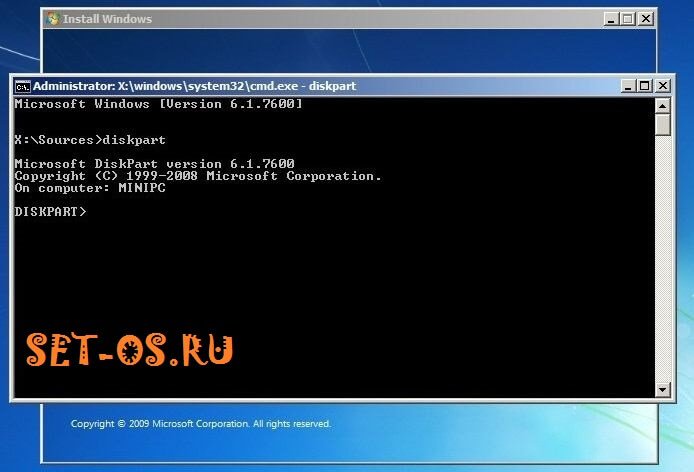
Набираем команду list disk для просмотра доступных дисков:

Выбираем диск, который будем конвертировать с помощью команды select disk. В моем случае это Disk0, поэтому команда будет выглядеть так:

Очищаем его с помощью директивы Clean:

Чтобы таблицу разделов преобразовать из MBR в GPT набираем команду convert gpt:

Если преобразование завершено успешно и диск конвертирован — закрываем утилиту Дискпарт командой Exit:

Нажимаем кнопку Обновить и продолжаем установку системы дальше. Отдельно хочу отметить, что с помощью Diskpart можно переразметить весь жесткий диск, но чаще всего это делать проще и значительно удобнее с помощью графического меню установщика Windows.