Сообщение об ошибке сервера 500 на стороне клиента или в панели администрирования может стать источником серьезных проблем и причиной потери посетителей. Устранить внутреннюю ошибку сервера HTTP 500 особенно сложно, потому что причины возникновения подобной неполадки могут быть самыми разными.
Формат сообщения о внутренней ошибке сервера 500 не предполагает никаких пояснений о возможном источнике проблемы, и на поиск причины возникновения неполадки могут уйти часы терпеливой работы. В это время сайт теряет посетителей и возможные продажи, страдает репутация компании.

Если на вашем сайте появилось сообщение о внутренней ошибке сервера HTTP 500, понадобятся все возможные способы устранения возникшей проблемы, которые рассмотрены в этой статье. Надеюсь, это руководство поможет вернуть сайт в рабочее состояние в кратчайшие сроки.
- Краткая справка: внутренняя ошибка сервера 500 в WordPress
- Создайте резервную копию сайта
- Перезагрузите страницу
- Проверьте журнал сервера
- Очистите кэш браузера
- Проверьте доступность панели администратора
- Отключите тему оформления или плагин, вызывающие ошибку
- Проверьте файл .htaccess
- Увеличьте лимит памяти для PHP
- Проверьте права доступа
- Переустановите WordPress
- Обратитесь в техподдержку
- Обратитесь к специалисту по отладке
- Заключение

Подобное сообщение уведомляет пользователей о том, что неполадка в работе WordPress-сайта возникла на стороне сервера. В браузерах посетителей сайт не отображается. Эта ошибка особенно опасна тем, что может помешать входу в панель администрирования.
Вопреки распространенному мнению, подобная ошибка не связана с неполадками в работе сервера. Она указывает на проблему с корневым каталогом WordPress-сайта. Это означает, что для обнаружения истинной причины возникшей проблемы понадобится немало проб и ошибок. В зависимости от используемого браузера, сообщение об ошибке выглядит по-разному:
- 500 internal server error (500 внутренняя ошибка сервера);
- Internal server error (внутренняя ошибка сервера);
- Error 500 (ошибка 500);
- HTTP error 500 (HTTP ошибка 500);
- HTTP error 500-internal server error (HTTP ошибка 500 – внутренняя ошибка сервера);
- Temporary error (500) (временная ошибка 500);
- Error code: 500 (код ошибки: 500).
Независимо от формата сообщения, ошибка 500 возникшая на WordPress, негативно повлияет на индексирование в поисковиках, репутацию, трафик, и, конечно же – продажи. Ниже приведена инструкция с перечнем наиболее эффективных методов решения проблемы.

До начала каких-либо действий по поиску причин возникновения ошибки 500 следует провести резервное копирование сайта, если бекапа у вас нет или он уже устарел. Процесс решения подобной проблемы может вызвать серьезные изменения в корневом каталоге, где хранятся все файлы WordPress. При наличии резервной копии сайта можно не опасаться любых изменений. Используйте плагин для автоматического создания резервной копии, затем сохраните бекап на внешнем носителе или в облачном хранилище.
Это самое первое, что стоит сделать – возможно, серверу просто понадобилось очистить кэш или удалить временные файлы. Внутренние ошибки сервера часто возникают после обновления сайта, активации новой темы, добавления плагинов. Сервер может быть перегружен, и сообщение об ошибке просто исчезнет после перезагрузки сайта. Если такое случается часто – это повод подыскать более надежный хостинг для WordPress.
Также стоит проверить работоспособность сайта с помощью сервиса downforeveryoneorjustforme.com – он покажет, если интернет-ресурс полностью недоступен всем посетителям, либо проблема находится на вашей стороне.
Содержимое лога сервера может пролить свет на причины возникновения проблемы. Журналы сервера предоставляют ценную информацию, и помогут выяснить многие причины возникновения неполадки. Среди возможных причин может оказаться установка некорректной темы оформления, плагина; ошибки при установлении соединения с базой данных.
При ошибках, связанных с базами данных, браузер обычно показывает пустую страницу, которую иногда называют «белым экраном смерти». Вследствие отсутствия соединения с базой на экране не будет никаких данных. Эта неполадка не только уничтожает клиентскую часть сайта, но и лишает администратора доступа в панель управления.
Основные причины подобной проблемы следующие:
- Поврежденный файл базы данных WordPress.
- Повреждение файлов движка WordPress злоумышленниками или вирусами.
- Перегрузка базы данных запросами при большом объеме трафика – такое чаще всего происходит на общих хостингах.
Для решения возникшей проблемы, прежде всего, проверьте корректность параметров конфигурации базы данных, или восстановите базу данных из резервной копии. WordPress также предоставляет встроенный метод исправления нерабочей базы данных следующей командой:
Define(‘WP_ALLOW_REPAIR’, true);

Очистка кэша улучшает производительность браузера и решает многие проблемы с неправильной загрузкой сайтов. Существует множество эффективных и бесплатных утилит для полной очистки кэша.
Попробуйте зайти в панель управления по стандартной ссылке. Если попытка не удалась, сообщение о внутренней ошибке сервера 500 может указывать на проблему с недавно установленными темами оформления и плагинами.

Если вам не удается войти в панель администрирования WordPress для отключения некорректной темы оформления или плагина, придется действовать обходным путем. Способ прост, хотя и займет некоторое время. Понадобится FTP-клиент для прямого доступа к файлам сайт. Скачайте, например, FileZilla, введите в параметрах соединения адрес сайта, логин и пароль, подключитесь к серверу – файлы вашего сайта будут в окне справа.
Найдите папку под названием plugins и переименуйте ее в plugins_deactivate. Все плагины будут отключены. Перезагрузите сайт – если ошибка исчезла, значит, причина была в плагине. Теперь вы можете войти в панель администрирования. Войдите и начните активировать плагины по одному. Перезагружайте сайт после активации каждого плагина – так вы обнаружите проблемный. Удалите его, найдите ему замену или уведомите разработчика о проблеме, с которой вы столкнулись. Не забудьте вернуться в FTP-клиент и переименовать директорию обратно, чтобы исправные плагины стали активными.
Если окажется, что ошибку вызывают не плагины, проделайте эти же самые шаги, последовательно проверяя все темы оформления в папке themes. Удалите проблемную тему оформления и перезагрузите сайт.

Установка новой темы оформления или плагина могут вызвать изменения в файле .htaccess, что также может стать причиной сообщения о внутренней ошибке сервера. Эту проблему легко решить с помощью FTP-клиента.
Найдите файл .htaccess, кликните по нему правой кнопкой мыши и переименуйте в .htaccess_old. Перезагрузите файл – если сообщение об ошибке исчезло, значит, проблема действительно была связана с файлом .htaccess. Войдите в панель администрирования, выберите раздел «Постоянные ссылки» в меню «Настройки», затем нажмите кнопку «Сохранить изменения». Эта процедура восстановит оригинальный файл .htaccess и избавит вас от ошибки 500.
Если ваш WordPress-сайт использует множество скриптов, перегружающих доступный объем памяти, это также может стать причиной возникновения ошибки 500. Объем памяти регулируется настройками хостинга и движком WordPress. Увеличить объем памяти для PHP можно несколькими способами.
- Изменить параметры в файле wp-config.php. Зайдите в папку сайта с помощью FTP-клиента, найдите файл wp-config.php, кликните по нему правой кнопкой мыши и выберите в контекстном меню пункт «Просмотр/Редактирование». В качестве редактора по умолчанию можно использовать «Блокнот». Перед строкой «Happy Blogging» добавьте следующий фрагмент кода:
define(‘WP_MEMORY_LIMIT’,’64’);
Сохраните отредактированный в «Блокноте» файл на своем жестком диске, найдите его в левом окне FTP-клиента, кликните по нему правой кнопкой мыши и выберите в контекстном меню пункт «Загрузить». Если после перезагрузки сайта ошибка 500 исчезла – проблема была в доступном объеме памяти.
- Отредактировать файл php.ini. Чтобы найти этот файл, активируйте опцию «Показывать скрытые файлы»; файл php.ini расположен в подкаталоге wp-admin корневой директории. Откройте файл php.ini, найдите строку, начинающуюся с «memory_limit». Если указанное значение составляет 64 Мб и менее, замените его новым параметром:
Если вам не удалось найти файл php.ini, создайте его самостоятельно с помощью программы «Блокнот». Вставьте в созданный файл приведенный выше код и загрузите его на хостинг, в папку wp-admin.
- Изменить файл .htaccess. С помощью FTP-клиента найдите файл на хостинге и добавьте в него следующую строку:
php_value memory_limit 256M
Это увеличит лимит памяти до 256 Мб. Если вы не смогли найти файл .htaccess – активируйте опцию «Показывать скрытые файлы» или создайте подобный файл самостоятельно, после чего загрузите его в папку wp-admin.
Чтобы избежать повторного появления ошибки 500, придется выяснить, какой именно компонент сайта перегружает память. Это может быть некорректно написанный плагин или тема оформления. Можно обратиться за помощью в техподдержку хостинга – специалисты смогут выявить проблемный компонент с помощью журнала сервера.
В соответствии с правилами безопасности WordPress, протокол назначения прав доступа выглядит следующим образом:
- Все директории должны иметь права 755 или 750.
- Для файлов назначают права 644 или 640, кроме файла wp-config.php, который должен иметь права 400 или 440 с целью обеспечения защиты от несанкционированного доступа.
- Ни в коем случае не назначайте права 777 для директорий.
Если права доступа имеют какие-либо другие параметры, возможно появление ошибки 500. Параметры можно проверить с помощью FTP-клиента – они указаны в «Разрешениях». Если вы обнаружите файл или папку с правами доступа, отличающимися от регламентированных – кликните правой кнопкой и измените соответствующий параметр на правильный.

Системные файлы могут повреждаться со временем, в таком случае понадобится переустановка WordPress. Такие повреждения случаются редко, но если все рассмотренные выше методы не помогли, это единственный оставшийся вариант. Переустановка ничем не отличается от первоначальной установки WordPress – скачайте свежий установочный файл с www.wordpress.org и установите WordPress на свой хостинг.
Установочные файлы находятся в папке WordPress. Подключитесь к серверу с помощью FTP-клиента, найдите папки wp-admin и wp-includes, начните загрузку файлов. Когда появится запрос о действиях с существующими файлами, выберите «Переписать». Эта операция заменит все старые файлы в директориях wp-admin и wp-includes новыми. Если после перезагрузки сайта все заработает правильно – проблема была в поврежденных файлах WordPress.
Если все приведенные выше способы не решили проблему, обратитесь в техподдержку хостинга. При выборе надежного хостинга для WordPress всегда важно учитывать наличие в штате специалистов, имеющих опыт в решении проблем с внутренней ошибкой сервера 500. Специалисты исправят подобную ошибку самостоятельно или проведут владельца сайта шаг за шагом через все этапы, необходимые для решения проблемы.
WordPress включает в себя инструмент для тестирования и отладки. Он пригодится, если источник возникшей проблемы остается неясным. В ходе отладки в файл wp-config.php вставляют фрагменты кода, который поможет определить причины неполадок. Результаты тестов записываются в файл, расположенный в корневом каталоге. Для интерпретации и последующей настройки лучше обратиться к опытному профессионалу: новичку сложно отличить незначительную ошибку от серьезной. Кроме того, в процессе тестирования фрагменты кода могут быть видны посетителям сайта.
Внутренняя ошибка сервера 500 досадна – особенно потому, что причины ее появления часто неясны, а единственного простого решения не существует. Приведенные в этой статье методы не требуют навыков программирования, но в большинстве случаев помогут решить возникшую проблему.
Если сайт расположен на бюджетном общем хостинге, лучше сменить тарифный план или выбрать хостинг-провайдера, который возьмет на себя обязательства по обеспечению стабильной работы вашего интернет-ресурса.
Seeing a 500 internal server error where your website should be is enough to throw anyone into a panic. When your website goes down, you lose out on potential traffic and sales. If it’s offline for a while, it can also negatively impact your Search Engine Optimization (SEO) efforts.
Fortunately, there are plenty of ways to go about fixing this error. Many of these solutions are fairly straightforward, and you don’t need a lot of technical know-how to start troubleshooting.
In this guide, we’ll cover what the 500 internal server error in WordPress is and discuss some potential causes. Then we’ll give you 10 tips to help you get your website back in working order.
- Back up your website.
- Try reloading the page.
- Clear your browser cache.
- Access your error logs.
- Check for the “Error Establishing a Database Connection.”
- Look for permission errors.
- Increase your PHP memory limit.
- Check for problems with your .htaccess file.
- Look for coding or syntax errors in your CGI/Perl script.
- Ask your web host about potential server issues.
Let’s get started!
Dealing with the WordPress Internal Server Error?
Avoid troubleshooting when you sign up for DreamPress. Our friendly WordPress experts are available 24/7 to help solve website problems — big or small.

What Is the 500 Internal Server Error?
The 500 internal server error is frustratingly nonspecific. When the error occurs, you usually don’t get many details about it. In fact, you might not receive any information at all.
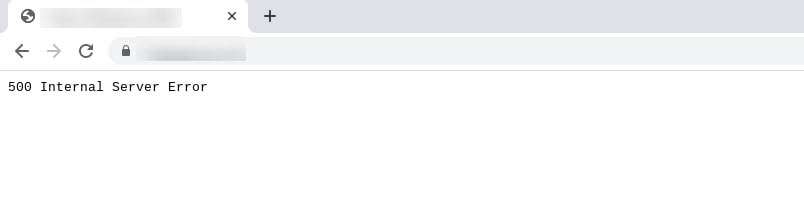
The 500 error is a generic issue that isn’t specific to WordPress. Chances are you’ve seen it before during your internet explorations. Despite the name, it doesn’t necessarily mean that something is wrong with your server. It could be an issue with your website or browser.
If you do see this error on your site, you’ll want to get it fixed as quickly as possible. A 500 error can impact your SEO if allowed to linger. If your site is crawled while it’s offline, there’s a chance that Google may interpret the error as an issue with your website.
This error can also hurt your User Experience (UX) and give visitors the impression that you’re unprofessional. Not only can a poor UX affect the way Google ranks your site, but it can cause you to lose customers as well. After all, you can’t do business if your site isn’t accessible.
A wide variety of situations can result in the 500 error, making it a bit of a chore to sort out. Potential causes of the 500 internal server error in WordPress include:
- Plugin compatibility issues
- Exhausted PHP memory limit
- Corrupted files
- Coding or syntax errors
The fact that the error message itself tends to be vague doesn’t help. Fortunately, you can solve many of these issues on your own with a bit of know-how.
Variations on the 500 Internal Server Error
Depending on your operating system, browser, and the cause of the error, there are variations in how it will appear. For example, if a database connection can’t be established, you might see something like this:
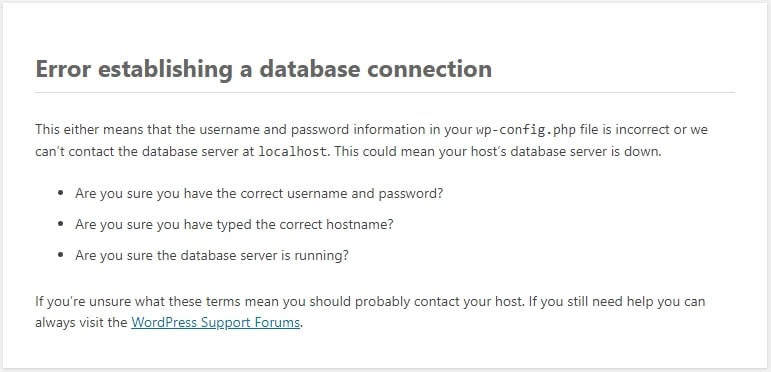
A plain white screen, sometimes referred to as the White Screen of Death (WSoD), can indicate a 500 internal server error.

Also, many site owners have the option to customize their 500 error messages. So you might see this error in many different forms.
How to Fix the 500 Internal Server Error in WordPress (10 Tips)
Now that you’ve had an introduction to the 500 internal server error, it’s time to discuss how to resolve it. Let’s take a look at ten tips you can use to fix this issue in WordPress.
1. Back up your website.
Before tinkering under the hood, it’s always smart to make a backup of your website. If DreamHost hosts your site, you can take advantage of our one-click backup feature. You can also create a manual backup if you prefer.
To make a complete backup, you’ll need to save copies of your WordPress files as well as your databases. You can back up your site’s files using a Secure File Transfer Protocol (SFTP) client such as FileZilla.
Once you’re connected to your server, navigate to the WordPress files you want to save. These files include the WordPress core installation, plugins, themes, images, and more. To save the files, simply right-click on them and select Download.
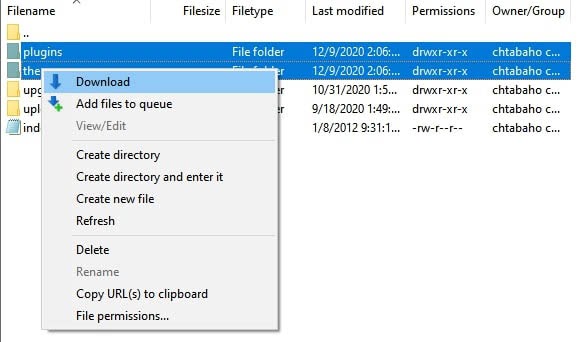
Now you’ll need to back up your database, which you can do by logging into phpMyAdmin. Select the database you want to download from the left-hand panel, and then click on the Export tab.
You’ll then need to choose between a “Quick” or a “Custom” export. The Quick export will likely work just fine unless you need to manage more advanced options.
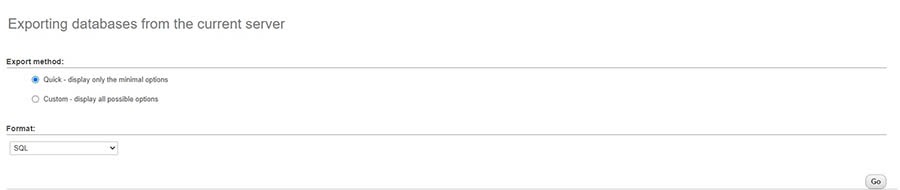
Click on the Go button, and your download should start. Once your website is safely backed up, you can get to work on fixing that 500 error.
2. Try reloading the page.
Let’s start with the best-case scenario. Some situations that cause a 500 internal error clear up on their own within a few minutes. For example, if you’ve just made changes to a plugin or theme, or if your host is experiencing unusually heavy traffic, you may see a server error. If this is true in your case, you’re in luck, as a simple page reload should get things back to normal.
Therefore, the first thing to try is simply waiting a minute or two, during which the error will hopefully resolve itself. Then you can try reloading the page by pressing F5 or (command + R if you’re using a Mac).
3. Clear your browser cache.
Another potential server error fix that’s quick and easy is clearing your browser cache. It’s possible the cache became corrupted, which would cause problems when attempting to access websites.
First, you might check Down For Everyone Or Just Me. This will determine whether there’s a widespread problem or you’re the only one experiencing difficulties.

If you’re alone in your 500 error frustration, the problem may be your browser. Try accessing your site from a different browser. If an alternative works, it’s a sign that the issue is with your cache.
In Google Chrome, you can clear your cache by pressing Ctrl + Shift + Delete. Alternatively, you can click on the three vertical dots in the top-right corner, followed by More tools > Clear browsing data.
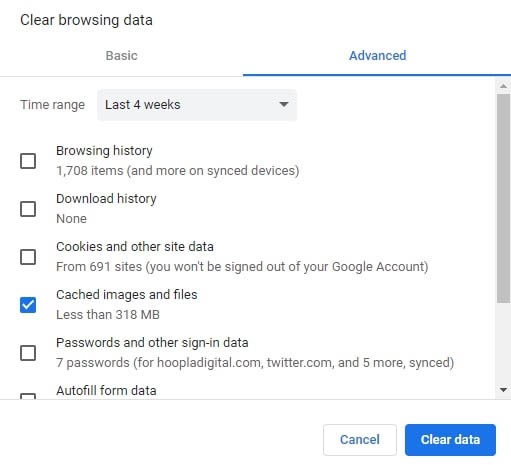
Be sure to check the Cached images and files box. Then click on the Clear data button.
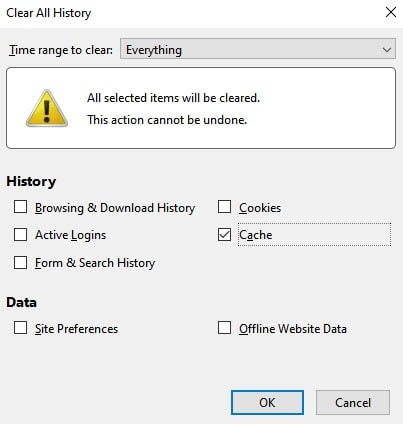
In Firefox, you can clear the cache using the Ctrl + Shift + Delete keyboard shortcut. This will open the Clear Recent History window. In the Time range to clear drop-down menu, select Everything. Check the Cache box, and then click on OK.
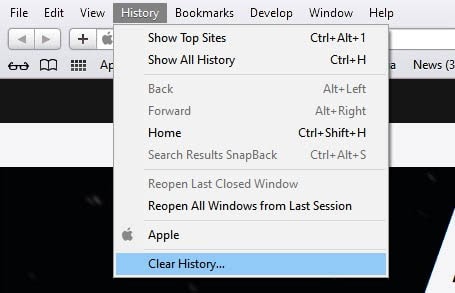
In Safari, you can navigate to the History menu item and choose Clear History. Keep in mind that this will delete everything, including cookies and visited pages.
Once you’ve cleared your browser cache, you can attempt to access your website again. If you’re still seeing the 500 internal server error, it’s time to move on to more involved fixes.
4. Access your error logs.
Your site’s error logs may provide insight into what’s causing the 500 error. Depending on your host, these logs may be cycled quite often, so you’ll want to take a look as soon as possible.
You can check your error logs by accessing your site’s files via SFTP and looking for the /logs directory. Next, select the site that’s experiencing the error. You may see several directories at this point. You’ll want to check the one with the most recent date.
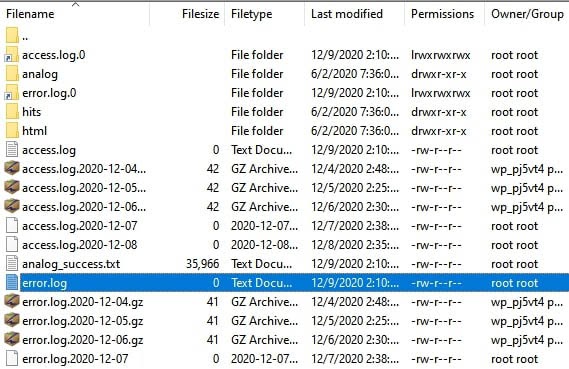
You can view the log by downloading it and opening it with your preferred text editor. Hopefully, your error logs will provide you with some additional context for the 500 error.
Another option is to enable the WordPress debug log. You can do this by connecting to your site via SFTP and opening your wp-config.php file. Within it, look for the following line:
define('WP_DEBUG', false);
Once you find it, replace it with the following:
define( 'WP_DEBUG', true );

define( 'WP_DEBUG_DISPLAY', false );

define( 'WP_DEBUG_LOG', true );
This will create a debug.log file, which you can find under the /wp-content/ directory. Just be sure to change the WP_DEBUG value back to “false” when you’re done troubleshooting.
5. Check for the ‘Error Establishing a Database Connection.’
If there’s been a problem establishing a database connection, not only will your site be offline for visitors, but you won’t be able to access the WordPress admin dashboard either. There are a few possible causes of this:
- Incorrect database login credentials
- A corrupted WordPress database
- A corrupted WordPress installation file
Let’s start with incorrect login credentials, as this is a common cause of the database connection error. If you’re a DreamHost user, you can find your database credentials in your panel. However, if you use a different host, you’ll likely follow a similar procedure.
Navigate to MySQL Databases and find the one that corresponds to your website under the Database(s) on this server section. Here, you’ll find your database name under the Database heading. The username is listed under the Users Access column.

Alt-text: Where to find your MySQL username in DreamPanel.
To find the password, click on the username. On the next screen, scroll down and click on the Show button next to the password field.

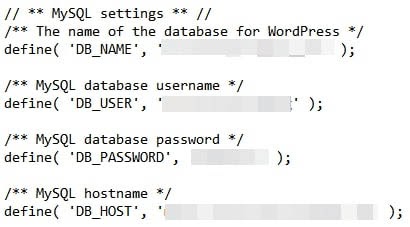
Next, you’ll compare these credentials to those in your wp-config.php file. You can access this file in your site’s main directory via SFTP. Once you have the file downloaded, open it and verify that the information under MySQL Settings matches what you found in your panel.
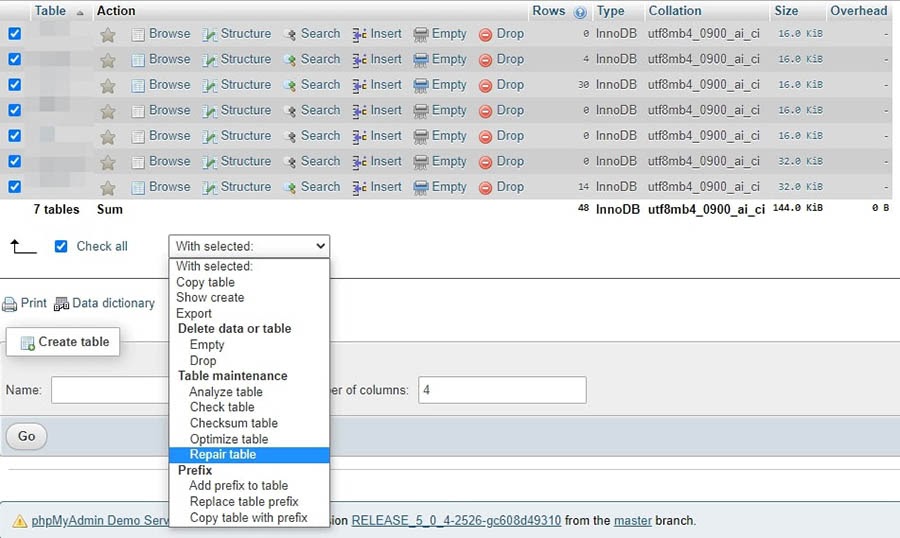
Next, if your database is corrupted, you can quickly repair it through phpMyAdmin. Log in and click on your database in the left panel. Select all of the tables in the database, and then choose the Repair table option from the drop-down menu.
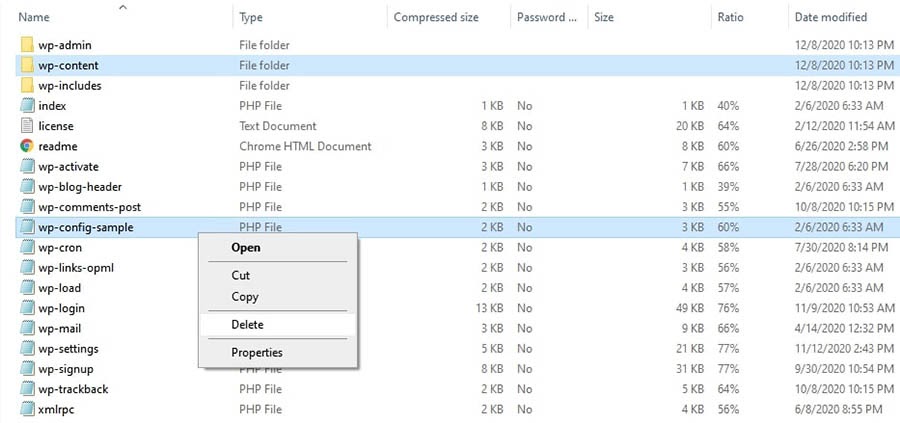
Finally, let’s look at how to handle a corrupted WordPress installation file. Start by downloading a new copy of WordPress and unzipping the file. You’ll need to delete the wp-content folder and the wp-config-sample.php file.
Upload the rest of the files to your site via SFTP, overwriting any existing ones. You now have a brand new, uncorrupted WordPress installation. You’ll also want to clear your browser cache before checking your website again.
6. Look for permission errors.
If any of your files have permissions set incorrectly, you may see the 500 internal server error as a result. Again, you can check and change these permissions using SFTP.
Right-click on any file and select File permissions to open a new dialogue window. In this window, you can check and, if necessary, set new permissions for the file.
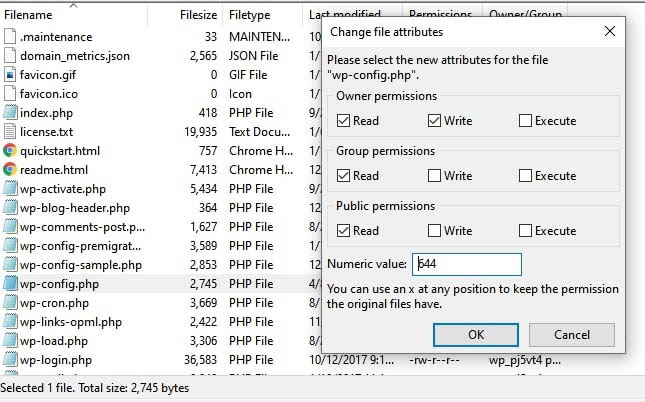
Typically, you’ll want to set files to “644” and directories and executables to “755”. However, you may want to check with your host if you’re unsure about the correct values.
7. Increase your PHP memory limit.
Another reason you might see the 500 internal server error is if you’ve exceeded your server’s PHP memory limit. There are several ways to increase your limit, and they all involve using SFTP.
Before you try increasing your memory limit, you may want to start by seeing what it’s currently set to. You can do this through the WordPress admin dashboard. Keep in mind that, with some variations of the 500 error, you won’t be able to access the dashboard. If that’s the case, you may have to skip this step.
From your WordPress dashboard, navigate to Tools > Site Health. Click on Info at the top of the screen, and scroll down to the Server section. You should see your PHP memory limit there.
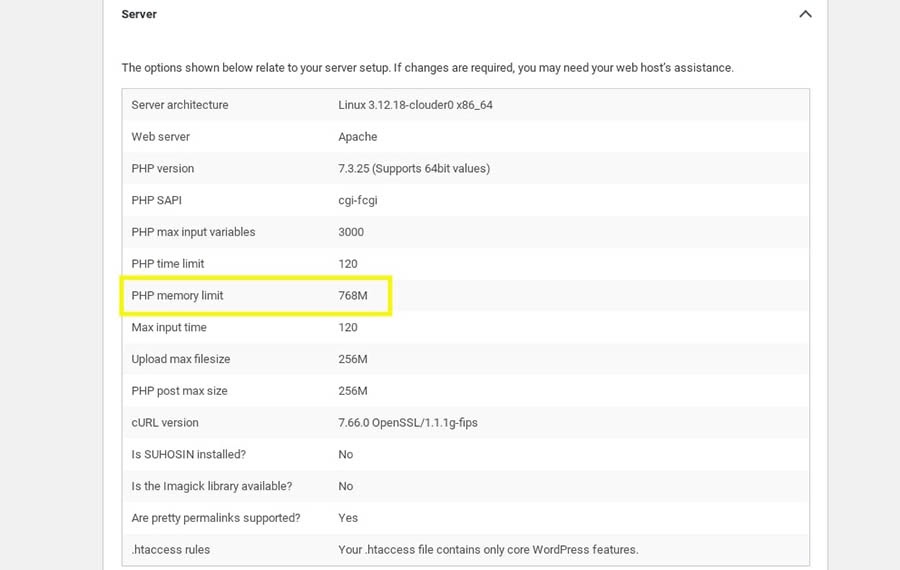
To increase the PHP memory limit, there are a few files you can edit. One is your .htaccess file, typically located in your site’s root directory. Open the file and add the following code:
php_value memory_limit xxxM
You can replace the “xxx” with your desired amount of memory. Usually, 256M is plenty.
You can also increase your memory limit by editing your php.ini file. You should be able to find this file in your root directory. If not, you can go ahead and create one. Add or update its code to the following:
memory_limit = xxxM
Another option is to add in the following code at the top of your wp-config.php file:
define('WP_MEMORY_LIMIT', 'xxxM');
If this resolves the 500 error, your next task will be to figure out what is causing the memory limit exhaustion. It could be a problematic plugin or theme. You might consider reaching out to your host for help on finding the exact server diagnostics.
8. Check for problems with your .htaccess file.
Your .htaccess file is one of the core WordPress files. It contains rules for your server, so it could contribute to a 500 internal server error.
If your .htaccess file has become corrupted, you’ll want to go ahead and create a fresh one. Start by logging into your site via SFTP and finding your .htaccess file. Rename the file to .htaccess_old.
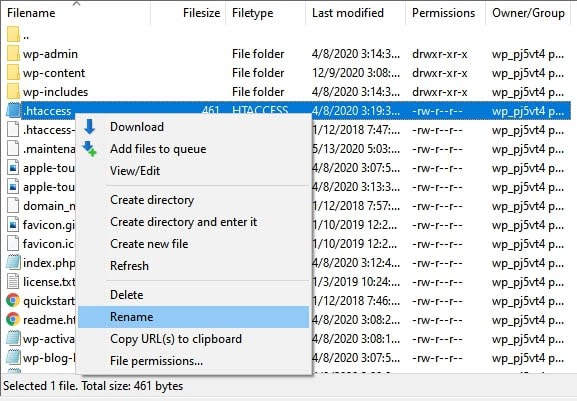
Now, create a new .htaccess file in your text editor and paste in the following:
# BEGIN WordPress

RewriteEngine On

RewriteRule .* - [E=HTTP_AUTHORIZATION:%{HTTP:Authorization}]

RewriteBase /

RewriteRule ^index.php$ - [L]

RewriteCond %{REQUEST_FILENAME} !-f

RewriteCond %{REQUEST_FILENAME} !-d

RewriteRule . /index.php [L]

# END WordPress
Go ahead and upload your newly created .htaccess file. Then refresh your site in your browser, and check to see whether the error message is showing.
9. Look for coding or syntax errors in your CGI/Perl script.
If you’re running Common Gateway Interface (CGI) scripts, any coding errors you’ve made could result in a 500 error. To unearth potential issues with your CGI scripts, log into your site using Secure Shell Access (SSH).
Once you’ve logged in, you can troubleshoot your CGI with this command:
[server]$ ./cgi_name.cgi
The terminal should return a general error message and the line number the culprit is located on. From there, you can work your coding magic!
When working with CGI, there are a few best practices to keep in mind to avoid problems. First, it’s wise to use a plain text editor to ensure that you maintain ASCII format. When you upload scripts, you should also be able to select ASCII mode in your FTP client.
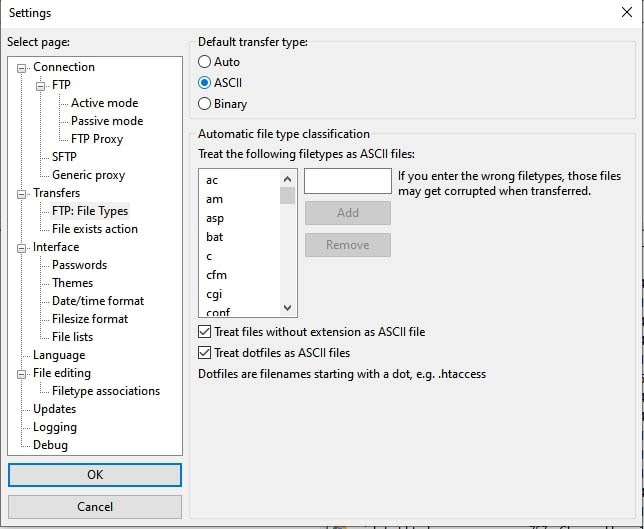
Finally, if necessary, upload to the cgi-bin directory on your server. Then you can double-check your files’ permissions once you have them uploaded.
10. Ask your web host about potential server issues.
If all else fails, there may be a server issue, which only your host can confirm. Unfortunately, if your host’s server is experiencing a problem, you may have to wait out some website downtime.
If you’re a DreamHost client, you can check the DreamHost Status page. This resource provides you with information on all of our services.
If you run into any problems while trying to repair the 500 internal server error, you can always reach out to our tech support team. They’re ready and waiting to lend you a hand! If you’ve followed the tips in this guide, you’ll have plenty of valuable information for the technician.
Get Content Delivered Straight to Your Inbox
Subscribe to our blog and receive great content just like this delivered straight to your inbox.
Additional WordPress Error Reading
Want to learn more about fixing common WordPress errors? We’ve put together several tutorials to help you if you encounter any other issues.
- How to Fix Syntax Errors in WordPress
- How to Fix the WordPress Not Sending Email Issue
- How to Fix the Error Establishing Database Connection in WordPress
- How to Fix WordPress Error 404 Not Found
- How to Fix the Sidebar Below Content Error in WordPress
Let’s Get Your WordPress Website Back on Track
While having to sort out a 500 internal server error isn’t exactly fun, it’s also not as painful as you might imagine. With a little patience and the tips we’ve provided, you should be able to make some progress on getting your website back online.
You can start small by refreshing your page and clearing your browser cache. Then you might want to move onto more involved fixes, such as increasing your PHP memory limit. If you’re not able to resolve the error on your own, DreamHost’s award-winning tech support is just a click away.
When you do run into errors, it’s easier to get back up and running when you have a reliable hosting provider. DreamPress is fast, secure WordPress hosting with powerful features to help make your site a success!
In WordPress, the Internal Server Error or Error 500 is one of the most annoying errors because it does not return actual data about the underlying issue. It’s hard for beginners to eliminate it. There are many different reasons for Internal Server Errors.
Download WP STAGING to avoid this and other errors in the future. The WP STAGING plugin allows you to create a copy of your WordPress site in seconds. You can test new plugins, designs, and other updates in a secure environment on that staging site.
This error is a very dreaded kind of error. It seems to always come out at a very inopportune time. An error 500 means your site is offline completely and will not be available anymore, meaning you will start losing your customers. If your site is down for more than a few hours, Google might think there is something wrong with your site. This can lead to a loss of your site’s search engine rankings.
Contents
- 1 What is the Internal Server Error in WordPress?
- 2 Reason Behind the occurrence of Internal Server Error in WordPress
- 3 How to fix Internal Server Error in WordPress
- 3.1 Reload the Page
- 3.2 Delete the Browser Cache
- 3.2.1 Clear Cache In Google Chrome
- 3.2.2 Clear the Cache in Firefox
- 3.2.3 Clear the Cache in Apple Safari
- 3.2.4 Clear the Cache in Microsoft Edge (Internet Explorer)
- 3.3 Check Server Log Files
- 3.4 Check .htaccess File
- 3.5 Increase the Server Memory limit.
- 3.6 Check Installed Plugins and Themes
- 3.7 Repair WordPress Core Files
- 3.8 Contact Your Hosting Provider
In this article, we will try to resolve this error in simple steps. But first, we need to know what the Internal Server Error is to fix it properly.
The proper definition of Internal Server Error is unclear or undefined. An Internal Server Error or Error 500 is generic. It occurs when you visit a website, and your program sends a request over to the server where the site is hosted. The server receives the request, measures it, and sends back the resources (CSS, HTML, PHP, etc.) along with a header. If the status code is 200, then it means “Everything is Ok,” but if the status code is 500 (that’s why the name Error 500), there is an error. That error is caused because some code that went wrong on the website end.
The error may look like this:
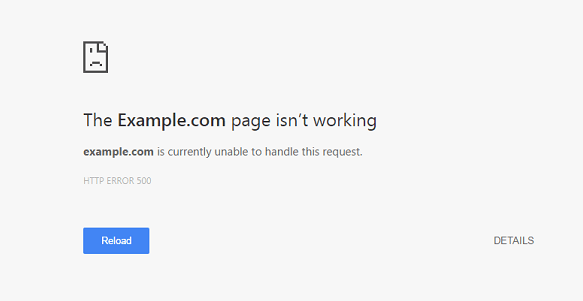
Or it may look like this.
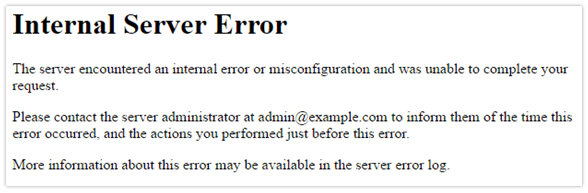
There are many different types of internal server errors with other status codes (500, 501, 501, 502, 503, etc.), but all these status codes are different but similar, so your site ends up not working as expected.
Reason Behind the occurrence of Internal Server Error in WordPress
There are many reasons for this error. In WordPress, mostly, it occurs because of the following issues:
- Outdated or broken Browser Cache
- Low Memory Limit
- Broken code in Plugins and Themes Functions
- Corrupted files in WordPress core folders
- Corrupted .htaccess file
How to fix Internal Server Error in WordPress
We have several steps to resolve this problem:
Reload the Page
When an Internal Server Error is displayed when you are opening a website, the easiest and first thing you should do is reload the page by pressing F5. If that is not successful, press ctrl + F5.
It may be the case that the server is essentially overloaded, and the site will return properly when you refresh it several times.
Delete the Browser Cache
Another good idea is to clear the browser cache. Clearing the browser cache may solve your problem. How to clear the cache on different browsers are given below:
-
Clear Cache In Google Chrome
To clear the Chrome cache, follow the following steps:
- From the top of the Chrome window, click on the right side.
- Then, select more tools and, from there, enter Clear browsing data.
- From the Time range, select All Time.
- Then, checkmark Cookies and other site data & Cached Images and Files.
- Then, click the Clear Data button.
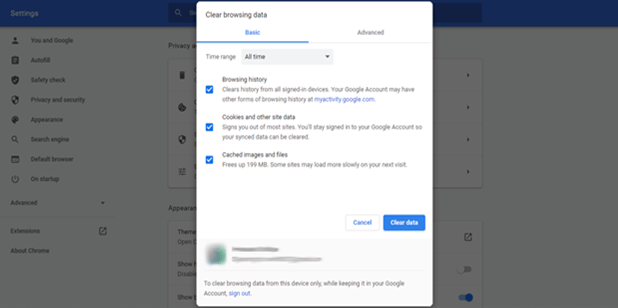
These steps can be performed on any chromium-based browser, i.e., Microsoft Edge, to clear the cache.
-
Clear the Cache in Firefox
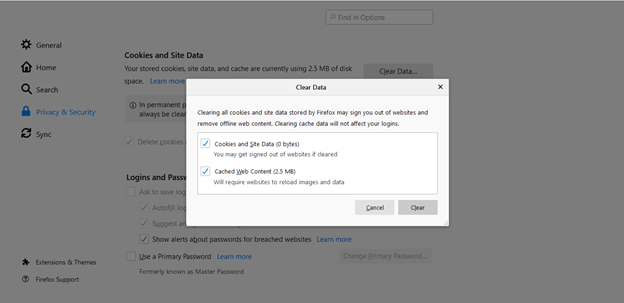
Follow the following steps to clear the Firefox browser cache:
- Firstly, open the menu bar and then select Options from the menu.
- Select Privacy & Security from General
- Then from the Cookies & Site Data section, click Clear Data.
- From the dialogue box, remove the Cookies and Site Data checkmark.
- Clear the data with Cached Web Content checkmark
-
Clear the Cache in Apple Safari
To clear the Safari browser cache, follow the following steps:
- Select Setting from the home screen of Safari
- Select Clear cookies & Data from the bottom of Safari’s Setting screen
- Clear the cache from it
-
Clear the Cache in Microsoft Edge (Internet Explorer)
To clear the Internet Explorer cache, follow the following steps:
- Firstly, Close all the windows of Internal Explorer.
- Open a new one and then click on Tools Box.
- Select Internet Options from the bottom
- From the browsing history, click the Delete button.
- Then, from Delete Browsing History, check-marked the temporary Internet files and website files and Cookies and Website Data and click on the Delete button and then Ok.
The following steps are more complex and affect the database/files on the WordPress website. To not cause any further damage, and if you still have access to the WordPress dashboard, create a staging site with WP STAGING and try to fix the error on the staging page instead of the production site.
You can create a staging site with WP STAGING.
Check Server Log Files
When your website throws a fatal error 500, you can tell your website to write more explicit error messages into a so-called log file for debugging purposes.
You can enable the debug mode in your WordPress by opening the file wp-config.php and adding the following lines of code into it:
define( 'WP_DEBUG', true );

define( 'WP_DEBUG_LOG', true );

define( 'WP_DEBUG_DISPLAY', false );
You can find the wp-config.php file in the root folder of your WordPress installation. You can use your web hosting control file manager or FTP to edit this file.
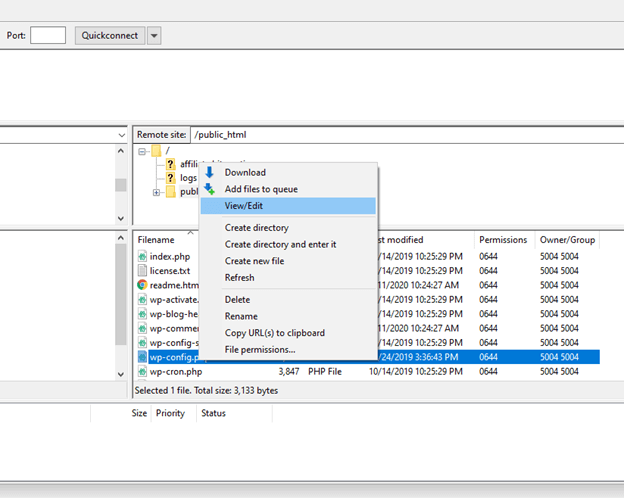
Check out that article to learn in detail how to activate the WordPress debug.log.
If this works, you will see all the relevant errors in the file debug.log. That will help you to find out what plugin or code causes the error.
You can find the logfile at the location /wp-content/debug.log in your website’s file system.
- Please open the file and check it.
If you see some error messages related to one of your installed plugins, you can disable the plugin by renaming its folder to something like
/wp-content/plugins/plugin-name-temp/
If no results are provided in the debug.log, there is still access to the server error.log file.
Depending upon what kind of web server your hosting provider uses, you can find the server error log file in the paths:
Apache server: /var/log/apache2/error.log
or
Nginx server: /var/log/nginx/error.log
To access these files, you will need to have full access to your hosting. You can use an FTP client and troubleshoot with the help of these files. Some web hosting control panels also have more easy access to these files.
Check .htaccess File
The 500 Internal Server Error may also happen due to some faulty code in the .htaccess file. That file is located in your WordPress site’s root directory and is essential to make your website running properly.
To troubleshoot your .htaccess, we need to disable the current one and create a new one.
First of all, use FTP or the file manager app in your hosting account to connect to your site.
You can find the .htaccess file beside the folders wp-admin, wp-includes, and wp-content.
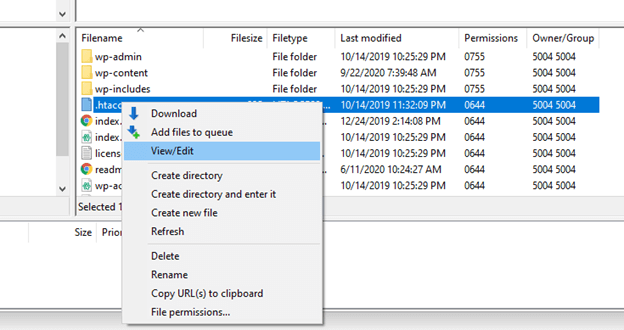
- Rename the file to
.htaccess_backuphave a backup of the file if something goes wrong. - Please create a new file and name it
.htaccess - Add the following lines of code into it:
# BEGIN WordPress

<IfModule mod_rewrite.c>

RewriteEngine On

RewriteBase /

RewriteRule ^index.php$ - [L]

RewriteCond %{REQUEST_FILENAME} !-f

RewriteCond %{REQUEST_FILENAME} !-d

RewriteRule . /index.php [L]

</IfModule>

# END WordPress
If the old .htaccess file were the reason for the error 500, this would fix the Internal Server Error for you.
Increase the Server Memory limit.
Sometimes the error 500 occurs because of the low Memory Limit of PHP in WordPress. To resolve this error, you may have to increase the memory limit. If your host provides cPanel, you can increase your PHP memory limit from the dashboard user interface.
The steps are the following:
After opening the cPanel, click on the link that says, “Select PHP version.”
Then, click on “Switch to PHP Options.”
Then, click on “memory_limit” at the bottom and change its value to something higher, usually in the range of multiplied by 2, i.e., 256, 512 and save it.
Another way is to add the line below into your wp-config.php. You can use your hosting file manager software or an FTP client to edit that file.
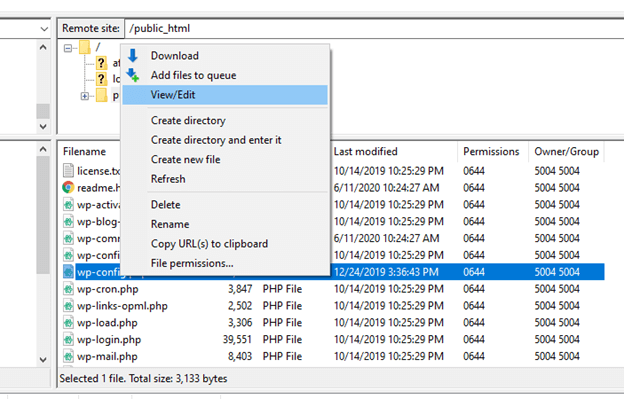
Just add the following line on top of your wp-config.php file.
define('WP_MEMORY_LIMIT', '256M');
If a lack of memory was your issue, then this step will fix the Internal Server Error for you.
Check Installed Plugins and Themes
Sometimes, an Internal Server Error occurs due to recently installed WordPress themes or plugins. If you recently installed a plugin or theme and it broke your site, there is a chance that you can deactivate that plugin to fix the error.
You can use the step below only if your WordPress admin dashboard under /wp-admin is still available!
- Select all plugins, click on “Bulk-Actions,” and on “deactivate” to deactivate all plugins.
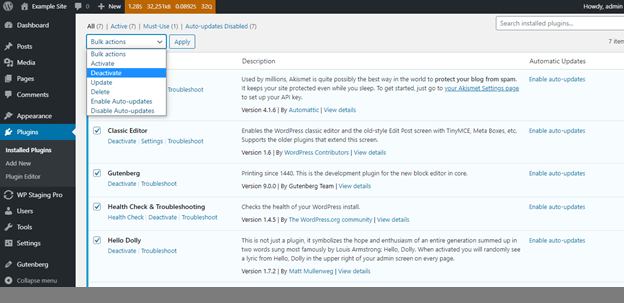
- Activate the Plugins one by one again and reload your site after each plugin activation.
- If you see the error again, deactivate or remove that plugin, which causes the problem.
If your WordPress admin dashboard is not available, you can disable a specific plugin by renaming its plugins folder to something else manually.
To do this, connect to your site via FTP.
For instance, if the woocommerce plugin is responsible for error 500 Internal Server Error, you’ll need to rename the folder from
/wp-content/plugins/woocommerce to
/wp-content/plugins/woocommerce-disabled.
After that step, the woocommerce plugin will be disabled, and you can reaccess your website.
If you want to disable all plugins, rename the folder wp-content/plugins and reload your site.
Then all plugins will be disabled, and your site should be reachable again.
After that step, rename the folder wp-content/plugins-tmp back to the original name wp-content/plugins.
Repair WordPress Core Files
Sometimes, especially in older sites, WordPress files can be corrupt. If the WordPress core system is corrupt, you need to repair the core files by replacing them with the original ones.
One way is to go to wordpress.org and download the latest copy of WordPress from there.
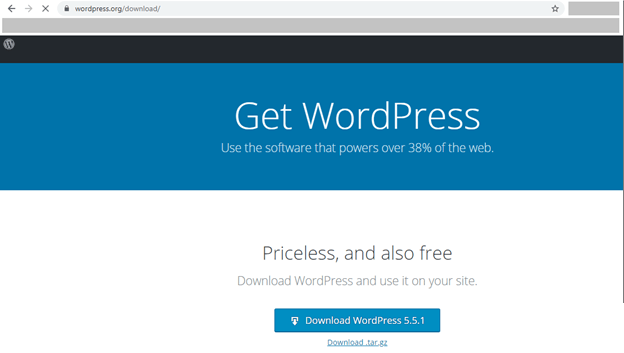
- Once downloading, unzip it.
- After that, connect to your host using your FTP client or using the file manager within your hosting account.
- Replace the entire folders
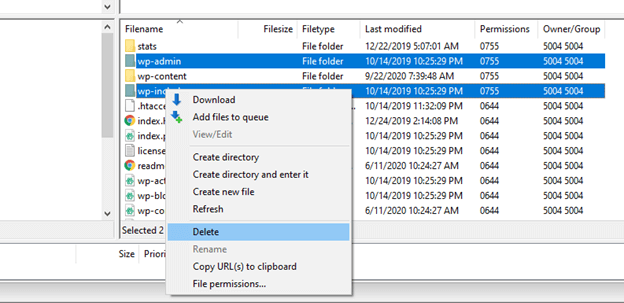
/wp-adminand/wp-includeswithin your WordPress installation with the ones from the extracted zip file. - To do that, rename the current folders
wp-adminandwp-includestowp-admin-backupandwp-includes-backup. This can be done with the hosting file manager or the FTP client.
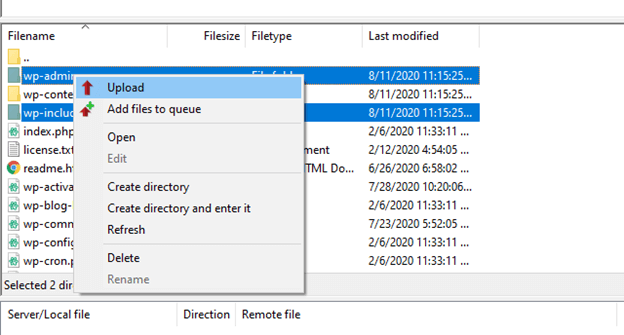
- Upload the new directories from the unzipped file to the same location as the old directories.
If your WordPress files were corrupted, this step would fix the 500 Internal Server Error for you.
Contact Your Hosting Provider
There are a few uncommon issues with Internal Server Errors in WordPress. At this point, you have to contact your host. Sometimes, these issues can be resolved by the hosting provider by looking at the file permissions and other settings.
If this still does not solve your issue, You may have to switch to another more optimized host to run your WordPress site.
WordPress (WP) вырос до одной из самых популярных систем управления контентом, доступных сегодня. Благодаря универсальности и большой базе поддержки, WordPress доверяют блоггеры и корпорации, – к тому же установка данной CMS бесплатна! Тем не менее иногда в WP возникают ошибки, которые трудно исправить, несмотря на использование всей доступной документации. Одна из таких ошибок: “WordPress 500 Internal Server Error.”
Включение режима отладки для исправления ошибки WordPress 500 Internal Server Error.
Отладка ошибки всегда является частью работы с PHP. WordPress поставляется со своими собственными системами для упрощения процесса. Вы можете включить отладку в WordPress подключившись к вашему серверу по FTP/SFTP или SSH и отредактировав файл wp-config.php, просто добавив перед строкой /* That’s all, stop editing! Happy blogging. */ такие директивы:
define(‘WP_DEBUG’, true);
define(‘WP_DEBUG_LOG’, true);
WP_DEBUG – это константа РНР, которая переключает WordPress в режим отладки.
WP_DEBUG_LOG – обеспечивает сохранение всех ошибок в файл лога, называемые debug.log
В идеале у Вас должен быть такой код в вашем файле wp-config.php:
включение режима WP_DEBUG:
define( ‘WP_DEBUG’, true );
включение отладочного логирования в файл /wp-content/debug.log
define( ‘WP_DEBUG_LOG’, true );
отключение отображения ошибок и предупреждений:
define( ‘WP_DEBUG_DISPLAY’, false );
@ini_set( ‘display_errors’, 0 );
Используйте dev-версии основных JS-файлов и CSS-файлов (требуется только при изменении этих основных файлов)
define( ‘SCRIPT_DEBUG’, true );
Увеличьте php memory limit в WP для исправления ошибки Internal Server Error
Одной из наиболее распространённых причин ошибки “500 Internal Server Error” является превышение параметра рнр memory limit. Этот параметр стандартно устанавливается в файле php.ini, который вы можете в нём увеличить и перезапустить сервер Apache/PHP-FPM. Либо можете добавить следующую строку в вашем файле wp-config.php:
define(‘WP_MEMORY_LIMIT’, ’64M’);
В случае, если ваше приложение конфликтует с другими активными плагинами и “тяжёлой” темой, то вы можете там увеличить это значение.
Создайте файл new.htaccess
Файл .htaccess может быть легко повреждён при загрузке плохого плагина или ручных изменений. Подключитесь к своему серверу через FTP/SFTP или SSH и переименуйте его в файл .htaccess.BAK или .htaccess.CORRUPTED. После этого создайте new.htaccess с его основными установками.
Деактивируйте все плагины WordPress для исправления ошибки
Если ни один из этих подходов не сработал, то вам может помочь деактивация всех плагинов WordPress. Зайдите в панель управления WordPress, перейдите в раздел Plugins и деактивируйте их одновременно. После чего обновите страницу сайта и проверьте устранена ли ошибка.
Если у вас нет доступа в панель управления WordPress, то деактивируйте плагины через доступ FTP/SFTP или SSH. Подключитесь к серверу, перейдите в папку wp-content и переименуйте папку plugins в plugins.DEACTIVATED. Либо зайдите в эту папку и переименуйте плагины по одному. Не забудьте вернуть изменения после устранения ошибки.
В случае успеха один из этих способов поможет исправить ошибку WordPress 500 Internal Server Error. Если ошибка не исправлена, то свяжитесь с техподдержкой своего хостинг-провайдера.
WordPress Toolkit для Plesk Onyx -скажи прощай ошибке “500 internal server error”
Надеемся наша статья помогла и улучшила ваше понимание WordPress. Вы можете сделать свой сайт на WordPress быстрее и более надёжным используя расширение WordPress Toolkit для Plesk Onyx. Оно доступно как часть платформы Plesk Onyx для вашего виртуального или выделенного сервера. Plesk разработал его для упрощения обычного обслуживания и таких часто используемых задач, как конфигурирование, а также для облегчения решения проблем с WordPress , в том числе ошибки “500 Internal Server Error”.
Перевод: Сергея Гордеева
Оригинал
The 500 Internal Server Error is arguably the most frustrating error you can experience with WordPress because it can literally mean just about anything. That’s not to say you can’t fix it—you can, and one of the solutions below should help you get your site back up and running.
There are a few common causes, such as having a corrupted .htaccess file, exceeding your PHP memory limit, and having improper file permissions. There are less common causes, too, including issues with your plugins or server.
Unfortunately, there’s no straightforward, 5-minute fix. Solving your 500 internal server error will require troubleshooting that will take time and patience. Typically, fixing this cryptic error will help you determine what actually caused it.
To help you, I’ve put together this troubleshooting guide. Start with the first potential fix—creating a new .htaccess file—and work through each solution before moving onto the next possible fix.
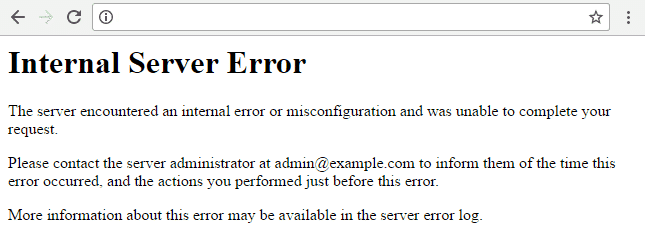
What is a 500 Internal Server Error?
When you visit a site, your browser sends a request to the site’s server. The server processes the request and sends back the resources to display the page, along with an HTTP header, which includes an HTTP status code.
The status code tells your browser the status of the request. For example, a 200 status code means smooth sailing—everything is OK. But if you get a 500 status code, it means something went wrong, and the server isn’t quite sure what went wrong.
Basically, the 500 internal server error code is a generic “catch-all” that means the server encountered an unexpected condition that prevented it from fulfilling the request.
There are several different types of 500 status error codes, which all mean something different, such as 501 Not Implemented, 502 Bad Gateway, 503 Service Unavailable, and 504 Gateway Timeout.
Naming Variations for 500 Internal Server Errors
There are many variations of the 500 internal server error message, depending on the many web servers and browsers available. The website you’re visiting might also have its own custom page for these errors.
Here are several variations of what you might see:
- 500 Internal Server Error
- Internal Server Error
- 500 Internal server error
- Error 500
- HTTP Error 500
- HTTP Error 500 – Internal Server Error
- Temporary Error (500)
No matter which of these (or other variations) you see, they all mean the same thing—something has gone wrong and the server doesn’t know what’s happened.
How to Fix the 500 Internal Server Error
Like I mentioned above, this error indicates that something went wrong, but what the cause is a mystery. With resolving these errors, you essentially need to work backward—find the fix first and then you’ll know what caused the error.
Generally, 500 errors happen due to an issue on the server, but they can also happen due to some kind of client-side issue. So we’ll work through a number of different solutions below that involve both.
Create a Backup First
The fixes below involve tinkering with your site under the hood, i.e. making changes to your site’s root directory. So it’s critical you run a backup.
And if you don’t already have a backup plugin or some other solution in place, it’s high time you got one!
Some of my favorite tools include BackUpWordPress, VaultPress, and BackupBuddy. If you’re interested in database backups, check out WP Migrate DB Pro or simply use WP-CLI to run quick exports.
If you’re with a web host that offers backups, that’s great. But I’d recommend having your own solution that you can quickly access in an emergency without having to go through your host.
1. Check Your .htaccess File
If your site is hosted on a server running Apache, there’s a chance your .htaccess file is corrupted. This can happen after installing plugins or making other changes to your site.
It’s an easy fix. All you need to do is replace your corrupted .htaccess file with a new one.
Usually, all you need to do to create a new .htaccess file is to re-save your permalinks settings in the WordPress dashboard. But if your site is down, it’s likely you can’t log in to your site, ruling out this option.
So you’ll need to use FTP or cPanel to access your site’s files and locate your .htaccess file. For a step-by-step walkthrough on how to do this with FTP and cPanel, check out What is .htaccess and How to Use it With WordPress.
Before you go replacing your old .htaccess file with a new one, create a backup of your name. To do this, simply rename your existing file something like .htaccess-old. WordPress will then stop recognizing this file.
Refresh your site and if it loads properly, you know your .htaccess file has caused the 500 error. Now, revert your .htaccess file to its proper name—the issue will return, but now we’re going to fix it.
For WP Rocket users, you’ll need to be especially careful of what you do next with your .htaccess file because it contains performance optimization rules that you shouldn’t mess around with. So check out Resolve 500 Internal Server Error for what to do next.
If you’re not a WP Rocket user (what’s going on!?), create a new .htaccess file that includes the following, and then upload it to your site’s root directory:
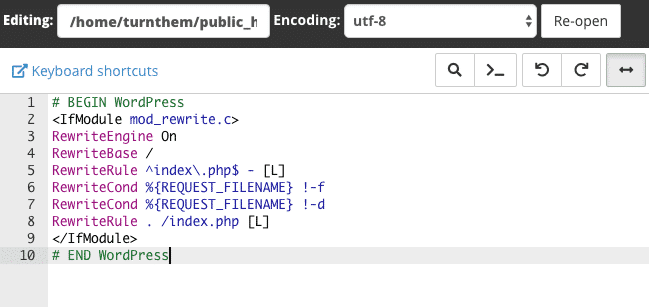
These are the rules shown in the image above:
#BEGIN WordPress

RewriteEngine On

RewriteBase /

RewriteRule ^index.php$ - [L]

RewriteCond %{REQUEST_FILENAME} !-f

RewriteCond %{REQUEST_FILENAME} !-d

RewriteRule . /index.php [L]

#END WordPress
2. Increase PHP Memory limit
The cause of your 500 error could be that you’re hitting your PHP memory limit. This often happens due to poorly-coded plugins, when a site is using a lot of plugins, or when a site is using resource-intensive plugins.
All you need to do to fix this issue is increase the PHP memory limit for your site. There are a few different ways you can do this that involve updating your .htaccess file, php.ini file, or wp-config.php file.
For each of the three memory fixes below, don’t forget to refresh your site to check if it’s working so you know what’s causing your 500 internal server error.
1. Increase PHP Memory Limit in .htaccess File
Find your .htaccess file in the root directory of your site and add the following line:php_value memory_limit 256M
This will increase your memory limit to 256 MB. If you can’t find your .htaccess, make sure you’re able to view hidden files. And if you don’t have an .htaccess file, create a new one and paste in the line above.
2. Increase PHP Memory Limit in php.ini File
You’ll find your php.ini file in the wp-admin folder in your root directory. Open it up and look for the line that starts with “memory_limit.” If it shows 64 MB or lower, replace it with this line:
memory_limit = 256M
If you can’t find your php.ini file (make sure you’ve got “show hidden files” enabled), then you’ll need to create a new file, paste in the line above, name it php.ini and save it to your wp-admin folder.
3. Increase PHP Memory Limit in wp-config.php File
If updating your .htaccess and php.ini files didn’t work, you can try increasing the memory limit in your wp-config.php file.
Add the following line to your wp-config.php file just before the “happy blogging” line:
define('WP_MEMORY_LIMIT', '256M');
Save the file and refresh your site. If it still isn’t working and you have a sneaking suspicion your plugins could be pushing your PHP memory limits, get in touch with your web host about increasing your memory on the server side.
3. Audit Your Plugins
Plugins can also cause 500 internal server errors. This includes outdated plugins causing compatibility issues and even new plugins that have been coded poorly. You might even find that you get the 500 error immediately after installing a new plugin.
To find out which, if any, of your plugins is causing your error, you’ll need to bulk deactivate your plugins and reactivate them one at a time.
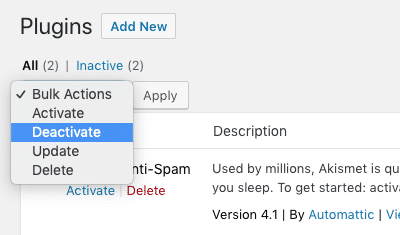
If you’re unable to access your WordPress dashboard, FTP into your server and open your wp-content folder, find your plugins folder and rename it something like plugins-old—this will effectively deactivate all of your plugins.
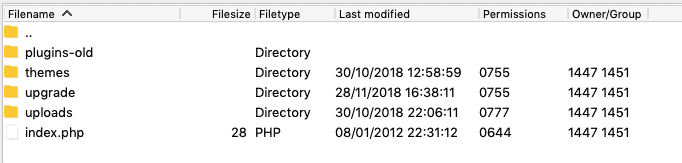
Then refresh your site. If it starts working, the cause of your 500 error is one of your plugins.
The next step is identifying which plugin is the culprit. To do this, rename your plugins folder back to “plugins” and then go into the folder and rename each individual plugin folder, one-by-one until you’re able to refresh your site and it works again.
When you find the offending plugin, get in touch with the plugin developer for help.
4. Check File Permissions
If none of the above has worked, you could have an issue with file permissions. Files in your WordPress directory should be set to 755 or 644 and when they’re mistakenly or accidentally set to anything else it can set off a 500 error.
To check your file permissions, FTP into your server and check your site’s directory. Here, I’m using Filezilla to access my test site and as you can see my permissions are set to 755 for folders and 644 for everything else.
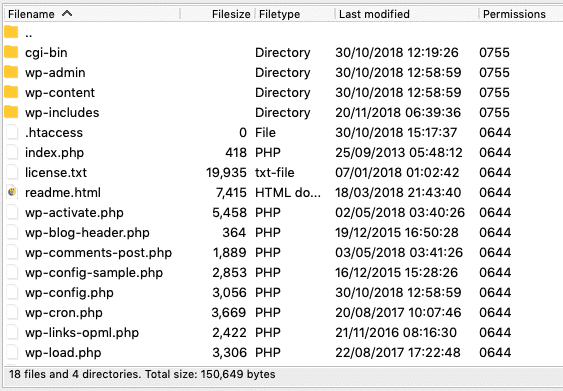
The WordPress Codex recommends the following file permissions:
- All directories should be 755 or 750.
- All files should be 644 or 640. (The exception being wp-config.php, which you can set to 440 or 400 to prevent other users on the server from reading it.)
- Directories should never be set to 777.
If you find that a certain file has the wrong permission, just right-click it in your FTP program to access file permissions and update it to the appropriate number.
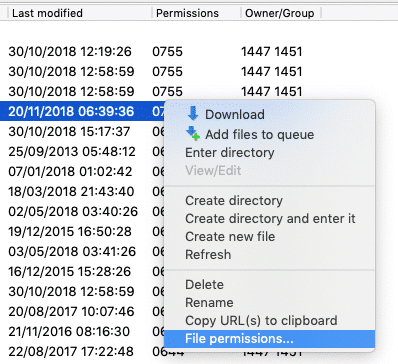
Check out How to make system files (.htaccess, wp-config.php) writeable to learn more about updating file permissions.
5. Reinstall WordPress Core Files
It’s not unusual for WordPress core files to become corrupted, especially on older sites that have been customized and updated many times.
To fix this issues, you’ll need to replace your core WordPress files with fresh ones. There’s no need to re-install WordPress—simply download the latest version of WordPress and unzip the file. FTP into your site’s root directory and upload the wp-admin and wp-includes folders from the zip file you just downloaded, overwriting the older versions.
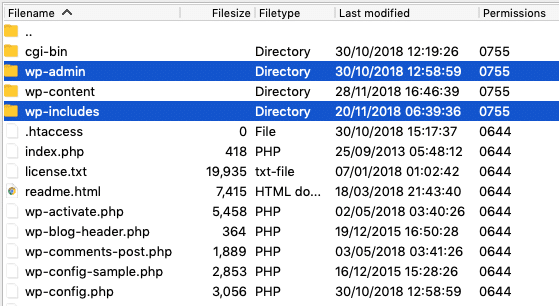
Doing it this way, you won’t overwrite your plugins and themes.
Refresh your site. If the 500 error has disappeared, you’ve pinpointed the cause—corrupted core files.
6. Contact Your Web Host
If you’re still getting the 500 internal server error after working through each of the fixes above, it’s time to contact your web host. Your host’s server logs might be able to shed some light on what’s causing the error so it can be resolved.
Rather than skip the above and go straight to your host for help, it’s a good idea to investigate the cause of your error first. This way, you can provide your host with a rundown of what you’ve tried, so your error isn’t simply dismissed as an issue with your site’s files.
This is particularly true if you’re on cheaper shared hosting. If you’re on managed WordPress hosting, it’s usually the case that your host will help you pinpoint and fix you 500 internal server error.
Wrapping Up
This is by no means an exhaustive list of 500 internal server error fixes. What’s causing your particular issue could be just about anything. But this list will give you a head start on fixing and finding the cause (in that order!).
Lastly, don’t forget to back up your site before updating files in your root directory. If you make a change that impacts your site, you’ll be able to quickly revert to a previous backup.
Have you experienced a 500 internal server error? How did you fix it? Let us know in the comments below!