Недавно столкнулся с ошибкой C0190003 после автоматического обновления Windows 8.1 В этот раз повезло компьютеру жены.
Вот так выглядит эта коварная ошибка:
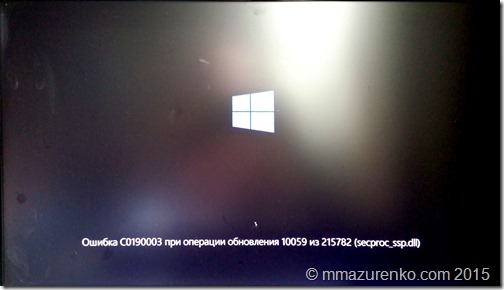
Проблема заключается в том, что компьютер устанавливает обновление, перезагружается чтобы продолжить процесс обновления и тут происходит ошибка, при этом комп виснет и ничего больше не происходит. При перезагрузке происходит то же самое, ОС не запускается…
Поиск решения в интернете не принес особого результата. Особо порадовал рецепт решения на сайте поддержки Microsoft:
“Для исправления потребуется установочный диск или USB с Windows 8.1. Нужно сделать установку в режиме обновления без потери данных (программы удалятся). Если у Вас нет дистрибутива, то можно создать его по ссылке с другого ПК.
http://windows.microsoft.com/en-US/windows-8/create-reset-refresh-media”.
Меня такая перспектива совсем не устраивала, поэтому было решено найти свой способ выхода из данной ситуации без переустановки ОС и всех программ. В итоге выход был найден и далее я опишу процесс устранения данной ошибки.
Первым делом надо запустить диагностическое меню Windows 8.1 В моем случае оно запускалось после “жесткого” выключения компьютера: нажатие и удерживание кнопки PWR до отключения компьютера. При последующем запуске запускался процесс диагностики и появлялось следующее меню:
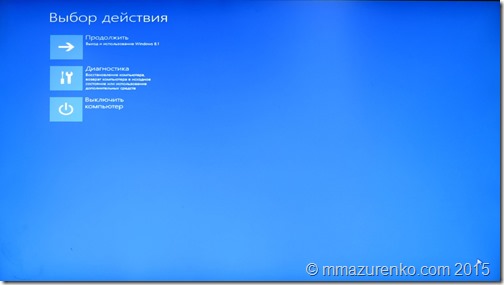
Заходим в подменю Диагностика:
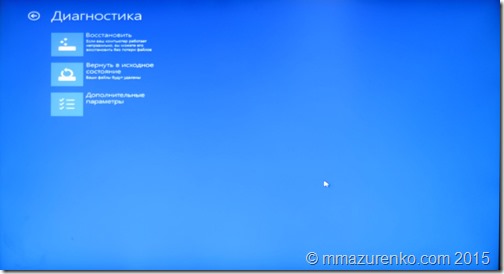
Выбираем Дополнительные параметры:
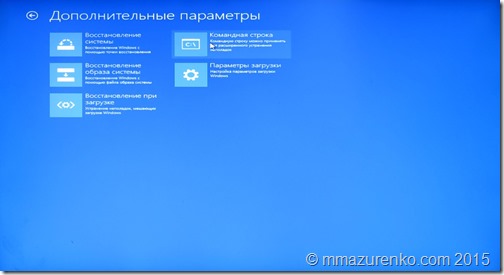
Восстановление системы:
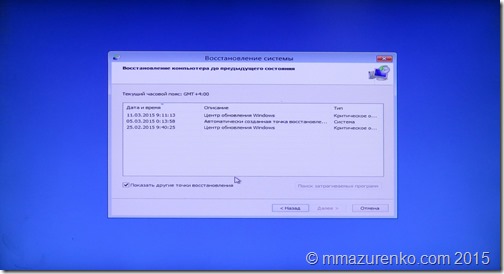
Выбираем подходящую точку восстановления и подтверждаем её:
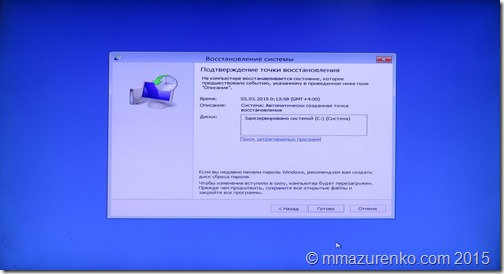
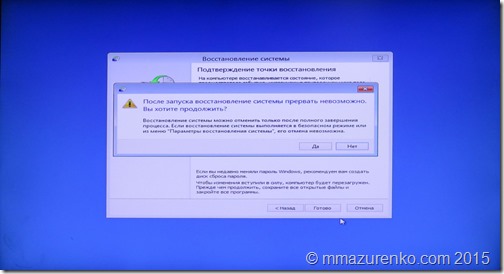
Ждем окончание процесса восстановления и перезагружаем компьютер:
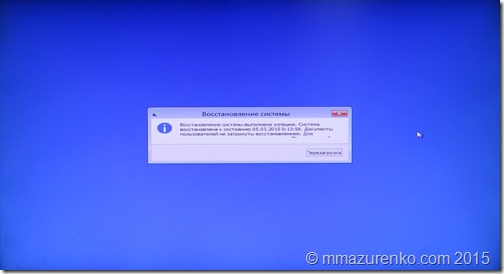
В результате имеем работающий компьютер 🙂
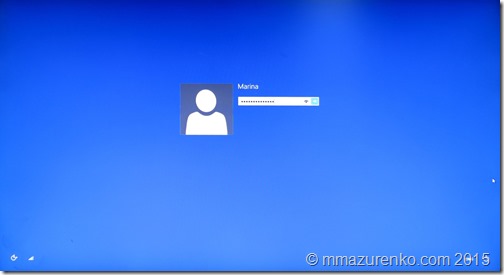
P.S. Прошло пару дней и компьютер захотел обновиться, чтобы обновления вступили в силу… ошибка появилась снова 🙁
P.P.S. Ошибку получилось победить только установкой Windows 10 поверх Windows 8.1. Для этого потребовалось сделать установочную флешку (через утилиту MediaCreationTool, которую надо скачать с сайта microsoft).
В запущенный копм вставляем флешку и выбираем установить Windows 10 с сохранением файлов и программ. После установки комп работает нормально, обновления проходят в штатном режиме и ошибка больше не повторяется.
-
-
April 24 2014, 09:15
- Компьютеры
- Cancel
MS признаёт ошибку c0190003 при операции обновления — попытка установить SP1 на win 7, при этом даёт довольно странные рекомендации.
1) надо загрузиться в режим восстановления, в командную строку.
2) либо там создать скрипт из блокнота (%windir%system32notepad.exe), либо создать его ещё где-то и запустить с флешки.
3) Проверить, какой вообще диск является системным (это оказалась совсем не очевидная вещь).
4) Запустить скрипт на выполнение: CScript your_script.vbs <Windows _7_drive_letter>:WindowsWinSxSpending.xml
5) Перезагрузить ПК
Скрипт:
Dim xmlDoc, node, nodeList, fileName, backupFileName, numberOfPOQNodes
Set xmlDoc = CreateObject(«Microsoft.XMLDOM»)
If Wscript.Arguments.Count = 0 Then
WScript.echo(«Error! No XML file specified.»)
W script.quit
End If
fileName = WScript.Arguments(0)
backupFileName = Left(fileName, InStrRev(fileName, «.») — 1) & «_backup.xml»
If Not xmlDoc.load(fileName) Then
WScript.echo(«Failure loading XML file » & fileName & «.»)
Wscript.quit
End If
xmlDoc.save(backupFileName)
Set nodeList = xmlDoc.documentElement.selectNodes(«POQ»)
numberOfPOQNodes = nodeList.Length
For Each node in nodeList
xmlDoc.documentElement.removeChild(node)
Next
xmlDoc.save(fileName)
Set xmlDoc = Nothing
WScript.echo(numberOfPOQNodes & » POQ nodes removed. Script completed.»)
Дальше цитирую статью с сайта MS с машинным переводом.
Удалите записи POQ от pending.xml
Этот метод предназначен для решения этого вопроса путем создания и запуска в. Сценарий VBS. После того как вы успешно создать и запустить. Сценарий VBS, Windows 7 с пакетом обновления 1 установка должна завершиться успешно.
Примечания
- Это. Скрипт VBS применим только для кода 0xc0000034 ошибке, не использовать этот сценарий для других, чем 0xc0000034 ошибка вопросам.
- Мы рекомендуем этот метод, если вы не являетесь опытным пользователем.
- Чтобы использовать этот метод, мы рекомендуем иметь доступ к другому компьютеру и съемный носитель, таких как USB флэш-накопитель.
Перед началом работы
Перед началом работы найти следующее:
- Найдите второй компьютер с доступом к Интернету. Вы будете использовать второй компьютер, чтобы создать сценарий (. VBS) файл. Чтобы создать сценарий (. VBS) файл, который вы будете копировать текст для сценария из этой статье базы знаний.
- Найдите съемном носителе, таких как USB флэш-накопитель. Вы скопировать сценарий (. VBS) файла, который вы создаете в съемном носителе. Вы затем передать сценарий (. VBS-файл) к компьютеру, на котором возникла проблема.
Примечание Если у вас нет доступа к второй компьютер и съемный носитель можно создать сценарий (. VBS) файл на компьютере, где возникают проблемы. Для этого вы пошли бы в Параметры восстановления системы, откройте командную строку, а затем начать Блокнот из командной строки. Затем вы должны вручную создать скрипт (. VBS) файл, набрав текст для сценария из этой статье базы знаний. Затем вы должны сохранить сценарий (. VBS) файл на локальном жестком диске. Затем вы могли бы запустить скрипт для завершения действия.
Часть 1: Создайте скрипт (. VBS-файл)
Чтобы сделать это, выполните следующие действия:
- Найдите второй компьютер с доступом к Интернету.
- Откройте Блокнот.
- Скопируйте и вставьте следующий текст в Блокноте.
Dim xmlDoc, node, nodeList, fileName, backupFileName, numberOfPOQNodes
Set xmlDoc = CreateObject(«Microsoft.XMLDOM»)
If Wscript.Arguments.Count = 0 Then
WScript.echo(«Error! No XML file specified.»)
W script.quit
End If
fileName = WScript.Arguments(0)
backupFileName = Left(fileName, InStrRev(fileName, «.») — 1) & «_backup.xml»
If Not xmlDoc.load(fileName) Then
WScript.echo(«Failure loading XML file » & fileName & «.»)
Wscript.quit
End If
xmlDoc.save(backupFileName)
Set nodeList = xmlDoc.documentElement.selectNodes(«POQ»)
numberOfPOQNodes = nodeList.Length
For Each node in nodeList
xmlDoc.documentElement.removeChild(node)
Next
xmlDoc.save(fileName)
Set xmlDoc = Nothing
WScript.echo(numberOfPOQNodes & » POQ nodes removed. Script completed.») - Нажмите Файл, а затем выберите команду Сохранить как.
- Назовите файл script.vbs и сохраните файл на съемном носителе, таких как USB флэш-накопитель.
Часть 2: Запуск сценария (. VBS-файл)
Примечание Следующие действия предполагают, что вы скопировали сценарий (. VBS) подать к USB флэш-накопитель. Если вы использовали другой тип съемном носителе шаги могут немного отличаться.
Чтобы сделать это, выполните следующие действия:
- Перезагрузите компьютер и запустите нажав клавишу F8 на клавиатуре. Вы должны нажать клавишу F8 до появления эмблемы Windows,. Если появилась эмблема Windows, вы должны попробовать еще раз, ожидая, пока не появится приглашение входа в систему Windows, а затем завершить работу и перезагрузить компьютер.
Примечание: На компьютере, настроенном для загрузки нескольких операционных систем, вы можете нажать клавишу F8 при появлении меню загрузки. - С помощью клавиш со стрелками выберите Восстановить компьютер в области Дополнительные варианты загрузки, а затем нажмите Enter. Если будет предложено, выберите установку Windows 7 в ремонте, а затем нажмите кнопку Далее.
- Выберите язык и метод ввода с клавиатуры, а затем нажмите кнопку Далее.
- Выберите имя пользователя, введите пароль и нажмите кнопку ОК.
- Под Параметры восстановления системы, запишите букву диска Windows 7, перечисленных на линии ниже Выберите инструмент восстановления.
Например, вы можете увидеть что-то похожее на следующее.
Операционная система: Windows 7 на (С 🙂 <VolumeName>
Примечание В этом примере буква для Windows 7 будет С.
- Под Параметры восстановления системы выберите пункт Командная строка.
- Вставьте съемный носитель со сценарием (. VBS) файла который был ранее создан в ПК.
- В командной строке перейдите в дисковод и каталог, который содержит скрипт (. VBS) файла, который ранее создал.
Например, если вы до этого сохранили файл script.vbs, созданный в корне USB флэш-накопитель, а буквы диска, связанной с USB флэш-накопитель является «Е» диск, вы бы просто введите в команде подскажите, а затем нажмите Enter.
E:
Примечание Если вы не уверены, какой диск содержит съемный носитель можно использовать Diskpart, чтобы отобразить список накопителей. Для запуска Diskpart, выполните следующие действия.
- Введите Diskpart, а затем нажмите Enter.
- Введите объем Список, а затем нажмите Enter.
- Запишите диск, содержащий съемный носитель со сценарием (. VBS) файла который был ранее создан. Предполагая, что вы использовали USB флэш-накопитель, тип привода будут перечислены как «Съемный».
- Для выхода Diskpart типа Выход, а затем нажмите клавишу ВВОД.
В командной строке введите следующую команду и нажмите Enter:
- CScript script.vbs <Windows _7_drive_letter>: Windows WinSxS pending.xml.
Где, <Windows _7_drive_letter> это буква диска, что операционная система Windows 7 установлена на.
Это позволит запустить скрипт в файле script.vbs. После завершения сценария, вы можете увидеть сообщение, подобное следующее.
2 POQ узлы удалены. Скрипт выполнен
- Для выхода из типа командной строки Выход, а затем нажмите клавишу ВВОД.
Перезагрузите компьютер. С пакетом обновления 1 установка должна теперь успешно завершена.
- Remove From My Forums
-
Question
-
How can I get in to the computer to restore or whatever? Screen is froze
Answers
-
Hi,
Please reboot your computer and upload cbs log to Skydrive, then post the link here.
Also, You may try to use System Restore to roll back to an working state for a test.
Juke Chou
TechNet Community Support

-
Marked as answer by
Friday, February 3, 2012 3:32 AM
-
Marked as answer by
-
We had similar issue while installing SP1 for Win7 x64 on some computers.
Solution to remove pending operations was pretty simple:
Boot from Windows 7 installation DVD, go to command line and runDISM /image:C: /cleanup-image /revertpendingactions
(c: is a drive, where Windows is installed)
——- Michal Stoppl
-
Edited by
MStoppl
Thursday, January 19, 2012 2:11 PM -
Marked as answer by
Juke Chou
Friday, February 3, 2012 3:32 AM
-
Edited by
- Remove From My Forums
-
Question
-
How can I get in to the computer to restore or whatever? Screen is froze
Answers
-
Hi,
Please reboot your computer and upload cbs log to Skydrive, then post the link here.
Also, You may try to use System Restore to roll back to an working state for a test.
Juke Chou
TechNet Community Support
-
Marked as answer by
Friday, February 3, 2012 3:32 AM
-
Marked as answer by
-
We had similar issue while installing SP1 for Win7 x64 on some computers.
Solution to remove pending operations was pretty simple:
Boot from Windows 7 installation DVD, go to command line and runDISM /image:C: /cleanup-image /revertpendingactions
(c: is a drive, where Windows is installed)
——- Michal Stoppl
-
Edited by
MStoppl
Thursday, January 19, 2012 2:11 PM -
Marked as answer by
Juke Chou
Friday, February 3, 2012 3:32 AM
-
Edited by
- Remove From My Forums
-
Вопрос
-
How can I get in to the computer to restore or whatever? Screen is froze
Ответы
-
Hi,
Please reboot your computer and upload cbs log to Skydrive, then post the link here.
Also, You may try to use System Restore to roll back to an working state for a test.
Juke Chou
TechNet Community Support
-
Помечено в качестве ответа
3 февраля 2012 г. 3:32
-
Помечено в качестве ответа
-
We had similar issue while installing SP1 for Win7 x64 on some computers.
Solution to remove pending operations was pretty simple:
Boot from Windows 7 installation DVD, go to command line and runDISM /image:C: /cleanup-image /revertpendingactions
(c: is a drive, where Windows is installed)
——- Michal Stoppl
-
Изменено
MStoppl
19 января 2012 г. 14:11 -
Помечено в качестве ответа
Juke Chou
3 февраля 2012 г. 3:32
-
Изменено
|
0 / 0 / 0 Регистрация: 26.02.2015 Сообщений: 6 |
|
|
1 |
|
|
26.02.2015, 21:33. Показов 2177. Ответов 3
Доброе время суток. При обновлении Windows 8 вылетает такая ошибка. Как её исправить? Миниатюры
__________________
0 |

|
Модератор
15124 / 7717 / 721 Регистрация: 03.01.2012 Сообщений: 31,760 |
|
|
27.02.2015, 12:31 |
2 |
|
Nekron2323, А если перед обновлением запустить в cmd.exe (запущенной от имени Администратора!) sfc /scannow ?
0 |


|
0 / 0 / 0 Регистрация: 26.02.2015 Сообщений: 6 |
|
|
27.02.2015, 14:34 [ТС] |
3 |
|
У меня даже cmd не открывается. Или я что-то не так делаю. Напиши лучше как.
0 |
|
4228 / 1734 / 245 Регистрация: 01.05.2013 Сообщений: 7,636 |
|
|
28.02.2015, 11:36 |
4 |
|
0 |
| title | description | ms.date | author | ms.author | manager | audience | ms.topic | ms.prod | localization_priority | ms.reviewer | ms.custom | ms.technology |
|---|---|---|---|---|---|---|---|---|---|---|---|---|
|
Error C0190003 after you install updates in Windows Server 2012 R2 |
Describes an issue that triggers an error when you restart a Windows Server 2012 R2-based computer after you install updates. A workaround is provided. |
09/14/2020 |
Deland-Han |
delhan |
dcscontentpm |
itpro |
troubleshooting |
windows-server |
medium |
kaushika |
sap:servicing, csstroubleshoot |
windows-server-deployment |
Error C0190003 after you install updates in Windows Server 2012 R2
This article provides a workaround for an issue that triggers an error when you restart a Windows Server 2012 R2-based computer after you install updates.
Applies to: Windows Server 2012 R2
Original KB number: 3074603
Symptoms
Consider the following scenario:
- You try to install many updates from Windows Update. This includes update 3000850.
- You’re using a native 4K sector disk as a system drive.
However, after the update installation process finishes and the computer is restarted, you may receive one of the following error messages:
Error C0190003 applying update operation 21417 of 247778 (wow64_microsoft-window
Fatal error C0190003 applying update operation 19505 of 247778 (amd64_microsoft
[!NOTE]
The number of operations and file names may vary.
In this situation, the computer doesn’t restart successfully.
Cause
During the installation process, all the file operations (copy, move, and delete, for example) must be transactional. However, if there are lots of files to process, the transaction log may become full. In this situation, transactions are reverted, and the error message is displayed.
Workaround
If you haven’t installed the updates yet, you can work around this issue by increasing the transaction log size. To do this, open cmd.exe as an administrator, and then run the following command:
fsutil resource setlog maxextents 100 C:
[!NOTE]
This command increases the maximum number of containers for the boot drive (drive C) to 100. (The default value is 20.) If you set the value to 100 and still experience the same error, you may want to try a higher number.
If you’ve already experienced the issue that’s described in the Symptoms section, you can recover from the issue by following these steps:
-
While the error message is displayed, press the power button to turn off the computer.
-
Press the power button and then immediately press the F8 key. This displays the Advanced Boot Options menu.
-
Select Repair Your Computer, and then press Enter.
-
On the Choose an option menu, select Troubleshoot.
-
On the Advanced options menu, select Command Prompt.
-
Select the administrator account, and then enter the password.
-
At a command prompt (cmd.exe), run the following command:
Dism /image:C: /cleanup-image /revertpendingactions -
Close the command prompt.
-
On the Choose an option menu, select Continue.
Status
Microsoft has confirmed that this is a problem in Windows Server 2012 R2.
References
Microsoft support policy for 4K sector hard drives in Windows
| title | description | ms.date | author | ms.author | manager | audience | ms.topic | ms.prod | localization_priority | ms.reviewer | ms.custom | ms.technology |
|---|---|---|---|---|---|---|---|---|---|---|---|---|
|
Error C0190003 after you install updates in Windows Server 2012 R2 |
Describes an issue that triggers an error when you restart a Windows Server 2012 R2-based computer after you install updates. A workaround is provided. |
09/14/2020 |
Deland-Han |
delhan |
dcscontentpm |
itpro |
troubleshooting |
windows-server |
medium |
kaushika |
sap:servicing, csstroubleshoot |
windows-server-deployment |
Error C0190003 after you install updates in Windows Server 2012 R2
This article provides a workaround for an issue that triggers an error when you restart a Windows Server 2012 R2-based computer after you install updates.
Applies to: Windows Server 2012 R2
Original KB number: 3074603
Symptoms
Consider the following scenario:
- You try to install many updates from Windows Update. This includes update 3000850.
- You’re using a native 4K sector disk as a system drive.
However, after the update installation process finishes and the computer is restarted, you may receive one of the following error messages:
Error C0190003 applying update operation 21417 of 247778 (wow64_microsoft-window
Fatal error C0190003 applying update operation 19505 of 247778 (amd64_microsoft
[!NOTE]
The number of operations and file names may vary.
In this situation, the computer doesn’t restart successfully.
Cause
During the installation process, all the file operations (copy, move, and delete, for example) must be transactional. However, if there are lots of files to process, the transaction log may become full. In this situation, transactions are reverted, and the error message is displayed.
Workaround
If you haven’t installed the updates yet, you can work around this issue by increasing the transaction log size. To do this, open cmd.exe as an administrator, and then run the following command:
fsutil resource setlog maxextents 100 C:
[!NOTE]
This command increases the maximum number of containers for the boot drive (drive C) to 100. (The default value is 20.) If you set the value to 100 and still experience the same error, you may want to try a higher number.
If you’ve already experienced the issue that’s described in the Symptoms section, you can recover from the issue by following these steps:
-
While the error message is displayed, press the power button to turn off the computer.
-
Press the power button and then immediately press the F8 key. This displays the Advanced Boot Options menu.
-
Select Repair Your Computer, and then press Enter.
-
On the Choose an option menu, select Troubleshoot.
-
On the Advanced options menu, select Command Prompt.
-
Select the administrator account, and then enter the password.
-
At a command prompt (cmd.exe), run the following command:
Dism /image:C: /cleanup-image /revertpendingactions -
Close the command prompt.
-
On the Choose an option menu, select Continue.
Status
Microsoft has confirmed that this is a problem in Windows Server 2012 R2.
References
Microsoft support policy for 4K sector hard drives in Windows