На чтение 2 мин Просмотров 843 Опубликовано 20.10.2021
Исправьте ошибку Rivatuner правильно, не просто скрывая ее

Недавно возникла пара проблем с MSI Afterburner. Первая проблема заключалась в том, что вы не могли загрузить MSI Afterburner с их сайта. Вы можете узнать, как решить эту проблему здесь . В этом руководстве мы рассмотрим другую проблему.
Проблема, которую мы рассмотрим в этом посте, заключается в том, что MSI Afterburner Rivatuner выдает ошибку «RivaTunerStatisticsServer Некоторые системные компоненты не могут быть подключены прямо сейчас. Настоятельно рекомендуется перезапустить приложение.»
Эта ошибка, скорее всего, была вызвана недавним обновлением Windows 10.
Есть только один способ правильно исправить эту ошибку, и это установка последней версии Rivatuner. Вы можете скрыть или замаскировать ошибку, но это не исправит проблему, а только скроет тот факт, что Rivatuner работает неправильно.
Если вы хотите просто скрыть ошибку Rivatuner:
1. Перейдите в место, где вы установили Rivatuner (по умолчанию это C:Program Files (x86)RivaTuner Statistics Server). > Затем вам нужно открыть папку под названием ProfileTemplates > Найдите файл конфигурации и щелкните правой кнопкой мыши > Открыть блокнотом.

2. Теперь вам нужно найти строку, в которой говорится » Silent » и изменить ее с 0 на 1, затем сохранить (У вас должен быть MSI Afterburner & RivaTuner закрыт.чтобы сохранить файл конфигурации, и вам также может понадобиться открыть файл от имени администратора)

Как правильно исправить ошибку RivaTuner System Components Cannot Be Hooked Right Now:
1. Чтобы правильно исправить ошибку «Some system components cannot be hooked right now.» вам нужно перейти по этой ссылке: https://www.guru3d.com/files-details/rtss-rivatuner-statistics-server-download.html
2. На сайте Rivatuner вам нужно скачать последнюю версию (на момент написания руководства это была версия 7.3.0 Beta 10)
3. После завершения загрузки вам нужно убедиться, что MSI Afterburner & RivaTuner закрыт, затем запустить установку и убедиться, что вы установили его в ту же директорию, что и текущая установка RivaTuner.
4. Перезагрузите систему. (Теперь все должно работать как обычно)
Ознакомьтесь с приведенным ниже видеоуроком «Как правильно исправить ситуацию, когда компоненты системы RivaTuner не могут быть подключены прямо сейчас», если вы застряли:
Посмотрите наши последние сообщения:
- Как удалить Messenger в Windows 10
- Back 4 Blood Улучшение производительности на ПК с Windows 10
- Установка последних драйверов NVIDIA в Windows 11
- Back 4 Blood FIX Connection & Sign In Issues On Windows 10 PC
- Back 4 Blood PC Fix Crashing & Errors Best 7 Methods Windows 10
.
If you often encounter a message from RivatunerStatisticsServer, MSI AfterBurner, Direct3D9, etc. stating Some system components cannot be hooked right now, It is strongly recommended to restart the application then this post may help you. In short, this error prevents the user from monitoring the performance of different hardware components. With this error, one cannot observe the performances of RAM, GPU, or CPU on the MSI Afterburner. The issue is related to the RivatunerStatisticsServer and has been plaguing users for quite some time. In this post, we will share how you can fix the problem.
What is the Rivatuner Statistics Server?
What is the Rivatuner Statistics Server is a well-known FPS limiter. With this small utility, one can monitor frame rates and limit FPS with ease. It is also one of the best top-performance video capturing servers for a majority of graphic cards.
The Rivatuner Statistics Server also enables the user to monitor and overclock the NVIDIA graphics card. That plays a significant role in PC gaming.

Though the popping up of this message can be frustrating, there are some ways to resolve the problem. Take a look at the methods you can use to fix the error
- Restart Application
- Reinstall or Update Software
- Rollback recent Windows Update
You will need admin permission to resolve this
1] Restart Application
One of the simplest ways to resolve the RivatunerStatisticsServer error is to restart the application. By restarting the application, you are basically resetting the checking sequences associated with it. That way, it can fix the error. Moreover, if there has been any new hardware installation, restarting will help.
Restarting the application will reset it, ensuring that the error is resolved. Keep in mind that closing the application by clicking on the top-right corner will simply minimize it. That is not the way to restart it. However, to restart, you must use the Task Manager.
- Use Control + Shift + Esc to launch the Task Manager
- Locate the RivatunerStatisticsServer (RTSS.exe) in the Processes list
- Right-click on it and select End Task
- Launch the application again from the Start Menu application list and check if the issue still exists.
Read: System doesn’t have any USB boot option
2] Reinstall or Update Software from which you are getting this error
In some cases, files fail to be downloaded fully while the application gets installed. However, this is one of the rare reasons contributing to this problem. Still, this might lead to an error. Thus, you need to re-install the application and make sure that the files are downloaded completely.
Moreover, installing the recent version is relatively easy. You need to click on the link to the latest version. After that, you must download the application. Make sure that you first uninstall the application, and then install it again.
You will need to uninstall the RivaTuner app which you can find in Settings > Apps.
Another way to resolve this error is to update the software. Keep in mind that the developers may have recently fixed the issue. You need to install the latest MSI Afterburn to get rid of this problem. Since RivaTuner and MSI Afterburner are integrated, it may help.
Read: Windows could not finish configuring the system
3] Rollback recent Windows Update
Windows updates are an excellent way to remove bugs and glitches from the system. That is the main reason why people seem eager to install the latest updates on their PC. However, there is a downside to this too. Windows updates can interfere with the working of different applications.
One such application that can be affected is the MSI Afterburner. Several users have reported this error after installing the latest Windows update. Here, the only solution is to delete the latest update. You need to revert the changes you have made to the system. Undoing them will help in resolving the error.
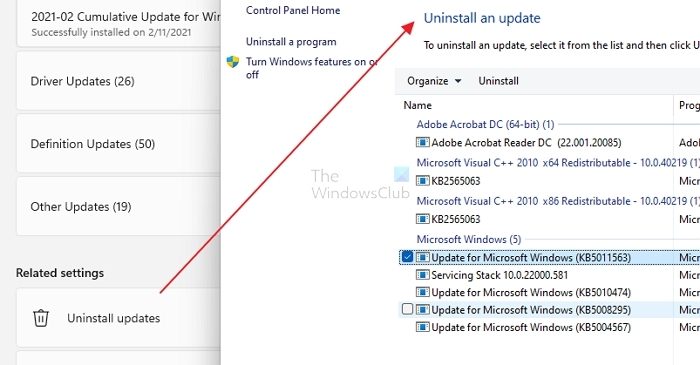
- Open Windows Settings using Win + I
- Navigate to Windows Update > Update History
- Scroll to the end to locate Uninstall updates settings.
- Click to open and then find out the most recent update
- Select and then choose to uninstall.
Ensure you do not do this for any of the old updates, but only for the recent ones after which the problem started happening.
Conclusion
MSI Afterburner and Rivatuner Statistics Server is an excellent combination to monitor the performances of hardware pieces. That is why you must assess why the “Some System Components Cannot be Hooked Right Now” error keeps popping up. Luckily, there are multiple ways to handle the problem.
Does MSI Afterburner need RivaTuner?
It is true that RivaTuner is integrated with MSI Afterburner. But, MSI Afterburner does not need RivaTuner for functioning. RivaTuner is a freeware overclocking and hardware monitoring program for Nvidia video cards.
Does RivaTuner reduce FPS?
RivaTuner offers FPS capping, thus reducing FPS. Moreover, it also enhances CPU usage. It is essential to note that the impact it has on FPS is not much, it is instead 5-10%.
How do I show FPS on RivaTuner?
In order to show FPS on RivaTuner, you need to use the Standalone Rivatuner Statistics Server. There, you must enable the “Show own statistics” settings. This will lead to the on-screen display of FPS. You can then move it anywhere you want on the screen with ease.
Содержание
- При запуске MSI Afterburner, RivaTuner Statistics Server выдаёт ошибку?
- Лучшие комментарии
- Как правильно устранить неполадки в системе RivaTuner Компоненты системы не могут быть подключены прямо сейчас
- Исправьте ошибку Rivatuner правильно, не просто скрывая ее
- Как правильно исправить ошибку RivaTuner System Components Cannot Be Hooked Right Now:
- RivaTuner Statistics Server — что это такое и как им пользоваться
- Что такое OSD, и при чем здесь RivaTuner
- Настройка RivaTuner Statistics Server
- Важные настройки RivaTuner
- Настройка внешнего вида OSD RivaTuner
- Перенос OSD в другое место экрана
- Rivatuner statistics server не запускается
- Как установить MSI Afterburner на Windows 10
- Как включить FPS в MSI Afterburner
- Решение проблемы
При запуске MSI Afterburner, RivaTuner Statistics Server выдаёт ошибку?
Пользуюсь MSI Afterburner (сопутствующей с RivaTuner Statistics Server) для мониторинга а играх (температуры, загрузки, частоты, фпс), Недавно обновлял винду, после, при запуске программы, стала вылетать ошибке RivaTuner Statistics Server — «В данный момент невозможно произвести внедрение в некоторые системные компоненты.Строго рекомендуем перегрузить приложение». В mail.ru, люди уже задавались этим вопросом, но решения проблемы я там не нашёл. оно и мне тоже каг-бы не вредит (всё мониторит без проблем), но уж тоже бесит, это постоянно всплывающее, при запуске окно. уж не знаю как от него избавится? Может тут кто сможет помочь?

Лучшие комментарии

Столкнулся с аналогичной проблемой
Да! Кажись тоже. Спасибо! (Я ещё вчера так пытался — не получалось (запускал идиот, блокнот не от имени администратора (только сейчас допёр))).
Не подскажешь ещё кстати (тут не много изменилось и теперь не понятно): как тут теперь закрывать вопрос, а то проблема решена, а он буд висеть зазря?

Под заголовком вопроса наведи на три точки. Должно появиться меню.
Источник
Как правильно устранить неполадки в системе RivaTuner Компоненты системы не могут быть подключены прямо сейчас
Исправьте ошибку Rivatuner правильно, не просто скрывая ее
Недавно возникла пара проблем с MSI Afterburner. Первая проблема заключалась в том, что вы не могли загрузить MSI Afterburner с их сайта. Вы можете узнать, как решить эту проблему здесь . В этом руководстве мы рассмотрим другую проблему.
Проблема, которую мы рассмотрим в этом посте, заключается в том, что MSI Afterburner Rivatuner выдает ошибку «RivaTunerStatisticsServer Некоторые системные компоненты не могут быть подключены прямо сейчас. Настоятельно рекомендуется перезапустить приложение.»
Эта ошибка, скорее всего, была вызвана недавним обновлением Windows 10.
Есть только один способ правильно исправить эту ошибку, и это установка последней версии Rivatuner. Вы можете скрыть или замаскировать ошибку, но это не исправит проблему, а только скроет тот факт, что Rivatuner работает неправильно.
Если вы хотите просто скрыть ошибку Rivatuner:
1. Перейдите в место, где вы установили Rivatuner (по умолчанию это C:Program Files (x86)RivaTuner Statistics Server). > Затем вам нужно открыть папку под названием ProfileTemplates > Найдите файл конфигурации и щелкните правой кнопкой мыши > Открыть блокнотом.
2. Теперь вам нужно найти строку, в которой говорится » Silent » и изменить ее с 0 на 1, затем сохранить (У вас должен быть MSI Afterburner & RivaTuner закрыт.чтобы сохранить файл конфигурации, и вам также может понадобиться открыть файл от имени администратора)
Как правильно исправить ошибку RivaTuner System Components Cannot Be Hooked Right Now:
1. Чтобы правильно исправить ошибку «Some system components cannot be hooked right now.» вам нужно перейти по этой ссылке: https://www.guru3d.com/files-details/rtss-rivatuner-statistics-server-download.html
2. На сайте Rivatuner вам нужно скачать последнюю версию (на момент написания руководства это была версия 7.3.0 Beta 10)
3. После завершения загрузки вам нужно убедиться, что MSI Afterburner & RivaTuner закрыт, затем запустить установку и убедиться, что вы установили его в ту же директорию, что и текущая установка RivaTuner.
4. Перезагрузите систему. (Теперь все должно работать как обычно)
Ознакомьтесь с приведенным ниже видеоуроком «Как правильно исправить ситуацию, когда компоненты системы RivaTuner не могут быть подключены прямо сейчас», если вы застряли:
Источник
RivaTuner Statistics Server — что это такое и как им пользоваться
RivaTuner Statistics Server (RTSS) — программа, которая изначально разрабатывалась как небольшое дополнение к софту видеокарт для отображения частоты кадров в 3D Приложениях. Сегодня же RTSS является частью программы MSI Afterburner и устанавливается вместе с ней. В этой статье мы рассмотрим, как пользоваться RivaTuner Statistics Server, а также разберем, какие настройки за что отвечают.
Что такое OSD, и при чем здесь RivaTuner
OSD — сокращенно от On Screen Display, что дословно можно перевести как наэкранный дисплей. На нем отображаются различные счетчики. Среди таких счетчиков частота кадров, температура процессора и видеоядра, частоты памяти, процессора и многое другое. За графическое отображение OSD в 3D приложениях как раз и отвечает RivaTuner.
Устанавливать отдельно RivaTuner не имеет особого смысла. Потенциал этой программы раскрывается в полной мере только в связке с использованием MSI Afterburner. Если установить его отдельно, вам будет доступно только отображение частоты кадров в 3D приложениях, и на этом все.
Если у вас еще не установлен MSI Afterburner, скачать его можно по этой ссылке с официального сайта: MSI Afterburner
Настройка RivaTuner Statistics Server
После установки найдите в пуске ярлык RivaTuner Statistics Server и запустите его. После запуска, как правило ничего не произойдет, но зато в системном трее появится такой значок:

Кликните на него, и откроется программа RivaTuner. Первым делом можно сразу сменить язык программы на русский. Для этого нажмите на синюю кнопку Setup в самом низу:

Откроются настройки, где нужно перейти на вкладку User Interface. Тут в пункте «Language» необходимо выбрать русский язык:

Нажимаем ОК, и теперь все настройки и подсказки по всем пунктам меню будут на русском языке. Единственное, что останется на английском языке — это главное окно программы.
Все настройки программы снабжены подробными подсказками. Просто наводите курсор мыши на любой пункт настроек, и будет появляться подробное описание каждой настройки.
Важные настройки RivaTuner
Есть несколько важных настроек, назначение которых просто необходимо знать:

Параметр Start with Windows отвечает за автоматический запуск приложения при запуске операционной системы. Если вы используете RivaTuner в связке с другой программой, например MSI Afterburner, этот параметр можно оставить отключенным. MSI Afterburner самостоятельно будет управлять RivaTuner, используя его библиотеки и настройки, и при надобности запуская его. Достаточно лишь один раз настроить RivaTuner, и все, нет смысла постоянно держать его в принудительной автозагрузке.
Параметр Show On-Screen Display отвечает за включение или отключения OSD поверх 3D приложений. Как нетрудно догадаться, этот параметр должен быть включен, иначе счетчик показываться просто не будет. Опять же, если вы используете MSI Afterburner, можно настроить горячие клавиши на включение и выключение OSD. О том как это сделать, написано в этой статье: «Как использовать MSI Afterburner в играх».
Теперь перейдем к еще одним не менее важным настройкам:

Application detection level лучше ставить в режим Low. В противном случае могут быть ситуации, когда OSD появляется не совсем там, где надо. Если что-то не работает, можно попробовать покрутить этот параметр. В остальных случаях его нужно оставить на «Low«.
Stealth mode крайне полезный режим, который пригодится тем, кто играет в онлайн-игры, использующие античит систему. Дело в том, что иногда античит-системы могут срабатывать на внедрение экрана OSD в игру. Включение этого параметра делает обнаружение OSD системами античита более сложным.
Настройка внешнего вида OSD RivaTuner
На скриншоте ниже красным выделен блок, отвечающий за настройку внешнего вида OSD в игре:

Кнопка «Raster 3D» отвечает за выбор шрифта и его размера. Кнопки Viewport и Framebuffer трогать без особой надобности не стоит. Они пригодятся, если есть какие-нибудь проблемы с правильным определением местоположения OSD программой.
Кнопка Vector 3D включает векторное отображение шрифтов вместо растрового. Использовать не рекомендую, так как такие шрифты читать совсем не удобно. Лучше всего включить Raster 3D, и настроить шрифт по своему вкусу.
Переключатель On-Screen Display shadow включает или выключает тени шрифтов. Лучше этот пункт оставить включенным. Он улучшает восприятие шрифтов, делая их более контрастным по отношению к фону.
Переключатель On-Screen Display fill включает и выключает фоновый цвет для еще большей контрастности. Выглядит это как темная полупрозрачная подложка:

Цвет и прозрачность подложки тоже можно сменить. Для этого нажмите на правую точку On-Screen Display palette:

Остальные 2 точки ни на что не влияют. Они работают только тогда, когда вы используете RivaTuner как самостоятельное приложение. В связке с какой-нибудь программой, типа MSI Afterburner они не работают.
Ползунок On-Screen Display zoom отвечает за масштабирование размеров счетчиков. Если они вам кажутся слишком мелкими или слишком крупными, отрегулируйте их размер.
На скриншоте ниже отрегулирован цвет и прозрачность подложки, а также масштабирование интерфейса:

Перенос OSD в другое место экрана
Можно указать другое место, где отображать информацию счетчиков. Левый верхний угол установлен по умолчанию, и эту настройку мы тоже можем сменить. Обратите внимание на окно предосмотра в самом низу:

Сейчас там отмечен верхний левый угол как точка начала координат (включенный угол светится синим). Ниже вы видите координаты, сейчас там стоит 1 и 1.
Если хотите сменить угол, в котором будет отображаться счетчик, просто щелкайте по этому углу. После выбора угла, он должен стать синим. Можно также задать координаты для расположения OSD просто перетаскивая его мышкой.
Программа постоянно развивается, и некоторые функции могут работать уже не так, как написано в статье. Поэтому, если вы нашли неверное описание каких-то функций, напишите в комментариях, будем исправлять 🙂
Надеюсь, статья для вас оказалась полезной, и теперь вы знаете, как пользоваться RivaTuner Statistics Server 🙂
Источник
Rivatuner statistics server не запускается
MSI Afterburner позволяет управлять графическими картами от красных и зеленых, а именно настраивать скорость кулеров, проводить мониторинг, разгонять оборудование, захватывать видео, а также много других. Программа работает с графическими картами любых производителей. Пользователю достаточно установить MSI Afterburner на свой компьютер, после чего уже можно полноценно использовать возможности программы.
Данная статья расскажет как включить мониторинг в игре используя программу MSI Afterburner. Рассмотрим не только как пользоваться программой MSI Afterburner, но и какие настройки мониторинга лучше установить. А также обратите внимание как настроить параметры мониторинга в игре, для нормального отображения в играх, чтобы не отвлекало от игры.
Как установить MSI Afterburner на Windows 10
Пользователи ищут как скачать MSI Afterburner с официального сайта на русском языке. Такая возможность действительно есть, поскольку прямо в программе можно изменить локализацию интерфейса. А также рекомендуется выбрать более удобный скин программы, поскольку стандартный подойдет далеко не каждому пользователю.
Стоит отметить перед установкой, что необходимо быть осторожным с использованием программы MSI Afterburner. Поскольку функционал разгона оборудования и возможность настраивать скорость вентиляторов может навредить компьютеру особенно в руках новичков.
- Переходим на официальный сайт программы MSI Afterburner и в разделе Загрузки нажимаем кнопку Скачать Afterburner.
- Дальше открываем скачанный файл и следуем всем шагам установщика программы.
Главное убедитесь что на шагу выбора компонентов устанавливаемой программы выбраны MSI Afterburner и RivaTuner Statistics Server. Так как RivaTuner Statistics Server расширяет возможности MSI Afterburner добавив возможность включения мониторинга FPS.
После установки сразу же запускаем меняем язык интерфейса программы. Достаточно открыть MSI Afterburner и перейти в настройки нажав шестеренку внизу программы. Дальше перейти в раздел Интерфейс и в пункте Региональные настройки выбрать Русский язык.
Как включить FPS в MSI Afterburner
- Откройте свойства программы MSI Afterburner нажав на шестеренкунастроек.
- В открывшемся окне перейдите во вкладку Мониторинг найдите пункт Частота кадров.
- Активируйте пункт Частота кадров установив галочку и ниже отметьте Показывать в ОЭД.
- Напротив текущего пункта выберите значение Текст или График, который и будет отображать количество кадров в секунду.
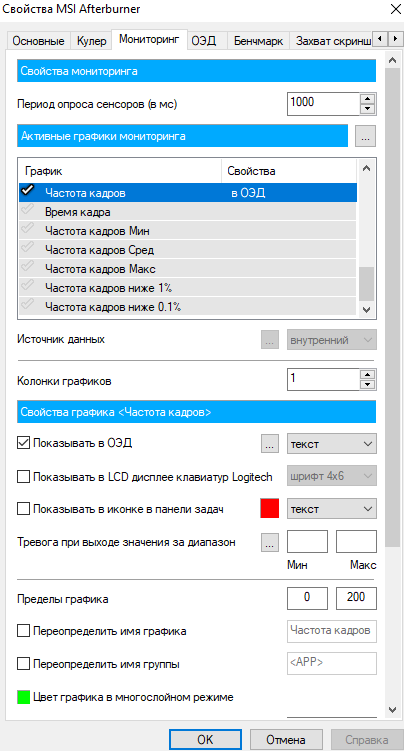
Во вкладке мониторинг можно также включить другие параметры, которые пользователь считает нужными для отображения на мониторе во время игры. Обратите внимание что различные параметры загрузки графического ядра или же температуры доступны в программе MSI Afterburner без дополнительного компонента RivaTuner Statistics Server. Если же у Вас отсутствуют настройки мониторинга частоты кадров, тогда убедитесь что RivaTuner Statistics Server был установлен вместе с MSI Afterburner.
Включение нужных настроек мониторинга рекомендуем настроить горячие клавиши, которые позволят во время игры переключить видимость, показать, спрятать текущие показатели мониторинга.
- Откройте свойства программы MSI Afterburner нажав комбинацию клавиш Ctrl+S.
- Дальше перейдите во вкладку ОЭД и установите значения для пунктов Показать ОЭД и Спрятать ОЭД.

Последним шагом будет настройка внешнего вида оверлейного экранного дисплея. Можно выбрать один из доступных стилей или же просто настроить шрифты и цвета под себя.
Доступны настройки стилей в свойствах MSI Afterburner. Достаточно перейти в закладку Мониторинг и выделив нужный график мониторинга нажать кнопку Выбор стиля Оверлейного Экранного Дисплея в виде трёх точек возле пункта Показывать в ОЭД.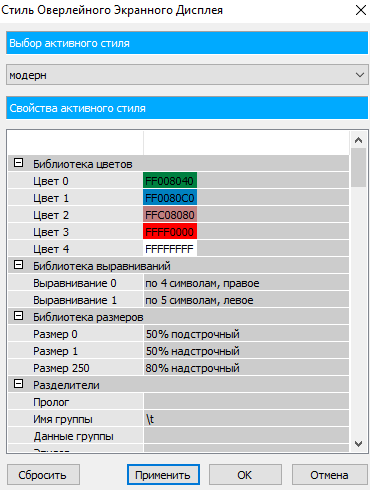
В открывшемся окне достаточно выбрать понравившейся активный стиль отображения или настроить текущий стиль изменив его свойства.
А также дополнительные настройки отображения Оверлейного Экранного Дисплея можно найти в утилите RivaTuner Statistics Server. Достаточно на прямую открыть утилиту RivaTuner Statistics Server или же в свойствах MSI Afterburner перейти во вкладку ОЭД и нажать кнопку Дополнительно. Здесь уже в другом интерфейсе можно настроить цвет, шрифт, размер и выбрать положение текста. А также доступно много других параметров и возможность сразу просмотреть настроенные параметры текста.
MSI Afterburner является мощным средством для управления и мониторинга параметров графического адаптера. Пользователю достаточно скачать и установить программу MSI Afterburner с официального сайта. Возможность выбора русского языка интерфейса есть сразу же после установки программы.
MSI Afterburner позволяет включить мониторинг игр, а именно включить отображение количества кадров в секунду (FPS). Ранее мы рассматривали программы показывающие FPS в играх, хоть и программа MSI Afterburner не попала в список, но она также может выводить счетчик количества кадров в секунду и не только. Ещё смотрите как пользоваться программой SpeedFan 4.52, поскольку она больше подходит для новичков и также контролировать скорость кулеров подключенных к материнской плате.
Довольно часто можно столкнуться с таким явлением, что программа RivaTuner Statistics Server (которая идет в комплекте с популярной утилитой MSI Afterburner), блокирует разлиные оверлеи, например Discord, Steam или Uplay. Тем не менее это легко исправляется парой настроек, о чем и будет рассказано в статье ниже.
Решение проблемы
Для того, чтобы исправить это, нужно проделать следующее:
- Открываем программу RivaTuner Statistics Server, нажимаем значок с плюсом в самом низу программы.

- Откроется окошко, где будет необходимо указать исполняемый файл приложения или игры, в котором не работает оверлей Steam.
- После указания исполняемого файла, необходимо переключить параметр «Custom Direct3D support» с «OFF» на «ON».

После этого оверлей должен будет отображаться нормально.
Источник
This is one of the errors that have been popping up for a long time. People tried to get rid of it but nothing was working. This error basically means one of your hardware components like your CPU, GPU, RAM, etc cannot be hooked up to MSI Afterburner.
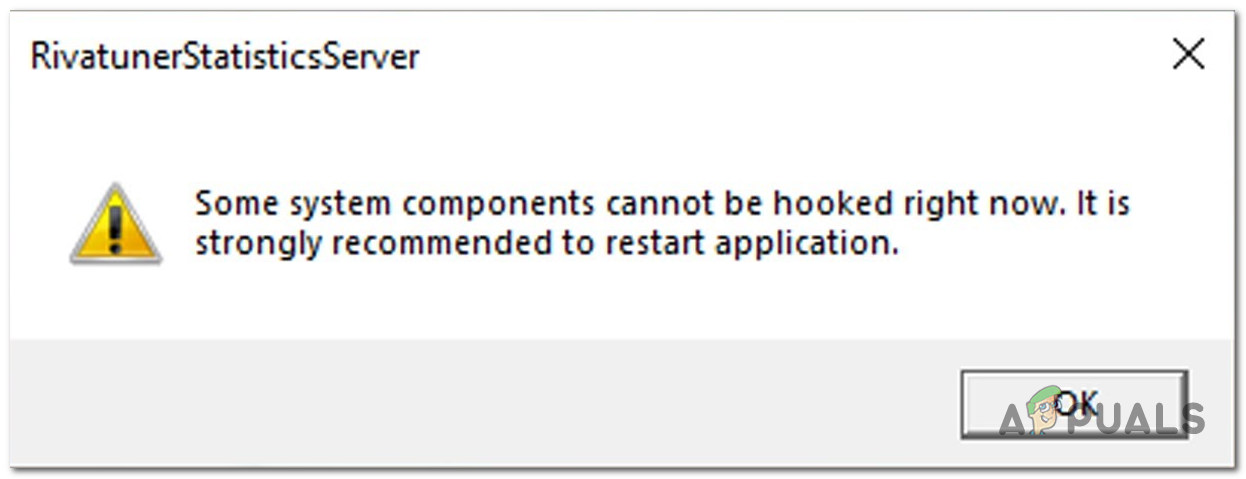
This can be a little frustrating as people try to monitor their hardware performance, and it does not show on MSI Afterburner. Causes of this can be multiple and can be fixed by doing some slight adjustments to your PC.
Luckily for us, the developers recently fixed this, and people got rid of it. If you are still getting this error on your PC, this can be your software problem as this has been fixed for most people after the company announced that they have fixed this error.
Restart the Application
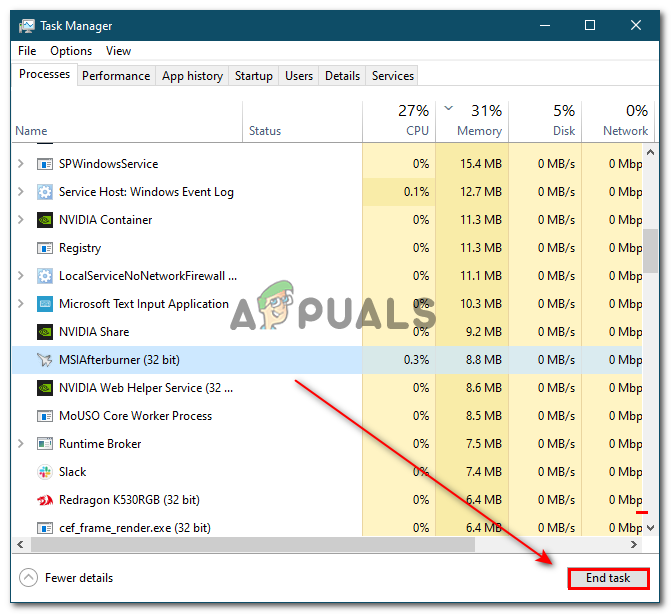
This is one of the easiest and most effective ways of getting rid of an error. Restarting the application can reset the checking sequence of the application, resulting in fixing the problem. If you have recently installed a new piece of hardware, restarting the application is going to reset the application.
Make sure you restart the application from the task manager. If you just close the application from the top right then this is going to just minimize the application.
Remove Windows Update
Windows can be helpful for a lot of people. They usually fix bugs, improve performance, add new features. But this can also mess with some applications like MSI Afterburner. People have reported that this error occurred after performing a Windows Update.
Fortunately, windows allow us to delete the recent updates or changes that you made. This reverts any changes that you made, all the windows updates. For more details, you can click here and undo your changes
Reinstall the Application
Sometimes while installing the application, some files to fully download. This happens rarely as this is not the main reason why this problem occurs. Simply reinstall the application again from the setup you downloaded and then check if the error occurs.
Install the Latest Version
MSI Afterburner’s old application had this bug. Almost everyone who downloaded this version got this problem. Luckily for us, the developers came up with a solution and fixed this error. They released the new version which bugs free and better than before.
It has new graphics, UI, and much more. You can download the latest version by clicking here
If you already have MSI Afterburner downloaded then the process might be tricky. Follow these steps if you already have it downloaded
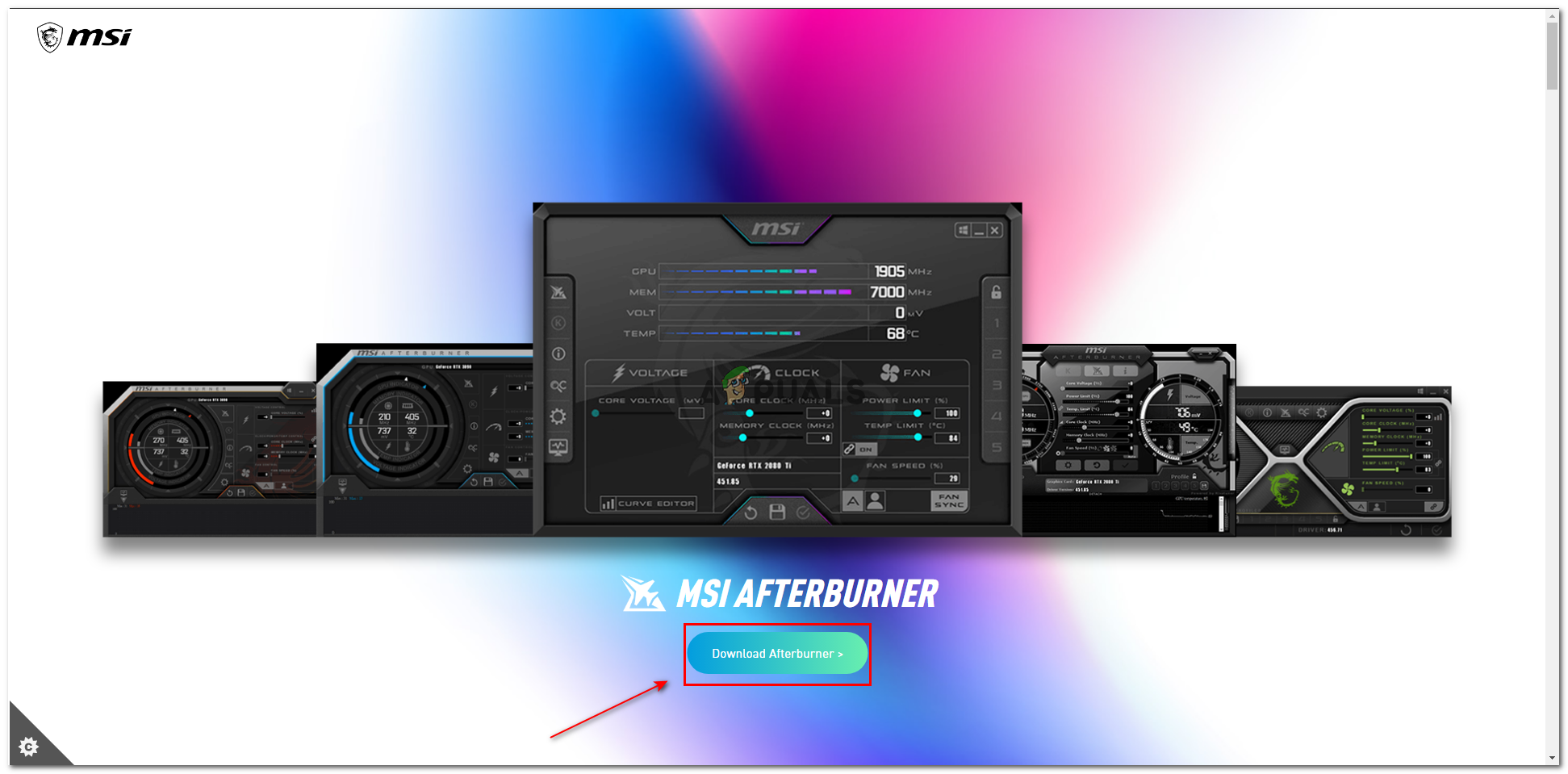
- Click on the link provided above
- download the setup
Download Setup - install the application in the same folder where the older version was installed
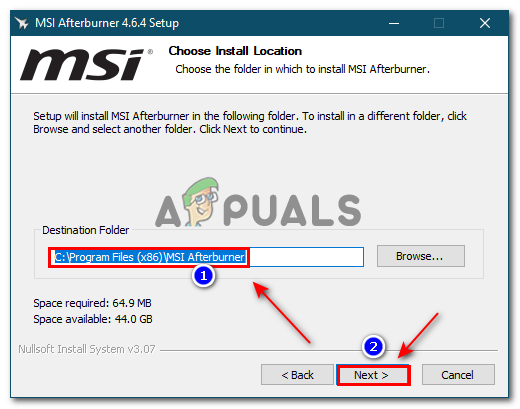
Install on the same location Now you can launch MSI Afterburner and this should solve the problem
Perform Clean Installation of GPU Drivers
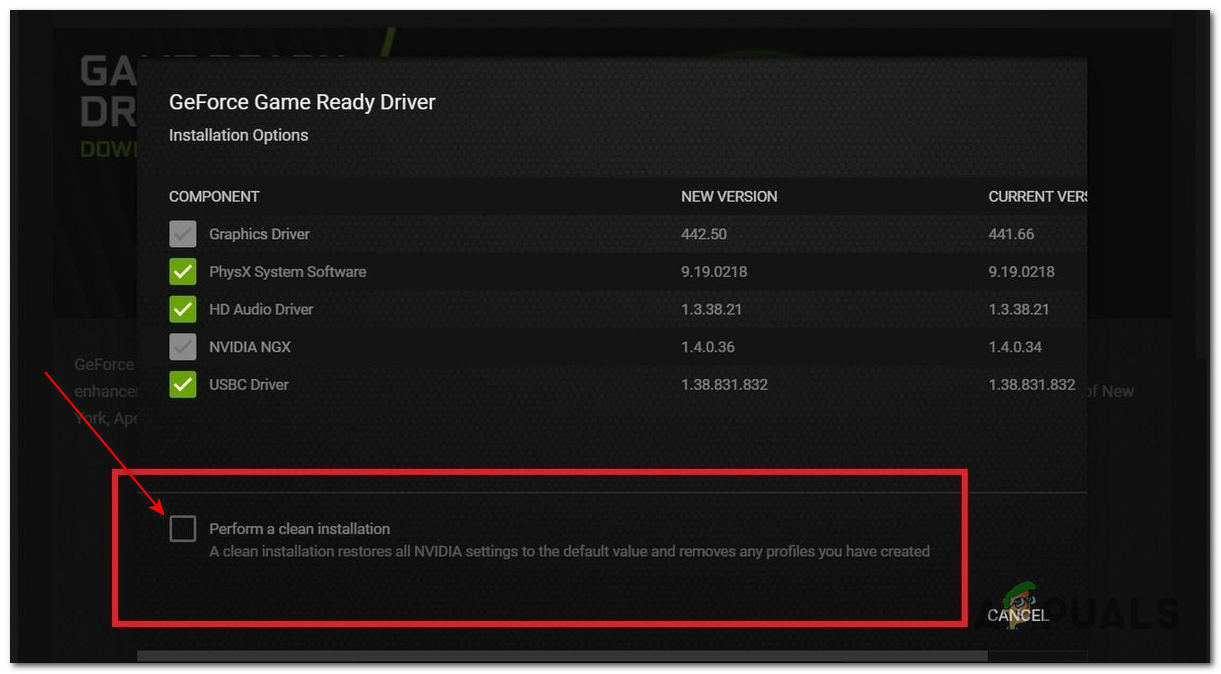
People usually install the GPU drivers using the normal methods. These usually have a separate option called a Clean installation. This can help if your graphics drivers are creating the issue. While installing the drivers simply click on the clean installation box and it will perform a clean GPU drivers installation
Hiding the Error
If none of the above methods work you can try this alternative method. People tried to fix this method using multiple methods but all of those people repeatedly hit a roadblock. Then these people came up with a solution of hiding the error. This method hid the error and it did not pop up every time you launched the application
This is not a fix. It is a workaround if you are not able to fix the error.
- Open File Explorer
- On the resgestry paste this location “C:Program Files (x86)RivaTuner Statistics Server” (if have MSI Afterburner installed). Press enter
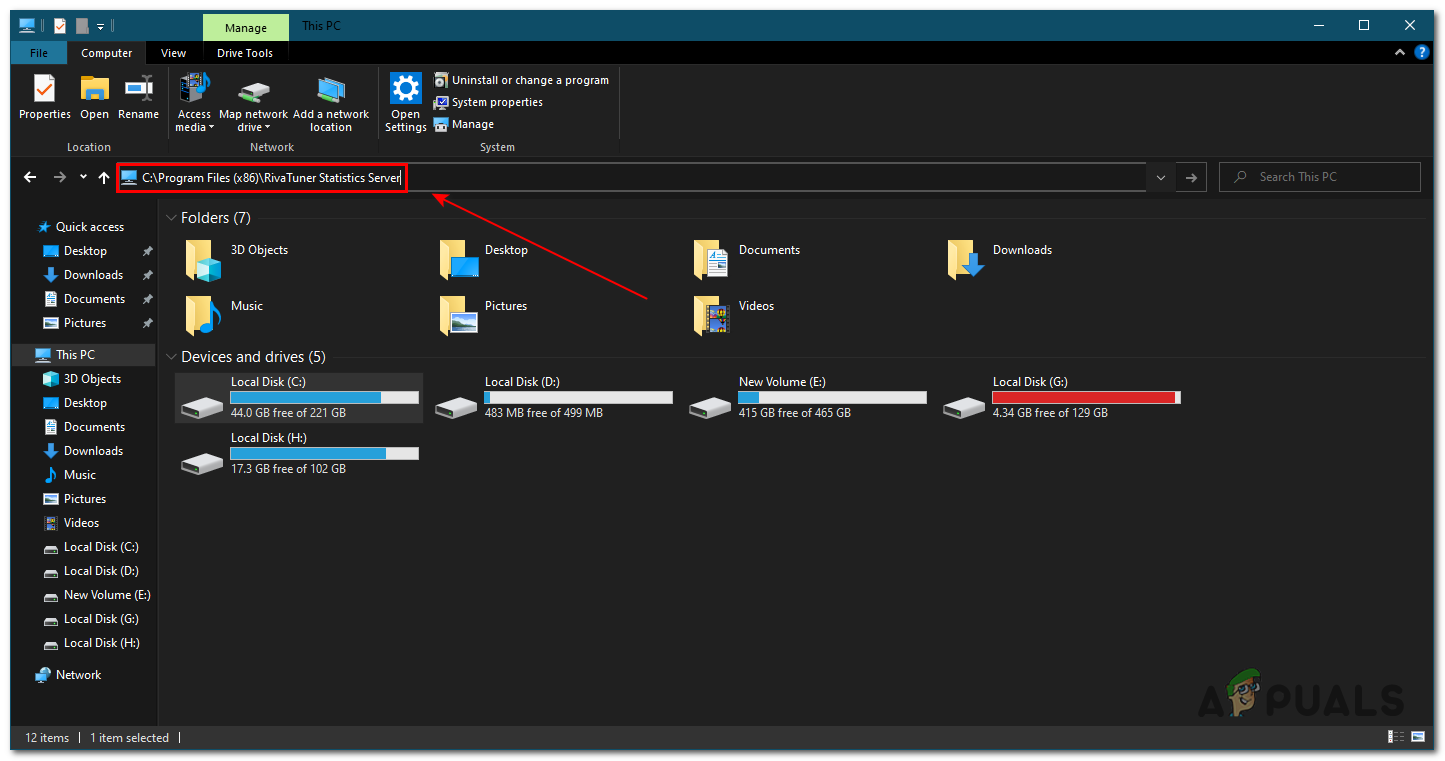
File Explorer - Then click on Profile Templates
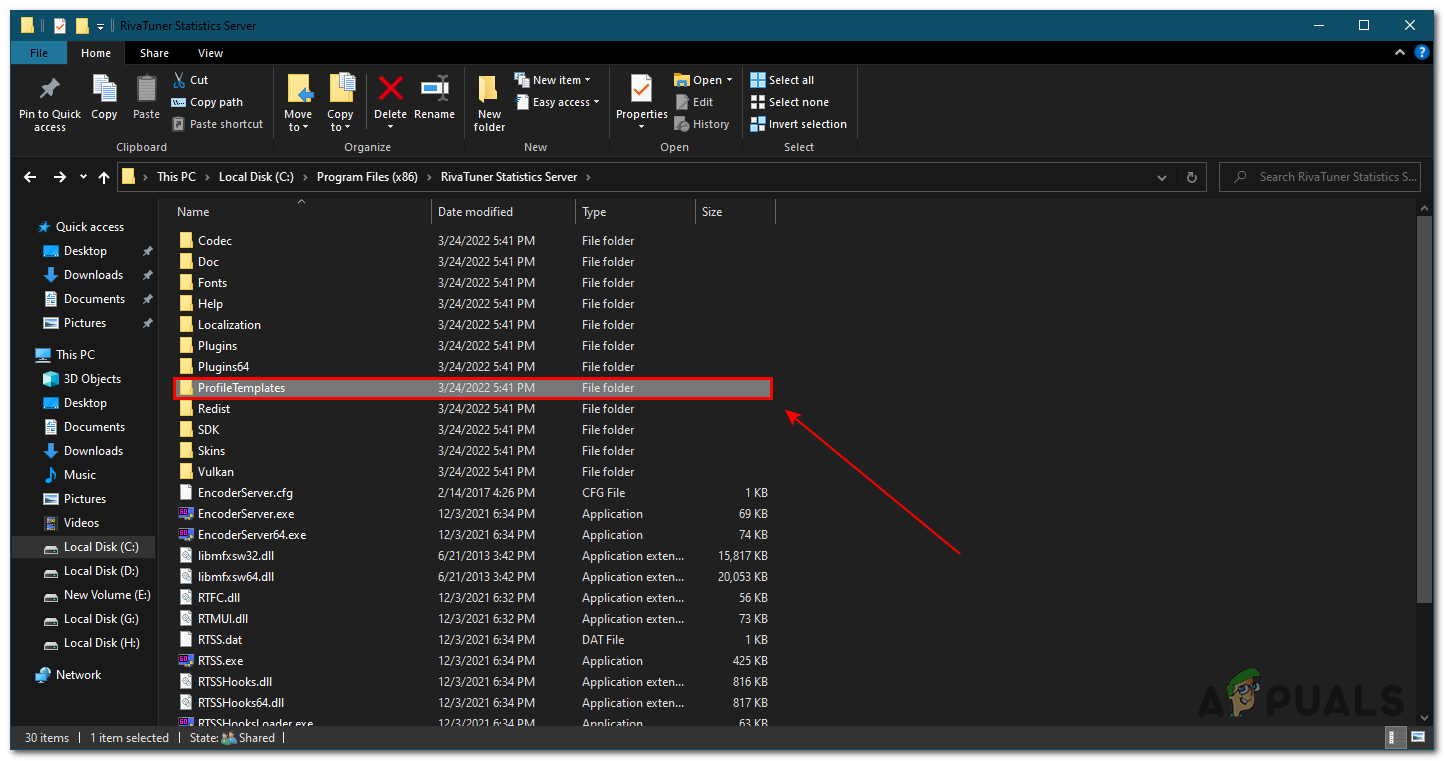
Open Profile Templates - Now, find the folder named config, right-click on it, and open with Note Pad
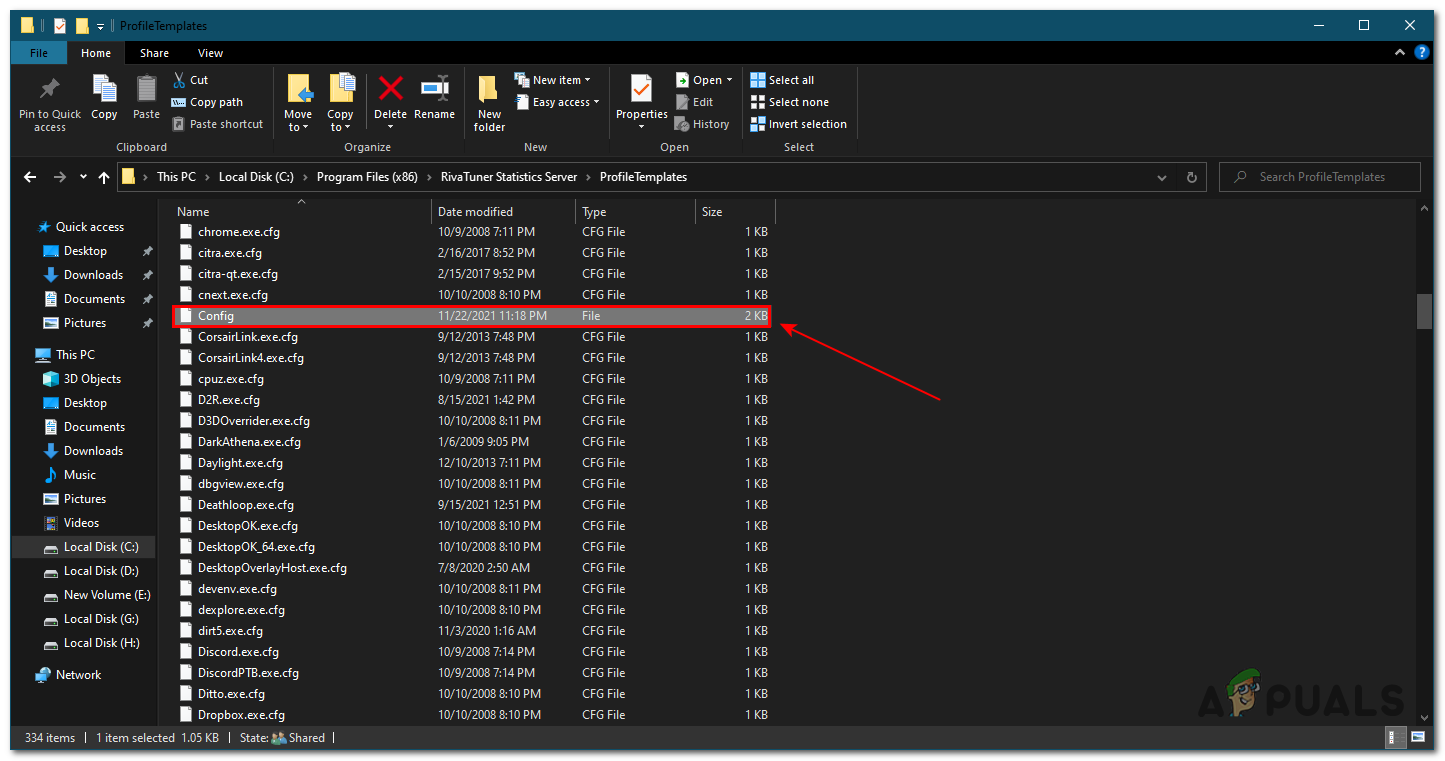
- Now make sure MSI Afterburner is closed completely from the task manager as we told you above.
- From here find Silent and change the value from 0 to 1
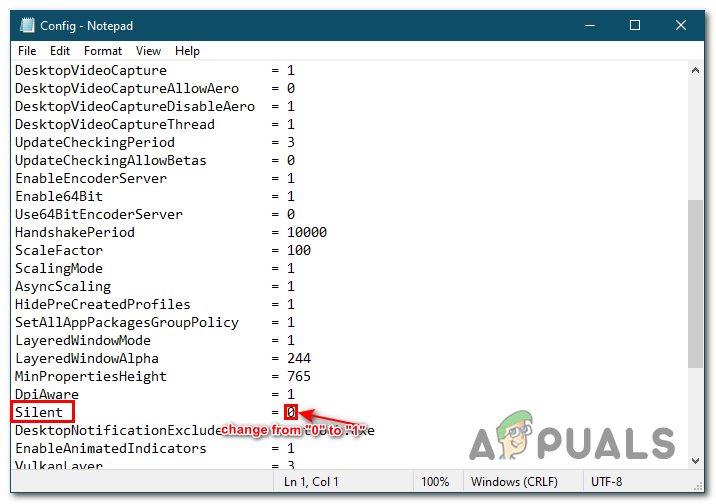
Change Value - Now press ctrl + S to save the file
Now you can re-open MSI Afterburner and the error won’t pop up. Keep in mind this is not going to fix the problem. It is just going to hide the error and it won’t pop up ever again.
Reinstall Windows
This is one of the last methods as this can clear all of the problems that can be occurring on your PC. Re-installing windows can re-install all the files resulting in problems being fixed.
This is one of the easier tasks. But if you need more details and how to install it you can click here

Bilal Masood
Bilal is a young and blooming technical writer driven by his passion to get under the skin of all sort of software bugs. His inquisitive mind likes finding solution to complex problems hence the software bugs intrigues him and he can’t rest before he gets to the root of them. His excellent aptitude for softwares, fueled with his undying passion and topped with his ability to communicate to the reader in an easy, clear, and crisp manner has got him 3 years of experience doing technical documentation.
If you usually encounter a message from RivatunerStatisticsServer, MSI AfterBurner, Direct3D9, and so on. stating Some system components cannot be hooked right now, It is strongly really useful to restart the appliance then this submit might aid you. In brief, this error prevents the person from monitoring the efficiency of various {hardware} components. With this error, one cannot observe the performances of RAM, GPU, or CPU on the MSI Afterburner. The situation is expounded to the RivatunerStatisticsServer and has been plaguing customers for fairly a while. In this submit, we are going to share how one can repair the issue.
What is the Rivatuner Statistics Server?
What is the Rivatuner Statistics Server is a well known FPS limiter. With this small utility, one can monitor body charges and restrict FPS with ease. It can also be top-of-the-line top-performance video capturing servers for a majority of graphic playing cards.
The Rivatuner Statistics Server additionally allows the person to observe and overclock the NVIDIA graphics card. That performs a big position in PC gaming.
Though the popping up of this message can be irritating, there are some methods to resolve the issue. Take a have a look at the strategies you should use to repair the error
- Restart Application
- Reinstall or Update Software
- Rollback current Windows Update
You will want admin permission to resolve this
1] Restart Application
One of the best methods to resolve the RivatunerStatisticsServer error is to restart the appliance. By restarting the appliance, you’re mainly resetting the checking sequences related to it. That approach, it will possibly repair the error. Moreover, if there was any new {hardware} set up, restarting will assist.
Restarting the appliance will reset it, making certain that the error is resolved. Keep in thoughts that closing the appliance by clicking on the top-right nook will merely reduce it. That just isn’t the best way to restart it. However, to restart, you have to use the duty supervisor.
- Use Control + Shift + Esc to launch the Task Manager
- Locate the RivatunerStatisticsServer (RTSS.exe) within the Processes record
- Right-click on it and choose End Task
- Launch the appliance once more from the Start Menu software record and examine if the problem nonetheless exists.
2] Reinstall or Update Software from which you’re getting this error
In some circumstances, recordsdata fail to be downloaded totally whereas the appliance will get put in. However, this is among the uncommon causes contributing to this drawback. Still, this would possibly result in an error. Thus, you might want to re-install the appliance and ensure that the recordsdata are downloaded fully.
Moreover, putting in the current model is comparatively straightforward. You must click on on the hyperlink to the newest model. After that, you have to obtain the appliance. Make positive that you simply first uninstall the appliance, after which set up it once more.
You might want to uninstall the RivaTuner app which yow will discover in Settings > Apps.
Another method to resolve this error is to replace the software program. Keep in thoughts that the builders might have not too long ago fastened the problem. You want to put in the newest MSI Afterburn to do away with this drawback. Since RivaTuner and MSI Afterburner are built-in, it might assist.
3] Rollback current Windows Update
Windows updates are a superb method to take away bugs and glitches from the system. That is the principle motive why individuals appear keen to put in the newest updates on their PC. However, there’s a draw back to this too. Windows updates can intrude with the working of various functions.
One such software that may be affected is the MSI Afterburner. Several customers have reported this error after putting in the newest Windows replace. Here, the one resolution is to delete the newest replace. You must revert the modifications you’ve gotten made to the system. Undoing them will assist in resolving the error.

- Open Windows Settings utilizing Win + I
- Navigate to Windows Update > Update History
- Scroll to the top to find Uninstall updates settings.
- Click to open after which discover out the newest replace
- Select after which select to uninstall.
Ensure you don’t do that for any of the previous updates, however just for the current ones after which the issue began occurring.
Conclusion
MSI Afterburner and Rivatuner Statistics Server is a superb mixture to observe the performances of {hardware} items. That is why you have to assess why the “Some System Components Cannot be Hooked Right Now” error retains popping up. Luckily, there are a number of methods to deal with the issue.
Does MSI Afterburner want RivaTuner?
It is true that RivaTuner is built-in with MSI Afterburner. But, MSI Afterburner doesn’t want RivaTuner for functioning. RivaTuner is a freeware overclocking and {hardware} monitoring program for Nvidia video playing cards.
Does RivaTuner cut back FPS?
RivaTuner gives FPS capping, thus lowering FPS. Moreover, it additionally enhances CPU utilization. It is crucial to notice that the affect it has on FPS just isn’t a lot, it’s as a substitute 5-10%.
How do I present FPS on RivaTuner?
In order to point out FPS on RivaTuner, you might want to use the Standalone Rivatuner Statistics Server. There, you have to allow the “Show own statistics” settings. This will result in the on-screen show of FPS. You can then transfer it wherever you need on the display screen with ease.

- Thread Status:
-
Not open for further replies.
-

Hansen
New Member- Messages:
- 4
- Likes Received:
- 1
- GPU:
Having Problem with the latest MSI Afterburner 4.63 Beta 1.
It results in

Unsightly startup error message. Is there logging for the rivatuner to fix or disable this message?
The FPS counter is working. It is just this message problem.Using Windows 10 version 2004 build 20180.1000
-
2004 is 19041.xxx, you are on a 21hX insider build, not supported.
-
Hansen
New Member- Messages:
- 4
- Likes Received:
- 1
- GPU:
Well, it is working fine. Just the annoying startup message. And this Windows build will be likely released end of the year.
Is there logging where I can check or debug the issue? -
Hansen
New Member- Messages:
- 4
- Likes Received:
- 1
- GPU:
I got this error after manually starting rivatuner and setup some settings.
I wonder is it due to Steam issues and vulkan driver query.Faulting application name: vulkandriverquery.exe, version: 0.0.0.0, time stamp: 0x5f2b55bd
Faulting module name: RTSSVkLayer32.dll, version: 0.0.0.0, time stamp: 0x5f046962
Exception code: 0xc0000005
Fault offset: 0x000014f7
Faulting process ID: 0x131d4
Faulting application start time: 0x01d66ba0b3578ff8
Faulting application path: C:Program Files (x86)Steambinvulkandriverquery.exe
Faulting module path: C:Program Files (x86)RivaTuner Statistics ServerVulkanRTSSVkLayer32.dll
Report ID: 63039a04-ff22-4fb1-881d-3e9e31bdcb04
Faulting package full name:
Faulting package-relative application ID: -

Unwinder
Moderator
Staff Member- Messages:
- 16,268
- Likes Received:
- 4,198
It is not just an annoying message. And it is NOT working fine at all, if the message is displayed. The message guarantees that everything hooking related (including OSD) will not work for sure for some version of Direct3D API. This includes any Direct3D version supported by RTSS starting from Direct3D7 up to modern Direct3D12, each one in both 32-bit and 64-bit variations. Lack of hardware acceleration support for each of listed versions will result in that message. Unablilty to hook each of listed Direct3D versions due to running application is sandbox or application compatibility layer will result in that message. You may suppress the message with Silent=1 in [Settings] section of .ProfileTemplatesConfig, but it won’t fix the problem. OSD will not work for affected API. You may find affected API by examining [FnOffsetCache] contents inside .ProfilesConfig. Uninitialized function offsets will be zero, their names will reflect affected API.
> And this Windows build will be likely released end of the year.
And that’s also a good reason to understand why there is no (and will NEVER be) support early insider OS builds. It is still in development and it WILL change many times till it reach RTM state. Due to the same reason GPU vendors will NOT have official compatible drivers now for actively changing OS branch. Due to the same reason applications relying on display drivers will not support it too, until OS gets final.
-
Hansen
New Member- Messages:
- 4
- Likes Received:
- 1
- GPU:
I see.
Thanks for the silent settings. It helps! -
maffle
Member- Messages:
- 36
- Likes Received:
- 3
- GPU:
@Hansen What did you do to fix the crash of Steams vulkandriverquery.exe ? I have the same issue.
-
@Unwinder I’ve noticed that with the default RTSS task schedule, that this error is thrown on W10 at login, but works fine if you exit and restart, can a small delay be added to the schedule since this cannot be done by the user without RTSS rewriting the task on RTSS.exe exit
OS is 19041.487.
My guess is that somehow with all the crap windows is loading with its gamebar and the task bar and crap that theres a clash involved with starting rtss immediately
This has only been happening recently so i suspect updates to the gamebar are involved.
I have tested a 10s delay and it stops the error.
-
Unwinder
Moderator
Staff Member- Messages:
- 16,268
- Likes Received:
- 4,198
I’ll peek into it later, Ampere compatible beta is the primary focus for the next couple weeks.
-
maffle
Member- Messages:
- 36
- Likes Received:
- 3
- GPU:
@Unwinder What is causing the vulkandriverquery.exe crash of Steam with module RTSSVkLayer32.dll ? How do I work around it? Seems to happen since one of the last Steam updates.
-
Unwinder
Moderator
Staff Member- Messages:
- 16,268
- Likes Received:
- 4,198
I clearly said that I’m focused on more important things now. Sorry, I have better tasks than repeating endless “use search“ over and over again.
-
take it up with the steam beta group
-
Cant find bugreport theme for Afterburner…
MSI Afterburner 4.6.3 Beta 1 build15777 + new KB4571744 + dx12 = crash game (The Division 1)
-
Unwinder
Moderator
Staff Member- Messages:
- 16,268
- Likes Received:
- 4,198
Do I need to close the thread to stop people bumping it with COMPLETELY unrelated issues?
- Thread Status:
-
Not open for further replies.
Share This Page
