Обновлено: 29.01.2023
Для правильной работы игр, которые используют Vulkan API, требуется сначала установить или обновить драйвер видеокарты. Современные видеоадаптеры от NVidia и AMD полностью поддерживают технологию Vulkan, что нельзя сказать о видеокартах, выпущенных до 2016 года. Именно на компьютерах, где установлены такие видеокарты и возникают проблемы с компонентом графического драйвера vulkan-1.dll .
Самый простой и правильный способ избавиться от ошибки запуска игры – это обновить драйвер на видеокарту.
Для загрузки видеодрайвера потребуется пройти на сайт разработчика программного обеспечения — Khronos. На сайте требуется выбрать производителя видеокарты. Далее следует выбрать операционную систему вашего компьютера и выбрать из списка модель видеокарты. К сожалению не все видеокарты могут работать с новой технологией, поэтому если вы не находите в списке свою видеокарту, то возможно, вы не сможете запустить такую игру. По крайней мере, загрузите и установите с сайта производителя графического адаптера актуальную версию драйверов.
После установки драйвера обязательно перезагрузите компьютер.
Следующим этапом будет, если ошибка осталась, попытаться найти сам файл vulkan-1.dll в интернете и зарегистрировать его в системе.
Скачанный файл следует поместить в системную папку System32 (или SysWOW64, если у вас Windows имеет разрядность 64 бит) . Можете скопировать файл в обе папки, ничего страшного не произойдет. Указанные системные папки находятся на системном диске (как правило – это диск С) в папке Windows. После чего попробуйте снова запустить игру.
В таком случае проводим регистрацию файла:
1. Вызываем окно Выполнить, нажав на клавиатуре Win + R ;
2. Вводим такую команду для 64-битных систем:
%windir%SysWoW64
egsvr32.exe %windir%SysWoW64vulkan-1.dll
Для Windows x86 (32-бит) вводим такую команду:
%systemroot%System32
egsvr32.exe %windir%System32vulkan-1.dll
Возможно, потребуется перезагрузить компьютер.
Также не помешает повторно установить компонент DirectX , установщик которого можно скачать ан официальном сайте Microsoft.
Если проблема осталась, а у вас на компьютере или ноутбуке имеется две видеокарты (встроенная и дискретная) , попробуйте в BIOS отключить интегрированную видеокарту или, наоборот, отключить дискретную, а запустить игру через интегрированную. Для этого может понадобиться подключить монитор к другому разъему системного блока. При этом будьте готовы к тому, что игра через интегрированную видеокарту будет работать заметно медленней, так как у интегрированного видео обычно более низкая производительность, по сравнению с дискретными видеокартами. Но из-за того, что она может быть встроена в процессор или быть другой фирмы, вероятность запуска игр с поддержкой Vulkan API повышается.
Напоследок, когда ни один из способов не привел к положительному эффекту, нужно посетить сайт разработчика самой игры. Дело в том, что возможные проблемы с игрой могут быть описаны в отдельном разделе Вопросы и ответы (FAQ) , Поддержка и т.п. Здесь могут быть указаны рекомендации по устранению возможных ошибок запуска игры.
Кстати, очень распространенная причина появления ошибок – это скачивание игр из непроверенных источников, пиратских сайтов и т.п. Приобретение или загрузка лицензионной игры во многих случаях позволит избавить геймера от «головной боли» и сразу наслаждаться игрой.


Игра тормозит и лагает
Скорее всего данная проблема носит аппаратный характер. Проверьте системные требования игры и установите корректные настройки качества графики. Подробнее об оптимизации игры можно почитать на форуме. Также загляните в раздел файлов, где найдутся программы для оптимизации Tom Clancy’s Rainbow Six: Siege для работы на слабых ПК. Ниже рассмотрены исключительные случаи.
Ошибки загрузки/обновления
Проверьте стабильность подключения к интернету, а также скорость загрузки. При слишком высоком пинге или низкой пропускной способности обновление может выдавать ошибки.
Если магазин или лончер Tom Clancy’s Rainbow Six: Siege не завершает обновления или выдает ошибки, то переустановите саму программу. При этом все скачанные вами игры сохранятся.
Запустите проверку целостности данных игры.
Проверьте наличие свободного места на том диске, на котором установлена игра, а также на диске с операционной системой. И в том и в другом случае должно быть свободно места не меньше, чем занимает игра на текущий момент. В идеале всегда иметь запас около 100Гб.
О специфических ошибках связанных с последними обновлениями можно узнать на форуме игры.
Вопросы по прохождению
Ответы на все вопросы касающиеся прохождения Tom Clancy’s Rainbow Six: Siege можно найти в соответствующих разделах Wiki, а также на нашем форуме. Не стесняйтесь задавать вопросы и делиться своими советами и решениями.
Игра не запускается
Тут собраны ответы на самые распространённые ошибки. В случае если вы не нашли ничего подходящего для решения вашей проблемы — рекомендуем перейти на форум, где более детально можно ознакомиться с любой ошибкой встречающийся в Tom Clancy’s Rainbow Six: Siege .
Игра вылетает на рабочий стол без ошибок.
О: Скорее всего проблема в поврежденных файлах игры. В подобном случае рекомендуется переустановить игру, предварительно скопировав все сохранения. В случае если игра загружалась из официального магазина за сохранность прогресса можно не переживать.
Tom Clancy’s Rainbow Six: Siege не работает на консоли.
О: Обновите ПО до актуальной версии, а так же проверьте стабильность подключения к интернету. Если полное обновление прошивки консоли и самой игры не решило проблему, то стоит заново загрузить игру, предварительно удалив с диска.
Ошибка 0xc000007b.

О: Есть два пути решения.
Первый — полная переустановка игры. В ряде случаев это устраняет проблему.
Второй состоит из двух этапов:
Ошибка 0xc0000142.

О: Чаще всего данная ошибка возникает из-за наличия кириллицы (русских букв) в одном из путей, по которым игра хранит свои файлы. Это может быть имя пользователя или сама папка в которой находится игра. Решением будет установка игры в другую папку, название которой написано английскими буквами или смена имени пользователя.
Ошибка 0xc0000906.

О: Данная ошибка связана с блокировкой одного или нескольких файлов игры антивирусом или “Защитником Windows”. Для её устранения необходимо добавить всю папку игры в исключени. Для каждого антивируса эта процедура индивидуально и следует обратиться к его справочной системе. Стоит отметить, что вы делаете это на свой страх и риск. Все мы любим репаки, но если вас часто мучает данная ошибка — стоит задуматься о покупке игр. Пусть даже и по скидкам, о которых можно узнать из новостей на нашем сайте.
Отсутствует msvcp 140.dll/msvcp 120.dll/msvcp 110.dll/msvcp 100.dll

О: Ошибка возникает в случае отсутствия на компьютере корректной версии пакета Microsoft Visual C++, в который и входит msvcp 140.dll (и подобные ему). Решением будет установка нужной версии пакета.
- Нажимаем на Windows + R;
- Вводим команду“regsvrЗ2 msvcp140.dll”(без кавычек);
- Нажимаем “ОК”;
- Перезагружаем компьютер.

Ошибка 0xc0000009a/0xc0000009b/0xc0000009f и другие
О: Все ошибки начинающиеся с индекса 0xc0000009 (например 0xc0000009a, где на месте “а” может находиться любая буква или цифра) можно отнести к одному семейству. Подобные ошибки являются следствием проблем с оперативной памятью или файлом подкачки.

Перед началом выполнения следующих действий настоятельно рекомендуем отключить часть фоновых процессов и сторонних программ, после чего повторно попробовать запустить Tom Clancy’s Rainbow Six: Siege .
Увеличиваем размер файла подкачки:
- Клик правой кнопкой на значку компьютера, а далее: «Дополнительные параметры системы» — «Дополнительно» — «Быстродействие» — «Дополнительно» — «Виртуальная память» — «Изменить».
- Выбираем один диск, задаем одинаковый размер.
- Перезагружаемся.

Размер файла подкачки должен быть кратен 1024. Объём зависит от свободного места на выбранном локальном диске. Рекомендуем установить его равным объему ОЗУ.
Если ошибка 0xc0000009а сохранилась, необходимо проверить вашу оперативную память. Для этого нужно воспользоваться функциями таких программ как MemTest86, Acronis, Everest.
Проблемы с модами
Ошибки входа в игру
Черный экран и вылет при попытке зайти в игру.
О: Если вы используете VPN, то с большей долей вероятности проблема именно в нём. Попробуйте изменить его настройки или временно отключить. Рекомендуется сменить регион в самой игре (если такая возможность предусмотрена). Спустя какое-то время можно будет вернуться к привычным настройкам.
Tom Clancy’s Rainbow Six: Siege не подключается к серверу.
О: Скорее всего, сервер игры перегружен или конкретное лобби не доступно в данный момент. Попробуйте обновить список доступных серверов или просто перезапустить игру.
P.S. Удостоверьтесь что ваш аккаунт или ip-адрес не был забанен в игре за нарушение правил, а также на вашем компьютере не установлены читы и другие запрещенные программы.
Дополнение к игре Tom Clancy’s Rainbow Six: Siege
Игра перестала запускаться.
О: Виной тому могут быть моды установленные для основной игры. Рекомендуется полная переустановка как основной игры, так и дополнения.
Моды не работают.
О: Не все моды для Tom Clancy’s Rainbow Six: Siege совместимы с дополнениями. Необходимо заменить часть модификаций на другие версии. Найти их можно в файлах по игре. Задать вопрос о совместимости тех или иных модов с дополнением можно на форуме.
Tom Clancy’s Rainbow Six Siege
10 янв в 9:27
Происходит краш игры при запуске через vulkan, что делать?
После недавнего обновления игра перестала запускаться на vulkan’е, на dx все спокойно и без проблем.
По железу проблем не было до обновления, стабильно фпс выше сотки, конфиг не трогал, ничего не менял.
GTX1060, FX8320, 8гб, винда 10.
Заранее спасибо!
10 янв в 10:01
10 янв в 10:02
Увы, на директе есть небольшие фризы, которые очень сильно давят на глаза, а такие моменты в шутерах, сами понимаете, играют роль
10 янв в 10:08
Обновления чего? Игры или драйверов видеокарты? Если игры, то проверьте и обновите драйвера для видеокарты на самые новые. Ну и файл-чек файлов игры, с него можно начать)
10 янв в 10:26
Обновления чего? Игры или драйверов видеокарты? Если игры, то проверьте и обновите драйвера для видеокарты на самые новые. Ну и файл-чек файлов игры, с него можно начать)
Обновил видео-драйвер, наличие ошибок в файлах проверял, дважды переустанавливал игру.
10 янв в 10:37
Обновления чего? Игры или драйверов видеокарты? Если игры, то проверьте и обновите драйвера для видеокарты на самые новые. Ну и файл-чек файлов игры, с него можно начать)
Обновил видео-драйвер, наличие ошибок в файлах проверял, дважды переустанавливал игру. Можете попробовать драйвера вулкана поставить на форумах нвиди они есть
10 янв в 10:48
Обновил видео-драйвер, наличие ошибок в файлах проверял, дважды переустанавливал игру.
Можете попробовать драйвера вулкана поставить на форумах нвиди они есть Обязательно попробую, спасибо!
Hello there TenoSS,
At the moment, we can only provide support in this forum in English, German and French.
If you are able to use a translator to type in English, we will be happy to help you.
In the meantime hopefully one of our other Russian speaking players may be able to help you out with your query.
10 янв в 12:40
Hello there TenoSS,
At the moment, we can only provide support in this forum in English, German and French.
If you are able to use a translator to type in English, we will be happy to help you.
In the meantime hopefully one of our other Russian speaking players may be able to help you out with your query.
Good evening! With the last update, the game stopped launching with Vulkan. I play only through it due to the increase in FPS. The game starts to run, the shaders are optimized in the lower left corner of the window, then the window disappears and the game crashes. A window appears for sending an error report. Before the update, there were no problems, I played stably through Vulkan. The DX11 version of the game runs without problems and crashes. All possible drivers were updated, the game was reloaded and checked for missing files. Did not help.
Operating system: Windows 10
PC: GTX1060 (3GB), FX8320, 8GB
Please solve this problem, thanks in advance!

Сегодня решил зайти в радугу после 2-х месячного перерыва, скачал обновление с новой операцией, но при попытке запустить игру она зависает на моменте с подключением к серверу, на обычной версии проблем нет, раньше на вулкане играл спокойно с момента как он только вышел, впервые столкнулся с подобной ситуацией, может быть у вас было подобное, если да, то распишите как вы это решили, перезагрузка, проверка файлов игры, очистка CCleaner’ом ничего из этого не помогло
Глючит или не запускается Tom Clancy’s Rainbow Six: Siege? Решение есть! Постоянные лаги и зависания — не проблема! После установки мода Tom Clancy’s Rainbow Six: Siege начала глючить или НПС не реагируют на завершение задания? И на этот вопрос найдется ответ! На этой странице вы сможете найти решение для любых известных проблем с игрой и обсудить их на форуме.

Читайте также:
- Как включить отображение ресурсов в civilization 5
- Ошибка связи со steam europa universalis 4
- Counter strike source как поменять ник
- Nfs most wanted xbox 360 freeboot как установить
- Как установить симс 2 питомцы
If you have been consistently facing issues and getting frustrated about Rainbow Six Siege Crashing on PC either on startup and during gameplay as well, then this is where you will find all the answers. Rainbow Six Siege has emerged as one of the leading first-person shooter titles in recent years.
However, if there is one thing Siege players would most likely associate with the game, it would be its consistent challenges with game-breaking bugs, crashing, errors and glitches. After all, who could forget recurring issues such as invisible player models, glitched spectator or kill cams, and even the infamous Raptor Legs bug. The issue had become so prevalent that the developers initiated the R6Fix program where players were invited to share and discuss technical issues with the game. Due to such efforts, the game is arguably in a better state today than it had been at any point during its past. Nevertheless, new bugs and glitches are still a regular occurrence with Rainbow Six Siege updates.
Key Highlights
- You might experience Rainbow Six Siege crashing in the middle of your gameplay or sometimes even on start-up.
- Having corrupted game files is one of the most common reasons that can make Rainbow Six Siege constantly crash. Fortunately, steam has a built-in option that can recover any lost or corrupted files, noted as “Verify integrity of game files…”
- If you have any outdated or invalid graphic drivers on your PC, then those are most likely causing Rainbow Six Siege to constantly crash. You can fix this by updating your graphic drivers or using the search option to automatically install missing or invalid device drivers.
- Network issues can also cause Rainbow Six Siege to crash, which are usually caused by the built-in Windows Firewall program. It can accidentally block internet traffic from reaching the Ubisoft servers. This can be fixed by excluding Rainbow Six Siege from the firewall program
- Some specific apps that you have installed on your PC can also cause Rainbow Six Siege to crash. Some applications are set to launch as soon as your PC boots up and some keep running in the background, causing issues.
- You should disable all unnecessary applications that you do not need to start when your PC boots up, along with closing any unnecessary background processes using the Task Manager.
- If you are using Rainbow Six Siege on Windows 10, then you should try running the game in Compatibility Mode and see if that fixes the crashing issue.
- An additional fix is disabling the full-screen optimizations from the game’s properties, as many players have reported that it can often prevent Rainbow Six Siege from crashing.
- The Ubisoft overlay that shows up in Rainbow Six SIege can also be the culprit behind the crashing issues. It is best to disable the overlay and any other support features like cloud saves.
- If none of these fixes have worked so far for you, then you can try limiting the frame rate in Rainbow Six Siege a bit under the highest frame rate that you can get. This can lower the burden on your PC and potentially fix the crashing issues.
The error of Rainbow Six Siege crashing on PC, even on startup, has also been among the game’s longstanding issues. For many players, the crash may also take place while searching for a game, or even during a game itself. Your woes end here, though, because we have scoured the internet to come up with the best solutions to this game-breaking issue. So, if you have been experiencing Rainbow Six Siege PC crashes, on startup or during gameplay, then this guide will take you through some verified fixes that are sure to help you get back into the game!
Similar Articles: Destiny 2 Crashing on PC [Fixed]
Verify integrity of game files
Corrupted game files can be the most likely culprit of regular crashes in Rainbow Six Siege on PC. Thankfully, these files can easily be repaired using built-in tools for both Steam and Ubisoft Connect versions of the game.
Steam
- Open your Steam client and go to the Library
- Once here, find Tom Clancy’s Rainbow Six Siege in your list of games.
- Right-click on the game, and select Properties.
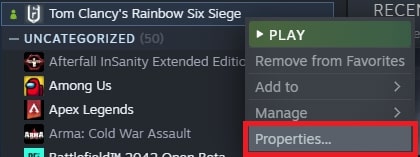
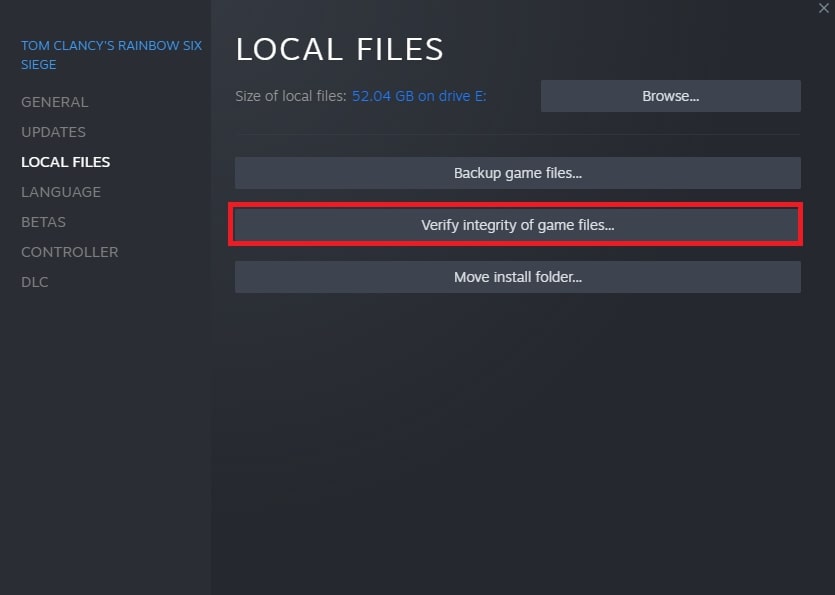
- Afterward, select Local Files from the list on the left.
- Here, you will see an option named Verify integrity of game files. Click on it.
Ubisoft Connect
- Open your Ubisoft Connect client, and click on the Games tab located near the top-left of the window.
- Among the Installed section, look for Tom Clancy’s Rainbow Six Siege.
- Click on the game icon, which will open up another page.
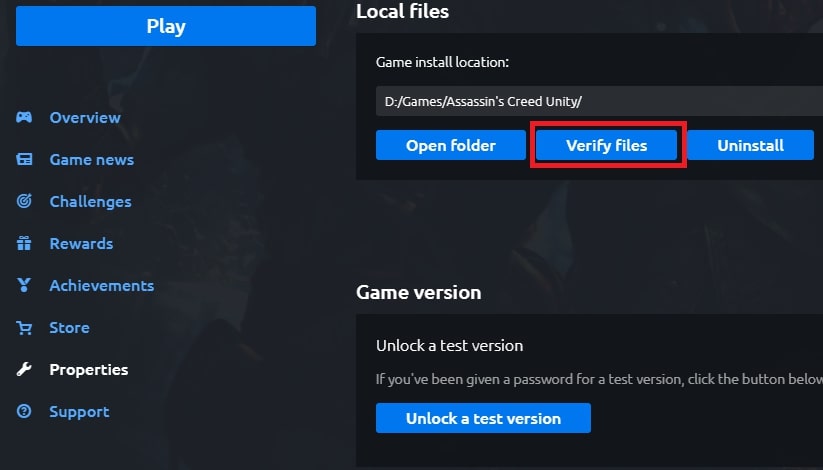
- Here, select Properties from the list on the left.
- In the Local Files section, select the Verify Files.
Now the Steam/Ubisoft Connect client will run a check of your game files, and any files found to be corrupted or missing will be redownloaded. The check may take a while owing to the large size of Rainbow Six Siege’s game files, but once it is completed, you should no longer experience the game crashing on your PC.
Update device drivers
Another reason behind frequent crashing of your copy of Rainbow Six Siege on PC can be outdated or incorrect device drivers, especially for your graphics card. Therefore, you should update your drivers by following the steps below.
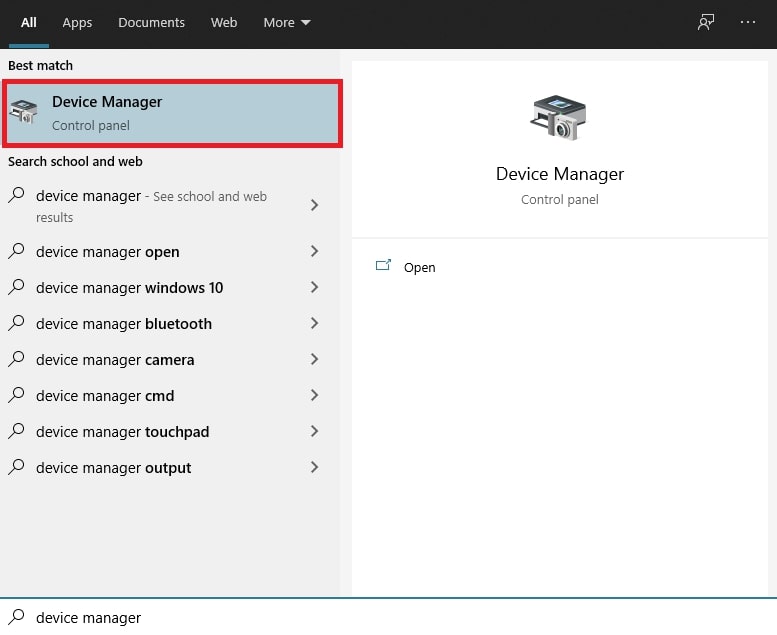
- Open the Windows Start Menu, and type in Device Manager.
- Open the first option that appears. This should open a window showing the various devices being used by your PC.
- Click on the small arrow next to Display adapters.
- Now, you should see a few more options listed below Display adapters. These correspond to your graphics card.
- Right-click on the name of your primary graphics card (usually the NVIDIA/AMD/Radeon one).
- Click on Update driver.
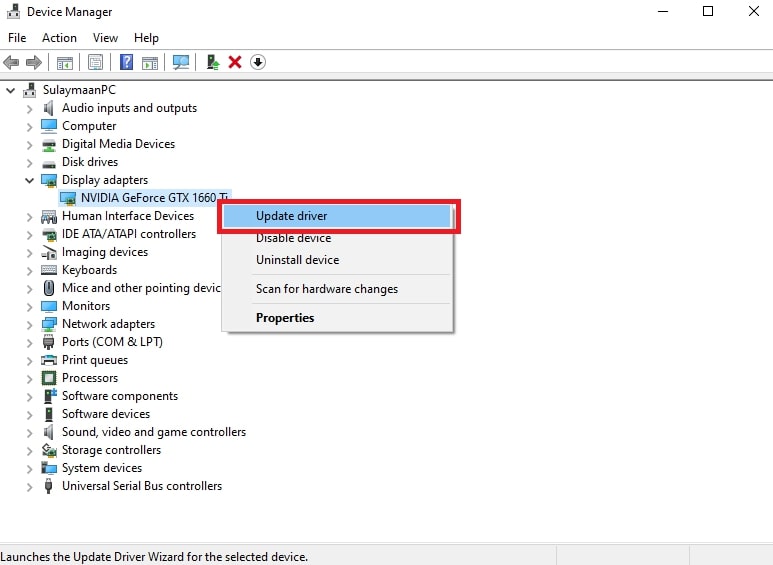
- Subsequently, a driver update window will open up. From here, select the first option which is Search automatically for drivers.
Now let the wizard run as it searches for any driver updates available on the web.
Additionally, you can also perform this driver update through programs like NVIDIA GeForce Experience and AMD Radeon Software, depending on which graphics card you have. Moreover, you can use a third-party software such as Driver Easy Free to easily check and update all of your PC’s drivers.
Once your device drivers are updated and ready to go, restart your PC. This should fix any crashing issues you were having with Rainbow Six Siege on PC, whether on startup or in-game.
Also Read: Valorant Error Code Van 68 [Solved]
Add exception in Windows Firewall
Network issues faced by Rainbow Six Siege can also be a likely cause behind your game crashing frequently. This can be caused by your Windows Firewall inadvertently blocking out your game’s internet traffic, preventing it from communicating with Ubisoft servers. However, this issue can be subverted by adding the game to your Firewall exceptions.
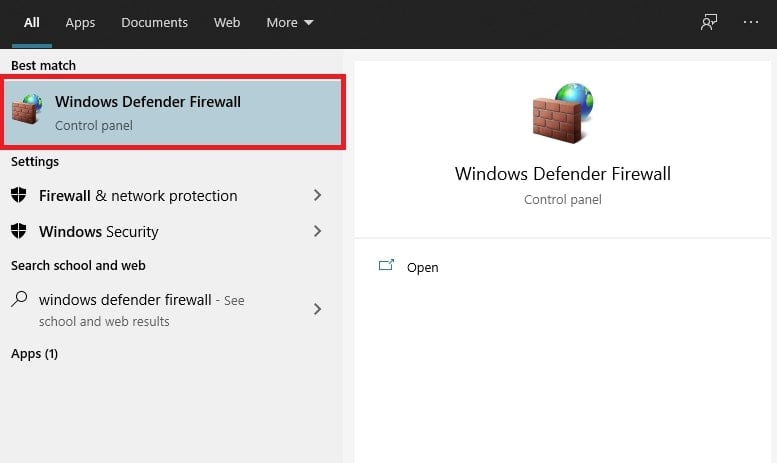
- Open the Windows Start Menu, and search for Windows Defender Firewall.
- Click on the first option.
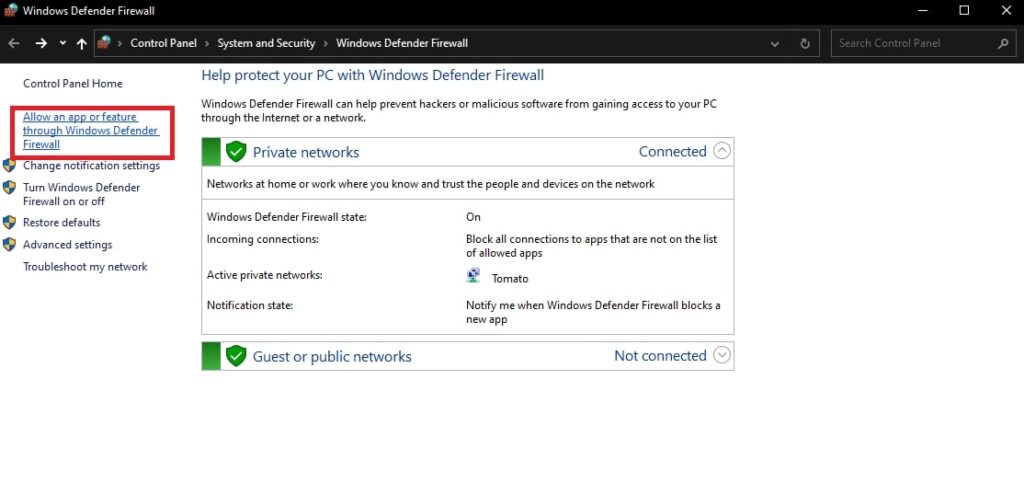
- On the window that opens, look at the options on the left and click on Allow an app or feature through Windows Defender Firewall.
- You should subsequently see a list of programs that are allowed to bypass any Firewall restrictions. If this list appears greyed out, click on the Change settings in the top-right.
- Afterward, click on the Allow another app…
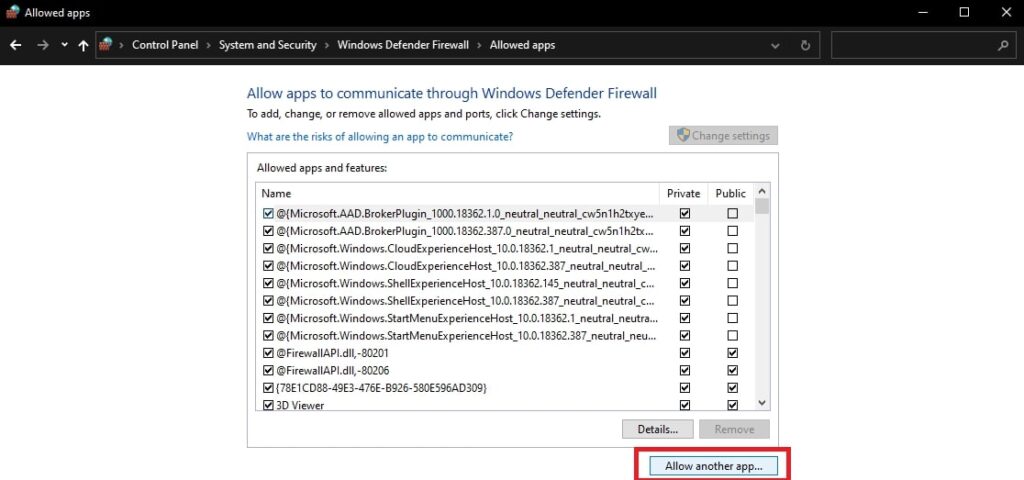
- From here, select Browse.
- Now, you need to find and select your game’s .exe file. To do so, you need to navigate to the game files folder.
For Steam, open the folder where your Steam games are installed, and then follow the path:
steamapps > common > Tom Clancy’s Rainbow Six Siege
You can similarly find the files for Ubisoft Connect depending on where you installed your game.
- Once here, select the file named RainbowSix.exe (or RainbowSix_Vulkan.exe if you use the Vulkan version of the game).
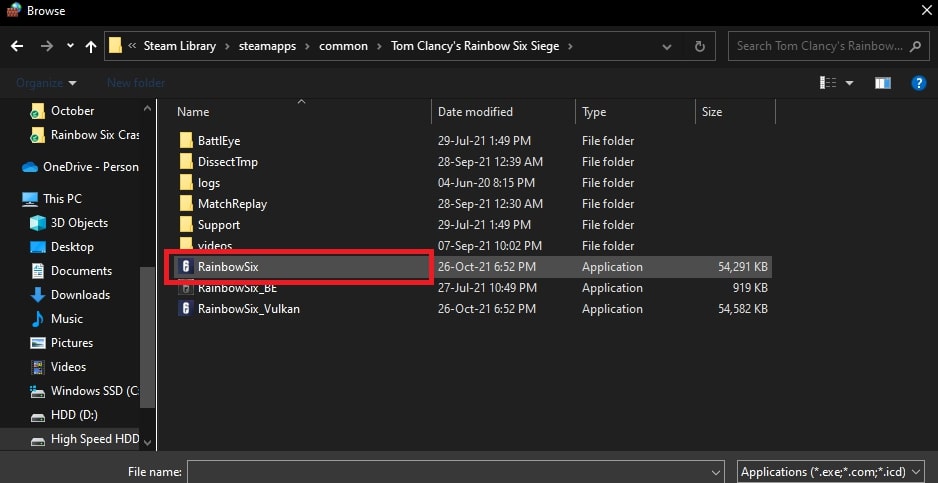
- Lastly, click on Add once you are taken back to the previous window.
This should fix any network issues with the game on your PC that may have been causing Rainbow Six Siege to crash.
Limit startup and background applications
This worked for my Rainbow Six Siege crashing – It is also possible that there are certain applications running on your PC in the background which hinder the working of Rainbow Six Siege, causing it to crash, even on startup. Some of these applications start up whenever you boot up Windows. To disable them, go through the following steps.
- Open the Windows Start Menu, and search for System Configuration.
- Click on the first option.
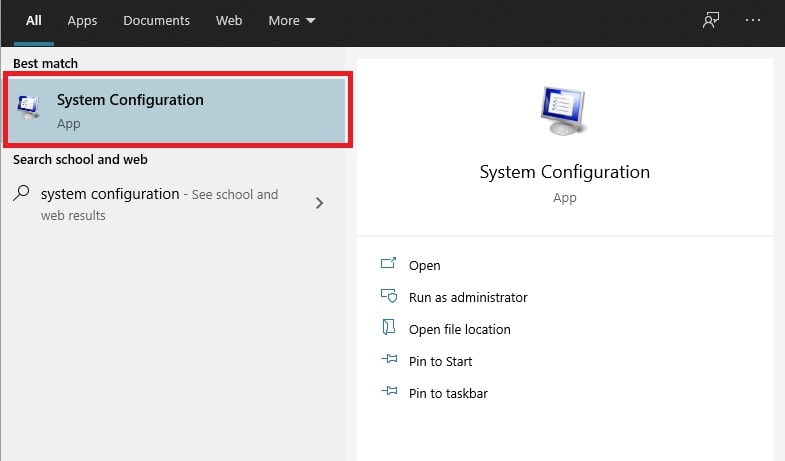
- In the window that appears, within the General tab, enable the Selective startup option if it was not already, and uncheck the sub-option Load startup items. Doing so will stop any unnecessary third-party programs from starting whenever you boot Windows.

- Afterward, go to the Services tab, and check the Hide all Microsoft services This will leave only third-party services.
- Click on the Disable all.
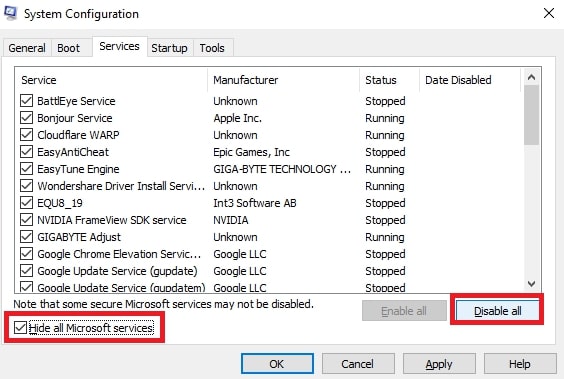
- Click on Apply and then on OK.
- Lastly, go to the Startup tab and click on Open Task Manager.
- Here you will see a list of applications that start whenever your PC loads up. For each application, right-click on it and select Disable.
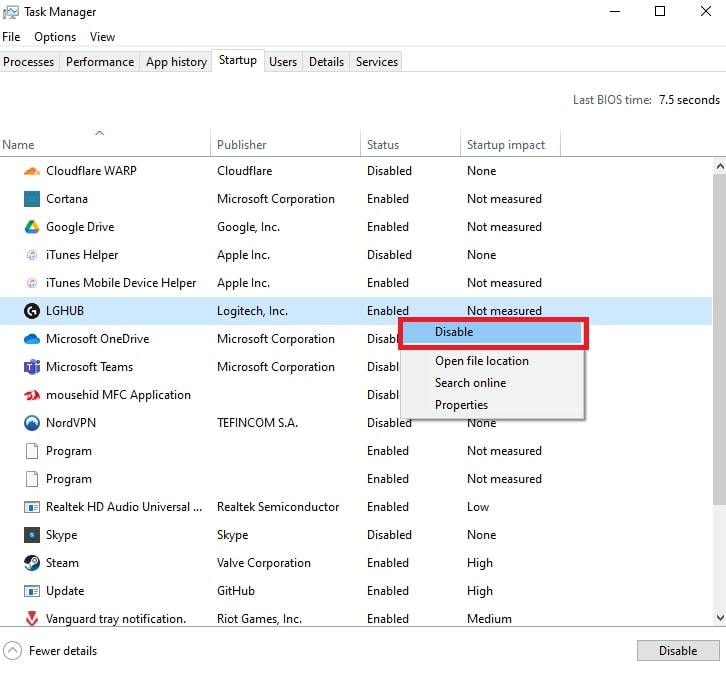
You have now successfully disabled all third-party startup programs and services. Restart your PC and launch Rainbow Six Siege again to see if the crashing issue has been resolved.
Additionally, you can also open the Task Manager to see if there are any third-party background processes that are using up too much resources such as CPU, GPU and RAM. If so, try ending the process (right-click on the process and select End task), or uninstalling the program completely. Once completed, run the game and see if the issue persists.
Run in Compatibility Mode
Another verified fix is to run the game in Compatibility Mode. This fix is only applicable if you are running the game on Windows 10, though.
- Find the game launcher .exe file or a shortcut file.
- Right-click on the file and select Properties.
- Once here, go to the Compatibility tab and check the option Run this program in compatibility mode for.
- From the drop-down menu below, select Windows 7.
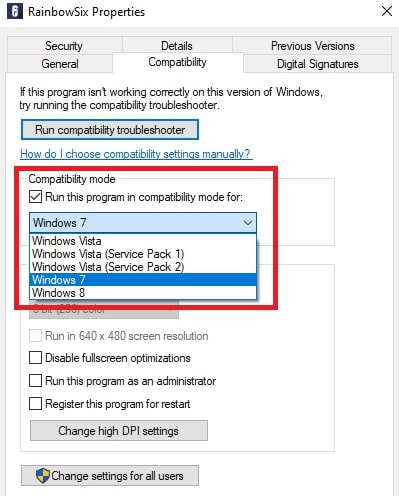
- Click on Apply, and then on OK.
Try launching the game again, and see if the issue still persists.
Disable fullscreen optimizations
This is another fix can occasionally fix crashes during startup and in-game for Rainbow Six Siege on PC.
- Find the game launcher .exe file or a shortcut file.
- Right-click on the file and select Properties.
- Once here, go to the Compatibility tab and check the options Disable fullscreen optimizations and Run this program as an administrator.
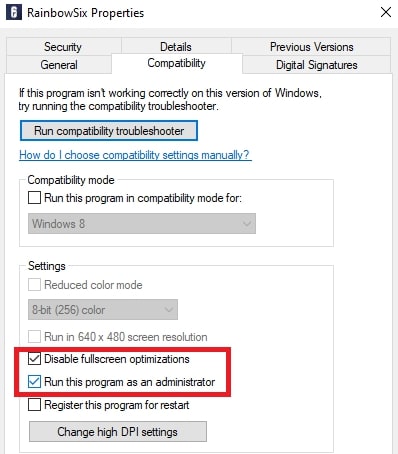
- Click on Apply, and then on OK.
Give the game another go, and see if the crashing has been fixed.
You may also be interested in our error fix guide on Apex Legends Engine Error.
Disable in-game overlay
Players have also reported issues with the in-game Ubisoft overlay to be the cause of Rainbow Six Siege’s frequent crashing on startup. To fix this, you can try disabling the overlay along with other support features such as cloud saves.
- Open your Ubisoft Connect
- Click on the three lines icon in the top-left, and go to Settings.
- In the General section, uncheck the two options titled Enable cloud save synchronization for supported games and Enable in-game overlay for supported games.
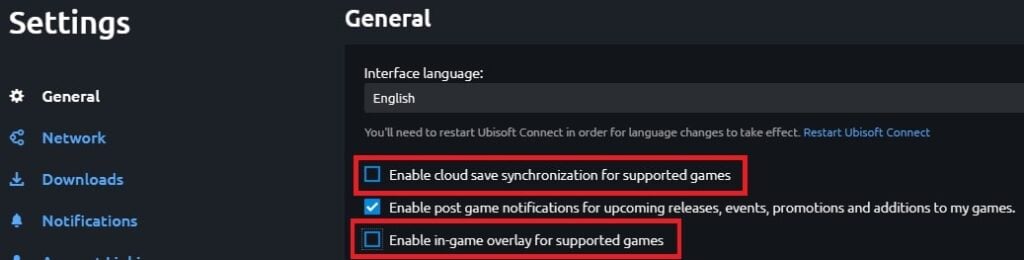
Lastly, exit and reopen the Ubisoft Connect client, and try relaunching Rainbow Six Siege to see if the issue has been fixed.
Limit framerate
If all else fails to fix your issue of Rainbow Six Siege crashing on your PC, you can try limiting your in-game framerate. Unlocked framerates can lead to excessive CPU and GPU usage. Though this is usually not a problem with most games, some people can face crashing issues with Rainbow Six Siege. Therefore, we recommend limiting your framerate to a value slightly below the maximum FPS that you can achieve in game. For example, if your system can push 160 frames per second at best in the game, we recommend limiting your framerate to 140. You can do so by following these steps.
- Open up the Windows File Explorer, and go to the Documents
- From here, navigate to My Games, and then to Rainbow Six – Siege.
- Open the folder located here with the long alphanumeric name.
- Open the file GameSettings.ini with a text editor like Notepad.
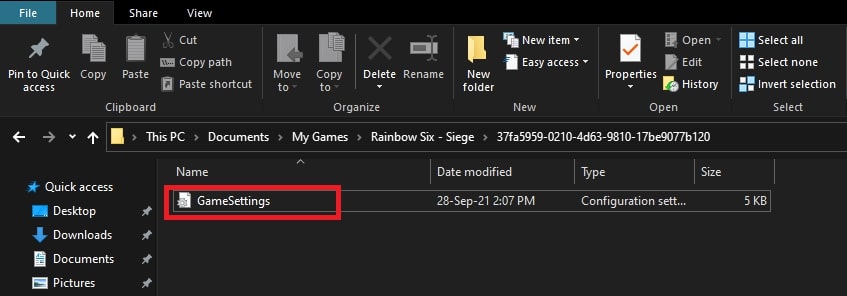
- In the DISPLAY settings, find the FPSLimit setting, and set it to your decided framerate. For example, if you decided the maximum FPS to be 140, make sure that the text line reads FPSLimit=140.
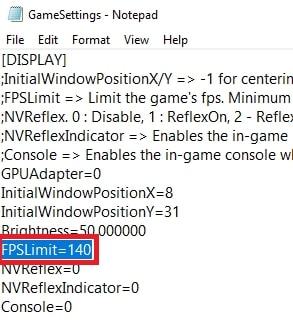
This may give a slight performance setback, but it should lead to a much smoother experience. Moreover, if you choose an appropriate framerate limit, then the performance setback is insignificant and should not be noticeable by most players.
Want to hit better framerates in Rainbow Six? Check out our Rainbow Six Siege Settings guide!
Takeaways
That wraps up our list of fixes for the infamous Rainbow Six Siege crashing on startup for PCs issue. Did the guide help you get rid of the issue and jump back into the game? Give us your feedback in the comments down below. If you enjoy Rainbow Six Siege, be sure to check out our list of the 10 best FPS games you must play!
Frequently Asked Questions
How can I stop Rainbow Six Siege from crashing on PC?
This is a common issue among players. Some verified fixes include verifying integrity of game files, updating drivers, adding exception to Windows Firewall, limiting background tasks, running in compatibility mode, disabling in-game overlays and fullscreen optimizations, and locking the framerate.
Was this article helpful?
Thanks! Do share your feedback with us. ⚡
How could we improve this post? Please Help us. ✍
If you have been consistently facing issues and getting frustrated about Rainbow Six Siege Crashing on PC either on startup and during gameplay as well, then this is where you will find all the answers. Rainbow Six Siege has emerged as one of the leading first-person shooter titles in recent years.
However, if there is one thing Siege players would most likely associate with the game, it would be its consistent challenges with game-breaking bugs, crashing, errors and glitches. After all, who could forget recurring issues such as invisible player models, glitched spectator or kill cams, and even the infamous Raptor Legs bug. The issue had become so prevalent that the developers initiated the R6Fix program where players were invited to share and discuss technical issues with the game. Due to such efforts, the game is arguably in a better state today than it had been at any point during its past. Nevertheless, new bugs and glitches are still a regular occurrence with Rainbow Six Siege updates.
Key Highlights
- You might experience Rainbow Six Siege crashing in the middle of your gameplay or sometimes even on start-up.
- Having corrupted game files is one of the most common reasons that can make Rainbow Six Siege constantly crash. Fortunately, steam has a built-in option that can recover any lost or corrupted files, noted as “Verify integrity of game files…”
- If you have any outdated or invalid graphic drivers on your PC, then those are most likely causing Rainbow Six Siege to constantly crash. You can fix this by updating your graphic drivers or using the search option to automatically install missing or invalid device drivers.
- Network issues can also cause Rainbow Six Siege to crash, which are usually caused by the built-in Windows Firewall program. It can accidentally block internet traffic from reaching the Ubisoft servers. This can be fixed by excluding Rainbow Six Siege from the firewall program
- Some specific apps that you have installed on your PC can also cause Rainbow Six Siege to crash. Some applications are set to launch as soon as your PC boots up and some keep running in the background, causing issues.
- You should disable all unnecessary applications that you do not need to start when your PC boots up, along with closing any unnecessary background processes using the Task Manager.
- If you are using Rainbow Six Siege on Windows 10, then you should try running the game in Compatibility Mode and see if that fixes the crashing issue.
- An additional fix is disabling the full-screen optimizations from the game’s properties, as many players have reported that it can often prevent Rainbow Six Siege from crashing.
- The Ubisoft overlay that shows up in Rainbow Six SIege can also be the culprit behind the crashing issues. It is best to disable the overlay and any other support features like cloud saves.
- If none of these fixes have worked so far for you, then you can try limiting the frame rate in Rainbow Six Siege a bit under the highest frame rate that you can get. This can lower the burden on your PC and potentially fix the crashing issues.
The error of Rainbow Six Siege crashing on PC, even on startup, has also been among the game’s longstanding issues. For many players, the crash may also take place while searching for a game, or even during a game itself. Your woes end here, though, because we have scoured the internet to come up with the best solutions to this game-breaking issue. So, if you have been experiencing Rainbow Six Siege PC crashes, on startup or during gameplay, then this guide will take you through some verified fixes that are sure to help you get back into the game!
Similar Articles: Destiny 2 Crashing on PC [Fixed]
Verify integrity of game files
Corrupted game files can be the most likely culprit of regular crashes in Rainbow Six Siege on PC. Thankfully, these files can easily be repaired using built-in tools for both Steam and Ubisoft Connect versions of the game.
Steam
- Open your Steam client and go to the Library
- Once here, find Tom Clancy’s Rainbow Six Siege in your list of games.
- Right-click on the game, and select Properties.
- Afterward, select Local Files from the list on the left.
- Here, you will see an option named Verify integrity of game files. Click on it.
Ubisoft Connect
- Open your Ubisoft Connect client, and click on the Games tab located near the top-left of the window.
- Among the Installed section, look for Tom Clancy’s Rainbow Six Siege.
- Click on the game icon, which will open up another page.
- Here, select Properties from the list on the left.
- In the Local Files section, select the Verify Files.
Now the Steam/Ubisoft Connect client will run a check of your game files, and any files found to be corrupted or missing will be redownloaded. The check may take a while owing to the large size of Rainbow Six Siege’s game files, but once it is completed, you should no longer experience the game crashing on your PC.
Update device drivers
Another reason behind frequent crashing of your copy of Rainbow Six Siege on PC can be outdated or incorrect device drivers, especially for your graphics card. Therefore, you should update your drivers by following the steps below.
- Open the Windows Start Menu, and type in Device Manager.
- Open the first option that appears. This should open a window showing the various devices being used by your PC.
- Click on the small arrow next to Display adapters.
- Now, you should see a few more options listed below Display adapters. These correspond to your graphics card.
- Right-click on the name of your primary graphics card (usually the NVIDIA/AMD/Radeon one).
- Click on Update driver.
- Subsequently, a driver update window will open up. From here, select the first option which is Search automatically for drivers.
Now let the wizard run as it searches for any driver updates available on the web.
Additionally, you can also perform this driver update through programs like NVIDIA GeForce Experience and AMD Radeon Software, depending on which graphics card you have. Moreover, you can use a third-party software such as Driver Easy Free to easily check and update all of your PC’s drivers.
Once your device drivers are updated and ready to go, restart your PC. This should fix any crashing issues you were having with Rainbow Six Siege on PC, whether on startup or in-game.
Also Read: Valorant Error Code Van 68 [Solved]
Add exception in Windows Firewall
Network issues faced by Rainbow Six Siege can also be a likely cause behind your game crashing frequently. This can be caused by your Windows Firewall inadvertently blocking out your game’s internet traffic, preventing it from communicating with Ubisoft servers. However, this issue can be subverted by adding the game to your Firewall exceptions.
- Open the Windows Start Menu, and search for Windows Defender Firewall.
- Click on the first option.
- On the window that opens, look at the options on the left and click on Allow an app or feature through Windows Defender Firewall.
- You should subsequently see a list of programs that are allowed to bypass any Firewall restrictions. If this list appears greyed out, click on the Change settings in the top-right.
- Afterward, click on the Allow another app…
- From here, select Browse.
- Now, you need to find and select your game’s .exe file. To do so, you need to navigate to the game files folder.
For Steam, open the folder where your Steam games are installed, and then follow the path:
steamapps > common > Tom Clancy’s Rainbow Six Siege
You can similarly find the files for Ubisoft Connect depending on where you installed your game.
- Once here, select the file named RainbowSix.exe (or RainbowSix_Vulkan.exe if you use the Vulkan version of the game).
- Lastly, click on Add once you are taken back to the previous window.
This should fix any network issues with the game on your PC that may have been causing Rainbow Six Siege to crash.
Limit startup and background applications
This worked for my Rainbow Six Siege crashing – It is also possible that there are certain applications running on your PC in the background which hinder the working of Rainbow Six Siege, causing it to crash, even on startup. Some of these applications start up whenever you boot up Windows. To disable them, go through the following steps.
- Open the Windows Start Menu, and search for System Configuration.
- Click on the first option.
- In the window that appears, within the General tab, enable the Selective startup option if it was not already, and uncheck the sub-option Load startup items. Doing so will stop any unnecessary third-party programs from starting whenever you boot Windows.
- Afterward, go to the Services tab, and check the Hide all Microsoft services This will leave only third-party services.
- Click on the Disable all.
- Click on Apply and then on OK.
- Lastly, go to the Startup tab and click on Open Task Manager.
- Here you will see a list of applications that start whenever your PC loads up. For each application, right-click on it and select Disable.
You have now successfully disabled all third-party startup programs and services. Restart your PC and launch Rainbow Six Siege again to see if the crashing issue has been resolved.
Additionally, you can also open the Task Manager to see if there are any third-party background processes that are using up too much resources such as CPU, GPU and RAM. If so, try ending the process (right-click on the process and select End task), or uninstalling the program completely. Once completed, run the game and see if the issue persists.
Run in Compatibility Mode
Another verified fix is to run the game in Compatibility Mode. This fix is only applicable if you are running the game on Windows 10, though.
- Find the game launcher .exe file or a shortcut file.
- Right-click on the file and select Properties.
- Once here, go to the Compatibility tab and check the option Run this program in compatibility mode for.
- From the drop-down menu below, select Windows 7.
- Click on Apply, and then on OK.
Try launching the game again, and see if the issue still persists.
Disable fullscreen optimizations
This is another fix can occasionally fix crashes during startup and in-game for Rainbow Six Siege on PC.
- Find the game launcher .exe file or a shortcut file.
- Right-click on the file and select Properties.
- Once here, go to the Compatibility tab and check the options Disable fullscreen optimizations and Run this program as an administrator.
- Click on Apply, and then on OK.
Give the game another go, and see if the crashing has been fixed.
You may also be interested in our error fix guide on Apex Legends Engine Error.
Disable in-game overlay
Players have also reported issues with the in-game Ubisoft overlay to be the cause of Rainbow Six Siege’s frequent crashing on startup. To fix this, you can try disabling the overlay along with other support features such as cloud saves.
- Open your Ubisoft Connect
- Click on the three lines icon in the top-left, and go to Settings.
- In the General section, uncheck the two options titled Enable cloud save synchronization for supported games and Enable in-game overlay for supported games.
Lastly, exit and reopen the Ubisoft Connect client, and try relaunching Rainbow Six Siege to see if the issue has been fixed.
Limit framerate
If all else fails to fix your issue of Rainbow Six Siege crashing on your PC, you can try limiting your in-game framerate. Unlocked framerates can lead to excessive CPU and GPU usage. Though this is usually not a problem with most games, some people can face crashing issues with Rainbow Six Siege. Therefore, we recommend limiting your framerate to a value slightly below the maximum FPS that you can achieve in game. For example, if your system can push 160 frames per second at best in the game, we recommend limiting your framerate to 140. You can do so by following these steps.
- Open up the Windows File Explorer, and go to the Documents
- From here, navigate to My Games, and then to Rainbow Six – Siege.
- Open the folder located here with the long alphanumeric name.
- Open the file GameSettings.ini with a text editor like Notepad.
- In the DISPLAY settings, find the FPSLimit setting, and set it to your decided framerate. For example, if you decided the maximum FPS to be 140, make sure that the text line reads FPSLimit=140.
This may give a slight performance setback, but it should lead to a much smoother experience. Moreover, if you choose an appropriate framerate limit, then the performance setback is insignificant and should not be noticeable by most players.
Want to hit better framerates in Rainbow Six? Check out our Rainbow Six Siege Settings guide!
Takeaways
That wraps up our list of fixes for the infamous Rainbow Six Siege crashing on startup for PCs issue. Did the guide help you get rid of the issue and jump back into the game? Give us your feedback in the comments down below. If you enjoy Rainbow Six Siege, be sure to check out our list of the 10 best FPS games you must play!
Frequently Asked Questions
How can I stop Rainbow Six Siege from crashing on PC?
This is a common issue among players. Some verified fixes include verifying integrity of game files, updating drivers, adding exception to Windows Firewall, limiting background tasks, running in compatibility mode, disabling in-game overlays and fullscreen optimizations, and locking the framerate.
Was this article helpful?
Thanks! Do share your feedback with us. ⚡
How could we improve this post? Please Help us. ✍
Если вы постоянно сталкиваетесь с проблемами и расстраиваетесь из-за вылета Rainbow Six Siege на ПК как при запуске, так и во время игры, то здесь вы найдете ответы на все вопросы. Rainbow Six Siege стала одним из лучших шутеров от первого лица за последние годы.
Однако, если есть что-то, что игроки Siege, скорее всего, будут ассоциировать с игрой, это будут ее постоянные проблемы с ошибками, ломающими игру, сбоями, ошибками и глюками. В конце концов, кто мог забыть повторяющиеся проблемы, такие как невидимые модели игроков, глючные камеры наблюдения или убийства и даже печально известную ошибку Raptor Legs. Проблема стала настолько распространенной, что разработчики инициировали программу R6Fix, в рамках которой игрокам предлагалось поделиться и обсудить технические проблемы с игрой. Благодаря таким усилиям игра, возможно, сегодня находится в лучшем состоянии, чем когда-либо в прошлом. Тем не менее, новые ошибки и сбои по-прежнему регулярно возникают в обновлениях Rainbow Six Осада.
Ошибка сбоя Rainbow Six Siege на ПК даже при запуске также была одной из давних проблем игры. У многих игроков сбой также может происходить при поиске игры или даже во время самой игры. Однако на этом ваши беды заканчиваются, потому что мы прошерстили Интернет, чтобы найти лучшие решения этой критической проблемы. Итак, если у вас случались сбои Rainbow Six Siege на ПК при запуске или во время игры, то это руководство расскажет вам о некоторых проверенных исправлениях, которые обязательно помогут вам вернуться в игру!
Поврежденные игровые файлы могут быть наиболее вероятной причиной регулярных сбоев в Rainbow Six Осада на ПК. К счастью, эти файлы можно легко восстановить с помощью встроенных инструментов для версий игры Steam и Ubisoft Connect.
Теперь клиент Steam/Ubisoft Connect проверит ваши игровые файлы, и все файлы, которые будут обнаружены поврежденными или отсутствующими, будут загружены повторно. Проверка может занять некоторое время из-за большого размера файлов игры Rainbow Six Осада, но после ее завершения вы больше не должны сталкиваться с сбоем игры на вашем ПК.
Еще одной причиной частых сбоев вашей копии Rainbow Six Siege на ПК могут быть устаревшие или неправильные драйверы устройств, особенно для вашей видеокарты. Поэтому вам следует обновить драйверы, выполнив следующие действия.
< /ol>
![8 способов исправить сбой Rainbow Six Осада [2023]](https://votguide.ru/wp-content/uploads/2023/01/231a8677073be64da61e68c9bd356241.jpg)
- После этого откроется окно обновления драйвера. Отсюда выберите первый вариант: Автоматический поиск драйверов.
Теперь позвольте мастеру запуститься, пока он ищет любые обновления драйверов, доступные в Интернете.
Кроме того, вы также можете выполнить это обновление драйверов с помощью таких программ, как NVIDIA GeForce Experience и Программное обеспечение AMD Radeon, в зависимости от того, какая у вас видеокарта. Кроме того, вы можете использовать стороннее программное обеспечение, такое как Driver Easy Free, чтобы легко проверять и обновлять все драйверы вашего ПК.
Как только драйверы вашего устройства будут обновлены и готовы к работе, перезагрузите компьютер. Это должно исправить все проблемы с вылетом, которые возникали у вас в Rainbow Six Осада на ПК, будь то при запуске или в игре.
Также прочтите: Код ошибки Valorant Van 68 [решено]
Добавить исключение в брандмауэр Windows
Проблемы с сетью, с которыми сталкивается Rainbow Six Siege, также могут быть вероятной причиной частых сбоев вашей игры. Это может быть вызвано тем, что ваш брандмауэр Windows непреднамеренно блокирует интернет-трафик вашей игры, препятствуя ее обмену данными с серверами Ubisoft. Однако эту проблему можно решить, добавив игру в исключения брандмауэра.
- Откройте меню «Пуск» Windows и найдите Брандмауэр Защитника Windows. strong>.
- Выберите первый вариант.
![8 способов исправить сбой Rainbow Six Осада [2023]](https://votguide.ru/wp-content/uploads/2023/01/9634bc873f3a93602c4015b972c6b928.jpg)
- В открывшемся окне просмотрите параметры слева и нажмите Разрешить приложение или функцию через брандмауэр Защитника Windows.
![8 способов исправить сбой Rainbow Six Осада [2023]](https://votguide.ru/wp-content/uploads/2023/01/3244845f2083e4775777117961867ac3.jpg)
- После этого вы должны увидеть список программ, которым разрешено обходить любые ограничения брандмауэра. Если этот список отображается серым цветом, нажмите Изменить настройки в правом верхнем углу.
- После этого нажмите Разрешить другое приложение…
![8 способов исправить сбой Rainbow Six Осада [2023]](https://votguide.ru/wp-content/uploads/2023/01/a30c3aee47c03e2ba59ede5a52d8bd31.jpg)
- Здесь выберите Обзор.
- Теперь вам нужно найти и выбрать файл .exe вашей игры. Для этого вам нужно перейти в папку с файлами игры.
Для Steam, откройте папку, в которой установлены ваши игры Steam, а затем перейдите по пути:
steamapps > общий > Tom Clancy’s Rainbow Six Осада
Таким же образом вы можете найти файлы для Ubisoft Connect в зависимости от того, где вы установили игру.
- Оказавшись здесь, выберите файл с именем RainbowSix.exe (или RainbowSix_Vulkan.exe , если вы используете версию Vulkan игра).
![8 способов исправить сбой Rainbow Six Осада [2023]](https://votguide.ru/wp-content/uploads/2023/01/95019a0b1d9ceafc40c41c07b84588af.jpg)
- Наконец, нажмите Добавить, как только вы вернетесь в предыдущее окно.
Это должно устранить любые проблемы с сетью при включенной игре. ваш компьютер, который мог быть причиной сбоя Rainbow Six Siege.
Ограничение запуска и фоновых приложений
Это сработало для моего сбоя Rainbow Six Siege – Также возможно, что на вашем ПК в фоновом режиме работают определенные приложения, которые мешают работе Rainbow Six Осада, вызывая сбой даже при запуске. Некоторые из этих приложений запускаются при загрузке Windows. Чтобы отключить их, выполните следующие действия.
- Откройте меню «Пуск» Windows и найдите Конфигурация системы.
- Выберите первый вариант.
![8 способов исправить сбой Rainbow Six Осада [2023]](https://votguide.ru/wp-content/uploads/2023/01/7011ef7f10b723f9837d526214e079a5.jpg)
- В появившемся окне на вкладке Общие включите параметр Выборочный запуск, если он еще не установлен, и снимите флажок с подпараметра Загрузить элементы автозагрузки. Это предотвратит запуск ненужных сторонних программ при загрузке Windows.
![8 способов исправить сбой Rainbow Six Осада [2023]](https://votguide.ru/wp-content/uploads/2023/01/f3ca343df61472398b440adbfe177d30.jpg)
- После этого перейдите на вкладку Службы и установите флажок Скрыть все службы Microsoft. При этом останутся только сторонние службы.
Нажмите Отключить все.
![8 способов исправить сбой Rainbow Six Осада [2023]](https://votguide.ru/wp-content/uploads/2023/01/a21f964d366315a37b7ddeb43daf144e.jpg)
- Нажмите Применитьа затем ОК.
- Наконец, перейдите на вкладку Автозагрузка и нажмите Открыть диспетчер задач.
- Здесь вы увидите список приложений, которые запускаются при загрузке вашего ПК. Для каждого приложения щелкните правой кнопкой мыши и выберите Отключить.
>
![8 способов исправить сбой Rainbow Six Осада [2023]](https://votguide.ru/wp-content/uploads/2023/01/33ba0b7e3712c6625a12e6429761e7d0.jpg)
Теперь вы успешно отключили все сторонние программы и службы запуска. Перезагрузите компьютер и снова запустите Rainbow Six Siege, чтобы проверить, решена ли проблема с вылетом.
Кроме того, вы также можете открыть Диспетчер задач, чтобы увидеть, есть ли какие-либо третьи ошибки. сторонние фоновые процессы, которые используют слишком много ресурсов, таких как ЦП, ГП и ОЗУ. Если это так, попробуйте завершить процесс (щелкните правой кнопкой мыши процесс и выберите Завершить задачу).) или полное удаление программы. После завершения запустите игру и посмотрите, сохраняется ли проблема.
Запустить в режиме совместимости
Еще одно проверенное исправление это запустить игру в режиме совместимости. Однако это исправление применимо только в том случае, если вы запускаете игру в Windows 10.
- Найдите файл запуска игры .exe или файл ярлыка.
- Правильно -нажмите на файле и выберите Свойства.
- Оказавшись здесь, перейдите к Совместимость и установите флажок Запустить эту программу в режиме совместимости для.
- В раскрывающемся меню ниже выберите Windows 7. .
![8 способов исправить сбой Rainbow Six Осада [2023 ]](https://votguide.ru/wp-content/uploads/2023/01/f35046f5aee8f948d6f3fa5f0b31fa4a.jpg)
- Нажмите Применить, а затем ОК.
Попробуйте снова запустить игру и проверьте, сохраняется ли проблема.
Отключить полноэкранную оптимизацию
Это еще одно исправление, которое может иногда исправлять сбои при запуске и в игре для Rainbow Six Осада на ПК.
- Найдите файл запуска игры .exe или файл ярлыка.
- Щелкните файл правой кнопкой мыши и выберите Свойства. strong>.
- Оказавшись здесь, перейдите на вкладку Совместимость и установите флажки Отключить полноэкранную оптимизацию и Запустите эту программу от имени администратора.
![8 способов исправить сбой Rainbow Six Осада [2023]](https://votguide.ru/wp-content/uploads/2023/01/08bc62cb7a10c05b99323b98cb11a1c7.jpg)
- Нажмите Применить, а затем ОК.
Запустите игру еще раз и посмотрите, устранен ли сбой.
Вас также может заинтересовать наше руководство по устранению ошибок в Apex Legends Engine Error. .
Отключить внутриигровой оверлей
Игроки также сообщают о проблемах с внутриигровым оверлеем Ubisoft, которые являются причиной частых сбоев Rainbow Six Осада при запуске. Чтобы исправить это, вы можете попробовать отключить оверлей вместе с другими функциями поддержки, такими как сохранение в облаке.
- Откройте свой Ubisoft Connect
- Нажмите значок с тремя линиями в левом верхнем углу и перейдите в раздел Настройки.
- В разделе Общие >снимите два параметра: Включить синхронизацию сохранения в облаке для поддерживаемых игр и Включить наложение в игре для поддерживаемых игр.
![8 способов исправить сбой Rainbow Six Осада [2023]](https://votguide.ru/wp-content/uploads/2023/01/aef3939f5f80dbd48696f61aff4faa47.jpg)
Наконец, закройте и снова откройте клиент Ubisoft Connect и попробуйте перезапустить Rainbow Six Осада, чтобы проверить, устранена ли проблема.
Ограничение частоты кадров
Если ничего не помогает решить проблему сбоя Rainbow Six Siege на вашем ПК, вы можете попробовать ограничить частоту кадров в игре. Разблокированная частота кадров может привести к чрезмерной загрузке процессора и графического процессора. Хотя это обычно не проблема для большинства игр, некоторые люди могут столкнуться с проблемами сбоя в Rainbow Six Осада. Поэтому мы рекомендуем ограничить частоту кадров значением чуть ниже максимального FPS, которого вы можете достичь в игре. Например, если ваша система в лучшем случае может воспроизводить 160 кадров в секунду в игре, мы рекомендуем ограничить частоту кадров до 140. Вы можете сделать это, выполнив следующие действия.
- Откройте Windows Проводник и перейдите в раздел Документы
- Отсюда перейдите в раздел Мои игры, а затем в Rainbow Шесть — Осада.
- Откройте расположенную здесь папку с длинным буквенно-цифровым названием.
- Откройте файл GameSettings.
- Откройте файл GameSettings. iniв текстовом редакторе, таком как Блокнот.
![8 способов исправить сбой Rainbow Six Осада [2023]](https://votguide.ru/wp-content/uploads/2023/01/f8b43ae823c0d54ed2c84fcc8358c836.jpg)
- В настройках DISPLAY найдите FPSLimit и установите для него выбранную частоту кадров. Например, если вы решили, что максимальное значение FPS равно 140, убедитесь, что в текстовой строке указано FPSLimit=140.
![8 способов исправить сбой Rainbow Six Осада [2023]](https://votguide.ru/wp-content/uploads/2023/01/369b329458b6adcd4524a26b4493d635.jpg)
Это может привести к небольшому снижению производительности, но это должно привести к более плавному восприятию. Более того, если вы выберете соответствующее ограничение частоты кадров, снижение производительности будет незначительным и не должно быть заметно большинству игроков.
Хотите увеличить частоту кадров в Rainbow Six? Ознакомьтесь с нашим руководством по настройке Rainbow Six Осада!
Выводы
На этом мы завершаем наш список исправлений печально известного сбоя Rainbow Six Осада при запуске для ПК. Помогло ли руководство избавиться от проблемы и вернуться в игру? Дайте нам свой отзыв в комментариях ниже. Если вам нравится Rainbow Six Осада, обязательно ознакомьтесь с нашим списком 10 лучших игр FPS, в которые вы должны сыграть!
Часто задаваемые вопросы
Как предотвратить сбой Rainbow Six Осада на ПК?
Это распространенная проблема среди игроков. Некоторые проверенные исправления включают проверку целостности игровых файлов, обновление драйверов, добавление исключений в брандмауэр Windows, ограничение фоновых задач, запуск в режиме совместимости, отключение внутриигровых наложений и полноэкранных оптимизаций, а также блокировку частоты кадров.
Была ли эта статья полезной? ? Да ✔️ Нет ✖
Спасибо! Поделитесь с нами своими отзывами. ⚡
Как мы можем улучшить этот пост? Пожалуйста помогите нам. ✍
Отправить
(Image credit: Ubisoft)
Ubisoft has released Patch 4.3 for Tom Clancy’s Rainbow Six Siege, also marking the arrival of Vulkan API support. Introducing the multiplayer shooter’s secondary graphics API for PC players, it promises unmatched rendering optimization, targeting performance enhancements across all types of PC hardware. And while Rainbow Six Siege disables Vulkan by default, that quick switch could boost framerates title-wide.
- Using Rainbow Six Siege Vulkan with Steam
- Using Rainbow Six Siege Vulkan with Uplay
- Rainbow Six Siege Vulkan API missing
What is Vulkan in Rainbow Six Siege?

Existing players are accustomed to the DirectX 11 API, previously solely used by Rainbow Six Siege since 2015. The advantages of Vulkan often result in far less intensive rendering, primarily lowering CPU and GPU usage, and squeezing improved performance from the same hardware. In short, Vulkan cleans up how Rainbow Six Siege runs on your PC, generally improving framerates across the board.
Ubisoft introduces Vulkan after brief test server trials, leveraging findings to reduce crashes and performance issues. Public availability allows the developer to source feedback across a wider variety of hardware, improving the gains of using the API over time.
And while initial reports indicate performance bumps for many, Ubisoft warns of potential hiccups in the early days. «Please keep in mind that as we are still in the process of tweaking and testing Vulkan for Rainbow Six Siege, some players may see no change or potentially decreased performance with the initial live release,» Ubisoft states (opens in new tab). However, if among those impacted by Vulkan issues, reverting to DirectX 11 will provide a more stable backbone for gameplay.
How to use Vulkan in Rainbow Six Siege
Vulkan API arrived with Patch 4.3 for Operation Shifting Tides, automatically downloaded before starting Rainbow Six Siege on PC. Choice of DirectX 11 and Vulkan is provided as a start-up preference, easily interchangeable when booting the client. Ubisoft also recommends players upgrade their graphics card drivers to ensure the best performance advancements when using Vulkan.
Using Rainbow Six Siege Vulkan with Steam
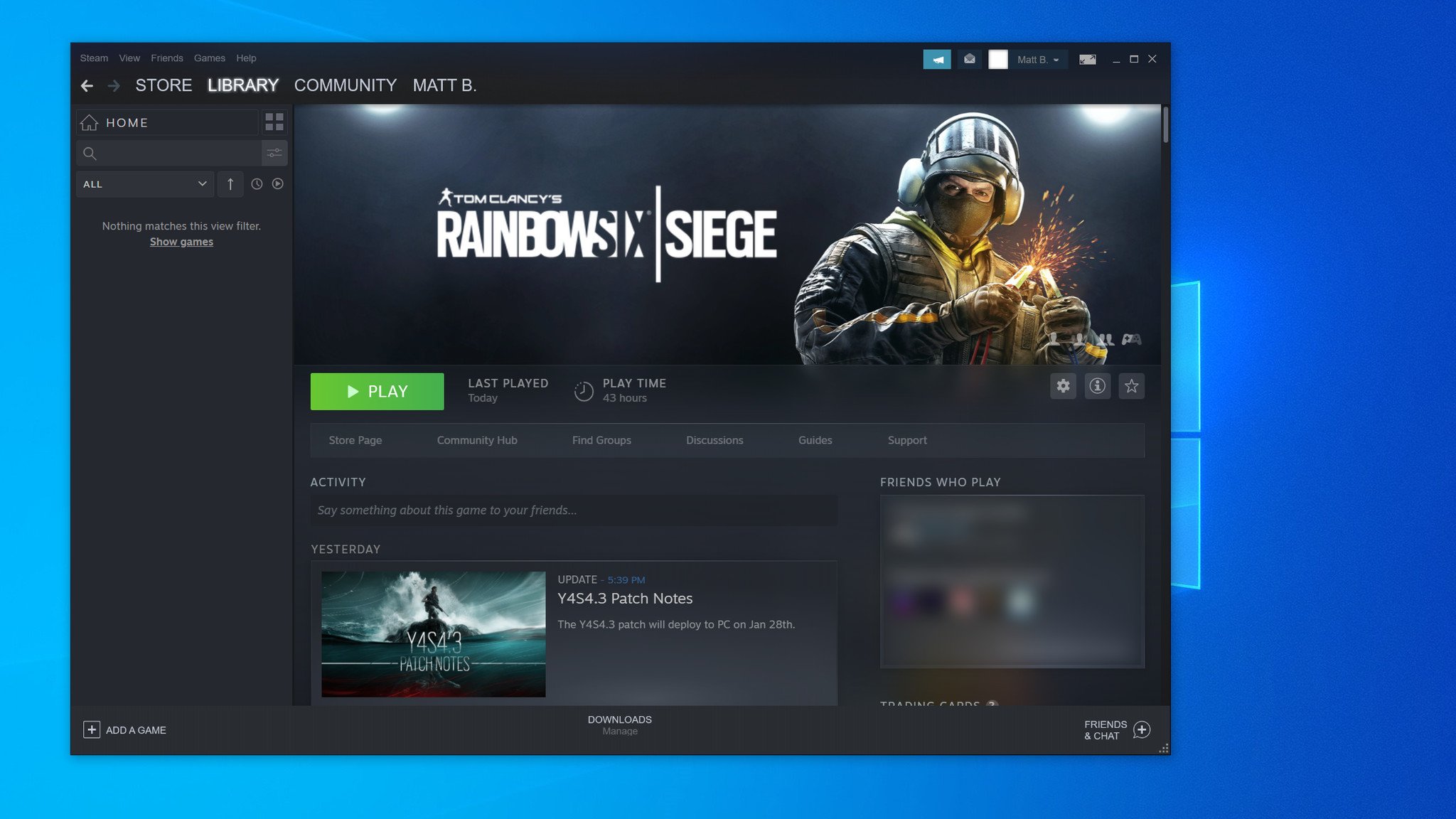
Upon updating Rainbow Six Siege to the 4.3 patch, Steam will display a pop-up window, providing the option of the traditional DirectX 11 executable, or Vulkan.
- Update your graphics card to the latest available drivers. The required steps to update your graphics card drivers varies between manufacturers, demanding software compatible with your card. Visit your respective GPU manufacturer for additional details on the latest available drivers.
- For NVIDIA, Ubisoft recommends driver version 441.87, obtainable via NVIDIA Support. (opens in new tab)
- For AMD, Ubisoft recommends driver version 20.1.4, obtainable via AMD Support.
- For Intel Graphics chipsets, Ubisoft recommends driver version 26.20.100.7372, obtainable via Intel Download Center.
- Open Steam.
- Navigate to Tom Clancy’s Rainbow Six Siege in your game library. Ensure Rainbow Six Siege is updated to the latest available patch.
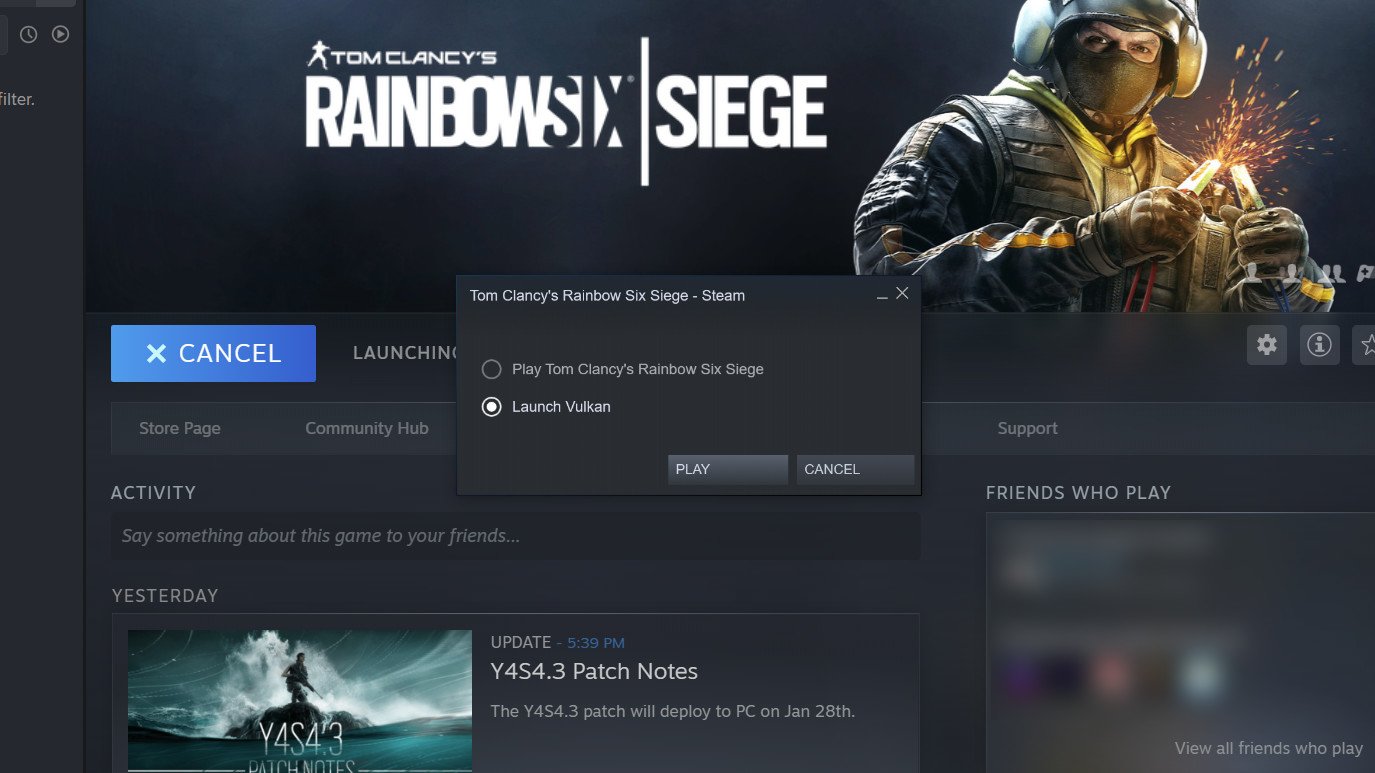
- Click Play. A pop-up window will appear.
- Click Launch Vulkan. Tom Clancy’s Rainbow Six Siege is now running on Vulkan.
Using Rainbow Six Siege Vulkan with Uplay
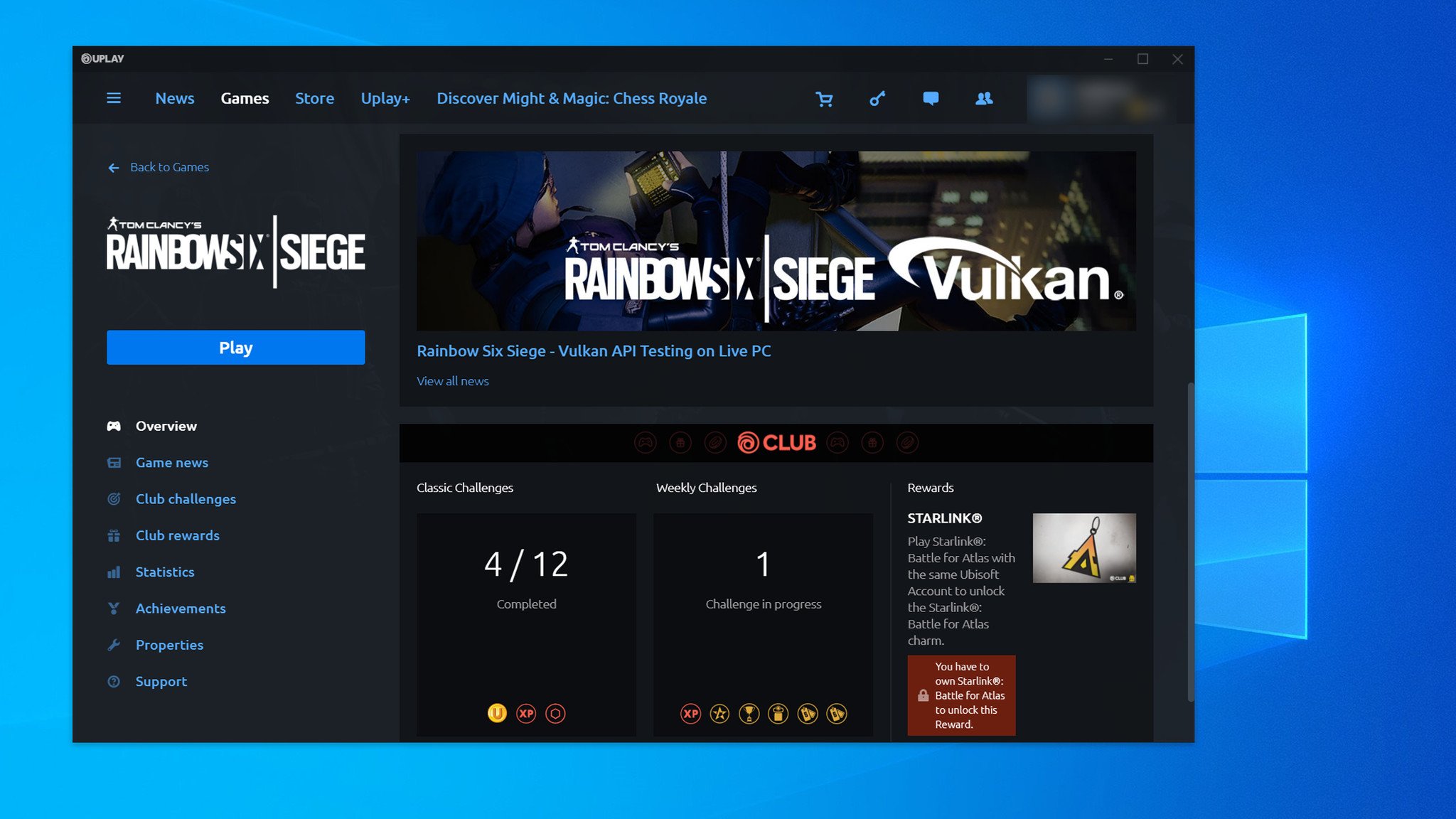
Upon updating Rainbow Six Siege to the 4.3 patch, Uplay provides the ability to choose DirectX 11 or Vulkan from the Play button.
- Update your graphics card to the latest available drivers. The required steps to update your graphics card drivers varies between manufacturers, demanding software compatible with your card. Visit your respective GPU manufacturer for additional details on the latest available drivers.
- For NVIDIA, Ubisoft recommends driver version 441.87, obtainable via NVIDIA Support. (opens in new tab)
- For AMD, Ubisoft recommends driver version 20.1.4, obtainable via AMD Support.
- For Intel Graphics chipsets, Ubisoft recommends driver version 26.20.100.7372, obtainable via Intel Download Center.
- Open Uplay.
- Navigate to Tom Clancy’s Rainbow Six Siege in your game library. Ensure Rainbow Six Siege is updated to the latest available patch.
- Right-click Play. A drop-down menu will appear.
- Click Tom Clancy’s Rainbow Six Siege — Vulkan. Tom Clancy’s Rainbow Six Siege is now running on Vulkan.
Rainbow Six Siege Vulkan API missing
While Ubisoft has deployed Vulkan to the live build on Rainbow Six Siege, the option to enable Vulkan is missing for some players on Steam, regardless of updating to Patch 4.3. Ubisoft is yet to deploy a formal fix or workaround for the issue, but one quick tweak to game files can unlock Vulkan today.
- Update your graphics card to the latest available drivers. The required steps to update your graphics card drivers varies between manufacturers, demanding software compatible with your card. Visit your respective GPU manufacturer for additional details on the latest available drivers.
- For NVIDIA, Ubisoft recommends driver version 441.87, obtainable via NVIDIA Support. (opens in new tab)
- For AMD, Ubisoft recommends driver version 20.1.4, obtainable via AMD Support.
- For Intel Graphics chipsets, Ubisoft recommends driver version 26.20.100.7372, obtainable via Intel Download Center.
- Open Steam.
- Navigate to Tom Clancy’s Rainbow Six Siege in your game library. Ensure Rainbow Six Siege is updated to the latest available patch.
- Navigate to C:SteamsteamappscommonTom Clancy’s Rainbow Six Siege. If Rainbow Six Siege isn’t installed on the C: drive, replace «C» with your drive’s assigned letter.
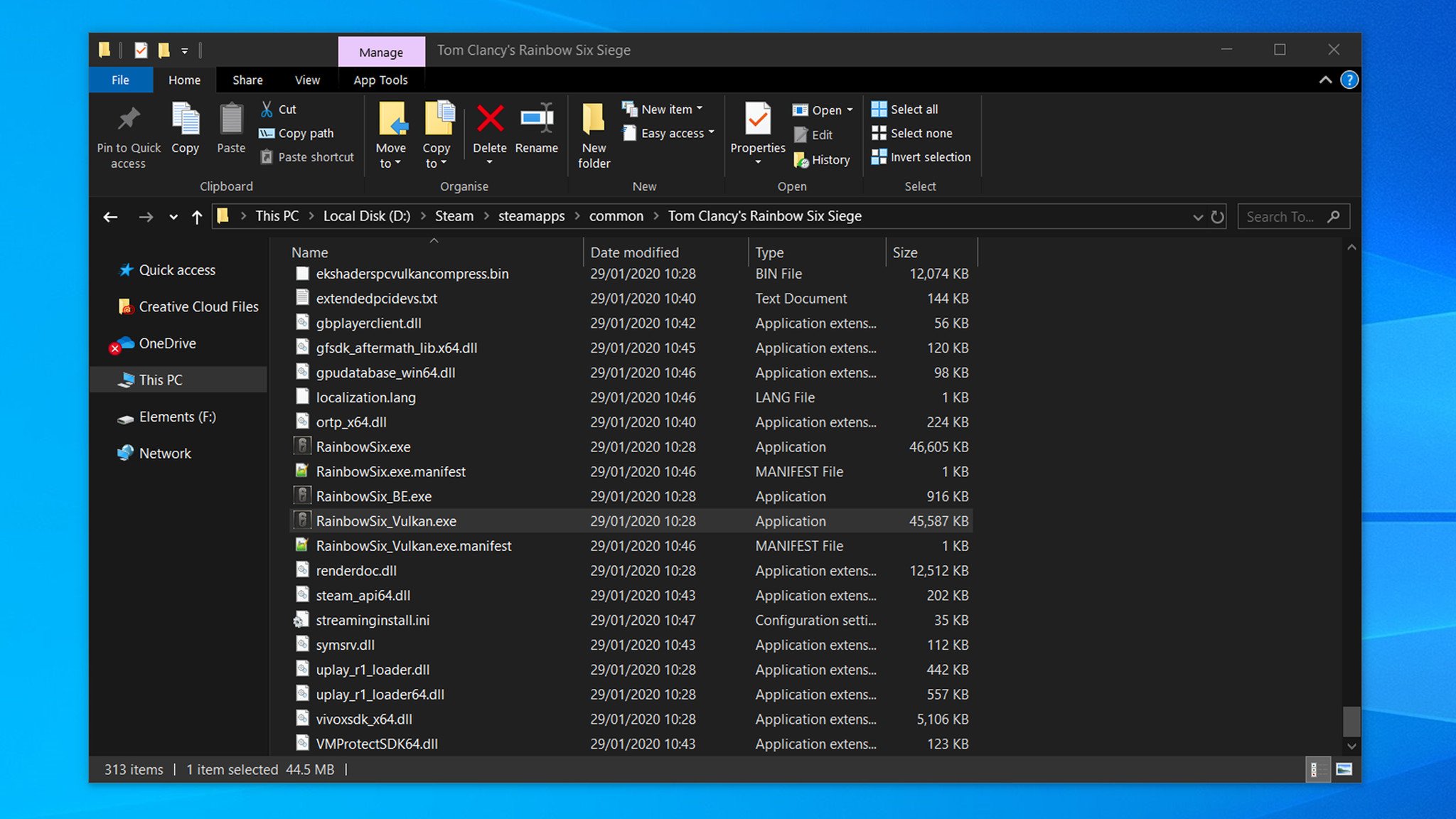
- Locate RainbowSix.exe and RainbowSix_Vulkan.exe. Opening RainbowSix_Vulkan.exe will revert to the DirectX 11 version, demanding additional tweaks. If RainbowSix_Vulkan.exe isn’t present, ensure Rainbow Six Siege is updated to the latest available patch.
- Rename RainbowSix.exe to RainbowSixOld.exe.
- Copy RainbowSix_Vulkan.exe.
- Paste RainbowSix_Vulkan.exe.
- Rename the duplicated file to RainbowSix.exe.
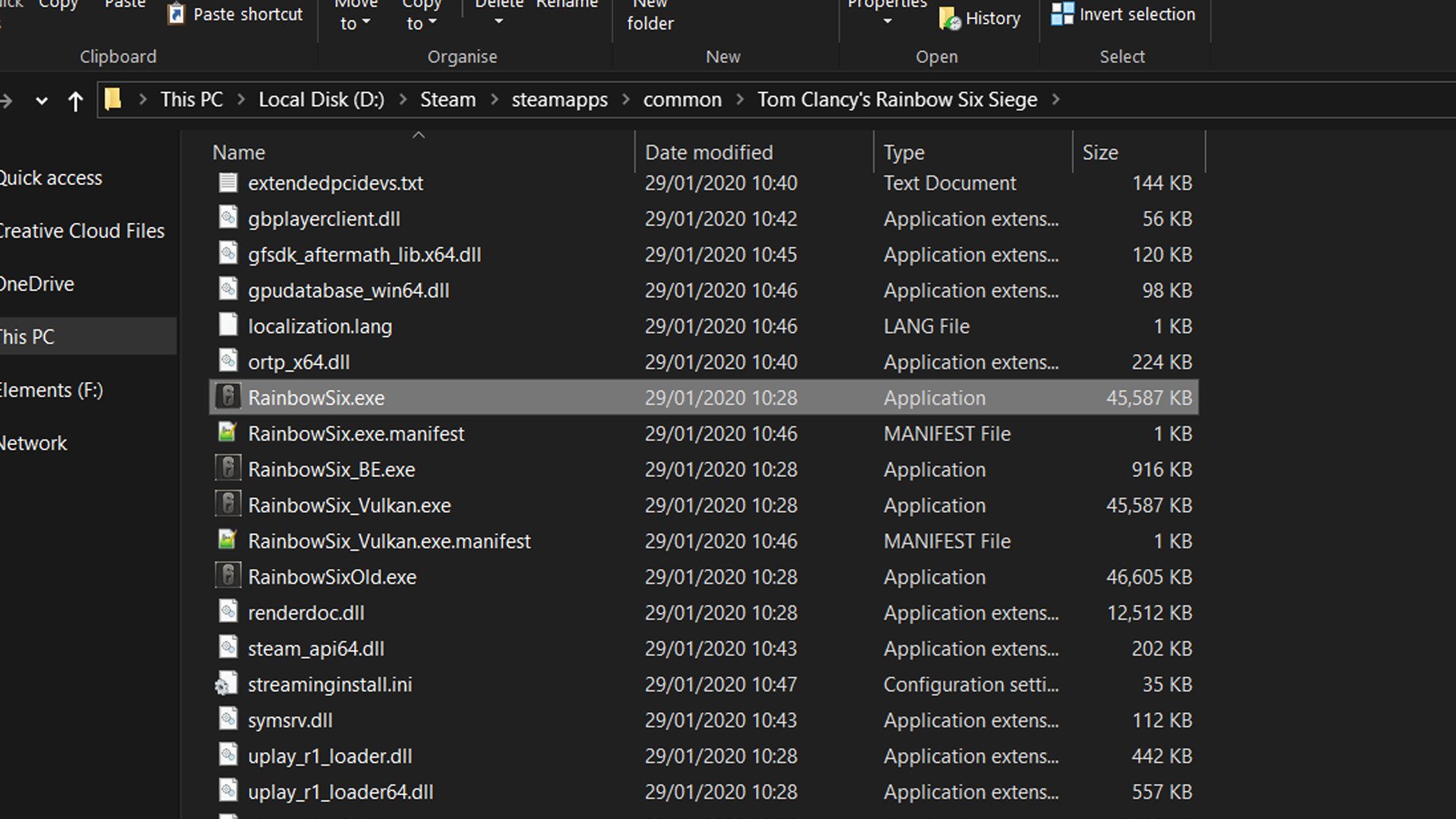
- Navigate to Tom Clancy’s Rainbow Six Siege in your game library.
- Click Play. Tom Clancy’s Rainbow Six Siege is now running on Vulkan.
When using Rainbow Six Siege with Vulkan, expect improvements to gameplay performance, allowing for higher framerates. However, if encountering performance-related issues with Vulkan, use the above steps to revert to the original DirectX 11 API previously used before Patch 4.3.
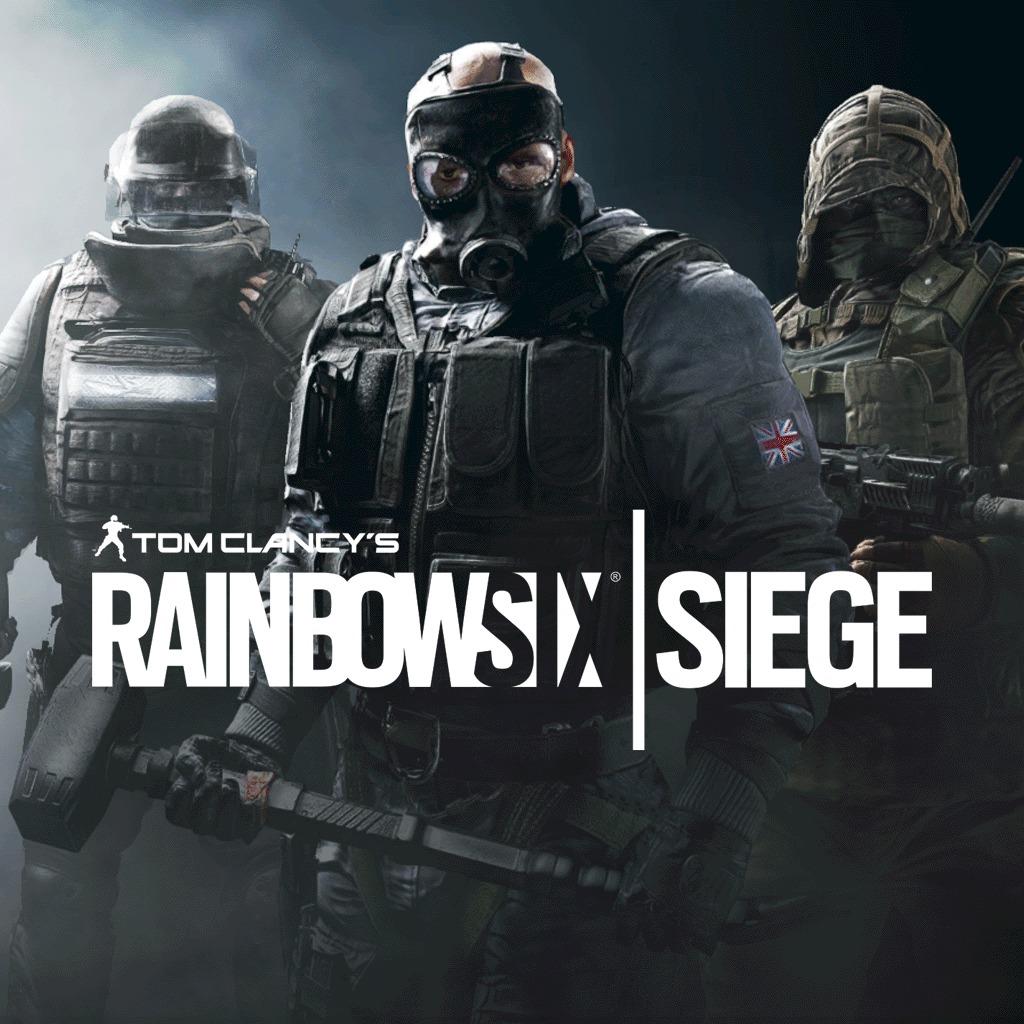 Eyes On Target
(opens in new tab)
Tom Clancy’s Rainbow Six Siege
Addictive, challenging shooter action
Ubisoft’s hit shooter is hotter than ever, touting tense tactical gameplay, and regular free updates. Entering 2020 with millions of players, Rainbow Six isn’t slowing down.
Get the best of Windows Central in in your inbox, every day!
Matt Brown was formerly a Windows Central’s Senior Editor, Xbox & PC, at Future. Following over seven years of professional consumer technology and gaming coverage, he’s focused on the world of Microsoft’s gaming efforts. You can follow him on Twitter @mattjbrown.
class=»left относительный»>
Добро пожаловать в наше руководство Rainbow Six Осада: чем вариант запуска Vulkan отличается от обычного?. Обычный (DirectX 11) лаунчер & Новая альтернатива Вулкану доступна для игроков в Rainbow Six Осада. Различие между ними может показаться запутанным, но в зависимости от вашей системы оба предлагают реальные преимущества. Вот все, что вам нужно знать об этом.

Опция запуска Vulkan API изменяет способ взаимодействия Siege с видеокартой (GPU) вашего компьютера. По сравнению со стандартным API DirectX 11, Vulkan меньше нагружает ваш процессор, но может быть немного более требовательным к вашему графическому процессору. Это связано с тем, что этому конкретному оборудованию дается дополнительная вычислительная мощность. Однако у него есть очевидные преимущества для систем, которые с ним справляются. Частота кадров должна быть более равномерной, а параметры видео должны быть более настраиваемыми в будущем. Он также лучше настроен для более плавной графики, чем API DirectX 11, который уже устарел.
Чем он отличается от обычного?
В конце концов, лучший вариант запуска Rainbow Six Осада определяется вашим компьютером. Если на ПК установлены устаревшие визуальные драйверы или он недостаточно мощный, лучше придерживаться обычного выбора загрузки DirectX 11. Vulkan, с другой стороны, имеет много преимуществ, если вы используете более современное оборудование (наряду с приличным графическим процессором) и последние версии драйверов. Мало того, что ваша игра будет работать более плавно, у вас также будет больше возможностей для настройки параметров видео для достижения наилучшего результата. Если у вас возникли проблемы со сборкой Vulkan, вернитесь к DirectX 11, и проблемы должны исчезнуть.
Мы надеемся, что вам понравилось наше руководство «Rainbow Six Siege: как проходит запуск Vulkan». Вариант отличается от обычного?. Пожалуйста, оставьте комментарий ниже! Оставайтесь с нами, чтобы узнать больше таких руководств и статей, связанных со всеми вашими любимыми играми.