Рассмотрено
Bad Login
1ZooM1
8 нояб. 2021 г., 21:08
3500
- Ваш никнейм, сервер: 1ZooM1, TH #3
- Интересующий вас вопрос: Сначала у меня стала очень странно лагать игра. Не мог пройди сквозь пустой блок, застревал в пустых блоках, будто бы на меня упал гравий. Ставил 1 блок, а ставился другой. Пропадали блоки. Решил перезайди, но в итоге при попытке входа на сервер получаю ошибку Bad Login (Clientside) i.imgur.com/w7QBhQ9.png
Попробуй, перезапустить лаунчер и проверь кто заходил последний на твой акк, у меня такое было когда кто-то заходил на мой акк или если я запускал лаунчер при включённом майне.
Добрый день, данная ошибка возникает в нескольких случаях:
1. Были запущены 2 лаунчера на 1 компьютере. Закройте все окна Майнкрафт и откройте заново одно.
2. К вашему аккаунту был получен доступ другим человеком. В данном случае рекомендуем проверить активные сессии в личном кабинете и если существуют иные, то заменить пароль.

Для отправки ответов в этой теме, авторизуйтесь, пожалуйста.
- Статус темы:
-
Закрыта.
-
При попытке подключиться к серверу происходит это:
С чем может быть связано? Банов на аккаунте нет.
-

LaGGGeRFeed
Администратор сервера Niflheimr
- Сообщения:
- 435
- Симпатии:
- 234
- Баллы:
- 43
Эта ошибка может быть вызвана тем, что, уже находясь в клиенте игры, Вы запустили лаунчер или ещё один клиент игры. Следовательно первая сессия устарела и Вас не пустило на сервер. Попробуйте закрыть все клиенты и лаунчер (которые запущены одновременно), и запустить только ТехноМагик, проблема должна быть решена таким путём.
Дубликаты одного и того же клиента (2 ТехноМагика или 2 ХайТеча), одновременный запуск сразу нескольких клиентов или просто лаунчера во время игры вызывает данную ошибку. -

Chrono_
Администратор сервера TechnoMagic
Администратор сервера TechnoRPG
Администратор сервера SkyMagicTech- Сообщения:
- 182
- Симпатии:
- 76
- Баллы:
- 28
Это конечно замечательный ответ, но такая проблема возникает не только из-за этого.Какая у вас версия Windows?
-
Chrono_
Администратор сервера TechnoMagic
Администратор сервера TechnoRPG
Администратор сервера SkyMagicTech- Сообщения:
- 182
- Симпатии:
- 76
- Баллы:
- 28
На данный момент со стороны лаунчера есть проблемы со входом из под этой версии ОС, связано, вероятнее всего, с тем, что в вин 11 появился свой встроенный прокси или впн, сложно понять на самом деле, это ведь майкрософт, они любят из ничего создать проблему. Я сообщил об этом пару дней назад, ожидайте решения проблемы, будет оповещение в группе вк и/или на главной странице сайта. Приносим извинения.
- Статус темы:
-
Закрыта.

A lot of Minecraft users are unable to log in to Tekkit. Usually, their app data or cache got corrupted and when they try to do the same, the following error code appears.
Connection Lost, Failed to login: Bad login
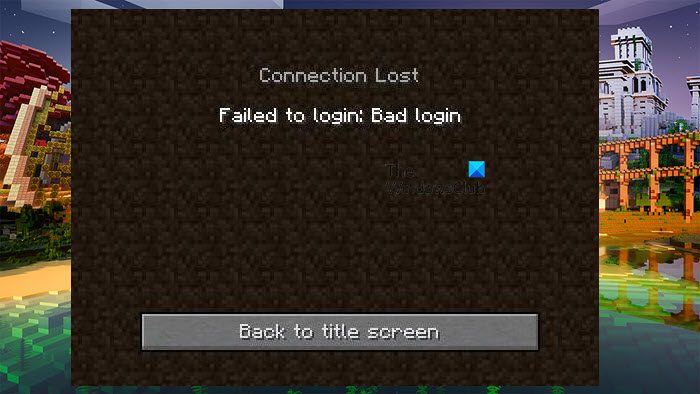
In this article, we are going to talk about this issue in detail, see why is it happening, and what you can do if you are getting Failed to login Bad Login in Tekkit. So, without wasting any time let us hop into it.
What causes Failed to login Bad Login?
More often than not, the Bad Login error appears when there is some sort of corruption. If the app data or cache is corrupted, or the installation file of Tekkit has some files missing. Even though corruption is a common cause, it’s not the only one. You may also fail to log in due to some network error or glitches. Glitches in protocols or the network, in general, can stop the user from contacting the Minecraft server. We will now go to the troubleshooting guide and see how you can fix this issue.
If you see Failed to Login Bad Login in Tekkit, try the following solutions to resolve the issue.
- Log out and Log In
- Clear Technic Launcher
- Refresh your Network Protocols
- Troubleshoot in Clean Boot
- Reinstall Technic Launcher
Let us talk about them in detail.
1] Log out and Log In
First up, we need to see if the issue is because of a glitch. For that, just log out of the launcher and re-login. You can expand the menu and click on Logout. Then, close the app, restart your system, and re-login. This should do the trick for you. If the issue persists, open your browser, go to minecraft.com and try to log in. Now, wait for five minutes, and log out of there. Open the launcher and retry logging in. If all of this doesn’t work, move to the next solution.
2] Clear Technic Launcher
As mentioned earlier, if your app cache is corrupted, you will see the error code in question. We need to remove the cache and see if it helps. Follow the given steps to do the same.
- Open Technic Launcher and go to its Settings.
- Click on Clear Cache.
- Now, open Run, paste “%APPDATA%”, and click Ok.
- Open .tecnic folder.
- Go to the Cache folder and delete all of its content.
- Go back to AppData, open .techniclauncher > cache, and delete its content.
Now, restart your computer and reopen the launcher. This time, the login should work.
3] Refresh your Network Protocols
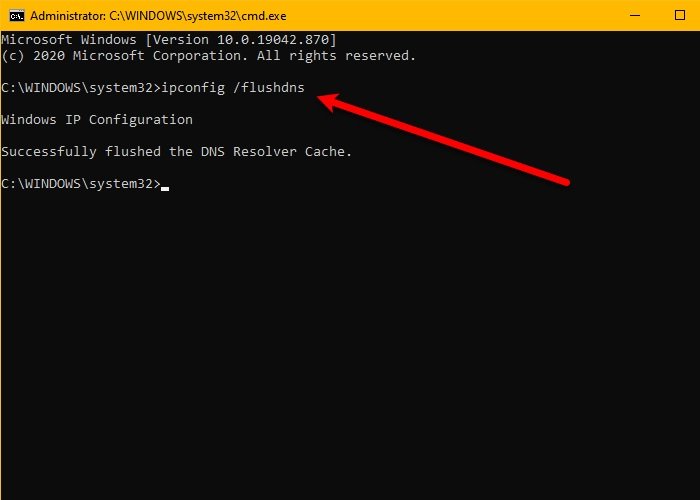
As mentioned earlier, you can see the error code in question because of some form of network glitch. We are going to release and renew IP, reset Winsock, flush DNS and check if that resolves the issue. To do that, open Command Prompt and run the following commands.
ipconfig /release
ipconfig /renew
ipconfig /flushdns
ipconfig /registerdns
netsh winsock reset
After executing the command, check if the issue persists.
4] Troubleshoot in Clean Boot
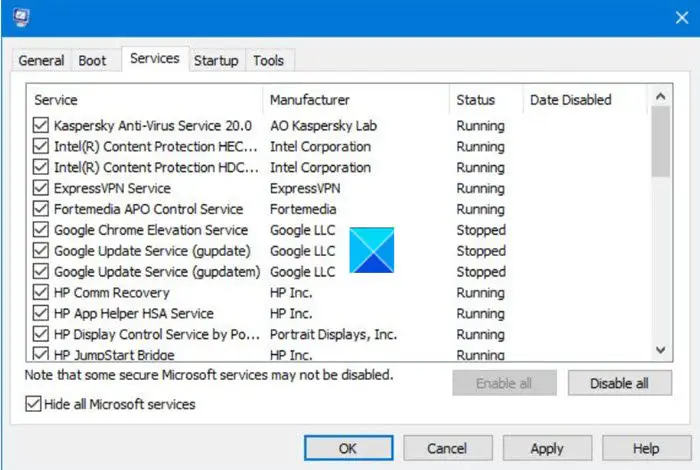
Maybe the issue is caused due to a third-party application, in some cases, your antivirus as well. However, we can not pinpoint an app and ask you to remove it, we need conclusive evidence. To gain that evidence, you need to perform Clean Boot and enable processes manually, until you find out the culprit. Once you know who the intruder is, you know what to do with it.
5] Reinstall Technic Launcher
If nothing works then maybe the issue is with the launcher. What you need to do is uninstall it and then install a fresh copy of the launcher. This will replace the corrupted files with new and correct ones resolving the issue that you were facing.
Hopefully, these solutions worked for you.
Read: You Need to authenticate to Microsoft Services – Minecraft error
How do I update Tekkit?
To update your Tekkit, you need to first stop the server. Then, delete all the Tekkit Server files, but make sure to not delete the folder containing your world data. Now, upload the Tekkit package that you have downloaded from technicpack.net. On your Server Control Page, go to Files > Backup > Restore > select the package > Restore. Finally, start the server.
Read: OH NO, Something went wrong Minecraft error.
How do you fix failed login on Minecraft?
If you failed to log in on Minecraft, you should check your Internet first. You can use one of the online Internet Speed testers to know your bandwidth. If the Internet speed is slow, restart your router, and if that doesn’t work, contact your ISP and ask them to resolve the issue. You can also, try executing the solutions mentioned here and see if they work. However, it would be better if you use the error code or message that Minecraft gives when the login failed.
A lot of Minecraft users are unable to log in to Tekkit. Usually, their app data or cache got corrupted and when they try to do the same, the following error code appears.
Connection Lost, Failed to login: Bad login
In this article, we are going to talk about this issue in detail, see why is it happening, and what you can do if you are getting Failed to login Bad Login in Tekkit. So, without wasting any time let us hop into it.
What causes Failed to login Bad Login?
More often than not, the Bad Login error appears when there is some sort of corruption. If the app data or cache is corrupted, or the installation file of Tekkit has some files missing. Even though corruption is a common cause, it’s not the only one. You may also fail to log in due to some network error or glitches. Glitches in protocols or the network, in general, can stop the user from contacting the Minecraft server. We will now go to the troubleshooting guide and see how you can fix this issue.
If you see Failed to Login Bad Login in Tekkit, try the following solutions to resolve the issue.
- Log out and Log In
- Clear Technic Launcher
- Refresh your Network Protocols
- Troubleshoot in Clean Boot
- Reinstall Technic Launcher
Let us talk about them in detail.
1] Log out and Log In
First up, we need to see if the issue is because of a glitch. For that, just log out of the launcher and re-login. You can expand the menu and click on Logout. Then, close the app, restart your system, and re-login. This should do the trick for you. If the issue persists, open your browser, go to minecraft.com and try to log in. Now, wait for five minutes, and log out of there. Open the launcher and retry logging in. If all of this doesn’t work, move to the next solution.
2] Clear Technic Launcher
As mentioned earlier, if your app cache is corrupted, you will see the error code in question. We need to remove the cache and see if it helps. Follow the given steps to do the same.
- Open Technic Launcher and go to its Settings.
- Click on Clear Cache.
- Now, open Run, paste “%APPDATA%”, and click Ok.
- Open .tecnic folder.
- Go to the Cache folder and delete all of its content.
- Go back to AppData, open .techniclauncher > cache, and delete its content.
Now, restart your computer and reopen the launcher. This time, the login should work.
3] Refresh your Network Protocols
As mentioned earlier, you can see the error code in question because of some form of network glitch. We are going to release and renew IP, reset Winsock, flush DNS and check if that resolves the issue. To do that, open Command Prompt and run the following commands.
ipconfig /release
ipconfig /renew
ipconfig /flushdns
ipconfig /registerdns
netsh winsock reset
After executing the command, check if the issue persists.
4] Troubleshoot in Clean Boot
Maybe the issue is caused due to a third-party application, in some cases, your antivirus as well. However, we can not pinpoint an app and ask you to remove it, we need conclusive evidence. To gain that evidence, you need to perform Clean Boot and enable processes manually, until you find out the culprit. Once you know who the intruder is, you know what to do with it.
5] Reinstall Technic Launcher
If nothing works then maybe the issue is with the launcher. What you need to do is uninstall it and then install a fresh copy of the launcher. This will replace the corrupted files with new and correct ones resolving the issue that you were facing.
Hopefully, these solutions worked for you.
Read: You Need to authenticate to Microsoft Services – Minecraft error
How do I update Tekkit?
To update your Tekkit, you need to first stop the server. Then, delete all the Tekkit Server files, but make sure to not delete the folder containing your world data. Now, upload the Tekkit package that you have downloaded from technicpack.net. On your Server Control Page, go to Files > Backup > Restore > select the package > Restore. Finally, start the server.
Read: OH NO, Something went wrong Minecraft error.
How do you fix failed login on Minecraft?
If you failed to log in on Minecraft, you should check your Internet first. You can use one of the online Internet Speed testers to know your bandwidth. If the Internet speed is slow, restart your router, and if that doesn’t work, contact your ISP and ask them to resolve the issue. You can also, try executing the solutions mentioned here and see if they work. However, it would be better if you use the error code or message that Minecraft gives when the login failed.
самая редкая ошибка, которую и встретил лишь один раз,
ну что-же, начнем …
данный гайд не является полным, и тут могут быть некоторые недочеты …
для начала …
без паники !
все решимо, в нашем веке есть интернет, главное правильно написать
итак начнем :
1. Повторный запуск клиента — запустили клиент но он не открылся, и вы снова пытаетесь запустить, и в итоге у вас 2-3 окон клиента.
решение — закрыть все окна клиента, запустить лишь один раз.
2. Взлом аккаунта — мало вероятный сценарий, конечно если вы включили двухфакторную защиту (очень советую не использовать одинаковые пароли).
после рестарта при попытке зайти у вас появляеться данная ошибка, но никакго другого клиента не запущено, человек, что скорее всего взломал ваш аккаунт,
играет с вашего аккаунта тем самым повторяеться случай из первой причины.
решение — изменить пароль, на более надежный (если нечего не поняли то вам сюда кликабельно).
3. потеря данных — ну а тут, у нас в компаний, наши любимчики защиты пк, антивирусы, бранмауэры, windows defender’ы, их можно перечислять бесконечно …
решение — отключить антивирусы а также защитное Программное обеспечение (по типу брандмауэр).
если не знаете как, то прошу обратиться к великому google/yandex (у кого как). не знаете какое у вас ПО ? в данном случае тоже есть великий интернет …
4. Бан по HWID — ыыы, это уже сами с админами разбираетесь, обычно не дает запустить клиент вовсе, но, и так и так вы к ним попадете …. (имееться ввиду к админам).
настоятельно рекомендую удалить hamachi поскольку он тоже может вызвать данную ошибку на некоторых пк.
-
В этой статье, будет объеснено и описано большинство ошибок, которые может выдавать Minecraft во время запуска и подключения к серверам. Также будут приведены возможные варианты решения.
Ошибки связанные с вылетом Minecraft:
Bad Video Card Drivers – означает, что для вашей видеокарты не установлены, либо установлены слишком старые драйвера. Перейдите на сайт производителя и установите свежие драйвера.
Out of Memory — обычно Minecraft вылетает с этой ошибкой при нехватке оперативной памяти. Причиной может быть маленькое количество оперативной памяти, а также большое количество запущенных программ. Закройте все лишние программы. Если с памятью все ок, то ошибка возникает из за того что Java машине выделено мало памяти.
1. Идем в панель управления, находим значок Java.![[IMG]](http://www.nicegoing.ru/zm1012/img_jcku4zonvndaa2h_34927.png)
2. Переходим на вкладку Java![[IMG]](http://www.nicegoing.ru/zm1012/img_uzkyx8krvw15yh7vkm_34928.png)
3. Затем нажимаем кнопку View. Дважды кликаем на поле Runtime Parameters
![[IMG]](http://www.nicegoing.ru/zm1012/img_nq4k7bf6v1xdu3o9dwg_34929.png)
4. Вводим туда -Xms256m -Xmx2048m
Короткий FAQ:
-Xms – устанавливает начальное количество выделеной ОЗУ.
-Xmx – устанавливает максимальное количество выделеной ОЗУ. Выставлять Xmx стоит равным 3/4 от размера всей своей оперативки.
Пример: если у вас 1Гб оперативки, выставляем -Xmx768M
5. Применяем все изменения.Could not create the Java Virtual Machine — невозможно создать среду исполнения Java. Попробуйте обновить/переустановить Java.
Черный экран при запуске — вероятно, вы модифицировали minecraft.jar (установили мод, например), после чего он не прошел проверку на подлинность. Лечится обычно удалением папки META-INF из minecraft.jar
Ошибки связанные с серверами:
Bad Login, User not Premium – означает, что для входа на данный сервер требуется лицензия Minecraft. Если это ваш сервер, то отредактируйте файл server.properties, измените в нем значение online-mode=true на online-mode=false
The server responded with an invalid server key — проблема появилась в последних версиях Minecraft. Ошибку допустили разработчики игры.
Connection reset — означает, что сервер отключил ваше соединение. Обычно связано с недоступностью сервера, либо с проблемами в соединении.
Connection refused — сервер отклонил соединение. Означает, что по данному адресу нет запущенного сервера, либо имеются проблемы в соединении.
Read time out — вышло время ожидания ответа. Сервер и ваш клиент Minecraft общаются при помощи пакетов. Когда сервер либо клиент перестают отвечать на запросы (например у вас игра подвисла), выжидается какое то время (таймаут), после чего соединение обрубается. Сделано это для того, чтобы незаконченные висящие соединения закрывались и не создавали нагрузку.
Logged in from another location — кто-то уже зашел на сервер под вашим ником.
Internal Server Error — внутренняя ошибка сервера. Означает, что на сервере произошла какая-либо ошибка в выполняемом коде. Чаще появляется на самописных или модифицированных серверах.
Outdated Client – версия вашего клиента ниже, чем версия на сервере. К примеру вы заходите с Minecraft Beta 1.8 на сервер 1.0.0 .Обновите клиент до нужной версии.
Outdated Server — версия игры на сервере ниже чем на вашем клиенте. Пример: вы заходите на сервер 1.8.1 с Minecraft 1.0.0 .Откатите клиент до актуальной для сервера версии.
Майнкравт незапускаицо! – извините, я ничем не могу вам помочь
![[IMG]](http://www.nicegoing.ru/zm1013/img_izrka9u7ykk54wju5_37707.jpg)
-

123f
Активный участник
Пользователь- Баллы:
- 88
- Skype:
- ragnazarich
- Имя в Minecraft:
- HA4AJibHuK
блиин….
Майнкравт незапускаицо!
И ты знаешь изза кого
И да, дежурное: Лайкать через тв не честно! -

-

FioklSSS
Активный участник- Баллы:
- 88
- Имя в Minecraft:
- Mobbed
-

Vandezio
Активный участник
Пользователь- Баллы:
- 68
- Имя в Minecraft:
- Vandezio
Как мне исправить споут ? Я захожу на баккит версии 1.2.5 . Зашёл вроде всё нормально. Разбил блок — Disconnect from server. В консоли сервера куча ошибок. Такое началось , когда сделали нов версию споута. Как исправить?
-
FioklSSS
Активный участник- Баллы:
- 88
- Имя в Minecraft:
- Mobbed
-
Read time out, проблемка, играю 20 минут, и обрываться сервер
-
Ему ответил и тебе отвечу так же
![[IMG]](http://ssmaker.ru/b02c061f.png)
-
Доказательства? :fp:
Буду я ещё школоте что то доказывать :bm: -
:fp:, этих сайтов с этой с инфой, знаешь сколько? Короче разговор закрыт.
-
123f
Активный участник
Пользователь- Баллы:
- 88
- Skype:
- ragnazarich
- Имя в Minecraft:
- HA4AJibHuK
Read Time Out — Таймаут чтения
Из этого логично предположить что с сервера перестала приходить информация
Обычно вылазиет при больших а главное долгих лагах
Спросите друзей были-ли лаги у них в момент ошибки и были-ли вы на сервере в это времяНе претендую на звание эксперта, но во многом я разбираюсь
-
Я 1 был там и каждые 20 мин вылетает
-
Должно же быть определенное решение проблемы:why:
-

krlmisha
Старожил
Пользователь- Баллы:
- 153
- Skype:
- krlmisha2010
-
Как же они надоели копипастить мой пост! :bm::fp:
-
krlmisha
Старожил
Пользователь- Баллы:
- 153
- Skype:
- krlmisha2010

Поделиться этой страницей
