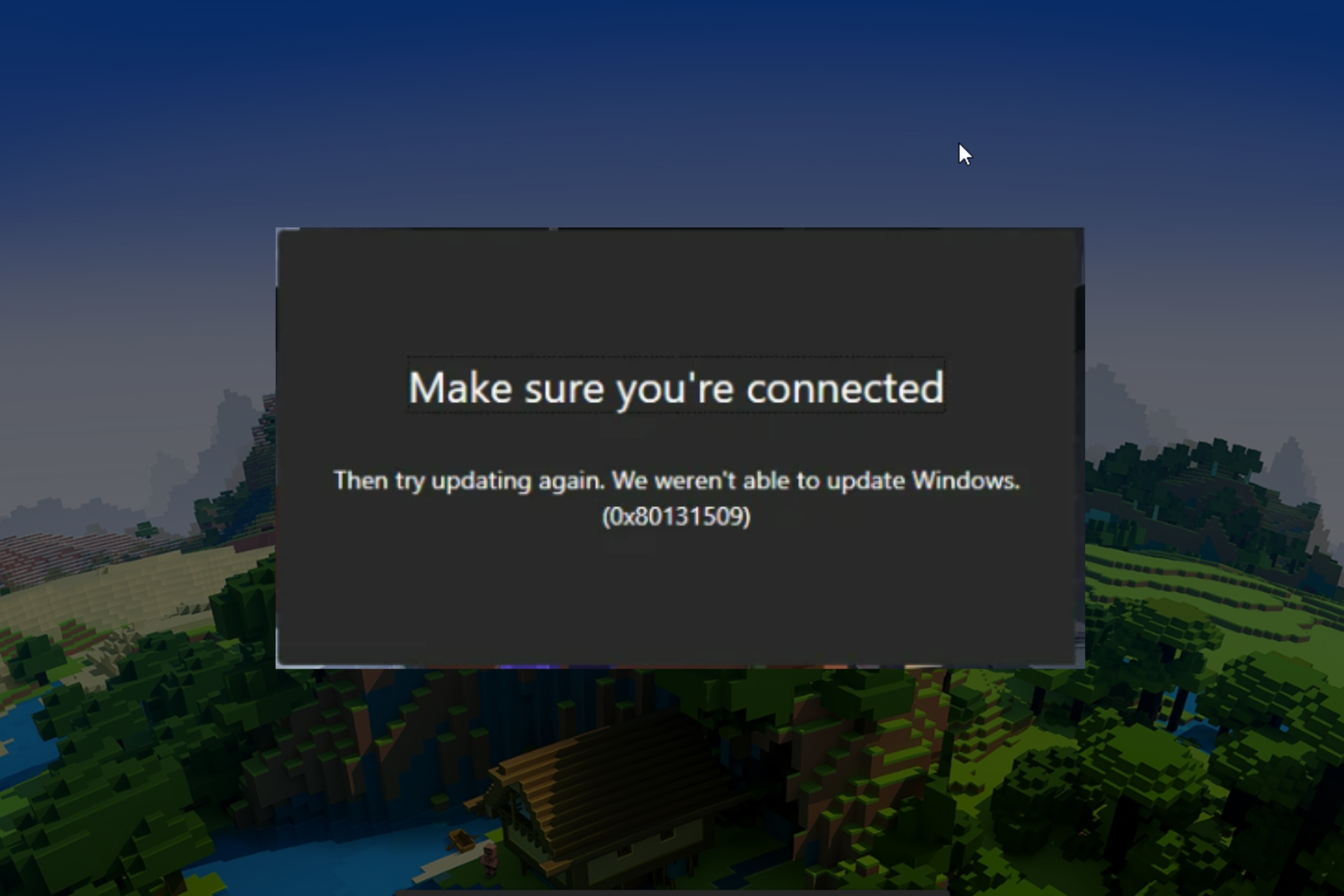
Ошибка установки Minecraft 0x80131509 появляется, когда пользователи пытаются установить игру с помощью официального установщика. Эта ошибка указывает на проблему с подключением к Интернету.
Следующая проблема может быть вызвана устаревшей или поврежденной программой запуска Minecraft. Некоторые отсутствующие обновления Windows также могут быть причиной этой ошибки. Помимо этого, лаунчер может также конфликтовать с неофициальным лаунчером, установленным на вашем ПК. Minecraft, который вы пытаетесь установить, может быть недоступен для вашего ПК, если вы используете более раннюю версию Windows.
Вот список методов, которые покажут вам, как исправить ошибку установки Minecraft 0x80131509:
1. Войдите в приложение Xbox.
Первое, что вы можете сделать, это убедиться, что учетная запись, с которой вы вошли в приложение Xbox, совпадает с учетной записью Microsoft Store. Это может повлиять на игру, поскольку учетная запись, которую вы используете для ее установки, не совпадает с учетной записью приложения Xbox.
Откройте приложение Xbox и Microsoft Store и убедитесь, что учетная запись одинакова для обоих.
Если учетные записи не совпадают, нажмите «Выйти» и снова войдите в систему с правильной учетной записью.
После этого остается только попробовать установить игру еще раз.
Если ошибка установки Minecraft 0x80131509 все еще возникает, перейдите к следующему методу.
Следующее, что нужно сделать, это удалить любую неофициальную программу запуска Minecraft, установленную на вашем ПК. Это может вызвать проблему, поскольку официальная программа запуска конфликтует с несертифицированной. Файлы могут перекрываться, что приводит к неправильной работе программы запуска.
Перейдите в меню «Программы и компоненты», и вы увидите все программы запуска, установленные на вашем ПК. Удалите неофициальные.
Вот как вы можете это сделать:
- Нажмите клавишу Windows + R, чтобы открыть диалоговое окно «Выполнить», и введите «appwiz.cpl», затем нажмите Enter, чтобы открыть меню «Программы и компоненты».
- Затем просмотрите список приложений для неофициальных программ запуска Minecraft.
- Когда вы найдете его, щелкните его правой кнопкой мыши и выберите «Удалить».
- Следуйте инструкциям на экране, чтобы завершить процесс удаления.
- Если у вас их несколько, повторите процесс для каждой программы запуска, пока не уничтожите их все.
- Когда вы закончите, попробуйте снова установить Minecraft, используя официальный лаунчер.
Если ошибка установки Minecraft 0x80131509 все еще возникает, перейдите к следующему методу.
3. Переустановите программу запуска Minecraft с официального сайта.
Следующая проблема также может быть вызвана поврежденным установщиком. Вам следует зайти на официальный сайт и попробовать переустановить лаунчер. Если это не сработает, попробуйте установить его из Microsoft Store или приложения Xbox.
Вот руководство о том, как это сделать:
- Откройте любой браузер и зайдите на официальный сайт Майнкрафт.
- Войдите в систему, нажав кнопку Войти с помощью Microsoft.
- В своей учетной записи нажмите кнопку «Получить Minecraft» в правом верхнем углу и выберите «Компьютер».
- Затем нажмите кнопку «Загрузить», а затем нажмите кнопку «Загрузить» для Windows 10/11, чтобы подтвердить загрузку.
- Нажмите на установщик лаунчера и установите его.
- Если это не сработает, откройте Microsoft Store или приложение Xbox и найдите Minecraft.
- Когда вы найдете его, нажмите кнопку «Установить» и завершите процесс.
- Когда лаунчер установлен, попробуйте открыть игру, чтобы проверить, работает ли она.
4. Установите версию Minecraft для Windows 7/8 (если применимо).
Если вы используете более раннюю версию Windows, попробуйте загрузить более старую версию программы запуска Minecraft. Ошибка может появиться из-за того, что программа запуска, которую вы пытаетесь использовать, несовместима с вашей версией Windows.
Вы должны загрузить версию, совместимую с вашим ПК, с официального сайта Minecraft.
Вот как вы можете это сделать:
- Используя любой браузер, который вы хотите, посетите официальный сайт Майнкрафт и убедитесь, что вы вошли в свою учетную запись.
- Теперь нажмите кнопку «Получить Minecraft» в верхней правой части окна. Выберите Компьютер на следующем экране.
- Далее нажмите на кнопку Скачать.
- Прокрутите вниз, пока не увидите средство загрузки для Windows 7/8, и нажмите на него.
- Нажмите на установщик и завершите процесс.
- Откройте лаунчер, чтобы увидеть, исправлена ли ошибка
5. Обновите сборку Windows до последней версии (если применимо).
Следующее, что вы можете сделать, чтобы исправить следующую ошибку, — это проверить, есть ли какие-либо обновления Windows, которые вам не хватает. Эта проблема может возникнуть, если у вас нет одного или нескольких последних обновлений инфраструктуры Windows.
Выполните следующие действия, если вы не знаете, как обновить установку Windows:
- Нажмите клавишу Windows + R, чтобы открыть диалоговое окно «Выполнить», затем введите «ms-settings:» в строке поиска и нажмите Enter, чтобы открыть настройки Windows.
- Найдите Центр обновления Windows в левой части экрана и нажмите на него.
- Теперь установите все обновления, которые ожидают установки. Если нет, нажмите «Проверить наличие обновлений» и дождитесь завершения проверки.
- Если есть обновления, которые можно установить, обязательно сделайте это.
- Возможно, вам придется перезагрузить компьютер, чтобы применить обновления.
- Затем откройте программу запуска Minecraft и проверьте, работает ли она.
6. Загрузите все обновления игры из Microsoft Store.
Последнее, что вы можете попробовать, — это загрузить все обновления, доступные в магазине Microsoft. Даже если обновления не связаны с Minecraft, это может решить проблему, обновив компонент Windows, вызывающий проблему.
Вы можете обновить все приложения в Microsoft Store из библиотеки.
Вот руководство, которое покажет вам, как это сделать:
- Используйте панель задач для поиска и открытия Microsoft Store.
- Теперь нажмите кнопку «Библиотека», расположенную в левом нижнем углу.
- Если вы не видите доступных обновлений, нажмите кнопку «Получить обновления», чтобы найти их.
- Обязательно установите все доступные обновления.
- После этого остается только открыть программу запуска, чтобы посмотреть, исправлена ли ошибка установки Minecraft 0x80131509.
Explore these easy fixes to get rid of the issue
by Loredana Harsana
Loredana is a passionate writer with a keen interest in PC software and technology. She started off writing about mobile phones back when Samsung Galaxy S II was… read more
Published on December 5, 2022
Reviewed by
Alex Serban

After moving away from the corporate work-style, Alex has found rewards in a lifestyle of constant analysis, team coordination and pestering his colleagues. Holding an MCSA Windows Server… read more
- Often, when you install Minecraft (JAVA edition) using the latest official installer, the error comes up.
- This usually happens due to a faulty or prolonged internet connection
- This guide will discuss all the possible fixes and causes of the issue.
XINSTALL BY CLICKING THE DOWNLOAD FILE
This software will repair common computer errors, protect you from file loss, malware, hardware failure and optimize your PC for maximum performance. Fix PC issues and remove viruses now in 3 easy steps:
- Download Restoro PC Repair Tool that comes with Patented Technologies (patent available here).
- Click Start Scan to find Windows issues that could be causing PC problems.
- Click Repair All to fix issues affecting your computer’s security and performance
- Restoro has been downloaded by 0 readers this month.
Getting error 0x80131509 while installing Minecraft (JAVA edition) is more common than you think. As a result, a lot of users have complained about the issue. But don’t worry, we can fix this in no time.
In this guide, we will discuss all the fixes available right after discussing the potential causes of the issue.
What causes Minecraft install error 0x80131509?
There are a handful of reasons why you got a Minecraft to install error, and we have mentioned some of the most popular ones:
- Windows Updates – The error message could appear if the Windows update is pending. Download and install Windows updates and try to install Minecraft again.
- Slow internet connection – If you are facing internet issues or your internet is faulty, then it could cause the installation to fail, and the error code might appear.
- No Xbox Account – If you don’t have an account on Xbox or have tried to use incorrect credentials for your Xbox account, it could trigger the issue.
- Old Minecraft launcher – If you have an old launcher along with the new launcher for Minecraft, it could conflict, hence the problem.
What can I do to fix Minecraft install error 0x80131509?
Before diving into detailed troubleshooting, let us try these quick fixes to resolve the problem:
- Restart your computer
- Make sure there is no pending Windows update.
- Check if any of the Microsoft apps need updates.
- Use the same account on Microsoft Store and Xbox app.
1. Uninstall Minecraft Launcher
- Press Windows + I to get Settings.
- Go to Apps from the left pane and click Installed Apps.
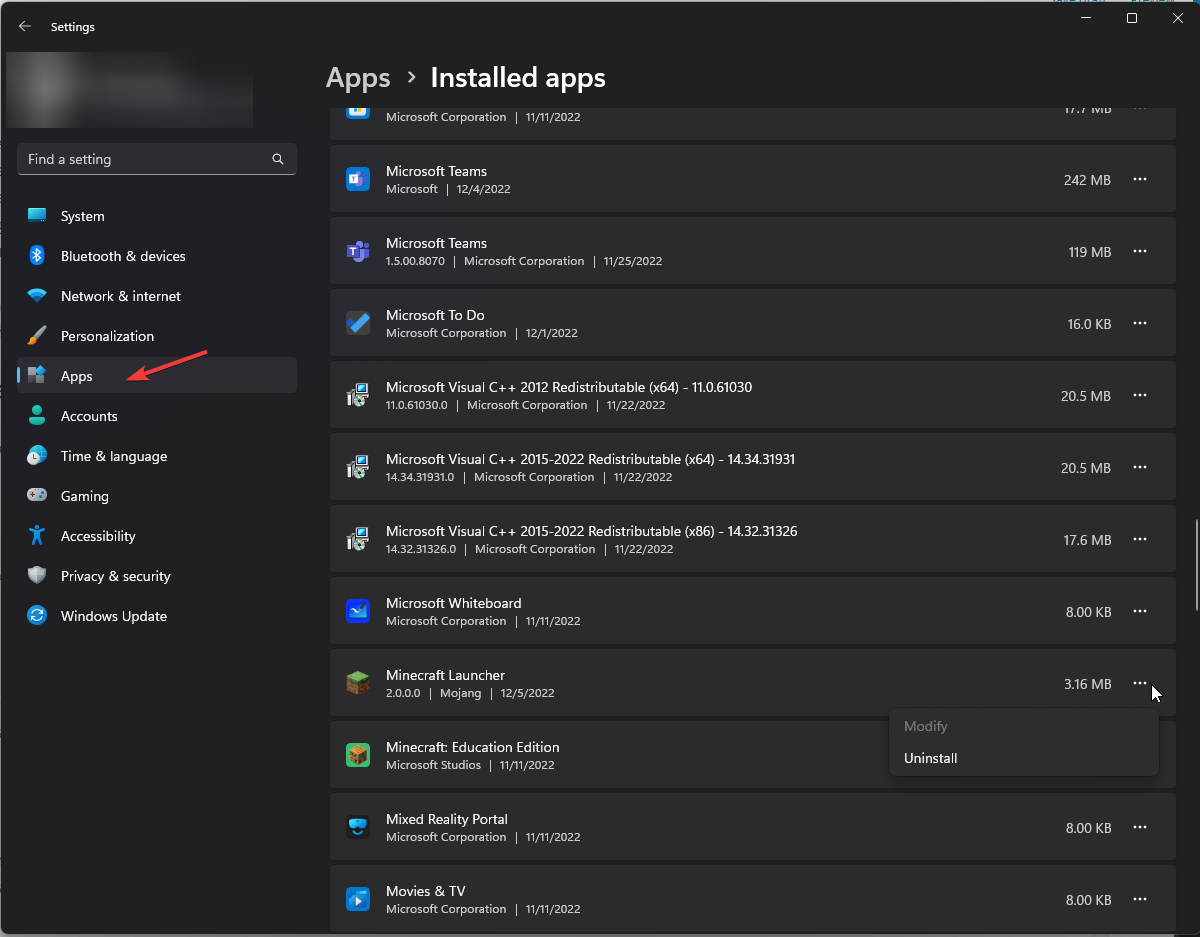
- Locate the Minecraft launcher, click on three dots, and click Uninstall.
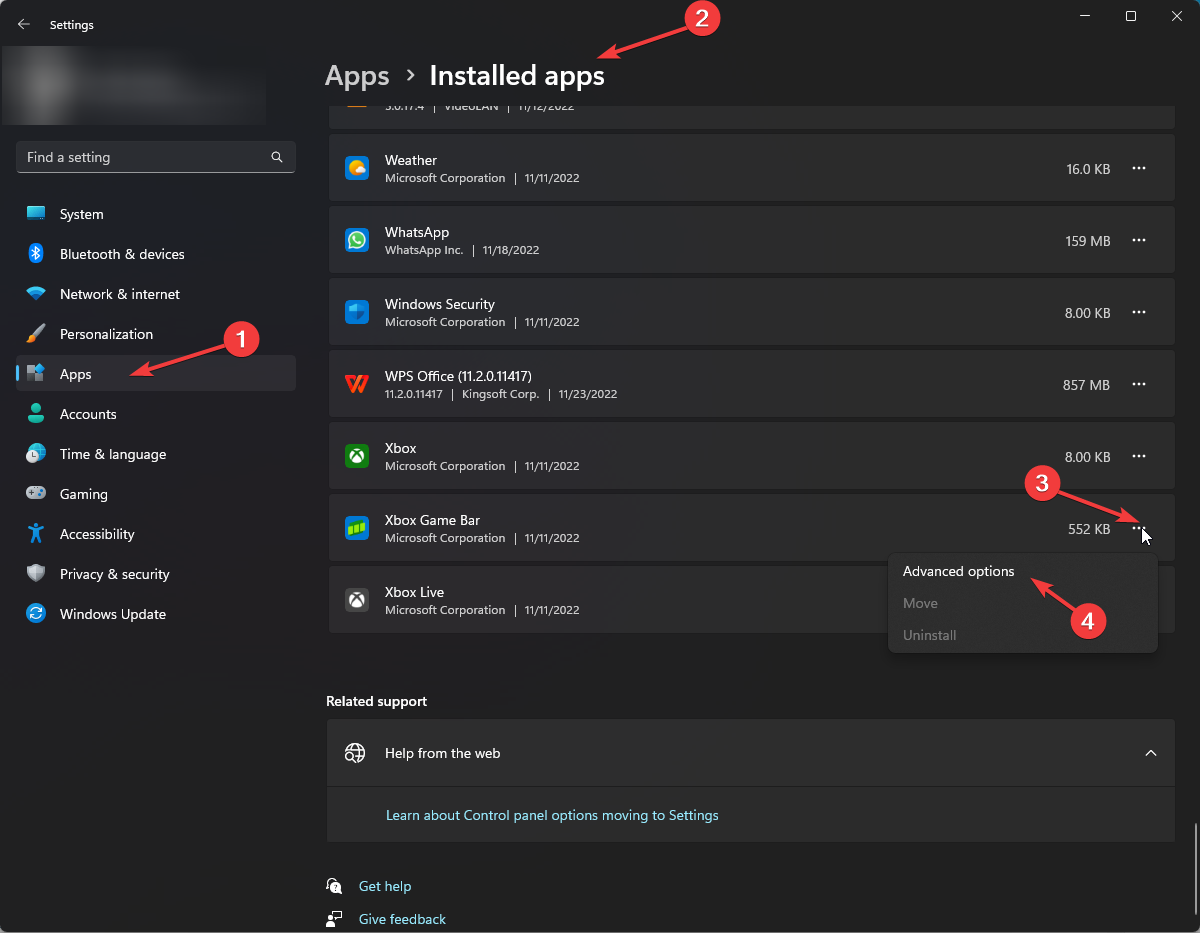
2. Repair Game servicing app & Xbox app
- Press Windows + I to open Settings.
- Locate and click on Apps from the left-side pane, and click Installed Apps.
- Locate the Xbox app, click on three dots, and click Advanced options.
- On the next window, locate and click Repair.
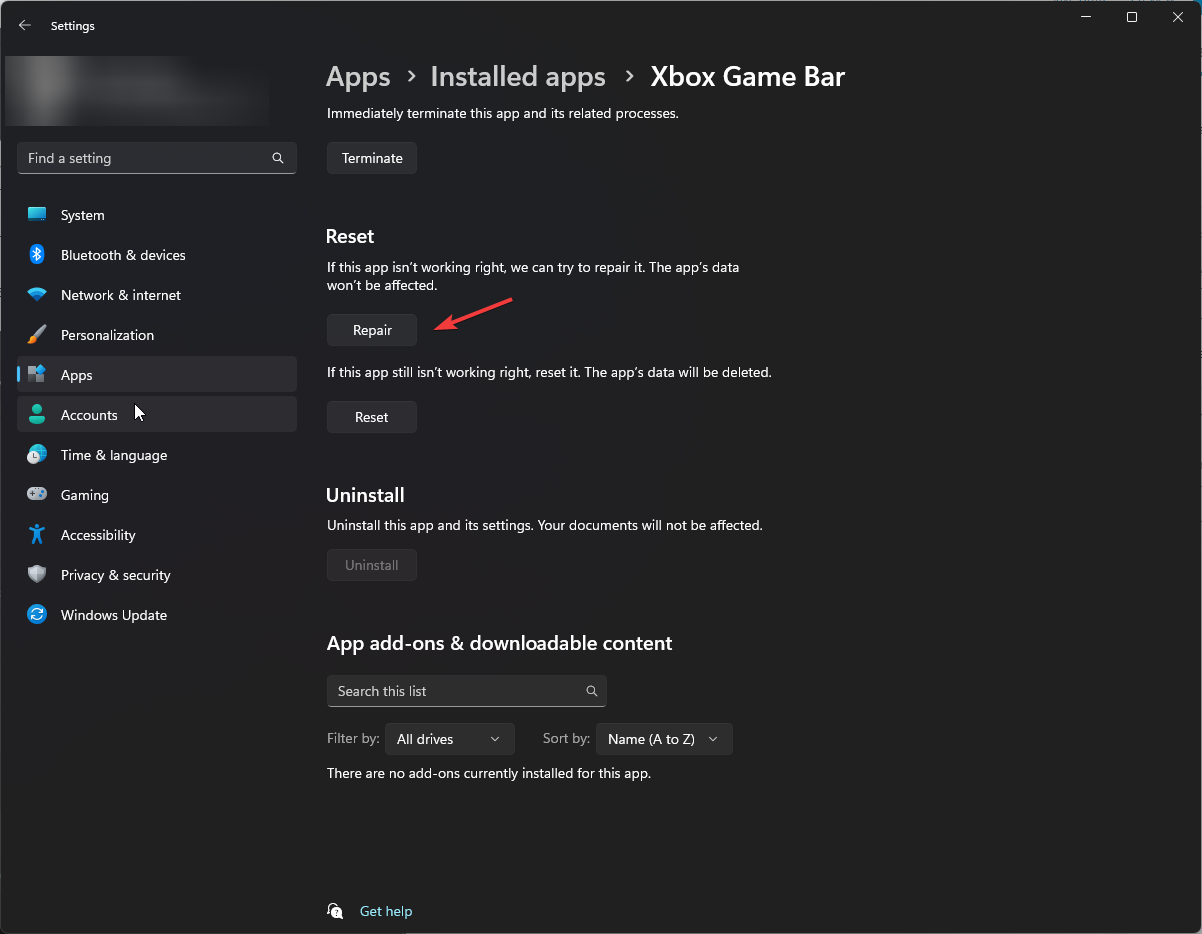
- Follow the same steps for the game servicing app to repair it.
- Fix: PUBG Keeps Crashing PC [On Startup, In-Game]
- Forza Horizon 4 0x89232001 Error: 3 Quick Ways to Fix It
3. Uninstall & Reinstall Game services
- Press Windows + X and click Terminal (Admin) to open PowerShell.
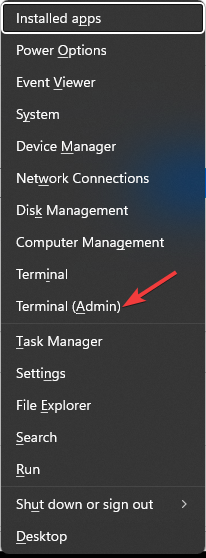
- Now type the following command and press Enter to uninstall Game services:
get-appxpackage Microsoft.GamingServices | remove-Appxpackage –allusers - Restart your computer.
- Open the Xbox Game Pass app, which will prompt you to install the gaming services again.
- Once done, try to rerun the Minecraft installer.
4. Run Minecraft in Compatibility Mode
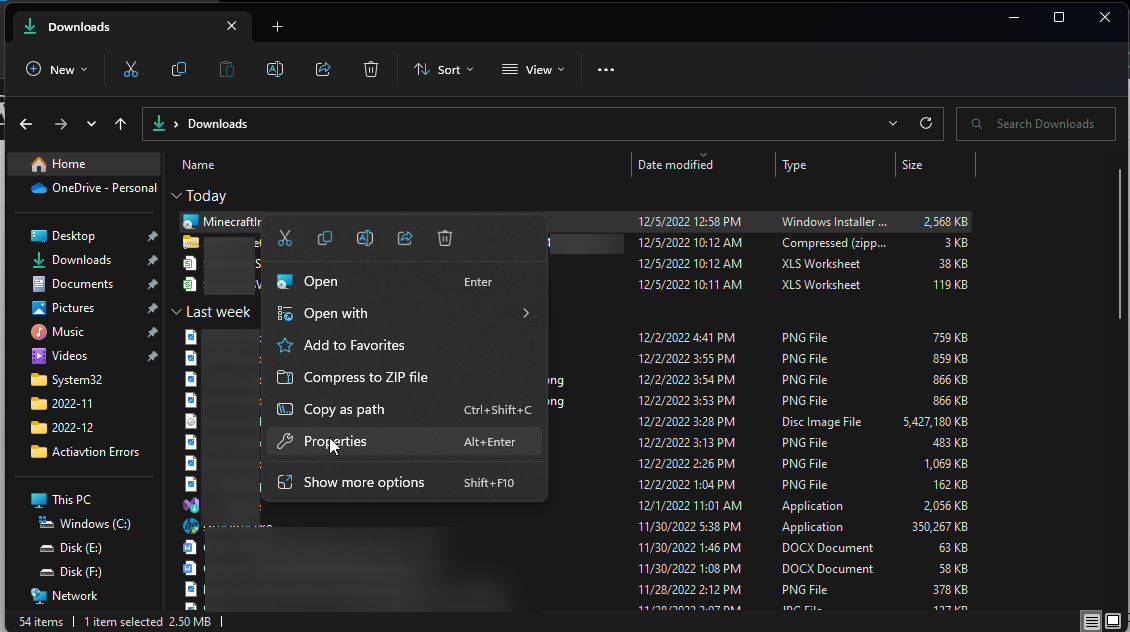
- On Windows 11/10 computer, download the launcher compatible with Window7/8.
- Right-click on the launcher file and select Properties.
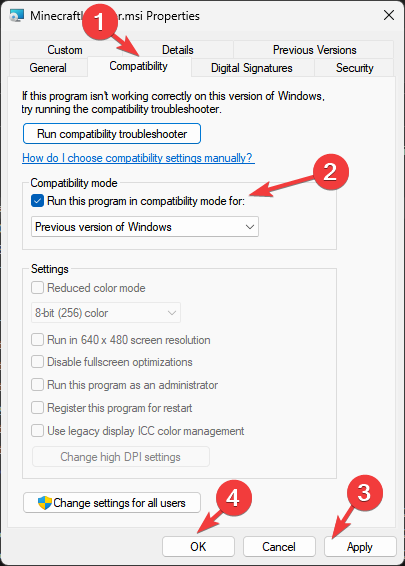
- Go to the Compatibility tab, and put a checkmark beside Run this program in compatibility mode. Now. Set the compatibility to Windows 8. Click Apply and OK.
5. Restore your OS using ISO

Tip
It is vital to back up personal files before starting the process.
- Go to Microsoft website for Windows 11.
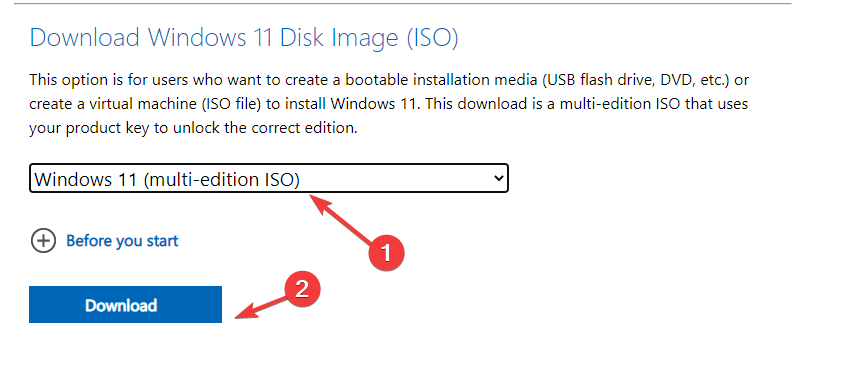
- Under Download Windows 11 Disk Image (ISO), select Windows 11 (multi-edition ISO).
- Select the product language and click Confirm.
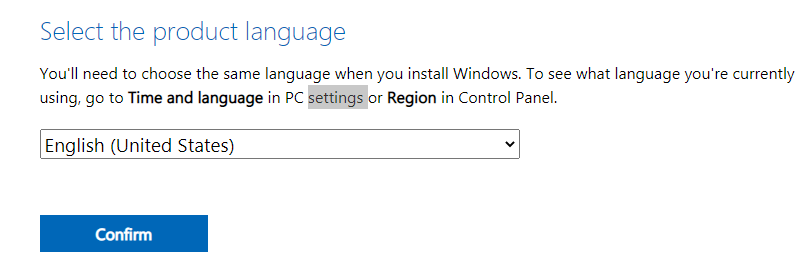
- Click Download and follow the on-screen prompts to complete.
So, these are methods that you need to follow to fix Minecraft install error 0x80131509. Try them and let us know which worked for you in the comments below.
Still having issues? Fix them with this tool:
SPONSORED
If the advices above haven’t solved your issue, your PC may experience deeper Windows problems. We recommend downloading this PC Repair tool (rated Great on TrustPilot.com) to easily address them. After installation, simply click the Start Scan button and then press on Repair All.

Newsletter
Are you trying to install the latest Minecraft Java edition on Windows 10 OS and getting an error code 0x80131509? Have you tried relaunching the game launcher but still can’t install the Minecraft Jave version on your computer? This article will guide you on how to fix the error with the help of easy-to-follow troubleshooting steps.
Without spending on a big marketing budget, Minecraft has become one of the most popular games worldwide by word of mouth advertisement. The game is a virtual land where players create their experiences by making their own worlds.
Minecraft has many gaming editions that you can play on various devices such as computers, Xbox, smartphones, etc. However, users who try to install the official newest version of the Minecraft Java edition on their Windows 10 computer often get the 0x80131509 error.
What is the difference between Minecraft Java and Bedrock versions?

Let’s take a look at the few differences between the Minecraft Java and Bedrock editions so that you can better understand why players are sticking with the Java editions despite the 0x80131509 error code.
Minecraft Java:
- You can download any online skin or create your skin and customize it to upload and use it in the game.
- Minecraft Java Edition is only playable on Windows, Linux, and macOS computers.
- You can download community-made mods for a variety of gameplay experiences.
- You need higher computer specifications to run the Minecraft Java edition smoothly.
- Minecraft Java players can only play with other Java edition players.
- Java edition offers many online servers and communities with variations and mods to spice up the multiplayer experience.
Minecraft Bedrock:
- Minecraft Bedrock Edition is playable on mobile, PC, and Minecraft console.
- You can buy skin packs and Add-Ons from the marketplace to change the gameplay experience.
- Bedrock players can play with players of different game editions online, except Java players.
- You can run the Minecraft Bedrock edition with a minimum system requirement and run smoother than the Java edition.
- Bedrock edition lets the player switch to a controller for mobility and has touch controls on a mobile device.
- Bedrock edition is connected to the Xbox services that offer heavily moderated parental controls.
Why do I see Minecraft Java errors?

So if you have decided to choose the Minecraft Java edition over the Bedrock one and can’t install it on your Windows 10 computer, it could be due to the following reasons.
- The automatic Windows update option is turned off.
- You are not running the latest Windows 10 build.
- Windows Java is outdated.
How do I fix Minecraft Java?

To fix Minecraft Java error code 0x80131509 on Windows 10 PC, try the following troubleshooting steps.
Restart your PC
Restarting a Windows 10 PC works like a charm for various gaming issues. Therefore, it never hurts to give your system a quick reboot. It might be enough to fix the error code.
To do this, choose the restart option from the boot menu. When the system reboots, run the Minecraft Java launcher to get rid of the install error.
Run Windows update
Sometimes you think that your Windows 10 is running on the latest version. However, if you are getting the 0x80131509 while installing Minecraft Java, your Windows 10 build is probably not up to date.
To confirm your Windows 10 version, click on the start menu on your Windows 10 desktop and type “winver” in the search box. Alternatively, press and hold the Windows key on the keyboard and press R. Afterward, type “winver” in the Run box and press Enter.
Now you can see which Windows 10 build you are running. If you are not on the latest Windows 10 build, do the following steps to ensure that your Windows 10 is always up to date.
- Click on the Start button and then navigate to Settings –> Update & Security.
- Now click on the Windows Update option and then click on Check for updates.
- Once Windows 10 is updated, click on the Advanced options and select “Automatic (recommended)” under the “Choose how updates are installed” option.
Ensure Java is updated
If you want to install the Minecraft Java edition, ensure that you have the latest Java in your Windows 10. Minecraft community and Mojang both recommend keeping the Java up to date. Doing this lets you install the game effortlessly without any error and can enhance your gaming experience.
Change compatibility mode
Many Minecraft players have unresolved issues after the release of the new launcher for Windows 10. We believe Windows 10 is doing some extra checks that fail the launcher to install the game on your PC.
Well, here is some good news for you. If you have bought the game and are not just on GamePass, you can download and install the Windows 7/8 launcher and run it on your Windows 10 PC for now. The players have been using the Windows 7/8 launcher for years, and a few users installed Minecraft Java through it on Windows 10.
However, to do it right, you need to set the compatibility mode to Windows 8 in the following way.
- Download the old launcher (Windows 7/8) on your Windows 10 PC.
- Now right-click on the old launcher .exe file and click on Properties.
- Under the compatibility tab, check the box for the “Run this program in compatibility mode for” option.
- Now set the compatibility to Windows 8 and save changes.
- Finally, run the installer and verify that you don’t see the error anymore.
Wait for the devs to fix the issue
Since the release of a new Minecraft Java launcher, it seems to have some issues on the server end. However, game developers are aware of the problem. Unfortunately, you will have to wait for devs to release a new patch for the fix.
Conclusion
Minecraft Java is an excellent game for kids to play on a Windows 10 computer. We hope you can now install the game for your kids or students on your PC by following our troubleshooting steps. Also, Malware can interfere with the game installation. Therefore, ensure that you run the antivirus program before running the Minecraft installer on your PC.
Hello,I cant login in xbox windows 10 app. I get Error 0x409 0x80131509 when i am trying login. Ответ
Hi,
Issues with signing in to the Xbox App on Windows 10 are possibly caused by a server connection error or a software conflict on your PC. To resolve your concern, we suggest that you start your computer in normal mode to disable the unnecessary apps running in the background while you are trying to sign in to the Xbox App. Here’s how:
- Press Windows + R on the keyboard.
- Type msconfig, and then click OK.
- On the General tab, click the Normal Startup, and then click OK.
- When you are prompted to restart the computer, click Restart.
If the issue persists, make sure that all the Xbox Live Services are enabled. You may follow the steps below:
- Press the Windows key on your keyboard and type Services in the search box.
- Once the Services window opens, scroll down and look for Xbox Live Auth Manager, Xbox Live Game Save, and Xbox Live Networking Service.
- You have to repeat the steps on each service. Right-click on each service and click Properties.
- Make sure that the Startup type is set to Automatic.
- If the Service status is stopped, click on Start.
- Click OK to save the settings.
After enabling the services, clear the local Xbox Identity data on your PC.
- Open the File Explorer and paste the following into the address bar to go to a specific location on your computer:%userprofile%AppDataLocalPackagesMicrosoft.XboxIdentityProvider_cw5n1h2txyewyACTokenBroker
- Delete any accounts and cache folders that you can see at this location.
- Launch the Xbox App and sign in to your account again.
Источник: https://answers.microsoft.com/ru-ru/xbox/forum/all/error-0x409-0x80131509/f1a03e5a-1b90-4a07-beb5-0567accbaf07
Несколько пользователей жаловались на получение кода ошибки 0x80131509 при попытке установить новую игру Minecraft на свои устройства. Если вы один из таких пользователей и задаетесь вопросом, что делать дальше, следуйте этому руководству до конца.
В этом руководстве мы увидим все возможные причины этой проблемы и наиболее вероятные способы ее устранения. Получив эту ошибку 0x80131509, вы также можете увидеть сообщение об ошибке, подобное следующему:
Похоже, что-то пошло не так, нам не удалось установить приложение (0x80131509)
Если вы боретесь с некоторыми другими кодами ошибок при установке игр Minecraft, все сообщение остается неизменным с очевидным изменением кода ошибки.

Почему я не могу скачать Майнкрафт?
Игры Minecraft могут не устанавливаться на ваш компьютер по нескольким причинам. Иногда вы можете получить сообщение об ошибке, поэтому найти решение будет легко. Однако бывают случаи, когда вы ничего не получаете, кроме сбоя установки по очевидным причинам.
В большинстве случаев вы должны столкнуться с проблемой, когда ваше устройство соответствует одному или нескольким из следующих условий:
- Плохое подключение к сети
- Вы не вошли в свою купленную учетную запись Xbox
- Наличие любой законной или незаконной установки Minecraft Launcher.
- Ожидающие обновления Windows
Чтобы устранить ошибку установки Minecraft 0x80131509 на ПК с Windows, попробуйте эти решения и проверьте, решают ли они эту проблему.
1]Перезагрузите Windows
Игры Minecraft могут не запускаться и отображать код ошибки 0x80131509 при наличии внутренних сбоев или конфликтов. Перезапуск Windows — это первое, что вы должны сделать для решения таких проблем. Когда вы перезагружаете свое устройство, все приложения и службы сбрасываются до состояния по умолчанию. Если проблема связана с некоторыми конфликтующими приложениями или службами, вы можете заметить, что игры Minecraft запускаются отлично.
2]Удалить Minecraft Launcher
Наличие любой устаревшей пусковой установки Minecraft также может вызвать конфликты с более новыми играми Minecraft. Итак, если вам известны какие-либо программы запуска, которые вы устанавливали ранее на свое устройство, удалите их и проверьте, решает ли это проблему. Чтобы удалить пусковую установку Minecraft, сделайте следующее —
- Щелкните правой кнопкой мыши значок Windows и выберите «Настройки».
- Щелкните «Приложения и функции».
- В следующем окне введите Minecraft в поле поиска.
- Если этот поиск действительно отображает какую-либо программу запуска, щелкните три точки рядом с ее именем и нажмите кнопку — Удалить.
- Затем появится всплывающее окно, снова нажмите «Удалить».
После удаления средства запуска обязательно перезагрузите компьютер, чтобы все оставшиеся файлы также были удалены.
3]Переустановите игры Minecraft из Microsoft Store.
Ошибка 0x80131509 также может возникнуть, если вы ранее загружали некоторые игры через Пусковая установка Minecraft. Затем, чтобы решить эту проблему, вам следует удалить программу запуска Minecraft и загрузить удаленные игры через Microsoft Store.
4]Убедитесь, что вы вошли в правильную учетную запись Xbox.
Если вы по-прежнему получаете код ошибки 0x80070424 при запуске Minecraft или играх на нем, проверьте, вошли ли вы в правильную учетную запись Microsoft или нет. Хотя это не должно быть так, это тоже может произойти.
Здесь мы указываем на покупку игры через одну учетную запись Microsoft и попытку сыграть в эту игру на другой учетной записи. Более того, аналогичный сценарий появляется, когда вы случайно / намеренно выходите из своей текущей учетной записи Microsoft и входите в другую учетную запись.
Примечание: Учетная запись Xbox, в которой вы приобрели игру, и учетную запись Microsoft.
Убедитесь, что вы используете одну и ту же учетную запись для доступа к Xbox и приложению Microsoft Store. В противном случае возникнут противоречия и вы не сможете установить лаунчер Майнкрафт. Итак, проверьте, так ли это, и решите это. Затем перезагрузите компьютер и посмотрите, сохраняется ли проблема.
5]Проверьте подключение к сети.
Плохой сетевой сигнал или низкая скорость интернета могут помешать программе запуска Minecraft загружать новые игры. Поэтому рекомендуется проверить подключение к Интернету, прежде чем загружать или покупать игру через Minecraft.
Вы даже можете проверить скорость сети, открыв несколько сайтов в браузере по умолчанию. Если все они загружаются довольно легко, проблема может быть в другом.
6]Проверьте наличие ожидающих обновлений
Иногда подобные ошибки также могут возникать, когда на вашем компьютере есть несколько ожидающих обновлений. Чтобы решить эту проблему, необходимо проверить наличие обновлений Windows и загрузить / установить все доступные.
- Сначала перейдите по указанному ниже пути.
Настройки (Win + I)> Центр обновления Windows
- На открывшемся экране нажмите кнопку — Проверить обновления.

- Если система действительно обнаруживает ожидающие обновления, загрузите / установите их на свой компьютер.
Как исправить ошибки Minecraft 0x80070424 или 0x80070057?
Ошибки Minecraft 0x80070424 или 0x80070057 также могут возникать, когда ваше устройство соответствует одной или нескольким из объясненных выше причин. Итак, мы предлагаем рассмотреть решения, описанные выше, одно за другим.
Я надеюсь, что это руководство поможет устранить ошибки установки игр Minecraft на ваш компьютер. Сообщите, работает ли какое-либо решение в вашем случае, в разделе комментариев.
Post Views: 241
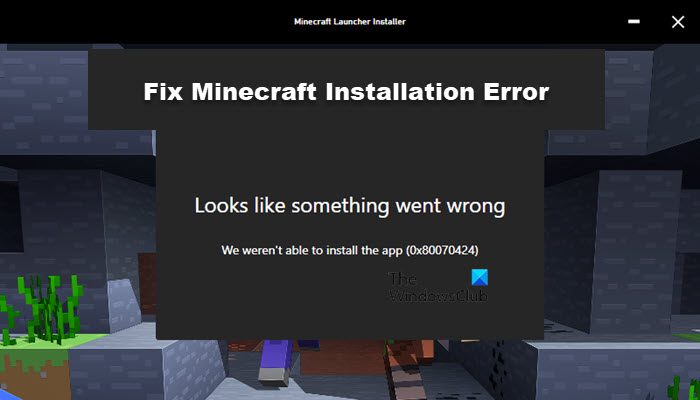
A lot of Windows users were unable to install Minecraft on their system. When they try to do the same, they see the following error message.
Looks like something went wrong, We weren’t able to install the app (error code)
There are different error codes that users are seeing such as 0x80070424, 0x80131509, 0x80070057, etc. Whatever the error code is, it’s the Minecraft installation Error that you are dealing with. We have accumulated a list of solutions that you can use to resolve this.
Why won’t Minecraft install on my laptop?
If Minecraft is not installing on Windows 11/10 or you have some trouble with Minecraft Launcher, then some general fixes can be used. For example, you can restart the PC or Update OS, run Minecraft in compatibility mode, run the Minecraft installer as administrator, remove Mod files, etc. You should also start the Windows Installer Service (if it is stopped) and then try again. But, if the Minecraft installation is interrupted with some error code like 0x80070424, 0x80131509, 0x80070057, etc., then such general fixes won’t help.
Be it Laptop or Desktop, the Minecraft Installation error can occur because of many different things. Since there are different error codes, the reasons may vary a bit, more often than not, you will find some similarities. A lot of users, who are seeing the error message, already have previously installed Minecraft launcher. Other than that, some users were using different accounts for Microsoft Store and Xbox app. Whereas, some are having poor Internet speed.
However, there are some unique cases that gamers have encountered. In that case, we found that the Windows Update service is missing from their computers. This issue might have been prevalent in their computers and they were oblivious to it. We have talked about all of the reasons in detail and how you can fix them.
Before looking at the solutions to fix Minecraft Installation Error try updating your computer. Make sure that you are on the latest version and then try installing the game. If the issue persists, then try these fixes to resolve the issue.
- Restart the computer
- Delete any other Minecraft launcher
- Fix your Internet Connection
- Download from Microsoft Store
- Check Windows Update service
- Use Same account on Xbox app and Microsoft Store
Let us talk about them in detail.
1] Restart the computer
First of all, let us try the most basic solutions of them all. Some of you might have already tried it, but if you haven’t tried restarting the computer and see if the issue persists. Restarting will also close all the services that can interfere with your installer.
2] Delete any other Minecraft launcher
If you have another Minecraft launcher installed on your system, whether it’s official or unofficial. You need to remove it completely before installing Minecraft, otherwise, they will interfere in the installation process and you will see the error message along with any error code. So, go ahead and uninstall the previously installed launcher, restart your computer and check if the issue persists.
To uninstall the Minecraft launcher, follow the given steps.
- Open Settings by Win + I.
- Go to Apps > Apps & Features.
- Search for “Minecraft”.
- Click on the three vertical dots (for Windows 11) or select the app (for Windows 10).
- Then click Uninstall.
You will be asked to confirm, do that, then restart your computer, retry installing Minecraft and check if the issue persists.
3] Fix your Internet Connection
You won’t be able to download the game if there is some issue with the Internet connection. You can use an Internet Speed checker to see the bandwidth. If it’s low, then check other devices connected to the same network. If you conclude that, all of them have low bandwidth, try restarting your router and, if that doesn’t work, contact your Internet Service Provider. But, if yours is the only device with slow Internet, fix the slow Internet speed.
4] Download from Microsoft Store
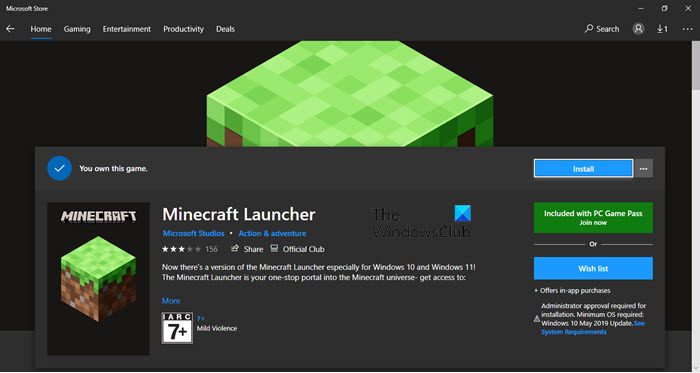
If you have downloaded the application from minecraft.net and are not able to install the app, then try downloading it from microsoft.com aka Microsoft Store. Then install it and see if that works. This is not a solution, instead, it is a workaround that has worked for many users.
5] Check Windows Update service
A lot of users when trying to download the app from the Microsoft Store are seeing the same error again. Usually, the people who had the error code 0x80070424 are facing this error. Check, the following screenshot.
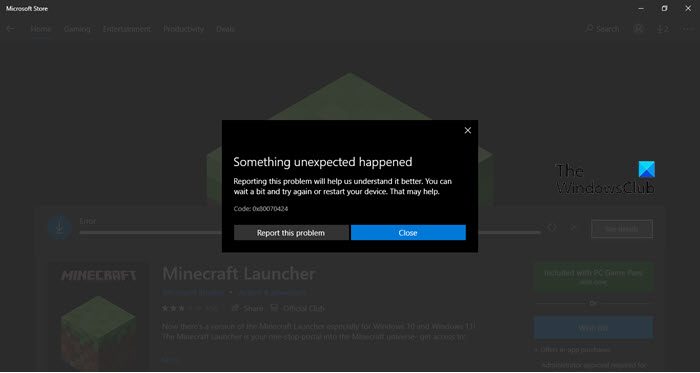
In this case, you need to see if the Windows Update service is missing on your computer. Open the Services app from the Start Menu, and look for Windows Update. If the service is missing, then check our guide to fix the issue.
6] Use Same Account on Xbox App and Microsoft Store
You need to make sure that you are using the same account to access Xbox and Microsoft Store app. Otherwise, there will contradictions and you won’t be able to install the Minecraft launcher. So, check if that’s the case, and resolve it. Then restart your computer and see if the issue persists.
Hopefully, you are able to resolve the issue with these solutions.
Why won’t Minecraft Java install?
If you have trouble with Minecraft Java Edition installation, then you should temporarily disable your antivirus software and then install the game. You should also disable the Firewall temporarily as these tools can cause trouble during the installation of Minecraft Java Edition.
Also Check:
- Fix Minecraft game has crashed with Exit Code 0
- Minecraft keeps crashing or freezing on PC.
A lot of Windows users were unable to install Minecraft on their system. When they try to do the same, they see the following error message.
Looks like something went wrong, We weren’t able to install the app (error code)
There are different error codes that users are seeing such as 0x80070424, 0x80131509, 0x80070057, etc. Whatever the error code is, it’s the Minecraft installation Error that you are dealing with. We have accumulated a list of solutions that you can use to resolve this.
Why won’t Minecraft install on my laptop?
If Minecraft is not installing on Windows 11/10 or you have some trouble with Minecraft Launcher, then some general fixes can be used. For example, you can restart the PC or Update OS, run Minecraft in compatibility mode, run the Minecraft installer as administrator, remove Mod files, etc. You should also start the Windows Installer Service (if it is stopped) and then try again. But, if the Minecraft installation is interrupted with some error code like 0x80070424, 0x80131509, 0x80070057, etc., then such general fixes won’t help.
Be it Laptop or Desktop, the Minecraft Installation error can occur because of many different things. Since there are different error codes, the reasons may vary a bit, more often than not, you will find some similarities. A lot of users, who are seeing the error message, already have previously installed Minecraft launcher. Other than that, some users were using different accounts for Microsoft Store and Xbox app. Whereas, some are having poor Internet speed.
However, there are some unique cases that gamers have encountered. In that case, we found that the Windows Update service is missing from their computers. This issue might have been prevalent in their computers and they were oblivious to it. We have talked about all of the reasons in detail and how you can fix them.
Before looking at the solutions to fix Minecraft Installation Error try updating your computer. Make sure that you are on the latest version and then try installing the game. If the issue persists, then try these fixes to resolve the issue.
- Restart the computer
- Delete any other Minecraft launcher
- Fix your Internet Connection
- Download from Microsoft Store
- Check Windows Update service
- Use Same account on Xbox app and Microsoft Store
Let us talk about them in detail.
1] Restart the computer
First of all, let us try the most basic solutions of them all. Some of you might have already tried it, but if you haven’t tried restarting the computer and see if the issue persists. Restarting will also close all the services that can interfere with your installer.
2] Delete any other Minecraft launcher
If you have another Minecraft launcher installed on your system, whether it’s official or unofficial. You need to remove it completely before installing Minecraft, otherwise, they will interfere in the installation process and you will see the error message along with any error code. So, go ahead and uninstall the previously installed launcher, restart your computer and check if the issue persists.
To uninstall the Minecraft launcher, follow the given steps.
- Open Settings by Win + I.
- Go to Apps > Apps & Features.
- Search for “Minecraft”.
- Click on the three vertical dots (for Windows 11) or select the app (for Windows 10).
- Then click Uninstall.
You will be asked to confirm, do that, then restart your computer, retry installing Minecraft and check if the issue persists.
3] Fix your Internet Connection
You won’t be able to download the game if there is some issue with the Internet connection. You can use an Internet Speed checker to see the bandwidth. If it’s low, then check other devices connected to the same network. If you conclude that, all of them have low bandwidth, try restarting your router and, if that doesn’t work, contact your Internet Service Provider. But, if yours is the only device with slow Internet, fix the slow Internet speed.
4] Download from Microsoft Store
If you have downloaded the application from minecraft.net and are not able to install the app, then try downloading it from microsoft.com aka Microsoft Store. Then install it and see if that works. This is not a solution, instead, it is a workaround that has worked for many users.
5] Check Windows Update service
A lot of users when trying to download the app from the Microsoft Store are seeing the same error again. Usually, the people who had the error code 0x80070424 are facing this error. Check, the following screenshot.
In this case, you need to see if the Windows Update service is missing on your computer. Open the Services app from the Start Menu, and look for Windows Update. If the service is missing, then check our guide to fix the issue.
6] Use Same Account on Xbox App and Microsoft Store
You need to make sure that you are using the same account to access Xbox and Microsoft Store app. Otherwise, there will contradictions and you won’t be able to install the Minecraft launcher. So, check if that’s the case, and resolve it. Then restart your computer and see if the issue persists.
Hopefully, you are able to resolve the issue with these solutions.
Why won’t Minecraft Java install?
If you have trouble with Minecraft Java Edition installation, then you should temporarily disable your antivirus software and then install the game. You should also disable the Firewall temporarily as these tools can cause trouble during the installation of Minecraft Java Edition.
Also Check:
- Fix Minecraft game has crashed with Exit Code 0
- Minecraft keeps crashing or freezing on PC.