Table of Contents
- Introduction
- Problem Definition
- Cause
- Solution
- Uninstall
- Fresh install
- Looking at SQL Server Errorlog
- Forum threads related to this issue
- Suggested Readings
- See Also
Introduction
This article is about how to proceed when you get error message ‘Could not find database engine startup handle ‘ while installing SQL Server 2008 R2/2012 or 2014.
↑ Back to top
Problem Definition
If you are an active member of
SQL Server Setup and Upgrade forum you must have noticed some users creating a thread with error messages of ‘Could not find database engine startup handle ‘
while installing SQL Server . This article tries to provide a simple solution to this problem, that many users face during installation of SQL Server 2008 R2, SQL Server 2012 and SQL Server 2014 as well.
Let’s get started. For resources on installing SQL Server 2008/R2/2012/2014; there are lot of good articles which you find in Suggested Readings section .
Its common belief that installation of SQL Server is very easy, just do *Next, Next * and installation would be complete.
It is correct, it’s simple but internally what all operations go a general user is not aware about it and when he faces issue he feels that SQL Server product is not good ( this is my forum experience where many of Original Poster (OP) get frustrated with
SQL Server installation error). It’s recommend to read below Microsoft articles before proceeding with installation of SQL Server
- Hardware and Software requirement for installing SQL Server
- Install SQL Server from installation wizard
- How to use SQL Server in win 8 and Windows Server environment
Problem is when a user tries to install SQL Server 2012 or 2014 or 2008 R2 during installation error is flashed which says
Could not find database engine startup handle and some Hex error like ‘0x851a0019’ error could also be ‘Wait on the Database Engine recovery handle failed’.
↑ Back to top
Cause
Following can be the reason behind the error message.
- The account which user selected on Server Configuration page window ( during installation) is somehow not able to bring SQL Server database engine services online. Either is lacks privilege or it is corrupted. During installation of database engine services
SQL Server tries to bring online database services as a internal process but due to startup account either corrupt or not having appropriate privileges it fails to do so and ultimately installation fails. - Other reason is when installation fails first time due to some reason and user uninstall failed installation from add remove program, the un-installation leaves account in broken state so any further attempt to install flashes this error message.
- The reason can be also that SQL Server installation was successful in installing SQL Server and its services but due to some other limitation in system or other system related errors SQL Server is not able to come online. The same has been discussed in
section ‘Looking at SQL Server errorlog’
↑ Back to top
Solution
A simple solution to above problem is below.
Uninstall
Uninstall SQL Server completely from add remove program. Make sure no previous failed installation fragments are present on your system. Please use this
link for uninstalling existing instance of SQL Server. If you have SQL Server 2005
use this link.
—Below Steps should ONLY be followed if removing SQL Server is giving error and if you have used all means to remove SQL Server and you have failed. If you have doubts about the approach please DONT follow it.
If you are unable to uninstall SQL Server completely because you deleted SQL Server files and un-installation is giving error please follow below method. This method is tested and suggested on
this thread and
Forum.
Below Solution (about removing reg keys) will work correctly for SQL Server having Just one instance.
If you have multiple instances and you have messed up SQL Server installation please contact Microsoft Support personal to get better guidance on removal of SQL Server. Please DONT use this method if you are new to SQL Server take help of experienced
DBA to locate proper registry keys and remove them if you are not confident at all it would be better calling Microsoft Support.
Note: Removing necessary registry entries might cause SQL Server instance to crash so backup registry before doing changes.
- 1. Uninstall the existing SQL Server and all the components from the add remove program.
- 2.
Backup the registry. - 3. Delete the following keys using regedit:
- —HKEY_LOCAL_MACHINESOFTWAREMicrosoftMicrosoft SQL Server
- —HKEY_LOCAL_MACHINESOFTWAREMicrosoftMSSQLServer
- 4. Go to HKEY_LOCAL_MACHINESOFTWAREMicrosoftWindowsCurrentVersionUninstall and delete all the sub-keys referencing SQL Server.
- 5. Go to HKEY_LOCAL_MACHINESYSTEMCurrentControlSetServices and delete all the keys referencing SQL Server.
- 6. Rename all the SQL Server folders in the computer.
- 7. Reboot the machine.
Fresh install
2. Start a fresh installation. Locate Setup.exe file in SQL Server installable. It would be something like below

Always Right click on Setup file and select Run As Administrator to launch the setup.
After launching the setup and providing necessary details you would reach to Server Configuration page as below. When you reach this page please select startup account for Database Engine services as NT AuthoritySYSTEM which is also called as Local System
account.

Next you need to proceed as normally you do for installation.You will see this will solve the issue.
After installation completes please change Service Account from NT AUTHORITYSYSTEM to a low privileged domain account. Please refer to below Microsoft link about how to configure various accounts for SQL Server and what minimum rights to provide
- Configure Windows Service Account and Permissions
To get information about Local System account please refer to below link
- Local System Account
Looking at SQL Server Errorlog
Even after following above method if you still get the error this means that problem is not with SQL Server installation something different is blocking SQL Server installation. The important point to note here with such error is you will see SQL Server
installed but the services are not online( there might be few exception). Please check SQL Server configuration manager and Services.msc to check whether SQL Server services are present or not. If they are present but in stopped state you must look at
log files present at location
Drive:Program FilesMicrosoft SQL ServerMSSQL.nMSSQLLOGERRORLOG and
ERRORLOG.n files.
Where Drive is system drive on which you installed SQL Server. It can be system drive C or any user drive (D,E,F…) . MSSQLn here means version number of SQL Server
n=10 for SQL Server 2008/2008 R2
n= 11 for SQL Server 20012
n=12 for SQL Server 2014.
One such thread with similar issue
is this , The problem was not the SQL Server, services were installed but SQL Server cannot start due to error
Cannot
use file ‘C:Program FilesMicrosoft SQL ServerMSSQL11.MSSQLSERVERMSSQLDB_NAMEmaster.mdf’ because it was originally formatted
with sector size 4096
and is now on a volume
with sector size
Now above error is not related to SQL Server but related to disk drive formatting on which SQL Server master data file resides. Error is beyond the scope of this article hence would not be discussed.
↑ Back to top
Forum threads related to this issue
This article is an outcome of my answer provided to below forum threads which faced issue ‘Could not find Database engine startup handle’. Please have a look
- Could not find database engine startup handle Thread 1
- Could Not find database engine startup handle thread 2
- Database engine startup handle issue
- Similar Thread
If you still cannot find solution to your problem please post your question on
SQL Server Setup and Upgrade forum for more assistance.
↑ Back to top
Suggested Readings
- How to Identify SQL Server Setup issue using setup log files
- How to install SQL Server 2014
- How To Install SQL Server On Windows 8
- How to Install SQL
Server 2012 - How to find location of setup log files generated after SQL Server Installation
- Installing SQL Server 2012 with SP1 and Product update in One Go
See Also
- SQL Server General & Database Engine Resources on the TechNet Wiki
- List of articles by Shanky
- SQL Server 2014 Portal
Содержание
- KB3135769-FIX: ошибка при установке SQL Server 2012 или SQL Server 2014 на сервер с включенным протоколом TLS 1,2
- Проблемы
- Причина
- Решение
- Обходное решение
- Статус
- Ссылки
- Ошибка установки SQL Server: Could not find the Database Engine startup handle
- 0x851a001a ошибка при ожидании дескриптора восстановления ядра субд
- SQL Server Express 2017 fails install [0x851A001A]
- 2 Answers 2
- Linked
- Related
- Hot Network Questions
- Subscribe to RSS
KB3135769-FIX: ошибка при установке SQL Server 2012 или SQL Server 2014 на сервер с включенным протоколом TLS 1,2
Проблемы
При попытке установить Microsoft SQL Server 2012 или SQL Server 2014 на сервере, на котором включена поддержка TLS версии 1,2, могут возникать указанные ниже проблемы.
Если версия SQL Server, которую вы пытаетесь установить, не содержит исправление для поддержки TLS 1,2 (Дополнительные сведения о сборке, добавляющей поддержку TLS 1,2, приведены в статье KB 3052404), появляется следующее сообщение об ошибке:
Не удалось дождаться дескриптор восстановления ядра СУБД. Проверьте журнал ошибок SQL Server на предмет возможных причин.
Если версия SQL Server, которую вы пытаетесь установить, содержит исправление для поддержки TLS 1,2, появляется следующее сообщение об ошибке:
Соединение с сервером успешно установлено, но при этом произошла ошибка во время предварительного подтверждения входа. (поставщик: поставщик именованных каналов; ошибка: 0-процесс не находится на другом конце канала.)
В обоих случаях установка завершается сбоем.
Причина
Эта проблема возникает из-за того, что программа установки SQL Server использует SqlClient для ADO.NET из платформы .NET Framework 2,0. По умолчанию платформа .NET Framework 2,0 работает с протоколом TLS 1,0.
Решение
Чтобы устранить эту проблему, установите накопительный пакет исправлений для .NET Framework и перезапустите сервер. Ниже приведены сведения о том, как найти соответствующее исправление в зависимости от операционной системы и версии SQL Server, в которой вы работаете.
Версия операционной системы
Windows 2012 R2 и Windows 8,1
Windows Server 2012 и Windows 8
Windows Server 2008 R2 SP1 и Windows 7 с пакетом обновления 1
Обходное решение
Чтобы обойти эту проблему, выполните указанные ниже действия.
Включите TLS 1,0 на сервере.
Запустите программу установки SQL Server 2012 или SQL Server 2014 и обновите версию SQL Server до сборки, поддерживающей TLS 1,2. (Дополнительные сведения об обновлениях, которые добавим поддержку TLS 1,2, приведены в статьях KB 3052404.)
Отключите TLS 1,0.
Примечание. При попытке установить сборку SQL Server 2012 или SQL Server 2014, которая не содержит исправления для поддержки TLS 1,2, необходимо также воспользоваться этим решением.
Статус
Корпорация Майкрософт подтверждает наличие этой проблемы в своих продуктах, которые перечислены в разделе «Применяется к».
Ссылки
Ознакомьтесь с терминологией , которую корпорация Майкрософт использует для описания обновлений программного обеспечения.
Источник
Ошибка установки SQL Server: Could not find the Database Engine startup handle
Столкнулся с интересной ошибкой при установке MS SQL Server 2014 на новом сервере Windows Server 2012 R2. Установка SQL Server прерывается почти в самом конце с ошибкой «Не найден дескриптор запуска компонента Database Engine» (Could not find the Database Engine startup handle).
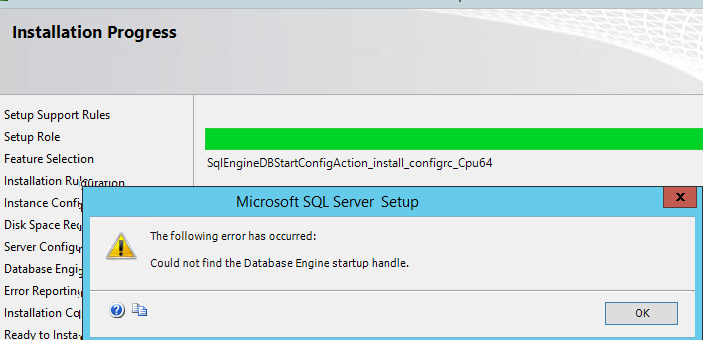
В логе установки Summary.txt при этом присутствует ошибка:
Feature: Database Engine Services
Данная ошибка установки MS SQL Server связана с тем, что используются стандартные настройки установки, при котором служба SQL Server запускается под непривилегированной учетной записью NT ServiceMSSQL$V2014. У данной учетной записи может быть недостаточно полномочий для запуска службы SQL Server, поэтому запустить службу невозможно, и установщик завершается с ошибкой «Could not find the Database Engine startup handle». Также эта ошибка может указывать на то, что ранее на компьютере уже пытались установить SQL Server и не очистили файлы и службы, оставшиеся от предыдущей установки.
Чтобы исправить ошибку установки SQL Server:
- Корректно деинсталлируйте все программы, связанные с SQL Server через Панель управления и перезагрузите сервер (проверьте, что не осталось файлов и папок в каталоге C:Program FilesMicrosoft SQL ServerMSSQL12.xxx);
- Запустите чистую установку из дистрибутива SQL Server. На вкладке «Server Configuration» убедитесь, что служба SQL Server Database Engine запускается под учетной записью NT ServiceMSSQLSERVER;
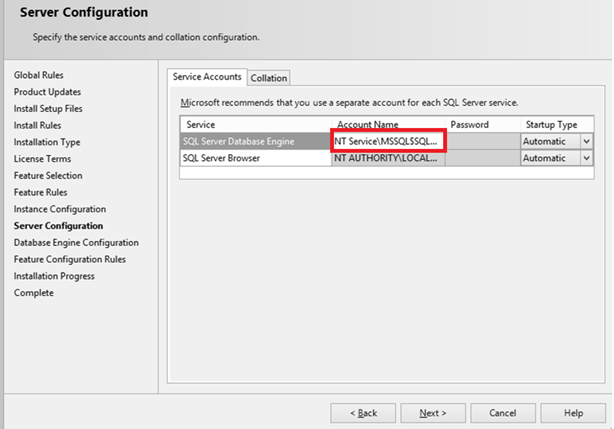
После окончания установки настоятельно рекомендуем изменить учетную запись, под которой запускается служба SQL Server Database Engine на непривилегированную учетную запись. Эта учетная запись не обязательно должна обладать правами локального администратора сервера (вполне достаточно полномочий внутри SQL Server). Можно использовать аккаунты с правами sysadmin — NT ServiceMSSQLSERVICE или NT ServiceSQLSERVERAGENT. Чтобы изменить учетную запись, под которой работает SQL Server:
- Запустите SQL Server Configuration Manager и перейдите в раздел SQL Server Services;
- Щелкните по SQL Server (MSSQLSERVER), нажмите кнопку Browse и в поле This account укажите учетную запись, под которой нужно запускать службу или используйте управляемую учетную запись — gMSA (Group Managed Service Accounts). Укажите пароль пользователя и сохраните изменения;
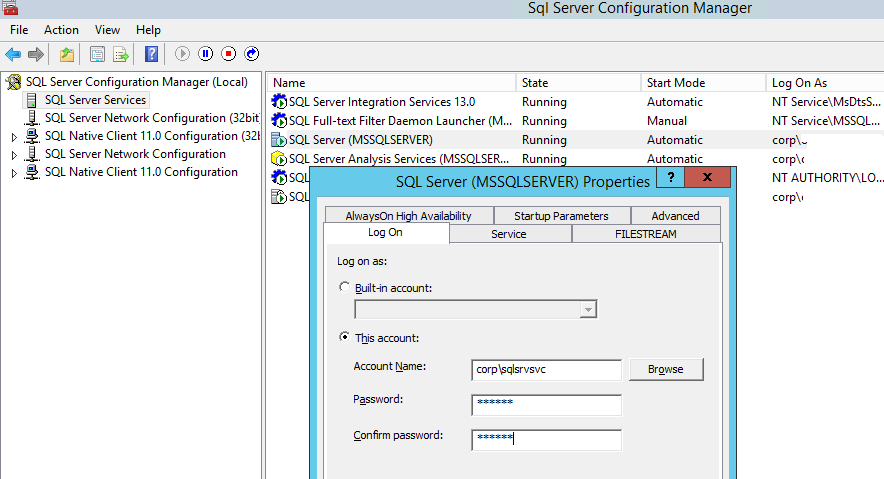
- Перезапустите службы SQL Server.
Этот способ поможет вам исправить ошибку «Не найден дескриптор запуска компонента Database Engine» при установке любых версий SQL Server (2016, 2014, 2012 или 2008).
Источник
0x851a001a ошибка при ожидании дескриптора восстановления ядра субд
I am trying to isntall SQL Server 2012 on Windows Server 2008 R2, but the Database Engine Services failed to install, and I cannot start the MSSQLSERVER Service after installation.
Installation error :
Error installing SQL Server Database Engine Services Instance Features
Wait on the Database Engine recovery handle failed. Check the SQL Server error log for potential causes.
Error code: 0x851A001A
W3WP.EXE Crash :
I noticed that during installation w3wp.exe has crashed:
Application: w3wp.exe
Framework Version: v4.0.30319
Description: The process was terminated due to an unhandled exception.
Exception Info: System.TypeInitializationException
Stack:
at System.Web.Caching.SqlCacheDependencyManager.Dispose(Int32)
at System.Web.HttpRuntime.Dispose()
at System.Web.HttpRuntime.ReleaseResourcesAndUnloadAppDomain(System.Object)
at System.Threading.ExecutionContext.Run(System.Threading.ExecutionContext, System.Threading.ContextCallback, System.Object, Boolean)
at System.Threading.QueueUserWorkItemCallback.System.Threading.IThreadPoolWorkItem.ExecuteWorkItem()
at System.Threading.ThreadPoolWorkQueue.Dispatch()
at System.Threading._ThreadPoolWaitCallback.PerformWaitCallback()
A process serving application pool ‘HTTP Pool’ suffered a fatal communication error with the Windows Process Activation Service. The process id was ‘4544’. The data field contains the error number.
MSSQL Service :
When I try to start the MSSQL service, I get the following errors in the event log:
— For target, «5B2DA06D-898A-43C8-9309-39BBBE93EBBD.package0.event_file», the parameter «filename» passed is invalid. Target parameter at index 0 is invalid
— Event session «system_health» failed to start. Refer to previous errors in the current session to identify the cause, and correct any associated problems.
— Script level upgrade for database ‘master’ failed because upgrade step ‘u_tables.sql’ encountered error 25641, state 0, severity 16. This is a serious error condition which might interfere with regular operation and the database will be taken offline. If the error happened during upgrade of the ‘master’ database, it will prevent the entire SQL Server instance from starting. Examine the previous errorlog entries for errors, take the appropriate corrective actions and re-start the database so that the script upgrade steps run to completion.
— Cannot recover the master database. SQL Server is unable to run. Restore master from a full backup, repair it, or rebuild it. For more information about how to rebuild the master database, see SQL Server Books Online.
Installation Log :
Overall summary:
Final result: Failed: see details below
Exit code (Decimal): -2061893606
Start time: 2013-06-10 23:02:24
End time: 2013-06-11 00:06:27
Requested action: Install
Setup completed with required actions for features.
Troubleshooting information for those features:
Next step for SQLEngine: Use the following information to resolve the error, uninstall this feature, and then run the setup process again.
Machine Properties:
Machine name: SERVER01
Machine processor count: 4
OS version: Windows Server 2008 R2
OS service pack: Service Pack 1
OS region: United States
OS language: English (United States)
OS architecture: x64
Process architecture: 64 Bit
OS clustered: No
Product features discovered:
Product Instance Instance ID Feature Language Edition Version Clustered
Package properties:
Description: Microsoft SQL Server 2012 Service Pack 1
ProductName: SQL Server 2012
Type: RTM
Version: 11
Installation location: N:SoftwareWindows ServerMicrosoft SQL Server 2012 SP1 (x64)x64setup
Installation edition: Web
Slipstream: True
SP Level 1
Patch Level: 11.1.3128.0
Product Update Status:
Success: KB 2674319, KB 2793634
Product Updates Selected for Installation:
Title: Service Pack 1
Knowledge Based Article: KB 2674319
Version: 11.1.3000.0
Architecture: x64
Language: 1033
Title: SQL Server 2012 SP1 GDR Product Update
Knowledge Based Article: KB 2793634
Version: 11.1.3128.0
Architecture: x64
Language: All
Update Source: MU
User Input Settings:
ACTION: Install
ADDCURRENTUSERASSQLADMIN: false
AGTSVCACCOUNT: NT ServiceSQLSERVERAGENT
AGTSVCPASSWORD: *****
AGTSVCSTARTUPTYPE: Manual
ASBACKUPDIR: Backup
ASCOLLATION: Latin1_General_CI_AS
ASCONFIGDIR: Config
ASDATADIR: Data
ASLOGDIR: Log
ASPROVIDERMSOLAP: 1
ASSERVERMODE: MULTIDIMENSIONAL
ASSVCACCOUNT:
ASSVCPASSWORD:
ASSVCSTARTUPTYPE: Automatic
ASSYSADMINACCOUNTS:
ASTEMPDIR: Temp
BROWSERSVCSTARTUPTYPE: Disabled
CLTCTLRNAME:
CLTRESULTDIR:
CLTSTARTUPTYPE: 0
CLTSVCACCOUNT:
CLTSVCPASSWORD:
CLTWORKINGDIR:
COMMFABRICENCRYPTION: 0
COMMFABRICNETWORKLEVEL: 0
COMMFABRICPORT: 0
CONFIGURATIONFILE: C:Program FilesMicrosoft SQL Server110Setup BootstrapLog20130610_224552ConfigurationFile.ini
CTLRSTARTUPTYPE: 0
CTLRSVCACCOUNT:
CTLRSVCPASSWORD:
CTLRUSERS:
ENABLERANU: false
ENU: true
ERRORREPORTING: false
FEATURES: SQLENGINE, SSMS
FILESTREAMLEVEL: 0
FILESTREAMSHARENAME:
FTSVCACCOUNT:
FTSVCPASSWORD:
HELP: false
IACCEPTSQLSERVERLICENSETERMS: true
INDICATEPROGRESS: false
INSTALLSHAREDDIR: C:Program FilesMicrosoft SQL Server
INSTALLSHAREDWOWDIR: C:Program Files (x86)Microsoft SQL Server
INSTALLSQLDATADIR: E:MSSQL
INSTANCEDIR: C:Program FilesMicrosoft SQL Server
INSTANCEID: MSSQLSERVER1
INSTANCENAME: MSSQLSERVER
ISSVCACCOUNT: NT AUTHORITYNetwork Service
ISSVCPASSWORD:
ISSVCSTARTUPTYPE: Automatic
MATRIXCMBRICKCOMMPORT: 0
MATRIXCMSERVERNAME:
MATRIXNAME:
NPENABLED: 0
PID: *****
QUIET: false
QUIETSIMPLE: false
ROLE:
RSINSTALLMODE: DefaultNativeMode
RSSHPINSTALLMODE: DefaultSharePointMode
RSSVCACCOUNT:
RSSVCPASSWORD:
RSSVCSTARTUPTYPE: Automatic
SAPWD:
SECURITYMODE:
SQLBACKUPDIR:
SQLCOLLATION: Latin1_General_CI_AS
SQLSVCACCOUNT: NT ServiceMSSQLSERVER
SQLSVCPASSWORD:
SQLSVCSTARTUPTYPE: Automatic
SQLSYSADMINACCOUNTS: ELXTECHAdministrator
SQLTEMPDBDIR:
SQLTEMPDBLOGDIR:
SQLUSERDBDIR:
SQLUSERDBLOGDIR:
SQMREPORTING: false
TCPENABLED: 1
UIMODE: Normal
UpdateEnabled: true
UpdateSource: MU
X86: false
Configuration file: C:Program FilesMicrosoft SQL Server110Setup BootstrapLog20130610_224552ConfigurationFile.ini
Detailed results:
Feature: Management Tools — Basic
Status: Passed
Feature: Database Engine Services
Status: Failed: see logs for details
Reason for failure: An error occurred during the setup process of the feature.
Next Step: Use the following information to resolve the error, uninstall this feature, and then run the setup process again.
Component name: SQL Server Database Engine Services Instance Features
Component error code: 0x851A001A
Error description: Wait on the Database Engine recovery handle failed. Check the SQL Server error log for potential causes.
Error help link: http://go.microsoft.com/fwlink?LinkId=20476&ProdName=Microsoft+SQL+Server&EvtSrc=setup.rll&EvtID=50000&ProdVer=11.0.3128.0&EvtType=0xD15B4EB2%400x4BDAF9BA%401306%4026&EvtType=0xD15B4EB2%400x4BDAF9BA%401306%4026
Feature: SQL Browser
Status: Passed
Feature: SQL Writer
Status: Passed
Feature: SQL Client Connectivity
Status: Passed
Feature: SQL Client Connectivity SDK
Status: Passed
Источник
SQL Server Express 2017 fails install [0x851A001A]
Installing SQL Server has been paining me for hours. I can’t get anything to work. I setup a VM with a fresh Windows Server 2016 install and tried to install SQL Server Express. I set the user to Network Service as suggested here. Unfortunately I got a message saying «Wait on the Database Engine recovery handle failed. » The error log suggested error code 0x851A001A (which I had gotten before, hence the user change). I’ve spent a long time trying to install this on various Virtual Machines and just can’t seem to get it. I’ve attached the install log and the error log from when I tried to run it manually.
Install Log:
Error Log:
2 Answers 2
Reinstall a SQL server instance. When it asks you to supply an instance name, use something unique that you haven’t already used (MSSQLSERVER99.) Make the Instance ID the same.
You must be victim of uninstalling and reinstalling. The network service user is giving you permissions trouble. It happens after uninstalling MSSQL server.

I hit the same issue with the FreeBSD Bhyve VM. The root cause was in sector size. Solved the issue by adding this option to the VM config (I’m using vm-bhyve):
Linked
Hot Network Questions
To subscribe to this RSS feed, copy and paste this URL into your RSS reader.
Site design / logo © 2022 Stack Exchange Inc; user contributions licensed under CC BY-SA . rev 2022.11.3.43003
By clicking “Accept all cookies”, you agree Stack Exchange can store cookies on your device and disclose information in accordance with our Cookie Policy.
Источник
Столкнулся с интересной ошибкой при установке MS SQL Server 2014 на новом сервере Windows Server 2012 R2. Установка SQL Server прерывается почти в самом конце с ошибкой «Не найден дескриптор запуска компонента Database Engine» (Could not find the Database Engine startup handle).
В логе установки Summary.txt при этом присутствует ошибка:
Feature: Database Engine Services
Status: Failed: see logs for details
Reason for failure: An error occurred during the setup process of the feature.
Next Step: Use the following information to resolve the error, uninstall this feature, and then run the setup process again.
Component name: SQL Server Database Engine Services Instance Features
Component error code: 0x851A0019
Error description: Could not find the Database Engine startup handle.
Данная ошибка установки MS SQL Server связана с тем, что используются стандартные настройки установки, при котором служба SQL Server запускается под непривилегированной учетной записью NT ServiceMSSQL$V2014. У данной учетной записи может быть недостаточно полномочий для запуска службы SQL Server, поэтому запустить службу невозможно, и установщик завершается с ошибкой «Could not find the Database Engine startup handle». Также эта ошибка может указывать на то, что ранее на компьютере уже пытались установить SQL Server и не очистили файлы и службы, оставшиеся от предыдущей установки.
Чтобы исправить ошибку установки SQL Server:
- Корректно деинсталлируйте все программы, связанные с SQL Server через Панель управления и перезагрузите сервер (проверьте, что не осталось файлов и папок в каталоге C:Program FilesMicrosoft SQL ServerMSSQL12.xxx);
- Запустите чистую установку из дистрибутива SQL Server. На вкладке «Server Configuration» убедитесь, что служба SQL Server Database Engine запускается под учетной записью NT ServiceMSSQLSERVER;
- Измените эту учетную запись на NT AUTHORITYSYSTEM;
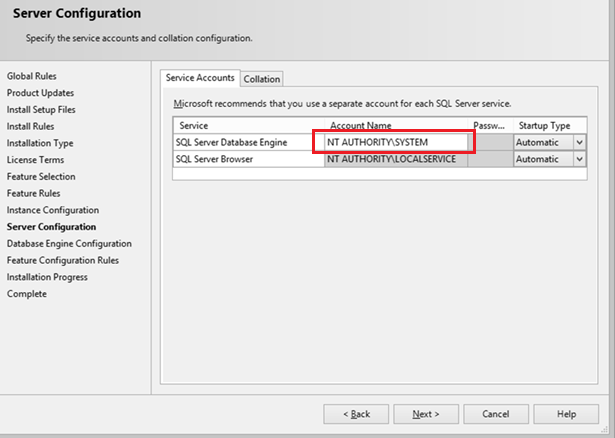
- Продолжите установку SQL Server. Ошибка больше не должна появляться.
После окончания установки настоятельно рекомендуем изменить учетную запись, под которой запускается служба SQL Server Database Engine на непривилегированную учетную запись. Эта учетная запись не обязательно должна обладать правами локального администратора сервера (вполне достаточно полномочий внутри SQL Server). Можно использовать аккаунты с правами sysadmin — NT ServiceMSSQLSERVICE или NT ServiceSQLSERVERAGENT. Чтобы изменить учетную запись, под которой работает SQL Server:
- Запустите SQL Server Configuration Manager и перейдите в раздел SQL Server Services;
- Щелкните по SQL Server (MSSQLSERVER), нажмите кнопку Browse и в поле This account укажите учетную запись, под которой нужно запускать службу или используйте управляемую учетную запись — gMSA (Group Managed Service Accounts). Укажите пароль пользователя и сохраните изменения;
- Перезапустите службы SQL Server.
Этот способ поможет вам исправить ошибку «Не найден дескриптор запуска компонента Database Engine» при установке любых версий SQL Server (2016, 2014, 2012 или 2008).
This issue can pop up for a few different scenarios. Do check the logs for error.
One of the scenario when this error can occur if a Microsoft® system folder is either missing or lacking the correct permissions.
Please use the following steps:
1.Click the Windows® Start button and click Run.
2.Type %appdata% and click OK.
3.Browse to the Microsoft folder.
4.Locate the Protect folder to assign the correct permissions:
Note: If the Protect folder is missing from the Microsoft folder, you will need to create it in this location by right-clicking and selecting Folder. Ensure to name the folder «Protect.»
1.Right-click on the Protect folder and select Properties.
2.Click on the Security tab. Ensure the System and your logged on Windows User account is listed and both have Full Control.
3.Click Add to begin adding the accounts. For Windows Vista®/Windows 7, you will need to click Edit first.
4.In the «Enter the object names to select» box, type the word System, and press Enter on your keyboard. The System account should be listed
now. Select System from the user names list and select Full Control
under the Allow column. Click Apply .5.Follow steps 3-4 to find, add and assign Full Control permissions also for you logged on Windows User account.
6.Click OK
.
Attempt to install SQL Server 2008 R2.
Even if this does not solve your problem, you take a look at the msdn blog that provides a workaround for the install scenario and see if this fixes it?
This issue can pop up for a few different scenarios. Do check the logs for error.
One of the scenario when this error can occur if a Microsoft® system folder is either missing or lacking the correct permissions.
Please use the following steps:
1.Click the Windows® Start button and click Run.
2.Type %appdata% and click OK.
3.Browse to the Microsoft folder.
4.Locate the Protect folder to assign the correct permissions:
Note: If the Protect folder is missing from the Microsoft folder, you will need to create it in this location by right-clicking and selecting Folder. Ensure to name the folder «Protect.»
1.Right-click on the Protect folder and select Properties.
2.Click on the Security tab. Ensure the System and your logged on Windows User account is listed and both have Full Control.
3.Click Add to begin adding the accounts. For Windows Vista®/Windows 7, you will need to click Edit first.
4.In the «Enter the object names to select» box, type the word System, and press Enter on your keyboard. The System account should be listed
now. Select System from the user names list and select Full Control
under the Allow column. Click Apply .5.Follow steps 3-4 to find, add and assign Full Control permissions also for you logged on Windows User account.
6.Click OK
.
Attempt to install SQL Server 2008 R2.
Even if this does not solve your problem, you take a look at the msdn blog that provides a workaround for the install scenario and see if this fixes it?
Здравствуйте. У меня такая же проблема. На windosq server 20122 r2 ставлю ms sql 2014 express. Инсталяция заканчивается с ошибками.
Вот сводный журнал
Overall summary:
Final result: Ошибка: дополнительные сведения см. ниже
Exit code (Decimal): -2061893606
Start time: 2016-11-07 09:21:28
End time: 2016-11-07 09:56:15
Requested action: Install
Setup completed with required actions for features.
Troubleshooting information for those features:
Next step for RS: Устраните ошибку, пользуясь следующими сведениями, удалите компонент, а затем запустите установку еще раз.
Next step for SQLEngine: Устраните ошибку, пользуясь следующими сведениями, удалите компонент, а затем запустите установку еще раз.
Next step for FullText: Устраните ошибку, пользуясь следующими сведениями, удалите компонент, а затем запустите установку еще раз.
Next step for Replication: Устраните ошибку, пользуясь следующими сведениями, удалите компонент, а затем запустите установку еще раз.
Machine Properties:
Machine name: SERVERJKX
Machine processor count: 4
OS version: Windows Server 2012
OS service pack:
OS region: Россия
OS language: русский (Россия)
OS architecture: x64
Process architecture: 64-разрядная версия
OS clustered: Нет
Product features discovered:
Product Instance Instance ID Feature Language Edition Version Clustered Configured
Package properties:
Description: Microsoft SQL Server 2014
ProductName: SQL Server 2014
Type: RTM
Version: 12
SPLevel: 0
Installation location: E:InstallSQL ExpressSQLEXPRADV_x64_RUSx64setup
Installation edition: Express
Product Update Status:
Не обнаружено.
Параметры пользовательского ввода:
ACTION: Install
ADDCURRENTUSERASSQLADMIN: true
AGTSVCACCOUNT: NT AUTHORITYNETWORK SERVICE
AGTSVCPASSWORD: *****
AGTSVCSTARTUPTYPE: Disabled
ASBACKUPDIR: Backup
ASCOLLATION: Latin1_General_CI_AS
ASCONFIGDIR: Config
ASDATADIR: Data
ASLOGDIR: Log
ASPROVIDERMSOLAP: 1
ASSERVERMODE: MULTIDIMENSIONAL
ASSVCACCOUNT: <не заполнено>
ASSVCPASSWORD: <не заполнено>
ASSVCSTARTUPTYPE: Automatic
ASSYSADMINACCOUNTS: <не заполнено>
ASTEMPDIR: Temp
BROWSERSVCSTARTUPTYPE: Disabled
CLTCTLRNAME: <не заполнено>
CLTRESULTDIR: <не заполнено>
CLTSTARTUPTYPE: 0
CLTSVCACCOUNT: <не заполнено>
CLTSVCPASSWORD: <не заполнено>
CLTWORKINGDIR: <не заполнено>
COMMFABRICENCRYPTION: 0
COMMFABRICNETWORKLEVEL: 0
COMMFABRICPORT: 0
CONFIGURATIONFILE:
CTLRSTARTUPTYPE: 0
CTLRSVCACCOUNT: <не заполнено>
CTLRSVCPASSWORD: <не заполнено>
CTLRUSERS: <не заполнено>
ENABLERANU: true
ENU: false
ERRORREPORTING: false
FEATURES: SQLENGINE, REPLICATION, FULLTEXT, RS, CONN, BC, SDK, BOL, SSMS, ADV_SSMS
FILESTREAMLEVEL: 0
FILESTREAMSHARENAME: <не заполнено>
FTSVCACCOUNT: NT ServiceMSSQLFDLauncher
FTSVCPASSWORD: <не заполнено>
HELP: false
IACCEPTSQLSERVERLICENSETERMS: true
INDICATEPROGRESS: false
INSTALLSHAREDDIR: C:Program FilesMicrosoft SQL Server
INSTALLSHAREDWOWDIR: C:Program Files (x86)Microsoft SQL Server
INSTALLSQLDATADIR: <не заполнено>
INSTANCEDIR: C:Program FilesMicrosoft SQL Server
INSTANCEID: MSSQLSERVER
INSTANCENAME: MSSQLSERVER
ISSVCACCOUNT: NT AUTHORITYNetwork Service
ISSVCPASSWORD: <не заполнено>
ISSVCSTARTUPTYPE: Automatic
MATRIXCMBRICKCOMMPORT: 0
MATRIXCMSERVERNAME: <не заполнено>
MATRIXNAME: <не заполнено>
NPENABLED: 0
PID: *****
QUIET: false
QUIETSIMPLE: false
ROLE: AllFeatures_WithDefaults
RSINSTALLMODE: DefaultNativeMode
RSSHPINSTALLMODE: DefaultSharePointMode
RSSVCACCOUNT: NT ServiceReportServer
RSSVCPASSWORD: <не заполнено>
RSSVCSTARTUPTYPE: Automatic
SAPWD: *****
SECURITYMODE: SQL
SQLBACKUPDIR: E:BackUpSQL
SQLCOLLATION: Cyrillic_General_CI_AS
SQLSVCACCOUNT: NT ServiceMSSQLSERVER
SQLSVCPASSWORD: <не заполнено>
SQLSVCSTARTUPTYPE: Automatic
SQLSYSADMINACCOUNTS: LEPELJKX1prog
SQLTEMPDBDIR: <не заполнено>
SQLTEMPDBLOGDIR: <не заполнено>
SQLUSERDBDIR: D:BasesSQL
SQLUSERDBLOGDIR: <не заполнено>
SQMREPORTING: false
TCPENABLED: 0
UIMODE: AutoAdvance
UpdateEnabled: true
UpdateSource: MU
USEMICROSOFTUPDATE: false
X86: false
Configuration file: C:Program FilesMicrosoft SQL Server120Setup BootstrapLog20161107_092126ConfigurationFile.in i
Detailed results:
Feature: Средства управления — полный набор
Status: Завершено
Feature: Средства связи клиентских средств
Status: Завершено
Feature: Пакет SDK клиентских средств
Status: Завершено
Feature: Обратная совместимость клиентских средств
Status: Завершено
Feature: Средства управления — основные
Status: Завершено
Feature: Службы Reporting Services в собственном режиме
Status: Ошибка. Дополнительные сведения см. в журнале.
Reason for failure: Возникла ошибка для одной из зависимостей компонента, вызвавшая сбой процесса его установки.
Next Step: Устраните ошибку, пользуясь следующими сведениями, удалите компонент, а затем запустите установку еще раз.
Component name: Экземпляры служб компонента SQL Server Database Engine
Component error code: 0x851A001A
Error description: Ошибка при ожидании дескриптора восстановления компонента Database Engine. Возможные причины см. в журнале ошибок SQL Server.
Error help link: http://go.microsoft.com/fwlink… 01306%4026
Feature: Службы компонента Database Engine
Status: Ошибка. Дополнительные сведения см. в журнале.
Reason for failure: Произошла ошибка во время процесса установки компонента.
Next Step: Устраните ошибку, пользуясь следующими сведениями, удалите компонент, а затем запустите установку еще раз.
Component name: Экземпляры служб компонента SQL Server Database Engine
Component error code: 0x851A001A
Error description: Ошибка при ожидании дескриптора восстановления компонента Database Engine. Возможные причины см. в журнале ошибок SQL Server.
Error help link: http://go.microsoft.com/fwlink… 01306%4026
Feature: Полнотекстовый и семантический поиск
Status: Ошибка. Дополнительные сведения см. в журнале.
Reason for failure: Возникла ошибка для одной из зависимостей компонента, вызвавшая сбой процесса его установки.
Next Step: Устраните ошибку, пользуясь следующими сведениями, удалите компонент, а затем запустите установку еще раз.
Component name: Экземпляры служб компонента SQL Server Database Engine
Component error code: 0x851A001A
Error description: Ошибка при ожидании дескриптора восстановления компонента Database Engine. Возможные причины см. в журнале ошибок SQL Server.
Error help link: http://go.microsoft.com/fwlink… 01306%4026
Feature: Репликация SQL Server
Status: Ошибка. Дополнительные сведения см. в журнале.
Reason for failure: Возникла ошибка для одной из зависимостей компонента, вызвавшая сбой процесса его установки.
Next Step: Устраните ошибку, пользуясь следующими сведениями, удалите компонент, а затем запустите установку еще раз.
Component name: Экземпляры служб компонента SQL Server Database Engine
Component error code: 0x851A001A
Error description: Ошибка при ожидании дескриптора восстановления компонента Database Engine. Возможные причины см. в журнале ошибок SQL Server.
Error help link: http://go.microsoft.com/fwlink… 01306%4026
Feature: Браузер SQL
Status: Завершено
Feature: Компоненты документации
Status: Завершено
Feature: Модуль записи SQL
Status: Завершено
Feature: Файлы поддержки программы установки
Status: Завершено
Уже удаляла и ставила по-новому несколько раз с перезагрузкой сервера. Помогите пожалуйста.
because they looked very clear and detailed. Prior to beginning i uninstalled all sql server 2005 express and any sql server related stuff. then i get this error. I tried installing 2 x and same result.
Wait on the Database Engine recovery handle failed. Check the SQL Server error log for potential causes.
For help, click: http://go.microsoft.com/fwlink?LinkID=20476&ProdName=Microsoft+SQL+Server&EvtSrc=setup.rll&EvtID=50000&ProdVer=10.0.1600.22&EvtType=0xE53883A0%25400xBE03358B%25401306%254024
Overall summary:
Final result: SQL Server installation failed. To continue, investigate the reason for the failure, correct the problem, uninstall SQL Server, and then rerun SQL Server Setup.
Exit code (Decimal): -2068643839
Exit facility code: 1203
Exit error code: 1
Exit message: SQL Server installation failed. To continue, investigate the reason for the failure, correct the problem, uninstall SQL Server, and then rerun SQL Server Setup.
Start time: 2011-01-22 13:10:50
End time: 2011-01-22 13:27:25
Requested action: Install
Log with failure: C:Program FilesMicrosoft SQL Server100Setup BootstrapLog20110122_130833Detail.txt
Exception help link: http%3a%2f%2fgo.microsoft.com%2ffwlink%3fLinkId%3d20476%26ProdName%3dMicrosoft%2bSQL%2bServer%26EvtSrc%3dsetup.rll%26EvtID%3d50000%26ProdVer%3d10.0.1600.22%26EvtType%3d0xE53883A0%400xBE03358B%401306%4024
Machine Properties:
Machine name: MIKE-PC
Machine processor count: 2
OS version: Windows Vista
OS service pack: Service Pack 2
OS region: United States
OS language: English (United States)
OS architecture: x86
Process architecture: 32 Bit
OS clustered: No
Product features discovered:
Product Instance Instance ID Feature
Language Edition Version Clustered
Package properties:
Description: SQL Server Database Services 2008
SQLProductFamilyCode: {628F8F38-600E-493D-9946-F4178F20A8A9}
ProductName: SQL2008
Type: RTM
Version: 10
SPLevel: 0
Installation location: c:727c648bd855c87a123b59x86setup
Installation edition: EXPRESS_ADVANCED
User Input Settings:
ACTION: Install
ADDCURRENTUSERASSQLADMIN: False
AGTSVCACCOUNT: NT AUTHORITYNETWORK SERVICE
AGTSVCPASSWORD: *****
AGTSVCSTARTUPTYPE: Disabled
ASBACKUPDIR: Backup
ASCOLLATION: Latin1_General_CI_AS
ASCONFIGDIR: Config
ASDATADIR: Data
ASDOMAINGROUP: <empty>
ASLOGDIR: Log
ASPROVIDERMSOLAP: 1
ASSVCACCOUNT: <empty>
ASSVCPASSWORD: *****
ASSVCSTARTUPTYPE: Automatic
ASSYSADMINACCOUNTS: <empty>
ASTEMPDIR: Temp
BROWSERSVCSTARTUPTYPE: Automatic
CONFIGURATIONFILE: C:Program FilesMicrosoft SQL Server100Setup BootstrapLog20110122_130833ConfigurationFile.ini
ENABLERANU: True
ERRORREPORTING: False
FEATURES: SQLENGINE,SSMS
FILESTREAMLEVEL: 0
FILESTREAMSHARENAME: <empty>
FTSVCACCOUNT: NT AUTHORITYLOCAL SERVICE
FTSVCPASSWORD: *****
HELP: False
INDICATEPROGRESS: False
INSTALLSHAREDDIR: c:Program FilesMicrosoft SQL Server
INSTALLSHAREDWOWDIR: C:Program FilesMicrosoft SQL Server
INSTALLSQLDATADIR: <empty>
INSTANCEDIR: C:Program FilesMicrosoft SQL Server
INSTANCEID: SQLExpress
INSTANCENAME: SQLEXPRESS
ISSVCACCOUNT: NT AUTHORITYNetworkService
ISSVCPASSWORD: *****
ISSVCSTARTUPTYPE: Automatic
MEDIASOURCE: c:727c648bd855c87a123b59
NPENABLED: 0
PID: *****
QUIET: False
QUIETSIMPLE: False
RSINSTALLMODE: FilesOnlyMode
RSSVCACCOUNT: <empty>
RSSVCPASSWORD: *****
RSSVCSTARTUPTYPE: Automatic
SAPWD: *****
SECURITYMODE: SQL
SQLBACKUPDIR: <empty>
SQLCOLLATION: SQL_Latin1_General_CP1_CI_AS
SQLSVCACCOUNT: NT AUTHORITYSYSTEM
SQLSVCPASSWORD: *****
SQLSVCSTARTUPTYPE: Automatic
SQLSYSADMINACCOUNTS: Mike-PCMike ,BUILTINAdministrators
SQLTEMPDBDIR: <empty>
SQLTEMPDBLOGDIR: <empty>
SQLUSERDBDIR: <empty>
SQLUSERDBLOGDIR: <empty>
SQMREPORTING: False
TCPENABLED: 0
X86: False
Configuration file: C:Program FilesMicrosoft SQL Server100Setup BootstrapLog20110122_130833ConfigurationFile.ini
Detailed results:
Feature: Database Engine Services
Status: Failed: see logs for details
MSI status: Passed
Configuration status: Failed: see details below
Configuration error code: 0xBE03358B@1306@24
Configuration error description: Wait on the Database Engine recovery handle failed. Check the SQL Server error log for potential causes.
Configuration log: C:Program FilesMicrosoft SQL Server100Setup BootstrapLog20110122_130833Detail.txt
Feature: Management Tools — Basic
Status: Passed
MSI status: Passed
Configuration status: Passed
Rules with failures:
Global rules:
Scenario specific rules:
Rules report file: C:Program FilesMicrosoft SQL Server100Setup BootstrapLog20110122_130833SystemConfigurationCheck_Report.htm
because they looked very clear and detailed. Prior to beginning i uninstalled all sql server 2005 express and any sql server related stuff. then i get this error. I tried installing 2 x and same result.
Wait on the Database Engine recovery handle failed. Check the SQL Server error log for potential causes.
For help, click: http://go.microsoft.com/fwlink?LinkID=20476&ProdName=Microsoft+SQL+Server&EvtSrc=setup.rll&EvtID=50000&ProdVer=10.0.1600.22&EvtType=0xE53883A0%25400xBE03358B%25401306%254024
Overall summary:
Final result: SQL Server installation failed. To continue, investigate the reason for the failure, correct the problem, uninstall SQL Server, and then rerun SQL Server Setup.
Exit code (Decimal): -2068643839
Exit facility code: 1203
Exit error code: 1
Exit message: SQL Server installation failed. To continue, investigate the reason for the failure, correct the problem, uninstall SQL Server, and then rerun SQL Server Setup.
Start time: 2011-01-22 13:10:50
End time: 2011-01-22 13:27:25
Requested action: Install
Log with failure: C:Program FilesMicrosoft SQL Server100Setup BootstrapLog20110122_130833Detail.txt
Exception help link: http%3a%2f%2fgo.microsoft.com%2ffwlink%3fLinkId%3d20476%26ProdName%3dMicrosoft%2bSQL%2bServer%26EvtSrc%3dsetup.rll%26EvtID%3d50000%26ProdVer%3d10.0.1600.22%26EvtType%3d0xE53883A0%400xBE03358B%401306%4024
Machine Properties:
Machine name: MIKE-PC
Machine processor count: 2
OS version: Windows Vista
OS service pack: Service Pack 2
OS region: United States
OS language: English (United States)
OS architecture: x86
Process architecture: 32 Bit
OS clustered: No
Product features discovered:
Product Instance Instance ID Feature
Language Edition Version Clustered
Package properties:
Description: SQL Server Database Services 2008
SQLProductFamilyCode: {628F8F38-600E-493D-9946-F4178F20A8A9}
ProductName: SQL2008
Type: RTM
Version: 10
SPLevel: 0
Installation location: c:727c648bd855c87a123b59x86setup
Installation edition: EXPRESS_ADVANCED
User Input Settings:
ACTION: Install
ADDCURRENTUSERASSQLADMIN: False
AGTSVCACCOUNT: NT AUTHORITYNETWORK SERVICE
AGTSVCPASSWORD: *****
AGTSVCSTARTUPTYPE: Disabled
ASBACKUPDIR: Backup
ASCOLLATION: Latin1_General_CI_AS
ASCONFIGDIR: Config
ASDATADIR: Data
ASDOMAINGROUP: <empty>
ASLOGDIR: Log
ASPROVIDERMSOLAP: 1
ASSVCACCOUNT: <empty>
ASSVCPASSWORD: *****
ASSVCSTARTUPTYPE: Automatic
ASSYSADMINACCOUNTS: <empty>
ASTEMPDIR: Temp
BROWSERSVCSTARTUPTYPE: Automatic
CONFIGURATIONFILE: C:Program FilesMicrosoft SQL Server100Setup BootstrapLog20110122_130833ConfigurationFile.ini
ENABLERANU: True
ERRORREPORTING: False
FEATURES: SQLENGINE,SSMS
FILESTREAMLEVEL: 0
FILESTREAMSHARENAME: <empty>
FTSVCACCOUNT: NT AUTHORITYLOCAL SERVICE
FTSVCPASSWORD: *****
HELP: False
INDICATEPROGRESS: False
INSTALLSHAREDDIR: c:Program FilesMicrosoft SQL Server
INSTALLSHAREDWOWDIR: C:Program FilesMicrosoft SQL Server
INSTALLSQLDATADIR: <empty>
INSTANCEDIR: C:Program FilesMicrosoft SQL Server
INSTANCEID: SQLExpress
INSTANCENAME: SQLEXPRESS
ISSVCACCOUNT: NT AUTHORITYNetworkService
ISSVCPASSWORD: *****
ISSVCSTARTUPTYPE: Automatic
MEDIASOURCE: c:727c648bd855c87a123b59
NPENABLED: 0
PID: *****
QUIET: False
QUIETSIMPLE: False
RSINSTALLMODE: FilesOnlyMode
RSSVCACCOUNT: <empty>
RSSVCPASSWORD: *****
RSSVCSTARTUPTYPE: Automatic
SAPWD: *****
SECURITYMODE: SQL
SQLBACKUPDIR: <empty>
SQLCOLLATION: SQL_Latin1_General_CP1_CI_AS
SQLSVCACCOUNT: NT AUTHORITYSYSTEM
SQLSVCPASSWORD: *****
SQLSVCSTARTUPTYPE: Automatic
SQLSYSADMINACCOUNTS: Mike-PCMike ,BUILTINAdministrators
SQLTEMPDBDIR: <empty>
SQLTEMPDBLOGDIR: <empty>
SQLUSERDBDIR: <empty>
SQLUSERDBLOGDIR: <empty>
SQMREPORTING: False
TCPENABLED: 0
X86: False
Configuration file: C:Program FilesMicrosoft SQL Server100Setup BootstrapLog20110122_130833ConfigurationFile.ini
Detailed results:
Feature: Database Engine Services
Status: Failed: see logs for details
MSI status: Passed
Configuration status: Failed: see details below
Configuration error code: 0xBE03358B@1306@24
Configuration error description: Wait on the Database Engine recovery handle failed. Check the SQL Server error log for potential causes.
Configuration log: C:Program FilesMicrosoft SQL Server100Setup BootstrapLog20110122_130833Detail.txt
Feature: Management Tools — Basic
Status: Passed
MSI status: Passed
Configuration status: Passed
Rules with failures:
Global rules:
Scenario specific rules:
Rules report file: C:Program FilesMicrosoft SQL Server100Setup BootstrapLog20110122_130833SystemConfigurationCheck_Report.htm