Содержание
- 1 Что вызывает ошибку «Не удается подключиться к поставщику WMI» в Windows 10?
- 1.1 Решение 1. Использование инструмента Mofcomp
- 1.2 Решение 2. Изменение разрешений раздела реестра Windows
Если вы получите ‘Не удается подключиться к провайдеру WMI’, Это может быть связано с удалением поставщика WMI из-за установки SQL Server или разрешений ключа в реестре Windows. Пользователи сообщают, что когда они устанавливают SQL Server v17.2 или новее в своей системе, они получают сообщение об ошибке ‘Не удается подключиться к провайдеру WMI. У вас нет разрешения или сервер недоступен’Сообщение при попытке открыть диспетчер конфигурации сервера.
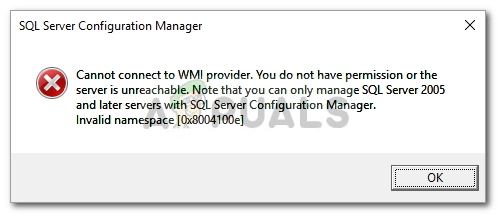 Не удается подключиться к провайдеру WMI
Проблема, кажется, сохраняется даже после ремонта установки. Некоторые пользователи даже пытались удалить сервер и установить его снова, но не смогли избавиться от ошибки. К счастью, в этой статье мы покажем вам, как обойти указанное сообщение об ошибке.
Что вызывает ошибку «Не удается подключиться к поставщику WMI» в Windows 10?
Хорошо, если вы получаете указанное сообщение об ошибке при попытке доступа к Configuration Manager сервера, это может быть связано со следующими факторами:
- Разрешения реестра Windows. В некоторых случаях проблема возникает, если только учетная запись администратора имеет полные разрешения для раздела реестра Windows и учетная запись сетевой службы ограничена.
- Удаление поставщика WMI. В некоторых случаях поставщик WMI удаляется из-за установки экземпляра сервера SQL. Такие случаи также могут привести к возникновению ошибки.
Прежде чем мы начнем, убедитесь, что вы используете учетную запись администратора, поскольку приведенные ниже решения потребуют прав администратора. Если вы вошли в систему как администратор, вы можете без промедления перейти к приведенным ниже решениям.
Решение 1. Использование инструмента Mofcomp
Как мы упоминали выше, иногда поставщик инструментария управления WMI или Windows удаляется при установке экземпляра SQL Server. Поставщик WMI — это системный процесс, который позволяет приложениям в вашей системе запрашивать и извлекать информацию из других приложений в системе. Вы можете решить эту проблему, запустив инструмент Mofcomp. Вот как это сделать:
- Нажмите Windows Key + X и выберите Командная строка (администратор) из списка, чтобы открыть командную строку с повышенными правами.
- Когда откроется командная строка администратора, скопируйте и вставьте следующую команду, а затем нажмите Enter:
mofcomp "% programfiles (x86)% Microsoft SQL Server number Shared sqlmgmproviderxpsp2up.mof
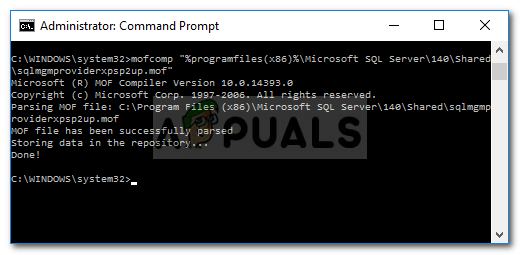 Использование инструмента Mofcomp
 - Пожалуйста, убедитесь, что вы замените ‘числоС вашей версией SQL Server.
- Когда закончите, нажмите Windows Key + R открыть Бежать.
- Введите ‘services.mscИ нажмите Войти.
- Поиск для Инструментарий управления Windows оказание услуг.
- Щелкните правой кнопкой мыши и выберите Запустить снова.
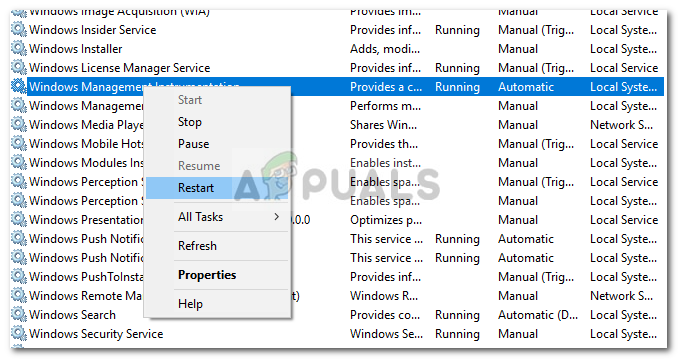 Перезапуск службы WMI
 - Проверьте, решает ли это вашу проблему.
Решение 2. Изменение разрешений раздела реестра Windows
Последний обходной путь, который можно применить для исправления проблемы, — добавить учетную запись сетевой службы в список разрешений полного контроля конкретного раздела реестра Windows. Для этого следуйте инструкциям ниже:
- Нажмите Windows Key + R открыть Бежать диалоговое окно.
- Введите ‘смерзаться’, А затем нажмите Войти.
- Затем вставьте следующий путь в адресную строку: Компьютер HKEY_CLASSES_ROOT CLSID {73E709EA-5D93-4B2E-BBB0-99B7938DA9E4}
- Щелкните правой кнопкой мыши на {73E709EA-5D93-4B2E-BBB0-99B7938DA9E4} и выберите права доступа.
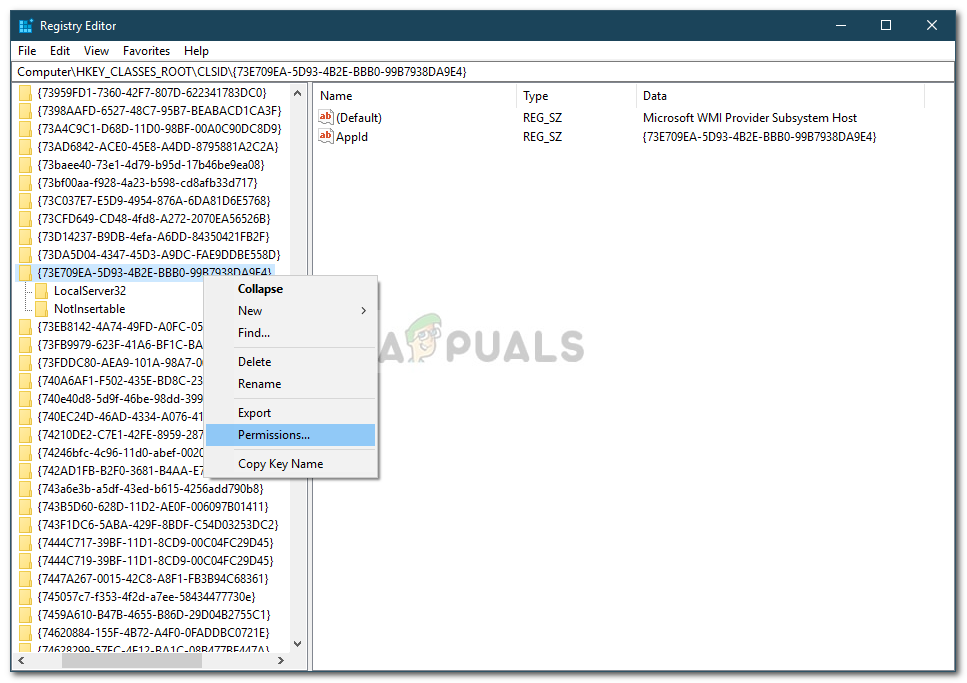 Изменение разрешений
 - Нажмите добавлять а затем введите Сетевой сервис под ‘Введите имена объектов для выбора».
- После этого нажмите Проверьте имена а затем ударил Хорошо.
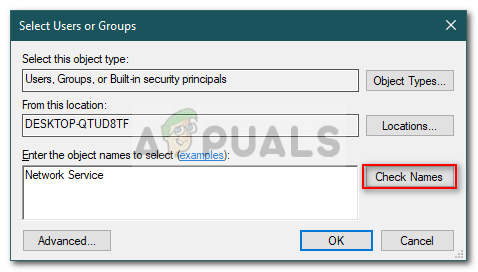 Добавление учетной записи сетевой службы
 - основной момент Сетевой сервис и убедитесь, что Полный контроль флажок установлен.
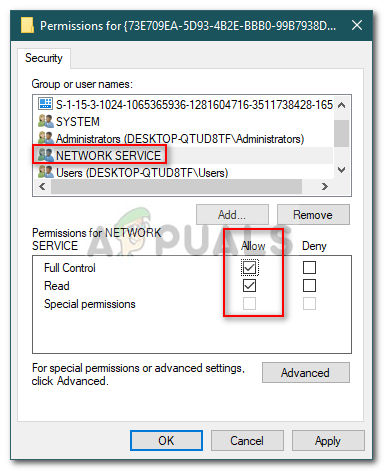 Разрешения учетной записи сетевой службы
 - Нажмите Применять а затем ударил Хорошо.
- Перезагрузите систему и посмотрите, исправит ли она проблему.
- Remove From My Forums
-
Общие обсуждения
-
Коллеги, подскажите пожалуйста в чем может быть дело:
Недавно закупили второй сервер и перенесли на него SQL от 2007 шарика. В панели администрирования шарика, в настройках службы Reporting Services есть раздел предоставление доступа к БД. Пытаюсь указать новый адрес сервера и указываю сначала доменную учётку
админа сервера, потом доменную учётку админа шарика — всерано вылезает ошибка следующего плана :
Не удалось соединиться с поставщиком WMI сервера отчетов.
Доступ у обоих учёток к серверу есть и под ними крутятся все сервисы. Сам RS на SQL сервере развернут и настроен на режим интеграции как и было на сервере с шариком.
версия шарика : 12.0.0.6520
версия sql — 10.0.3798.0
Я правильно понимаю, что нужно развернуть веб-сервер на SQL сервере и настроить на нем службы RS или я могу ссылаться на сервер с шариком?
-
Изменен тип
7 октября 2010 г. 9:19
-
Изменен тип
| title | description | ms.date | ms.service | ms.subservice | ms.topic | ms.assetid | author | ms.author |
|---|---|---|---|---|---|---|---|---|
|
Troubleshoot Server & Database Connection Problems |
In this article, diagnose and fix problems you experience when you’re connecting to a report server. Also learn about ‘Unexpected error’ messages. |
12/16/2019 |
reporting-services |
troubleshooting |
conceptual |
8bbb88df-72fd-4c27-91b7-b255afedd345 |
maggiesMSFT |
maggies |
Troubleshoot Server & Database Connection Problems with Reporting Services
Use this topic to troubleshoot problems that you experience when you’re connecting to a report server. This topic also provides information about «Unexpected error» messages. For more information about data source configuration and configuring report server connection information, see Specify Credential and Connection Information for Report Data Sources and Configure a Report Server Database Connection (Report Server Configuration Manager).
Cannot create a connection to data source ‘datasourcename’. (rsErrorOpeningConnection)
This is a generic error that occurs when the report server can’t open a connection to an external data source that provides data to a report. This error appears with a second error message that indicates the underlying cause. The following additional errors can appear with rsErrorOpeningConnection.
Login failed for user ‘UserName’
The user doesn’t have permission to access the data source. If you’re using a SQL Server database, verify that the user has a valid database user login. For more information about how to create a database user or a SQL Server login, see Create a Database User and Create a SQL Server Login.
Login failed for user ‘NT AUTHORITYANONYMOUS LOGON’
This error occurs when credentials are passed across multiple computer connections. If you’re using Windows Authentication, and the Kerberos version 5 protocol is not enabled, this error occurs when credentials are passed across more than one computer connection. To work around this error, consider using stored credentials or prompted credentials. For more information about how to work around this issue, see Specify Credential and Connection Information for Report Data Sources.
An error has occurred while establishing a connection to the server.
When you’re connecting to SQL Server, this failure may be caused by the fact that under the default settings SQL Server don’t allow remote connections. (provider: Named Pipes Provider, error: 40 — Could not open a connection to SQL Server). This error is returned by the instance of the Database Engine that hosts the report server database. In most cases, this error occurs because the SQL Server service is stopped. Or, if you’re using SQL Server Express with Advanced Services or a named instance, this error will occur if the report server URL or connection string for the report server database is not correct. To work through these issues, do the following:
- Verify that the SQL Server (MSSQLSERVER) service is started. On the computer that hosts the instance of the Database Engine, click Start, click Administrative Tools, click Services, and scroll to SQL Server (MSSQLSERVER). If it is not started, right-click the service, select Properties, in Startup Type select Automatic, click Apply, click Start, and then click OK.
- Verify that the report server URL and report server database connection string is correct. If Reporting Services or the Database Engine was installed as a named instance, the default connection string that is created during Setup will include the instance name. For example, if you installed a default instance of SQL Server Express with Advanced Services on a server named DEVSRV01, the web portal URL is DEVSRV01Reports$SQLEXPRESS. Furthermore, the database server name in the connection string will resemble DEVSRV01SQLEXPRESS. For more information about URLs and data source connection strings for SQL Server Express, see Reporting Services in SQL Server Express with Advanced Services. To verify the connection string for the report server database, start the Reporting Services Configuration tool and view the Database Setup page.
A connection can’t be made. Ensure that the server is running.
This error is returned by ADOMD.NET provider. There are several reasons why this error can occur. If you specified the server as «localhost», try specifying the server name instead. This error can also occur if memory can’t be allocated to the new connection. For more information, see Knowledge Base Article 912017 — Error message when you connect to an instance of SQL Server 2005 Analysis Services:.
If the error also includes «No such host is known», it indicates that the Analysis Services server is not available or is refusing the connection. If the Analysis Services server is installed as a named instance on a remote computer, you might have to run the SQL Server Browser service to get the port number used by that instance.
(Report Services SOAP Proxy Source)
If you get this error during report model generation, and the additional information section includes «SQL Server don’t exist or access denied», you might be encountering the following conditions:
- The connection string for the data source includes «localhost».
- TCP/IP is disabled for the SQL Server service.
To resolve this error, you can either modify the connection string to use the server name or you can enable TCP/IP for the service. Follow these steps to enable TCP/IP:
- Start SQL Server Configuration Manager.
- Expand SQL Server Network Configuration.
- Select Protocols for MSSQLSERVER.
- Right-click TCP/IP, and select Enable.
- Select SQL Server Services.
- Right-click SQL Server (MSSQLSERVER), and select Restart.
WMI error when connecting to a report server in Management Studio
By default, Management Studio uses the Reporting Services Windows Management Instrumentation (WMI) provider to establish a connection to the report server. If the WMI provider is not installed correctly, you will get the following error when attempting to connect to the report server:
Cannot connect to <your server name>. The Reporting Services WMI provider is not installed or is misconfigured (Microsoft.SqlServer.Management.UI.RSClient).
To resolve this error, you should reinstall the software. For all other cases, as a temporary work-around, you can connect to the report server through the SOAP endpoint:
- In the Connect to Server dialog box in Management Studio, in Server Name, type the report server URL. By default, it is
https://<your server name>/reportserver. Or if you’re using SQL Server 2008 Express with Advanced Services, it ishttps://<your server name>/reportserver$sqlexpress.
To resolve the error so that you can connect using the WMI provider, you should run Setup to repair Reporting Services, or reinstall Reporting Services.
Connection error, where login failed due to unknown user name or bad password
An rsReportServerDatabaseLogonFailed error can occur if you’re using a domain account for the connection from the report server to the report server database connection, and the password for the domain account has been changed.
The full error text is: «The report server can’t open a connection to the report server database. The logon failed (rsReportServerDatabaseLogonFailed). Logon failure: unknown user name or bad password.»
If you reset the password, you must update the connection. For more information, see Configure a Report Server Database Connection (Report Server Configuration Manager).
The report server can’t open a connection to the report server database. (rsReportServerDatabaseUnavailable).
Full Message: The report server can’t open a connection to the report server database. A connection to the database is required for all requests and processing. (rsReportServerDatabaseUnavailable)
This error occurs when the report server can’t connect to the SQL Server relational database that provides internal storage to the server. The connection to the report server database is managed through the Reporting Services Configuration tool. You can run the tool, go to the Database Setup page, and correct the connection information. Using the tool to update connection information is a best practice; the tool ensures that dependent settings are updated and that services are restarted. For more information, see Configure a Report Server Database Connection and Configure the Report Server Service Account.
This error can also occur if the Database Engine instance that hosts the report server database is not configured for remote connections. Remote connection is enabled by default in some editions of SQL Server. To verify whether it is enabled on the SQL Server Database Engine instance you’re using, run the SQL Server Configuration Manager tool. You must enable both TCP/IP and named pipes. A report server uses both protocols. For instructions on how to enable remote connections, see the section «How to Configure Remote Connections to the Report Server Database» in Configure a Report Server for Remote Administration.
If the error includes the following additional text, the password expired on the account used to run the Database Engine instance: «An error has occurred while establishing a connection to the server. When you’re connecting to SQL Server, this failure may be caused by the fact that under the default settings SQL Server don’t permit remote connections. (provider: SQL Server Network Interfaces, error: 26 — Error Locating Server/Instance Specified).» To resolve this error, reset the password.
«RPC Server is not listening»
The Report Server service uses Remote Procedure Call (RPC) server for some operations. If you get the «RPC Server is not listening» error, verify that the Report Server service is running.
Unexpected error (General network error)
This error indicates a data source connection error. You should check the connection string, and verify that you have permission to access the data source. If you’re using Windows Authentication to access a data source, you must have permission to access the computer that hosts the data source.
Unable to grant database access in SharePoint Central Administration
When you have configured Reporting Services to integrate with a SharePoint product or technology on Windows Vista or Windows Server 2008, you might receive the following error message when you try to grant access on the Grant Database Access page in SharePoint Central Administration: «A connection to the computer can’t be established.»
This happens because User Account Control (UAC) in Windows Vista and Windows Server 2008 requires explicit acceptance from an administrator to elevate and use the administrator token when performing tasks that require administrator permissions. In this case, however, the Windows SharePoint Services Administration service can’t be elevated to grant the Reporting Services service account or accounts access to the SharePoint configuration and content databases.
In SQL Server 2008 Reporting Services, only the Report Server service account requires database access; in SQL Server 2005 Reporting Services SP2, both the Report Server Windows service account and the Report Server Web service account require database access. For more information about the Report Server service account in SQL Server 2008, see Service Account (Reporting Services Configuration).
There are two workarounds for this issue.
- In one workaround, you can temporarily turn off UAC and use SharePoint Central Administration to grant access.
[!IMPORTANT]
Use caution if you turn off UAC to work around this issue, and turn on UAC immediately after you grant database access in SharePoint Central Administration. If you don’t want to turn off UAC, use the second workaround provided in this section. For information about UAC, see the Windows product documentation.
- In the second workaround, you can manually grant database access to the Reporting Services service account or accounts. You can use the following procedure to grant access by adding the Reporting Services service account or accounts to the correct Windows group and database roles. This procedure applies to the Report Server service account in SQL Server 2008 Reporting Services; if you’re running SQL Server 2005 Reporting Services, perform the procedure for the Report Server Windows service account and the Report Server Web service account.
To manually grant database access
- Add the Report Server service account to the WSS_WPG Windows group on the Reporting Services computer.
- Connect to the database instance that hosts the SharePoint configuration and content databases, and create a SQL database login for the Report Server service account.
- Add the SQL database login to the following database roles:
- db_owner role in the WSS Content database
- WSS_Content_Application_Pools role in the SharePoint_Config database
Unable to connect to the /reports and /reportserver directories when the report server databases are created on a virtual SQL Server that runs in a Microsoft Cluster Services (MSCS) cluster
When you create the report server databases, ReportServer and ReportServerTempDB, on a virtual SQL Server that runs in an MSCS cluster, the remote name in the format <domain><computer_name>$ might not be registered to SQL Server as a login. If you have configured the Report Server service account as an account that requires this remote name for connections, users can’t connect to the /reports and /reportserver directories in Reporting Services. For example, the built-in Windows account NetworkService requires this remote name. To avoid this issue, use an explicit domain account or a SQL Server login to connect to the report server databases.
See Also
Browser Support for Reporting Services
Errors and events (Reporting Services)
Troubleshoot Data Retrieval issues with Reporting Services Reports
Troubleshoot Reporting Services Subscriptions and Delivery
[!INCLUDEfeedback_stackoverflow_msdn_connect]
| title | description | ms.date | ms.service | ms.subservice | ms.topic | ms.assetid | author | ms.author |
|---|---|---|---|---|---|---|---|---|
|
Troubleshoot Server & Database Connection Problems |
In this article, diagnose and fix problems you experience when you’re connecting to a report server. Also learn about ‘Unexpected error’ messages. |
12/16/2019 |
reporting-services |
troubleshooting |
conceptual |
8bbb88df-72fd-4c27-91b7-b255afedd345 |
maggiesMSFT |
maggies |
Troubleshoot Server & Database Connection Problems with Reporting Services
Use this topic to troubleshoot problems that you experience when you’re connecting to a report server. This topic also provides information about «Unexpected error» messages. For more information about data source configuration and configuring report server connection information, see Specify Credential and Connection Information for Report Data Sources and Configure a Report Server Database Connection (Report Server Configuration Manager).
Cannot create a connection to data source ‘datasourcename’. (rsErrorOpeningConnection)
This is a generic error that occurs when the report server can’t open a connection to an external data source that provides data to a report. This error appears with a second error message that indicates the underlying cause. The following additional errors can appear with rsErrorOpeningConnection.
Login failed for user ‘UserName’
The user doesn’t have permission to access the data source. If you’re using a SQL Server database, verify that the user has a valid database user login. For more information about how to create a database user or a SQL Server login, see Create a Database User and Create a SQL Server Login.
Login failed for user ‘NT AUTHORITYANONYMOUS LOGON’
This error occurs when credentials are passed across multiple computer connections. If you’re using Windows Authentication, and the Kerberos version 5 protocol is not enabled, this error occurs when credentials are passed across more than one computer connection. To work around this error, consider using stored credentials or prompted credentials. For more information about how to work around this issue, see Specify Credential and Connection Information for Report Data Sources.
An error has occurred while establishing a connection to the server.
When you’re connecting to SQL Server, this failure may be caused by the fact that under the default settings SQL Server don’t allow remote connections. (provider: Named Pipes Provider, error: 40 — Could not open a connection to SQL Server). This error is returned by the instance of the Database Engine that hosts the report server database. In most cases, this error occurs because the SQL Server service is stopped. Or, if you’re using SQL Server Express with Advanced Services or a named instance, this error will occur if the report server URL or connection string for the report server database is not correct. To work through these issues, do the following:
- Verify that the SQL Server (MSSQLSERVER) service is started. On the computer that hosts the instance of the Database Engine, click Start, click Administrative Tools, click Services, and scroll to SQL Server (MSSQLSERVER). If it is not started, right-click the service, select Properties, in Startup Type select Automatic, click Apply, click Start, and then click OK.
- Verify that the report server URL and report server database connection string is correct. If Reporting Services or the Database Engine was installed as a named instance, the default connection string that is created during Setup will include the instance name. For example, if you installed a default instance of SQL Server Express with Advanced Services on a server named DEVSRV01, the web portal URL is DEVSRV01Reports$SQLEXPRESS. Furthermore, the database server name in the connection string will resemble DEVSRV01SQLEXPRESS. For more information about URLs and data source connection strings for SQL Server Express, see Reporting Services in SQL Server Express with Advanced Services. To verify the connection string for the report server database, start the Reporting Services Configuration tool and view the Database Setup page.
A connection can’t be made. Ensure that the server is running.
This error is returned by ADOMD.NET provider. There are several reasons why this error can occur. If you specified the server as «localhost», try specifying the server name instead. This error can also occur if memory can’t be allocated to the new connection. For more information, see Knowledge Base Article 912017 — Error message when you connect to an instance of SQL Server 2005 Analysis Services:.
If the error also includes «No such host is known», it indicates that the Analysis Services server is not available or is refusing the connection. If the Analysis Services server is installed as a named instance on a remote computer, you might have to run the SQL Server Browser service to get the port number used by that instance.
(Report Services SOAP Proxy Source)
If you get this error during report model generation, and the additional information section includes «SQL Server don’t exist or access denied», you might be encountering the following conditions:
- The connection string for the data source includes «localhost».
- TCP/IP is disabled for the SQL Server service.
To resolve this error, you can either modify the connection string to use the server name or you can enable TCP/IP for the service. Follow these steps to enable TCP/IP:
- Start SQL Server Configuration Manager.
- Expand SQL Server Network Configuration.
- Select Protocols for MSSQLSERVER.
- Right-click TCP/IP, and select Enable.
- Select SQL Server Services.
- Right-click SQL Server (MSSQLSERVER), and select Restart.
WMI error when connecting to a report server in Management Studio
By default, Management Studio uses the Reporting Services Windows Management Instrumentation (WMI) provider to establish a connection to the report server. If the WMI provider is not installed correctly, you will get the following error when attempting to connect to the report server:
Cannot connect to <your server name>. The Reporting Services WMI provider is not installed or is misconfigured (Microsoft.SqlServer.Management.UI.RSClient).
To resolve this error, you should reinstall the software. For all other cases, as a temporary work-around, you can connect to the report server through the SOAP endpoint:
- In the Connect to Server dialog box in Management Studio, in Server Name, type the report server URL. By default, it is
https://<your server name>/reportserver. Or if you’re using SQL Server 2008 Express with Advanced Services, it ishttps://<your server name>/reportserver$sqlexpress.
To resolve the error so that you can connect using the WMI provider, you should run Setup to repair Reporting Services, or reinstall Reporting Services.
Connection error, where login failed due to unknown user name or bad password
An rsReportServerDatabaseLogonFailed error can occur if you’re using a domain account for the connection from the report server to the report server database connection, and the password for the domain account has been changed.
The full error text is: «The report server can’t open a connection to the report server database. The logon failed (rsReportServerDatabaseLogonFailed). Logon failure: unknown user name or bad password.»
If you reset the password, you must update the connection. For more information, see Configure a Report Server Database Connection (Report Server Configuration Manager).
The report server can’t open a connection to the report server database. (rsReportServerDatabaseUnavailable).
Full Message: The report server can’t open a connection to the report server database. A connection to the database is required for all requests and processing. (rsReportServerDatabaseUnavailable)
This error occurs when the report server can’t connect to the SQL Server relational database that provides internal storage to the server. The connection to the report server database is managed through the Reporting Services Configuration tool. You can run the tool, go to the Database Setup page, and correct the connection information. Using the tool to update connection information is a best practice; the tool ensures that dependent settings are updated and that services are restarted. For more information, see Configure a Report Server Database Connection and Configure the Report Server Service Account.
This error can also occur if the Database Engine instance that hosts the report server database is not configured for remote connections. Remote connection is enabled by default in some editions of SQL Server. To verify whether it is enabled on the SQL Server Database Engine instance you’re using, run the SQL Server Configuration Manager tool. You must enable both TCP/IP and named pipes. A report server uses both protocols. For instructions on how to enable remote connections, see the section «How to Configure Remote Connections to the Report Server Database» in Configure a Report Server for Remote Administration.
If the error includes the following additional text, the password expired on the account used to run the Database Engine instance: «An error has occurred while establishing a connection to the server. When you’re connecting to SQL Server, this failure may be caused by the fact that under the default settings SQL Server don’t permit remote connections. (provider: SQL Server Network Interfaces, error: 26 — Error Locating Server/Instance Specified).» To resolve this error, reset the password.
«RPC Server is not listening»
The Report Server service uses Remote Procedure Call (RPC) server for some operations. If you get the «RPC Server is not listening» error, verify that the Report Server service is running.
Unexpected error (General network error)
This error indicates a data source connection error. You should check the connection string, and verify that you have permission to access the data source. If you’re using Windows Authentication to access a data source, you must have permission to access the computer that hosts the data source.
Unable to grant database access in SharePoint Central Administration
When you have configured Reporting Services to integrate with a SharePoint product or technology on Windows Vista or Windows Server 2008, you might receive the following error message when you try to grant access on the Grant Database Access page in SharePoint Central Administration: «A connection to the computer can’t be established.»
This happens because User Account Control (UAC) in Windows Vista and Windows Server 2008 requires explicit acceptance from an administrator to elevate and use the administrator token when performing tasks that require administrator permissions. In this case, however, the Windows SharePoint Services Administration service can’t be elevated to grant the Reporting Services service account or accounts access to the SharePoint configuration and content databases.
In SQL Server 2008 Reporting Services, only the Report Server service account requires database access; in SQL Server 2005 Reporting Services SP2, both the Report Server Windows service account and the Report Server Web service account require database access. For more information about the Report Server service account in SQL Server 2008, see Service Account (Reporting Services Configuration).
There are two workarounds for this issue.
- In one workaround, you can temporarily turn off UAC and use SharePoint Central Administration to grant access.
[!IMPORTANT]
Use caution if you turn off UAC to work around this issue, and turn on UAC immediately after you grant database access in SharePoint Central Administration. If you don’t want to turn off UAC, use the second workaround provided in this section. For information about UAC, see the Windows product documentation.
- In the second workaround, you can manually grant database access to the Reporting Services service account or accounts. You can use the following procedure to grant access by adding the Reporting Services service account or accounts to the correct Windows group and database roles. This procedure applies to the Report Server service account in SQL Server 2008 Reporting Services; if you’re running SQL Server 2005 Reporting Services, perform the procedure for the Report Server Windows service account and the Report Server Web service account.
To manually grant database access
- Add the Report Server service account to the WSS_WPG Windows group on the Reporting Services computer.
- Connect to the database instance that hosts the SharePoint configuration and content databases, and create a SQL database login for the Report Server service account.
- Add the SQL database login to the following database roles:
- db_owner role in the WSS Content database
- WSS_Content_Application_Pools role in the SharePoint_Config database
Unable to connect to the /reports and /reportserver directories when the report server databases are created on a virtual SQL Server that runs in a Microsoft Cluster Services (MSCS) cluster
When you create the report server databases, ReportServer and ReportServerTempDB, on a virtual SQL Server that runs in an MSCS cluster, the remote name in the format <domain><computer_name>$ might not be registered to SQL Server as a login. If you have configured the Report Server service account as an account that requires this remote name for connections, users can’t connect to the /reports and /reportserver directories in Reporting Services. For example, the built-in Windows account NetworkService requires this remote name. To avoid this issue, use an explicit domain account or a SQL Server login to connect to the report server databases.
See Also
Browser Support for Reporting Services
Errors and events (Reporting Services)
Troubleshoot Data Retrieval issues with Reporting Services Reports
Troubleshoot Reporting Services Subscriptions and Delivery
[!INCLUDEfeedback_stackoverflow_msdn_connect]

- Remove From My Forums
-
Question
-
I’m Getting «Report Server WMI Provider error: Not Found» when trying to Grant Database Access while configuring the Reporting Sevices Integration. Logging in fine to the DB. Tried all the WMI troublshooting and can’t find any issues there. Any tips?
Many Thanks!!
All replies
-
I’m experiencing the same problem. Windows 2003 Server Standard, MSSQL 2005, SharePoint Services 3.0.
I hope someone is going to find a solution soon.
Thanks.
-
So sounds like a bug; I’ll look into reporting it as such and maybe it’ll get addressed in the next release. Guess that’s what CTP’s all about. Oh well, at least it seems it wasn’t my screw-up for a change 🙂
-
Do you see the same error when connecting to the Report Server using the RS Config tool?
thanx,
Prash -
No, I’m able to connect and config the RS with that tool; also I can access and use report manager; here’s something that I don’t know whether is correct or not: when I browse to my reportserver virtual directory, I see a directory browsing type view een though directory browsing’s not selected in IIS:
<page text>
wctestserv/ReportServer — /
Thursday, February 01, 2007 10:07 AM <dir> Users Folders
Microsoft SQL Server Reporting Services Version 9.00.2047.00
</page text>
Granted there are no reports on this site yet, but it’s interesting (irritating) that I can’t get the sharepoint report explorer web part to work with my report server either; same cause/issue?
Thanks!
-
Looks like you have Report Server running in Native mode.
You need to switch it to SharePoint integrated mode before using «Grant Database Access» and other RS pages in the Central Admin. Refer to the following in SQL SP2 CTP BOL for more details: «How to: Create a Report Server Database for SharePoint Integrated Mode (Reporting Services Configuration) »
In any case, if you simply need to run the Report Explorer web part that worked in WSS 2.0 then should not have to switch the Report Server to SharePoint Integrated mode. Refer to section 4.1.1 in the SP2 readme @http://download.microsoft.com/download/5/1/3/513534ae-a0e7-44e6-9a04-ba3c549a5f5f/sp2Readme_EN.htm
Note: you may want to use the -globalinstall switch with stsadm.exe in order to successfully connect the Report Explorer to the Report Viewer web part.HTH
Prash -
I’m using SharePoint Services 3.0, so I don’t have to mention Service Pack 2 I guess.
I still get the same problem: Report Server WMI Provider error: Not found while doing grand database access.
Thx.
-
Thanks, I figured out the report explorer; I was pointing at ReportServer VD when I shoulda been pointing at ReportManager VD (/reports); works well now (except getting it to connect with the reportviewer webpart, but that’s for another forum) :). So somwhere I assume there’s a config to switch my report server to integrated mode(?); I’ll review those references you cite. Thanks for your help!!
-
Hi Prash,
I’m using WSS3.0 + MOSS 2007, so switch RS to «SharePoint Integrated Mode» would be best fit and thus can use the RS wbe part to render the reports in an easy way.
However, I can still not pass the «Grant Database Access» page, it pop-up:
The group name could not be found
Any advice?
Paul
-
I’m getting the same error message.
-
Refer to the following thread for the latest status on this:
- Remove From My Forums
-
Question
-
I’m Getting «Report Server WMI Provider error: Not Found» when trying to Grant Database Access while configuring the Reporting Sevices Integration. Logging in fine to the DB. Tried all the WMI troublshooting and can’t find any issues there. Any tips?
Many Thanks!!
All replies
-
I’m experiencing the same problem. Windows 2003 Server Standard, MSSQL 2005, SharePoint Services 3.0.
I hope someone is going to find a solution soon.
Thanks.
-
So sounds like a bug; I’ll look into reporting it as such and maybe it’ll get addressed in the next release. Guess that’s what CTP’s all about. Oh well, at least it seems it wasn’t my screw-up for a change 🙂
-
Do you see the same error when connecting to the Report Server using the RS Config tool?
thanx,
Prash -
No, I’m able to connect and config the RS with that tool; also I can access and use report manager; here’s something that I don’t know whether is correct or not: when I browse to my reportserver virtual directory, I see a directory browsing type view een though directory browsing’s not selected in IIS:
<page text>
wctestserv/ReportServer — /
Thursday, February 01, 2007 10:07 AM <dir> Users Folders
Microsoft SQL Server Reporting Services Version 9.00.2047.00
</page text>
Granted there are no reports on this site yet, but it’s interesting (irritating) that I can’t get the sharepoint report explorer web part to work with my report server either; same cause/issue?
Thanks!
-
Looks like you have Report Server running in Native mode.
You need to switch it to SharePoint integrated mode before using «Grant Database Access» and other RS pages in the Central Admin. Refer to the following in SQL SP2 CTP BOL for more details: «How to: Create a Report Server Database for SharePoint Integrated Mode (Reporting Services Configuration) »
In any case, if you simply need to run the Report Explorer web part that worked in WSS 2.0 then should not have to switch the Report Server to SharePoint Integrated mode. Refer to section 4.1.1 in the SP2 readme @http://download.microsoft.com/download/5/1/3/513534ae-a0e7-44e6-9a04-ba3c549a5f5f/sp2Readme_EN.htm
Note: you may want to use the -globalinstall switch with stsadm.exe in order to successfully connect the Report Explorer to the Report Viewer web part.HTH
Prash -
I’m using SharePoint Services 3.0, so I don’t have to mention Service Pack 2 I guess.
I still get the same problem: Report Server WMI Provider error: Not found while doing grand database access.
Thx.
-
Thanks, I figured out the report explorer; I was pointing at ReportServer VD when I shoulda been pointing at ReportManager VD (/reports); works well now (except getting it to connect with the reportviewer webpart, but that’s for another forum) :). So somwhere I assume there’s a config to switch my report server to integrated mode(?); I’ll review those references you cite. Thanks for your help!!
-
Hi Prash,
I’m using WSS3.0 + MOSS 2007, so switch RS to «SharePoint Integrated Mode» would be best fit and thus can use the RS wbe part to render the reports in an easy way.
However, I can still not pass the «Grant Database Access» page, it pop-up:
The group name could not be found
Any advice?
Paul
-
I’m getting the same error message.
-
Refer to the following thread for the latest status on this:
All instructions are in our Wiki article below.
Should you have any questions please ask us.
Wanikiya and Dyami—Team Zigzag Windows IT-PRO (MS-MVP)
All came out clean.
There must be a way to handle this.

Please remember to mark the replies as answers if they help, and unmark the answers if they provide no help. If you have feedback for TechNet Support, contact tnmff@microsoft.com.
Hi Gil,
Would you mind letting me know the result of the suggestions? If you need further assistance, feel free to let me know. I will be more than happy to be of assistance.
Please remember to mark the replies as answers if they help, and unmark the answers if they provide no help. If you have feedback for TechNet Support, contact tnmff@microsoft.com.
I have tried the suggestions there (except the one which is exclusively for Win8.1), and this issue still persists.
Have you look at the link I mentioned on the previous reply?
The methods which from Michael Shao are worth trying.
Please remember to mark the replies as answers if they help, and unmark the answers if they provide no help. If you have feedback for TechNet Support, contact tnmff@microsoft.com.
Have you look at the link I mentioned on the previous reply?
The methods which from Michael Shao are worth trying.
Please remember to mark the replies as answers if they help, and unmark the answers if they provide no help. If you have feedback for TechNet Support, contact tnmff@microsoft.com.
I have tried but it doesn’t help.
But I haven’t received them for the last couple of days. What I did receive is Event 122, DeviceSetupManager, Access to drivers on Windows Update was blocked by policy
I am glad to hear that update of your case.
There is a scheduled task that runs each night in Microsoft | Windows | Device Setup called Metadata Refresh.
When that task runs it causes the Device Setup Manager service to start, and that’s what is causing the messages. If you look in the Event Viewer under Application and Services Logs | Microsoft | Windows | DeviceSetupManager | Admin and filter on Event ID 122 then you can see the entries.
The “policy” that is causing the block is actually the Device Installation Settings.
For this Event, please open Devices and Printers in Control Panel, you might see a small pop-down about displaying enhanced device icons. right click that bar and select Open device installation settings.
When that window opens, you will see the settings that define the “policy”.
If you change the setting to Always install the best driver software from Windows Update. then the EventID 122 errors will go away.
Also, try disable this task scheduler, open task scheduler,
Please remember to mark the replies as answers if they help, and unmark the answers if they provide no help. If you have feedback for TechNet Support, contact tnmff@microsoft.com.
I had this problem for many days since freshly reinstalling Windows 10 Pro 2 weeks and I finally solved the problem yesterday!
Originally I found the info from this link on how to fix this.
https://answers.microsoft.com/en-us/. 79736f4?auth=1
Here’s my thread from the ten forums. https://www.tenforums.com/windows-updates-activation/133310-warnings-event-id-200-202-360-after-windows-update-1809-a.html
Go to Control PanelAll Control Panel ItemsPrograms and Features Turn Features On or Off and uninstall Microsoft XPS Document Writer, Internet Printing Client, Microsoft Print to PDF and Windows Fax and Scan.
Since I’ve done that upon restart/boot I no longer receive A connection to the Windows Update service could not be established Event ID 200
This also naturally fixed the The Network List Manager reports no connectivity to the internet: Event ID 202
That issue also disappeared along with Event ID 200. These seem to be interconnected. Basically these items are located in Control PanelAll Control Panel ItemsDevices and Printers. When Windows Update fails to install drivers for these items maybe due to some corruption I don’t know. This is what triggered those Event ID 200 and 202. I was also getting Event ID 201 but now I no longer get it.
At first I tried to simply remove Microsoft XPS Document Write, Windows Fax, etc from Devices and Printers but that didn’t work. But uninstalling them from Programs and Features Turn Features On or Off has solved the problem.
Now I have done several experiments and these warnings are no longer appearing in my Event Log Viewer!
Источник
Устранение неполадок удаленного WMI-подключения
В следующих разделах описываются распространенные проблемы, с которыми могут столкнуться разработчики при создании удаленного WMI-подключения.
В этом разделе обсуждаются следующие разделы:
Отказано в доступе DCOM
произошел сбой подключения с ошибкой «DCOM-доступ запрещен», а также десятичное значение-2147024891 или шестнадцатеричный value0x80070005.
Невозможно настроить DCOM для разрешения WMI-подключения.
Параметры DCOM для WMI можно настроить с помощью служебной программы настройки DCOM (DCOMCnfg.exe), которая находится в меню «Администрирование » на панели управления. Эта программа предоставляет параметры, позволяющие определенным пользователям подключаться к компьютеру удаленно через DCOM. Члены группы «Администраторы» могут удаленно подключаться к компьютеру по умолчанию. С помощью этой служебной программы можно настроить безопасность для запуска, доступа и настройки службы WMI.
сбой Подключение
Невозможно подключиться к инструментарию WMI в удаленной системе.
Возможно, вы пытаетесь подключиться к системе, которая не поддерживает Инструментарий WMI. Следующие подключения между версиями операционной системы не поддерживаются:
Истекло время ожидания подключения WMI
Истекло время ожидания подключения WMI.
Из-за проблем с задержкой сети компьютер просто не может ответить вовремя.
При подключении к инструментарию WMI с помощью вызова SWbemLocator. коннектсервер или Ивбемлокатор:: коннектсерверможно задать флаг вбемконнектфлагусемаксваит (скрипт) или установить _ флаг WBEM _ Connect _ использовать максимальное время _ _ ожидания в C++ значение 128 (0x80), чтобы наложить в вызове два (2) минуты.
Источник
Сообщение об ошибке при диспетчер конфигурации SQL Server в SQL Server: не удается подключиться к поставщику WMI. У вас нет разрешения или сервер недостижим
Эта статья поможет вам решить проблему, которая возникает при диспетчер конфигурации SQL Server.
Оригинальная версия продукта: SQL Server
Исходный номер КБ: 956013
Симптомы
Вы можете получить одно из следующих сообщений об ошибке при диспетчер конфигурации SQL Server:
Невозможно подключиться к поставщику WMI. У вас нет разрешения или сервер недостижим. Обратите внимание, что управлять серверами SQL Server 2005 и более поздних диспетчер конфигурации SQL Server.
Недействительное пространство имен [0x8004100e]
Невозможно подключиться к поставщику WMI. У вас нет разрешения или сервер недостижим, обратите внимание, что управлять серверами SQL Server 2005 и более поздних диспетчер конфигурации SQL Server.
Недействительный класс [0x80041010]
Причина
диспетчер конфигурации SQL Server средства управления окнами (WMI) для просмотра и изменения некоторых параметров сервера. При подключении к серверам диспетчер конфигурации SQL Server WMI для получения статуса служб SQL Server (MSSQLSERVER) и SQL Server агентов. Эта проблема возникает из-за удаления поставщика WMI при удалении экземпляра SQL Server.
Этот файл находится в %programfiles(x86)% папке.
Обходной путь
Для решения проблемы можно использовать один из следующих вариантов.
Вариант 1. Повторное SQL поставщика WMI с помощью компиляторов mofcomp (Managed Object Format (MOF)
Это можно сделать следующим образом:
Файл MOF (sqlmgmproviderxpsp2up.mof) для экземпляра SQL находится в папке «%programfiles(x86)%Microsoft SQL ServernnnShared». Определите расположение файла mofcomp для вашей версии с помощью следующей таблицы в качестве ссылки:
| Версия | nn |
|---|---|
| Microsoft SQL Server 2019 г. | 150 |
| Microsoft SQL Server 2017 | 140 |
| Microsoft SQL Server 2016 | 130 |
| Microsoft SQL Server 2014 | 120 |
| Microsoft SQL Server 2012 | 100 |
| Microsoft SQL Server 2008 R2 | 100 |
| Microsoft SQL Server 2008 | 100 |
| Microsoft SQL Server 2005 | 90 |
Откройте повышенную командную подсказку и измените каталог на расположение папки с step1.
Затем введите следующую команду и нажмите кнопку ENTER:
Чтобы эта команда была успешной, в папке должен присутствовать файл Sqlmgmproviderxpsp2up.mof. %programfiles(x86)%Microsoft SQL ServernnnShared
После запуска средства mofcomp перезапустите службу WMI, чтобы изменения вступили в силу. Имя службы Windows инструментов управления.
Источник
WMI: Исправление ошибок, восстановление репозитория в Windows
Любой бывалый Windows-админ периодически сталкивается с проблемами в работе службы WMI (Windows Management Instrumentation) и ее компонентах. Наличие проблем в подсистеме WMI является критичным с точки зрения нормального функционирования Windows, поэтому администратору необходимо проверить и восстановить работоспособность WMI. В этой статье мы опишем простую методику диагностирования и устранения неполадок службы WMI в Windows.
О наличии проблем с WMI может свидетельствовать широкий спектр ошибок:
Диагностика проблем с WMI
В первую очередь нужно проверить служба Windows Management Instrumentation (Winmgmt) установлена в Windows и запущена. Вы можете проверить состояние службы в консоли services.msc или с помощью PowerShell:
Get-Service Winmgmt | Select DisplayName,Status,ServiceName
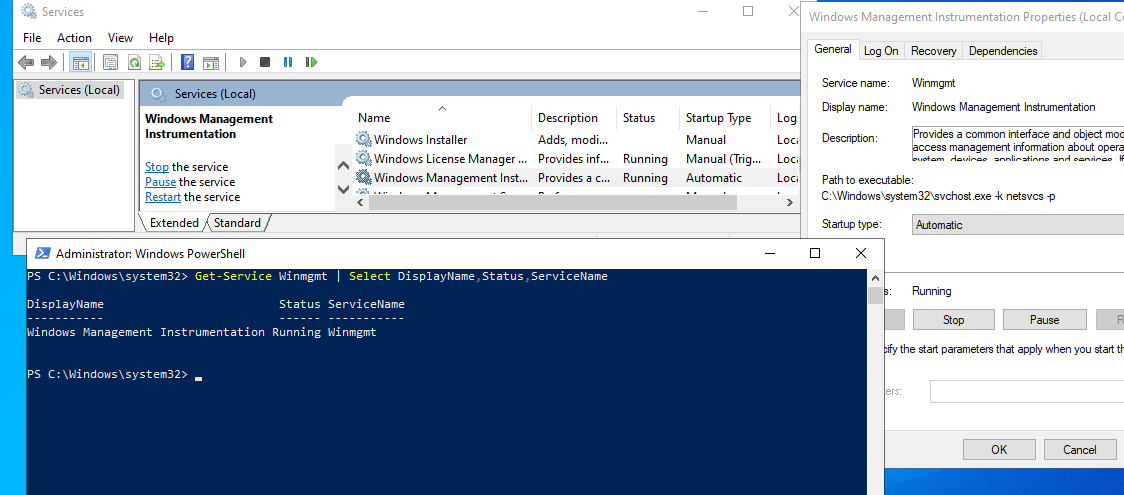
Если служба Winmgmt запущена, вы можете проверить работоспособность WMI, обратившись к ней с помощью простого WMI-запроса. Вы можете выполнить wmi запрос из командной строки или из PowerShell. Например, следующая команда выведет список установленных в Windows программ:
wmic product get name,version
Простейшая PowerShell команда для получения информации о версии и билда Windows 10 через WMI может выглядеть так:
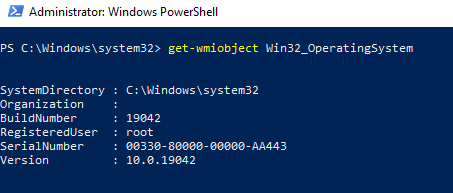
Как вы видите, служба WMI ответила на запрос корректно. Если при выполнении такого WMI-запроса Windows возвращает ошибку, скорее всего сервиса WMI работает некорректно, поврежден WMI репозиторий или есть какие-то другие проблемы.
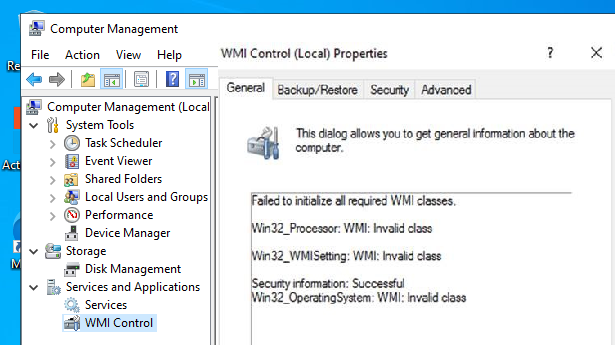
В моем случае, например, при открытии свойств WMI Control в консоли управления компьютером (compmgmt.msc) появлялась надпись:
Ранее для диагностики WMI существовала официальная утилита от Microsoft – WMIDiag.vbs (Microsoft WMI Diagnosis). WMIdiag это vbs скрипт, который проверяет различные подсистемы WMI и записывает собранную информацию в лог файлы (по умолчанию логи находятся в каталоге %TEMP% — C:USERS%USERNAME%APPDATALOCALTEMP). Получившийся отчет состоит из файлов, имена которых начинаются с WMIDIAG-V2.2 и включает в себя следующие типы фалов:
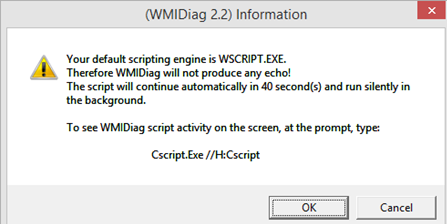
в противном случае появится ошибка:
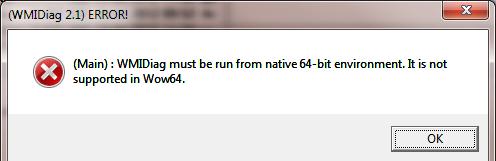
После окончания работы утилиты WMIDiag администратор должен изучить полученные файлы логов, проанализировать и попытаться исправить найденные ошибки.
К сожалению, последняя версия WMIDiag 2.2 корректно работает только с версиями до Windows 8.1/Windows Server 2012 R2. На данный момент Microsoft даже удалила ссылку на загрузку WMIDiag из Download Center. Но при желании, этот скрипт можно найти в сети.
WMIDiag может дать подробную информацию по исправлению частных ошибок в WMI, но в большинстве случаев процесс это довольно трудоемкий и стоит потраченного времени только при решении инцидентов в критичных системах (как правило, на продуктивных серверах). Для массового сегмента рабочих станций пользователей сбросить и пересоздатьWMI репозиторий в Windows.
Исправление WMI репозитория, перерегистрация библиотек, перекомпиляция MOF файлов
В Windows 10/Windows Server 2016 вы можете проверить целостность репозитория WMI с помощью команды:

Если команда возвращает, что база данных WMI находится в неконсистентном состоянии (INCONSISTENT или WMI repository verification failed), стоит попробовать выполнить “мягкое” исправление ошибок репозитория:
Данная команда выполняет проверку согласованности хранилища WMI и при обнаружении несогласованности перестраивает базу данных WMI.
Перезапустите службу WMI:
net stop Winmgmt
net start Winmgmt
Если стандартный способ исправления ошибок в WMI не помог, попробуйте следующий скрипт. Данный скрипт представляет собой ”мягкий” вариант восстановления службы WMI на компьютере (выполняется перерегистрация dll библиотек и службы WMI, перекомпилируются mof файлы). Данная процедура является безопасной и ее выполнение не должно привести к каким-либо новым проблемам с системой.
sc config winmgmt start= disabled
net stop winmgmt
cd %windir%system32wbem
for /f %s in (‘dir /b *.dll’) do regsvr32 /s %s
wmiprvse /regserver
sc config winmgmt start= auto
net start winmgmt
for /f %s in (‘dir /b *.mof’) do mofcomp %s
for /f %s in (‘dir /b *.mfl’) do mofcomp %s
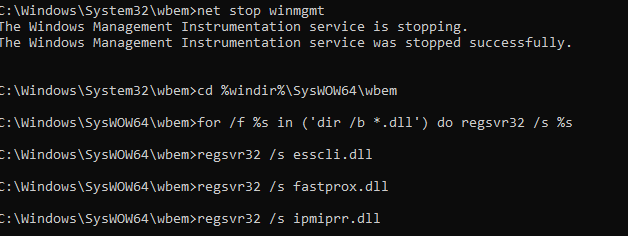
Указанные команды можно выполнить путем простой вставки в окно командой строки, либо сохранить код в bat файле wmi_soft_repair.bat и запустить его с правами администратора. После окончания работы скрипта, перезагрузите Windows и проверьте работу WMI.
Сброс и пересоздание WMI репозитория (хранилища)
Если вам не помогли мягкие способ восстановления WMI, рассмотренные выше, придется перейти к более “жесткому” способу восстановления работоспособности службы WMI, заключающегося в пересоздании хранилищаWMI.
Если вы подозреваете, что репозиторий WMI поврежден, имейте в виду, что его пересоздание — это последняя шаг, к которому нужно прибегнуть только тогда, когда другие операции не помогают реанимировать WMI.
Следующая команда выполнит сброс базы данных WMI к исходному состоянию (как после чистой установки Windows). Используйте эту команду для выполнения hard reset репозитория WMI, если параметре salvagerepository не исправил проблему:
Если обе команды ( Winmgmt /salvagerepository и Winmgmt /resetrepository ) не восстановили консистентное состояние базы WMI, попробуйте выполнить “жесткое” пересоздание базы WMI вручную таким скриптом:
sc config winmgmt start= disabled
net stop winmgmt
cd %windir%system32wbem
winmgmt /resetrepository
winmgmt /resyncperf
if exist Repos_bakup rd Repos_bakup /s /q
rename Repository Repos_bakup
regsvr32 /s %systemroot%system32scecli.dll
regsvr32 /s %systemroot%system32userenv.dll
for /f %s in (‘dir /b *.dll’) do regsvr32 /s %s
for /f %s in (‘dir /b *.mof’) do mofcomp %s
for /f %s in (‘dir /b *.mfl’) do mofcomp %s
sc config winmgmt start= auto
net start winmgmt
wmiprvse /regserver
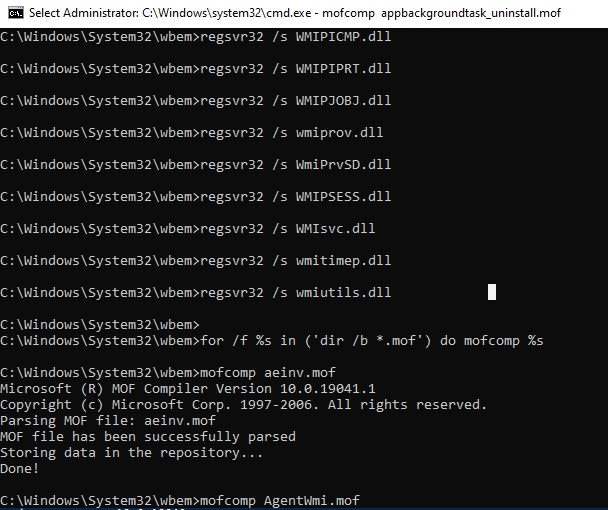
Данный скрипт полностью пересоздает хранилище WMI (старый репозиторий сохраняется в каталог Repos_bakup). После окончания работы скрипта нужно перезагрузить Windows. Затем протестируйте работу службы WMI простым запросом.
Проверьте состояние WMI репозитория. Если ошибки исправлены, команда winmgmt /verifyrepository должна вернуть:

В этой статье мы собрали основные способы, позволяющие продиагностировать и устранить неполадки службы и репозитория WMI.


отличная и очень редкая информация! спасибо!
Отличная полезная статья. Сразу решил проблему.
На компьютере возникли проблемы в WMI. При каждом запуске компьютера выходит окошко: «The model does not support WMI», компьютер при этом работает как обычно. Нашла Вашу статью «Устранение неполадок в WMI» и, руководствуясь ей, сначала проверила имеется ли в системе служба Windows Management Instrumentation и включена ли она (имеется и включена), а затем, как у Вас написано, попробовала протестировать работоспособность WMI, обратившись к ней с помощью Powershell — служба выдаёт корректный ответ. Также, вычитав информацию на другом ресурсе, вводила в командную строку sfc/scannow, но никаких ошибок. Посоветуйте, пожалуйста, что я могу сделать?

Как правило в таких ситуациях должен помочь ребилд хранилища WMI. Попробуйте, в статье это подробно описано.
Спасибо, выручил.
Я сразу воспользовался же методом «Перерегистрация библиотек WMI и перекомпиляция mof файлов»
Плиз, поясните по-подробнее смысл команды
if exist Repos_bakup rd Repos_bakup /s /q и её ключей. То ли это условное указание на незнамо что или ещё что. Я в сомнениях по недомыслию. Сенькую.
Плиз, поясните по-подробнее смысл команды
if exist Repos_bakup rd Repos_bakup /s /q и её ключей. То ли это условное указание на незнамо что или ещё что. Я в сомнениях по недомыслию. Сенькую. А то на некоторых сайтах со ссылкой на ваш скрипт юзеры, его применившие, плачут на полный стопер системы и вынуждены откатываться.
ОГРОМНОЕ СПАСИБО! Ничего не помогало, наткнулся на эту статью случайно ЗАРАБОТАЛО! Поклоны бью!
C:WindowsSystem32wbem>for /f %%s in (‘dir /b *.dll’) do regsvr32 /s %%s
Непредвиденное появление: %%s.
oO
windows 2012 r2
У вас в команде неправилные одиночные кавычки. Наберите руками.
for /f %%s in (‘dir /b *.dll’) do regsvr32 /s %%s
у меня та же проблема. кавычки правильные вроде
Формат %%s используется при запуске внутри сценария (*.bat или *.cmd файла).
При использовании в консоли нужно убрать один знак ‘%’. Т.е. команда будет такая:
for /f %s in (‘dir /b /s *.dll’) do regsvr32 /s %s
Здравствуйте. Я ни разу не системщик, работаю вынужденно на фрилансе. Столкнулся в 8.1 Pro с признаками, которые не мог распознать, стал копать, вышел на WMI. К моменту разборок со службой точки сохранения старше 2 дней уже были затёрты. Нашёл, как заменить куст System версией из RegBack с помощью инсталляционного диска (там дата была недельной давности). Нашёл ваши рекомендации. Остановил службу, ввожу (power shell из-под админа, для меня непонятно его отличие от командной строки, командную строку запустил чуть позже) for /f %%s in (‘dir /b *.dll’) do regsvr32 /s %%s — мне отвечает: «строка:1 знак:4
+ for /f %%s in (‘dir /b *.dll’) do regsvr32 /s %%s
+ »
Отсутствует открывающий знак «(» после ключевого слова «for»…
Дописываю скобку после for — выдаёт строку >> и тишина.
Читаю комменты — «надо убрать знак «%», если не бат-файл. Но если он выдаёт ошибку со скобкой, то бат-файл не выполнится.
Там же вы пишите «Указанные команды можно выполнить путем простой вставки в окно командой строки» — и ни слова про %%.
Понятно, что продираюсь сквозь ваши советы, и конечно спасибо, но для несистемщика — очень тяжко.
Вот еще: wmiprvse /regserver командная строка молча проглотила, а на winmgmt /regserver командная строка ответила «недопустимый параметр
WMI
Использование:….»
далее идёт мануал.
Для меня это тупик, не понимаю. Стал выполнять далее, на последнюю строку for /f %s in (‘dir /b *.mfl’) do mofcomp %s ответил: Файл не найден.
Подскажите, пожалуйста, при установке на Windows 7 x64 пакета WebDeploy 3.6 в самом конце установки пишет об ошибке в скрипте и возвращает код ошибки 1702. Гугл сообщает, что ошибка возможно кроется в некорректной работе WMI, перекомпиляция файлов приведенным скриптом (указанная на форумах как путь решения проблемы) не помогла.
В логе установщика ошибка при вызове InstallEtwManifest.
WMIDiag пишет о наличии ошибок в ключах CLSID, связанных с InProcServer32.
winmgmt /verifyrepository возвращает, что все ОК
Заранее благодарен
Почему вы решили, что ошибка связана с WMI, возможно дело в самом установщике или службы Windows Installer.
Согласно кодов ошибок установщика MSI:
1702 — Configuring [2] cannot be completed until you restart your system
Попробуйте просто перезагрузить систему
1) Попробуйте произвести установку с отключенным UAC.
2) Включите ведение подробного журнала установщика Windows m siexec /i /l*v c:tmpinstall.log
Может в логе что-то более конкретное будет…
Не работает служба WMI Writer
Собственно из-за этой службы не имею возможность делать полный БэкАп системы через Акронис, в Акронисе сказали, обратиться в службу поддержки Майкрософт. Перерегистрация компонентов VSS (Volume Shadow Copy Service) в Windows Server не помогла. Что еще можно сделать? спасибо! 🙁
При вводе 3-ей строки споткнулась на том, что не знаю, как вводится спецсимвол иена (юань) в командной строке. Подскажите, пожалуйста!
Не пойму, где вы нашли символ иены? Из спецсимволов использованы только проценты….
Код скрипт не нужно вводит — выполняйте его через копировать/вставить
Подскажите, пожалуйста, как вводятся символы в командную строку, которых нет на клавиатуре? Необходимо восстановить файл WMIServi Application.
Спец символы можно вводить с клавиатуры,, зажав клавишу alt и набрав код символа на цифровой клавиатуры. Таблица с кодами ASCII символов легко ищется в Интернете.
Например, чтобы набрать символ градуса (º), нужно зажать ALT, и ввести 0176 на цифровой (!!) клавиатуре (не цифры на основной).
Либо копи/паст из Word
Спасибо за подсказку, с символами ASCII и таблицей я разобралась. Проблема в том, что скопировать и вставить в командную строку ничего не получается; ПК — ноутбук, цифровая клавиатура есть, но в виртуальном виде, и магии в виде преобразования цифр в символы ASCII не происходит. Очень прошу, подскажите, как быть?
1) Подключила доп. клавиатуру, простые символы перекодируются, сложные (30%) — нет. Как получить сложные символы? 2) Можно ли настроить командную строку т. о., чтобы пользоваться функциями копи/вставка? Windows Vista.
Попробуйте выполнить команду: cmd /u
Это переключение в Unicode
Алина, а зачем собственно вам спец сиволы в cmd? Может вы не с того конца заходите к проблеме?
Может быть. Попробую восстановить все удалённые файлы. Большое Спасибо за помощь и за конструктивный подход в решении компьютерных задач!

Приветствую, возник такой вопрос, при вводе вот этих команд:
winmgmt /kill
winmgmt /unregserver
winmgmt /regserver
пишет: недопустимый параметр, так и должно быть?
еще наткнулся вот на такой сценарий:
sc config winmgmt start= disabled
rundll32 wbemupgd, RepairWMISetup
rundll32 wbemupgd, UpgradeRepository
regsvr32 /s %systemroot%system32scecli.dll
regsvr32 /s %systemroot%system32userenv.dll
for /f %%s in (‘dir /b *.dll’) do regsvr32 /s %%s
for /f %%s in (‘dir /b *.mof’) do mofcomp %%s
for /f %%s in (‘dir /b *.mfl’) do mofcomp %%s
sc config winmgmt start= auto
я так понял это то же самое, что и в «жестком» пересоздании базы, вот только есть другие команды и в конце последовательность другая команды winmgmt /regserver — это влияет?
Добрый день
Подскажите, на эту ошибку нужно обращать внимание:
Инструментарий управления Windows остановил WMIPRVSE.EXE, так как для квоты достигнут порог предупреждения. Квота: HandleCount, значение: 4099, максимальное значение: 4096, PID WMIPRVSE: 2320, поставщики в этом процессе: %systemroot%system32wbemcimwin32.dll, %systemroot%system32wbemntevt.dll
Да все при этом вроде бы все нормально работает.
Спасибо! Помог мягкий способ! Но столкнулся с проблемой:
«winmgmt /regserver
пишет: недопустимый параметр, так и должно быть?»
Также были проблемы с %%s и %s — внесите коррективы к описанию в самом начале, пожалуйста.
Проблема возникла на Win10 — ноутбук Acer Aspire R3-471GT после вынужденного обновления BIOS от производителя.
Сейчас все работает, кроме сенсорного ввода. Пытаюсь решить проблему дальше
чет не один из вариантов не помог :((
на команду winmgmt /verifyrepository пишет что базы согласованы, но все равно пуск не удался, даже не знаю что делать
есть варианты еще?
Добрый день! А Вы сталкивались с ошибкой: Регистрация сервера <73e709ea-5d93-4b2e-bbb0-99b7938da9e4>DCOM не выполнена за отведенное время ожидания. 73E709EA-5D93-4B2E-BBB0-99B7938DA9E4 — это как раз Microsoft WMI Provider Subsystem Host. Система Windows Server 2012 полсе перезагрузки работает ровно 6 дней без проблем потом начинаются сыпаться эти ошибки каждые 10 минут.
Не сталкивался, поищите описание проблемы в буржунете по запросу «The server <784e29f4-5ebe-4279-9948-1e8fe941646d>did not register with DCOM within the required timeout.»
Источник
I cant open my SQL server configuration manager getting this error message:
Cannot connect to WMI provider. You do not have permission or the server is unreachable. Note that you can only manage SQL Server 2005 and later servers with SQL Server Configuration Manager.
Invalid
I have searched online material and ran the mofcomp command as recommended: mofcomp “C:Program Files (x86)Microsoft SQL Server120Sharedsqlmgmproviderxpsp2up.mof”
I am now getting this error message:
MOF file has been successfully parsed
Storing data in the repository…
An error occurred while processing item 10 defined on lines 73 – 79 in file C:Program Files (x86)Microsoft SQL Server120Sharedsqlmgmproviderxpsp2up.mof:
Compiler returned error 0x80070005Error Number: 0x80070005, Facility: Win32
Description: Access is denied.
Can you please help me out, been 2 weeks sited with this problem
asked Jun 26, 2017 at 5:52

7
Run Cmd as Administrator and execute these commands:
First go to SQL Shared folder according to your sql version:
SQL 2008: C:Program Files (x86)Microsoft SQL Server100Shared
SQL 2012: C:Program Files (x86)Microsoft SQL Server110Shared
SQL 2014: C:Program Files (x86)Microsoft SQL Server120Shared
SQL 2017: C:Program Files (x86)Microsoft SQL Server140Shared ——-> My version is 2017
SQL 2019: C:Program Files (x86)Microsoft SQL Server150Shared
Find more versions here
cd "C:Program Files (x86)Microsoft SQL Server140Shared"
Then:
mofcomp sqlmgmproviderxpsp2up.mof
Update:
The problem occurs because the Windows Management Instrumentation (WMI) provider configuration file for manage SQL Server services is missing. So the mofcomp command repairs or recreates it.
Here is more explanation:
https://learn.microsoft.com/en-us/windows/desktop/wmisdk/mofcomp

answered Aug 4, 2018 at 11:10

5
Run the @Fereydoon Barkzehy codes with Administrative Access
Sample —
  cd C:Program Files (x86)Microsoft SQL Server110Shared
  cd C:Program Files (x86)Microsoft SQL Server140Shared
  mofcomp sqlmgmproviderxpsp2up.mof
depends on where the file «sqlmgmproviderxpsp2up.mof» is present
Youtube video
answered Mar 16, 2019 at 14:00

Arun Prasad E SArun Prasad E S
9,1198 gold badges73 silver badges84 bronze badges
1
The best solution for me was to uninstall the instance and reinstall a fresh instance. This worked 100%.
answered Jul 3, 2017 at 7:55
ImmortalImmortal
1,0931 gold badge12 silver badges35 bronze badges
1
What worked for me was to download the SQLEXPR_x64_Enu, run the Setup.exe and use the Repair option.
answered Apr 16, 2020 at 10:37

I have the same issue but it is not working at first. Second I already restarted my PC but it is not working either. What I found out is that you will run this on the folder where your SQL Server Management Studio is installed and not on the MS SQL Instance folder.
My SQL Server Management Studio which is 2016 is installed in
C:Program Files (x86)Microsoft SQL Server130
But I keep on running changing folder on which I installed on my SQL Server 2012 instance:
C:Program Files (x86)Microsoft SQL Server110Shared
After that, just run the command: mofcomp sqlmgmproviderxpsp2up.mof as everyone suggest in here.
So keep it mind the folder since that may affect your troubleshooting.
answered Aug 16, 2020 at 0:47

Willy David JrWilly David Jr
8,3505 gold badges44 silver badges53 bronze badges
By trial and error I finally found this working solution:
-
I searched all
sqlmgmproviderxpsp2up.moffiles underC:Program Files (x86)Microsoft SQL Server -
Running CMD as administrator I did for each result found above:
i) Change directory to go to the directory
ii) Run
mofcomp sqlmgmproviderxpsp2up.mof -
Reboot
Then, it works.

RBT
23k21 gold badges155 silver badges232 bronze badges
answered Oct 7, 2019 at 11:14

UnDiUdinUnDiUdin
14.6k37 gold badges145 silver badges243 bronze badges
doing a fresh OS installation also worked for me as well. but this is a pain. Sometimes you can run the:
“C:Program Files (x86)Microsoft SQL Server120Sharedsqlmgmproviderxpsp2up.mof”
Sometimes it helps and sometimes it doesn’t, all you need to do is do a fresh OS installation and then SQL installation.
answered Jul 6, 2017 at 7:17
Я не могу открыть диспетчер конфигурации SQL Server, получив это сообщение об ошибке:
Cannot connect to WMI provider. You do not have permission or the server is unreachable. Note that you can only manage SQL Server 2005 and later servers with SQL Server Configuration Manager.
Invalid
Я искал онлайн-материал и выполнил команду mofcomp в соответствии с рекомендациями: mofcomp "C:Program Files (x86)Microsoft SQL Server120Sharedsqlmgmproviderxpsp2up.mof"
Теперь я получаю сообщение об ошибке:
MOF file has been successfully parsed
Storing data in the repository…
An error occurred while processing item 10 defined on lines 73 – 79 in file C:Program Files (x86)Microsoft SQL Server120Sharedsqlmgmproviderxpsp2up.mof:
Compiler returned error 0x80070005Error Number: 0x80070005, Facility: Win32
Description: Access is denied.
Можете ли вы мне помочь, прошло 2 недели с этой проблемой
Ответ 1
Запустите Cmd от имени администратора и выполните следующие команды:
сначала перейдите в папку SQL в соответствии с вашей версией SQL:
SQL 2008: C:Program Files (x86)Microsoft SQL Server100Shared
SQL 2012: C:Program Files (x86)Microsoft SQL Server110Shared
SQL 2014: C:Program Files (x86)Microsoft SQL Server120Shared
SQL 2017: C:Program Files (x86)Microsoft SQL Server140Shared→ Мой — 2017
C:WINDOWSsystem32>cd "C:Program Files (x86)Microsoft SQL Server140Shared"
Тогда:
C:Program Files (x86)Microsoft SQL Server140Shared>mofcomp sqlmgmproviderxpsp2up.mof
Обновление:
Проблема возникает из-за того, что отсутствует файл конфигурации поставщика инструментария управления Windows (WMI) для управления службами SQL Server. Таким образом, команда mofcomp восстанавливает или воссоздает его.
Вот еще объяснение:https://docs.microsoft.com/en-us/windows/desktop/wmisdk/mofcomp
Ответ 2
Запустите коды @Fereydoon Barkzehy с административным доступом
Образец —
  cd C:Program Files (x86)Microsoft SQL Server110Shared
  cd C:Program Files (x86)Microsoft SQL Server140Shared
  mofcomp sqlmgmproviderxpsp2up.mof
зависит от того, где находится файл «sqlmgmproviderxpsp2up.mof»
YouTube видео
Ответ 3
Лучшим решением для меня было удалить экземпляр и переустановить новый экземпляр. Это сработало на 100%.
Ответ 4
установка новой ОС также работала для меня. но это боль. Иногда вы можете запустить:
"C:Program Files (x86)Microsoft SQL Server120Sharedsqlmgmproviderxpsp2up.mof"
Иногда это помогает, а иногда и не помогает, все, что вам нужно сделать, это сделать новую установку ОС, а затем установить SQL.
Ответ 5
Методом проб и ошибок я наконец нашел это рабочее решение:
1) Я искал все файлы sqlmgmproviderxpsp2up.mof в C:Program Files (x86)Microsoft SQL Server
2) запуск CMD в качестве администратора, я сделал для каждого результата, найденного выше:
я) изменить каталог, чтобы перейти в каталог
II) запустить mofcomp sqlmgmproviderxpsp2up.mof
3) перезагрузка
тогда это работает