А бывает ли у вас такое, что не работает RDP? Ну, то есть, может и работает, на подключиться к виртуалке не получается. Скорее всего, для многих это не будет никакой проблемой, и у каждого прямо с сейчас с ходу найдётся пара советов, куда зайти и что проверить. Но вдруг, кто-то о чём-то всё же не знает. Здесь собрали несколько рецептов решения, начиная с самых банальных. Ну, на всякий случай…
Начнём с того, что иногда люди сами себе отрубают RDP, после чего обращаются в техподдержку, надеясь, что проблема не на стороне клиента. В таких случаях специалисты техподдержки только и могут, что предложить переустановку.
Но помимо этого, сложность может быть заключена немного глубже. Для человека, пытающегося подключиться к своему серверу, это может выглядеть как “бесконечный коннект”, не заканчивающийся ни чем. А может появиться сообщение вида “Произошла внутренняя ошибка”. Во многих подобного рода случаях могут помочь лежащие на поверхности решения.
Во-первых, необходимо убедиться, что на виртуальном сервере достаточное для штатного функционирования службы RDP количество оперативной памяти. Возможна, например, ситуация, когда на виртуалке нагружено большое количество торговых ботов и сервер под такой нагрузкой не может толком раскрутить даже RDP.
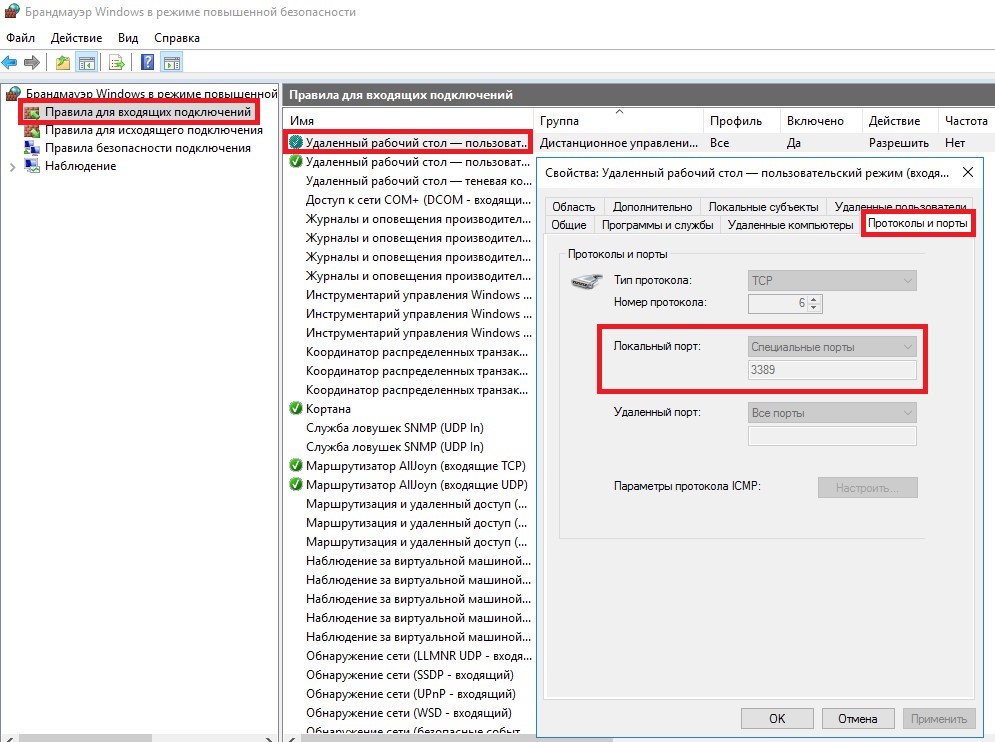
Во-вторых, пользователь мог сам закрыть порт 3389 на сервере, который и используется по умолчанию службой RDP. Правила для входящих подключений по этому порту так и называются – “Удаленный рабочий стол – пользовательский режим”. Ну, вот, всякое же бывает. Допустим, неудачно настроил брандмауэр. Ну, или, скажем, скачал “супер безопасный софт для супер безопасного интернета”.
Иногда что-то может пойти не так с самой рабочей станции, с которой производится подключение. Тогда имеет смысл очистить историю RDP-подключений. Делается это следующим образом:
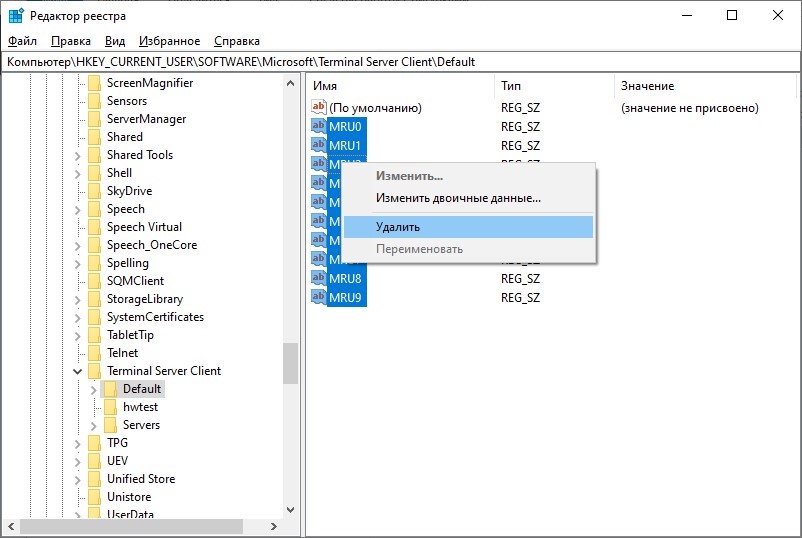
- откройте редактор реестра
regedit.exeи перейдите в веткуHKEY_CURRENT_USERSoftwareMicrosoftTerminal Server Client; - разверните ветку реестра
HKEY_CURRENT_USERSoftwareMicrosoftTerminal Server ClientDefault, и чтобы очистить историю последних RDP-соединений, выделите все ключи с именамиMRU0-MRU9, щелкните правой клавишей и выберите пунктDeleteилиУдалить.
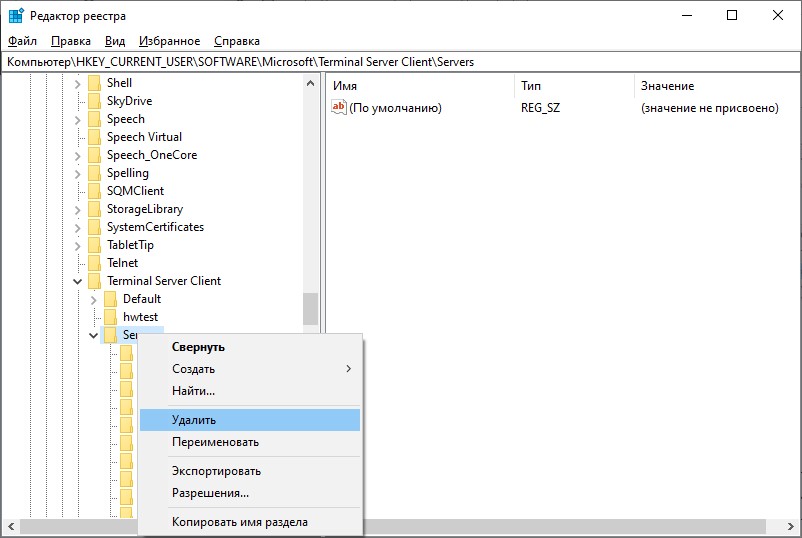
Чтобы очистить историю всех RDP-подключений и сохранённых имён пользователей, нужно очистить содержимое ветки реестра Servers. Так как выделять все вложенные ветки не очень удобно, проще всего удалить ветку Servers целиком, а затем пересоздать ее вручную.
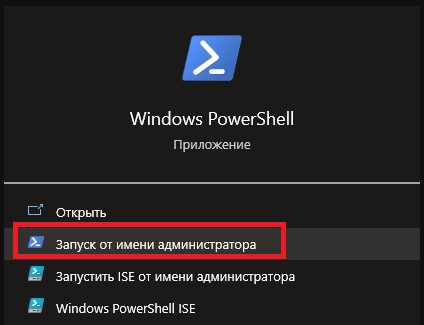
Те же операции можно сделать и через Powershell. Для получения информации о правилах брандмауэра приложение должен быть запущен с правами администратора.
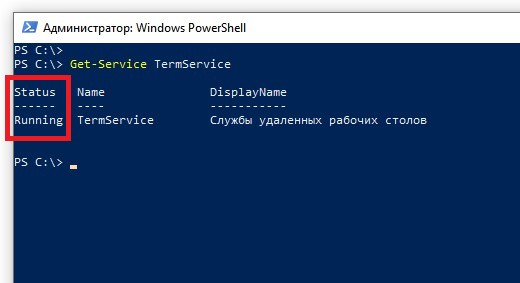
Далее, необходимо проверить, запущена ли служба:
Get-Service TermServiceИз полученного результата следует убедиться, что поле Status установлено в значение Running:
Также, это можно посмотреть в диспетчере задач на вкладке Services (Службы) или в оснастке services.msc:
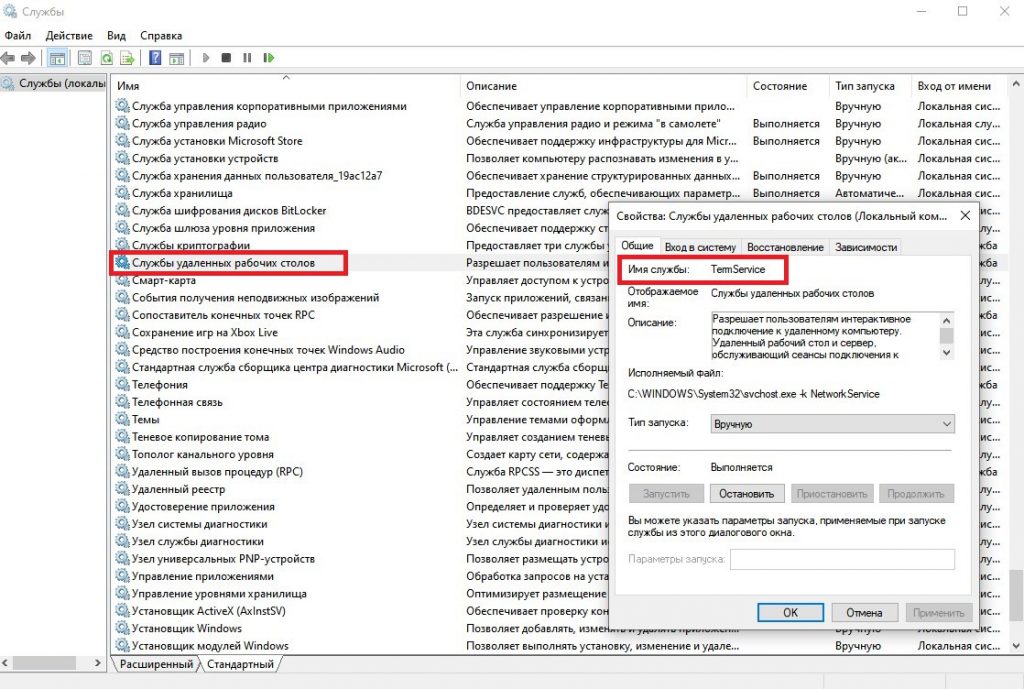
Ещё необходимо проверить, слушается ли порт 3389 на стороне сервера. Сделать это можно так же через Powershell:
Get-NetTCPConnection -State Listen | Where-Object LocalPort -EQ 3389Порт должен быть в выведенном списке. Поле State должно иметь значение Listen.
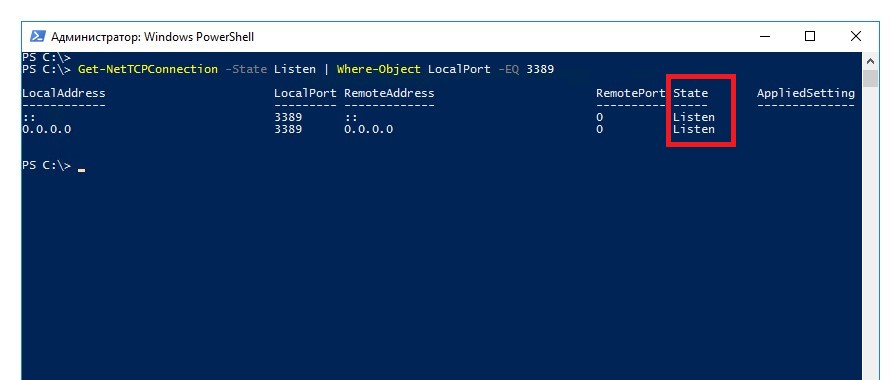
На виртуальном сервере проверить порт 3389 можно и через монитор ресурсов (resmon.exe). Активность порта видна на вкладке Network (Сеть) в разделе TCP Connections (TCP-подключения):
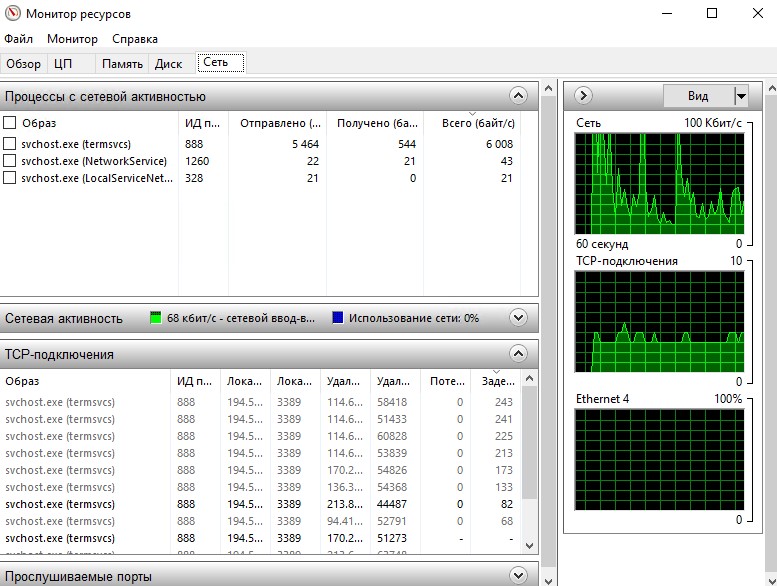
Туда же можно попасть через Диспетчер задач, перейдя на вкладку Performance (Производительность) и далее на Open Resource Monitor (Открыть монитор ресурсов):
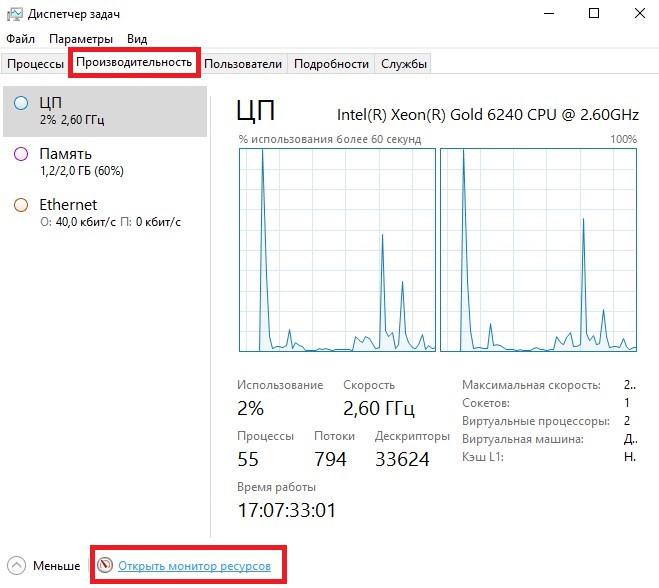
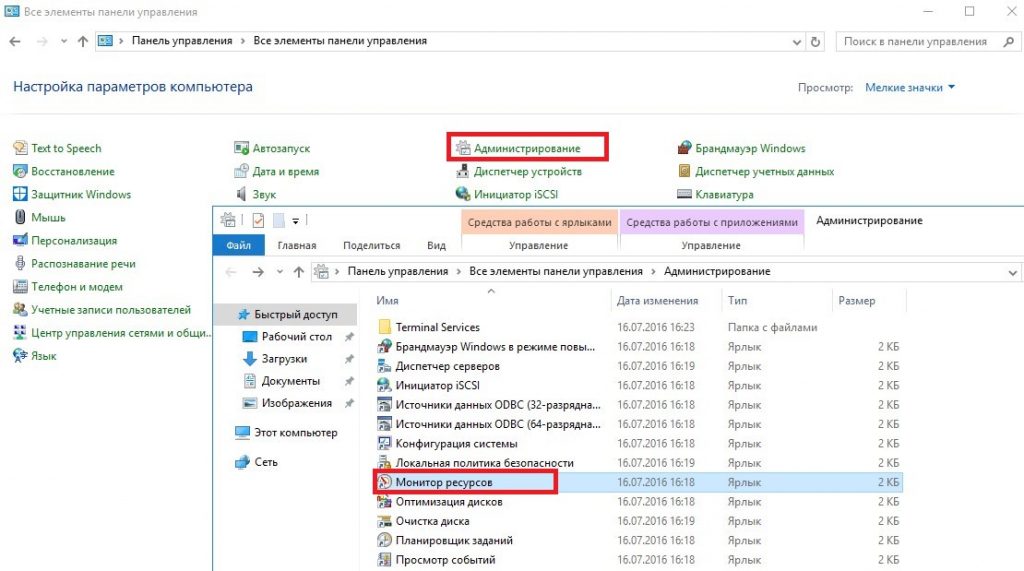
Также, данный функционал доступен через Панель управления → Администрирование → Монитор ресурсов:
Ещё одно важное замечание. По умолчанию Windows блокирует все входящие подключения, поэтому у вас должно быть разрешающее правило. Рассмотрим случай, когда вы не используете сторонний межсетевой экран. Если вы всё же пользуетесь таким файрволом, обратитесь к его документации.
Итак, для брандмауэра Windows проверьте, существует ли правило, разрешающее входящие подключения RDP:
Get-NetFirewallPortFilter | Where-Object LocalPort -EQ 3389 | Get-NetFirewallRuleПоле Enabled должно иметь значение True, поле Action – значение Allow.
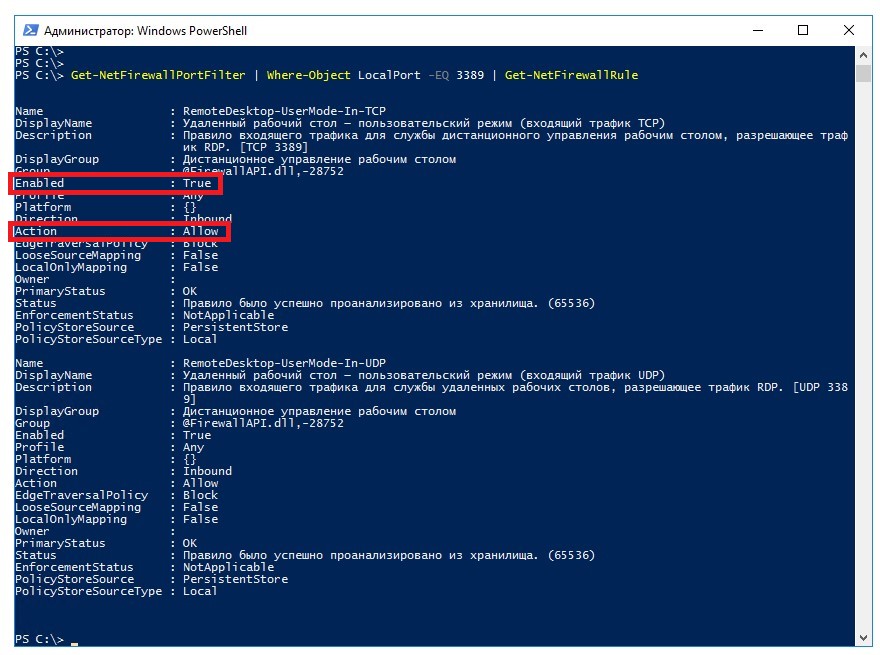
Также, эти данные доступны в оснастке wf.msc:
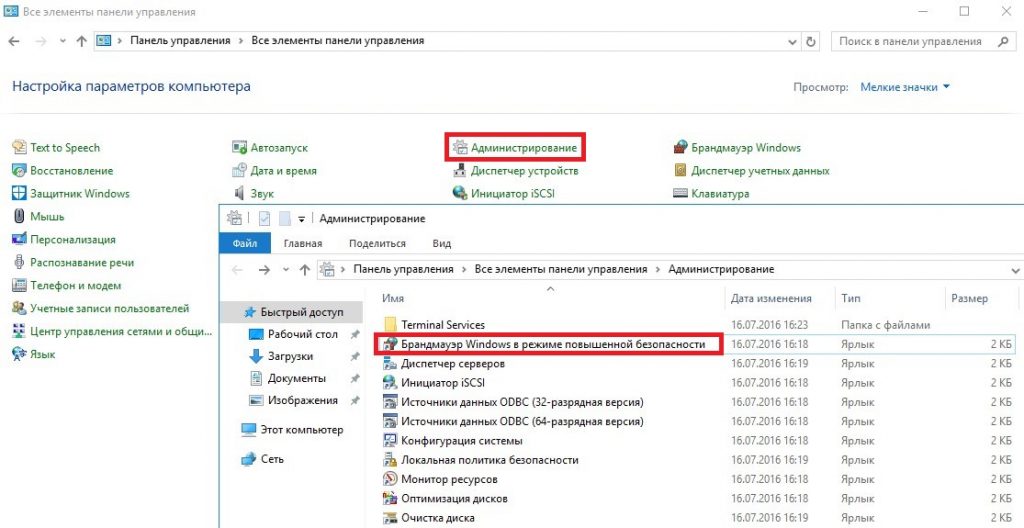
Перейти к настройкам брандмауэра можно также через Windows Administrative Tools в меню Пуск.
Для подключения к своей виртуалке вы также можете использовать аварийный режим в случае, если доступ по RDP осуществить не получается. Данная опция присутствует в личном кабинете. Для того, чтобы воспользоваться аварийным режимом, просто кликните на картинку с рабочим столом вашего сервера.
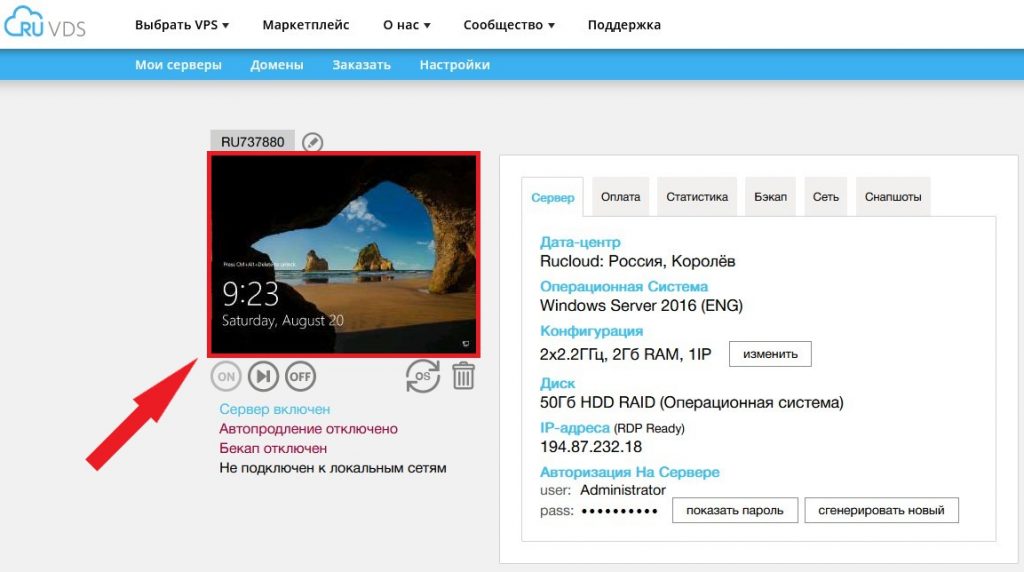
Ну, и наконец в крайнем случае, если на сервере нет важных данных, можно переустановить систему или написать в техническую поддержку.
Weak internet connection can cause Remote Desktop not to work
by Ivan Jenic
Passionate about all elements related to Windows and combined with his innate curiosity, Ivan has delved deep into understanding this operating system, with a specialization in drivers and… read more
Updated on September 6, 2022
Reviewed by
Vlad Turiceanu

Passionate about technology, Windows, and everything that has a power button, he spent most of his time developing new skills and learning more about the tech world. Coming… read more
- The Remote Desktop connection might not work if remote access to the server is not enabled.
- A quick yet effective way to solve this issue is to allow remote connection on your computer.
- Another simple solution is to remove your credentials from the remote computer.
XINSTALL BY CLICKING THE DOWNLOAD FILE
This software will repair common computer errors, protect you from file loss, malware, hardware failure and optimize your PC for maximum performance. Fix PC issues and remove viruses now in 3 easy steps:
- Download Restoro PC Repair Tool that comes with Patented Technologies (patent available here).
- Click Start Scan to find Windows issues that could be causing PC problems.
- Click Repair All to fix issues affecting your computer’s security and performance
- Restoro has been downloaded by 0 readers this month.
Remote Desktop is a handy Windows 10 feature which allows us to control our computer from another device.
Of course, to enable the Remote Desktop feature, you need an active internet connection. So, if your computer is not correctly connected to the internet, you won’t be able to use this feature.
However, even some other factors could cause the feature to stop working, and we will talk about these issues and solutions for them in this article.
Why is my remote desktop connection not working?
There are many variations of the remote desktop connection not issue, as reported by users. Below are some of them and the prevalent causes:
- Remote Desktop can’t connect to the remote computer for one of these reasons Windows 10: Sometimes you might get this error message on your PC. If you encounter this problem, try all the solutions in this article.
- Windows 10 RDP client not working: Sometimes, the RDP client won’t work on your PC. This can be due to your system configuration. To fix that, make sure that you’re using a private network.
- RDP this computer can’t connect to the remote computer: This is another common problem with RDP. To fix this issue, check both your antivirus and firewall.
- Remote Desktop not working after Windows 10 upgrade: Sometimes issues with Remote Desktop can occur after installing a Windows update. To fix the issue, remove the update, and the problem will be fixed.
- Unable to connect to remote PC, please verify Remote Desktop is enabled: This is another common problem with Remote Desktop. However, you should be able to fix the problem using one of our solutions.
- Windows 10 Remote Desktop credentials did not work: If you encounter this error on your PC, you might be able to fix it simply by removing your saved credentials.
- Remote Desktop cannot connect error, certificate expired invalid, in the time allotted: There are various errors that can appear while trying to use the Remote Desktop feature. However, you should be able to fix them using one of our solutions.
- Remote Desktop won’t connect over the Internet: This is another problem related to the Remote Desktop feature. If Remote Desktop can’t connect, check your firewall and antivirus settings.
How can I tell if RDP is running?
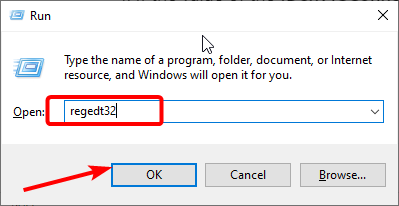
- Press the Windows key + R to open the Run utility.
- Type regedit32 in the run box and click OK.
- Navigate to the paths below in the left pane:
HKEY_LOCAL_MACHINESYSTEMCurrentControlSetControlTerminal ServerHKEY_LOCAL_MACHINESOFTWAREPoliciesMicrosoftWindows NTTerminal Services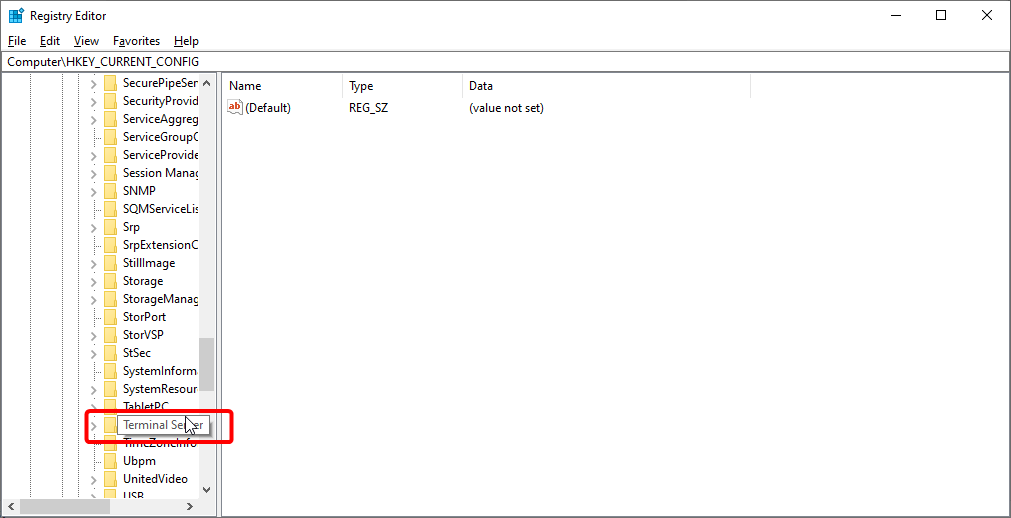
- If the value of the fDenyTSConnections is set to 1, RDP is disabled. But if it is cleared to 0, RDP is enabled.
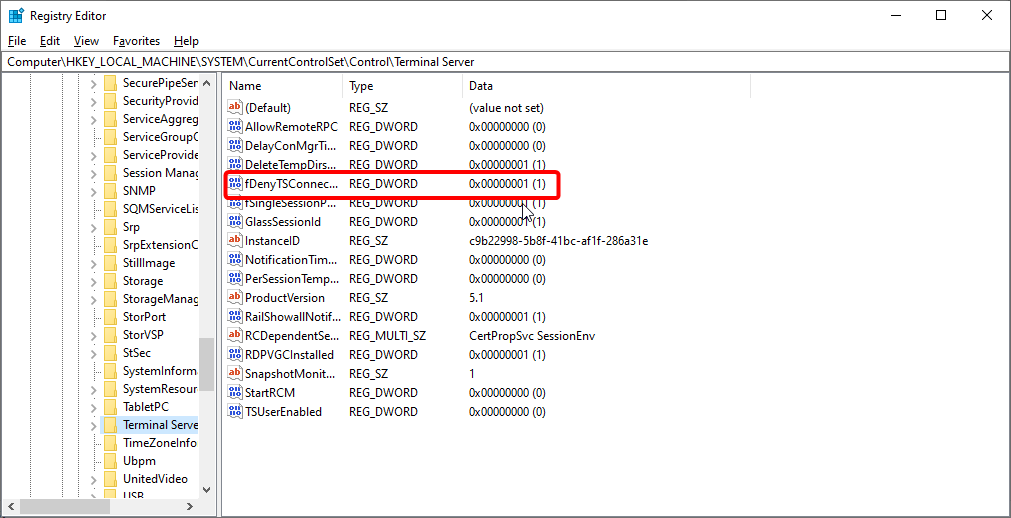
If RDP is disabled, you can enable it to run from here.
What can I do if the remote desktop is not working?
1. Check your internet connection
As mentioned earlier, the Internet is required for Remote Desktop to connect with another device. So, check if everything is okay with your internet connection.
If you determine that you have some problems connecting to the internet, check out our articles about Internet problems and Limited internet connection in Windows 10, and you might find the solution.
2. Check if remote connections are allowed
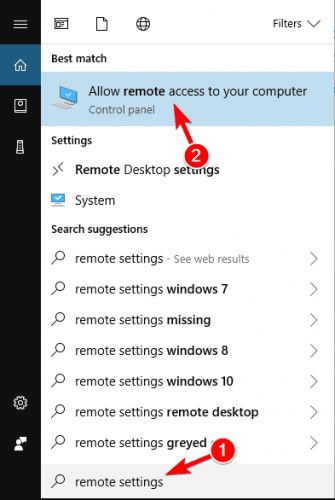
- Go to Search, type remote settings, and open Allow Remote connections to your computer.
- Check Allow remote connections to this computer and click OK to save changes.
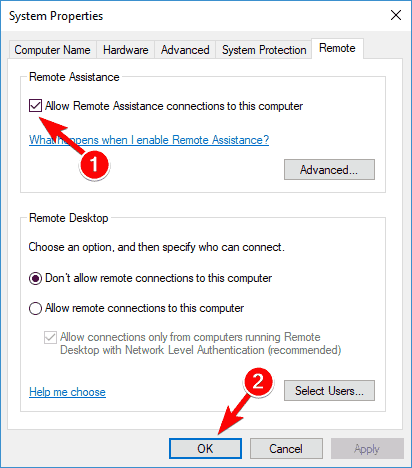
Just like you need to allow Remote Desktop through the Firewall, you also need to enable remote connections on your computer if you’re using this feature for the first time.
Remote connections are now enabled, and you should try to connect again. We also noticed another possible issue that could prevent using Remote Desktop.
If the computer you want to connect to remotely is in the Sleep or Hibernate mode, the connection won’t be possible, so check if the computer is ‘awake,’ and then try to connect again.
3. Remove your credentials from Remote Desktop
- Press Windows key + S and enter remote desktop.
- Click on Remote Desktop Connection from the menu.
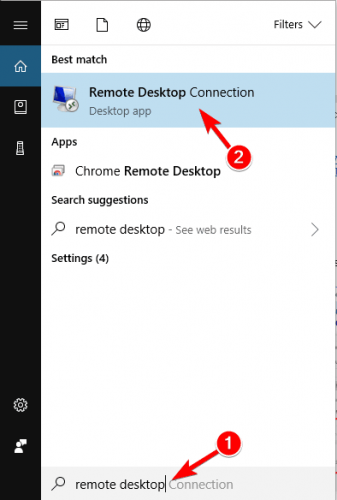
- Click the Advanced tab, followed by the Settings button.
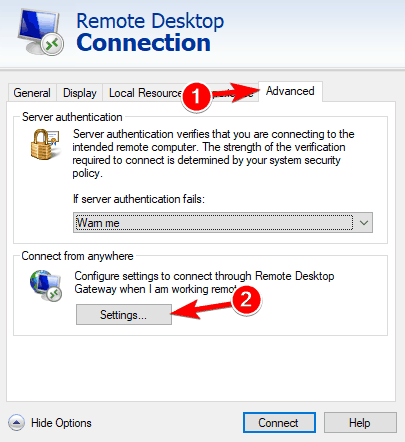
- Now, click on Delete Credentials.
According to users, sometimes Remote Desktop won’t connect due to problems with your credentials. However, you can fix that issue simply by removing the saved credentials.
After deleting your credentials, check if the problem persists. Many users reported that this solution fixed the problem, so try it out.
- Fix Windows 7 to Windows 10/11 Remote Desktop Connection
- 5+ best remote desktop tools for poor connections
- Windows 11’s Remote Desktop not working
- 5 best remote desktop software for gaming
- How to use Remote Desktop Connection in Windows 10
4. Turn off custom scaling
- Press the Windows key + I keys to open Settings.
- Select the System option.
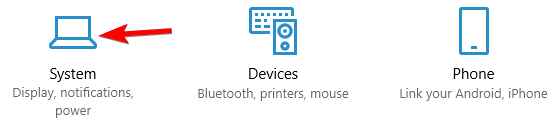
- If custom scaling is turned on, you should see A custom scale factor is set message. Click on Turn off custom scaling and sign out.
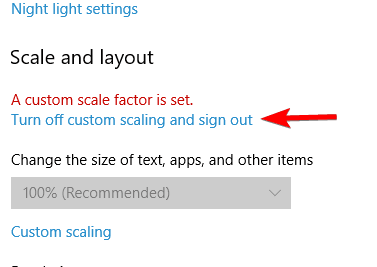
If Remote Desktop doesn’t connect, the problem might be related to custom scaling. Many users use custom scaling on larger monitors, but sometimes this feature can cause issues with Remote Desktop.
Once you sign back in, the scaling should be set to default, and all problems with Remote Desktop will be resolved. Many users reported that this solution worked for them, so we strongly recommend you try it out.
5. Change Firewall Settings
- Go to Search, type firewall, and open Windows Defender Firewall.
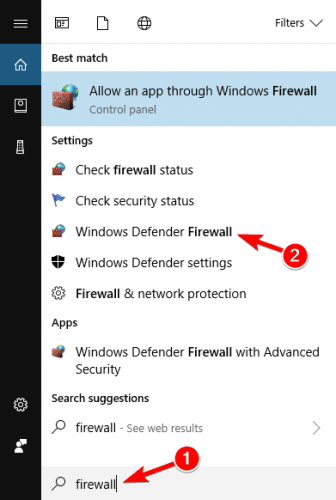
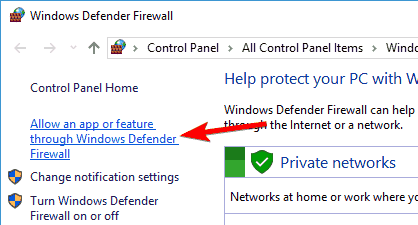
- Go to Allow an app or feature through Windows Firewall.
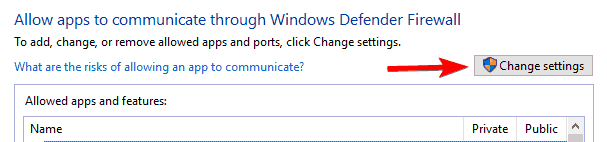
- Click on Change Settings.
- Find Remote Desktop, check it, and click OK to save changes.
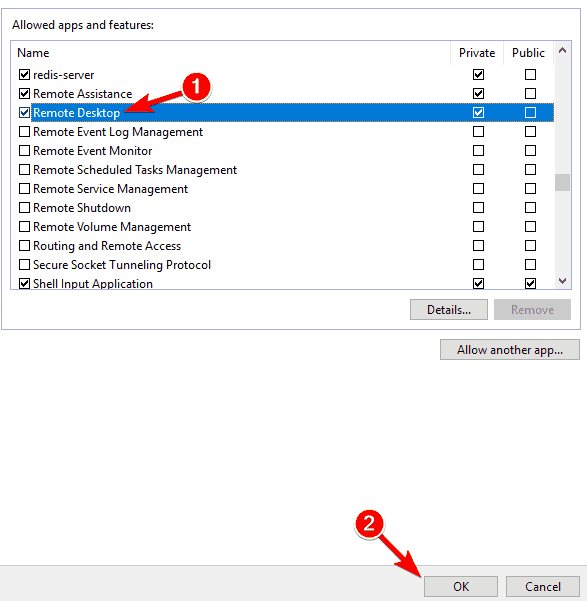
Windows Firewall is also one of the most common causes of Remote Desktop problems. If Firewall blocks the Remote Desktop, you won’t be able to connect it with another device.
Now try to connect your computers via Remote Desktop, and it should work.
Remote Desktop is not enabled in Firewall by default, so if you’re running Remote Desktop for the first time, allowing it through Windows Firewall is a must.
In addition to your firewall, it’s essential to check if your antivirus isn’t blocking the Remote Desktop feature.
Sometimes antivirus can interfere with your system and prevent this feature from working correctly. Sometimes, you might have to uninstall your antivirus to fix this issue.
If you’re looking for a new antivirus compatible with Remote Desktop, we suggest you consider changing your antivirus software to ESET NOD32. This software works great with Windows 10 and protects you without interfering with other processes and apps.
6. Make changes to your registry
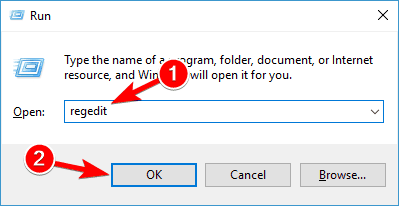
- Press Windows key + R and type regedit.
- Click OK to start Registry Editor.
- In the left pane, navigate to
HKEY_CURRENT_USERSoftwareMicrosoftTerminal Server Client key - In the right pane, right-click the space and choose New > DWORD (32-bit) Value.
- Enter RDGClientTransport as the name of the new DWORD.
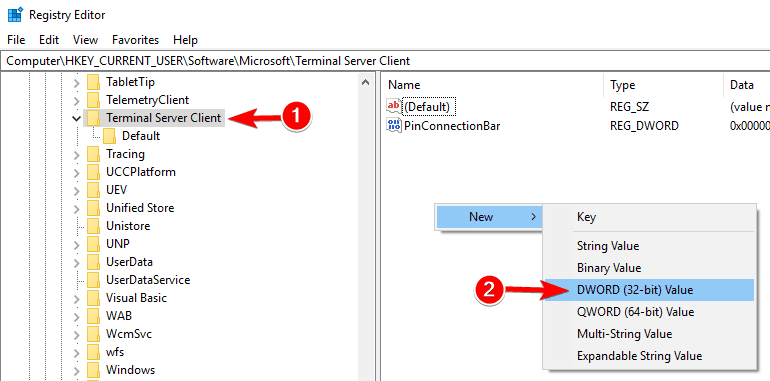
- Double-click the newly created RDGClientTransport DWORD to open its properties.
- Set Value data to 1 and click on OK to save changes.
Some PC issues are hard to tackle, especially when it comes to corrupted repositories or missing Windows files. If you are having troubles fixing an error, your system may be partially broken.
We recommend installing Restoro, a tool that will scan your machine and identify what the fault is.
Click here to download and start repairing.
According to users, you might be able to fix this problem by making one small change to your registry.
After making these changes, check if the problem persists. This might be a slightly advanced solution, but many users reported that it worked for them, so you might want to try it out.
7. Add the IP address and server name to the hosts file
Several users reported that they could not use Remote Desktop due to their host’s file.
According to them, you need to manually add the IP address and server name to the host’s file on your PC to fix the issue.
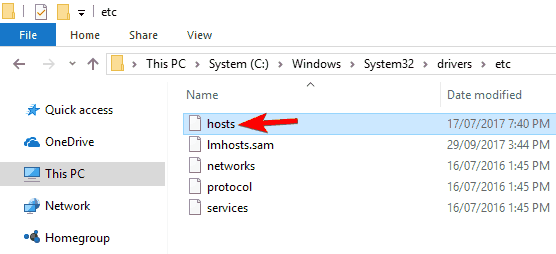
To do that, navigate to This directory and edit the hosts file with Notepad: C:WindowsSystem32Driversetc
Remember that the host’s file is a system file, so if you want to modify it, you’ll need administrative privileges.
For more information on how to modify your host’s file and gain administrative privileges, we strongly recommend checking Access denied when editing the host’s file article.
Once you change your host’s file, the issue with Remote Desktop should be resolved.
8. Check if the 3389 port is enabled
If Remote Desktop won’t connect, the problem might be your firewall. Your firewall can block specific ports to protect your PC, but sometimes your firewall can block particular ports by mistake.
For example, port 3389 is used by Remote Desktop, and if your firewall is blocking this port, you won’t be able to use this feature at all.
If this port is enabled, but the issue still appears, try disabling and enabling your firewall. Sometimes a quick firewall reset can fix the problem, so you might want to try that.
9. Change your connection from Public to Private
- Click the network icon in the bottom right corner of your Taskbar and click on your network connection. In our case, the network connection name is Network, but it might be different on your PC.
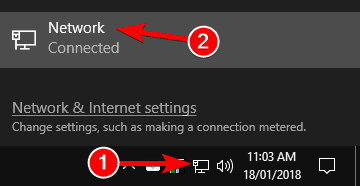
- Click on your network connection name.
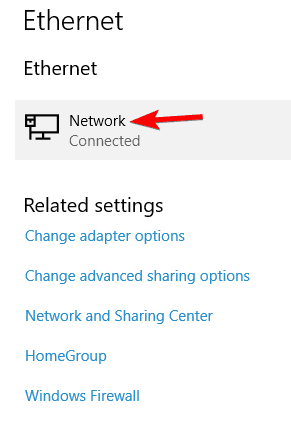
- Select Private as your network profile.
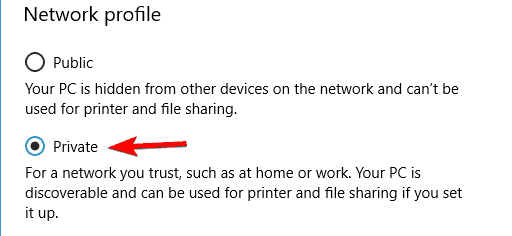
To protect your PC, remote connections are disabled if you use a public connection. After doing that, the problem with the Remote Desktop should be resolved entirely.
Also, if none of the solutions worked, you can use Mikogo to solve the connectivity problems. With this remote desktop software, you get complete security and control of your PC.
How do I force a remote desktop connection?
- Open the Run utility, type regedit32 in the run box, and press Enter.
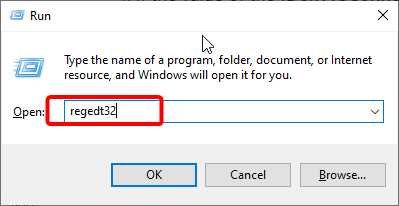
- Follow the paths below in the left pane:
HKEY_LOCAL_MACHINESYSTEMCurrentControlSetControlTerminal ServerHKEY_LOCAL_MACHINESOFTWAREPoliciesMicrosoftWindows NTTerminal Services - If the value of the fDenyTSConnections is set to 1, clear it to 0 to enable RDP.
With this, you can force a Remote Desktop connection on Windows.
Remote Desktop not working over VPN
Remote desktop not connecting through VPN cases are more frequent than you can imagine.
While the potential culprits can be diverse, ranging from connectivity issues (ports, network adapters, and so on) to communication and protocols, the problem is likely caused by an incorrect setup.
Whether the VPN disconnects when Remote Desktop is activated or the Remote Desktop fails with the VPN connected, getting the two of them to collaborate harmoniously is essential.
Here are some quick tips to consider:
- Allow Remote Desktop connections on the server PC
- Create a VPN server using your router
- Set up a VPN connection on the client’s PC
- Connect to the server PC
If you want to find out how to set up a VPN with Remote Desktop Connection on Windows 10/11, we got your back. So don’t be shy to explore the topic and follow the presented instructions.
That’s about it. We hope at least some of these solutions helped you with connection problems with Remote Desktop in Windows 10.
If you have any comments or questions, reach out to the comment section below, and we’ll try to assist you further.
Still having issues? Fix them with this tool:
SPONSORED
If the advices above haven’t solved your issue, your PC may experience deeper Windows problems. We recommend downloading this PC Repair tool (rated Great on TrustPilot.com) to easily address them. After installation, simply click the Start Scan button and then press on Repair All.

Newsletter
Weak internet connection can cause Remote Desktop not to work
by Ivan Jenic
Passionate about all elements related to Windows and combined with his innate curiosity, Ivan has delved deep into understanding this operating system, with a specialization in drivers and… read more
Updated on September 6, 2022
Reviewed by
Vlad Turiceanu
Passionate about technology, Windows, and everything that has a power button, he spent most of his time developing new skills and learning more about the tech world. Coming… read more
- The Remote Desktop connection might not work if remote access to the server is not enabled.
- A quick yet effective way to solve this issue is to allow remote connection on your computer.
- Another simple solution is to remove your credentials from the remote computer.
XINSTALL BY CLICKING THE DOWNLOAD FILE
This software will repair common computer errors, protect you from file loss, malware, hardware failure and optimize your PC for maximum performance. Fix PC issues and remove viruses now in 3 easy steps:
- Download Restoro PC Repair Tool that comes with Patented Technologies (patent available here).
- Click Start Scan to find Windows issues that could be causing PC problems.
- Click Repair All to fix issues affecting your computer’s security and performance
- Restoro has been downloaded by 0 readers this month.
Remote Desktop is a handy Windows 10 feature which allows us to control our computer from another device.
Of course, to enable the Remote Desktop feature, you need an active internet connection. So, if your computer is not correctly connected to the internet, you won’t be able to use this feature.
However, even some other factors could cause the feature to stop working, and we will talk about these issues and solutions for them in this article.
Why is my remote desktop connection not working?
There are many variations of the remote desktop connection not issue, as reported by users. Below are some of them and the prevalent causes:
- Remote Desktop can’t connect to the remote computer for one of these reasons Windows 10: Sometimes you might get this error message on your PC. If you encounter this problem, try all the solutions in this article.
- Windows 10 RDP client not working: Sometimes, the RDP client won’t work on your PC. This can be due to your system configuration. To fix that, make sure that you’re using a private network.
- RDP this computer can’t connect to the remote computer: This is another common problem with RDP. To fix this issue, check both your antivirus and firewall.
- Remote Desktop not working after Windows 10 upgrade: Sometimes issues with Remote Desktop can occur after installing a Windows update. To fix the issue, remove the update, and the problem will be fixed.
- Unable to connect to remote PC, please verify Remote Desktop is enabled: This is another common problem with Remote Desktop. However, you should be able to fix the problem using one of our solutions.
- Windows 10 Remote Desktop credentials did not work: If you encounter this error on your PC, you might be able to fix it simply by removing your saved credentials.
- Remote Desktop cannot connect error, certificate expired invalid, in the time allotted: There are various errors that can appear while trying to use the Remote Desktop feature. However, you should be able to fix them using one of our solutions.
- Remote Desktop won’t connect over the Internet: This is another problem related to the Remote Desktop feature. If Remote Desktop can’t connect, check your firewall and antivirus settings.
How can I tell if RDP is running?
- Press the Windows key + R to open the Run utility.
- Type regedit32 in the run box and click OK.
- Navigate to the paths below in the left pane:
HKEY_LOCAL_MACHINESYSTEMCurrentControlSetControlTerminal ServerHKEY_LOCAL_MACHINESOFTWAREPoliciesMicrosoftWindows NTTerminal Services - If the value of the fDenyTSConnections is set to 1, RDP is disabled. But if it is cleared to 0, RDP is enabled.
If RDP is disabled, you can enable it to run from here.
What can I do if the remote desktop is not working?
1. Check your internet connection
As mentioned earlier, the Internet is required for Remote Desktop to connect with another device. So, check if everything is okay with your internet connection.
If you determine that you have some problems connecting to the internet, check out our articles about Internet problems and Limited internet connection in Windows 10, and you might find the solution.
2. Check if remote connections are allowed
- Go to Search, type remote settings, and open Allow Remote connections to your computer.
- Check Allow remote connections to this computer and click OK to save changes.
Just like you need to allow Remote Desktop through the Firewall, you also need to enable remote connections on your computer if you’re using this feature for the first time.
Remote connections are now enabled, and you should try to connect again. We also noticed another possible issue that could prevent using Remote Desktop.
If the computer you want to connect to remotely is in the Sleep or Hibernate mode, the connection won’t be possible, so check if the computer is ‘awake,’ and then try to connect again.
3. Remove your credentials from Remote Desktop
- Press Windows key + S and enter remote desktop.
- Click on Remote Desktop Connection from the menu.
- Click the Advanced tab, followed by the Settings button.
- Now, click on Delete Credentials.
According to users, sometimes Remote Desktop won’t connect due to problems with your credentials. However, you can fix that issue simply by removing the saved credentials.
After deleting your credentials, check if the problem persists. Many users reported that this solution fixed the problem, so try it out.
- Fix Windows 7 to Windows 10/11 Remote Desktop Connection
- 5+ best remote desktop tools for poor connections
- Windows 11’s Remote Desktop not working
- 5 best remote desktop software for gaming
- How to use Remote Desktop Connection in Windows 10
4. Turn off custom scaling
- Press the Windows key + I keys to open Settings.
- Select the System option.
- If custom scaling is turned on, you should see A custom scale factor is set message. Click on Turn off custom scaling and sign out.
If Remote Desktop doesn’t connect, the problem might be related to custom scaling. Many users use custom scaling on larger monitors, but sometimes this feature can cause issues with Remote Desktop.
Once you sign back in, the scaling should be set to default, and all problems with Remote Desktop will be resolved. Many users reported that this solution worked for them, so we strongly recommend you try it out.
5. Change Firewall Settings
- Go to Search, type firewall, and open Windows Defender Firewall.
- Go to Allow an app or feature through Windows Firewall.
- Click on Change Settings.
- Find Remote Desktop, check it, and click OK to save changes.
Windows Firewall is also one of the most common causes of Remote Desktop problems. If Firewall blocks the Remote Desktop, you won’t be able to connect it with another device.
Now try to connect your computers via Remote Desktop, and it should work.
Remote Desktop is not enabled in Firewall by default, so if you’re running Remote Desktop for the first time, allowing it through Windows Firewall is a must.
In addition to your firewall, it’s essential to check if your antivirus isn’t blocking the Remote Desktop feature.
Sometimes antivirus can interfere with your system and prevent this feature from working correctly. Sometimes, you might have to uninstall your antivirus to fix this issue.
If you’re looking for a new antivirus compatible with Remote Desktop, we suggest you consider changing your antivirus software to ESET NOD32. This software works great with Windows 10 and protects you without interfering with other processes and apps.
6. Make changes to your registry
- Press Windows key + R and type regedit.
- Click OK to start Registry Editor.
- In the left pane, navigate to
HKEY_CURRENT_USERSoftwareMicrosoftTerminal Server Client key - In the right pane, right-click the space and choose New > DWORD (32-bit) Value.
- Enter RDGClientTransport as the name of the new DWORD.
- Double-click the newly created RDGClientTransport DWORD to open its properties.
- Set Value data to 1 and click on OK to save changes.
Some PC issues are hard to tackle, especially when it comes to corrupted repositories or missing Windows files. If you are having troubles fixing an error, your system may be partially broken.
We recommend installing Restoro, a tool that will scan your machine and identify what the fault is.
Click here to download and start repairing.
According to users, you might be able to fix this problem by making one small change to your registry.
After making these changes, check if the problem persists. This might be a slightly advanced solution, but many users reported that it worked for them, so you might want to try it out.
7. Add the IP address and server name to the hosts file
Several users reported that they could not use Remote Desktop due to their host’s file.
According to them, you need to manually add the IP address and server name to the host’s file on your PC to fix the issue.
To do that, navigate to This directory and edit the hosts file with Notepad: C:WindowsSystem32Driversetc
Remember that the host’s file is a system file, so if you want to modify it, you’ll need administrative privileges.
For more information on how to modify your host’s file and gain administrative privileges, we strongly recommend checking Access denied when editing the host’s file article.
Once you change your host’s file, the issue with Remote Desktop should be resolved.
8. Check if the 3389 port is enabled
If Remote Desktop won’t connect, the problem might be your firewall. Your firewall can block specific ports to protect your PC, but sometimes your firewall can block particular ports by mistake.
For example, port 3389 is used by Remote Desktop, and if your firewall is blocking this port, you won’t be able to use this feature at all.
If this port is enabled, but the issue still appears, try disabling and enabling your firewall. Sometimes a quick firewall reset can fix the problem, so you might want to try that.
9. Change your connection from Public to Private
- Click the network icon in the bottom right corner of your Taskbar and click on your network connection. In our case, the network connection name is Network, but it might be different on your PC.
- Click on your network connection name.
- Select Private as your network profile.
To protect your PC, remote connections are disabled if you use a public connection. After doing that, the problem with the Remote Desktop should be resolved entirely.
Also, if none of the solutions worked, you can use Mikogo to solve the connectivity problems. With this remote desktop software, you get complete security and control of your PC.
How do I force a remote desktop connection?
- Open the Run utility, type regedit32 in the run box, and press Enter.
- Follow the paths below in the left pane:
HKEY_LOCAL_MACHINESYSTEMCurrentControlSetControlTerminal ServerHKEY_LOCAL_MACHINESOFTWAREPoliciesMicrosoftWindows NTTerminal Services - If the value of the fDenyTSConnections is set to 1, clear it to 0 to enable RDP.
With this, you can force a Remote Desktop connection on Windows.
Remote Desktop not working over VPN
Remote desktop not connecting through VPN cases are more frequent than you can imagine.
While the potential culprits can be diverse, ranging from connectivity issues (ports, network adapters, and so on) to communication and protocols, the problem is likely caused by an incorrect setup.
Whether the VPN disconnects when Remote Desktop is activated or the Remote Desktop fails with the VPN connected, getting the two of them to collaborate harmoniously is essential.
Here are some quick tips to consider:
- Allow Remote Desktop connections on the server PC
- Create a VPN server using your router
- Set up a VPN connection on the client’s PC
- Connect to the server PC
If you want to find out how to set up a VPN with Remote Desktop Connection on Windows 10/11, we got your back. So don’t be shy to explore the topic and follow the presented instructions.
That’s about it. We hope at least some of these solutions helped you with connection problems with Remote Desktop in Windows 10.
If you have any comments or questions, reach out to the comment section below, and we’ll try to assist you further.
Still having issues? Fix them with this tool:
SPONSORED
If the advices above haven’t solved your issue, your PC may experience deeper Windows problems. We recommend downloading this PC Repair tool (rated Great on TrustPilot.com) to easily address them. After installation, simply click the Start Scan button and then press on Repair All.
Newsletter
Обновлено 08.12.2022
 Добрый день! Уважаемые читатели и гости, IT блога Pyatilistnik.org. В прошлый раз мы с вами поговорили, про отложенный запуск служб в Windows, сегодня я хочу вам показать еще один не приятный момент в работе терминальных служб удаленного рабочего стола, а именно ошибка подключения «Произошла внутренняя ошибка«, после чего подключение разрывается. Такое я встречал уже в Windows Server 2012 R2 и 2016. Давайте разбираться в чем дело.
Описание проблемы
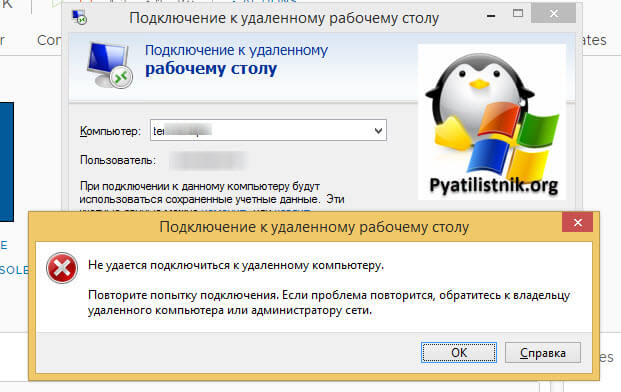
Есть сервер с операционной системой Windows Server 2012 R2, сотрудник пытается к нему подключиться, через классическую утилиту «Подключение к удаленному рабочему столу», в момент авторизации, выскакивает окно с ошибкой «Произошла внутренняя ошибка».
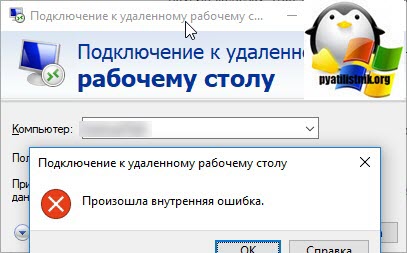
В английском варианте ошибка звучит вот так:
An internal error has occurred
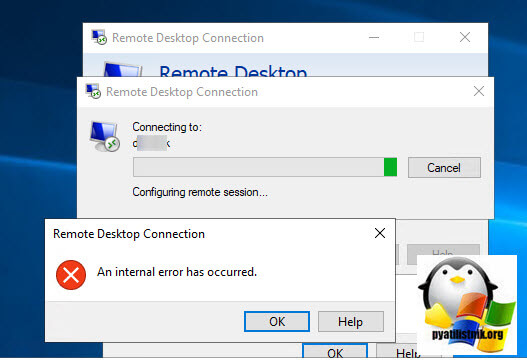
После этого у вас разрывается соединение. Когда мы видели моргающий экран по RDP, там хотя бы вы попадали на сервер и могли открыть диспетчер устройств, тут сразу все обрубается на корню. Давайте смотреть, что можно сделать.
🆘 Что есть в логах?
Если посмотреть журналы событий на удаленном сервере, куда вы пытаетесь подключиться, то там порядок событий будет такой:
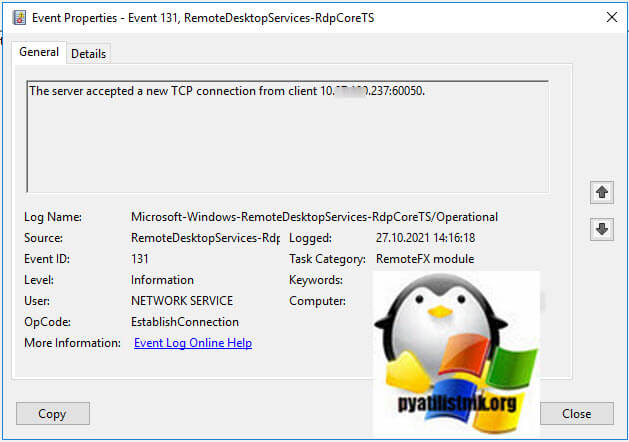
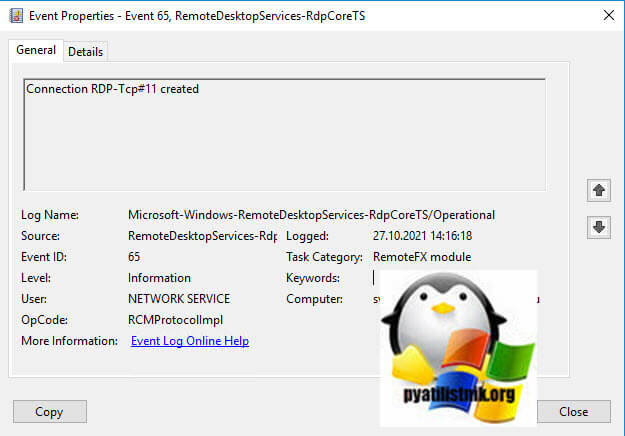
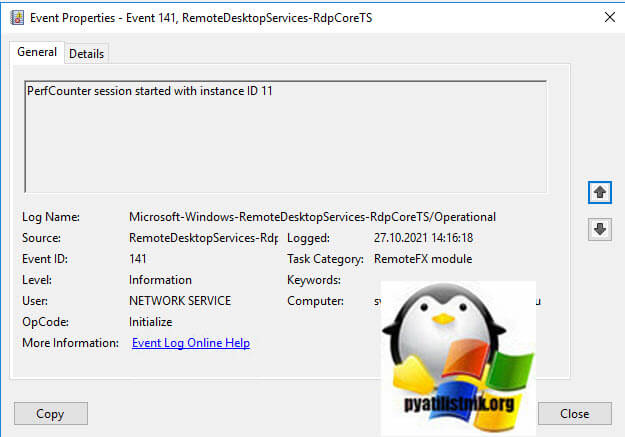
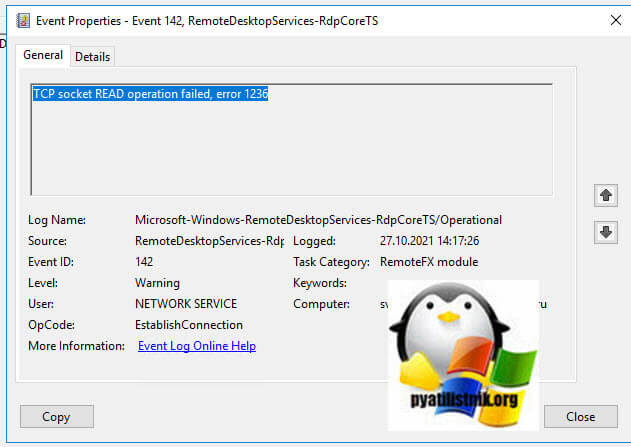
События нужно искать в журнале Microsoft-Windows-RemoteDesktopServices-RdpCoreTS/Operational
- 1️⃣ Первым будет идти событие ID 131 «The server accepted a new TCP connection from client IP-адрес:60050.». Тут вы увидите IP-адрес с которого идет попытка входа.
- 2️⃣ Далее событие ID 65 «Connection RDP-Tcp#11 created «.
- 3️⃣ Затем событие 141 «PerfCounter session started with instance ID 11». Тут сессии будет назначен ID.
- 4️⃣ За ним будет идти ID 142 «TCP socket READ operation failed, error 1236».
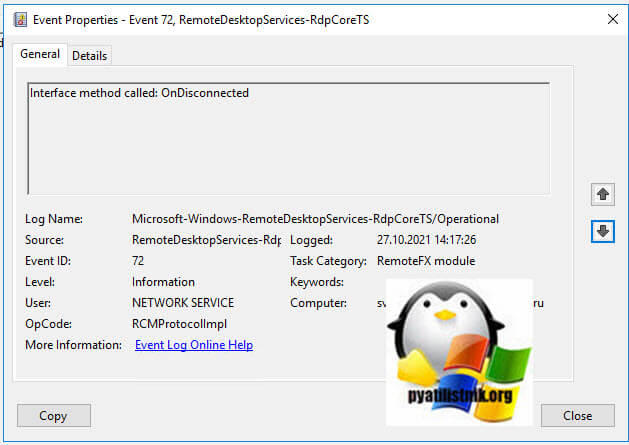
- 5️⃣ Потом вы увидите ID 72 «Interface method called: OnDisconnected»
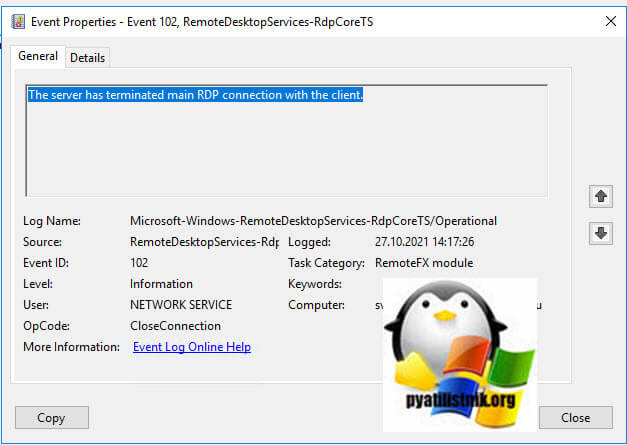
- 6️⃣ И же после этого вам покажут, что сервер разорвал подключение: «ID 102 The server has terminated main RDP connection with the client.»
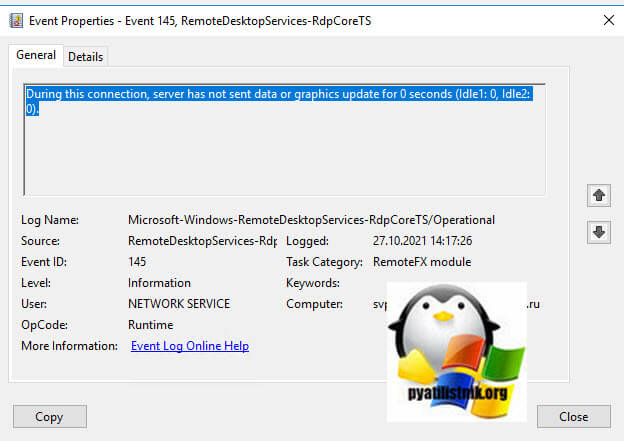
- 7️⃣ В событии ID 145 так же появляются подробности «During this connection, server has not sent data or graphics update for 0 seconds (Idle1: 0, Idle2: 0).».
- 8️⃣ Могут быть события с ID 148 «Channel rdpinpt has been closed between the server and the client on transport tunnel: 0.» или «Channel rdpcmd has been closed between the server and the client on transport tunnel: 0.» или «Channel rdplic has been closed between the server and the client on transport tunnel: 0.»
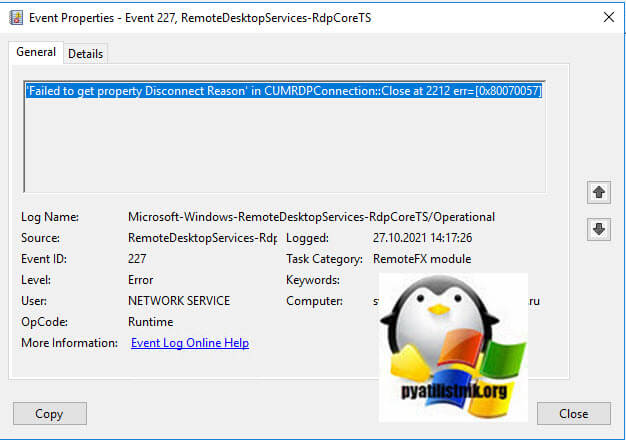
- 9️⃣ Ну и вишенка на торте, ошибка ID 227 «‘Failed to get property Disconnect Reason’ in CUMRDPConnection::Close at 2212 err=[0x80070057]»
Исправляем ошибку «Произошла внутренняя ошибка»
Так как по RDP подключиться не получается, то первым делом нужно проверить отвечает ли порт, по умолчанию это 3389. О том, как проверить порт на удаленном сервере я вам описывал, там все сводилось к выполнению команды Telnet, ознакомьтесь. Если порт отвечает, то делаем следующее.
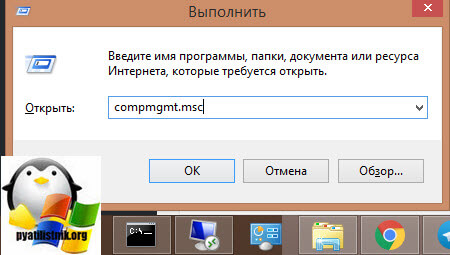
Нужно удаленно перезапустить службу на этом сервере, чтобы сам сервер не перезагружать, так как в этот момент, он может выполнять важные задачи, можно использовать утилиту «Управление компьютером». Открыть ее можно через команду вызова оснастки, вызываем окно «Выполнить», через одновременное нажатие клавиш WIN и R, в котором пишем:
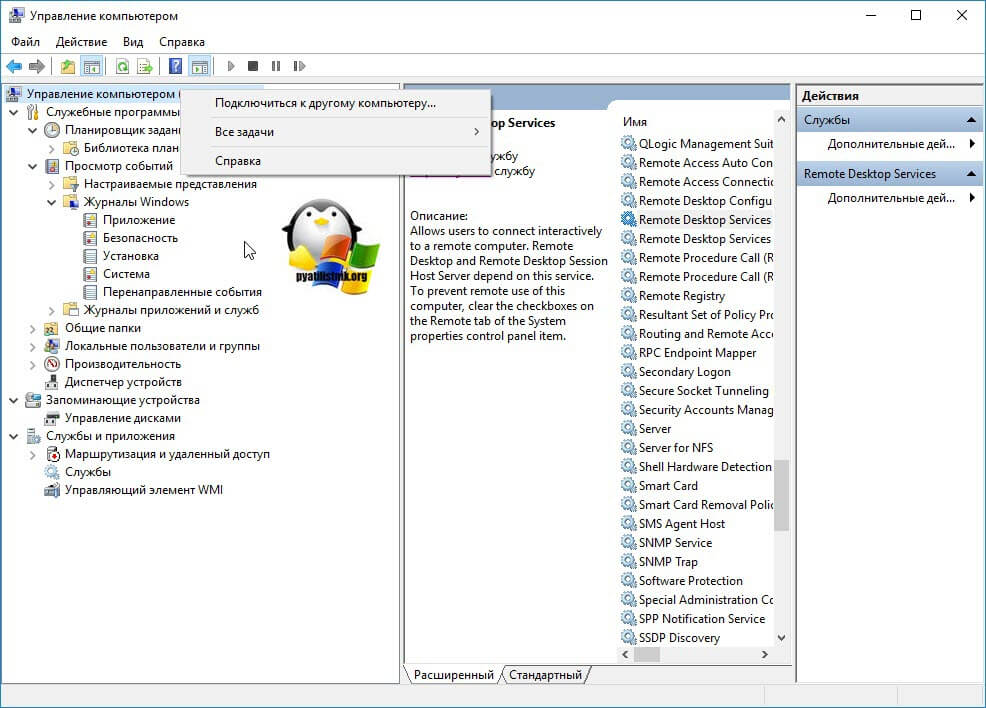
В открывшейся оснастке, щелкните в самом верху по пункту «Управление компьютером» правым кликом мыши, и выберите пункт «Подключиться к удаленному компьютеру».
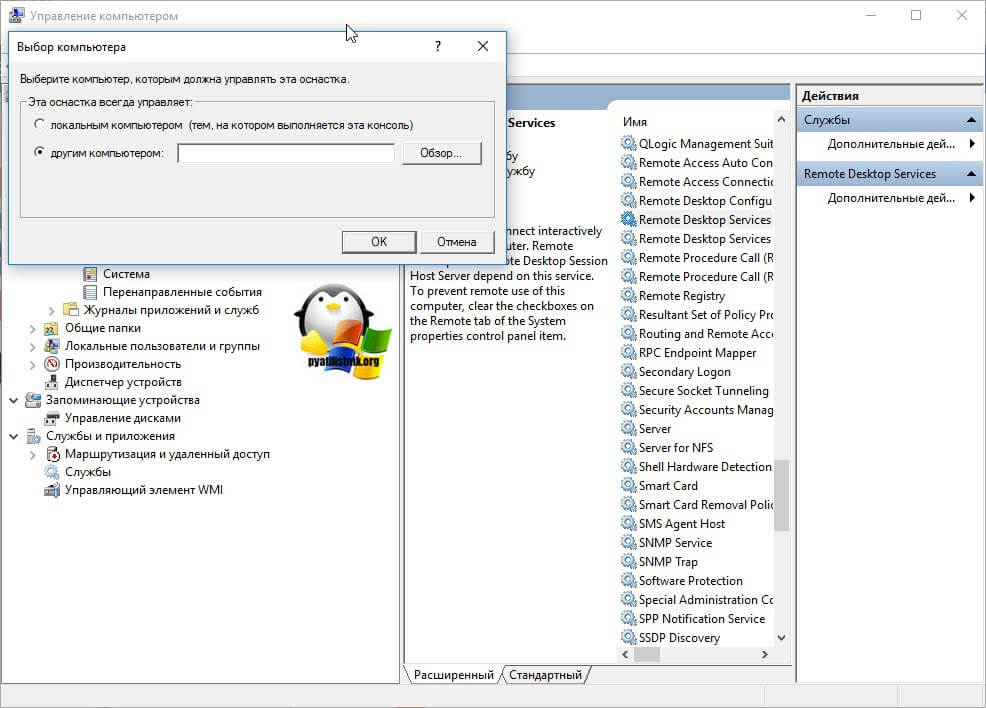
Выберите пункт «Другим компьютером» и укажите его DNS имя, или найдите его через кнопку обзор.
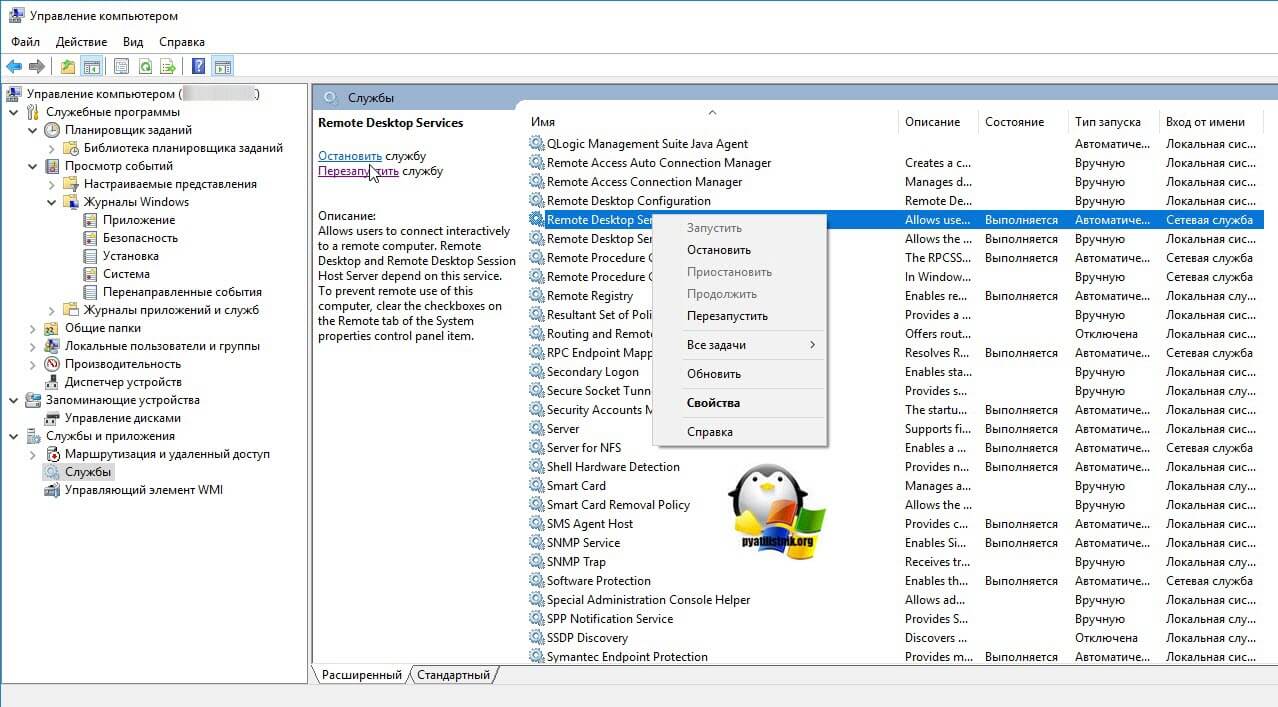
Когда вы подключитесь к нужному серверу, перейдите в пункт «Службы и приложения — Службы», в списке сервисов найдите службу удаленных рабочих столов (Remote Desktop Services), и перезапускаем ее. После этого ошибка подключения по RDP «Произошла внутренняя ошибка», у вас должна пропасть.
Так же вы можете использовать оболочку PowerShell запущенную от имени пользователя, у которого есть права на удаленный сервер, где будет перезапускаться служба RDP. Выполните:
Get-Service TermService -ComputerName Имя сервера | Restart-Service –force –verbose
Дополнительные методы решения
Если вам не помог первый метод, перезапускающий службу удаленных рабочих столов, то можно попробовать выполнить правку реестра. Открываете редактор реестра Windows, если у вас физического доступа к серверу нет или он далеко и вам лень до него идти, то можно попробовать подключиться к реестру удаленного сервера.
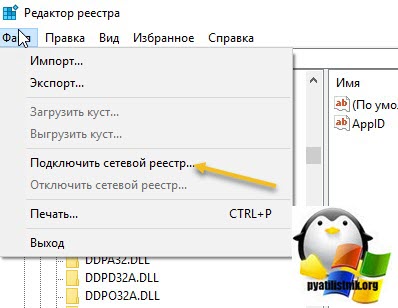
Для этого в окне «Редактор реестра» пункт меню «Файл — Подключить сетевой реестр».
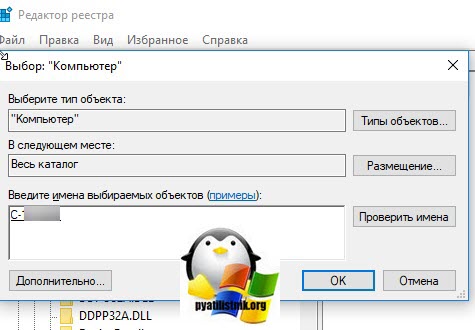
В открывшемся окне «Выбор компьютера» указываем его DNS-имя или ip-адрес и нажимаем ок. У вас будет установлено подключение к удаленному реестру сервера, что испытывает проблемы.
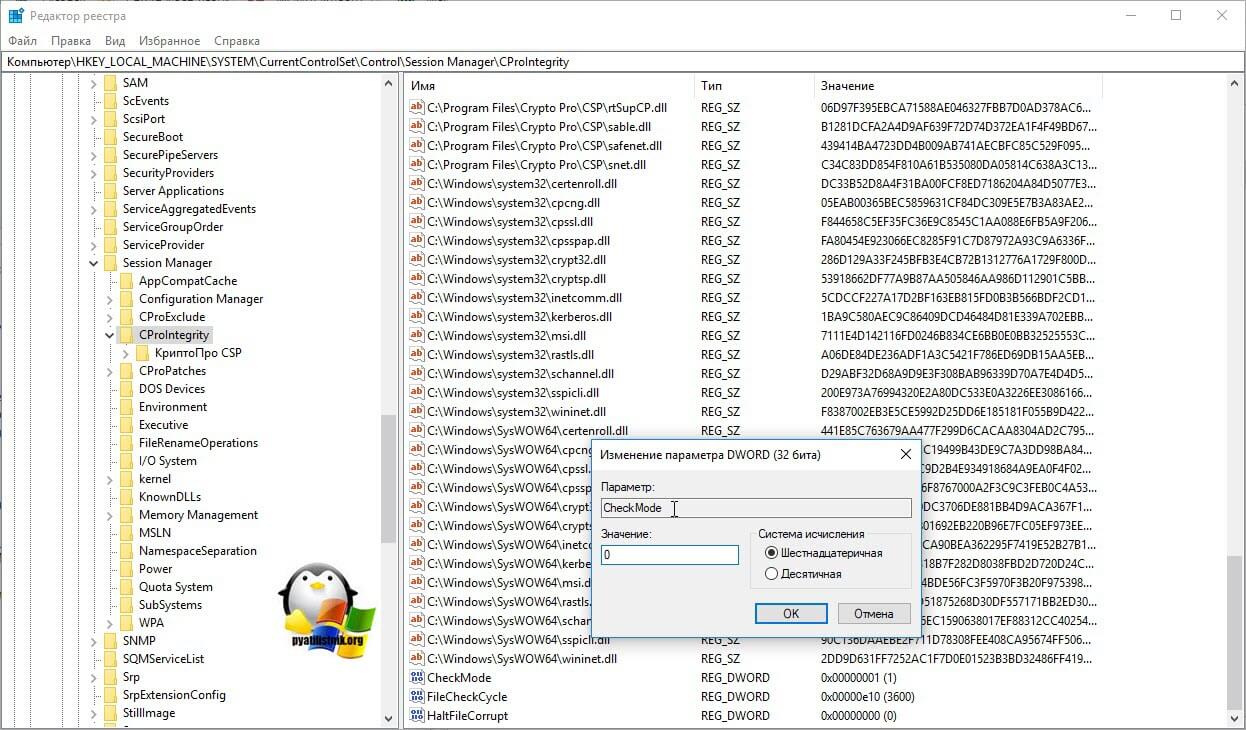
Находим ключ CheckMode по пути
HKEY_LOCAL_MACHINESYSTEMCurrentControlSetControl Session ManagerCProIntegrityCheckMode
Перед любыми правками реестра, обязательно сделайте выгрузку нужной ветки, чтобы можно было восстановить все в оперативном режиме
Выставляем ему значение о, чтобы отключить у программы КриптоПРО CSP проверку контрольных сумм. Еще один важный момент, если у вас старая версия КриптоПРО, то это так же может быть источником, проблем, недавний пример, это ошибка «Windows installer service could not be accessed». Для этого удаляем правильно КриптоПРО CSP и ставим последнюю доступную версию.
Еще можно попробовать изменить значение вот такого ключа реестра:
HKEY_LOCAL_MACHINESYSTEMCurrentControlSetControl Session ManagerMemory ManagementSessionImageSize
Найдите ключ SessionImageSize и задайте ему значение 0x00000020.
Дополнительные настройки RDP клиента
Например ошибка «An internal error has occurred» у меня встретилась на Windows Server 2022 и там мне помогло в настройках клиента RDP отключение некой опции. Перейдите в дополнительные настройки клиента для удаленного подключения, где н вкладке «Experiens (Взаимодействие)» вам нужно убрать галку с опции «Восстановить подключение при разрыве (Reconnect if the connection is droped)«
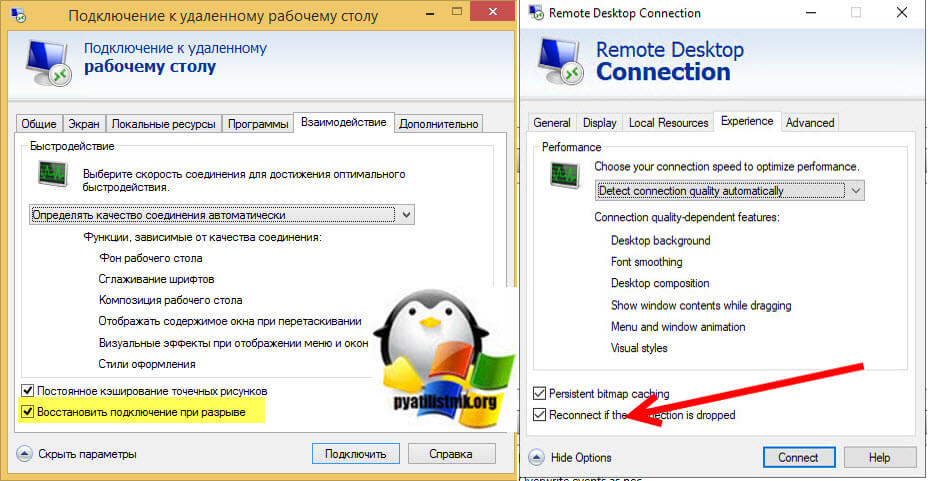
На каких-то сайтах предлагалось именно активировать данный пункт.
Удаление кэша подключений
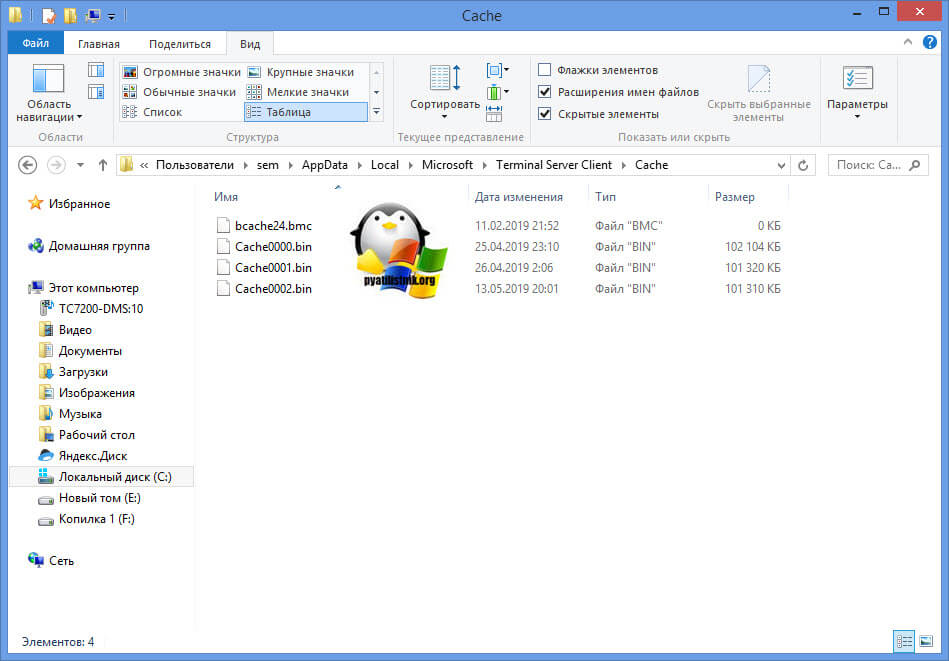
Еще одним методом решения внутренней ошибки подключения по RDP может выступать поврежденный кэш, который хранится на локальном компьютере пользователя. Для его отображения вам необходимо включить отображение скрытых папок и удалить содержимое папки:
C:Usersимя пользователяAppDataLocalMicrosoftTerminal Server Client
Обновление 07.12.2022
В декабре я вновь столкнулся с внутренней ошибкой, она еще стала проявлять себя вот так:
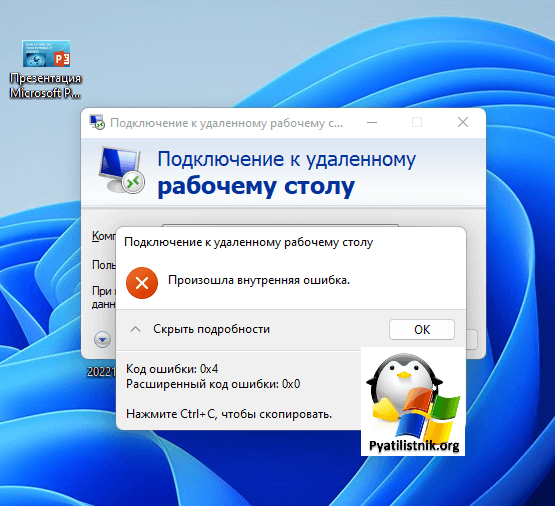
Не удается подключиться к удаленному компьютеру
Произошла внутренняя ошибка. Код ошибки: 0x4. Расширенный код ошибки: 0x0
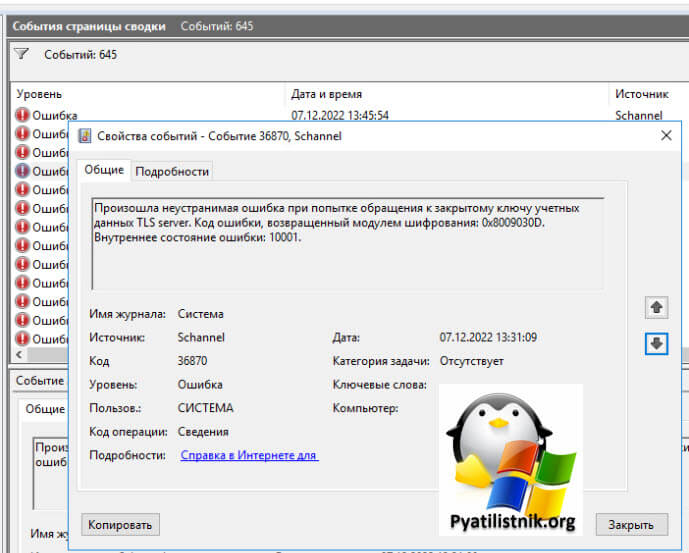
В логах сервера очень много ошибок:
Она возникает, при каждой попытке войти на рабочий стол, это и есть проблема в моем конкретном случае. Устраните ее, и ошибка с подключекнием уйдет. Перезагрузка не нужна.
Данная ошибка говорит, что на тот сертификат, что использует удаленный сервер, нет прав у самого сервера, подробности выше по ссылке
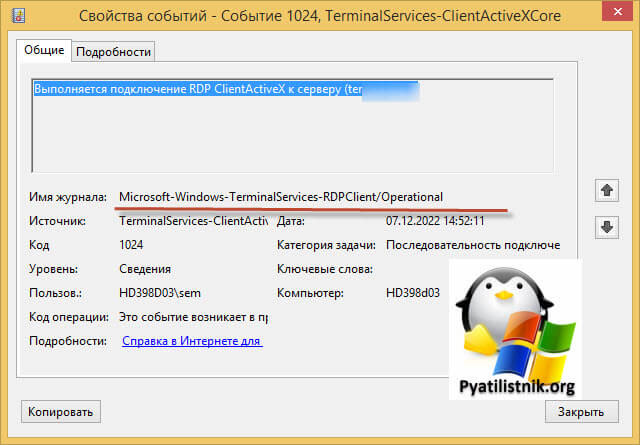
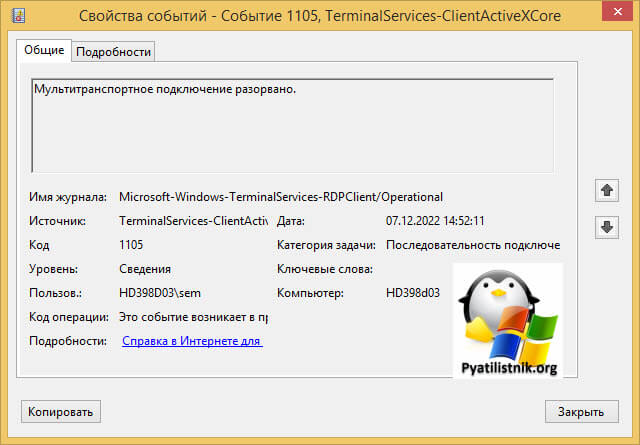
На клиентской машине откуда я пытался произвести подключение было три события:
ID 1024: Выполняется подключение RDP ClientActiveX к серверу (ter104)
ID 1105: Мультитранспортное подключение разорвано.
ID 1028: Отключение RDP ClientActiveX (Причина= 2308)
Код 2808 — Ваш сеанс служб удаленных рабочих столов завершен. Соединение с удаленным компьютером было потеряно, возможно, из-за проблем с сетевым подключением. Попробуйте снова подключиться к удаленному компьютеру. Если проблема не исчезнет, обратитесь к сетевому администратору или в службу технической поддержки.
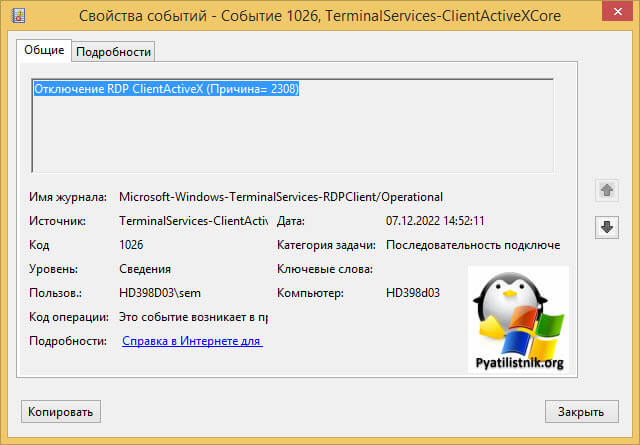
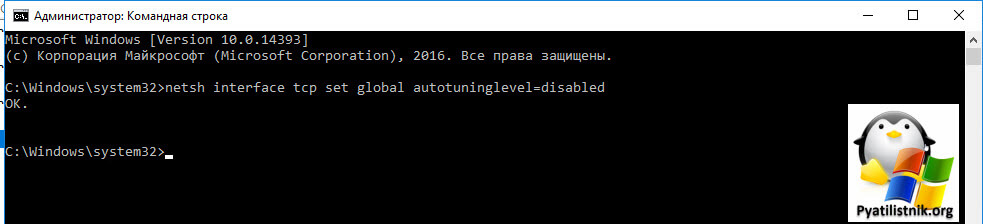
Так как у меня это была виртуальная машина, то я смог легко подключиться через консоль. В случае с ошибкой «Отключение RDP ClientActiveX (Причина= 2308)«, я отключил на сервере и клиенте autotuninglevel:
netsh interface tcp set global autotuninglevel=disabled
Не забываем перезагрузиться.
Это не помогло, далее я выполнил еще несколько рекомендаций. Я установил на сервер валидный SSL сертификат для RDP сессии. В ошибке 0x907, RDP соединение разрывалось, так как клиентская система не доверяла самоподписному сертификату удаленного сервера. Это нужно поправить, ссылку я указал, обязательно проверьте, кто сейчас выступает в роли активного:
Get-WmiObject «Win32_TSGeneralSetting» -Namespace rootcimv2terminalservices -Filter «TerminalName=’RDP-tcp'»
Еще я создал параметр реестра MaxOutstandingConnections. В Windows по умолчанию есть ограничения на количество сетевых подключений, так например в серверной версии, это параметр равен 3000, в десктопной 100. Из-за нестабильной сети, они могут быстро забиваться. Одно из решений проблемы с внутренней ошибкой подключения, является увеличение этого значения. В командной строке в режиме администратора выполните:
REG ADD «HKLMSYSTEMCurrentControlSetControlTerminal Server» /v MaxOutstandingConnections /t REG_DWORD /d 65536
New-ItemProperty -Path «HKLM:SYSTEMCurrentControlSetControlTerminal Server»
-Name MaxOutstandingConnections -Value 10000 -PropertyType DWORD -Force
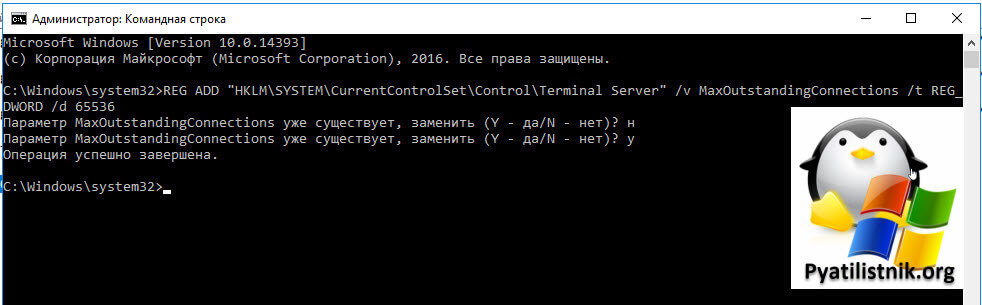
После этого нужно перезагрузиться.
Временное решение
Пока вы не уберете ошибку «Код ошибки, возвращенный модулем шифрования: ошибка 0x8009030D», описанную выше, вы можете понизить уровень безопасности вот такими манипуляциями, это устранит «An internal error has occurred».
На обычном сервере все это помогло, а вот на ноде RDSH ошибка оставалась. Тут я решил проверить догадку с уровнем безопасности «Configure security settings». На моей ферме был уровень «Согласования (Negotiate)«
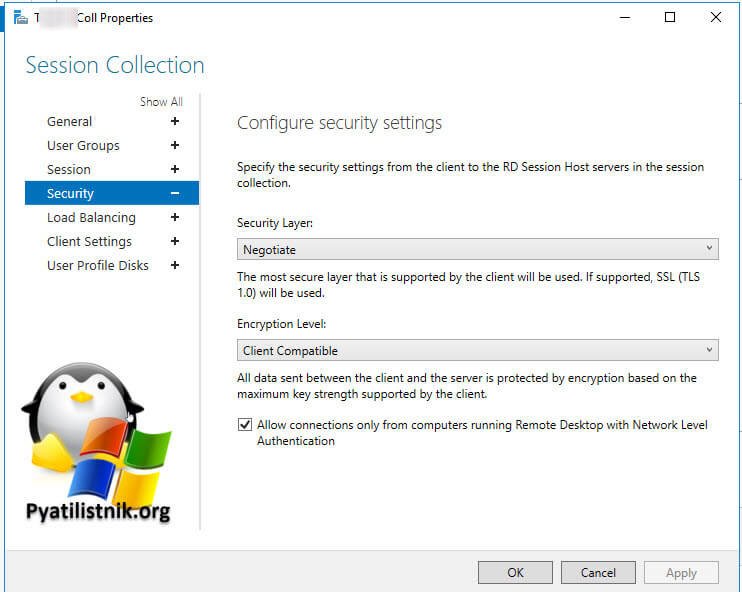
Я пошел на сервер, где были проблемы подключения и решил проверить один параметр локальной политики gpedit.msc.
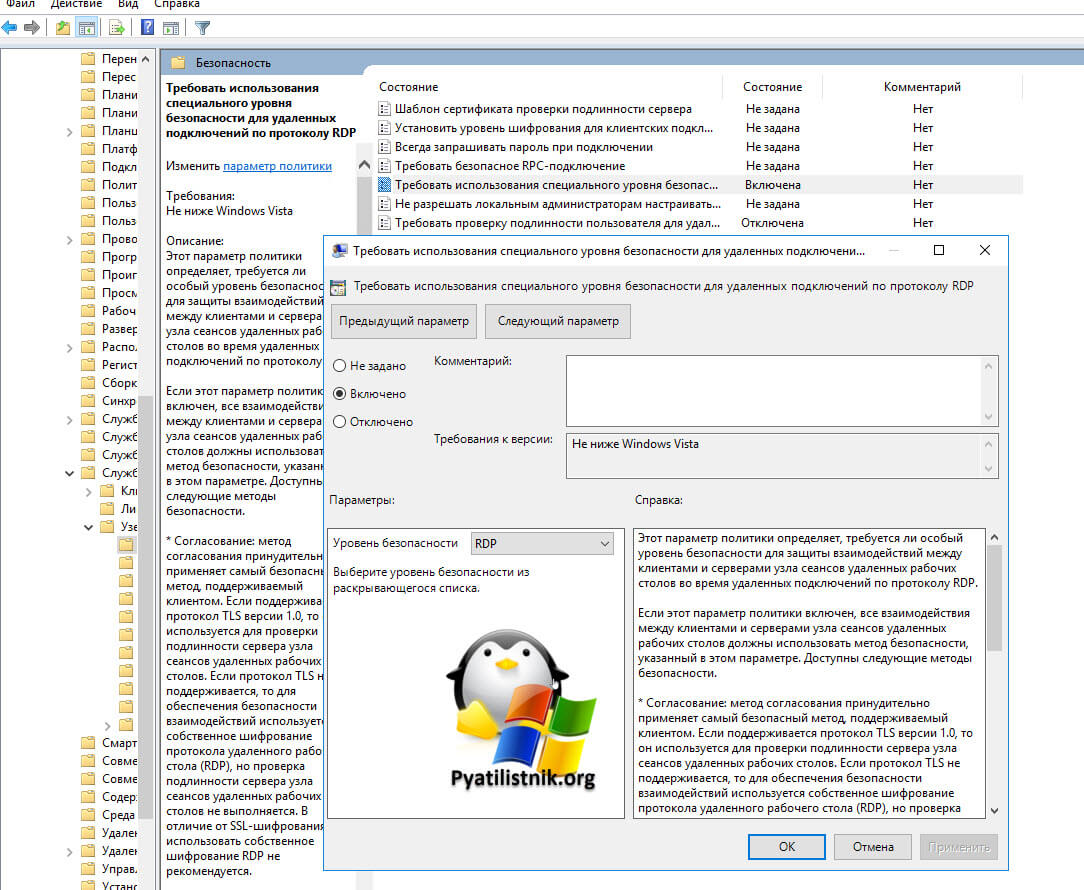
Конфигурация компьютера — Административные шаблоны- Компоненты Windows — Службы удаленных рабочих столов — Узел сеансов удаленных рабочих столов — Безопасность — Требовать использование специального уровня безопасности для удаленных подключений по протоколу RDP
Тут попробуйте выставить уровень RDP. В результате у меня после этих настроек все заработало. Теперь нужно понять, что изменилось. В настройках RDS фермы указано, что мы используем уровень согласование:
* Согласование: метод согласования принудительно применяет самый безопасный метод, поддерживаемый клиентом. Если поддерживается протокол TLS версии 1.0, то он используется для проверки подлинности сервера узла сеансов удаленных рабочих столов. Если протокол TLS не поддерживается, то для обеспечения безопасности взаимодействий используется собственное шифрование протокола удаленного рабочего стола (RDP), но проверка подлинности сервера узла сеансов удаленных рабочих столов не выполняется. В отличие от SSL-шифрования, использовать собственное шифрование RDP не рекомендуется.
Если и это вам не помогло, то нужно смотреть вариант в сторону обновления или переустановки драйверов на сетевую карту, тут вы определяете модель вашей карты или материнской платы, если в нее все интегрировано и обновляете. С вами был Иван Семин, автор и создатель IT портала Pyatilistnik.org.
Дополнительные ссылки
- https://serverfault.com/questions/934026/windows-10-pro-rdp-server-an-internal-error-has-occurred
- https://social.technet.microsoft.com/Forums/en-US/e1d60cc0-0096-4859-a0e7-eb7f11905737/remote-desktop-v10-error-0x4-from-mac?forum=winRDc
- https://learn.microsoft.com/en-us/answers/questions/108219/can-not-rdp-to-2012-r2-standard-server-after-septe.html
- https://serverfault.com/questions/541364/how-to-fix-rdp-on-windows-server-2012