Содержание статьи:
-
- SQL-сервер не найден или недоступен, ошибки соединения с SQL-сервером
- Ошибка SQL-сервера 26
- Ошибка SQL-сервера 18456
- Не удалось запустить SQL-server — код ошибки 3417
- Повреждена база данных
- Код ошибки SQL-сервера 945
- Код ошибки SQL-сервера 5172
- Ошибка SQL-сервера 823
- Ошибка SQL-сервера 8946
- Другие ошибки SQL Server
- Код ошибки SQL-сервера 1814
- Код ошибки SQL-сервера 1067
- SQL-сервер запускается, но работает слишком медленно
- SQL-сервер не найден или недоступен, ошибки соединения с SQL-сервером
SQL-сервер не найден или недоступен, ошибки соединения с SQL-сервером
- Если SQL-сервер не найден, убедитесь, что ваш экземпляр SQL-сервера действительно установлен и запущен. Для этого зайдите на компьютер, где он установлен, запустите диспетчер конфигурации SQL и проверьте, есть ли там тот экземпляр, к которому вы пытаетесь подключиться и запущен ли он. Нелишним будет также получить отчет об обнаружении компонентов SQL-серверов.
- Если вы проделали п1. и не обнаружили источник проблемы, возможно, неверно указан IP-адрес компьютера или номер порта TCP. Перепроверьте их настройки.
- Причиной того, что невозможно подключиться к SQL-серверу, также может быть сеть, убедитесь, что компьютер с SQL-сервером доступен по сети.
- Проверьте, может ли клиентское приложение, установленное на том же компьютере, что и сервер, подключиться к SQL-серверу. Запустите SQL Server Management Studio(SSMS), в диалоговом окне “Подключиться к серверу” выберите тип сервера Database Engine, укажите способ аутентификации “Аутентификация Windows”, введите имя компьютера и экземпляра SQL-сервера. Проверьте подключение.
Обратите внимание, что многие сообщения об ошибках могут быть не показаны или не содержат достаточной информации для устранения проблемы. Это сделано из соображений безопасности, чтобы при попытке взлома злоумышленники не могли получить информацию об SQL-сервере. Полные сведения содержатся в логе ошибок, который обычно хранится по адресу C:Program FilesMicrosoft SQL ServerMSSQL13.MSSQLSERVERMSSQLLogERRORLOG, или там, куда его поместил администратор системы.
Ошибка SQL-сервера 26
Одна из наиболее часто встречающихся ошибок подключения к SQL-серверу, обычно связана с тем, что в настройках SQL-сервера не разрешены или ограничены удаленные соединения. Чтобы это исправить, попробуйте:
- в SSMS в настройках SQL-сервера включите аутентификацию Windows
- для брандмауэра Windows создайте новое правило, которое разрешает подключение для всех программ и протоколов с указанного IP-адреса
- убедитесь, что запущена служба SQL Server Browser
Ошибка SQL-сервера 18456
Эта ошибка означает, что попытка подключиться к серверу не успешна из-за проблем с именем пользователя или паролем. По коду ошибки в журнале ошибок можно узнать более точную причину, чтобы устранить ее.
Не удалось запустить SQL-server — код ошибки 3417
Возникает в случае, если были изменены настройки Windows или перемещена папка с файлами MSSQL.
- зайдите в C:Program FilesMicrosoft SQLServerMSSQL.1MSSqLData — БезопасностьНастройки доступа — Учетная запись сетевой службы — добавьте учетную запись сетевой службы
- проверьте, что MDF-файл не сжимается. Если это не так, отключите “Сжимать содержимое для экономии места на диске” в свойствах файла
Иногда ни один из этих способов не помогает, это значит, что файлы БД повреждены и ее придется восстанавливать из резервной копии.
Повреждена база данных
Код ошибки SQL-сервера 945
Ошибка 945 возникает, когда БД SQL-сервера помечена как IsShutdown. Проверьте, достаточно ли места на диске, достаточно ли прав у учетной записи для операций с БД, файлы MDF и LDF не должны быть помечены “Только для чтения”.
Код ошибки SQL-сервера 5172
SQL-сервер хранит свою физическую БД в первичном файле, в котором информация разбита постранично. Первая страница содержит информацию о заголовке mdf-файла и называется страницей заголовка. Она состоит из разнообразной информации о БД, такой как размер файла, подпись и т.д. В процессе прикрепления MDF на SQL-сервере часто возникает ошибка 5172. Это в основном происходит, если MDF-файл поврежден, информация в его заголовке тоже и соответственно сложно добраться до данных. Причиной может быть вирус, аварийное выключение системы, ошибка оборудования.
Ошибка SQL-сервера 823
SQL использует API Windows для операций ввода-вывода, но кроме завершения этих операций SQL проверяет все ошибки обращений к API. Если эти обращения несовместимы с ОС, появляется ошибка 823. Сообщение об ошибке 823 означает, что существует проблема с базовым оборудованием для хранения данных или с драйвером, который находится на пути запроса ввода-вывода. Пользователи могут столкнуться с этой ошибкой, если в файловой системе есть противоречия или поврежден файл базы данных.
Ошибка SQL-сервера 8946
Основной причиной ошибки 8946 так же, как и для 5172, является повреждение заголовков страниц БД SQL вследствие сбоя питания, вирусной атаки, отказа оборудования — SQL-сервер больше не может прочесть эти страницы.
Перечисленные ошибки 945, 5172, 823, 8946 можно устранить двумя методами:
- если у вас есть свежая резервная копия базы — восстановить базу из этой копии
- можно попробовать использовать специализированное ПО, такое как SQL Recovery Tool, чтобы восстановить поврежденные файлы
Желательно определить, что именно привело к возникновению ошибок и принять меры, чтобы это не повторялось — заменить плохо работающее оборудование, повысить информационную безопасность.
Другие ошибки SQL
Код ошибки SQL-сервера 1814
SQL-сервер не может создать базу данных tempdb. Убедитесь, что на выделенном под нее диске достаточно места и что у учетной записи хватает прав для записи в указанную директорию.
Код ошибки SQL-сервера 1067
Эта ошибка может возникать по разным причинам. Наиболее часто оказывается, что повреждены или отсутствуют конфигурационные файлы, SQL-сервер обращается к поврежденным системным файлам, ошибочные данные пользователя, нет информации про лицензию. В самых тяжелых случаях придется переустанавливать SQL-сервер. Но иногда помогает восстановление поврежденных файлов или изменение настроек SQL-сервера — вы можете создать новую учетную запись в домене и использовать ее для службы MSSQL.
SQL-сервер запускается, но работает слишком медленно
Проанализируйте журнал сервера, индексы (фрагментацию), запросы, задания, возможность взаимных блокировок. Причин может быть масса.
Мы работаем с разными версиями SQL-сервера уже много лет, знакомы со всевозможными инструкциями SQL-сервера, видели самые разные варианты его настройки и использования на проектах у своих клиентов. В целом мы можем выделить четыре основных источника неполадок:
- Индексы — причина проблем номер один. Неправильные индексы, отсутствующие индексы, слишком много индексов и подобное. Чаще всего при проблеме с индексами пользователи или администраторы базы данных не получают сообщения об ошибке, они просто видят, что база работает очень медленно и докопаться до причин бывает очень нелегко
- изначально плохая архитектура сервера баз данных — ошибка, которую очень сложно и дорого исправлять на этапе, когда база уже используется
- плохой код, в котором возможны блокировки и тупиковые места
- использование конфигурации по умолчанию,
Если у вас не получается устранить ошибки сервера SQL-server самостоятельно, если они появляются снова и снова, то скорее всего в основе лежит одна из этих причин. В таком случае — если у вас произошла ошибка с SQL сервером, ваше ПО не видит SQL-сервер, либо нужно развернуть кластер SQL-серверов — вы всегда можете обратиться за консультацией и технической поддержкой к специалистам Интегруса, отправив заявку с сайта, написав на e-mail, либо позвонив в колл-центр нашей компании.

Присоединяйтесь к нам,
чтобы получать чек-листы, реальные кейсы, а также
обзоры сервисов раз в 2 недели.
Приветствую всех посетителей сайта Info-Comp.ru! Сегодня мы рассмотрим ситуацию, когда Вы пытаетесь подключиться к Microsoft SQL Server по сети, но Вам это не удаётся, так как возникает та или иная ошибка подключения.
В этом материале представлен последовательный план действий, который поможет Вам выявить и устранить причину возникновения таких ошибок подключения, и тем самым успешно подключиться к Microsoft SQL Server.

Итак, давайте начнем. Допустим, у нас есть Microsoft SQL Server, установленный на Windows, и мы будем пытаться подключится к нему по сети, например, из операционной системы Linux, используя Azure Data Studio.
Заметка! Как подключиться к Microsoft SQL Server из Linux.
В процессе подключения у нас возникает ошибка, и, чтобы ее устранить, мы будем последовательно выполнять определенные проверочные действия, которые помогут нам выявить причину этой ошибки.
Содержание
- Корректность ввода данных для подключения
- Доступность сервера по сети
- Открытые порты в брандмауэре
- Запущена ли служба «Обозреватель SQL Server»
- Запущена ли служба «SQL Server»
- Включен ли протокол «TCP/IP»
- Удаленные соединения с серверов
- Права имени входа, сопоставление с пользователем базы данных
- Подведение итогов
Корректность ввода данных для подключения
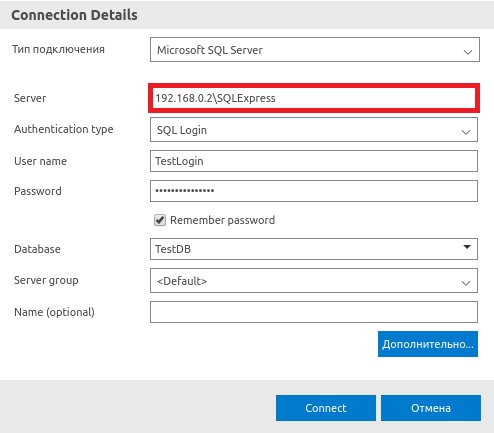
Первое, с чего необходимо начать, это, конечно же, с проверки данных для подключения, т.е. правильно ли мы указываем адрес сервера и имя экземпляра (если используется именованный экземпляр).
Дело в том, что если мы неправильно укажем адрес сервера, или не укажем имя экземпляра SQL Server, или ошибемся хотя бы в одной букве, подключиться мы не сможем.
Имя экземпляра SQL Server необходимо указывать в тех случаях, когда у нас настроен именованный экземпляр, например, в редакции Express по умолчанию настраивается именованный экземпляр и динамические порты.
Если не указать имя экземпляра, когда это имя необходимо указывать, мы получим ошибку
«provider: TCP Provider, error: 40 – could not open a connection to SQL Server»
А если допустить ошибку в имени экземпляра, то
«provider: TCP Provider, error: 25 – connection string is not valid»
Поэтому лучше сразу проверить корректность ввода данных для подключения.
Заметка! Обзор инструментов для работы с Microsoft SQL Server.
Доступность сервера по сети
Если данные для подключения верны, то следующим шагом будет, конечно же, проверка доступности сервера, так как если сервер физически недоступен, то все следующие проверки будут абсолютно бесполезны и ни к чему не приведут.
Если сервер недоступен, то Вы будете получать уже знакомую ошибку
«provider: TCP Provider, error: 25 – connection string is not valid»
Проверить доступность сервера можно стандартным способом, используя утилиту ping в командной строке.
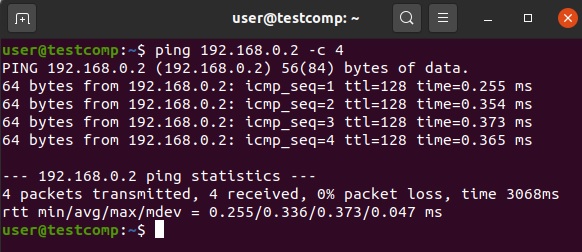
Если сервер недоступен, то Вам необходимо настроить сеть, чтобы физический сервер, на котором располагается SQL Server, был доступен с компьютера, с которого Вы хотите подключиться.
Открытые порты в брандмауэре
Если сервер, на котором располагается SQL Server, физически доступен, то сразу же необходимо на нем проверить доступность портов в брандмауэре Windows, или в файрволе, который Вы используете.
Стандартный порт, на котором работает SQL Server, это 1433, соответственно, необходимо настроить правило для входящих подключений по порту 1433.
В случае если Вы используете именованный экземпляр SQL Server и динамические порты, то у Вас должно быть настроено правило для программы, в частности для исполняемого файла SQL Server – sqlservr.exe.
Для 2019 версии он расположен по следующему пути
«C:Program FilesMicrosoft SQL ServerMSSQL15.MSSQLSERVERMSSQLBinnSqlservr.exe»
Кроме этого, в данном случае необходимо еще открыть UDP порт 1434 для службы «Обозреватель SQL Server».
Подробная официальная инструкция «Настройка брандмауэра Windows для доступа к SQL Server».
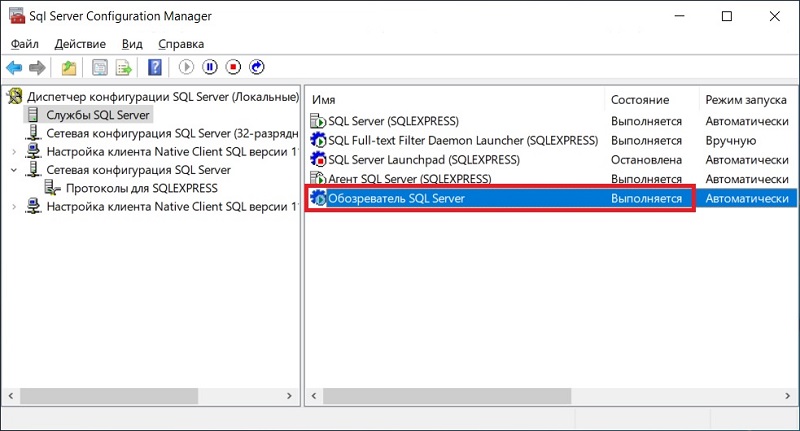
Продолжая тему именованных экземпляров и динамических портов, стоит отметить, что если используется именованный экземпляр и динамические порты, то дополнительно должна быть запущена служба «Обозреватель SQL Server». Если она не запущена, то подключиться Вы не сможете, будет возникать все та же ошибка
«provider: TCP Provider, error: 25 – connection string is not valid»
Поэтому запустите SQL Server Configuration Manager и проверьте соответствующую службу.
Запущена ли служба «SQL Server»
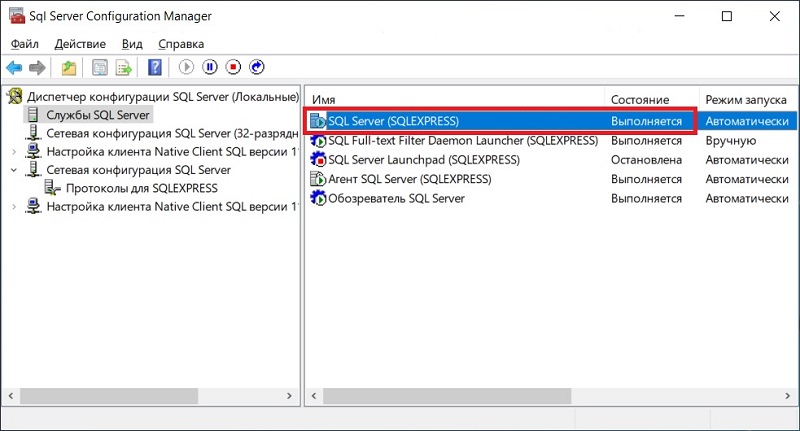
Если сервер физически доступен, необходимые порты открыты, то следующим шагом следует проверить, а запущена ли в принципе служба SQL Server.
Ведь бывает и такое, что мы пытаемся подключиться к SQL Server, а его просто нет, т.е. он даже не запущен.
Поэтому проверяем, запущена ли служба «SQL Server» в SQL Server Configuration Manager.
Заметка! Сравнение Azure Data Studio с SQL Server Management Studio (SSMS).
Включен ли протокол «TCP/IP»
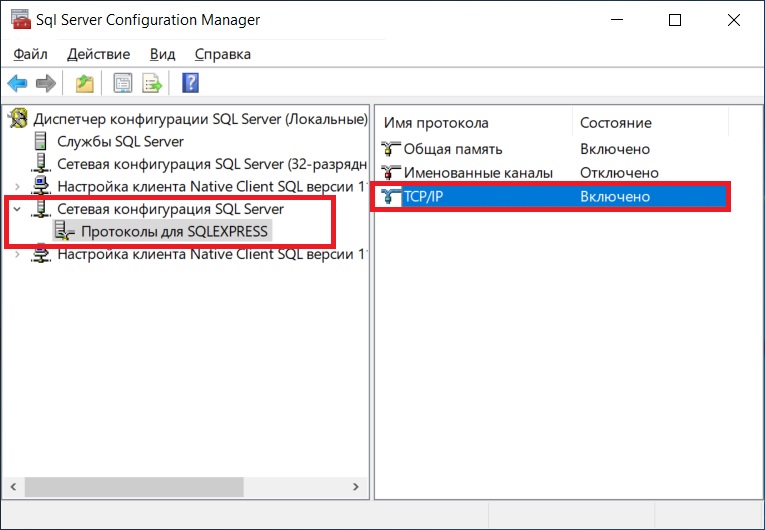
Кроме всего вышеперечисленного необходимо проверить, включен ли протокол «TCP/IP» в сетевой конфигурации SQL Server, так как если SQL Server используется в сети, данный протокол обязательно должен быть включен.
Это можно проверить в SQL Server Configuration Manager в разделе «Сетевая конфигурация SQL Server».
Удаленные соединения с серверов
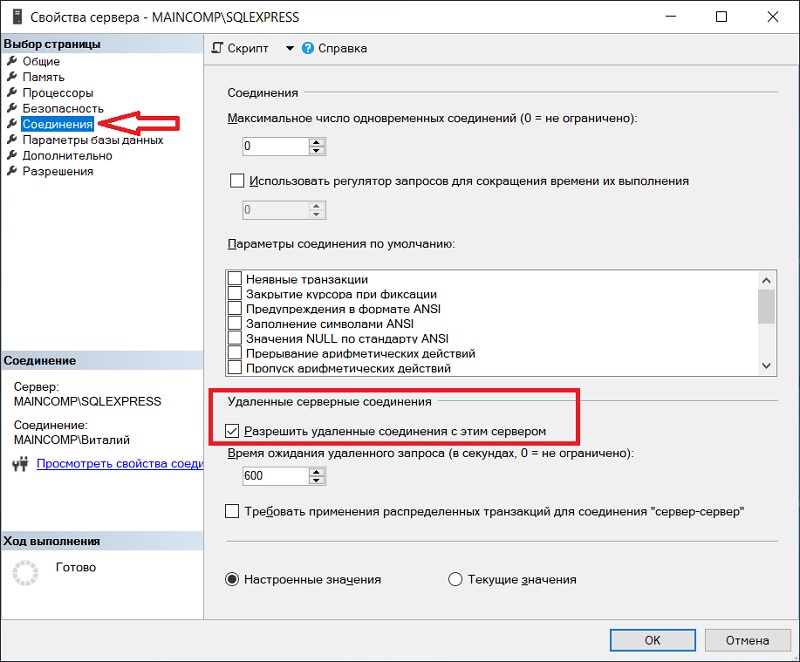
Также необходимо проверить, разрешены ли удаленные соединения с серверов. Это можно сделать в SQL Server Management Studio в свойствах сервера на вкладке «Соединения», параметр «Разрешить удаленные соединения с сервером» должен быть включен.
Заметка! Как включить нумерацию строк кода в SQL Server Management Studio.
Права имени входа, сопоставление с пользователем базы данных
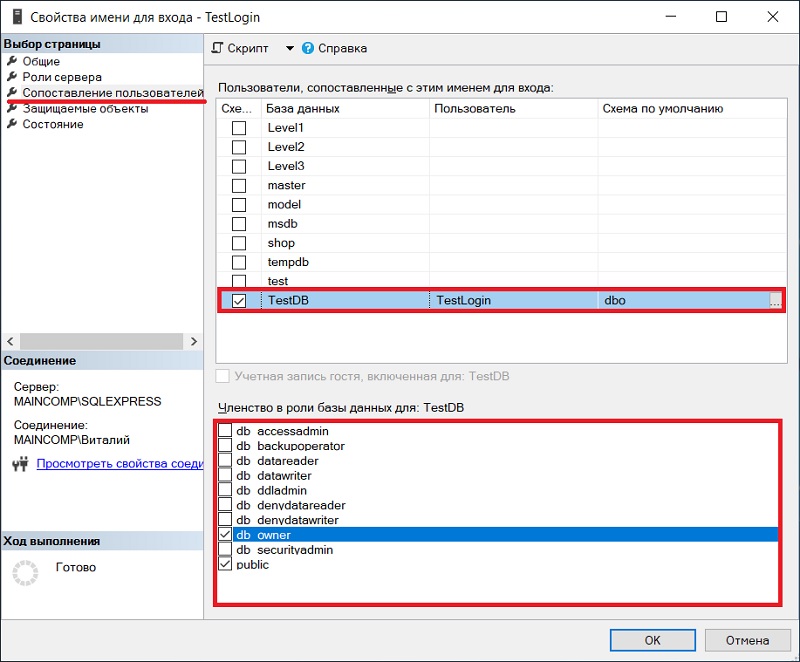
Имя входа, которое Вы указываете при подключении к SQL Server, должно обладать определенными правами, в частности оно должно быть сопоставлено с пользователем базы данных, если это не так, то Вы будете получать ошибку подключения, например
«При входе пользователя TestLogin произошла ошибка».
Поэтому необходимо проверить, сопоставлено ли имя входа с пользователем базы данных и предоставлены ли необходимые права.
Это можно сделать в SQL Server Management Studio, перейдите в контейнер «Безопасность -> Имена для входа», выберите нужное имя входа и зайдите в свойства этого имени. Затем на вкладке «Сопоставление пользователей» отметьте базы данных, с которыми будет сопоставлено данное имя входа, и задайте необходимые права в виде указания ролей базы данных.
Подведение итогов
Таким образом, на основе всего вышеизложенного мы можем составить план действий, следуя которому мы обязательно определим и устраним причину возникновения ошибки подключения к Microsoft SQL Server по сети.
Что необходимо сделать для устранения ошибки подключения к Microsoft SQL Server по сети:
Проверить корректность ввода данных для подключения
Проверить доступность физического сервера по сети
Открыть порты в брандмауэре (файрволе)
Проверить, запущена ли служба «Обозреватель SQL Server»
Проверить, запущена ли служба «SQL Server»
Проверить, включен ли протокол «TCP/IP»
Проверить, разрешены ли удаленные соединения с серверов
Проверить права имени входа и сопоставить с пользователем базы данных
Заметка! Курсы по Transact-SQL для начинающих.
На сегодня это все, надеюсь, материал был Вам полезен, пока!
| title | description | ms.date | ms.service | ms.subservice | ms.topic | ms.assetid | author | ms.author |
|---|---|---|---|---|---|---|---|---|
|
Troubleshoot Server & Database Connection Problems |
In this article, diagnose and fix problems you experience when you’re connecting to a report server. Also learn about ‘Unexpected error’ messages. |
12/16/2019 |
reporting-services |
troubleshooting |
conceptual |
8bbb88df-72fd-4c27-91b7-b255afedd345 |
maggiesMSFT |
maggies |
Troubleshoot Server & Database Connection Problems with Reporting Services
Use this topic to troubleshoot problems that you experience when you’re connecting to a report server. This topic also provides information about «Unexpected error» messages. For more information about data source configuration and configuring report server connection information, see Specify Credential and Connection Information for Report Data Sources and Configure a Report Server Database Connection (Report Server Configuration Manager).
Cannot create a connection to data source ‘datasourcename’. (rsErrorOpeningConnection)
This is a generic error that occurs when the report server can’t open a connection to an external data source that provides data to a report. This error appears with a second error message that indicates the underlying cause. The following additional errors can appear with rsErrorOpeningConnection.
Login failed for user ‘UserName’
The user doesn’t have permission to access the data source. If you’re using a SQL Server database, verify that the user has a valid database user login. For more information about how to create a database user or a SQL Server login, see Create a Database User and Create a SQL Server Login.
Login failed for user ‘NT AUTHORITYANONYMOUS LOGON’
This error occurs when credentials are passed across multiple computer connections. If you’re using Windows Authentication, and the Kerberos version 5 protocol is not enabled, this error occurs when credentials are passed across more than one computer connection. To work around this error, consider using stored credentials or prompted credentials. For more information about how to work around this issue, see Specify Credential and Connection Information for Report Data Sources.
An error has occurred while establishing a connection to the server.
When you’re connecting to SQL Server, this failure may be caused by the fact that under the default settings SQL Server don’t allow remote connections. (provider: Named Pipes Provider, error: 40 — Could not open a connection to SQL Server). This error is returned by the instance of the Database Engine that hosts the report server database. In most cases, this error occurs because the SQL Server service is stopped. Or, if you’re using SQL Server Express with Advanced Services or a named instance, this error will occur if the report server URL or connection string for the report server database is not correct. To work through these issues, do the following:
- Verify that the SQL Server (MSSQLSERVER) service is started. On the computer that hosts the instance of the Database Engine, click Start, click Administrative Tools, click Services, and scroll to SQL Server (MSSQLSERVER). If it is not started, right-click the service, select Properties, in Startup Type select Automatic, click Apply, click Start, and then click OK.
- Verify that the report server URL and report server database connection string is correct. If Reporting Services or the Database Engine was installed as a named instance, the default connection string that is created during Setup will include the instance name. For example, if you installed a default instance of SQL Server Express with Advanced Services on a server named DEVSRV01, the web portal URL is DEVSRV01Reports$SQLEXPRESS. Furthermore, the database server name in the connection string will resemble DEVSRV01SQLEXPRESS. For more information about URLs and data source connection strings for SQL Server Express, see Reporting Services in SQL Server Express with Advanced Services. To verify the connection string for the report server database, start the Reporting Services Configuration tool and view the Database Setup page.
A connection can’t be made. Ensure that the server is running.
This error is returned by ADOMD.NET provider. There are several reasons why this error can occur. If you specified the server as «localhost», try specifying the server name instead. This error can also occur if memory can’t be allocated to the new connection. For more information, see Knowledge Base Article 912017 — Error message when you connect to an instance of SQL Server 2005 Analysis Services:.
If the error also includes «No such host is known», it indicates that the Analysis Services server is not available or is refusing the connection. If the Analysis Services server is installed as a named instance on a remote computer, you might have to run the SQL Server Browser service to get the port number used by that instance.
(Report Services SOAP Proxy Source)
If you get this error during report model generation, and the additional information section includes «SQL Server don’t exist or access denied», you might be encountering the following conditions:
- The connection string for the data source includes «localhost».
- TCP/IP is disabled for the SQL Server service.
To resolve this error, you can either modify the connection string to use the server name or you can enable TCP/IP for the service. Follow these steps to enable TCP/IP:
- Start SQL Server Configuration Manager.
- Expand SQL Server Network Configuration.
- Select Protocols for MSSQLSERVER.
- Right-click TCP/IP, and select Enable.
- Select SQL Server Services.
- Right-click SQL Server (MSSQLSERVER), and select Restart.
WMI error when connecting to a report server in Management Studio
By default, Management Studio uses the Reporting Services Windows Management Instrumentation (WMI) provider to establish a connection to the report server. If the WMI provider is not installed correctly, you will get the following error when attempting to connect to the report server:
Cannot connect to <your server name>. The Reporting Services WMI provider is not installed or is misconfigured (Microsoft.SqlServer.Management.UI.RSClient).
To resolve this error, you should reinstall the software. For all other cases, as a temporary work-around, you can connect to the report server through the SOAP endpoint:
- In the Connect to Server dialog box in Management Studio, in Server Name, type the report server URL. By default, it is
https://<your server name>/reportserver. Or if you’re using SQL Server 2008 Express with Advanced Services, it ishttps://<your server name>/reportserver$sqlexpress.
To resolve the error so that you can connect using the WMI provider, you should run Setup to repair Reporting Services, or reinstall Reporting Services.
Connection error, where login failed due to unknown user name or bad password
An rsReportServerDatabaseLogonFailed error can occur if you’re using a domain account for the connection from the report server to the report server database connection, and the password for the domain account has been changed.
The full error text is: «The report server can’t open a connection to the report server database. The logon failed (rsReportServerDatabaseLogonFailed). Logon failure: unknown user name or bad password.»
If you reset the password, you must update the connection. For more information, see Configure a Report Server Database Connection (Report Server Configuration Manager).
The report server can’t open a connection to the report server database. (rsReportServerDatabaseUnavailable).
Full Message: The report server can’t open a connection to the report server database. A connection to the database is required for all requests and processing. (rsReportServerDatabaseUnavailable)
This error occurs when the report server can’t connect to the SQL Server relational database that provides internal storage to the server. The connection to the report server database is managed through the Reporting Services Configuration tool. You can run the tool, go to the Database Setup page, and correct the connection information. Using the tool to update connection information is a best practice; the tool ensures that dependent settings are updated and that services are restarted. For more information, see Configure a Report Server Database Connection and Configure the Report Server Service Account.
This error can also occur if the Database Engine instance that hosts the report server database is not configured for remote connections. Remote connection is enabled by default in some editions of SQL Server. To verify whether it is enabled on the SQL Server Database Engine instance you’re using, run the SQL Server Configuration Manager tool. You must enable both TCP/IP and named pipes. A report server uses both protocols. For instructions on how to enable remote connections, see the section «How to Configure Remote Connections to the Report Server Database» in Configure a Report Server for Remote Administration.
If the error includes the following additional text, the password expired on the account used to run the Database Engine instance: «An error has occurred while establishing a connection to the server. When you’re connecting to SQL Server, this failure may be caused by the fact that under the default settings SQL Server don’t permit remote connections. (provider: SQL Server Network Interfaces, error: 26 — Error Locating Server/Instance Specified).» To resolve this error, reset the password.
«RPC Server is not listening»
The Report Server service uses Remote Procedure Call (RPC) server for some operations. If you get the «RPC Server is not listening» error, verify that the Report Server service is running.
Unexpected error (General network error)
This error indicates a data source connection error. You should check the connection string, and verify that you have permission to access the data source. If you’re using Windows Authentication to access a data source, you must have permission to access the computer that hosts the data source.
Unable to grant database access in SharePoint Central Administration
When you have configured Reporting Services to integrate with a SharePoint product or technology on Windows Vista or Windows Server 2008, you might receive the following error message when you try to grant access on the Grant Database Access page in SharePoint Central Administration: «A connection to the computer can’t be established.»
This happens because User Account Control (UAC) in Windows Vista and Windows Server 2008 requires explicit acceptance from an administrator to elevate and use the administrator token when performing tasks that require administrator permissions. In this case, however, the Windows SharePoint Services Administration service can’t be elevated to grant the Reporting Services service account or accounts access to the SharePoint configuration and content databases.
In SQL Server 2008 Reporting Services, only the Report Server service account requires database access; in SQL Server 2005 Reporting Services SP2, both the Report Server Windows service account and the Report Server Web service account require database access. For more information about the Report Server service account in SQL Server 2008, see Service Account (Reporting Services Configuration).
There are two workarounds for this issue.
- In one workaround, you can temporarily turn off UAC and use SharePoint Central Administration to grant access.
[!IMPORTANT]
Use caution if you turn off UAC to work around this issue, and turn on UAC immediately after you grant database access in SharePoint Central Administration. If you don’t want to turn off UAC, use the second workaround provided in this section. For information about UAC, see the Windows product documentation.
- In the second workaround, you can manually grant database access to the Reporting Services service account or accounts. You can use the following procedure to grant access by adding the Reporting Services service account or accounts to the correct Windows group and database roles. This procedure applies to the Report Server service account in SQL Server 2008 Reporting Services; if you’re running SQL Server 2005 Reporting Services, perform the procedure for the Report Server Windows service account and the Report Server Web service account.
To manually grant database access
- Add the Report Server service account to the WSS_WPG Windows group on the Reporting Services computer.
- Connect to the database instance that hosts the SharePoint configuration and content databases, and create a SQL database login for the Report Server service account.
- Add the SQL database login to the following database roles:
- db_owner role in the WSS Content database
- WSS_Content_Application_Pools role in the SharePoint_Config database
Unable to connect to the /reports and /reportserver directories when the report server databases are created on a virtual SQL Server that runs in a Microsoft Cluster Services (MSCS) cluster
When you create the report server databases, ReportServer and ReportServerTempDB, on a virtual SQL Server that runs in an MSCS cluster, the remote name in the format <domain><computer_name>$ might not be registered to SQL Server as a login. If you have configured the Report Server service account as an account that requires this remote name for connections, users can’t connect to the /reports and /reportserver directories in Reporting Services. For example, the built-in Windows account NetworkService requires this remote name. To avoid this issue, use an explicit domain account or a SQL Server login to connect to the report server databases.
See Also
Browser Support for Reporting Services
Errors and events (Reporting Services)
Troubleshoot Data Retrieval issues with Reporting Services Reports
Troubleshoot Reporting Services Subscriptions and Delivery
[!INCLUDEfeedback_stackoverflow_msdn_connect]
| title | description | ms.date | ms.service | ms.subservice | ms.topic | ms.assetid | author | ms.author |
|---|---|---|---|---|---|---|---|---|
|
Troubleshoot Server & Database Connection Problems |
In this article, diagnose and fix problems you experience when you’re connecting to a report server. Also learn about ‘Unexpected error’ messages. |
12/16/2019 |
reporting-services |
troubleshooting |
conceptual |
8bbb88df-72fd-4c27-91b7-b255afedd345 |
maggiesMSFT |
maggies |
Troubleshoot Server & Database Connection Problems with Reporting Services
Use this topic to troubleshoot problems that you experience when you’re connecting to a report server. This topic also provides information about «Unexpected error» messages. For more information about data source configuration and configuring report server connection information, see Specify Credential and Connection Information for Report Data Sources and Configure a Report Server Database Connection (Report Server Configuration Manager).
Cannot create a connection to data source ‘datasourcename’. (rsErrorOpeningConnection)
This is a generic error that occurs when the report server can’t open a connection to an external data source that provides data to a report. This error appears with a second error message that indicates the underlying cause. The following additional errors can appear with rsErrorOpeningConnection.
Login failed for user ‘UserName’
The user doesn’t have permission to access the data source. If you’re using a SQL Server database, verify that the user has a valid database user login. For more information about how to create a database user or a SQL Server login, see Create a Database User and Create a SQL Server Login.
Login failed for user ‘NT AUTHORITYANONYMOUS LOGON’
This error occurs when credentials are passed across multiple computer connections. If you’re using Windows Authentication, and the Kerberos version 5 protocol is not enabled, this error occurs when credentials are passed across more than one computer connection. To work around this error, consider using stored credentials or prompted credentials. For more information about how to work around this issue, see Specify Credential and Connection Information for Report Data Sources.
An error has occurred while establishing a connection to the server.
When you’re connecting to SQL Server, this failure may be caused by the fact that under the default settings SQL Server don’t allow remote connections. (provider: Named Pipes Provider, error: 40 — Could not open a connection to SQL Server). This error is returned by the instance of the Database Engine that hosts the report server database. In most cases, this error occurs because the SQL Server service is stopped. Or, if you’re using SQL Server Express with Advanced Services or a named instance, this error will occur if the report server URL or connection string for the report server database is not correct. To work through these issues, do the following:
- Verify that the SQL Server (MSSQLSERVER) service is started. On the computer that hosts the instance of the Database Engine, click Start, click Administrative Tools, click Services, and scroll to SQL Server (MSSQLSERVER). If it is not started, right-click the service, select Properties, in Startup Type select Automatic, click Apply, click Start, and then click OK.
- Verify that the report server URL and report server database connection string is correct. If Reporting Services or the Database Engine was installed as a named instance, the default connection string that is created during Setup will include the instance name. For example, if you installed a default instance of SQL Server Express with Advanced Services on a server named DEVSRV01, the web portal URL is DEVSRV01Reports$SQLEXPRESS. Furthermore, the database server name in the connection string will resemble DEVSRV01SQLEXPRESS. For more information about URLs and data source connection strings for SQL Server Express, see Reporting Services in SQL Server Express with Advanced Services. To verify the connection string for the report server database, start the Reporting Services Configuration tool and view the Database Setup page.
A connection can’t be made. Ensure that the server is running.
This error is returned by ADOMD.NET provider. There are several reasons why this error can occur. If you specified the server as «localhost», try specifying the server name instead. This error can also occur if memory can’t be allocated to the new connection. For more information, see Knowledge Base Article 912017 — Error message when you connect to an instance of SQL Server 2005 Analysis Services:.
If the error also includes «No such host is known», it indicates that the Analysis Services server is not available or is refusing the connection. If the Analysis Services server is installed as a named instance on a remote computer, you might have to run the SQL Server Browser service to get the port number used by that instance.
(Report Services SOAP Proxy Source)
If you get this error during report model generation, and the additional information section includes «SQL Server don’t exist or access denied», you might be encountering the following conditions:
- The connection string for the data source includes «localhost».
- TCP/IP is disabled for the SQL Server service.
To resolve this error, you can either modify the connection string to use the server name or you can enable TCP/IP for the service. Follow these steps to enable TCP/IP:
- Start SQL Server Configuration Manager.
- Expand SQL Server Network Configuration.
- Select Protocols for MSSQLSERVER.
- Right-click TCP/IP, and select Enable.
- Select SQL Server Services.
- Right-click SQL Server (MSSQLSERVER), and select Restart.
WMI error when connecting to a report server in Management Studio
By default, Management Studio uses the Reporting Services Windows Management Instrumentation (WMI) provider to establish a connection to the report server. If the WMI provider is not installed correctly, you will get the following error when attempting to connect to the report server:
Cannot connect to <your server name>. The Reporting Services WMI provider is not installed or is misconfigured (Microsoft.SqlServer.Management.UI.RSClient).
To resolve this error, you should reinstall the software. For all other cases, as a temporary work-around, you can connect to the report server through the SOAP endpoint:
- In the Connect to Server dialog box in Management Studio, in Server Name, type the report server URL. By default, it is
https://<your server name>/reportserver. Or if you’re using SQL Server 2008 Express with Advanced Services, it ishttps://<your server name>/reportserver$sqlexpress.
To resolve the error so that you can connect using the WMI provider, you should run Setup to repair Reporting Services, or reinstall Reporting Services.
Connection error, where login failed due to unknown user name or bad password
An rsReportServerDatabaseLogonFailed error can occur if you’re using a domain account for the connection from the report server to the report server database connection, and the password for the domain account has been changed.
The full error text is: «The report server can’t open a connection to the report server database. The logon failed (rsReportServerDatabaseLogonFailed). Logon failure: unknown user name or bad password.»
If you reset the password, you must update the connection. For more information, see Configure a Report Server Database Connection (Report Server Configuration Manager).
The report server can’t open a connection to the report server database. (rsReportServerDatabaseUnavailable).
Full Message: The report server can’t open a connection to the report server database. A connection to the database is required for all requests and processing. (rsReportServerDatabaseUnavailable)
This error occurs when the report server can’t connect to the SQL Server relational database that provides internal storage to the server. The connection to the report server database is managed through the Reporting Services Configuration tool. You can run the tool, go to the Database Setup page, and correct the connection information. Using the tool to update connection information is a best practice; the tool ensures that dependent settings are updated and that services are restarted. For more information, see Configure a Report Server Database Connection and Configure the Report Server Service Account.
This error can also occur if the Database Engine instance that hosts the report server database is not configured for remote connections. Remote connection is enabled by default in some editions of SQL Server. To verify whether it is enabled on the SQL Server Database Engine instance you’re using, run the SQL Server Configuration Manager tool. You must enable both TCP/IP and named pipes. A report server uses both protocols. For instructions on how to enable remote connections, see the section «How to Configure Remote Connections to the Report Server Database» in Configure a Report Server for Remote Administration.
If the error includes the following additional text, the password expired on the account used to run the Database Engine instance: «An error has occurred while establishing a connection to the server. When you’re connecting to SQL Server, this failure may be caused by the fact that under the default settings SQL Server don’t permit remote connections. (provider: SQL Server Network Interfaces, error: 26 — Error Locating Server/Instance Specified).» To resolve this error, reset the password.
«RPC Server is not listening»
The Report Server service uses Remote Procedure Call (RPC) server for some operations. If you get the «RPC Server is not listening» error, verify that the Report Server service is running.
Unexpected error (General network error)
This error indicates a data source connection error. You should check the connection string, and verify that you have permission to access the data source. If you’re using Windows Authentication to access a data source, you must have permission to access the computer that hosts the data source.
Unable to grant database access in SharePoint Central Administration
When you have configured Reporting Services to integrate with a SharePoint product or technology on Windows Vista or Windows Server 2008, you might receive the following error message when you try to grant access on the Grant Database Access page in SharePoint Central Administration: «A connection to the computer can’t be established.»
This happens because User Account Control (UAC) in Windows Vista and Windows Server 2008 requires explicit acceptance from an administrator to elevate and use the administrator token when performing tasks that require administrator permissions. In this case, however, the Windows SharePoint Services Administration service can’t be elevated to grant the Reporting Services service account or accounts access to the SharePoint configuration and content databases.
In SQL Server 2008 Reporting Services, only the Report Server service account requires database access; in SQL Server 2005 Reporting Services SP2, both the Report Server Windows service account and the Report Server Web service account require database access. For more information about the Report Server service account in SQL Server 2008, see Service Account (Reporting Services Configuration).
There are two workarounds for this issue.
- In one workaround, you can temporarily turn off UAC and use SharePoint Central Administration to grant access.
[!IMPORTANT]
Use caution if you turn off UAC to work around this issue, and turn on UAC immediately after you grant database access in SharePoint Central Administration. If you don’t want to turn off UAC, use the second workaround provided in this section. For information about UAC, see the Windows product documentation.
- In the second workaround, you can manually grant database access to the Reporting Services service account or accounts. You can use the following procedure to grant access by adding the Reporting Services service account or accounts to the correct Windows group and database roles. This procedure applies to the Report Server service account in SQL Server 2008 Reporting Services; if you’re running SQL Server 2005 Reporting Services, perform the procedure for the Report Server Windows service account and the Report Server Web service account.
To manually grant database access
- Add the Report Server service account to the WSS_WPG Windows group on the Reporting Services computer.
- Connect to the database instance that hosts the SharePoint configuration and content databases, and create a SQL database login for the Report Server service account.
- Add the SQL database login to the following database roles:
- db_owner role in the WSS Content database
- WSS_Content_Application_Pools role in the SharePoint_Config database
Unable to connect to the /reports and /reportserver directories when the report server databases are created on a virtual SQL Server that runs in a Microsoft Cluster Services (MSCS) cluster
When you create the report server databases, ReportServer and ReportServerTempDB, on a virtual SQL Server that runs in an MSCS cluster, the remote name in the format <domain><computer_name>$ might not be registered to SQL Server as a login. If you have configured the Report Server service account as an account that requires this remote name for connections, users can’t connect to the /reports and /reportserver directories in Reporting Services. For example, the built-in Windows account NetworkService requires this remote name. To avoid this issue, use an explicit domain account or a SQL Server login to connect to the report server databases.
See Also
Browser Support for Reporting Services
Errors and events (Reporting Services)
Troubleshoot Data Retrieval issues with Reporting Services Reports
Troubleshoot Reporting Services Subscriptions and Delivery
[!INCLUDEfeedback_stackoverflow_msdn_connect]
- Remove From My Forums
-
Общие обсуждения
-
Установил на ПК MS SQL Server 2008 R2 как Evalution. При установке выбрал имя сервера не по-умолчанию, а задать вручную — SQLServer. Некоторые компоненты устанавливаются с ошибками(в том числе Database Engine), и при установке были сообщения о проблемах
при работе с буфером обмена и инициализацией некоторой формы, но все же установка проходит. Запускаю SQL Server Management Studio, выбираю «Тип сервера»:Database Engine, «Имя сервера»:SQLServer, «Проверка подлинности»:Проверка подлинности Windows, далее нажимаю
«Соединить», а в ответ ошибка: «Не удается подключиться к SQLServer. При установке соединения с SQL Server произошла ошибка, связанная с сетью или с определенным экземпляром. Сервер не найден или недоступен. Убедитесь, что имя экземпляра задано правильно
и что SQL Server разрешены удаленные соединения.(provider: Поставщик именованных каналов, error: 40 — Не удалось открыть подключение к SQL Server) (Microsoft SQL Server, ошибка: 1231«. И так повторяется всякий раз при подключении к Database Engine. Выполняю
попытку выполнить подключение к Службам Integration Services с именем сервера «MyComputer» — соединение проходит и все работает. Может быть имя сервера указано неверно — ввожу при подключении к Database Engine «Имя сервера» равным «MyComputer» — ошибка та
же самая.Подскажите пожалуйста, что это за проблема и как её можно решить? С чем связаны ошибки при установке и как их можно решить?
SQL Server 2008 R2 скачан по следующей ссылке — http://www.microsoft.com/sqlserver/en/us/get-sql-server/try-it.aspx с выбором русской локализации(русского языка).
ОС: Windows 7 Ultimate x64
-
Изменен тип
19 июля 2011 г. 7:56
-
Изменен тип
Обработка исключений
Подключение к базе данных представляет собой одно из слабых мест в работе программы. В силу самых разных причин клиент может не получить доступ к базе данных. Поэтому при создании приложения следует обязательно включать обработку исключений и возможность предоставления пользователю информации о них.
Для получения специализированных сообщений при возникновении ошибок подключения к базе данных Microsoft SQL Server используются классы SqlException и SqlErro r. Объекты этих классов можно применять для перехвата номеров ошибок, возвращаемых базой данных (таблица 4.2):
| Номер ошибки | Описание |
|---|---|
| 17 | Неверное имя сервера |
| 4060 | Неверное название базы данных |
| 18456 | Неверное имя пользователя или пароль |
Дополнительно вводятся уровни ошибок SQL Server, позволяющие охарактеризовать причину проблемы и ее сложность (таблица 4.3):
| Интервал возвращаемых значений | Описание | Действие |
|---|---|---|
| 11-16 | Ошибка, созданная пользователем | Пользователь должен повторно ввести верные данные |
| 17-19 | Ошибки программного обеспечения или оборудования | Пользователь может продолжать работу, но некоторые запросы будут недоступны. Соединение остается открытым |
| 20-25 | Ошибки программного обеспечения или оборудования | Сервер закрывает соединение. Пользователь должен открыть его снова |
Создайте новое Windows-приложение и назовите его «ExceptionsSQL». Свойству Size формы устанавливаем значение «600;380». Добавляем на форму элемент управления DataGrid, его свойству Dock устанавливаем значение «Fill». Перетаскиваем элемент Panel, определяем следующие его свойства:
| panel1, свойство | Значение |
|---|---|
| Dock | Right |
| Location | 392; 0 |
| Size | 200; 346 |
На панели размещаем четыре текстовых поля, надпись и кнопку:
| textBox1, свойство | Значение |
|---|---|
| Name | txtDataSource |
| Location | 8; 8 |
| Size | 184; 20 |
| Text | Введите название сервера |
| textBox2, свойство | Значение |
|---|---|
| Name | txtInitialCatalog |
| Location | 8; 40 |
| Size | 184; 20 |
| Text | Введите название базы данных |
| textBox3, свойство | Значение |
|---|---|
| Name | txtUserID |
| Location | 8; 72 |
| Size | 184; 20 |
| Text | Введите имя пользователя |
| textBox4, свойство | Значение |
|---|---|
| Name | txtPassword |
| Location | 8; 104 |
| Size | 184; 20 |
| Text | Введите пароль1Для скрывания пароля при вводе можно в свойстве «PasswordChar» текстового поля ввести заменяющий символ, например, звездочку («*»). |
| label1, свойство | Значение |
|---|---|
| Location | 16; 136 |
| Size | 176; 160 |
| Text |
| button1, свойство | Значение |
|---|---|
| Name | btnConnect |
| Location | 56; 312 |
| Size | 96; 23 |
| Text | Соединение |
Интерфейс приложения готов. Подключаем пространство имен для работы с базой данных:
using System.Data.SqlClient;
Объекты ADO .NET и весь блок обработки исключений помещаем в обработчик кнопки «Соединение»:
private void btnConnect_Click(object sender, System.EventArgs e)
{
	SqlConnection conn = new SqlConnection();
	label1.Text = "";
	try
	{
//conn.ConnectionString = "workstation id=9E0D682EA8AE448;data source="(local)
//";" + "persist security info=True;initial catalog=Northwind;
//user id=sa;password=12345";

//Строка ConnectionString в качестве параметров
//будет передавать значения, введенные в текстовые поля:
		conn.ConnectionString =
		"initial catalog=" + txtInitialCatalog.Text + ";" +
		"user id=" + txtUserID.Text + ";" +
		"password=" + txtPassword.Text + ";" +
		"data source=" + txtDataSource.Text + ";" +
		"workstation id=9E0D682EA8AE448;persist security info=True;";
		SqlDataAdapter dataAdapter = new SqlDataAdapter("SELECT * FROM
		 Customers", conn);
		DataSet ds = new DataSet();
		conn.Open();
		dataAdapter.Fill(ds);
		dataGrid1.DataSource = ds.Tables[0].DefaultView;
	}
	catch (SqlException OshibkiSQL)
	{
		foreach (SqlError oshibka in OshibkiSQL.Errors)
		{
			//Свойство Number объекта oshibka возвращает
			//номер ошибки SQL Server
			switch (oshibka.Number)
			{
			case 17:
			label1.Text += "nНеверное имя сервера!";
			break;
			case 4060:
			label1.Text += "nНеверное имя базы данных!";
			break;
			case 18456:
			label1.Text += "nНеверное имя пользователя или пароль!";
			break;
			}
			//Свойство Class объекта oshibka возвращает
			//уровень ошибки SQL Server,
			//а свойство Message - уведомляющее сообщение
			label1.Text +="n"+oshibka.Message + "
			 Уровень ошибки SQL Server: " + oshibka.Class;			}
	}
	//Отлавливаем прочие возможные ошибки:
	catch (Exception ex)
	{
		label1.Text += "nОшибка подключения: " + ex.Message;
	}
	finally
	{
		conn.Dispose();
	}
}
Закомментированная строка подключения содержит обычное перечисление параметров. При отладке приложения будет легче сначала добиться наличия подключения, а затем осуществлять привязку параметров, вводимых в текстовые поля. Запускаем приложение. При вводе неверных параметров в надпись выводятся соответствующие сообщения, а при правильных параметрах элемент DataGrid отображает данные (рис. 4.11):
В программном обеспечении к курсу вы найдете приложение Exceptions SQL (CodeGlava2 ExceptionsSQL).
Скопируйте папку приложения ExceptionsSQL и назовите ее «ExceptionsMDB». Удаляем с панели на форме имеющиеся текстовые поля и добавляем три новых:
| textBox1, свойство | Значение |
|---|---|
| Name | txtDataBasePassword |
| Location | 8; 16 |
| Size | 184; 20 |
| Text | Введите пароль базы данных |
| textBox2, свойство | Значение |
|---|---|
| Name | txtUserID |
| Location | 8; 48 |
| Size | 184; 20 |
| Text | Введите имя пользователя |
| textBox3, свойство | Значение |
|---|---|
| Name | TxtPassword |
| Location | 8; 80 |
| Size | 184; 20 |
| Text | Введите пароль пользователя |
Изменяем пространство имен для работы с базой данных:
Обработчик кнопки «Соединение» будет выглядеть так:
private void btnConnect_Click(object sender, System.EventArgs e)
{
	OleDbConnection conn = new OleDbConnection();
	label1.Text = "";
	try
	{
// conn.ConnectionString = @"Provider=""Microsoft.Jet.OLEDB.4.0"";
//Data Source=""D:UchebnikCodeGlava2BDwithUsersP.mdb"";
Jet OLEDB:System database=""D:UchebnikCodeGlava2BDWorkFile.mdw"";
User ID=Adonetuser;Password=12345;Jet OLEDB:Database Password=98765;";

//Строка ConnectionString в качестве параметров
//будет передавать значения, введенные в текстовые поля:
		conn.ConnectionString =
		"Jet OLEDB:Database Password=" + txtDataBasePassword.Text
		 + ";" + "User ID=" + txtUserID.Text + ";" +
		 "password=" + txtPassword.Text + ";" +

				@"Provider=""Microsoft.Jet.OLEDB.4.0"";Data
	Source=""D:UchebnikCodeGlava2BDwithUsersP.mdb"";
Jet OLEDB:System database=""D:UchebnikCodeGlava
BDWorkFile.mdw"";";

		OleDbDataAdapter dataAdapter =
		 new OleDbDataAdapter("SELECT * FROM Туристы", conn);
		DataSet ds = new DataSet();
		conn.Open();
		dataAdapter.Fill(ds);
		dataGrid1.DataSource = ds.Tables[0].DefaultView;
	}
	catch (OleDbException oshibka)
	{
		//Пробегаем по всем ошибкам
		for (int i=0; i < oshibka.Errors.Count; i++)
		{
			label1.Text+= "Номер ошибки " + i
			 + "n" + "Сообщение: " +
			 oshibka.Errors[i].Message + "n" +
			 "Номер ошибки NativeError: " +
			 oshibka.Errors[i].NativeError + "n" +
			 "Источник: " + oshibka.Errors[i].Source +
			 "n" + "Номер SQLState: " +
			 oshibka.Errors[i].SQLState + "n";
			}
		}
		//Отлавливаем прочие возможные ошибки:
		catch (Exception ex)
		{
			label1.Text += "nОшибка подключения: " +
			 ex.Message;
		}
		finally
		{
			conn.Dispose();
		}
}
Запускаем приложение (рис. 4.12). Свойство Message возвращает причину ошибки на русском языке, поскольку установлена русская версия Microsoft Office 2003. Свойство NativeError (внутренняя ошибка) возвращает номер исключения, генерируемый самим источником данных. Вместе или по отдельности со свойством SQL State их можно использовать для создания переключателя, предоставляющего пользователю расширенную информацию (мы это делали в приложении ExceptionsSQL) .
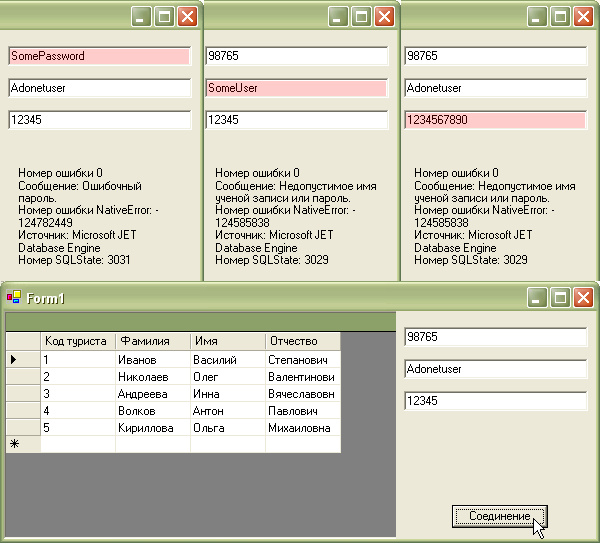
Рис.
4.12.
Готовое приложение ExceptionsMDB
Кроме обработки исключений, здесь следует обратить внимание на интерфейс, предоставляющий возможность пользователю вводить сведения своей учетной записи. Теперь в целях безопасности приложения не нужно включать пароль в код при использовании мастеров, поскольку строка соединения будет генерироваться динамически. Разумеется, ваше приложение может иметь другой интерфейс — например, окно соединения будет появляться в дочерней форме.
В программном обеспечении к курсу вы найдете приложение Exceptions MDB (CodeGlava2 ExceptionsMDB).