Некоторые пользователи, которые ранее настроили свои компьютеры на двойную загрузку дистрибутивов Windows и Linux (чаще всего с Ubuntu), сообщают, что их компьютер входит в режим восстановления Grub и отображает ошибку Нет такого раздела — Grub Rescue.
Ошибка Нет такого раздела — Grub Rescue
После тщательного изучения этой конкретной проблемы выясняется, что существует несколько различных ситуаций, которые могут вызвать появление этой проблемы. Вот список потенциальных виновников, которые могут нести ответственность за эту проблему:
- Загрузчик GRUB поврежден или удален — если вы видите эту ошибку из-за какого-либо типа поврежденных данных, связанных с загрузчиком GRUP, или после того, как вы неохотно удалили связанные с ним данные, вы можете решить проблему, вручную перенастроив утилиту для загрузки с помощью правильные файлы.
- Загрузчик неправильно настроен или поврежден. Поскольку эта проблема также может возникать из-за неправильно настроенных или поврежденных данных BCD, вы сможете решить эту проблему, перестроив данные конфигурации загрузки из командной строки с повышенными привилегиями.
- Текущая конфигурация загрузки несовместима — если проблема вызвана неверными данными, которые загружаются в загрузчик GRUB, вы можете решить проблему, используя резервную копию реестра, чтобы восстановить ваш компьютер до хорошей конфигурации.
Теперь, когда вы знаете всех потенциальных виновников, вот список методов, которые другие затронутые пользователи успешно использовали для решения проблемы и предотвращения загрузки своего компьютера в режим восстановления Grub:
Безусловно, наиболее эффективное исправление, с которого вам следует начать, поскольку оно наименее разрушительно — это вручную перенастроить загрузчик GRUB и убедиться, что приоритет отдается основной ОС.
Несколько затронутых пользователей подтвердили, что им наконец удалось обойти состояние восстановления GRUB, выполнив ряд инструкций, предназначенных для ручной перенастройки загрузчика GRUP для определения приоритета основной ОС.
Если этот сценарий применим, следуйте приведенным ниже инструкциям, чтобы сделать это непосредственно через меню восстановления GRUB:
- Когда ваш компьютер войдет в режим восстановления GRUB, введите следующую команду и нажмите Enter, чтобы просмотреть все доступные разделы: ls
- После того, как вы это сделаете, вы должны получить обзор всех разделов, которые в настоящее время есть на вашем основном диске. На этом этапе вам необходимо убедиться, что вы выбрали основную ОС. В нашем случае правильный раздел (hd0, msdos2), поэтому мы использовали следующую команду для опроса раздела: ls (hd0, msdos2)
Примечание. Убедитесь, что вы заменили раздел правильным примером в вашем случае. Если вы получили сообщение вроде «Файловая система — это ext2 или ext3», вы правильно определили раздел, в котором находится ваша основная ОС.
Примечание 2: Если вы опрашиваете раздел и получаете сообщение «Файловая система неизвестна», вы выбрали неправильный раздел.Сообщение об ошибке неправильного раздела в GRUB
- После выбора правильного раздела введите «set» и нажмите Enter, чтобы запросить и получить окончательный список вашего основного раздела.
- Затем введите следующие команды и нажмите Enter после каждой команды, чтобы изменить приоритет загрузчика GRUB на правильный: set boot = (hd0, msdos5) set prefix = (hd0, msdos5) / boot / grub insmod normal normal
- После того, как вы введете последнюю команду, вы попадете в главное меню GNU Grub. Как только вы попадете на этот экран, просто выберите ОС, с которой вы хотите загрузиться, и нажмите Enter.
Загрузка с основного раздела в GRUB
В случае, если этот метод не сработал для вас и последовательность загрузки в конечном итоге загрузится с той же ошибкой No such Partition -Grub Rescue, вернитесь к следующему потенциальному исправлению ниже.
Метод 2: восстановление файлов данных конфигурации загрузки (BCD)
Если первый метод не сработал для вас, следующим шагом будет использование утилиты данных конфигурации загрузки (BCD), чтобы найти установочные файлы Windows на всех дисках и добавить их обратно в список загрузки, чтобы последовательность загрузки могла найти это во время запуска.
Этот метод успешно использовался многими пользователями, которые ранее сталкивались с ошибкой No such Partition — Grub Rescue. Восстановление кластеров файлов BCD позволило им нормально выполнять двойную загрузку без принудительного входа в меню восстановления GRUP.
ВАЖНО! Этот метод потребует от вас подключения совместимого установочного носителя Windows. Если у вас его нет наготове, вы можете создать установочный носитель Windows с нуля и загрузить его на USB-накопитель.
Выполнив все требования, следуйте приведенным ниже инструкциям:
- Подключите USB-накопитель с установочным носителем и запустите компьютер обычным способом, нажав кнопку питания.
- Для доступа к кнопке настройки нажмите соответствующую кнопку в зависимости от производителя вашей материнской платы.
Доступ к меню настройки BIOS / UEFI
Примечание: ключ настройки будет отличаться от производителя к производителю. Чаще всего клавиша настройки представляет собой одну из клавиш F (F2, F4, F6, F8), клавишу Esc или клавишу Del (на компьютерах / ноутбуках Del). Если у вас возникли проблемы с доступом к меню настройки, поищите в Интернете конкретные инструкции по доступу к нему.
- Как только вы войдете в меню «Настройка», перейдите на вкладку «Загрузка» и убедитесь, что USB-накопитель, содержащий установочный носитель, установлен как вариант загрузки №1.
Загрузка с установочного носителя
- Сохраните изменения, затем перезагрузите компьютер, дайте компьютеру загрузиться с установочного носителя и дождитесь загрузки установочных файлов.
- Когда вы перейдете на первую страницу, нажмите «Далее», затем нажмите «Восстановить компьютер» в правом нижнем углу экрана.
Ремонт компьютера с установочного носителя
- Затем дождитесь загрузки меню «Восстановление», затем выберите «Устранение неполадок» и нажмите «Командная строка» в списке доступных параметров:
Доступ к командной строке через меню восстановления
Примечание. В некоторых версиях Windows 10 вы также можете загрузиться из меню «Восстановление», вызвав 3 последовательных прерывания системы во время процедуры запуска.
- Как только вы войдете в командную строку с повышенными привилегиями, введите следующую команду и нажмите Enter, чтобы исправить зависимости MBR, связанные с вашей установкой Windows: bootrec / fixmbr
- После успешной обработки команды введите следующие команды и нажмите Enter, чтобы исправить данные конфигурации загрузки, связанные с вашей установкой Windows: bootrec / fixboot
Примечание. Если вы получаете сообщение об ошибке «Доступ запрещен» при вводе одной из двух вышеперечисленных команд, следуйте этим инструкциям, чтобы решить проблему с доступом к bootrec.
- Затем введите следующую команду и нажмите Enter, чтобы просканировать все ваши диски на наличие установочного носителя Windows: bootrec / scanos
Примечание. Эта операция может занять некоторое время в зависимости от размера ваших разделов. Не закрывайте это окно до завершения операции.
- Если операция завершена успешно, введите следующую команду для эффективного восстановления данных конфигурации BCD: bootrec / rebuildbcd
- Когда вас попросят подтвердить, введите Y и нажмите Enter, чтобы подтвердить и начать операцию.
Подтвердите операцию построения файловой системы BCD
- Наконец, введите «exit» и нажмите клавишу «Ввод», чтобы выйти из командной строки с повышенными привилегиями и позволить Windows нормально загрузиться.
В случае, если конечный результат такой же (попытка загрузки заканчивается той же ошибкой «Нет такого раздела»), перейдите к следующему способу ниже.
Метод 3: Использование резервной копии реестра для восстановления последней удачной конфигурации
Если ни один из вышеперечисленных методов не помог вам, возможно, вы сможете исправить текущую конфигурацию с помощью последней удачной резервной копии, которая должна позволить вам без проблем выполнять двойную загрузку.
Для этого вам потребуется использовать меню «Дополнительные параметры», чтобы открыть командную строку с повышенными привилегиями и выполнить ряд команд, которые позволят вам загрузиться с использованием последней удачной конфигурации.
Сообщается, что этот метод успешно использовался многими пользователями, столкнувшимися с ошибкой No such Partition -Grub Rescue.
Чтобы использовать резервную копию реестра для восстановления последней удачной конфигурации, следуйте приведенным ниже инструкциям:
- Вставьте совместимый установочный носитель Windows и загрузитесь с него, нажав любую клавишу при появлении соответствующего запроса.
Загрузка с установочного носителя
Примечание. Если у вас нет совместимого установочного носителя или ваша система не загружается с него, выполните шаги с 1 по 4 из метода 2.
- Как только вам удастся успешно загрузиться с установочного носителя, нажмите «Восстановить компьютер» в нижнем левом углу экрана.
Ремонт вашего компьютера
- Когда вы, наконец, войдете в меню Advanced Recovery, нажмите «Устранение неполадок», затем нажмите «Командная строка» в списке доступных параметров.
Доступ к командной строке через меню восстановления
- Как только вы войдете в командную строку с повышенными привилегиями, введите «C:» и нажмите клавишу ВВОД, чтобы получить доступ к разделу, в котором вы установили Windows. Если вы установили Windows на другой раздел, замените букву соответствующим образом.
- Затем введите «dir» и нажмите Enter, чтобы получить доступ к корневому каталогу диска с ОС.
Примечание. Перед тем как продолжить, рекомендуется создать резервную копию текущего реестра. Для этого введите следующую команду и нажимайте Enter после каждой команды: cd windows system32 config MD backup copy *. * BackupРезервное копирование реестра
- Затем введите следующие команды и нажмите Enter, чтобы получить доступ к последней удачной конфигурации и изменить поведение по умолчанию для загрузки с нее: CD regback copy *. * ..
- Когда появится подсказка, нажмите A и еще раз нажмите Enter.
- Наконец, введите exit и нажмите Enter, чтобы выйти и нормально загрузиться. Это приведет вас в главное меню GRUP, где вы сможете выполнить двойную загрузку по своему усмотрению.
Данная статья рассказывает историю моих о мучениях и за одно несет в себе полезную информацию для тех, кто столкнулся с такой же проблемой «no such partition grub rescue». Часть с установкой, софтом и прочем будет сильно урезана, ибо статья не об этом. Итак, поехали!
Началось все с того, что захотелось мне после прочтения очередного номера журнала про линукс посмотреть вживую на все нововведения, ибо в последние годы не пользовался линукс дистрибутивами и сидел полностью на окнах. И вот скачал самый популярный дистрибутив Ubuntu, оторвал от диска D 100Гб на новый раздел L, установил, поигрался.
Надоело, поставил вместо него более любимый мною дистрибутив Linux Mint, поигрался, и вот решил сносить все это через пару дней.
Загружаюсь в Windows, управление дисками, раздел L – удалить, диск D расширить и возвращаю диску обратно его родные 100Гб.
Перезагружаюсь…BIOS…ASUS…error: no such partition grub rescue. Перезагружаюсь опять, BIOS – перепроверяю все настройки. Все верно, сохранить и перезагрузить. И опять после BIOS идет error: no such partition grub rescue. Ни выбора системы, ни возможности загрузить Windows. Сразу пошел за ноутом и гуглить.
Grub — это загрузчик систем, который устанавливается с Linux и пишет всю нужную информацию на самый первый раздел на диске — MBR (master boot record). А его файлы размещаются на диске с системой Linux
Так вот, после удаления Linux, компьютер просто «не знает, что делать» поскольку обращаясь в папку с grub, ничего не находит (все же было удалено). Вот и получаем «grub rescue».
Решения и тщетные попытки все исправить
Для начала, если есть желание удалить любой дистрибутив линукс, лучше прочтите, как это правильно делать. А не так, как я – удалить рездел и думать, что все так просто.
Если же вы не удаляли линукс, но получили эту ошибку «error: no such partition grub rescue>», то все можно легко исправить, указав в новый раздел и папку на нем с файлами GRUB подобной информации полно на форумах. Но в моём случае это не подходило, ибо удален не просто сам линукс, но и раздел на котором он был и возвращен к диску D. Ищу дальше и, натыкаясь на статью, что такую ошибку исправить можно 2 способами:
— исправить раздел MBR с помощью загрузочного диска Windows;
— исправить раздел MBR с помощью live CD с Linux.
У меня уже была флешка с Linux Mint – с нее и загрузился и выбрал «Попробовать Mint».
Открываем терминал (Ctrl+Alt+T) и пишем:
sudo apt-get install lilo ждем установки, далее sudo lilo -M /dev/sda mbr
После перезагружаемся и все должно работать, очень многим этот способ помог, но не мне. Выдавало на 2-й команде ошибку. Начал искать еще способы и наткнулся на пост о том, что можно запустить установку windows и на моменте управления дисками, удалить все разделы, включая «Зарезервировано системой» — и это свободное место преобразовать в новый раздел. Оставить только раздел с окнами и D. Записал образ, запустил установку, удалил все разделы, создал на их месте новый один раздел. Перезагрузка — no such partition grub rescue.
Хоть этот способ и многим помог, но опять же — только не мне. Идем дальше:
Запустить восстановление системы с диска/флешки, отрыть дополнительные параметры, консоль и там ввести bootrec.exe /fixmbr. Написало, что все выполнено успешно. Перезагрузка — no such partition grub rescue. Психанул запустил установку Windows и удалил все разделы, кроме D, создал один новый и переустановил систему. Все заработало.
P.S. Хоть я и не смог решить проблему «деликатными» методом, но по отзывам эти методы помогали большинству. Надуюсь, помогут и вам при такой проблеме. И вам не придется все переустанавливать.
Спасибо за внимание.
Updated by
Cici on Dec 06, 2022
How to Fix Error: No Such Partition Grub Rescue Windows 11/10
How to fix error no such partition grub rescue on Windows 11/10? Here are practical ways to try out.
| Workable Solutions | Step-by-step Troubleshooting |
|---|---|
| Fix 1. Fix MBR and Rebuild BCD |
Method 1. EaseUS Partition Master…Full steps Method 2. Windows 11/10 Automatic Repair…Full steps |
| Fix 2. Boot Sector Code with Windows 11/10 Automatic Repair | Step 1. Restart your PC a few times during the boot sequence; Step 2. From the list of options…Full steps |
| Fix 3. Configure and Set Active Partition |
Method 1. EaseUS Partition Master…Full steps Method 2. Diskpart…Full steps |
About «Error No Such Partition. Grub Rescue»
«I was dual-booting Windows 10 and Linux Ubuntu on my desktop. Since the system was unable to detect Ubuntu in the initial menu that appears on rebooting, I deleted the partition onto which I had installed Ubuntu while in Windows 10. I then installed PowerISO, which prompted me to reboot the system. Now, however, it led me to the grub rescue prompt and said, «no such partition. Grub rescue>», How can I fix no such partition grub rescue Windows 10?»
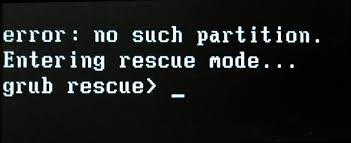
No such partition is a common error that usually occurs in Windows & Ubuntu dual boot system. It always appears when you intend to boot your computer but get stuck at the boot screen with the following error messages:
Example 1:
error: no such partition.
grub rescue>
Example 2:
error: no such partition.
Entering rescue mode…
grub rescue>
Possible Causes of Error No Such Partition Grub Rescue
Windows 10 grub rescue occurs for the following reasons:
- Corrupt boot directory
- Deactivating the correct partition
- Invalid boot loader configuration
- Damaged boot sector code
- Deleting/resizing/merging/splitting Ubuntu partition
For the problems caused by these reasons, we give the following solutions to helping you solve no such partition, grub rescue error on Windows 10.
Try these practical methods to fix Windows no such partition grub rescue error.
- Fix MBR and rebuild BCD
- Restore Boot Sector Code with Windows 11/10 Automatic Repair
- Manually configure and mark system partition as active
1 — Fix MBR and Rebuild BCD
Part of GRUB lives in the Master Boot Record (MBR), while the other parts live in the Linux boot partition. At most times, the error no such partition grub rescue on Windows 10 happens after you deleting or formatting Ubuntu partition, which corrupts the MBR boot sector & boot sector code files and finally makes Windows 10 is unable to boot.
In this case, you can try to rebuild MBR and restore the BCD files to fix the issue. Both EaseUS partition management software and Windows 10 Automatic Repair can help you solve Windows 10 grub rescue problem.
Method 1. Rebuild MBR with EaseUS Partition Management Tool (Recommended)
EaseUS Partition Master makes it quite simple to partition hard drives on Windows 11/10/8.1/8/7/Vista/XP and take full advantage of your disk space for best computer performance. With this tool, you can rebuild MBR effortlessly with a wizard-like interface.
Except for the partition checking and repairing function, EaseUS Partition Master provides more one-stop disk partition features, such as resize/move partition to solve low disk space issue, clone disk, merge partitions, create/delete/format partition, wipe data, and disk/partition conversion (convert MBR to GPT), and more.
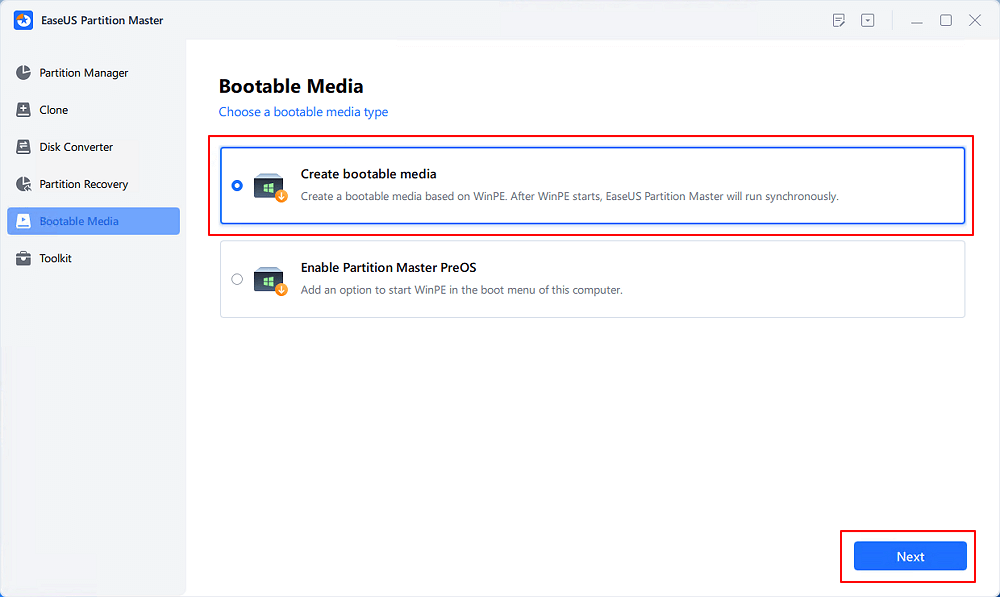
Step 1. Create a WinPE bootable disk
- Launch EaseUS Partition Master, and click «Bootable Media» on the toolbar. Select «Create bootable media».
- Click «Next» to finish the process.
Step 2. Boot EaseUS Partition Master Bootable USB
- Connect the bootable USB or CD/DVD to your PC.
- Press F2 or Del when you restart the computer to enter the BIOS screen. Set and boot your computer from «Removable Devices» or «CD-ROM Drive». And then EaseUS Partition Master will run automatically.
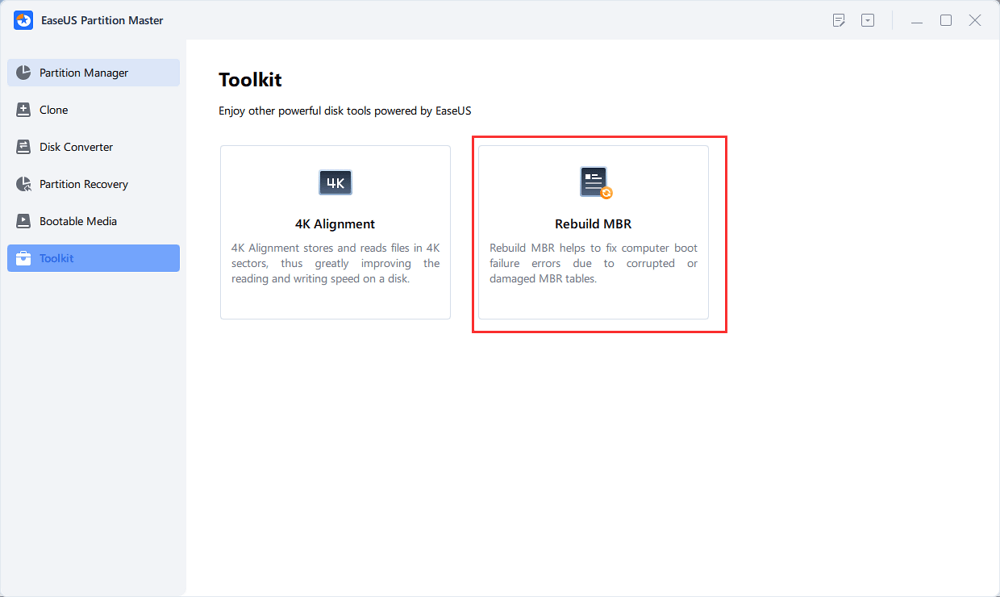
Step 3. Rebuild MBR
- Click «Toolkit» and choose «Rebuild MBR».
- Select the disk and the type of MBR. Then, click «Rebuild».
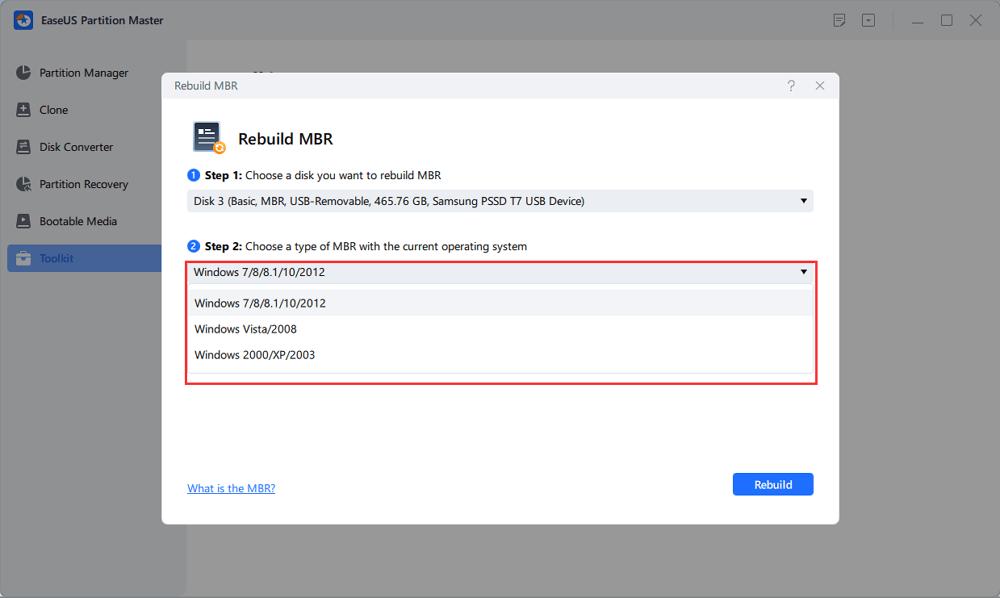
- After that, you can see «MBR has been successfully rebuilt on Disk X».
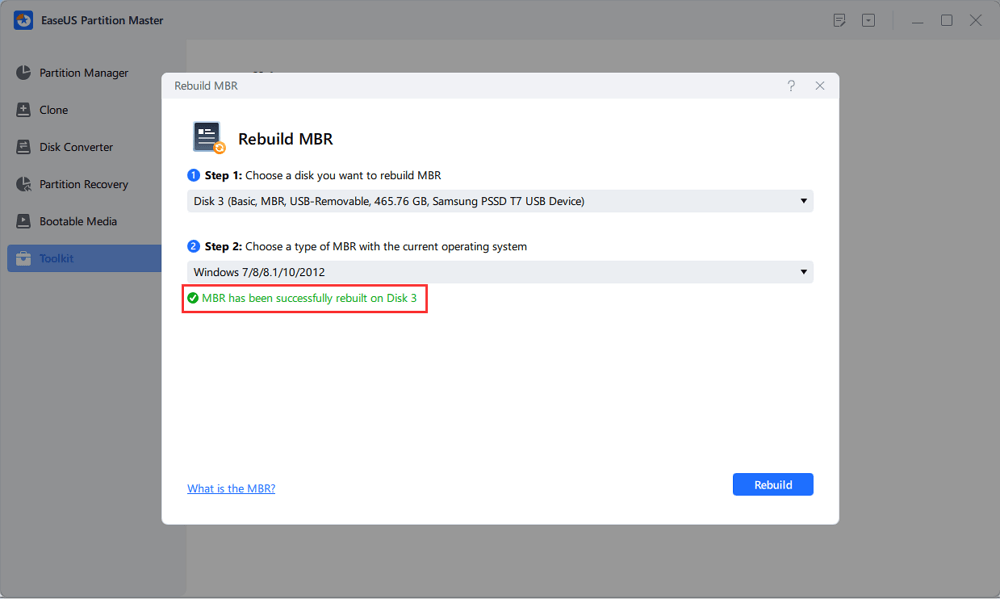
Method 2. Fix MBR and Restore the BCD with Windows 11/10 Automatic Repair
You can also use the Windows 10 Automatic Repair feature to fix error no such partition grub rescue in Windows 10. When Windows 10 is unable to boot, you can restart the system several times and the system will enter into WinRE mode. Or you can use a Windows 10 bootable media (DVD or USB flash drive) to get into this recovery environment.
Here’s the step-by-step guide.
Step 1. Connect the Windows 10 bootable media to your computer (DVD disc or USB flash drive).
Step 2. In WinRE mode, under the «Choose an option» tab, click the «Troubleshoot» button.
Step 3. Then click the «Advanced options» feature. In the pop-up window, choose «Command Prompt» to start to fix BCD files.
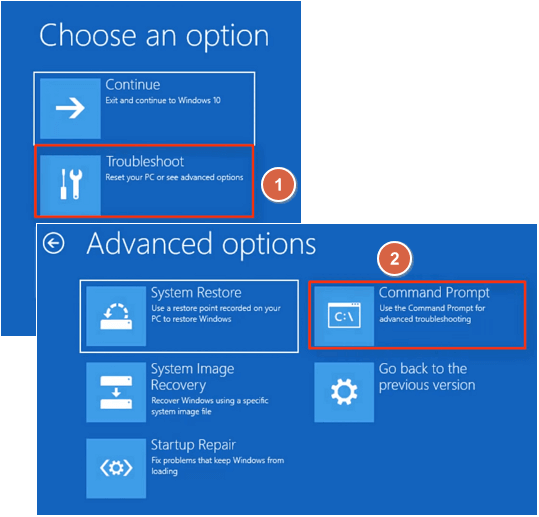
Step 4. Once CMD starts, type the following commands in turn:
bootrec /fixmbr
bootrec /fixboot
bootrec /rebuildbcd
Step 5. Close Command Prompt and restart your computer.
Rebuild MBR and BCD is an applicable method in fixing error no such partition grub rescue in Windows 10. However, if you are still experiencing the issue, you may proceed to the next solution.
2 — Restore Boot Sector Code with Windows 11/10 Automatic Repair
Damaged boot sector code may cause the Windows 10 grub rescue error prompt. If rebuilding MBR can’t fix Windows 10 grub rescue issue, you should try to restore the boot sector code into consideration with the Windows repair option.
Step 1. Restart your PC a few times during the boot sequence.
Step 2. From the list of options, select «Troubleshoot» > «Advanced options» > «Startup Repair».
Step 3. The repair process will now start.
Step 4. After the repair process finishes, check if error no such partition is resolved.
You can also solve this problem by using a Windows bootable DVD or USB flash drive. To start restoring the boot sector code, follow the steps shown below:
Step 1. Connect your USB flash drive to your computer or insert Windows 10 DVD to your PC.
Step 2. Restart the computer to enter into Automatic Repair mode.
Step 3. Click «Troubleshoot» > «Advanced Options» > «Command Prompt» to open CMD.
Step 4. In the CMD window, type the following command and hit Enter afterward:
diskpart
select disk 0
list volume
Step 5. Now, all volumes will be displayed here. In the Type column, you will find the «DVD-ROM» value, remember the drive letter of the Windows 10 bootable disc. Here we take the letter F as an example. Type the following command lines and hit Enter afterward:
Exit
F:
cd boot
Dir
Step 6. Next, you need to check if you have bootsect.exe files in the list. If so, enter the following command:
bootsect /nt60 SYS /mbr
Exit
bootsect nt60 SYS mbr
Step 7. Exit the command prompt and restart your computer. Check if no such partition grub rescue error is resolved.
3 — Configure and Set Active Partition
A very common cause for error no such partition to show up is not having the correct partition set as active. The BIOS tries to start the boot loader up from the active partition, and the bootloader searches for its configuration data from the active partition as well. So if the active partition is corrupted or incorrectly set, the Error: no such partition. Grub rescue can happen.
Like rebuilding MBR demonstrated below, you have two ways to set system partition as active: one is using EaseUS partition management software, and the other is using Diskpart to manually input command lines to finish the job.
Method 1. Set Active Partition in One-click by Using EaseUS Partition Master
Step 1. Run EaseUS partition manager software. On the disk map, right-click the target partition and choose «Advanced».
Step 2. Then, select «Set Active» from the drop-down menu. Click «Yes». And choose «Execute 1 Task(s)» and click «Apply».
Method 2. Mark System Partition as Active Using Diskpart
Step 1. Use diskpart from the command line to set the correct partition.
Step 2. Connect the Windows 10 bootable media to your computer (DVD or USB flash drive).
Step 3. Restart your computer to enter into Automatic Repair mode.
Step 4. Go to «Troubleshoot» > «Advanced Options» > «Command Prompt» to launch the CMD.
Step 5. Now, Type diskpart and hit the Enter. Type the following commands in order and hit enter afterward:
list disk: (this lists all hard drives in your computer)
select disk n: (n means the disk where Windows 10 is installed. Here you can choose disk 0 or any other disk where Windows 10 is installed)
list volume: (this list all volumes on system disk)
select volume n: (n refers to the number of system partition)
active: (it can mark the correct system partition active)
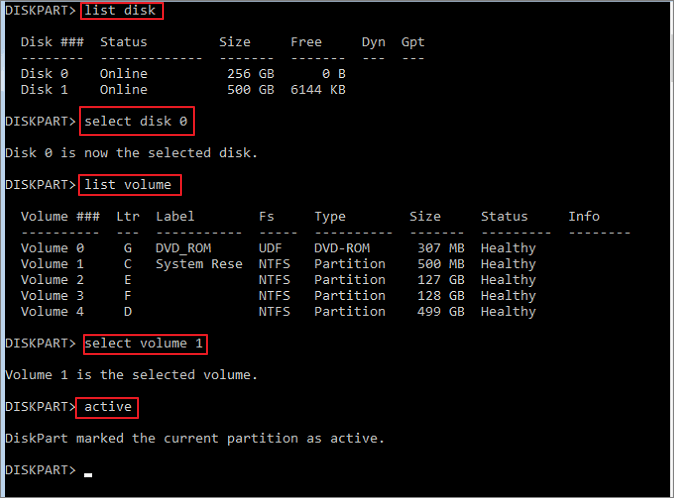
Type quit to exit Command Prompt. Restart your PC and check if this resolves the Windows 10 grub rescue error.
Final Verdict
You can use the three most effective ways to fix Windows 10 grub rescue problem. You can learn that both Windows Automatic Repair and EaseUS Partition Master can be helpful in resolving the problem.
We highly recommend you use EaseUS Partition Master to help you partition the hard drive correctly. Using the tool is far easier than the manually inputting command lines to fix error no such partition grub rescue on Windows 10.
All you need to do is download and launch the program, select the partition, and then choose precisely what you want to do with it. EaseUS Partition Master allows you to directly transfer space from one drive to another to make full use of disk space.
FAQs About Error No Such Partition Grub Rescue
Do you have more questions about fixing error no such partition entering rescue mode on Windows 10? If so, check the following hot topics and their answers.
How do I fix error no such partition?
In conclusion, you have three ways to fix error no such partition:
- Fix 1. Rebuild the MBR and BCD
- Fix 2. Manually configuring the active partition
- Fix 3. Restore boot sector code
How do I fix grub error no such partition unknown file system?
Corrupted or damaged MBR or BCD may cause grub error no such partition unknown file system, try to rebuild MBR and BCD files at first. If MBR fixing is not useful, continue trying to restore the boot sector code and make system partition as active to make sure your Windows can reboot properly.
How do I get rid of grub rescue error?
You can use the three solutions to solving Windows 10 grub rescue error. In order to prevent this issue from happening again, you should pay attention to the following points:
- If you want to delete the Ubuntu operating system on both systems, you should do it the right way.
- If you want to reinstall the Ubuntu operating system, make sure you install the new system to the original partition.
- You’d better not restore your Ubuntu to the old version, or you will damage Grub.
How do you fix error attempt to read or write outside of hd0?
When you try to I install Ubuntu on an older computer after the installation finished, you may encounter the following problem while rebooting the computer:
error: attempt to read or write outside of disk’ hd0′.
Entering rescue mode…
grub rescue>
To fix this issue, you can make a boot repair USB disk and use the Windows automatic repair feature to troubleshoot. Or you can try some workarounds from the technical forum.
Updated by
Cici on Dec 06, 2022
How to Fix Error: No Such Partition Grub Rescue Windows 11/10
How to fix error no such partition grub rescue on Windows 11/10? Here are practical ways to try out.
| Workable Solutions | Step-by-step Troubleshooting |
|---|---|
| Fix 1. Fix MBR and Rebuild BCD |
Method 1. EaseUS Partition Master…Full steps Method 2. Windows 11/10 Automatic Repair…Full steps |
| Fix 2. Boot Sector Code with Windows 11/10 Automatic Repair | Step 1. Restart your PC a few times during the boot sequence; Step 2. From the list of options…Full steps |
| Fix 3. Configure and Set Active Partition |
Method 1. EaseUS Partition Master…Full steps Method 2. Diskpart…Full steps |
About «Error No Such Partition. Grub Rescue»
«I was dual-booting Windows 10 and Linux Ubuntu on my desktop. Since the system was unable to detect Ubuntu in the initial menu that appears on rebooting, I deleted the partition onto which I had installed Ubuntu while in Windows 10. I then installed PowerISO, which prompted me to reboot the system. Now, however, it led me to the grub rescue prompt and said, «no such partition. Grub rescue>», How can I fix no such partition grub rescue Windows 10?»
No such partition is a common error that usually occurs in Windows & Ubuntu dual boot system. It always appears when you intend to boot your computer but get stuck at the boot screen with the following error messages:
Example 1:
error: no such partition.
grub rescue>
Example 2:
error: no such partition.
Entering rescue mode…
grub rescue>
Possible Causes of Error No Such Partition Grub Rescue
Windows 10 grub rescue occurs for the following reasons:
- Corrupt boot directory
- Deactivating the correct partition
- Invalid boot loader configuration
- Damaged boot sector code
- Deleting/resizing/merging/splitting Ubuntu partition
For the problems caused by these reasons, we give the following solutions to helping you solve no such partition, grub rescue error on Windows 10.
Try these practical methods to fix Windows no such partition grub rescue error.
- Fix MBR and rebuild BCD
- Restore Boot Sector Code with Windows 11/10 Automatic Repair
- Manually configure and mark system partition as active
1 — Fix MBR and Rebuild BCD
Part of GRUB lives in the Master Boot Record (MBR), while the other parts live in the Linux boot partition. At most times, the error no such partition grub rescue on Windows 10 happens after you deleting or formatting Ubuntu partition, which corrupts the MBR boot sector & boot sector code files and finally makes Windows 10 is unable to boot.
In this case, you can try to rebuild MBR and restore the BCD files to fix the issue. Both EaseUS partition management software and Windows 10 Automatic Repair can help you solve Windows 10 grub rescue problem.
Method 1. Rebuild MBR with EaseUS Partition Management Tool (Recommended)
EaseUS Partition Master makes it quite simple to partition hard drives on Windows 11/10/8.1/8/7/Vista/XP and take full advantage of your disk space for best computer performance. With this tool, you can rebuild MBR effortlessly with a wizard-like interface.
Except for the partition checking and repairing function, EaseUS Partition Master provides more one-stop disk partition features, such as resize/move partition to solve low disk space issue, clone disk, merge partitions, create/delete/format partition, wipe data, and disk/partition conversion (convert MBR to GPT), and more.
Step 1. Create a WinPE bootable disk
- Launch EaseUS Partition Master, and click «Bootable Media» on the toolbar. Select «Create bootable media».
- Click «Next» to finish the process.
Step 2. Boot EaseUS Partition Master Bootable USB
- Connect the bootable USB or CD/DVD to your PC.
- Press F2 or Del when you restart the computer to enter the BIOS screen. Set and boot your computer from «Removable Devices» or «CD-ROM Drive». And then EaseUS Partition Master will run automatically.
Step 3. Rebuild MBR
- Click «Toolkit» and choose «Rebuild MBR».
- Select the disk and the type of MBR. Then, click «Rebuild».
- After that, you can see «MBR has been successfully rebuilt on Disk X».
Method 2. Fix MBR and Restore the BCD with Windows 11/10 Automatic Repair
You can also use the Windows 10 Automatic Repair feature to fix error no such partition grub rescue in Windows 10. When Windows 10 is unable to boot, you can restart the system several times and the system will enter into WinRE mode. Or you can use a Windows 10 bootable media (DVD or USB flash drive) to get into this recovery environment.
Here’s the step-by-step guide.
Step 1. Connect the Windows 10 bootable media to your computer (DVD disc or USB flash drive).
Step 2. In WinRE mode, under the «Choose an option» tab, click the «Troubleshoot» button.
Step 3. Then click the «Advanced options» feature. In the pop-up window, choose «Command Prompt» to start to fix BCD files.
Step 4. Once CMD starts, type the following commands in turn:
bootrec /fixmbr
bootrec /fixboot
bootrec /rebuildbcd
Step 5. Close Command Prompt and restart your computer.
Rebuild MBR and BCD is an applicable method in fixing error no such partition grub rescue in Windows 10. However, if you are still experiencing the issue, you may proceed to the next solution.
2 — Restore Boot Sector Code with Windows 11/10 Automatic Repair
Damaged boot sector code may cause the Windows 10 grub rescue error prompt. If rebuilding MBR can’t fix Windows 10 grub rescue issue, you should try to restore the boot sector code into consideration with the Windows repair option.
Step 1. Restart your PC a few times during the boot sequence.
Step 2. From the list of options, select «Troubleshoot» > «Advanced options» > «Startup Repair».
Step 3. The repair process will now start.
Step 4. After the repair process finishes, check if error no such partition is resolved.
You can also solve this problem by using a Windows bootable DVD or USB flash drive. To start restoring the boot sector code, follow the steps shown below:
Step 1. Connect your USB flash drive to your computer or insert Windows 10 DVD to your PC.
Step 2. Restart the computer to enter into Automatic Repair mode.
Step 3. Click «Troubleshoot» > «Advanced Options» > «Command Prompt» to open CMD.
Step 4. In the CMD window, type the following command and hit Enter afterward:
diskpart
select disk 0
list volume
Step 5. Now, all volumes will be displayed here. In the Type column, you will find the «DVD-ROM» value, remember the drive letter of the Windows 10 bootable disc. Here we take the letter F as an example. Type the following command lines and hit Enter afterward:
Exit
F:
cd boot
Dir
Step 6. Next, you need to check if you have bootsect.exe files in the list. If so, enter the following command:
bootsect /nt60 SYS /mbr
Exit
bootsect nt60 SYS mbr
Step 7. Exit the command prompt and restart your computer. Check if no such partition grub rescue error is resolved.
3 — Configure and Set Active Partition
A very common cause for error no such partition to show up is not having the correct partition set as active. The BIOS tries to start the boot loader up from the active partition, and the bootloader searches for its configuration data from the active partition as well. So if the active partition is corrupted or incorrectly set, the Error: no such partition. Grub rescue can happen.
Like rebuilding MBR demonstrated below, you have two ways to set system partition as active: one is using EaseUS partition management software, and the other is using Diskpart to manually input command lines to finish the job.
Method 1. Set Active Partition in One-click by Using EaseUS Partition Master
Step 1. Run EaseUS partition manager software. On the disk map, right-click the target partition and choose «Advanced».
Step 2. Then, select «Set Active» from the drop-down menu. Click «Yes». And choose «Execute 1 Task(s)» and click «Apply».
Method 2. Mark System Partition as Active Using Diskpart
Step 1. Use diskpart from the command line to set the correct partition.
Step 2. Connect the Windows 10 bootable media to your computer (DVD or USB flash drive).
Step 3. Restart your computer to enter into Automatic Repair mode.
Step 4. Go to «Troubleshoot» > «Advanced Options» > «Command Prompt» to launch the CMD.
Step 5. Now, Type diskpart and hit the Enter. Type the following commands in order and hit enter afterward:
list disk: (this lists all hard drives in your computer)
select disk n: (n means the disk where Windows 10 is installed. Here you can choose disk 0 or any other disk where Windows 10 is installed)
list volume: (this list all volumes on system disk)
select volume n: (n refers to the number of system partition)
active: (it can mark the correct system partition active)
Type quit to exit Command Prompt. Restart your PC and check if this resolves the Windows 10 grub rescue error.
Final Verdict
You can use the three most effective ways to fix Windows 10 grub rescue problem. You can learn that both Windows Automatic Repair and EaseUS Partition Master can be helpful in resolving the problem.
We highly recommend you use EaseUS Partition Master to help you partition the hard drive correctly. Using the tool is far easier than the manually inputting command lines to fix error no such partition grub rescue on Windows 10.
All you need to do is download and launch the program, select the partition, and then choose precisely what you want to do with it. EaseUS Partition Master allows you to directly transfer space from one drive to another to make full use of disk space.
FAQs About Error No Such Partition Grub Rescue
Do you have more questions about fixing error no such partition entering rescue mode on Windows 10? If so, check the following hot topics and their answers.
How do I fix error no such partition?
In conclusion, you have three ways to fix error no such partition:
- Fix 1. Rebuild the MBR and BCD
- Fix 2. Manually configuring the active partition
- Fix 3. Restore boot sector code
How do I fix grub error no such partition unknown file system?
Corrupted or damaged MBR or BCD may cause grub error no such partition unknown file system, try to rebuild MBR and BCD files at first. If MBR fixing is not useful, continue trying to restore the boot sector code and make system partition as active to make sure your Windows can reboot properly.
How do I get rid of grub rescue error?
You can use the three solutions to solving Windows 10 grub rescue error. In order to prevent this issue from happening again, you should pay attention to the following points:
- If you want to delete the Ubuntu operating system on both systems, you should do it the right way.
- If you want to reinstall the Ubuntu operating system, make sure you install the new system to the original partition.
- You’d better not restore your Ubuntu to the old version, or you will damage Grub.
How do you fix error attempt to read or write outside of hd0?
When you try to I install Ubuntu on an older computer after the installation finished, you may encounter the following problem while rebooting the computer:
error: attempt to read or write outside of disk’ hd0′.
Entering rescue mode…
grub rescue>
To fix this issue, you can make a boot repair USB disk and use the Windows automatic repair feature to troubleshoot. Or you can try some workarounds from the technical forum.
Some users that have previously configured their computers to dual-boot Windows and Linux distributions (most commonly with Ubuntu) are reporting that their PC is entering Grub Rescue Mode and displaying the error No Such Partition – Grub Rescue.
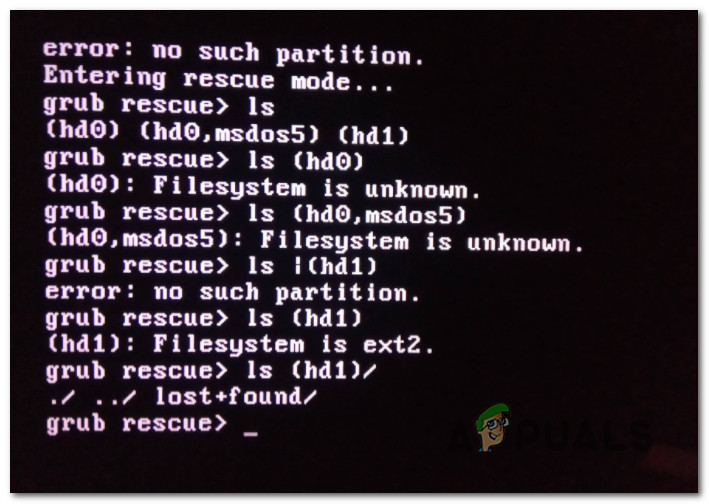
After investigating this particular issue thoroughly, it turns out that there are several different situations that might trigger the apparition of this issue. Here’s a list of potential culprits that might be responsible for this issue:
- GRUB Bootloader is Corrupted or Deleted – If you are seeing this error due to some type of corrupted data associated with the GRUP Bootloader or after you have unwillingly deleted data associated with it, you can fix the issue by manually reconfiguring the utility to boot using the correct files.
- The bootloader is Misconfigured or Corrupted – Since this issue can also occur due to misconfigured or corrupted BCD data, you should be able to fix the issue by rebuilding the Boot Configuration data from an elevated Command Prompt.
- Current Boot Configuration is inconsistent – In case the issue is being caused by bad data that’s being fed into the GRUB bootloader, you can potentially fix the issue by using a Registry Backup to restore your computer back to a good configuration.
Now that you know every potential culprit, here’s a list of methods that other affected users have successfully used to fix the issue and prevent their computer from booting into Grub rescue mode:
Method 1: Manually Reconfigure GRUB Bootloader
By far, the most effective fix and the one you should start with since it’s the least destructive is to manually reconfigure the GRUB bootloader and make sure that the primary OS is prioritized.
Several affected users have confirmed that they finally managed to bypass the GRUB rescue state by following a set of instructions designed to manually reconfigure the GRUP Bootloader to prioritize the main OS.
If this scenario is applicable, follow the instructions below to do so directly via the GRUB Rescue menu:
- Once your PC enters GRUB Rescue Mode, type the following command and press Enter to get an overview of all your available partitions:
ls
- After you do this, you should get an overview of all partitions that you currently have on your primary disk. At this point, you need to make sure that you select the primary OS. In our case, the correct partition is (hd0,msdos2), so we used the following command to interrogate the partition:
ls (hd0, msdos2)
Note: Make sure to replace the partition with the correct example in your case. If you get a message saying something like ‘File System is ext2 or ext3‘, you have correctly identified the partition that holds your primary OS.
Note 2: If you interrogate a partition and you get the message ‘Filesystem is unknown‘, you didn’t select the correct partition.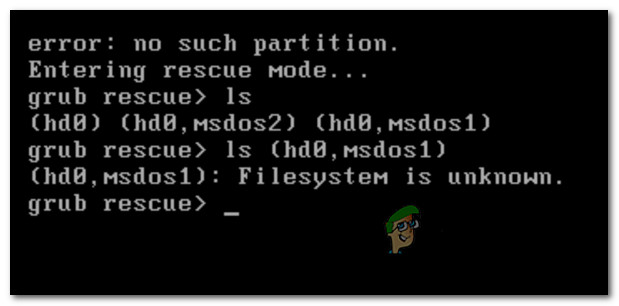
Incorrect partition error message in GRUB - Once the correct partition is selected, type the ‘set‘ and press Enter to interrogate and get a definitive listing of your main partition.
- Next, type the following commands and press Enter after each command to change the priority of GRUB Bootloader to the correct one:
set boot = (hd0, msdos5)
set prefix=(hd0, msdos5)/boot/grub
insmod normal
normal
- After you input the final command, you’ll be taken to the main GNU Grub menu. Once you get to this screen, simply select the OS that you want to boot from and press Enter.
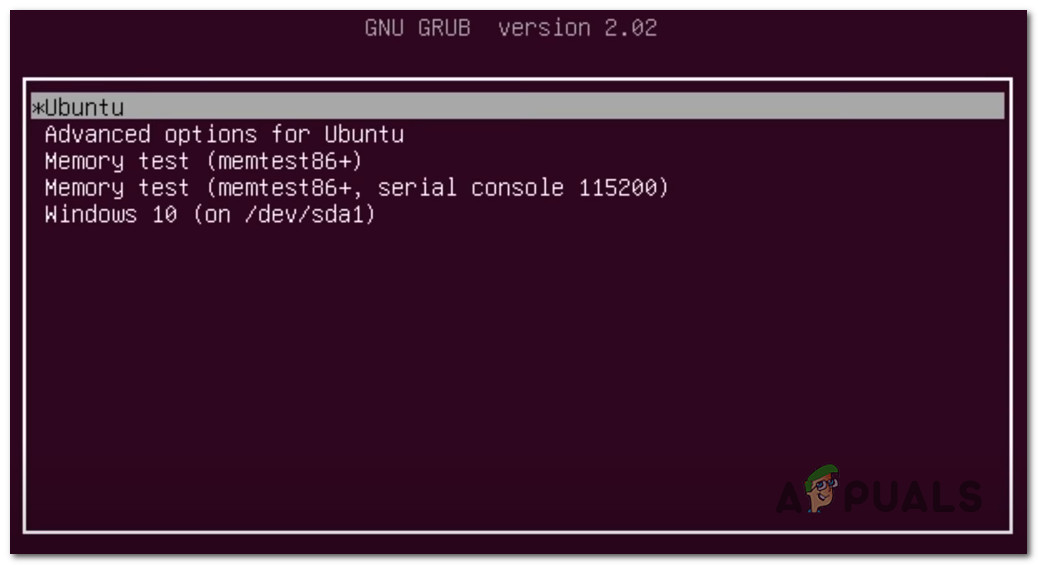
Booting from the main partition in GRUB
In case this method didn’t work for you and the booting sequence eventually boots in the same No Such Partition -Grub Rescue error, move back to the next potential fix below.
Method 2: Rebuilding the Boot Configuration Data files (BCD)
If the first method didn’t work for you, the next step would be to use the Boot Configuration Data (BCD) utility to locate the Windows installation files on all disks and add them back to the boot list so that the booting sequence can locate it during startup.
This method was successfully used by a lot of users that were previously dealing with No Such Partition – Grub Rescue error. Rebuilding the BCD file clusters successfully allowed them to dual-boot normally without being forced into the GRUP Rescue menu.
IMPORTANT: This method will require you to plug in a compatible installation Windows installation media. If you don’t have one at the ready, you can create the Windows installation media from scratch and load it on a USB drive.
Once you meet all requirements, follow the instructions below:
- Plug-in the USB stick containing the installation media and start your computer normally via the power button.
- Access the Setup key by pressing the correspondent button depending on your motherboard manufacturer.
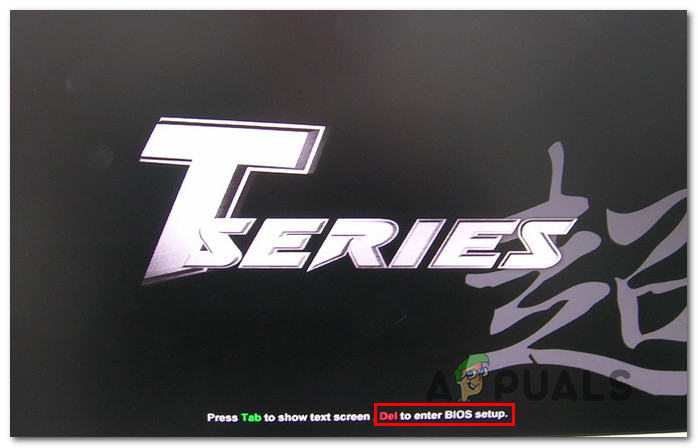
Accessing the BIOS / UEFI Setup menu Note: The setup key will be different from manufacturer to manufacturer. Most commonly the Setup key is either one of the F keys (F2, F4, F6, F8), the Esc key, or the Del key (on Del computers/laptops). If you’re having trouble accessing the Setup menu, search online for specific instructions on accessing it.
- Once you’re inside the Setup menu, access the Boot tab and make sure to set the USB stick containing the installation media as Boot Option #1.
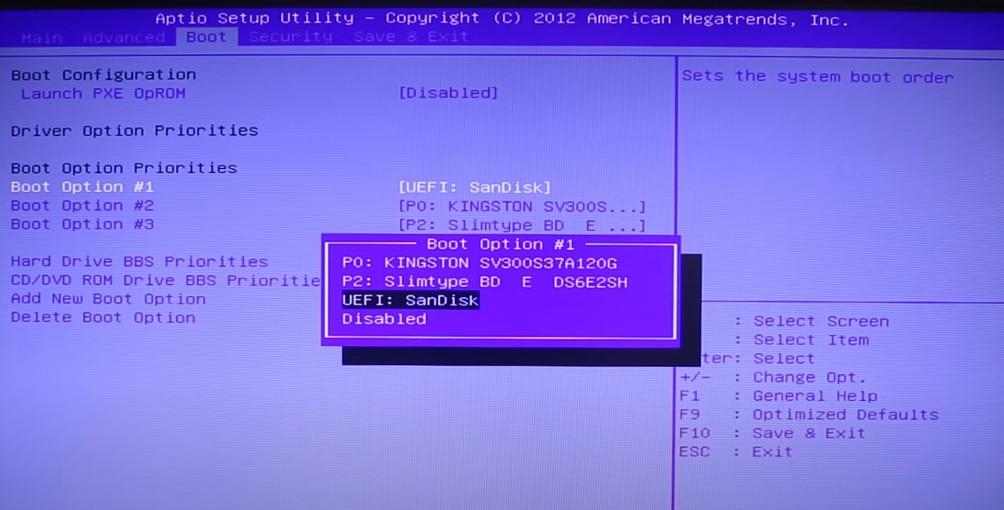
Booting from the installation media - Save the changes, then restart and allow your computer to boot from the installation media and wait for the installation files to load.
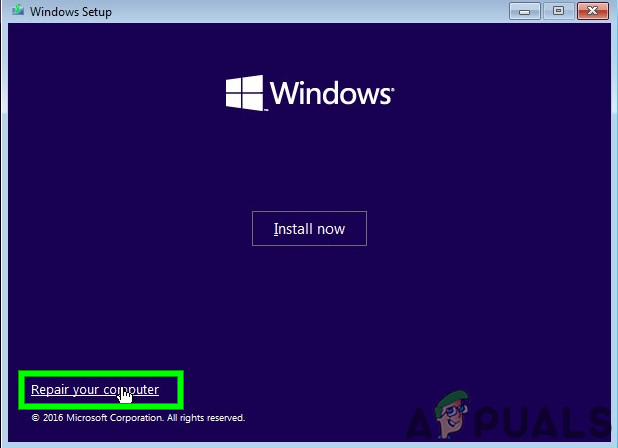
- Once you get to the first page, click on Next, then click on Repair your computer from the bottom-right corner of the screen.
Repairing Computer via installation media - Next, wait for the Recovery menu to load, then select Troubleshoot and click on Command Prompt from the list of available options:
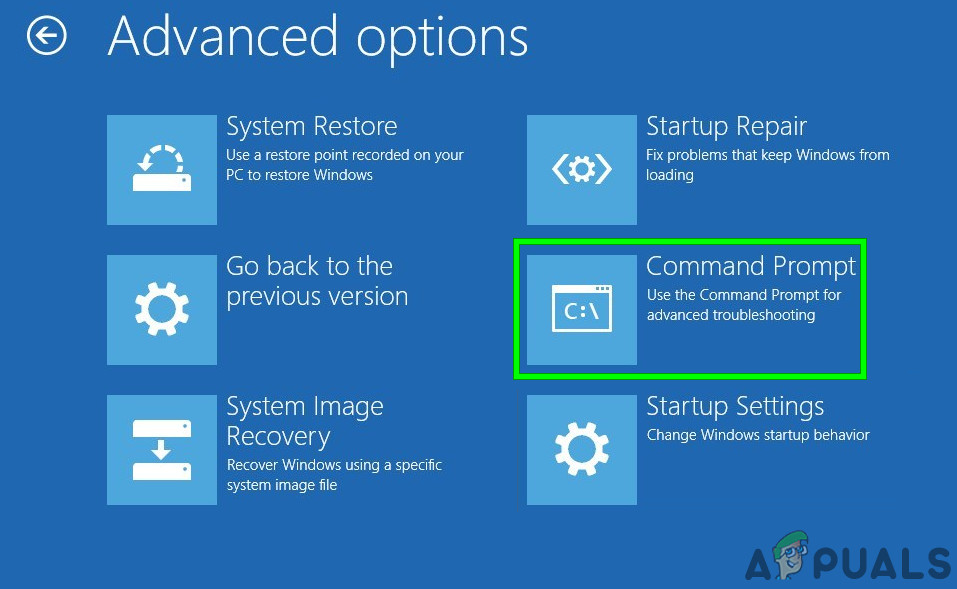
Accessing the Command Prompt via the Recovery menu Note: On certain Windows 10 versions, you might also be able to boot from the Recovery menu by forcing 3 consecutive system interruptions during the startup procedure.
- Once you’re inside the elevated Command Prompt, type the following command and press Enter to fix the MBR dependencies associated with your Windows installation:
bootrec /fixmbr
- Once the command is processed successfully, type the following commands and press Enter to fix the Boot Configuration Data associated with your Windows installation:
bootrec /fixboot
Note: If you get the ‘Access is denied’ error while inputting one of the 2 commands above, follow these instructions to fix the bootrec access problem.
- Next, type the following command and press Enter to scan all your disks for the Windows installation media:
bootrec /scanos
Note: This operation might take some time depending on the size of your partitions. Don’t close this window until the operation is complete.
- If the operation is completed successfully, type the following command to effectively rebuild the BCD configuration data:
bootrec /rebuildbcd
- When asked to confirm, type Y and press Enter to confirm and start the operation.
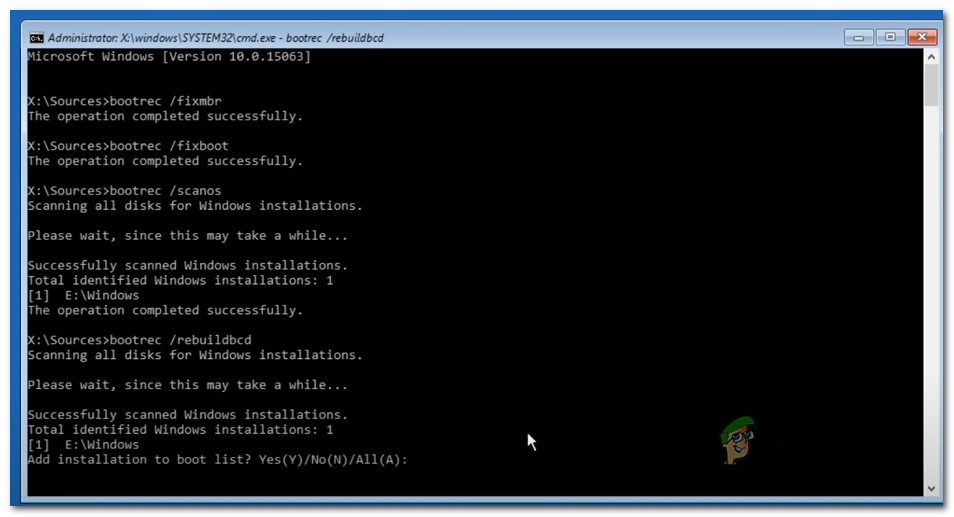
Confirm the operation of building the BCD file system - Finally, type ‘exit’ and press enter to effectively leave the elevated CMD prompt and allow your Windows to boot normally.
In case the end result is the same (the boot attempt ends with the same No Such Partition error), move down to the next method below.
Method 3: Using the Registry Backup to Restore the last good Configuration
If none of the methods above have worked for you, you might be able to fix the current configuration with the last known good backup that should allow you to dual boot without issues.
Doing this will require you to use the Advanced Options menu to open an elevated Command Prompt and run a series of commands that will allow you to boot using the last known good configuration.
This method was reportedly used successfully by a lot of users dealing with the No Such Partition -Grub Rescue error.
In order to use the Registry Backup to restore the last known good configuration, follow the instructions below:
- Insert a compatible Windows installation media and boot from it by pressing any key when prompted to do so.
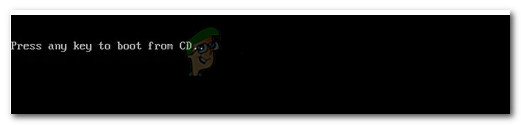
Booting from the installation media Note: If you don’t have a compatible installation media or your system doesn’t boot from it, follow steps 1 to 4 from Method 2.
- Once you manage to successfully boot from the installation media, click on Repair your computer from the bottom-left corner of the screen.
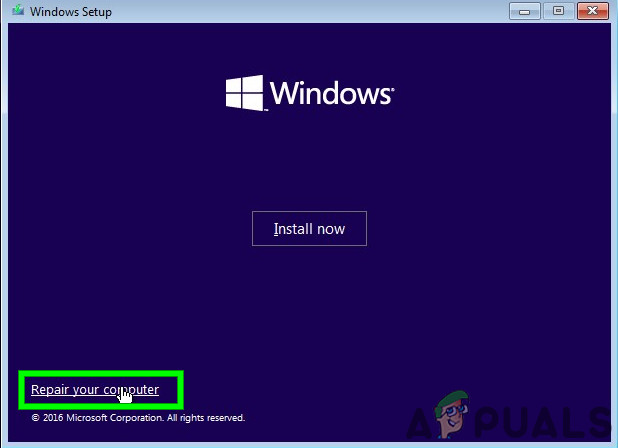
Repairing your computer - Once you’re finally inside the Advanced Recovery menu, click on Troubleshoot, then click on Command Prompt from the list of available Options.
Accessing the Command Prompt via the Recovery menu - Once you are inside the elevated Command prompt, type ‘C:‘ and press enter to access the partition where you installed Windows. If you installed Windows on a different partition, replace the letter accordingly.
- Next, type ‘dir‘ and press Enter to access the root location of your OS drive.
Note: It’s recommended to back up the current registry before going forward. To do this, input the following command and press Enter after each command:cd windowssystem32config MD backup copy *.* backup
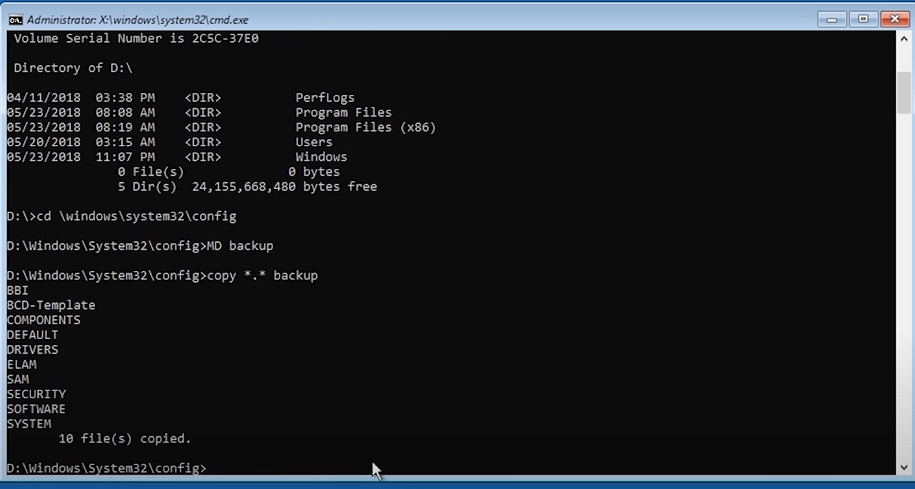
Backing up the Registry - Next, type the following commands and press Enter to access the last known good configuration and modify the default behavior to boot from it:
CD regback
copy *.* ..
- When prompted by the prompt, press A and hit Enter once again.
- Finally, type exit and press Enter to exit and boot normally. This should take you to the main GRUP menu where you should be able to dual boot as you see fit.

Kevin Arrows
Kevin is a dynamic and self-motivated information technology professional, with a Thorough knowledge of all facets pertaining to network infrastructure design, implementation and administration. Superior record of delivering simultaneous large-scale mission critical projects on time and under budget.
0
1
Привет всем!
Знаю, что подобная тема задавалась не раз, но, как мне кажется, у меня немного другой случай.
У меня были установлены 2 ОС: Ubuntu и Windows.
На жёстком диске были следующие разделы: диски C и D (из Windows), один раздел для Ubuntu, swap и один неразмеченный раздел.
И решил я в Windows с помощью утилиты diskmgmt.msc добавить неразмеченный раздел к диску D, чтобы увеличить место.
Я добавил этот раздел, но присоединить к диску D не получилось, после чего я удалил его. Но вместе с тем, раздел, на котором была Ubuntu присоединилась к диску D. Его размер стал больше как раз на такое количество ГБ, сколько было на разделе с Ubuntu и swap.
После перезагрузки на экране только grub rescue no such partition.
Если ввести команду ls, то на экране появится: (hd0) (hd0,msdos5), (hd0,msdos1).
До этой проблемы диски D и C определялись в Ubuntu как /dev/sda5 и /dev/sda1. Судя по всему сейчас они определяются как msdos5 и msdos1.
Восстановить загрузчик по этой статье http://adw0rd.com/2010/4/5/grub-rescue/#.Ug2uKtL0H38 не получилось.
Восстанавливать через установку grub пока не стал, потому что не знаю, сохранятся ли данные на диске D.
Как лучше поступить, чтобы сохранить данные и с Windows и с Ubuntu?
The No Such Partition Grub Rescue error is also known as the ‘Death Screen of Linux’. And this error mainly occurs when your grub configuration is messed up for some reason. In this article, we will try to solve this problem of ours using a live CD image of the same OS and try to fix your installation.
Pre-requisites
- You have a live CD/DVD/USB of the Operating System (must be of the same version).
- You have a stable internet connection.
- And you do not have a Wubi (Ubuntu inside Windows) installation on your system.
Let’s get started!
6 Easy Steps to Fix No Such Partition Grub Rescue Error
We need to re-install grub because it is either deleted or corrupt. And to re-install, we will copy the grub file from the live USB to your grub directory. Note that this will remove any custom configuration you have made to the grub file. Follow these steps to fix your grub file.
1. Locate your Root/boot partition
Boot from the Live USB stick and, in the terminal, type the following commands to gain administrative privileges :
Now, type the following commands to know your disk partitioning structure :
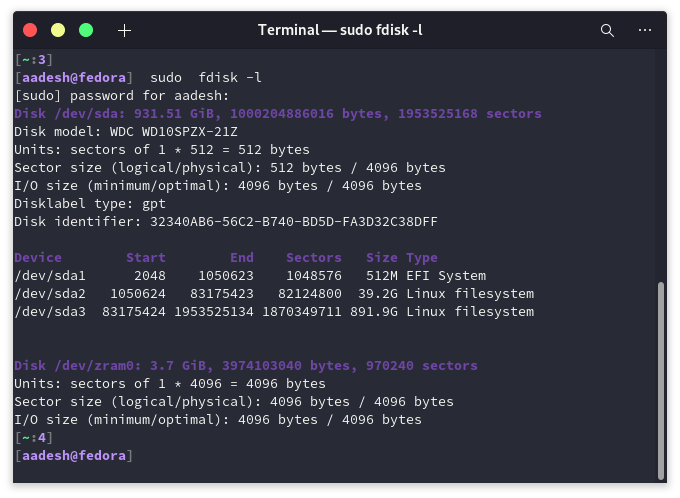
In the output, you will see text like /dev/sda1 or /dev/sda2 etc. If you have a separate Boot partition (EFI filesystem), note its location (usually it is 500 MB). And, if you don’t have a separate boot partition, then locate your root (/) partition. If you don’t know where your root is located, then you have to guess. Typically, it’s 30-50 GB in size.
2. Mount the Root/Boot Partition
To modify the changes in our root/boot partition, we will have to mount it first. To do that, type the following commands in your terminal :
sudo mkdir /mnt/temp
sudo mount /dev/sda2 /mnt/temp
Your sdX number can be different from mine, use the number where your root partition is located. And for separate boot partition, mount it as follows :
sudo mkdir /mnt/temp /mnt/temp/boot
sudo mount /dev/sdXY /mnt/temp  # Mount the main partition.
sudo mount /dev/sdXZ /mnt/temp/boot  # Mount the /boot partition.
3. Be CHROOT
Now that we have mounted the partition, we will have to mount several items in preparation of the chroot, run the following commands :
for i in /dev /dev/pts /proc /sys; do sudo mount -B $i /mnt/temp$i;  done
sudo cp /etc/resolv.conf /mnt/temp/etc/resolv.conf
sudo chroot /mnt/temp
If everything went well, you will see ‘root’ in the terminal prompt.
4. Update apt and Purge GRUB2 packages
Run the following commands as chroot to update apt :
Now, purge the old damaged grub files using these commands :
apt-get purge grub grub-pc grub-common
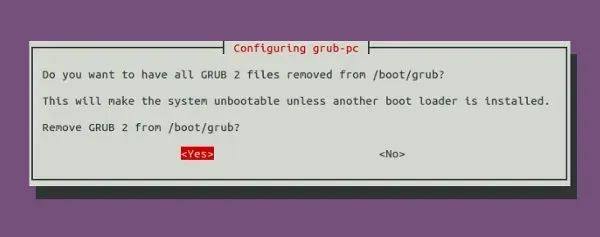
A prompt will appear asking for your confirmation to remove GRUB2 press and then press enter.
5. Re-install GRUB bootloader
We need to keep a few things in our mind before we we-install GRUB :
- While installation, it will ask you to add extra kernel options, if you don’t know about it then you probably don’t need it too. Just press the Tab key to navigate to Ok and press Enter.
- Installation notes will appear before your screen. Again, press Ok to continue.
- It will now ask you to select the drive where it will install the GRUB bootloader. DO NOT select a partition (sda1, sda2) – select a drive (sda, sdb) using the spacebar. The selected drive will be highlighted using an asterisk (*).
Now, use the following commands to install GRUB again :
apt-get install grub-common grub-pc
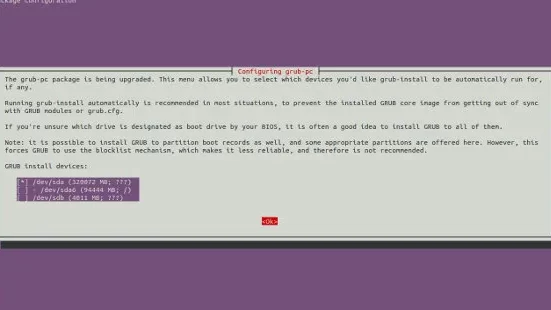
Now, update GRUB and exit out of chroot:
6. Unmount all the Partitions
If you have only mounted the root partition before, run the following commands :
for i in /dev/pts /dev /proc /sys; do sudo umount /mnt/temp$i ; done
And if you have also mounted the /boot partition, then run the following commands :
for i in /dev/pts /dev /proc /sys /boot; do sudo umount /mnt/temp$i ; done
Finally, reboot the system and remove the live USB stick.
Summary
The recovery process was a little exhaustive, but it works. Hopefully, you were able to access your PC after this troubleshooting process.
References
- https://ubuntuforums.org/showthread.php?t=1581099