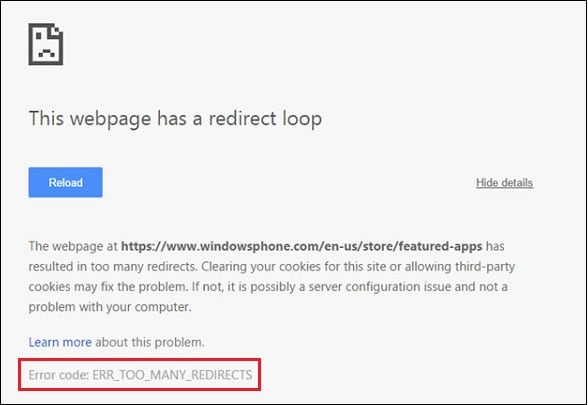
При переходе на какую-либо интернет-страницу пользователь может столкнуться с внезапно появившимся в окне браузера сообщением «ERR_TOO_MANY_REDIRECTS», в котором часто указан код ошибки 310 (error 310). Данная ошибка возникает в ситуации, когда браузер оказывается вовлечён в «дурную бесконечность» редиректов (перенаправлений) с одной страницы на другую, с которой он выходит через ошибку 310. Давайте рассмотрим причины возникшей проблемы, и варианты её решения.
Содержание
- Что это значит ERR_TOO_MANY_REDIRECTS?
- Как исправить «ERR_TOO_MANY_REDIRECTS»
- Действия для пользователя
- Действия для веб-мастера
- Заключение
Что это значит ERR_TOO_MANY_REDIRECTS?
В большинстве случаев указанная проблема ERR_TOO_MANY_REDIRECTS возникает на браузере Гугл Хром более ранних версий (по словам разработчиков – до 44 версии Хром). В переводе текст сообщения звучит как «Слишком много редиректов», и обычно означает ситуацию, при которой пользовательский браузер переходит на какую-либо страницу, с которой его отправляют на следующую страницу, затем на другую страницу и так далее (или идёт замыкание цикла на уровне «А указывает на Б, а Б указывает на А»).

Если старые версии браузеров полностью «погружались» в такой цикл на неопределённое время, то современные версии браузеров самостоятельно выходят из такой бесконечности редиректов, сигнализируя об ошибке сообщением «TOO_MANY_REDIRECTS».
Похожими сообщениями об ошибке являются описанные ранее в нашем блоге IT-DOC:
- ERR_FILE_NOT_FOUND;
- ERR_NETWORK_CHANGED;
- 500 Internal Server Error.
Как исправить «ERR_TOO_MANY_REDIRECTS»
Варианты решения данной проблемы я разделю на две основные категории – для пользователя и веб-мастера.
Действия для пользователя
Итак, если вы пользователь, и при переходе на какой-либо сайт встретились с рассматриваемой ошибкой, тогда выполните следующее:
- Используйте другой браузер. Наиболее эффективным и простым вариантом решения проблемы является задействование другого браузера (к примеру, вместо «Хром» используйте «Мозиллу» или «Edge»). Поскольку проблема наиболее часто проявляется себя именно на Хром, задействование альтернативных веб-навигаторов позволяет избавиться от досадной дисфункции;
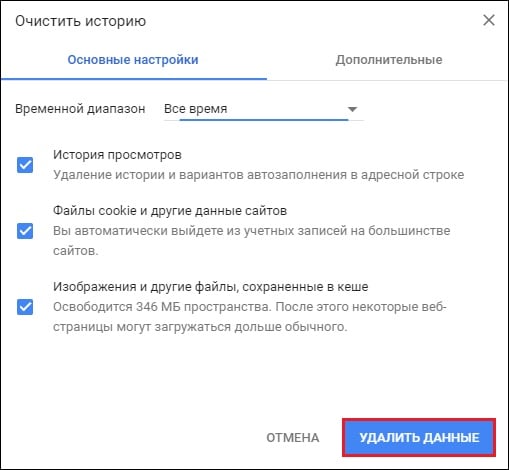
- Очистите кэш (Опера, Хром) и куки вашего браузера. В частности, на Хром это делается переходом в «Настройки», затем в «Дополнительные», там находим и кликаем на «Очистить историю». Определяемся с временным диапазоном очистки (к примеру, «Всё время»), и нажимаем на «Удалить данные»;
- Избавьтесь от нестабильных расширений (дополнений) для вашего браузера. Если проблема проявила себя совсем недавно, и при этом вы недавно установили на ваш браузер какое-либо расширение, рекомендуется отключить (удалить) данное расширение, дабы убедиться, что не оно является фактором возникновения проблемы. В Хром это делается переходом в «Настройки», затем «Дополнительные инструменты», далее «Расширения»;
- Сбросьте настройки вашего браузера. Для некоторых пользователей эффективным способом борьбы с ошибкой является полный сброс настроек их навигатора. На Гугл Хром это делается переходом в настройки браузера, кликом на «Дополнительные» внизу, а затем вновь в самом низу жмём на «Сбросить»;
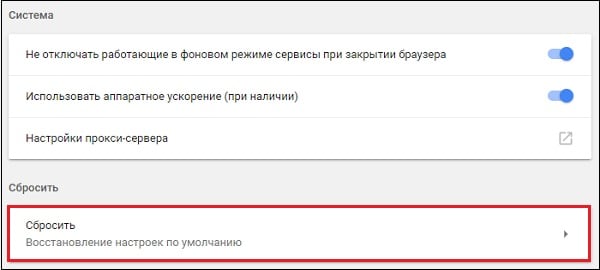
Воспользуйтесь данной опцией для сброса настроек - Довольно редкой причиной дисфункции является некорректные дата и время на пользовательском ПК. Проверьте указанные значения, и при необходимости исправьте их (наводим курсор на дату и время внизу справа, жмём правую клавишу мыши, выбираем «Настройка даты и времени»).
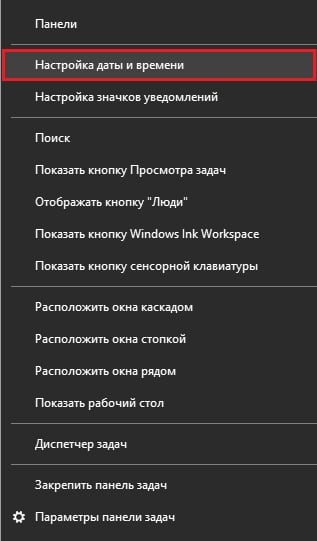
При необходимости установите корректные значения времени
Действия для веб-мастера
В случае решении ошибки ERR_TOO_MANY_REDIRECTS для веб-мастеров рекомендуется выполнить следующее:
- Первым делом рекомендуется проверить файл .htacess. Просмотрите его содержимое на предмет наличия циклов, а также слишком большого количества редиректов. При необходимости откорректируйте содержимое файла, убрав с него лишние циклические значения.
- Проверьте корректность кода перенаправления на вашей странице. Если вы недавно добавили на какую-либо из ваших страниц код перенаправления, то рекомендуется проверить корректность его значения с целью убедиться, что код написан правильно;
- Отключите плагины перенаправления. Если в функционале вашего ресурса вы задействовали подобные плагины, попробуйте последовательно отключить их и понаблюдать, не восстановиться ли нормальный функционал вашего сайта;
- Также фиксировались случаи, что ошибка 310 была вызвана ситуацией, при которой адрес сайта и адрес WordPress были написаны кириллицей, а для стабильной работы заглавной страницы требовалось написание с использованием punycode.
Заключение
Рассматриваемая в статье дисфункция ERR_TOO_MANY_REDIRECTS вызвана как нестабильным функционалом ранних версий браузера Хром, так и некорректными настройками ряда сайтов со стороны разработчиков ресурсов. Выполните перечисленные в данной статье советы, это поможет устранить ошибку 310 на вашем ПК.
Опубликовано 22.12.2017 Обновлено 06.11.2020
We come across a lot of different errors here at Kinsta, and ERR_TOO_MANY_REDIRECTS (also known as a redirect loop) is one we see on a regular basis. Typically this occurs after a recent change on your website, a misconfiguration of redirects on your server, or wrong settings with third-party services. But don’t worry, this error is fairly easy to fix.
Check out the recommendations below on how to fix this error and get your site back up and running.
What is the ERR_TOO_MANY_REDIRECTS Error?
The ERR_TOO_MANY_REDIRECTS error is pretty much what it sounds like: something is causing too many redirects, sending your website into an infinite redirection loop.
Essentially the site is stuck (such as URL 1 points to URL 2 and URL 2 points back to URL 1, or the domain has redirected you too many times) and unlike some other errors, these rarely resolve themselves and will probably need you to take action to fix it.
You might have also come across the error “request exceeded the limit of 10 internal redirects due to probable configuration error“.
| Error Code | ERR_TOO_MANY_REDIRECTS |
| Error Type | Browser error/code error |
| Error Variations | This page isn’t working. domain.com redirected you too many times. The page isn’t redirecting properly This page isn’t working right now Safari Can’t Open the Page |
| Error Causes | Misconfigured WordPress settings/plugins Issues with browser’s cache/cookies. Issues with third-party services Bad HTTPS settings Bad server settings |
There are a couple of different variations of this error depending upon the browser you’re running.
Google Chrome
In Google Chrome this error will show as ERR_TOO_MANY_REDIRECTS (as seen below) or This webpage has a redirect loop problem.
This page isn’t working. domain.com redirected you too many times.
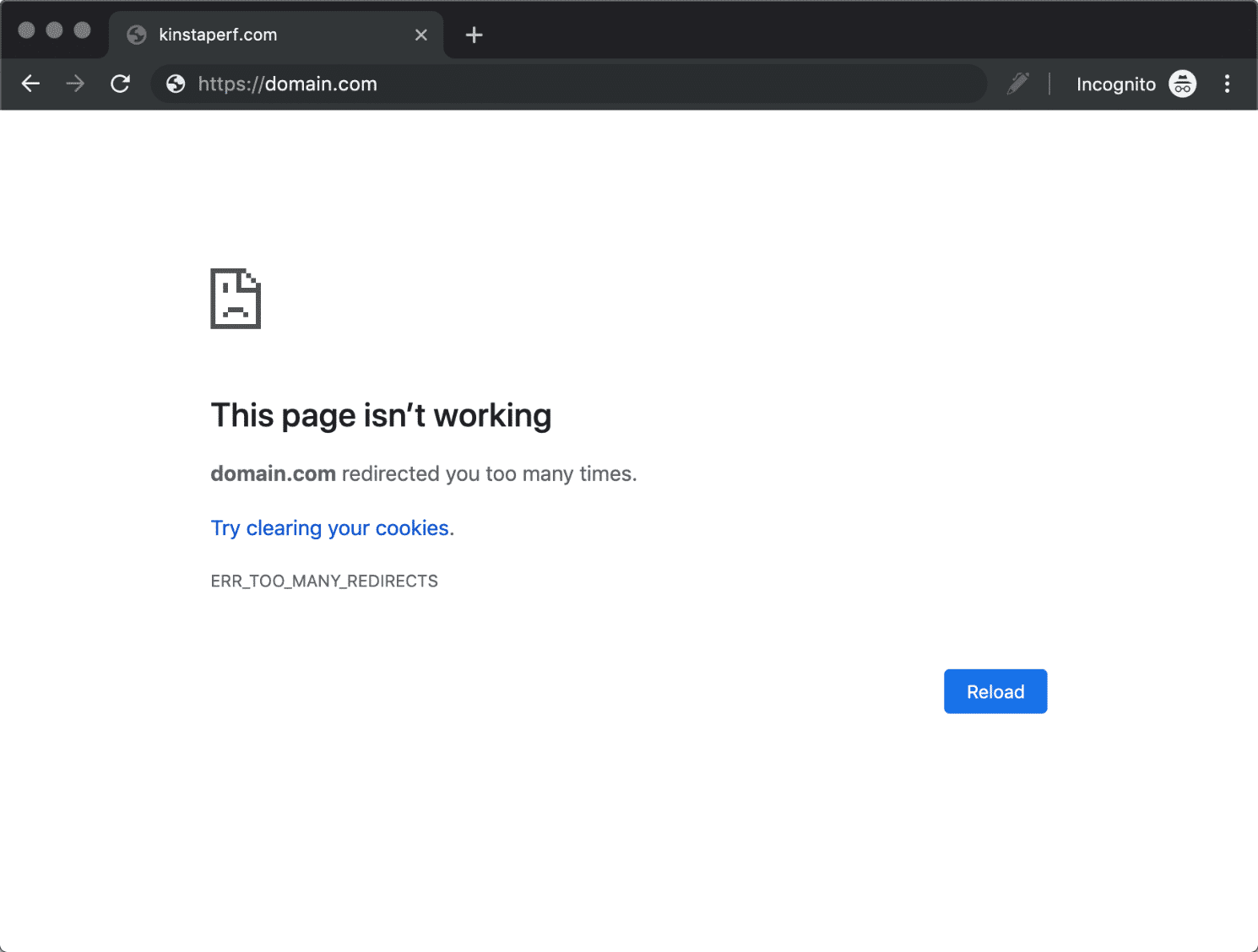
(Check out how to fix Chrome’s ERR_CACHE_MISS error).
Mozilla Firefox
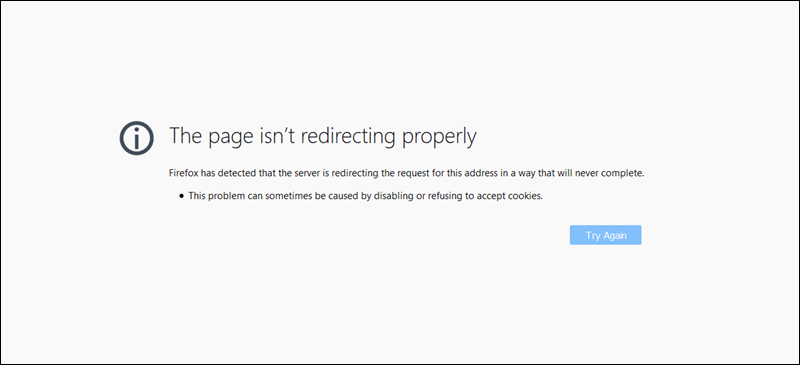
In Mozilla Firefox it will show as The page isn’t redirecting properly (as seen below).
An error occured during a connection to domain.com. This problem can sometimes be caused by disabling or refusing to accept cookies.
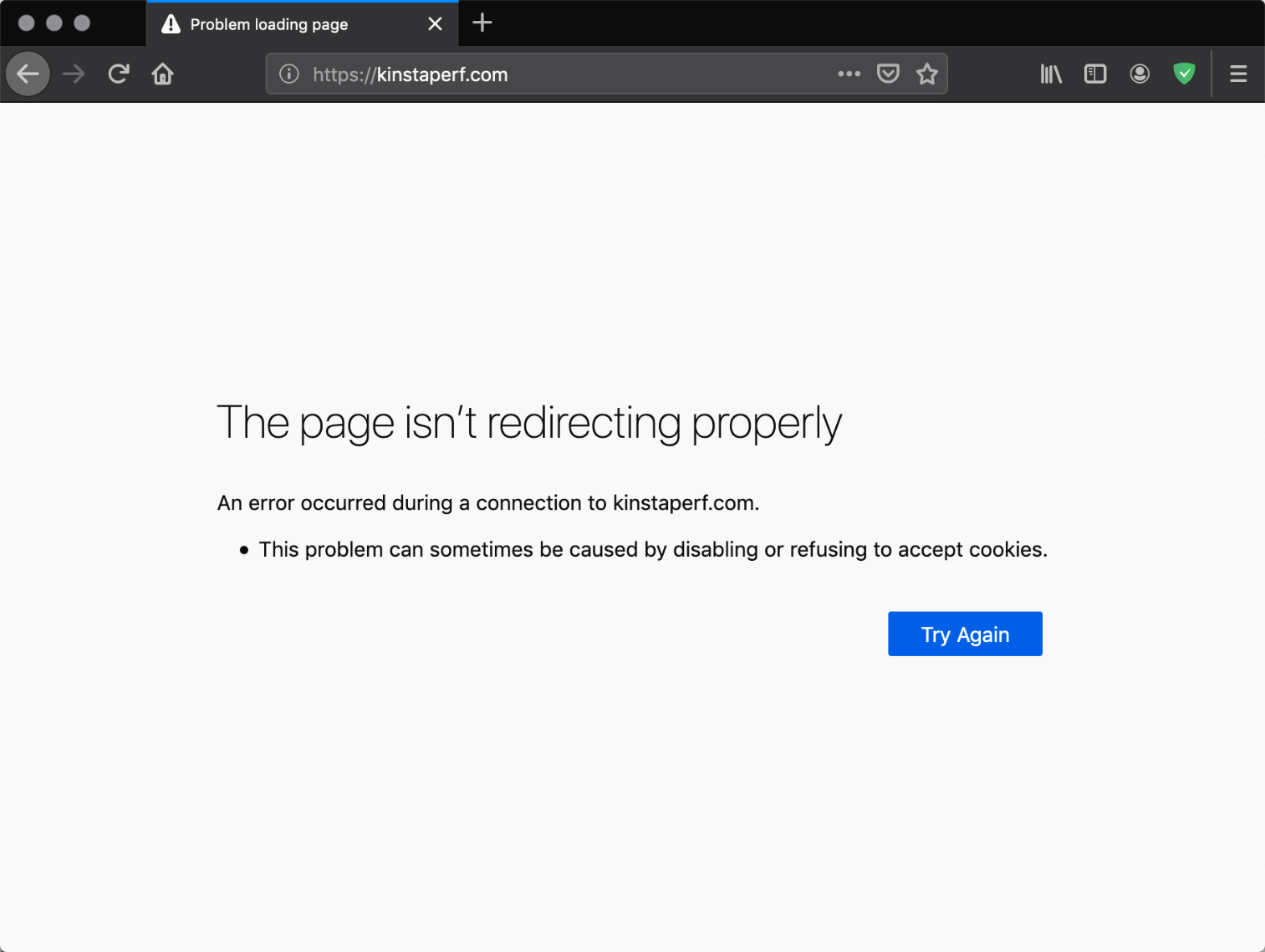
Microsoft Edge
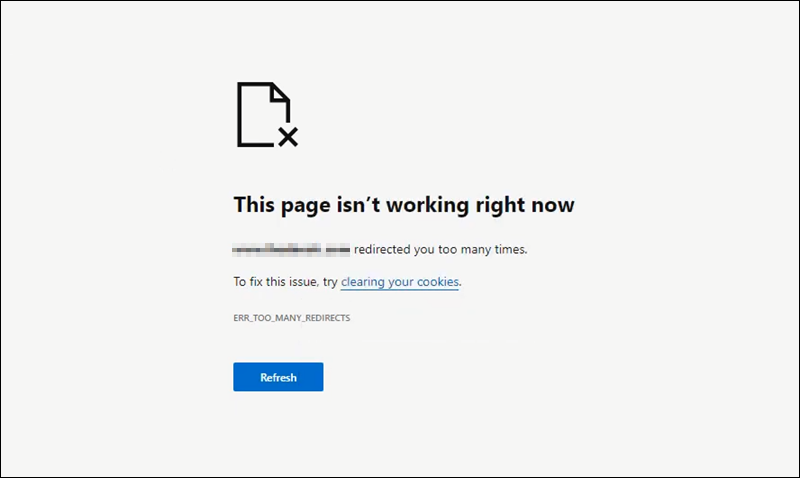
In Microsoft Edge, it will simply show as This page isn’t working right now (as seen below).
Domain.com redirected you too many times.
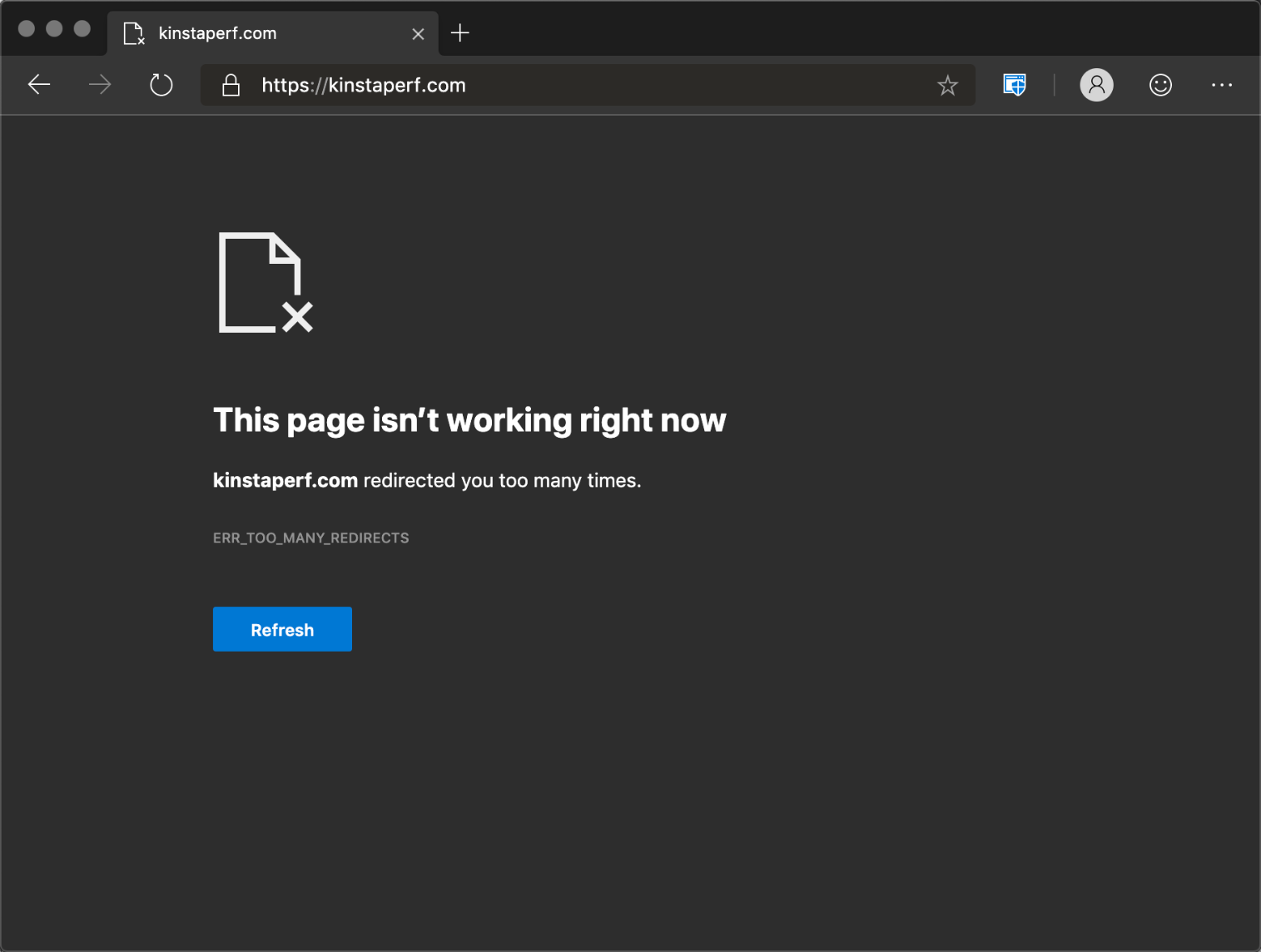
Safari
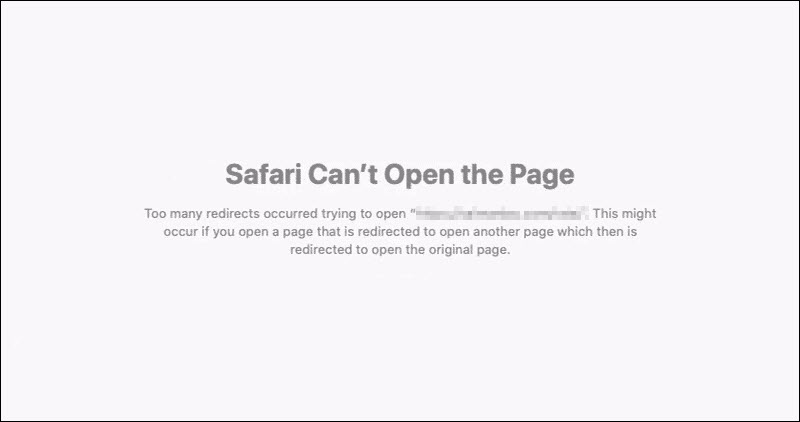
In Safari, it will show as Safari Can’t Open the Page (as seen below).
Too many redirects occurred trying to open “domain.com.” This might occur if you open a page that is redirected to open another page which is then redirected to open the original page.

Why Does ERR_TOO_MANY_REDIRECTS Error Occur?
This error happens when the browser can’t establish a connection between the initial page and the destination page in a redirect. The main causes can be:
- Misconfigured WordPress settings
- Misconfigured WordPress plugin.
- Misconfigured server settings.
- Incorrect HTTPS settings.
- Issues with the browser’s cache/cookies.
- Issues with third-party services (e.g. CDNs).
- Improper website or domain migration.
So how to fix the ERR_TOO_MANY_REDIRECTS error?
Here are some recommendations and things to check to fix the error (sorted in order by most common reasons we see):
- Delete cookies on that specific site
- Clear site, server, proxy, and browser cache
- Determine nature of redirect loop
- Check your HTTPS settings
- Check third-party services
- Check your WordPress site settings
- Temporarily disable WordPress plugins
- Check redirects on your server
Delete Cookies on That Specific Site
Google and Mozilla both in fact recommend right below the error to “try clearing your cookies.” Cookies can sometimes contain faulty data in which could cause the ERR_TOO_MANY_REDIRECTS error. This is one recommendation you can try even if you’re encountering the error on a site you don’t own.
Due to the fact that cookies retain your “logged in” status on sites and other settings, we recommend simply deleting the cookie(s) on the site that is having the problem. This way you won’t impact any of your other sessions or websites that you frequently visit.
Follow the steps below to delete a cookie on a specific website in Google Chrome.
Step 1
In Google Chrome click on the three small dots in the upper right-hand corner. Then click on “Settings.”
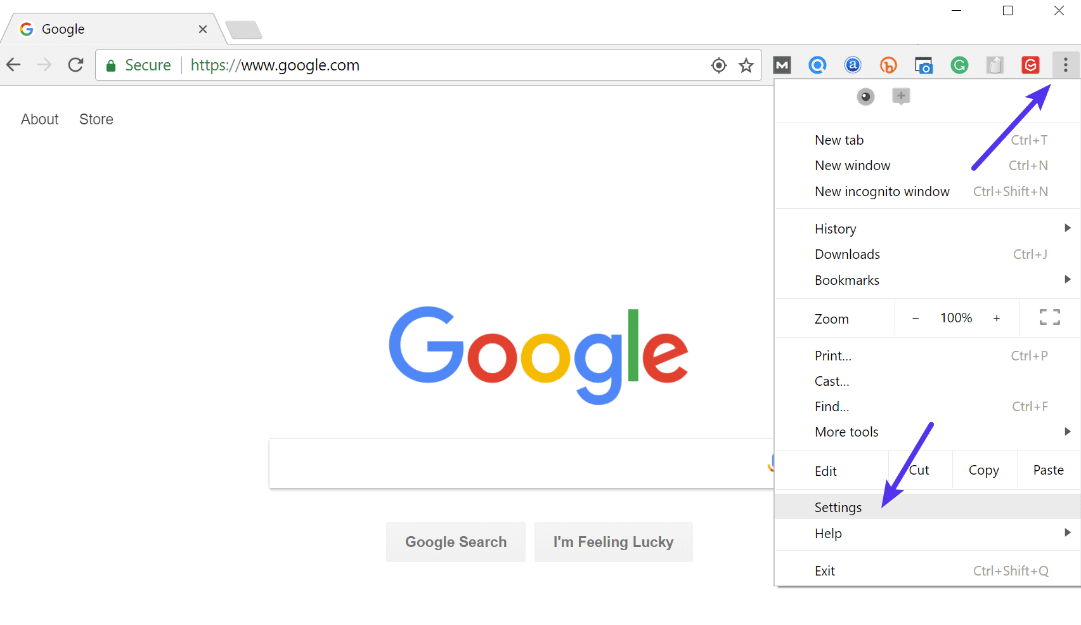
Step 2
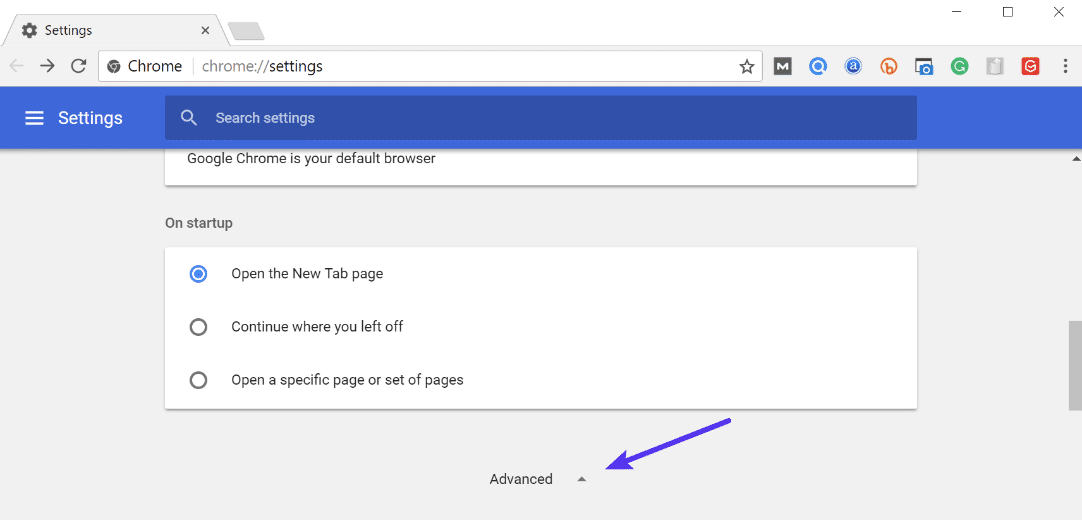
Scroll down and click on “Advanced.”
Step 3
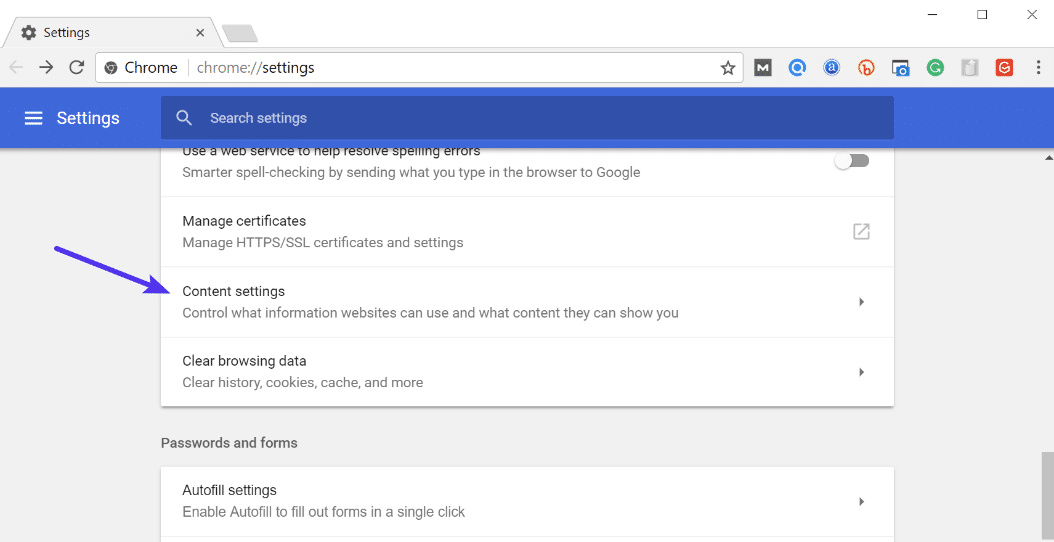
Then click on “Content settings.”
Step 4
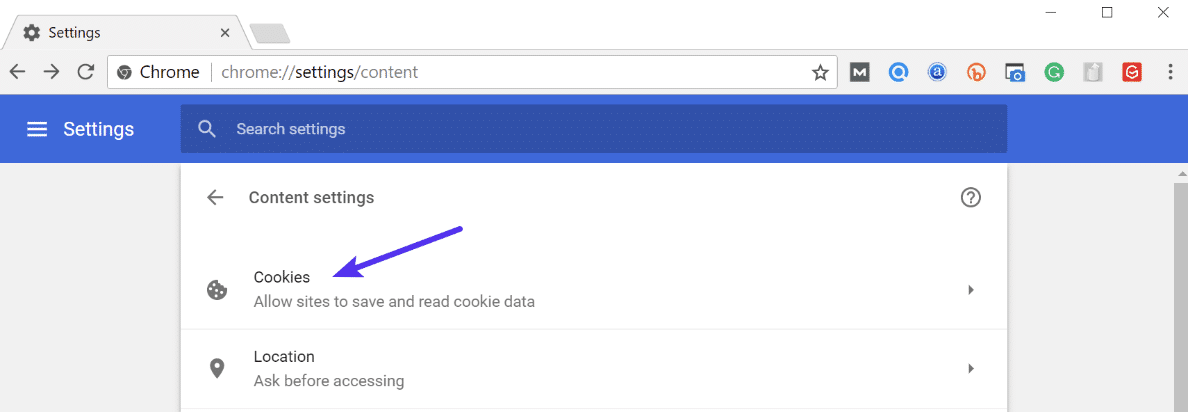
Click on “Cookies.”
Step 5
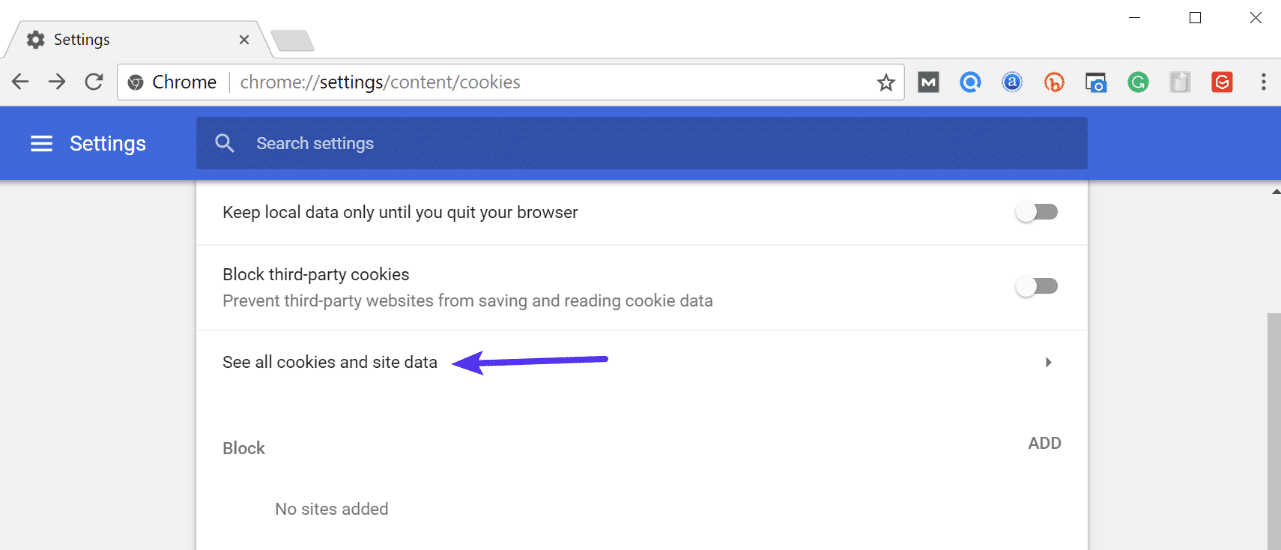
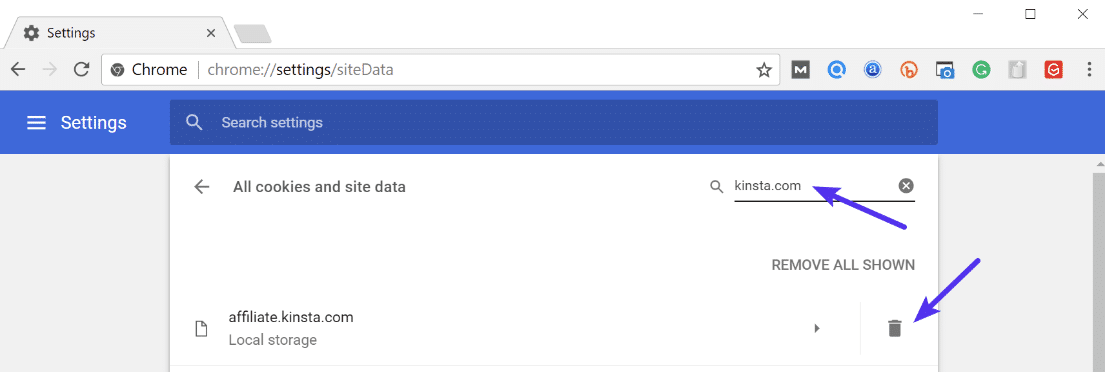
Then click on “See all cookies and site data.”
Step 6
Search for the site (domain) where you are encountering the ERR_TOO_MANY_REDIRECTS error. You can then delete the cookie(s) currently stored on your computer for that domain. Then try visiting the site again.
Clear Server, Proxy, and Browser Cache
Due to the fact that redirect loops are responses that can be cached, it’s always recommended to try clearing the cache on your WordPress site, the server, third-party proxy services, and even your browser if necessary.
Clear WordPress Site Cache
Depending upon the type of redirect loop, you might still be able to gain access to your WordPress admin dashboard. In this case, you can easily clear the cache within the settings of your caching plugin. Here are a couple of quick links on how to clear WordPress cache with popular plugins:
- Clear Cache with Cache Enabler
- Clear Cache with W3 Total Cache
- Clear Cache with Super Cache
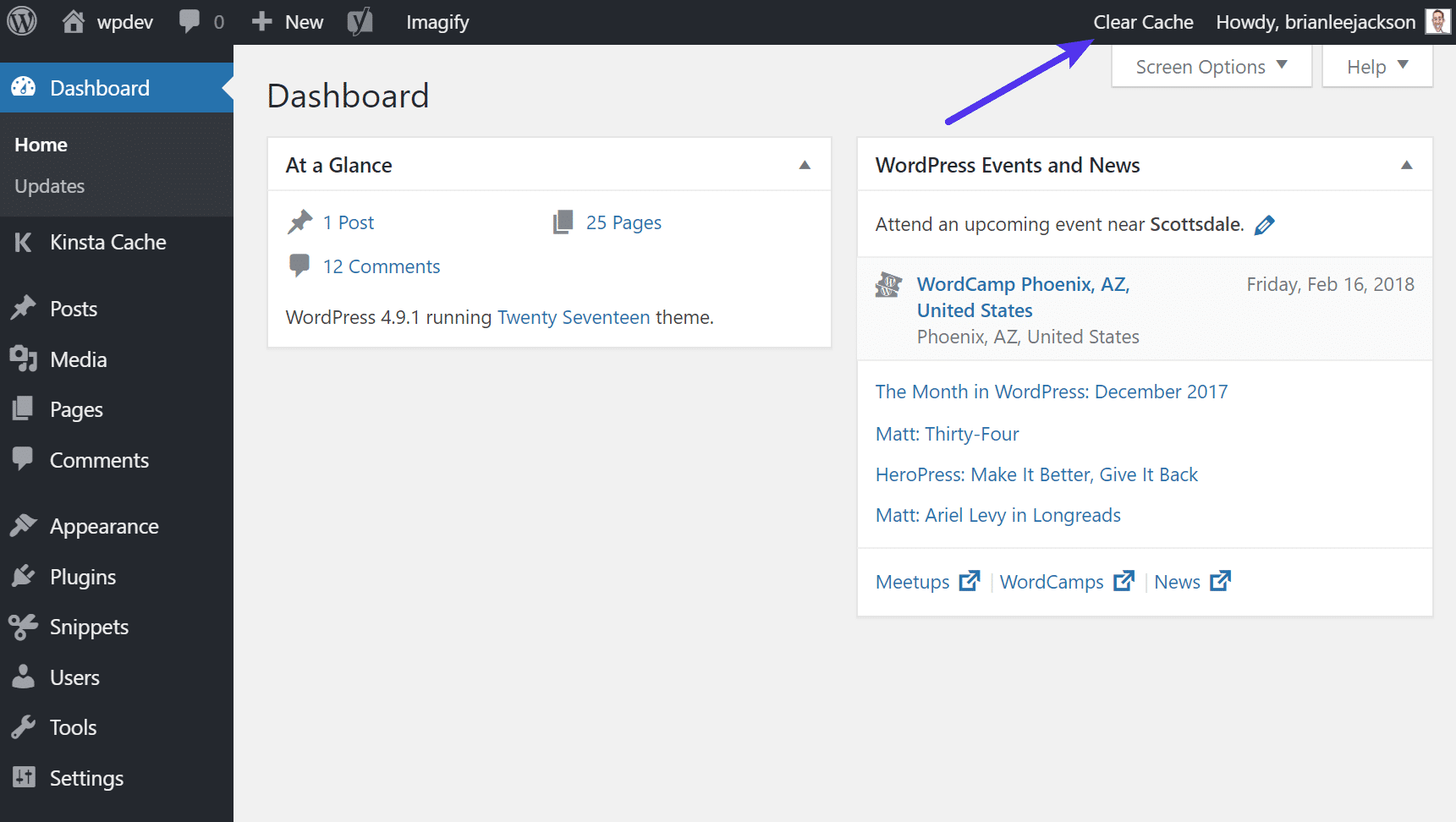
If you’re a Kinsta client, you can easily clear your cache from the WordPress admin toolbar.
Clear Server Cache
If you can’t access WordPress admin, many WordPress hosts have their own control panel tools for clearing the cache on your WordPress site.
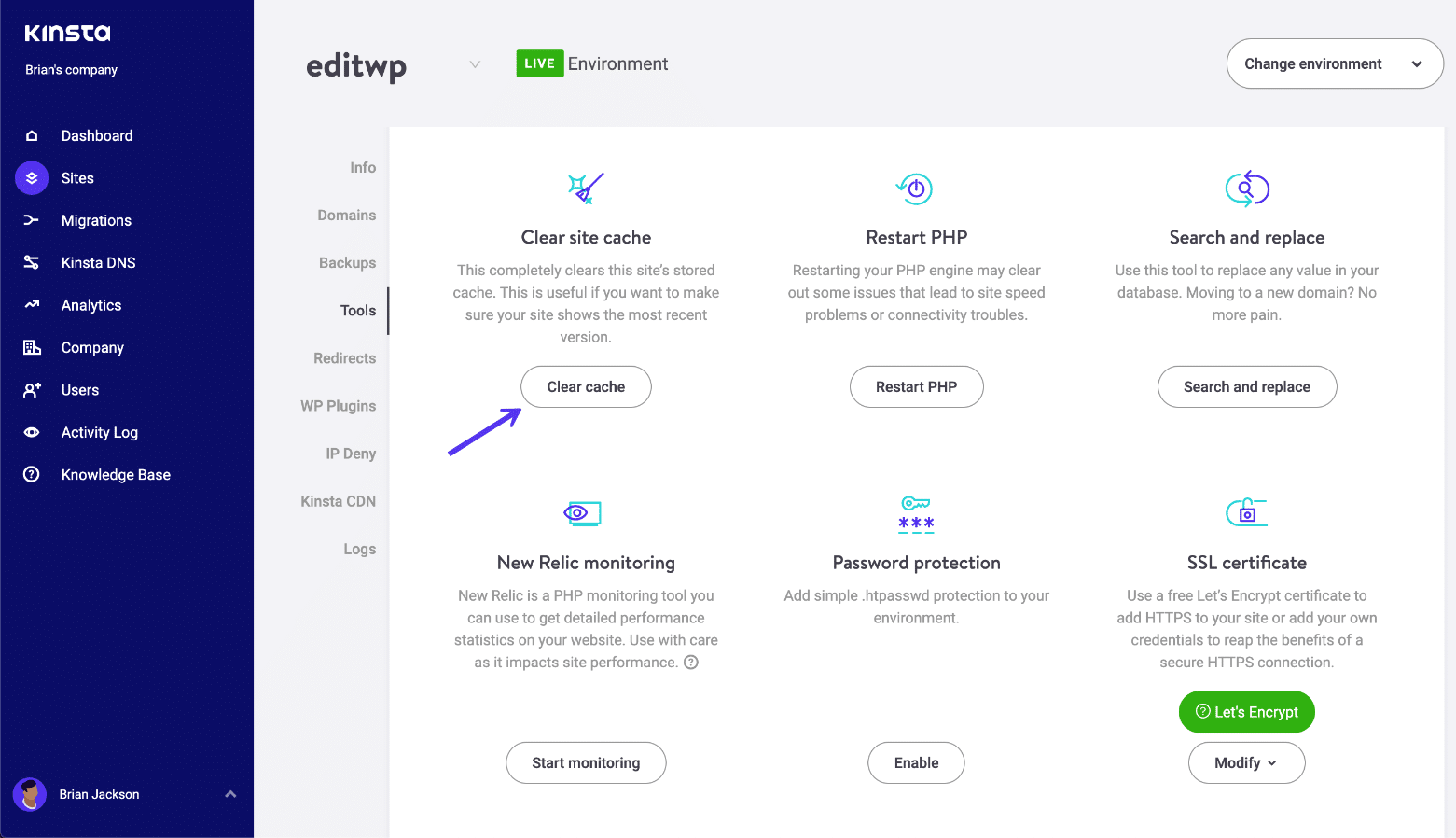
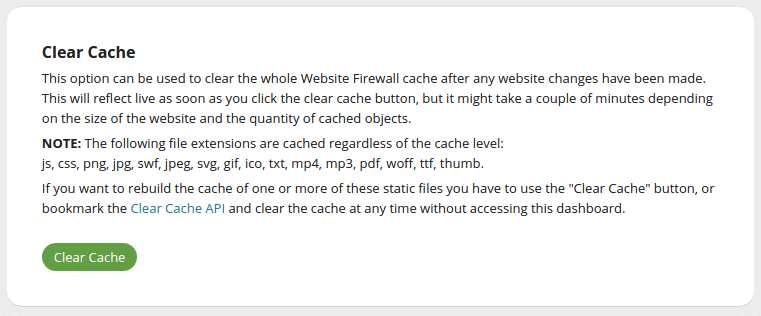
If you’re a Kinsta client, you can manually clear WordPress cache from within the MyKinsta dashboard. Simply click on your site, click into tools, and click on the “Clear Cache” button. Then check your site to see if the redirect loop still exists.
Clear Proxy Cache
If you’re using a third-party reverse-proxy service such as Cloudflare or Sucuri, it can also be beneficial to clear the cache on their side.
Cloudflare
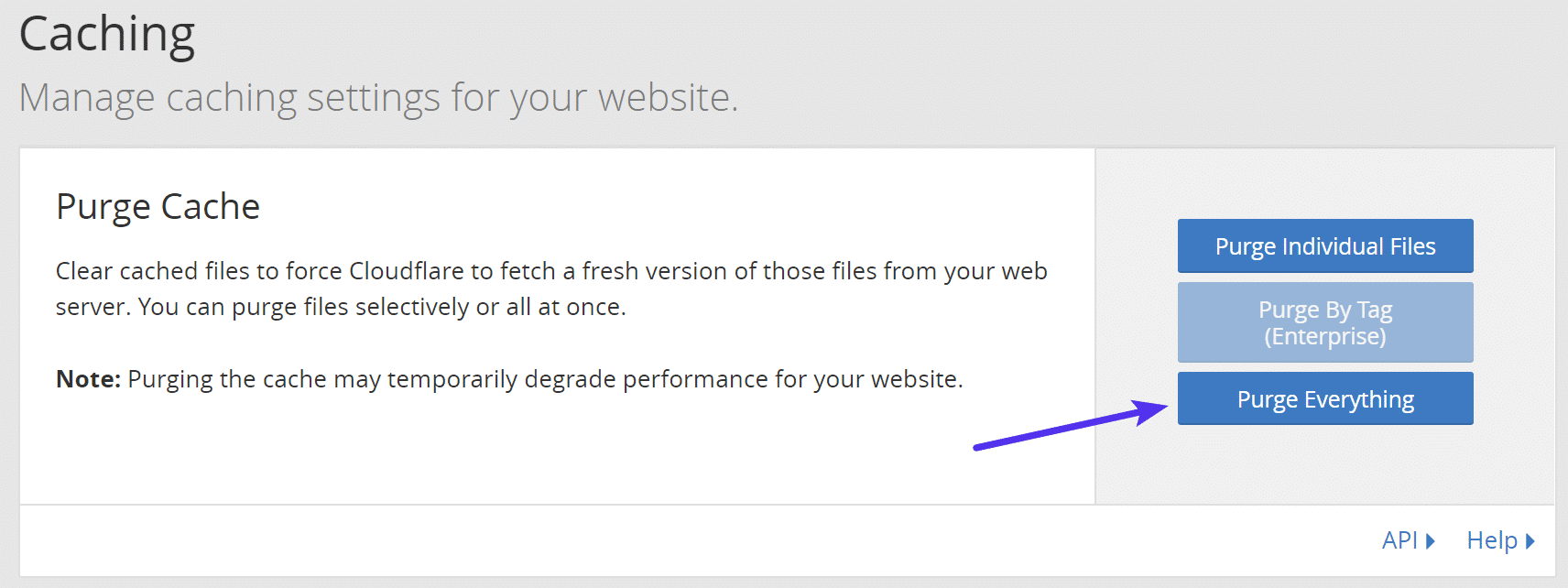
To purge Cloudflare cache, login to their dashboard, click into “Caching” and click on “Purge Everything.”
Sucuri
To purge Sucuri cache, login to their dashboard, go to “Performance” and click on “Clear Cache.”
Clear Browser Cache
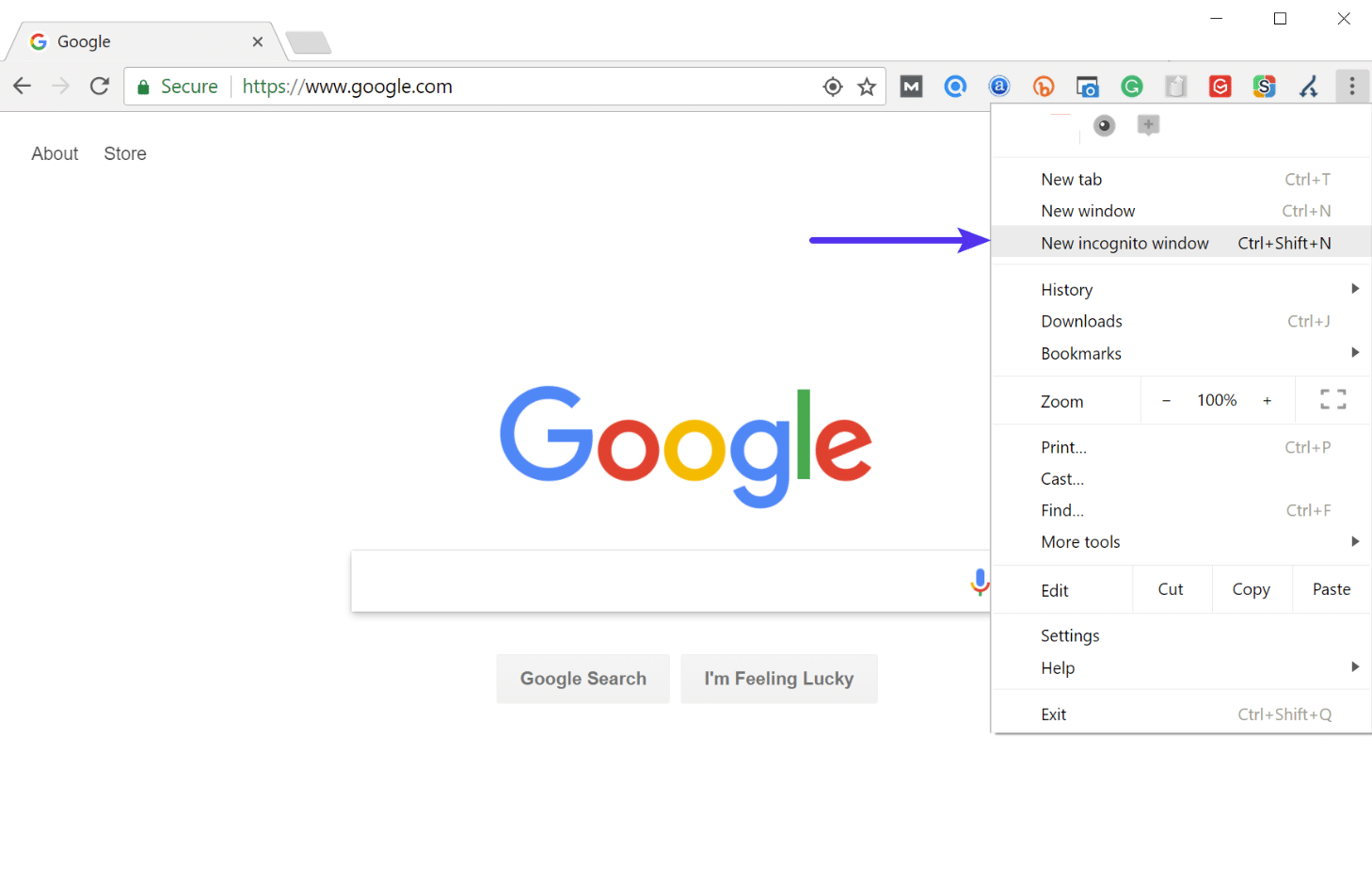
If you want to check and see if it might be your browser cache, without clearing your cache, you can always open up your browser in incognito mode. Or test another browser and see if you still see the ERR_TOO_MANY_REDIRECTS error.
If you determine it is being caused by your browser cache, you can then clear it. Below are instructions on how to do it in various browsers:
- How to Force Refresh a Single Page for All Browsers
- How to Clear Browser Cache for Google Chrome
- How to Clear Browser Cache for Mozilla Firefox
- How to Clear Browser Cache for Safari
- How to Clear Browser Cache for Internet Explorer
- How to Clear Browser Cache for Microsoft Edge
- How to Clear Browser Cache for Opera
Determine Nature of Redirect Loop
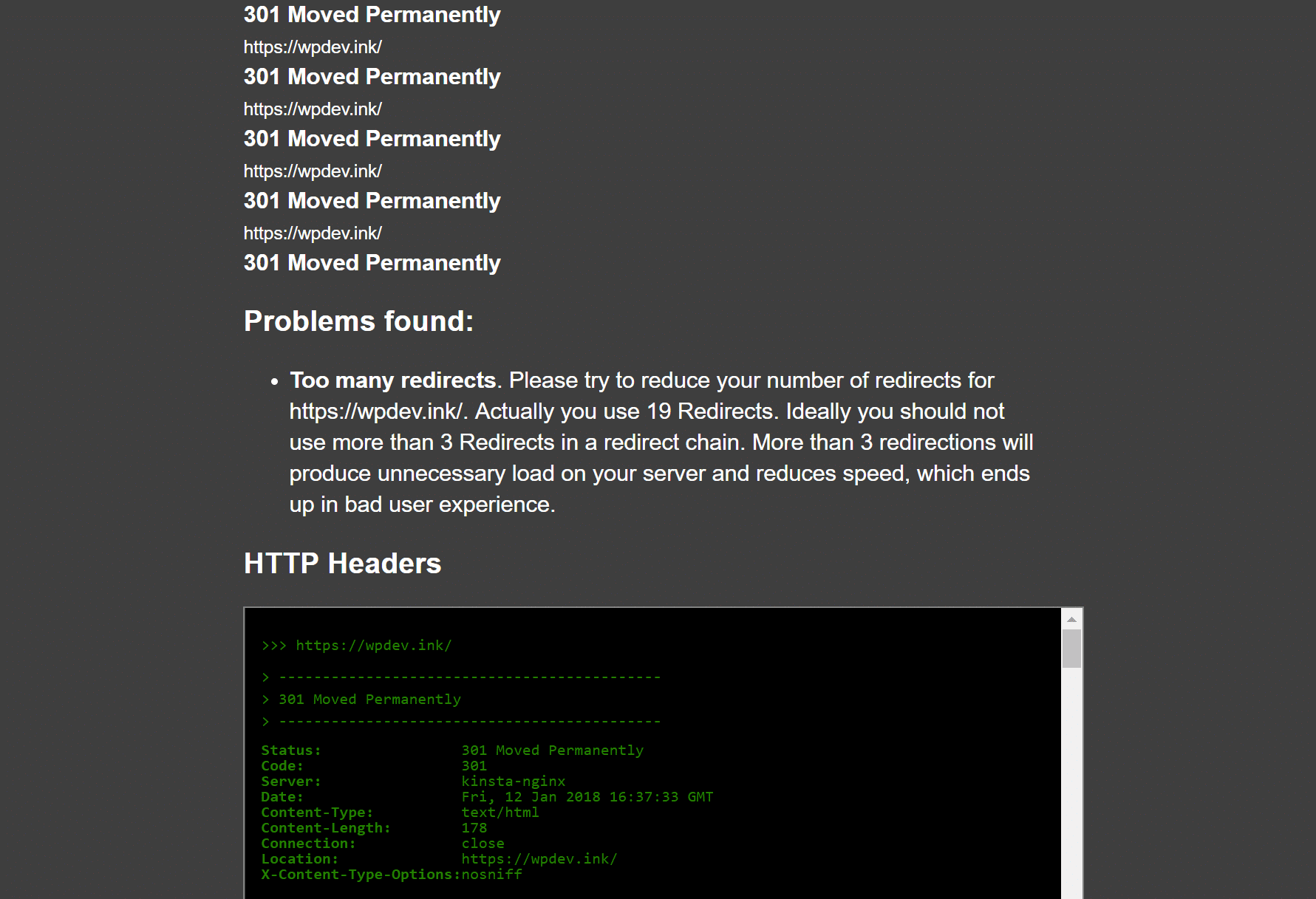
If clearing the cache didn’t work, then you’ll want to see if you can determine the nature of the redirect loop. Our free online Redirect Checker tool can help provide some further analysis into what might be going on. This could also be done via cURL.
For example, on the site below, it has a 301 redirect loop back to itself, which is causing a large chain of faulty redirects. You can follow all the redirects and determine whether or not it’s looping back to itself, or perhaps is an HTTP to HTTPS loop in which we’ll discuss how to solve that further below.
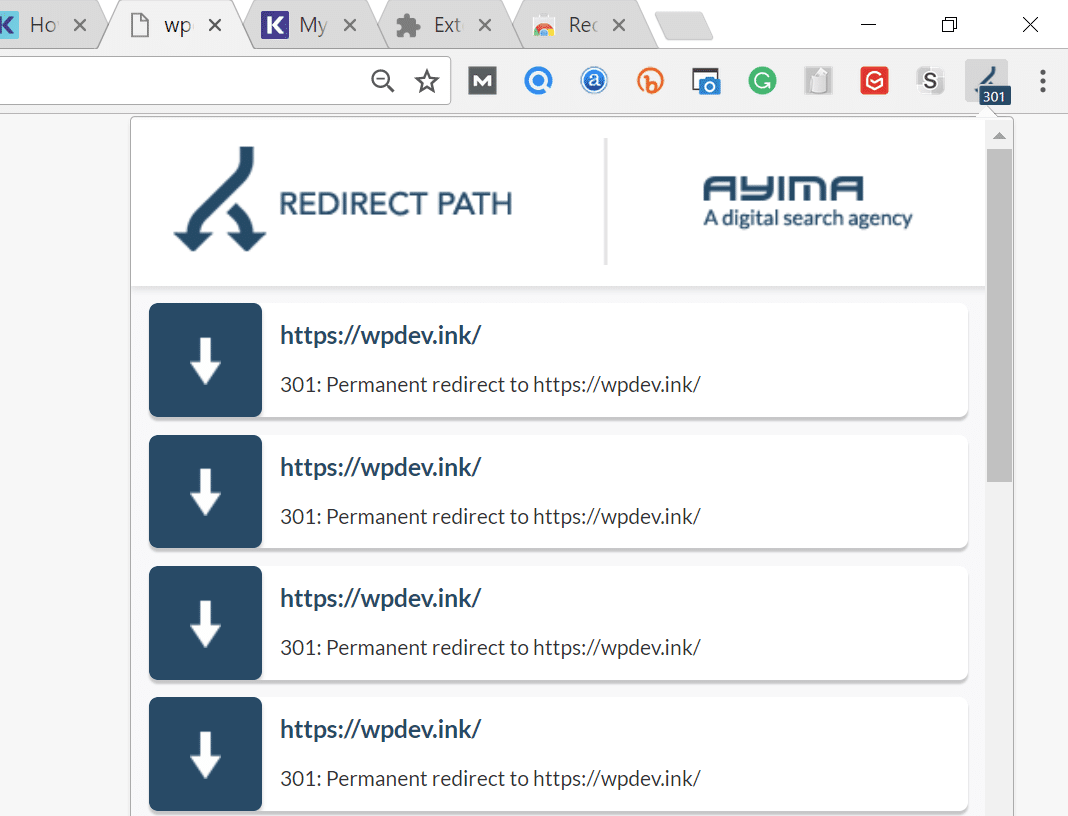
The Redirect Path Chrome extension can also be very useful and provides insights into all of the redirects happening on your site (specific URL or page.
Check Your HTTPS Settings
Another thing to check is your HTTPS settings. A lot of times we’ve seen ERR_TOO_MANY_REDIRECTS occur when someone has just migrated their WordPress site to HTTPS and either didn’t finish or set up something incorrectly.
1. Don’t Force HTTPS Without an SSL Certificate
This is by far the most common reason we see on a regular basis. If you force your WordPress site to load over HTTPS without first installing an SSL certificate, you’ll instantly throw your site into a redirection loop. To fix this, simply install an SSL certificate on your WordPress site.
It’s also recommended to run an SSL check. SSL/TLS certificates require not only your main certificate but also what they call intermediate certificates (chain) to also be installed. These need to be set up properly.
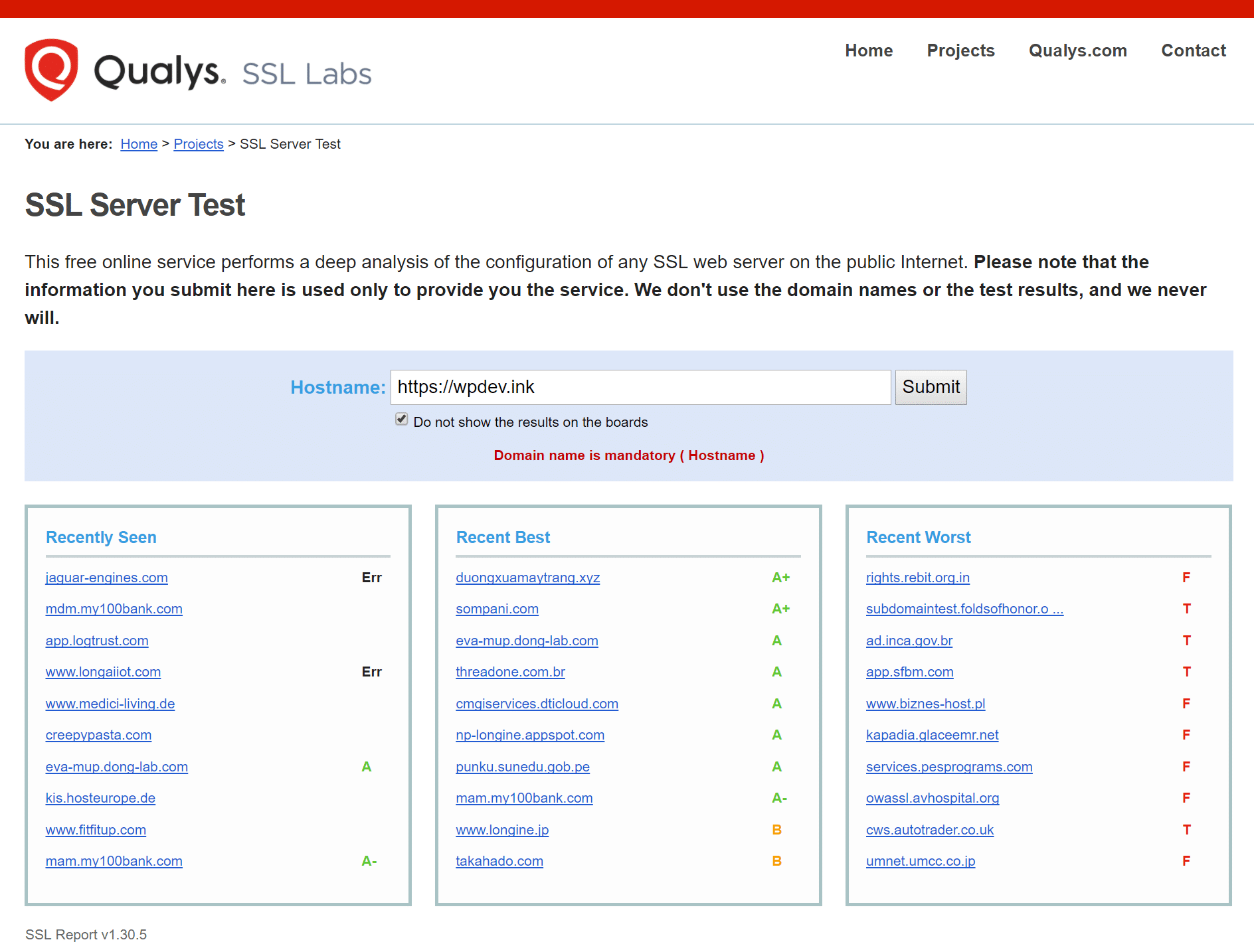
We recommend using the free SSL check tool from Qualys SSL Labs. It is very reliable and we use it for all Kinsta clients when verifying certificates. Simply head over to their SSL check tool, input your domain into the Hostname field and click on “Submit.” You can also select the option to hide public results if you prefer. It could take a minute or two to scan your site’s SSL/TLS configuration on your web server.
2. Don’t Use an SSL Plugin, Update your Hard-coded Links
There are some free SSL WordPress plugins, such as the Really Simple SSL plugin that will help you automatically redirect to HTTPS. However, we don’t recommend this method as a permanent solution because third-party plugins can always introduce another layer of problems and compatibility issues. It’s a good temporary solution, but you should really update your hard-coded HTTP links.
We have a great tutorial with 4 easy ways to do a search and replace in WordPress. If you’re a Kinsta client, you can always reach out to our support team to do this for you as well.
3. Check HTTP to HTTPS Redirects on Server
It could very well be that perhaps the HTTPS redirect rules on your server were misconfigured.
Redirect HTTP to HTTPS in Nginx
If your web server is running Nginx, you can easily redirect all of your HTTP traffic to HTTPS by adding the following code to your Nginx config file. This is the recommended method for redirecting WordPress running on Nginx.
server { listen 80; server_name domain.com www.domain.com; return 301 https://domain.com$request_uri; }
We use Nginx for everyone here at Kinsta. The great news is that you don’t have to worry about this. If you need to add a redirect simply open up a quick support ticket and let us know which domain you need to be redirected. We then add it to the Nginx config for you.
Check Out Our Video Guide to Redirects
Redirect HTTP to HTTPS in Apache
If your web server is running Apache, you can easily redirect all of your HTTP traffic to HTTPS by adding the following code to your .htaccess file. This is the recommended method for redirecting WordPress running on Apache.
RewriteEngine On
RewriteCond %{HTTPS} off
RewriteRule ^(.*)$ https://%{HTTP_HOST}%{REQUEST_URI} [L,R=301]
4. Check For Too Many HTTPS Redirects
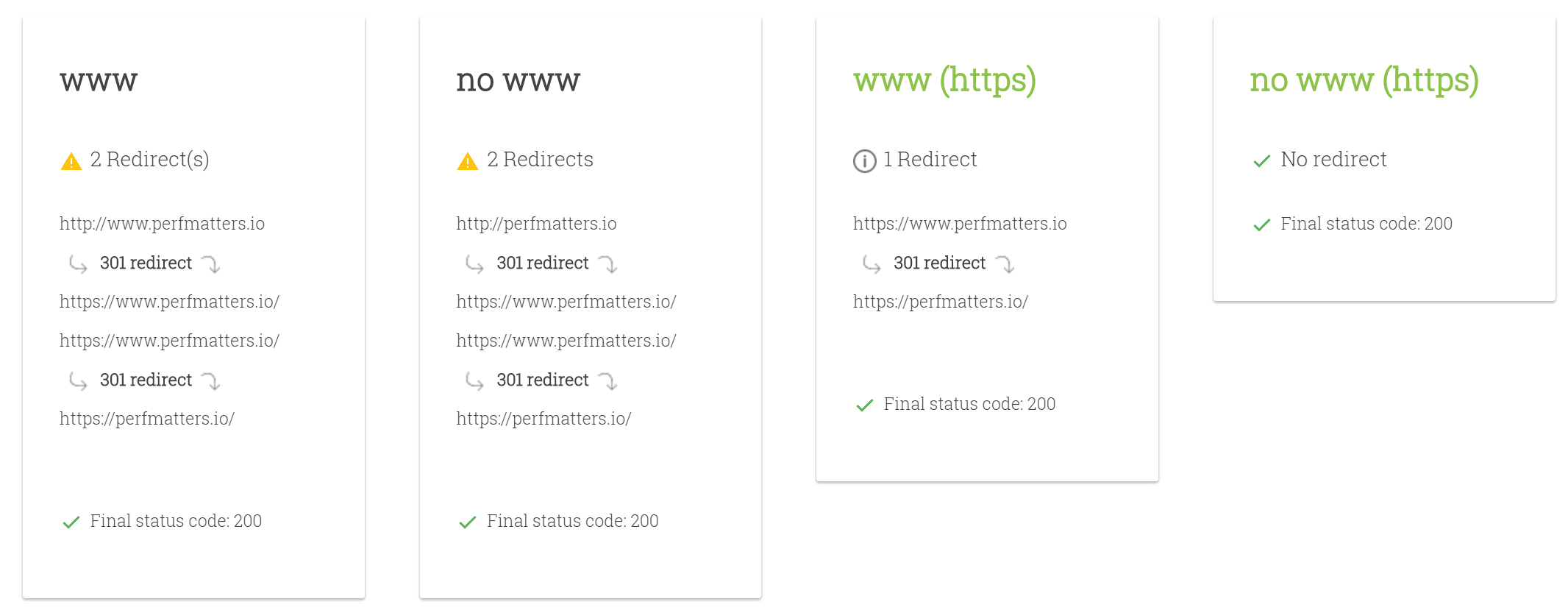
Perhaps you simply have too many HTTPS redirects. You can easily check your site to see how many redirects it’s using with a tool like Redirect Checker. Here is an example below of redirects that are not set up correctly which are easily spottable using an online tool. You can see that there are duplicate HTTPS redirects happening on both the www and non-www versions.
Check Third-Party Services
ERR_TOO_MANY_REDIRECTS is also often commonly caused by reverse-proxy services such as Cloudflare. This usually happens when their Flexible SSL option is enabled and you already have an SSL certificate installed with your WordPress host. Why? Because, when flexible is selected, all requests to your hosting server are sent over HTTP. Your host server most likely already has a redirect in place from HTTP to HTTPS, and therefore a redirect loop occurs.
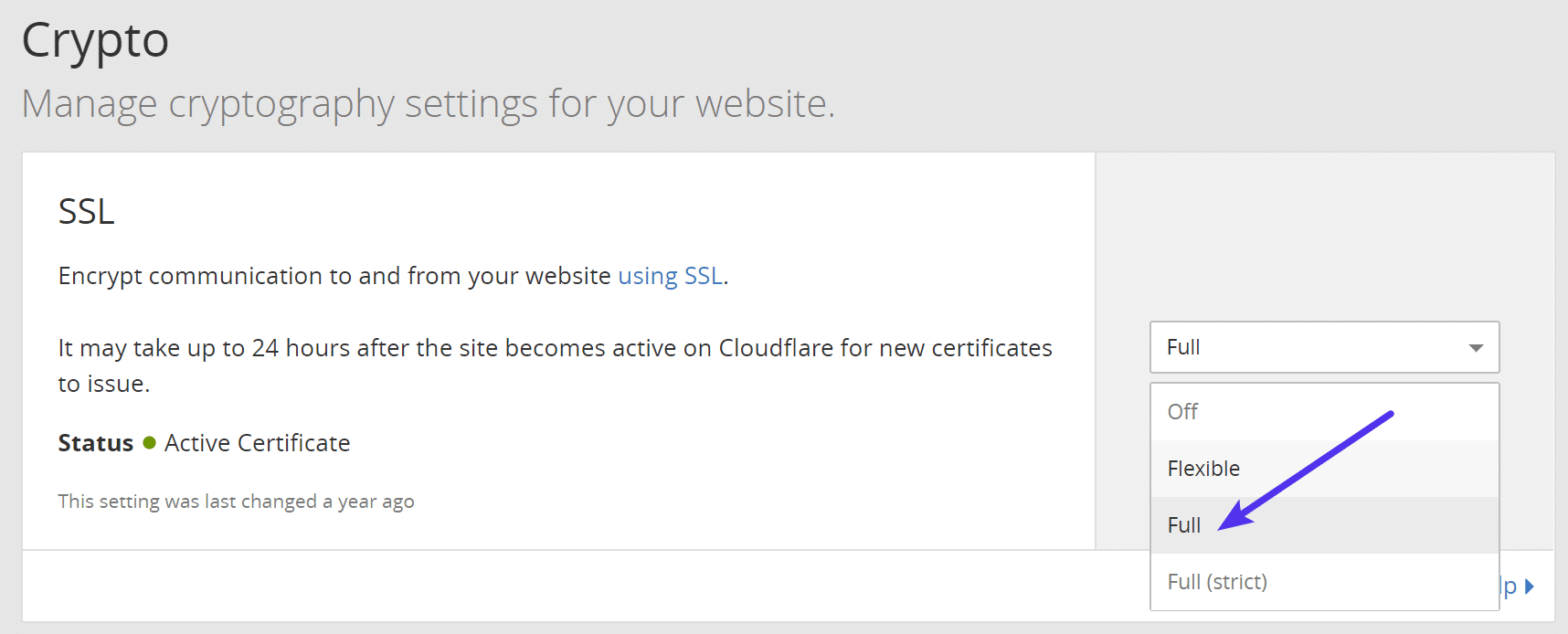
To fix this you need to change the Cloudflare Crypto settings from Flexible to either Full or Full (strict). If you’re a Kinsta client, make sure to also check out our steps on how to install an SSL certificate while using Cloudflare.
You can use their Always Use HTTPS page rule to redirect all users to HTTPS without creating a loop. Another thing to watch out for with Cloudflare is their forwarding URL redirection rules. Be careful not to create a redirect where the domain points to itself as a destination. This can cause an infinite redirect error, and the affected URLs will not be able to resolve.
If you’re using StackPath, they have an option called “Origin Pull Protocol” that needs to be set to HTTPS only.
Using Cloudflare DNS Only
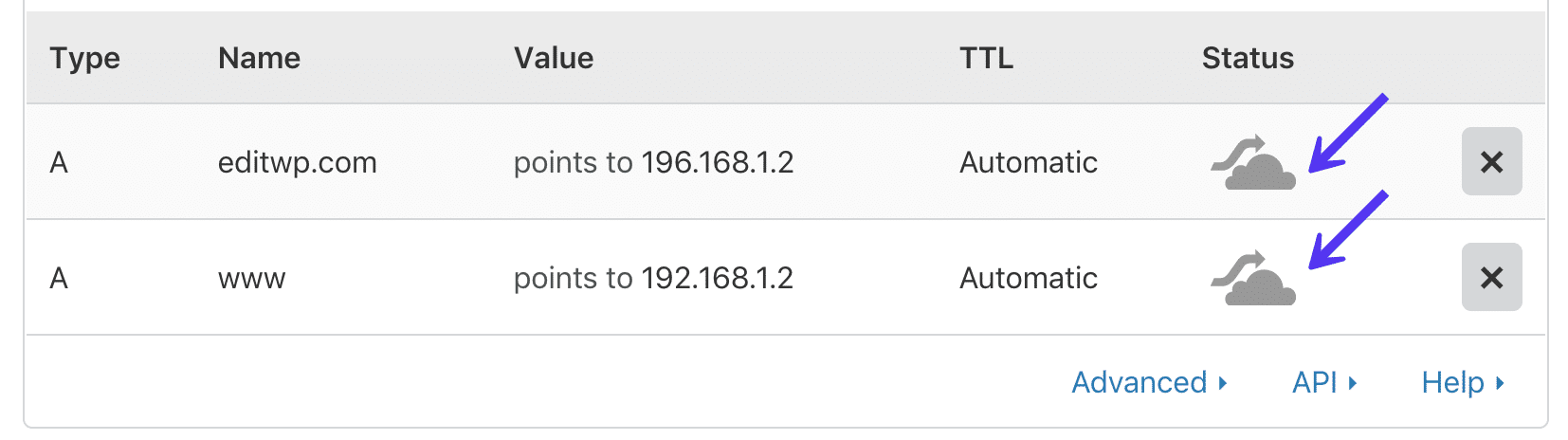
If you only want to use Cloudflare’s DNS, and not their proxy/WAF service, then you should make sure your DNS records are set to “DNS Only.” The clouds will appear as “grey” instead of “orange.” You configure this under the “DNS” tab in the Cloudflare control panel.
Check Your WordPress Site Settings
Another thing to check is your WordPress site settings. There are two different fields you’ll want to ensure are set correctly, and not pointing at a wrong domain or are mismatched. Another common mistake is that you’re not using the correct prefix to match the rest of your site, www or non-www. Sometimes people migrate hosts, or change domains and these can get changed without you realizing it.
- WordPress Address (URL): The address to reach your blog.
- Site Address (URL): The address of your WordPress core files.
Both should match unless you are giving WordPress its own directory.
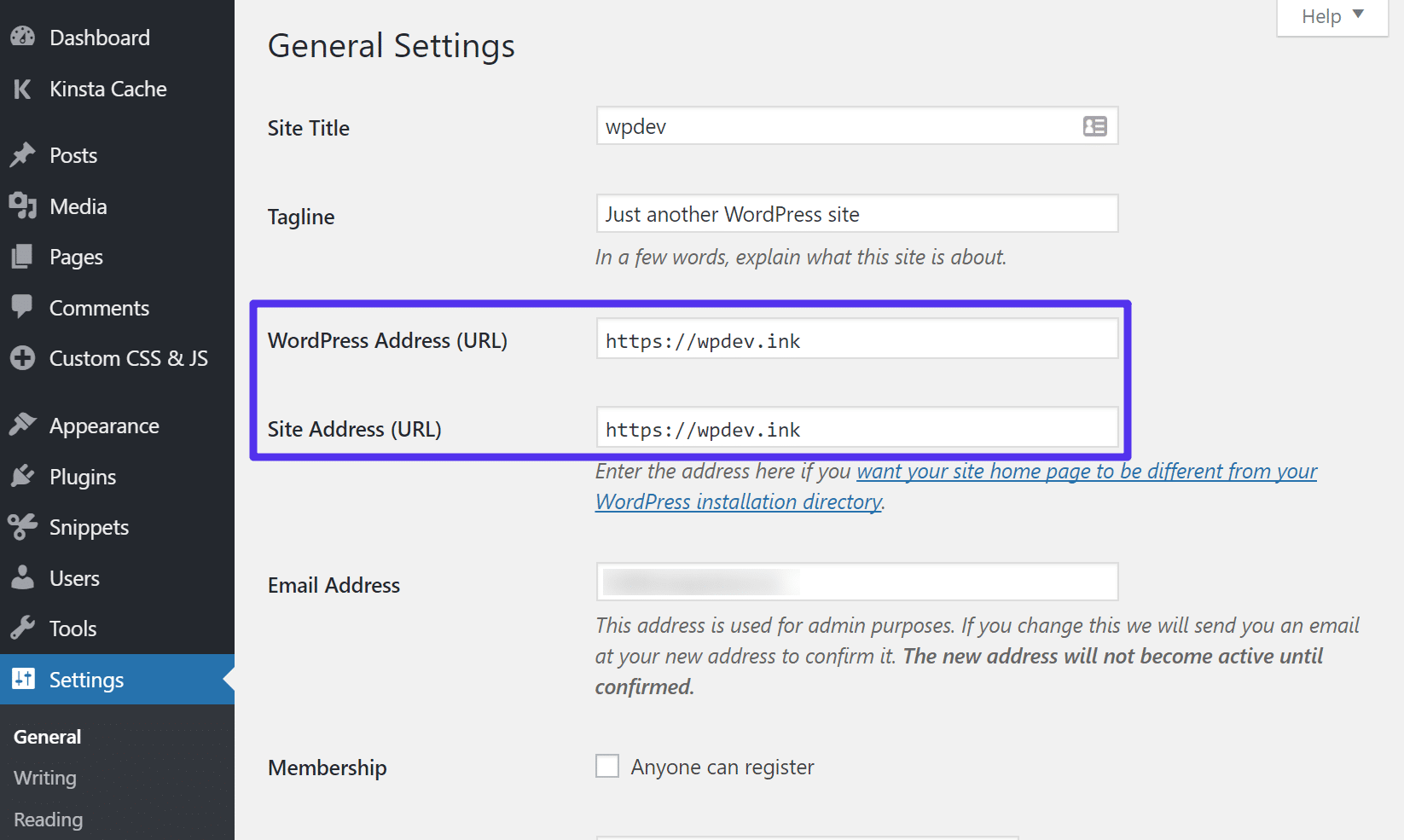
Most likely though you aren’t able to access your WordPress dashboard. So what you can do is override the settings above by inputting the values in your wp-config.php file.
The wp-config.php file is typically located at the root of your WordPress site and can be accessed via FTP, SSH, or WP-CLI. To hard-code WP_HOME and WP_SITEURL, simply input the following code towards the top of the file, changing the values to reflect your domain.
define('WP_HOME','https://yourdomain.com');
define('WP_SITEURL','https://yourdomain.com');
Below is an example of what your wp-config.php file might look like afterward.
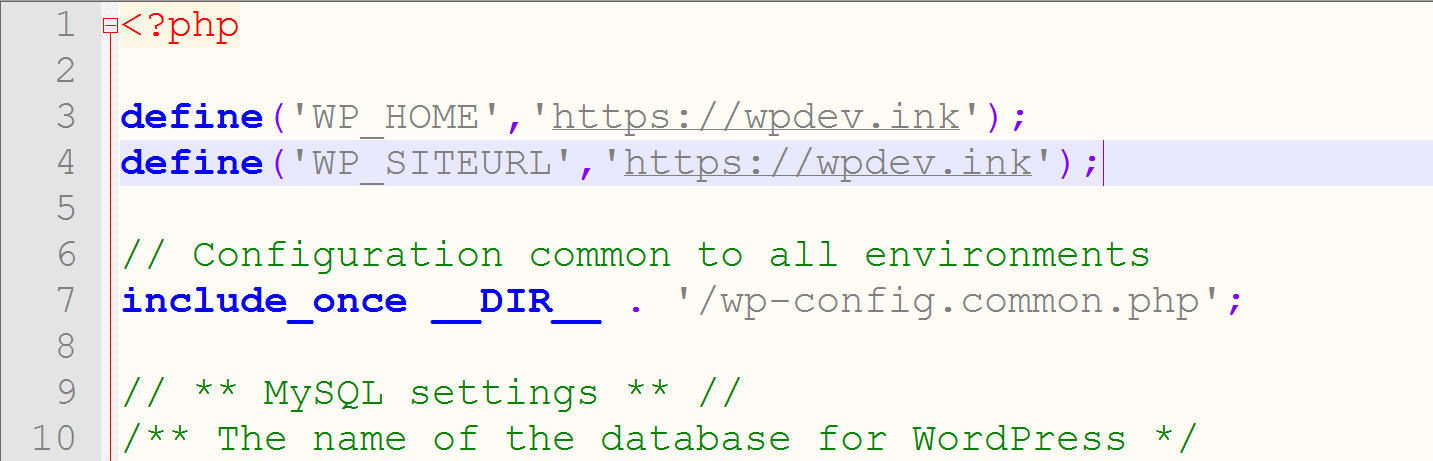
Or if you prefer, here are two additional ways you could change your WordPress URLs without access to your admin dashboard:
- Change WordPress URL Directly in Database
- Change WordPress URL With WP-CLI
Once you manually set it, you can browse to your site to verify whether or not it fixes the redirect loop.
Multisite
If you’re changing domains on a multisite, make sure to also check the wp_blogs table. We’ve seen people do a search and replace wrong and cause an infinite redirect loop. This is because the network site doesn’t match the subsites.
wp_#_options: Each subsite will have sets of tables that correspond to the blog_id in the wp_blogs table. Go to the wp_#_options table, where # corresponds to the blog_id, and update the “SITEURL” and “HOME” settings in that table.
Temporarily Disable WordPress Plugins
When it comes to WordPress, temporarily disabling all your WordPress plugins can be a quick way to spot problems. For example, plugins such as Redirection or Yoast SEO premium let you implement redirects. Sometimes settings or updates to these plugins can conflict with redirects that might already be set on your server, causing a redirect loop.
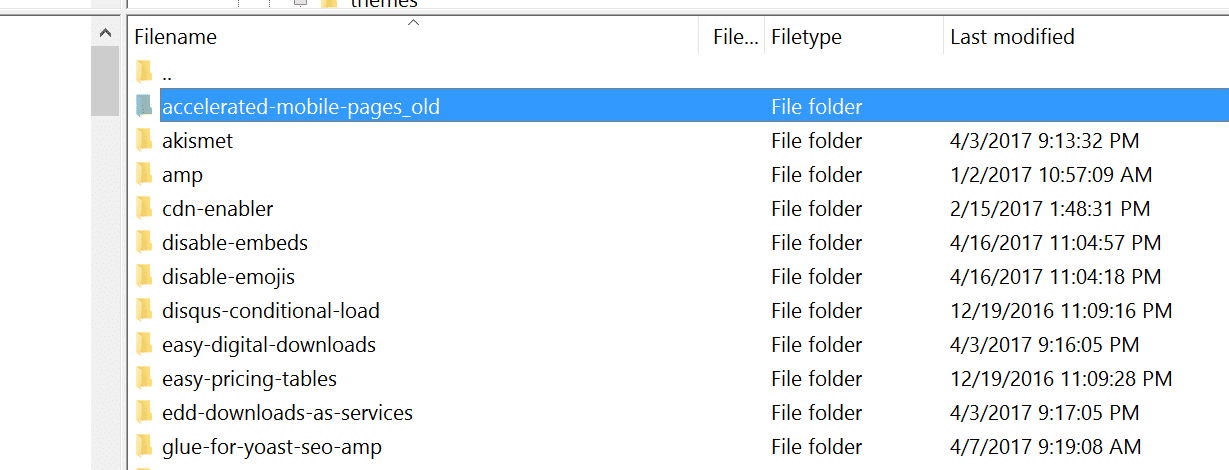
Remember, you won’t lose any data if you simply disable a plugin. Most likely you can’t access the WordPress admin, so you’ll need login via SFTP to your server and rename your plugins folder to something like plugins_old. Then check your site again.
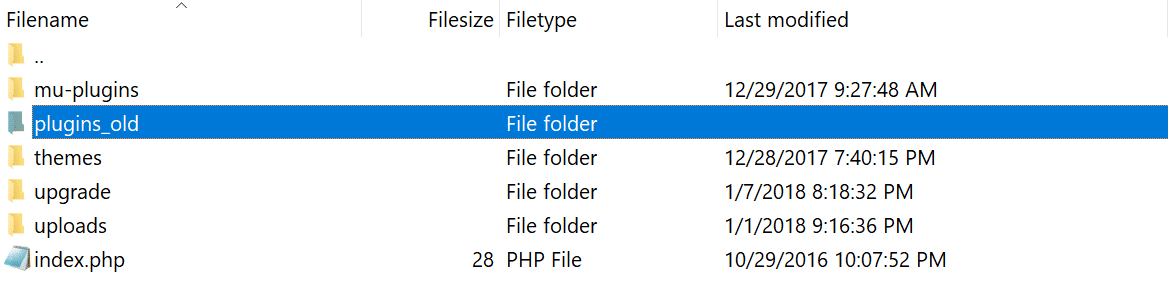
If it works, then you will need to test each plugin one by one. Rename your plugin folder back to “plugins” and then rename each plugin folder inside of if it, one by one, until you find it. You could also try to replicate this on a staging site first.
Check Redirects on Your Server
Besides HTTP to HTTPS redirects on your server, it can be good to check and make sure there aren’t any additional redirects setup wrong. For example, one bad 301 redirect back to itself could take down your site. Usually, these are found in your server’s config files.
Apache .htaccess file
Kinsta only uses Nginx, but if you’re using a WordPress host that is running Apache, it could very well be that your .htaccess file has a wrong rule in it. Follow the steps below to recreate a new one from scratch.
First, login to your site via FTP or SSH, and rename your .htaccess file to .htaccess_old. This ensures you have a backup.
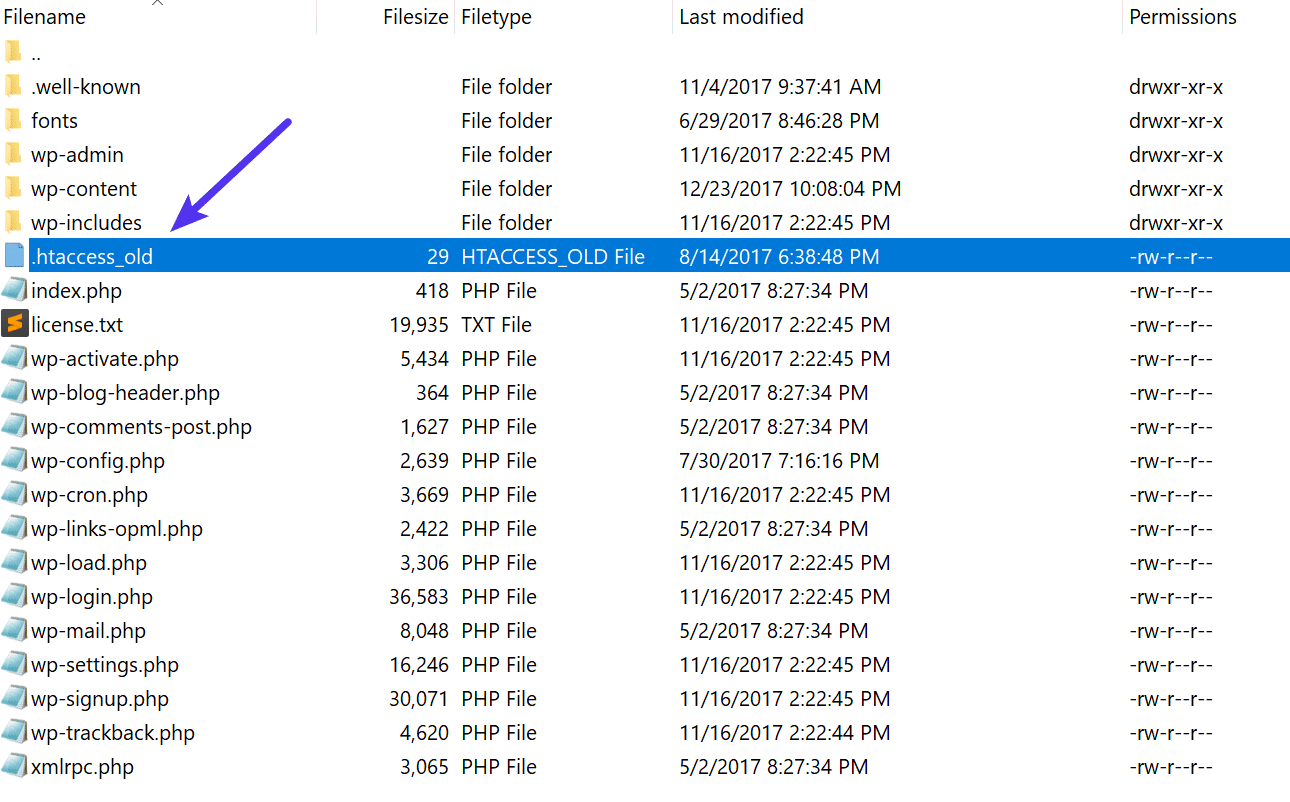
Normally to recreate this file you can simply re-save your permalinks in WordPress. However, if you’re in the middle of an ERR_TOO_MANY_REDIRECTS error you most likely can’t access your WordPress admin, so this isn’t an option. Therefore you can create a new .htaccess file and input the following contents. Then upload it to your server. The following uses the default settings.
# BEGIN WordPress
<IfModule mod_rewrite.c>
RewriteEngine On
RewriteBase /
RewriteRule ^index.php$ - [L]
RewriteCond %{REQUEST_FILENAME} !-f
RewriteCond %{REQUEST_FILENAME} !-d
RewriteRule . /index.php [L]
</IfModule>
# END WordPress
See the WordPress Codex for more examples, such as a default .htaccess file for multisite.
We’ve taken our knowledge of effective website management at scale, and turned it into an ebook and video course. Click here to download the The 2020 Guide to Managing 40+ WordPress Sites!
Nginx Config
If your host uses Nginx, this file can be a little trickier as the config file can vary a bit depending on the hosting provider. We recommend reaching out to your host and have them check your config file for anything that might be causing a redirect loop or too many redirects.
If you’re a Kinsta client, you’ll first want to check to ensure you didn’t set up a redirect wrong in our redirect tool. Below is a simple example of a redirect from https://domain.com/ back to itself, that would cause a redirect loop.
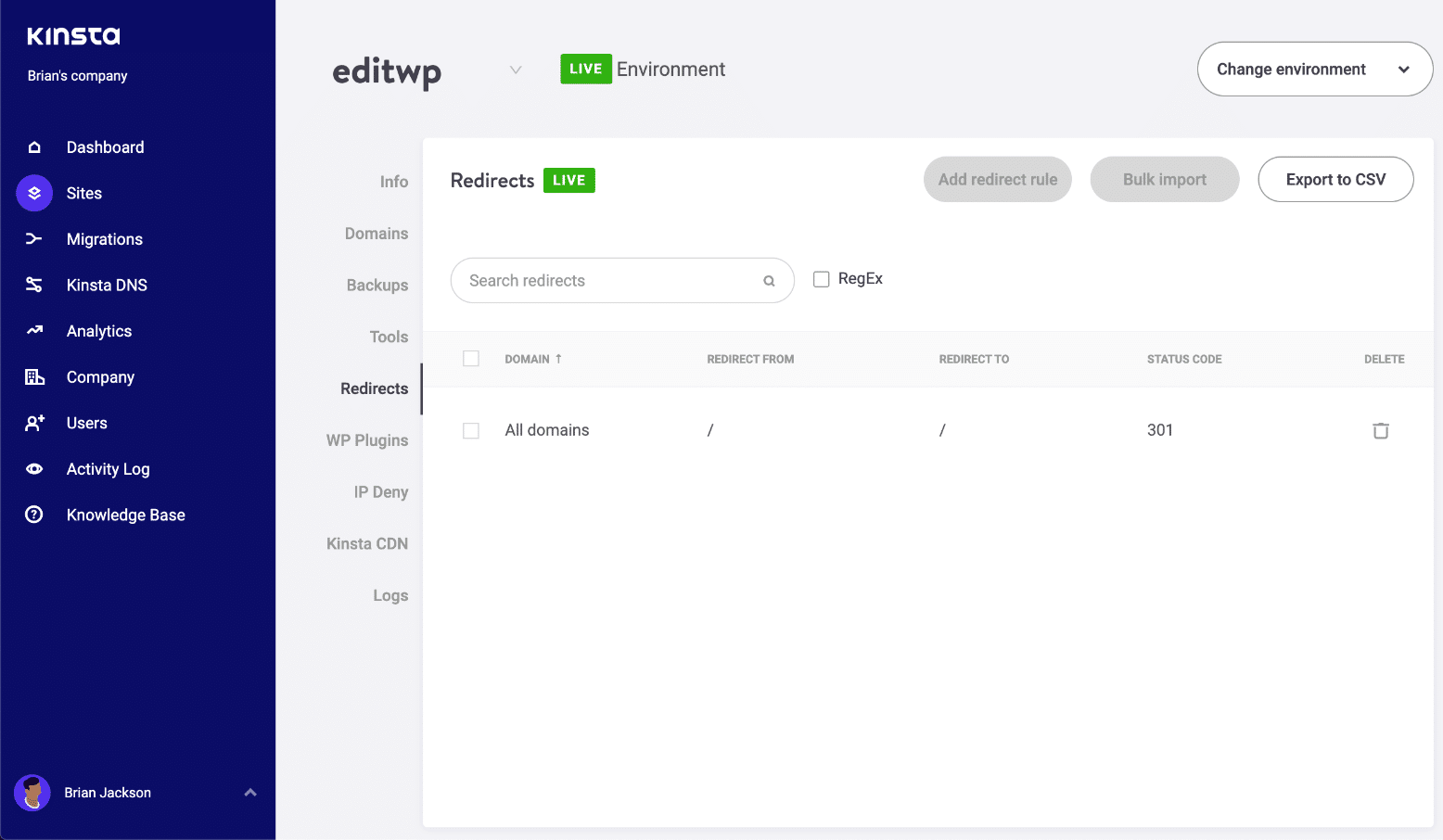
This also commonly happens when the location URL is included in both “Redirect From” and “Redirection To.”
For example, the following would cause a redirect loop:
Redirect From: ^/blog/about Redirect To: https://domain.com/blog/about-me
Why? Because once the process reached ^/blog/about, the remaining part -me wouldn’t matter, and it would cause an infinite loop. You have to specify the end of the string and the starter point. Here is what you would do to fix it:
Redirect From: ^/blog/about$ Redirect To: https://domain.com/blog/about-me
The $ character will tell Nginx to stop and match the request only if the string is there exactly, but nothing after it.
And of course, you can always open up a support ticket and we’ll check this for you.
Misconfigured Reverse Proxies
Another common reason for the ERR_TOO_MANY_REDIRECTS error is if you are using a reverse proxy. Reverse proxies can be quite complicated and it’s very easy to send your WordPress site into a redirect loop if misconfigured. Again, if you’re a Kinsta client, our support team can help with this.
Website stuck in an infinite redirection loop? 🛣 Check out these recommendations on how to get back up and running fast.Click to Tweet
Summary
Redirect loops can sometimes be tricky to track down. But hopefully, some of the troubleshooting steps above help you to resolve your ERR_TOO_MANY_REDIRECTS error. If we missed anything, feel free to let us know below in the comments.
Get all your applications, databases and WordPress sites online and under one roof. Our feature-packed, high-performance cloud platform includes:
- Easy setup and management in the MyKinsta dashboard
- 24/7 expert support
- The best Google Cloud Platform hardware and network, powered by Kubernetes for maximum scalability
- An enterprise-level Cloudflare integration for speed and security
- Global audience reach with up to 35 data centers and 275+ PoPs worldwide
Test it yourself with $20 off your first month of Application Hosting or Database Hosting. Explore our plans or talk to sales to find your best fit.
We come across a lot of different errors here at Kinsta, and ERR_TOO_MANY_REDIRECTS (also known as a redirect loop) is one we see on a regular basis. Typically this occurs after a recent change on your website, a misconfiguration of redirects on your server, or wrong settings with third-party services. But don’t worry, this error is fairly easy to fix.
Check out the recommendations below on how to fix this error and get your site back up and running.
What is the ERR_TOO_MANY_REDIRECTS Error?
The ERR_TOO_MANY_REDIRECTS error is pretty much what it sounds like: something is causing too many redirects, sending your website into an infinite redirection loop.
Essentially the site is stuck (such as URL 1 points to URL 2 and URL 2 points back to URL 1, or the domain has redirected you too many times) and unlike some other errors, these rarely resolve themselves and will probably need you to take action to fix it.
You might have also come across the error “request exceeded the limit of 10 internal redirects due to probable configuration error“.
| Error Code | ERR_TOO_MANY_REDIRECTS |
| Error Type | Browser error/code error |
| Error Variations | This page isn’t working. domain.com redirected you too many times. The page isn’t redirecting properly This page isn’t working right now Safari Can’t Open the Page |
| Error Causes | Misconfigured WordPress settings/plugins Issues with browser’s cache/cookies. Issues with third-party services Bad HTTPS settings Bad server settings |
There are a couple of different variations of this error depending upon the browser you’re running.
Google Chrome
In Google Chrome this error will show as ERR_TOO_MANY_REDIRECTS (as seen below) or This webpage has a redirect loop problem.
This page isn’t working. domain.com redirected you too many times.
(Check out how to fix Chrome’s ERR_CACHE_MISS error).
Mozilla Firefox
In Mozilla Firefox it will show as The page isn’t redirecting properly (as seen below).
An error occured during a connection to domain.com. This problem can sometimes be caused by disabling or refusing to accept cookies.
Microsoft Edge
In Microsoft Edge, it will simply show as This page isn’t working right now (as seen below).
Domain.com redirected you too many times.
Safari
In Safari, it will show as Safari Can’t Open the Page (as seen below).
Too many redirects occurred trying to open “domain.com.” This might occur if you open a page that is redirected to open another page which is then redirected to open the original page.
Why Does ERR_TOO_MANY_REDIRECTS Error Occur?
This error happens when the browser can’t establish a connection between the initial page and the destination page in a redirect. The main causes can be:
- Misconfigured WordPress settings
- Misconfigured WordPress plugin.
- Misconfigured server settings.
- Incorrect HTTPS settings.
- Issues with the browser’s cache/cookies.
- Issues with third-party services (e.g. CDNs).
- Improper website or domain migration.
So how to fix the ERR_TOO_MANY_REDIRECTS error?
Here are some recommendations and things to check to fix the error (sorted in order by most common reasons we see):
- Delete cookies on that specific site
- Clear site, server, proxy, and browser cache
- Determine nature of redirect loop
- Check your HTTPS settings
- Check third-party services
- Check your WordPress site settings
- Temporarily disable WordPress plugins
- Check redirects on your server
Delete Cookies on That Specific Site
Google and Mozilla both in fact recommend right below the error to “try clearing your cookies.” Cookies can sometimes contain faulty data in which could cause the ERR_TOO_MANY_REDIRECTS error. This is one recommendation you can try even if you’re encountering the error on a site you don’t own.
Due to the fact that cookies retain your “logged in” status on sites and other settings, we recommend simply deleting the cookie(s) on the site that is having the problem. This way you won’t impact any of your other sessions or websites that you frequently visit.
Follow the steps below to delete a cookie on a specific website in Google Chrome.
Step 1
In Google Chrome click on the three small dots in the upper right-hand corner. Then click on “Settings.”
Step 2
Scroll down and click on “Advanced.”
Step 3
Then click on “Content settings.”
Step 4
Click on “Cookies.”
Step 5
Then click on “See all cookies and site data.”
Step 6
Search for the site (domain) where you are encountering the ERR_TOO_MANY_REDIRECTS error. You can then delete the cookie(s) currently stored on your computer for that domain. Then try visiting the site again.
Clear Server, Proxy, and Browser Cache
Due to the fact that redirect loops are responses that can be cached, it’s always recommended to try clearing the cache on your WordPress site, the server, third-party proxy services, and even your browser if necessary.
Clear WordPress Site Cache
Depending upon the type of redirect loop, you might still be able to gain access to your WordPress admin dashboard. In this case, you can easily clear the cache within the settings of your caching plugin. Here are a couple of quick links on how to clear WordPress cache with popular plugins:
- Clear Cache with Cache Enabler
- Clear Cache with W3 Total Cache
- Clear Cache with Super Cache
If you’re a Kinsta client, you can easily clear your cache from the WordPress admin toolbar.
Clear Server Cache
If you can’t access WordPress admin, many WordPress hosts have their own control panel tools for clearing the cache on your WordPress site.
If you’re a Kinsta client, you can manually clear WordPress cache from within the MyKinsta dashboard. Simply click on your site, click into tools, and click on the “Clear Cache” button. Then check your site to see if the redirect loop still exists.
Clear Proxy Cache
If you’re using a third-party reverse-proxy service such as Cloudflare or Sucuri, it can also be beneficial to clear the cache on their side.
Cloudflare
To purge Cloudflare cache, login to their dashboard, click into “Caching” and click on “Purge Everything.”
Sucuri
To purge Sucuri cache, login to their dashboard, go to “Performance” and click on “Clear Cache.”
Clear Browser Cache
If you want to check and see if it might be your browser cache, without clearing your cache, you can always open up your browser in incognito mode. Or test another browser and see if you still see the ERR_TOO_MANY_REDIRECTS error.
If you determine it is being caused by your browser cache, you can then clear it. Below are instructions on how to do it in various browsers:
- How to Force Refresh a Single Page for All Browsers
- How to Clear Browser Cache for Google Chrome
- How to Clear Browser Cache for Mozilla Firefox
- How to Clear Browser Cache for Safari
- How to Clear Browser Cache for Internet Explorer
- How to Clear Browser Cache for Microsoft Edge
- How to Clear Browser Cache for Opera
Determine Nature of Redirect Loop
If clearing the cache didn’t work, then you’ll want to see if you can determine the nature of the redirect loop. Our free online Redirect Checker tool can help provide some further analysis into what might be going on. This could also be done via cURL.
For example, on the site below, it has a 301 redirect loop back to itself, which is causing a large chain of faulty redirects. You can follow all the redirects and determine whether or not it’s looping back to itself, or perhaps is an HTTP to HTTPS loop in which we’ll discuss how to solve that further below.
The Redirect Path Chrome extension can also be very useful and provides insights into all of the redirects happening on your site (specific URL or page.
Check Your HTTPS Settings
Another thing to check is your HTTPS settings. A lot of times we’ve seen ERR_TOO_MANY_REDIRECTS occur when someone has just migrated their WordPress site to HTTPS and either didn’t finish or set up something incorrectly.
1. Don’t Force HTTPS Without an SSL Certificate
This is by far the most common reason we see on a regular basis. If you force your WordPress site to load over HTTPS without first installing an SSL certificate, you’ll instantly throw your site into a redirection loop. To fix this, simply install an SSL certificate on your WordPress site.
It’s also recommended to run an SSL check. SSL/TLS certificates require not only your main certificate but also what they call intermediate certificates (chain) to also be installed. These need to be set up properly.
We recommend using the free SSL check tool from Qualys SSL Labs. It is very reliable and we use it for all Kinsta clients when verifying certificates. Simply head over to their SSL check tool, input your domain into the Hostname field and click on “Submit.” You can also select the option to hide public results if you prefer. It could take a minute or two to scan your site’s SSL/TLS configuration on your web server.
2. Don’t Use an SSL Plugin, Update your Hard-coded Links
There are some free SSL WordPress plugins, such as the Really Simple SSL plugin that will help you automatically redirect to HTTPS. However, we don’t recommend this method as a permanent solution because third-party plugins can always introduce another layer of problems and compatibility issues. It’s a good temporary solution, but you should really update your hard-coded HTTP links.
We have a great tutorial with 4 easy ways to do a search and replace in WordPress. If you’re a Kinsta client, you can always reach out to our support team to do this for you as well.
3. Check HTTP to HTTPS Redirects on Server
It could very well be that perhaps the HTTPS redirect rules on your server were misconfigured.
Redirect HTTP to HTTPS in Nginx
If your web server is running Nginx, you can easily redirect all of your HTTP traffic to HTTPS by adding the following code to your Nginx config file. This is the recommended method for redirecting WordPress running on Nginx.
server { listen 80; server_name domain.com www.domain.com; return 301 https://domain.com$request_uri; }
We use Nginx for everyone here at Kinsta. The great news is that you don’t have to worry about this. If you need to add a redirect simply open up a quick support ticket and let us know which domain you need to be redirected. We then add it to the Nginx config for you.
Check Out Our Video Guide to Redirects
Redirect HTTP to HTTPS in Apache
If your web server is running Apache, you can easily redirect all of your HTTP traffic to HTTPS by adding the following code to your .htaccess file. This is the recommended method for redirecting WordPress running on Apache.
RewriteEngine On
RewriteCond %{HTTPS} off
RewriteRule ^(.*)$ https://%{HTTP_HOST}%{REQUEST_URI} [L,R=301]
4. Check For Too Many HTTPS Redirects
Perhaps you simply have too many HTTPS redirects. You can easily check your site to see how many redirects it’s using with a tool like Redirect Checker. Here is an example below of redirects that are not set up correctly which are easily spottable using an online tool. You can see that there are duplicate HTTPS redirects happening on both the www and non-www versions.
Check Third-Party Services
ERR_TOO_MANY_REDIRECTS is also often commonly caused by reverse-proxy services such as Cloudflare. This usually happens when their Flexible SSL option is enabled and you already have an SSL certificate installed with your WordPress host. Why? Because, when flexible is selected, all requests to your hosting server are sent over HTTP. Your host server most likely already has a redirect in place from HTTP to HTTPS, and therefore a redirect loop occurs.
To fix this you need to change the Cloudflare Crypto settings from Flexible to either Full or Full (strict). If you’re a Kinsta client, make sure to also check out our steps on how to install an SSL certificate while using Cloudflare.
You can use their Always Use HTTPS page rule to redirect all users to HTTPS without creating a loop. Another thing to watch out for with Cloudflare is their forwarding URL redirection rules. Be careful not to create a redirect where the domain points to itself as a destination. This can cause an infinite redirect error, and the affected URLs will not be able to resolve.
If you’re using StackPath, they have an option called “Origin Pull Protocol” that needs to be set to HTTPS only.
Using Cloudflare DNS Only
If you only want to use Cloudflare’s DNS, and not their proxy/WAF service, then you should make sure your DNS records are set to “DNS Only.” The clouds will appear as “grey” instead of “orange.” You configure this under the “DNS” tab in the Cloudflare control panel.
Check Your WordPress Site Settings
Another thing to check is your WordPress site settings. There are two different fields you’ll want to ensure are set correctly, and not pointing at a wrong domain or are mismatched. Another common mistake is that you’re not using the correct prefix to match the rest of your site, www or non-www. Sometimes people migrate hosts, or change domains and these can get changed without you realizing it.
- WordPress Address (URL): The address to reach your blog.
- Site Address (URL): The address of your WordPress core files.
Both should match unless you are giving WordPress its own directory.
Most likely though you aren’t able to access your WordPress dashboard. So what you can do is override the settings above by inputting the values in your wp-config.php file.
The wp-config.php file is typically located at the root of your WordPress site and can be accessed via FTP, SSH, or WP-CLI. To hard-code WP_HOME and WP_SITEURL, simply input the following code towards the top of the file, changing the values to reflect your domain.
define('WP_HOME','https://yourdomain.com');
define('WP_SITEURL','https://yourdomain.com');
Below is an example of what your wp-config.php file might look like afterward.
Or if you prefer, here are two additional ways you could change your WordPress URLs without access to your admin dashboard:
- Change WordPress URL Directly in Database
- Change WordPress URL With WP-CLI
Once you manually set it, you can browse to your site to verify whether or not it fixes the redirect loop.
Multisite
If you’re changing domains on a multisite, make sure to also check the wp_blogs table. We’ve seen people do a search and replace wrong and cause an infinite redirect loop. This is because the network site doesn’t match the subsites.
wp_#_options: Each subsite will have sets of tables that correspond to the blog_id in the wp_blogs table. Go to the wp_#_options table, where # corresponds to the blog_id, and update the “SITEURL” and “HOME” settings in that table.
Temporarily Disable WordPress Plugins
When it comes to WordPress, temporarily disabling all your WordPress plugins can be a quick way to spot problems. For example, plugins such as Redirection or Yoast SEO premium let you implement redirects. Sometimes settings or updates to these plugins can conflict with redirects that might already be set on your server, causing a redirect loop.
Remember, you won’t lose any data if you simply disable a plugin. Most likely you can’t access the WordPress admin, so you’ll need login via SFTP to your server and rename your plugins folder to something like plugins_old. Then check your site again.
If it works, then you will need to test each plugin one by one. Rename your plugin folder back to “plugins” and then rename each plugin folder inside of if it, one by one, until you find it. You could also try to replicate this on a staging site first.
Check Redirects on Your Server
Besides HTTP to HTTPS redirects on your server, it can be good to check and make sure there aren’t any additional redirects setup wrong. For example, one bad 301 redirect back to itself could take down your site. Usually, these are found in your server’s config files.
Apache .htaccess file
Kinsta only uses Nginx, but if you’re using a WordPress host that is running Apache, it could very well be that your .htaccess file has a wrong rule in it. Follow the steps below to recreate a new one from scratch.
First, login to your site via FTP or SSH, and rename your .htaccess file to .htaccess_old. This ensures you have a backup.
Normally to recreate this file you can simply re-save your permalinks in WordPress. However, if you’re in the middle of an ERR_TOO_MANY_REDIRECTS error you most likely can’t access your WordPress admin, so this isn’t an option. Therefore you can create a new .htaccess file and input the following contents. Then upload it to your server. The following uses the default settings.
# BEGIN WordPress
<IfModule mod_rewrite.c>
RewriteEngine On
RewriteBase /
RewriteRule ^index.php$ - [L]
RewriteCond %{REQUEST_FILENAME} !-f
RewriteCond %{REQUEST_FILENAME} !-d
RewriteRule . /index.php [L]
</IfModule>
# END WordPress
See the WordPress Codex for more examples, such as a default .htaccess file for multisite.
We’ve taken our knowledge of effective website management at scale, and turned it into an ebook and video course. Click here to download the The 2020 Guide to Managing 40+ WordPress Sites!
Nginx Config
If your host uses Nginx, this file can be a little trickier as the config file can vary a bit depending on the hosting provider. We recommend reaching out to your host and have them check your config file for anything that might be causing a redirect loop or too many redirects.
If you’re a Kinsta client, you’ll first want to check to ensure you didn’t set up a redirect wrong in our redirect tool. Below is a simple example of a redirect from https://domain.com/ back to itself, that would cause a redirect loop.
This also commonly happens when the location URL is included in both “Redirect From” and “Redirection To.”
For example, the following would cause a redirect loop:
Redirect From: ^/blog/about Redirect To: https://domain.com/blog/about-me
Why? Because once the process reached ^/blog/about, the remaining part -me wouldn’t matter, and it would cause an infinite loop. You have to specify the end of the string and the starter point. Here is what you would do to fix it:
Redirect From: ^/blog/about$ Redirect To: https://domain.com/blog/about-me
The $ character will tell Nginx to stop and match the request only if the string is there exactly, but nothing after it.
And of course, you can always open up a support ticket and we’ll check this for you.
Misconfigured Reverse Proxies
Another common reason for the ERR_TOO_MANY_REDIRECTS error is if you are using a reverse proxy. Reverse proxies can be quite complicated and it’s very easy to send your WordPress site into a redirect loop if misconfigured. Again, if you’re a Kinsta client, our support team can help with this.
Website stuck in an infinite redirection loop? 🛣 Check out these recommendations on how to get back up and running fast.Click to Tweet
Summary
Redirect loops can sometimes be tricky to track down. But hopefully, some of the troubleshooting steps above help you to resolve your ERR_TOO_MANY_REDIRECTS error. If we missed anything, feel free to let us know below in the comments.
Get all your applications, databases and WordPress sites online and under one roof. Our feature-packed, high-performance cloud platform includes:
- Easy setup and management in the MyKinsta dashboard
- 24/7 expert support
- The best Google Cloud Platform hardware and network, powered by Kubernetes for maximum scalability
- An enterprise-level Cloudflare integration for speed and security
- Global audience reach with up to 35 data centers and 275+ PoPs worldwide
Test it yourself with $20 off your first month of Application Hosting or Database Hosting. Explore our plans or talk to sales to find your best fit.
Ошибка «Сайт выполнил переадресацию слишком много раз»
Причина возникновения ошибки
Сайт, на который не установлен сертификат безопасности, работает по незащищённому протоколу HTTP. URL такого сайта выглядит так: http://your_site.ru. Чтобы сайт работал по защищённому соединению, нужно приобрести SSL-сертификат. Подробнее о HTTP читайте в статье Для чего необходим SSL-сертификат.
При установке сертификата ваш сайт становится доступен по безопасному протоколу HTTPS и URL выглядит так: https://your_site.ru. Однако одной покупки и установки SSL-сертификата недостаточно. По умолчанию сайт по-прежнему открывается по протоколу HTTP. Чтобы ваш сайт начал работать по HTTPS, необходимо настроить редирект с HTTP на HTTPS.
Вариантов сделать редирект несколько. Всё зависит от платформы, на которой сделан сайт. Проще всего сделать редирект на WordPress с помощью плагинов. Если сайт самописный, редиректы устанавливают через конфигурационные файлы .htaccess или web.config. Также можно использовать инструмент для добавления редиректа в панели управления хостингом. Все перечисленные способы вы можете найти в разделе Редиректы.
Если редирект был сделан неправильно, у пользователя может возникнуть циклическая переадресация, которая приводит к ошибке. Как это происходит? При настройке редиректа вы задаёте перенаправление http://your_site.ru —> https://your_site.ru. Если при этом в CMS или на сайте задан параметр открывать сайт строго по протоколу http, возникает замкнутый цикл: http://your_site.ru —> https://your_site.ru —>http://your_site.ru —> https://your_site.ru>… Сервер фиксирует слишком большое количество переадресаций и выдаёт ошибку ERR_TOO_MANY_REDIRECTS.
Сайт выполнил переадресацию слишком много раз или ERR TOO MANY REDIRECTS: как исправить
Как правило, ошибка переадресации вызвана проблемами на сервере, на котором находится сайт, и исправить её может только владелец ресурса. Однако, если вы пользователь и в течение нескольких дней проблема на сайте сохраняется, вам также стоит выполнить некоторые действия на своём устройстве. Ниже мы расскажем об исправлении ошибки и со стороны владельца и со стороны пользователя.
ERR TOO MANY REDIRECTS: что делать, если я владелец сайта
- Подумайте, какие действия вы делали с сайтом за последнее время. Вернитесь к старой версии сайта, – если ошибка пропала, значит, новые настройки были некорректны.
-
Проверьте настройки HTTPS. Часто ошибка ERR_TOO_MANY_REDIRECTS появляется при неправильной настройке переадресации HTTP на HTTPS. Правильно ли вы настроили редирект, можно проверить по инструкциям:
- редирект в панели управления ISPmanager, cPanel или Plesk,
- редирект для сайтов на WordPress.
- Проверьте, не влияют ли на работу сайта плагины. Иногда плагины нарушают работу сервера и могут появляться различные ошибки, в том числе и TOO MANY REDIRECTS 310. Отключите по очереди каждый плагин или переименуйте папку plugins в каталоге файлов вашего сайта на любое другое название. Если сайт заработает, удалите плагин-виновник.
- Если у вас кириллический домен, проверьте, как в настройках WordPress указан ваш домен. Кириллические домены хоть и удобны в использовании, однако они не соответствуют UNICODE-системе, поэтому для них создали Punycode. Именно в этой форме нужно добавлять название сайта во все настройки. Чтобы перевести кириллический домен в Punycode, используйте конвертер. Например, ваш сайт дачник.ру. В формате Punycode он будет выглядеть xn--80ahnin3d.xn--p1ag.
- Ошибка в конфигурационном файле. Каждая CMS имеет собственный конфигурационный файл, который использует индивидуальные правила для перенаправления. Описать все способы исправления этой ошибки невозможно. Вы можете проверить все добавленные правила переадресации и устранить конфликт, обратившись за помощью к разработчикам сайта или на тематические форумы по используемой CMS. Также вам может помочь замена текущего файла .htaccess на стандартный для используемой вами CMS. Если вы используете WordPress или Joomla, можете добавить некоторые записи в конфигурационные записи по одной из инструкций ниже.
Как исправить ошибку в WordPress
Для исправления ошибки в CMS WordPress hosting добавьте в конфигурационный файл wp-config.php, который размещён в корневой директории вашего сайта, строки:
define('FORCE_SSL_ADMIN', true);

if ($_SERVER['HTTP_X_FORWARDED_PROTO'] == 'https')
$_SERVER['HTTPS']='on';
Для решения этой проблемы на VPS и выделенных серверах добавьте в httpd.conf (конфигурационный файл Apache) строку:
SetEnvIfNoCase X-Forwarded-Proto "https" HTTPS=onЧтобы изменения вступили в силу, перезапустите веб-сервер Apache.
Как исправить ошибку в Joomla
Для исправления ошибки в CMS Joomla в конфигурационный файл .htaccess после строки RewriteEngine On добавьте:
RewriteCond %{HTTP:X-FORWARDED-PROTO} ^https$
RewriteRule .? - [E=HTTPS:on]
Важно
Для успешного исправления ошибки «Сайт выполнил переадресацию слишком много раз» PHP должен работать в режиме FastCGI. Подробнее о режимах работы PHP. На виртуальном хостинге по умолчанию установлен режим PHP FastCGI. На VPS-сервере этот режим также доступен.
Что делать, если я пользователь
- Откройте сайт в другом браузере. Если ошибка сохраняется, значит есть проблема с сервером и восстановить доступ к сайту может только владелец. Если сайт загружается, значит проблема со стороны вашего устройства. Выполните шаги описанные ниже.
- Очистите cookies и кэш браузера. Временные файлы сохраняют данные посещённых сайтов, чтобы в дальнейшем не тратить время на обращение к серверу, а использовать информацию с устройства. Несмотря на пользу временных файлов, бывает, что они мешают показать новую версию сайта. Если на веб-ресурсе была ошибка и владелец её исправил, пользователь может не увидеть новый вариант. Чтобы браузер обратился к серверу сайта, а не к временным данным, очистите кеш и cookies браузера.
- Проверьте расширения в браузере. Они могут влиять на связь браузера и сервера. Отключите недавно установленные расширения. Если сайт заработал, расширение придётся удалить.
- Если вы используете VPN, попробуйте зайти на сайт без него. Некоторые сайты ограничивают вход для зарубежных серверов, через которые могут работать сервисы VPN.
- Проверьте дату и время на устройстве. Для HTTPS-соединения важно, чтобы дата и время совпадали (хотя бы примерно) с датой и временем на сервере сайта. Если на устройстве время отстаёт или спешит, могут возникать различные ошибки, в том числе и ошибка переадресации.
- Если вы попробовали все вышеописанные решения и ничего не изменилось, но вы уверены, что виноват браузер, возможно, ошибка в самой программе. Удалите и заново установите браузер или сбросьте его до базовых настроек.
Как отключить или удалить расширения в браузере Google Chrome
-
1.
В правом верхнем углу нажмите на три точки. В выпадающем списке нажмите Настройки:
-
2.
В левом меню нажмите Расширения:
-
3.
Чтобы отключить расширение, переведите переключатель влево. Если хотите удалить, нажмите Удалить:
Как отключить или удалить расширения в браузере Google Chrome 3
Чаще всего проблема на стороне владельца ресурса и пользователь может только подождать, пока разработчики исправят ошибку на сервере.
Introduction
Redirection is the forwarding of one URL to another URL. Redirects are useful when moving content from one page to another or changing a website’s permalink structure.
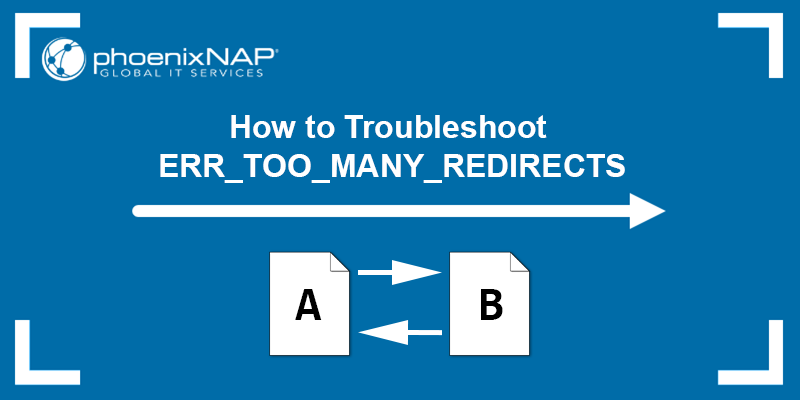
The ERR_TOO_MANY_REDIRECTS error occurs when the browser is redirected to a different URL, which in turn points back to the original one, creating a redirection loop. There are several possible reasons for the error and several available fixes.
In this tutorial, you will learn what causes the ERR_TOO_MANY_REDIRECTS error and how to fix it.
What Does «Too Many Redirects» Mean?
The ERR_TOO_MANY_REDIRECTS error indicates that the browser is stuck in an infinite redirection loop. An infinite redirection loop happens when you visit a URL pointing to another URL, which points back to the first one.
After several redirects, the browser breaks the redirection loop and displays the «too many redirects» error message. Different browsers warn users about the error in different ways. Most browsers display a «too many redirects» warning and suggest how to fix the error.
Below are several variations of the error, depending on the browser:
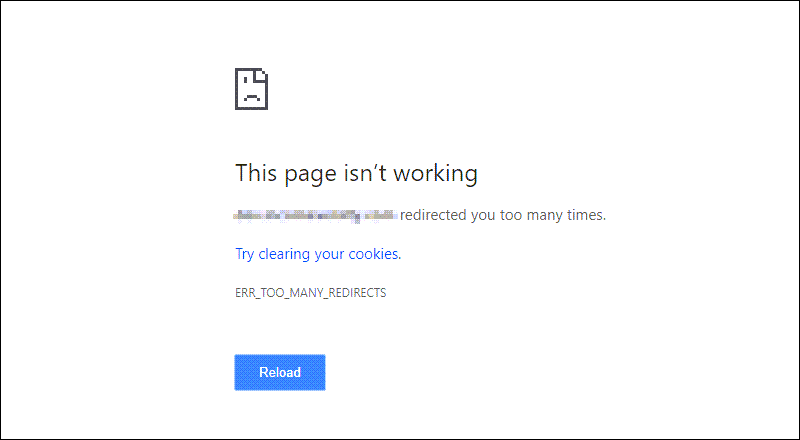
Too Many Redirects Chrome
Google Chrome states that the page isn’t working and suggests clearing the cookies might help.
Too Many Redirects Firefox
Firefox explains that the page isn’t redirecting properly and states that cookies might be causing the issue.
Too Many Redirects Safari
Safari explains it cannot open the page because of too many redirects.
Too Many Redirects Edge
Microsoft Edge states that the domain redirected you too many times and suggests clearing the cookies to fix the issue.
Most browsers suggest that cookies might be the reason for the ERR_TOO_MANY_REDIRECTS error. The following section explains this and other possible causes for the error.
There are several possible triggers for the redirection loop. The following list includes the most common causes of a redirection loop in a WordPress website:
- Issues with the browser’s cache/cookies. The browser may be caching faulty data that leads to the redirection error.
- The browser extensions. Sometimes a browser extension can cause a redirection error.
- The website’s URL. A misconfiguration in URL settings can cause the redirection error.
- WordPress cache. The website cache could be causing a redirect loop.
- SSL certificate. A misconfigured security protocol (SSL certificate) can cause a redirect loop.
- Third-party services and plugins. A faulty WordPress plugin could be causing the redirection loop.
- The site’s .htaccess file. A user-level configuration file WordPress uses to rewrite URLs to the index.php file. The website URL is defined as a value in the database.
How to Fix Too Many Redirects — Troubleshooting
Before fixing the «too many redirects error,» ensure that the page is down for everyone, not just for you. Many online free tools identify redirect loops. Some of the tools are:
- Redirect Checker
- HTTP status
- WhereGoes
The solution to the «too many redirects» error depends on whether you own the website in question or not. If you don’t own the website, follow our instructions below to clear browser cookies and cache, or try accessing the site in incognito mode.
If you are the website owner and get a «too many redirects» error, further actions are available to fix the site’s redirection loop.
Clear Cookies and Cache on Your Browser
Clearing the browser cache and cookies is a quick and straightforward solution worth trying before diving into more complicated troubleshooting.
Clear Cache and Cookies in Chrome
Follow the steps below to clear the cache and cookies on a Chrome browser:
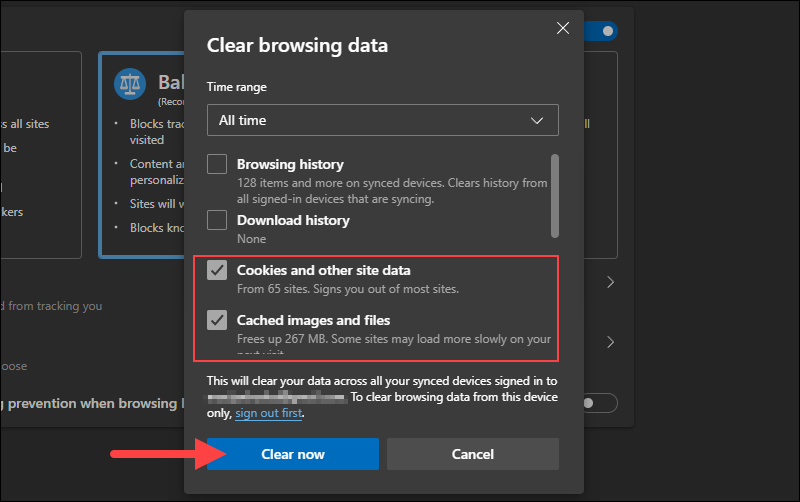
1. In Chrome, press Ctrl + Shift + Delete to open the Clear browsing data window.
2. In the Time range dropdown menu, select All time.
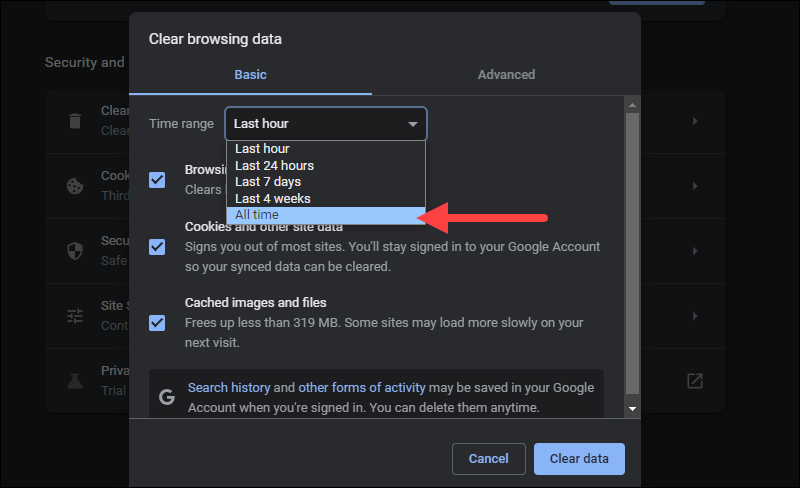
3. Check the following boxes:
- Cookies and other site data.
- Cached images and files.
Uncheck any other boxes.
4. Click the Clear data button to clear the cache.
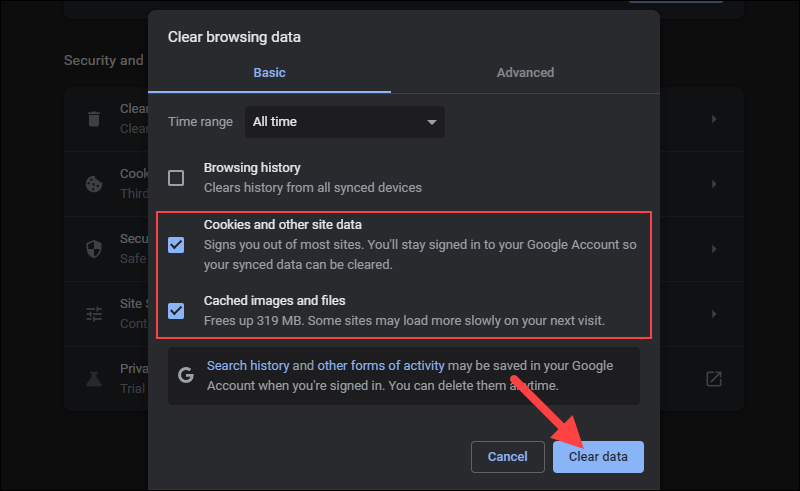
5. Revisit the webpage to see if the error is gone.
Clear Cache and Cookies in Firefox
Follow the steps below to clear the cache and cookies on a Firefox browser:
1. In Firefox, press Ctrl + Shift + Delete to open the Clear Recent History window in Firefox.
2. In the Time range to clear dropdown menu, select Everything.
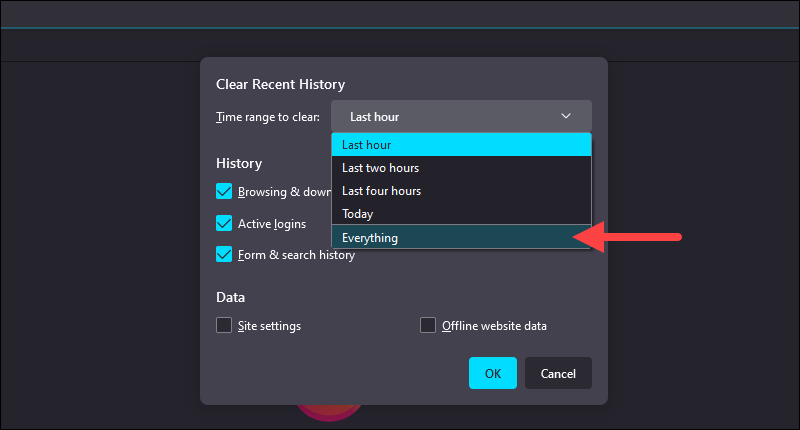
3. Check the following boxes:
- Cookies.
- Cache.
Uncheck any other boxes.
4. Click the OK button to clear the cache and cookies.
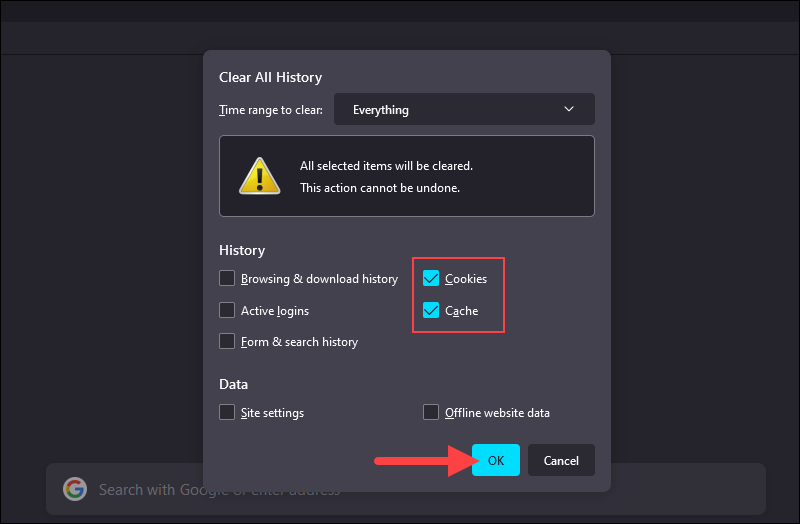
5. Revisit the webpage to see if the error is gone.
Clear Cache and Cookies in Edge
Follow the steps below to clear the cache and cookies on a Microsoft Edge browser:
1. In Edge, press Ctrl + Shift + Delete to open the Clear browsing data window.
2. In the Time range dropdown menu, select All time.
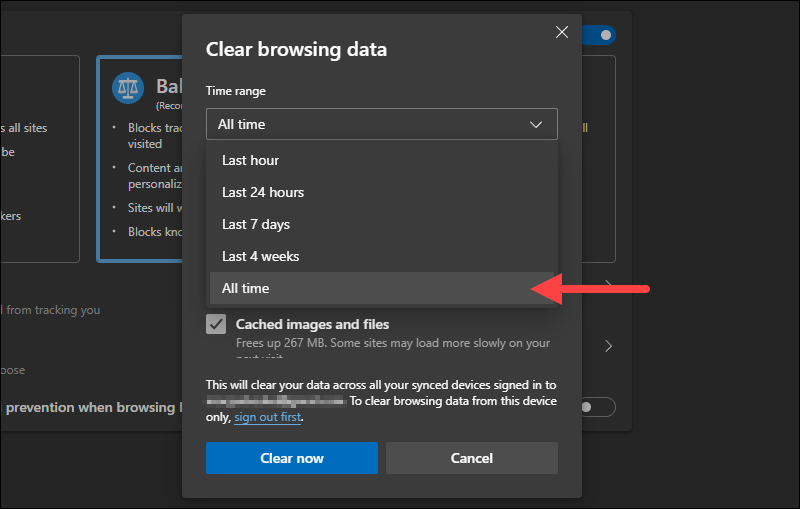
3. Check the following boxes:
- Cookies and other site data.
- Cached images and files.
Uncheck any other boxes.
4. Click the Clear now button to clear the cache and cookies and revisit the webpage to see if the error is gone.
Clear Cache and Cookies in Safari
Follow the steps below to clear the cache and cookies on a Safari browser:
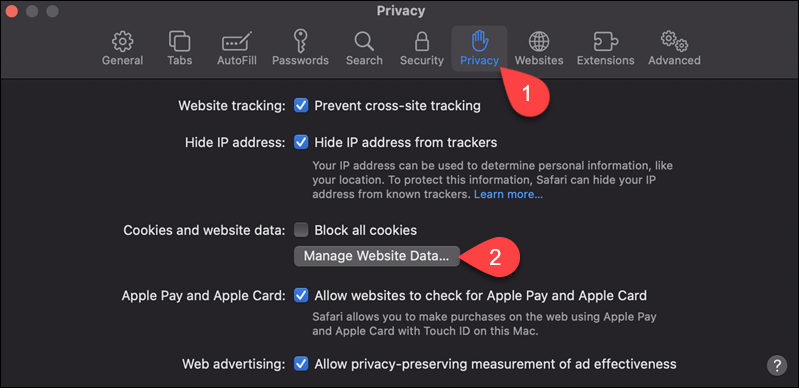
1. In Safari, press CMD + , to open the Preferences window.
2. In the Privacy tab, click the Manage Website Data button.
3. In the popup window, click the Remove All button to delete all cache and cookies data. Alternatively, find only the cache and cookie data for the website displaying the error and click Remove.
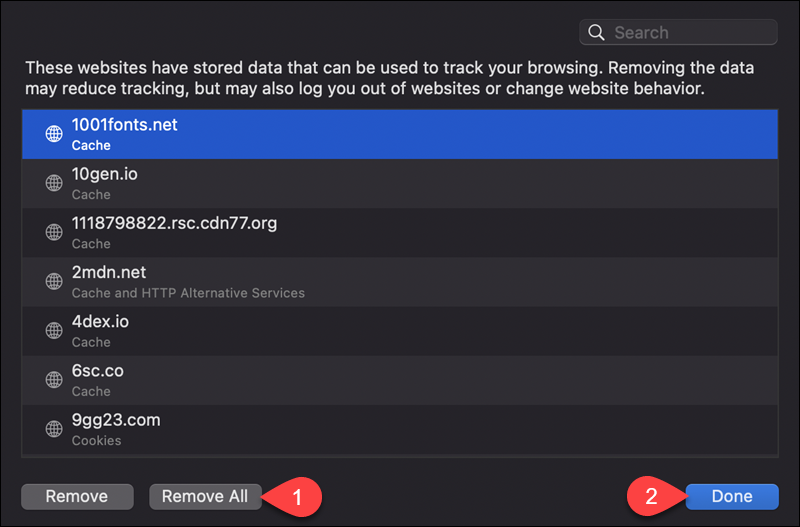
4. Click Done and revisit the webpage to see if the error is gone.
Check Website in Incognito Without Extensions
Ensure that the extensions the browser is using aren’t causing the error by visiting the website in incognito mode (private browsing). Follow the steps below to enter incognito mode on different browsers:
Incognito Browsing with Chrome
1. Open the Chrome browser and press Ctrl + Shift + N to open a new Incognito instance without browser extensions.
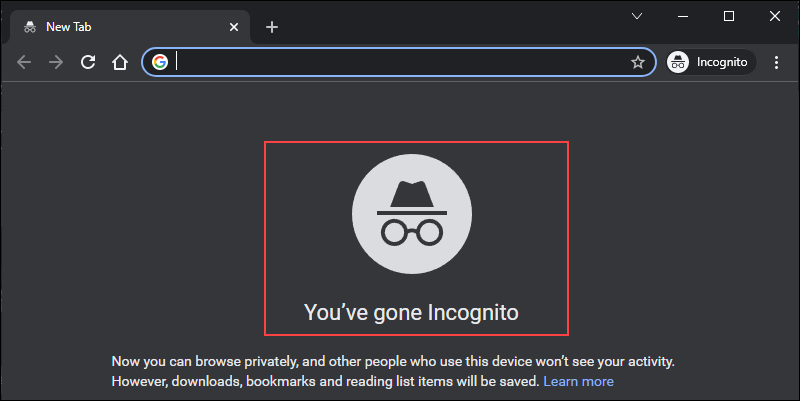
2. Visit the website to see if the «too many redirects» error is gone.
InPrivate Browsing with Edge
1. Open Microsoft Edge and press Ctrl + Shift + N to open a new InPrivate instance without extensions.
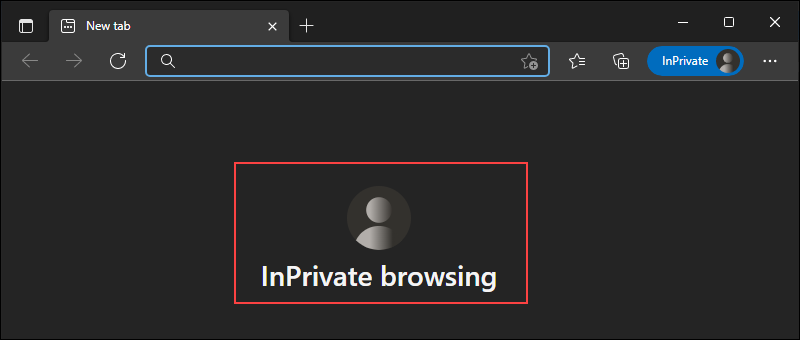
2. Visit the website to see if the «too many redirects» error is gone.
Private Browsing with Firefox
1. Open Firefox and press Ctrl + Shift + P to start a new Private instance.
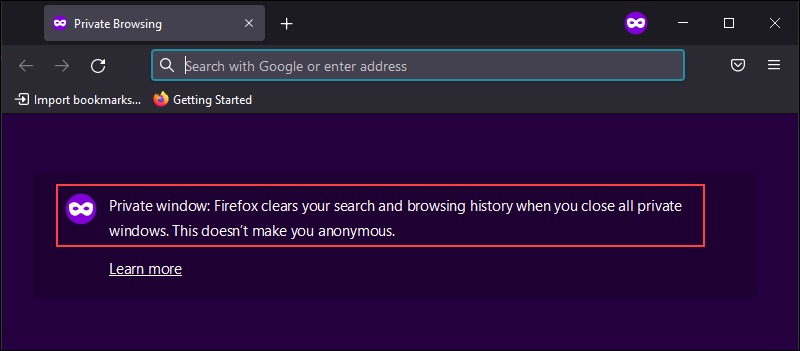
2. Visit the website to see if the «too many redirects» error is gone.
Private Browsing with Safari
1. Open a Private window in Safari by pressing CMD + Shift + N.
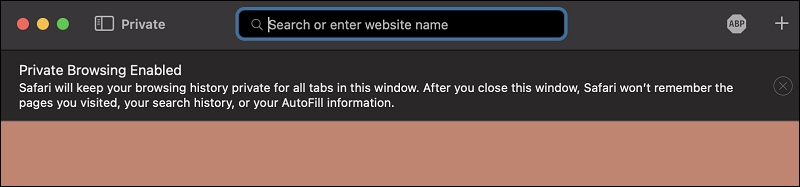
2. Visit the website to see if the «too many redirects» error is gone.
Clear Website Cache
If you own the site that’s stuck in a redirect loop and the steps above don’t help, try clearing the cache and cookies in WordPress. Access the WordPress admin dashboard and clear the cache using the caching plugins you have installed.
Note: If you cannot access your WP dashboard, use an FTP client such as FileZilla and empty the contents of the wp-content/cache directory to clear the website cache.
Some of the most popular caching plugins that speed up a WordPress site are WP Rocket and W3 Total Cache. Follow the steps below to clear the cache in the two plugins:
WP Rocket
1. Navigate to the WordPress Admin Dashboard.
2. Hover over Settings and click WP Rocket.
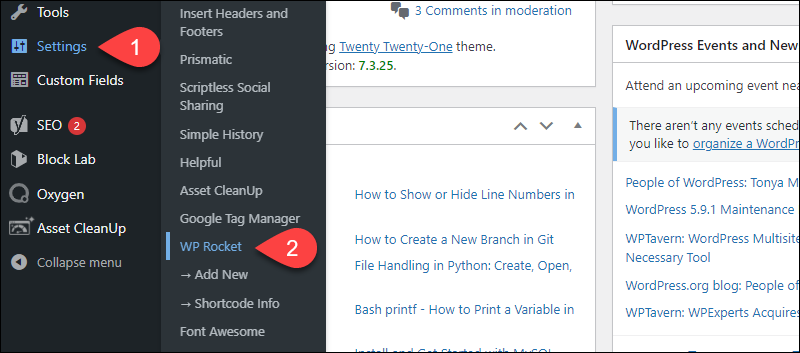
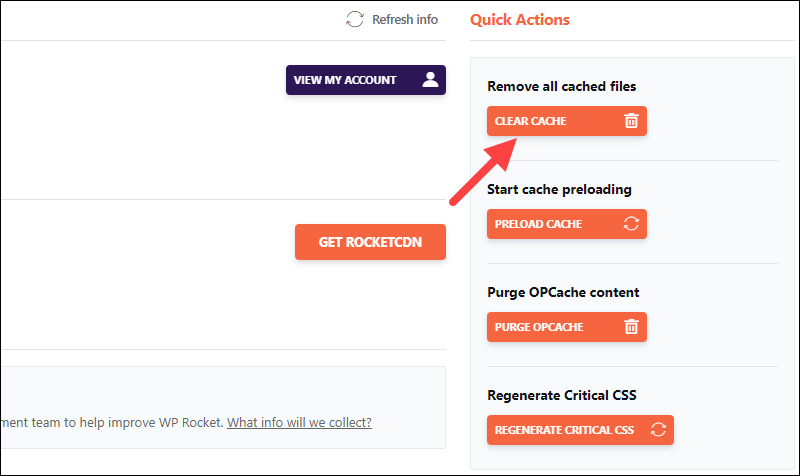
3. Under Quick Actions, find the Remove all cached files section and click CLEAR CACHE.
W3 Total Cache
1. Navigate to the WordPress Admin Dashboard.
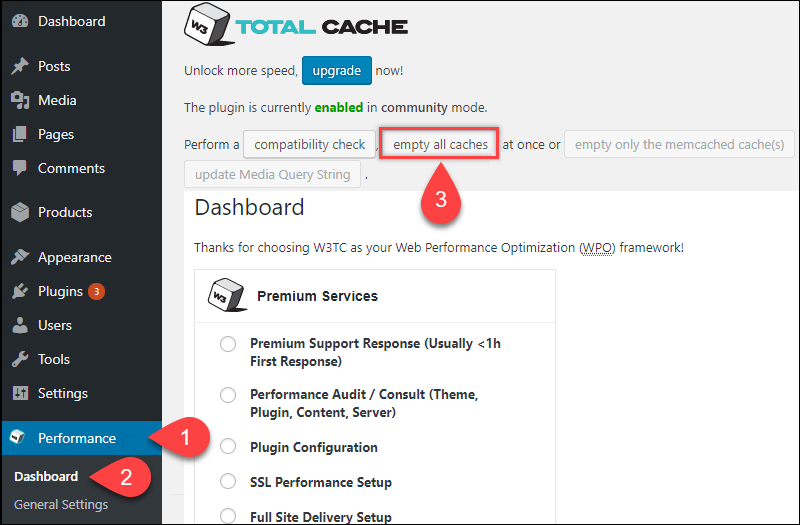
2. Hover over Performance and click Dashboard.
3. Click Empty All Caches to delete the website cache.
Note: If you are using a different caching plugin, try Googling for instructions on deleting cache from that specific plugin.
Clear Server Cache
If the steps above didn’t resolve the «too many redirects» error, perhaps the issue is incorrect or outdated cache on the server-side.
If you can’t access the WordPress Admin Dashboard, the solution is to use the control panel tools of your WordPress host to clear the cache on the website. Clearing the server cache depends on the hosting provider.
Most WordPress hosts offer one-click solutions for clearing the server cache, so contact your hosting provider for further instructions.
Check All Website Versions
The «too many redirects» error can result from improper WordPress site settings. For example, if the home URL and website URL don’t match, the visitors get stuck in a redirect loop. The two fields can get changed when migrating hosts or changing domains.
To fix mismatched URLs, ensure that both URL fields are set correctly. Follow the steps below:
1. Navigate to the WordPress Admin Dashboard.
2. Click the Settings option and locate the fields labeled WordPress Address (URL) and Site Address (URL).
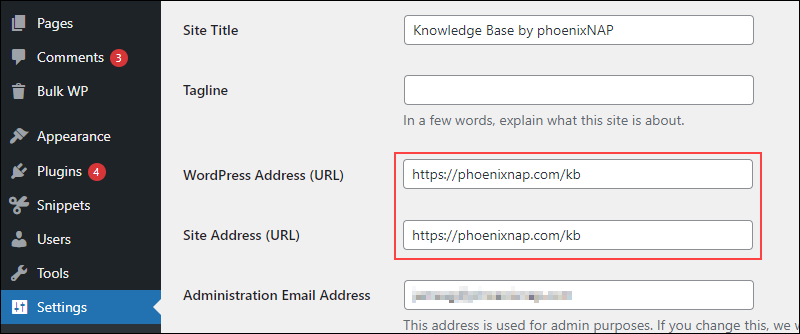
3. Make sure that the two fields are identical, set correctly, and not pointing at a wrong domain. This includes both www, http, and https prefixes.
Note: A common mistake is that the URL fields don’t contain the same prefix as the rest of the site. Make sure to use the correct prefix, www or no www. Also, check for any whitespaces at the URL’s beginning or end.
If the redirect loop denies you access to the WordPress Admin Dashboard, use an FTP client (such as FileZilla) to edit the wp-config.php file and define the URL values manually.
Follow the steps below to edit the wp-config.php file:
Warning: Be careful when modifying the wp-config.php file as it contains information WordPress uses to connect to the database. Always make a backup before saving any changes.
1. In FileZilla or a different FTP client, navigate to public_html directory and look for the wp-config.php file.
2. Right-click the file and select Edit.
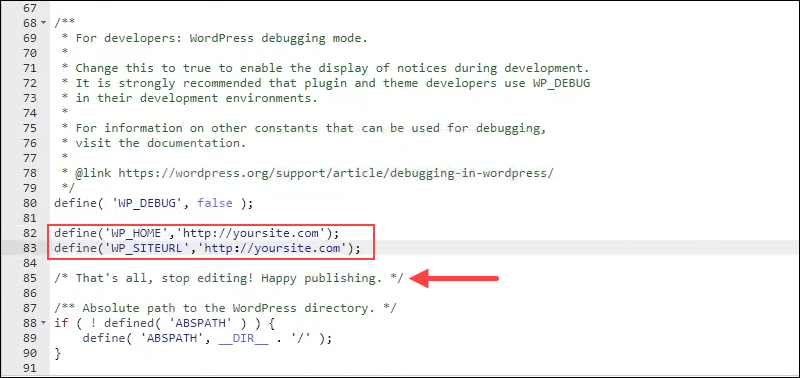
3. In the file, add the following lines above the /* That's all, stop editing! Happy publishing. */ line:
define('WP_HOME','https://yoursite.com');
define('WP_SITEURL','https://yoursite.com');
For https://yoursite.com, enter your site address.
4. Save the modified file and upload it to the website.
5. Reload the site to check if the problem has been solved.
Check SSL
While acquiring an SSL certificate is a smart move that keeps your site secure, not configuring it properly can cause a redirect loop. Using a redirect mapper tool, determine if the HTTPS settings are causing the redirect error.
The tool is similar to the redirect check tools, but it only shows results for www to non-www redirects and http to https redirects. If there are multiple redirects listed between the http and https versions of the site, it might be the source of the redirect loop.
Change the security protocol back to its default settings and refresh the website. If the error message is still there, try resetting the SSL certificate altogether.
Check Plugins
Search for any plugin conflicts on the website. This issue occurs when the code from two plugins, a plugin and a theme, or a plugin and the WordPress core interfere with each other. Start by disabling all the plugins to see if the error message goes away.
Disable the active plugins via the WordPress Admin Dashboard. Follow the steps below:
1. Log in to the WordPress Admin Dashboard.
2. Click Plugins and select Installed Plugins.
3. Check the Select All box to select all plugins.
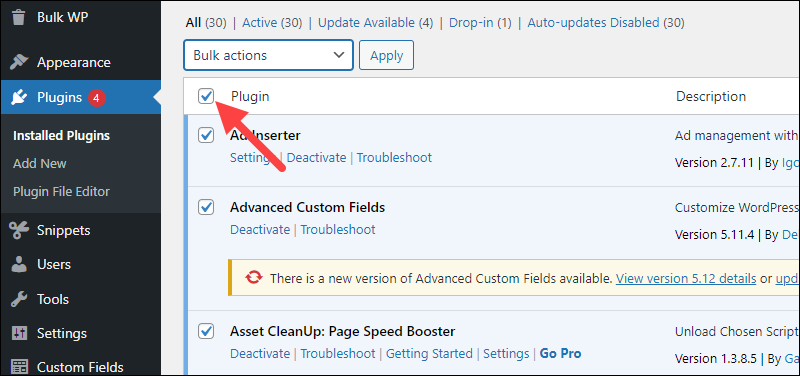
4. Choose Deactivate from the Bulk actions dropdown menu and click Apply.
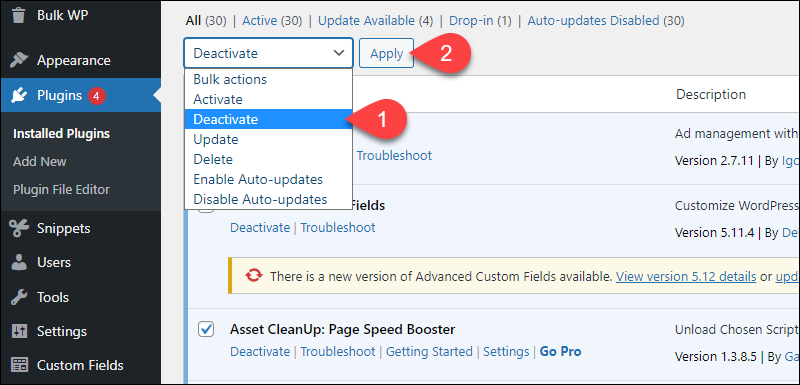
If you can’t access the WordPress Admin Dashboard, use an FTP client to disable them. Disable the plugins by renaming the wp-content/plugin directory (e.g., to plugins backup).
If the plugins aren’t causing the «too many redirects» error, follow the steps above to reactivate them.
Check Server Config Files
If the redirect error persists, the last option is to check if the server configuration files are causing the error.
.htaccess
The .htaccess file has a significant role in controlling page redirects, so an issue with the file can cause problems with site loading. If the .htaccess file contains redirects, it could conflict with a code or database configuration, or addresses could be pointing back to one another.
Warning: Take caution when editing the .htaccess file as its configurations affect the web server’s behavior. The file is usually hidden as a precaution, but you can find it in the public_html directory by checking the FTP client’s Show Hidden Files option. Always make a backup before editing the file. Check out our article on mod_rewrite to learn more.
Follow our tutorial to edit or create a new .htaccess file on WordPress, or set up the .htaccess file on Apache.
If creating a new .htaccess file hasn’t solved the redirection error, restore the backup file and try the last fix.
Nginx Config
If your website uses Nginx, the the nginx.conf file contains any redirects and the directives that define how the site runs.
The general syntax for redirecting http to https in the nginx.conf file is:
server { listen 80; server_name mydomain.com www.mydomain.com; return 301 https://$server_name$request_uri; }For mydomain.com and www.mydomain.com, enter your site address. The previous server block should define the $server_name variable. Ensure that the redirects are properly set and that they match the rest of the site.
Note: The nginx.conf file can vary depending on the hosting provider. If the settings are different in your configuration file, we recommend reaching out to your host. They can check the file for any misconfigurations that might be causing a redirect loop on the website.
Conclusion
After following the steps outlined in this guide, you should have successfully resolved the ERR_TOO_MANY_REDIRECTS error on your website. Next, read up on 403 Forbidden errors and how to fix them, learn to resolve the «Temporary failure in name resolution» error, or fix the 500 Internal Server Error in WordPress.

Содержание:
- Что это такое
- Ошибка 301
- Основные причины возникновения
- Пути быстрого решения
- Как исправить ошибку на виртуальном хостинге
- Настройка редиректа на VDS Nginx+Apache
- Профилактические меры для браузера
- Сервисы для проверки циклических редиректов
- Работа с файлом .htaccess
Что это такое
Циклическое перенаправление на странице или циклический редирект, является бесконечным обращением браузера по адресу одной и той же страницы. В ряде случаев может происходить обращение на другой адрес, который, в итоге, опять приводит на запрашиваемую страницу.
Зачем убирать
- Для повышения скорости загрузки страниц сайта за счет отключения HTTPS-соединений.
- Для быстрого перенаправления посетителей на новый ресурс при переносе сайта на новый домен.
Ошибка 310
В случае неполадок со стороны сервера, циклическая переадресация становится причиной ошибки. При открытии сайта может появиться сообщение – «на этой странице обнаружена циклическая переадресация» что может служить сигналом о наличии ошибки 310.
310
(net::ERR_TOO_MANY_REDIRECTS)
Помимо этого, данная ошибка может появиться при использовании определённого браузера. Наиболее подвержен этому «заболеванию» браузер Chrome. Хотя и в других подобная проблема не редкость.
Основные причины возникновения
- Технические работы на сервере на некоторое время могут привести к возникновению ошибки. После их завершения, как правило, сайт быстро восстанавливает свою корректную работу. Если этого не произошло, в большинстве случаев, со стороны сервера были изменены настройки, отвечающие за переадресацию.
- Повышенная нагрузка на сервер при большом количестве посетителей, пытающихся одновременно получить доступ к странице. В результате сервер не выдерживает нагрузки и «падает» выдавая сообщение об ошибке.
- Некорректно выставленное время на устройстве, с которого выполняется вход на страницу. В большинстве случаев, браузер проводит автоматическую проверки времени на компьютере и сервере. При их несовпадении может возникнуть ошибка циклической переадресации.
- Большой объем данных сохранённых в кэше и cookie браузера.
- Запрет на сохранение cookie сайтов в браузере.
- Циклическое перенаправление и установка CMS
- В панели управления хостингом и в файле .htaccess одновременно указана переадресация на HTTPS.
- Ошибка циклического перенаправления может возникнуть при некорректной установке или настройке CMS. Это относится как к популярным «движкам» – WordPress, Joomla, Opencart, или 1С-Битрикс так и к менее известным.
Пути быстрого решения проблемы
Опираясь на приведённые выше причины, исправить проблему циклической переадресации можно следующими способами:
- Если после технических работ на сервере доступ к странице не восстановился, следует обратиться в техническую поддержку. В случае внесения изменений в настройки сервера, специалисты ТП объяснят, что необходимо предпринять.
- При «падении» сервера из-за большого количества обращений, необходимо дождаться снижения потока посетителей, а также восстановительных работ по налаживанию корректной работы ресурса. В данном случае, желательно обращение в техническую поддержку для выяснения причины отсутствия доступа.
- Очистить cookie, кэш и историю посещений в браузере.
- В настройках безопасности браузера разрешить сохранять cookie сторонних сайтов.
- Наиболее радикальным решением является переустановка CMS. Если это не помогает необходимо обратиться в техническую поддержку хостинг-провайдера и получить инструкции по установке и настройке.
- Убрать переадресацию на HTTPS из файла .htaccess.
Как исправить ошибку на виртуальном хостинге
Данная ошибка возникает при наличии редиректа в файле «.htaccess» и включенном редиректе в ISPmanager. Подробнее о нем можно прочитать в статье «Что такое редирект» нашего блога. Для решения проблемы нужно проверить файл «.htaccess» на наличие редиректов с «http» на «https» с помощью изложенного ниже алгоритма.
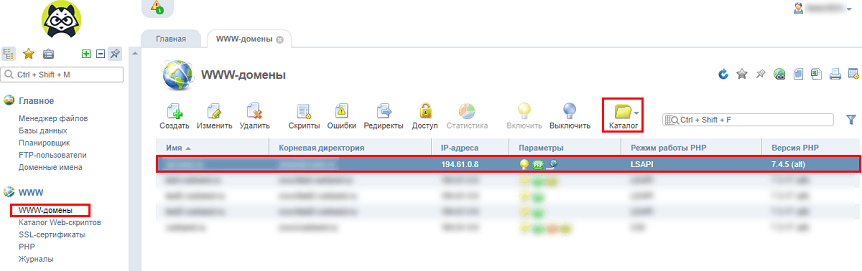
- Перейти в ISPmanager, в разделе «WWW» выбрать «WWW-домены» и нужный домен. Затем нажать «Каталог» в верхнем меню для перехода к файлам сайта.
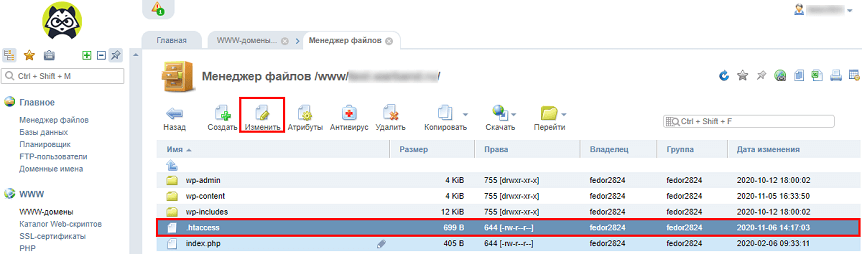
- Выбрать файл «.htaccess» одним нажатием и кликнуть «Изменить» в верхнем меню.
- Проверить файл на наличие редиректов. О возможных вариантах редиректов в «.htaccess» можно узнать здесь.
- Проверить включен ли редирект в настройках ISPmanager. В разделе «WWW» нажать «WWW-домены», выбрать нужный домен и кликнуть «Изменить» в верхнем меню.
- В появившемся окне проверить — установлена ли галочка на пункте «Перенаправлять HTTP-запросы в HTTPS». Данный пункт будет виден только, если включена галочка на пункте «Защищенное соединение (SSL)».
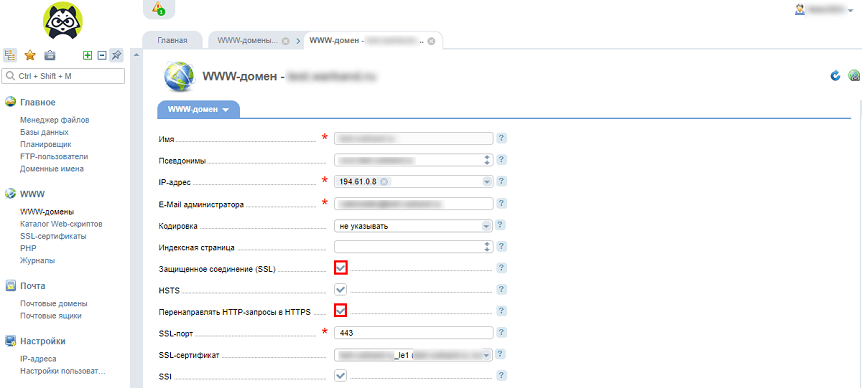
- В разделе «WWW» нажать «WWW-домены», выбрать нужный домен и кликнуть «Редиректы» в верхнем меню. Появится список с редиректами. Если редиректы отсутствуют, то он будет пустым.
- Если редирект включен в пунктах 1, 2 и 3, нужно убрать лишние редиректы оставив лишь один из них.
Настройка редиректа на VDS Nginx+Apache
При использовании Nginx+Apache может произойти зацикливание редиректа «с http на https». Данная проблема связана с тем, что подключение по 80 порту идет на Nginx, а за ним уже находится Apache. Поэтому соединение Nginx и Apache работает не по SSL. В этом случае нужно отредактировать конфигурационный файл Nginx. Добавив в него такие значения:
If ( $scheme = "http" ) {
rewrite ^/(.*)$ https://$host/$1 permanent;
}
Поддержание браузера в рабочем состоянии
Браузер также часто становится причиной циклической переадресации. Для минимизации его влияния на возможность возникновения ошибки необходимо совершать ряд профилактических действий.
- Своевременно чистить историю и делать это не реже одного раза в неделю, при активном использовании браузера.
- Отключить неиспользуемые плагины и расширения.
- Регулярно обновлять браузер на сайте официальных разработчиков.
Как проверить наличие цепочки редиректов
Самый очевидный способ обнаружения — массовая проверка кодов статуса на всех страницах сайта. Сделать это можно с помощью удобных автоматизированных инструментов (redirect tracker), работающих в браузере или в качестве клиентского ПО.
Они функционируют по схожему принципу. Пользователю нужно всего лишь разместить в операционном окне ссылку на интересующий ресурсы, нажать «Старт» и дождаться результатов сканирования.
Популярные сервисы для отслеживания цепочек редиректов
Netpeak Spider
- Язык: русский.
- Платно (с бесплатным пробным периодом).
- Помимо отслеживания цепочки редиректов, делает полный SEO-аудит сайта, включая выявление ошибок оптимизации.
- Анализирует крупные контентные сайты (более 100 000 страниц).
Анализ сайта Webmasta
- Язык: русский.
- Бесплатно.
- Отслеживает полную цепочку перенаправлений.
- Получение IP-адреса сайта и отслеживание всех веб-ресурсов на этом адресе.
Проверка переадресации Website Planet
- Язык: русский.
- Бесплатно.
- Отслеживание всех типов редиректов.
- Получение полного URL-адреса коротких, рекламных или партнерских ссылок без перехода.
Массовая проверка цепочек редиректов Majento
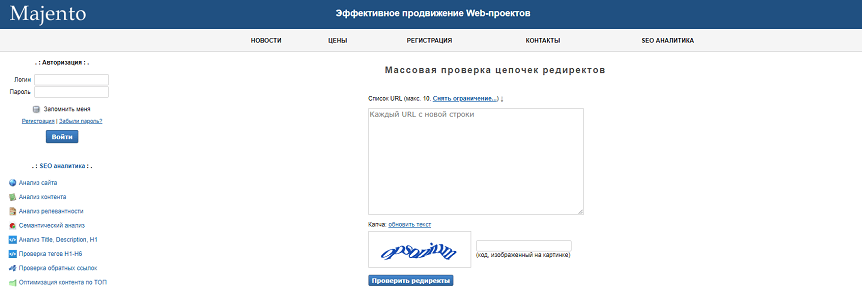
- Язык: русский.
- Бесплатно.
- Анализирует цепочку редиректов.
- Получение полного URL-адреса коротких, рекламных или партнерских ссылок без перехода.
SEO-помощник Rookee

- Язык: русский.
- Бесплатно (после регистрации).
- SEO-аудит сайта всех страниц сайта по 70 параметрам.
- Пошаговые рекомендации по исправлению найденных ошибок.
После того как страницы с кодами редиректов найдены, рекомендуется приступить к правке конфигурационного файла .htaccess.
Работа с файлом настроек каталогов
Для удобной настройки сервера используется файл .htaccess. С его помощью можно настроить правильные редиректы и значительно снизить риск возникновения циклической переадресации.
Перед настройкой, в файл обязательно вносится следующий код:
RewriteEngine On
После этого идут настройки основных редиректов, подходящие для различных серверов, в том числе Nginx и Apache.
Важно помнить, что прежде чем вносить какие-либо изменения в файл .htaccess необходимо сделать его копию и желательно бекап всего сайта.
Добрый день!
У меня на сайте появилась ошибка ERR_TOO_MANY_REDIRECTS. Как ее исправить?
Ответ
Ошибка ERR_TOO_MANY_REDIRECTS в буквальном смысле означает “на сайте используется бесконечный цикл перенаправлений”. Обычно она появляется после каких-либо изменений на сайте, в случае неверной конфигурации редиректа на сервере или же вследствие неправильных настроек сторонних сервисов, используемых на сайте.

Как исправить ошибку?
Для исправления ошибки существует несколько способов.
Способ 1. Очистка cookies в браузере
Наиболее простым способом является очистка куков в Вашем браузере, который рекомендуют использовать сами разработчики популярных веб-браузеров. Так, cookies-файлы, которые сохраняются браузером на Вашем компьютере, иногда могут содержать ошибочные данные, которые приводят к появлению ошибки. Поэтому их рекомендуется удалить (в настройках каждого браузера есть соответствующие инструменты).
Способ 2. Очистка кэша браузера
При каждом посещении Вами того или иного сайта, браузер сохраняет локально разную информацию, среди которой и некоторые настройки сайта (включая cookies). Для решения возникшей проблемы можно очистить кэш, стерев таким образом какие-либо ошибочные данные, связанные с конкретным сайтом.
Способ 3. Очистка кэша сервера
Также некоторые ошибочные данные могут хранится в кэше, расположенном на сервере Вашего хостинга. Многие хостинг-компании предоставляют такую услугу, которая может быть выполнена из админ-панели.
Способ 4. Очистка кэша прокси-сервера
Если для работы Вашего сайта используется прокси-сервер (например, Cloudflare или Sucuri), то в его настройках также можно выполнить очистку.
Способ 5. Использование онлайн-сервиса Redirect Checker
Если очистка кэша не решила проблему, необходимо будет выяснить причину ее возникновения. Для этого существует удобный онлайн-сервис Redirect Checker, который поможет определить, где именно начинается цикл перенаправлений.
Способ 6. Проверка настроек https
Еще одна причина ошибки ERR_TOO_MANY_REDIRECTS кроется в настройках протокола https. Так, если Вы перевели свой сайт на работу по https, то, во-первых, необходимо проверить наличие установленного и работающего SSL-сертификата. При его отсутствии защищенный протокол не будет корректно работать на Вашем сайте. Дальше следует проверить корректность настройки редиректа с http на https как на сервере, так и на сайте. В последнем случае часто устанавливают специальный плагин, который автоматически перенаправляет все ссылки на новый протокол. Также необходимо проверить адрес сайта
в админ-панели (Настройки -> Общие). Часто ошибка возникает из-за того, что после переведения сайта на https его адрес остался с http. Оба поля (Адрес WordPress (URL) и Адрес сайта (URL)) должны совпадать и начинаться с https.
Способ 7. Проверка работы плагинов
Часто ошибка зацикливания редиректов может возникнуть вследствие неправильной работы какого-либо активного плагина. В этом случае необходимо отключить все плагины (переименовать папку plugins в каталоге файлов Вашего сайта). Если сайт начал работать корректно, то Вам придется выяснить, какой именно плагин дал сбой.
Нажмите, пожалуйста, на одну из кнопок, чтобы узнать понравилась статья или нет.
Друзья! Пламенно приветствую вас в очередной нашей статье, посвященной ошибке браузеров. Простая ошибка для пользователей, но порой запутанная для программистов всех уровней:
ERR_TOO_MANY_REDIRECTS
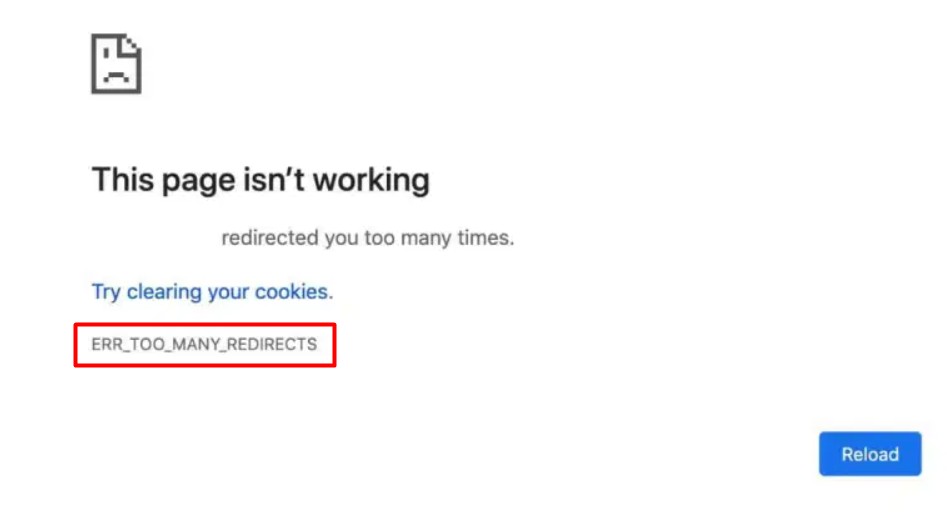
Опознали ошибку у себя? Примерно также? Не знаете как исправить? Тогда предлагаю сразу же приступить к разбору. У этой ошибки есть два разных сценария обнаружения:
- Она может встретиться обычному пользователю интернета, который просто хотел открыть какой-то сайт. Таких людей очень много – предлагаю начать именно с них.
- Разрешение этой ошибки сейчас ищет другой программист или владелец сайта, после каких-то действий с кодом. Коллег я тоже не забуду, но для них раздел будет чуть ниже основного блока – не поленитесь пролистать до конца.
В любом случае – нашли какое-то свое интересное решение или остались вопросы? У нас всегда открыты комментарии. Пишем, не стесняемся, помогаем людям.
Содержание
- Общий раздел – Источники проблемы
- Я пользователь – как решить проблему?
- Я программист, вебмастер или владелец сайта – как решить проблему?
- Задать вопрос автору статьи
Общий раздел – Источники проблемы
Решил вставить здесь этот раздел, т.к. источники появления ошибки на экране по сути одни и те же для всех. Дословный перевод ошибки на русский язык:
ERR_TOO_MANY_REDIRECTS
ОШИБКА_СЛИШКОМ_МНОГО_РЕДИРЕКТОВ
Программисты уже побежали исправлять с полным пониманием, а вот простых пользователей может озадачить слово «Редирект». Редирект – с английского Переадресация. Теперь немного на пальцах про Переадресацию:
- Вы посещаете разные сайты.
- Иногда неверно вводите адреса.
- Чтобы сделать вашу жизнь лучше, сайты переадресовывают вас на «правильные», по их мнению, свои страницы.
- Порой с такими переадресациями возникают ошибки.
Главная причина – браузер попал в такую бесконечную переадресацию. Самый частый пример – вы заходите на главную, а главная бесконечно перенаправляет саму на себя. Эти перенаправления по большей части должны разрешаться именно СЕРВЕРОВ, но если их очень много – ваш БРАУЗЕР выкидывает эту ошибку.
Немного стало понятно? Где-то на сайте случилась ошибка, а вы ее поймали. Браузер сам выходит из этого бесконечного цикла.
Другие браузеры, основанные не на Chrome, тоже разрешают эту проблему, но со своими ошибками:
Mozilla Firefox: The page isn’t redirecting properly. Firefox has detected that the server is redirecting the request for this address in a way that will never complete.
Microsoft Edge: Hmmm… can’t reach this page.
Я пользователь – как решить проблему?
Этот раздел по устранению посвящается самым простым пользователям, которым нужно здесь и сейчас открыть какой-то сайт. Самое главное:
Как правило, это серверная ошибка. Т.е. вы ничего не можете с ней сделать, кроме как подождать исправления ее программистами того самого сайта, который вы хотели бы открыть.
Т.е. у вас обычно все работает правильно, и браузеры грамотно разрешают ошибки сервера в таком виде. Но если ошибка повторяется и через один-два дня, можно на опережение попробовать следующие быстрые решения:
- Пробуем открыть через другой браузер. Использовали Google Chrome? Тогда открываем Firefox, Opera, Яндекс.Браузер или даже стандартный Edge. Если и в них проблема сохраняется – значит точно проблема на сервере. Если же они почему-то открывают сайт – значит дело в самом браузере (обычно это или кэш со старого редиректа или интересные расширения).
- Чистим кэш браузера и куки (ищем в настройках раздел похожий на «Удалить историю», а это наша статья на примере Opera).
- Стоит посмотреть в сторону установленных расширений браузера. Ставили какие-нибудь VPN, антивирусы и прочую дрянь в браузер? (даже случайно, только честно и для себя, меня обманывать не нужно). На всякий случай идем в Настройки – Дополнительные инструменты – Расширения (на примере Google Chrome, но все браузеры примерно одинаковые) и смотрим на расширения. Нашли что-то подозрительное? Пробуем отключить. Если не уверены в оценке «подозрительности» – отключите ВСЕ расширения и перезапустите браузер. Исчезли редиректы?
- Если вы точно уверены, что виноват браузер, можно попробовать сделать ему «сброс на заводские настройки». Лично такое проворачивал один раз, но не для этой ошибки. Если глюк был именно в браузере, а не в чужом сайте, кэше или расширении – поможет. На примере Хрома – Настройки – (в самом низу раскрываем все настройки через «Дополнительные») – Восстановление настроек по умолчанию:
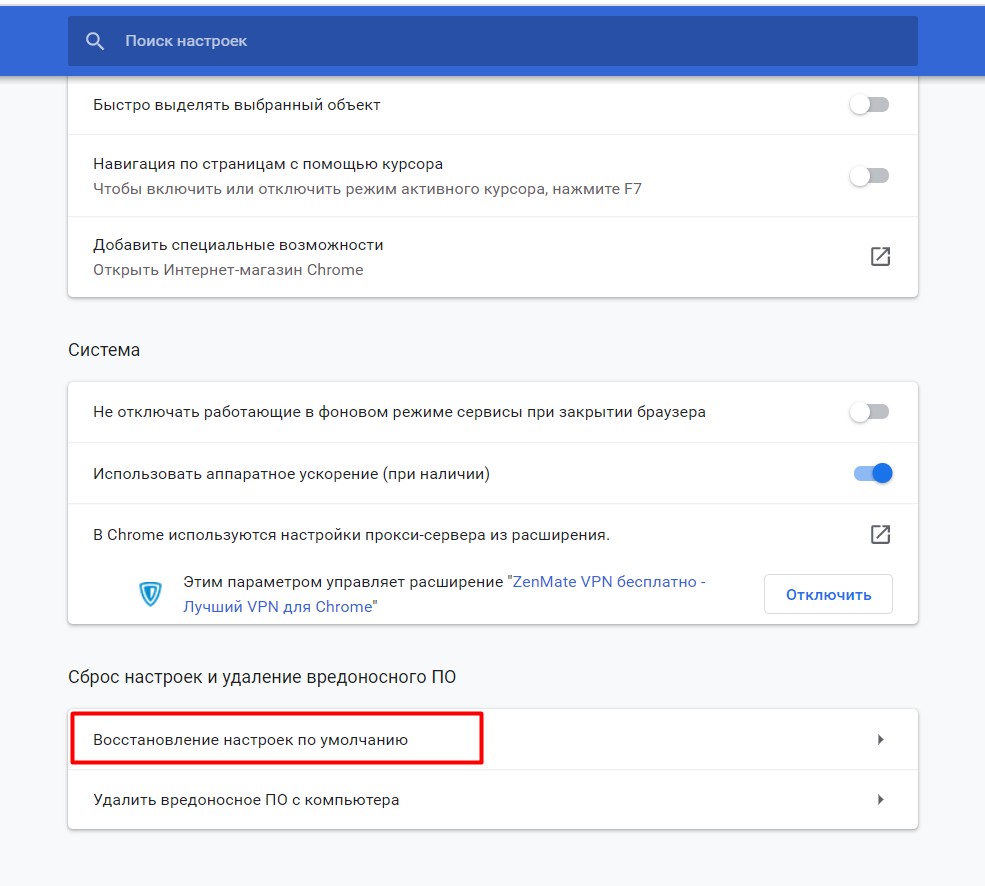
Выше перечислены все основные советы, на которые я бы вообще обращал внимание. Есть другие редкие случаи (вроде настройки даты-времени), но в 99% случаев оно бесполезно. Если другие сайты открываются нормально – значит просто ждите исправления ошибок программистами. А интересующимся, что они будут делать на своей стороне – можете посмотреть ниже.
Я программист, вебмастер или владелец сайта – как решить проблему?
Ну что коллеги, добро пожаловать в этот раздел! За более чем 10 лет практики разработки сам пару раз падал в бесконечный цикл. Причем это было и на каких-то своих костыльных решениях, так и на WordPress. Методика поиска примерно одинаковая:
- После чего появилась ошибка? Что-то подключили? Что-то выкатили? Что-то изменили? Попробуйте сделать обратный ход. Да, решения здесь не может быть – мало ли что и куда подключается. Этот пункт я вынес сюда первым не для того, чтобы вдаваться в философию, а чтобы выявить действительно интересные ошибки – их рекомендую писать в комментарии. На своей памяти еще на Joomla5 устанавливал компонент галереи, она по итогу конфликтовала в общем цикле и пыталась нагло редиректить. Удалил, исправлять не стал.
- Настоящие первый пункт – если вы на Apache – смотрим .htaccess (причем в корне, а иногда и в конкретной папке компонента-модуля-плагина, если есть). В основном все ошибки редиректа сейчас и заканчиваются в .htaccess. Сейчас в моде делать редиректы http-https/www-без_www. Самый рабочий пример – вы с index.php делаете редирект на главную («/»), а по итогу главная видится как index.php и снова подключает это правило. Например, вот это может вызывать такой бесконечный редирект (а может и не выдаст, индивидуально, я лишь даю направления, для профилактики удалите все или возьмите дефолтный конфиг):
RewriteCond %{REQUEST_URI} /index.php
RewriteRule ^(.*)$ https://yoursite.com/? [R=301,L]
- Для сторонников Nginx (да, это и мы) – с одной стороны проще из-за явных правил редиректов, с другой стороны та же ISP-панель или ее аналоги любят залазить в конфиги и вносить свои правки. Рекомендация – лезть в конфиги Nginx (главный, по хостам, директория самого сайта при включении из основного конфига) и смотреть их.
- Если вываливается при подключении чего-то внешнего – делаем поиск по всем файлам этого «чего-то» на предмет «Location» (я на языке PHP по привычке, так как именно Location и делает редиректы) – нет ли зацикливаний? Попробовать понять и закомментировать.
- Не из моего опыта, но вполне интересная ошибка для кириллических доменов вида САЙТ.РФ – некоторые вебмастера думают, что это обычные UNICODE-символы, но на самом деле их нужно конвертировать в Punycode (САЙТ.РФ = xn--80aswg.xn--p1ai). Так вот при неверной кодировке WordPress одно время выкидывал бесконечный редирект. Но это уже задачки из уровня конкретной узкой нечастой проблемы.
Итого основные мероприятия для вебмастеров (особенно начинающих): проверяем .htaccess и временно отключаем ВСЕ плагины (при наличии таковых).
Очень надеюсь, что эту ошибку вы не получили уже на рабочем сервере. Но тогда есть вариант использовать любые сервисы проверки редиректов (гуглим «redirect test», «redirect checker» или «проверка редиректов») – попадете на сторонние сайты, которые покажут, куда вообще ваш сайт совершает редирект и с каким статусом (а то может цикл гораздо сложнее). Авось тоже поможет. С разовыми запросами неплохо справляется и Яндекс.Вебмастер (Инструменты – Проверка ответа сервера) – тоже даст ответ сервера, из которого уже можно вытащить и страницу редиректа, и статус. Такой анализ может выявить и сложные многоэтапные циклы, и неверную отработку тех же внешних CDN (я про Cloudflare и SSL, где нужно включать не Flexible SSL, а FULL, т.к. иначе будет цикл редиректов HTTPS – HTTP- HTTPS и т.д.).
Often, when browsing the internet, your website’s visitors may find themselves on a webpage that displays ERR_TOO_MANY_REDIRECTS.
What does this mean?
Running and maintaining a website comes with its issues. You will probably encounter different errors and issues.
One error that many website owners usually experience is the ERR_TOO_MANY_REDIRECTS error.
This error is very confusing, and many people do not know how to resolve it. However, you do not have to panic if you see the ERR_TOO_MANY_REDIRECTS error on your WordPress website, as there are several ways to fix it.
If you do not know what this error means and how you can fix it, you have come to the right place.
This guide will explain what the ERR_TOO_MANY_REDIRECTS is, what causes it, and how you can get it off your website.
Without wasting much time, let’s get to work!
- ERR_TOO_MANY_REDIRECTS Error Overview
- What Is ERR_TOO_MANY_REDIRECTS error?
- Why Are You Getting ERR_TOO_MANY_REDIRECTS Error in WordPress?
- How to Determine the Nature of a Redirect Loop
- How to Fix ERR_TOO_MANY_REDIRECTS Error?
- 1. Clear & Delete WordPress Site Cache
- 2. Clear & Delete Browser Cache & Cookies
- 3. Review Your WordPress URL Settings
- 4. Temporarily Disable & Reactivate WordPress Plugins
- 5. Check for Misconfigured HTTPS Settings
- 6. Investigate for Server Issues
- 7. Check for Wrong CDN or WAF Configuration
- 8. Check & Verify .HTACCESS Settings
- Frequently Asked Questions (FAQ)
- Wrapping Up on ERR_TOO_MANY_REDIRECTS
ERR_TOO_MANY_REDIRECTS Error Overview
The ERR_TOO_MANY_REDIRECTS error can be confusing, especially for non-tech-savvies and those who have not encountered it before. This problem does not come with a clear resolution or troubleshooting approach.
Fortunately, there are several ways to fix it without breaking a sweat. To fix this issue, all you need is the right tools and a little patience.
What Is ERR_TOO_MANY_REDIRECTS error?
The ERR_TOO_MANY_REDIRECTS explains itself. It means your website is experiencing too many redirects–a redirect loop.
When you see this error on your site, it means that something is causing too many redirects and has sent your site into an unending redirection loop.
So this means that your server is not pointing in the right direction, and the browser cannot find the location of your site. The server is directing the browser to a particular location.
And on getting there, the browser is getting another instruction to look for the website in its original location.
As a result, this creates the infinite redirect loop that gets your site stocked at that error page.
Several things can cause this issue, ranging from plugins to cookies. Regardless of what the cause is, there are ways you can fix this issue and get your site back to normal.
Google Chrome
That is how the ERR_TOO_MANY_REDIRECTS error looks on the Google Chrome browser. The ERR_TOO_MANY_REDIRECTS chrome error is also straightforward to fix, and we will show you how to fix it in this guide.
Mozilla Firefox
Almost every browser has its unique way of displaying the ERR_TOO_MANY_REDIRECTS error.
Mozilla Firefox, one of the most popular web browsers globally, displays this error message as “The page isn’t redirecting properly.” A quick ERR_TOO_MANY_REDIRECTS fix can get this error out of your site in no time.
Microsoft Edge
The ERR_TOO_MANY_REDIRECTS edge error message is also different. The error on Microsoft Edge reads, “This page isn’t working.” Fortunately, the solution to this issue is like the solutions of the other browsers.
Safari
The Safari browser also has its way of displaying this error. The ERR_TOO_MANY_REDIRECTS Safari error reads, “Safari Can’t Open the Page.”
“Too many redirects occurred trying to open “thewebsite.com.” This might occur if you open a page that is redirected to open another page, which is then redirected to open the original page.”
Android
On the Android OS, using the Chrome browser, the ERR_TOO_MANY_REDIRECTS error message shows as “This webpage has a redirect loop.” Like the other browsers, the solution to this issue is also simple.
Why Are You Getting ERR_TOO_MANY_REDIRECTS Error in WordPress?
So why do you see ERR_TOO_MANY_REDIRECTS in your WordPress site? There are a couple of probable causes for this problem, one of which is an SEO plugin.
A redirect is a handy tool for websites, as you can use it as a search engine optimization (SEO) strategy or allow users to access a site with a direct URL.
For instance, you have a highly relevant site, but rather than changing the content; you would want to send your visitors to a new page; that is where redirect comes in.
With this tool, you can automatically redirect people to your new website or page without asking them to click a link or enter a different URL in their address bar.
Hence, the ERR_TOO_MANY_REDIRECTS error results from misconfiguration in the redirection of your site.
When this happens, the browser is confused and redirects the user to an unknown destination or other URLs. And when the browser gets confused and does not know or understand which URL to use, it will get stuck in an infinite loop and show the ERR_TOO_MANY_REDIRECTS error.
Other reasons for the ERR_TOO_MANY_REDIRECTS error includes:
- Conflicting WordPress plugins setting
- Inappropriate server settings
- WordPress settings misconfiguration
- SSL/TLS certificate misconfiguration
- Improper migration from one site or domain to another
- Hosting several sites on the same server
- Third-party services complications such as CDNs
How to Determine the Nature of a Redirect Loop
Since a wide range of factors can cause this issue, finding out the actual cause can help you resolve it much faster.
There are also several ways of determining the nature of a redirect loop, but one of the easiest and quickest ways to do that is to use a redirect checker.
We highly recommend the SerpWorx, as it is one of the most popular and effective redirect checkers out there.
This platform is straightforward to use; all you have to do is enter the URL of your website into the search bar provided and click on the “Check Redirects” tab. It will show you a result of the number of active redirects on your website.
You can also use this free Redirect Checker tool. It is a free online tool, and it will provide you with enough analysis of your WordPress website.
Likewise, Chrome also has an extension called Redirect Path that you can use to check for redirections on your website.
How to Fix ERR_TOO_MANY_REDIRECTS Error?
The ERR_TOO_MANY_REDIRECTS looks a bit complicated, especially when you are seeing it for the first time.
However, it is one of the most straightforward errors to fix on a website. This problem does not have only one solution; there are several ways you can get this error off your website.
So in this section, we will walk you through the eight different methods of solving this issue. Most of the methods in this article are simple and straightforward, which means you do not need to be tech-savvy to apply them.
1. Clear & Delete WordPress Site Cache
One of the simplest and quickest ways to resolve this issue is to clear and delete the WordPress site cache. This process is also known as purging your WP cache.
A cache is a set of data stored on a browser or a website’s server that makes the website load much faster. If some of the cached information of a website is not correct or out of date, a redirect loop error might occur.
Hence, you should clear the cache on your web browser and your WordPress server. However, if your website is in an infinite redirect loop, you might not be able to access your WP admin dashboard.
If this is your case, you can still clear your WP cache using the visual interface in your web hosting control panel. Many WordPress hosts also have a control panel tool you can use to clear your WP website cache.
Those using third-party reverse-proxy services like Sucuri or Cloudflare would also benefit from clearing the cache of their website on their side.
To clear the cache on Cloudflare, login into your dashboard, click on the “Catching” tab, and click “Purge Everything.” While Sucuri users should also log in to their dashboard, click on the “performance” button, and click on “Clear Cache.”
After clearing your WordPress site cache, revisit your website to see if the issue has been resolved. You can also use some of the best WordPress cache plugins, such as Super Cache WP, to clear the cache of your WordPress site.
2. Clear & Delete Browser Cache & Cookies
If clearing and deleting your WordPress site cache does not fix the issue, consider clearing and deleting the cache and cookies stored on your browser.
However, you might want to check if your browser cache is the cause of this problem. To do this, you should use another browser to access your website or put your browser in incognito mode.
If you do not longer see the ERR_TOO_MANY_REDIRECTS error, then you should clear your browser cache.
Caches and cookies are sorts of saved data that your browser uses to load sites much faster. Whenever a website takes a long time to load, one of the quickest solutions should be deleting your browser cookies.
The process of clearing cache stored in a browser differs from one browser to another. Here is the process of clearing cache and cookies for two of the most popular web browsers.
1. Clearing Browser Cache and Cookies for Google Chrome
Here are the steps to clearing your cookies and cache on your Google Chrome browser:
- Click on the three dots at the top-right corner of your browser.
- Click on History or press “CTRL H” on any windows on the browser.
- When your history tab opens, click on “Clear browsing data” on the left corner of the screen.
- A new window will pop up, and you will see two tabs – Basic and Advanced. Click on the Advanced tab.
- On clicking on the “Advanced” tab, check the “Cookies and other site data” and “Cache images and file” boxes and click “Clear data.”
- That is all for chrome browsers.
The process is the same for other web browsers using the Google Chrome engine, such as the Brave Browser. You can use the same approach to clear your cookies and caches.
2. Clearing Browser Cache and Cookies for Mozilla Firefox
- For Mozilla Firefox, go to the top-right corner and click on the three small dots.
- Scroll down and select “Options.”
- In the menu, click on the “Clear data” option.
- Next, select the “Cookies and Cache” option and hit the “Clear” button.
After clearing your caches and cookies on your browser, refresh your website to see if the problem is fixed. If you are still experiencing the same issue, try our next solution.
3. Review Your WordPress URL Settings
The configuration of WordPress makes it possible for you to power your root domain from a subdirectory. For example, you can install WordPress in a subdirectory ABC.com/wordpress and still use it as the root domain.
This approach helps to prevent the issue of littering the root directory of your server. So checking your WordPress URL settings is very important, as a misconfiguration can cause the ERR_TOO_MANY_REDIRECTS error.
To review your WordPress URL settings, go to Settings in your WordPress admin dashboard, click on the “General” panel, and enter the URL of your Site Address and URL of your WordPress Address.
The URL of your site is the address that users type in their browsers to access your site. The WordPress URL is the location where all your WordPress files are stored. Only the admins and those with backend access can access the WordPress URL.
For most WP websites, these two addresses should be the same. If they are not identical when they should be, an error is bound to occur. Hence, you should check them properly to make sure they are the same.
Mistakes happen, and there might be some differences between the two URLs. If you check and they are not the same, you can fix it by going to your WP admin dashboard and editing the URL fields. Edit both fields to be identical.
Similarly, you should pay close attention to the domain name, the www at the beginning, and HTTPS vs. HTTP. It would help if you also made sure there are no white spaces at the end of each address.
Sometimes, you might not be able to access the control panel and change the URL fields. If this is your case, you can make the necessary changes by editing the wp-config.php file. Here are the steps to edit your wp-config.php file:
- Open your file manager.
- Locate and open the folder containing your WP files.
- Locate your wp-config.php file, right-click on it, and choose edit URL.
- Add the addresses for both ‘WP_SITEURL’ and ‘WP_HOME’ and make sure both addresses are the same.
- Save the change – click on “Save” and hit the “Yes” button in the command prompt that will pop up.
You should refresh your website after making the changes to check if the issue is still there.
4. Temporarily Disable & Reactivate WordPress Plugins
Sometimes, your WordPress plugins can interfere with how the redirection rules of your site or server function. And this is more likely to happen when you install any redirection plugins on your WordPress site.
Therefore, disabling all WordPress plugins is a quick way to fix several WordPress site issues, and the ERR_TOO_MANY_REDIRECTS error is not an exception.
Since misconfigured WP plugins can cause redirect issues, we recommend you quickly disable all your WordPress plugins to find out if that is the cause.
If the redirect problem is resolved after disabling your plugins, then it is evident that one or more of your plugins is responsible for the issue.
Hence, you need to figure out which plugin is causing the error. To do this, disable your plugins one after the other. You can enable and disable your WordPress plugins from the WP admin interface.
Nevertheless, the redirect error might restrict your access to the WordPress admin dashboard. If you cannot access the admin dashboard, your next option is to access your site through SFTP (Secure File Transfer Protocol).
When you log in through SFTP, locate your plugins folder and rename it to something like plugins_inactive. Doing this will disable your plugins. Recheck your website. If it is functioning, you would need to restore the folder name and rename each plugin folder in the plugins folder.
Some search engine optimization plugins such as Yoast SEO Premium allows for page-by-page redirections. Hence, it would be best if you started with disabling such plugins.
Remember, disabling any plugin will not delete the plugin or its related data. When you reactivate them, they will start functioning normally.
Before you log in to your website through SFTP, you should backup your site. Doing this is a safety precaution to prevent any data loss.
5. Check for Misconfigured HTTPS Settings
Misconfigured HTTPS setting is another major cause of this ERR_TOO_MANY_REDIRECTS problem. And this usually happens when someone migrates their WordPress website to HTTPS and cannot set up some things correctly or did not finish the migration process.
Here are some tips to help prevent HTTPS misconfigurations that could cause ERR_TOO_MANY_REDIRECTS errors.
1. Avoid Forcing Your WP Site to Load over HTTPS without SSL Certificates
Forcing your WP website to load over HTTPS without installing an SSL certificate will push your website into an infinite redirection loop.
Hence, you should avoid forcing HTTPS when you have not installed an SSL certificate on your site. Before you load your WordPress website over HTTPS, you should first install an SSL certificate.
2. Limit Your HTTPS Redirects
If you have too many HTTPS redirects, you can throw your website into an infinite redirect loop. It is always a good practice to limit the number of redirects you use on your WordPress site.
Thanks to tools such as SerpWorx, you can check the number of redirects you have on your website with ease. This tool will show you the number of redirects your site uses, those misconfigured, and duplicate HTTPS.
3. Avoid Using SSL Plugins as Permanent Solutions
WordPress has thousands of plugins; there is almost a plugin for everything. It has free SSL plugins like the Really Simple SSL plugin, which helps in redirecting to HTTPS automatically.
Nevertheless, it would be best not to consider using these plugins as a permanent solution, as they come with different issues such as incompatibility.
It can serve as a temporary solution, but you should not use it for a long time. Ensure you update your hard-coded HTTP links and stop using an SSL plugin to avoid the complications that come with it.
6. Investigate for Server Issues
If you are still experiencing the ERR_TOO_MANY_REDIRECTS error message on your site after applying the above solutions, you should check your server configuration files.
You need to check the files to make sure they do not contain unnecessary redirection rules. WordPress websites usually run on two major types of web servers, which are:
- NGINX
- Apache
If your WordPress website is running on an Apache web server, you should search the root directory of your website for the .htaccess file.
Since you are locked out of your WordPress admin dashboard, you would need to log in through SSH or FTP.
Once you log in, rename the .htaccess file to something like .htaccess_old. You can create a new file by re-saving your site’s permalinks.
Nevertheless, this error will not allow you to do this, which is why you have to create new content. After creating the new file, copy and paste the following lines of code in it:
# BEGIN WordPress
<IfModule mod_rewrite.c>
RewriteEngine On
RewriteBase /
RewriteRule ^index.php$ - [L]
RewriteCond %{REQUEST_FILENAME} !-f
RewriteCond %{REQUEST_FILENAME} !-d
RewriteRule . /index.php [L]
</IfModule>
# END WordPress
After pasting it, save it, and upload it to your server.
If your WordPress website runs on an Nginx web server, you would need a different approach to access and edit this file.
Accessing and editing the config.php file when using Nginx is a bit tricky, as you might have to access the terminal in most cases. Hence, you might want to reach out to your hosting provider and ask them to check your config.php file to determine what is causing this issue.
7. Check for Wrong CDN or WAF Configuration
Content Delivery Networks (CDNs) and Web Application Firewalls (WAFs) are third-party services used on websites.
An example of a CDN and WAF is Cloudflare and Sucuri, respectively, and they are both reverse-proxies settings between your server and clients.
If you are new to the configuration of reverse proxies, you might have a hard time configuring it to work with your WordPress site properly.
The reverse proxy would even be more challenging to configure if it also handles the SSL/TLS certificates of the site.
Reverse-proxy services like Cloudflare are sometimes the cause of this ERR_TOO_MANY_REDIRECTS error.
So you are more likely to experience this error when you already have an SSL certificate installed on your site and still enable Cloudflare’s Flexible SSL option.
When you install an SSL certificate with your WP host, they might have already set up a redirect from HTTP to HTTPS for your site. If you enable Cloudflare’s Flexible SSL option, it will send all requests to your server over HTTP. When this happens, a redirect loop is bound to occur.
Fortunately, you can fix this issue by changing your Cloudflare Crypto settings to either Full (strict) or Full and not to Flexible.
If you are using Cloudflare, you should also watch out for their forwarding URL redirection rules. You should avoid creating a redirect where the destination of the domain is the domain itself.
When this happens, it can cause an unending redirect loop. To avoid creating an infinite redirect loop, you can use the Always Use HTTPS page rule of Cloudflare to redirect your users to HTTPS.
8. Check & Verify .HTACCESS Settings
We are sure the above solutions would have helped to resolve the ERR_TOO_MANY_REDIRECTS error. However, if you are still encountering this issue on your WordPress site, this is another helpful solution to try.
As we said earlier, many things could cause this ERR_TOO_MANY_REDIRECTS chrome or ERR_TOO_MANY_REDIRECTS WordPress wp-admin error and your WP .htaccess file could be one of them.
Whenever there is an error in your WP site, it is vital to verify the .htaccess file. The .htaccess file is used to control page redirect, and it is a crucial part of the Apache server settings.
Hence, if the file has any issues or misconfiguration, it can throw your WordPress site into a redirect loop. To check and verify if the .htaccess file is the problem, you would have to redefine it. Here’s how to do that:
- Go to your file manager ( or FTP client) to access your website’s files.
- Locate the folder containing your WordPress files.
- Find the .htaccess file amongst the list of files.
- Download the file (the downloaded file will serve as a backup).
- Right-click on the original file and open it for editing (do not alter the backup file).
- Delete every line of code in the file and reset it to the default settings. You can search for the default settings on the web or check here.
- Copy and paste the default settings and save the file.
- Upload the file back to the server.
After uploading it, refresh your website to check if the error is still there. If your website is still showing the same error after this change, you should restore the backup, as the .htaccess file is not the cause of the problem.
However, if this fixes the issue, then you need to reconsider the .htaccess file.
Another method of doing this is disabling your .htaccess file. Open your file manager and locate your .htaccess file in your WP folder. Right-click on the file and rename it to .htaccess_old. Doing this will deactivate the file.
Now refresh your website to see if it works properly. If it is working, you need to change the configuration of the .htaccess file and set it back to default with the above approach.
If you are using this approach, do not forget to rename the file back to .htaccess (without the _old) and save it. This solution will fix any misconfiguration in the file that is causing the error.
Frequently Asked Questions (FAQ)
Now, let’s looking some of the most commonly asked questions regarding the ERR_TOO_MANY_REDIRECTS error.
How do I fix too many redirects on Chrome?
There are many ERR_TOO_MANY_REDIRECTS fixes for ERR_TOO_MANY_REDIRECTS chrome. The easiest ways to fix this problem in chrome browser are:
– Identify the source of the problem.
– Clear your Chrome data (you can do this by going to your Settings>Advanced>Browsing History>Advanced Tab, and you will see “Browsing history,” “Cached images and files,” and “Cookies and other site data.” Check all the boxes corresponding to those options and click the “Clear data” button.
– Disable your extensions. You might experience this error because of some Chrome extensions. Disable your extensions one after the other to find out which one is causing the issue.
– Adjust the date and time of your computer. Wrong date and time settings on your computer can also cause the ERR_TOO_MANY_REDIRECTS error.
– Consider flushing DNS.
What does ERR_TOO_MANY_REDIRECTS mean?
The Err_TOO_MANY_REDIRECTS is also referred to as the redirect loop error. It is an error displayed on your website (visible to both you and your visitors) when it gets stuck on an eternal redirection loop.
This error happens when your server directs the browser to access your website back and forth between URLs. When the browser is tired of going back and forth between URLs, it will show the ERR_TOO_MANY_REDIRECTS error.
This error displays differently on different browsers. Fortunately, there are several solutions and quick fixes to this problem. However, if you cannot fix it by yourself, consult your hosting provider or seek the help of a professional web developer.
Wrapping Up on ERR_TOO_MANY_REDIRECTS
Overall, ERR_TOO_MANY_REDIRECTS error messages can be frustrating to troubleshoot. However, it is possible to quickly fix this issue with the correct information and tools by following each step.
It’s also vital that you remember how an HTTP redirect works so you don’t get caught in a loop again – if your site has been redirected more than five times, then there may be something wrong on your server or network.
In this article, you have learned eight different methods of fixing the ERR_TOO_MANY_REDIRECTS error on your WP site.
Here is a quick rundown of these ERR_TOO_MANY_REDIRECTS fixes:
- Clear & delete WordPress site cache.
- Clear & delete browser cache & cookies.
- Review your WordPress URL settings.
- Temporarily disable & re-activate WordPress plugins.
- Check for misconfigured HTTPS settings.
- Investigate for server Issues.
- Check for a wrong CDN or WAF configuration.
- Check & verify .HTACCESS settings.
Have we missed any? Let us know by commenting below.
If you’re still getting ERR_TOO_MANY_REDIRECTS errors after following all these steps, contact our team for help! We’ll do everything we can to track down any issues that might exist.