Python is known for its versatile syntax and English-like keywords. With thousands of modules, you can do data visualization, data processing and even deploy machine learning models. There are many known machine learning models published which help you, namely, Keras, Sklearn, Tensorflow, and PyTorch. Although, while using Tensorflow, you can encounter a No Module named Tensorflow error while running your first program.
No Module Named Tensorflow Error is a known error that arises when the Python Environment is unable to fetch TensorFlow files in site-packages. There are two main reasons for this error to appear, either you have not installed the TensorFlow external module or you are working on a different python environment that doesn’t have Tensorflow. There are several easy ways to fix this error which are mentioned later in this post. Let’s understand the root cause of the error before jumping on the solution.
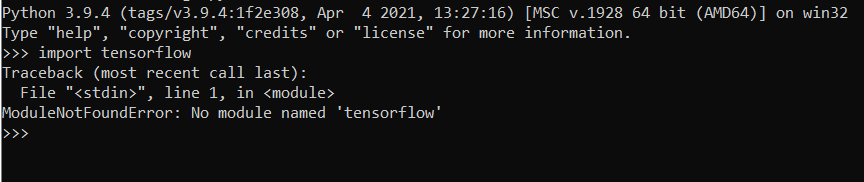
When a module is absent from the external site-library of the environment, the Python interpreter throws ModuleNotFoundError No Module Named Tensorflow. This error arises most of the time on low-end devices because TensorFlow requires proper setup of the c++ path and other requirements. Most of the time, this error is solved by using the pip install method. But if you have multiple Python versions installed, then you’ll definitely face this error.
Why do I get No Module Named Tensorflow Error?
There is no other reason for the No Module Named Tensorflow error other than missing module files. The main problem arises when you’re using multiple python versions and their virtual environment. Keep in mind that, Anaconda, PyCharm, Jupyter, and Spyder have their own virtual environment and it’s tricky to install modules in that environment.
Causes of No Module Named Tensorflow Error
There are some known causes of this ModuleNotFoundError. As Python lets you handle these errors easily, you can debug them quickly. Following are the cause of the No Module Tensorflow error –
Module Not Installed
If you haven’t installed TensorFlow yet and tried importing TensorFlow in code, then it’ll throw this error. Modules are managed by ‘pip’ which is a package management system for your python. Most of the time, the users forget to tick Add Python to the PATH option while installing it. This creates problems in managing the modules.
Supporting Module Not Installed
Tensorflow has many other supporting modules like numpy, scipy, jupyter, matplotlib, pillow, and scikit-learn. If any of these modules is absent, then it’ll throw an error. Make sure that these modules exist in your library.
Moreover, there are other supporting TensorFlow modules like, tensorflow-addons, tensorflow.contrib which might be absent from your library leading to this error.
Tip: To check which libraries are installed in your environment, enter pip list on your console.
Working on Different Virtual Environment
Virtual Environment: Method by which you isolate your working Python environment from the globally installed Python. This environment has its own installation directories and doesn’t share the libraries from globally installed Python.
Many of the code editors in Windows come with their own virtual environment. Each of these environments acts independently to global python installation and is started with blank external modules. Many times, you install a module but it’s installed on global python, not the python from your virtual environment. This can lead to ModuleNotFoundError No Module named Tensorflow in the code execution.
Code editors namely, Anaconda, Jupyter, and Spyder have their own virtual environment. If you have a similar case, head over to the corresponding solution for each code editor.
Solutions for No Module Named Tensorflow
Following are the solutions for this error in each code editor and OS –
Windows
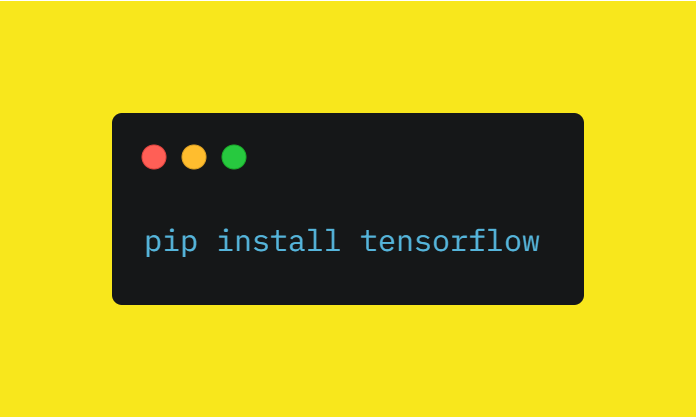
In Windows, the path-related issues harras the programmers all the time. As you have limited functionality over the terminal, you’re constantly facing with ModuleNotFoundError error. To install TensorFlow in your Windows, make sure you follow these steps –
- Uninstall existing python versions to avoid any conflicts.
- Go to Python.org and install the Python setup. Make sure you install the 64-bit version. Unfortunately, Tensorflow is not supported in 32 bit systems.
- Open the installer and select the “Add Python x.x to your PATH” option. This will ensure, that python executes from the path.
- After installing, open the command terminal or PowerShell and enter the command
pip install tensorflowin it. - Wait for it to finish the installation and run your python file by command
python file.py
Linux
In Linux, it’s relatively easier to install TensorFlow. First of all, check if you are working on a virtual environment by a command which python. This command will return the path of python which you’re going to execute. If you are in a virtual environment, either leave the environment directory or enter the command deactivate to deactivate the virtual environment.
Note: Please do not try to uninstall python in Linux as it’ll interfere with your GDM (Graphical Display Manager). Instead, install a new version and then create your own virtual environment.
Follow these steps to install Tensorflow in Linux –
sudo pip3 install tensorflow
Mac
In Mac, No Module named Tensorflow is a persistent error because of environment errors. If you are working on your virtual environment, you need to deactivate and activate it again. Then use the pip list command to check if the TensorFlow module exists in your library. If not, then use the pip3 install tensorflow to install TensorFlow.
Anaconda
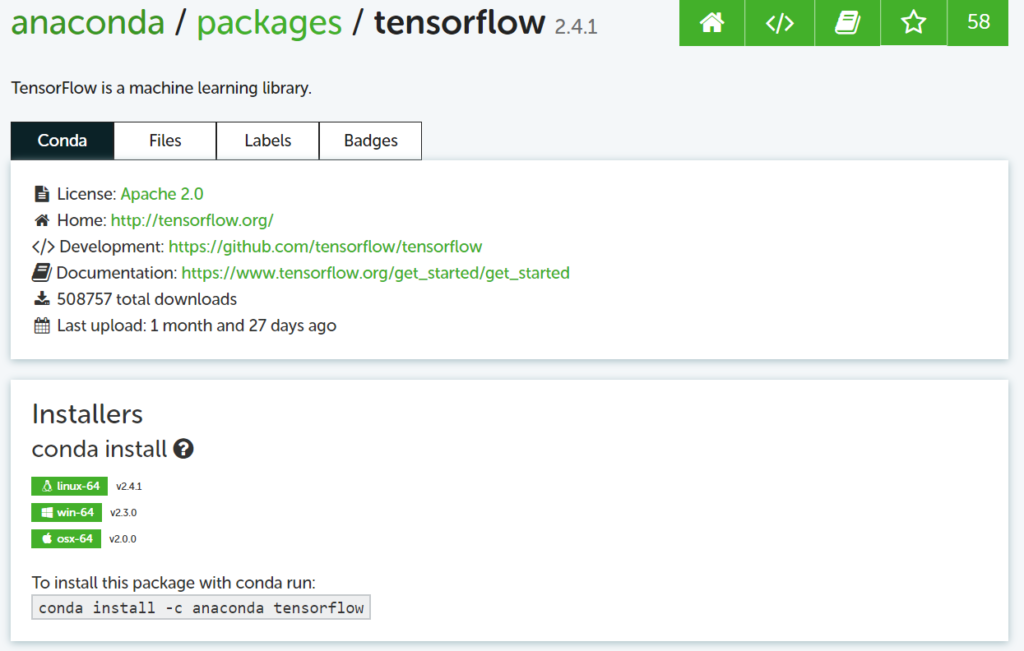
If you’re using Anaconda and you face no module named Tensorflow error, then you probably haven’t installed TensorFlow in the conda environment. As anaconda has a different environment than your default python environment, you need to install TensorFlow in it. To do it follow these steps –
- Open Anaconda Prompt on your computer.
- Enter the command
conda install tensorflowin it. - Wait for the installation to complete and restart the conda shell and run your program.
Jupyter
If you’ve installed Juptyter Notebook from Anaconda, it’ll use a conda environment. By default, the libraries in this environment need to be installed via command. To do the same, open your Conda Prompt and enter the command conda install tensorflow. This will ensure that your Juptyer Notebook has TensorFlow in it.
If your Jupyter is not installed via Anaconda, then use the pip install tensorflow to install the TensorFlow module. This will resolve the error ModuleNotFoundError No module named Tensorflow instantly.
Spyder
Spyder is installed via Anaconda which operates an Anaconda environment. Simply use the command conda install tensorflow in your Anaconda Prompt to install TensorFlow.
PyCharm
PyCharm is a special application that operates in its own virtual environment. Due to the unavailability of the TensorFlow error, you can face the no module found error. Follow these steps to install TensorFlow –
- Press Settings and select the Project Interpreter tab under projects.
- Now enter Tensorflow in the box and install it.
- After installing the package, your error will be resolved.
Supporting ModuleNotFoundError for Tensorflow
Tensorflow has many addons which come in handy to avoid writing long code. These addons and contributions are added separately in other packages and combine with the original TensorFlow module. Following are the examples of ModuleNotFoundError –
No module named ‘tensorflow.contrib’
Unfortunately, the contrib module in TensorFlow is not included in version 2.0. If you still want to use the contrib module, you’ll have to install the previous version of TensorFlow. Follow these steps –
pip uninstall tensorflow
pip install tensorflow==1.13.2
No module named ‘tensorflow_addons’
Use pip install tensorflow-addons to install the addons for TensorFlow.
No Module Named Tensorflow Still Not Resolved?
If you’ve tried all the methods and were still not able to solve the issue then, there might be some hardware limitations. Tensorflow requires Python 3.5-3.7, 64-bit system, and pip>=19.0. If you’re unable to fulfill these hardware + software requirements, then don’t worry, we still have a solution for you!
Google released a free product named ‘Colab‘ in 2018. Colab allows you to run and test machine learning models online. To explain more, it’s a replica of the jupyter notebook with all modules installed. To use Tensorflow in Google Colab follow these steps –
- Sign in to your Google account.
- Open Colab in your browser.
- Create a new Jupyter Notebook. (This notebook will be saved in your google drive).
- Type your code and run it.
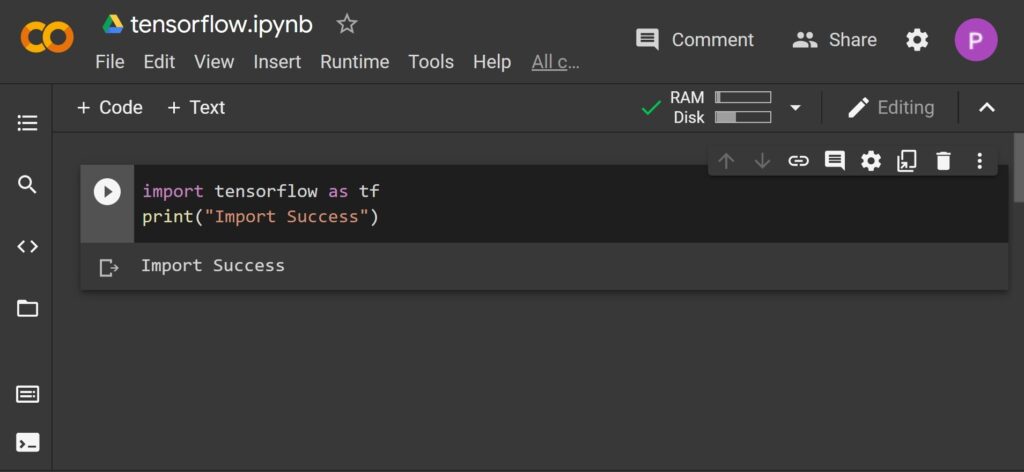
Colab has many libraries like TensorFlow, numpy, pandas, etc pre-installed in its shell. Make sure you make good use of it.
Tip: Do not use Colab to store/process peer-to-peer files. This may result in a ban!
See Also
Conclusion
Tensor flow has a flexible architecture. The easy deployment of the code makes it special in nature. However, we have to be very careful before using it. Any small syntax error can result in incorrect importing of the library.
Python 3.7.5 (default, Oct 31 2019, 15:18:51) [MSC v.1916 64 bit (AMD64)] :: Anaconda, Inc. on win32
Type «help», «copyright», «credits» or «license» for more information.
import tensorflow
Traceback (most recent call last):
File «C:Usersrosha.condaenvsMachineLEarninglibsite-packagestensorflow_corepythonpywrap_tensorflow.py», line 58, in
from tensorflow.python.pywrap_tensorflow_internal import *
File «C:Usersrosha.condaenvsMachineLEarninglibsite-packagestensorflow_corepythonpywrap_tensorflow_internal.py», line 28, in
_pywrap_tensorflow_internal = swig_import_helper()
File «C:Usersrosha.condaenvsMachineLEarninglibsite-packagestensorflow_corepythonpywrap_tensorflow_internal.py», line 24, in swig_import_helper
_mod = imp.load_module(‘_pywrap_tensorflow_internal’, fp, pathname, description)
File «C:Usersrosha.condaenvsMachineLEarninglibimp.py», line 242, in load_module
return load_dynamic(name, filename, file)
File «C:Usersrosha.condaenvsMachineLEarninglibimp.py», line 342, in load_dynamic
return _load(spec)
ImportError: DLL load failed: The specified module could not be found.
During handling of the above exception, another exception occurred:
Traceback (most recent call last):
File «», line 1, in
File «C:Usersrosha.condaenvsMachineLEarninglibsite-packagestensorflow_init_.py», line 101, in
from tensorflow_core import *
File «C:Usersrosha.condaenvsMachineLEarninglibsite-packagestensorflow_core_init_.py», line 40, in
from tensorflow.python.tools import module_util as module_util
File «C:Usersrosha.condaenvsMachineLEarninglibsite-packagestensorflow_init.py», line 50, in getattr
module = self.load()
File «C:Usersrosha.condaenvsMachineLEarninglibsite-packagestensorflow_init.py», line 44, in _load
module = importlib.import_module(self.name)
File «C:Usersrosha.condaenvsMachineLEarninglibimportlib_init.py», line 127, in import_module
return _bootstrap.gcd_import(name[level:], package, level)
File «C:Usersrosha.condaenvsMachineLEarninglibsite-packagestensorflow_corepython_init.py», line 49, in
from tensorflow.python import pywrap_tensorflow
File «C:Usersrosha.condaenvsMachineLEarninglibsite-packagestensorflow_corepythonpywrap_tensorflow.py», line 74, in
raise ImportError(msg)
ImportError: Traceback (most recent call last):
File «C:Usersrosha.condaenvsMachineLEarninglibsite-packagestensorflow_corepythonpywrap_tensorflow.py», line 58, in
from tensorflow.python.pywrap_tensorflow_internal import *
File «C:Usersrosha.condaenvsMachineLEarninglibsite-packagestensorflow_corepythonpywrap_tensorflow_internal.py», line 28, in
_pywrap_tensorflow_internal = swig_import_helper()
File «C:Usersrosha.condaenvsMachineLEarninglibsite-packagestensorflow_corepythonpywrap_tensorflow_internal.py», line 24, in swig_import_helper
_mod = imp.load_module(‘_pywrap_tensorflow_internal’, fp, pathname, description)
File «C:Usersrosha.condaenvsMachineLEarninglibimp.py», line 242, in load_module
return load_dynamic(name, filename, file)
File «C:Usersrosha.condaenvsMachineLEarninglibimp.py», line 342, in load_dynamic
return _load(spec)
ImportError: DLL load failed: The specified module could not be found.
Failed to load the native TensorFlow runtime.
See https://www.tensorflow.org/install/errors
for some common reasons and solutions. Include the entire stack trace
above this error message when asking for help.
exit()
(MachineLEarning) C:UsersroshaDownloadsDocumentsPythonDMProject>pip install tensorflow==2.0.0a0
Collecting tensorflow==2.0.0a0
Downloading https://files.pythonhosted.org/packages/c7/90/cf5e7fbf4a3c14b314e1ed6571eae1f9ad3b5e32a4e24b2b817466435a21/tensorflow-2.0.0a0-cp37-cp37m-win_amd64.whl (49.4MB)
|████████████████████████████████| 49.5MB 139kB/s
Requirement already satisfied: termcolor>=1.1.0 in c:usersrosha.condaenvsmachinelearninglibsite-packages (from tensorflow==2.0.0a0) (1.1.0)
Requirement already satisfied: numpy<2.0,>=1.14.5 in c:usersrosha.condaenvsmachinelearninglibsite-packages (from tensorflow==2.0.0a0) (1.18.2)
Requirement already satisfied: google-pasta>=0.1.2 in c:usersrosha.condaenvsmachinelearninglibsite-packages (from tensorflow==2.0.0a0) (0.2.0)
Requirement already satisfied: gast>=0.2.0 in c:usersrosha.condaenvsmachinelearninglibsite-packages (from tensorflow==2.0.0a0) (0.2.2)
Collecting tb-nightly<1.14.0a20190302,>=1.14.0a20190301
Downloading https://files.pythonhosted.org/packages/a9/51/aa1d756644bf4624c03844115e4ac4058eff77acd786b26315f051a4b195/tb_nightly-1.14.0a20190301-py3-none-any.whl (3.0MB)
|████████████████████████████████| 3.0MB 156kB/s
Requirement already satisfied: wheel>=0.26 in c:usersrosha.condaenvsmachinelearninglibsite-packages (from tensorflow==2.0.0a0) (0.34.2)
Requirement already satisfied: protobuf>=3.6.1 in c:usersrosha.condaenvsmachinelearninglibsite-packages (from tensorflow==2.0.0a0) (3.11.3)
Requirement already satisfied: absl-py>=0.7.0 in c:usersrosha.condaenvsmachinelearninglibsite-packages (from tensorflow==2.0.0a0) (0.9.0)
Requirement already satisfied: six>=1.10.0 in c:usersrosha.condaenvsmachinelearninglibsite-packages (from tensorflow==2.0.0a0) (1.14.0)
Requirement already satisfied: keras-preprocessing>=1.0.5 in c:usersrosha.condaenvsmachinelearninglibsite-packages (from tensorflow==2.0.0a0) (1.1.0)
Requirement already satisfied: astor>=0.6.0 in c:usersrosha.condaenvsmachinelearninglibsite-packages (from tensorflow==2.0.0a0) (0.8.1)
Requirement already satisfied: keras-applications>=1.0.6 in c:usersrosha.condaenvsmachinelearninglibsite-packages (from tensorflow==2.0.0a0) (1.0.8)
Requirement already satisfied: grpcio>=1.8.6 in c:usersrosha.condaenvsmachinelearninglibsite-packages (from tensorflow==2.0.0a0) (1.28.1)
Collecting tf-estimator-nightly<1.14.0.dev2019030116,>=1.14.0.dev2019030115
Downloading https://files.pythonhosted.org/packages/13/82/f16063b4eed210dc2ab057930ac1da4fbe1e91b7b051a6c8370b401e6ae7/tf_estimator_nightly-1.14.0.dev2019030115-py2.py3-none-any.whl (411kB)
|████████████████████████████████| 419kB 182kB/s
Requirement already satisfied: werkzeug>=0.11.15 in c:usersrosha.condaenvsmachinelearninglibsite-packages (from tb-nightly<1.14.0a20190302,>=1.14.0a20190301->tensorflow==2.0.0a0) (1.0.1)
Requirement already satisfied: markdown>=2.6.8 in c:usersrosha.condaenvsmachinelearninglibsite-packages (from tb-nightly<1.14.0a20190302,>=1.14.0a20190301->tensorflow==2.0.0a0) (3.2.1)
Requirement already satisfied: setuptools in c:usersrosha.condaenvsmachinelearninglibsite-packages (from protobuf>=3.6.1->tensorflow==2.0.0a0) (46.1.3)
Requirement already satisfied: h5py in c:usersrosha.condaenvsmachinelearninglibsite-packages (from keras-applications>=1.0.6->tensorflow==2.0.0a0) (2.10.0)
Installing collected packages: tb-nightly, tf-estimator-nightly, tensorflow
Found existing installation: tensorflow 2.1.0
Uninstalling tensorflow-2.1.0:
Successfully uninstalled tensorflow-2.1.0
Successfully installed tb-nightly-1.14.0a20190301 tensorflow-2.0.0a0 tf-estimator-nightly-1.14.0.dev2019030115
(MachineLEarning) C:UsersroshaDownloadsDocumentsPythonDMProject>python
Python 3.7.5 (default, Oct 31 2019, 15:18:51) [MSC v.1916 64 bit (AMD64)] :: Anaconda, Inc. on win32
Type «help», «copyright», «credits» or «license» for more information.
import tensorflow
C:Usersrosha.condaenvsMachineLEarninglibsite-packagestensorflowpythonframeworkdtypes.py:523: FutureWarning: Passing (type, 1) or ‘1type’ as a synonym of type is deprecated; in a future version of numpy, it will be understood as (type, (1,)) / ‘(1,)type’.
_np_qint8 = np.dtype([(«qint8», np.int8, 1)])
C:Usersrosha.condaenvsMachineLEarninglibsite-packagestensorflowpythonframeworkdtypes.py:524: FutureWarning: Passing (type, 1) or ‘1type’ as a synonym of type is deprecated; in a future version of numpy, it will be understood as (type, (1,)) / ‘(1,)type’.
_np_quint8 = np.dtype([(«quint8», np.uint8, 1)])
C:Usersrosha.condaenvsMachineLEarninglibsite-packagestensorflowpythonframeworkdtypes.py:525: FutureWarning: Passing (type, 1) or ‘1type’ as a synonym of type is deprecated; in a future version of numpy, it will be understood as (type, (1,)) / ‘(1,)type’.
_np_qint16 = np.dtype([(«qint16», np.int16, 1)])
C:Usersrosha.condaenvsMachineLEarninglibsite-packagestensorflowpythonframeworkdtypes.py:526: FutureWarning: Passing (type, 1) or ‘1type’ as a synonym of type is deprecated; in a future version of numpy, it will be understood as (type, (1,)) / ‘(1,)type’.
_np_quint16 = np.dtype([(«quint16», np.uint16, 1)])
C:Usersrosha.condaenvsMachineLEarninglibsite-packagestensorflowpythonframeworkdtypes.py:527: FutureWarning: Passing (type, 1) or ‘1type’ as a synonym of type is deprecated; in a future version of numpy, it will be understood as (type, (1,)) / ‘(1,)type’.
_np_qint32 = np.dtype([(«qint32», np.int32, 1)])
C:Usersrosha.condaenvsMachineLEarninglibsite-packagestensorflowpythonframeworkdtypes.py:532: FutureWarning: Passing (type, 1) or ‘1type’ as a synonym of type is deprecated; in a future version of numpy, it will be understood as (type, (1,)) / ‘(1,)type’.
np_resource = np.dtype([(«resource», np.ubyte, 1)])
C:Usersrosha.condaenvsMachineLEarninglibsite-packagestensorboardcompattensorflow_stubdtypes.py:541: FutureWarning: Passing (type, 1) or ‘1type’ as a synonym of type is deprecated; in a future version of numpy, it will be understood as (type, (1,)) / ‘(1,)type’.
_np_qint8 = np.dtype([(«qint8», np.int8, 1)])
C:Usersrosha.condaenvsMachineLEarninglibsite-packagestensorboardcompattensorflow_stubdtypes.py:542: FutureWarning: Passing (type, 1) or ‘1type’ as a synonym of type is deprecated; in a future version of numpy, it will be understood as (type, (1,)) / ‘(1,)type’.
_np_quint8 = np.dtype([(«quint8», np.uint8, 1)])
C:Usersrosha.condaenvsMachineLEarninglibsite-packagestensorboardcompattensorflow_stubdtypes.py:543: FutureWarning: Passing (type, 1) or ‘1type’ as a synonym of type is deprecated; in a future version of numpy, it will be understood as (type, (1,)) / ‘(1,)type’.
_np_qint16 = np.dtype([(«qint16», np.int16, 1)])
C:Usersrosha.condaenvsMachineLEarninglibsite-packagestensorboardcompattensorflow_stubdtypes.py:544: FutureWarning: Passing (type, 1) or ‘1type’ as a synonym of type is deprecated; in a future version of numpy, it will be understood as (type, (1,)) / ‘(1,)type’.
_np_quint16 = np.dtype([(«quint16», np.uint16, 1)])
C:Usersrosha.condaenvsMachineLEarninglibsite-packagestensorboardcompattensorflow_stubdtypes.py:545: FutureWarning: Passing (type, 1) or ‘1type’ as a synonym of type is deprecated; in a future version of numpy, it will be understood as (type, (1,)) / ‘(1,)type’.
_np_qint32 = np.dtype([(«qint32», np.int32, 1)])
C:Usersrosha.condaenvsMachineLEarninglibsite-packagestensorboardcompattensorflow_stubdtypes.py:550: FutureWarning: Passing (type, 1) or ‘1type’ as a synonym of type is deprecated; in a future version of numpy, it will be understood as (type, (1,)) / ‘(1,)type’.
np_resource = np.dtype([(«resource», np.ubyte, 1)])
import tensorflow as tf
import tensorflow as tf
import tensorflow
tensorflow —version
Traceback (most recent call last):
File «», line 1, in
NameError: name ‘version’ is not defined
tf.VERSION
Traceback (most recent call last):
File «», line 1, in
AttributeError: module ‘tensorflow’ has no attribute ‘VERSION’
x1 = tf.constant([1,2,3,4])
2020-04-17 07:27:33.083319: I tensorflow/core/platform/cpu_feature_guard.cc:142] Your CPU supports instructions that this TensorFlow binary was not compiled to use: AVX2
x1 = tf.constant([1])
x2 = tf.constant([5])
result = tf.multiply(x1,x2)
print(result)
tf.Tensor([5], shape=(1,), dtype=int32)
a = tf.constant([3,4])
b = tf.constant([45,8])
print(tf.mu;tiply(a,b))
File «», line 1
print(tf.mu;tiply(a,b))
^
SyntaxError: invalid syntax
print(tf.multiply(a,b))
tf.Tensor([135 32], shape=(2,), dtype=int32)
x1 = tf.constant([1,2,3,4])
x2 = tf.constant([5,6,7,8])
result = tf.multiply(x1, x2)
print(result)
tf.Tensor([ 5 12 21 32], shape=(4,), dtype=int32)
I installed TensorFlow on my Windows Python 3.5 Anaconda environment
The validation was successful (with a warning)
(tensorflow) C:>python
Python 3.5.3 |Intel Corporation| (default, Apr 27 2017, 17:03:30) [MSC v.1900 64 bit (AMD64)] on win32
Type «help», «copyright», «credits» or «license» for more information.
Intel(R) Distribution for Python is brought to you by Intel Corporation.
Please check out: https://software.intel.com/en-us/python-distribution
>>> import tensorflow as tf
>>> hello = tf.constant('Hello, TensorFlow!')
>>> sess = tf.Session()
2017-10-04 11:06:13.569696: W C:tf_jenkinshomeworkspacerel-winMwindowsPY35tensorflowcoreplatformcpu_feature_guard.cc:45] The TensorFlow library wasn’t compiled to use AVX instructions, but these are available on your machine and could speed up CPU computations.
>>> print(sess.run(hello))
b’Hello, TensorFlow!’
However, when I attempt to import it into my python code
from __future__ import print_function, division
import numpy as np
import os
import matplotlib
import tensorflow as tf
I get this error
ImportError: No module named ‘tensorflow’
This is the location of the tensorflow package on my C drive
C:UsersmynameAnaconda2envstensorflowLibsite-packagestensorflow
When I go to Anaconda Navigator, it seems I have to choose either root, Python35, or Tensorflow. It looks like the Tensorflow environment includes Python35.
Anaconda Navigator launcher had to be reinstalled recently, possibly due to the Tensorflow installation. Maybe if there were another way to set the environment to Tensorflow within Anaconda /Spyder IDE other than the Navigator it might help
Method of installing tensorflow
conda create --name tensorflow python=3.5;
pip install --ignore-installed --upgrade tensorflow
I did try:
uninstalling and reinstalling protobuf, as suggesed by some blogs
I see another SO user asked the same question in March, received no reply
The “ModuleNotFoundError: No module named ‘tensorflow’” error in Python shows that Python cannot find the module ‘tensorflow’ that is imported in your code or some packages your code imports. This tutorial will show you how to fix the error by installing ‘tensorflow’ in your environment.
When you run your Python code, the Python runtime will look for all the packages or modules you import to your code and their dependencies. If the runtime cannot find a module, it will throw a ModuleNotFoundError. The error “ModuleNotFoundError: No module named ‘tensorflow’” show that Python cannot find ‘tensorflow’ in your environment, so you need to install it to run your code correctly. Here I have an example code that imports ‘tensorflow’ and prints its version. You will get the error if you run this code in a Python environment without ‘tensorflow’ installed.
Example code:
import tensorflow as tf
print("Tensorflow version:", tf.__version__)
Output:
Traceback (most recent call last):
  File "main.py", line 1, in <module>
    import tensorflow as tf
ModuleNotFoundError: No module named 'tensorflow'
How to solve the error?
Method 1: Install tensorflow directly with pip
Pip is the package installer for Python that comes with Python when you install Python on your machine. You can check the version of pip by the following command in your terminal of Linux/MacOS or the Command prompt of Windows.
pip --versionOutput:
pip 21.1.3 from <the path where pip installed on your machine>To install ‘tensorflow’ using pip, you can easily run this command.
pip install tensorflowYou can also specify the ‘tensorflow’ version that you want to install like this.
pip install tensorflow==2.10.0After successfully installing ‘tensorflow’, you can use it in your code as you want.
Example code:
import tensorflow as tf
print("Tensorflow version:", tf.__version__)
Output:
Tensorflow version: 2.10.0Method 2: Install tensorflow in a python virtual environment
It is recommended to install the packages that you need for different projects in different environments because you may want to use different versions of a package in your projects. Using different environments helps to keep the packages not conflict with each other. You can create and activate a virtual environment by the following steps.
- Step 1: Install virtualenv package
pip install virtualenv- Step 2: Create the environment folder where the packages will be installed
python -m venv env- Step 3: Activate the environment
On Linux/MacOS:
source env/bin/activateOn Windows:
cd env/Scripts
activate.bat
Step 2 will create an environment folder name env in the directory where you run the command. After activating your environment, you can normally install ‘tensorflow’ using the pip command:
pip install tensorflowMethod 3: Install tensorflow using conda
Another way to create python environments is using conda. You can download and install the conda by following this instruction. After installing conda, you can create a new environment by the command:
conda create -n myenv pythonThen, you can activate your environment:
conda activate myenvFinally, you can install ‘tensorflow’ using pip or conda if you want.
conda install -c conda-forge tensorflowSummary
In this tutorial, I’ve showed you how to solve the error “ModuleNotFoundError: No module named ‘tensorflow’” In Python. You can install ‘tensorflow’ directly with pip, but it is recommended to create an environment by the Python virtualenv or conda.
Maybe you are interested in similar errors:
- No module named ‘pkg_resources’ in Python
- How To ModuleNotFoundError: No Module Named ‘absl’ In Python

Hello, I’m Joseph Stanley. My major is IT and I want to share programming languages to you. If you have difficulty with JavaScript, TypeScript, C#, Python, C, C++, Java, let’s follow my articles. They are helpful for you.
Job: Developer
Name of the university: HUST
Major: IT
Programming Languages: JavaScript, TypeScript, C#, Python, C, C++, Java
TensorFlow uses GitHub issues,
Stack Overflow and
TensorFlow Forum
to track, document, and discuss build and installation problems.
The following list links error messages to a solution or discussion. If you find
an installation or build problem that is not listed, please search the GitHub
issues and Stack Overflow. If you still can’t find the error message, ask a new
question on Stack Overflow with the tensorflow tag.
| GitHub issue or Stack Overflow | Error Message |
|---|---|
| 38896424 31058 |
«No matching distribution found for tensorflow»: Pip can’t find a TensorFlow package compatible with your system. Check the system requirements and Python version |
| 22390 |
Unzipping simple_console_for_windows.zip to create runfiles tree...
[./bazel-bin/tensorflow/tools/pip_package/simple_console_for_windows.zip]
  End-of-central-directory signature not found.  Either this file is not
  a zipfile, or it constitutes one disk of a multi-part archive.  In the
  latter case the central directory and zipfile comment will be found on
  the last disk(s) of this archive.
unzip: cannot find zipfile directory in one of ./bazel-bin/tensorflow/tools/pip_package/simple_console_for_windows.zip or
        ./bazel-bin/tensorflow/tools/pip_package/simple_console_for_windows.zip.zip, and cannot find ./bazel-bin/tensorflow/tools/pip_package/simple_console_for_windows.zip.ZIP, period.
|
| 36159194 |
ImportError: libcudart.so.Version: cannot open shared object file: No such file or directory |
| 41991101 |
ImportError: libcudnn.Version: cannot open shared object file: No such file or directory |
| 36371137 |
libprotobuf ERROR google/protobuf/src/google/protobuf/io/coded_stream.cc:207] A protocol message was rejected because it was too big (more than 67108864 bytes). To increase the limit (or to disable these warnings), see CodedInputStream::SetTotalBytesLimit() in google/protobuf/io/coded_stream.h. |
| 35252888 |
Error importing tensorflow. Unless you are using bazel, you should not try to import tensorflow from its source directory; please exit the tensorflow source tree, and relaunch your python interpreter from there. |
| 33623453 |
IOError: [Errno 2] No such file or directory: '/tmp/pip-o6Tpui-build/setup.py' |
| 42006320 |
ImportError: Traceback (most recent call last): File ".../tensorflow/core/framework/graph_pb2.py", line 6, in from google.protobuf import descriptor as _descriptor ImportError: cannot import name 'descriptor' |
| 35190574 |
SSLError: [SSL: CERTIFICATE_VERIFY_FAILED] certificate verify failed |
| 42009190 |
Installing collected packages: setuptools, protobuf, wheel, numpy, tensorflow Found existing installation: setuptools 1.1.6 Uninstalling setuptools-1.1.6: Exception: ... [Errno 1] Operation not permitted: '/tmp/pip-a1DXRT-uninstall/.../lib/python/_markerlib' |
| 36933958 |
... Installing collected packages: setuptools, protobuf, wheel, numpy, tensorflow Found existing installation: setuptools 1.1.6 Uninstalling setuptools-1.1.6: Exception: ... [Errno 1] Operation not permitted: '/tmp/pip-a1DXRT-uninstall/System/Library/Frameworks/Python.framework/ Versions/2.7/Extras/lib/python/_markerlib' |
| 42006320 |
ImportError: Traceback (most recent call last): File ".../tensorflow/core/framework/graph_pb2.py", line 6, in from google.protobuf import descriptor as _descriptor ImportError: cannot import name 'descriptor' |
| 33623453 |
IOError: [Errno 2] No such file or directory: '/tmp/pip-o6Tpui-build/setup.py' |
| 35190574 |
SSLError: [SSL: CERTIFICATE_VERIFY_FAILED] certificate verify failed |
| 42009190 |
Installing collected packages: setuptools, protobuf, wheel, numpy, tensorflow Found existing installation: setuptools 1.1.6 Uninstalling setuptools-1.1.6: Exception: ... [Errno 1] Operation not permitted: '/tmp/pip-a1DXRT-uninstall/.../lib/python/_markerlib' |
| 33622019 |
ImportError: No module named copyreg |
| 37810228 | During a pip install operation, the system returns:
OSError: [Errno 1] Operation not permitted |
| 33622842 | An import tensorflow statement triggers an error such as the following: Traceback (most recent call last):
File "", line 1, in
File "/usr/local/lib/python2.7/site-packages/tensorflow/__init__.py",
line 4, in
from tensorflow.python import *
...
File "/usr/local/lib/python2.7/site-packages/tensorflow/core/framework/tensor_shape_pb2.py",
line 22, in
serialized_pb=_b('n,tensorflow/core/framework/tensor_shape.protox12ntensorflow"dnx10TensorShapeProtox12-nx03x64imx18x02
x03(x0bx32
.tensorflow.TensorShapeProto.Dimx1a!nx03x44imx12x0cnx04sizex18x01
x01(x03x12x0cnx04namex18x02 x01(tbx06proto3')
TypeError: __init__() got an unexpected keyword argument 'syntax'
|
| 42075397 | A pip install command triggers the following error:
...
You have not agreed to the Xcode license agreements, please run
'xcodebuild -license' (for user-level acceptance) or
'sudo xcodebuild -license' (for system-wide acceptance) from within a
Terminal window to review and agree to the Xcode license agreements.
...
  File "numpy/core/setup.py", line 653, in get_mathlib_info

    raise RuntimeError("Broken toolchain: cannot link a simple C program")

RuntimeError: Broken toolchain: cannot link a simple C program
|
| 41007279 |
[...stream_executordso_loader.cc] Couldn't open CUDA library nvcuda.dll |
| 41007279 |
[...stream_executorcudacuda_dnn.cc] Unable to load cuDNN DSO |
| 42006320 |
ImportError: Traceback (most recent call last): File "...tensorflowcoreframeworkgraph_pb2.py", line 6, in from google.protobuf import descriptor as _descriptor ImportError: cannot import name 'descriptor' |
| 42011070 |
No module named "pywrap_tensorflow" |
| 42217532 |
OpKernel ('op: "BestSplits" device_type: "CPU"') for unknown op: BestSplits
|
| 43134753 |
The TensorFlow library wasn't compiled to use SSE instructions |
| 38896424 |
Could not find a version that satisfies the requirement tensorflow |
| 42006320 |
ImportError: Traceback (most recent call last): File ".../tensorflow/core/framework/graph_pb2.py", line 6, in from google.protobuf import descriptor as _descriptor ImportError: cannot import name 'descriptor' |
| 33623453 |
IOError: [Errno 2] No such file or directory: '/tmp/pip-o6Tpui-build/setup.py' |
| 35190574 |
SSLError: [SSL: CERTIFICATE_VERIFY_FAILED] certificate verify failed |
| 42009190 |
Installing collected packages: setuptools, protobuf, wheel, numpy, tensorflow Found existing installation: setuptools 1.1.6 Uninstalling setuptools-1.1.6: Exception: ... [Errno 1] Operation not permitted: '/tmp/pip-a1DXRT-uninstall/.../lib/python/_markerlib' |
| 33622019 |
ImportError: No module named copyreg |
| 37810228 | During a pip install operation, the system returns:
OSError: [Errno 1] Operation not permitted |
| 33622842 | An import tensorflow statement triggers an error such as the following: Traceback (most recent call last):
File "", line 1, in
File "/usr/local/lib/python2.7/site-packages/tensorflow/__init__.py",
line 4, in
from tensorflow.python import *
...
File "/usr/local/lib/python2.7/site-packages/tensorflow/core/framework/tensor_shape_pb2.py",
line 22, in
serialized_pb=_b('n,tensorflow/core/framework/tensor_shape.protox12ntensorflow"dnx10TensorShapeProtox12-nx03x64imx18x02
x03(x0bx32
.tensorflow.TensorShapeProto.Dimx1a!nx03x44imx12x0cnx04sizex18x01
x01(x03x12x0cnx04namex18x02 x01(tbx06proto3')
TypeError: __init__() got an unexpected keyword argument 'syntax'
|
| 41293077 |
W tensorflow/core/platform/cpu_feature_guard.cc:45] The TensorFlow library wasn't compiled to use SSE4.1 instructions, but these are available on your machine and could speed up CPU computations. |
| 42013316 |
ImportError: libcudart.so.8.0: cannot open shared object file: No such file or directory |
| 42013316 |
ImportError: libcudnn.5: cannot open shared object file: No such file or directory |
| 35953210 | Invoking `python` or `ipython` generates the following error:
ImportError: cannot import name pywrap_tensorflow |
| 45276830 |
external/local_config_cc/BUILD:50:5: in apple_cc_toolchain rule @local_config_cc//:cc-compiler-darwin_x86_64: Xcode version must be specified to use an Apple CROSSTOOL. |
| 47080760 |
undefined reference to `cublasGemmEx@libcublas.so.9.0' |
| 22512 |
ModuleNotFoundError: No module named 'tensorflow.python._pywrap_tensorflow_internal' |
| 22512, 22794 |
ImportError: DLL load failed: The specified module could not be found. |
| 24835 |
Could not install packages due to an EnvironmentError: [Errno 2] No such file or directory: [long path name] |
Quick Fix: Python raises the ImportError: No module named 'tensorflow' when it cannot find the library tensorflow. The most frequent source of this error is that you haven’t installed tensorflow explicitly with pip install tensorflow. Alternatively, you may have different Python versions on your computer, and tensorflow is not installed for the particular version you’re using.
Problem Formulation
You’ve just learned about the awesome capabilities of the tensorflow library and you want to try it out, so you start your code with the following statement:
import tensorflow
This is supposed to import the Pandas library into your (virtual) environment. However, it only throws the following ImportError: No module named tensorflow:
>>> import tensorflow
Traceback (most recent call last):
  File "<pyshell#6>", line 1, in <module>
    import tensorflow
ModuleNotFoundError: No module named 'tensorflow'
Solution Idea 1: Install Library tensorflow
The most likely reason is that Python doesn’t provide tensorflow in its standard library. You need to install it first!
Before being able to import the Pandas module, you need to install it using Python’s package manager pip. Make sure pip is installed on your machine.
To fix this error, you can run the following command in your Windows shell:
$ pip install tensorflow
This simple command installs tensorflow in your virtual environment on Windows, Linux, and MacOS. It assumes that your pip version is updated. If it isn’t, use the following two commands in your terminal, command line, or shell (there’s no harm in doing it anyways):
$ python -m pip install --upgrade pip
$ pip install pandas
💡 Note: Don’t copy and paste the $ symbol. This is just to illustrate that you run it in your shell/terminal/command line.
Solution Idea 2: Fix the Path
The error might persist even after you have installed the tensorflow library. This likely happens because pip is installed but doesn’t reside in the path you can use. Although pip may be installed on your system the script is unable to locate it. Therefore, it is unable to install the library using pip in the correct path.
To fix the problem with the path in Windows follow the steps given next.
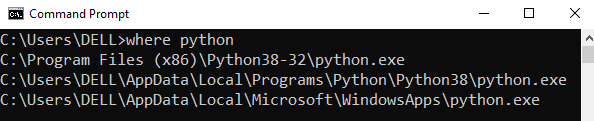
Step 1: Open the folder where you installed Python by opening the command prompt and typing where python
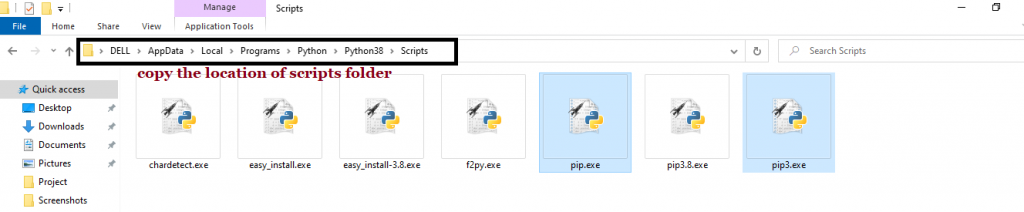
Step 2: Once you have opened the Python folder, browse and open the Scripts folder and copy its location. Also verify that the folder contains the pip file.
Step 3: Now open the Scripts directory in the command prompt using the cd command and the location that you copied previously.

Step 4: Now install the library using pip install tensorflow command. Here’s an analogous example:
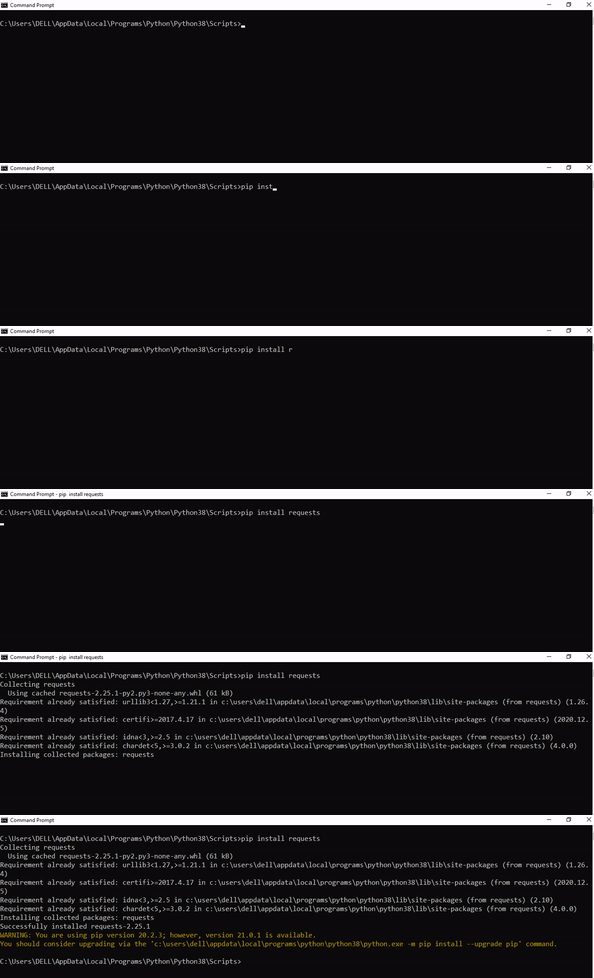
After having followed the above steps, execute our script once again. And you should get the desired output.
Other Solution Ideas
- The
ModuleNotFoundErrormay appear due to relative imports. You can learn everything about relative imports and how to create your own module in this article. - You may have mixed up Python and pip versions on your machine. In this case, to install
tensorflowfor Python 3, you may want to trypython3 -m pip install tensorflowor evenpip3 install tensorflowinstead ofpip install tensorflow - If you face this issue server-side, you may want to try the command
pip install --user tensorflow - If you’re using Ubuntu, you may want to try this command:
sudo apt install tensorflow - You can check out our in-depth guide on installing
tensorflowhere. - You can also check out this article to learn more about possible problems that may lead to an error when importing a library.
Understanding the “import” Statement
import tensorflow
In Python, the import statement serves two main purposes:
- Search the module by its name, load it, and initialize it.
- Define a name in the local namespace within the scope of the
importstatement. This local name is then used to reference the accessed module throughout the code.
What’s the Difference Between ImportError and ModuleNotFoundError?
What’s the difference between ImportError and ModuleNotFoundError?
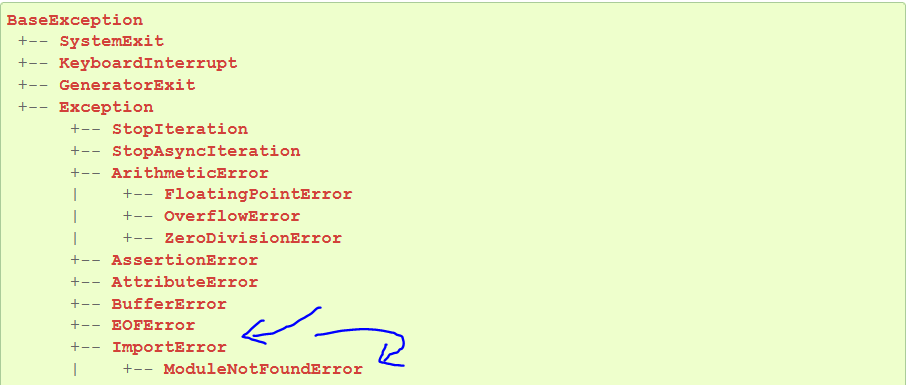
Python defines an error hierarchy, so some error classes inherit from other error classes. In our case, the ModuleNotFoundError is a subclass of the ImportError class.
You can see this in this screenshot from the docs:
You can also check this relationship using the issubclass() built-in function:
>>> issubclass(ModuleNotFoundError, ImportError)
True
Specifically, Python raises the ModuleNotFoundError if the module (e.g., tensorflow) cannot be found. If it can be found, there may be a problem loading the module or some specific files within the module. In those cases, Python would raise an ImportError.
If an import statement cannot import a module, it raises an ImportError. This may occur because of a faulty installation or an invalid path. In Python 3.6 or newer, this will usually raise a ModuleNotFoundError.
Related Videos
The following video shows you how to resolve the ImportError:
How to Fix : “ImportError: Cannot import name X” in Python?
The following video shows you how to import a function from another folder—doing it the wrong way often results in the ModuleNotFoundError:
How to Call a Function from Another File in Python?
How to Fix “ModuleNotFoundError: No module named ‘tensorflow’” in PyCharm
If you create a new Python project in PyCharm and try to import the tensorflow library, it’ll raise the following error message:
Traceback (most recent call last):
  File "C:/Users/.../main.py", line 1, in <module>
    import tensorflow
ModuleNotFoundError: No module named 'tensorflow'

Process finished with exit code 1
The reason is that each PyCharm project, per default, creates a virtual environment in which you can install custom Python modules. But the virtual environment is initially empty—even if you’ve already installed tensorflow on your computer!
Here’s a screenshot exemplifying this for the pandas library. It’ll look similar for tensorflow.
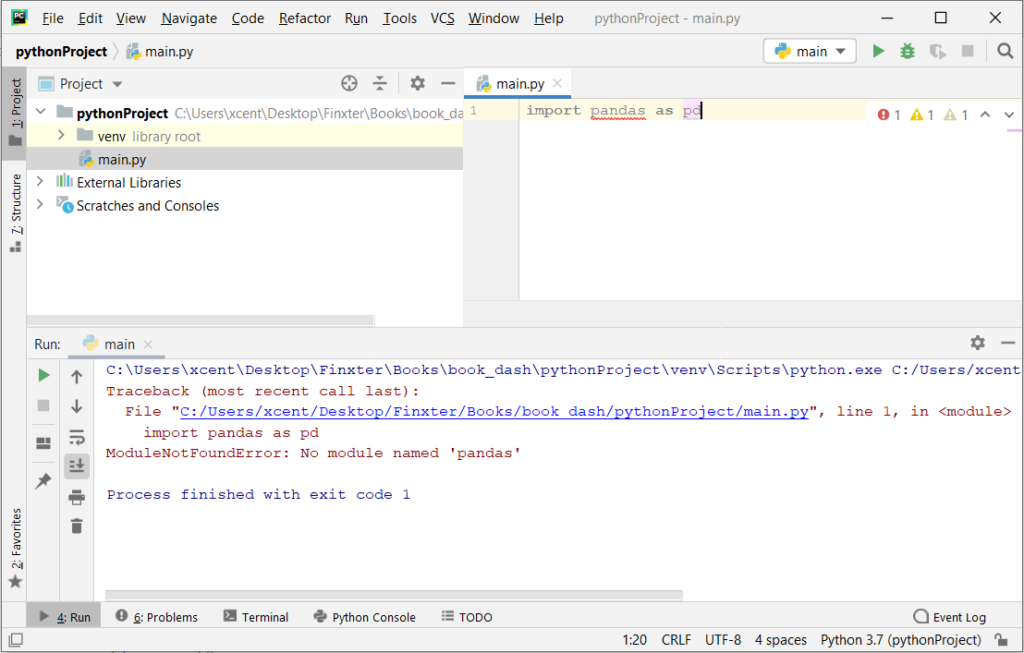
The fix is simple: Use the PyCharm installation tooltips to install Pandas in your virtual environment—two clicks and you’re good to go!
First, right-click on the pandas text in your editor:
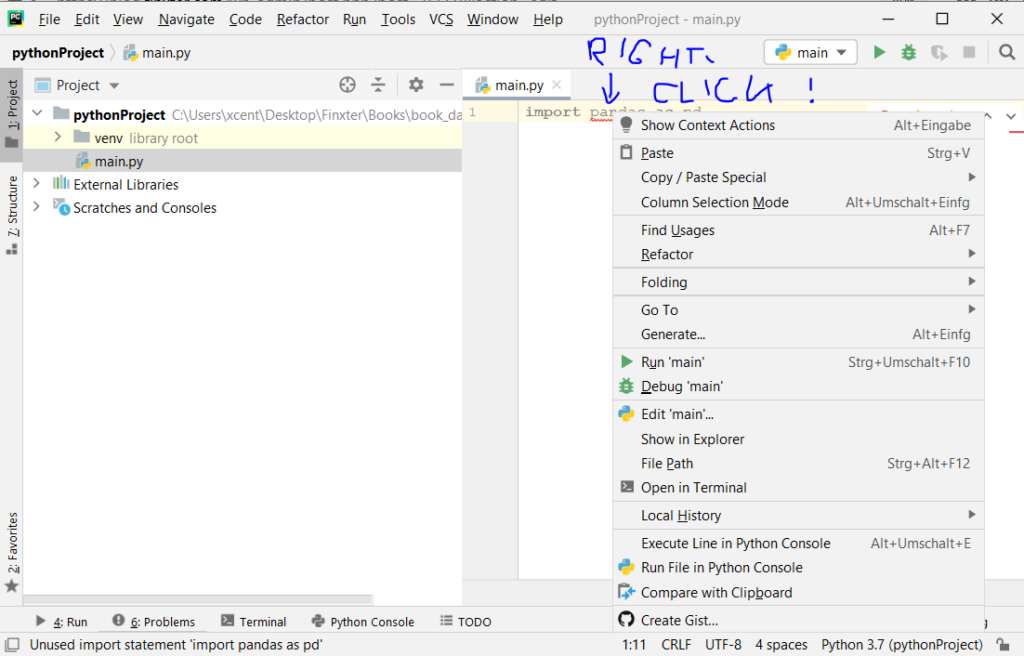
Second, click “Show Context Actions” in your context menu. In the new menu that arises, click “Install Pandas” and wait for PyCharm to finish the installation.
The code will run after your installation completes successfully.
As an alternative, you can also open the Terminal tool at the bottom and type:
$ pip install tensorflow
If this doesn’t work, you may want to set the Python interpreter to another version using the following tutorial: https://www.jetbrains.com/help/pycharm/2016.1/configuring-python-interpreter-for-a-project.html
You can also manually install a new library such as tensorflow in PyCharm using the following procedure:
- Open
File > Settings > Projectfrom the PyCharm menu. - Select your current project.
- Click the
Python Interpretertab within your project tab. - Click the small
+symbol to add a new library to the project. - Now type in the library to be installed, in your example Pandas, and click
Install Package. - Wait for the installation to terminate and close all popup windows.
Here’s an analogous example:
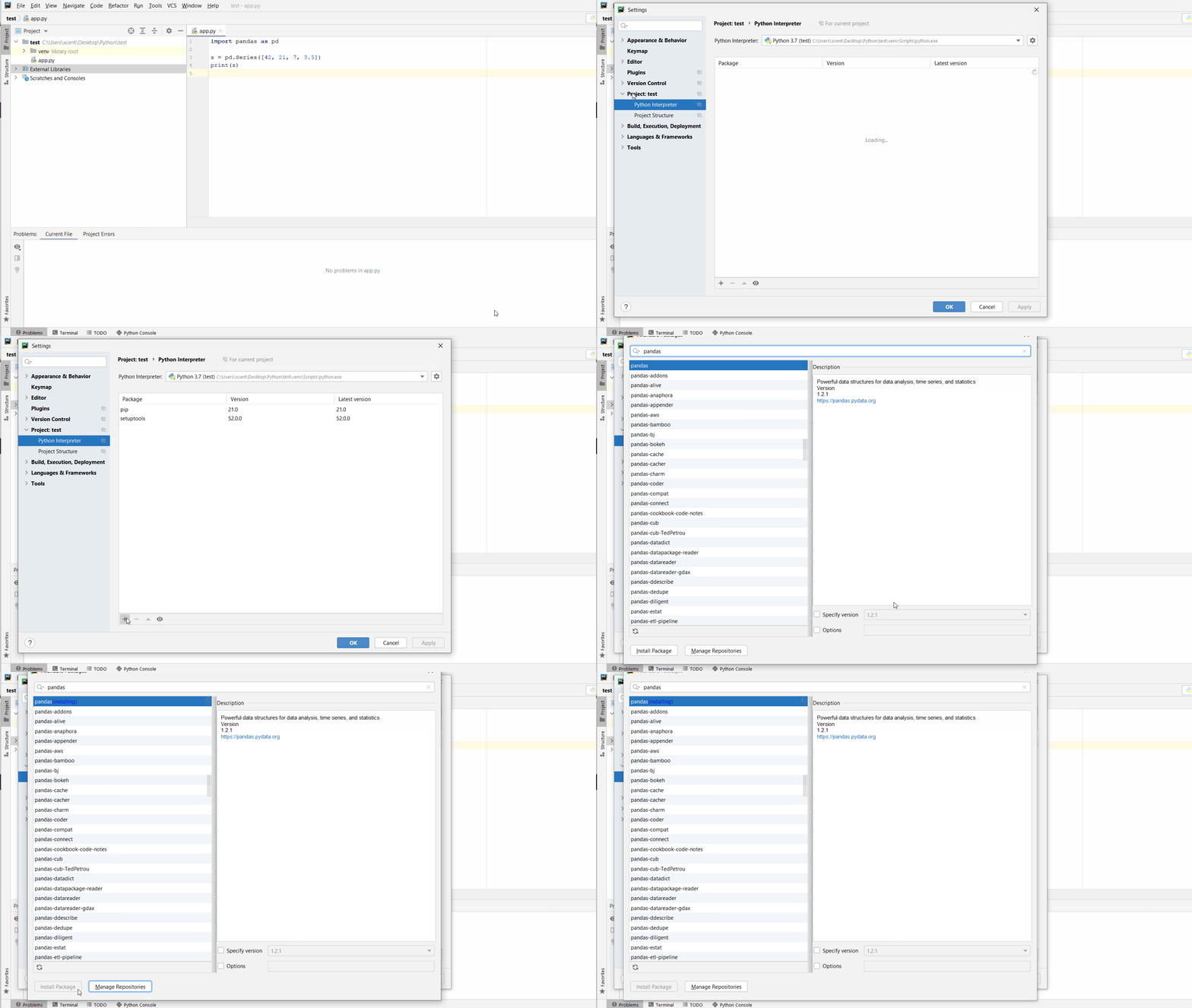
Here’s a full guide on how to install a library on PyCharm.
- How to Install a Library on PyCharm

While working as a researcher in distributed systems, Dr. Christian Mayer found his love for teaching computer science students.
To help students reach higher levels of Python success, he founded the programming education website Finxter.com. He’s author of the popular programming book Python One-Liners (NoStarch 2020), coauthor of the Coffee Break Python series of self-published books, computer science enthusiast, freelancer, and owner of one of the top 10 largest Python blogs worldwide.
His passions are writing, reading, and coding. But his greatest passion is to serve aspiring coders through Finxter and help them to boost their skills. You can join his free email academy here.
If you get an ImportError or ModuleNotFoundError for TensorFlow, you almost certainly failed to install it correctly in the Python environment you’re using. That means either a) you failed to install TensorFlow or b) you installed it in the wrong environment. Don’t worry! It’s a very common mistake.
Failure to install TensorFlow is beyond the scope of this post. Early versions of the package were indeed difficult to install, but recent versions should all be installable with pip. If that doesn’t work for you, then you should probably just use Docker.
But installing it in the wrong environment is more interesting. One problem with Python is that you will often need multiple different environments on your machine. This makes it easy to install things in the wrong environment, making them inaccessible to the program you’re trying to run.
Quick hacks
If you’re in a Jupyter notebook, you can quickly install TensorFlow in the environment running the kernel with the following cell:
import sys

!$sys.executable -m pip install tensorflow
The ! runs a shell command, the $ passes Python variables into the shell command and sys.executable returns the path to the Python interpreter for the current environment.
If you just need it in the main Python on your local machine, you can run the equivalent command:
python -m pip install tensorflowMake sure python is pointing to the interpreter you actually want to use.
Better solutions
A better solution is to use a new Anaconda environment for your project. Once you’ve installed Anaconda, you can create a new environment and install TensorFlow:
conda create --name tensorflow-env python=3.8 pip
conda activate tensorflow-env
pip install tensorflow
Note: you can use a Python version other than 3.8, but as of this post the latest TensorFlow does not yet support 3.9.
If you need a version of TensorFlow before 2.0, you will need to install an earlier version of Python:
conda create --name tensorflow-env python=3.6 pip
conda activate tensorflow-env
pip install "tensorflow<2.0"
And as with failure to install TensorFlow, another option is to use Docker. This is a pretty good solution because it keeps TensorFlow and all its dependencies together without polluting your actual machine.
Final notes
A couple final notes:
- If you’re getting an error about Keras specifically like “no module named keras” then it’s time to join the future. The Keras API now comes with TensorFlow. Hello,
tf.keras! - If you want to uninstall TensorFlow, check out my troubleshooting guide!