I am having a tough time overcoming this error, I have searched everywhere for that error message and nothing seems relevant to my situation:
"failed to execute script new-app"
new-app is my python GUI program. When I run pyinstaller using this command:
pyinstaller.exe --onedir --hidden-import FileDialog --windowed --noupx new-app.py
It does work smoothly. In addition, when I execute the command line to run the gui program, it works perfectly and the GUI is generated using this command:
.distnew-appnew-app.exe
But when I go to that file hopefully to be able to click the app to get the GUI, it gives me the error said above. Why is that?
I am using python2.7 and the OS is Windows 7 Enterprise.
Any inputs will be appreciated and thanks a lot in advance.
asked Nov 21, 2016 at 9:08

aBiologistaBiologist
2,0072 gold badges13 silver badges20 bronze badges
0
Well I guess I have found the solution for my own question, here is how I did it:
Eventhough I was being able to successfully run the program using normal python command as well as successfully run pyinstaller and be able to execute the app «new_app.exe» using the command line mentioned in the question which in both cases display the GUI with no problem at all. However, only when I click the application it won’t allow to display the GUI and no error is generated.
So, What I did is I added an extra parameter —debug in the pyinstaller command and removing the —windowed parameter so that I can see what is actually happening when the app is clicked and I found out there was an error which made a lot of sense when I trace it, it basically complained that «some_image.jpg» no such file or directory.
The reason why it complains and didn’t complain when I ran the script from the first place or even using the command line «./» is because the file image existed in the same path as the script located but when pyinstaller created «dist» directory which has the app product it makes a perfect sense that the image file is not there and so I basically moved it to that dist directory where the clickable app is there!
So The Simple answer is to place all the media files or folders which were used by code in the directory where exe file is there.
Second method is to add «—add-data <path to file/folder>»(this can be used multiple times to add different files) option in pyinstaller command this will automatically put the given file or folder into the exe folder.

answered Nov 21, 2016 at 12:25
aBiologistaBiologist
2,0072 gold badges13 silver badges20 bronze badges
3
In my case i have a main.py that have dependencies with other files. After I build that app with py installer using this command:
pyinstaller --onefile --windowed main.py
I got the main.exe inside dist folder. I double clicked on this file, and I raised the error mentioned above.
To fix this, I just copy the main.exe from dist directory to previous directory, which is the root directory of my main.py and the dependency files, and I got no error after run the main.exe.
answered Jul 1, 2020 at 12:59

montimonti
3022 silver badges9 bronze badges
4
Add this function at the beginning of your script :
import sys, os
    def resource_path(relative_path):
        if hasattr(sys, '_MEIPASS'):
            return os.path.join(sys._MEIPASS, relative_path)
        return os.path.join(os.path.abspath("."), relative_path)
Refer to your data files by calling the function resource_path(), like this:
resource_path('myimage.gif')
Then use this command:
pyinstaller --onefile --windowed --add-data todo.ico;. script.py
For more information visit this documentation page.

Jules Dupont
6,9637 gold badges40 silver badges38 bronze badges
answered Apr 12, 2018 at 16:50

J-MouradJ-Mourad
1792 silver badges3 bronze badges
In case anyone doesn’t get results from the other answers, I fixed a similar problem by:
-
adding
--hidden-importflags as needed for any missing modules -
cleaning up the associated folders and spec files:
rmdir /s /q dist
rmdir /s /q build
del /s /q my_service.spec
- Running the commands for installation as Administrator
answered Jan 9, 2019 at 22:32

JacobIRRJacobIRR
8,2208 gold badges36 silver badges61 bronze badges
I was getting this error for a different reason than those listed here, and could not find the solution easily, so I figured I would post here.
Hopefully this is helpful to someone.
My issue was with referencing files in the program. It was not able to find the file listed, because when I was coding it I had the file I wanted to reference in the top level directory and just called
"my_file.png"
when I was calling the files.
pyinstaller did not like this, because even when I was running it from the same folder, it was expecting a full path:
"C:Filesmy_file.png"
Once I changed all of my paths, to the full version of their path, it fixed this issue.
answered May 1, 2020 at 22:01

ShyrtleShyrtle
6395 silver badges20 bronze badges
2
I got the same error and figured out that i wrote my script using Anaconda but pyinstaller tries to pack script on pure python. So, modules not exist in pythons library folder cause this problem.
answered Jan 10, 2019 at 15:45

Fatih1923Fatih1923
2,6053 gold badges21 silver badges27 bronze badges
That error is due to missing of modules in pyinstaller. You can find the missing modules by running script in executable command line, i.e., by removing ‘-w’ from the command. Once you created the command line executable file then in command line it will show the missing modules. By finding those missing modules you can add this to your command :
» —hidden-import = missingmodule «
I solved my problem through this.
answered Mar 22, 2020 at 17:18

I had a similar problem, this was due to the fact that I am using anaconda and not installing the dependencies in pip but in anaconda. What helped me was to install the dependencies in pip.
answered Apr 22, 2021 at 5:38

I found a similar issue but none of the answers up above helped. I found a solution to my problem activating the base environment. Trying once more what I was doing without base I got my GUI.exe executed.
As stated by @Shyrtle, given that once solved my initial problem I wanted to add a background image, I had to pass the entire path of the image even if the file.py and the image itself were in the same directory.
Tomerikoo
17.6k16 gold badges39 silver badges58 bronze badges
answered Mar 16, 2021 at 16:43
In my case (level noob) I forgot to install library «matplotlib». Program worked in Pycharm, but not when I tried open from terminal. After installed library in Main directory all was ok.
answered Jul 27, 2021 at 15:38

|
Artem67026 0 / 0 / 0 Регистрация: 04.03.2019 Сообщений: 34 |
||||||
|
1 |
||||||
|
25.03.2020, 13:45. Показов 8613. Ответов 4 Метки execute, failed, pygame, pyinstaller, python, script (Все метки)
Я сделал игру на pygame. Все файлы для игры лежат в одной папке. Но после того как я сделал exe через pyinstaller(pyinstaller -F -w main.py) выходит окно с ошибкой: «Failed to execute script main». Если запускать обычный .py файл, ошибки не наблюдается.
Также прикреплён архив с файлами для игры. Вложения
__________________
0 |


|
1283 / 668 / 365 Регистрация: 07.01.2019 Сообщений: 2,176 |
|
|
26.03.2020, 04:34 |
2 |
|
выходит окно с ошибкой: «Failed to execute script main» Все работает, вы файлы для игры рядом с exe ложили? И какой python?
0 |


|
0 / 0 / 0 Регистрация: 04.03.2019 Сообщений: 34 |
|
|
26.03.2020, 08:16 [ТС] |
3 |
|
Да, все файлы точно в папке с игрой. Python 3.8
0 |
|
1283 / 668 / 365 Регистрация: 07.01.2019 Сообщений: 2,176 |
|
|
26.03.2020, 08:57 |
4 |
|
Решение
Python 3.8 Попробуйте 3.6 установить и на нем собрать
0 |
 Сообщение было отмечено Artem67026 как решение
|
Artem67026 0 / 0 / 0 Регистрация: 04.03.2019 Сообщений: 34 |
||||||||
|
26.03.2020, 11:16 [ТС] |
5 |
|||||||
|
3.6 установить Выводится ошибка failed to execute script pyi_rth_pkgres
Добавлено через 11 минут
Но этот способ не работал. Когда я установил Python 3.6 и переустановил так pyinstaller, всё заработало
0 |

Troubleshooting
Hints for solving common problems that may arise when
using fbs.
My frozen app won’t start
In this scenario, fbs run works but running the
binary obtained from fbs freeze gives an error.
On Windows, the error is typically shown in a dialog:
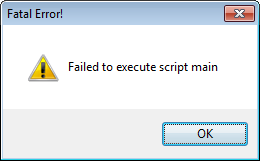
Besides main, the error message may also
mention fbs_pyinstaller_hook – see
further below.
Failed to execute script main
To get more information in this case, run the following
commands:
fbs clean
fbs freeze --debug
When you then start the standalone binary of your
application from the command line, you should see a
lot more debug output. If it contains an
ImportError, see the
section on Dependencies
in fbs’s Manual for a possible solution.
Failed to execute script fbs_pyinstaller_hook
This typically happens when your code does not create an
ApplicationContext.
This is required for fbs to work. Please see the
tutorial
for an example.
- The most common mistake
- PyQt and PyInstaller versions
- My frozen app won’t start
Today’s post is about how to fix the Google Drive Backup and sync error of “failed to execute script main”.
So, here’s the background. Yesterday morning, I woke up my computer from sleep mode. Google Drive should be running all the time to back up my files, but yesterday, the Backup and sync icon was disappeared from my taskbar.
I tried to open the program again, but got the following error:
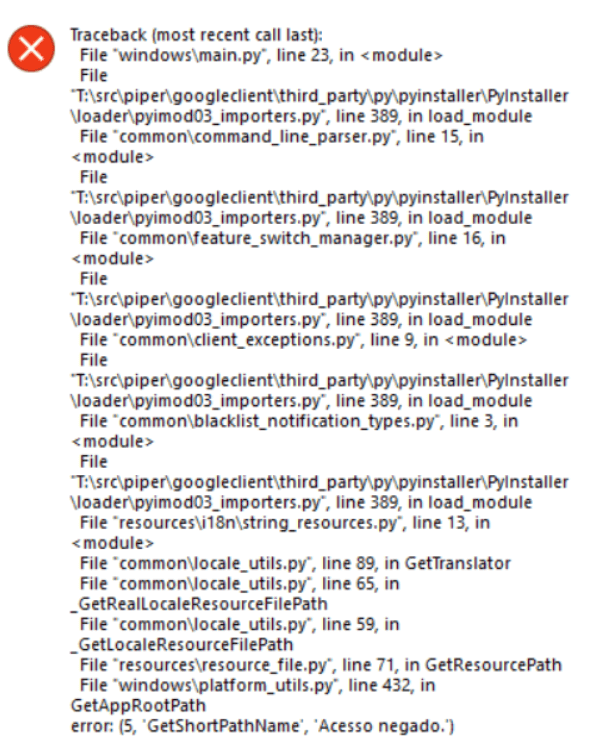
(A screenshot from Google Drive Help Community)
After clicked on “OK”, the “failed to execute script main” window popped up.
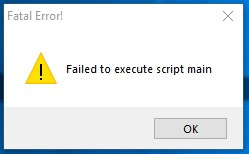
(A screenshot from Google Drive Help Community)
By following the suggestions that I found online, I tried:
- Restarted the PC (didn’t work for me).
- Downloaded the latest version of Google Backup and sync, uninstalled the former version, then installed the latest one (didn’t work for me).
- Cleaned up any leftover install/Google Drive folders/subfolders/temp files, restarted the computer, reinstalled the program, and then ran Google Drive as administrator (didn’t work for me).
- …
Fortunately, I opened Windows Security to have a look. Found Google.exe was been blocked. After allowed it manually, the problem was solved.
I totally relate to how software issues like this can drive you crazy, so I’ve put up some solutions that might be helpful to fix the “Backup and sync failed to execute script main” error.
Solution for Fixing Google Drive “failed to execute script main” on Windows 10, 8, 7, etc.: Check the Protection History of Your Antivirus Software
Windows Security shows a green tick and doesn’t prompt any message does not mean that it hasn’t blocked something. Some other antivirus protections might be the same, so this is the first solution you should check.
**Check both Windows Security and your antivirus software, in case you have one.
Steps:
- Open “Windows Security” > “Virus & threat protection” > “Protection history”.
- Look at the “App or process blocked” item, if you find something like googledrivesync.exe, GOOGLE.EXE, etc. you need to click on “Actions” > “Allow on device”.
- Reopen Google Backup and sync.

Follow These Steps If It Still Doesn’t Work
- Make sure you are using a Windows login account that has full administrator privileges.
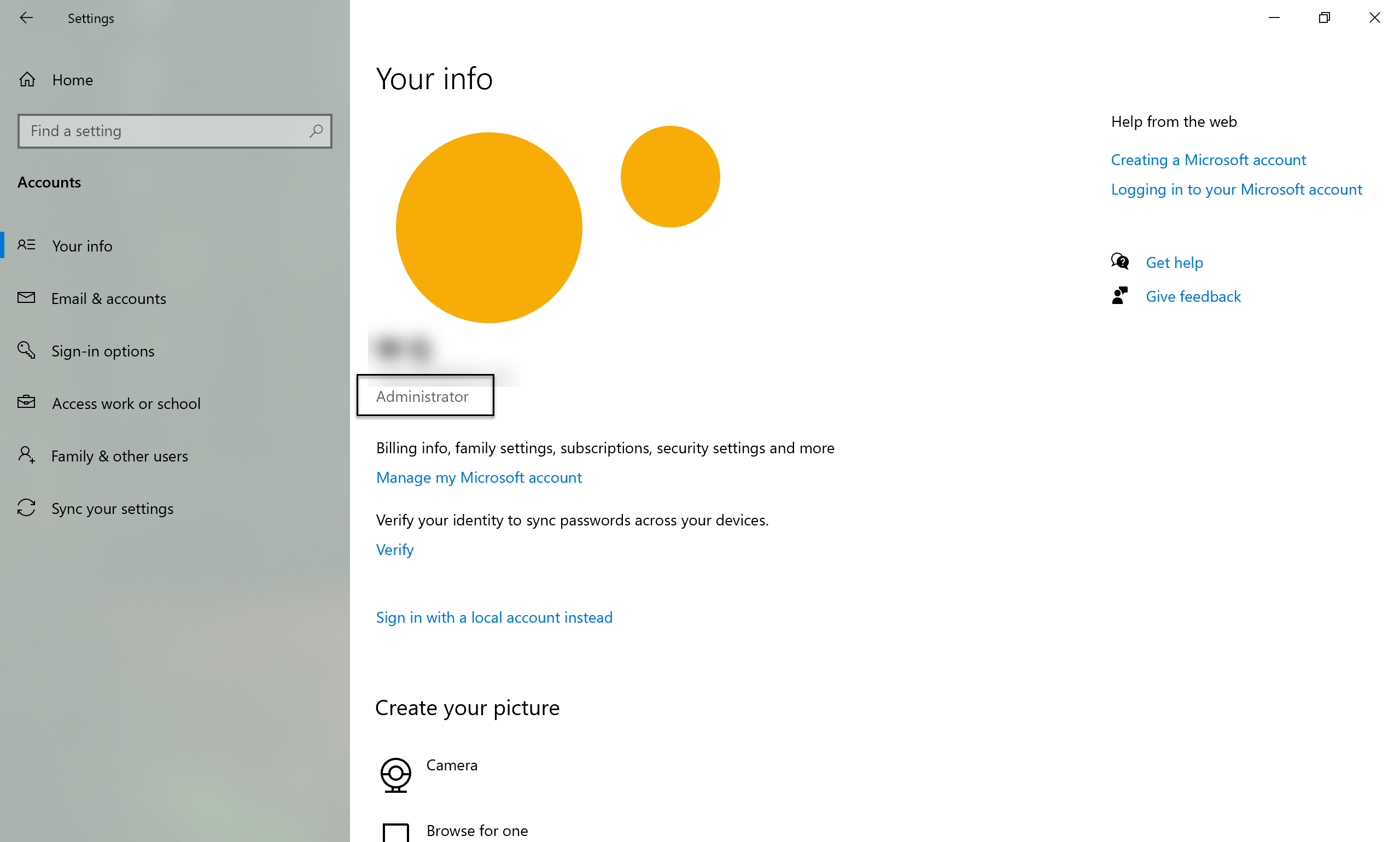
- Uninstall Backup and sync in Control PanelProgramsPrograms and Features
- Restart your computer.
- Clean up any leftover files of Backup and sync:
- Delete the folder and all subfolders found here: C:Program FilesGoogleDrive (Depending on where the installation failed, this may not be present)
- Delete the folder and all subfolders found here: C:UsersYOUR-WINDOWS-USERNAMEAppDataLocalGoogleDrive (Depending on where the installation failed, this may not be present)
- Clean up as much of your Windows Temp folder as possible: C:WindowsTemp (Some files are unable to be deleted. You can just skip those).
- Clean out any partial registry keys:
- Press Windows Key + R
- type regedit then click OK to run
- Accept the request by the operating system to permit the command.
- Navigate to the key location: ComputerHKEY_LOCAL_MACHINESOFTWAREGoogleDrive (Depending on where the installation failed, this may not be present).
- If present, on the left side, right click the Drive entry and select delete.
- Download and install the latest version of Backup and sync from Google.
To our reader who’s reading this post: if you have tried other solutions that work for you, welcome to drop a comment below. It definitely can save someone’s day! 😊

Susanna is the content manager and writer of Filelem. She has been an experienced editor and book layout designer for many years, and interested in trying and testing various productivity software. She is also a huge fan of Kindle, who has been using Kindle Touch for nearly 7 years and carrying Kindle almost wherever she goes. Not long ago the device was at the end of its life so Susanna happily bought a Kindle Oasis.