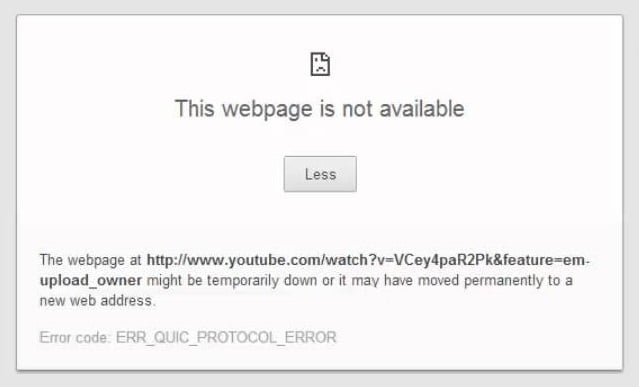
Вы не можете получить доступ к любому веб-сайту с помощью Google Chrome. Вместо этого вы получите «ERR QUIC PROTOCOL ERROR» с сообщением, которое выглядит следующим образом: « Этот сайт недоступен — веб-страница по адресу [URL-адрес веб-сайта] может быть временно недоступна или может быть навсегда перемещена на новый веб-адрес. . »
В нормальных условиях это сообщение об ошибке должно появляться только тогда, когда веб-сайт не работает. Но если теперь это происходит с каждым URL-адресом, который вы пытаетесь посетить, и вы уверены, что сайты доступны, это означает, что что-то не так.
Chrome считается стабильным и надежным браузером. Так почему же это происходит? Что ж, не отчаивайтесь, скоро вы найдете ответы на свои вопросы. Все, что вам нужно сделать, это продолжать читать.
Что означает «ERR QUIC PROTOCOL ERROR»?
QUIC (Quick UDP Internet Connections) — экспериментальный сетевой протокол транспортного уровня в Google Chrome. Он соединяет две конечные точки через UDP (протокол пользовательских дейтаграмм).
Он был создан, чтобы предложить пользователям защиту безопасности, которую можно было бы сравнить с TLS (Transport Layer Security) / SSL (Secure Sockets Layer), но которая обеспечит более быстрый просмотр и лучшую графику для онлайн-игр.
Основные преимущества:
-
- более быстрое установление соединения,
- лучший контроль перегрузки,
- прямое исправление ошибок и перенос соединений.
Однако, поскольку протокол все еще находится в стадии разработки, иногда он может давать сбой, что приводит к ситуации, когда вы не можете получить доступ к веб-страницам, связанным с Google (например, YouTube или Gmail) или любым другим веб-сайтом.
Как исправить ERR QUIC PROTOCOL ERROR в Google Chrome
Вы можете применить несколько решений по устранению неполадок. К тому времени, когда вы закончите с одним или несколькими из них, ошибка будет устранена.
Как устранить ошибку ERR QUIC PROTOCOL ERROR в Chrome для Windows 10:
- Отключить протокол QUIC
- Удалить или отключить сторонние расширения браузера
- Временно отключите брандмауэр
- Отключите VPN / прокси при входе в свою учетную запись пользователя
- Сбросьте Chrome до настроек по умолчанию
Прежде чем мы начнем, попробуйте загрузить веб-страницы с помощью другого браузера, например Edge, Firefox, Opera или Safari. Если они не проходят и отображается сообщение об ошибке, это означает, что ошибка не в Chrome. Проверьте подключение к Интернету и попробуйте еще раз.
Но если страницы успешно загружаются в другом браузере, вы можете воспользоваться следующими решениями.
Исправление 1: отключите протокол QUIC
Это самый простой способ решить проблему. Этого может хватить, и вам не придется пробовать другое исправление.
Выполните следующие простые шаги, чтобы это сделать:
- Запустите браузер Chrome.
- Перейдите в адресную строку и введите (или скопируйте и вставьте) «chrome: // flags» (без кавычек), а затем нажмите Enter.
- На открывшейся странице вы найдете список экспериментальных функций. В разделе «Доступные» прокрутите вниз и найдите «Экспериментальный протокол QUIC» (чтобы упростить задачу, вы можете ввести имя в поле «Флаги поиска» вверху страницы).
- Разверните раскрывающееся меню рядом с параметром и выберите «Отключено». Сразу после этого в нижней части экрана появится диалоговое окно, предлагающее перезапустить браузер, чтобы применить изменения. Нажмите кнопку, чтобы перезапустить браузер.
- После перезапуска Chrome экспериментальный протокол QUIC будет отключен. Посмотрите, успешно ли устранена ошибка.
Если случится так, что проблема не исчезнет, примените следующее исправление.
Исправление 2: удаление или отключение сторонних расширений браузера
Хотя сторонние расширения улучшают функциональность вашего браузера и предлагают индивидуальный опыт веб-серфинга, они иногда могут вызывать неожиданные проблемы, такие как «ERR QUIC PROTOCOL ERROR». Это особенно верно в отношении неизвестных расширений или расширений, предназначенных для блокировки рекламы, всплывающих окон и т. Д.
Поэтому вам следует отключить свои расширения и посмотреть, не вызывает ли оно ошибку.
Следуйте этим простым шагам:
- Запустите Google Chrome.
- Введите (или скопируйте и вставьте) «chrome: // extensions» в адресную строку и нажмите Enter.
- На открывшейся странице щелкните переключатели доступных расширений, чтобы отключить их.
- Перезапустите браузер и посмотрите, будет ли по-прежнему возникать ошибка при попытке загрузить веб-сайт. Если это не так, вернитесь к chrome: // extensions и включите расширения, которым вы доверяете. Таким образом вы сможете определить причину проблемы и удалить ее.
Исправление 3: временно отключите брандмауэр
Брандмауэр Windows отслеживает и контролирует входящий и исходящий сетевой трафик. Он защищает вашу частную сеть от вредоносного ПО и предотвращает доступ неавторизованных пользователей к файлам на вашем компьютере.
Если у вас есть другая программа безопасности, которая выполняет ту же функцию (например, надежный инструмент защиты от вредоносных программ, такой как Auslogics Anti-Malware), вы можете попробовать временно отключить брандмауэр Windows. Посмотрите, поможет ли это решить проблему «ERR QUIC PROTOCOL ERROR».
Следуйте этим простым шагам:
- Нажмите комбинацию клавиш с логотипом Windows + R на клавиатуре, чтобы открыть диалоговое окно «Выполнить».
- Введите «Панель управления» в текстовое поле и нажмите Enter или нажмите OK.
- В открывшемся окне выберите «Категория» в раскрывающемся списке «Просмотр по:» в правом верхнем углу экрана.
- Щелкните Система и безопасность> Брандмауэр Windows.
- В левой части экрана нажмите «Включить или отключить брандмауэр Windows».
- Выберите «Отключить брандмауэр Windows (не рекомендуется)» и нажмите кнопку «ОК», чтобы сохранить изменения.
Теперь попробуйте зайти на сайт еще раз. Если проблема все еще возникает, вернитесь и снова включите брандмауэр Windows.
Вы также можете отключить брандмауэр в своей антивирусной программе. Посмотрим, имеет ли это значение. Если этого не произошло, вам следует включить его снова.
Мы также предлагаем вам выполнить следующие действия, чтобы проверить, нет ли проблем с настройками вашего брандмауэра или прокси. Ошибка в обсуждении возникает, когда Google не может получить данные с вашей стороны.
Вот как проверить настройки вашей локальной сети:
- Перейдите в Панель управления, как уже было показано выше.
- В раскрывающемся списке «Просмотр по:» выберите «Крупные значки».
- Щелкните Свойства обозревателя.
- В открывшемся окне перейдите на вкладку Connections и нажмите кнопку LAN Settings. Проверьте настройки и убедитесь, что проблем нет.
Исправление 4: отключите VPN / прокси при входе в свою учетную запись пользователя
Некоторые Интернет-провайдеры различают учетные записи пользователей. Они отображают приглашение для входа в систему, чтобы вы могли ввести имя пользователя и пароль, прежде чем вы сможете получить доступ в Интернет.
Чтобы исправить ошибку протокола QUIC, попробуйте отключить VPN или прокси при входе в свою учетную запись.
Вот как:
- Зайдите в меню Пуск.
- Щелкните «Настройки».
- Щелкните Сеть и Интернет> Прокси.
- Нажмите на переключатель, чтобы включить «Автоматическое определение настроек».
- Щелкните переключатель, чтобы отключить параметр «Использовать прокси-сервер».
- Вернитесь в Сеть и Интернет и нажмите VPN.
- Выберите соединение, которое вы хотите удалить, и нажмите кнопку «Удалить».
- Щелкните Удалить для подтверждения.
Если вы только что подписались на интернет-провайдера и у вас нет имени пользователя и пароля, узнайте у них, есть ли у них такой протокол безопасности.
Исправление 5: сбросьте Chrome до настроек по умолчанию
Сброс настроек Chrome может решить проблему. Но имейте в виду, что настройки вашей поисковой системы, домашняя страница и закрепленные вкладки будут удалены. Кроме того, все расширения браузера будут отключены, а временные файлы (включая файлы cookie и кеш) будут удалены.
Однако сохраненные пароли, закладки и история не будут затронуты.
Вот как сбросить Google Chrome:
- Запустите браузер.
- Щелкните значок меню в правом верхнем углу экрана и выберите «Настройки».
- Прокрутите страницу вниз и разверните раскрывающийся список «Дополнительно».
- Снова прокрутите страницу до самого низа. В разделе «Сброс и очистка» нажмите «Восстановить исходные значения по умолчанию».
- Теперь нажмите кнопку «Сбросить настройки», чтобы подтвердить действие.
- Перезагрузите Chrome и посмотрите, возникает ли ошибка.
Представленные здесь решения должны решить проблему ERR QUIC PROTOCOL ERROR. Но если вы все еще сталкиваетесь с этим, обратитесь в службу поддержки Google за дополнительной помощью.
Мы надеемся, что это руководство было вам полезно.
Пожалуйста, не стесняйтесь делиться своими мыслями в разделе ниже, если у вас есть какие-либо вопросы или дальнейшие предложения.
Мы будем рады услышать от вас.
Ошибка ERR QUIC PROTOCOL ERROR в Google Chrome или Yandex
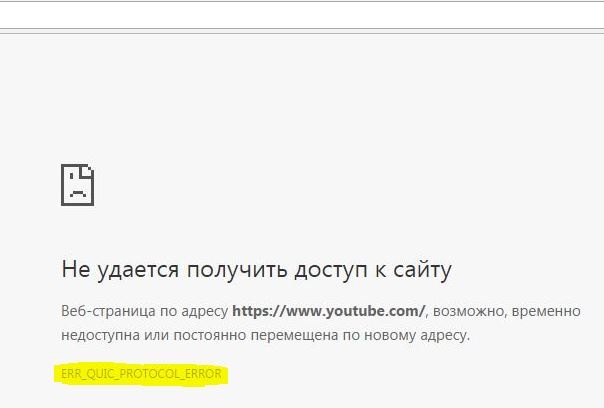
Если вы не можете открыть какой-либо сайт, и получите сообщение об ошибке ERR_QUIC_PROTOCOL_ERROR в Google Chrome или Yandex браузере, то разберем несколько решений, которые могут вам пригодиться. Сообщение об ошибке выглядит следующим образом:
Не удается получить доступ к сайту. Веб-страница по адресу возможно, временно недоступна или постоянно перемещена по новому адресу.
1. Отключить протокол QUIC
QUIC — это экспериментальный сетевой протокол транспортного уровня, который присутствует в Google Chrome и Яндекс браузере, чтобы установить соединение между двумя конечными точками через UDP. Если на стороне есть проблема, то вероятность получить это сообщение об ошибке при открытии любого веб-сайта в браузере хром и яндекс. Поэтому вы можете отключить этот экспериментальный протокол в своем браузере и проверить, решена ли проблема.
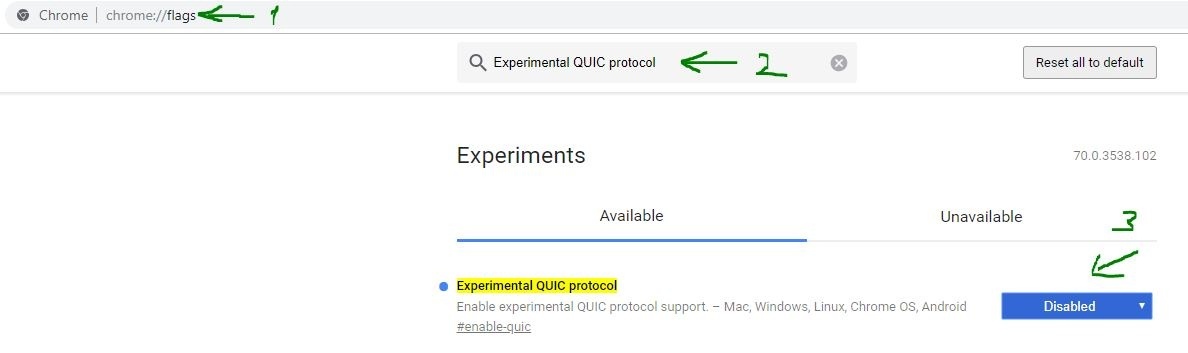
- Откройте свой браузер и введите в адресную строку для браузера Chrome chrome://flags/ для браузера Яндекс browser://flags.
- Далее напишите в поиске Experimental QUIC protocol и справа у этой графы вы увидите значение Default, что означает по умолчанию. Вам нужно Отключить его, выбрав Disabled.
- Перезапустите браузер и проверьте решена ли проблема.
2. Отключение VPN/Proxy при подключении к вашему провайдеру
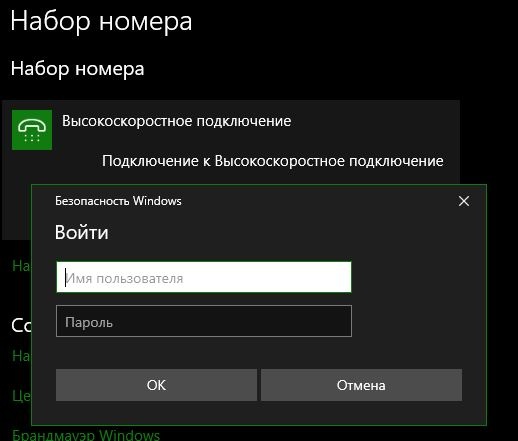
Существуют некоторые интернет-провайдеры, которые используют особый метод для различения учетных записей пользователей. В целях безопасности они включают приглашение для входа в систему, прежде чем пользователь сможет фактически использовать Интернет. В этом случае вам необходимо ввести имя пользователя и пароль для входа в свою учетную запись, предоставленную поставщиком услуг Интернета. Если у вас именно так, то вам нужно сначала войти в систему.

Простым обходным решением было бы отключить ваш VPN или прокси, войдя в свою учетную запись пользователя. Если вы впервые пользуетесь интернет-провайдером и у вас нет имени пользователя или пароля, вы можете спросить своего интернет-провайдера, есть ли у него такой протокол или нет.
Смотрите еще:
- Яндекс Браузер или Google Chrome выдают черный экран
- Как исправить ошибку 502 Bad Gateway в браузере
- Исправить ошибку NETWORK_FAILED в браузере Chrome
- Как переустановить браузер EDGE в Windows 10
- Исправить ошибку NETWORK_FAILED в браузере Chrome
[ Telegram | Поддержать ]
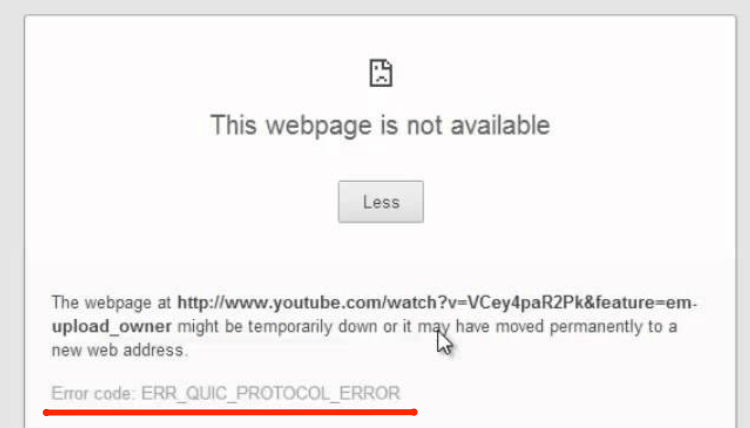
Ошибка ERR_QUIC_PROTOCOL_ERROR появляется в Google Chrome, Gmail, YouTube и в других сервисах Google, в том числе на Android. Для исправления нужно отключить экспериментальный протокол QUIC, для этого в строке браузера нужно перейти в настройки chrome://flags/#enable-quic и перевести QUIC в положение Отключено/Disabled. Перезапустить Chrome.
Иногда проблемой может быть местное кэширование, но тогда ошибка будет появляться только на одном сайте. Если кэширование в браузере отключено, его нужно включить. Если включено — очистить кэш.
Отключение протокола QUIC
Виновник проблемы — экспериментальный протокол QUIC (Quick UDP Internet Connections). Это новая технология, транспортный протокол следующего уровня. Использование QUIC призвано снизить задержки, увеличить скорость соединения и исправить ряд ошибок. Но, поскольку технология экспериментальная, иногда случаются ошибки.
Чтобы исправить ошибку ERR_QUIC_PROTOCOL_ERROR, QUIC нужно отключить:
- Открыть новую вкладку в Google Chrome.
- В строке браузера ввести chrome://flags/.
- Ввести в поиске Experimental QUIC protocol или просто найти его в списке.
- Выключить протокол, выбрав справа вариант Выключить/Disabled.
- Перезапустить браузер.
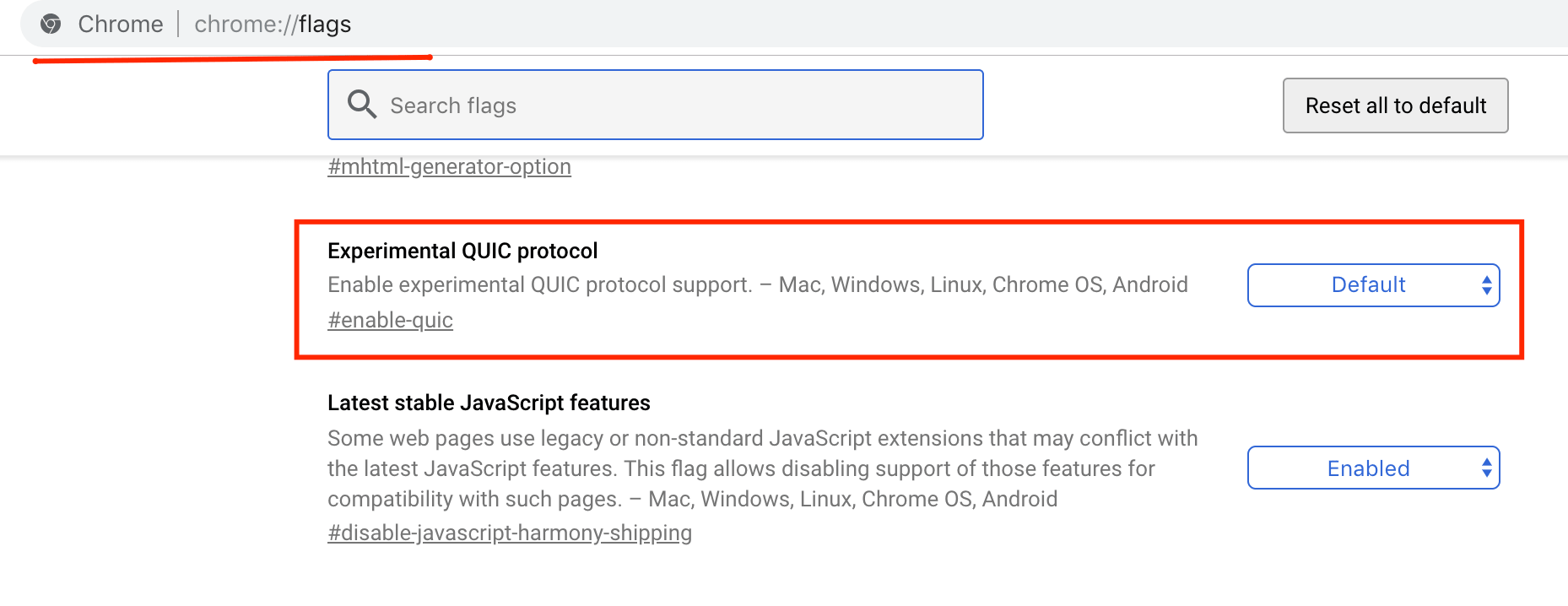
Это решение также помогает избавиться от тормозов видео на Youtube при нормальной скорости интернета. Если видео грузится длительное время и периодически заканчивается ошибками, причиной также могут являться сбои в этом протоколе.
В очень редких случаях требуется другое решение:
- Включение или очистка кэша.
- Отключение VPN или прокси. Особенно актуально для провайдеров, требующих ввести логин-пароль пользователя перед подключением к сети.
- Проблему могут вызывать расширения для браузера. Нужно перейти в chrome://extensions и отключить все, что возможно.
- Сбросить настройки браузера. Открыть chrome://settings/reset и восстановить настройки по-умолчанию.
- Полностью отключить Firewall.
Как подсказывает сам браузер, QUIC используется не только на Windows, но и на Chrome OS, Mac, Linux и Android. Ошибка Error code: ERR_QUIC_PROTOCOL_ERROR может появляться в любой из ОС в продуктах Google. В основном это Chrome и браузеры на его основе (Яндекс.Браузер и прочие аналоги).
The ERR_QUIC_PROTOCOL_ERROR message is an error that shows up in the Google Chrome browser when you try to visit a site.
Typically, the full error reads something like:
This site can’t be reached, The webpage at https://examplesite.com/ might be temporarily down or it may have moved permanently to a new web address,
ERR_QUIC_PROTOCOL_ERROR
In this article, we’ll cover two things to help get your browser working again:
- What is the ERR_QUIC_PROTOCOL_ERROR in Chrome?
- How to Fix the ERR_QUIC_PROTOCOL_ERROR in Chrome
Are you getting the *ERR_QUIC_PROTOCOL_ERROR* message? That’s a bummer 😩 Here’s how to fix it quickly! ✌️Click to Tweet
What is the ERR_QUIC_PROTOCOL_ERROR?
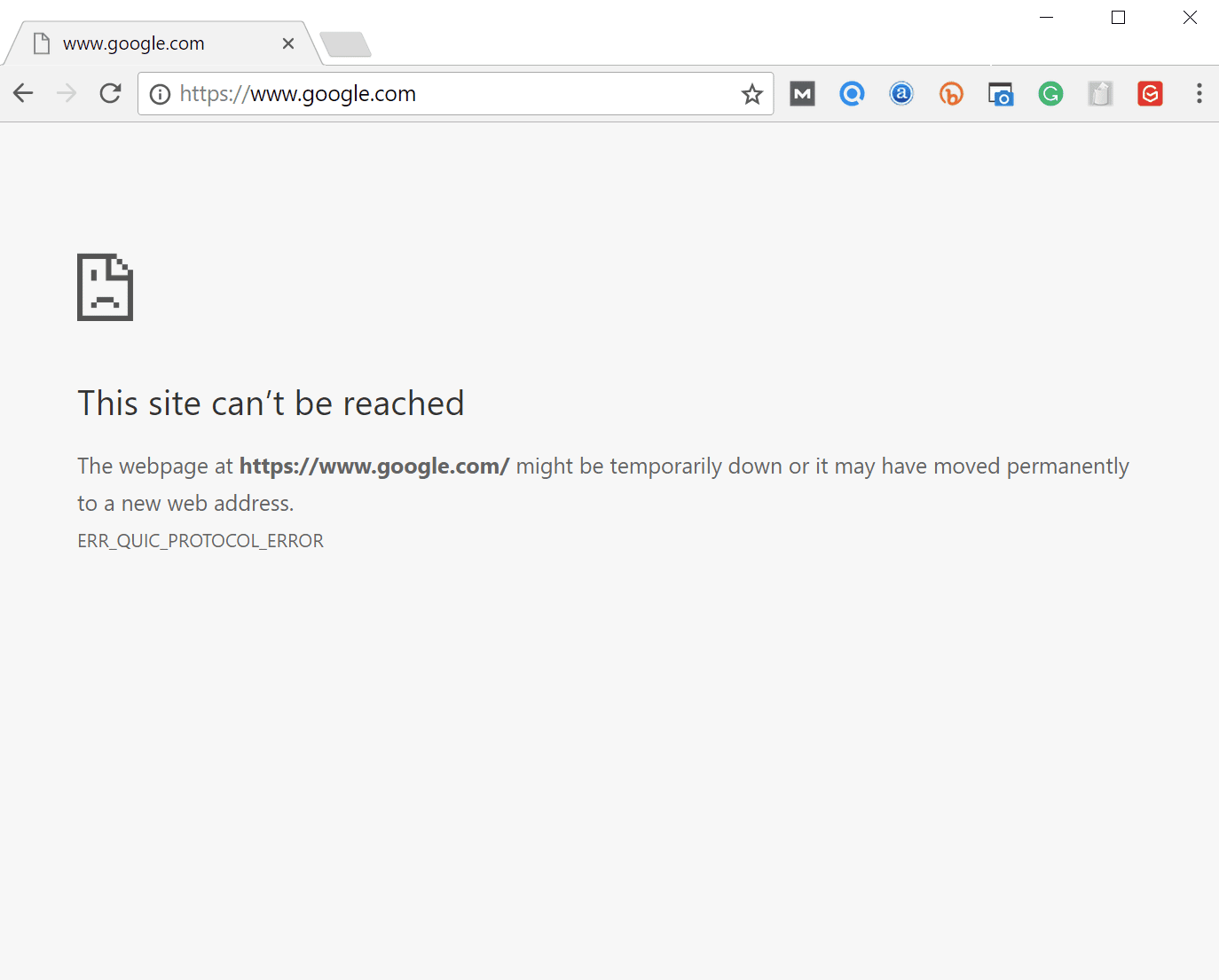
As the name suggests, this error indicates some problem with Chrome’s use of its Quick UDP Internet Connections (QUIC protocol) feature.
The QUIC protocol was developed by Google and helps improve the performance of connection-oriented web applications.
According to W3Techs, only about 3.2% of websites on the Internet are using the QUIC protocol, which means most of the websites you use will not use this protocol.
However, because Google developed the protocol for its own products, most of Google’s sites do use QUIC (including YouTube). So while the protocol’s overall usage rate is not high, the fact that Google uses QUIC means you’ll interact with sites using QUIC pretty much every day.
Sometimes, the ERR_QUIC_PROTOCOL_ERROR message could be directly caused by the protocol, but it can also be caused by a problem with your Internet connection (or VPN/proxy) or an issue with a browser extension.
Additionally, this error has nothing to do with your WordPress site. However, it can prevent you from accessing your WordPress site sometimes, which is why we’re helping you fix the issue.
How to Fix the ERR_QUIC_PROTOCOL_ERROR in Chrome
There are a few different methods to fix the ERR_QUIC_PROTOCOL_ERROR, which we’ll demonstrate below:
- Disable the QUIC Protocol in Chrome
- Disable Chrome browser extensions
- Check proxy settings in Windows
Solution 1: Disable the QUIC Protocol in Chrome
Because the error indicates a problem with the QUIC protocol, one solution is to simply disable the QUIC protocol in Chrome.
To do so, type chrome://flags/ into your Chrome browser address bar. Then, use the search box to search for “quic” to locate the protocol.
From there, use the drop-down to change from Default to Disabled:
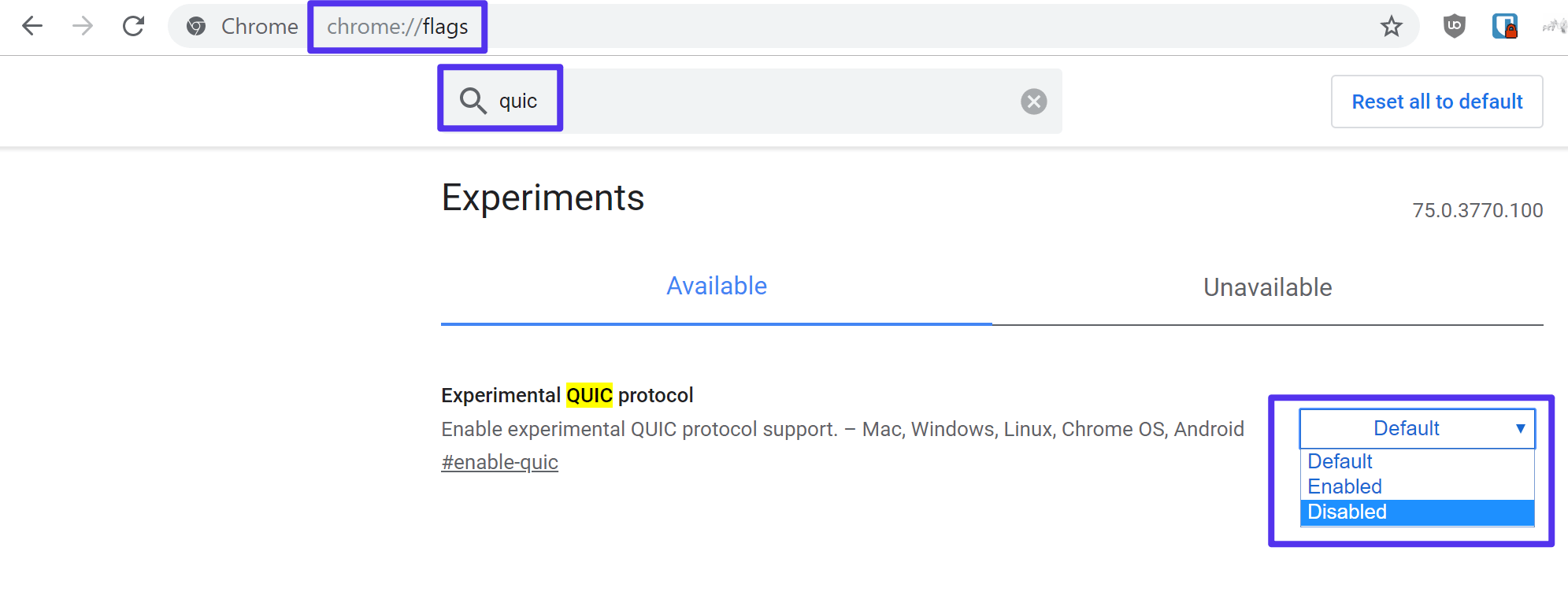
Once you’ve disabled the Experimental QUIC protocol, restart the Chrome browser to make the changes take effect.
Solution 2: Disable Chrome Extensions
Sometimes, it could be an issue with one of your Chrome extensions that’s causing the error.
Unfortunately, there’s no way to diagnose the exact extension so the best approach is to disable all of your extensions and then re-enable them one-by-one to find the culprit.
If you only started seeing the ERR_QUIC_PROTOCOL_ERROR message after installing a new extension, you can try disabling that extension first.
To disable your Chrome extensions, you can enter chrome://extensions/ in your browser address bar:
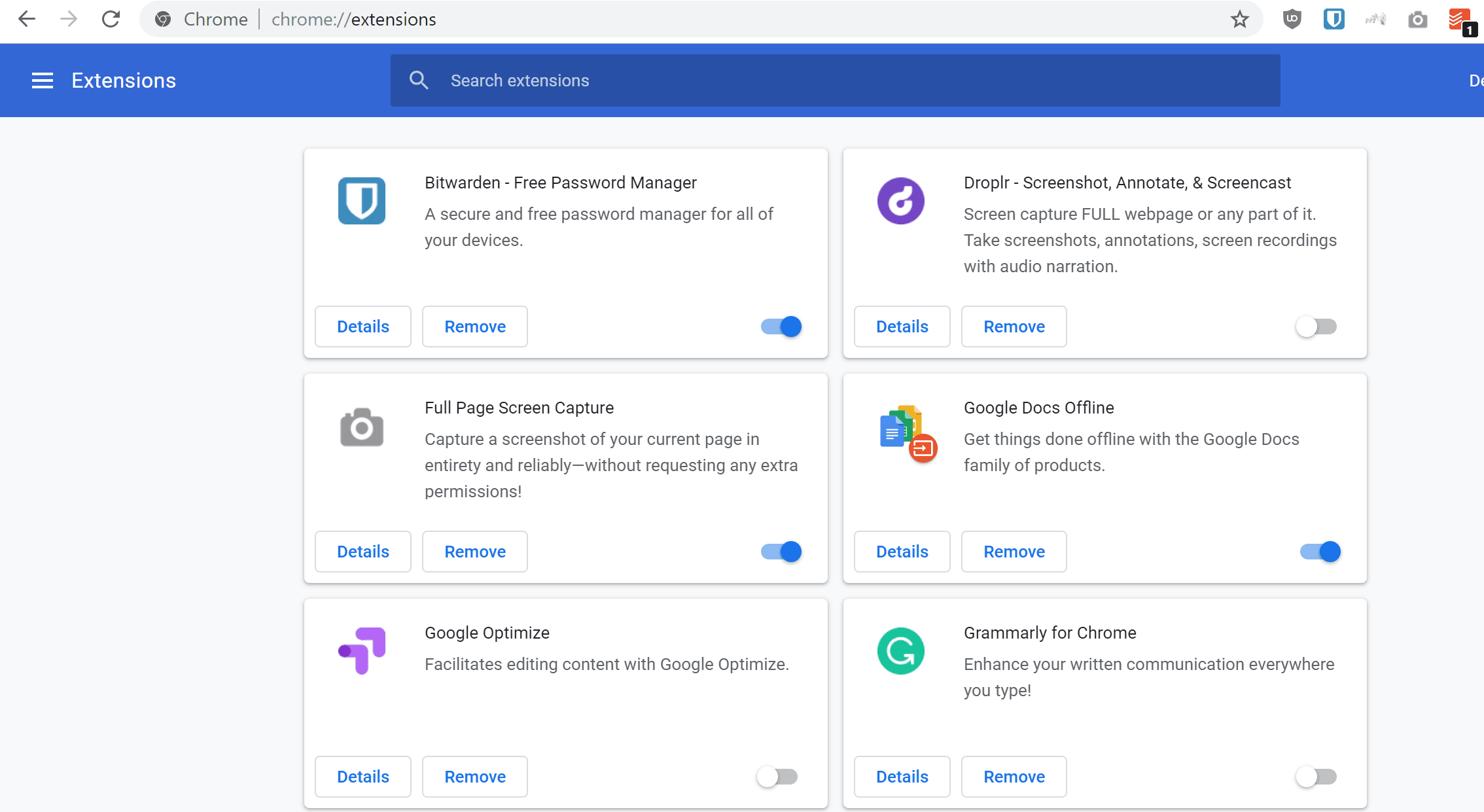
Then, use the toggle to enable and disable extensions as needed.
Solution 3: Check Proxy Settings (Windows)
If you’re using Windows, you might have an issue with your proxy settings that’s causing the ERR_QUIC_PROTOCOL_ERROR message.
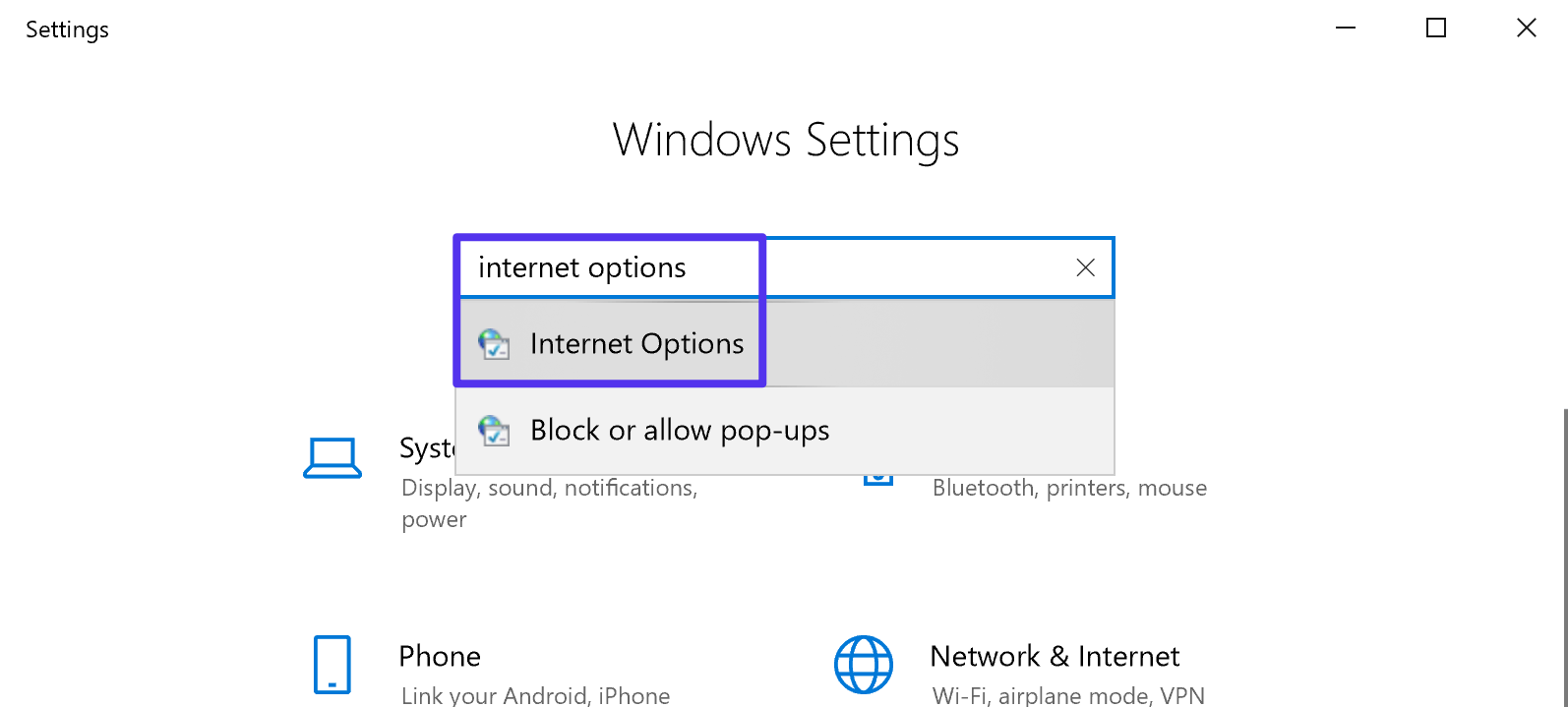
To get started, open your Settings area in Windows (hit the Windows key and then select the Settings gear).
Then, search for Internet Options and select the result:
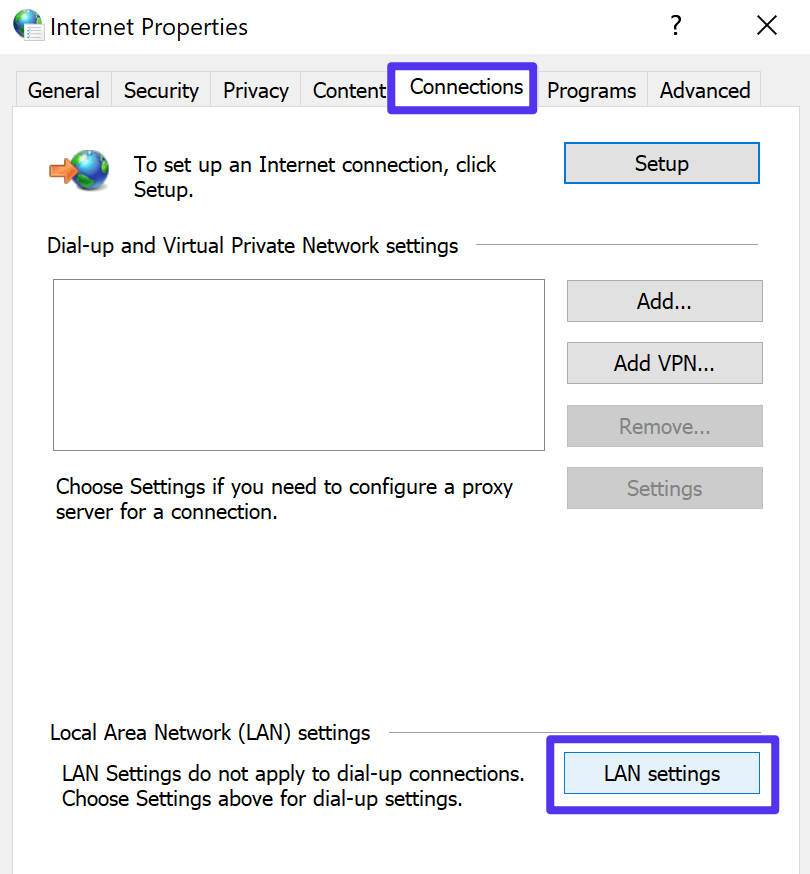
In the Internet Properties popup, go to the Connections tab. Then, select LAN settings:
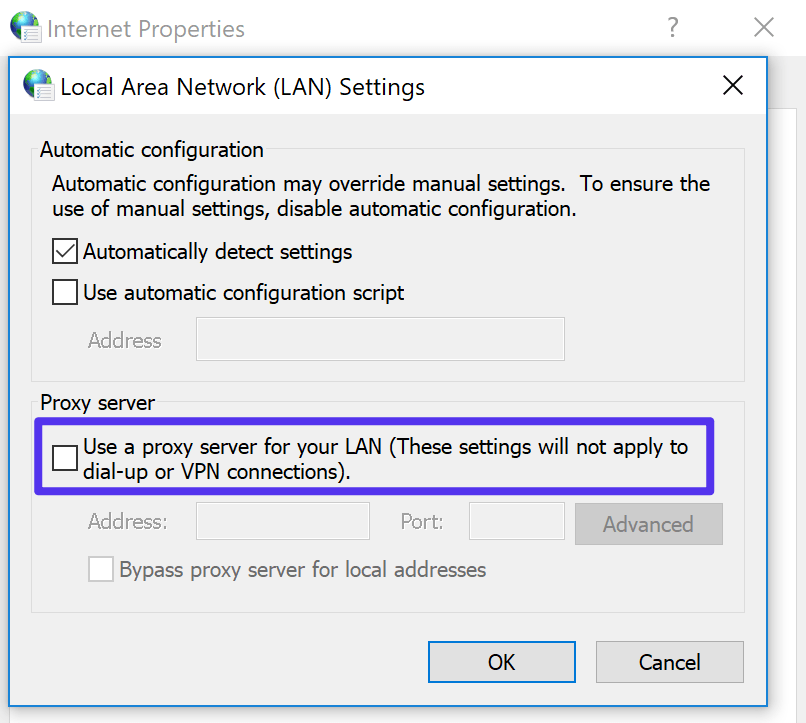
Make sure that the Use a proxy server for your LAN… setting is unchecked. Then, click OK and then Apply. You might also need to restart your computer:
Summary
The ERR_QUIC_PROTOCOL_ERROR message is an error that’s specific to the Chrome Browser and its use of the Quick UDP Internet Connections (QUIC protocol).
It has nothing to do with your WordPress site itself, but it might prevent you from accessing your WordPress site.
To fix the issue, you can try:
- Disabling the Experimental QUIC protocol in Chrome’s settings
- Disabling your Chrome browser extensions
- Changing your Windows proxy settings
Get all your applications, databases and WordPress sites online and under one roof. Our feature-packed, high-performance cloud platform includes:
- Easy setup and management in the MyKinsta dashboard
- 24/7 expert support
- The best Google Cloud Platform hardware and network, powered by Kubernetes for maximum scalability
- An enterprise-level Cloudflare integration for speed and security
- Global audience reach with up to 35 data centers and 275+ PoPs worldwide
Test it yourself with $20 off your first month of Application Hosting or Database Hosting. Explore our plans or talk to sales to find your best fit.
Google Chrome на сегодняшний день является самым используемым браузеров среди пользователей интернета. Все из-за легкости в обращении, быстрого веб-серфинга и еще целой кучи различных функций. Все бы хорошо, но порой вам может встретится ошибка ERR_QUIC_PROTOCOL_ERROR.
Несмотря на то, что на странице с ошибкой может указываться, что url страницы переехал или был закрыт – это далеко от истины. С помощью небольшого совета в этой статье вы легко избавитесь от данной ошибки.
Исправление для ошибки ERR_QUIC_PROTOCOL_ERROR в Google Chrome
- Откройте новую вкладку в браузере Google Chrome.
- Впишите в поисковую строку chrome://flags/ и нажмите Enter.
- Перед вами появится сообщение о том, что данные функции находятся в разработке и являются экспериментальными. Игнорируйте это сообщение.
- Нажмите комбинацию клавиш Ctrl+F и впишите в появившейся поисковой строке «Экспериментальный протокол QUIC»
- Теперь, все что вам нужно сделать – это отключить данный протокол.
- Закройте ваш браузер и запустите его снова.
Теперь вы можете спокойно заходить на страницы, которые показывали вам ошибку ERR_QUIC_PROTOCOL_ERROR. Больше она вас не побеспокоит.
The ERR_QUIC_PROTOCOL_ERROR is an error that shows up on Google Chrome and prevents users from efficiently using the page. The error causes a statement to appear stating ‘This webpage is not available’ or that a site is “temporarily down” or has been “permanently moved to a new web address.”

It indicates that the error is related to the ‘Quick UDP Internet Connections (QUIC protocol)’ feature employed by Chrome which accelerates the process of browsing as well as improves the graphics of games available online.
Table of Contents
- 1 What is ERR_QUIC_PROTOCOL_ERROR?
- 2 How to Fix ERR_QUIC_PROTOCOL_ERROR in Chrome
- 2.1 Method 1: Using the chrome://flags Command
- 2.2 Method 2: Disabling Browser Extensions
- 2.3 Method 3: Resetting the browser
- 2.4 Method 4: Checking the Proxy or Firewall Settings
- 2.5 Method 5: Temporarily Disabling the Firewall
- 2.6 Method 6: Downloading Software
- 3 Conclusion
Furthermore, this issue does not appear to occur for all websites but does occur for more commonly used ones such as Facebook, YouTube, and Gmail. The use of other third-party extensions may also be a cause of the ERR_QUIC_PROTOCOL_ERROR. Disabling such extensions is one of how this error can be tackled and the processes involved are highlighted further below.
Google is undoubtedly one of the most trusted and extensively used websites on the internet. It is primarily due to its numerous features, user-friendly nature and high-performance value. It is a platform that most users frequently interact with and rely on to provide them with information that they may require. However, even the best websites experience issues, especially when implementing new features and applications to enhance the user’s experience.
Bugs, issues with coding, network problems, etc. are common issues in this regard and can prevent users from transitioning smoothly from one version to the next. In this context, encountering an error such as the ERR_QUIC_PROTOCOL_ERROR is frustrating as it hampers with productivity as well as what has become a daily activity in most peoples’ lives.
Before starting, give a peek at these –
- {Solved} 5 Ways to Fix Fallout 4 Crash on Startup
- 4 Ways to Fix Kmode Exception Not Handled in Windows Error
- 3 Methods to Fix FFXIV Unable to Download Patch Files
- 8 Ways to Fix Windows 10 Update Error Code 0x8024a105
How to Fix ERR_QUIC_PROTOCOL_ERROR in Chrome
Some of the primary ways to fix the ERR_QUIC_PROTOCOL_ERROR are explored below.
Method #0 Use Advanced System Repair Pro (Strongly Recommended)
Our tool will quickly repair common computer errors, protect you from file or data loss, malware, trojans, hardware failure and optimize your PC to boost for maximum performance. Fix PC issues now using 3 easy steps:
- Download this PC Repair Tool rated as «Excellent» on TrustPilot.com.
- Click on Start Scan button to find errors related to Windows.
- Click Repair All to fix all issues with Patented Technologies.
Method 1: Using the chrome://flags Command
1. At First, go to the Chrome browser and go to a new tab.
2. Then enter the command “chrome://flags” in the Address bar. It will take you to a settings menu.

3. A message/notification will pop-up stating “Careful; these experiments may bite” which will issue a Warning message about employing such “experimental features.” However, the procedure is safe and hence this message can be ignored.
4. Afterward, locate the Experimental QUIC protocol feature either by scrolling down or by pressing the CTRL+F keys. It will make a box called the Find Box appear.
5. Then enter “Experimental QUIC protocol” in this box and type enter.
6. Once located, select Disabled from the drop-down menu and relaunch the Chrome Browser. It should cause the error to disappear.
Method 2: Disabling Browser Extensions
As stated earlier, numerous third-party extensions may be the cause of this issue ERR_QUIC_PROTOCOL_ERROR arising and hence disabling them may resolve the issue.
1. At First, go to the Chrome browser and go to a new tab.
2. Then enter the command “chrome://extensions” in the Address bar and click “Enter.”
3. Afterward, go through the Extensions and disable the ones that we do not require.
4. Finally, “Restart” the computer and see if the error persists.
Note: If simply disabling the extensions causes no change, it is advisable to delete the third-party extensions completely.
You Might Be Facing: 6 Ways to Fix Driver WUDFRd Failed to Load
Method 3: Resetting the browser
1. At First, go to the Chrome browser and click on the three vertical dots in the top right-hand corner to obtain the “Settings” menu.
2. Then scroll down to obtain the “Advanced” option and click on it to expand it.
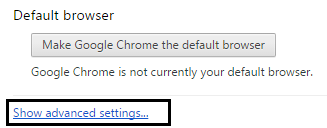
3. Afterward, select the “Reset” option and “Relaunch” Chrome.

Note: It is advisable to save all the links and tabs before clicking the “Reset” option. As such data will permanently delete during this process.
This method may help you to overcome ERR_QUIC_PROTOCOL_ERROR.
See Also: 4 Ways to Fix the NET::ERR_CERT_AUTHORITY_INVALID Error
Method 4: Checking the Proxy or Firewall Settings
1. Go to the Internet Properties section by pressing the Windows key + R and typing in the command “inetcpl.cpl.”
Note: You can also do this by searching for “Control Panel” in the Start or Cortana search bar on your computer. Select the option “Internet Options” or the “Network and Internet” option.
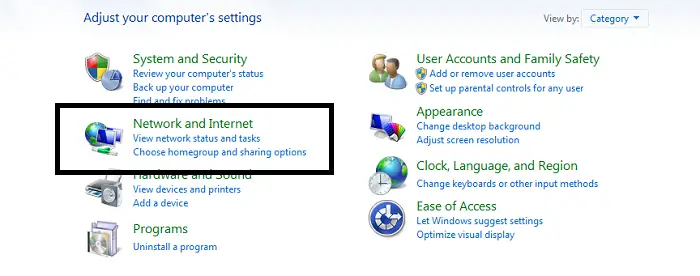
2. Then click on the “Connection” option and select “LAN settings.” Ensure that there is no issue with the Firewall or proxy browser. If errors are present, fix those first.
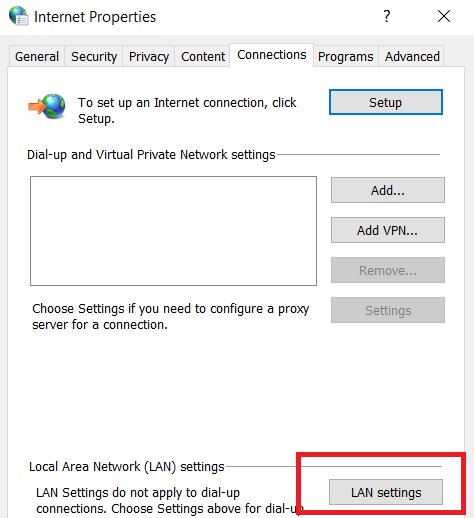
3. Uncheck the option “Use a Proxy Server for your LAN” and check the “Automatically detect settings” option.

4. Finally, click “Ok” and “Apply” and then “Restart” the computer.
This will help ERR_QUIC_PROTOCOL_ERROR to fix.
Method 5: Temporarily Disabling the Firewall
1. At First, locate any Anti-virus program that may be present in the System Tray (depicted by an upward-facing arrow). Right-click on it and select “Disable.”
2. Choose a short period for the disabling of the anti-virus program.
3. Then open the Chrome browser to see if the ERR_QUIC_PROTOCOL_ERROR has resolved.
4. If it persists, go to the “System and Security” setting on the computer by searching for it in the Search or Cortana search bar or by pressing the Windows key + I to open the “Control Panel” and selecting it.
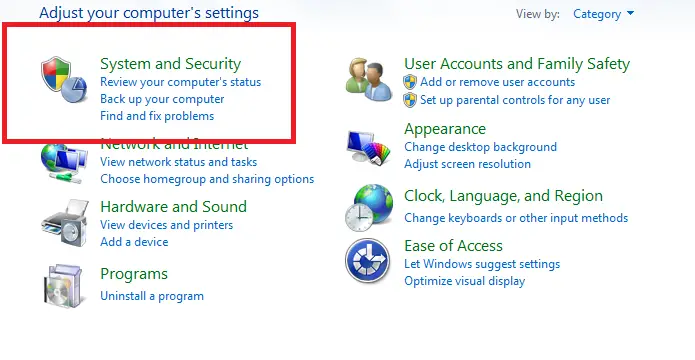
5. Select the “Windows Firewall” option and select the “Turn Windows on or off” option from the panel on the left.
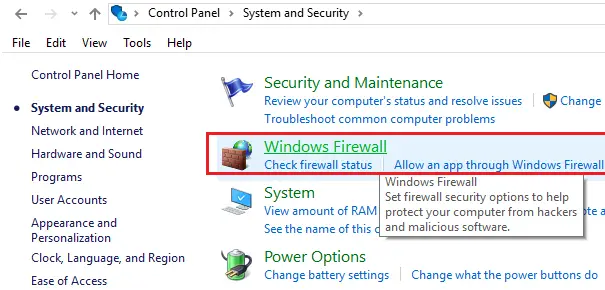
6. Select the option that turns off the firewall and then “Restart” the computer.

Note: Ensure to turn the Windows Firewall back on by following the same steps irrespective of whether the error has fixed or not.
Also Read –
- 3 Ways to Fix Err Connection Timed Out Error in Chrome
- {Solved} 5 Ways to Fix Windows Update Error 0x80070002
- 8 Ways to Fix Err_Connection_Reset Error in Google Chrome
- 10 Ways to Fix Steam Disk Write Error in Windows 10
Method 6: Downloading Software
1. Reimage Plus software is useful as it can scan and replace corrupt files and hence may be applicable in the case of system corruption.
Conclusion
An interesting fact to note about the ERR_QUIC_PROTOCOL_ERROR error is that the cause of the error is still unknown. The error does not show up when Incognito Mode is being used and hence indicates the general area where this error is believed to arise from. Thus, we hope this article provides you with all the relevant information about the ERR_QUIC_PROTOCOL_ERROR and successfully illustrates the numerous ways in which this error may be fixed.

Gravit Sinha is the founder of ValidEdge. Ever since he was a kid, he has been a problem fixer and that passion is what inspired him to start and grow this website! 🙂
Chrome , наиболее широко используемый в мире веб-браузер, обычно является стабильным и надежным приложением. Однако он может иногда сталкиваться с проблемами, часто отображая сообщения об ошибках, которые не совсем понятны пользователю. Одним из них является ERR_QUIC_PROTOCOL_ERROR , который может иногда появляться при попытке получить доступ к веб-сайту с использованием транспортного протокола Google QUIC. Это включает в себя множество принадлежащих Google страниц.
Хотя этот экспериментальный протокол был создан для ускорения работы в Интернете, он может иногда давать сбой и приводить к появлению этого загадочного сообщения вместо веб-страницы, которую вы пытались загрузить. Хотя нет единого надежного исправления при обнаружении кода ERR_QUIC_PROTOCOL_ERROR, существует несколько методов устранения неполадок, которые, как известно, решают проблему.
Что вызывает ERR_QUIC_PROTOCOL_ERROR
Считается, что существует несколько причин ERR_QUIC_PROTOCOL_ERROR, но без подробного вклада команды разработчиков Google, что вы найдете в Интернете по этому вопросу, в основном, предположения. Хорошая новость заключается в том, что следуя приведенным ниже рекомендациям, вы решите проблему в большинстве случаев.
-
Попробуйте загрузить страницу в другом браузере . Первое, что нужно сделать при просмотре ERR_QUIC_PROTOCOL_ERROR в Google Chrome, — это попробовать загрузить одну и ту же веб-страницу в другом браузере, таком как Edge, Firefox или Safari. Если страница не отображается должным образом в одном из этих других браузеров, возможно, проблема не в Chrome, а в вашем интернет-соединении.
Если страница загружается правильно в другом браузере, проблема связана с Chrome, и вам следует перейти к следующему разделу.
-
Отключить экспериментальный протокол QUIC . Поскольку причиной проблемы может быть протокол QUIC, в первую очередь мы рекомендуем отключить его, выполнив следующие шаги, а затем попытавшись перезагрузить соответствующую веб-страницу.
- Откройте браузер Chrome.
- Введите следующий текст в адресной строке Chrome и нажмите Enter или Return: chrome: // flags
- Список экспериментов теперь должен отображаться. Нажмите на Доступен , если он еще не выбран.
- Введите следующий текст в поле « Флаги поиска» , расположенное в верхней части страницы: экспериментальный запрос
- Протокол Experimental QUIC должен появиться вверху списка, сопровождаемый выпадающим меню. Нажмите на это меню и выберите опцию Отключено .
- Нажмите RELAUNCH NOW , расположенную в правом нижнем углу окна вашего браузера.
- Теперь Chrome перезапустится с отключенным протоколом Experimental QUIC. Попробуйте загрузить веб-страницу еще раз. Если он по-прежнему возвращает сообщение ERR_QUIC_PROTOCOL_ERROR, перейдите к следующему разделу.
- Чтобы снова включить этот протокол в любое время, повторите шаги, описанные выше, и выберите параметр «Включено» в вышеупомянутом меню.
-
Отключить расширения Chrome . Расширения Chrome очень популярны, поскольку они добавляют новые функции в ваш браузер и расширяют существующие функции, в большинстве случаев бесплатно. Однако, поскольку они создаются сторонними разработчиками, их код может иногда вызывать непреднамеренные последствия, которые приводят к тому, что Chrome ведет себя хаотично.
В случаях, когда вы исключили вероятные причины и не уверены, почему по-прежнему получаете конкретное сообщение об ошибке, лучше отключить расширения, чтобы определить, может ли одно из них быть виновником.
Мы рекомендуем отключить их все одним махом, следуя инструкциям ниже. Если это решит проблему, вы можете попытаться отключить их по одному, пока не сможете точно определить конкретное расширение, ответственное за проблему.
-
Ваша домашняя страница, страница новой вкладки, настройки поисковой системы и закрепленные вкладки будут удалены вместе с временными файлами, включая кэш и файлы cookie. Все расширения браузера также будут отключены. История, закладки и сохраненные пароли не будут удалены.
-
Обратитесь в службу поддержки Google . Если вы все еще застряли после попытки всех этих способов, вы также можете обратиться в службу поддержки Google .
Get Chrome back on track
Updated on December 2, 2020
The world’s most widely-used web browser, Chrome, is typically a stable and reliable application. However, it can sometimes encounter problems, often displaying error messages that are far from intuitive.
One of these is ERR_QUIC_PROTOCOL_ERROR, which can appear when accessing a website using the Google QUIC transport protocol. This includes many Google-owned pages.
Causes of Google ERR_QUIC_PROTOCOL_ERROR
Although this experimental protocol was created to speed up your online experience, it can sometimes fail and cause this message to appear in place of the web page you’re trying to load.
There are believed to be multiple causes of ERR_QUIC_PROTOCOL_ERROR. Without detailed input from the Google development team, what you’ll find around the web on this issue is mostly speculation.
How to Fix ERR_QUIC_PROTOCOL_ERROR
There isn’t a sure-fire fix for the ERR_QUIC_PROTOCOL_ERROR code. Still, several troubleshooting methods have been known to resolve the issue.
Following the recommended steps below will fix the problem in most situations.
-
Load the page in another browser. The first thing to do when seeing the ERR_QUIC_PROTOCOL_ERROR in Google Chrome is to load the same web page in a different browser, such as Edge, Firefox, or Safari. If the page doesn’t render as expected in one of these browsers, the problem is probably not with Chrome but with the internet connection. If the page loads correctly in another browser, the issue is specific to Chrome, and you should continue to the next section.
-
Disable the experimental QUIC protocol. Since the QUIC protocol might be the cause of the problem, disable it and then reload the web page in question.
-
Disable Chrome extensions. Chrome extensions add new features to the browser and enhance existing functionality, in most cases free of charge. Because extensions are created by third-party developers, the code can sometimes cause unintended consequences, which result in Chrome behaving erratically.
In instances where you’ve ruled out the likely causes and aren’t sure why you still receive a particular error message, disable extensions to determine whether or not one of them is the culprit.
We recommend disabling all extensions in one fell swoop. If that fixes the problem, enable extensions one at a time until you pinpoint the specific extension responsible for the problem.
-
Reset Chrome to its default settings. When all else fails, reset Chrome to its original settings.
Your home page, new tab page, search engine settings, and pinned tabs are erased in this step, along with temporary files, including cache and cookies. All browser extensions are disabled as well. History, bookmarks, and saved passwords are not removed.
-
Contact Google support. If you’re still stuck after trying all these methods, contact Google customer support for help.
Thanks for letting us know!
Get the Latest Tech News Delivered Every Day
Subscribe
Get Chrome back on track
Updated on December 2, 2020
The world’s most widely-used web browser, Chrome, is typically a stable and reliable application. However, it can sometimes encounter problems, often displaying error messages that are far from intuitive.
One of these is ERR_QUIC_PROTOCOL_ERROR, which can appear when accessing a website using the Google QUIC transport protocol. This includes many Google-owned pages.
Causes of Google ERR_QUIC_PROTOCOL_ERROR
Although this experimental protocol was created to speed up your online experience, it can sometimes fail and cause this message to appear in place of the web page you’re trying to load.
There are believed to be multiple causes of ERR_QUIC_PROTOCOL_ERROR. Without detailed input from the Google development team, what you’ll find around the web on this issue is mostly speculation.
How to Fix ERR_QUIC_PROTOCOL_ERROR
There isn’t a sure-fire fix for the ERR_QUIC_PROTOCOL_ERROR code. Still, several troubleshooting methods have been known to resolve the issue.
Following the recommended steps below will fix the problem in most situations.
-
Load the page in another browser. The first thing to do when seeing the ERR_QUIC_PROTOCOL_ERROR in Google Chrome is to load the same web page in a different browser, such as Edge, Firefox, or Safari. If the page doesn’t render as expected in one of these browsers, the problem is probably not with Chrome but with the internet connection. If the page loads correctly in another browser, the issue is specific to Chrome, and you should continue to the next section.
-
Disable the experimental QUIC protocol. Since the QUIC protocol might be the cause of the problem, disable it and then reload the web page in question.
-
Disable Chrome extensions. Chrome extensions add new features to the browser and enhance existing functionality, in most cases free of charge. Because extensions are created by third-party developers, the code can sometimes cause unintended consequences, which result in Chrome behaving erratically.
In instances where you’ve ruled out the likely causes and aren’t sure why you still receive a particular error message, disable extensions to determine whether or not one of them is the culprit.
We recommend disabling all extensions in one fell swoop. If that fixes the problem, enable extensions one at a time until you pinpoint the specific extension responsible for the problem.
-
Reset Chrome to its default settings. When all else fails, reset Chrome to its original settings.
Your home page, new tab page, search engine settings, and pinned tabs are erased in this step, along with temporary files, including cache and cookies. All browser extensions are disabled as well. History, bookmarks, and saved passwords are not removed.
-
Contact Google support. If you’re still stuck after trying all these methods, contact Google customer support for help.
Thanks for letting us know!
Get the Latest Tech News Delivered Every Day
Subscribe
Quick UCP Internet Connections (aka QUIC) is a next-generation protocol over UDP developed by Google to enhance the web’s security and speed. It also helps accelerate internet surfing because it reduces the latencies and response times of the connection.

Despite its release in 2013, it is still in its early days from a standard protocol point of view. Many users faced the error ‘err_quic_protocol_error‘ when browsing a particular website, Google-related websites, or all the websites. The issue is mainly reported to occur on Google Chrome and Microsoft Edge. However, only 3.2% of the websites use this protocol, which means you won’t face this error message with all the websites.
Contents
- Reasons for this Error
- Pre-requisites
- 1. Disabling Browser Extension(s)
- 2. Disabling Connected Proxy Server(s)
- Fixes for ‘ERR_Quic_Protocol_Error’
- 1. Power-cycling your System and Networking Equipment
- 2. Perform a Winsock Reset of the System
- 3. Flushing the DNS Cache
- 4. Perform a Clean Boot of the System
- 5. Disable the QUIC Flag in the Browser’s Settings
- 6. Use a Public DNS Server
- 7. Disable the Security Application of the System
- 8. Changing Network Type or Just the Network
- 9. Clear Browser Data and Enable Cache
- 10. Add Google to Allowed Domains in Router’s Parental Controls
- 11. Resetting the Settings of Browser to Default
Reasons for this Error
The err_QUIC_protocol_error simply means that the QUIC protocol failed and this failure can occur due to many reasons; from a simple communication glitch to failing hardware. Here are some of the major causes we came across in our research:
| Cause | Explanation |
|---|---|
| A Network Socket Error or Corrupt DNS Cache of the System | If any of the system’s network sockets is in an error state or the DNS cache of the system is corrupt, then it may result in the QUIC protocol error as these may limit the browser’s access to a resource essential for QUIC protocol. |
| Interference from the System’s Security Software | There are many security applications like McAfee that are not fully compatible with QUIC protocol and if any such product is present on the system, then its incompatibility with the QUIC protocol may the error message. |
| DNS Server Incompatibility | If the system’s DNS server is failing to resolve an essential web address of QUIC protocol, then it may result in a QUIC protocol issue at hand. |
| The Problematic Website’s Incompatibility | If a website is not properly configured for the QUIC protocol (e.g., Cloudflare is not properly configured to pass the traffic to the website if traffic is using QUIC protocol), then it can also result in the QUIC protocol issue. |
| Faulty browser extension | In case you are using a browser extension that isn’t compatible with the protocol; you will receive this error message. |
Pre-requisites
1. Disabling Browser Extension(s)
Sometimes newly installed extensions or plugins create conflict with the ‘QUIC’ protocol. Disabling these extensions one by one will help in diagnosing if any extension is the root of the problem.
- First, click on the Settings icon of your browser. Then, choose the ‘Extensions’ option.

Clicking on the Settings icon and choosing the ‘Extensions’ option - Now, turn off the toggle for each extension to disable it.

Disabling all the (Installed) browser extensions - Then, restart your browser. After restarting the browser, click on the Settings icon and choose the ‘Extensions’ option (again).
- Turn on the toggle of any one extension and check whether or not the problem persists. Repeat this process until you’ve checked all the extensions.
If you have found the extension that creates conflict with the ‘QUIC’ protocol, then remove that extension by clicking on the ‘Remove’ button on the extensions page
2. Disabling Connected Proxy Server(s)
Proxies are sometimes used in corporate environments which help keep the network and enterprise information secure and out of reach. In some cases, proxies are known to conflict with newer protocols like QUIC. Here, trying out the webpage with the proxies disabled can help diagnose the problem.
- First, open the ‘Control Panel.’

Opening ‘Control Panel’ via ‘Start menu’ - Then, switch the ‘Category’ to ‘Large Icons’ and click on the ‘Internet Options.’

Changing the ‘View by:’ to ‘Large icons’ from ‘Category’ in the main window of ‘Control Panel’ 
Clicking on the ‘Internet Options’ in the ‘Large Icons’ category of ‘Control Panel’ - After that, switch to the ‘Connections’ tab and click on the ‘LAN settings’ button.

Switching to the ‘Connections’ tab and clicking on the ‘LAN settings’ button - Then, uncheck the ‘Use a proxy server for your LAN (These settings will not apply to dial-up or VPN connection).’ option and click on the ‘OK’ button.

Unchecking the checkbox against the ‘Use a proxy server for your LAN (These settings will not apply to dial-up or VPN connection).’ option and clicking on the ‘OK’ button - Now, apply the settings and restart your system.

Restarting the system
Check whether this tip has solved your issue or not. If not, try the main solutions.
Note: If the ‘Use a proxy server for your LAN (These settings will not apply to dial-up or VPN connection)’ option is already unchecked, leave this solution and move to the main ones.
Fixes for ‘ERR_Quic_Protocol_Error’
As we saw by our research, this error is mostly tied to the networking tied with your computer and system. We will start with the most basic workarounds and work towards more complex ones. All of these workarounds are verified and tested by end-users.
1. Power-cycling your System and Networking Equipment
A temporary communication glitch of the system or networking device like a router could cause the QUIC protocol error at hand. Here, performing a cold restart of the system and networking device may solve the problem.
Power cycling is simply an act of completely shutting down the equipment or devices and turning them on again. This simple act makes sure all the internal configurations inside the devices are reset and
- Power off the system and networking device (like a router, Wi-Fi extender, etc.).
- Now unplug both devices from the power source and wait for at least 5 minutes.
- Then plug back both the devices into the power source and power on the router.
- Once the router is properly powered on, power on the system, and afterward, check if the QUIC protocol problem is solved.
2. Perform a Winsock Reset of the System
A network socket error on your PC may cause the QUIC protocol not to communicate with resources that are essential for the protocol.
When we reset your Winsock, we reset your networking sockets. If any of these were in an error state or were not working correctly, our commands will reset their initial state and they will be turning on again with fresh configurations.
- Click Windows, search and right-click on Command Prompt.

Opening Command Prompt as Administrator - Now select Run as Administrator and in the resulting Command Prompt window, execute the following:
netsh winsock reset

Resetting the Winsock - Once the reset is complete, close the Command Prompt window and restart your PC.
- Upon restart, check if the QUIC protocol issue is resolved.
3. Flushing the DNS Cache
DNS Cache is a temporary database that is maintained by your networking modules in your operating system. This cache contains records of recent visits to websites or services. In some cases, the information in the cache gets corrupt and this, in turn, causes a failure to reach the website.
This is not as uncommon as you might think. When we flush the DNS Cache, it will ensure that all the records are erased. Then it will store and cache fresh information and solve the problem if you had a corrupt record.
- Click Windows, search CMD, right-click on the Command Prompt result, and select Run as Administrator.
- Now execute the following in the Command Prompt window:
ipconfig /flushdns

Flushing DNS of Your System - Then close the Command Prompt and restart the PC.
- Upon restart, check if the system is clear of the QUIC protocol issue.
4. Perform a Clean Boot of the System
‘Clean booting’ a system means disabling all third-party applications and booting your Windows system with these updated configurations. Clean booting helps here by making sure no third-party application or service was the cause of the issue we are facing.

If everything works perfectly after clean booting our system, it means there was a problematic third-party app/service which was causing conflicts. Now, we can enable this one by one until the issue surfaces again. By doing this, we will be able to pinpoint which one was causing problems.
You can check out our detailed guide on How to Clean Boot your system.
5. Disable the QUIC Flag in the Browser’s Settings
If any networking layer between the user’s system and the target servers is not compatible with the QUIC protocol, it will return back the error message we are discussing. The same can be said if the website is incompatible with the mentioned protocol.
In some cases, we saw that websites that were using Cloudflare caused this error message. To remedy this, we can disable the ‘QUIC’ flag in your browser’s settings.
Disable QUIC Protocol in Chrome
You can get rid of the QUIC protocol in Chrome by following the steps below:
- Launch the Chrome browser and enter the following in the browser’s address bar:
chrome://flags/#enable-quic
- Then set the dropdown of the Experimental QUIC Protocol to Disabled and relaunch the Chrome browser to check if the issue is resolved.

Disabling Experimental QUIC Protocol in Chrome
Disable QUIC Protocol in Edge
- Launch the Edge browser and enter the following in the address bar:
edge://flags/#enable-quic
- Now set the Experimental QUIC Protocol to Disabled and relaunch the Edge browser to check if it is working fine.

Disable Experimental QUIC Protocol in Edge
6. Use a Public DNS Server
DNS servers may seem very trivial nowadays but they are the main mechanism that resolves the name of the website you are trying to access to their hosting IP behind the scenes. By default, we use pre-defined DNS servers which usually belong to an ISP or a specific network region.
It is possible that the DNS you are using is either not compatible with QUIC protocol or it is not correctly resolving the name behind the scenes. In this workaround, we will manually set our DNS to Google’s DNS. It should be noted that the QUIC protocol is also developed and maintained by Google.
- Right-click Windows and select Network Connections.

Open Network Connection through the Quick Access Menu - Now open Advanced Network Settings and click on More Network Adapter Options.

Open Advanced Network Settings - Then in the resulting Control Panel applet, right-click on the network adapter in use (like Wi-Fi) and open Properties.

Click More Network Adapter Options - Now select Internet Protocol Version 4 (TCP/IPv4) and open Properties.

Open Properties of the Network Adapter - Then select Use the Following DNS Server Addresses and enter the undermentioned values as per the relevant field:
Preferred DNS Server: 8.8.8.8

Alternate DNS Server: 8.8.4.4

Open Properties of Internet Protocol Version 4 (TCP IPv4) - Now apply the changes made and restart your PC.

Changing the DNS Server - Upon restart, check if the QUIC protocol problem is solved.
7. Disable the Security Application of the System
Another reason why you might be encountering the ‘err_quic_protcol_error’ error might be due to a false positive by your third-party antivirus or firewall application. According to our research, there are several applications that are not fully compatible with the QUIC protocol. This includes McAfee Antivirus.
In this case, temporarily disabling protection and firewall will help single out this issue. If this doesn’t work, you can always turn the security back up.
Warning:
Advance with utmost care and at your own risk as disabling the system’s security product (antivirus, firewall, antimalware, etc.) may expose the system and its data to security threats.
- Expand the hidden icons of the system’s tray and right-click on the security application (like ESET).
- Now select Pause Protection and if a UAC prompt is displayed, click on Yes.

Pause ESET Protection and Firewall - Then confirm to disable the security product and again, right-click on the security software in the system’s tray.
- Now select Pause Firewall and afterward, confirm to disable the firewall. Now open a fresh instance of a browser and see if the issue still persists.
8. Changing Network Type or Just the Network
The QUIC protocol could be an issue caused by a certain network type (like a failing Wi-Fi card) or if the ISP is hindering the operation of the QUIC protocol. Here, trying another network type or network may solve the problem.
- Firstly, switch to the other network type i.e., if using Wi-Fi, connect the PC by using an ethernet cable (or vice versa) and check if the QUIC Protocol error is cleared. If so, then, the issue might be caused by a hardware issue (like a failing Wi-Fi card).
- If the issue persists with the other network type, then disconnect the system from the current network and connect it to another network (like a hotspot from the mobile phone).

Enable Hotspot of Your Phone - Now check if the err_quic_protocol_error is cleared. If so, then the issue may be caused by ISP/network or the network router.
9. Clear Browser Data and Enable Cache
You may encounter the QUIC protocol error if the browser’s data or cache is either corrupt or it is disabled. This can cause the browser to be incompatible with the QUIC protocol requirements. Here, enabling the browser’s cache or clearing the browser’s cache/data may solve the problem.
Make sure to back up the essential info/data (website’s logins, etc.). For elucidation, we will discuss the process of enabling cache and clearing cache/data of Chrome.
- Launch Chrome and open the problematic website.
- Afterward, when the site refuses to load with the QUIC protocol error, hit the F12 key on the keyboard to open Chrome’s Developer Tools and head to the Network tab of the Developer Tools.

Uncheck Disable Cache in the Chrome’s Developer Tools - Then remove the checkmark of the Disable Cache option and afterward, reload the page to check if the QUIC protocol error is cleared.
- If not, launch the Chrome browser and open its Menu (click on the three vertical ellipses in the top right of the Chrome window).
- Now, select More Tools and click on Clear Browsing Data.

Open Clear Browsing Data in the Chrome Menu - Then, switch to the Advanced tab and click on the Sign Out button (near the bottom of the menu), if you do not want to sync these changes (clearing history, etc.) to the Google account.
- Now set the Time Range dropdown to All-Time and then select all the categories by check-marking the relevant check boxes.
- Then click on the Clear Data button and wait till the data is cleared.

Clear Browsing Data of All Time in Chrome - Once done, relaunch the Chrome browser and check if it is clear of the QUIC protocol browser.
10. Add Google to Allowed Domains in Router’s Parental Controls
If the issue is occurring on multiple browsers on multiple devices connected to a single router, then the issue can be caused by the parental controls or web filters of the router. A blockage from these to an essential Google service or URL can trigger the QUIC protocol problem at hand. Here, adding Google to the allowed domains of the router’s parental control/web filters may solve the problem.
- Launch a web browser and steer to the web portal of the router (like Synology RT1900AC).
- Now head to Network Center and open Parental Controls.
 Whitelist Google Websites in the Parental Controls of the Router’s Settings
 - Then select Web Filter and make sure to add Google (like googladservices.com) to the list of allowed domains of the router.
- Now apply the changes and afterward, hopefully, the QUIC protocol problem is cleared.
- If not, check if disabling (at your own risk) parental control, web filter, firewall, etc. in the router’s settings solves the problem.
If all above fails, then get your system (especially, if the issue is occurring on a ChromeOS device) checked for any hardware issue.
11. Resetting the Settings of Browser to Default
If the error message still persists even after applying all the fixes and you’ve determined that the issue is with your PC only, the last resort is to completely reset the settings of the browser to the default state. This will ‘soft reset’ your browser and it will be as if you just installed a new version.
This will rule out any possibility that your browser is corrupt or is not allowing the website to go through due to some internal misconfiguration.
- First, open the ‘Google Chrome’ browser.
- Then, click on the three dots icon to reveal a drop-down menu of options.
- From there, choose the ‘Settings’ option.

Clicking on the three dots icon and choosing the ‘Settings’ option in ‘Google Chrome’ - (Inside the ‘Settings’ window of ‘Google Chrome’) Then, expand the ‘Advanced’ option.
- After that, scroll down and click on the ‘Reset and clean up’ option.

Expanding the ‘Advanced’ option and clicking on the ‘Reset and clean up’ option
Note: If you are facing the ‘ERR_QUIC_PROTOCOL_ERROR Mac’ issue or using Chromebook and Linux systems, you will see the ‘Reset settings’ option (after expanding the ‘Advanced’ option) instead of the ‘Reset and clean up’ option
- Now, click on the ‘Reset settings to their original defaults’ option.
- Then, Google Chrome will display a small window. So, click on the ‘Reset settings’ button in that window to reset your browser’s settings.

Choosing the ‘Restore settings to their original defaults’ option and Clicking on the ‘Reset settings’ button
- Now, restart your browser.
Pro Tip: Resetting the browser to its default will affect the following things:
-
- Cookies and site data
- Details, like allowing a website to use your microphone or show you pop-ups
- Homepage, Tabs, and the New Tab page
- Pinned tabs
- Search Engine (will set to default search engine, which is Google in Google Chrome)
- Tabs you (may) have pinned
- Themes and Extensions
You can also re-sign into your Google account if all the settings of the browser were getting synced. Everything will be restored.

Shaheer is the lead troubleshooter at Computer Verge. He has over 7 years of IT experience. He has a Bachelor’s degree in Computer Science and has completed various IT programming and support certifications.