Total War Rome Remastered PC сталкивается с ошибками и проблемами, такими как сбой D3D11, ошибка DXGI ERROR DEVICE HUNG, игра не работает в Windows 7, сбой при запуске, заикание, низкий FPS и многое другое. Здесь я составил список ошибок и проблем, с которыми сталкиваются игроки на ПК с игрой, а также их исправления и обходные пути.
Total War Rome Remastered: вылеты, заикание и исправления
Total War Rome Remastered — это ремастер любимой фанатами игры, которая позволяет игрокам вновь пережить вершину франшизы. Игра была обновлена с множеством исправлений и балансировок, сделанных разработчиками. Однако игроки на ПК сообщают, что Total War Rome Remastered сталкивается с такими ошибками, как сбой при запуске, игра не работает в Windows 7, сбой из-за ошибки D3D11, DXGI ERROR DEVICE HUNG и другие.
Ниже приведены ошибки и проблемы, с которыми игроки на ПК сталкиваются с игрой, а также их исправления и обходные пути.
Сбой D3D11, исправление DXGI_ERROR_DEVICE_HUNG
Игроки на ПК могут сообщают, что не могут играть в Total War Rome Remastered из-за ошибки D3D11. Ниже приводится полное сообщение об ошибке.
Видеокарта D3D11 не отвечает, и мы не можем восстановить ее! Пожалуйста, перезапустите игру и попробуйте еще раз.(DXGI_ERROR_DEVICE_HUNG)
Одной из причин появления этой ошибки является драйвер графического процессора. Обновите драйвер графического процессора или переустановите его, если драйвер уже обновлен. В любом случае выполните чистую установку, и ошибка D3D11 или ошибка DXGI ERROR DEVICE HUNG будут исправлены.
Если ошибка не исчезнет, игроки могут либо использовать MSI Afterburner и уменьшить тактовую частоту графического процессора на 100 МГц, либо игроки могут ограничить максимальный FPS в игре. Если вы играете в игру с разблокированным FPS, установите ограничение на 60 FPS. Если игроки нацелены на 60 FPS, то ограничьте Total War Rome Remastered до 30 FPS. Откройте Панель управления Nvidia, Управление настройками 3D, Настройки программы, выберите Total War Rome Remastered из списка или добавьте его, если его там нет. Включите «Максимальный предел FPS» и установите значение 30. Это заблокирует игру на 30 FPS и исправит ошибку D3D11 или ошибку DXGI ERROR DEVICE HUNG в Total War Rome Remastered.
Игра не запускается, вылетает при запуске
Игроки на ПК сообщают, что Total War Rome Remastered дает сбой при запуске или не запускается вообще. Существует несколько причин сбоя Total War Rome Remastered при запуске, и вот как это исправить.
Одна из причин сбоя Total War Rome Remastered при запуске — старые операционные системы. Игра поддерживает только 64-битную ОС Windows 10. Если вы пытаетесь играть в игру на Windows 7 или 8.1, вам необходимо перейти на 64-разрядную версию Win 10.
Отсутствие прав администратора также может привести к тому, что игра не запускается или вылетает. Щелкните правой кнопкой мыши исполняемый файл Nier Total War Rome Remastered, Свойства, вкладку «Совместимость», установите флажок «Запустить эту программу от имени администратора» и нажмите «Применить». Это решит проблему.
Ваш антивирус / защитник Windows может блокировать важные файлы игры. Либо отключите защиту в реальном времени, либо исключите из нее папку установки игры. Откройте «Настройки», «Обновление и безопасность», Безопасность Windows, Защита от вирусов и угроз, нажмите «Управление настройками» в разделе «Настройки защиты от вирусов и угроз», нажмите «добавить или удалить исключения» в разделе «Исключения». Перейдите в папку с игрой и добавьте ее. После этого проверьте файлы игры, запустите игру, и она не выйдет из строя.
Если вышеуказанные методы не помогли устранить сбой при запуске, щелкните правой кнопкой мыши Total War Rome Remastered в библиотеке Steam, Управление, Просмотр локальных файлов. Запускаем игру прямо из exe. Скорее всего, вы получите ошибку, похожую на «vcruntime140_1.dll или MSVCP140.dll не найден». Это причина, по которой Total War Rome Remastered не запускается. Игроки могут решить эту проблему, установив последние распространяемые компоненты Microsoft Visual C ++ версий x64 и x86.
Исправление сбоя
По словам игроков на ПК, Total War Rome Remastered дает сбой во время игры, и вот как это исправить. Использование сторонних инструментов и программного обеспечения, таких как MSI Afterburner, программное обеспечение RGB или программное обеспечение для мыши и клавиатуры, может вызвать сбои в игре. Отключите любые сторонние инструменты или программы, которые вы используете, а также полностью отключите Steam и наложение Geforce Experience. Это решит проблему сбоя.
Игры Total War обычно сильно нагружают процессор. Вероятно, эти сбои в игре Total War Rome Remastered связаны с процессором. Игроки мало что могут с этим поделать, если они используют процессор начального уровня, но вот некоторые хитрости. Откройте Панель управления Nvidia, Управление настройками 3D, Настройки программы, выберите Total War Rome Remastered. Установите «Ультра» для режима с низкой задержкой и отключите для тройной буферизации. Примените эти изменения, и игра больше не должна вылетать.
ЕСЛИ вышеуказанные исправления не помогли вам, возможно, проблема связана с графическим процессором. Сначала попробуйте обновить или переустановить драйвер графического процессора и выполнить чистую установку. Это должно исправить сбои в игре. Если нет, то либо графический процессор разогнан, либо старый.
Если графический процессор разогнан, используйте MSI Afterburner и верните тактовую частоту графического процессора к значениям по умолчанию, даже если он разогнан на заводе. Если графический процессор старый, используйте MSI Afterburner, чтобы уменьшить тактовую частоту графического процессора на 100 МГц. Однако, если игроки не хотят связываться с часами графического процессора, ограничение максимального FPS в игре решит проблему. Откройте Панель управления Nvidia, Управление настройками 3D, Настройки программы, выберите Total War Rome Remastered. Включите «Максимальный предел FPS» и установите значение 30. Это заблокирует игру на 30 FPS, и Total War Rome больше не вылетит.
Как получить 60 FPS, исправление заикания
Проблемы с производительностью, такие как низкий FPS и заикание, распространены среди компьютерных видеоигр, и Total War Rome Remastered не исключение. Игроки сообщают о низком FPS, заикании и случайном падении FPS. Вот как исправить проблемы с производительностью и повысить FPS.
Во-первых, убедитесь, что вы установили последний драйвер графического процессора. Убедитесь, что нет фонового процесса, использующего слишком много CPU, GPU или HDD.
Откройте панель управления Nvidia, «Управление настройками 3D», «Настройки программы», выберите Total War Rome Remastered. Внесите следующие изменения:
Anti-aliasing-FXAA — «Off» Anti-aliasing-Gamma Correction — «Off» Графические процессоры CUDA — «All», режим с низкой задержкой — Ultra. Установите для параметра Power Management значение «Prefer Maximum Performance» Shader Cache — «On», только если вы используете жесткий диск. Не нужно включать его для SSD. Установите для параметра «Фильтрация текстур» — «Качество» значение «Высокая производительность». Тройная буферизация — «Выкл.» Установите для параметра «Вертикальная синхронизация» значение «Использовать настройки 3D-приложения»
Примените эти настройки, и игроки заметят улучшение FPS и устранение подергиваний.
Это все, что касается наших исправлений Total War Rome Remastered для ошибок и проблем, таких как сбой D3D11, ошибка DXGI_ERROR_DEVICE_HUNG, сбой при запуске, заикание и многое другое. Если вы сталкиваетесь с ошибками и проблемами в других компьютерных играх или на вашем ПК, также посетите наш центр, где вы найдете часто встречающиеся ошибки ПК и их исправления.
Total War Rome Remastered D3D11 Crash Fix, DXGI ERROR DEVICE HUNG, Внутриигровой сбой, Как повысить FPS, Сбой при запуске, Исправление заикания
Просмотров: 1 304

Total War: Rome Remastered is an age old game and seems to have received the same love it did when it first released. The game has stayed on the top 20 Steam games for weeks and now remains in the top 5. Thousands of players are enjoying the improved graphics and features of the remaster. However, there are some series issues with the game such as the game failing to launch. Other reported issues include Total War: Rome Remastered D3D11 Crash, DXGI ERROR DEVICE HUNG, and KERNEL32.dll.
In this post, we will help you resolve the specific errors with the game such as the issue with KERNEL32.dll, DXGI ERROR DEVICE HUNG, and the D3D11 crash.
The error message users get is the “D3D11 graphics card is not responding and we cannot recover! Please restart the game and try again. (DXGI_ERROR_DEVICE_HUNG).” One of the most common causes for this error is an outdated graphics card driver. Hence, that’s the first thing you should address. When downloading the driver from your respective manufacturer, perform a clean boot.
If that does not fix the Total War: Rome Remastered DXGI_ERROR_DEVICE_HUNG, here are some things you can try.
- Go to NVIDIA Control Panel > 3D Settings > Set PhysX Configuaration. Configure it to maximize 3D performance and select the NVIDIA GPU.
- If you are overclocking the GPU using any software, stop the overclock as it’s one of the main causes for the error.
- Update the DirectX on your computer.
If none of the above solutions have helped to resolve the Total War: Rome Remastered D3D11 Crash and DXGI ERROR DEVICE HUNG, try locking the FPS at 60. A fluctuating FPS in the game can make the GPU instable leading to the error.
Fix Total War: Rome Remastered “Cannot find the entry point for the CreateFile2 procedure in the dynamic link library KERNEL32.dll”
Total War: Rome Remastered “Cannot find the entry point for the CreateFile2 procedure in the dynamic link library KERNEL32.dll” occurs when the KERNEL32.dll file is corrupted or missing. As such, there are various solutions you can try. While most users resort to replacing the specific DLL file, we do not suggest it due to security reasons. Here are the solutions you can try to fix the corrupt or missing the KERNEL32.dll.
- Run the SFC command to repair the corrupt or missing system files. Type SFC command on our website’s search and you should find the steps.
- You can also try running the CHKDSK utility on the hard drive to fix the error.
- Finally, if the above two fails, try running the DISM command. You can find the steps in the website search.
Hopefully, the above solutions have fixed the Total War: Rome Remastered D3D11 Crash, DXGI ERROR DEVICE HUNG, and KERNEL32.dll. If you have a better solution share them in the comments.
Total War Rome Remastered PC is facing errors and issues like D3D11 crash, DXGI ERROR DEVICE HUNG error, game not working on Windows 7, crash at launch, stuttering, low FPS, and more. Here I have compiled a list of errors and issues that PC players are experiencing with the game along with their fixes and workarounds.
Total War Rome Remastered is a remaster of the fan-favorite game that allows players to relive the pinnacle of the franchise. The game has been remastered with a lot of fixes and balances done by the devs. However, PC players are reporting that Total War Rome Remastered is facing errors like crash at launch, game not working on Windows 7, D3D11 error crash, DXGI ERROR DEVICE HUNG, and more.
The following are the errors and issues that PC players are experiencing with the game, along with their fixes and workarounds.
D3D11 Crash, DXGI_ERROR_DEVICE_HUNG Fix
PC players are reporting that they are unable to play Total War Rome Remastered due to D3D11 Error. The following is the full error message.
D3D11 graphics card is not responding and we cannot recover! Please restart the game and try again. (DXGI_ERROR_DEVICE_HUNG)
One reason for this error to pop up is the GPU driver. Update your GPU driver or reinstall it if the driver is already up-to-date. In either case, do a clean installation and the D3D11 Error or DXGI ERROR DEVICE HUNG error will be fixed.
In case the error persists, then players can either use MSI Afterburner and reduce the GPU clock by 100 Mhz or players can cap the game’s max FPS. If you are playing the game at an unlocked FPS, then cap the game at 60 FPS. If players are targeting 60 FPS, then cap Total War Rome Remastered to 30 FPS. Open Nvidia Control Panel > Manage 3D Settings > Program Settings > select Total War Rome Remastered from the list or add it if it’s not there. Turn on “Max FPS Limit” and set the value to 30. This will lock the game at 30 FPS and will fix the D3D11 error or DXGI ERROR DEVICE HUNG error with Total War Rome Remastered.
Game Not Starting, Crash At Startup Fix
PC Players are reporting that Total War Rome Remastered is crashing at launch or not starting at all. There are multiple reasons behind the Total War Rome Remastered crash at startup issue and here is how to fix it.
One reason for Total War Rome Remastered to crash at launch is the old operating systems. The game only supports Windows 10 64-bit OS. If you are trying to play the game on Windows 7 or 8.1, you need o upgrade to Win 10 64-bit.
Lack of admin rights can also cause the game to not start or crash. Right-click Nier Total War Rome Remastered’s exe > Properties > Compatibility tab > check “run this program as administrator” and hit apply. This will fix the issue.
Your anti-virus/Windows defender might be blocking important game files. Either turn off real-time protection or exclude the game’s install folder from it. Open Settings > Update & Security > Windows Security > Virus & threat protection > click Manage Settings under “Virus & threat protection settings” > click “add or remove exclusions” under “Exclusions”. Browse to the game’s folder and add it. After that, verify game files, launch the game and it won’t crash.
If the above methods have failed to fix the crash at startup issue, right-click Total War Rome Remastered in Steam library > Manage > Browse Local Files. Launch the game directly from the exe. Chances are, you’ll get an error similar to “vcruntime140_1.dll or MSVCP140.dll Was Not Found”. This is the reason why Total War Rome Remastered is not starting. Players can fix this issue by installing the latest Microsoft Visual C++ Redistributables both x64 and x86 versions.
Crash Fix
According to PC players, Total War Rome Remastered is crashing while playing and here is how to fix it. Using third-party tools and software like MSI Afterburner, RGB software, or mouse and keyboard software can cause in-game crashes. Disable any third-party tool or software you are using and also disable Steam overly and Geforce Experience overlay. This will fix the crashing issue.
Total War games are usually quite heavy on the CPU. Probably, these Total War Rome Remastered in-game crashes are due to the CPU. There isn’t much players can do about it if they are using a low-end CPU, but here are some tweaks. Open Nvidia Control Panel > Manage 3D Settings > Program Settings > select Total War Rome Remastered. Set “Ultra” for Low Latency mode and select off for Tripple Buffering. Apply these changes and the game shouldn’t crash anymore.
IF the above fixes didn’t work for you, then the GPU might be the issue. First, try updating or reinstalling the GPU driver and do a clean installation. This should fix the in-game crashes. If not, then either the GPU is overclocked or is old.
In case the GPU is overclocked, use MSI Afterburner and rever the GPU clock back to its default even if it’s factory overclocked. If the GPU is old, then use MSI Afterburner to reduce the GPU clock by 100 Mhz. However, if players don’t want to mess with the GPU clock then limiting the game’s Max FPS will resolve the issue. Open Nvidia Control Panel > Manage 3D Settings > Program Settings > select Total War Rome Remastered. Turn on “Max FPS Limit” and set the value to 30. This will lock the game at 30 FPS and Total War Rome won’t crash anymore.
How To Get 60 FPS, Stuttering Fix
Performance issues like low FPS and stuttering are common among PC video games and Total War Rome Remastered is no exception. Players are reporting Low FPS, stuttering, and random FPS drops. Here is how to fix performance issues and boost FPS.
First, make sur you have installed the lasted GPU driver. Make sure there is no background process using too much CPU, GPU, or HDD.
Open Nvidia Control Panel > Manage 3D Settings > Program Settings > select Total War Rome Remastered. Make the following changes.
Anti-aliasing-FXAA – “Off”
Anti-aliasing-Gamma Correction – “Off”
CUDA GPUs – “All”
Low Latency Mode – Ultra.
Set Power Management to “Prefer Maximum Performance”
Shader Cache – “On” only if you are using an HDD. Don’t need to enable it for an SSD.
Set Texture filtering – Quality to “High Performance”
Triple Buffering – “Off”
Set Vertical Sync to “Use the 3D application setting”
Apply these settings and players should notice improved FPS and stuttering will be fixed.
That is all for our Total War Rome Remastered fixes for errors and issues like D3D11 Crash, DXGI_ERROR_DEVICE_HUNG error, crash at startup, stuttering, and more. If you are facing errors and issues with other PC games or your PC then also see our hub for commonly occurring PC errors and their fixes.
Если вы геймер, почти наверняка вы столкнулись с d3d11-совместимым графическим процессором, необходимым для запуска ошибки движка. Это распространенная проблема в мире компьютерных игр, которая отнимает время, которое вы могли бы потратить на игры.
Наиболее распространенным источником ошибок D3D11 является неисправный файл d3d11 в программном обеспечении DirectX, но ошибки также могут указывать на проблему с реестром или вирусом.
Если вы столкнулись с этой ошибкой, прочитайте до конца, чтобы узнать, как ее обойти.
Что такое графический процессор D3D11?
Графический процессор широко используется в обработке графики и видео из-за его возможностей параллельной обработки.
Хотя термины GPU и видеокарты используются одинаково, между ними есть разница. Видеокарта — это дополнительная плата, на которой размещается графический процессор, как и на материнской плате. Вы также найдете множество необходимых компонентов для питания и установки графического процессора на этой плате.
Карта Direct3D действует как библиотека для доступа к карте для обработки графики и аппаратного ускорения.
В последнее время широко используется D3D11. Этот новый вариант библиотеки включает обновленные функции и может повысить визуальную ясность.
Как проверить свой GPU?
- Нажмите на Windows+ S.
- В строке поиска введите Диспетчер устройств.
- Откройте панель управления.

- Щелкните раскрывающийся список «Видеоадаптеры», чтобы просмотреть графический процессор в новом окне.

- Дважды щелкните результат, чтобы просмотреть дополнительные сведения.

После проверки того, активирован ли он, рекомендуется обновить драйверы графического процессора. В следующем разделе вы узнаете, как это сделать в Windows 11. Читайте дальше.
Как вы обновляете свой GPU?
- Нажмите Windows+ S.
- В строке поиска введите Диспетчер устройств.
- Откройте панель управления.

- В новом окне щелкните раскрывающийся список «Видеоадаптеры», чтобы просмотреть имя графического процессора.

- Щелкните правой кнопкой мыши графический процессор.
- Нажмите «Обновить драйвер».

- В новом окне выберите Автоматический поиск драйверов.

Чтобы сэкономить время и избежать устаревших драйверов в будущем, вы можете использовать DriverFix. Он использует обширную базу данных драйверов для проверки ваших драйверов и установки новых версий, как только они станут доступны.
Что я могу сделать, если он говорит, что требуется совместимый графический процессор d3d11?
Windows 11
- Перейдите на страницу загрузки DirectX End-User Runtime.
- Нажмите «Загрузить» и дождитесь установки программы.

- После загрузки щелкните правой кнопкой мыши файл. исполняемый файл.
- Выберите запуск от имени администратора.

- Попробуйте перезапустить игру после перезагрузки ПК.
В качестве альтернативы может потребоваться полная замена графического процессора. Если он старше пяти лет, возможно, его пора менять, так как игровой движок использует другие графические компоненты.
Windows 10
- Выберите настройки в меню «Пуск».
- Центр обновления и безопасности Windows появится в виде пункта меню в следующем окне. Здесь вы можете искать новые обновления.
- Любой графический процессор, который необходимо установить, будет выполнен автоматически.
Windows 7
- Нажмите на панель управления, открыв меню «Пуск» Windows.
- Нажмите на систему и безопасность.
- Нажмите на обновление Windows.
- Проверьте наличие доступных обновлений.
- Если вы не можете найти доступные обновления, нажмите «Проверить наличие обновлений».
- Проверьте наличие драйверов графической карты. Вы можете найти их в основном представлении или в разделе дополнительных обновлений.
- Когда вы найдете драйвер графической карты, нажмите на него, чтобы установить, и дождитесь завершения установки.
Как исправить несовместимую с Fortnite видеокарту
- Убедитесь, что ваш компьютер соответствует аппаратным требованиям для игры.
- Обновите драйвер видеокарты.
- Перезагрузите компьютер
Графический процессор Fortnite, совместимый с D3D11
Чтобы играть в Fortnite, на вашем устройстве должен быть установлен совместимый компонент D3D11. Если вы этого не сделаете, вы можете столкнуться с некоторыми ошибками. Решение исправить ошибку — обновить версию Windows.
Спасибо, что прочитали эту статью, и не забудьте поделиться своими мыслями в разделе комментариев.

- Форум
- Моды
- Статьи
- Карта
- Портал
- Лента
- RSS
 |
Технические проблемы Total War: Rome RemasteredВопросы и ответы Тема создана: 02 мая 2021, 10:54 · Автор: |
Столкнулись ли вы с проблемами технического характера, и если да, насколько серьёзно они повлияли на ваш игровой процесс?
-
Да, но на игровой процесс они практически не повлияли.
| 9 голосов / 19.15%
-
Да, во время игры возникли значительные затруднения.
| 10 голосов / 21.28%
-
Да, впечатления от игры оказались непоправимо испорчены.
| 13 голосов / 27.66%
-
Нет, не столкнулся.
| 15 голосов / 31.91%
Alexander_NSK

Грандмастер
Дата: 03 мая 2021, 16:32
Технические проблемы Total War: Rome Remastered

Системные требования (раскрыть)
ГенийТотал вара 10lv
Форумчанин
Дата: 15 марта 2022, 14:28
Вылетает на битвах с ошибкой DXGI_ERROR_DEVICE_HUB. Почему не знаю. Комп игру тянет, играю на минималках с высоким значением отряда. Первые три боя с такой конфигурацией были успешны, а теперь…
Kelt881
Форумчанин
Дата: 15 марта 2022, 14:43
ГенийТотал вара 10lv (15 марта 2022, 14:28):
Вылетает на битвах с ошибкой DXGI_ERROR_DEVICE_HUB. Почему не знаю. Комп игру тянет, играю на минималках с высоким значением отряда. Первые три боя с такой конфигурацией были успешны, а теперь…
с дровами беда,скорее всего.У меня последняя версия (пиратская) вообще плавненько и без проблем идет.
breanni
Форумчанин
Дата: 27 марта 2022, 00:43
Axeleon (26 января 2022, 17:29):
Подскажите кто-нибудь, проблема такая, что в игре после запуска примерно через минут 5, игра перестает откликаться на клавиши клавиатуры и мышки, то 10 секунд оно работает, то потом секунд 10 не работает, впервые с таким сталкиваюсь, ни в одной другой игре такого не было
Была та же проблема, советы типа «включи безрамочный режим, смени время» — трата сил. Отключил вертикальную синхронизацию в игре, 13 часов геймплея — полет нормальный.
lethalweapon
Форумчанин
Дата: 05 апреля 2022, 16:00
Мучаюсь 3 дня с проблемой аналогичной, перестают работать клики на несколько секунд (мышь или клава, как правило по очереди) , через минут 10-15 вылетает без ошибки…. Иногда помогает ненадолго после часов ковыряний разные вещи от драйверов и обновления винды до настроек системных контроллеров и тп… но проблема вылезает на след день
Olwork

Форумчанин
Дата: 05 апреля 2022, 19:51
lethalweapon (05 апреля 2022, 16:00):
Мучаюсь 3 дня с проблемой аналогичной, перестают работать клики на несколько секунд (мышь или клава, как правило по очереди) , через минут 10-15 вылетает без ошибки…. Иногда помогает ненадолго после часов ковыряний разные вещи от драйверов и обновления винды до настроек системных контроллеров и тп… но проблема вылезает на след день
Если это мод RTR 0.4.2 то у меня тоже часто вылетает, версия 0.3.3 не вылетала.
green21
Форумчанин
Дата: 06 апреля 2022, 16:49
lethalweapon (05 апреля 2022, 16:00):
Мучаюсь 3 дня с проблемой аналогичной, перестают работать клики на несколько секунд (мышь или клава, как правило по очереди) , через минут 10-15 вылетает без ошибки…. Иногда помогает ненадолго после часов ковыряний разные вещи от драйверов и обновления винды до настроек системных контроллеров и тп… но проблема вылезает на след день
Мне помогло удаление всех файлов в папке C:UsersAppDataLocalFeral InteractiveTotal War ROME REMASTEREDVFSLocalRomepreferences
lethalweapon
Форумчанин
Дата: 11 апреля 2022, 13:38
lethalweapon (05 апреля 2022, 16:00):
Мучаюсь 3 дня с проблемой аналогичной, перестают работать клики на несколько секунд (мышь или клава, как правило по очереди) , через минут 10-15 вылетает без ошибки…. Иногда помогает ненадолго после часов ковыряний разные вещи от драйверов и обновления винды до настроек системных контроллеров и тп… но проблема вылезает на след день
Несколько дней полет нормальный, помогло отключение синхронизации системного времени по интернету  и установка 2020 года
volkmen
Форумчанин
Дата: 15 апреля 2022, 16:55
Кто нибудь смог решить проблему с зависанием мыши и клавы? Еще игра зависает и выкидывает без всякой ошибки.
ORVI
Форумчанин
Дата: 16 апреля 2022, 21:14
volkmen (15 апреля 2022, 16:55):
Кто нибудь смог решить проблему с зависанием мыши и клавы? Еще игра зависает и выкидывает без всякой ошибки.
Много всего перепробовал и помогло только смена времени, отключаю Установить время автоматически и ставлю 2020 год. Больше никаких проблем с клавой и мышкой.
Pretorix
Форумчанин
Дата: 17 апреля 2022, 16:12
ORVI (16 апреля 2022, 21:14):
Много всего перепробовал и помогло только смена времени, отключаю Установить время автоматически и ставлю 2020 год. Больше никаких проблем с клавой и мышкой.
Поддерживаю, только смена времени помогла. Изначально грешил на моды, но все оказалось гораздо прозаичнее. Как говорится «верните мой 2007»))
Ремастер Total War: Rome был выпущен с множеством усовершенствованных функций. Однако многие игроки сталкивались с грохот проблема при запуске игры или во время игрового процесса. Хотя это неприятная проблема, ее нетрудно исправить …
Вот восемь исправлений, которые помогли другим игрокам решить проблему с вылетом Total War: ROME REMASTERED на ПК. Возможно, вам не придется пробовать их все; просто продвигайтесь вниз по списку, пока не найдете ту, которая подойдет вам.
- Убедитесь, что ваш компьютер соответствует минимальным требованиям для Total War: ROME REMASTERED.
- Обновите драйверы вашего устройства
- Запустите Steam от имени администратора
- Проверить файлы игры в Steam
- Разрешить Steam через брандмауэр
- Установите последний патч
- Выполните чистую загрузку
- Переустановите Total War: ROME REMASTERED и Steam.
Исправление 1: Убедитесь, что ваш компьютер соответствует минимальным требованиям для Total War: ROME REMASTERED.
Total War: ROME REMASTERED имеет набор требований к оборудованию и системе для бесперебойной игры. Если ваша копия Total War: ROME REMASTERED на вашем компьютере часто возникают сбои, пора проверить, соответствует ли ваш компьютер требованиям.
Ниже я перечислил как минимальные (для игровой производительности), так и рекомендуемые (для желаемой производительности) требования для ПК с Windows. Если вы не уверены, насколько ваша система соответствует этим требованиям, вы можете выполнить следующие действия сразу после этого, чтобы проверить.
| МИНИМАЛЬНЫЕ ТЕХНИЧЕСКИЕ ХАРАКТЕРИСТИКИ | РЕКОМЕНДУЕМЫЕ ТЕХНИЧЕСКИЕ ХАРАКТЕРИСТИКИ | |
| ОПЕРАЦИОННАЯ СИСТЕМА | 64-разрядная версия Windows 10 (версия 1809) | 64-разрядная версия Windows 10 (версия 20H2) |
| ПРОЦЕССОР | Intel i3 series или AMD FX-4000 series | Intel Core i5-4570 или Ryzen 5 1600 |
| GPU | NVIDIA GTX 600 серии (1 ГБ видеопамяти) или AMD HD 7000 серии (1 ГБ видеопамяти) или Intel UHD 620 | NVIDIA GeForce GTX 770 4 ГБ или AMD Radeon R9 290 4 ГБ |
| ОБЪЕМ ПАМЯТИ | 6 ГБ оперативной памяти | 8 ГБ RAM |
| МЕСТО ХРАНЕНИЯ | 45 ГБ | 45 ГБ |
Чтобы проверить сборку Windows на вашем ПК:
- На клавиатуре нажмите Логотип Windows ключ
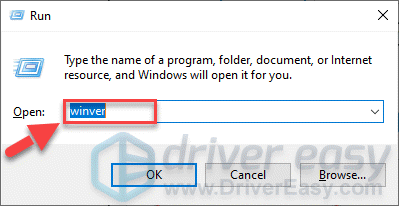
 и р в то же время, затем введите Winver и нажмите Войти .
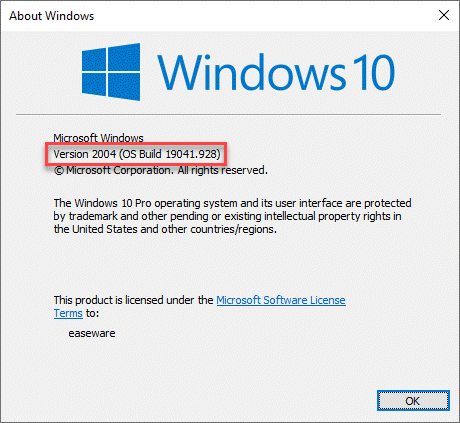
- Во всплывающем окне вы можете проверить точную версию копии Windows на вашем ПК.
- По завершении нажмите хорошо чтобы выйти из окна.
Чтобы проверить характеристики вашего ПК:
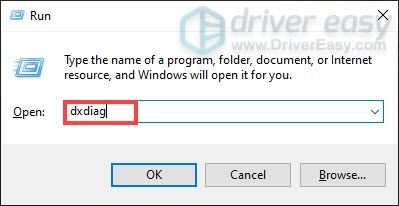
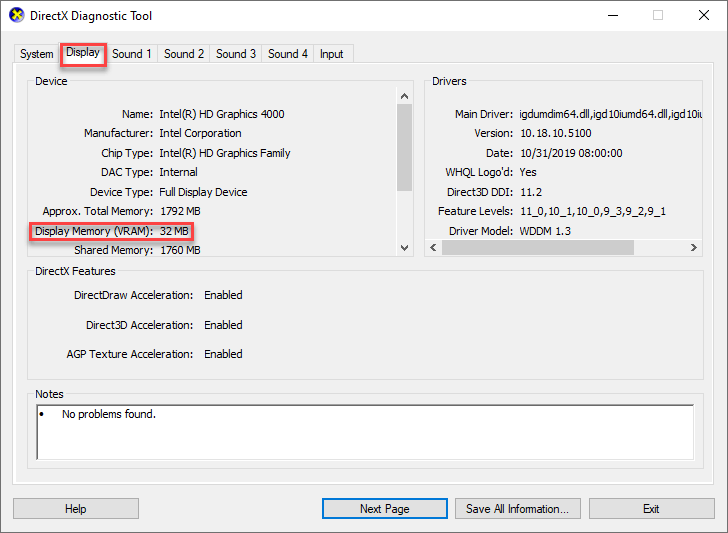
- На клавиатуре нажмите Windows logo key и р в то же время, затем введите dxdiag и нажмите Войти .
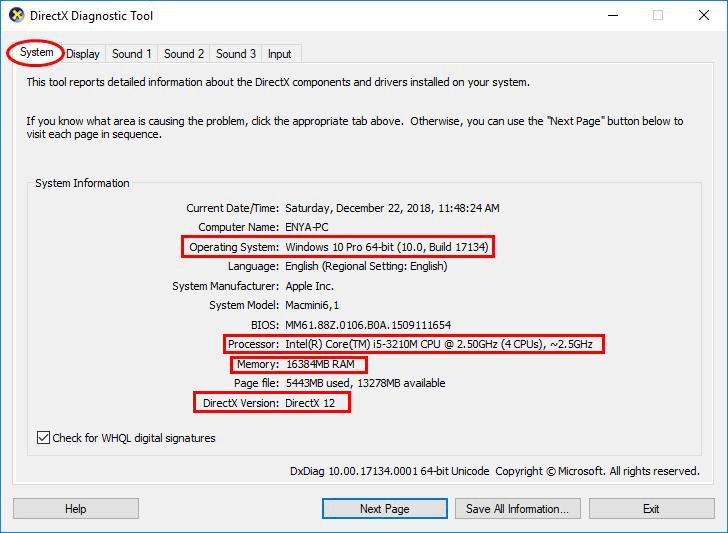
- Под Система вкладка, и вы можете проверить Операционная система и объем памяти информацию на вашем ПК.
- Выберите Отображать вкладка, и вам будет представлена информация о вашем видеокарта .
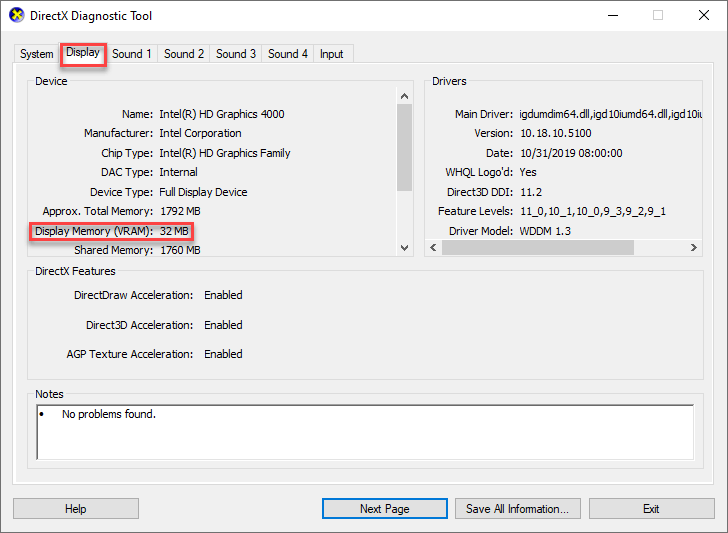
- Закройте DirectX.
Вам может потребоваться обновить оборудование вашего компьютера, если оно не соответствует спецификациям.
Если характеристики вашего ПК соответствуют требованиям, но Total War: ROME REMASTERED по-прежнему вылетает, перейдите к Исправить 2 ниже, чтобы начать устранение неполадок.
Исправление 2: обновите драйверы вашего устройства.
Драйверы устройств, которые действуют как переводчик между вашими аппаратными компонентами и вашей компьютерной системой, необходимы для правильного функционирования вашего компьютера. Неправильный, устаревший или поврежденный драйвер может вызвать нестабильность или даже сбои в работе вашей системы. Поэтому вам следует обновить драйверы, чтобы увидеть, решит ли это вашу проблему. Если у вас нет времени, терпения или навыков для обновления драйвера вручную, вы можете сделать это автоматически с помощью Водитель Easy .
Driver Easy автоматически распознает вашу систему и найдет для нее подходящие драйверы. Вам не нужно точно знать, в какой системе работает ваш компьютер, вам не нужно беспокоиться о неправильном драйвере, который вы будете загружать, и вам не нужно беспокоиться об ошибке при установке. Driver Easy справится со всем этим.
Вы можете автоматически обновлять драйверы с помощью БЕСПЛАТНО или Pro версия программы Driver Easy. Но с версией Pro требуется всего 2 шага (и вы получаете полную поддержку и 30-дневную гарантию возврата денег):
- Скачать и установите Driver Easy.
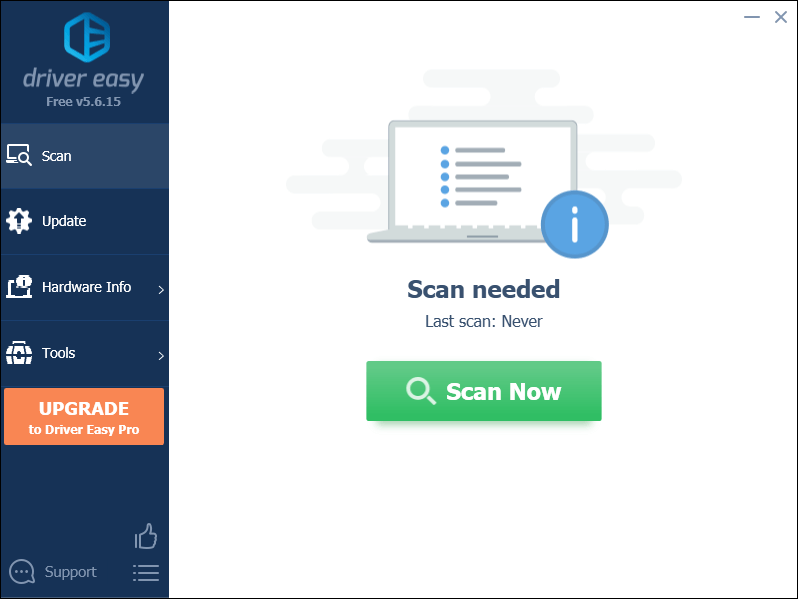
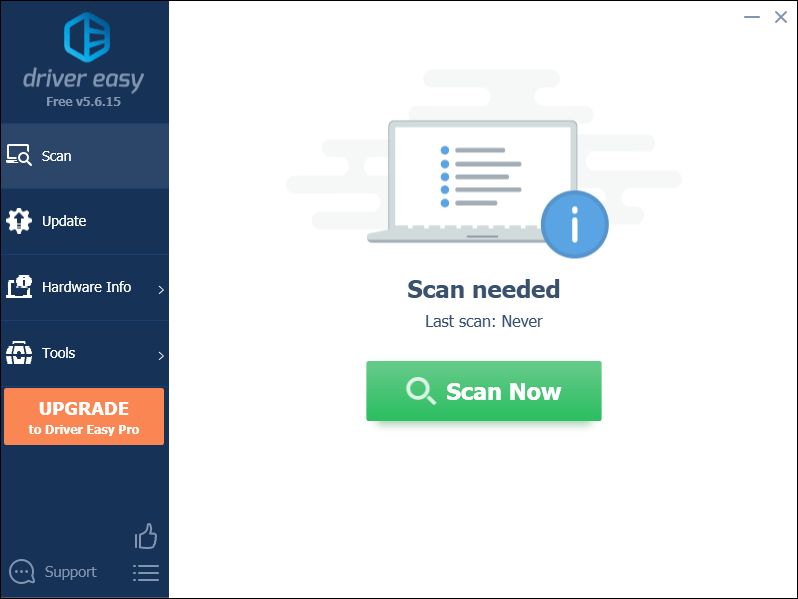
- Запустите Driver Easy и щелкните Сканировать сейчас кнопка. Затем Driver Easy просканирует ваш компьютер и обнаружит все проблемные драйверы.
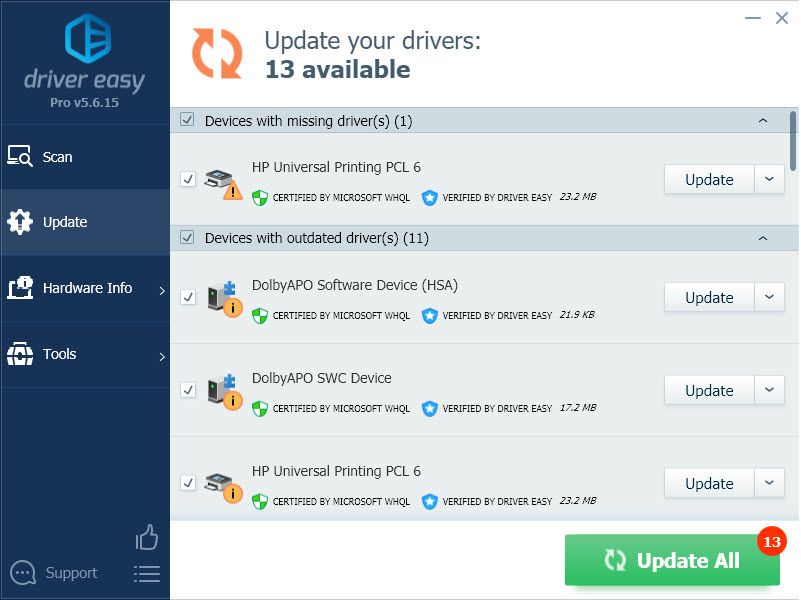
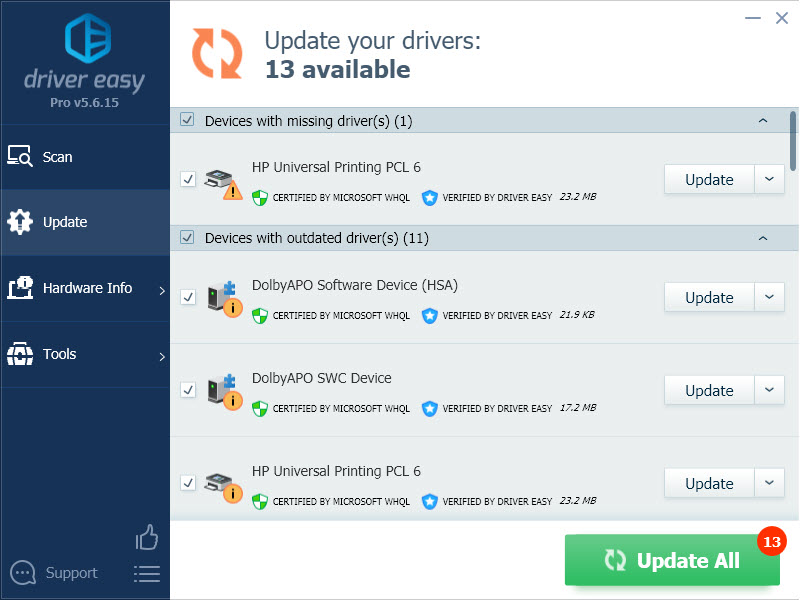
- Нажмите Обновить все для автоматической загрузки и установки правильной версии все драйверы, которые отсутствуют или устарели в вашей системе (для этого требуется Pro версия — вам будет предложено выполнить обновление, когда вы нажмете «Обновить все»).
Примечание : Вы можете сделать это бесплатно, если хотите, но отчасти это делается вручную. - Перезагрузите компьютер, чтобы изменения вступили в силу.
- Запустите Total War: ROME REMASTERED и проверьте, решена ли проблема сбоя. Если да, то отлично! Если проблема не исчезнет, попробуйте Исправить 3 , ниже.
Исправление 3: запустите Steam от имени администратора.
Total War: ROME REMASTERED требует прав администратора для доступа к защищенным системным ресурсам. Если игра или игровой клиент не имеет необходимых разрешений, может произойти сбой. Поэтому обязательно запустите Steam от имени администратора, чтобы посмотреть, решит ли он проблему.
Вот как:
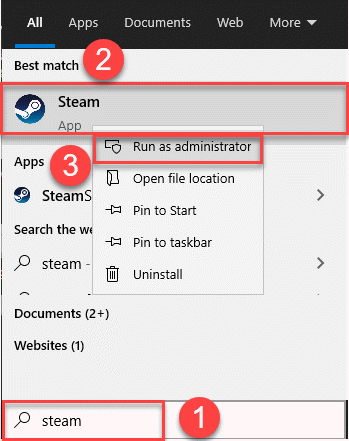
- На клавиатуре нажмите Windows logo key и введите эпос , затем щелкните правой кнопкой мыши Пар и нажмите Запустить от имени администратора .
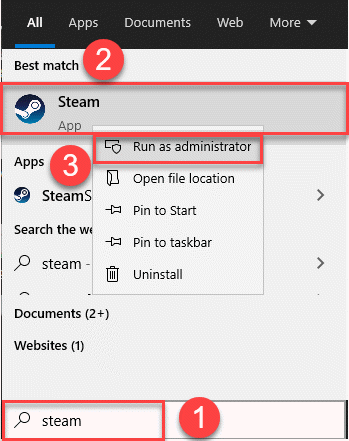
- Нажмите да когда UAC предлагает разрешения для продолжения.
После этого запустите игру Total War: ROME REMASTERED и посмотрите, сохраняется ли проблема с вылетом. Если нет, тогда отлично! Если проблема не исчезнет, попробуйте Исправить 4 , ниже.
Исправление 4: проверьте файлы игры в Steam
Игра может вылетать, если файлы неисправны или повреждены. К счастью, Steam встроил функцию восстановления в саму программу запуска, что позволяет вам исправлять небольшие глюки самостоятельно.
Вы можете проверить целостность файлов игры, чтобы сравнить файлы на вашем ПК с файлами на серверах Steam. Если какие-либо файлы будут отличаться, они могут быть изменены или отремонтированы. Вот шаги:
- Перезагрузите компьютер.
- Запустите Steam и войдите в свою учетную запись.
- Перейдите к БИБЛИОТЕКА , затем щелкните правой кнопкой мыши название игры Total War: ROME REMASTERED и нажмите Характеристики… .
- Нажмите ЛОКАЛЬНЫЕ ФАЙЛЫ > Проверить целостность файлов игры… .
- Подождите несколько минут, пока Steam проверит файлы игры. Опять же, любые отсутствующие или поврежденные файлы будут автоматически загружены в процессе.
- Перезапустите Total War: ROME REMASTERED, чтобы убедиться, что в нее можно играть правильно. Если да, то поздравляю! Если это все еще не радует, попробуйте Исправить 5 , ниже.
Исправление 5: разрешить Steam через брандмауэр
Брандмауэр — это система сетевой безопасности, которая фильтрует входящий и исходящий сетевой трафик, разрешая / блокируя определенный трафик на основе набора правил безопасности. Вы должны разрешить клиенту Steam пройти через брандмауэр, чтобы убедиться, что соединение не потеряно.
Чтобы убедиться, что вы разрешаете приложению обмениваться данными через брандмауэр Защитника Windows:
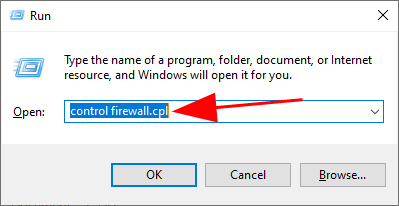
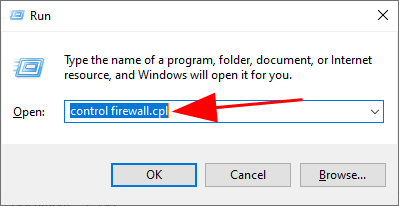
- На клавиатуре нажмите Windows logo key и р в то же время, чтобы вызвать окно ‘Выполнить’. Затем введите контролировать firewall.cpl в коробку и нажмите Войти .
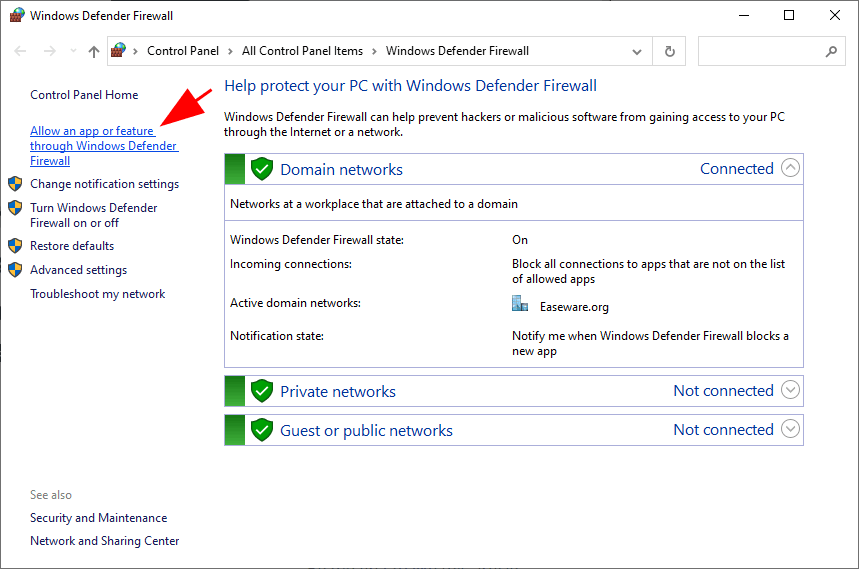
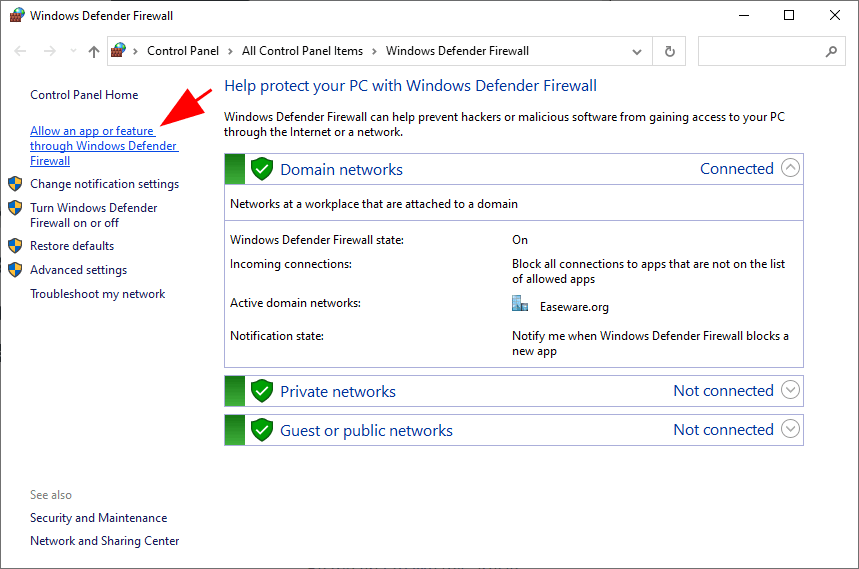
- В появившемся окне нажмите Разрешить приложение или функцию через брандмауэр Защитника Windows .
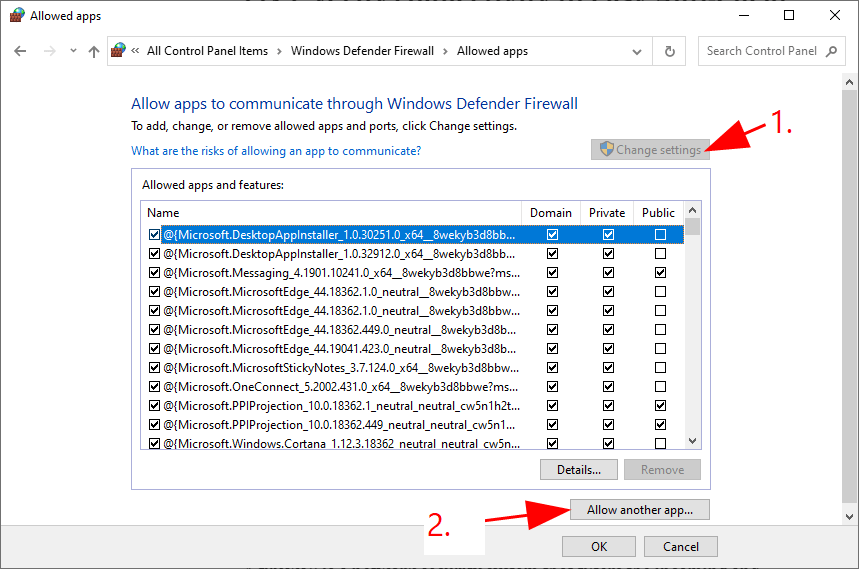
- Просмотрите список разрешенных приложений и функций, чтобы узнать, включен ли Steam. Если нет, щелкните Изменить настройки нажмите Разрешить другое приложение… , затем следуйте инструкциям на экране, чтобы добавить приложение.
- По завершении нажмите хорошо .
- Запустите игру в клиенте и посмотрите, вылетает ли она по-прежнему. Если это все еще продолжается, перейдите к Исправить 6 .
Если на вашем компьютере запущено антивирусное программное обеспечение, не забудьте временно отключить его. В это время будьте особенно осторожны с тем, какие сайты вы посещаете, какие электронные письма открываете и какие файлы загружаете.
Исправление 6: Установите последний патч
Проблема с падением может быть ошибкой, скрытой в патчах игры. Если это так, разработчики ответят на это и решат проблему с помощью нового патча. Так что вы можете проверить последний патч, чтобы узнать, помогает ли он решить проблему.
Если нового патча нет или проблема остается после установки последнего патча, перейдите на Исправить 7 , ниже.
Исправление 7. Выполните чистую загрузку.
Другой возможной причиной сбоя Total War: ROME REMASTERED является конфликт программного обеспечения. В этом случае следует выполнить чистую загрузку. При чистой загрузке Windows перезагружается с минимальным набором драйверов и программ запуска, что позволяет сузить круг программ и служб, чтобы можно было точно определить злоумышленника.
Вот шаги для выполнения чистой загрузки:
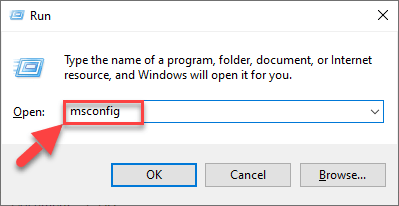
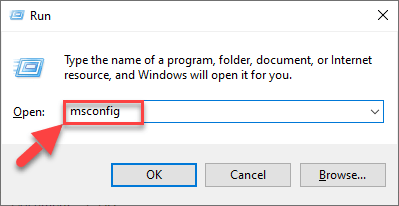
- На клавиатуре нажмите Windows logo key и р в то же время, чтобы открыть окно ‘Выполнить’. Тип или прошлое msconfig и нажмите Войти .
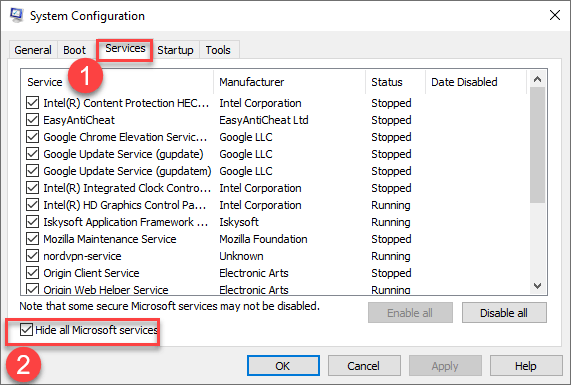
- Щелкните значок Услуги вкладка и установите флажок Скрыть все службы Microsoft .

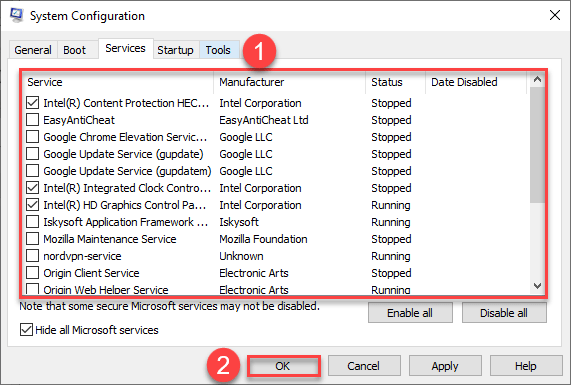
- Просмотрите полный список услуг, обязательно установите флажки рядом с элементами, принадлежащими производителям вашего оборудования. (например, Intel, AMD и Qualcomm) и снимите флажки для остальных . По завершении нажмите хорошо чтобы применить изменения.

- Перезагрузите компьютер и проверьте, не вылетает ли игра по-прежнему.
- Если Total War: ROME REMASTERED перестает вылетать , вы можете попробовать повторить эти шаги, каждый раз отключая половину служб, пока не изолируете виновную программу. Как только вы это сделаете, поищите в Интернете, для чего предназначена программа, а затем обратитесь к поставщику этой программы за советом или альтернативным решением.
- Если Total War: ROME REMASTERED все еще вылетает пожалуйста, продолжайте Исправить 8 .
Исправление 8: Переустановите Total War: ROME REMASTERED и Steam.
Если вы исчерпали все перечисленные выше исправления, но проблема все еще не устранена, вам, возможно, следует переустановить игру и клиент Steam, чтобы посмотреть, сможете ли вы решить проблему.
Вот и все — надеюсь, этот пост помог. Если у вас есть какие-либо вопросы, идеи или предложения, вы можете оставить нам комментарий ниже.
The remaster of Total War: Rome has been out with quite a slew of evolved features. However, many players have encountered the crashing problem as they launch the game or during gameplay. While this is a frustrating issue, it isn’t too hard to fix…
How to fix Total War: ROME REMASTERED Crashing on PC
Here are eight fixes that have helped other players resolve the Total War: ROME REMASTERED crashing on PC problem. You may not have to try them all; just work your way down the list until you find the one that does the trick for you.
- Make sure your PC meets the minimum specifications for Total War: ROME REMASTERED
- Update your device drivers
- Run Steam as administrator
- Verify game files on Steam
- Allow Steam through firewall
- Install the latest patch
- Perform a clean boot
- Reinstall Total War: ROME REMASTERED and Steam
Fix 1: Make sure your PC meets the minimum specifications for Total War: ROME REMASTERED
Total War: ROME REMASTERED has a set of hardware and system requirements in order for it to be played smoothly. If your copy of Total War: ROME REMASTERED crashes a lot on your PC, it’s time to check if your PC meets the requirements.
Below I have listed both the minimum (for playable performance) and recommended (for desirable performance) requirements for Windows PC. If you’re not sure how your system measures up against these specifications, you can follow on the steps right after to check.
| MINIMUM SPECIFICATIONS | RECOMMENDED SPECIFICATIONS | |
| OPERATING SYSTEM | Windows 10 64-bit (version 1809) | Windows 10 64-bit (version 20H2) |
| PROCESSOR | Intel i3 series or AMD FX-4000 series | Intel Core i5-4570 or Ryzen 5 1600 |
| GPU | NVIDIA GTX 600 series (1GB VRAM) or AMD HD 7000 series (1GB VRAM) or Intel UHD 620 | NVIDIA GeForce GTX 770 4GB or AMD Radeon R9 290 4GB |
| MEMORY | 6 GB RAM | 8 GB RAM |
| STORAGE | 45 GB | 45 GB |
To check Windows Build of your PC:
- On your keyboard, press the Windows logo key
 and R at the same time, then type winver and press Enter.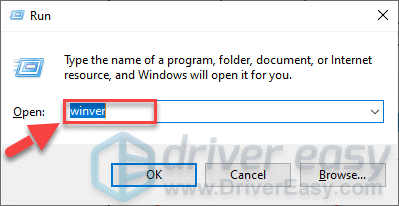
- In the window that pops up, you can check the exact version of the copy of Windows on your PC.
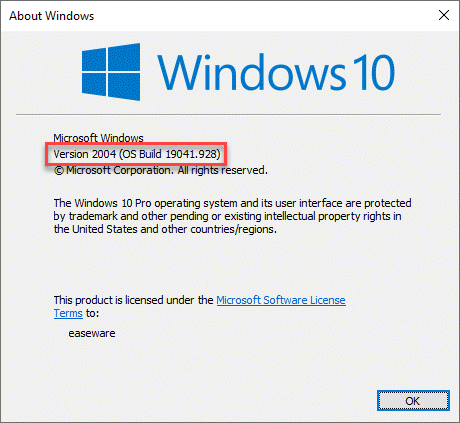
- Once finished, click OK to exit the window.
To check the specs of your PC:
- On your keyboard, press the Windows logo key and R at the same time, then type dxdiag and press Enter.
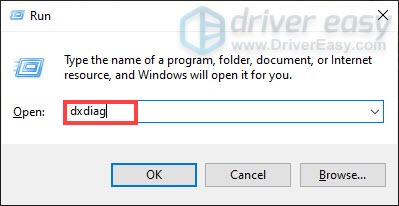
- Under the System tab and you can check the Operating System and Memory information on your PC.
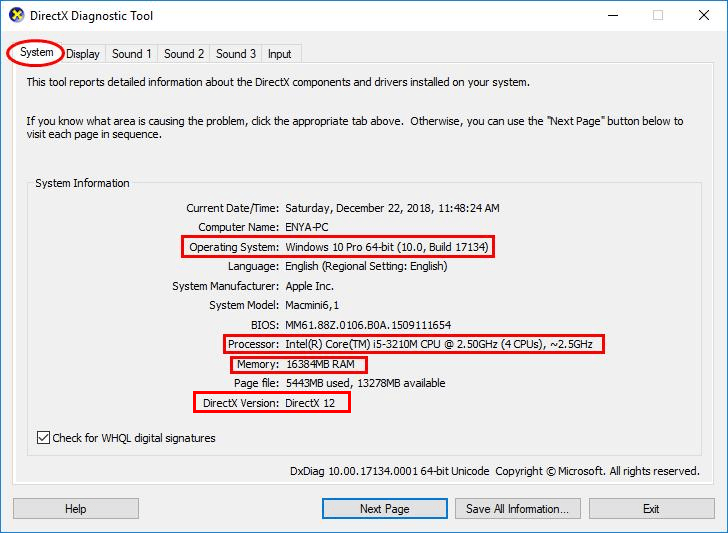
- Select the Display tab, and you’ll be presented with the information about your graphics card.
- Close DirectX.
You may need to upgrade the hardware of your computer if it fails to meet the specs.
If your PC specs are up to the mark but Total War: ROME REMASTERED still crashes, please move on to Fix 2, below to begin troubleshooting.
Fix 2: Update your device drivers
Device drivers, which act as a translator between your hardware components and your computer system, are essential for the proper functioning of your computer. A wrong, outdated or corrupt driver may cause instability or even crashes to your system. So you should update your drivers to see if it fixes your problem. If you don’t have the time, patience or skills to update the driver manually, you can do it automatically with Driver Easy.
Driver Easy will automatically recognize your system and find the correct drivers for it. You don’t need to know exactly what system your computer is running, you don’t need to be troubled by the wrong driver you would be downloading, and you don’t need to worry about making a mistake when installing. Driver Easy handles it all.
You can update your drivers automatically with either the FREE or the Pro version of Driver Easy. But with the Pro version it takes just 2 steps (and you get full support and a 30-day money back guarantee):
- Download and install Driver Easy.
- Run Driver Easy and click the Scan Now button. Driver Easy will then scan your computer and detect any problem drivers.
- Click Update All to automatically download and install the correct version of all the drivers that are missing or out of date on your system (this requires the Pro version– you’ll be prompted to upgrade when you click Update All).
Note: You can do it for free if you like, but it’s partly manual. - Restart your computer for the changes to take effect.
- Launch Total War: ROME REMASTERED and check to see if crashing issue has been resolved. If yes, then great! If the issue persists, please try Fix 3, below.
Fix 3: Run Steam as administrator
Total War: ROME REMASTERED requires administrator privileges in order to access protected system resources. If the game or the game client doesn’t have the required permissions, you may encounter crash. So you should make sure to runSteam as administrator to see if it fixes the issue.
Here’s how:
- On your keyboard, press the Windows logo key and type epic, then right-click on Steam and click Run as administrator.
- Click Yes when UAC promots for permissions to proceed.
After that, launch Total War: ROME REMASTERED game and see if the crashing problem still occurs. If it doesn’t, then great! If the issue persists, please try Fix 4, below.
Fix 4: Verify game files on Steam
The game may crash if the files are faulty or corrupt. Luckily, Steam has built the repair feature into the launcher itself, allowing you to fix little glitches on your own.
You can verify the integrity of the game files to compare the files on your PC to the ones on Steam servers. If any files are found different, they may be changed or repaired. Here are the steps:
- Restart your computer.
- Launch Steam and sign in to your account.
- Navigate to LIBRARY, then right click on Total War: ROME REMASTERED game title and click Properties….
- Click LOCAL FILES > Verify integrity of game files….
- Wait a few minutes for Steam to validate the files of the game. Again, any files found missing or corrupt would be automatically downloaded in the process.
- Re-launch Total War: ROME REMASTERED to see if it can be played properly. If yes, then congrats! If it’s still no joy, please try Fix 5, below.
Fix 5: Allow Steam through firewall
A firewall is a network security system that filters incoming and outgoing network traffic by permitting/blocking specific traffic based on a set of security rules. You should allow Steam client through the firewall to make sure that the connection isn’t lost.
To make sure you allow the app to communicate through Windows Defender Firewall:
- On your keyboard, press the Windows logo key and R at the same time to invoke the Run box. Then type control firewall.cpl into the box and press Enter.
- In the window that pops up, click Allow an app or feature through Windows Defender Firewall.
- Browse through the list of Allowed apps and features to see if Steam is included. If not, click Change settings, click Allow another app…, then follow the on-screen instructions to add the app.
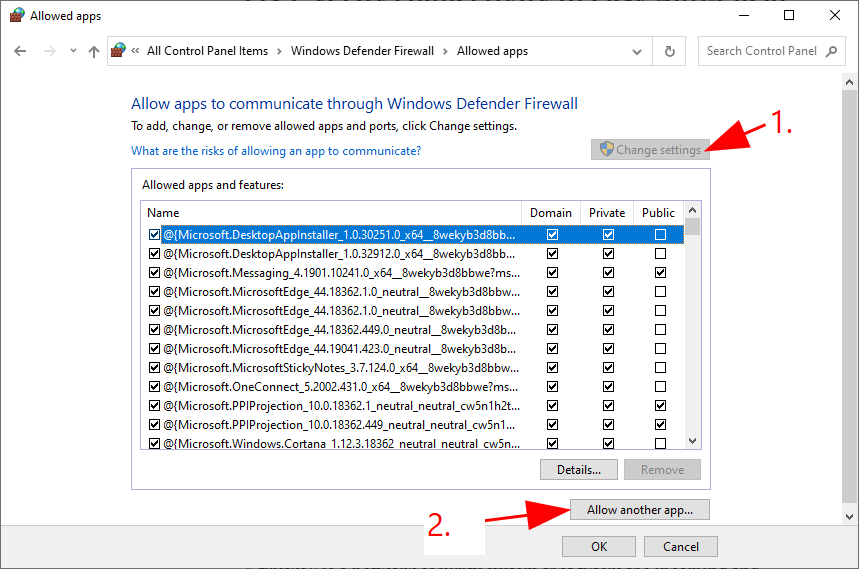
- Once completed, click OK.
- Run the game in the client and see if it still crashes. If it’s still on-going, please move on to Fix 6.
If you have anti-virus software running in your computer, make sure you disable it temporarily too. During this time, be extra careful about what sites you visit, what emails you open and what files you download.
Fix 6: Install the latest patch
The crashing issue could be a bug ensconced in the patches of the game. If this is the case, the developers would respond to this and address the issue with a new patch. So you can check out the latest patch to see if it helps fix the issue.
If there’s no new patch available, or the problem remains after installing the latest patch, head on to Fix 7, below.
Fix 7: Perform a clean boot
Another possible cause for the Total War: ROME REMASTERED crashing issue is software conflict. If this is the case, you should perform a clean boot. A clean boot restarts Windows with a minimal set of drivers and startup programs, allowing you to narrow down the programs and servicies so that you could potentially pinpoint the offender.
Here are the steps to perform a clean boot:
- On your keyboard, press the Windows logo key and R at the same time to bring up the Run box. Type or past msconfig and press Enter.
- Click the Services tab and tick the box for Hide all Microsoft services.
- Browse through the full list of services, make sure to check the boxes for the items that belong to your hardware manufacturers (such as Intel, AMD, and Qualcomm) and uncheck the boxes for the rest. Once finished, click OK to apply the changes.
- Restart your computer, then test to see if the game still crashes.
- If Total War: ROME REMASTERED stops crashing, you can try repeating these steps, disabling half of the services each time until you isolate the culpable program. Once you do, do some research on the internet to find out what the program is for, then contact the vendor of this program for advice or an alternative solution.
- If Total War: ROME REMASTERED still crashes, please continue to Fix 8.
Fix 8: Reinstall Total War: ROME REMASTERED and Steam
If you’ve exhausted the fixes above but the issue still sticks around, then you should perhaps reinstall the game and Steam client to see if you could fix the problem.
That’s it – hopefully this post helped. If you have any questions, ideas or suggestions, you’re more than welcome to leave us a comment below.
4
4 people found this helpful
The remaster of Total War: Rome has been out with quite a slew of evolved features. However, many players have encountered the crashing problem as they launch the game or during gameplay. While this is a frustrating issue, it isn’t too hard to fix…
How to fix Total War: ROME REMASTERED Crashing on PC
Here are eight fixes that have helped other players resolve the Total War: ROME REMASTERED crashing on PC problem. You may not have to try them all; just work your way down the list until you find the one that does the trick for you.
- Make sure your PC meets the minimum specifications for Total War: ROME REMASTERED
- Update your device drivers
- Run Steam as administrator
- Verify game files on Steam
- Allow Steam through firewall
- Install the latest patch
- Perform a clean boot
- Reinstall Total War: ROME REMASTERED and Steam
Fix 1: Make sure your PC meets the minimum specifications for Total War: ROME REMASTERED
Total War: ROME REMASTERED has a set of hardware and system requirements in order for it to be played smoothly. If your copy of Total War: ROME REMASTERED crashes a lot on your PC, it’s time to check if your PC meets the requirements.
Below I have listed both the minimum (for playable performance) and recommended (for desirable performance) requirements for Windows PC. If you’re not sure how your system measures up against these specifications, you can follow on the steps right after to check.
| MINIMUM SPECIFICATIONS | RECOMMENDED SPECIFICATIONS | |
| OPERATING SYSTEM | Windows 10 64-bit (version 1809) | Windows 10 64-bit (version 20H2) |
| PROCESSOR | Intel i3 series or AMD FX-4000 series | Intel Core i5-4570 or Ryzen 5 1600 |
| GPU | NVIDIA GTX 600 series (1GB VRAM) or AMD HD 7000 series (1GB VRAM) or Intel UHD 620 | NVIDIA GeForce GTX 770 4GB or AMD Radeon R9 290 4GB |
| MEMORY | 6 GB RAM | 8 GB RAM |
| STORAGE | 45 GB | 45 GB |
To check Windows Build of your PC:
- On your keyboard, press the Windows logo key and R at the same time, then type winver and press Enter.
- In the window that pops up, you can check the exact version of the copy of Windows on your PC.
- Once finished, click OK to exit the window.
To check the specs of your PC:
- On your keyboard, press the Windows logo key and R at the same time, then type dxdiag and press Enter.
- Under the System tab and you can check the Operating System and Memory information on your PC.
- Select the Display tab, and you’ll be presented with the information about your graphics card.
- Close DirectX.
You may need to upgrade the hardware of your computer if it fails to meet the specs.
If your PC specs are up to the mark but Total War: ROME REMASTERED still crashes, please move on to Fix 2, below to begin troubleshooting.
Fix 2: Update your device drivers
Device drivers, which act as a translator between your hardware components and your computer system, are essential for the proper functioning of your computer. A wrong, outdated or corrupt driver may cause instability or even crashes to your system. So you should update your drivers to see if it fixes your problem. If you don’t have the time, patience or skills to update the driver manually, you can do it automatically with Driver Easy.
Driver Easy will automatically recognize your system and find the correct drivers for it. You don’t need to know exactly what system your computer is running, you don’t need to be troubled by the wrong driver you would be downloading, and you don’t need to worry about making a mistake when installing. Driver Easy handles it all.
You can update your drivers automatically with either the FREE or the Pro version of Driver Easy. But with the Pro version it takes just 2 steps (and you get full support and a 30-day money back guarantee):
- Download and install Driver Easy.
- Run Driver Easy and click the Scan Now button. Driver Easy will then scan your computer and detect any problem drivers.
- Click Update All to automatically download and install the correct version of all the drivers that are missing or out of date on your system (this requires the Pro version– you’ll be prompted to upgrade when you click Update All).
Note: You can do it for free if you like, but it’s partly manual. - Restart your computer for the changes to take effect.
- Launch Total War: ROME REMASTERED and check to see if crashing issue has been resolved. If yes, then great! If the issue persists, please try Fix 3, below.
Fix 3: Run Steam as administrator
Total War: ROME REMASTERED requires administrator privileges in order to access protected system resources. If the game or the game client doesn’t have the required permissions, you may encounter crash. So you should make sure to runSteam as administrator to see if it fixes the issue.
Here’s how:
- On your keyboard, press the Windows logo key and type epic, then right-click on Steam and click Run as administrator.
- Click Yes when UAC promots for permissions to proceed.
After that, launch Total War: ROME REMASTERED game and see if the crashing problem still occurs. If it doesn’t, then great! If the issue persists, please try Fix 4, below.
Fix 4: Verify game files on Steam
The game may crash if the files are faulty or corrupt. Luckily, Steam has built the repair feature into the launcher itself, allowing you to fix little glitches on your own.
You can verify the integrity of the game files to compare the files on your PC to the ones on Steam servers. If any files are found different, they may be changed or repaired. Here are the steps:
- Restart your computer.
- Launch Steam and sign in to your account.
- Navigate to LIBRARY, then right click on Total War: ROME REMASTERED game title and click Properties….
- Click LOCAL FILES > Verify integrity of game files….
- Wait a few minutes for Steam to validate the files of the game. Again, any files found missing or corrupt would be automatically downloaded in the process.
- Re-launch Total War: ROME REMASTERED to see if it can be played properly. If yes, then congrats! If it’s still no joy, please try Fix 5, below.
Fix 5: Allow Steam through firewall
A firewall is a network security system that filters incoming and outgoing network traffic by permitting/blocking specific traffic based on a set of security rules. You should allow Steam client through the firewall to make sure that the connection isn’t lost.
To make sure you allow the app to communicate through Windows Defender Firewall:
- On your keyboard, press the Windows logo key and R at the same time to invoke the Run box. Then type control firewall.cpl into the box and press Enter.
- In the window that pops up, click Allow an app or feature through Windows Defender Firewall.
- Browse through the list of Allowed apps and features to see if Steam is included. If not, click Change settings, click Allow another app…, then follow the on-screen instructions to add the app.
- Once completed, click OK.
- Run the game in the client and see if it still crashes. If it’s still on-going, please move on to Fix 6.
If you have anti-virus software running in your computer, make sure you disable it temporarily too. During this time, be extra careful about what sites you visit, what emails you open and what files you download.
Fix 6: Install the latest patch
The crashing issue could be a bug ensconced in the patches of the game. If this is the case, the developers would respond to this and address the issue with a new patch. So you can check out the latest patch to see if it helps fix the issue.
If there’s no new patch available, or the problem remains after installing the latest patch, head on to Fix 7, below.
Fix 7: Perform a clean boot
Another possible cause for the Total War: ROME REMASTERED crashing issue is software conflict. If this is the case, you should perform a clean boot. A clean boot restarts Windows with a minimal set of drivers and startup programs, allowing you to narrow down the programs and servicies so that you could potentially pinpoint the offender.
Here are the steps to perform a clean boot:
- On your keyboard, press the Windows logo key and R at the same time to bring up the Run box. Type or past msconfig and press Enter.
- Click the Services tab and tick the box for Hide all Microsoft services.
- Browse through the full list of services, make sure to check the boxes for the items that belong to your hardware manufacturers (such as Intel, AMD, and Qualcomm) and uncheck the boxes for the rest. Once finished, click OK to apply the changes.
- Restart your computer, then test to see if the game still crashes.
- If Total War: ROME REMASTERED stops crashing, you can try repeating these steps, disabling half of the services each time until you isolate the culpable program. Once you do, do some research on the internet to find out what the program is for, then contact the vendor of this program for advice or an alternative solution.
- If Total War: ROME REMASTERED still crashes, please continue to Fix 8.
Fix 8: Reinstall Total War: ROME REMASTERED and Steam
If you’ve exhausted the fixes above but the issue still sticks around, then you should perhaps reinstall the game and Steam client to see if you could fix the problem.
That’s it – hopefully this post helped. If you have any questions, ideas or suggestions, you’re more than welcome to leave us a comment below.
4
4 people found this helpful