400 — Bad Request (Некорректный запрос)
«Плохой запрос». Этот ответ означает, что сервер не понимает… Читать далее
Подробнее
401 — Unauthorized (Не авторизован)
«Неавторизовано». Для получения запрашиваемого ответа нужна … Читать далее
Подробнее
402 — Payment Required (Необходима оплата)
«Необходима оплата». Этот код ответа зарезервирован для буду… Читать далее
Подробнее
403 — Forbidden (Запрещено)
«Запрещено». У клиента нет прав доступа к содержимому, поэто… Читать далее
Подробнее
404 — Not Found (Не найдено)
«Не найден». Сервер не может найти запрашиваемый ресурс. Код… Читать далее
Подробнее
405 — Method Not Allowed (Метод не поддерживается)
«Метод не разрешен». Сервер знает о запрашиваемом методе, но… Читать далее
Подробнее
406 — Not Acceptable (Неприемлемо)
Этот ответ отсылается, когда веб сервер после выполнения ser… Читать далее
Подробнее
407 — Proxy Authentication Required (Необходима аутентификация прокси)
Этот код ответа аналогичен коду 401, только аутентификация т… Читать далее
Подробнее
408 — Request Timeout (Истекло время ожидания)
Ответ с таким кодом может прийти, даже без предшествующего з… Читать далее
Подробнее
409 — Conflict (Конфликт)
Этот ответ отсылается, когда запрос конфликтует с текущим со… Читать далее
Подробнее
410 — Gone (Удалён)
Этот ответ отсылается, когда запрашиваемый контент удален с … Читать далее
Подробнее
411 — Length Required (Необходима длина)
Запрос отклонен, потому что сервер требует указание заголовк… Читать далее
Подробнее
412 — Precondition Failed (Условие ложно)
Клиент указал в своих заголовках условия, которые сервер не … Читать далее
Подробнее
413 — Request Entity Too Large (Полезная нагрузка слишком велика)
Размер запроса превышает лимит, объявленный сервером. Сервер… Читать далее
Подробнее
414 — Request-URI Too Long (URI слишком длинный)
URI запрашиваемый клиентом слишком длинный для того, чтобы с… Читать далее
Подробнее
415 — Unsupported Media Type (Неподдерживаемый тип данных)
Медиа формат запрашиваемых данных не поддерживается сервером… Читать далее
Подробнее
416 — Requested Range Not Satisfiable (Диапазон не достижим)
Диапозон указанный заголовком запроса Range не может бы… Читать далее
Подробнее
417 — Expectation Failed (Ожидание не удалось)
Этот код ответа означает, что ожидание, полученное из заголо… Читать далее
Подробнее
418 — I’m a teapot (Я — чайник)
I’m a teapot — Этот код был введен в 1998 году как одна из т… Читать далее
Подробнее
419 — Authentication Timeout (not in RFC 2616) (Обычно ошибка проверки CSRF)
Authentication Timeout (not in RFC 2616) — Этого кода нет в … Читать далее
Подробнее
420 — Enhance Your Calm (Twitter) (Подождите немного (Твиттер))
Возвращается Twitter Search и Trends API, когда клиент отпра… Читать далее
Подробнее
421 — Misdirected Request (Неверный запрос)
Misdirected Request — запрос был перенаправлен на сервер, не… Читать далее
Подробнее
422 — Unprocessable Entity (Необрабатываемый экземпляр)
Запрос имел правильный формат, но его нельзя обработать из-з… Читать далее
Подробнее
423 — Locked (Заблокировано)
Целевой ресурс из запроса заблокирован от применения к нему … Читать далее
Подробнее
424 — Failed Dependency (Невыполненная зависимость)
Не удалось завершить запрос из-за ошибок к предыдущем запрос… Читать далее
Подробнее
425 — Too Early (Слишком рано)
Too Early — сервер не готов принять риски обработки «ранней … Читать далее
Подробнее
426 — Upgrade Required (Необходимо обновление)
Указание сервера, клиенту, обновить протокол. Заголовок отве… Читать далее
Подробнее
428 — Precondition Required (Необходимо предусловие)
Precondition Required — сервер указывает клиенту на необходи… Читать далее
Подробнее
429 — Too Many Requests (Слишком много запросов)
Too Many Requests — клиент попытался отправить слишком много… Читать далее
Подробнее
430 — Would Block (Будет заблокировано)
Код состояния 430 would Block — это код, который сервер мог … Читать далее
Подробнее
431 — Request Header Fields Too Large (Поля заголовка запроса слишком большие)
Request Header Fields Too Large — Превышена допустимая длина… Читать далее
Подробнее
434 — Requested host unavailable (Запрашиваемый адрес недоступен)
Сервер к которому вы обратились недоступен… Читать далее
Подробнее
444 — No Response (Nginx) (Нет ответа (Nginx))
Код ответа Nginx. Сервер не вернул информацию и закрыл соеди… Читать далее
Подробнее
449 — Retry With (Повторить с…)
Retry With — возвращается сервером, если для обработки запро… Читать далее
Подробнее
450 — Blocked by Windows Parental Controls (Microsoft) (Заблокировано родительским контролем Windows (Microsoft))
Расширение Microsoft. Эта ошибка возникает, когда родительск… Читать далее
Подробнее
451 — Unavailable For Legal Reasons (Недоступно по юридическим причинам)
Unavailable For Legal Reasons — доступ к ресурсу закрыт по ю… Читать далее
Подробнее
499 — Client Closed Request (Клиент закрыл соединение)
Нестандартный код состояния, представленный nginx для случая… Читать далее
Подробнее
Running into WordPress errors can be one of the most stressful parts of being a website owner. This is especially true if the problem is accompanied by a message you don’t understand, such as the “509 bandwidth limit exceeded” error.
The good news is that there are simple steps you can take to resolve this issue. Once you troubleshoot and locate the problem, you can make the necessary adjustments to prevent it from happening again in the future.
In this post, we’ll explain what the “509 bandwidth limit exceeded” error is, some common causes, and how to troubleshoot it. Then we’ll walk you through five potential solutions you can use to resolve the problem. Let’s jump in!
Check Out Our Video Guide to Fixing The 509 Error
What the 509 Bandwidth Limit Exceeded Error Is
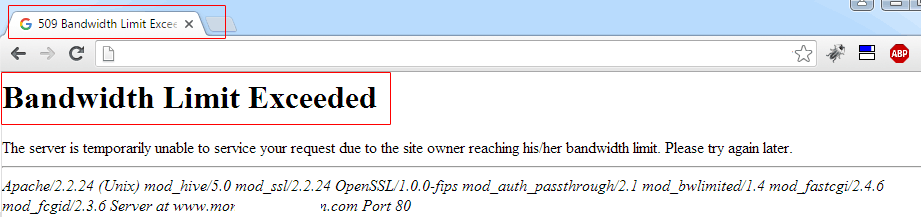
If you run into the “509 bandwidth limit exceeded” error, you’ll see a message similar to the following:

If you are getting this error, your website is using more bandwidth than your hosting plan allows. Bandwidth refers to the amount of data your site can transfer to its visitors within a set period. It’s typically measured in gigabytes (GB).
The wording of this message may also vary. For example, you may also see “storage limit exceeded” on your screen. A handful of factors can cause this scenario, which we’ll cover in the next section.
Common Causes of 509 Bandwidth Limit Exceeded
There are a few common causes of the “509 bandwidth limit exceeded” error. One of the common causes is high traffic. If your website gets a lot of traffic, it can use more resources than your hosting plan allows. This can happen if you have a popular website or referrals.
Another common cause is large files. If you have heavy files on your website, such as videos or images, they can use more bandwidth than your hosting plan allows. To fix this, you can try to optimize your website by compressing files or using smaller file sizes.
Finally, if you are on a shared hosting plan, someone else on the same server is likely using too many resources. This scenario can cause your website to use more resources than allotted by your hosting provider. If this is the case, you may need to upgrade your hosting plan.
Running into WordPress errors can be one of the most stressful parts of being a website owner. 😅 This guide is here to help 😌Click to Tweet
How To Troubleshoot the 509 Bandwidth Limit Exceeded Error
To troubleshoot this error, you might need to contact your host and ask them to increase your bandwidth limit. If you’re a Kinsta user, you can use MyKinsta Analytics to troubleshoot this problem and any other issues on your site.
We also recommend calculating your bandwidth. To calculate your bandwidth, you will need to know the average size of your website’s pages and the number of visitors you get each day.
You can find out the size of your pages by using a tool such as Sitechecker’s Web Page Size Checker tool. Simply enter your URL, and you’ll receive an HTML size value:
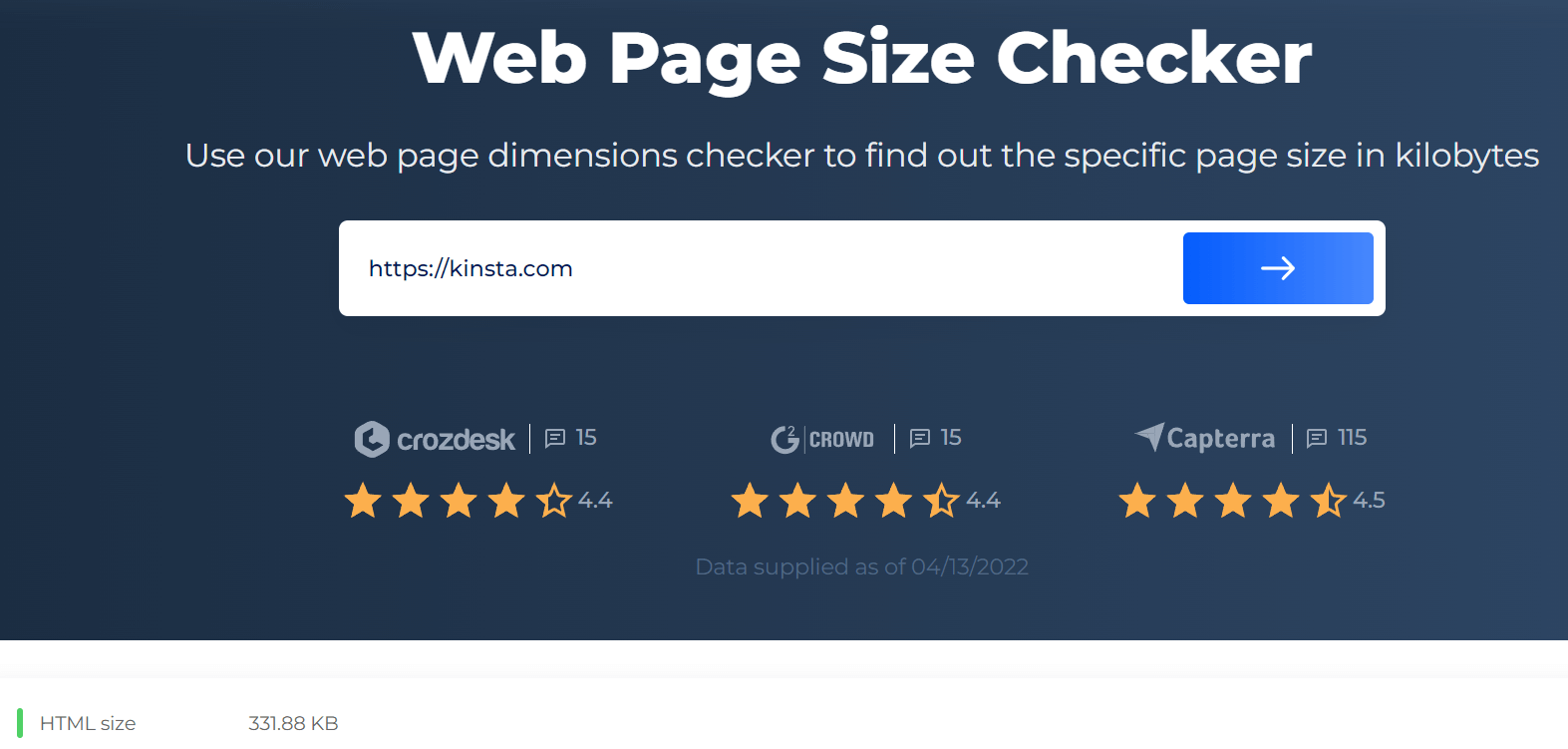
Then, you’ll need to source information on how many visitors your website receives in a day. You can get this data from an analytics platform like Google Analytics.
If you’re a Kinsta customer, you can see this data by going to Analytics in your MyKinsta dashboard:
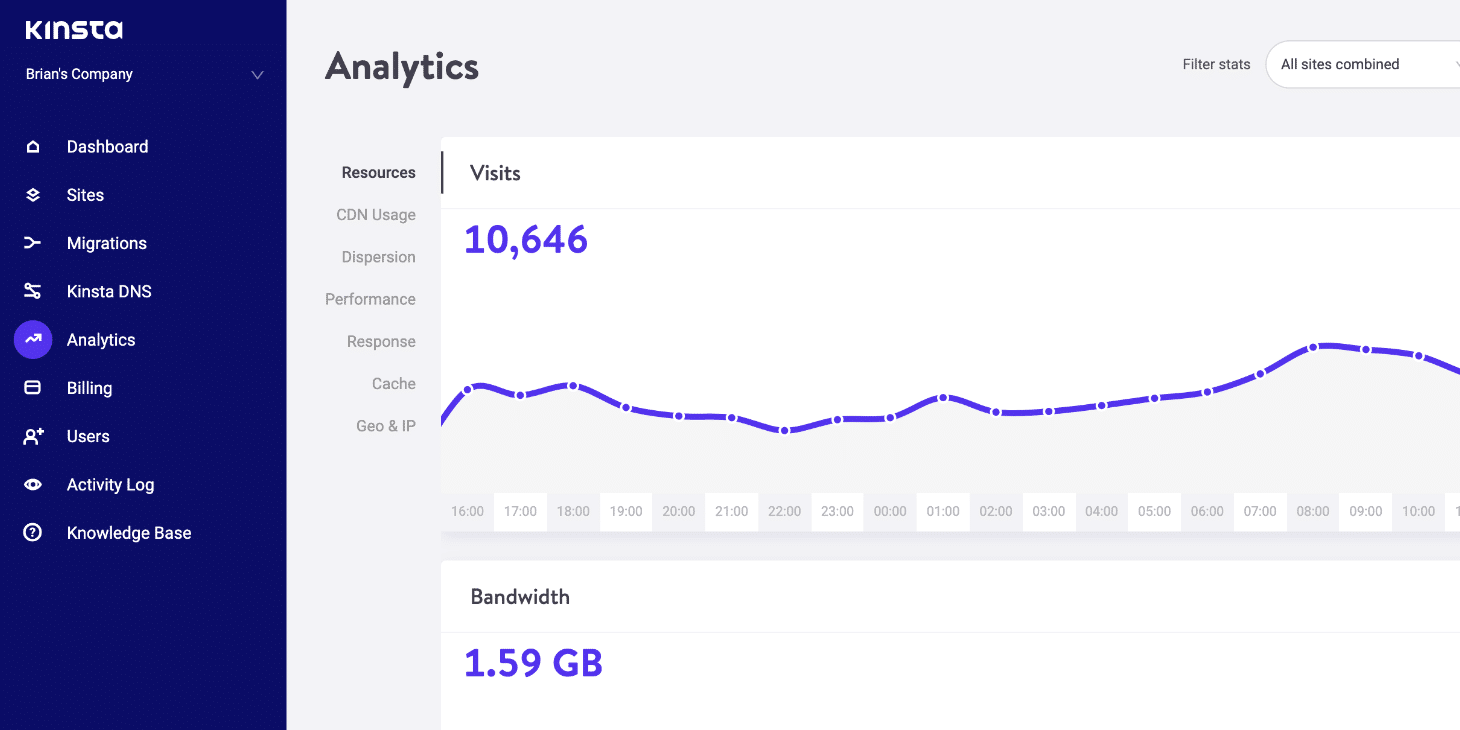
As you can see, Kinsta automatically calculates your bandwidth for you. Otherwise, you’ll need to multiply the number of visitors by your web page size to get your daily bandwidth usage. To calculate your monthly bandwidth usage, you can multiply your daily usage by 30.
For example, if your website is 50 MB and you get 1000 visitors per day, your monthly bandwidth usage would be 150 GB (50 MB x 1000 visitors x 30 days).
How To Fix the 509 Bandwidth Limit Exceeded Error (5 Solutions)
There are a few ways to fix the “509 bandwidth limit exceeded” error. Below are five potential solutions you can use!
1. Enable CDN Caching
Using Content Delivery Network (CDN) caching can be a great way to improve the performance of your website. It can help reduce the load time of your pages by storing static files on a CDN server and delivering them to visitors from there.
This setup can be beneficial if you have a lot of traffic. CDN caching is also handy if your website is located in a different part of the world from most of your visitors.
Some hosts include WordPress CDN services in their plans. For example, we offer Kinsta CDN, which is powered by Cloudflare.
To enable the feature, log in to your MyKinsta account. Next, navigate to Sites > Sitename > Kinsta CDN, then select Enable Kinsta CDN:
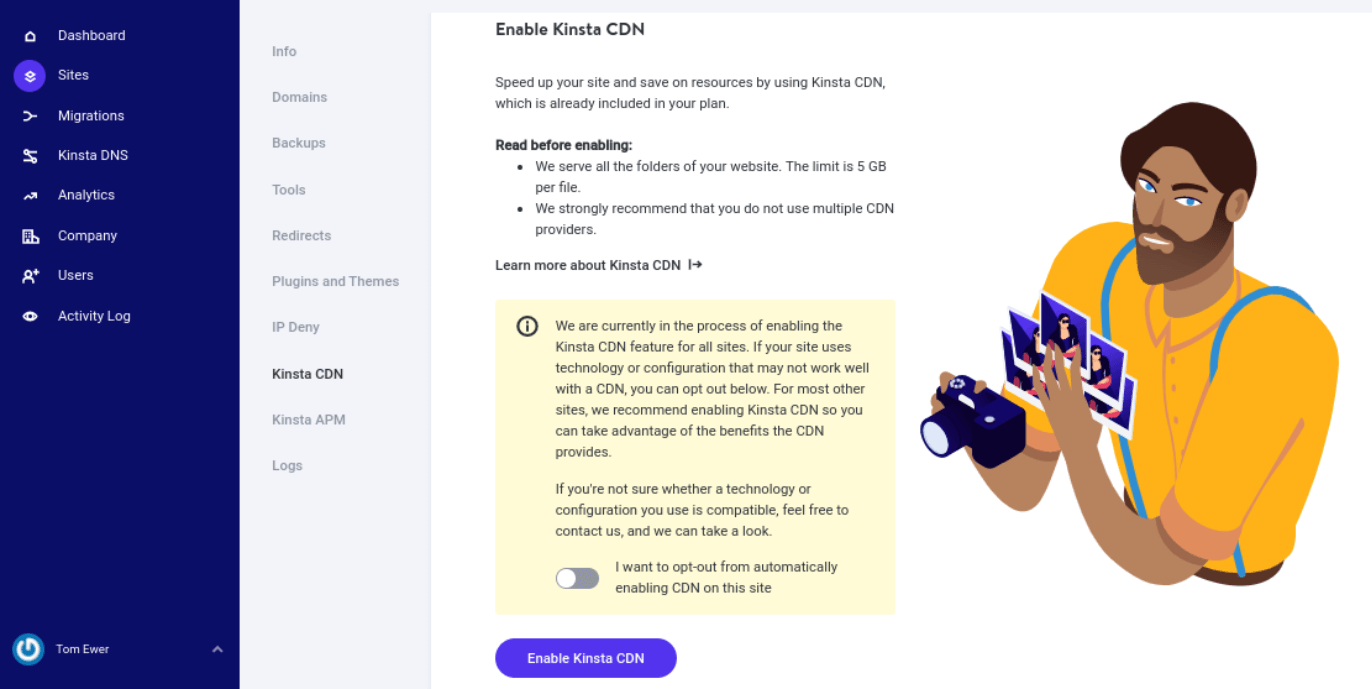
To manually enable CDN caching with other web hosts, you may need to add a few lines of code to your website’s .htaccess file. Once you have done this, you will need to configure your CDN provider and specify which files you want to cache. After that, visitors to your website will be served static files from the CDN instead of from your server.
There are a few things to keep in mind when using CDN caching. Firstly, it is essential to only cache static files. If you cache dynamic files, such as those generated by a Content Management System (CMS), they may not be updated when you make changes to your website.
Secondly, you will need to ensure that your CDN provider has enough capacity to handle the traffic to your website. If it doesn’t, your site may experience delays or downtime.
2. Avoid Hotlinking
Hotlinking is when someone includes a URL on their site that points to an image or other file on your website. This setup can cause your server to be overloaded with requests for the file, which can slow down your website or even cause it to crash. It can also result in you being charged for bandwidth that you did not use.
To prevent hotlinking on an Apache server, you can edit your .htaccess file and enable hotlink prevention. It will prevent people from hotlinking to files on your website.
Simply add the following code to the file:
RewriteEngine on

RewriteCond %{HTTP_REFERER} !^$

RewriteCond %{HTTP_REFERER} !^http(s)?://(www.)?yourdomain.com [NC]

RewriteCond %{HTTP_REFERER} !^http(s)?://(www.)?google.com [NC]

RewriteCond %{HTTP_REFERER} !^http(s)?://(www.)?bing.com [NC]

RewriteCond %{HTTP_REFERER} !^http(s)?://(www.)?yahoo.com [NC]

RewriteRule .(jpg|jpeg|png|gif|svg)$ http://dropbox.com/hotlink-placeholder.jpg [NC,R,L]

If your website runs on Nginx, you’ll want to add this code to your config file:

location ~ .(gif|png|jpeg|jpg|svg)$ {

valid_referers none blocked ~.google. ~.bing. ~.yahoo. yourdomain.com *.yourdomain.com;

if ($invalid_referer) {

return 403;

}

}
You can also contact your host and ask them to disable hotlinking for your domain. With Kinsta, you can request this service directly from your MyKinsta dashboard.
Alternatively, you can use a plugin such as All In One WP Security & Firewall:

This tool is a complete security plugin for WordPress. It helps you automatically detect and block hotlinks.
3. Optimize Your Database and File Storage
Your database and file storage can take up a lot of space on your server. If they are not optimized, they can hurt your site’s speed. Therefore, optimization should be an integral part of your WordPress website maintenance.
To optimize your database and file storage, you can compress files, use smaller file sizes, and limit the number of stored items. You can also move files to a different server or delete them altogether.
There are also plenty of database optimization plugins to choose from. A popular option is WP-Optimize:

The free tool lets you easily clean and optimize your database. It also enables you to compress your images and leverage page caching.
4. Delete Unused Files
Unused files can take up space on your server and slow down your website. To delete unused files, you can use a file manager or File Transfer Protocol (FTP) client to connect to your server and delete the files that you do not need. You should also remove any unused plugins or themes.
You can also ask your host to delete the files for you. Alternatively, you can use a plugin to detect and delete unused files automatically. An example of this type of tool is Media Cleaner:

This free plugin lets you automatically clean your Media Library by deleting any files it detects as unused.
5. Upgrade Your Hosting Plan
If you are still having trouble with your bandwidth limits, it’s best to contact your host and see if they can help you troubleshoot the issue. For example, the hosting provider may offer add-ons to increase storage space and bandwidth limits.
In most cases, your host will be able to identify the problem and help you fix it. You may need to upgrade your hosting plan to a higher bandwidth allocation. Furthermore, once you have solved the issue, be sure to monitor your website closely to ensure that the error does not return.
Don’t let this error slow down your site! 🙅♂️The solution is here ✅Click to Tweet
Summary
Encountering an error message such as “509 bandwidth limit exceeded” can be stressful. Fortunately, this is a common issue and, typically, one with a simple resolution process.
As we discussed in this post, there are five potential fixes for the “509 bandwidth limit exceeded” error:
- Enable CDN caching.
- Avoid hotlinking.
- Optimize your database and file storage.
- Delete unused files.
- Upgrade your hosting plan.
When choosing a hosting provider, you’ll need a plan with plenty of bandwidth and storage to meet your site’s needs.
At Kinsta, we have premium Application Hosting, Database Hosting, and Managed WordPress Hosting plans for all kinds of websites, from personal blogs to enterprise businesses. Check out our hosting today!
Get all your applications, databases and WordPress sites online and under one roof. Our feature-packed, high-performance cloud platform includes:
- Easy setup and management in the MyKinsta dashboard
- 24/7 expert support
- The best Google Cloud Platform hardware and network, powered by Kubernetes for maximum scalability
- An enterprise-level Cloudflare integration for speed and security
- Global audience reach with up to 35 data centers and 275+ PoPs worldwide
Test it yourself with $20 off your first month of Application Hosting or Database Hosting. Explore our plans or talk to sales to find your best fit.
Is your website showing 509 bandwidth limit exceeded message?
It just indicates that your website traffic is too high that the host cannot allow.
This too has a simple fix, free up some bandwidth always. Usually, we do this by upgrading the hosting plan, reduce file size, allow caching and so on.
At Bobcares, we often get requests to fix website errors, as a part of our Server Management Services.
Today, let’s see how our Support Engineers fix this 509 error on the website.
When does a website show a bandwidth limit exceeded?
Bandwidth is the rate of data transfer. In other words, it is the maximum amount of data transferred in a specified duration of time.
Smaller hosting plans just provide limited bandwidth for the time specified. But, this leads to trouble when the traffic on your website is more than expected. In such cases, the website shows the error 509 bandwidth limit exceeded. And it appears as,

It literally stops users from visiting the website. This is most frustrating as the increased traffic can be profitable.
But its always better to avoid this situation. Let’s see what our Support Engineers recommend.
How we avoid the bandwidth limit exceeded error?
There are a few ways by which we avoid this problem. Here we intend to reduce bandwidth usage.
1. Enable caching using CDN
One of the best solutions for this error is CDN aka Content Delivery Network.
Usually, the browser fetches the website files from the server every time a user makes a request. Actually, this increases the bandwidth usage.
But we can limit this bandwidth usage by enabling caching. And this is where our Support Team makes use of CDN.
Here when the user once visits a website, CDN caches the content. So, when he makes a request again, the data can be easily retrieved from the cache. As a result, it reduces the amount of bandwidth used.
2. Upgrading the hosting plan
Above all, a limited hosting plan can always make a website in trouble. As a result, the website shows the 509 error all times when the bandwidth limit exceeds. But, it’s always better to avoid this.
So, the best way is to upgrade the hosting plan to a higher one. Or when signing up itself, we help customers to choose a package with the right bandwidth limit. For instance, websites expecting too many visitors should have a hosting package with higher bandwidth limits.
3. Managing website files
In addition, website files can take larger space in your bandwidth. In such situations, we recommend compressing these files to reduce their size.
As images take away a larger portion of disk space, image compression tools are the best option to have. Similarly, for file compression, we suggest the use of zip tools.
4. Avoid Hotlinking
Sometimes, a foreign website can purposefully use your website’s bandwidth. Consequently, this can make the bandwidth exhaust. And this is simply termed as hotlinking.
So, our Support Team always enable hotlink protection on websites for better protection.
[Need assistance in fixing Website errors? – We are available 24/7.]
Conclusion
In short, the error 509 bandwidth limit exceeded shows up when the allotted website bandwidth is completely used. Today, we saw a few recommendations from our Support Engineers to avoid this problem.
PREVENT YOUR SERVER FROM CRASHING!
Never again lose customers to poor server speed! Let us help you.
Our server experts will monitor & maintain your server 24/7 so that it remains lightning fast and secure.
GET STARTED
var google_conversion_label = «owonCMyG5nEQ0aD71QM»;
Человек пожаловался, что при открытие сайта выводится ошибка bandwidth limit exceeded 509. Это означает, что происходит большое количество запросов, которые не может обработать хостинг-провайдер из за ограниченной пропускной способности, в редких случая эта ошибка бывает на очень слабых хостингах. В основном причина данной проблемы — атака ботов на ваш сайт.
Как только хостинг-провайдер запустил сайт, был выполнен вход в админку сайта и я установил плагин Wordfence Security.
- Просканировав сайт было обнаружено 3 вируса и 76 заражённых файлов.
- Большое количество wordpress файлов было изменено и туда был вставлен заражённый код.
WordPress файлы были остановлены, а вирусные файлы были удаленны.
Так же был удалён пользователь с правами админа, который проявился в результате заражения сайта.
Вначале я думал — это обычная вирусная атака, с которыми мне прежне приходилось сталкиваться. Оказалось, что сайт атаковали боты, затем заражали его вирусом, а затем сайт сам становился источником атаки на другие сайты.
Очистив от вируса сайт, я позабыл сменить пароль к базе данных. На следующий день сайт был опять заражён. Оказалось, что вирус автоматически записывает в свою память пароль от базы данных.
Обязательно смените пароль к базе данных! и прочие пароли!
Я вновь очистил весь сайт от вируса и поменял все пароли, я так же удалили файлы htcsses, который вирус на добавлял в папки wordpress.
Сайт бы чистый, но атака ботов продолжалась. Я выставил ограничения для ботов с помощью плагина Wordfence Security, и с помощью плагина IP Geo Block, с помощью которого забанил все страны кроме нужной.
Увы ничего не помогло, атака ботов продолжалась. Я банил ip адреса сейте ботов — это помогло на некоторое время, но затем с помощью видимо прокси боты вновь атаковали на несуществующие страницы саййта, что приводили к росту bandwidth и ошибки bandwidth limit exceeded 509.
Я порекомендовал сервис cloudfare для защиты сайта от DDOS и бот атаки.
Итог: сайт был вылечен, но атака ботов продолжилась, не помогли никакие ограничения. Причины заражения могли быть старые уязвимые файлы, плагины, шаблоны. Чисткой сайта от мусора и лишних файлов админ занялся уже после заражения, поэтому точно сказать, какой файл принёс данный вирус сказать сложно. Работа вируса заключалась в отправки большого количества запросов на другие сайты, сайт использовался для DDOS атаки.

Server errors of any kind are a nuisance for sure, but an Error 509 – Bandwidth Limit Exceeded can be particularly enraging since it interrupts the displaying of your website to your visitors. When the Error 509 status appears, a blank page informing about the bandwidth limit being exceeded is all that your website’s visitors can see in their web browsers.
There is no need to get angry at your hosting provider, since the bandwidth is exceeded through no fault of their own.
You’ll only run into this message if you have a limited hosting plan, that is, a hosting plan with limited bandwidth. With limited hosting accounts, a limited amount of bandwidth is assigned on a monthly basis. Therefore, if the allotted amount of bandwidth runs out, your website will stop displaying, and will only start displaying again once the current month is over and the amount of bandwidth resets.
Get Unmetered Bandwidth with HostGator!
 Tired of getting Error 509 with your current web host? Switch and move your websites to HostGator and benefit of their cheap unmetered bandwidth and storage plan.
How Does Bandwidth Work?
For the purposes of web hosting, the term bandwidth is often used interchangeably with data transfer, however, a distinction must be made between the two concepts.
Bandwidth can be defined as the maximum amount of data that can be transferred in an interval, that is, the rate at which data is being transferred. Bandwidth is usually measured in kilobits, megabits or in case of fiber optics in gigabits per second.
Data transfer, on the other hand, signifies the volume of data to be transferred (every time your website loads), and it’s measured in megabytes, gigabytes or terabytes.
The interplay between these two concepts can be better understood through an analogy. The hosting industry’s go-to analogy to illustrate the relationship between the two concepts it the water pipe example, where the diameter of the water pipe is the bandwidth, and the water that flows through the pipe is the data transfer. The bigger the diameter (bandwidth) the faster water (data) can travel through the pipe.
Another way to illustrate the relationship between bandwidth and data transfer is to think about highway lanes and cars, were the lanes are the bandwidth, while cars are the data to be transferred. When there are way too many cars and very few highway lanes, you may end up with a standstill.
Thus, bandwidth gets eaten up by the amount of traffic your website gets. A website with a high visitor load, needs more bandwidth to be able to deliver data to its users. When you reach your bandwidth capacity’s limit, a 509 server error code appears.
How to fix Bandwidth Limit Exceeded Error?
Depending on the profile of your website, a bandwidth limit exceeded error can be a critical issue that must be solved immediately, especially if any time your site is down you may lose money. Even if you don’t generate money with your site just yet, fixing a 509 error can be important from an SEO visibility perspective as well. Search engines may qualify your site as inactive if the situation persists for too long, and remove it temporarily from search engines. Therefore, it’s in your best interest to solve the issue without delay.
Usually, there are two ways to have your site displayed again following a 509 Error – supplement your assigned bandwidth by asking your hosting provider for an upgrade or switch to an unlimited hosting plan if you’re using shared hosting plans.
If you’re using a shared hosting plan with limited bandwidth, you should probably switch to an unlimited hosting plan, where you get unlimited disk space and bandwidth. With unlimited bandwidth, you won’t have to worry about exceeding your bandwidth again.
Web hosting providers like iPage, BlueHost, InMotion Hosting, and HostGator offer unmetered or unlimited bandwidth with all their shared hosting plans. Contrary to what is sounds like, unlimited web hosting doesn’t mean infinite resources, only that you are not being charged based on the amount of bandwidth or disk space you use, and instead you pay a flat price to have access to bandwidth and disk space that falls within the normal usage patterns defined by your hosting company. A small to medium-sized website without an inordinately high traffic is unlikely to hit the ceiling of what the hosting company qualifies as unlimited.
If you run into bandwidth limit problems while on a VPS plan, you can simply upgrade to a higher tier plan (VPS with higher bandwidth allocations or a dedicated server), or ask your hosting company to add more bandwidth to your existing plan.
VPS hosting plans are built with scalability in mind, so you can scale up and down depending on whether the complexity of your site and your audience grows or not. Some hosting providers like HostGator and BlueHost allow you to dynamically increase your resources without admin assistance.
Calculating Bandwidth
It’s difficult to correctly project your bandwidth needs from the start, especially that you don’t know how much traffic you’ll be drawing in.
You could always oversize your hosting plan, instead of under-sizing it, but that may not necessarily be a good financial decision, especially when you’re starting out with an online business. If you under-size, you may run into bandwidth limit exceeded errors.
So how can you get to a number that simply fits? To get a rough estimate of your bandwidth requirements you need to take the following factors into account:
- Average page size (APS) of your website (expressed in KB);
- Estimate the average number of daily visitors (ANDV);
- Estimate average number of pageviews per visitor(ANPV);
- Add extra bandwidth for traffic spikes.
Once you have an estimate of all these factors, one suggestion is to calculate your bandwidth requirements using the formula below:
ANPV x APS x ANDV x No. days in a month (30)
Of course, this is just a rough estimate of what you may be needing. However, you also need to be prepared to traffic spikes, so adding an extra 50% “legroom” can go a long way in avoiding trouble in case of increased traffic volumes. You can also use our bandwidth calculator tool to estimate the bandwidth usage of your site.
To Sum Up
While you can’t always predict how your website will evolve, getting a rough estimate, reducing bandwidth requirements of your site, monitoring bandwidth usage and website traffic as well as choosing a hosting provider that allows the scaling of resources or upgrading any time can help in managing your bandwidth requirements even amidst unexpected events. If you choose an unlimited hosting plan, make sure to go the extra mile and dig into what is the exact threshold set by your hosting provider.
Updated: April 18, 2019
The 509 HTTP Status Code which means that the request is bandwidth limit exceeded indicates that when the Error 509 status appears, all the website visitors see in the web browsers are a blank page informing them that their bandwidth limit has been exceeded. This message will appear only if the user-agent has a limited hosting plan, — in other words a hosting plan with limited bandwidth. With limited hosting accounts, a monthly bandwidth allocation is made. As a result, if the allotted amount of bandwidth is depleted, the website will cease to function and will resume operation only when the current month concludes and the allotted amount of bandwidth is reset. The difference between HTTP Status codes 500 and 509 is that the 500 HTTP Status Codes indicate that a general error message that is presented when an unanticipated occurrence occurs and no more specific message is necessary, whereas the 509 HTTP Status code indicates that the server has surpassed the bandwidth limit set by the server administrator; this is frequently used by shared hosting companies to restrict users’ bandwidth.
What does 509 HTTP Status Code Mean?
The 509 HTTP status code means bandwidth limit exceeded indicates that if a system administrator has set a bandwidth limit, this error message will appear. Only by waiting until the limit is reset in the subsequent cycle can this problem be resolved. Inquire with the system administrator for information on how to increase your available bandwidth.
How to Use 509 HTTP Status Code for a Website?
To use the 509 HTTP Status Code, when the server’s bandwidth has been exceeded. This is a common practice among shared hosting companies to limit the bandwidth of their clients.
How to Check 509 HTTP Status Code?
To check the 509 HTTP Status Code Error. The following are listed below.
- Inquire with the hosting provider about an upgrade.
- Consider changing to an unlimited hosting plan if you’re utilizing a shared hosting plan. With limitless bandwidth, it will never have to be concerned about surpassing the allotted bandwidth.
Which HTTP Method is used with 509 HTTP Status Code?
The HTTP methods that are used with the 509 HTTP Status Codes are given below.
- PUT HTTP Method: The PUT HTTP method is used in the 509 HTTP Response Status code. The PUT method overwrites all existing representations of the target resource with the payload specified in the request.
- DELETE HTTP Method: The DELETE HTTP method is used in the 509 HTTP Response Status code. The DELETE method removes the provided resource from the system.
There is a related HTTP Response Header with 509 HTTP Status Code which is the 510 HTTP Status Code because they are both server error responses. The 510 HTTP Status Code indicates that an extension that is appended to an HTTP request is not supported by the webserver. Contact your system administrator if you’re having trouble doing this.
What are the Browsers Compatibility of 509 HTTP Status Code?
The 509 HTTP Status Code is compatible with all browsers including Chrome, Edge, Firefox, Internet Explorer, Opera, Safari, and Webview Android.
What are the other Similar Status Codes to the 509 HTTP Status Code?
There are other similar HTTP Status Codes to the 509 HTTP Status Code. The following are listed below.
- 505 HTTP Version Not Supported HTTP Status Code: The 505 HTTP Status Code is similar to the 509 HTTP Status Code because they are both server error responses. The 505 HTTP Status Code indicates that the server does not support the HTTP version specified in the request.
- 506 Variant Also Negotiates HTTP Status Code: The 506 HTTP Status Code is similar to the 509 HTTP Status Code because they are both server error responses. The 506 HTTP Status Code indicates that an error occurred when configuring the server. Contact your system administrator if you’re having trouble doing this.
- 507 Insufficient Storage (WebDAV) HTTP Status Code: The 507 HTTP Status Code is similar to the 509 HTTP Status Code because they are both server error responses. The 507 HTTP Status Code indicates that the method could not be executed on the resource because the server lacks the storage required to correctly finish the request.
- 508 Loop Detected (WebDAV) HTTP Status Code: The 508 HTTP Status Code is similar to the 509 HTTP Status Code because they are both server error responses. The 508 HTTP Status Code indicates that during the processing of the request, the server discovered an infinite loop.
- Author
- Recent Posts
Holistic SEO & Digital has been built by Koray Tuğberk GÜBÜR. Holistic SEO is the process of developing integrated digital marketing projects with every aspect including Coding, Natural Language Processing, Data Science, Page Speed, Digital Analytics, Content Marketing, Technical SEO, and Branding. Structured, Semantic Search Engine improves its ability to detect the real-world entities, today. Having a simple website is not enough anymore. To show that your brand is authoritative, trustworthy, and expert on its own niche, you need entity-based Search Engine Optimization Projects. Holistic SEO & Digital’s main focus is on improving the brand’s organic visibility and growth potential.
Portal owners find it annoying when an error shows up on the web. The HTTP 509 Bandwidth Limit Yapfuura might be the source of such problems.

A set number of resources is usually allocated each month. When a web admin has a restricted hosting package with low bandwidth, they often notice this. It’s when there are few hosting subscriptions.
The 509 bandwidth limit exceeded error is a server message that appears on the webpage. It is after exceeding its designated traffic quota. The portal stops working if the given bandwidth is in full use. When a month changes, the data traffic value refreshes. Hence, allowing site users to re-access.
Users of web hosting services should be aware of bandwidth. It is the most significant quantity of data transportation over a given period. The data format is kilobytes/sec, megabytes/sec, or gigabytes/sec. Also, the pace of data transmission is “bandwidth.”
509 bandwidth limit exceeded: Typical causes of this response
Depending on the level of traffic your portal receives, its bandwidth gets utilized. Nothing exceptional about it.
Yet, it’s a common occurrence; it could sometimes be simple to pinpoint what caused it. The following elements might be at the root of this issue:
- When distributing users’ data, the portal with increasing traffic needs greater bandwidth. Users get the 509 bandwidth limit exceeded response notification.
- It may be due to the limited back-end capacity you have bought. Depending on your back-end needs, hosting firms provide you with cloud storage.
- Users download the site’s files when they request them via your web page. One of the factors is whether the web server’s input or output source file system is rising in value. This number often climbs when the files kept on a server may be in an overload state.
- It might be due to a shareable hosting package. Others on a similar server may consume too much bandwidth.
- File formats may be another typical culprit behind it. For example, your domain may have enormous datasets. Datasets like movies and pictures consume more bandwidth than the hosting package permits.
Apache Caching Configuration
Step 1: Ensure the following syntax is in the configuration file. It is to ensure Apache is loading the module.

Step 2: Ensure the following syntax is in the configuration file for disk caching.

Step 3: Finally, the file should now include the below script.

In the above, “CacheRoot” assigns the cache location. It will house all cached information.
“CacheDefaultExpire” configures the end date in seconds. It is according to the date in the request. “CacheDisable”: You should add folks to this list who shouldn’t be in caching mode.
- A server restart may be necessary. Web admins may contact the hosting provider for more information about the 509.
How do we resolve or fix the 509 status?
It may be as easy as boosting the hosting plan from the owner’s mindset. There are workarounds for the portal’s exceeded bandwidth.
- You may resolve this by increasing the regular maintenance plan. Try upgrading servers to get more bandwidth. Some servers that offer unlimited bandwidth are here.
- Streamline the files on your portal. To address this, you may attempt to optimize the web application. You can do it by utilizing reduced data size or file compression. You may change and optimize your photos using application solutions like kraken.io.
- Caching data aids in creating a duplicate of the portal. It fetches from the web directory rather than the back-end whenever someone clicks. It allows the allotted storage capacity to stay in place.
How to avoid the 509 bandwidth limit exceeded?
Your in-house developer may avoid this status. The alternatives listed below allow individuals to overcome this problem.
- You can start figuring out your transmission capacity. You must understand the daily user count and the portal’s average web page volume. Here is a quick formula to calculate it (“x” represents the multiplication symbol).

- Turn on CDN caching. Clustering using a “Content Delivery Network” might be a terrific approach to avoid. It keeps static content on these networks and serves users from there. It assists in shortening the response time of your website.Many use HTTP headers to identify cacheable online information and specify end durations. You may manage your caching approach using these headers by creating ideal rules. It guarantees the stability of your data.
Here is an illustration of implementing HTTP Headers in Web Applications for Caching.
1) You may provide expiry and revision dates using HTTP Header specifications.

Change the item’s age using the Meta tag. Here we have specified the highest period as one hour and the cache as private. In the above snippet, it’s 4000 seconds. If it’s private, the client browser can only make the request.
2) In PHP, configure the caching in the document’s header using the Header() method.

- Unused items may occupy a dedicated server, causing load time to increase. You can avoid this by removing unwanted plugins, images and templates.
- Additionally, web admins must be ready for traffic spikes. There should be provision for an extra 50% capacity, which may be helpful in times of increased traffic.
mhedziso
The 509 Bandwidth limit exceeded error message is essential and may result in significant losses for your company. Check your bandwidth consumption to ensure your clients don’t see this. A great customer experience with regular inspection is always a guarantee.
It might be helpful to get a preliminary estimate, reduce the amount, and keep an eye on internet traffic. You may improve your current package by contacting your service provider.
One has to be aware of each status category if they want to assure the survival of an internet business. Workers should pay attention to HTTP 500 errors.
Foreseeing how their site will change over time is challenging for any webmaster. You may better understand what to expect from such an error. Having a professional on your team might be helpful in such circumstances.
Server errors in any form can create a stir for web users for sure. However, an Error 509- Bandwidth Limit Exceeded can agitate the users as it hinders the website’s display. Website owners usually face this message when they have a limited hosting plan, i.e., a hosting plan with limited bandwidth. With a limited number of hosting accounts, a fixed amount of bandwidth tends to be allotted every month. So, whenever the allotted bandwidth gets exhausted, the website doesn’t display anymore. With the change of month, the bandwidth value also gets reset, and web visitors can view the website again.

Error 509- What is it?
The Error code 509 depicts a status code of the web server that appears on the website when it has reached the upper cap of its assigned traffic limit.
Working of Bandwidth
In the web hosting domain, the term bandwidth is used interchangeably with data transfer. As a web hosting user, one must understand the line of difference between the two.
- Bandwidth- Bandwidth is defined as the maximum amount of data that can be transferred in duration, i.e., the rate at which data gets transferred. Bandwidth is usually measured in units like kilobits/sec and megabits/sec. When we talk about fiber optics, it is measured in higher units such as- gigabits/sec.
- Data Transfer- On the other hand, data transfer depicts the data volume transferred every time the website loads and is often measured in units like- megabytes, gigabytes or even terabytes.
A website’s bandwidth gets consumed based on the traffic volume that it receives. A website having a higher traffic volume requires more bandwidth for delivering the data to its users. Upon exhaustion, website visitors incur the 509 Server Error message.
Fixing Error 509
Depending on the website type, Error 509 can be a critical concern that needs to be immediately addressed. Irrespective of whether the website is a revenue source or not, one must fix Error 509 from the perspective of SEO visibility. Search engines can mark the website with Error 509 as ‘ínactive,’ and if the error remains for a longer duration, search engines may remove it temporarily from their search results. Any website owner never wishes such a thing to happen, so it becomes inherently important to resolve the issue at the earliest.
Website owners can get their website displayed again after the 509 Error using two approaches. The first approach could be adding to the pre-assigned bandwidth by asking the hosting provider to upgrade. In the second approach, the website owner can change to a plan that supports unlimited hosting, in the case of shared hosting.
Web hosting providers today offer unlimited bandwidth across all their shared hosting plans. It is important to note that unlimited web hosting doesn’t mean anything like having infinite resources and not being charged based on the bandwidth or disk space used. Instead, users pay a minimal price for accessing the bandwidth and disk space that fits within the hosting provider’s expected usage. A small to medium-sized website without heavy traffic volume may not reach the threshold of what usually qualifies the hosting provider as unlimited.
Calculating Bandwidth
It is a challenge for any website owner to estimate his bandwidth from the beginning as he has very little clue about the traffic volume that he will receive. It is better to oversize the hosting plan when it comes to running an online business. In the case of under-sizing, it may result in the occurrence of Error 509.
One can get a rough estimate of his bandwidth by considering the following factors-
- Average page size (APS) of the website
- Estimating the average number of daily visitors (ANDV)
- Estimate the average number of page views per visitor (ANPV)
- Adding additional bandwidth for traffic surges
Once the site owner gets an estimate of the first-3 factors, bandwidth requirements can be determined using the below formulae-

This formula will just be giving a rough estimate of what one needs. Site owners must also be prepared to face traffic surges; thus, there needs to be an additional 50% ‘space,’ which can be extremely beneficial in enhanced traffic volume.
Why bodHOST Hosting?
With bodHOST traditional hosting plans on Shared/Reseller/VPS/Dedicated Server, our system automatically notifies when you are close to reaching the monthly traffic threshold. You can upgrade your existing plan by contacting our team through channels like- Live Chat, Phone or even submit a ticket.
Wrapping Up
For any site owner, it is difficult to predict the evolution of his website. However, getting a rough estimate, minimizing bandwidth requirements, and most importantly monitoring bandwidth usage and web traffic can help manage bandwidth requirements even in the most challenging times.
To know more about web hosting offerings, reach out to Team bodHOST today.
In this article we will learn and discuss about the error «509 Bandwidth Limit Exceeded» and to resolve it also. Before proceeding further we should know what this error means and why does it appear ?
What this error means ?
This error displayed on your website when you have reached your monthly bandwidth allotment. This error indicates clearly that you have used all your monthly bandwidth which was allotted to your domain. You can face this kind of error with shared hosting environment, where users are limited to some GB’s bandwidth traffic and when they reach to limit error will start appearing on their websites.
NOTE : If you are getting this error and you are sure that you didn’t consumed your bandwidth. Kindly ask your server admin regarding this issue as this may be a result of spamming from your website.
How to resolve this ?
Well the answer is quite simple, increase bandwidth limit for the domain and it will start working. This can be done by upgrading your current plan at your hosting provider’s end or you can ask your reseller if you have a account under them.
For resellers : If you have already raised account’s bandwidth limit, but the site is still saying bandwidth exceeded.
Sometimes, cPanel doesn’t recognize the update immediately. You have to follow these steps to expedite the process :
- Login into your WHM
- click «Limit Bandwidth»
- give the site 1 MB of additional bandwidth
- refresh the site in your browser
Here is the scenario: one day you head to your website and when you open it, you get an error message saying that the bandwidth limit has been exceeded.
If you get the ‘bandwidth limit exceeded’ error, it means that the bandwidth capacity limit of your web hosting plan has been reached.
Bandwidth refers to the amount of data that is transferred per second in a network (data that can be moved from one location to another).
Can it be fixed?
The reason why you are getting this error is because you have a limited web hosting account. The best solution it to pick a provider like Hostgator that offers unlimited bandwidth for cheap (most of the time it’s even cheaper).
It’s not worth having a limited bandwidth web hosting account nowadays, because here are so many unlimited hosting providers for the same price.
Hostgator is the #1 rated shared hosting provider that offers Unlimited Bandwidth.
Get 30% Discount with the code BINGO. Get Unlimited Bandwidth
509 Bandwidth Exceeded Error Code Solution
If you are using firefox, chrome or other browers you may see the 509 Error in the title bar of your browser. The Bandwidth limit error looks like this:
The bad news is that the bandwidth exceeded error cannot be fixed in cpanel or wordpress. It comes from your web hosting provider.
I had this problem before and fixed is fast by switching to Hostgator (even their cheapest plan has unlimited bandwidth).
Here are reasons why you get the 509 bandwidth limit error:
1) Data Transfer
Data transfer refers to the amount of data that is actually being transferred. This data is transferred between the computer and the internet. Data transfer is measured in megabytes or gigabytes. When you get a message that says your bandwidth has been exceeded in relation to your data transfer, think about prepaid minutes on a cell phone, as an example. If you have 250 minutes on your cell phone and the minutes run out, your cell service will stop working. The same holds true for bandwidth. Once your allotted bandwidth runs out, you will no longer have access to your website.
2) Speed Transfer
In relation to speed transfer, bandwidth is the amount of data which is able to be transferred in a certain amount of time. Speed transfer is measured in megabyte per second. The hosting service provider that you use will sell you a plan based on speed. The more bandwidth that you have, the more money you will spend on the plan. However, the advantage is that you will have faster speeds. In relation to speed transfer, think about highway lanes and vehicles. If there are more vehicles than lanes, you run into a problem.
Exceeding your bandwidth usually occurs on a popular site with low bandwidth. The solution to exceeding your bandwidth is to increase your bandwidth.
How To Fix The “Bandwidth Limit Reached/Exceeded” Error?
You can lose a lot of money if you have an important website with this error. As long as this error is there, your site won’t show to your visitors. Even worse, if the search engines see this error for a long time, they may consider it an inactive site and they can temporarily remove your site from the search engines. So your top priority should be to fix this error as soon as possible but how?
- Option 1: Choose an unlimited hosting provider. They are cheap, and they offer unlimited bandwidth. This means that you will never see this error again.There are popular and cheap web hosting companies like Hostgator. With these webhosts you will never experience bandwidth problems and Hostgator even has a coupon code, which makes it even cheaper.
- Option 2: Contact your current webhost as soon as possible. Good hosting companies usually respond within minutes. Tell the company that you need more bandwith: this could mean that you have to upgrade your current hosting plan, so expect to pay more from now on.
Get Unlimited Bandwidth at a discounted price with Hostgator.
What Bandwidth limit exceeded means?
Bandwidth limit exceeded means that you have exceeded your monthly bandwidth. This is the amount of data you are allowed to have with your hosting provider. Your bandwidth limit is fixed and you cannot exceed it.
You will see a message on your website, when the limit has been exceeded.