Загружая страницу, браузер отправляет кучу запросов другим серверам. Они обрабатывают все запросы, затем возвращают код ответа HTTP с определенным результатом. Если в процессе этого возникнет какой-то сбой, на экране браузера отобразится ошибка. И одна из таких ошибок – 502 Bad Gateway. Я расскажу, что она означает, по каким причинам выходит, а еще опишу способы ее устранения.
Что означает ошибка 502 Bad Gateway
Ошибки, принадлежащие серии 5xx, означают появление проблем на стороне сервера. Если взять конкретно ошибку 502 Bad Gateway, то ее появление будет означать получение неправильного ответа сервера. «Виновниками» в такой ситуации обычно являются прокси, DNS или хостинг-серверы.
Комьюнити теперь в Телеграм
Подпишитесь и будьте в курсе последних IT-новостей
Подписаться
Что делать, если вы пользователь
Ошибка 502 Bad Gateway может появиться на любом сайте. Пользователю для начала следует проверить, не является ли причиной проблемы какие-то неполадки с его стороны. Сделать это можно указанными ниже способами.
Перезагрузить страницу
Возможно, на момент загрузки число запросов на сайт превышает определенный лимит, устанавливаемый владельцем сайта. Если это действительно так, тогда простая перезагрузка страницы вполне будет уместна. Я рекомендую обновить страницу как минимум три раза в течение 2-3 минут и только потом приступать к следующим способам.
Проверить подключение к интернету
Стоит проверить работу модема и попробовать загрузить другие страницы. Убедитесь, что подключение к интернету стабильное. Еще вариант – перезапустить маршрутизатор и попробовать снова загрузить проблемный сайт.

Очистить кэш и cookies
Нередко причиной появления данной ошибки могут быть неверно загруженные cookies и кэш. В таких случаях необходимо просто очистить данные в настройках интернет-обозревателя.
Для любого браузера актуально – зайти в историю просмотров и найти ссылку «Очистить историю». В новом окне отметить пункты с кэшем и cookies, затем подтвердить действие. Как только данные будут удалены, надо вновь попробовать загрузить страницу. Не помогло? Идем дальше!
Очистить кэш DNS
Допустимо, что в кэше установлено неправильное значение IP-адреса. Для таких случаев можно использовать сброс DNS кэша. В ОС Windows необходимо открыть инструмент «Командная строка» (вводим в поисковую строку название программы и выбираем запуск от имени администратора).
Далее следует ввести вот такую команду и активировать ее нажатием на клавишу Enter:
ipconfig /flushdns
Нужно подождать некоторое время, пока операция не завершится. Как только действие будет завершено, на экране выйдет подтверждение, что кэш был очищен.
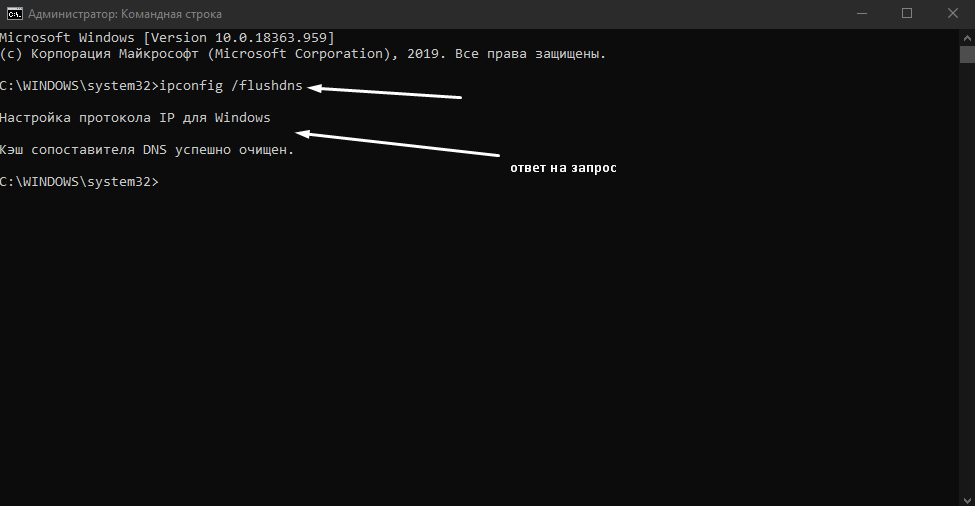
Для Linux действие примерно схоже, но команда выглядит иначе. Открываю утилиту «Терминал» и ввожу в поле вот такой запрос:
Для Ubuntu:
sudo service network-manager restart
Для других дистрибутивов:
sudo /etc/init.d/nscd restart
Попробовать зайти с другого браузера
Проблема 502 Bad Gateway может быть актуальна и для конкретного браузера. Если у вас на компьютере есть другой интернет-обозреватель, попробуйте открыть сайт через него.
Отключить плагины и расширения
На загрузку некоторых страниц могут влиять установленные в браузер плагины и расширения. Особенно это касается VPN-сервисов и блокировщиков рекламы. Попробуйте поочередно отключать их и перезапускать страницу. Не исключено, что виновник будет найден.
Зайти на страницу позже
Когда ничего из вышеперечисленного не помогло, значит, проблема все же кроется на стороне сервера. Вам остается только подождать некоторое время, пока разработчики не устранят ошибку на сайте. Вы также можете написать владельцу и сообщить о проблеме.
Читайте также

Что делать, если вы администратор сайта
Обычно такие проблемы самостоятельно решать не рекомендуется. Лучше сразу же обратиться в службу технической поддержки и описать проблему. Но есть пара действий, которые все же могут помочь определить источник проблемы.
Проверка журнала ошибок
Актуально в случаях, при которых ошибка 502 Bad Gateway появляется после внесения изменений или обновления. Определить это очень просто, нужно лишь проверить журнал ошибок. В CMS WordPress можно включить запись возникающих ошибок, добавив в файл wp-config.php вот такие строки:
define( 'WP_DEBUG', true );

define( 'WP_DEBUG_LOG', true );

define( 'WP_DEBUG_DISPLAY', false );
После этого все записи начнут отображаться в файле debug.log. Храниться он будет в директории wp-content. Понадобится некоторое время, чтобы причины ошибок были записаны. Потом можно тщательно изучить записи и уже на основе их предпринимать конкретные изменения.
Проверка плагинов
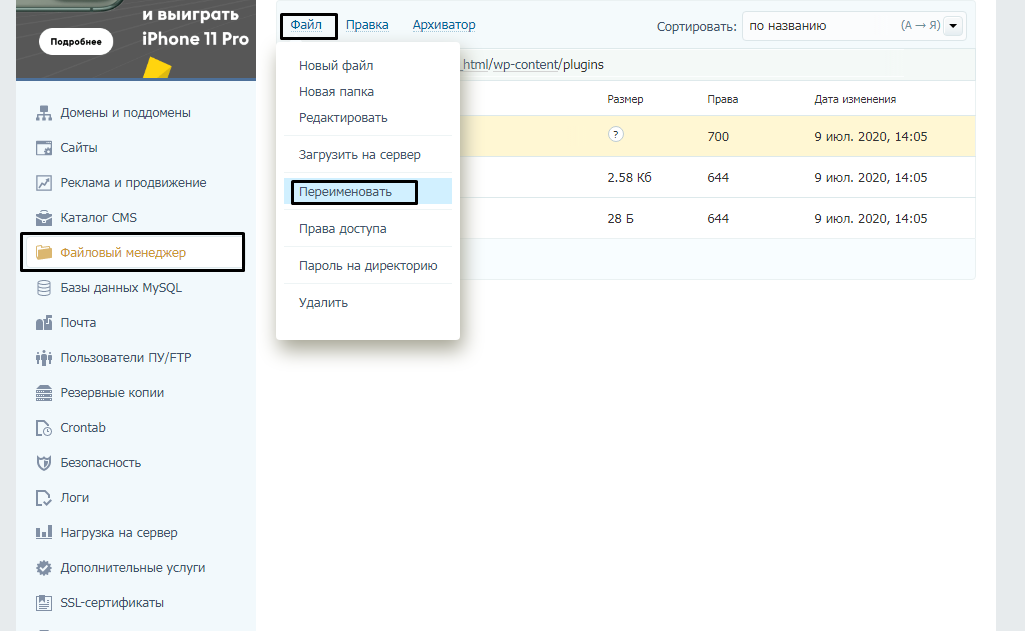
Следует проверить, не влияют ли какие-либо плагины на работу сайта. Для этого можно поочередно отключать их, просто переименовывая папку интересующего плагина. Для этого надо выделить папку, затем нажать на меню «Файл» и в нем выбрать пункт «Переименовать».
Проверка сети CDN
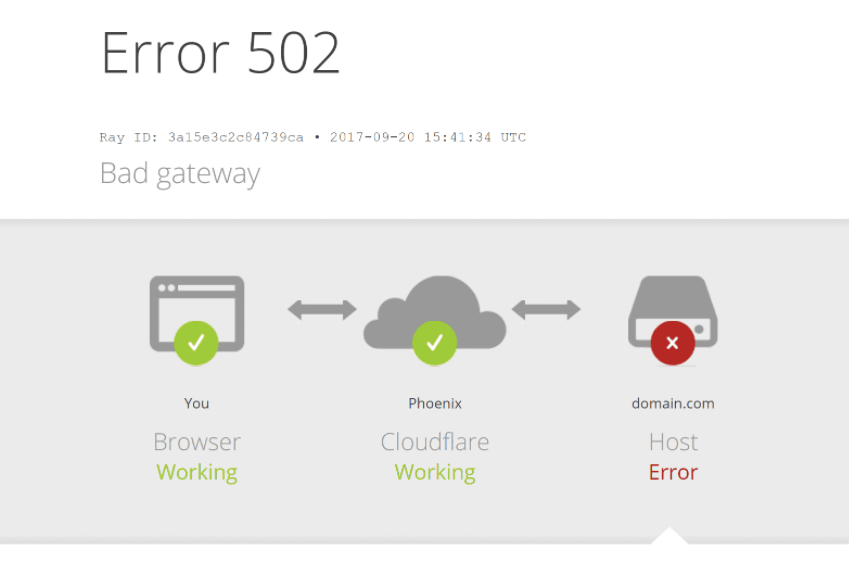
Сети CDN и службы предотвращения DoS тоже могут влиять на работу сайта. Обычно виновник проблемы указывается на странице с кодом ошибки. Например, если под кодом 502 Bad Gateway есть строка cloudflare-nginx, значит, для исправления ошибки надо обратиться в службу поддержки CloudFlare. Можно отключить данный сервис, но потом придется долго ждать обновления DNS (это может занять несколько часов).
Ошибка 502 на виртуальном хостинге VPS/VDS
Ошибка 502 Bad Gateway возникает из-за превышения лимита трафика пользователей, «шалостей» бота, скачивания сайта или даже DoS‑атаки. Решение данной проблемы кроется в ограничениях памяти.
Запустить команду top
Данный запрос в терминале поможет установить наличие свободной памяти. Этим же способом можно проверить, работает ли Apache.
Посмотреть логи Apache и nginx
Обычно в этих логах отображается активность пользователей. Если есть что-то подозрительное, можно предпринять действия. К примеру, забанить определенные IP-адреса, настроить Fail2ban или подключить систему защиты от DoS-атак.
Если после этого количество запросов к серверу снизилось, необходимо перезапустить Apache.
Увеличить объем памяти
Бывает, что с логами все нормально, но памяти на обработку запросов все равно не хватает. Узнать об этом просто – при проверке командой top будет выдана ошибка OOM (out of memory). В таких случаях можно просто увеличить ее объем. Можно просто заказать другой тариф, в котором количество предоставляемой памяти больше. Подробнее об этом.
Проверить лимиты на php-cgi процессы
Если после проверки командой top показано, что свободной памяти еще достаточно, значит, на php-cgi процессы установлены лимиты. Для решения надо открыть конфигурационный файл Apache – httpd.conf, найти секцию модуля FastCGI (mod_fascgi или mod_fastcgid) и увеличить лимит.
Обратиться к службе технической поддержки
Если вышеперечисленные способы исправления ошибки 502 на виртуальном сервере не помогут, придется обращаться в техподдержку хостинга. При этом обязательно надо упомянуть, что вы уже предприняли и как проводили все действия.
Ошибка 502 при открытии сайта может появиться неожиданно. В этой статье мы расскажем, что значит код ошибки 502 и что может сделать пользователь и владелец сайта, чтобы её исправить.
Ошибка 502 Bad Gateway: что значит
Файлы любого сайта находятся на физическом сервере. Чтобы их получить и отобразить веб-ресурс на компьютере, браузер делает запрос на сервер. Если он по какой-либо причине не передал файлы, появляется ошибка 500-511.
Ошибка 502 Bad Gateway возникает при неправильной работе прокси-сервера, DNS-сервера и чаще всего сервера, на котором размещён сайт. Проблема может распространяться как на весь ресурс, так и на отдельные страницы. Это зависит от характера проблемы. Существуют разновидности 502 ошибки: Bad Gateway Nginx, Bad Gateway Apache. Об их отличиях мы расскажем ниже. Также эта ошибка может иметь формулировки:
- Bad Gateway: Registered endpoint failed to handle the request, Temporary Error (502),
- Error 502,
- Bad 502 Gateway,
- 502 Error,
- 502. That’s an error,
- 502 Service Temporarily Overloaded,
- 502 Server Error: The server encountered a temporary error and could not complete your request,
- 502 – Web server received an invalid response while acting as a gateway or proxy server,
- 502 Bad Gateway Nginx,
- 502 Proxy Error,
- HTTP 502,
- HTTP Error 502 Bad Gateway.
Что значит плохой шлюз: ошибка 502
Причины возникновения ошибки 502 Bad Gateway
-
Первая и основная причина ― перегрузка сервера. Перегрузка может быть вызвана несколькими проблемами:
- Большое количество посетителей одновременно. Веб-ресурс может посещать ограниченное количество посетителей. Сколько человек может посетить сайт зависит от возможностей сервера (размера оперативной памяти) и настроек, которые сделал создатель ресурса. Если по какой-либо причине на сайт зайдёт больше пользователей, чем запланировано, сервис может не справиться и страница выдаст код 502. Такое случается при рекламных акциях и распродажах в интернет-магазинах.
- Атака хакеров или DDoS-атака. Эта проблема связана с предыдущей причиной перегрузки. Хакер имитирует большой наплыв пользователей, из-за чего сервер выходит из строя. Такие атаки могут быть использованы для снижения продаж.
- Плохая оптимизация сайта. Настройки ресурса сделаны так, что маленькое количество посетителей генерирует много запросов. В этом случае нужно оптимизировать работу сервера с пользовательскими запросами.
- Второй причиной возникновения кода 502 могут явиться ошибки РНР. Если для расширения функционала сайта в панель управления были добавлены некорректно настроенные плагины, они могут выдавать проблемы в своей работе. Вместе с ними ошибку покажет и сайт целиком. Также если код сайта написан неправильно, запросы могут давать отрицательный результат.
- Ошибка браузера. Проблема может быть на стороне пользователя, если у него установлены расширения, которые нарушают соединение с сервером сайта.
Чем отличается ошибка 502 Bad Gateway Nginx
Между браузером и сервером может стоять веб-сервер. Он используется для снижения нагрузки на сервер, аутентификации пользователей и многого другого. Самые популярные программы для создания веб-сервера ― Nginx и Apache. Так как веб-сервер является посредником между браузером и сервером, то именно он будет оповещать пользователя о проблеме. Поэтому в зависимости от веб-сервера в сообщении вы можете увидеть надпись Bad Gateway Nginx или Bad Gateway Apache. При этом причины возникновения проблемы одинаковы.
Как исправить ошибку 502
Что делать, если вы пользователь
- Перезагрузите страницу, если проблема была вызвана наплывом посетителей. Возможно, через некоторое время посетители уйдут со страницы и вы сможете увидеть контент.
- Попробуйте зайти на другой веб-ресурс. Если вы можете зайти на другой сайт, значит проблема на стороне владельца ресурса и вы ничего не можете сделать. Вернитесь на страницу позже, когда администратор восстановит доступ.
- Проверьте подключение к интернету. Из-за низкой скорости или нестабильности соединения браузер может не получать данные с сервера.
- Запустите браузер в режиме «Инкогнито». В режиме «Инкогнито» браузер работает с базовыми настройками. Если вам удалось зайти на веб-ресурс в этом режиме, значит одно из ваших расширений браузера мешает соединению. Это расширение нужно отключить.
- Почистите файлы cookies. Если при повторном входе на сайт всё равно отображается ошибка 502, очистите кэш браузера. Возможно, доступ уже восстановлен, но ваш браузер обращается к старой версии страницы из кэша.
- Очистите кэш DNS. DNS-кэш — это временная база данных вашего компьютера, которая хранит записи обо всех последних посещениях и попытках посещений веб-сайтов и их IP-адресах. Кэш позволяет ускорить вход на часто посещаемые веб-ресурсы. Если у сайта изменились DNS, а данные из кэша отправляют на старый IP-адрес, в браузере появится код 502. После очистки браузер начнёт обращаться к новому IP-адресу.
Как очистить кэш DNS
В зависимости от вашей операционной системы очистите кэш по одной из инструкций.
- Откройте командную строку. Для этого введите в поисковую строку «Командная строка» и выберите появившееся приложение:
- Введите команду:
ipconfig /flushdns
- Дождитесь сообщения об очистке кэша:
- Откройте терминал клавишами Ctrl+Alt+T.
- Введите команду:
Для Ubuntu:
sudo service network-manager restart
Для других дистрибутивов:
sudo /etc/init.d/nscd restart
- Войдите в терминал. Для этого нажмите клавиши Command + Space. Введите Терминал и нажмите на найденное приложение.
- Введите команду:
sudo killall -HUP mDNSResponder
Готово, вы очистили кеш DNS. Попробуйте заново зайти на сайт.
Что делать, если вы владелец сайта
Проверьте количество свободной памяти. Это можно сделать двумя способами.
Способ 1 ― введите команду top в командной строке сервера:
Mem ― вся оперативная память.
Swap ― раздел подкачки.
Посмотрите на строку Mem ― free. Это количество свободного места на сервере. Если там указано маленькое число, ошибка 502 Bad Gateway появляется из-за нехватки памяти. Увеличьте количество оперативной памяти и проблема пропадёт. Также в результатах можно будет увидеть, какую нагрузку на сервер даёт каждый отдельный процесс.
Способ 2 ― введите команду free -m.
Mem ― вся оперативная память.
Swap ― раздел подкачки.
В строке Mem ― free показано свободное место на сервере. Если там маленькое число, увеличьте количество оперативной памяти.
Проверьте логи сервера. Если проблема возникла в момент каких-либо обновлений на сайте, проверьте журнал изменений, чтобы отменить те доработки, которые нарушили функциональность сервера. Также в логах можно увидеть DDos-атаку. Если дело в нехватке памяти, в логах отобразится ошибка OOM (out of memory).
Проверьте плагины в WordPress. Если ваш сайт создан на WordPress, некоторые плагины и темы могут нарушать работу сервера.
-
1.
Войдите в панель управления WordPress. Если вы пользуетесь услугой REG.Site, войти в панель управления CMS можно прямо из Личного кабинета.
-
2.
Перейдите во вкладку «Плагины» ― «Установленные».
-
3.
Нажмите Деактивировать у плагина, который, как вам кажется, повлиял на работу сайта:
Можно сразу отключить все плагины, чтобы убедиться, что один из них влияет на работу сервера. И далее по очереди включайте плагины, пока не найдёте конкретный плагин-виновник.
Проверьте, как работают вспомогательные службы, например MySQL и Memcached. Иногда они могут стать причиной 502 ошибки.
Свяжитесь со службой поддержки своего хостинг-провайдера. Если ничего из вышеперечисленного не помогло, обратитесь к службе поддержки и подробно опишите проблему и действия, которые вы предприняли до обращения. Действуйте по одной из инструкций ниже.
Сайт находится на виртуальном хостинге REG.RU
Если вы столкнулись с единичными случаями возникновения 502 ошибки, можете проигнорировать их.
Если код 502 возникает регулярно, напишите заявку в службу поддержки. В заявке укажите:
- Точное московское время наблюдения проблемы.
- Название сайта, на котором была замечена проблема.
- Если ошибка отображается не сразу, а после определённых действий (добавление изображения, отправка формы с сайта, импорт файлов), подробно опишите порядок действий, по которому мы сможем воспроизвести проблему.
- Если для воспроизведения проблемы необходимо авторизоваться в административной части сайта, предоставьте логин и пароль для доступа.
Сайт находится на VPS REG.RU
Чаще всего на VPS используется связка: Nginx + бэкенд-сервер (Apache, PHP-FPM, Gunicorn, NodeJS). Ошибка 502 возникает в случае, если Nginx не может получить ответ от этих сервисов.
Клиенты с VPS сталкиваются с «502 Bad Gateway», когда:
- какой-то из сервисов выключен. Перезапустите веб-сервер Apache, PHP-FPM либо другой сервис, с которым работает Nginx;
- между Nginx и бэкенд-сервером некорректно настроена связь. Например, Nginx производит обращение к порту 8080, а веб-сервер Apache «слушает» на 8081. В этом случае необходимо скорректировать настройки веб-сервера.
Если вам не удалось самостоятельно устранить ошибку 502, обратитесь в техподдержку. В заявке укажите:
- Точное московское время наблюдения проблемы.
- Название сайта, на котором была замечена проблема.
- Если ошибка отображается не сразу, а после определённых действий (добавление изображения, отправка формы с сайта, импорт файлов), подробно опишите порядок действий, по которому мы сможем воспроизвести проблему.
- Если для воспроизведения проблемы необходимо авторизоваться в административной части сайта, предоставьте логин и пароль для доступа.
A “502 gateway timeout” is a common server error that leads many of our customers to headache.
This error happens when one web server gets an invalid response from another web server.
There are many reasons for this error to happen, such as Bad server settings on DNS, PHP timeout settings and much more.
Here at Bobcares, we often get requests from customers to resolve server errors as part of our Technical Support services.
What is 502 Gateway timeout error?
A HTTP response code “502 gateway timeout” error indicates an invalid response from a back-end server to the edge server.

This “502 gateway timeout” error happens if it takes more time to execute requests on the backend server. In addition, it may happen due to incorrect DNS settings, firewall blocks proxy server request and back-end server down.
Now, let’s see how our Support Engineers fix “502 gateway timeout” error.
How to fix 502 gateway timeout error
From our experience in managing servers, we often see that customer experiencing a tough problem like 502 gateway timeout error.
Now, let’s see how our Support Engineers solved such problems.
DNS Issue
A 502 gateway error may occur due to the DNS issue, such as the domain is not resolving to the correct IP.
For example, one of our customers migrated the WordPress site to a new host. After that, he had an issue as “website not loading”.
1. Then our Support Engineers checked the DNS settings of the website by using backend command utility like “dig”.
dig bobcares.com2. From that, they could analyze that the domain is not resolved to the correct IP.
3. We updated the correct IP address for A record in WHM >> Home >> DNS Functions >> Edit DNS Zone.
Also, we asked customers to wait up to 48 hours for the DNS record to propagate completely.
That fixed the issue and the customer could access the site.
PHP Timeout Issue
The PHP timeout issues may cause 502 timeout error. Again, this error occurs when a single PHP process runs for more than the max_execution_time or max_input_time.
In order to solve this issue, our Support Engineers have altered the PHP timeout values in the PHP settings on the server.
In Apache on Ubuntu, we took the following steps to edit php.ini for altering the PHP timeout values.
1. We edited the file php.ini
nano /etc/php5/apache2/php.ini2. Then, we found the line for “max_execution_time”, which defines how many seconds a PHP process can run for.
3. We increased the value and saved the changes.
max_execution_time = 304. Finally, restart the service.
service apache2 restartFirewall blocks request
In most of the servers, the firewall is installed by default.
Sometimes, it blocks the communication between the edge servers and the back-end server. In addition, some server has region-specific IP restriction too. This results in an error like 502 timeout error.
Here, our Support Engineers rebuild the server firewall in such a way that it does not create a security risk for the server.
Problems with web browser
Sometimes this error may happen due to the problems with the web browser. You can fix this error from your side by doing the following steps.
- Clearing cache of the web browser.
- Delete your browser’s cookies.
- Start your browser in Safe Mode.
- Try another browser.
- Restart your computer.
- Restart your networking equipment such as modem, router, switches.
[Getting 502 gateway timeout” error? We are here to fix it.]
Conclusion
In short, a HTTP “502 gateway timeout” error is a response code. It occurs when users attempting to visit a web page, but the edge server receives an invalid response from back-end web servers. Today, we saw how our Support Engineers solved the error 502 gateway timeout.
PREVENT YOUR SERVER FROM CRASHING!
Never again lose customers to poor server speed! Let us help you.
Our server experts will monitor & maintain your server 24/7 so that it remains lightning fast and secure.
GET STARTED
var google_conversion_label = «owonCMyG5nEQ0aD71QM»;
- 500 Internal Server Error
- 502 Bad Gatеway
- 503 Service temporarily unavailable
- 504 Gateway Timeout
- Ошибка 505
Коды ошибок 500, 502, 503, 504 говорят о том, что сервер в данный момент не может отобразить запрос из-за внутренней ошибки.
500 Internal Server Error
Самая распространенная внутренняя ошибка сервера. Код генерируется при любой проблеме, не имеющей отношения к остальным ошибкам, поэтому у его появления множество причин.
Некоторые причины появления ошибки 500
- Ошибки при работе скриптов сайта.
- Неверные директивы, указанные в файле .htaccess.
В редких случаях ошибка 500 может быть следствием внедрения в файлы сайта вредоносного кода.
Способы устранения ошибки 500 Internal Server Error
Проверьте логи ошибок веб-сервера. На хостинге RU-CENTER они размещены в каталоге /var/log, подробнее в статье. Если ситуация связана с ошибочными директивами в .htaccess, с ошибками в работе CGI-скриптов, с ошибками в файле конфигурации веб-сервера, вы увидите точную причину ошибки в логе веб-сервера и сможете её устранить.
Если ошибка возникает при работе PHP-скрипта, текст ошибки в лог может не попасть. В этом случае нужна дополнительная диагностика.
502 Bad Gatеway
Ошибка означает, что сервер, выступая в качестве шлюза, не смог обработать полученный запрос по техническим причинам, то есть ответы были недопустимыми для продолжения работы.
Причины появления ошибки 502
- Веб-сервер выключен.
- При настройке веб-сервера допущена ошибка в конфигурации.
- Для работы сайта недостаточно оперативной памяти или других ресурсов. Например, при DDoS-атаке на сайт, когда на обработку «паразитных» запросов затрачиваются все имеющиеся у веб-сервера ресурсы.
- Произошла ошибка при работе с памятью в скрипте, что часто встречается при использовании старых версий PHP.
- Время выполнения скрипта превысило установленные на сервере ограничения.
Способы устранения ошибки 502 Bad Gatеway
- Проанализируйте текущий уровень общей нагрузки для сервера и в момент возникновения ошибки. На хостинге RU-CENTER это можно сделать в панели управления хостингом в разделе «Ресурсы» — «Статистика». Обратите внимание на пики потребления оперативной памяти.
- Проверьте лог-файл веб-сервера (/var/log/error_log). При обнаружении в нём подозрительных сообщений, связанных с выделением оперативной памяти, обратитесь в техподдержку.
- Проверьте оптимальность работы используемых на сайте скриптов, оцените скорость обработки запросов. Иногда долгое ожидание может быть связано с обработкой большого объёма данных или с обращением к внешним ресурсам. В этих случаях откажитесь от таких операций или выполните их оптимизацию.
503 Service temporarily unavailable
Ошибка означает, что в течение некоторого времени сервер не сможет обрабатывать запросы из-за технических неисправностей.
Причины появления ошибки 503
- Передача большого объёма данных.
- Превышено время ожидания загрузки.
- Большое количество запросов к серверу.
- На хостинге RU-CENTER данный код может выдаваться при обращении к сайту, которого на хостинге не существует.
Способы устранения ошибки 503 Service temporarily unavailable
Если на сайте все процессы (код, скрипты) работают без перебоев, вероятно, причина 503 ошибки в недостаточном количестве ресурсов. Проблему можно решить путем перехода на более производительный тариф или сервер.
504 Gateway Timeout
Код ошибки указывает, что серверу не хватило времени, чтобы получить ответ от другого сервера для завершения операции. Как правило, среднее время загрузки не должно превышать 1-3 секунды.
Причины появления ошибки 504
- Долгая обработка запроса скриптами сайта.
- Обработка большого количества данных.
- В ряде случаев причины появления ошибки 504 могут совпадать с аналогичными для ошибки 502.
Способы устранения ошибки 504 Gateway Timeout
Нужно проверить, что происходит на сервере в момент появления ошибки 504. Если обрабатываются большие объёмы данных или выполняются операции, требующие длительного времени, настройте эти операций не через браузер, а с помощью планировщика заданий или по SSH.
Также для устранения ошибки можно попробовать увеличить в настройках PHP время выполнения скрипта (max_execution_time) и время получения данных (max_input_time).
Ошибка 505
Ошибка 505 появляется при использовании неподдерживаемой браузером версии HTTP.
Причины появления ошибки 505
- Заражение вирусом, который получил контроль над браузером или исходящим трафиком.
- Использование устаревшего браузера, не поддерживающего современные версии HTTP.
- Сервер не поддерживает новые версии протокола, по которым осуществляется соединение.
Способы устранения ошибки 505 HTTP Version not supported
- Поиск вирусов. Вредоносная программа может повредить и удалить файлы, необходимые браузеру для определения состояний.
- Обновление системы. Вы можете избежать не только появления ошибки 505, но и ряда других проблем, используя актуальную версию ОС и/или браузера. Если вы отключили автоматические обновления, рекомендуем скачать и установить их.
Если ошибка 505 возникла при обращении к вашему сайту, проверьте актуальность используемого программного обеспечения на веб-сервере.
 Туториал: как исправить ошибки сервера
HTTP 504 Gateway Timeout and HTTP 502 Bad Gateway errors are the most common server errors for WordPress website visitors and owners. In my previous article, we’ve already discussed the causes of a 504 Gateway Timeout error and possible solutions for it. In this article, we’ll come to understand what a 502 Bad Gateway error is, talk about the reasons for a 502 Bad Gateway error, and explore some tips for troubleshooting this type of errors.
What does 502 Bad Gateway mean?
Before we define what a 502 Bad Gateway error is, let’s deep-dive into server infrastructure and find out the meaning of some terms, like web server, proxy server or gateway, and upstream server.
Let’s first discuss how hosting a modern web application works. For this we need three actors:
- The web application
- The gateway
- The web server
In the picture below you can see the PHP modern web application workflow.
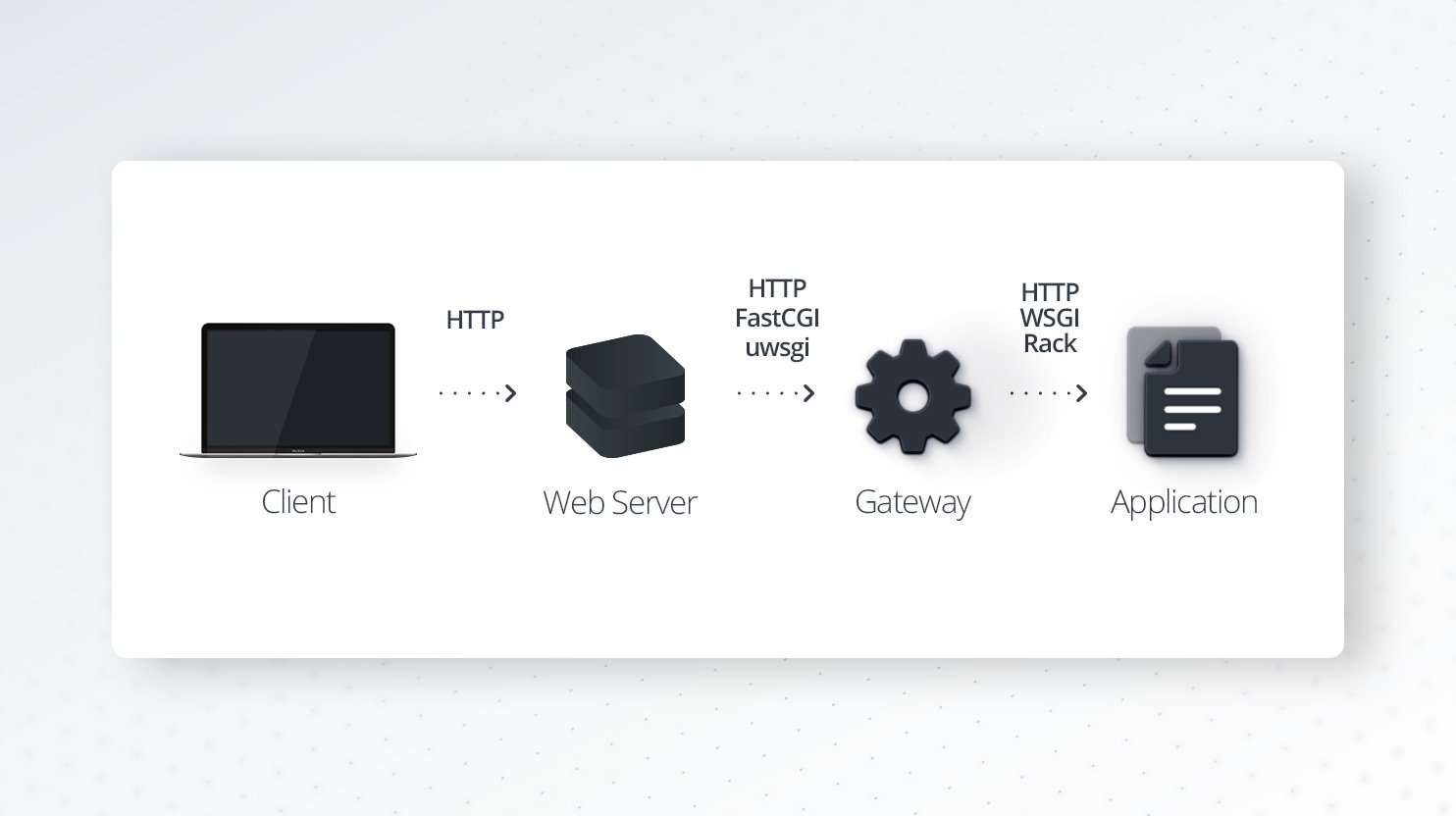
A web application is application software that can be coded in different programming languages and can use specific frameworks or libraries. It typically has tools to handle HTTP requests. For your WordPress website, the web application is your WordPress installation which is coded in PHP.
The gateway sits between a web server (Nginx, Apache) and a web application. It accepts requests from a web server and translates them for a web application. The exact definition of a gateway is somewhat fluid. Some call themselves process managers, some call themselves HTTP servers.
Here’s what the common functionality of a gateway entails:
- Listening for requests (HTTP, FastCGI, uWSGI, and more)
- Translating requests to application code
- Spawning multiple processes and/or threads of applications
- Monitoring spawned processes
- Loading balance requests between processes
- Reporting/logging
PHP-FPM (PHP-FastCGI Process Manager) is the gateway for PHP. It is an implementation of FastCGI and will listen for FastCGI requests from a web server.
FastCGI is a binary protocol for interfacing interactive programs with a web server. CGI (Common Gateway Interface) is a web technology and protocol which describes a way for a web server to communicate with external applications, e.g. PHP. CGI is an interface between the web server and the dynamic web content that is generated by web applications that are written in different programming languages, such as PHP, Python, etc. FastCGI is an improved version of CGI.
A modern way to run PHP applications is to use PHP-FPM. Before PHP-FPM, PHP was commonly run directly in Apache, there was no need for a gateway. Apache’s PHP module loaded PHP directly, allowing PHP to be run in line with any processed files.
The web server generally hosts multiple sites, serves static files, proxies requests to other processes, performs load balancing and HTTP caching. The most popular web servers are Apache and Nginx. Apache used to be the most widespread web server until Nginx became more popular.
At 10Web we support LEMP stack, which is similar to LAMP (Linux, Apache, MySQL, and PHP), except Apache is replaced with Nginx. What happens when you open your WordPress website hosted by 10Web in your browser? The web server, in this case, Nginx, accepts a request and relays it to PHP-FPM, which in turn interprets the PHP code. The response is relayed back, finally reaching the client. In this case, Ngnix acts like a proxy server which in most cases is called an edge server. The server behind the proxy server is called upstream or origin server. In this case, PHP-FPM acts as an upstream server.
Now that we fully understood the above-mentioned terms, let’s finally understand what the 502 Bad Gateway error is.
What is a 502 Bad Gateway error?
We face a 502 Bad Gateway error when the web server acts as a proxy server and receives an invalid response from the upstream server. A 502 Bad Gateway error indicates that the proxy server, which is the edge server, was not able to get a valid response from the upstream server, which is the origin server. When you see a 502 Bad Gateway error it means that something is wrong with the upstream server. This can happen because of various reasons which we’ll cover in this article.
The different forms of 502 errors
A 502 Bad Gateway error can appear in different ways depending on the operating system, web browser, and device. Here’s how it looks most of the time:
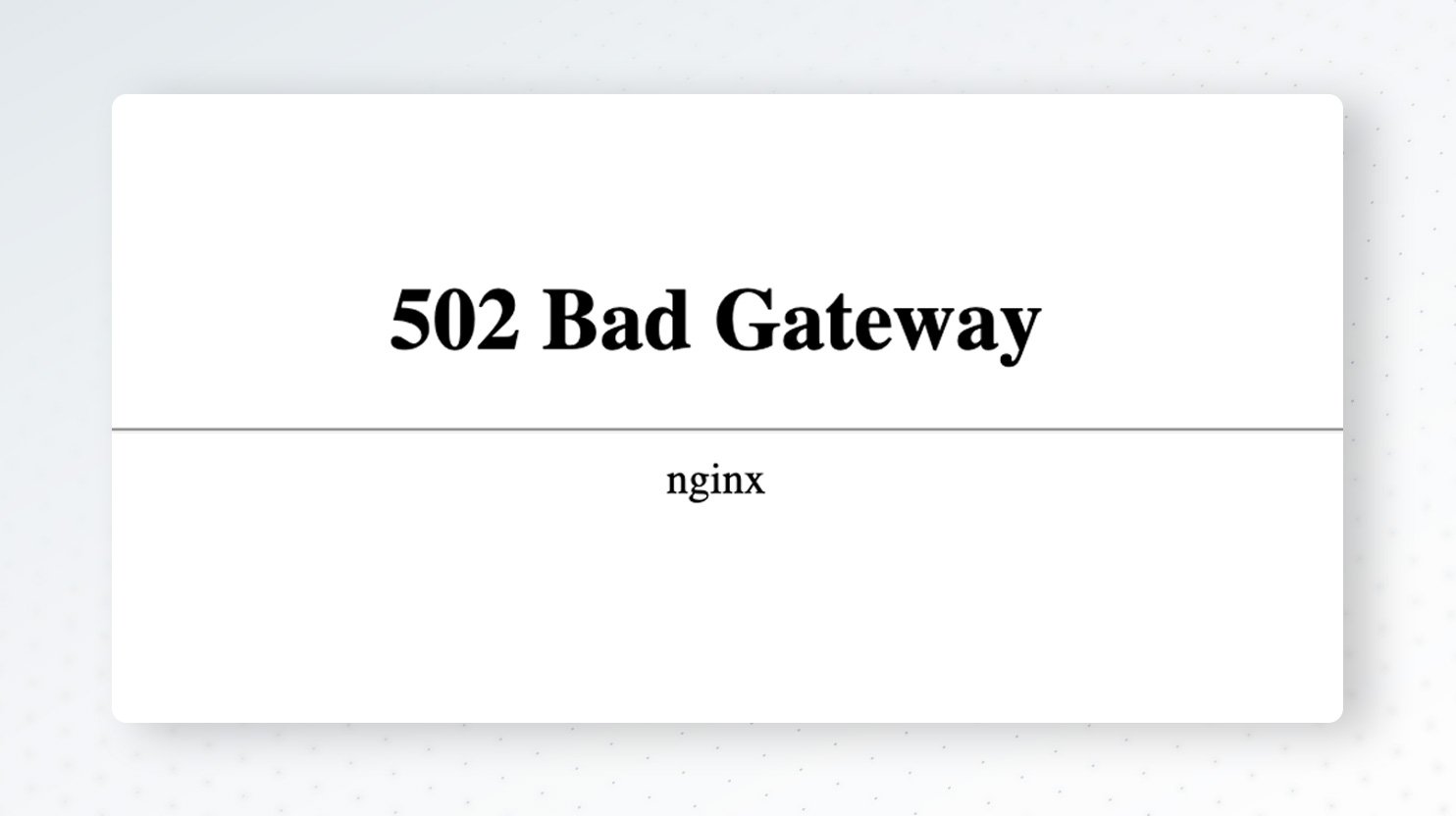
Some websites customize 502 Bad Gateway pages. Here’s Google’s:
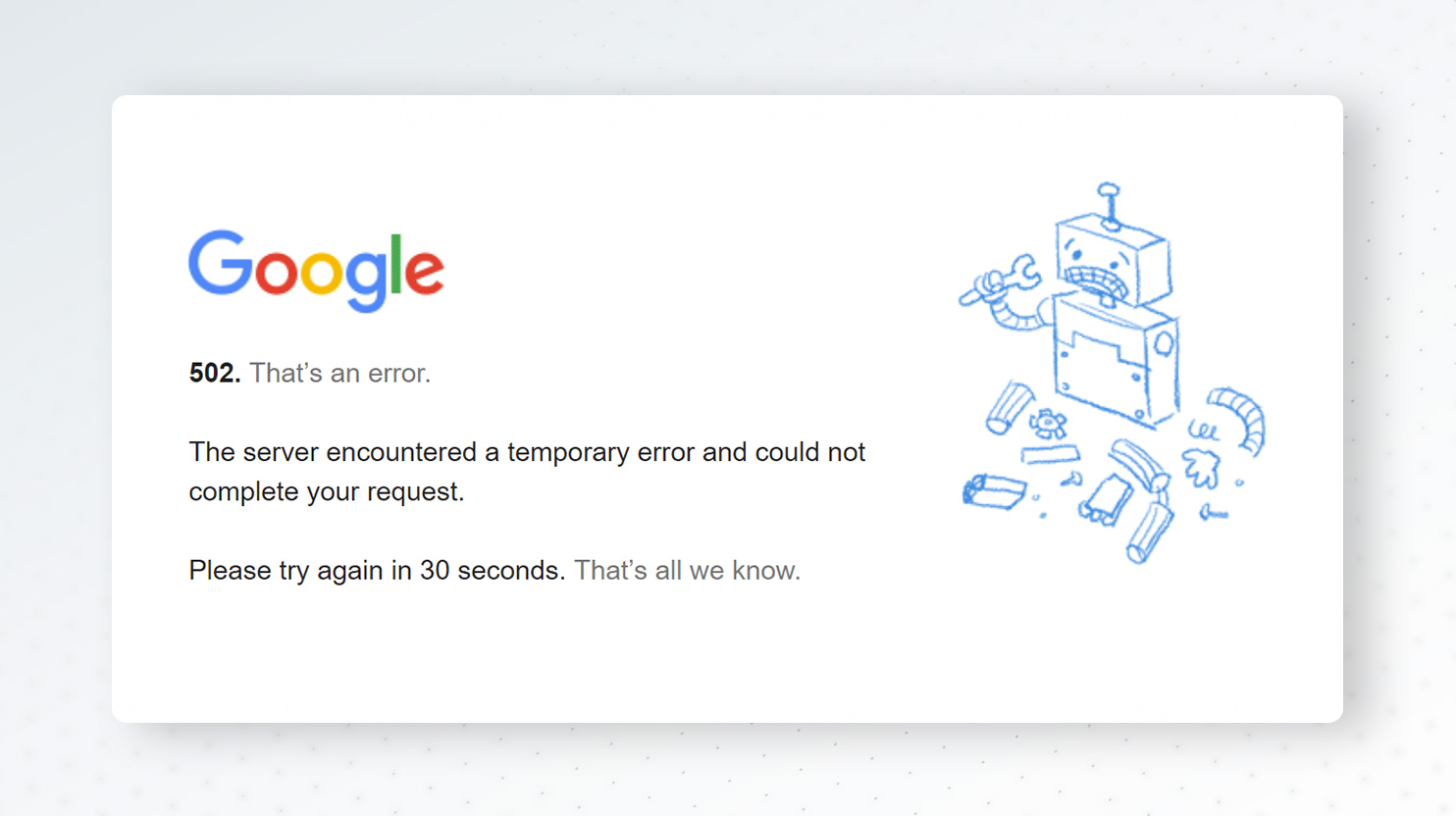
Platforms can also change the message of the error. So you can encounter different messages for the same error but they all have the same meaning:
- 502 Bad Gateway
- HTTP Error 502 Bad Gateway
- Error 502
- HTTP 502
- HTTP Error 502 – Bad Gateway
- 502 Proxy Error
- 502 Server Error: The server encountered a temporary error and could not complete your request.
- 502 Bad Gateway NGINX
- 502. That’s an error. The server encountered a temporary error and could not complete your request. Please try again in 30 seconds. That’s all we know.
What are the reasons behind the 502 Bad Gateway error?
The 5xx status codes indicate that there are problems with the server, and 502 is not an exception. For some reason, the proxy server can’t get a response or a valid response from the upstream server. In your WordPress website with Nginx/PHP-FPM stack, a 502 error can happen when PHP-FPM is not running or Nginx can’t communicate with PHP-FPM for some reason. This case should be checked by your hosting provider. Another reason could be PHP-FPM timeout issues, which we’ll discuss down the line.
Any misunderstanding between Nginx and PHP-FPM can lead to a 502 Bad Gateway error. Though these errors are connected to server-side issues, there are some tips for troubleshooting on the client side.
Let’s go over both client- and server-side troubleshooting.
How to Troubleshoot a 502 error message
Here are some very simple ways of fixing 502 Bad Gateway errors from the client side.
Reload the page
The first thing you should do is reload the page and wait for a minute. If the 502 Bad Gateway error disappears, it means there was a temporary problem with the upstream server or the networking between servers. If the error remains, check if the site is down for everyone. You can use Is it down right now? for this. If the site is up for everyone except you, open the site on another browser or in private mode.
Clear browser cache
Another easy tip is to clear the browser cache. If the error disappears after cleaning cache, it means that there was a temporary problem that has been resolved, but because of cache, you kept seeing the 502 Bad Gateway error template, instead of your website. If the error remains, try the next tip.
Flush DNS cache
The 502 Bad Gateway error can occur because of DNS issues. Operating systems, such as Linux, Windows, and macOS save name resolution information in the form of a DNS cache. In many cases clearing the DNS cache can solve a 502 Bad Gateway error. Here are the commands which you can use for flushing DNS cache on Windows, MacOs, and Linux.
Use this command to flush cache on Windows:
ipconfig /flushdns
On macOS, you should open the terminal and type:
sudo killall -HUP mDNSResponder
There’s no message after processing this command, but you can add your own by running the command like this:
sudo killall -HUP mDNSResponder; dns cleared successfully
Things are different in Linux, as different Linux distributions use different DNS services. Some of them are NSCD (Name Service Caching Daemon), dnsmasq, and BIND (Berkeley Internet Name Domain). For an NSCD DNS cache:
sudo /etc/init.d/nscd restart
For a dnsmasq DNS cache:
sudo /etc/init.d/dnsmasq restart
For a BIND DNS cache:
sudo /etc/init.d/named restart
sudo rndc restart
sudo rndc exec
If the terminal asks for your password, just enter it.
Change DNS servers
You can also try to temporarily change your DNS servers. More information about changing DNS servers can be found in this article: Change your DNS servers settings.
If you’re using Cloudflare
Cloudflare returns a Cloudflare-branded HTTP 502 error when your origin web server responds with a standard HTTP 502 bad gateway:

This means that something is wrong with your origin server and you can try to use the above-described tips to fix the issue.
If the 502 error is from Cloudflare, the page looks like this:
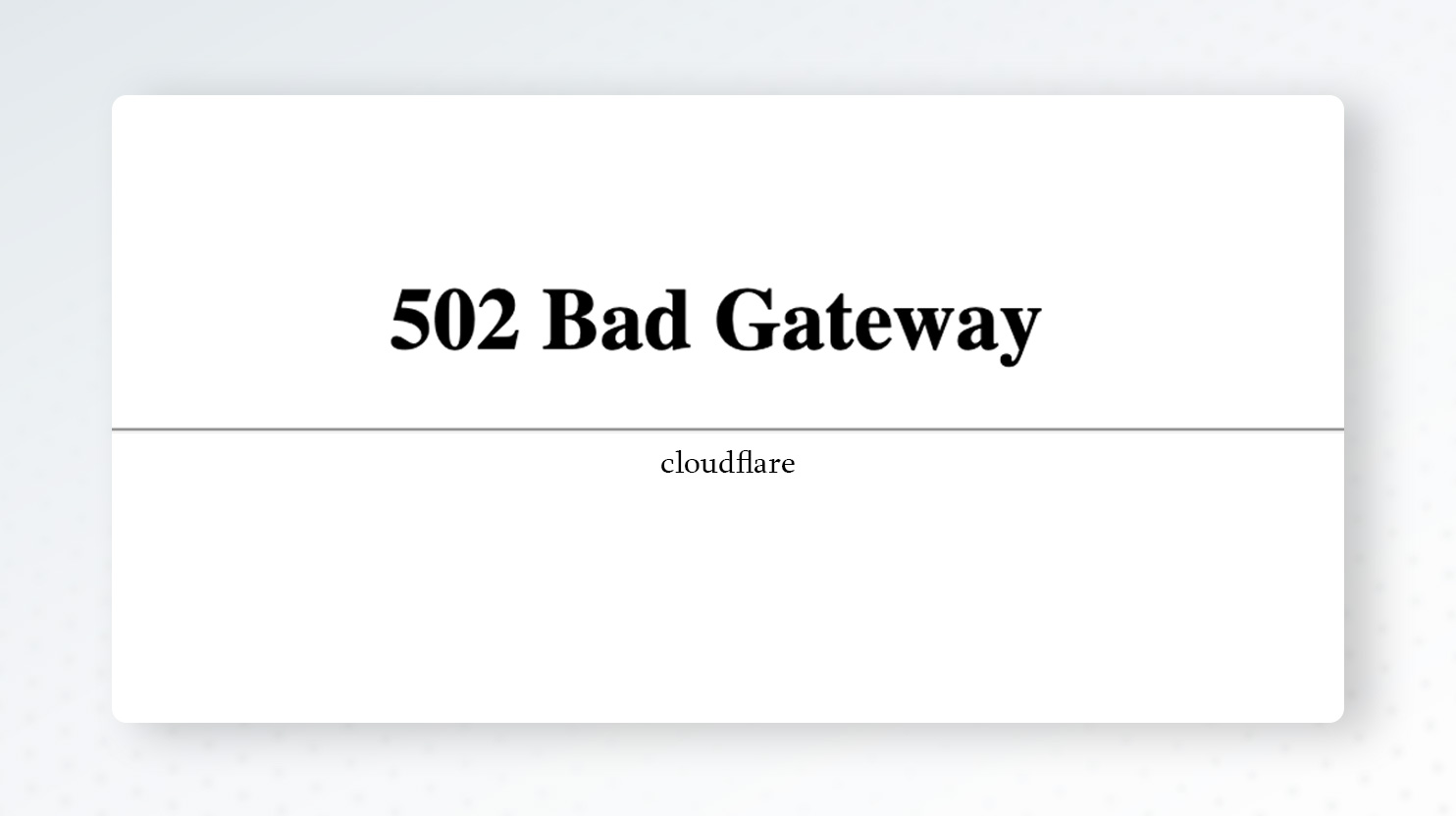
If the error contains the word “Cloudflare,” the problem comes from Cloudflare, otherwise, it is from the origin server. In the first case, you can contact Cloudflare support, and in the second case, you can follow the described tips. If nothing helps, contact your hosting provider. You can read more about Cloudflare 5xx errors in the article Troubleshooting Cloudflare 5XX errors.
We’ve discussed some client-side tips which can help you troubleshoot a 502 Bad Gateway error. Now let’s see what you can do on the server-side.
Restart PHP
The very first step is to restart your PHP. With 10Web, you can do this by going to Hosting Services > Tools and clicking the blue “Restart PHP” button.
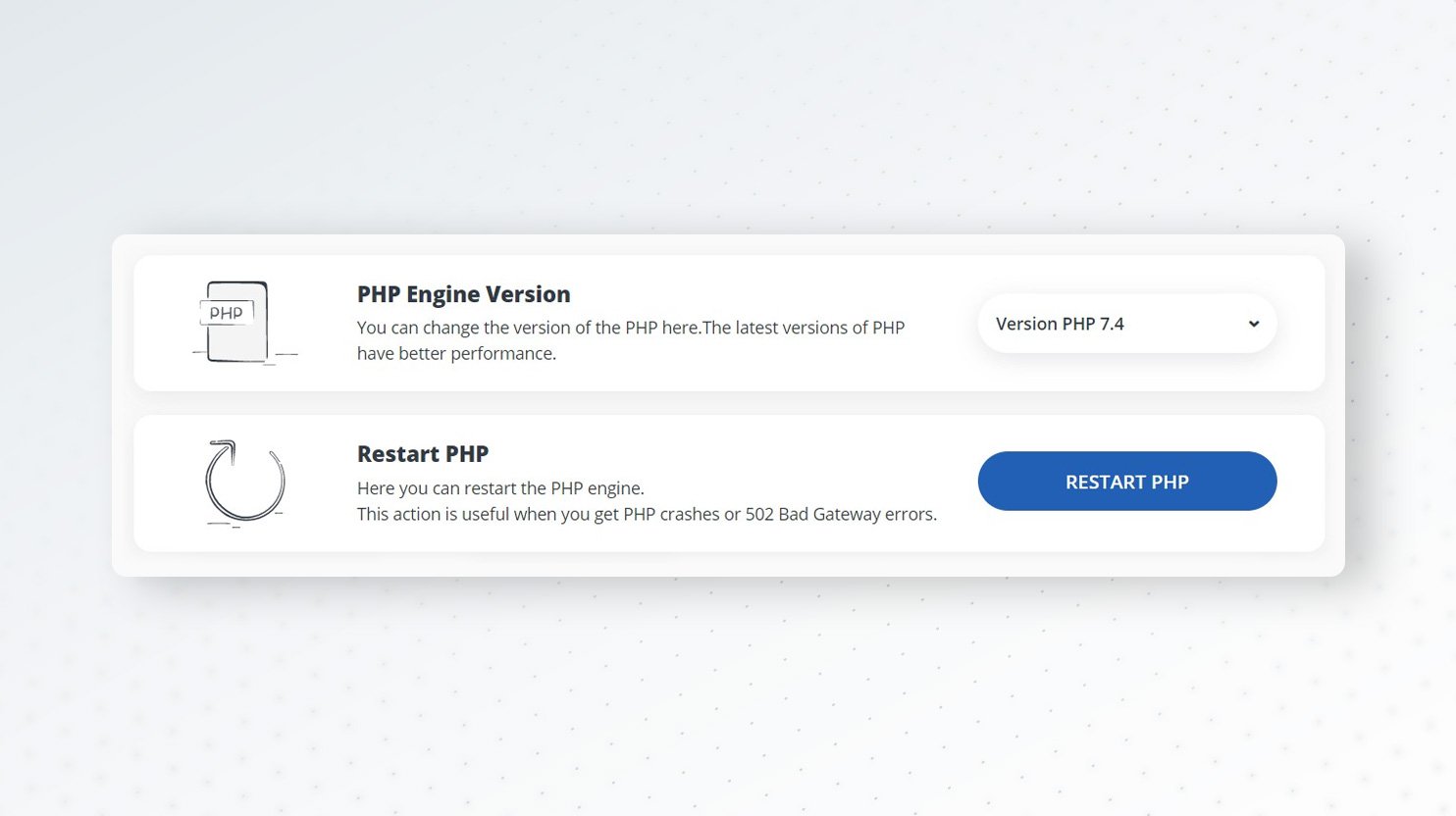
If your hosting doesn’t provide an interface for restarting PHP, ask them to do it for you.
Check logs
Checking your server error logs can give you very useful information about 502 Bad Gateway errors. With 10Web, you can easily check server logs by going to Hosting Services > Logs.
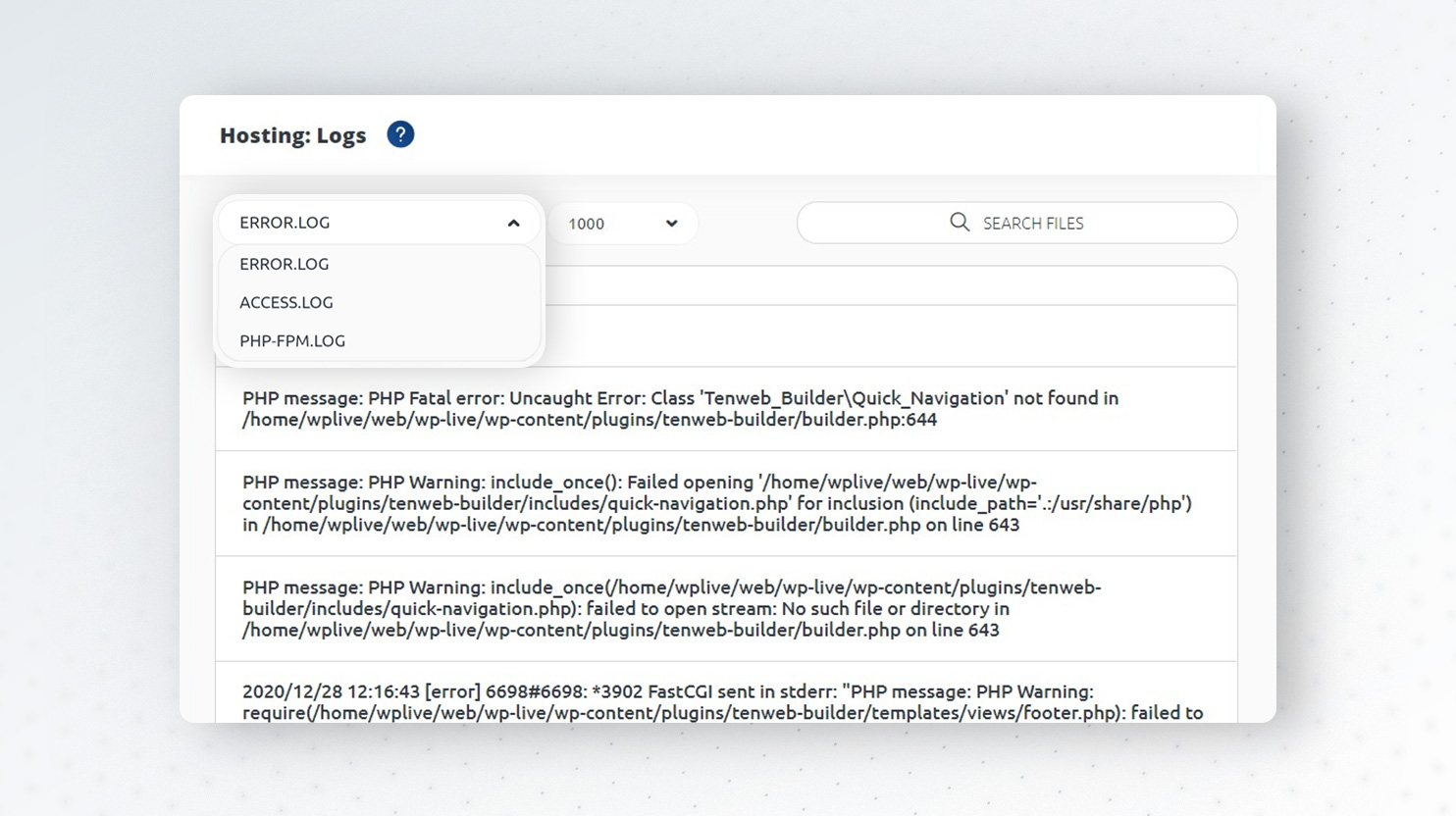
If you have access to your file system, you can check server logs. In the case of the Nginx web server, you can find logs here:
/var/log/nginx
In the case of Apache web server, the logs are in this repository:
/var/log/apache2
Improper firewall configuration
Improper firewall configuration can lead to 502 Bad Gateway errors. A firewall is a network security system that monitors and controls the incoming and outgoing network traffic based on predetermined security rules. It typically establishes a barrier between a trusted network and an untrusted network.
There can be cases that some awkward firewall settings can consider safe and valid content malicious and, consequently, cut off traffic which in turn cause 502 Bad Gateway errors. Check your firewall configuration to reveal any improper configs.
Third-party plugins & themes
Non-optimal codes in WordPress plugins and themes can also cause 502 errors. So, check your plugins and theme. If you have access to your WordPress admin, deactivate all your plugins, and if the error disappears it means that there is at least one guilty plugin. Then activate them one by one to find the guilty ones. If your WordPress admin area can’t be reached because of the error but you have access to your WordPress files, just rename the plugins directory in wp-content. It will deactivate all plugins. And again start activating them one by one.
If the problem isn’t the plugins, that is deactivating all plugins or renaming plugins directory doesn’t change anything, try to temporarily change your theme to WordPress’s default theme. Once you find the bad plugins or theme, connect to the respective support team and describe the issue.
And don’t forget to keep your plugins, theme, and WordPress core up-to-date. This will help you avoid many problems, including 502 errors.
Restart PHP-FPM service
You will get a 502 error if the PHP-FPM service is inactive or not running on your server. If you have access to your hosting, you can check this by running one of the following commands. For SysVinit:
sudo service php7.4-fpm status
For SystemD:
sudo systemctl status php7.4-fpm
If the service is active and running, the output of the command should be like this:
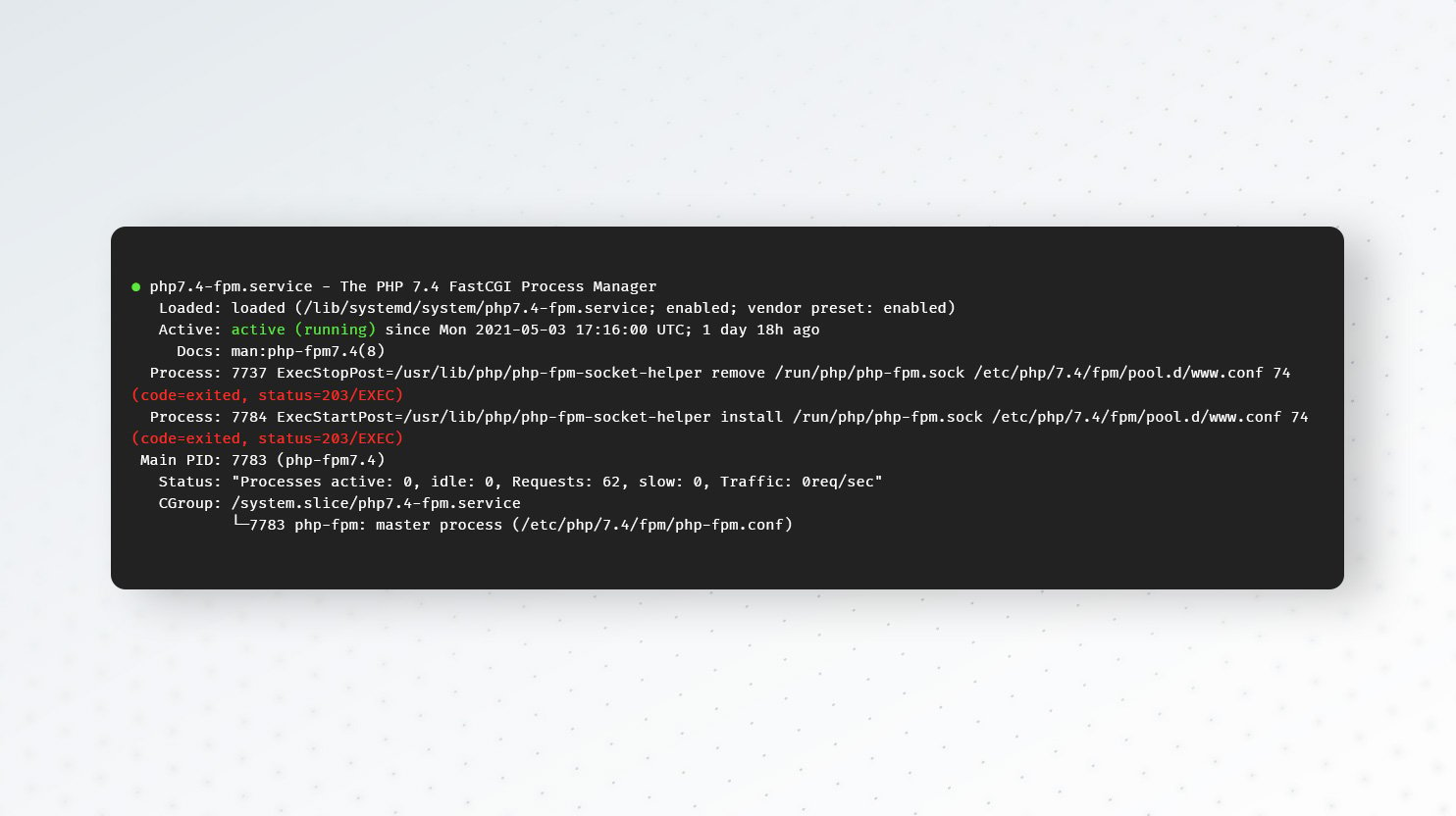
If the status is not Active: active(running), try restarting PHP-FPM service to resolve the error using one of the following commands. For SysVinit:
sudo service php7.4-fpm restart
For SystemD:
sudo systemctl restart php7.4-fpm
Timeout issues
The 502 error can be caused by a PHP-FPM timeout. If your application is taking too long to respond, your users will experience a timeout error. If the PHP-FPM timeout is less than Nginx timeout, Nginx will return a 502 Bad Gateway error. To avoid this, you can increase PHP-FPM timeout if you have access to your server.
PHP-FPM timeout is set in pool configuration which is
request_terminate_timeout
The default value for this directive is 20 seconds. If you don’t have access to your server, ask your hosting provider to check it. To avoid getting 504 errors after increasing PHP-FPM timeout which can be because of Nginx timeout, the default is 60 seconds, you can increase fastcgi_read_timeout directive in /etc/nginx/nginx.conf file. Don’t forget to reload the Nginx server after changing the directive:
nginx -s reload
PHP execution time errors can also lead to 502 Bad Gateway errors. To avoid this, you can increase the PHP configs, such as max_exexution_time and max_input_time.
If you have your server access, just change these directives in your php.ini file. If not, ask your hosting provider to do it for you.
FAQs
What is the difference between a 404 error and a 502?
A 404 Not Found error occurs when content can’t be found by the web server. A 502 Bad Gateway error happens when the proxy server can’t get any response or gets an invalid response from the upstream server. You come across 404 when requested content was removed or doesn’t exist. You see 502 errors when there is an issue with the upstream or origin server or a communication issue between proxy and upstream servers.
What is the difference between 502, 503, and 504 error messages on websites?
You got a 502 Bad Gateway error when the proxy server doesn’t get a valid response from the upstream or origin server. 504 Gateway Timeout error happens when the server which is acting as a proxy server can’t receive a timely response from the upstream server. 503 Service Unavailable error indicates that the server is not ready to handle the request, this happens when the server is down for maintenance or is overloaded.
Do 502 errors have any impact on website rankings?
The 502 Bad gateway error can have a major impact on website rankings. You don’t have to worry about a negative impact on SEO if the error lasts a few minutes. If the page is being crawled during this time, the crawler can load it from the cache. But you do need to worry if this error lasts for a few hours. In that case, Google will see the 502 error which can negatively impact your rankings.
What can I do when PHP is working in the command line but returns a 502 error in the browser?
502 error happens because of bad communication between proxy and upstream servers. When you’re running PHP in the command line you don’t need a web server, PHP works for you directly. To find out the reasons for 502 errors, read the above-described tips.
Conclusion
Now you have a complete understanding of what 502 errors are and why they appear on your website. We’ve discussed the various possible reasons for these errors and described many troubleshooting approaches that’ll help you find a solution.
That was all for now. Feel free to leave a comment and let us know if we managed to provide a suitable way for you to troubleshoot your bag gateway error!
Инструкции для пользователей и для администраторов сайтов.
Что означает ошибка 502
Ошибка 502 Bad Gateway указывает, что сервер, с которым пытался соединиться ваш компьютер или смартфон, получил неверный ответ сервера уровнем выше. Чаще всего это происходит из‑за проблем в работе DNS, прокси или хостинга.
Как пользователю исправить ошибку 502
Идите от простого к сложному — и в какой‑то момент ошибка, возможно, исчезнет.
Проверьте подключение к интернету
Попробуйте зайти на другие страницы или посмотреть, приходят ли сообщения в мессенджерах. Если ничего не доступно, значит, дело не в настройках сайта, а в вашем интернет‑подключении.
Посмотрите, у всех ли отображается ошибка 502
Зайдите на сайт с другого компьютера или смартфона. Если ошибка там не отображается, значит, дело именно в настройках вашего устройства — читайте дальше, как это исправить.
Если другого гаджета под рукой нет, можно воспользоваться онлайн‑сервисами. Они покажут, доступен ли сайт у других пользователей:
- Down for Everyone or Just Me;
- Is It Down Right Now;
- Reg.ru;
- 2IP.
Обновите страницу
Иногда разработчики устанавливают определённый лимит на число запросов к сайту за конкретный промежуток времени — минуту или секунду. Если вы пытаетесь зайти на популярную страницу и видите ошибку 502, то, возможно, слишком много пользователей делают то же самое.
Если причина ошибки заключается именно в этом, поможет простое обновление страницы. Можно нажать на кнопку с круглой стрелкой в браузере или F5 на клавиатуре.
Попробуйте другой браузер
Если видите ошибку 502 только на одном устройстве, возможно, дело в настройках конкретной программы. Откройте сайт в другом браузере: порой это решает проблему.
Отключите плагины и расширения в браузере
Нередко браузерные плагины и расширения, особенно для работы с прокси- и VPN‑сервисами, блокируют доступ к отдельным сайтам, и возникает ошибка 502. Попробуйте отключить их и снова зайти на страницу. Если у вас запущены приложения для прокси или VPN, закройте и их.
Очистите кеш браузера
Возможно, в кеше вашего браузера содержатся неверные данные, из‑за них при попытке открыть сайт возникает ошибка 502. Если очистить кеш, проблема может решиться.
Вот как это сделать в Chrome.
- В настройках перейдите к разделу «Конфиденциальность и безопасность» и выберите пункт «Очистить историю».
- Поставьте галочки напротив второго и третьего пунктов: «Файлы cookie и другие данные сайтов», «Изображения и другие файлы, сохранённые в кеше».
- Затем нажмите «Удалить данные».
Инструкции для остальных браузеров ищите здесь.
Очистите кеш DNS
В Windows 10
- Чтобы вызвать консоль, напишите cmd в окне поиска меню «Пуск».
- В открывшемся окне введите команду ipconfig /flushdns и нажмите Enter.
В Windows 7
- В консоли введите команду ipconfig /flushdns и нажмите Enter.
- Затем там же выполните команды net stop dnscache и net start dnscache, чтобы перезапустить службу DNS‑клиента.
В macOS
- Нажмите на иконку поиска в правом верхнем углу и напишите «Терминал».
- В открывшемся окне терминала введите команду sudo killall -HUP mDNSResponder; sleep 2;.
В Linux
- Запустите терминал сочетанием клавиш Ctrl + Alt + T или из основного меню.
- В открывшемся окне введите команду sudo service network‑manager restart и нажмите Enter. Это точно работает на Ubuntu и иногда на других дистрибутивах. Альтернатива — команды sudo systemd‑resolve —flush‑caches или sudo /etc/init.d/nscd restart.
Возможно, в определённых дистрибутивах потребуется запуск других команд и служб.
Перезагрузите роутер
Зайдите в консоль управления маршрутизатором и найдите соответствующий пункт. Или отключите питание устройства на 10–15 секунд, а затем снова подключите его к электросети.
Измените DNS‑сервер по умолчанию
В настройках роутера укажите адреса публичных DNS‑серверов. Например, можно вписать IPv4 для Google Public DNS: 8.8.8.8 или 8.8.4.4. Или, если ваш сервер поддерживает IPv6, задайте адреса 2001:4860:4860::8888 и/или 2001:4860:4860::8844.
Зайдите позднее
Возможно, с вашей стороны ничего нельзя сделать — особенно если ошибка 502 появляется не только у вас. В такой ситуации единственный выход — попробовать зайти на сайт позже.
Сообщите администратору
Если у вас есть контакты администратора сайта, расскажите ему об ошибке 502. Возможно, он ещё не в курсе проблемы и, соответственно, пока не решает её.
Как администратору исправить ошибку 502
Если ошибка 502 появляется при загрузке вашего сайта, попробуйте выполнить эти действия одно за другим, пока проблема не исчезнет.
Проверьте журнал ошибок
В логах можно найти много полезной и интересной информации. Определите момент, когда впервые появилось сообщение об ошибке 502, и проанализируйте события, которые этому предшествовали. Часто это помогает понять, что произошло и как это исправить.
Отключите или удалите свежие плагины и компоненты
Иногда установка новых компонентов и плагинов на сайт приводит к конфликтам. В результате ресурс не работает, как нужно, а пользователи видят ошибку 502 у себя в браузерах.
Если вы недавно обновляли сайт, попробуйте удалить свежеустановленные компоненты. Действуйте пошагово и после каждого изменения проверяйте, не исчезла ли ошибка.
Попробуйте отключить анти‑DDoS
Часто хостинги предлагают готовые инструменты, которые предупреждают DDoS‑атаки на сайт. Такие решения перенаправляют трафик от посетителей на специальные серверы. Там DDoS‑запросы отделяются от реальных, трафик очищается, оптимизируется и передаётся вашему ресурсу.
Но если в этой цепочке что‑то идёт не так, возникает ошибка 502. Попробуйте временно отключить анти‑DDoS — иногда после этого проблема исчезает.
Увеличьте количество ресурсов
Причиной ошибки 502 может быть нехватка мощностей хостинга, на котором размещается ваш сайт. Особенно это характерно для виртуальных серверов.
Если при работе сайта вы выходите за рамки ограничений тарифного плана, хостинг разрывает соединение. Обычно информацию об этом можно найти в логах. В таком случае нужно арендовать сервер с большим количеством процессоров и оперативной памяти.
Попросите помощи
Поищите решение проблемы в FAQ вашего хостера или на Stack Overflow. Высока вероятность, что вы не первый, кто столкнулся с такой ситуацией, и готовый рецепт уже описан в деталях.
Если же советы из интернета не работают, создайте свою тему на форуме или попросите помощи у более опытных коллег. Возможно, они подскажут что‑то дельное.
Если и это не помогло, возможно, стоит обратиться за консультацией к специалисту — сотруднику вашего хостинга или эксперту по движку вашего сайта. Они проанализируют проблему комплексно, найдут её причину и избавят от ошибки 502.
Читайте также 💿⚙️💻
- Что делать, если тормозит браузер
- Как исправить ошибку CPU Fan Error при загрузке компьютера
- Что делать, если DNS-сервер не отвечает
- Что такое ошибка 500 и как её исправить
- Что означает 404 Not Found и другие ошибки веб-страниц
When it comes to websites, there are a lot of different errors that can be downright frustrating and confusing. A few that come to mind are the white screen of death or the frightening error establishing a database connection.
But an even more popular one is the 502 bad gateway error. Why? Because this regularly happens around the entire web, not only to WordPress sites, but even popular services such as Gmail, Twitter, and Cloudflare.
Read more below about what causes this error and some solutions on how to quickly resolve it.
- What Is a 502 Bad Gateway Error?
- How to Fix the 502 Bad Gateway Error
What is a 502 Bad Gateway Error?
The 502 Bad Gateway error specifically means that the server received an invalid response from an inbound server.
The Internet Engineering Task Force (IETF) defines the 502 Bad Gateway error as:
The 502 (Bad Gateway) status code indicates that the server, while acting as a gateway or proxy, received an invalid response from an inbound server it accessed while attempting to fulfill the request.
Every time you visit a website your browser sends a request to a web server. The web server receives and processes the request, and then sends back the requested resources along with an HTTP header and HTTP status code. Typically an HTTP status code isn’t seen unless something goes wrong. It’s basically the servers way of notifying you that something has gone wrong, along with the code on how to diagnose it.
There are many different types of 500 status error codes (500, 501, 502, 503, 504, 508, 520, etc.) which all have slightly different meanings. These indicate that the request was accepted, but the server prevented the fulfillment of the request.
Check Out Our Video Guide to The 502 Error
502 Bad Gateway Error Variations
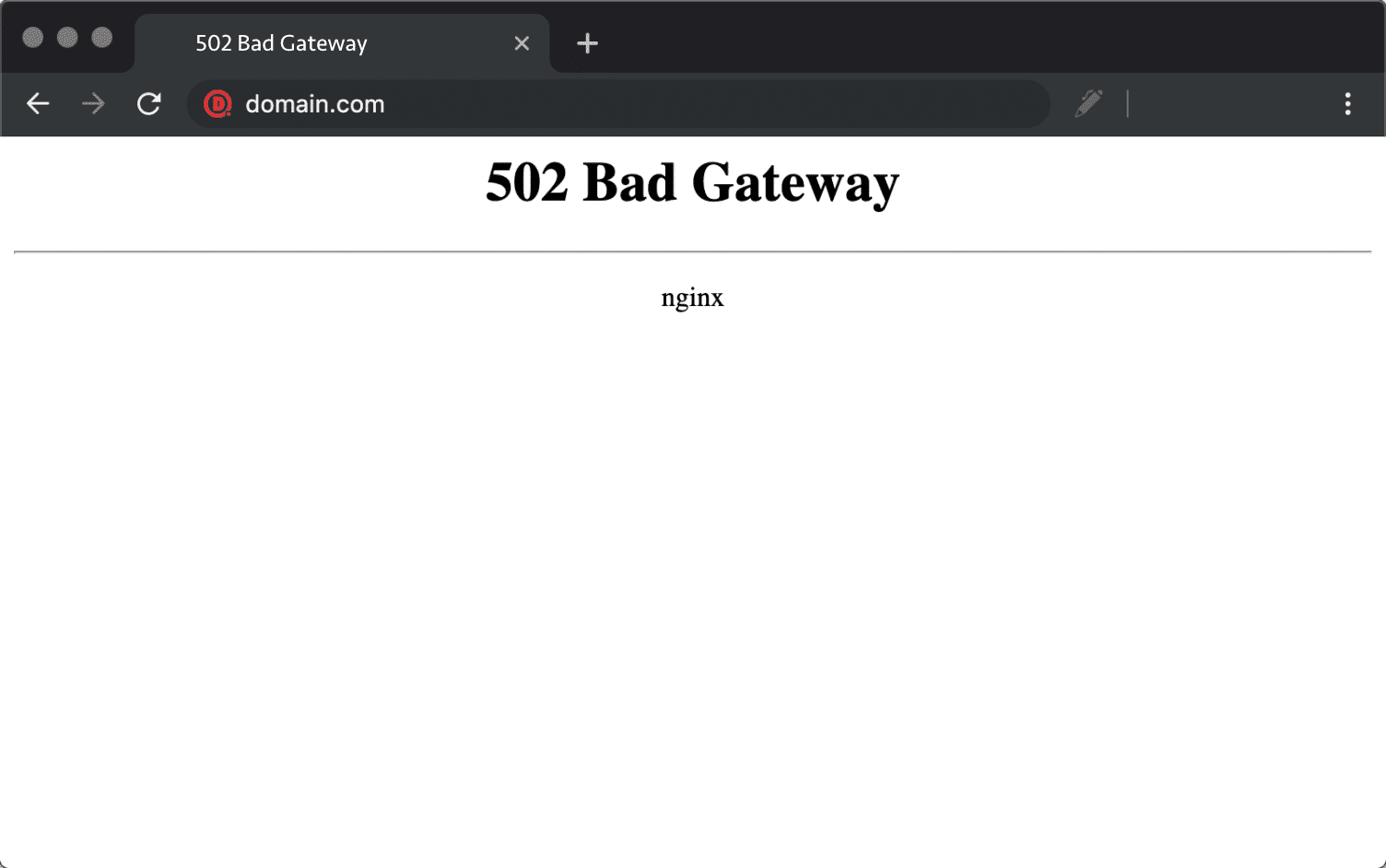
Due to the various browsers, web servers, and operating systems, a 502 bad gateway error can present itself in a number of different ways. But they all have the same meaning. Below are just a couple of the many different variations you might see on the web:
- “502 Bad Gateway”
- “Error 502”
- “HTTP Error 502 – Bad Gateway”
- “502 Service Temporarily Overloaded”
- “502 Proxy Error”
- A blank white screen
- “502 Server Error: The server encountered a temporary error and could not complete your request”
- “HTTP 502”
- Temporary Error (502)
- 502. That’s an error
- 502 bad gateway Cloudflare
- Bad Gateway: The proxy server received an invalid response from an upstream server
Another variation you might see is a “502 server error.”
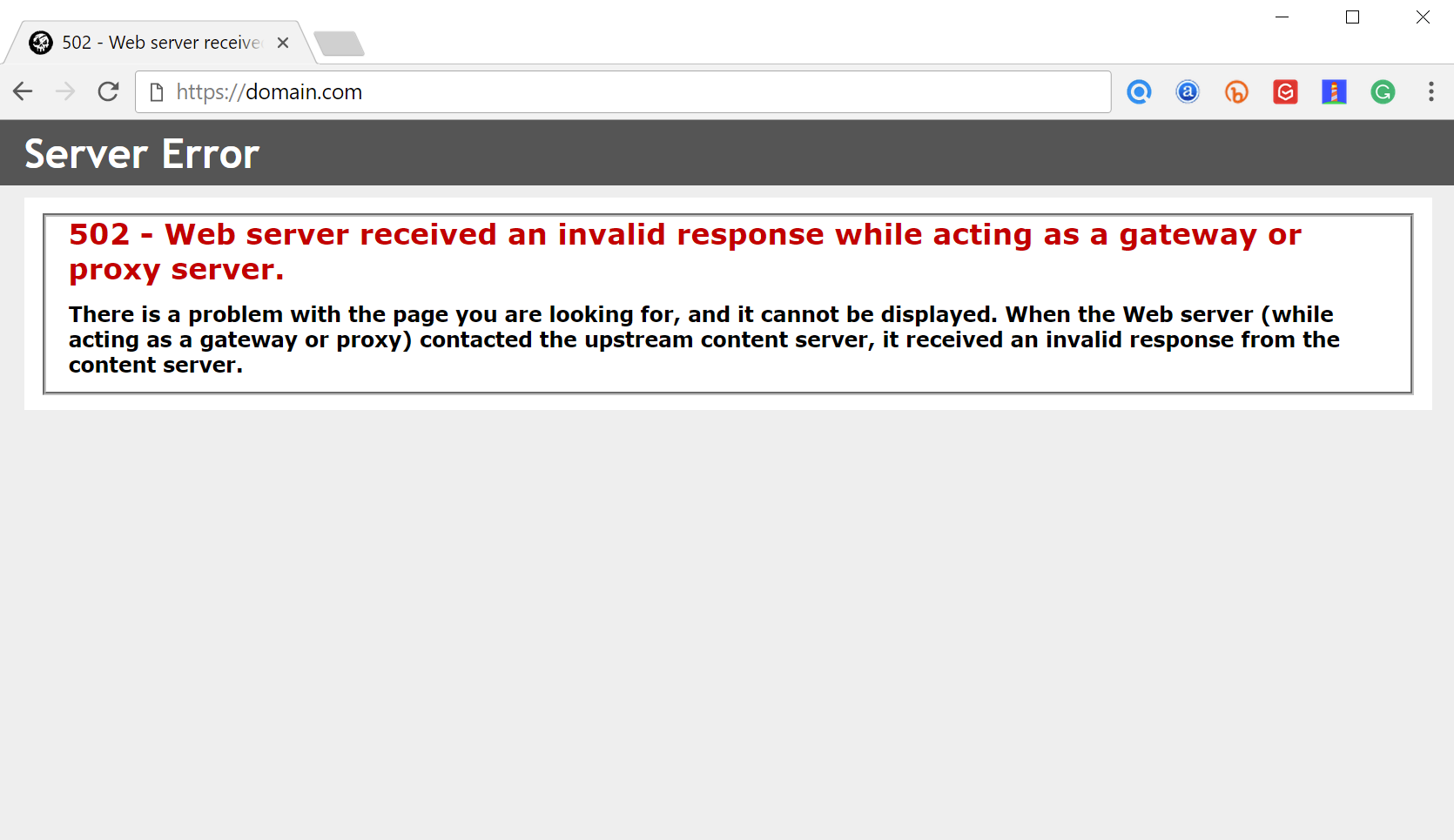
And here is yet another variation. “502 – Web server received an invalid response while acting as a gateway or proxy server. There is a problem with the page you are looking for, and it cannot be displayed. When the Web server (while acting as a gateway or proxy) contacted the upstream content server, it received an invalid response from the content server.”
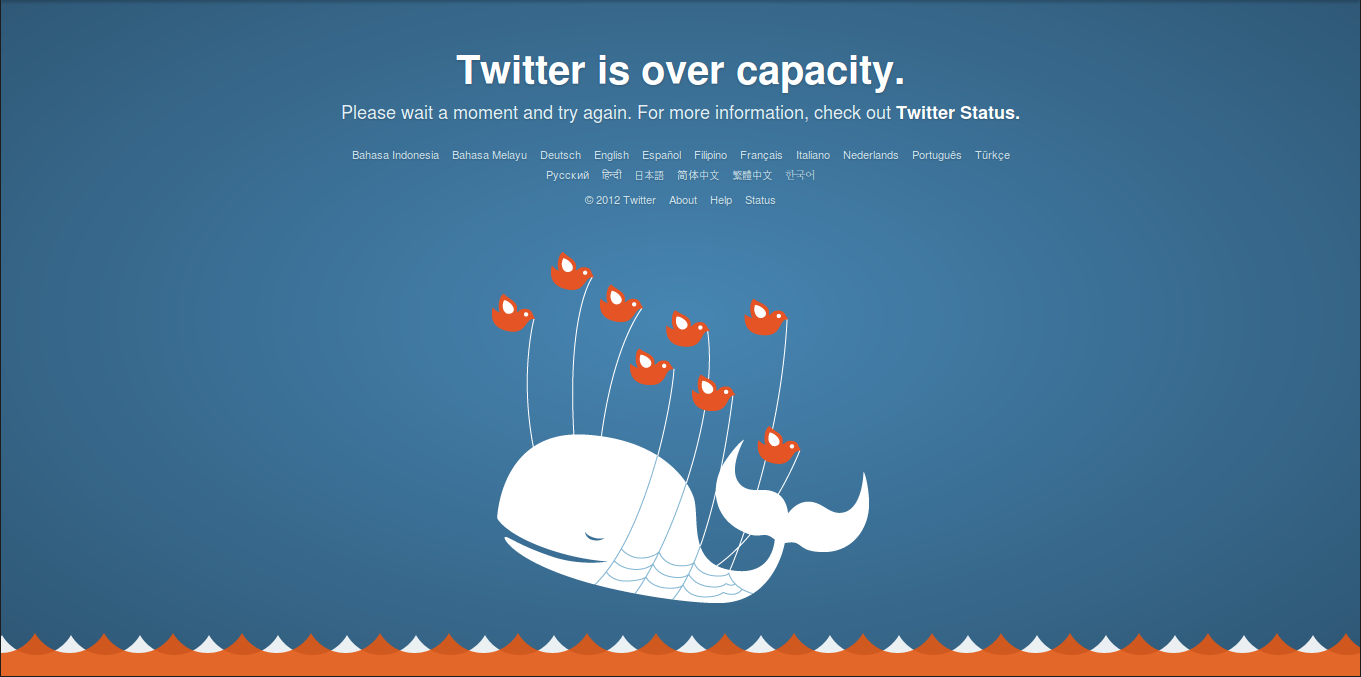
Other services such as Twitter might even show a completely different message for a 502 Bad Gateway error, such as “Twitter is over capacity.” This definitely looks a little more user-friendly.
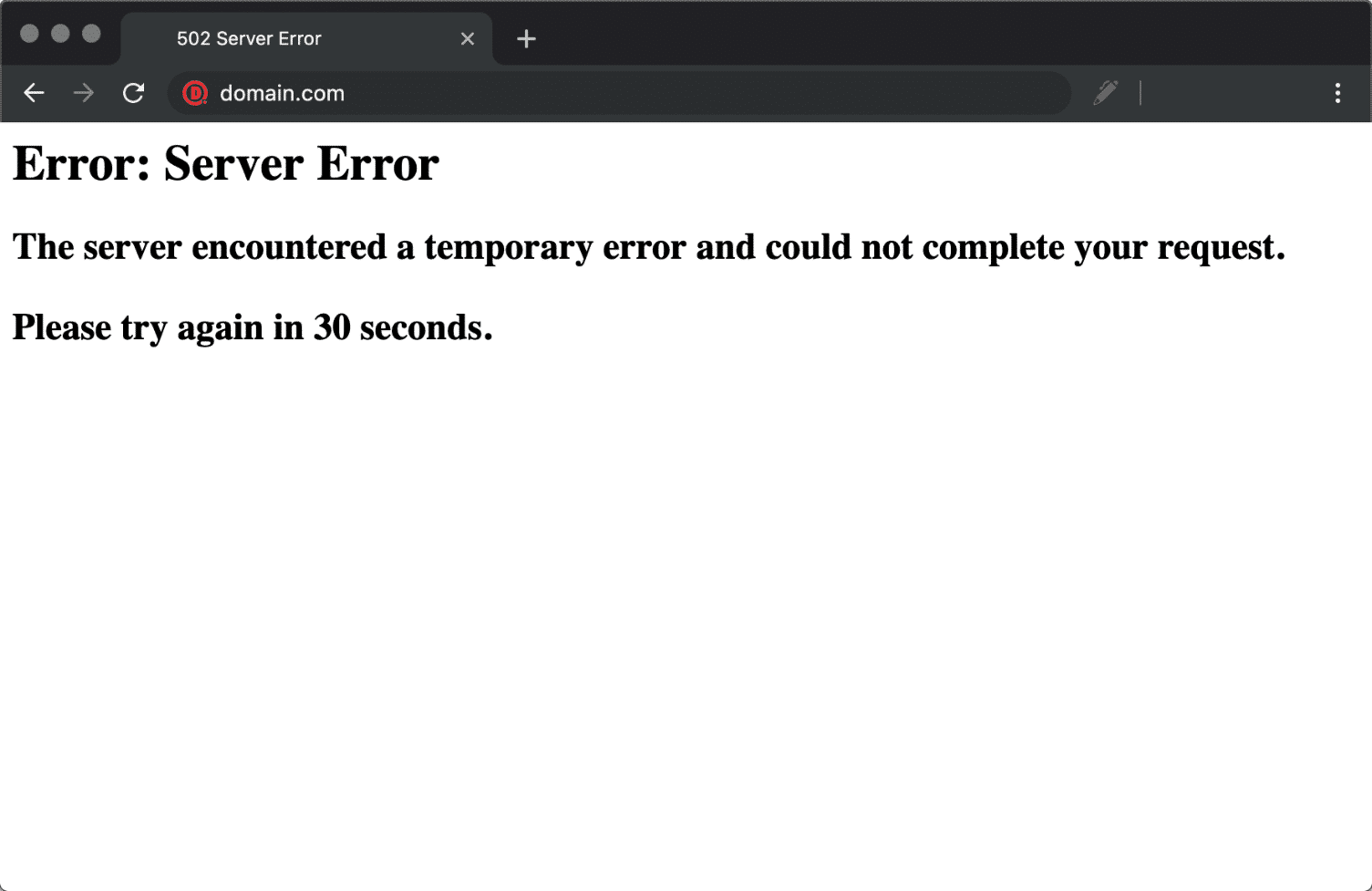
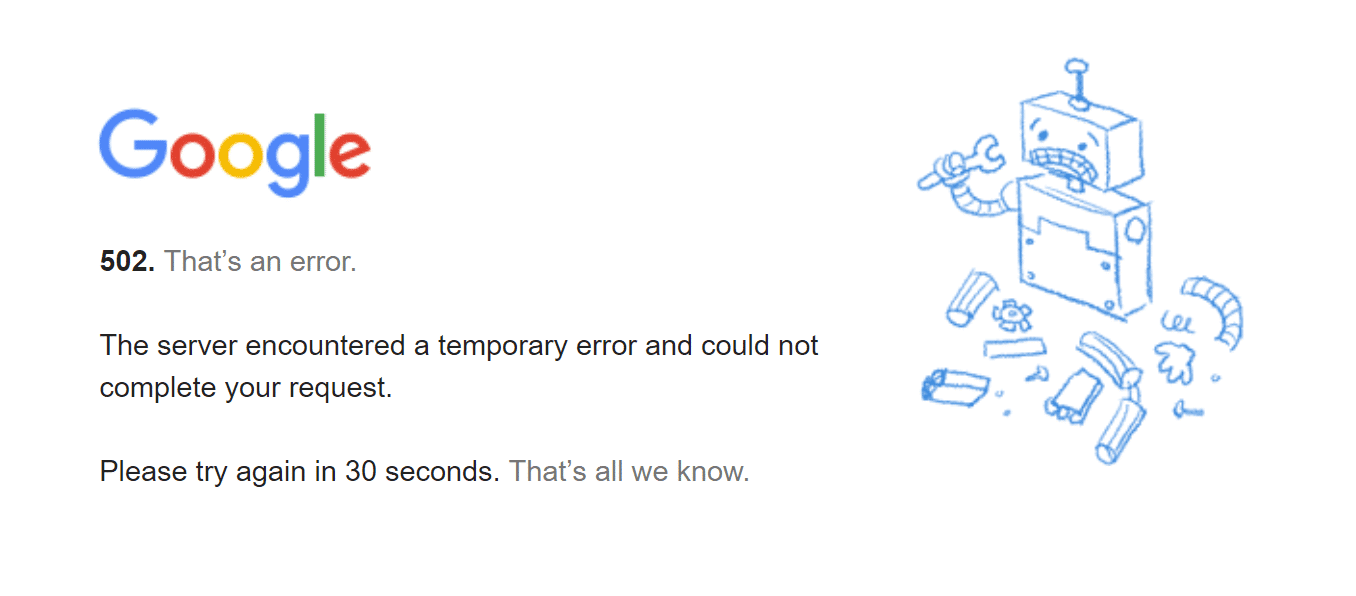
And here is a snapshot of how Google displays it. “502. That’s an error. The server encountered a temporary error and could not complete your request. Please try again in 30 seconds. That’s all we know.”
502 Errors Impact on SEO
Unlike 503 errors, which are used for WordPress maintenance mode and tell Google to check back at a later time, a 502 error can have a negative impact on SEO if not fixed right away. If your site is only down for say 10 minutes and it’s being crawled consistently a lot of times the crawler will simply get the page delivered from cache. Or Google might not even have a chance to re-crawl it before it’s back up. In this scenario, you’re completely fine.
However, if the site is down for an extended period of time, say 6+ hours, then Google might see the 502 error as a site level issue that needs to be addressed. This could impact your rankings. If you’re worried about repeat 502 errors you should figure out why they are happening to begin with. Some of the solutions below can help.
How to Fix the 502 Bad Gateway Error
A 502 bad gateway error is typically a problem with the network/server, however, it can also be a client-side issue. So we’ll dive into a little of both. Check out these common causes and ways to fix the 502 bad gateway error to and get back up and running.
1. Try Reloading the Page
One of the easiest and first things you should try when encountering a 502 bad gateway error is to simply wait a minute or so and reload the page (F5 or Ctrl + F5). It could be that the host or server is simply overloaded and the site will come right back. While you’re waiting, you could also quickly try a different browser to rule that out as an issue.
Another thing you can do is to paste the website into downforeveryoneorjustme.com. This website will tell you if the site is down or if it’s a problem on your side.

2. Clear Your Browser Cache
Whenever you encounter issues like these it can be good to clear your browser cache. Below are instructions on how to do it in the various browsers:
- How to Force Refresh a Single Page for All Browsers
- How to Clear Browser Cache for Google Chrome
- How to Clear Browser Cache for Mozilla Firefox
- How to Clear Browser Cache for Safari
- How to Clear Browser Cache for Internet Explorer
- How to Clear Browser Cache for Microsoft Edge
- How to Clear Browser Cache for Opera
3. DNS Issue
A 502 gateway error could also be because of a DNS issue, such as the domain is not resolving to the correct IP, or the DNS server is not responding. If you have just migrated your site to a new host, is it important to wait for things to fully propagate, which can take up to 24 hours in some cases. This depends upon the TTL value of your DNS records.
You can also try flushing your local DNS cache. This is similar to clearing your browser cache.
In Windows simply open up Command Prompt and enter the following:
ipconfig /flushdns
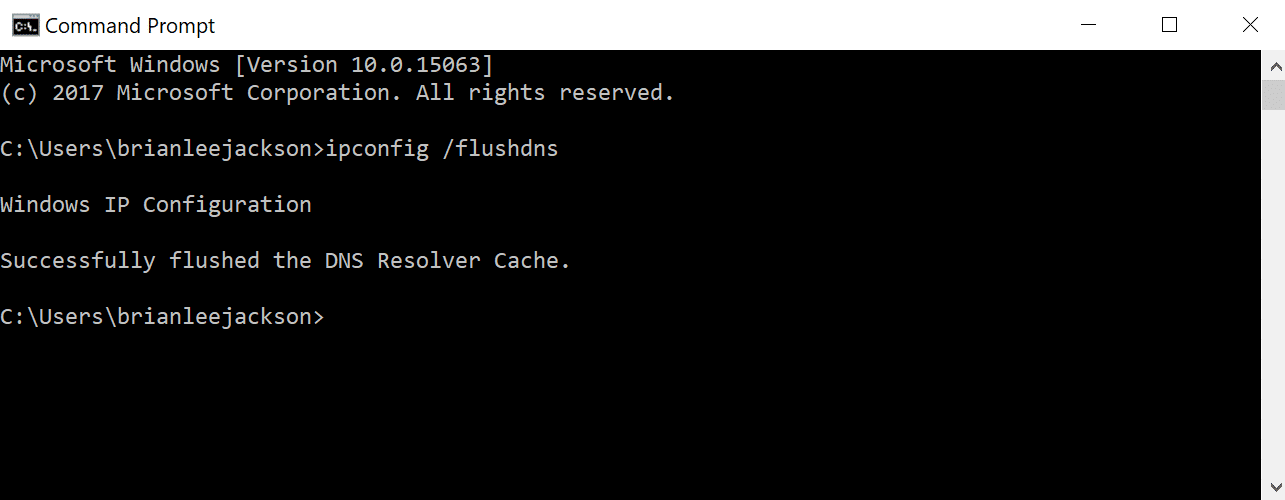
You should see a “Successfully flushed the DNS resolver Cache” if it worked.
For macOS users, you can enter the following in the terminal:
dscacheutil -flushcache
Note: There is no success message on Macs.
And lastly, you could temporarily change your DNS servers. By default, DNS servers are automatically assigned by your ISP. But you could try temporarily changing these to a public DNS server, such as Googles. In fact, some prefer to use Google’s public DNS long-term. If you have a premium DNS propagation usually is a lot faster.
4. Check With Your Host
The primary reason we typically see a 502 bad gateway error is due to an issue with the web host. Sometimes a query, script, or request will take too long and so it is canceled or killed by the server. A lot of hosts, especially shared hosts implement what they call a “kill script.” Basically what this does is it will terminate a request after a certain period of time so that it doesn’t take a site down or impact other users. If you do a Twitter search for “bad gateway” you can see thousands of tweets happening every day alerting their hosting company of the problem.

One reason you might want to consider moving to a host like Kinsta is that our platform runs in an isolated software container that contains all of the software resources required to run the site (Linux, NGINX, PHP, MySQL). This means that the software that runs each site is 100% private and is not shared, even between your own sites. This greatly reduces the chance of seeing a 502 bad gateway error. We aren’t running aggressive kill scripts like some shared hosts are. And even if one of your sites does happen to go down, it won’t impact your other sites.
Another reason you could see a 502 gateway error with your host is also due to the fact that the server is simply not reachable, either because it is down or there is no connectivity. In this case, it is recommended to check your host’s status page or open a support ticket.
5. Temporarily Disable CDN or Firewall
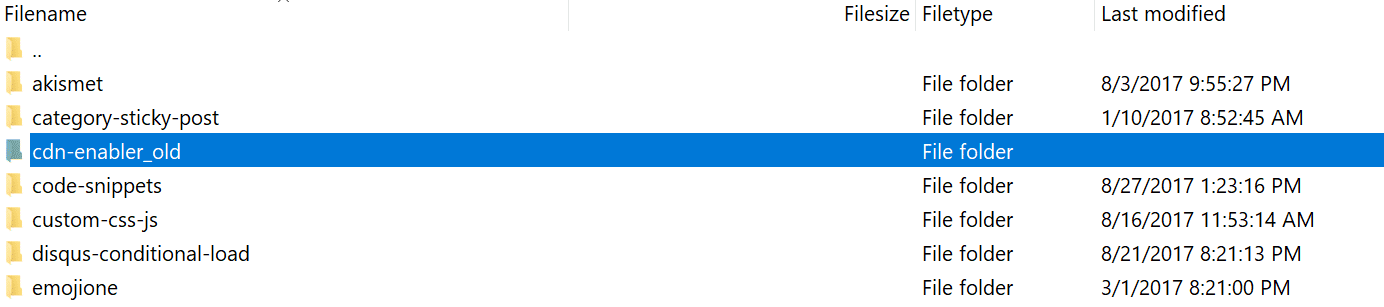
It could also be an issue with your content delivery network (CDN) or firewall. If you are using a 3rd-party CDN provider an easy way to troubleshoot this is to simply disable your CDN temporarily. For example, we are big fans of the free CDN enabler plugin. If you are using that, you can simply deactivate the plugin and then test your site. Wp-admin not working? Simply log in to your site via SFTP and rename the plugin’s folder to cdn-enabler_old. This will temporarily disable the CDN connection. The same goes for WP Rocket or any other plugin you might have hooked up to your CDN.
This can also occur sometimes with providers that provide DDoS protection and mitigation or fully proxy services like Cloudflare, as they have extra firewalls in-between. We have noticed that this happens once in a while on the Cloudflare free plan. Unfortunately, since Cloudflare is a fully proxy service, there is no quick way to simply disable it.
However, before you go blaming Cloudflare, it is important to know that there are two different types of 502 bad gateway errors variations with Cloudflare as seen below:
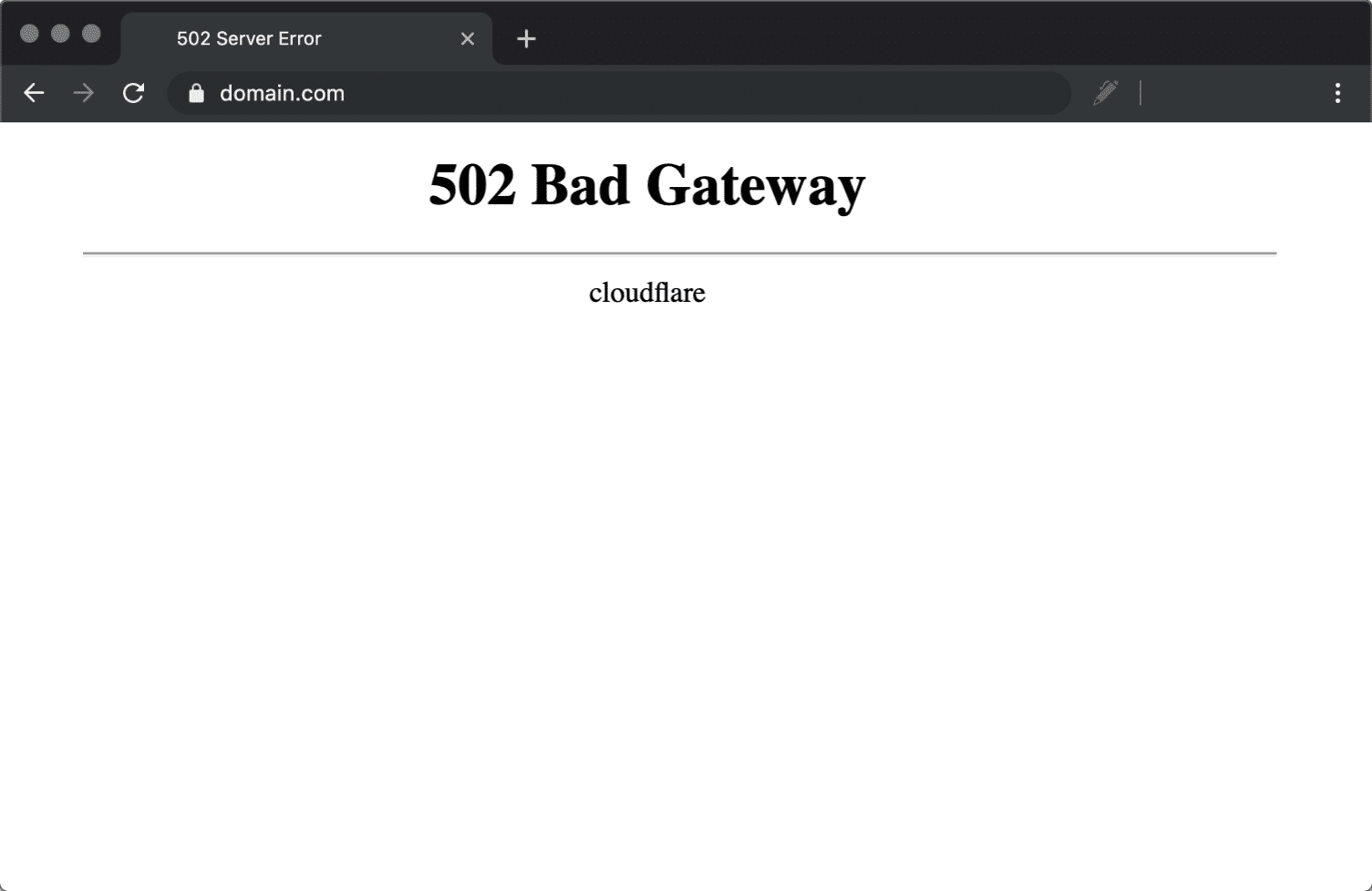
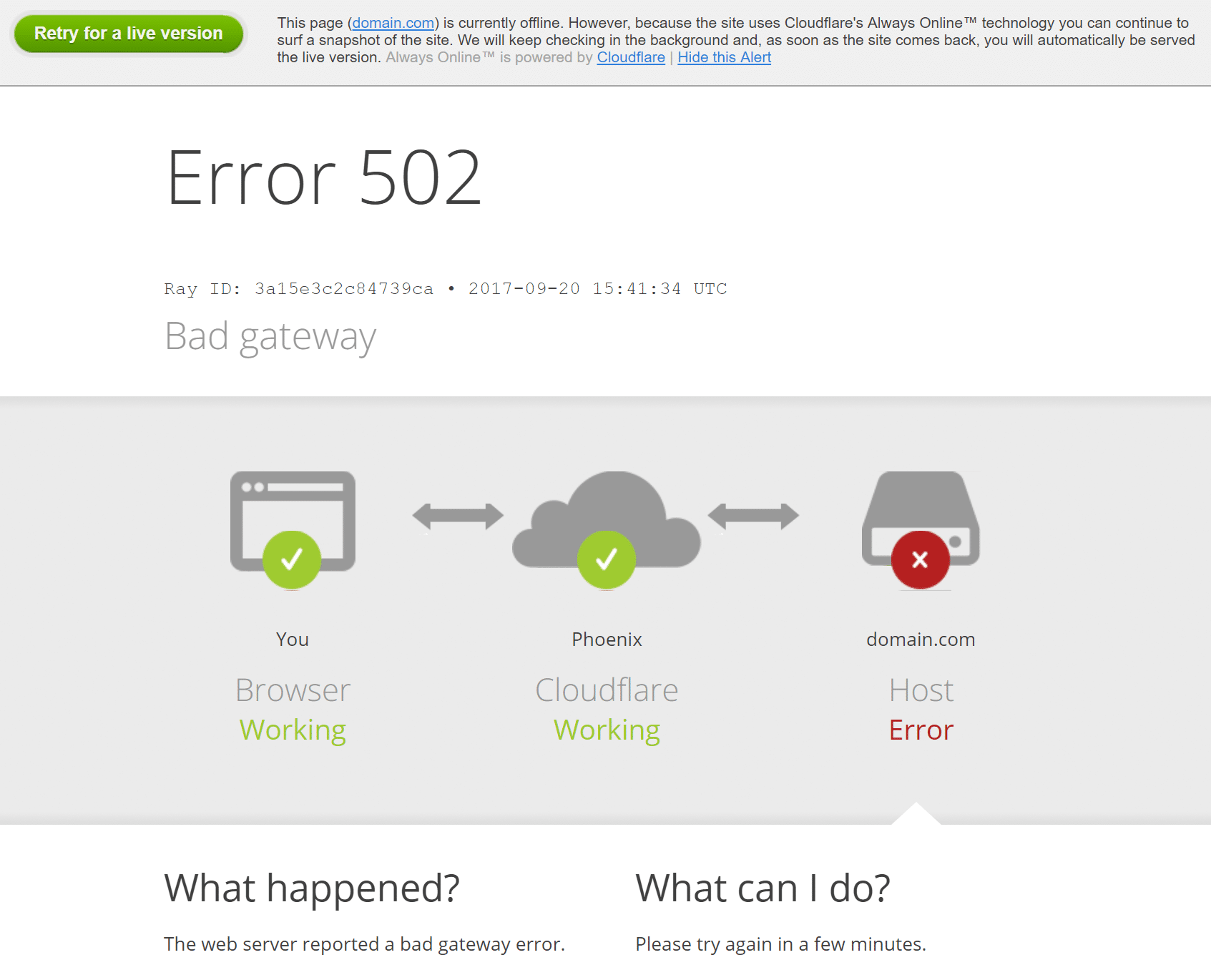
502 Bad Gateway at Cloudflare (Variation 1)
If you see the following screen, this is actually a problem on Cloudflare’s end, in which case you should reach out to them for support. You can also check Cloudflare’s status page to see if they’re currently experiencing an outage.
502 Bad Gateway at Cloudflare (Variation 2)
If you see the following screen, this is a problem with your host.
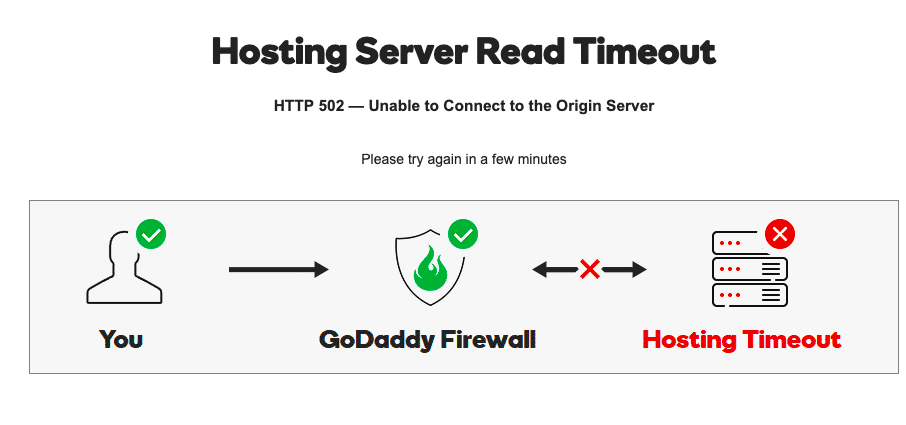
GoDaddy Firewall
Here is another example with of an HTTP 502 error and GoDaddy’s firewall. The issue is actually with the origin server (the hosting provider) due to a timeout, not the firewall itself.
6. Check Your Plugins and Themes
A lot of times the reason for scripts and queries being canceled by the server is due to bad code on your WordPress site, possibly from a 3rd party plugin or theme. We have also seen a lot of misconfigured caching plugins generate 502 errors. A few ways you can troubleshoot this is by deactivating all your plugins. Remember, you won’t lose any data if you simply deactivate a plugin.
If you can still access your admin, a quick way to do this is to browse to “Plugins” and select “Deactivate” from the bulk actions menu. This will disable all of your plugins. If this fixes the issue you’ll need to find the culprit. Start activating them one by one, reloading the site after each activation. When you see the 502 gateway error return, you’ve found the misbehaving plugin. You can then reach out to the plugin developer for help or post a support ticket in the WordPress repository.
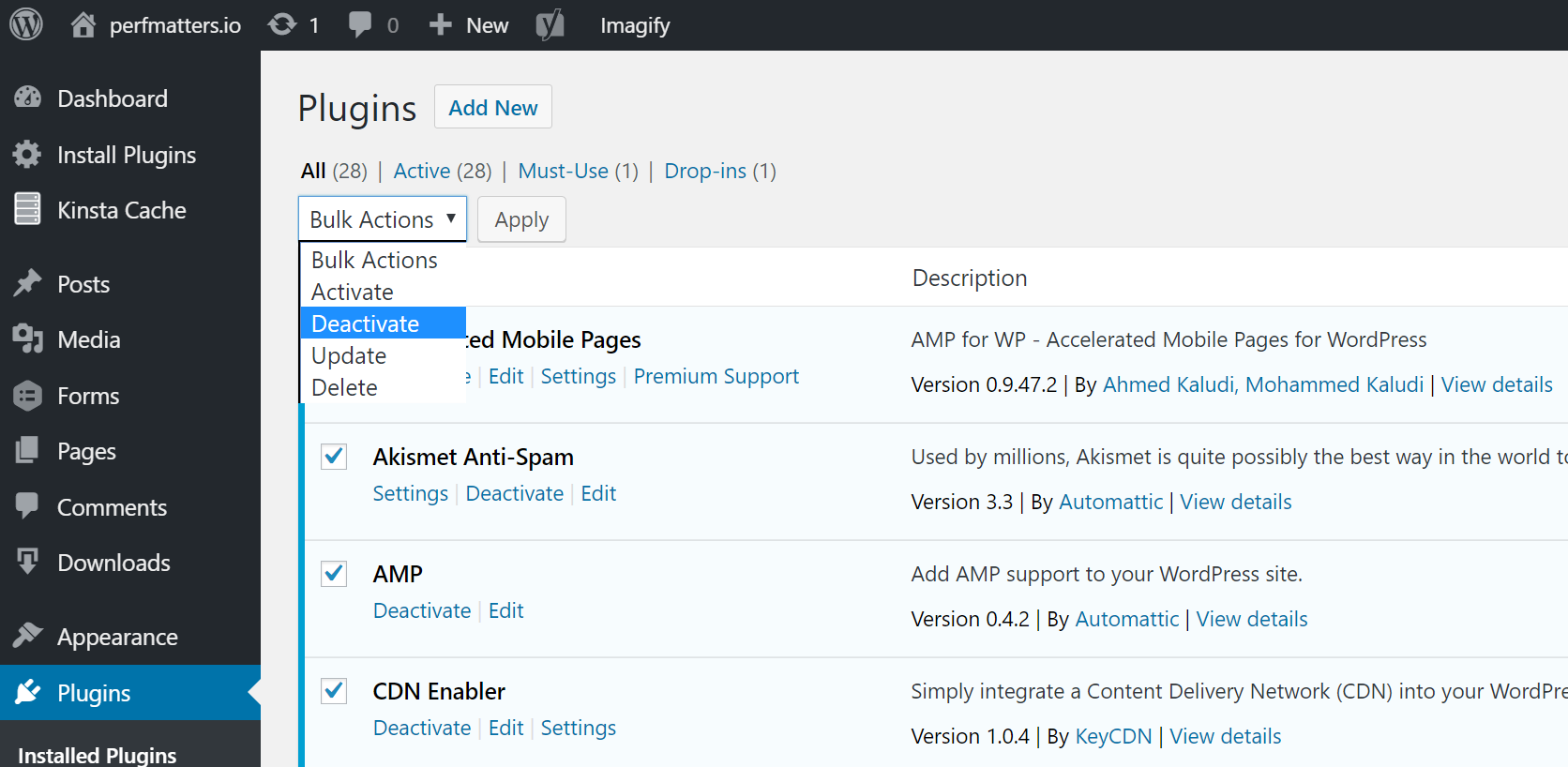
If you can’t access your admin you can FTP into your server and rename your plugins folder to something like plugins_old. Then check your site again. If it works, then you will need to test each plugin one by one. Rename your plugin folder back to “plugins” and then rename each plugin folder inside of if it, one by one, until you find it.
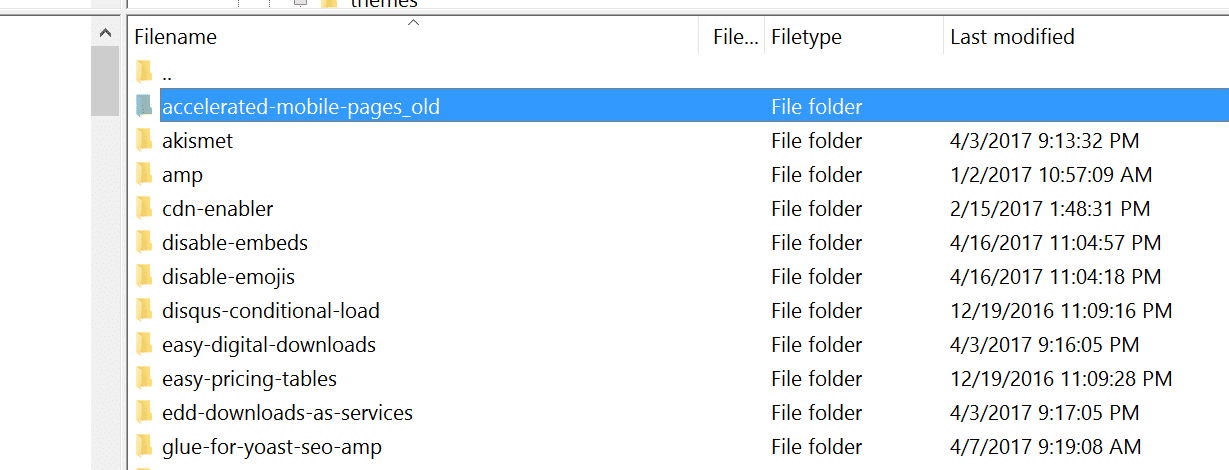
Always makes sure your plugins, themes, and WordPress core are up to date. And check to ensure you are running a supported version of PHP. You can always reach out to your host for assistance. We use Kinsta APM and other troubleshooting methods here at Kinsta to help clients narrow down what plugin, query, or script might be causing the error. You can also use your own custom New Relic key if you have your own license.
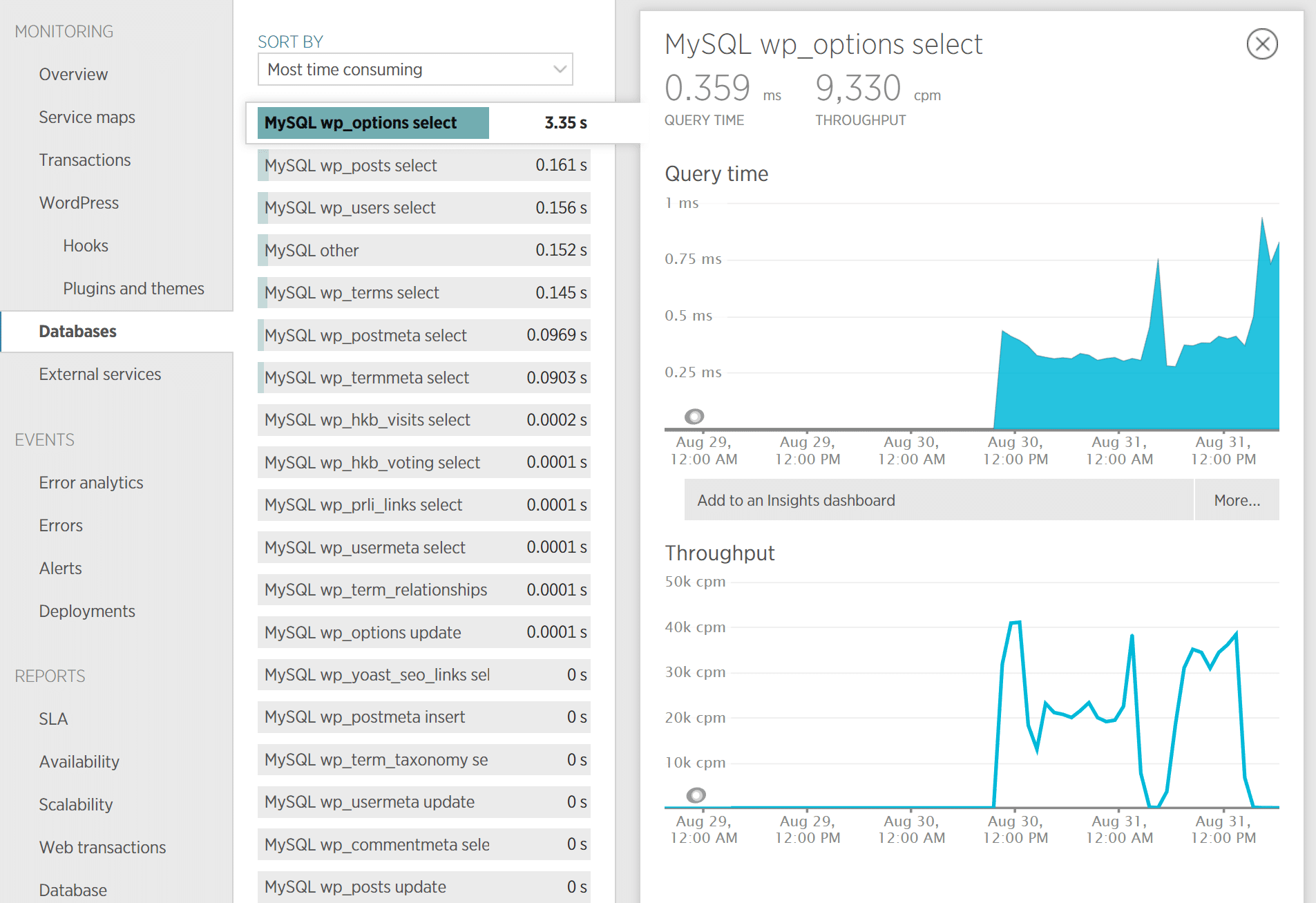
If it turns out to be an efficient query or bad code in a plugin, you might need to bring in a WordPress developer to fix the issue.
7. Check Logs
You should also take advantage of your error logs. If you are a Kinsta client, you can easily see errors in the log viewer in the MyKinsta dashboard. This can help you quickly narrow down the issue, especially if it’s resulting from a plugin on your site.
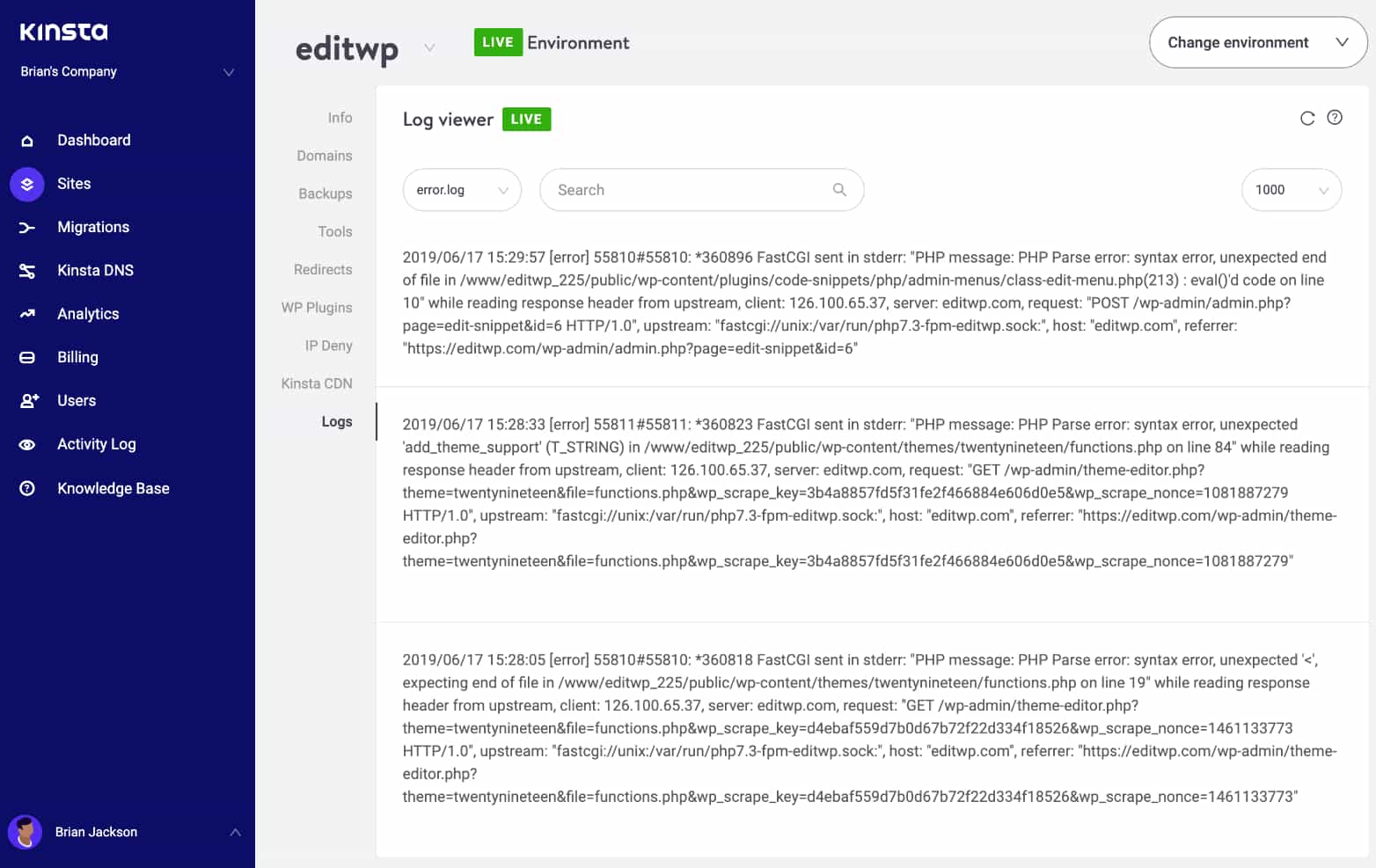
If your host doesn’t have a logging tool, you can also add the following code to your wp-config.php file to enable logging:
define( 'WP_DEBUG', true );
define( 'WP_DEBUG_LOG', true );
define( 'WP_DEBUG_DISPLAY', false );
If you need more help on how to enable WordPress debugging mode here is a full step by step tutorial.
The logs are typically located in the /wp-content directory. Others, like here at Kinsta might have a dedicated folder called “logs”.
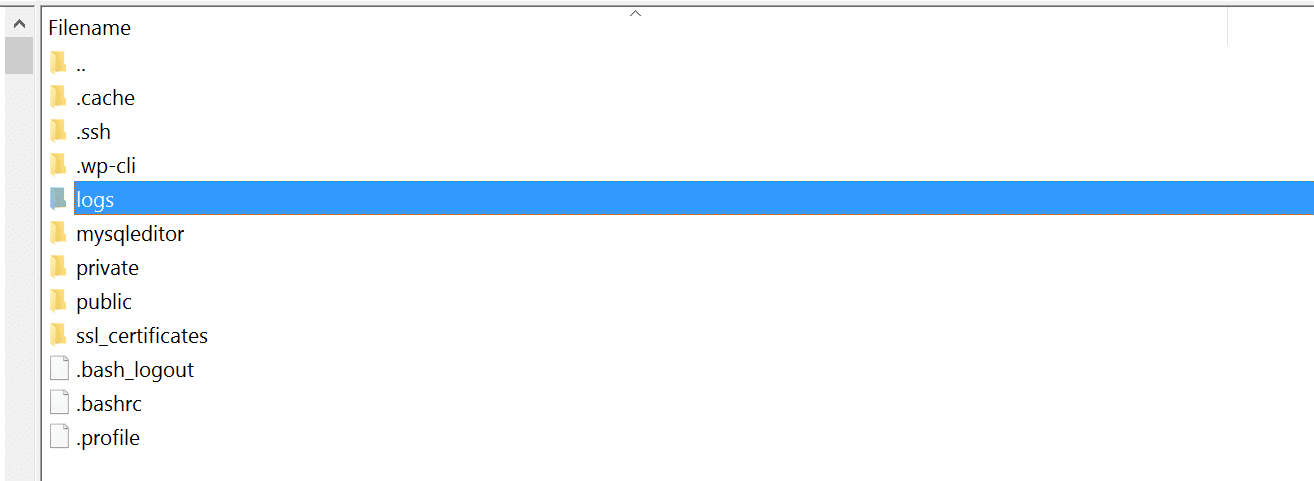
You can also check the log files in Apache and NGINX, which are commonly located here:
- Apache: /var/log/apache2/error.log
- NGINX: /var/log/nginx/error.log
If you are a Kinsta client you can also take advantage of our analytics tool to get a breakdown of the total number of 502 errors and see how often and when they are occurring. This can help you troubleshoot if this is an ongoing issue, or perhaps something that has resolved itself.
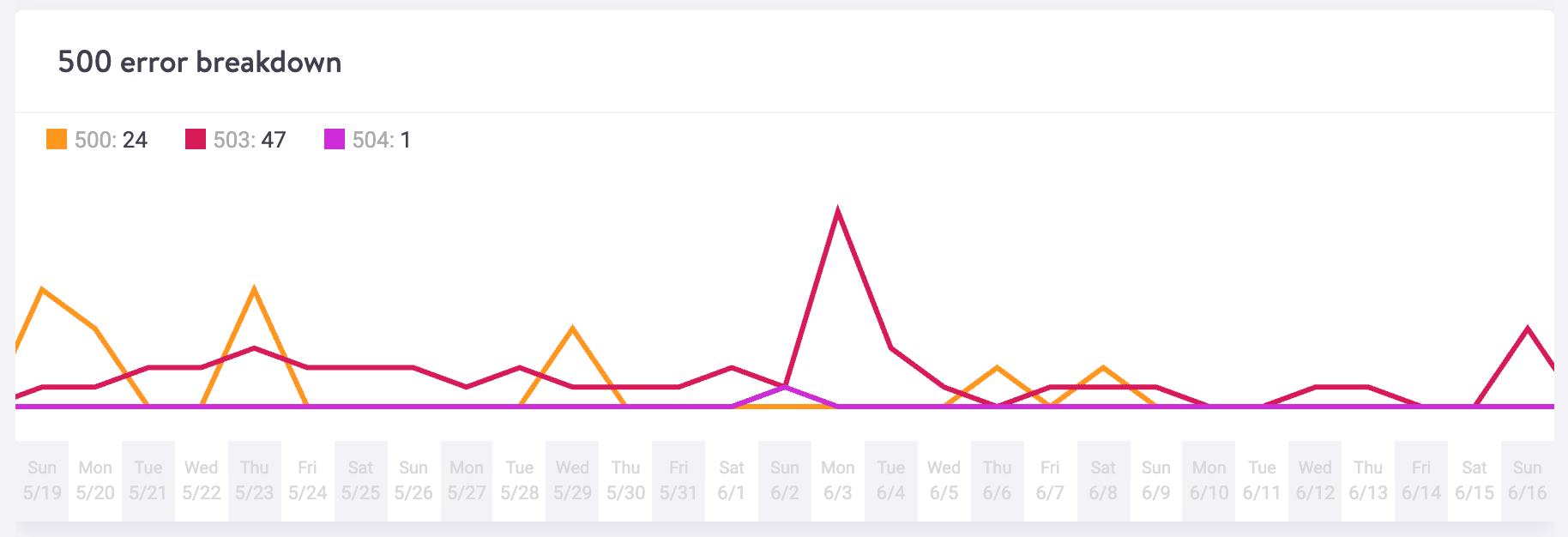
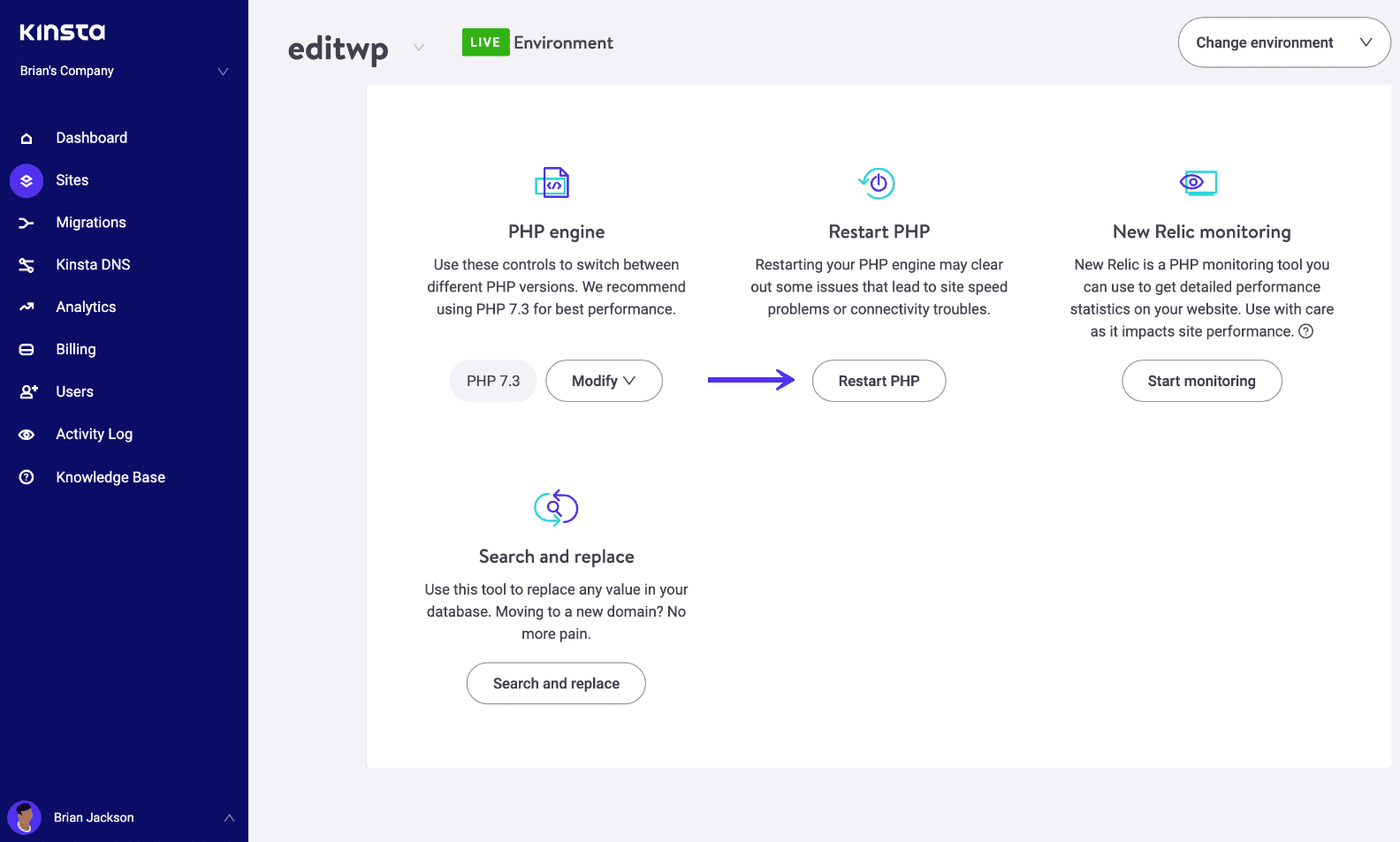
8. Restart PHP
Finally, you can also try restarting PHP. If you’re a Kinsta client, you can easily restart PHP from the tools menu within the MyKinsta dashboard. If your host doesn’t provide this, you can always open up a support ticket and ask them restart PHP.
9. PHP Timeout Issue
PHP timeouts occur if a single PHP process runs for longer than the max_execution_time or max_input_time set in the PHP configuration on your server. This is a common occurrence if you’re doing big WordPress imports. When this happens a 502 server error is usually displayed. If you run into a PHP timeout these values may need to be elevated.
You can check with your current host about what values are set on your server and if they can be increased. On the Kinsta platform, these values are set to 300 seconds (5 minutes) by default. The maximum PHP timeout values available on our platform are based on your current hosting plan.
Summary
As you can see there are quite a few things you can do to troubleshoot and fix a 502 gateway error on your site. Typically this is not on the client-side, but rather an issue with your host. Third-party plugins and themes with bad code or unoptimized queries are also things to watch out for. Was there anything we missed? Perhaps you have another tip on troubleshooting 502 gateway errors. If so, let us know below in the comments.
FAQ
What Is a 502 Bad Gateway Error?
The 502 Bad Gateway error indicates that the server received an invalid response from an inbound server.
What Causes the 502 Error?
The 502 bad gateway error is typically caused by issues related to the network/server, however, it can also be caused by client-side issues.
How Do You Fix the 502 Bad Gateway Error?
There are a number of things you can try when attempting to fix the 502 Bad Gateway Error:
1. Try Reloading the Page
2. Clear Your Browser Cache
3. flush your local DNS cache
4. Check With Your Host
5. Temporarily Disable CDN or Firewall
6. Check Your Plugins and Themes
7. Check Your Logs
8. Restart PHP
9. PHP Timeout Issue
Get all your applications, databases and WordPress sites online and under one roof. Our feature-packed, high-performance cloud platform includes:
- Easy setup and management in the MyKinsta dashboard
- 24/7 expert support
- The best Google Cloud Platform hardware and network, powered by Kubernetes for maximum scalability
- An enterprise-level Cloudflare integration for speed and security
- Global audience reach with up to 35 data centers and 275+ PoPs worldwide
Test it yourself with $20 off your first month of Application Hosting or Database Hosting. Explore our plans or talk to sales to find your best fit.
When it comes to websites, there are a lot of different errors that can be downright frustrating and confusing. A few that come to mind are the white screen of death or the frightening error establishing a database connection.
But an even more popular one is the 502 bad gateway error. Why? Because this regularly happens around the entire web, not only to WordPress sites, but even popular services such as Gmail, Twitter, and Cloudflare.
Read more below about what causes this error and some solutions on how to quickly resolve it.
- What Is a 502 Bad Gateway Error?
- How to Fix the 502 Bad Gateway Error
What is a 502 Bad Gateway Error?
The 502 Bad Gateway error specifically means that the server received an invalid response from an inbound server.
The Internet Engineering Task Force (IETF) defines the 502 Bad Gateway error as:
The 502 (Bad Gateway) status code indicates that the server, while acting as a gateway or proxy, received an invalid response from an inbound server it accessed while attempting to fulfill the request.
Every time you visit a website your browser sends a request to a web server. The web server receives and processes the request, and then sends back the requested resources along with an HTTP header and HTTP status code. Typically an HTTP status code isn’t seen unless something goes wrong. It’s basically the servers way of notifying you that something has gone wrong, along with the code on how to diagnose it.
There are many different types of 500 status error codes (500, 501, 502, 503, 504, 508, 520, etc.) which all have slightly different meanings. These indicate that the request was accepted, but the server prevented the fulfillment of the request.
Check Out Our Video Guide to The 502 Error
502 Bad Gateway Error Variations
Due to the various browsers, web servers, and operating systems, a 502 bad gateway error can present itself in a number of different ways. But they all have the same meaning. Below are just a couple of the many different variations you might see on the web:
- “502 Bad Gateway”
- “Error 502”
- “HTTP Error 502 – Bad Gateway”
- “502 Service Temporarily Overloaded”
- “502 Proxy Error”
- A blank white screen
- “502 Server Error: The server encountered a temporary error and could not complete your request”
- “HTTP 502”
- Temporary Error (502)
- 502. That’s an error
- 502 bad gateway Cloudflare
- Bad Gateway: The proxy server received an invalid response from an upstream server
Another variation you might see is a “502 server error.”
And here is yet another variation. “502 – Web server received an invalid response while acting as a gateway or proxy server. There is a problem with the page you are looking for, and it cannot be displayed. When the Web server (while acting as a gateway or proxy) contacted the upstream content server, it received an invalid response from the content server.”
Other services such as Twitter might even show a completely different message for a 502 Bad Gateway error, such as “Twitter is over capacity.” This definitely looks a little more user-friendly.
And here is a snapshot of how Google displays it. “502. That’s an error. The server encountered a temporary error and could not complete your request. Please try again in 30 seconds. That’s all we know.”
502 Errors Impact on SEO
Unlike 503 errors, which are used for WordPress maintenance mode and tell Google to check back at a later time, a 502 error can have a negative impact on SEO if not fixed right away. If your site is only down for say 10 minutes and it’s being crawled consistently a lot of times the crawler will simply get the page delivered from cache. Or Google might not even have a chance to re-crawl it before it’s back up. In this scenario, you’re completely fine.
However, if the site is down for an extended period of time, say 6+ hours, then Google might see the 502 error as a site level issue that needs to be addressed. This could impact your rankings. If you’re worried about repeat 502 errors you should figure out why they are happening to begin with. Some of the solutions below can help.
How to Fix the 502 Bad Gateway Error
A 502 bad gateway error is typically a problem with the network/server, however, it can also be a client-side issue. So we’ll dive into a little of both. Check out these common causes and ways to fix the 502 bad gateway error to and get back up and running.
1. Try Reloading the Page
One of the easiest and first things you should try when encountering a 502 bad gateway error is to simply wait a minute or so and reload the page (F5 or Ctrl + F5). It could be that the host or server is simply overloaded and the site will come right back. While you’re waiting, you could also quickly try a different browser to rule that out as an issue.
Another thing you can do is to paste the website into downforeveryoneorjustme.com. This website will tell you if the site is down or if it’s a problem on your side.
2. Clear Your Browser Cache
Whenever you encounter issues like these it can be good to clear your browser cache. Below are instructions on how to do it in the various browsers:
- How to Force Refresh a Single Page for All Browsers
- How to Clear Browser Cache for Google Chrome
- How to Clear Browser Cache for Mozilla Firefox
- How to Clear Browser Cache for Safari
- How to Clear Browser Cache for Internet Explorer
- How to Clear Browser Cache for Microsoft Edge
- How to Clear Browser Cache for Opera
3. DNS Issue
A 502 gateway error could also be because of a DNS issue, such as the domain is not resolving to the correct IP, or the DNS server is not responding. If you have just migrated your site to a new host, is it important to wait for things to fully propagate, which can take up to 24 hours in some cases. This depends upon the TTL value of your DNS records.
You can also try flushing your local DNS cache. This is similar to clearing your browser cache.
In Windows simply open up Command Prompt and enter the following:
ipconfig /flushdns
You should see a “Successfully flushed the DNS resolver Cache” if it worked.
For macOS users, you can enter the following in the terminal:
dscacheutil -flushcache
Note: There is no success message on Macs.
And lastly, you could temporarily change your DNS servers. By default, DNS servers are automatically assigned by your ISP. But you could try temporarily changing these to a public DNS server, such as Googles. In fact, some prefer to use Google’s public DNS long-term. If you have a premium DNS propagation usually is a lot faster.
4. Check With Your Host
The primary reason we typically see a 502 bad gateway error is due to an issue with the web host. Sometimes a query, script, or request will take too long and so it is canceled or killed by the server. A lot of hosts, especially shared hosts implement what they call a “kill script.” Basically what this does is it will terminate a request after a certain period of time so that it doesn’t take a site down or impact other users. If you do a Twitter search for “bad gateway” you can see thousands of tweets happening every day alerting their hosting company of the problem.
One reason you might want to consider moving to a host like Kinsta is that our platform runs in an isolated software container that contains all of the software resources required to run the site (Linux, NGINX, PHP, MySQL). This means that the software that runs each site is 100% private and is not shared, even between your own sites. This greatly reduces the chance of seeing a 502 bad gateway error. We aren’t running aggressive kill scripts like some shared hosts are. And even if one of your sites does happen to go down, it won’t impact your other sites.
Another reason you could see a 502 gateway error with your host is also due to the fact that the server is simply not reachable, either because it is down or there is no connectivity. In this case, it is recommended to check your host’s status page or open a support ticket.
5. Temporarily Disable CDN or Firewall
It could also be an issue with your content delivery network (CDN) or firewall. If you are using a 3rd-party CDN provider an easy way to troubleshoot this is to simply disable your CDN temporarily. For example, we are big fans of the free CDN enabler plugin. If you are using that, you can simply deactivate the plugin and then test your site. Wp-admin not working? Simply log in to your site via SFTP and rename the plugin’s folder to cdn-enabler_old. This will temporarily disable the CDN connection. The same goes for WP Rocket or any other plugin you might have hooked up to your CDN.
This can also occur sometimes with providers that provide DDoS protection and mitigation or fully proxy services like Cloudflare, as they have extra firewalls in-between. We have noticed that this happens once in a while on the Cloudflare free plan. Unfortunately, since Cloudflare is a fully proxy service, there is no quick way to simply disable it.
However, before you go blaming Cloudflare, it is important to know that there are two different types of 502 bad gateway errors variations with Cloudflare as seen below:
502 Bad Gateway at Cloudflare (Variation 1)
If you see the following screen, this is actually a problem on Cloudflare’s end, in which case you should reach out to them for support. You can also check Cloudflare’s status page to see if they’re currently experiencing an outage.
502 Bad Gateway at Cloudflare (Variation 2)
If you see the following screen, this is a problem with your host.
GoDaddy Firewall
Here is another example with of an HTTP 502 error and GoDaddy’s firewall. The issue is actually with the origin server (the hosting provider) due to a timeout, not the firewall itself.
6. Check Your Plugins and Themes
A lot of times the reason for scripts and queries being canceled by the server is due to bad code on your WordPress site, possibly from a 3rd party plugin or theme. We have also seen a lot of misconfigured caching plugins generate 502 errors. A few ways you can troubleshoot this is by deactivating all your plugins. Remember, you won’t lose any data if you simply deactivate a plugin.
If you can still access your admin, a quick way to do this is to browse to “Plugins” and select “Deactivate” from the bulk actions menu. This will disable all of your plugins. If this fixes the issue you’ll need to find the culprit. Start activating them one by one, reloading the site after each activation. When you see the 502 gateway error return, you’ve found the misbehaving plugin. You can then reach out to the plugin developer for help or post a support ticket in the WordPress repository.
If you can’t access your admin you can FTP into your server and rename your plugins folder to something like plugins_old. Then check your site again. If it works, then you will need to test each plugin one by one. Rename your plugin folder back to “plugins” and then rename each plugin folder inside of if it, one by one, until you find it.
Always makes sure your plugins, themes, and WordPress core are up to date. And check to ensure you are running a supported version of PHP. You can always reach out to your host for assistance. We use Kinsta APM and other troubleshooting methods here at Kinsta to help clients narrow down what plugin, query, or script might be causing the error. You can also use your own custom New Relic key if you have your own license.
If it turns out to be an efficient query or bad code in a plugin, you might need to bring in a WordPress developer to fix the issue.
7. Check Logs
You should also take advantage of your error logs. If you are a Kinsta client, you can easily see errors in the log viewer in the MyKinsta dashboard. This can help you quickly narrow down the issue, especially if it’s resulting from a plugin on your site.
If your host doesn’t have a logging tool, you can also add the following code to your wp-config.php file to enable logging:
define( 'WP_DEBUG', true );
define( 'WP_DEBUG_LOG', true );
define( 'WP_DEBUG_DISPLAY', false );
If you need more help on how to enable WordPress debugging mode here is a full step by step tutorial.
The logs are typically located in the /wp-content directory. Others, like here at Kinsta might have a dedicated folder called “logs”.
You can also check the log files in Apache and NGINX, which are commonly located here:
- Apache: /var/log/apache2/error.log
- NGINX: /var/log/nginx/error.log
If you are a Kinsta client you can also take advantage of our analytics tool to get a breakdown of the total number of 502 errors and see how often and when they are occurring. This can help you troubleshoot if this is an ongoing issue, or perhaps something that has resolved itself.
8. Restart PHP
Finally, you can also try restarting PHP. If you’re a Kinsta client, you can easily restart PHP from the tools menu within the MyKinsta dashboard. If your host doesn’t provide this, you can always open up a support ticket and ask them restart PHP.
9. PHP Timeout Issue
PHP timeouts occur if a single PHP process runs for longer than the max_execution_time or max_input_time set in the PHP configuration on your server. This is a common occurrence if you’re doing big WordPress imports. When this happens a 502 server error is usually displayed. If you run into a PHP timeout these values may need to be elevated.
You can check with your current host about what values are set on your server and if they can be increased. On the Kinsta platform, these values are set to 300 seconds (5 minutes) by default. The maximum PHP timeout values available on our platform are based on your current hosting plan.
Summary
As you can see there are quite a few things you can do to troubleshoot and fix a 502 gateway error on your site. Typically this is not on the client-side, but rather an issue with your host. Third-party plugins and themes with bad code or unoptimized queries are also things to watch out for. Was there anything we missed? Perhaps you have another tip on troubleshooting 502 gateway errors. If so, let us know below in the comments.
FAQ
What Is a 502 Bad Gateway Error?
The 502 Bad Gateway error indicates that the server received an invalid response from an inbound server.
What Causes the 502 Error?
The 502 bad gateway error is typically caused by issues related to the network/server, however, it can also be caused by client-side issues.
How Do You Fix the 502 Bad Gateway Error?
There are a number of things you can try when attempting to fix the 502 Bad Gateway Error:
1. Try Reloading the Page
2. Clear Your Browser Cache
3. flush your local DNS cache
4. Check With Your Host
5. Temporarily Disable CDN or Firewall
6. Check Your Plugins and Themes
7. Check Your Logs
8. Restart PHP
9. PHP Timeout Issue
Get all your applications, databases and WordPress sites online and under one roof. Our feature-packed, high-performance cloud platform includes:
- Easy setup and management in the MyKinsta dashboard
- 24/7 expert support
- The best Google Cloud Platform hardware and network, powered by Kubernetes for maximum scalability
- An enterprise-level Cloudflare integration for speed and security
- Global audience reach with up to 35 data centers and 275+ PoPs worldwide
Test it yourself with $20 off your first month of Application Hosting or Database Hosting. Explore our plans or talk to sales to find your best fit.
Форумы Google пестрят жалобами пользователей на серверную ошибку 502 в Google приложениях. Несмотря на случайный фактор своего появления, эта ошибка может изрядно снизить посещаемость сайта.
502 bad gateway — что это за ошибка? Ошибка 502 Bad Gateway может проявляться по-разному. К примеру, 502 – Service Temporarily Overloaded или HTTP Error 502 Bad Gateway.
Ошибка 502 bad gateway — что это значит?

Ошибка 502 bad gateway говорит о том, что обратный прокси-сервер (допустим, Apache) для сервера источника (например, nginx) получает некорректный ответ от исходного веб-сервера.
Посмотрев внимательнее, мы обнаружили, что Apache работает в нем как прокси nginx. Веб-сервер перезагружал http-сервис почти каждый час. Наш опыт в устранении подобных ошибок показывает, что ошибка 502 Bad Gateway появляется по одной из следующих причин:
- Перегруженность сервера. Веб-сервер может падать из-за нехватки ресурсов (например, оперативной памяти), вызываемой избытком выполняемых процессов или агрессивными действиями пользователей;
- Частая перезагрузка веб-сервера. Такое случается при ошибках конфигурации, сбоях в модулях, любых атаках, избытке выполняемых процессов и приложений. В результате пользователь видит временную 502 ошибку;
- Плохой код сайта. Сайты с устаревшими приложениями или корявым кодом влияют на правильное функционирование сервера и ведут к периодическому возникновению 502 ошибки;
- Ошибки сети. Прочие ошибки конфигурации сети (проблемы с DNS, маршрутизация, блокировка файерволом, используемым на сервере, проблемы у провайдера) также становятся причиной появления 502 ошибки сервера;
- Время ожидания серверного программного обеспечения. 502 ошибка неизбежна при снижении скорости выполнения запросов в nginx, когда средство кэширования (например, Varnish Cache) уходит в таймаут. Сюда же относятся и медленные запросы.
Как исправить ошибку 502 bad gateway на веб-сервере nginx
Сначала необходимо определить первопричину возникновения данной ошибки. Мы изучили серверные логи во время перезагрузок, и нашли там ошибки seg fault.
Затем мы покопались в конфигурации сервера, и увидели, что там отсутствовал модуль mod_rpaf. Именно это и вызывало падение сервера:
root@server [~]# ls -l /usr/local/apache/modules/mod_rpaf-2.0.so
/bin/ls: cannot access /usr/local/apache/modules/mod_rpaf-2.0.so: No such file or directory
Rpaf – это модуль Reverse proxy add forward, разработанный для серверов Apache. Он нужен в том случае, если вы задаете Nginx фронденд-сервером и хотите получить реальный IP серверных запросов.
Данный модуль не работал под Apache-2.4, поэтому мы немного его подправили. После перекомпиляции и перезагрузки Apache ошибки сегментации прекратились.
Мы последили за сервером еще пару часов и убедились в том, что перезагрузки прекратились, а серверные ошибки исчезли.
Вот несколько советов, как исправить ошибку 502 bad gateway:
- Следите за тем, чтобы файлы сайта (плагины и темы) своевременно обновлялись и не устаревали;
- Оптимизируйте и исправляйте медленные MySQL-запросы;
- Проводите аудит серверного программного обеспечения и вовремя обновляйте модули;
- Избегайте проблем с маршрутизацией и отслеживайте любые перегрузки/атаки на сервер.
Коды ошибок, которые начинаются с цифры 5, говорят о проблемах на стороне сервера. Но это не значит, что советы по их исправлению будут интересны только администраторам выделенных серверов. Узнаем, что нужно делать с пятисотыми ошибками и владельцу VPS, и пользователю виртуального хостинга.
500 Internal Server Error (Внутренняя ошибка сервера)
Серверу не удалось обработать запрос к сайту. Возможных причин для этого может быть много, но сузить их круг можно, восстановив последовательность ваших действий перед сообщением об ошибке. Также изучите само сообщение: комментарий «Internal Server Error» говорит о проблемах с файлом .htaccess, текст «HTTP ERROR 500» — о проблемах со скриптами, а текст «PHP Parse error: syntax error, unexpected» или «Internal Server Error nginx» — о неполадках в CMS.
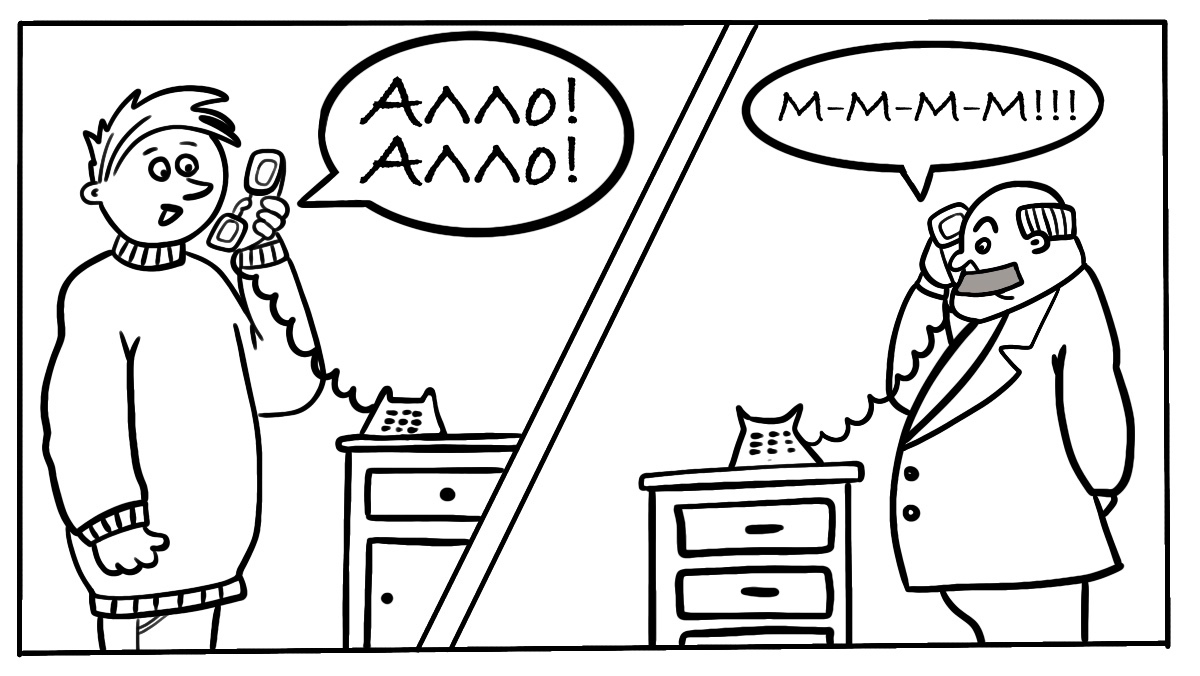
1. Проверьте сайт, созданный с помощью CMS, на наличие проблем с плагинами или ошибок в коде. В этом вам могут лог-файлы. При обнаружении проблемного плагина обновите его или верните прежнюю версию. Если это не помогло, откажитесь от него. Если ошибка произошла после обновления CMS, проведите обновление повторно.
2. Посмотрите файл .htaccess на предмет ошибок в командах. Закомментируйте директиву Options, поставив перед ней решётку: если после этого ошибка 500 перестанет появляться, значит, есть нарушения в синтаксисе и в описании команд.
3. Убедитесь, что права доступа к файлам, папкам и скриптам выставлены верно. Для папок рекомендуется значение 755, для скриптов — 600, а для других файлов — 644. При других вариантах прав доступ к сайту может блокироваться в целях безопасности.
4. Проверьте, всё ли в порядке со скриптами. Возможно, какой-то из скриптов слишком медленный или время ожидания ответа от сервера слишком мало. Если при просмотре лог-файлов выяснится, что какой-то из скриптов незапланированно требует слишком много памяти, оптимизируйте его или удалите. А если обнаружится, что какой-то из скриптов вовсе не запускается, убедитесь, что функция прописана верно, поддерживается сервером и соответствует используемой версии PHP.
5. Отдельно обратите внимание на CGI-скрипты: вероятно, строки в них имеют не те окончания, что исправляется загрузкой скриптов через FTP в режиме ASCII. Также некорректная работа CGI-скриптов может быть причиной ошибок в HTTP-заголовках, что тоже приводит к ошибке 500. Либо же имеются ошибочные директивы, предназначенные для работы со скриптами.
502 Bad Gateway (Ошибочный шлюз)
Разбираться с этой ошибкой нужно лишь тогда, когда она появляется регулярно. А говорит она о перегруженности сервера или о неполадках в его работе, в связи с чем он посылает недопустимые для продолжения работы ответы.

1. Перезагрузите страницу. Зайдите на любой другой сайт, которой точно должен работать в данный момент. Это поможет узнать, есть ли у вас доступ к интернету в принципе. Если доступ есть, очистите файлы cookies в браузере, а затем посетите сайт снова.
2. Убедитесь, что на ваш сайт не совершается DDoS-атака. В противном случае обратитесь к хостинг-провайдеру.
3. Если на вашем ресурсе фиксируется значительный рост посещаемости, то подберите более продвинутые условия хостинга, чтобы ошибка не появлялась вновь.
4. Проверьте нагрузку на сервер. Если лимит превышается, необходимо увеличить объём оперативной памяти.
5. Посмотрите настройки сервера. Возможными поводами для появления ошибки 502 могут быть:
• неполадки после установки обновлений;
• превышение лимитов на число обращений к внешним ресурсам и на время ответа сервера;
• некорректные лимиты в файлах конфигурации ini;
• превышение лимита на число php-cgi-процессов;
• недостаточная оптимизация скриптов;
• недостаточная оптимизация запросов;
• неправильная работа модулей (если ошибка возникает при обращении к скриптам конкретного расширения).
6. Если ошибка продолжает появляться и если вы пользуетесь виртуальным хостингом, уточните у хостинг-провайдера, не создают ли другие сайты на сервере чрезмерную нагрузку.
503 Service Unavailable (Сервис недоступен)
Сервер не работает из-за перегрузок. Либо же происходит плановая перезагрузка или отключение сервера: в этом случае вместе с сообщением об ошибке после слов «Retry-After» должно отображаться время, когда сервер вернётся в работу. Если же ошибка 503 появляется часто и не по причине плановых работ, то это говорит о неполадках, которые следует устранить.
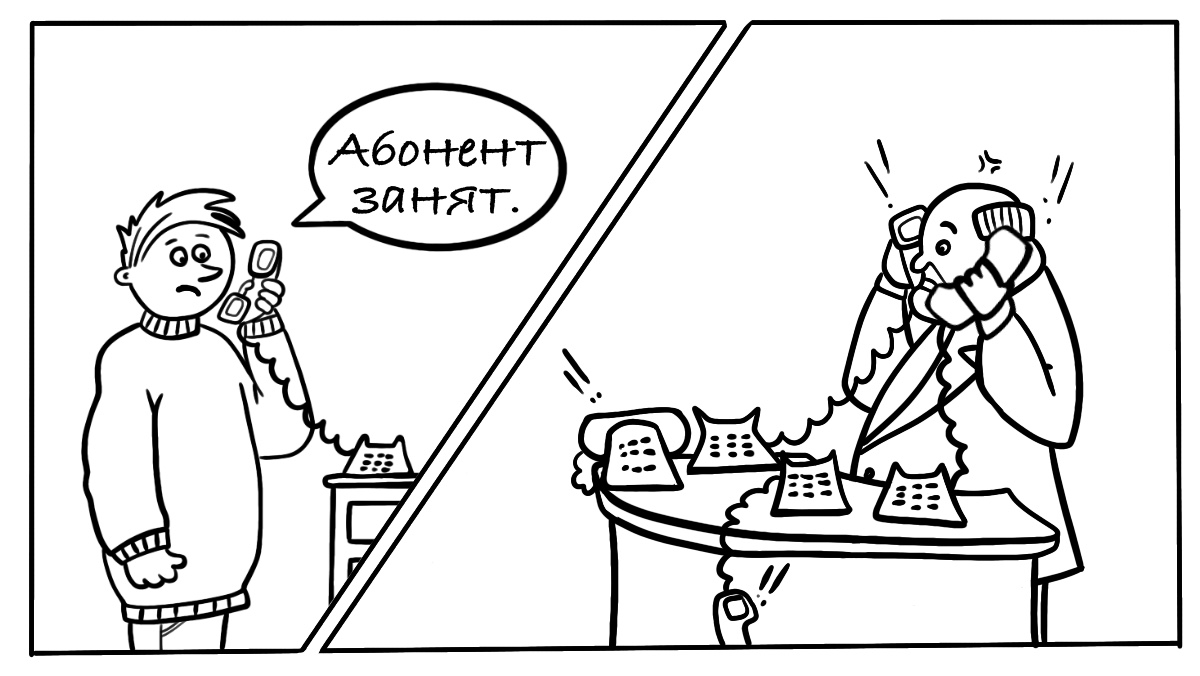
1. Сначала просто подождите. Возможно, причина в длинной очереди запросов к серверу, что не требует вмешательства.
2. Как и в случае с ошибкой 502, удостоверьтесь, что на сайт не производится DDoS-атака.
3. Если используется связь с удалённым сервером, убедитесь, что она стабильная, а тайм-аут ожидания ответа невысокий.
4. Проверьте, не слишком ли активно посещают ваш сайт поисковые роботы. Если это имеет место быть, ограничьте их активность.
5. Удалите тяжёлые или вовсе ненужные плагины и компоненты.
6. Если возможно, оптимизируйте подгрузку файлов сайта, чтобы снизить число запросов.
7. Организуйте передачу больших статичных файлов напрямую, а не через скрипты.
8. Оптимизируйте почтовую рассылку: распределяйте отправку писем по времени, запускайте рассылку в часы наименьшей нагрузки.
9. Оптимизируйте SQL-запросы, выявите самые медленные из них с помощью лог-файлов.
504 Gateway Timeout (Шлюз не отвечает)
Один из серверов не дождался ответа от вышестоящего сервера, о чём сообщает кодом 504.

1. Перезагрузите страницу, убедитесь в стабильности работы сетевых устройств.
2. Как и в предыдущих случаях, проверьте работу скриптов. Важно, чтобы они выполнялись не слишком долго, а внешние соединения происходили успешно.
3. При чрезмерной нагрузке на сервер увеличьте его ресурсы или оптимизируйте сайт.
4. Если возможно, увеличьте время ожидания при использовании nginx как прокси-сервера для Apache. Для этого добавьте эти строки в блоке server в файле nginx.conf:
proxy_connect_timeout 600;
proxy_send_timeout 600;
proxy_read_timeout 600;
send_timeout 600;
5. Если у вас нет возможности менять настройки сервера, обратитесь к хостинг-провайдеру.
Также посмотрите ответы на вопросы из нашего раздела FAQ:
- Отчего возникает ошибка 500?
- Отчего возникает ошибка 503?
- Как изменить страницы ошибок 403, 404 и 500?
Кстати, недавно мы в целом рассказали о кодах состояния сервера, к которым относятся в том числе и коды ошибок.