Permalink
Cannot retrieve contributors at this time
| title | description | author | ms.reviewer | manager | localization_priority | search.appverid | audience | ms.topic | ms.author | ms.custom | appliesto | ms.date | ||
|---|---|---|---|---|---|---|---|---|---|---|---|---|---|---|
|
Error code 30010-45 or 30088-26 when installing Microsoft 365 Apps |
Provides steps to fix error code 30010-45 or 30088-26 Setup errors when you install Microsoft 365 Apps. |
helenclu |
rahulp |
dcscontentpm |
Normal |
MET150 |
ITPro |
troubleshooting |
luche |
|
Microsoft 365 Apps |
3/31/2022 |
Error code 30010-45 or 30088-26 when installing Microsoft 365 Apps
Symptoms
If you try to install Microsoft 365 Apps while you’re using FSLogix to manage profiles, you receive one of the following error messages:
Something went wrong
Sorry, we ran into a problem.
Error Code: 30010-45
Something went wrong
We’re sorry, we ran into a problem while updating Office. Please try again after restarting your computer. If you continue to experience problems, repair Office from ‘Programs and Features’ in the Control Panel.
Error Code: 30088-26
When you select Close in the «30010-45» error message window, you also receive the following error message:
Couldn’t install
We’re sorry, we had a problem installing your Office program(s).
Is your internet connection working? Do you have enough free space on your main hard drive?
Please try installing again after you’ve checked the above.
Error Code: 0-2031 (17004)
Cause
FSLogix is set to hide Officeclicktorun.exe or another Office executable.
Resolution
-
Select Start, and then enter cmd. Right-click Command Prompt in the search results, and then select Run as administrator.
-
At the command prompt, enter
“C:Program FilesFSLogixAppsfrx.exe" list-rules, and then press Enter: -
In the list, check for rules that hide Office executables. For example:
C:ProgramDataMicrosoftWindowsStart MenuProgramsOneNote.lnk -> [Hide]
C:ProgramDataMicrosoftWindowsStart MenuProgramsPowerPoint.lnk -> [Hide]
C:ProgramDataMicrosoftWindowsStart MenuProgramsOutlook.lnk -> [Hide]
C:Program FilesMicrosoft OfficerootOffice16ONENOTE.EXE -> [Hide]
C:Program FilesMicrosoft OfficerootOffice16POWERPNT.EXE -> [Hide]
C:Program FilesMicrosoft OfficerootOffice16OUTLOOK.EXE -> [Hide]
-
Remove any rules that hide Office executables. For more instructions, see How to manage Rule Sets and Rules in Application Masking.
-
Uninstall Office automatically.
-
Restart the device, and then try again to install Microsoft 365 Apps.
Permalink
Cannot retrieve contributors at this time
| title | description | author | ms.reviewer | manager | localization_priority | search.appverid | audience | ms.topic | ms.author | ms.custom | appliesto | ms.date | ||
|---|---|---|---|---|---|---|---|---|---|---|---|---|---|---|
|
Error code 30010-45 or 30088-26 when installing Microsoft 365 Apps |
Provides steps to fix error code 30010-45 or 30088-26 Setup errors when you install Microsoft 365 Apps. |
helenclu |
rahulp |
dcscontentpm |
Normal |
MET150 |
ITPro |
troubleshooting |
luche |
|
Microsoft 365 Apps |
3/31/2022 |
Error code 30010-45 or 30088-26 when installing Microsoft 365 Apps
Symptoms
If you try to install Microsoft 365 Apps while you’re using FSLogix to manage profiles, you receive one of the following error messages:
Something went wrong
Sorry, we ran into a problem.
Error Code: 30010-45
Something went wrong
We’re sorry, we ran into a problem while updating Office. Please try again after restarting your computer. If you continue to experience problems, repair Office from ‘Programs and Features’ in the Control Panel.
Error Code: 30088-26
When you select Close in the «30010-45» error message window, you also receive the following error message:
Couldn’t install
We’re sorry, we had a problem installing your Office program(s).
Is your internet connection working? Do you have enough free space on your main hard drive?
Please try installing again after you’ve checked the above.
Error Code: 0-2031 (17004)
Cause
FSLogix is set to hide Officeclicktorun.exe or another Office executable.
Resolution
-
Select Start, and then enter cmd. Right-click Command Prompt in the search results, and then select Run as administrator.
-
At the command prompt, enter
“C:Program FilesFSLogixAppsfrx.exe" list-rules, and then press Enter: -
In the list, check for rules that hide Office executables. For example:
C:ProgramDataMicrosoftWindowsStart MenuProgramsOneNote.lnk -> [Hide]
C:ProgramDataMicrosoftWindowsStart MenuProgramsPowerPoint.lnk -> [Hide]
C:ProgramDataMicrosoftWindowsStart MenuProgramsOutlook.lnk -> [Hide]
C:Program FilesMicrosoft OfficerootOffice16ONENOTE.EXE -> [Hide]
C:Program FilesMicrosoft OfficerootOffice16POWERPNT.EXE -> [Hide]
C:Program FilesMicrosoft OfficerootOffice16OUTLOOK.EXE -> [Hide]
-
Remove any rules that hide Office executables. For more instructions, see How to manage Rule Sets and Rules in Application Masking.
-
Uninstall Office automatically.
-
Restart the device, and then try again to install Microsoft 365 Apps.
Sometimes users of Microsoft Office or Office 365 may run into error 30010-4 when installing Office. The error may appear with a fresh install when you upgrade your Office installation. If you find a problem to resolve this issue, follow the solutions in this tutorial to fix Office error code 30010-4.
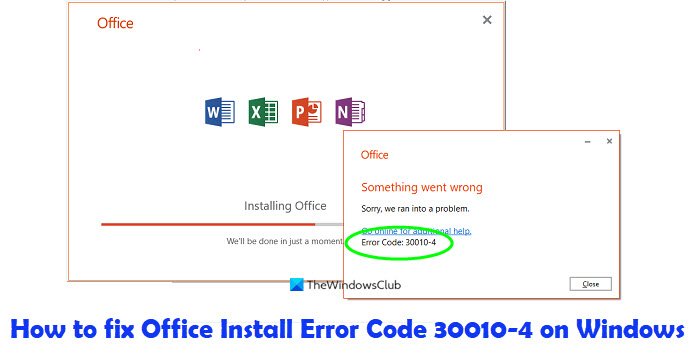
What is the cause for Office error 30010-4?
The error may appear with a fresh install when you upgrade your Office installation. The Office error code 30010-4, occurs due to a corrupted Office setup in case of a new installation, or corrupted existing Office installation files in case of an upgrade.
To fix Office error code 30010-4 in Windows 11/10, follow the suggestions given below:
- Restart your computer and reinstall Office
- Uninstall and reinstall Office
- Use the Offline Installer to install Office.
1] Restart your computer and reinstall Office
Restart your computer.
Then Reinstall Office.
2] Uninstall and reinstall Office
There may be some components (software) left after a previous installation that may prevent you from installing a new package of Office. Using the Microsoft Support and Recovery Assistant Tool will assist you to completely uninstall Office.
Follow the steps below to download the Microsoft Support and Recovery Assistant.
Open this hyperlink Click on this link to download the tool from Microsoft.
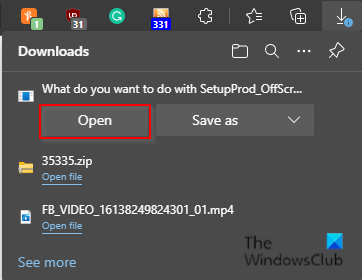
On the top right corner of your Edge browser, you will see the Office uninstall support tool ( SetupProd_OffScrub.exe) downloaded.
Click Open.
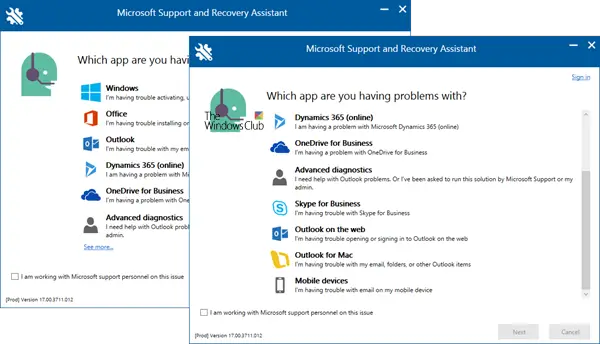
Select the version you want to uninstall, then click Next.
Follow through with the remaining screens, then restart your computer.
After restarting your computer, the uninstall tool automatically reopens to complete the final step of the uninstall process. Follow the remaining instructions.
Close uninstall tool.
Reinstall Microsoft Office.
3] Use the Offline Installer
If the above does not help, then the Offline installer may help avoid potential proxy, antivirus, firewall, or internet connections issues during an Office installation.
To download the Offline Installer, go to www.Office.com and sign in with your account.
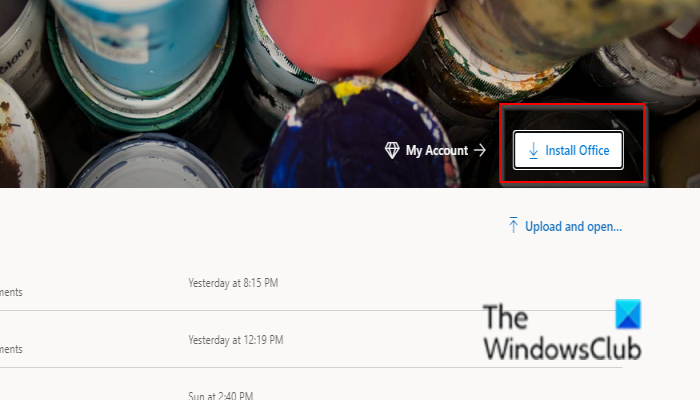
If you have an Office Microsoft 365 subscription, select Install Office, you will also need to select Install Office on the Installs page.
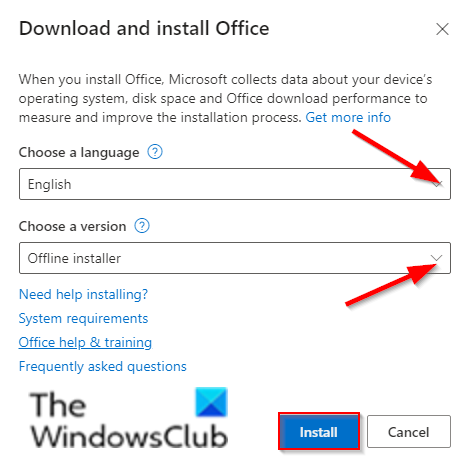
In the Download and install window, select Offline installer and select a language.
Then select Install.
On your browser window, select Save in Edge, Open when done in Chrome, Save File in Firefox, and the file will begin download on your PC.
Open File Explorer and locate a new virtual drive, for example (D:).
If you do not see the new drive, locate the image file and double-click it.
The new drive will appear in the directory.
Select the Office folder from the virtual drive, and choose Setup32.exe (32-bit) or Setup64.exe (64-bit).
Once you see the message, “you’re all set,” you can access your Office applications.
Microsoft Office is activated once you have started an application and after clicking Accept to Agree to License terms.
After activating Office and before starting using it, ensure it has the latest updates.
Follow the steps below to update Office.
Launch an Office application.
Click File > Account.
Click Update options, then select Update now.
We hope this tutorial helps you understand how to fix the Microsoft Office error code 30010-4 in Windows 11/10.
Sometimes users of Microsoft Office or Office 365 may run into error 30010-4 when installing Office. The error may appear with a fresh install when you upgrade your Office installation. If you find a problem to resolve this issue, follow the solutions in this tutorial to fix Office error code 30010-4.
What is the cause for Office error 30010-4?
The error may appear with a fresh install when you upgrade your Office installation. The Office error code 30010-4, occurs due to a corrupted Office setup in case of a new installation, or corrupted existing Office installation files in case of an upgrade.
To fix Office error code 30010-4 in Windows 11/10, follow the suggestions given below:
- Restart your computer and reinstall Office
- Uninstall and reinstall Office
- Use the Offline Installer to install Office.
1] Restart your computer and reinstall Office
Restart your computer.
Then Reinstall Office.
2] Uninstall and reinstall Office
There may be some components (software) left after a previous installation that may prevent you from installing a new package of Office. Using the Microsoft Support and Recovery Assistant Tool will assist you to completely uninstall Office.
Follow the steps below to download the Microsoft Support and Recovery Assistant.
Open this hyperlink Click on this link to download the tool from Microsoft.
On the top right corner of your Edge browser, you will see the Office uninstall support tool ( SetupProd_OffScrub.exe) downloaded.
Click Open.
Select the version you want to uninstall, then click Next.
Follow through with the remaining screens, then restart your computer.
After restarting your computer, the uninstall tool automatically reopens to complete the final step of the uninstall process. Follow the remaining instructions.
Close uninstall tool.
Reinstall Microsoft Office.
3] Use the Offline Installer
If the above does not help, then the Offline installer may help avoid potential proxy, antivirus, firewall, or internet connections issues during an Office installation.
To download the Offline Installer, go to www.Office.com and sign in with your account.
If you have an Office Microsoft 365 subscription, select Install Office, you will also need to select Install Office on the Installs page.
In the Download and install window, select Offline installer and select a language.
Then select Install.
On your browser window, select Save in Edge, Open when done in Chrome, Save File in Firefox, and the file will begin download on your PC.
Open File Explorer and locate a new virtual drive, for example (D:).
If you do not see the new drive, locate the image file and double-click it.
The new drive will appear in the directory.
Select the Office folder from the virtual drive, and choose Setup32.exe (32-bit) or Setup64.exe (64-bit).
Once you see the message, “you’re all set,” you can access your Office applications.
Microsoft Office is activated once you have started an application and after clicking Accept to Agree to License terms.
After activating Office and before starting using it, ensure it has the latest updates.
Follow the steps below to update Office.
Launch an Office application.
Click File > Account.
Click Update options, then select Update now.
We hope this tutorial helps you understand how to fix the Microsoft Office error code 30010-4 in Windows 11/10.
Код ошибки 30010-4 обычно появляется на экране при попытке установить Office или вскоре после обновления версии Office. Перезагрузка компьютера не всегда решает эту проблему. Итак, если вы уже сделали это, но ошибка не исчезла, продолжите процесс устранения неполадок, используя приведенные ниже решения.
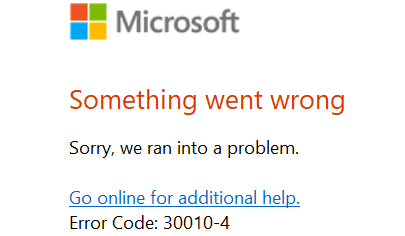
Ремонтный офис
Если вы получаете эту ошибку после установки последних обновлений, восстановите пакет Office.
- Перейдите в Панель управления , выберите Программы и перейдите в Программы и компоненты .
- Затем выберите”Офис”и нажмите кнопку Изменить .
- Сначала запустите инструмент Быстрое восстановление .
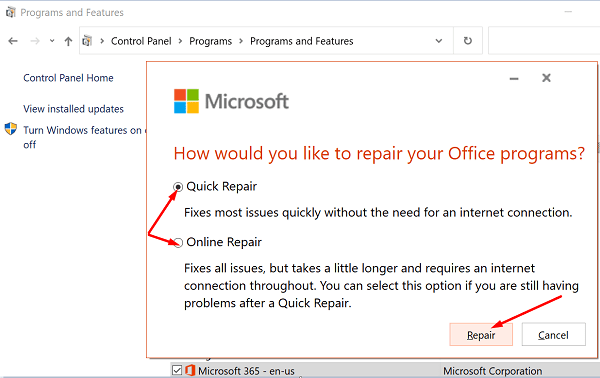
- Если ошибка не исчезнет, запустите также инструмент Онлайн-ремонт и проверьте, помогло ли это решение вам.
Удалить последние обновления
Если восстановление Office не помогло, удалите последние обновления и проверьте, помогло ли это решение проблемы. Иногда обновления Office и Windows содержат различные ошибки, которые не были обнаружены на этапе тестирования.
Перейдите в Панель управления , выберите Удалить программу , а затем перейдите к Просмотр установленных обновлений . Удалите недавно установленные обновления, перезагрузите компьютер и снова запустите приложения Office.

Сканировать ваш диск
Если ваши системные файлы были повреждены, в ОС могут возникнуть проблемы с установкой новых программ. Используйте средство проверки системных файлов для сканирования и восстановления диска и системных файлов.
Запустите командную строку с правами администратора и введите команду sfc/scannow . Нажмите Enter, дождитесь завершения процесса, перезагрузите компьютер и снова запустите Office.
Закройте другие программы и переустановите Office
Если ошибка 30010-4 не позволяет установить Office на свой компьютер, отключите антивирус, брандмауэр, VPN и все другие программы, работающие в фоновом режиме. Вся цель этого-убедиться, что другие программы, запущенные на вашем устройстве, не мешают работе Office.
После этого используйте инструмент поддержки удаления Office , чтобы полностью удалить весь свой Office. файлы. Остатки программного обеспечения могут помешать вам установить новую копию Office. Запустите инструмент и перезагрузите компьютер. Затем снова загрузите Office Suite и проверьте результаты.
Заключение
Ошибка 30010-4 может иногда препятствовать установке или запуску приложений Office. Чтобы решить эту проблему, восстановите установочный пакет Office, удалите недавно установленные обновления, просканируйте системные файлы и переустановите Office. Удалось ли избавиться от кода ошибки 30010-4? Дайте нам знать в комментариях ниже.
- 26.05.2020
Если у Вас возникает ошибка с кодом 30145 при установке Microsoft Office, попробуйте сделать следующие действия.
1) Восстановить Microsoft Office из панели управления.
— Правой кнопкой мыши на кнопку «Пуск» (левый нижний угол на панели задач) => Приложения и возможности.
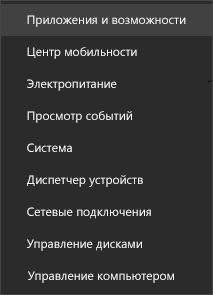
— Далее выбираете из списка Microsoft Office => щелчок курсором мышки на данную позицию => Изменить => Восстановление по сети => Восстановить (Или быстрое восстановление) => Следуйте инструкции на Вашем экране, что бы завершить восстановление.
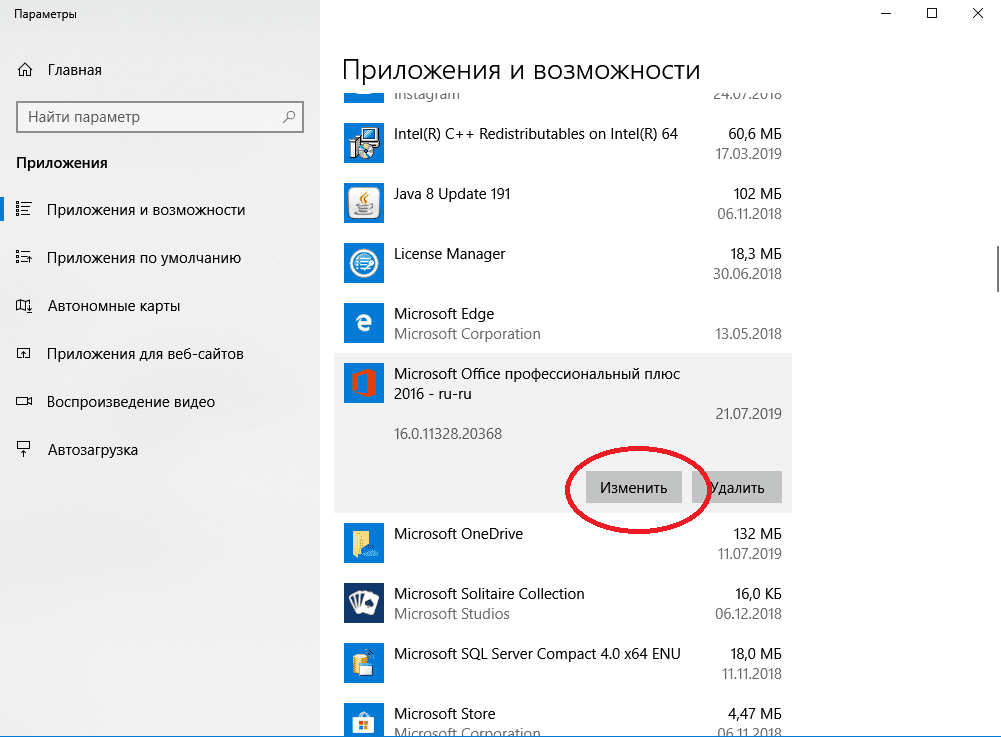
При данном действии будет восстановлен весь набор Office.
2) Удаление Microsoft Office через официальную утилиту от Microsoft для удаления Office. Скачать приложение.
Программа сама найдет и предложит удалить найденное приложение Microsoft Office.
3) Удаление в ручную из панели управления. Сделайте те же действия из п.1, только вместо «Изменить», нужно нажать «Удалить».
А так же, что бы у Вас все в дальнейшем все работало корректно, мы настоятельно рекомендуем использовать только официальные дистрибутивы Microsoft Office и оригинальные лицензии для данных приложений. Скачать и приобрести лицензионные ключи активации Вы можете в нашем интернет-магазине SoftComouters по самым низким ценам. Моментальная доставка ключей активаций сразу после оплаты в автоматическом режиме на Ваш Email. Гарантия и бесплатная техническая поддержка 24/7.
Подробнее о продуктах Microsoft Office в нашем каталоге на следующей странице.