- Информация о материале
- Категория: MacOSX
-
Создано: 11.05.2020 08:10
-
Просмотров: 13961

Всем привет сегодня разберем ошибку 2002f на mac os данная ошибка возникает при восстановлении mac через интернет дальше дадим ряд советов по ее решению.
Причины ошибки 2002f
В целом причин может быть много, но основной причиной является невозможность mac os подключиться к серверу Apple.
Как можно решить ошибку 2002f
1. Первое нужно проверить интернет соединение если есть возможность использовать проводное подключение Ethernet в место Wi-Fi
2. Можно попробовать раздать Wi-Fi со смартфона и подключиться к нему
3. Выключить роутер от розетки на некоторое время потом его включить
4. Так же попробуйте поменять настройки DNS на следующие Googles public DNS 8.8.8.8. и 8.8.4.4. Их можно поменять на самом маршрутизаторе перейдя в раздел «Network» «WLAN». 
Так же их можно поменять через настройки интернет соединения в самом mac OS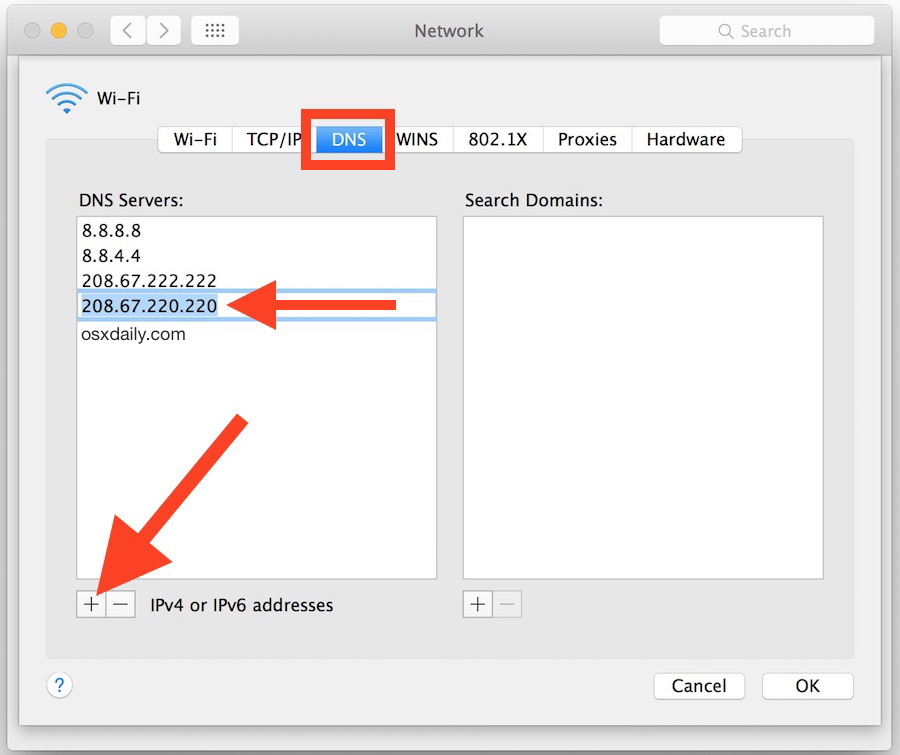
5. Еще вариант если у вас есть другой mac то можно воспользоваться программой Recovery Disk Assistant который позволяет развернуть том восстановления (тот самый Recovery HD) на внешнем USB-диске.
6. Последнее это создать загрузочный установщик с флешки для этого нам понадобится другой mac book .
- Заходим в App Store и скачиваем нужную версию операционной системы
- Скачиваем и запускаем приложение Disk Maker X
- Выбираем нужную версию операционной системы

-
Далее нужно указать путь к скаченному образу OS она обычно находится в папке приложения

- Выбираем нашу флешку ее объем должна быть не меньше 8 гб

-
Форматируем флешку и вводим пароль администратора

- Через некоторое время установочная флешка будет готова
Как установить mac os c флешки
- Подключаем нашу флешку к компьютеру и перезагружаем его
- После его выключения нажимаем Option и ожидаем появления меню выбора загрузочного диска
- Выбираем нашу флеку и подтверждаем выбор
- В меню «Утилиты» выбираем «Дисковая утилита»

-
Форматируем системный диск и закрываем его
- Далее выбираем установка Mac OS и следуем подсказкам системы.
На этом все надеюсь данная статья как-то поможет в решении ошибки 2002f если вам удалось как-то ее решить по-другому обязательно напишите в комментариях будет интерес почитать. Спасибо!
Комментарии ()
Оставьте свой комментарий
✏️ Нам пишут:
Пытаюсь произвести чистую установку macOS Big Sur с загрузкой по сети (Catalina не загружается из-за какой-то ошибки), но после нескольких минут ожидания на экране появляется ошибка 2002f. Как это исправить?
Мы уже рассказывали обо всех способах обновления операционной системы до macOS Big Sur на любом совместимом компьютере Mac. Если вы вынуждены остановиться на сетевом восстановлении системы, то можете столкнуться с ошибками во время загрузки данных с серверов Apple.
Такая ошибка не первый год возникает у пользователей во всем мире. Все дело в том, что во время восстановления компьютер скачивает данные с серверов Apple и производит удаленную проверку на привязку к определенной учетной записи Apple ID. Ошибка возникает исключительно во втором случае, но загрузка без этого не продолжится.
Как рекомендуют исправить ошибку 2002f в Apple

На тематических форумах и при обращении в службу поддержки такую проблему рекомендуют решать следующим образом:
1. Перезагрузить компьютер и роутер, через который осуществляется подключение к сети.
2. Изменить DNS настройки роутера со значения 0.0.0.0 на публичный DNS Google: 8.8.8.8.
3. Подключить Mac к роутеру при помощи ethernet-кабеля.
4. Попробовать произвести загрузку системы, подключившись к другой сети.
Такие действия помогают не всем и ошибка продолжает мешать установке системы.
Как еще можно исправить ошибку 2002f
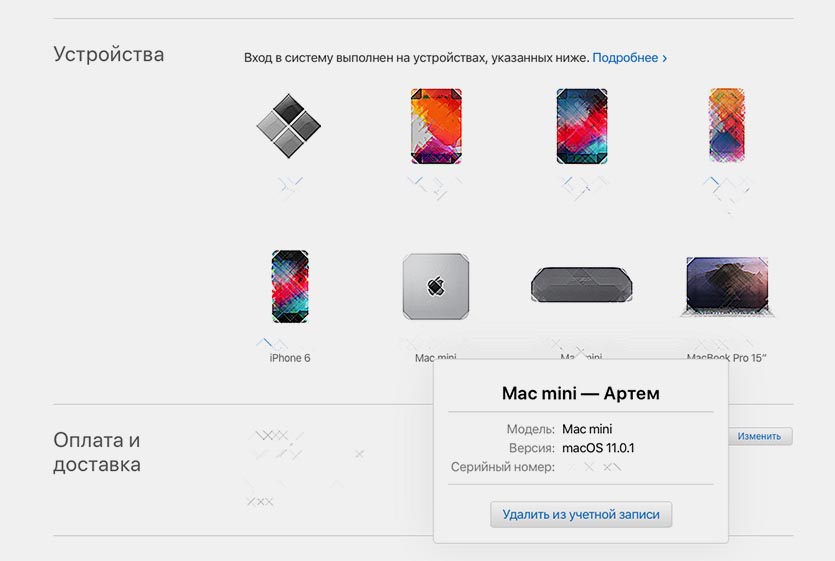
Пользователи в сети нашли более простое и доступное решение, которое помогает избежать данной ошибки. Чтобы компьютер не приходил проверку на привязку к учетной записи Apple ID во время сетевого восстановления, следует предварительно отключить его от своей учетки.
1. С любого устройства перейдите на страницу управления учетной записью Apple ID и авторизуйтесь.
2. В разделе Устройства найдите Mac, на котором будете переустанавливать систему через интернет.
3. Отвяжите данный Mac от своей учетной записи.
После этого во время установки не будет происходить соответствующая проверка, а ошибка 2002f возникать не будет.
← Вернуться в раздел помощь
Не нашли то, что искали?
walavut wrote:
I was going to resell the MacBook Pro but there was some error occurred after hard reset, it was a flashing folder with a question mark at the middle of the screen. So, I solve the problem by turn off the computer and hold “command”+”R”and press start again, released the bottoms after 10 second. Then it was going to recovery mode and asking to choose WIFI. In this stage, computer selected my usually home internet WiFi, click and wait for 4-5mins. But after that it shown the error message “support 2002F”.
Your Network is inadequate in some fashion.
Failure of Router to provide workable DNS server addresses, or providing 0.0.0.0 [may produce -2002f]
If you have an Ethernet port, you may in some cases be able to move your
Mac close to the Router and connect to the Router using Ethernet.
Get closer to the router if you are at some distance.
Common problems include:
Hidden Network-name
required use of a proxy server to get Internet access
required use of a login page to get Internet access
Use of a login server or certificate to get Internet access
Use of PPPoE in the Mac to get Internet access (typically only applies to DSL)
Use of Fixed IP address rather than good old DHCP
Variance of the time by more than five minutes
I was struggle for an hour. I searched from many comments mostly they
suggested to change DNS o.o.o.o to 8.8.8.8 but I did not understand how
to change.
From >System Preferences>Network>Advanced>DNS
All friends of mine know that I’m a tech-guy… That I love technology whatever it is – from phones to quad-copters, from hand tools to RGB video lights. That said, if there is something I can help with, sure my friends will bring it to me. This time I had to erase a MacBook, so the owner could sell it. I didn’t think too long before deciding to complete an Internet Recovery… and it returned Error -2002F, which I eventually solved. The details are below…
You may wonder why I didn’t use a recovery partition? … I tried, but unfortunately it turned out to be damaged, since somebody “tried” before me. We’ll talk about this one in other article.
As you probably know, Internet Recovery can be initiated by pressing Command + T during Mac start up. Computer will boot for few seconds, then propose to choose a Wi-Fi network, following with password entry box.
This is where the trouble usually starts. After entering correct Wi-Fi password, my computer “froze” for few minutes, then shown an exclamation mark in triangle with the following text below: apple.com/support -2002F.

The meaning of error -2002F is “Failed connection to Apple server”, but it doesn’t give the reason for this.
Luckily I found a thread on Apple forum, which suggested to change DNS servers from default 0.0.0.0 to 8.8.8.8 in Wi-Fi router settings. And IT ACTUALLY WORKED! Pure magic!
What is 8.8.8.8 DNS?
8.8.8.8 is the primary public Google DNS server, that is provided by Google with the aim to make the Internet and the DNS system faster, safer, secure, and more reliable for all Internet users. ATTENTION: Configuring to use that instead of your default means that your queries go to Google instead of to your ISP.
I hope you know how to change Wi-Fi router DNS settings, but for those who don’t, here is a step by step guide.
Solving error -2002F by changing DNS
STEP 1 You have to physically take your wi-fi router in your hands, turn it over and get login details from the bottom sticker. Usually it’s something like admin/admin. There is also a router IP address to access the settings page.
STEP 2 Enter the IP address (from the sticker) in any browser on any device… In my case it was – 192.168.0.1. Most probably you’ll have the same… but it might be 192.168.1.1.
STEP 3 Enter login credentials from STEP 1.
STEP 4 Look for DHCP settings. Replace default numbers 0.0.0.0 with 8.8.8.8.

STEP 5 Try to start internet recovery on Mac again.
Hopefully this method sorted the error -2002F for you.
Alternative ways
In case you don’t have access to router settings, find another wi-fi connection… these days it’s not a problem. Possibly the DNS servers of another router will let your MAC to connect Apple servers.
Another solution is to connect your Mac with Ethernet cable directly to router.
The last thing to try is to un-tight the Mac from your Apple ID at icloud.com. I personally didn’t check if that method works, but other Mac users mention it. Try and give us some feedback.
In any case, leave a comment below to see whether this method was helpful or not.
By the way… if you are here for the first time, read My Story here. I need your help to escape the Rat Race.
That’s all for today! Bye for now…
[breadcrumb_simple]
What is Apple Macbook Error 2002f?
Although Mac OS X is quite reliable, it is not without problems. Sometimes users also have to deal with Apple Macbook Error 2002f unexpectedly. Apple error 2002f is a problem that continues to be a problem, no matter which versions of Mac you could use. In the end, the Mac system can not handle all your requests and may crash. In addition, because of the Apple Macbook Error 2002f issue, users also face some difficulties accessing their hard disk files and other installed applications, which sometimes results in a panic button. Wait, this is not the end, it was also reported that the system processing speed could be slowed down and even stopped abruptly, which could result in a total loss of data saved on Mac. If you are also in the same situation and you are looking for the Mac error code 2002f solution, rest assured, you will find a complete guide to solving the problem related to Mac error code 2002f.
Symptoms of Mac Error Code 2002f
- The system will be automatically stopped after a few minutes of work.
- Slow and slow behavior of the Mac system
- The stored Mac file is corrupted or damaged without any warning.
- Installed programs are frequently blocked or blocked
- The emergence of annoying error messages such as “unable to find the .dmg file”
- “file not found”
- “denied access”
Causes of Mac error code 2002f
The emergence of the 2002f mac error creating a panic is explained by various reasons. Inconsistencies in the Mac OS X file system can lead to data corruption, making it completely inaccessible. Let’s look at some of the probable reasons for the same thing.
- Mistakes Human Errors
- Empty the trash
- Termination Sudden termination of system files
- Operation Operation read / write interrupted
- Involuntary Form Format
- Sharing data / file on unsupported platforms
- Attack of viruses
- Modification in the BIOS settings
- Corruption in the header file
- Corruption file node corruption catalogs
- Problem with boot sector
- Kernel Issues
- Installation Invalid installation of the program
- Issue Hardware or software issue
Okay, before I get started, allow me to point out: I know how to boot my mac into recovery mode (CMD + R while it starts on), I know how to boot it into internet recovery mode (option + CMD + R). Also, I have a mid 2013 MacBook Air so an installation disc and Ethernet is out of the question.
Now that we’ve gotten that out of the way, here’s my problem: I decided I wanted to wipe my mac and reinstall OS X using the partition recovery feature. I booted into recovery mode and wiped the disc using disc utility. Then I was curious to see what would happen if I shut down the mac, the option is completely available from the menu bar, so I went ahead and shut it down. But now when I turn it on and try to boot into the partition recovery it goes straight into «internet» recovery mode. Then I select my wifi network and then the globe just spins for about 10 minutes before giving me the message «apple.com/support — 2002F». When I try to boot into the mode that displays all my available boot methods, only internet recovery is available.
I’m preparing to take it into the Apple Store but any ideas before I go that route?