Проблема
При установке программы Autodesk появляется следующее сообщение об ошибке:
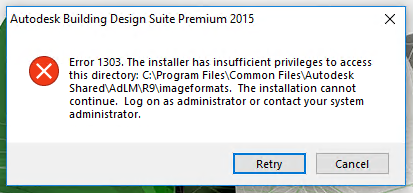
Ошибка 1303. У установщика недостаточно прав для доступа к этой папке: «C:[path]». Продолжение установки невозможно. Войдите в систему с правами администратора или обратитесь к системному администратору.
Причины
- Проблема с правами доступа к папке, указанной в операторе проблемы.
- Добавление модулей адаптера VBA в развертывания, которые не поддерживают добавление модулей, описано в разделе Добавление модуля адаптера VBA в развертывание.
- К этому может привести сочетание следующих факторов:
- Установка обновления Fall Creators Update.
- Установка исправления Webroot Secure Anywhere до WSA 9.0.18.44.
Решение
Выполните одно из следующих действий:
-
Проверьте, имеет ли пользователь Windows разрешение на запись в папку, содержащую информацию о проблеме. Если нет, измените разрешение и разрешите пользователю Windows изменять эту папку.
- Если установлена программа Webroot:
- Обновить Webroot: Обновление создателей Windows 10 Fall — исправление ошибки.
- Настройка исключений для исключения каталогов Autodesk из сканирования.
- C:Program FilesAutodesk
- C:ProgramDataAutodesk
- C:ProgramDataRevitInterProcess
- C:Users%USERNAME%AppDataLocalAutodesk
- C:Users%USERNAME%AppDataRoamingAutodesk
- Удалите Webroot и повторите установку.
Программы
Все классические программы
Проблема
При повторной установке AutoCAD пользователь получает ошибку 1303.
Причины
повреждение при установке
Профиль пользователя поврежден
Решение
- Перезагрузите компьютер и попытайтесь выполнить установку заново.
- Удалите программу с помощью инструмента MicrosoftFix It и повторите попытку установки
http://support.microsoft.com/mats/Program_Install_and_Uninstall
- Удалите папку TEMP и установите
- Отключите контроль учетных записей
- На панели управления пользователями Меню «Пуск». Панель управления. Учетные записи пользователей и система безопасности семейств. Учетная запись пользователя
- Перейдите по ссылке «Параметры контроля учетных записей».
- Переведите ползунок в положение «Никогда не уведомлять».
- Нажмите «ОК», чтобы применить изменения.
- Перезагрузите компьютер.
- Удалите оставшиеся сборки программы из системы и попробуйте установить их. Папки должны иметь четко имена и находиться в следующих местах:
C:Program FilesAutodesk
C:ProgramDataAutodesk
C:UsersAll Users
C:Users**Идентификатор ПОЛЬЗОВАТЕЛЯ**AppDataRoamingAutodesk
C:Users**Идентификатор ПОЛЬЗОВАТЕЛЯ**AppDataLocalAutodesk
Примечание. Ошибка 1303 может быть вызвана также ошибкой Google Drive «Ошибка 1303: У программы установки недостаточно прав для доступа к этой папке C:UsersmpeckGoogle DriveInventor Lt. Невозможно продолжить установку». В этом случае необходимо отключить диск с компьютера или создать новую учетную запись администратора Windows и установить программное обеспечение Autodesk с помощью новой учетной записи администратора.
Если перечисленные выше действия не помогли, создайте новый профиль пользователя и установите его. Повреждение профиля пользователя
.
Версии:
2012; 2013; 2014; 2015;
Issue:
When installing an Autodesk product, the following error appears:
Error 1303. The installer has insufficient privileges to access this directory: «C:[path]». The installation cannot continue. Log on as administrator or contact your system administrator.
Causes:
- Permission issue on the folder shown on the issue statement.
- Adding VBA enabler modules to deployments that do not support adding the modules, refer to How to add VBA Enabler Module to a deployment.
- The combination of the following can lead to this condition:
- Installation of Fall Creators Update.
- Installation of Webroot Secure Anywhere prior to WSA 9.0.18.44 patch.
Solution:
Do one of the following:
-
Check if your Windows user has the permission to write on the folder that states on the issue. If not, change the permission and allow your Windows user to modify that folder.
- If Webroot is installed:
- Update Webroot: Windows 10 fall creators update — bug fix.
- Setup exceptions to exclude Autodesk directories from being scanned.
- C:Program FilesAutodesk
- C:ProgramDataAutodesk
- C:ProgramDataRevitInterProcess
- C:Users%USERNAME%AppDataLocalAutodesk
- C:Users%USERNAME%AppDataRoamingAutodesk
- Uninstall Webroot and retry installation.
Products:
All Desktop Products;
Issue:
When installing an Autodesk product, the following error appears:
Error 1303. The installer has insufficient privileges to access this directory: «C:[path]». The installation cannot continue. Log on as administrator or contact your system administrator.
Causes:
- Permission issue on the folder shown on the issue statement.
- Adding VBA enabler modules to deployments that do not support adding the modules, refer to How to add VBA Enabler Module to a deployment.
- The combination of the following can lead to this condition:
- Installation of Fall Creators Update.
- Installation of Webroot Secure Anywhere prior to WSA 9.0.18.44 patch.
Solution:
Do one of the following:
-
Check if your Windows user has the permission to write on the folder that states on the issue. If not, change the permission and allow your Windows user to modify that folder.
- If Webroot is installed:
- Update Webroot: Windows 10 fall creators update — bug fix.
- Setup exceptions to exclude Autodesk directories from being scanned.
- C:Program FilesAutodesk
- C:ProgramDataAutodesk
- C:ProgramDataRevitInterProcess
- C:Users%USERNAME%AppDataLocalAutodesk
- C:Users%USERNAME%AppDataRoamingAutodesk
- Uninstall Webroot and retry installation.
Products:
All Desktop Products;
Issue:
When installing an Autodesk product, the following error appears:
Error 1303. The installer has insufficient privileges to access this directory: «C:[path]». The installation cannot continue. Log on as administrator or contact your system administrator.
Causes:
- Permission issue on the folder shown on the issue statement.
- Adding VBA enabler modules to deployments that do not support adding the modules, refer to How to add VBA Enabler Module to a deployment.
- The combination of the following can lead to this condition:
- Installation of Fall Creators Update.
- Installation of Webroot Secure Anywhere prior to WSA 9.0.18.44 patch.
Solution:
Do one of the following:
-
Check if your Windows user has the permission to write on the folder that states on the issue. If not, change the permission and allow your Windows user to modify that folder.
- If Webroot is installed:
- Update Webroot: Windows 10 fall creators update — bug fix.
- Setup exceptions to exclude Autodesk directories from being scanned.
- C:Program FilesAutodesk
- C:ProgramDataAutodesk
- C:ProgramDataRevitInterProcess
- C:Users%USERNAME%AppDataLocalAutodesk
- C:Users%USERNAME%AppDataRoamingAutodesk
- Uninstall Webroot and retry installation.
Products:
All Desktop Products;
Issue:
When installing an Autodesk product, the following error appears:
Error 1303. The installer has insufficient privileges to access this directory: «C:[path]». The installation cannot continue. Log on as administrator or contact your system administrator.
Causes:
- Permission issue on the folder shown on the issue statement.
- Adding VBA enabler modules to deployments that do not support adding the modules, refer to How to add VBA Enabler Module to a deployment.
- The combination of the following can lead to this condition:
- Installation of Fall Creators Update.
- Installation of Webroot Secure Anywhere prior to WSA 9.0.18.44 patch.
Solution:
Do one of the following:
-
Check if your Windows user has the permission to write on the folder that states on the issue. If not, change the permission and allow your Windows user to modify that folder.
- If Webroot is installed:
- Update Webroot: Windows 10 fall creators update — bug fix.
- Setup exceptions to exclude Autodesk directories from being scanned.
- C:Program FilesAutodesk
- C:ProgramDataAutodesk
- C:ProgramDataRevitInterProcess
- C:Users%USERNAME%AppDataLocalAutodesk
- C:Users%USERNAME%AppDataRoamingAutodesk
- Uninstall Webroot and retry installation.
Products:
All Desktop Products;
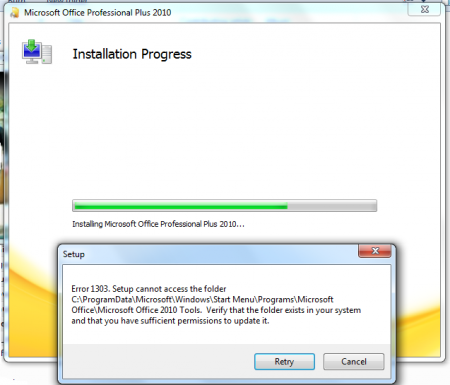 Ошибка 1303 («Error 1303») является довольно распространенным сообщением, которое возникает в момент установки программного обеспечения. Как правило, она указывает на то, что у мастера установки (установщика) не хватает прав на внесение изменений в каталоге установки. Решить эту проблему можно, прервав процесс инсталляции для добавления доступа к целевым каталогам.
Решение
Для устранения ошибки 1303 вам нужно, прежде всего, записать адрес конечного каталога из сообщения об ошибке и открыть его через Windows Explorer. Например, если в ошибке высветился каталог «C:Program FilesAdobe», то вам следует через проводник открыть каталог «Program Files». Затем нажмите на нем правой клавишей мышки и выберите в контекстном меню пункт «Свойства». Вы можете настроить права доступа к этому каталогу через вкладку «Безопасность» («Security»). Далее нажмите кнопку «Дополнительно». Найдите в списке элементов разрешений группы пользователей «Система» («System») и «Все» («Everyone») и измените их права (разрешение) на значение «Полный доступ» («Full Control»). Далее пометьте галочкой пункт «Заменить разрешения для всех дочерних объектов заданными здесь разрешениями» («Replace all existing inheritable permissions»), для того, чтобы внесенные изменения применялись ко всем вложенным папкам.
Альтернативное решение
Настройка разрешений на каталоги может показаться слишком сложной операцией для рядового пользователя, так как обычно этим занимается системный администратор. Поэтому многие разработчики программного обеспечения создают приложения, которые самостоятельно решают проблему ошибки 1303. Так, на сайте поддержки Intuit вы можете найти одну из подобных программ. Она решает проблему ошибки 1303 в любых продуктах QuickBooks и Quicken.
Проблема общего доступа
В некоторых случаях функция включения общего доступа (Simple File Sharing), интегрированная в Windows XP Professional может приводить к ошибке 1303. Если у вас эта функция активирована, попробуйте отключить ее для устранения ошибки. Отключить ее можно, нажав последовательно в проводнике («Windows Explorer») пункт меню «Сервис» и «Свойства папки» («Folder Options»). В открывшемся окне выберите вкладку «Вид» («View»). Пролистайте открывшийся список дополнительных параметров и снимите галочку на пункте «Использовать простой общий доступ к файлам» («Use Simple File Sharing»). Для подтверждения нажмите кнопку «ОК».
Другие программы, вызывающие ошибку
Ошибка 1303 может возникать во многих программах. Среди них отметим такие продукты, как Microsoft Office, Adobe Creative Suite, QuickBooks и Quicken. Но во всех случаях, решение проблемы остается тем же.
Компьютерная помощь в Самаре оперативно, надежно, недорого
When installing your Autodesk software you get an error message:
Error 1303. The installer has insufficient privileges to access this directory: C:Program FilesAutodeskAutoCAD 20XXSample. The installation cannot continue. Log on as administrator or contact your system administrator.
This is a user permissions issue and not the Autodesk installer issue.
You will need your IT to log into the machine to run the installer.
Have your IT verify the following permission under your user login by following my blog called Autodesk Permissions: What folders need full permissions for each user?
«Error 1303. The installer has insufficient privileges to access this directory: C:WindowsInstaller{AB…}. The installation cannot continue. Log on as an administrator or contact your system administrator.»
If you are getting error 1303 when trying to install or reinstalling your Autodesk software its related to a microsoft windows issue or a permissions issue. Here is what you can do to fix this:
- Have your IT log into the computer using the computers administrator login and password. Even if you are apart of the administrator group you still might not have enough permissions to install the software.
- Have your IT fix the machines permissions by giving the user full control of the C:Windows folder and all folder locations that Autodesk needs to install to. Click Autodesk permissions to read more on what folders need to have full control.
- Run the Microsoft Fix it Tool.
- Last resort that I don’t think anyone wants to hear is that you will need your IT to re-image your machine.
The comments to this entry are closed.