Некоторые пользователи Windows 10 получают «Код ошибки Xbox Live 121010» при попытке сыграть в Microsoft Solitaire Collection. В то время как некоторые затронутые пользователи сообщают, что это происходит при каждом запуске, другие говорят, что они могут сыграть несколько раундов, прежде чем возникнет эта ошибка.
Код ошибки Microsoft Solitaire 121010
Как выясняется, есть несколько разных причин, которые могут в конечном итоге вызвать эту конкретную ошибку с Microsoft Solitaire Collection. Вот краткий список потенциальных виновников, которые могут вызвать код ошибки 121010:
- Проблема с сервером. Поскольку Microsoft Solitaire Collection работает в инфраструктуре Xbox Live, вы можете ожидать много проблем с игрой, если серверы инфраструктуры не работают. В этом случае единственное, что вы можете сделать, это подтвердить проблему с сервером и дождаться ее разрешения.
- Поврежденный временный файл. Как оказалось, эта проблема также может возникнуть в том случае, если папка кеша игры содержит поврежденный файл (скорее всего, связанный с профилем). В этом случае вы сможете решить проблему, сбросив настройки приложения UWP (через графический интерфейс или терминал PowerShell с повышенными привилегиями).
- Ошибка при установке игры. Если игра никогда не работала у вас (проблема возникла сразу после установки), возможно, вы столкнулись с ошибкой при установке. В этом случае вы можете решить проблему, переустановив игру.
- Стороннее антивирусное вмешательство. Существуют определенные чрезмерно защищающие антивирусные пакеты, которые, как было подтверждено, конфликтуют с Microsoft Solitaire Collection. Чаще всего проблему называют McAffee Antivirus, но могут быть и другие пакеты, которые будут вызывать подобное поведение. В этом случае вы можете решить проблему, отключив защиту в реальном времени или полностью удалив чрезмерно защищенный пакет.
Метод 1: поиск проблем с сервером
Прежде чем вы попытаетесь применить какое-либо из возможных исправлений ниже, вы должны начать с того, чтобы убедиться, что проблема на самом деле не вызвана проблемой сервера, которая полностью находится вне вашего контроля.
Имейте в виду, что Microsoft Solitaire Collection реализуется на серверах Xbox Live для различных аспектов игры. Всякий раз, когда возникает серьезная проблема с одной из важных служб Xbox Live, Microsoft Solitaire Collection имеет тенденцию работать со сбоями.
Чтобы выяснить, есть ли текущая проблема с инфраструктурой Xbox Live, которая может вызывать код ошибки 121010, вам следует начать с проверки официальная страница статуса служб Xbox Live.
Статус сервера Xbox Live
Примечание. Если в ходе расследования была выявлена проблема с критически важной службой Xbox Live, проблема, скорее всего, находится вне вашего контроля. Единственное, что вы можете сделать на этом этапе, — это дождаться, пока Microsoft исправит проблему.
Если нет никаких доказательств проблемы с сервером, перейдите к первому потенциальному исправлению ниже.
Метод 2: сброс приложения Microsoft Solitaire Collection UWP
Если вы ранее подтвердили, что на самом деле не имеете дело с проблемами сервера, следующим шагом будет принудительное применение самого популярного исправления ошибки 121010. Это будет эффективно в любом сценарии, когда какое-то повреждение, коренящееся во временном файле игры, действительно вызывает проблему.
Многие пользователи, которые ранее сталкивались с этой проблемой, сообщили, что им, наконец, удалось решить проблему, сбросив приложение Microsoft Solitaire Collection.
Когда дело доходит до этого, у вас есть два пути вперед:
- Вы можете сбросить настройки приложения Microsoft Solitaire Collection через меню графического интерфейса Windows 10 (из меню «Приложения и функции»).
- Вы можете запустить серию команд в командной строке Powershell с повышенными привилегиями, чтобы сбросить манифест приложения и файл кеша.
В зависимости от предпочтительного способа применения этого метода следуйте под-руководству A или под-руководству B:
A. Сброс Microsoft Solitaire Collection через графический интерфейс
Вот краткое пошаговое руководство, которое проведет вас через процесс сброса UWP-приложения Microsoft Solitaire Collection через меню графического интерфейса Windows 10:
- Закройте приложение Microsoft Solitaire Collection.
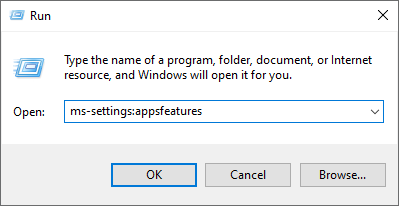
- Нажмите клавишу Windows + R, чтобы открыть диалоговое окно «Выполнить». Затем введите ms-settings: appsfeatures и нажмите Enter, чтобы открыть меню «Приложения и функции» в приложении «Настройки».
Доступ к экрану настроек приложений и функций
- Когда вы, наконец, войдете в приложение «Приложения и функции», прокрутите список установленных приложений и найдите запись, связанную с Microsoft Solitaire Collection.
- Когда вам удастся найти его, щелкните гиперссылку «Дополнительные параметры» (расположенную прямо под названием приложения).
Открытие гиперссылки на дополнительные параметры Microsoft Solitaire Collection
- Когда вы, наконец, войдете в меню «Дополнительные параметры», прокрутите вниз до вкладки «Сброс», затем нажмите «Сброс» и подтвердите процесс возврата приложения Microsoft Solitaire Collection к его заводскому состоянию.
Сброс вкладки «Коллекция пасьянсов»
Примечание. Эта операция удалит все временные данные, связанные с приложением. Прогресс, который в настоящее время не сохраняется в облаке, будет потерян.
- После завершения операции снова откройте приложение Microsoft Solitaire Collection и посмотрите, устранена ли ошибка.
Б. Сброс Microsoft Solitaire Collection через Powershell
Если вы технический специалист и не боитесь делать что-то из терминала, следуйте приведенным ниже инструкциям, чтобы сбросить приложение UWP из окна PowerShell с повышенными привилегиями:
- Убедитесь, что приложение Microsoft Solitaire Collection UWP полностью закрыто.
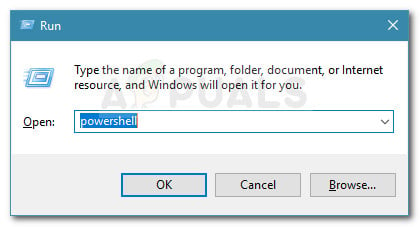
- Нажмите клавишу Windows + R, чтобы открыть диалоговое окно «Выполнить». Затем введите «powershell» в текстовое поле и нажмите Ctrl + Shift + Enter, чтобы открыть окно Powershell с повышенными правами.
Диалог запуска: powershell Затем нажмите Ctrl + Shift + Enter
Примечание. При появлении запроса UAC (Контроль учетных записей пользователей) нажмите Да, чтобы предоставить права администратора.
- Как только вы окажетесь в командной строке Powershell с повышенными привилегиями, введите следующие команды по порядку и нажимайте Enter после каждой, чтобы по существу сбросить Microsoft Solitaire Collection: Set-ExecutionPolicy Unrestricted Get-AppXPackage -AllUsers | Для каждого {Add-AppxPackage -DisableDevelopmentMode -Register «$ ($ _. InstallLocation) AppXManifest.xml»}
- После успешной обработки команды снова откройте приложение Microsoft Solitaire Collection и посмотрите, решена ли проблема.
Если вы по-прежнему сталкиваетесь с кодом ошибки 12010 при открытии игры UWP, перейдите к следующему потенциальному исправлению ниже.
Метод 3: переустановка приложения Microsoft Solitaire Collection
Некоторые затронутые пользователи, которые столкнулись с кодом ошибки Xbox Live 121010, подтвердили, что проблема была окончательно решена после полной переустановки приложения Microsoft Solitaire Collection.
Чистая установка приложения будет полезна в тех случаях, когда эта проблема возникает из-за каких-либо локально поврежденных файлов, принадлежащих приложению UWP.
Вот краткое руководство, которое проведет вас через процесс переустановки приложения Microsoft Solitaire Collection UWP:
- Нажмите клавишу Windows + R, чтобы открыть диалоговое окно «Выполнить». Затем введите «ms-settings: appsfeatures» в текстовое поле и нажмите Enter, чтобы открыть вкладку «Приложения и функции».
Доступ к экрану приложений и функций
- Находясь на экране «Приложения и функции», прокрутите список установленных приложений UWP вниз и найдите Microsoft Solitaire Collection.
- После того, как вам удастся найти правильное приложение UWP, щелкните гиперссылку расширенного меню, связанную с Microsoft Solitaire Collection.
Открытие гиперссылки на дополнительные параметры Microsoft Solitaire Collection
- В гиперссылке расширенного меню прокрутите вниз до раздела удаления и нажмите Удалить, чтобы начать операцию. После подтверждения операции дождитесь завершения процесса.
Удаление коллекции пасьянсов
- После успешного удаления Microsoft Solitaire Collection перезагрузите компьютер и дождитесь завершения следующего запуска.
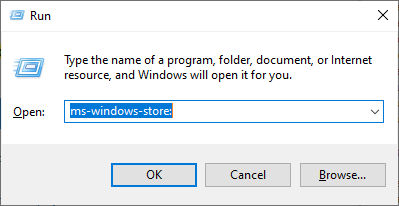
- После того, как ваш компьютер загрузится, нажмите клавишу Windows + R, чтобы открыть диалоговое окно «Выполнить». Затем, войдя в текстовое поле, введите «ms-windows-store: // home» и нажмите Enter, чтобы запустить Microsoft Store.
Доступ к Microsoft Store
- Внутри приложения Microsoft Store используйте функцию поиска в правом верхнем углу для поиска «Microsoft Solitaire Collection».
- В списке магазинов Microsoft Solitaire Collection нажмите «Получить» и следуйте оставшимся инструкциям, чтобы завершить установку приложения Microsoft Store.
- Запустите приложение UWP еще раз и посмотрите, устранена ли ошибка 121010.
Если та же проблема все еще возникает, перейдите к следующему потенциальному исправлению ниже.
Метод 4: отключите или удалите сторонний антивирус
Как оказалось, есть некоторые наборы, которые, как известно, конфликтуют с приложением UWP Microsoft Solitaire Collection. Безусловно, наиболее распространенным виновником, который, по сообщениям пользователей, вызывает 121010, является антивирус Mcafee.
Эта проблема возникает из-за чрезмерной функции безопасности, которая в конечном итоге мешает обмену данными между Microsoft Solitaire Collection и сервером Xbox Live. Могут существовать другие аналогичные сторонние антивирусные пакеты, которые могут вызывать такое поведение.
Если этот сценарий применим, вы сможете решить проблему, отключив защиту вашего AV в реальном времени или полностью удалив избыточный пакет защиты.
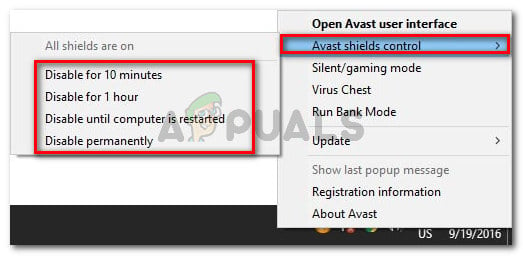
Идеальный способ начать — отключить защиту в реальном времени и посмотреть, перестанет ли возникать ошибка 121010. Однако имейте в виду, что точные инструкции по выполнению этого действия будут отличаться в зависимости от используемого стороннего пакета — но в подавляющем большинстве случаев вы можете просто щелкнуть правой кнопкой мыши свой пакет безопасности на значке панели задач и ищите вариант, отключающий постоянную защиту.
Отключение постоянной защиты в Avast Antivirus
После того, как вам удастся отключить защиту в реальном времени, снова откройте приложение Solitaire Collection и посмотрите, решена ли проблема.
Если та же проблема все еще возникает даже после отключения защиты в реальном времени, следуйте приведенным ниже инструкциям, чтобы временно удалить сторонний пакет безопасности и удалить все оставшиеся файлы:
- Нажмите клавишу Windows + R, чтобы открыть диалоговое окно «Выполнить». Затем введите «appwiz.cpl» в текстовое поле и нажмите Enter, чтобы открыть меню «Программы и компоненты».
Введите appwiz.cpl и нажмите Enter, чтобы открыть список установленных программ.
- Зайдя в меню «Приложения и функции», прокрутите список установленных программ и найдите сторонний пакет, который вы хотите удалить. Когда вы его увидите, щелкните его правой кнопкой мыши и выберите «Удалить» из появившегося контекстного меню.
Удаление антивируса
- На экране удаления следуйте инструкциям на экране, чтобы завершить операцию, а затем перезагрузите компьютер.
- Как только ваш компьютер загрузится, убедитесь, что вы удалили все остаточные файлы, оставленные сторонним антивирусом.
- Наконец, после того, как вы убедитесь, что удалили все остаточные файлы из AV, запустите Microsoft Solitaire COllection еще раз и посмотрите, устранена ли проблема.
Download PC Repair Tool to quickly find & fix Windows errors automatically
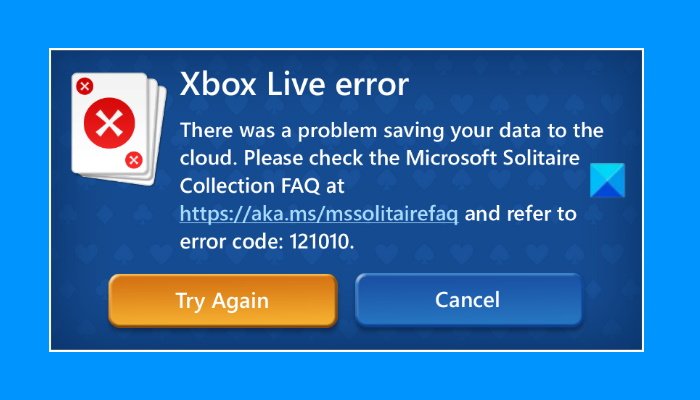
If you encounter Xbox Live error 121010 while playing Microsoft Solitaire Collection, this post may help you fix it. You may receive this error message anytime while playing the Solitaire game or just after launching the game. The error code 121010 means Xbox fails to save the user’s data on the cloud. The actual error message that Windows displays when this error occurs looks like this:
There was a problem saving your data to the cloud. Please check the Microsoft Solitaire Collection FAQ at <URL> and refer to error code: 121010.
Below, we have explained the methods to fix this error. But before you proceed, you can try some quick fixes.
- Restart your device and check if the issue is fixed.
- Make sure that you are signed in to the Xbox app.
If the issue still persists, try the solutions mentioned in this article.
You can try the following solutions to fix the Xbox Live error 121010 while playing the Microsoft Solitaire Collection game.
- Check for updates in Microsoft Store
- Check Xbox Live Status
- Check your antivirus Firewall settings
- Sign out and sign in again to the Microsoft Store
- Run Windows Store Apps Troubleshooter
- Reset the game from Settings
Let’s have a detailed look at these troubleshooting tricks.
1] Check for updates in Microsoft Store
With time, developers release updates to fix the bugs that the users experience in software. Users have to install these update patches to get rid of several bugs and errors. Hence, you should check the Microsoft Solitaire Collection app updates in Microsoft Store. If the update is available, install it.
After updating the game, check if the issue is fixed or not.
2] Check Xbox Live Status
Sometimes, the error occurs due to the Xbox server issues. In such cases, the error disappears by itself after the server issue is fixed on Xbox. To confirm whether or not there is an Xbox server issue, you can check Xbox Live Status. If the website shows a major outage issue with one or more services, you have to wait till Microsoft fixes it.
3] Check your antivirus Firewall settings
You will also get this error message if your antivirus Firewall is blocking the game from connecting to the internet. You should check this and if you find that the Firewall is blocking the game, consider whitelisting the game in Windows Defender Firewall or your third-party antivirus Firewall.
4] Sign out and sign in again to the Microsoft Store
Sign out and sign back into the Microsoft Store and see if it brings any changes. The steps for the same are listed below:
- Launch Microsoft Store.
- Click on your profile picture on the top right side.
- Click your account. A new window will pop up.
- Click Sign out.
- Close Microsoft Store and restart your computer.
- After restarting the computer, launch Microsoft Store and sign in again.
Now, check if you are receiving the same error or not.
5] Run Windows Update Apps Troubleshooter
You can also try running Windows Store Apps Troubleshooter and see if it helps.
6] Reset the game from Settings
If none of the above solutions fixed your issue, you can try to reset the game from Windows Settings. The following instructions will guide you on how to do it.
- Launch the Settings app.
- Go to Apps > Apps & features.
- Scroll down the list and click Microsoft Solitaire Collection.
- Now, click Advanced options.
- Scroll down and click Reset.
- Restart the game.
Resetting the game will erase all the saved data. However, the users who performed this step have stated that when they relaunched the game after resetting it, they received a prompt message asking them whether they wanted to restore the old data or not. This helped them restore the lost game data.
How do I reinstall Microsoft Solitaire Collection?
You can reinstall any Microsoft Store app via Windows Settings or PowerShell. Reinstalling the app may erase all the saved data. Hence, you should perform this task only when you encounter several errors again and again with a particular Store app.
Where has my Microsoft Solitaire Collection gone?
If the Microsoft Solitaire Collection game has suddenly disappeared from your computer, you can try the following fixes:
- Reset Microsoft Store
- Run SFC scan
- Reinstall the app using 10AppsManager.
Hope this helps.

Nishant is a tech enthusiast who loves writing about technology and gadgets. He has completed B.Tech. Apart from writing, he likes to spend his time on his plantation.
Download PC Repair Tool to quickly find & fix Windows errors automatically
If you encounter Xbox Live error 121010 while playing Microsoft Solitaire Collection, this post may help you fix it. You may receive this error message anytime while playing the Solitaire game or just after launching the game. The error code 121010 means Xbox fails to save the user’s data on the cloud. The actual error message that Windows displays when this error occurs looks like this:
There was a problem saving your data to the cloud. Please check the Microsoft Solitaire Collection FAQ at <URL> and refer to error code: 121010.
Below, we have explained the methods to fix this error. But before you proceed, you can try some quick fixes.
- Restart your device and check if the issue is fixed.
- Make sure that you are signed in to the Xbox app.
If the issue still persists, try the solutions mentioned in this article.
You can try the following solutions to fix the Xbox Live error 121010 while playing the Microsoft Solitaire Collection game.
- Check for updates in Microsoft Store
- Check Xbox Live Status
- Check your antivirus Firewall settings
- Sign out and sign in again to the Microsoft Store
- Run Windows Store Apps Troubleshooter
- Reset the game from Settings
Let’s have a detailed look at these troubleshooting tricks.
1] Check for updates in Microsoft Store
With time, developers release updates to fix the bugs that the users experience in software. Users have to install these update patches to get rid of several bugs and errors. Hence, you should check the Microsoft Solitaire Collection app updates in Microsoft Store. If the update is available, install it.
After updating the game, check if the issue is fixed or not.
2] Check Xbox Live Status
Sometimes, the error occurs due to the Xbox server issues. In such cases, the error disappears by itself after the server issue is fixed on Xbox. To confirm whether or not there is an Xbox server issue, you can check Xbox Live Status. If the website shows a major outage issue with one or more services, you have to wait till Microsoft fixes it.
3] Check your antivirus Firewall settings
You will also get this error message if your antivirus Firewall is blocking the game from connecting to the internet. You should check this and if you find that the Firewall is blocking the game, consider whitelisting the game in Windows Defender Firewall or your third-party antivirus Firewall.
4] Sign out and sign in again to the Microsoft Store
Sign out and sign back into the Microsoft Store and see if it brings any changes. The steps for the same are listed below:
- Launch Microsoft Store.
- Click on your profile picture on the top right side.
- Click your account. A new window will pop up.
- Click Sign out.
- Close Microsoft Store and restart your computer.
- After restarting the computer, launch Microsoft Store and sign in again.
Now, check if you are receiving the same error or not.
5] Run Windows Update Apps Troubleshooter
You can also try running Windows Store Apps Troubleshooter and see if it helps.
6] Reset the game from Settings
If none of the above solutions fixed your issue, you can try to reset the game from Windows Settings. The following instructions will guide you on how to do it.
- Launch the Settings app.
- Go to Apps > Apps & features.
- Scroll down the list and click Microsoft Solitaire Collection.
- Now, click Advanced options.
- Scroll down and click Reset.
- Restart the game.
Resetting the game will erase all the saved data. However, the users who performed this step have stated that when they relaunched the game after resetting it, they received a prompt message asking them whether they wanted to restore the old data or not. This helped them restore the lost game data.
How do I reinstall Microsoft Solitaire Collection?
You can reinstall any Microsoft Store app via Windows Settings or PowerShell. Reinstalling the app may erase all the saved data. Hence, you should perform this task only when you encounter several errors again and again with a particular Store app.
Where has my Microsoft Solitaire Collection gone?
If the Microsoft Solitaire Collection game has suddenly disappeared from your computer, you can try the following fixes:
- Reset Microsoft Store
- Run SFC scan
- Reinstall the app using 10AppsManager.
Hope this helps.
Nishant is a tech enthusiast who loves writing about technology and gadgets. He has completed B.Tech. Apart from writing, he likes to spend his time on his plantation.
Some Windows 10 users are receiving the ‘Xbox Live Error Code 121010‘ when they try to play Microsoft Solitaire Collection. While some affected users are reporting that this occurs at every startup, others say that they are able to play a few rounds before this error occurs.
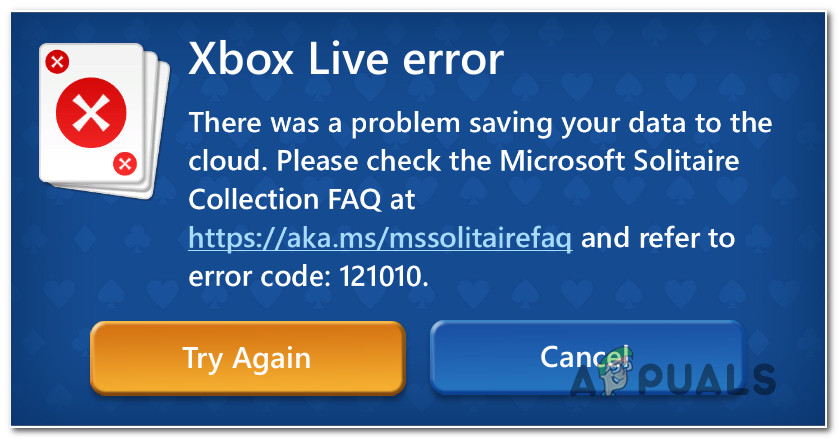
As it turns out, there are several different causes that might end up triggering this particular error with the Microsoft Solitaire Collection. Here’s a shortlist of potential culprits that might trigger the 121010 error code:
- Undergoing server issue – Since Microsoft Solitaire Collection runs on the Xbox Live Infrastructure, you can expect a lot of issues with the game if the infrastructure servers are down. In this case, the only thing you can do is confirm the server issue and wait for it to be resolved.
- Corrupted temp file – As it turns out, this problem can also occur in an instance where the cache folder of the game contains a corrupted file (most likely profile-related). In this case, you should be able to resolve the issue by resetting the UWP app (either via GUI or elevated PowerShell terminal).
- Game installation glitch – If the game has never worked for you (you’ve started encountering the issue immediately after installing), you might be dealing with an installation glitch. In this case, you can fix the problem by reinstalling the game.
- 3rd party antivirus interference – There are certain overprotective AV suites that were confirmed to conflict with the Microsoft Solitaire Collection. Most commonly, McAffee Antivirus is vilified as the problem, but there might be other suites that will trigger a similar behavior. In this case, you can resolve the problem by disabling the real-time protection or by uninstalling the overprotective suite altogether.
Method 1: Investigating for a Server Issue
Before you attempt to apply any of the potential fixes below, you should start by ensuring that the problem is not actually being caused by a server issue that is entirely beyond your control.
Keep in mind that Microsoft Solitaire Collection realizes on the Xbox Live servers for various aspects of the game. Whenever there’s a wide issue with one of the Xbox Live critical services, Microsoft Solitaire Collection tends to malfunction.
To investigate whether there’s a current problem with the Xbox Live infrastructure that might be causing the 121010 error code, you should start by checking the official status page of the Xbox Live services.
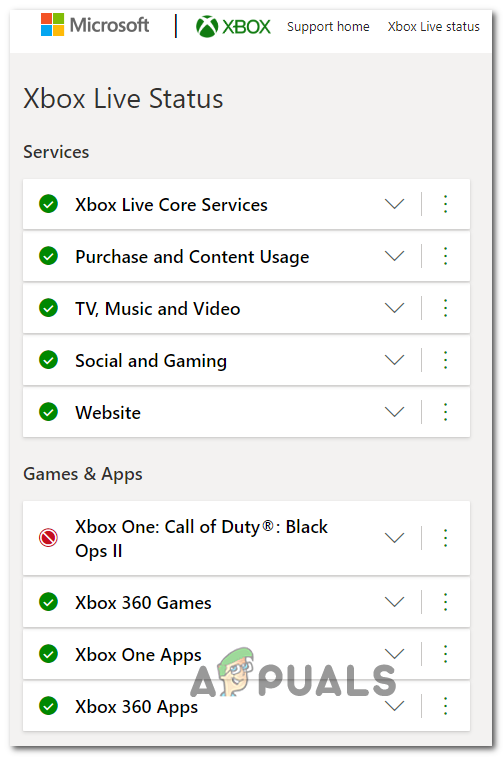
Note: If this investigation has revealed an issue with a critical Xbox Live service, the issue is most likely beyond your control. The only thing you can do at this point is to wait for Microsoft to fix the issue.
In the event that there is no evidence of a server issue, move down to the first potential fix below.
Method 2: Resetting the Microsoft Solitaire Collection UWP app
If you previously confirmed that you’re not actually dealing with server issues, the next step is to enforce the most popular fix for the 121010 error. This will be effective in any scenario where some kind of corruption rooted in the temp file of the game is actually causing the issue.
A lot of users that were previously encountered this problem have reported that they finally managed to fix the problem by resetting the Microsoft Solitaire Collection app.
When it comes to doing this, you have two ways forward:
- You can reset the Microsoft Solitaire Collection app via the GUI menu of Windows 10 (from the Apps & Features menu)
- You can run a series of commands in an elevated Powershell prompt to reset the app’s manifest and cache file
Depending on your preferred way of enforcing this method, follow sub-guide A or sub-guide B:
A. Resetting Microsoft Solitaire Collection via GUI
Here’s a quick step-by-step guide that will walk you through the process of resetting the Microsoft Solitaire Collection UWP app via the GUI menu of Windows 10 :
- Close the Microsoft Solitaire Collection app.
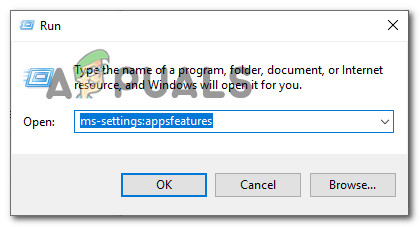
- Press Windows key + R to open up a Run dialog box. Next, type ‘ms-settings:appsfeatures’ and press Enter to open up the Apps & Features menu of the Settings app.
Accessing the Apps & features settings screen - Once you’re finally inside the Apps & Features app, scroll down through the list of installed applications and locate the entry associated with Microsoft Solitaire Collection.
- When you manage to locate it, click on the Advanced Options hyperlink (located directly under the name of the app).

Opening the Advanced Options hyperlink of Microsoft Solitaire Collection - Once you’re finally inside the Advanced Options menu, scroll down to the Reset tab, then click on Reset and confirm the process of returning the Microsoft Solitaire Collection app back to its factory state.

Resetting the Solitaire Collection tab Note: This operation will clear any temp data related to the app. The progress that is not currently saved on the cloud will be lost.
- After the operation is completed, open the Microsoft Solitaire Collection app once again and see if the error is now resolved.
B. Resetting Microsoft Solitaire Collection via Powershell
If you’re technical and not afraid to do things from a terminal, follow the instructions below to reset the UWP app from an elevated PowerShell window:
- Ensure that the Microsoft Solitaire Collection UWP app is completely closed.
- Press Windows key + R to open up a Run dialog box. Next, type ‘powershell’ inside the text box and press Ctrl + Shift + Enter to open up an elevated Powershell window.
Run dialog: powershell Then press Ctrl + Shift + Enter Note: When prompted by the UAC (User Account Control), click Yes to grant administrative privileges.
- Once you’re inside the elevated Powershell prompt, type the following commands in order and press Enter after each one to essentially reset the Microsoft Solitaire Collection:
Set-ExecutionPolicy Unrestricted Get-AppXPackage -AllUsers | Foreach {Add-AppxPackage -DisableDevelopmentMode -Register "$($_.InstallLocation)AppXManifest.xml"} - Once the command is processed successfully, open the Microsoft Solitaire Collection app again, and see if the problem is now resolved.
In case you still end up encountering the error code 12010 when opening the UWP game, move down to the next potential fix below.
Method 3: Reinstalling the Microsoft Solitaire Collection App
Some affected users that we’re encountering the Xbox Live Error Code 121010 have confirmed that the problem was finally resolved after they reinstalled the Microsoft Solitaire Collection app completely.
Clean installing the app will be beneficial in instances where this problem is occurring due to some kind of locally corrupted files belonging to the UWP app.
Here’s a quick guide that will walk you through the process of reinstalling the Microsoft Solitaire Collection UWP app:
- Press Windows key + R to open up a Run dialog box. Next, type ‘ms-settings:appsfeatures’ inside the text box and press Enter to open up the Apps & Features tab.
Accessing the App & Features screen - Once you’re inside the Apps & Features screen, scroll down through the list of installed UWP apps and locate the Microsoft Solitaire Collection.
- After you manage to locate the correct UWP app, click on the Advanced Menu hyperlink associated with Microsoft Solitaire Collection.
Opening the Advanced Options hyperlink of Microsoft Solitaire Collection - Inside the Advanced Menu hyperlink, scroll all the way down to the uninstall section and click on Uninstall to start the operation. After you confirm the operation, wait for the process to complete.

Uninstalling the solitaire collection - Once Microsoft Solitaire Collection is successfully uninstalled, reboot your computer and wait for the next startup to complete.
- After your computer boots back up, press Windows key + R to open up a Run dialog box. Next, once you’re inside the text box, type ‘ms-windows-store://home’ and press Enter to launch the Microsoft Store.
Accessing the Microsoft Store - Inside the Microsoft Store app, use the search function in the top-right section to search for ‘Microsoft Solitaire Collection’.
- From the store listing of Microsoft Solitaire Collection, click on Get and follow the remaining instructions to complete the installation of the Microsoft Store app.
- Launch the UWP app once again and see if the 121010 error is resolved.
If the same problem is still occurring, move down to the next potential fix below.
Method 4: Disable or Uninstall the 3rd-Party Antivirus
As it turns out, there are some suites that are known to conflict with the UWP app of Microsoft Solitaire Collection. By far, the most common culprit that’s reported by users to cause the 121010 is Mcafee Antivirus.
This problem occurs due to an overprotective security feature that ends up interfering with communications between Microsoft Solitaire Collection and the Xbox Live server – There might be other similar 3rd party antivirus suites that could cause this type of behavior.
If this scenario is applicable, you should be able to fix the problem by disabling the real-time protection of your AV or by uninstalling the overprotective suite altogether.
The ideal way to start is by disabling the real-time protection and see if the 121010 error stops occurring. However, keep in mind that the exact instructions on doing this will be different depending on the 3rd party suite that you’re using – But in the vast majority of cases, you can simply right-click your security suite in the tray bar icon and look for an option that disables the real-time protection.
After you manage to disable the real-time protection, open the Solitaire Collection app again, and see if the issue is now resolved.
If the same problem is still occurring even after you disable the real-time protection, follow the instructions below to temporarily uninstall your 3rd party security suite, and remove any remnant files:
- Press Windows key + R to open up a Run dialog box. Next, type ‘appwiz.cpl’ inside the text box and press Enter to open up the Programs and Features menu.

Type appwiz.cpl and Press Enter to Open Installed Programs List - Once you’re inside the Apps & Features menu, scroll down through the list of installed programs and locate the 3rd party suite that you want to uninstall. When you see it, right-click on it and choose Uninstall from the newly appeared context menu.
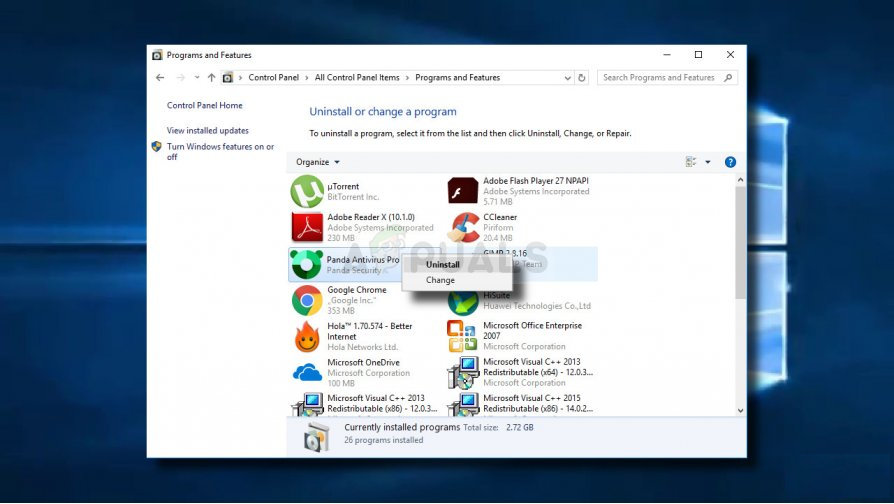
Uninstalling your antivirus - Inside the uninstallation screen, follow the on-screen prompts to complete the operation, then restart your computer.
- Once your computer boots back up, ensure that you remove any remnant files left behind by your 3rd party antivirus.
- Finally, after you ensure that you remove any remnant files from your AV, launch Microsoft Solitaire COllection once again and see if the problem is now fixed.

Kevin Arrows
Kevin is a dynamic and self-motivated information technology professional, with a Thorough knowledge of all facets pertaining to network infrastructure design, implementation and administration. Superior record of delivering simultaneous large-scale mission critical projects on time and under budget.
Windows 10: Microsoft Solitaire Collection: Xbox Live Error Code 121010
Discus and support Microsoft Solitaire Collection: Xbox Live Error Code 121010 in Windows 10 Gaming to solve the problem; Every time I open the program I receive the above error. I’ve tried reinstalling and going through the generic troubleshooting steps at the…
Discussion in ‘Windows 10 Gaming’ started by beckerist, Jun 12, 2019.
-
Microsoft Solitaire Collection: Xbox Live Error Code 121010
Every time I open the program I receive the above error. I’ve tried reinstalling and going through the generic troubleshooting steps at the microsoftcasualgames site, but it still pops up. It only started happening after the latest update. Anything else I can try?
🙂
-
error code 1170000 XBOX Live Solitaire Collection
I keep getting error code 1170000 when trying to play daily solitaire collection in my XBOX Live.
I also says «you have signed out of XBOX Live from outside Microsoft Solitaire Collection».
What does this mean and how do I fix it? Thanks for your help in advance.
-
error code 121010
Hello
Xbox Live error/ error code 121010
Microsoft collection / the message exists when I try to play the game .
How to fix it / resolve it
Thanks
-
Microsoft Solitaire Collection: Xbox Live Error Code 121010
Microsoft Solitaire Collection will not work properly — error code 101_107_1
ThofikhAhamad,
For the last 4 days I have been having the same problem as stated by Linda and keep getting error code 101_107_1 when the game tries to log in to Xbox Live. I took the steps you suggested with no improvement.
I also checked:
- I am signed into xbox.com
- I checked my firewall settings to make sure that xbox.com can both send and receive through the firewall.
- MS Solitaire Collection used to show up in my programs list but is no longer listed there.
- The MS Solitaire icon on my desktop has disappeared.
- When I check MS Store games, it shows it is already installed.
- When I check on «play» in the MS Store, MS Solitaire Collection launches but will not log in and I get the error code.
- I can play the off-line MS Solitaire Collection games, just not the Daily Challenge.
- I downloaded MS Minesweeper and it launches and signs into Xbox Live OK. So, I’m thinking something with the Solitaire Collection program or settings is corrupted.
- I have not been able to find a way to remove/re-install Solitaire Collection.
- I have not been able to find anything about how to repair Solitaire Collection.
I am running Windows 10 and the latest updates are all installed.
Any suggestions on what I can do to fix this?
Microsoft Solitaire Collection: Xbox Live Error Code 121010
-
Microsoft Solitaire Collection: Xbox Live Error Code 121010 — Similar Threads — Microsoft Solitaire Collection
-
Fix Xbox Live error 121010 while playing Microsoft Solitaire Collection
in Windows 10 News
Fix Xbox Live error 121010 while playing Microsoft Solitaire Collection: [IMG]If you encounter Xbox Live error 121010 while playing Microsoft Solitaire Collection, this post may help you fix it. You may receive this error message anytime while playing the Solitaire game or just after launching the game. The error code 121010 means Xbox fails to… -
Fix Xbox Live error 121003 while playing Microsoft Solitaire Collection
in Windows 10 News
Fix Xbox Live error 121003 while playing Microsoft Solitaire Collection: [IMG]You may experience the Xbox Live error 121003 anytime while playing the Microsoft Solitaire Collection game. Xbox displays this error when some problem occurs while loading the saved game data from the cloud. When this error occurs, you will see the following message on… -
Microsoft Solitaire Collection — Daily Challenge — Xbox Live
in Microsoft Windows 10 Store
Microsoft Solitaire Collection — Daily Challenge — Xbox Live: HiCan’t load Daily Challenge — Keep getting download from server error — Windows 10 PC — Nothing wrong with internet connection and all other games on Solitaire Collection work — Only one that won’t load is the Daily Challenge…
-
Accidentally deleted xbox live for MS Solitaire collection
in Windows 10 Software and Apps
Accidentally deleted xbox live for MS Solitaire collection: I accidentally uninstalled my xbox live programs which I believe allows MS Solitaire to keep my level scores. Now when I go to Solitaire I cannot sign in — get error code 117000. It will only allow me to play as a guest. Should I uninstall Windows 10 and then reinstall… -
Getting error code for windows solitaire code 121010
in Windows 10 Network and Sharing
Getting error code for windows solitaire code 121010: running Microsoft Solitaire Collection on windows 10 sign in with xbox id getting error code 121010 help sends me to page that says nothing about this code… -
error code 121010
in Windows 10 Gaming
error code 121010: I received this error in Microsoft solitaire collection on my ipad, I followed a previous response to go to setting, apps, Microsoft solitaire collection and reset it, I reset it on my computer, which cleared error on my ipad. It worked for a couple minutes,then I got the…
-
Error Code 104 in Solitaire Collection
in Windows 10 Network and Sharing
Error Code 104 in Solitaire Collection: HiI have been trying to get into the Solitaire Collection for two days now long time user and all I get is error code 101 and now code 104. I have great internet connection and have tried all the solutions including uninstalling and re-installing the app. Nothing works,…
-
Microsoft Solitaire Error 121010
in Windows 10 Gaming
Microsoft Solitaire Error 121010: I just started getting this error message a few days ago when I opened my Microsoft Solitaire game:Xbox Live error
There was a problem saving your data to the cloud.
Please check the Microsoft Solitaire Collection FAQ at
https://aka.ms/mssolitairefaq and refer to…
-
error code 121010
in Windows 10 Software and Apps
error code 121010: HelloXbox Live error/ error code 121010
Microsoft collection / the message exists when I try to play the game .
How to fix it / resolve it
Thanks…
Users found this page by searching for:
-
xbox live error 121010
,
-
xbox live error code 121010
,
-
error 121010
,
- xbox live エラーコード 121010,
- error code 121010,
- xbox error code 121010,
- https://aka.ms/mssolitairefaq,
- erreur xbox live 121010,
- 121010 Solitaire,
- microsoft solitaire collection error 121010,
- error code 121010 solitaire,
- fix problems signing in to the xbox app,
- microsoft solitaire error code 121010,
- microsoft solitaire collection 121010,
- xbox error 121010

если ты встретишьОшибка Xbox Live 121010во время игры в Microsoft Solitaire Collection этот пост может помочь вам исправить это. Вы можете получить это сообщение об ошибке в любой момент во время игры в пасьянс или сразу после запуска игры. Код ошибки 121010 означает, что Xbox не может сохранить данные пользователя в облаке. Фактическое сообщение об ошибке, которое Windows отображает при возникновении этой ошибки, выглядит следующим образом:
Не удалось сохранить ваши данные в облаке. Ознакомьтесь с часто задаваемыми вопросами о коллекции пасьянсов Microsoft по адресу
и видим код ошибки: 121010.
Ниже мы объяснили методы исправления этой ошибки. Но прежде чем продолжить, вы можете попробовать несколько быстрых исправлений.
- Перезагрузите устройство и проверьте, устранена ли проблема.
- Убедитесь, что вы вошли в приложение Xbox.
Если проблема не устранена, попробуйте решения, упомянутые в этой статье.
Вы можете попробовать следующие решения, чтобы исправить ошибку Xbox Live 121010 во время игры в игру Microsoft Solitaire Collection.
- Проверить наличие обновлений в Microsoft Store
- Проверьте статус Xbox Live
- Проверьте настройки антивирусного брандмауэра
- Выйдите и снова войдите в Microsoft Store
- Запустите средство устранения неполадок приложений Магазина Windows.
- Сбросить игру из настроек
Давайте подробно рассмотрим эти приемы устранения неполадок.
1]Проверьте наличие обновлений в Магазине Microsoft
Со временем разработчики выпускают обновления для исправления ошибок, с которыми пользователи сталкиваются в программном обеспечении. Пользователям необходимо установить эти исправления обновлений, чтобы избавиться от различных ошибок и ошибок. Поэтому вам следует проверить наличие обновлений приложения Microsoft Solitaire Collection в Microsoft Store. Если обновление доступно, установите его.
После обновления игры проверьте, устранена ли проблема.
2] Проверьте статус Xbox Live.
Иногда ошибка возникает из-за проблем с сервером Xbox. В таких случаях ошибка исчезает сама по себе после устранения проблемы с сервером на Xbox. Чтобы подтвердить, есть ли проблема с сервером Xbox, вы можетепроверить xboxЖивой статус. Если на веб-сайте обнаружена серьезная проблема сбоя одной или нескольких служб, вам следует подождать, пока Microsoft не исправит ее.
3] Проверьте настройки антивирусного брандмауэра.
Вы также получите это сообщение об ошибке, если ваш антивирусный брандмауэр блокирует подключение игры к Интернету. Вы должны проверить это, и если вы обнаружите, что брандмауэр блокирует игру, рассмотрите возможность внесения игры в белый список брандмауэра Защитника Windows или стороннего антивирусного брандмауэра.
4] Выйдите и снова войдите в Microsoft Store.
Выйдите и снова войдите в Microsoft Store и посмотрите, внесет ли это какие-либо изменения. Шаги для того же перечислены ниже:
- Запустите Магазин Microsoft.
- Нажмите на фотографию своего профиля в правом верхнем углу.
- Нажмите на свою учетную запись. Появится новое окно.
- Щелкните Выйти.
- Закройте Microsoft Store и перезагрузите компьютер.
- После перезагрузки компьютера запустите Microsoft Store и снова войдите в систему.
Теперь проверьте, получаете ли вы ту же ошибку или нет.
5] Запустите средство устранения неполадок приложений Центра обновления Windows.
Вы также можете попробовать запустить средство устранения неполадок приложений Магазина Windows и посмотреть, поможет ли это.
6] Сбросить игру из настроек
Если ни одно из приведенных выше решений не устранило вашу проблему, вы можете попробовать сбросить игру из настроек Windows. Следующие инструкции помогут вам, как это сделать.
- броситьНастройкиприменение
- Перейти кПриложения > Приложения и функции.
- Прокрутите список вниз и нажмитеКоллекция пасьянсов Microsoft.
- Теперь нажмитеРасширенные настройки.
- Прокрутите вниз и нажмитеНачать сначала.
- Перезапустите игру.
Перезапуск игры сотрет все данные сохранения. Однако пользователи, выполнившие этот шаг, заявили, что когда они перезапускали игру после ее сброса, они получали сообщение с вопросом, хотят ли они восстановить старые данные или нет. Это помогло им восстановить потерянные игровые данные.
Как переустановить коллекцию пасьянсов Microsoft?
Вы можете переустановить любое приложение из Магазина Microsoft через настройки Windows или PowerShell. Переустановка приложения может привести к удалению всех сохраненных данных. Поэтому вам следует выполнять эту задачу только тогда, когда вы снова и снова сталкиваетесь с различными ошибками в конкретном приложении Магазина.
Куда пропала моя коллекция пасьянсов Microsoft?
Если игра Microsoft Solitaire Collection внезапно исчезла с вашего компьютера, вы можете попробовать следующие решения:
- Сбросить Магазин Майкрософт
- Запустить сканирование SFC
- Переустановите приложение с помощью 10AppsManager.
Надеюсь, это поможет.
При попытке сыграть в игру, особенно в игры для Xbox 360, или при загрузке своего профиля на консоль Xbox может появиться сообщение об ошибке Извините, возникла проблема с учетными данными, которые вы используете для входа. В этом сообщении содержится наиболее подходящие решения. Сообщение об ошибке обычно сопровождается разными кодами ошибок; решения в этом посте все еще применяются.
Полное отображаемое сообщение об ошибке находится в следующих строках;
Xbox Live
К сожалению, возникла проблема с учетными данными, которые вы используете для входа. Перейдите на страницу https://account.live.com, чтобы устранить проблему.
801540A9
Когда вы сталкиваетесь с этой проблемой, это может означать или быть вызвано следующими причинами:
- Временная проблема с сервисом.
- Предоставленная вами информация о безопасности учетной записи Microsoft неверна или не совпадает.
- Профиль Xbox Live, хранящийся на вашей консоли, поврежден.
Читайте: исправьте ошибку Xbox Live 121010 при игре в Microsoft Solitaire Collection.
К сожалению, возникла проблема с учетными данными, которые вы используете для входа — ошибка Xbox Live.
Если вы столкнулись с сообщением об ошибке Xbox Live Извините, возникла проблема с учетными данными, которые вы используете для входа. на вашей консоли Xbox вы можете попробовать наши рекомендуемые ниже исправления в произвольном порядке (но сначала начните с начального контрольного списка), чтобы решить проблему в вашей игровой системе.
- Начальный контрольный список
- Удалить и повторно добавить профиль Xbox
- Сбросить Xbox
- Обратитесь в службу поддержки Xbox
Давайте взглянем на описание процесса, связанного с каждым из перечисленных решений.
1]Начальный контрольный список
Прежде чем приступить к подробному решению, приведенному ниже, вы можете в качестве быстрого исправления выполнить и выполнить следующие предварительные проверки, а после каждой задачи посмотреть, устранена ли ошибка Xbox Live, с которой вы сейчас сталкиваетесь, или нет:
- Очистите системный кеш и перезапустите консоль Xbox. Вы можете очистить системный кеш, нажав кнопку «Руководство», затем перейдите в «Настройки» > «Системные настройки» > «Хранилище/память» — выделите любое запоминающее устройство, затем вернитесь к контроллеру и нажмите Y. Выберите Очистить системный кеши выберите Да для подтверждения, затем перезапустите консоль Xbox.
- Проверьте состояние сервера Xbox. Что касается проблем с Xbox Live, то в большинстве случаев, если не во всех, это может быть связано с тем, что сервер Xbox отключен или не работает. Итак, если вы обнаружите какие-либо служебные предупреждения при проверке состояния службы Xbox Live support.xbox.com/en-US/xbox-live-statusвы ничего не можете сделать, кроме как подождать некоторое время, прежде чем повторить попытку — обычно статус будет отображаться как запущено и работает зеленым цветом с зеленой галочкой рядом с основными службами Xbox Live.
- Проверьте, поддерживает ли игра обратную совместимость. Идти к Мои игры и приложения > Увидеть все > Полная библиотека > Все собственные игрыЗатем отфильтровать Все типы консолей. Выбирать Игры для Xbox 360 и Xbox или Xbox One игры.
- Подтвердите учетные данные своей учетной записи Microsoft. Эта проблема может быть связана с тем, что информация о безопасности вашей учетной записи Microsoft неверна. Итак, войдите в свою учетную запись Microsoft; если вы забыли свой пароль или не можете войти с помощью пароля, вы можете сбросить пароль через веб-сайт Майкрософт. После входа в систему перейдите в раздел «Безопасность и конфиденциальность» > «Изменить пароль и другое» — теперь подтвердите свои адреса электронной почты и номер телефона, и при необходимости вы сможете добавить или обновить информацию о безопасности. После этого выйдите из системы и войдите снова. Затем вы можете попробовать войти в Xbox Live.
- Отключите двухфакторную аутентификацию (2FA). По какой-то причине это сработало для некоторых затронутых геймеров. Итак, вы можете отключить двухэтапную проверку для своей учетной записи Microsoft и посмотреть, работает ли она и для вас!
- Убедитесь, что вы еще не вошли в систему на другой консоли Xbox. Если есть приостановленная игра с использованием вашего профиля на другом Xbox, даже если консоль выключена, она все равно будет считаться сеансом на серверах Xbox Live. В этом случае вам нужно «выйти» из игры на другой консоли (вместо приостановки игры), чтобы ваш профиль можно было загрузить или получить к нему доступ на той консоли, на которой вы сейчас находитесь.
Читать: Ошибка Xbox 80151006. Извините, этот профиль не может подключиться к Xbox Live на этой консоли.
2]Удалить и повторно добавить профиль Xbox
Теперь, когда вы очистили первоначальный контрольный список, но проблема еще не решена, вы можете удалить и повторно добавить свой профиль Xbox на своей консоли, поскольку проблема может быть связана с поврежденным профилем, хранящимся на вашей консоли.
Сделайте следующее:
- Нажмите кнопку Xbox на геймпаде, чтобы открыть руководство.
- Перейдите в Профиль и система > Настройки > Учетная запись.
- В разделе «Учетная запись» выберите «Удалить учетные записи».
- Выберите учетную запись, которую хотите удалить.
- Выберите Удалить для подтверждения.
- Выберите Закрыть, когда закончите.
Теперь вы успешно удалили профиль Xbox на своем игровом устройстве. Чтобы снова загрузить и повторно добавить свой профиль, сделайте следующее:
- Нажмите кнопку Xbox на геймпаде еще раз.
- Выберите «Добавить новый» в «Профиль и система».
Примечание. При выборе этого параметра вы не будете создавать новую учетную запись. Вы просто добавляете свой существующий профиль на консоль Xbox.
Если вы его забыли, выберите Я забыл свой пароль, а затем следуйте инструкциям, чтобы восстановить свою учетную запись.
- Просмотрите сводку заявления о конфиденциальности и нажмите кнопку Далее.
- Выберите параметры входа и безопасности.
- Проверьте, как вы выглядите на Xbox, а затем нажмите «Далее».
- Выберите свой цвет, а затем нажмите кнопку Далее.
Примечание. Параметр, который вы сейчас используете дома, отмечен флажком.
- Нажмите кнопку Xbox на геймпаде, чтобы вернуться на главный экран.
- Прокрутите влево от главного экрана, найдите и выберите свой тег игрока, а затем выберите Войти.
Вы также можете попробовать перенести свой профиль Xbox Live с помощью флэш-накопителя USB. Подключите USB-накопитель к консоли, затем перейдите в «Настройки» > «Хранилище» > «Все устройства» > «Профили игроков». Выберите свой игровой профиль > Переместить, затем выберите подключенный USB-накопитель. После этого извлеките флэш-память USB из консоли, затем очистите системный кеш и после этого перезагрузите консоль Xbox. Наконец, вставьте USB-накопитель и повторно загрузите свой профиль Xbox Live.
Если ошибка в фокусе повторяется, вы можете попробовать следующее решение.
Читайте: исправьте код ошибки Xbox 0x8007045D, профили Xbox Live не могут быть загружены
3]Сбросить Xbox
В серьезных случаях игровой системы, таких как повреждение ОС, вы можете перезагрузить консоль Xbox, но обязательно выберите параметр «Сбросить и сохранить мои игры и приложения» при выполнении процедуры сброса. Чаще всего это действие решает большинство проблем, с которыми вы сталкиваетесь на своей консоли. В противном случае попробуйте следующее решение.
4]Обратитесь в службу поддержки Xbox
Рекомендуется и всегда полезно обращаться в службу поддержки Xbox, если у вас возникли проблемы с консолью Xbox, и после того, как вы испробовали все возможные решения и исправления, вы все еще не можете решить проблему. Возможно, проблема связана с ошибкой, о которой Microsoft знает и в настоящее время работает над исправлением.
Надеюсь это поможет!
Связанный пост: Как удалить ошибку входа в Xbox Live 80048821
Почему мой Xbox сообщает о проблеме с учетными данными?
Если у вас возникли проблемы с учетными данными на консоли Xbox, это может быть проблема с сетью; либо с Xbox Live, либо с сетевым подключением. Кроме того, возможно, регион, который вы указали в своей учетной записи, не соответствует региону, в котором вы находитесь.
Что такое код ошибки 0x80a4001a на Xbox One?
Код ошибки Xbox 0x80a4001a возникает, когда вам предлагается ввести пароль учетной записи Microsoft. Это может означать, что учетные данные вашей учетной записи были повреждены. Чтобы решить эту проблему, вам необходимо удалить и повторно добавить свою учетную запись на консоли.