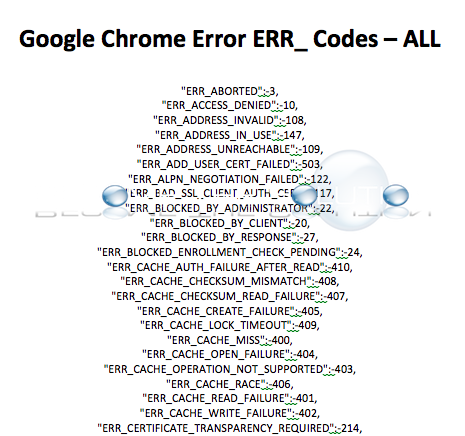
A complete list of Google Chrome Errors you may receive while browsing a website. Let us know if you receive an error list below — including details of how you received the error and any other information to help solve fixing it. You can copy/paste the error from this list when you post below.
* Use the comment form below to let us know about your Google Chrome error and relevant details so we can help you solve it. *
«ERR_ABORTED»:-3,
«ERR_ACCESS_DENIED»:-10,
«ERR_ADDRESS_INVALID»:-108,
«ERR_ADDRESS_IN_USE»:-147,
«ERR_ADDRESS_UNREACHABLE»:-109,
«ERR_ADD_USER_CERT_FAILED»:-503,
«ERR_ALPN_NEGOTIATION_FAILED»:-122,
«ERR_BAD_SSL_CLIENT_AUTH_CERT»:-117,
«ERR_BLOCKED_BY_ADMINISTRATOR»:-22,
«ERR_BLOCKED_BY_CLIENT»:-20,
«ERR_BLOCKED_BY_RESPONSE»:-27,
«ERR_BLOCKED_ENROLLMENT_CHECK_PENDING»:-24,
«ERR_CACHE_AUTH_FAILURE_AFTER_READ»:-410,
«ERR_CACHE_CHECKSUM_MISMATCH»:-408,
«ERR_CACHE_CHECKSUM_READ_FAILURE»:-407,
«ERR_CACHE_CREATE_FAILURE»:-405,
«ERR_CACHE_LOCK_TIMEOUT»:-409,
«ERR_CACHE_MISS»:-400,
«ERR_CACHE_OPEN_FAILURE»:-404,
«ERR_CACHE_OPERATION_NOT_SUPPORTED»:-403,
«ERR_CACHE_RACE»:-406,
«ERR_CACHE_READ_FAILURE»:-401,
«ERR_CACHE_WRITE_FAILURE»:-402,
«ERR_CERTIFICATE_TRANSPARENCY_REQUIRED»:-214,
«ERR_CERT_AUTHORITY_INVALID»:-202,
«ERR_CERT_COMMON_NAME_INVALID»:-200,
«ERR_CERT_CONTAINS_ERRORS»:-203,
«ERR_CERT_DATABASE_CHANGED»:-714,
«ERR_CERT_DATE_INVALID»:-201,
«ERR_CERT_END»:-215,
«ERR_CERT_ERROR_IN_SSL_RENEGOTIATION»:-116,
«ERR_CERT_INVALID»:-207,
«ERR_CERT_NAME_CONSTRAINT_VIOLATION»:-212,
«ERR_CERT_NON_UNIQUE_NAME»:-210,
«ERR_CERT_NO_REVOCATION_MECHANISM»:-204,
«ERR_CERT_REVOKED»:-206,
«ERR_CERT_UNABLE_TO_CHECK_REVOCATION»:-205,
«ERR_CERT_VALIDITY_TOO_LONG»:-213,
«ERR_CERT_WEAK_KEY»:-211,
«ERR_CERT_WEAK_SIGNATURE_ALGORITHM»:-208,
«ERR_CLIENT_AUTH_CERT_TYPE_UNSUPPORTED»:-151,
«ERR_CONNECTION_ABORTED»:-103,
«ERR_CONNECTION_CLOSED»:-100,
«ERR_CONNECTION_FAILED»:-104,
«ERR_CONNECTION_REFUSED»:-102,
«ERR_CONNECTION_RESET»:-101,
«ERR_CONNECTION_TIMED_OUT»:-118,
«ERR_CONTENT_DECODING_FAILED»:-330,
«ERR_CONTENT_DECODING_INIT_FAILED»:-371,
«ERR_CONTENT_LENGTH_MISMATCH»:-354,
«ERR_CONTEXT_SHUT_DOWN»:-26,
«ERR_CT_CONSISTENCY_PROOF_PARSING_FAILED»:-171,
«ERR_CT_NO_SCTS_VERIFIED_OK»:-158,
«ERR_CT_STH_INCOMPLETE»:-169,
«ERR_CT_STH_PARSING_FAILED»:-168,
«ERR_DISALLOWED_URL_SCHEME»:-301,
«ERR_DNS_CACHE_MISS»:-804,
«ERR_DNS_MALFORMED_RESPONSE»:-800,
«ERR_DNS_SEARCH_EMPTY»:-805,
«ERR_DNS_SERVER_FAILED»:-802,
«ERR_DNS_SERVER_REQUIRES_TCP»:-801,
«ERR_DNS_SORT_ERROR»:-806,
«ERR_DNS_TIMED_OUT»:-803,
«ERR_EMPTY_RESPONSE»:-324,
«ERR_ENCODING_CONVERSION_FAILED»:-333,
«ERR_ENCODING_DETECTION_FAILED»:-340,
«ERR_FAILED»:-2,
«ERR_FILE_EXISTS»:-16,
«ERR_FILE_NOT_FOUND»:-6,
«ERR_FILE_NO_SPACE»:-18,
«ERR_FILE_PATH_TOO_LONG»:-17,
«ERR_FILE_TOO_BIG»:-8,
«ERR_FILE_VIRUS_INFECTED»:-19,
«ERR_FTP_BAD_COMMAND_SEQUENCE»:-607,
«ERR_FTP_COMMAND_NOT_SUPPORTED»:-606,
«ERR_FTP_FAILED»:-601,
«ERR_FTP_FILE_BUSY»:-604,
«ERR_FTP_SERVICE_UNAVAILABLE»:-602,
«ERR_FTP_SYNTAX_ERROR»:-605,
«ERR_FTP_TRANSFER_ABORTED»:-603,
«ERR_HOST_RESOLVER_QUEUE_TOO_LARGE»:-119,
«ERR_HTTPS_PROXY_TUNNEL_RESPONSE»:-140,
«ERR_HTTP_1_1_REQUIRED»:-365,
«ERR_ICANN_NAME_COLLISION»:-166,
«ERR_IMPORT_CA_CERT_FAILED»:-705,
«ERR_IMPORT_CA_CERT_NOT_CA»:-703,
«ERR_IMPORT_CERT_ALREADY_EXISTS»:-704,
«ERR_IMPORT_SERVER_CERT_FAILED»:-706,
«ERR_INCOMPLETE_CHUNKED_ENCODING»:-355,
«ERR_INCOMPLETE_SPDY_HEADERS»:-347,
«ERR_INSECURE_RESPONSE»:-501,
«ERR_INSUFFICIENT_RESOURCES»:-12,
«ERR_INTERNET_DISCONNECTED»:-106,
«ERR_INVALID_ARGUMENT»:-4,
«ERR_INVALID_AUTH_CREDENTIALS»:-338,
«ERR_INVALID_CHUNKED_ENCODING»:-321,
«ERR_INVALID_HANDLE»:-5,
«ERR_INVALID_HTTP_RESPONSE»:-370,
«ERR_INVALID_RESPONSE»:-320,
«ERR_INVALID_SPDY_STREAM»:-335,
«ERR_INVALID_URL»:-300,
«ERR_IO_PENDING»:-1,
«ERR_KEY_GENERATION_FAILED»:-710,
«ERR_MALFORMED_IDENTITY»:-329,
«ERR_MANDATORY_PROXY_CONFIGURATION_FAILED»:-131,
«ERR_METHOD_NOT_SUPPORTED»:-322,
«ERR_MISCONFIGURED_AUTH_ENVIRONMENT»:-343,
«ERR_MISSING_AUTH_CREDENTIALS»:-341,
«ERR_MSG_TOO_BIG»:-142,
«ERR_NAME_NOT_RESOLVED»:-105,
«ERR_NAME_RESOLUTION_FAILED»:-137,
«ERR_NETWORK_ACCESS_DENIED»:-138,
«ERR_NETWORK_CHANGED»:-21,
«ERR_NETWORK_IO_SUSPENDED»:-331,
«ERR_NOT_IMPLEMENTED»:-11,
«ERR_NO_PRIVATE_KEY_FOR_CERT»:-502,
«ERR_NO_SSL_VERSIONS_ENABLED»:-112,
«ERR_NO_SUPPORTED_PROXIES»:-336,
«ERR_ORIGIN_BOUND_CERT_GENERATION_TYPE_MISMATCH»:-152,
«ERR_OUT_OF_MEMORY»:-13,
«ERR_PAC_NOT_IN_DHCP»:-348,
«ERR_PAC_SCRIPT_FAILED»:-327,
«ERR_PAC_SCRIPT_TERMINATED»:-367,
«ERR_PAC_STATUS_NOT_OK»:-326,
«ERR_PKCS12_IMPORT_BAD_PASSWORD»:-701,
«ERR_PKCS12_IMPORT_FAILED»:-702,
«ERR_PKCS12_IMPORT_INVALID_FILE»:-708,
«ERR_PKCS12_IMPORT_INVALID_MAC»:-707,
«ERR_PKCS12_IMPORT_UNSUPPORTED»:-709,
«ERR_PRECONNECT_MAX_SOCKET_LIMIT»:-133,
«ERR_PRIVATE_KEY_EXPORT_FAILED»:-712,
«ERR_PROXY_AUTH_REQUESTED»:-127,
«ERR_PROXY_AUTH_REQUESTED_WITH_NO_CONNECTION»:-364,
«ERR_PROXY_AUTH_UNSUPPORTED»:-115,
«ERR_PROXY_CERTIFICATE_INVALID»:-136,
«ERR_PROXY_CONNECTION_FAILED»:-130,
«ERR_PROXY_HTTP_1_1_REQUIRED»:-366,
«ERR_QUIC_HANDSHAKE_FAILED»:-358,
«ERR_QUIC_PROTOCOL_ERROR»:-356,
«ERR_REQUEST_RANGE_NOT_SATISFIABLE»:-328,
«ERR_RESPONSE_BODY_TOO_BIG_TO_DRAIN»:-345,
«ERR_RESPONSE_HEADERS_MULTIPLE_CONTENT_DISPOSITION»:-349,
«ERR_RESPONSE_HEADERS_MULTIPLE_CONTENT_LENGTH»:-346,
«ERR_RESPONSE_HEADERS_MULTIPLE_LOCATION»:-350,
«ERR_RESPONSE_HEADERS_TOO_BIG»:-325,
«ERR_RESPONSE_HEADERS_TRUNCATED»:-357,
«ERR_SELF_SIGNED_CERT_GENERATION_FAILED»:-713,
«ERR_SOCKET_IS_CONNECTED»:-23,
«ERR_SOCKET_NOT_CONNECTED»:-15,
«ERR_SOCKET_RECEIVE_BUFFER_SIZE_UNCHANGEABLE»:-162,
«ERR_SOCKET_SEND_BUFFER_SIZE_UNCHANGEABLE»:-163,
«ERR_SOCKET_SET_RECEIVE_BUFFER_SIZE_ERROR»:-160,
«ERR_SOCKET_SET_SEND_BUFFER_SIZE_ERROR»:-161,
«ERR_SOCKS_CONNECTION_FAILED»:-120,
«ERR_SOCKS_CONNECTION_HOST_UNREACHABLE»:-121,
«ERR_SPDY_COMPRESSION_ERROR»:-363,
«ERR_SPDY_FLOW_CONTROL_ERROR»:-361,
«ERR_SPDY_FRAME_SIZE_ERROR»:-362,
«ERR_SPDY_INADEQUATE_TRANSPORT_SECURITY»:-360,
«ERR_SPDY_PING_FAILED»:-352,
«ERR_SPDY_PROTOCOL_ERROR»:-337,
«ERR_SPDY_RST_STREAM_NO_ERROR_RECEIVED»:-372,
«ERR_SPDY_SERVER_REFUSED_STREAM»:-351,
«ERR_SPDY_SESSION_ALREADY_EXISTS»:-143,
«ERR_SSL_BAD_PEER_PUBLIC_KEY»:-149,
«ERR_SSL_BAD_RECORD_MAC_ALERT»:-126,
«ERR_SSL_CLIENT_AUTH_CERT_BAD_FORMAT»:-164,
«ERR_SSL_CLIENT_AUTH_CERT_NEEDED»:-110,
«ERR_SSL_CLIENT_AUTH_CERT_NO_PRIVATE_KEY»:-135,
«ERR_SSL_CLIENT_AUTH_PRIVATE_KEY_ACCESS_DENIED»:-134,
«ERR_SSL_CLIENT_AUTH_SIGNATURE_FAILED»:-141,
«ERR_SSL_DECOMPRESSION_FAILURE_ALERT»:-125,
«ERR_SSL_DECRYPT_ERROR_ALERT»:-153,
«ERR_SSL_HANDSHAKE_NOT_COMPLETED»:-148,
«ERR_SSL_NO_RENEGOTIATION»:-123,
«ERR_SSL_OBSOLETE_CIPHER»:-172,
«ERR_SSL_PINNED_KEY_NOT_IN_CERT_CHAIN»:-150,
«ERR_SSL_PROTOCOL_ERROR»:-107,
«ERR_SSL_RENEGOTIATION_REQUESTED»:-114,
«ERR_SSL_SERVER_CERT_BAD_FORMAT»:-167,
«ERR_SSL_SERVER_CERT_CHANGED»:-156,
«ERR_SSL_UNRECOGNIZED_NAME_ALERT»:-159,
«ERR_SSL_VERSION_OR_CIPHER_MISMATCH»:-113,
«ERR_SSL_WEAK_SERVER_EPHEMERAL_DH_KEY»:-129,
«ERR_SYN_REPLY_NOT_RECEIVED»:-332,
«ERR_TEMPORARILY_THROTTLED»:-139,
«ERR_TIMED_OUT»:-7,
«ERR_TOO_MANY_REDIRECTS»:-310,
«ERR_TUNNEL_CONNECTION_FAILED»:-111,
«ERR_UNABLE_TO_REUSE_CONNECTION_FOR_PROXY_AUTH»:-170,
«ERR_UNDOCUMENTED_SECURITY_LIBRARY_STATUS»:-344,
«ERR_UNEXPECTED»:-9,
«ERR_UNEXPECTED_PROXY_AUTH»:-323,
«ERR_UNEXPECTED_SECURITY_LIBRARY_STATUS»:-342,
«ERR_UNKNOWN_URL_SCHEME»:-302,
«ERR_UNRECOGNIZED_FTP_DIRECTORY_LISTING_FORMAT»:-334,
«ERR_UNSAFE_PORT»:-312,»ERR_UNSAFE_REDIRECT»:-311,
«ERR_UNSUPPORTED_AUTH_SCHEME»:-339,
«ERR_UPLOAD_FILE_CHANGED»:-14,
«ERR_UPLOAD_STREAM_REWIND_NOT_SUPPORTED»:-25,
«ERR_WINSOCK_UNEXPECTED_WRITTEN_BYTES»:-124,
«ERR_WS_PROTOCOL_ERROR»:-145,
«ERR_WS_THROTTLE_QUEUE_TOO_LARGE»:-154,
* Please use the comment form below. Comments are moderated.*
Хром — 12.0.742.112
Здесь icrs.nbki.ru/ выводит: Ошибка 113 (net::ERR_SSL_VERSION_OR_CIPHER_MISMATCH): Неизвестная ошибка.
Здесь ic.openbank.ru/ просто ожидание ответа без реакции.
В параметрах Хрома стоят все галки: Проверить, не отозван ли сертификат сервера, Использовать SSL 3.0, Использовать TLS 1.0
Спасибо!
-
Вопрос заданболее трёх лет назад
-
30037 просмотров
Пригласить эксперта
Это не только под хромом. У меня IE9 тоже не отображает первую сылку, хочет какие-то аддоны установить. Скорее всего это свой алгоритм шифрования SSL, и, скорее всего, это какой-то из государственно-одобренных алгоритмов. Бюро кредитных историй все таки!
А второй линк не будет работать, потому что требуется ActiveX
а у меня вообще выдало
«Ваш браузер не поддерживается системой BS-Client (ДБО BS-Client) Your browser is not supported by the BS-Client system (DBS BS-Client)
Используйте Microsoft Internet Explorer версии 5.0 и выше. Use Microsoft Internet Explorer of version 5.0 or higher.»
Юзаю Хром 12
-
Показать ещё
Загружается…
31 янв. 2023, в 10:32
4000 руб./в час
31 янв. 2023, в 10:29
200 руб./за проект
31 янв. 2023, в 09:55
3000 руб./за проект
Минуточку внимания
При открытии сайтов в браузере иногда возникают ошибки – домен в адресной строке выделяется красным с зачеркиванием или ресурс вообще не открывается. Типовая причина скрывается в сбоях работы сертификата SSL. Исправить их может только администратор сайта, но перед обращением к нему стоит проверить собственный компьютер.
Что такое SSL
Текущие тенденции сайтостроения предполагают высокую безопасность соединения пользователя с веб-ресурсом. Это необходимо для защиты персональных данных, секретных номеров банковских карт и информации о проводимых сделках. Организуется безопасность подключением протокола шифрования Secure Sockets Layer (сокращенно SSL).
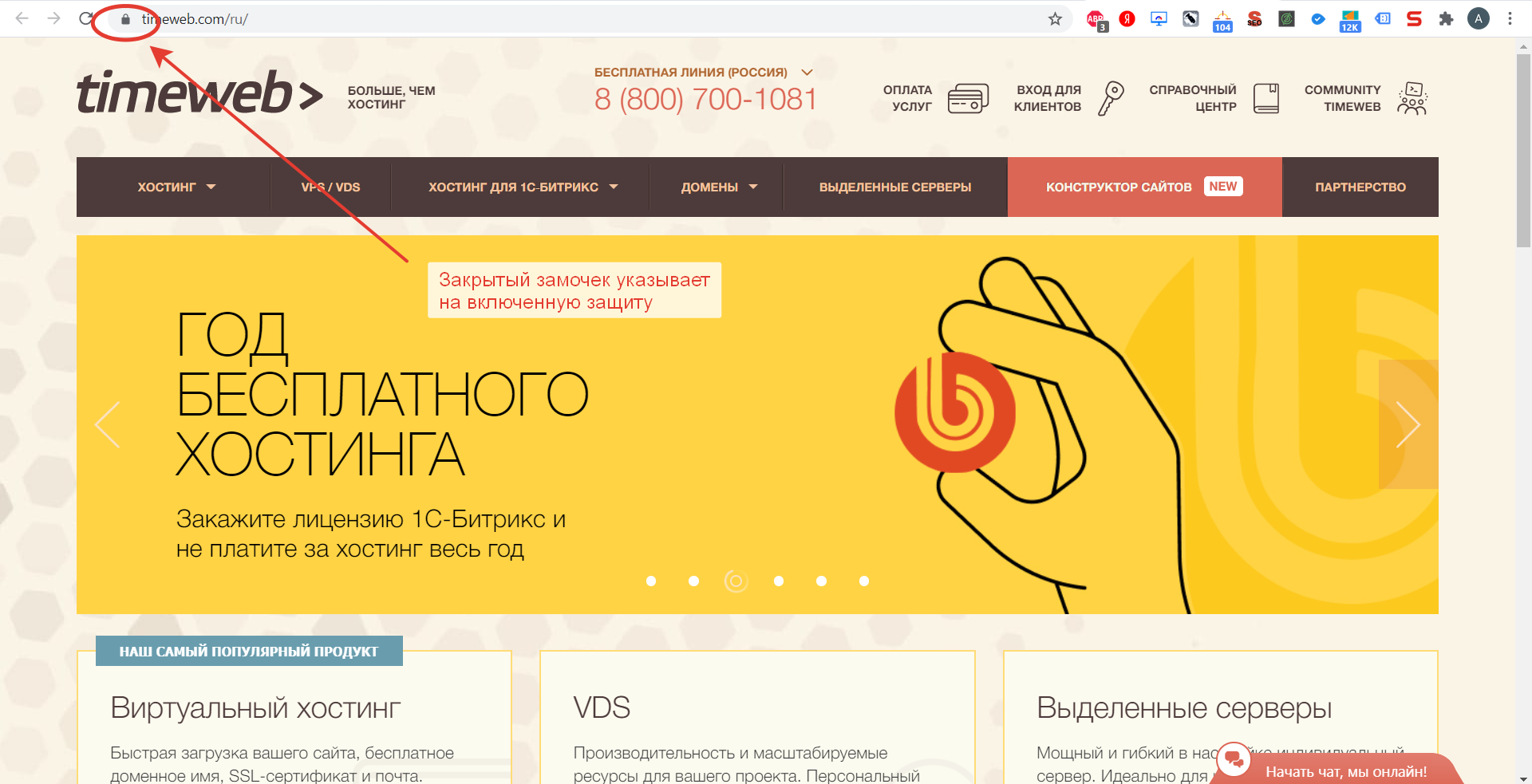
Особенности сертификата:
- Сертификат выпускается доверенным центром Certification Authority (CA).
- После выдачи он подключается к домену средствами провайдера хостинга.
- Срок его действия ограничен 1 годом, после чего требуется продление.
Работа сайта возможна и без SSL, но поисковые системы «не доверяют» таким ресурсам и помечают их в браузере как неблагонадежные. Поэтому лучше разобраться, как решить проблему с защитой и полноценно пользоваться протоколом HTTPS. Сертификат актуален на сайтах, где присутствует регистрация, предлагается покупка товаров или онлайн-оплата различных сервисов.
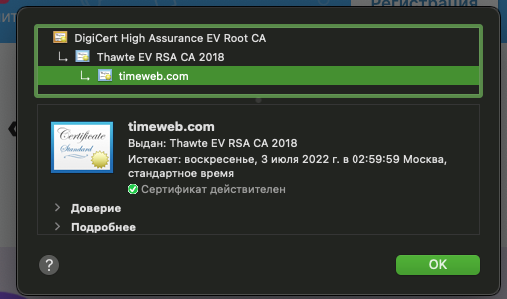
При появлении любых сомнений в исправности защиты регистрироваться на сайте или вводить ранее выданные логин и пароль не рекомендуется. Тем более не стоит осуществлять онлайн-оплату с банковских карт или электронных кошельков, ведь не исключено, что проблема возникла из-за взлома ресурса злоумышленниками.
Комьюнити теперь в Телеграм
Подпишитесь и будьте в курсе последних IT-новостей
Подписаться
Причины появления ошибок SSL
Существует всего две причины, почему браузер отображает ошибку сертификата SSL со стороны сервера. Первая заключается в окончании срока активации, вторая – это покупка сертификата у поставщика без достаточных полномочий для выдачи «полноценной защиты». Например, виной может быть выбор самоподписанного сертификата, лишь эмулирующего работу реального протокола.
Остальные проблемы обычно скрываются на локальном компьютере:
- Произошел сброс системного времени.
- Неправильно настроена антивирусная программа.
- Сбоит браузер или установленное расширение.
- Срабатывает вредоносный скрипт.
Чтобы выяснить настоящую причину, пользователю браузера рекомендуется проверить все перечисленные факторы. При том же заражении компьютерными вирусами возможно проявление сразу нескольких симптомов – от изменения текущего времени и блокировки антивирусом до подключения перенаправления страниц в браузере и других неприятностей.
Изредка встречаются ситуации, когда проблема возникла со стороны администратора, если он ошибся при подключении нового сертификата или забыл продлить его действие. Обычно такие неполадки устраняются быстро, потому что после активации сайт проверяется и, в случае неработоспособности сертификата, проводится повторное подключение вплоть до получения положительного результата.
Время и дата
Сертификат SSL имеет четко обозначенный срок действия с датой активации и деактивации. Такой подход отчасти дает дополнительную защиту, потому что в случае технического сбоя в системных часах компьютера сайты перестают открываться. Сброс времени обычно происходит «назад», на дату изготовления материнской платы, на что и реагирует система.
Варианты исправления ситуации:
- Вручную внести корректную дату и время, после чего обновить страницу в браузере.
- Воспользоваться функцией синхронизации через интернет, встроенной в Windows.
- Заменить батарейку на памяти BIOS. При первом запуске ПК нужно внести корректные данные.
Каждый раз после изменения времени рекомендуется ручное обновление страницы или перезапуск браузера. Такой шаг активирует повторное соединение с сервером и позволяет зайти на сайт «с нуля», но уже с правильным временем, соответствующим сроку действия сертификата SSL (после активации и до ее завершения).
Настройки антивируса и брандмауэра
Программы для защиты компьютера от вирусов и хакерских атак иногда блокируют и «полезные» соединения, например, определенные домены или сразу весь протокол HTTPS, используемый при подключении сертификата SSL. Большинство антивирусов и брандмауэров проверяют его работу, и это становится причиной блокировки сайта как «злоумышленника, пытающего украсть данные».
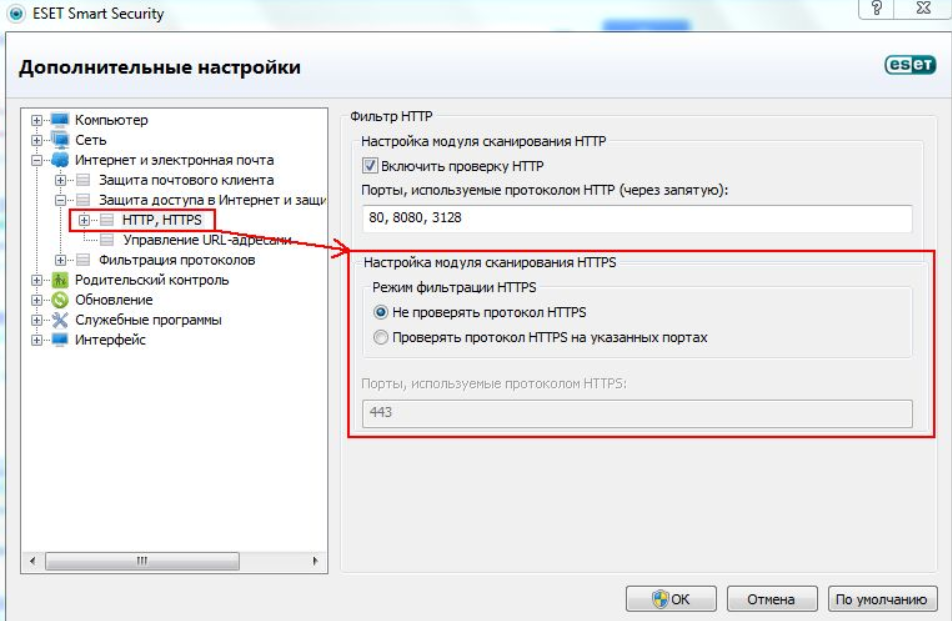
Варианты исправления ситуации:
- Отключить режим «проверка протокола HTTPS». После этого зайти на сайт заново.
- Полностью выключить антивирусную программу. Перезагрузить ПК, открыть страницу.
- Сбросить настройки брандмауэра. Опять проводится перезапуск компьютера и веб-ресурса.
Функция временного отключения имеется в любой защитной программе, даже интегрированной в операционную систему Windows. Но это не гарантирует полную деактивацию приложения. В этом случае разобраться в ситуации поможет открытие сайта на другом компьютере или запуск безопасного режима (актуально для проводного подключения к интернету).
Браузер и операционная система
Наличие проблемы с браузером проще всего определить открытием сайта на другом устройстве или в другой программе. Иногда решение заключается в банальном обновлении версии приложения до актуальной. То же относится к операционной системе, если используется интегрированный браузер вроде Edge. Пакеты обновлений для того и выпускаются, чтобы устранять неполадки в ПО.
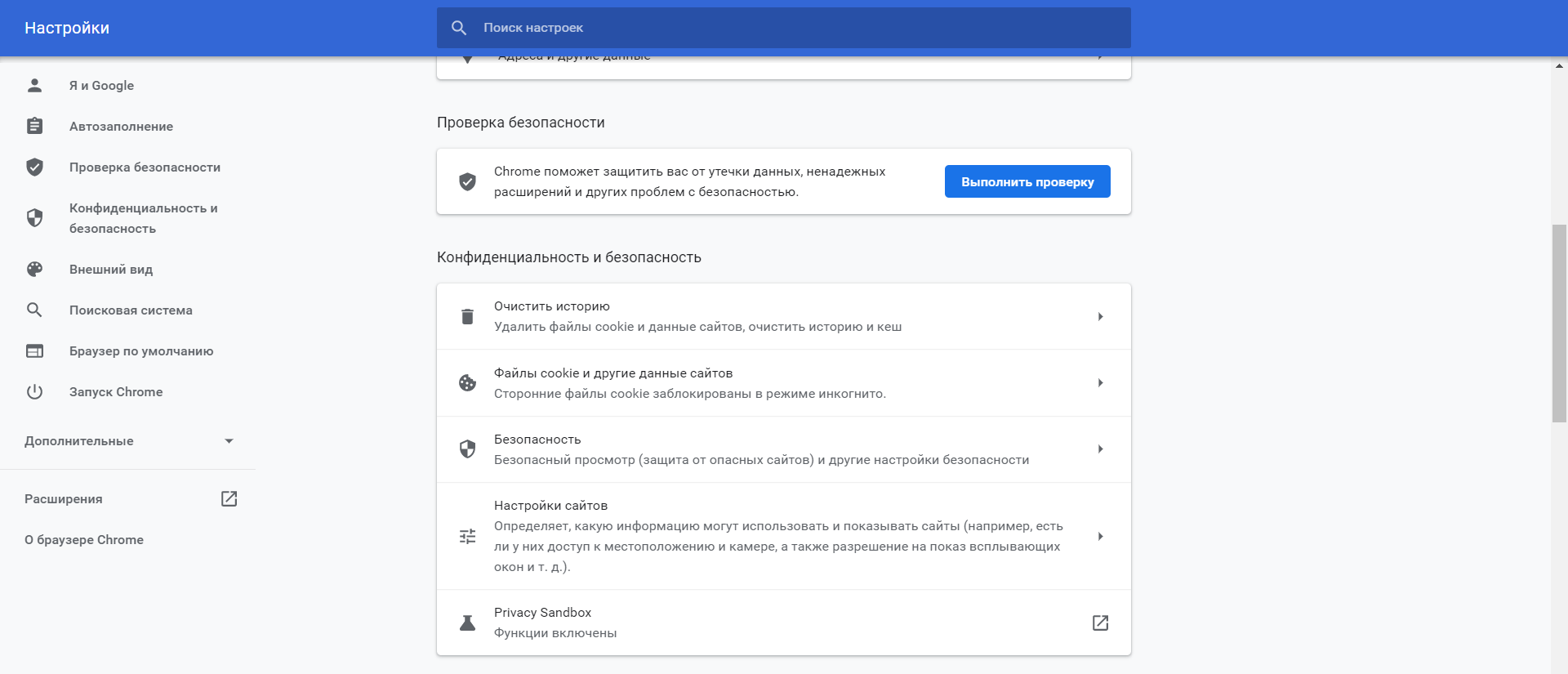
Варианты исправления ситуации:
- Полностью очистить историю браузера вместе с кэшем и другими данными.
- Временно отключить все ранее установленные и активные расширения.
- Переустановить программу после ее полной деинсталляции.
Остается еще один вариант – сбросить настройки браузера до состояния «по умолчанию». Способ аналогичен переустановке, но экономит время. Правда, он неэффективен, если проблема возникла из-за сбоя в одном из служебных файлов программы. Отдельное внимание стоит уделить расширению, выполняющему функции антивирусной защиты, ведь оно часто блокирует даже безопасное соединение.
Заражение компьютерными вирусами
Выдачей ошибки SSL браузер, вероятно, предупреждает о попытке его подмены, переадресации на сайт-клон или иной угрозе. В это случае рекомендуется провести полную проверку компьютера на наличие вирусов. Если присутствуют другие признаки заражения, стоит скачать парочку программ со свежими антивирусными базами (например, CureIt).
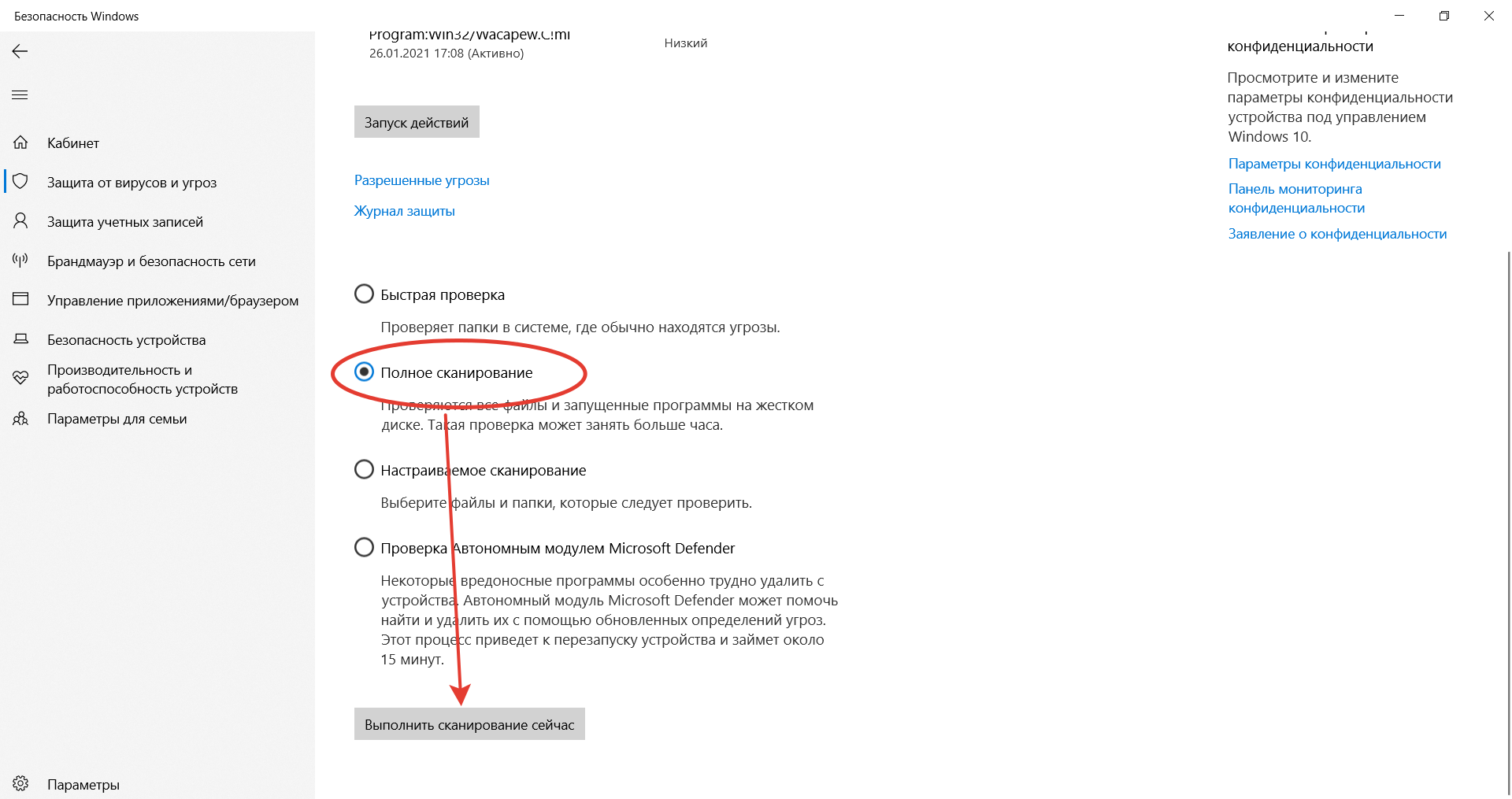
Варианты исправления ситуации:
- Временно отключить все программы из автозагрузки.
- Провести очистку диска от временных файлов.
- Перезагрузить компьютер после предыдущих шагов.
Выполняются перечисленные действия программами типа CCleaner. Они дают прямой доступ как к автозагрузке операционной системе, так и к списку расширений установленных браузеров. Также в таких программах обычно есть функция удаления ненужных системных файлов, в которых запросто может быть тело компьютерного вируса.
Если предложенные способы устранения ошибки SSL не помогли, остается ждать, пока проблему устранит администратор, или воспользоваться любым другим тематическим сайтом с аналогичным контентом.
Несколько пользователей сообщили об ошибке подключения SSL в Chrome, когда пытались просматривать разные сайты? Раз уж вы здесь, значит, вы тоже столкнулись с этой проблемой. Не беспокойтесь, так как мы рассмотрели все мельчайшие детали этого кода ошибки и представили наилучшие возможные решения.
Что такое ошибка соединения SSL?
Такие проблемы возникают, когда трафик принудительно проталкивается через HTTPS. Chrome или другие подобные браузеры страдают сильнее, и когда это происходит, вам запрещается просматривать определенные веб-сайты.
Существует несколько типов сбоев подключения SSL, которые вы можете увидеть при попытке доступа к определенным веб-сайтам, и они довольно распространены. В то время как некоторые сбои могут быть вызваны сбоями сервера, другие в основном возникают из-за проблем с локальными настройками.
Эта ошибка будет отображаться как «Ошибка 107 (net: ERR_SSL_PROTOCOL_ERROR): ошибка протокола SSL«.
Примечание. Сообщение об ошибке указывает на то, что вы не можете установить безопасное соединение с сервером.
Каковы причины «Ошибка подключения SSL» в Chrome?
Проблема с подключением SSL может возникнуть внутри Chrome в результате следующего:
- Проблема с браузером
- Брандмауэр или антивирусная защита
- Имя сертификата SSL не соответствует имени домена
- Настройки даты и времени на аппарате неверны
- SSL-сертификат, который не является доверенным, просроченным или неавторизованным
- Небезопасные данные веб-сайта
Способы исправить ошибку подключения SSL в Google Chrome
Попробуйте каждый из перечисленных ниже способов один за другим, чтобы увидеть, какой из них лучше всего подходит для вас.
1] Изменить время и дату
Когда Google Chrome обнаруживает, что дата и время не совпадают с вашим физическим местоположением, может возникнуть «Ошибка подключения SSL в Google Chrome». Чтобы избежать этой проблемы, измените дату и время в вашей системе. Шаги для этого описаны ниже.
- Используя клавиатуру, нажмите «клавиша Windows + R», чтобы открыть команду «Выполнить».
- Введите «
timedate.cpl» и нажмите кнопку «ОК«.

- Перейдите на вкладку «Дата и время» и нажмите кнопку «Изменить дату и время».

- На панели «Настройки даты и времени» вы можете точно установить дату и время, то есть в соответствии с вашим текущим местным временем и поясом.

- Нажмите кнопку «ОК«.
- Система перенаправит вас в окно Дата и время. Ну, нажмите «Применить«, затем «ОК«.
2] Найдите и добавьте надежные сайты
Если веб-сайт, который вы пытаетесь посетить, не имеет действительного SSL-сертификата и не является доверенным для Chrome, он будет работать, чтобы предотвратить это, отображая сообщение об ошибке. В этом случае перейдите в «Свойства обозревателя» и добавьте веб-сайт в список надежных сайтов. Чтобы добавить его в надежные сайты, выполните следующие действия:
- Щелкните правой кнопкой мыши значок Windows и выберите «Выполнить».
- Введите «
inetcpl.cpl» в поле поиска и нажмите Enter. - Далее появится окно свойств Интернета.
- Перейдите на вкладку «Безопасность» и выберите значок «Надежные сайты» в разделе «выберите зону для просмотра или изменения параметров безопасности«.

- Нажмите кнопку «Сайты «.
- Окно надежных сайтов теперь будет отображаться как новое всплывающее окно.
- Перейдите в раздел Добавить этот веб-сайт в зону и введите URL-адрес веб-сайта, который вызывал проблему.
- Нажмите кнопку «Добавить «, доступную рядом с ним.

- Добавленный веб-сайт должен появиться в разделе «Веб- сайты» на той же странице.
- Нажмите OK, чтобы сохранить текущие изменения.
- Вернувшись в окно свойств Интернета, нажмите «Применить», а затем «ОК«.
- Перезапустите Chrome и проверьте, можете ли вы теперь просматривать его без ошибок.
3] Используйте TLS 1.1 и 1.2
Изменение настроек прокси-сервера в свойствах Интернета также может исправить ошибку подключения SSL в Chrome, если она еще не устранена. Следующие инструкции покажут вам, как изменить его текущие настройки –
- Снова откройте окно свойств Интернета, как указано в решении № 2.
- Перейдите на вкладку «Дополнительно «.
- Прокрутите вниз и установите все флажки слева от «Использовать SSL 3.0″, «Использовать TLS 1.0», «Использовать TLS 1.1», «Использовать TLS 1.2» и «Использовать TLS 1.3» один за другим в разделе «Безопасность«.

- Чтобы сохранить текущие изменения, нажмите «Применить», затем «ОК» и перезапустите Chrome.
Снова запустите Chrome и посмотрите, сможете ли вы без проблем получить доступ к нужному веб-сайту.
4] Отключить расширенные настройки безопасности
Chrome имеет определенные встроенные настройки, которые распознают потенциально опасные веб-сайты и предотвращают их посещение пользователями. Это становится совершенно необходимым, когда на этом сайте отсутствует сертификат SSL, что вызывает ошибку соединения SSL. Если это так, и вы доверяете этому конкретному веб-сайту, вы можете отключить его расширенные настройки безопасности.
Вот как обновить настройки конфиденциальности, чтобы узнать, помогает ли это:
- Откройте Google Chrome.
- Нажмите на три вертикальные точки в правом верхнем углу.
- Нажмите на параметр «Настройки » в отображаемом списке.
- На левой панели экрана настроек выберите Безопасность и конфиденциальность.
- Выберите параметр «Безопасность» на правой панели.
- Когда раздел «Безопасность» развернется, проверьте текущий статус усиленной защиты в разделе «Безопасный просмотр».

- Если это уже было выбрано, снимите его, отметив Стандартный или Нет защиты.
Перезапустите Chrome, чтобы увидеть, была ли проблема решена или все еще появляется.
5] Установите уровень безопасности Chrome на средний
Возможно, установлен слишком высокий уровень интернет-безопасности, из-за чего веб-сайт не загружается в Chrome. Если это так, попробуйте установить средний уровень безопасности и посмотрите, поможет ли это. Давайте посмотрим, как:
- Нажмите Win + R, введите «
inetcpl.cpl» и нажмите «ОК». - Перейдите на вкладку «Безопасность» в окне «Свойства обозревателя».
- В разделе «Уровень безопасности для этой зоны» перетащите ползунок в положение «Средний-высокий«.

- Нажмите кнопку «Применить«, а затем «ОК«, чтобы подтвердить последние изменения.
Теперь откройте Chrome и попробуйте просмотреть страницу, на которой раньше отображалась проблема с SSL-соединением; теперь он должен работать правильно.
6] Проверьте обновления браузера
Вы всегда должны следить за тем, есть ли в браузере Chrome какие-либо доступные обновления, и если да, вам следует установить самую последнюю версию, чтобы он работал правильно. Вот как узнать, был ли обновлен Chrome или нет:
- Запустите Google Chrome.
- В правом верхнем углу нажмите на три вертикальные точки.
- В меню, появившемся в результате предыдущего шага, выберите «Справка«, а затем «О Google Chrome«.
- Раздел «О Chrome» отображается в правой части страницы настроек справки, которая открывается в новой вкладке браузера.
- Затем Chrome начнет автоматически искать любые доступные обновления.
- Он автоматически загрузит и установит обновление, если оно доступно.
- После этого нажмите кнопку «Перезапустить» рядом с ним, чтобы перезапустить браузер.
7] Очистить кеш состояния SSL
Ошибка подключения SSL, скорее всего, вызвана состоянием SSL вашего компьютера. Вы можете попробовать удалить этот кеш, чтобы узнать, поможет ли он устранить ошибку подключения к веб-сайту. Вот как это сделать:
- Снова зайдите в окно свойств Интернета.
- Перейдите на вкладку «Содержимое» и нажмите «Очистить состояние SSL«.

Как только вы нажмете кнопку, он удалит все локально сохраненные сертификаты на вашем компьютере. В следующий раз, когда вы попытаетесь открыть веб-сайт в Chrome, он попытается повторно аутентифицировать свой сертификат, что может позволить ему избежать ошибки и правильно открыть веб-сайт.
8] Очистить кэш Chrome и файлы cookie
Некоторые проблемы с Chrome просто вызваны накоплением кеша браузера и накоплением файлов cookie. Очистка кеша и файлов cookie в Chrome может помочь вам решить проблему и получить доступ к нужному веб-сайту. Выполните следующие действия:
- Запустите Google Chrome
- В правом верхнем углу браузера нажмите на три вертикальные точки.
- Выберите параметры настроек в отображаемом меню.

- В окне настроек Chrome нажмите «Безопасность и конфиденциальность» в левой панели навигации.
- Нажмите «Очистить данные браузера» на правой панели.
- Предыдущий шаг приводит к появлению нового всплывающего окна под названием «Очистить данные просмотра».
- Установите флажок рядом с файлами cookie и другими данными сайта, а также кэшированными изображениями и файлами.
- Нажмите кнопку «Очистить» внизу и подождите некоторое время для завершения.
После этого перезапустите браузер, и вы сможете получить доступ к веб-сайту, на котором отображалась проблема с SSL.
9] Отключить протокол QUIC
Если ни один из вышеперечисленных способов не помог решить эту проблему, попробуйте этот способ в качестве последнего обходного пути, чтобы исправить ошибку подключения SSL для веб-сайта, который вы хотите посетить. Для этого выполните следующие действия:
- Запустите Google Chrome
- Вставьте следующий путь в адресную строку браузера:
chrome://flags/#enable-quic
- Предыдущий шаг приведет вас прямо к странице флага Chrome, где будет выделен экспериментальный протокол QUIC.
- Выберите параметр «Отключить» в раскрывающемся меню рядом с экспериментальным протоколом QUIC.

Перезапустите браузер Chrome и посмотрите, можете ли вы теперь посетить веб-сайт. Я надеюсь, что вы нашли эту статью полезной для исправления ошибок соединения SSL в Google Chrome.
It’s never been easier to obtain a Secure Sockets Layer (SSL) certificate for your website and set it up. But you can still run into SSL connection errors even after installing your certificate correctly and forcing traffic through HTTPS. In many cases, these error messages can drive users away.
Understanding what causes SSL errors will help you prevent them from popping up on your website. You’ll also know what to do if you run into one, depending on the message you see and the browser or OS you’re using.
In this article, we’ll explore what SSL connection errors are and their leading causes. We’ll also discuss their most common types and how you can troubleshoot them.
Let’s get to it!
Check Out Our Video Guide to Fixing SSL Connection Errors
What Is an SSL Connection Error?
There are several types of SSL connection errors that you may encounter while browning the web. Some of these errors are due to server-side issues, whereas others are because of local configuration problems.
In broad terms, SSL connection errors will prevent you from browsing a website securely over Hypertext Transfer Protocol Secure (HTTPS). Your browser may allow you to proceed with the connection, but in most cases, it’ll tell you that you’re doing so at your own risk. Without a valid SSL certificate, malicious parties can intercept any data you exchange with the website you’re trying to view.
Some of the most common SSL connection errors that you may run into include:
- NET:ERR_CERT_AUTHORITY_INVALID
- NET::ERR_CERT_COMMON_NAME_INVALID
- NET::ERR_CERT_REVOKED
- SSL Handshake Failed
- ERR_SSL_OBSOLETE_VERSION
- ERR_SLL_PROTOCOL_ERROR
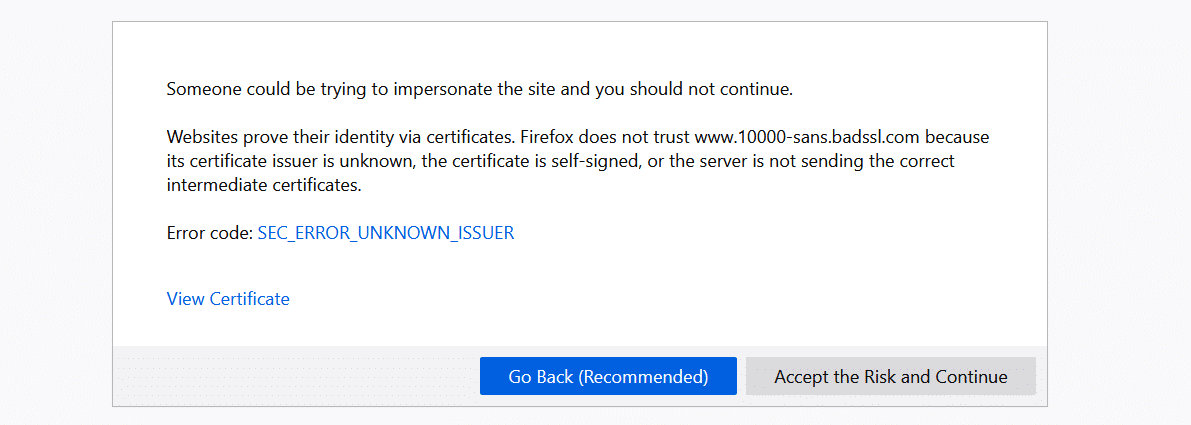
Each type of SSL connection error points towards a different cause. When you run into such a problem, your browser will display a specific message that gives you information about why you see it:
It’s important to note that error messages can vary from one browser to another. The one pictured above comes from Firefox, whereas the one below pops up when we open the same website using Chrome:
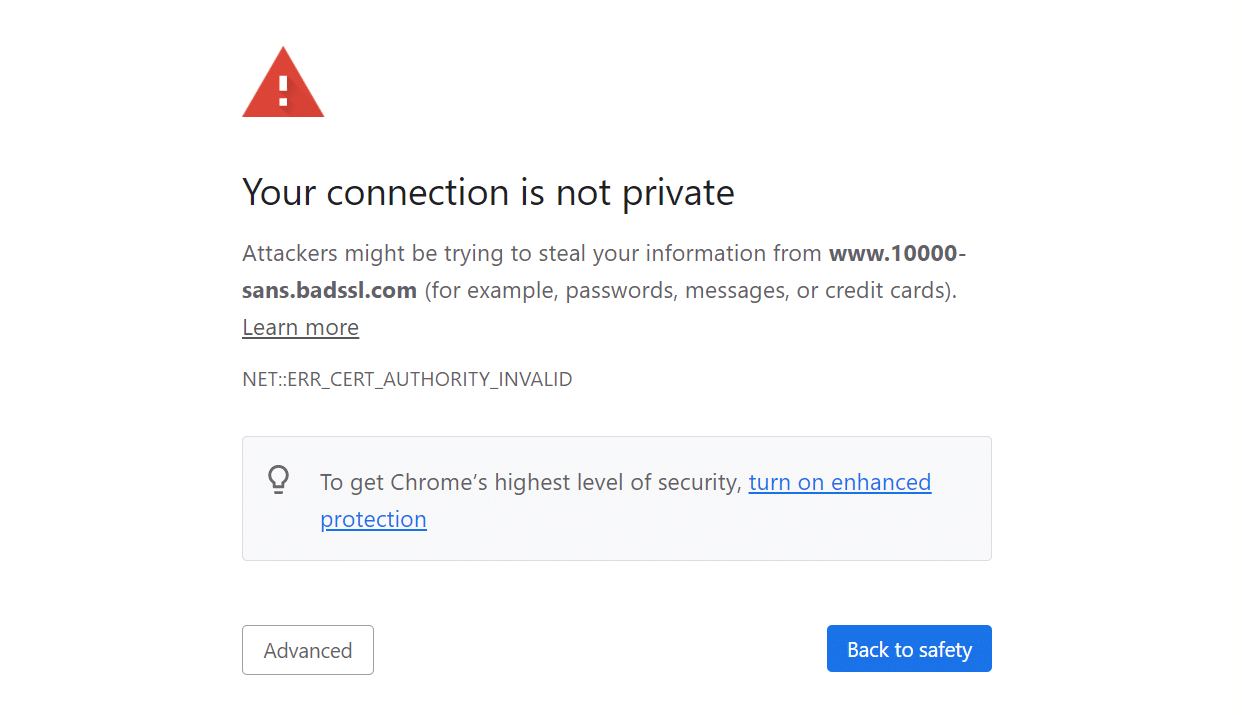
As mentioned before, not all SSL connection errors stem from problems with your server configuration. Your website can have a perfectly valid SSL certificate, but users might still run into errors when accessing it.
Throughout the following few sections, we’ll show you what to do if you’re trying to access a website and you run into SSL connection issues.
It’s never been easier to obtain an SSL certificate for your website and set it up… but errors can still occur. 😅 Learn how to fix them with this guide ⬇️Click to Tweet
How to Fix SSL Connection Errors (8 Methods)
If you’re not in charge of a website, there’s little that you can do when it comes to fixing server-side SSL connection errors. However, some issues can occur due to problems with your local device or browser configuration.
We’ll show you how to fix local issues that cause SSL connection errors using various browsers, mobile OSs, and social media platforms.
Let’s get fixing!
1. How to Fix the SSL Connection Error in Google Chrome
If you run into an SSL connection error in Google Chrome, there are several quick fixes that you can implement.
First off, make sure you’re running the latest version of Chrome. You can update Chrome from within the browser itself, or you can download and install the most recent version from Google Chrome’s website.
Next, check if your system’s time and date are synchronized. If your device’s time is not correct, you may run into SSL connection issues throughout the web because some SSL certificates rely on internal system clocks for validation. An incorrect time or date on your computer can lead to errors as your browser can’t verify these certificates.
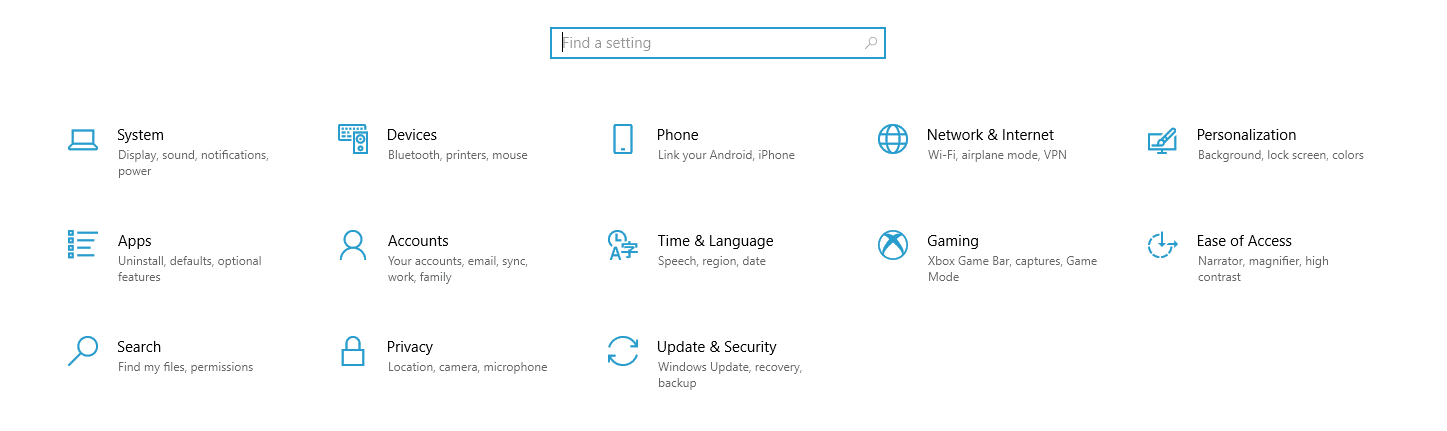
On Windows, you can fix the time and date by opening the Settings menu and selecting the Time & Language option:
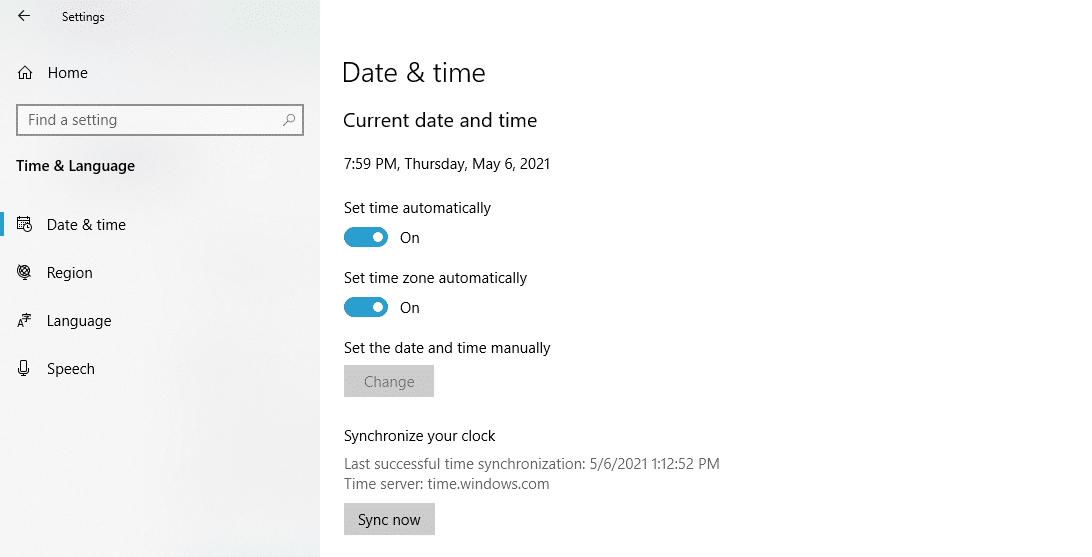
On the next screen, make sure that both the Set the time automatically and Set the time zone automatically options are enabled. Alternatively, you can select your time zone manually and enable the Set the date and time manually option:
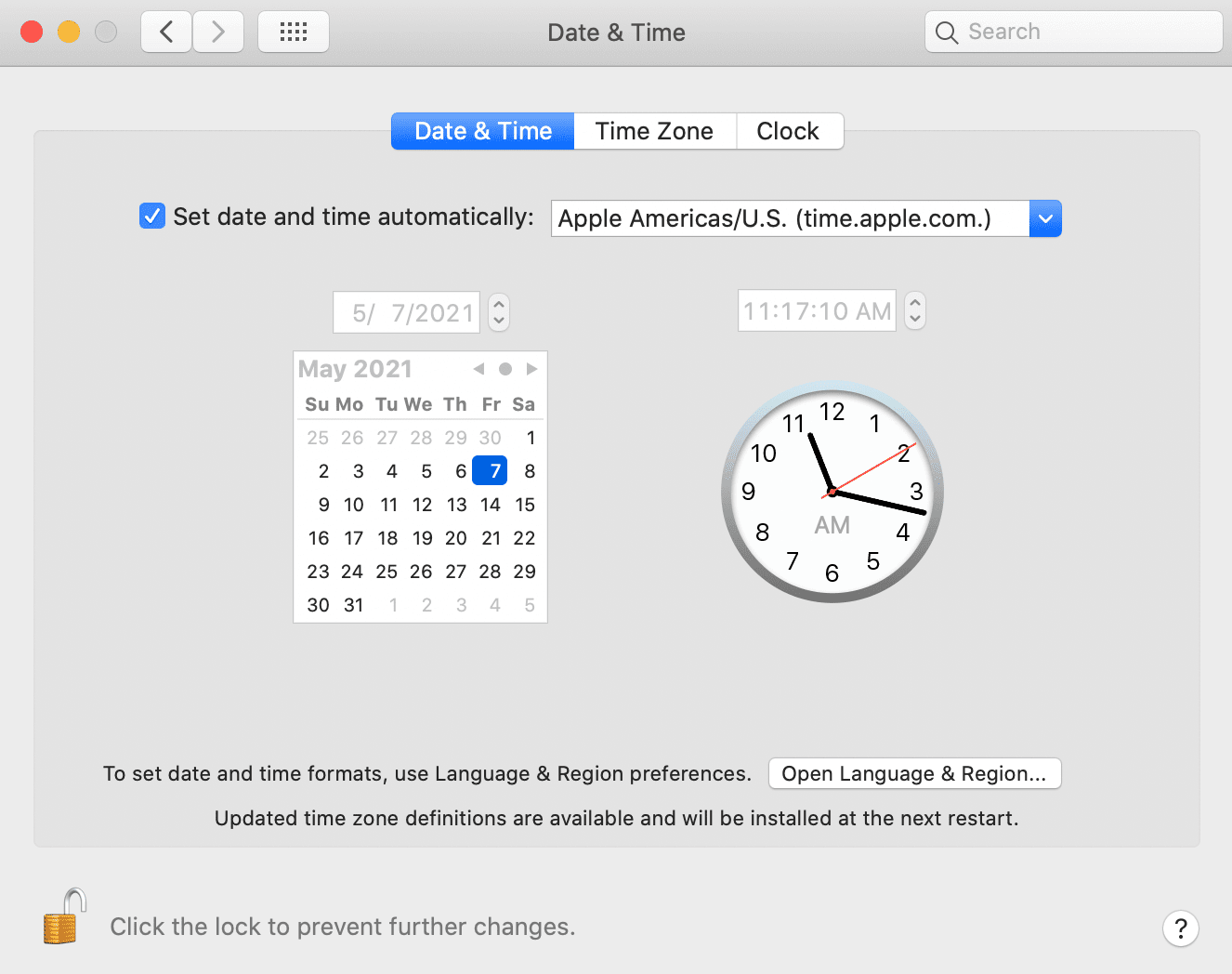
If you’re using Chrome on macOS, open the System Preferences menu by clicking on the Apple icon in the top left corner of the screen. Select the Date & Time option and enable the Set date and time automatically setting:
Once you fix the date and time, try accessing the website that showed an SSL connection error in Chrome. If the problem persists, move on to clearing your Chrome cache and cookies. To do so, open the Settings menu and click on Clear browsing data.
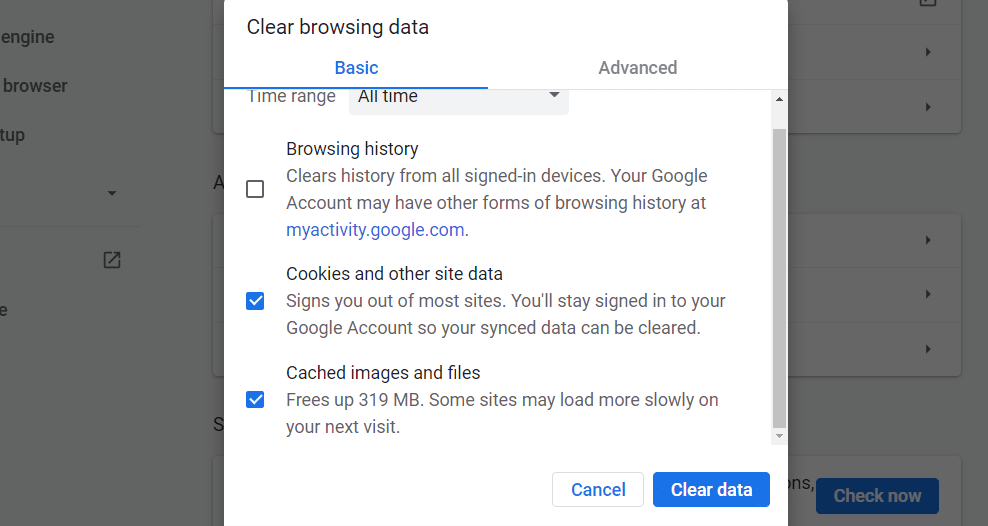
A window will pop up, enabling you to select what data you want to clear. If you’re using the Basic settings, select Cookies and other site data and Cached images and files, then hit the Clear data button:
Another fix that you can try is to clear the SSL slate in your operating system. To do so in Windows, open the start menu and search for Internet Options. Click on the result that comes up, and an Internet Properties window will pop up. Jump to Content and click on Clear SSL slate:
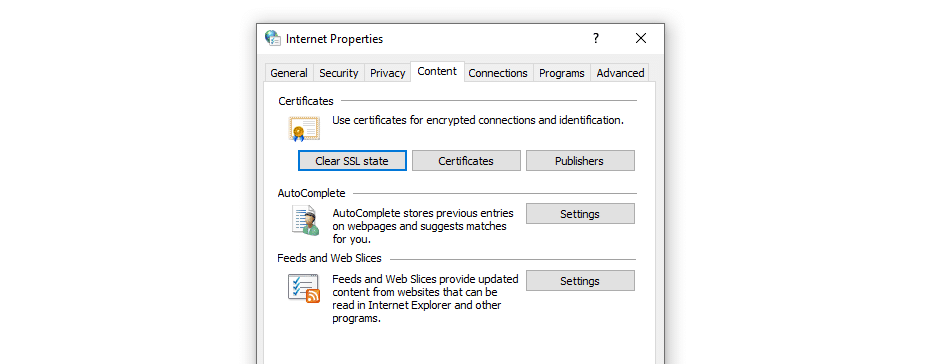
Clearing the SSL slate will remove all of the certificates stored locally on your computer. The next time you reload the website giving you SSL connection errors, the browser will attempt to re-validate its certificate and, in doing so, might clear the error.
If you’re using macOS, clearing your SSL slate works a bit differently. Open your Utilities menu and go to Keychain Access. Select the System option under Keychains in the left-hand menu, and you’ll see an overview of all the SSL certificates that your system stores locally:
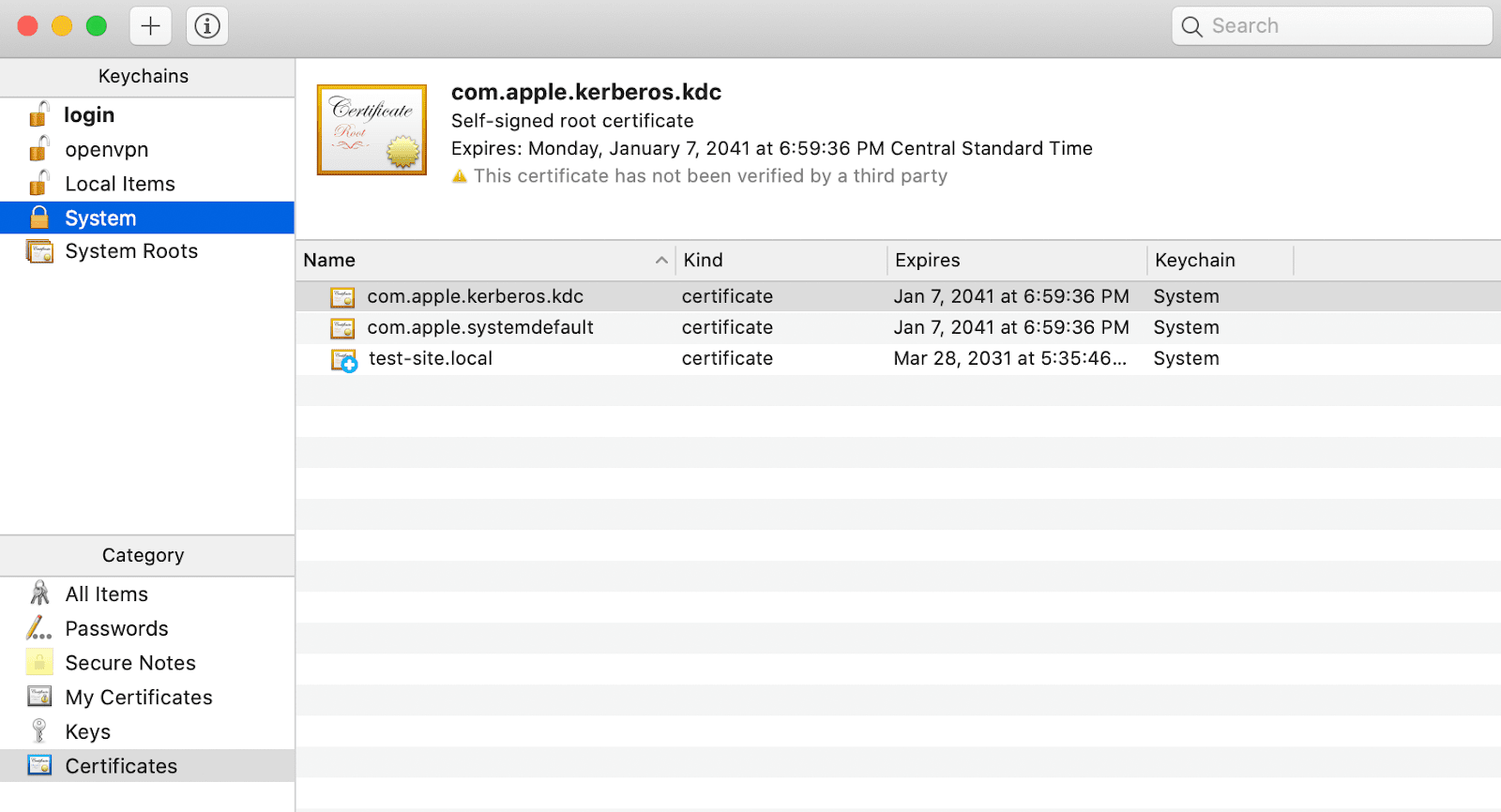
You can select certificates individually and delete them manually. If you spot a certificate for the website you’re trying to access, delete that one first, then check to see if the SSL connection error persists.
At this stage, if all else fails, temporarily disable your antivirus software and firewall. We suggest this as a last resort because, in most cases, your antivirus software won’t cause issues with SSL connections.
If you try every fix and nothing works, you can assume that the SSL connection problem lies with the server.
2. How to Fix the SSL Connection Error in Firefox
Fixing SSL connection errors in Firefox works much the same as with other browsers. You can follow the instructions in the last section to implement the following fixes:
- Check your system’s date and time and adjust them.
- Clear your local SSL slate.
If neither of those solutions works, then it’s time to clear your Firefox cookies and cache. To do so, go to the Options menu and jump to the Privacy & Security tab. Then click on the Clear Data button under Cookies and Site Data:
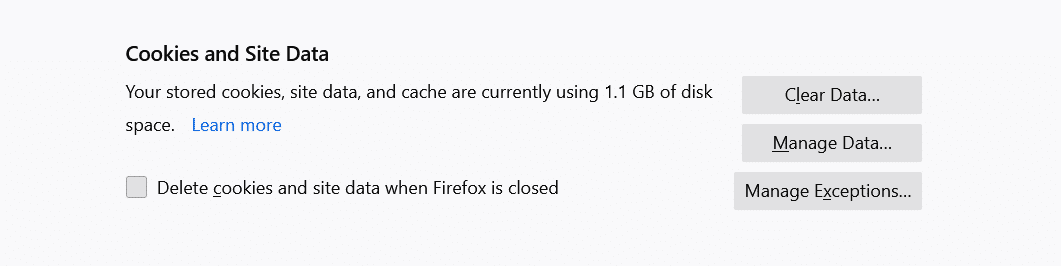
Try accessing the website with the SSL connection error once more. If your browser fails to establish a connection, check to see whether there’s a new version of Firefox that you can update.
3. How to Fix the SSL Connection Error in Safari
So far, we’ve covered multiple fixes for the SSL connection error that work across OSs. If you’re using Safari, start by following the same instructions given under the Google Chrome section:
- Check your system’s date and time and adjust them.
- Clear your local SSL slate in macOS.
If the SSL connection error persists, you can move forward and clear your Safari cookies and cache. If you’re using an iMac, Macbook, iPhone, or iPad, the exact instructions apply here:
- Open the Safari Settings menu.
- Click on Clear History.
With that out of the way, try to access the website that gave you an SSL connection error before. The error should be gone now unless you’re dealing with a server-side configuration issue.
4. How to Fix the SSL Connection Error on iPhones and iPads
The process for fixing the SSL connection error on an iPhone or an iPad is identical to doing so on macOS. First, you need to check if your device’s date and time are synchronized. To access your mobile device’s date and time settings:
- Open the Settings app and select General > Date & Time.
- Check if the Set Automatically option is enabled. If it isn’t, turn it on.
- Manually check if your device is using the correct time zone.
After updating your date and time settings, you can move on to clearing your browser’s cookies and cache. To do so, open the Settings app and select Safari > Clear History and Website Data:
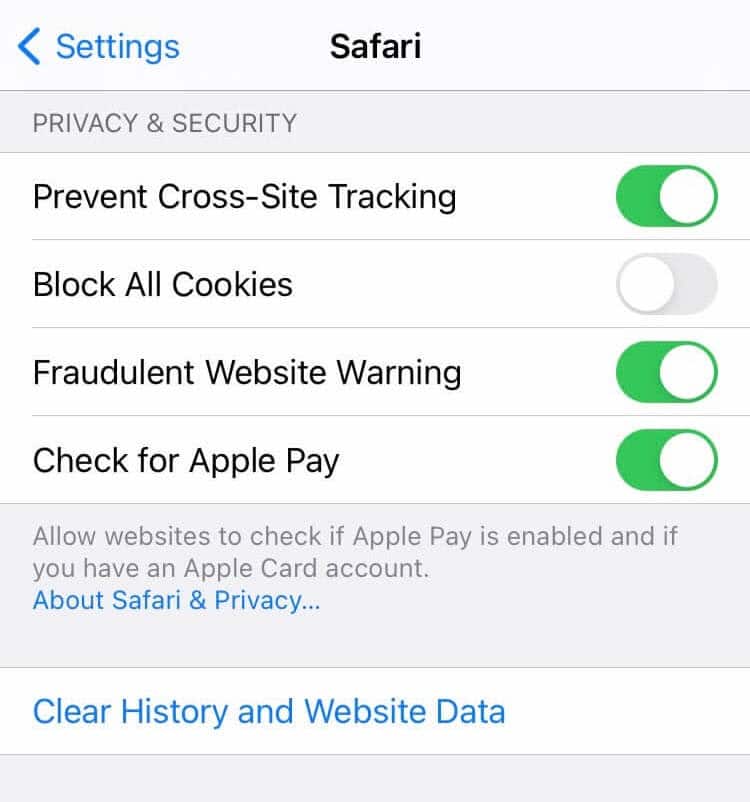
If you’ve installed a different browser on your iOS device, the process should still be similar.
Unfortunately, the most recent versions of iOS have removed the option to clear your SSL slate on your iPhone or iPad, so this is not a viable solution. If none of the fixes above work, you can assume the problem is server-side.
5. How to Fix the SSL Connection Error on Android
Fixing the SSL connection error on Android is relatively simple. First, go ahead and check your time and date settings to see if they’re accurate.
Open the Settings app and tap on General Management > Date and time. Then check if the Automatic date and time setting is enabled:
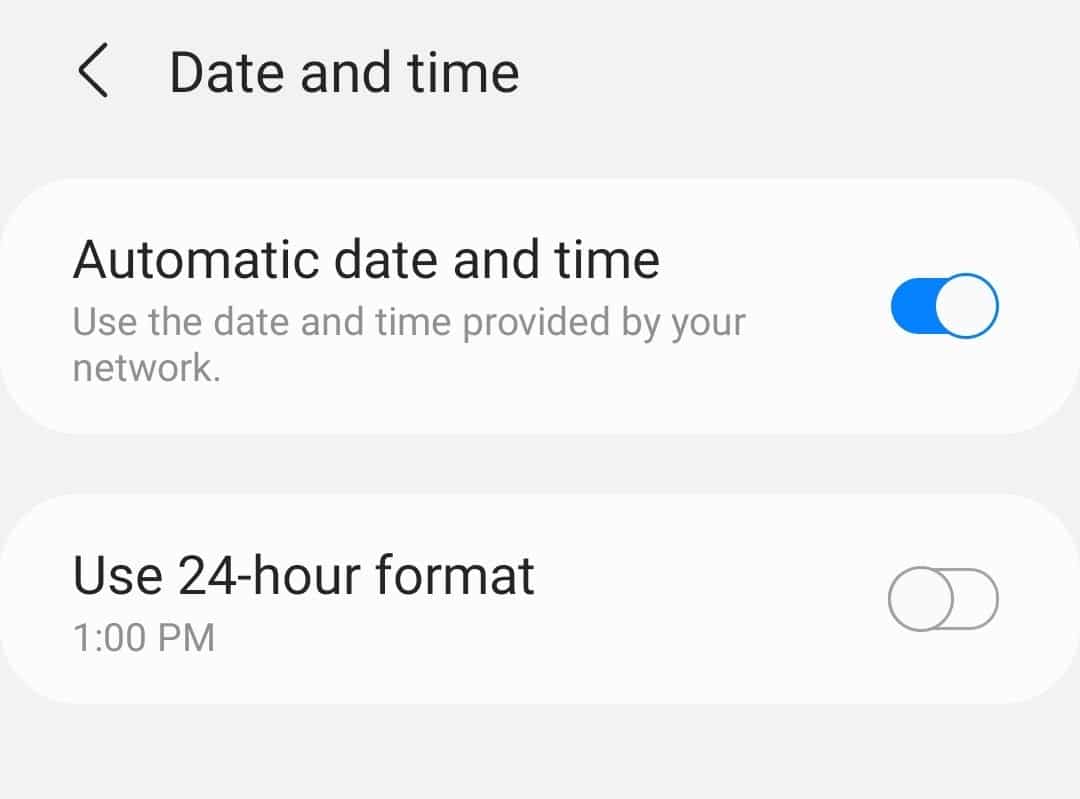
It’s important to note that, like iOS, Android doesn’t include an option for clearing your SSL slate or deleting individual certificates. What you can do to fix SSL connection errors is to clear your Chrome browsing data. To do so:
- Open the Chrome browser and access its Settings menu.
- Go to Privacy and security.
- Tap on Clear browsing data.
- Select your browser’s Cookies and site data and Cached images and files options, then tap on Clear data.
After clearing your Chrome website data, check if the SSL connection error persists. If it does, the chances are that it’s a server-side configuration issue.
6. How to Fix the SSL Connection Error on Facebook
If you run into an SSL connection error on Facebook, you can be sure that it’s not a server-side issue. That means you’re dealing with a local configuration problem. Here are the fixes that you should implement:
- Adjust your local time and date settings.
- Clear your browser’s cache and cookies.
- Clear your OS’s SSL slate or delete any local certificates for Facebook.
You can find instructions about adjusting your date and time settings on Windows and macOS within the Google Chrome section of this article. We also have instructions on clearing your browser’s cookies and cache for Chrome, Firefox, and Safari.
7. How to Fix the SSL Connection Error on Gmail
You won’t run into SSL connection errors while trying to access Gmail using mobile apps. However, SSL errors might pop up if you’re using Chrome, Firefox, or Safari to access Gmail’s web service. In that case, you should:
- Adjust your local time and date settings (check the Google Chrome section above for instructions).
- Clear your browser’s cache and cookies.
- Clear your OS’s SSL slate or delete any local certificates for Gmail.
If everything else fails, you can access Gmail using a mobile app while you try disabling your firewall temporarily or updating your browser to its latest version.
8. How to Fix the SSL Connection Error on YouTube
SSL connection errors on YouTube are likely due to local configuration errors within your OS or browser. If you run into an SSL error in YouTube:
- Adjust your local time and date settings (check the Google Chrome section above for instructions).
- Clear your browser’s cache and cookies.
- Clear your OS’s SSL slate or delete any local certificates from YouTube.
We provided instructions on clearing your browser’s cache and cookies for Chrome, Firefox, and Safari earlier in this post. Likewise, you can find step-by-step guides on how to clear your SSL slate by checking the Chrome and Safari instructions in the previous sections.
Don’t let SSL errors bring you down 🙅♂️ Learn how to quickly troubleshoot them right here ✅Click to Tweet
Summary
SSL connection errors can come in a lot of shapes and sizes. If you’re dealing with a server-side error, there’s often little that you can do except wait for the site’s owner to fix it or proceed with an unsafe connection.
That said, you can attempt several local configuration fixes that may solve this issue, including:
- Adjusting your time and date settings.
- Clearing your browser’s cookies and cache.
- Clearing your OS’s SSL slate.
If you’re still facing SSL connection errors with your website, please leave a comment below. Kinsta clients can also reach out to our support team to get any SSL errors fixed.
Get all your applications, databases and WordPress sites online and under one roof. Our feature-packed, high-performance cloud platform includes:
- Easy setup and management in the MyKinsta dashboard
- 24/7 expert support
- The best Google Cloud Platform hardware and network, powered by Kubernetes for maximum scalability
- An enterprise-level Cloudflare integration for speed and security
- Global audience reach with up to 35 data centers and 275+ PoPs worldwide
Test it yourself with $20 off your first month of Application Hosting or Database Hosting. Explore our plans or talk to sales to find your best fit.
It’s never been easier to obtain a Secure Sockets Layer (SSL) certificate for your website and set it up. But you can still run into SSL connection errors even after installing your certificate correctly and forcing traffic through HTTPS. In many cases, these error messages can drive users away.
Understanding what causes SSL errors will help you prevent them from popping up on your website. You’ll also know what to do if you run into one, depending on the message you see and the browser or OS you’re using.
In this article, we’ll explore what SSL connection errors are and their leading causes. We’ll also discuss their most common types and how you can troubleshoot them.
Let’s get to it!
Check Out Our Video Guide to Fixing SSL Connection Errors
What Is an SSL Connection Error?
There are several types of SSL connection errors that you may encounter while browning the web. Some of these errors are due to server-side issues, whereas others are because of local configuration problems.
In broad terms, SSL connection errors will prevent you from browsing a website securely over Hypertext Transfer Protocol Secure (HTTPS). Your browser may allow you to proceed with the connection, but in most cases, it’ll tell you that you’re doing so at your own risk. Without a valid SSL certificate, malicious parties can intercept any data you exchange with the website you’re trying to view.
Some of the most common SSL connection errors that you may run into include:
- NET:ERR_CERT_AUTHORITY_INVALID
- NET::ERR_CERT_COMMON_NAME_INVALID
- NET::ERR_CERT_REVOKED
- SSL Handshake Failed
- ERR_SSL_OBSOLETE_VERSION
- ERR_SLL_PROTOCOL_ERROR
Each type of SSL connection error points towards a different cause. When you run into such a problem, your browser will display a specific message that gives you information about why you see it:
It’s important to note that error messages can vary from one browser to another. The one pictured above comes from Firefox, whereas the one below pops up when we open the same website using Chrome:
As mentioned before, not all SSL connection errors stem from problems with your server configuration. Your website can have a perfectly valid SSL certificate, but users might still run into errors when accessing it.
Throughout the following few sections, we’ll show you what to do if you’re trying to access a website and you run into SSL connection issues.
It’s never been easier to obtain an SSL certificate for your website and set it up… but errors can still occur. 😅 Learn how to fix them with this guide ⬇️Click to Tweet
How to Fix SSL Connection Errors (8 Methods)
If you’re not in charge of a website, there’s little that you can do when it comes to fixing server-side SSL connection errors. However, some issues can occur due to problems with your local device or browser configuration.
We’ll show you how to fix local issues that cause SSL connection errors using various browsers, mobile OSs, and social media platforms.
Let’s get fixing!
1. How to Fix the SSL Connection Error in Google Chrome
If you run into an SSL connection error in Google Chrome, there are several quick fixes that you can implement.
First off, make sure you’re running the latest version of Chrome. You can update Chrome from within the browser itself, or you can download and install the most recent version from Google Chrome’s website.
Next, check if your system’s time and date are synchronized. If your device’s time is not correct, you may run into SSL connection issues throughout the web because some SSL certificates rely on internal system clocks for validation. An incorrect time or date on your computer can lead to errors as your browser can’t verify these certificates.
On Windows, you can fix the time and date by opening the Settings menu and selecting the Time & Language option:
On the next screen, make sure that both the Set the time automatically and Set the time zone automatically options are enabled. Alternatively, you can select your time zone manually and enable the Set the date and time manually option:
If you’re using Chrome on macOS, open the System Preferences menu by clicking on the Apple icon in the top left corner of the screen. Select the Date & Time option and enable the Set date and time automatically setting:
Once you fix the date and time, try accessing the website that showed an SSL connection error in Chrome. If the problem persists, move on to clearing your Chrome cache and cookies. To do so, open the Settings menu and click on Clear browsing data.
A window will pop up, enabling you to select what data you want to clear. If you’re using the Basic settings, select Cookies and other site data and Cached images and files, then hit the Clear data button:
Another fix that you can try is to clear the SSL slate in your operating system. To do so in Windows, open the start menu and search for Internet Options. Click on the result that comes up, and an Internet Properties window will pop up. Jump to Content and click on Clear SSL slate:
Clearing the SSL slate will remove all of the certificates stored locally on your computer. The next time you reload the website giving you SSL connection errors, the browser will attempt to re-validate its certificate and, in doing so, might clear the error.
If you’re using macOS, clearing your SSL slate works a bit differently. Open your Utilities menu and go to Keychain Access. Select the System option under Keychains in the left-hand menu, and you’ll see an overview of all the SSL certificates that your system stores locally:
You can select certificates individually and delete them manually. If you spot a certificate for the website you’re trying to access, delete that one first, then check to see if the SSL connection error persists.
At this stage, if all else fails, temporarily disable your antivirus software and firewall. We suggest this as a last resort because, in most cases, your antivirus software won’t cause issues with SSL connections.
If you try every fix and nothing works, you can assume that the SSL connection problem lies with the server.
2. How to Fix the SSL Connection Error in Firefox
Fixing SSL connection errors in Firefox works much the same as with other browsers. You can follow the instructions in the last section to implement the following fixes:
- Check your system’s date and time and adjust them.
- Clear your local SSL slate.
If neither of those solutions works, then it’s time to clear your Firefox cookies and cache. To do so, go to the Options menu and jump to the Privacy & Security tab. Then click on the Clear Data button under Cookies and Site Data:
Try accessing the website with the SSL connection error once more. If your browser fails to establish a connection, check to see whether there’s a new version of Firefox that you can update.
3. How to Fix the SSL Connection Error in Safari
So far, we’ve covered multiple fixes for the SSL connection error that work across OSs. If you’re using Safari, start by following the same instructions given under the Google Chrome section:
- Check your system’s date and time and adjust them.
- Clear your local SSL slate in macOS.
If the SSL connection error persists, you can move forward and clear your Safari cookies and cache. If you’re using an iMac, Macbook, iPhone, or iPad, the exact instructions apply here:
- Open the Safari Settings menu.
- Click on Clear History.
With that out of the way, try to access the website that gave you an SSL connection error before. The error should be gone now unless you’re dealing with a server-side configuration issue.
4. How to Fix the SSL Connection Error on iPhones and iPads
The process for fixing the SSL connection error on an iPhone or an iPad is identical to doing so on macOS. First, you need to check if your device’s date and time are synchronized. To access your mobile device’s date and time settings:
- Open the Settings app and select General > Date & Time.
- Check if the Set Automatically option is enabled. If it isn’t, turn it on.
- Manually check if your device is using the correct time zone.
After updating your date and time settings, you can move on to clearing your browser’s cookies and cache. To do so, open the Settings app and select Safari > Clear History and Website Data:
If you’ve installed a different browser on your iOS device, the process should still be similar.
Unfortunately, the most recent versions of iOS have removed the option to clear your SSL slate on your iPhone or iPad, so this is not a viable solution. If none of the fixes above work, you can assume the problem is server-side.
5. How to Fix the SSL Connection Error on Android
Fixing the SSL connection error on Android is relatively simple. First, go ahead and check your time and date settings to see if they’re accurate.
Open the Settings app and tap on General Management > Date and time. Then check if the Automatic date and time setting is enabled:
It’s important to note that, like iOS, Android doesn’t include an option for clearing your SSL slate or deleting individual certificates. What you can do to fix SSL connection errors is to clear your Chrome browsing data. To do so:
- Open the Chrome browser and access its Settings menu.
- Go to Privacy and security.
- Tap on Clear browsing data.
- Select your browser’s Cookies and site data and Cached images and files options, then tap on Clear data.
After clearing your Chrome website data, check if the SSL connection error persists. If it does, the chances are that it’s a server-side configuration issue.
6. How to Fix the SSL Connection Error on Facebook
If you run into an SSL connection error on Facebook, you can be sure that it’s not a server-side issue. That means you’re dealing with a local configuration problem. Here are the fixes that you should implement:
- Adjust your local time and date settings.
- Clear your browser’s cache and cookies.
- Clear your OS’s SSL slate or delete any local certificates for Facebook.
You can find instructions about adjusting your date and time settings on Windows and macOS within the Google Chrome section of this article. We also have instructions on clearing your browser’s cookies and cache for Chrome, Firefox, and Safari.
7. How to Fix the SSL Connection Error on Gmail
You won’t run into SSL connection errors while trying to access Gmail using mobile apps. However, SSL errors might pop up if you’re using Chrome, Firefox, or Safari to access Gmail’s web service. In that case, you should:
- Adjust your local time and date settings (check the Google Chrome section above for instructions).
- Clear your browser’s cache and cookies.
- Clear your OS’s SSL slate or delete any local certificates for Gmail.
If everything else fails, you can access Gmail using a mobile app while you try disabling your firewall temporarily or updating your browser to its latest version.
8. How to Fix the SSL Connection Error on YouTube
SSL connection errors on YouTube are likely due to local configuration errors within your OS or browser. If you run into an SSL error in YouTube:
- Adjust your local time and date settings (check the Google Chrome section above for instructions).
- Clear your browser’s cache and cookies.
- Clear your OS’s SSL slate or delete any local certificates from YouTube.
We provided instructions on clearing your browser’s cache and cookies for Chrome, Firefox, and Safari earlier in this post. Likewise, you can find step-by-step guides on how to clear your SSL slate by checking the Chrome and Safari instructions in the previous sections.
Don’t let SSL errors bring you down 🙅♂️ Learn how to quickly troubleshoot them right here ✅Click to Tweet
Summary
SSL connection errors can come in a lot of shapes and sizes. If you’re dealing with a server-side error, there’s often little that you can do except wait for the site’s owner to fix it or proceed with an unsafe connection.
That said, you can attempt several local configuration fixes that may solve this issue, including:
- Adjusting your time and date settings.
- Clearing your browser’s cookies and cache.
- Clearing your OS’s SSL slate.
If you’re still facing SSL connection errors with your website, please leave a comment below. Kinsta clients can also reach out to our support team to get any SSL errors fixed.
Get all your applications, databases and WordPress sites online and under one roof. Our feature-packed, high-performance cloud platform includes:
- Easy setup and management in the MyKinsta dashboard
- 24/7 expert support
- The best Google Cloud Platform hardware and network, powered by Kubernetes for maximum scalability
- An enterprise-level Cloudflare integration for speed and security
- Global audience reach with up to 35 data centers and 275+ PoPs worldwide
Test it yourself with $20 off your first month of Application Hosting or Database Hosting. Explore our plans or talk to sales to find your best fit.