Ошибка 1079: учетная запись, указанная для этой службы, отличается от учетной записи, указанной для других служб, работающих в том же процессе ошибка возникает для службы, когда у учетной записи, которая используется для управления службой, недостаточно разрешений для ее запуска. Для служб Windows учетная запись должна быть учетной записью Локальная служба , тогда как иногда она может быть установлена как учетная запись Локальная система , что может привести к этой ошибке. Ошибка обычно возникает для таких служб, как Windows Time, Windows Firewall, Windows Event Log и т. Д.
В этой статье мы взяли пример того, как служба времени Windows обнаруживает эту ошибку. Независимо от того, какой сервис, шаги по исправлению ошибки одинаковы. Поэтому, если вы получаете ошибку 1079 и в какой-либо другой службе, вы можете выполнить шаги, упомянутые в этой статье, чтобы решить проблему.
Читайте дальше, чтобы узнать, как можно легко исправить ошибку 1079 служб Windows ошибка.
Шаг 1 : нажмите одновременно клавиши Win и R , чтобы открыть окно Выполнить . Введите services.msc и нажмите кнопку Enter .
Шаг 2 : в окне”Службы” прокрутите вниз и найдите службу Windows Time . Щелкните его правой кнопкой мыши и выберите параметр Свойства .
Шаг 3 . Убедитесь, что в окне”Свойства”вы находитесь на вкладке Вход .
Выберите переключатель , соответствующий Эта учетная запись .
Наконец, нажмите кнопку Обзор .
Примечание . Вы можете пропустить шаги 4, 5 и 6, просто скопировав и вставив NT AUTHORITY LocalService в текстовом поле Эта учетная запись вместо просмотра и поиска имени учетной записи.
Шаг 4 : в Выбрать пользователя , нажмите кнопку Дополнительно .
Шаг 5 . Как и далее, нажмите кнопку Найти Нажмите кнопку”Сейчас “в следующем окне. В результатах поиска дважды щелкните ЛОКАЛЬНАЯ СЛУЖБА , как показано на снимке экрана ниже.
Шаг 6 : Введите имя объекта, чтобы выбрать поле теперь будет заполнено автоматически. Нажмите кнопку ОК .
Шаг 7 . Как и далее, оставьте поле Пароль и Подтвердите пароль , поле пусто . После завершения нажмите кнопку Применить .
Шаг 8 . Появится диалоговое окно с сообщением, что вам необходимо остановить и перезапустить службу для внесения изменений. взять на себя. Нажмите кнопку OK .
Шаг 9 . Вернувшись на вкладку”Вход в систему”, нажмите ОК . кнопку.
Шаг 10 . Как и далее, дважды щелкните службу Windows Time , чтобы открыть Свойства еще раз.
Шаг 11 : вкладка Общие откроется для вас по умолчанию. Нажмите здесь кнопку Стоп , чтобы остановить службу.
Шаг 12 . Наконец, нажмите кнопку Пуск и затем нажмите кнопку ОК , чтобы перезапустить службу
Перезагрузить компьютер и установите флажок если проблема решена или нет.
Примечание. Если вы получаете сообщение об ошибке 1079 в службе Брандмауэра Windows , выполните шаги 1–12 для службы Брандмауэра Windows . Наряду с этим, выполните те же действия для службы Base Filtering Engine , если ошибка связана со службой брандмауэра Windows.
Вот и все. Ошибка 1079 больше не должна вас беспокоить. Надеюсь, статья была вам полезна.

Тот, кто любит писать и технические приемы и советы.
by Matthew Adams
Matthew is a freelancer who has produced a variety of articles on various topics related to technology. His main focus is the Windows OS and all the things… read more
Updated on January 14, 2022
- The Bluetooth support service error 1079 can appear when you are trying to connect or pair a Bluetooth device with your computer.
- This Bluetooth error can become a complete nuisance but you can fix them easily using this guide.
-
Make sure your drivers are up to date and uncorrupted. You can do this manually and with dedicated software.
-
Other options are to use the troubleshooter, switch your devices to discovery mode, install the latest updates, and more.

XINSTALL BY CLICKING THE DOWNLOAD FILE
- Download Restoro PC Repair Tool that comes with Patented Technologies (patent available here).
- Click Start Scan to find Windows 10 issues that could be causing PC problems.
- Click Repair All to fix issues affecting your computer’s security and performance
- Restoro has been downloaded by 0 readers this month.
The Bluetooth support service error 1079 states: Error 1079: The account specified for this service is different from the account specified for the other services running in the same process.
Are you getting that error when trying to connect, or pair, Bluetooth devices? If that’s so, it could have something to do with the Local System account starting the services or driver incompatibility.
Bluetooth support service error 1079 can cause many problems on your PC, and speaking of Bluetooth errors, here are some common issues that users reported:
- Bluetooth support service stopped Windows 7 – This problem can affect almost any version of Windows, and even if you don’t use Windows 10, you should be able to fix this problem using one of our solutions.
- Error 1068 Bluetooth service – This is another Bluetooth error that you can encounter. This error is usually caused by your drivers, so be sure to keep them up to date.
- Bluetooth support service missing, disabled, stopped, grayed out – If you’re having problems with Bluetooth support service, you might be able to fix the issue by performing an SFC and DISM scans.
- Bluetooth support service the system cannot find the path specified – This is another common problem with Bluetooth, and you might be able to fix it simply by keeping your system up to date.
- Windows could not start the Bluetooth support service error 1079 – This issue can occur if Bluetooth Support service isn’t properly configured. Simply change the configuration of this service and the issue will be resolved.
- Bluetooth support service error 1053 – This is another common problem with Bluetooth, but you should be able to fix it using one of our solutions.
How do I fix Bluetooth support service error 1079?
1. Update the Bluetooth driver
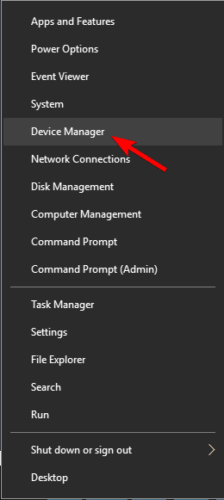
- Press the Win + X keys and select Device Manager on the menu.
- Click on Bluetooth Radios listed in Device Manager.
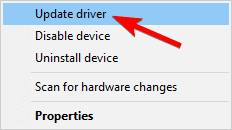
- Right-click your Bluetooth adapter and select Update driver.
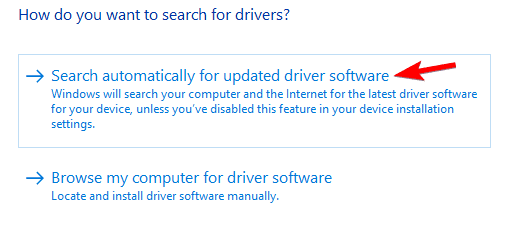
- Click the Search automatically for updated driver software option and then press the Next button (Windows will update the Bluetooth driver if there’s more update driver software).
Use a tool to upgrade the driver automatically
You can always download the missing driver quicker and easier using a third-party tool.
DriverFix allows you to download the missing drivers automatically with just a couple of clicks, so if you don’t want to manually search for drivers, be sure to try this tool.
Just download and install DriverFix and after you open it, it will automatically start to scan for problems with your drivers on your systems.
If you’re not used to updating your drivers too often, you will be surprised of how many problems this awesome tool will detect.
The only thing left to do is to decide whether you want to install the drivers one by one or all at once. For the first option you just tick the boxes for the individual drivers and for the second, you tick the Select All box on top.

DriverFix
Why would you bother installing the Bluetooth driver manually when with DriverFix you can do that automatically in just a few seconds?
2. Run the Hardware Troubleshooter
- Press Windows Key + I to open the Settings app.
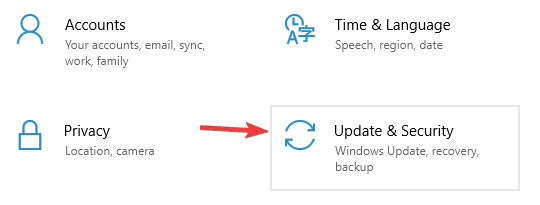
- Go to Update & Security section.
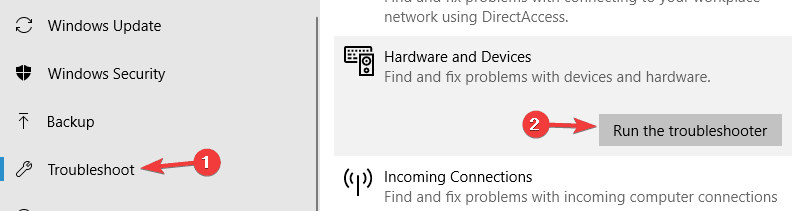
- Select Troubleshoot from the menu on the left.
- Choose Hardware and Device from the list and click Run the troubleshooter.
3. Configure the Bluetooth Support Service
- Click the Cortana button on your taskbar and enter services into its search box.
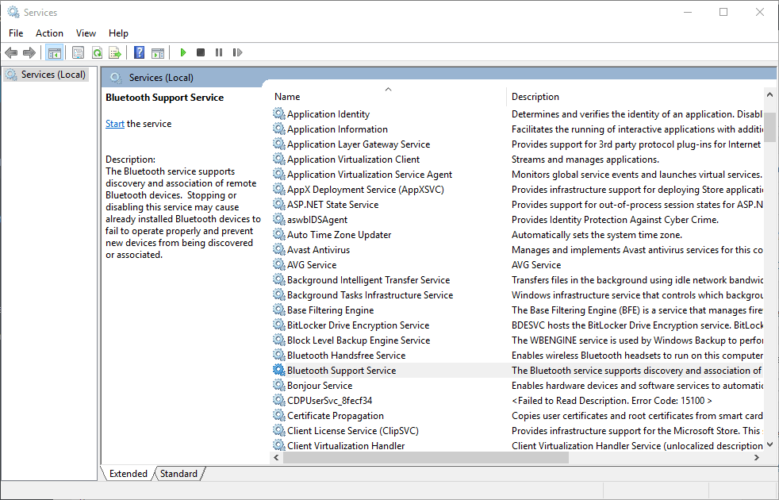
- Select Services to open the window in the snapshot directly below.
- Double-click on the Bluetooth Support Service.
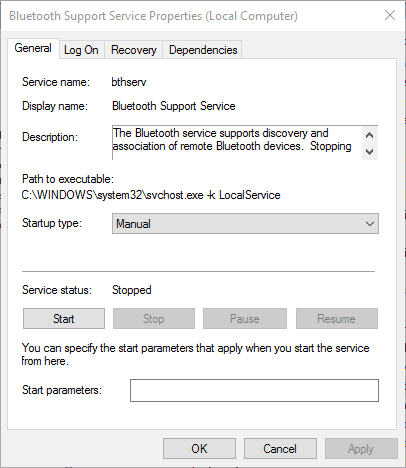
- If the Bluetooth Support Service is disabled, click the Startup type drop-down menu and select Manual from there.
- Click the Log On tab at the top of the window and select the This account radio button if the Local System account is currently selected.
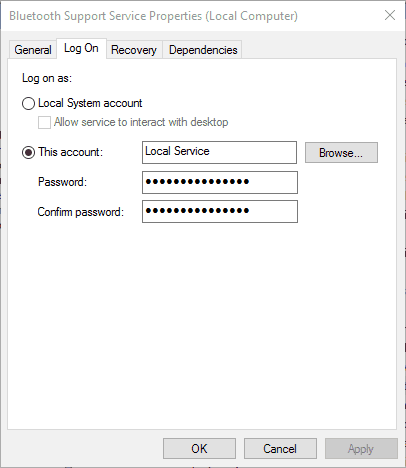
- Now enter NT AUTHORITYLocalService in the This account text box. Leave both the Password and Confirm password text boxes blank.
- Press the Apply and OK buttons to confirm the new Bluetooth Support Service settings.
- Switch back to the General tab and press the Start button to restart the Bluetooth Support Service.
4. Switch the Bluetooth device to Discovery Mode
Some PC issues are hard to tackle, especially when it comes to corrupted repositories or missing Windows files. If you are having troubles fixing an error, your system may be partially broken.
We recommend installing Restoro, a tool that will scan your machine and identify what the fault is.
Click here to download and start repairing.
You should also switch on the Bluetooth device you’re attempting to pair with the desktop or laptop, and switch it to its discovery mode.
How you switch it to discovery mode depends largely on the device. Keyboards, mice, and headsets usually have a button you need to hold down for a few secs.
If you’re not sure how to switch a device to discovery mode, check its manual for further details.
5. Install the latest updates
- Open the Settings app.
- Go to the Update & Security section and click on the Check for updates button.
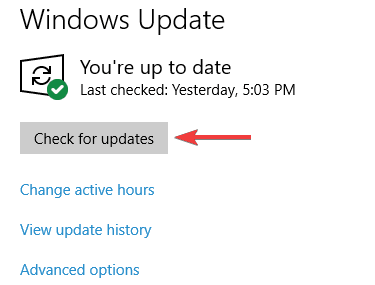
Note: If any updates are available, Windows will download them automatically in the background. Once the updates are downloaded, restart your PC to install them. After the latest updates are installed, check if the problem is still there.
6. Perform an SFC and DISM scan
Run the SFC scan
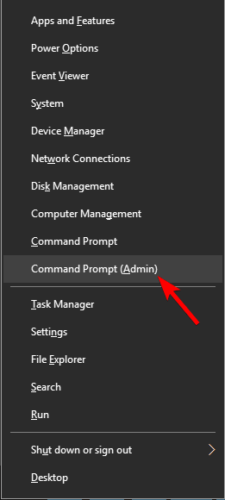
- Press Windows Key + X and select Command Prompt (Admin) from the list. If Command Prompt isn’t available, you can also use PowerShell (Admin).
- Type the sfc /scannow command and press Enter.
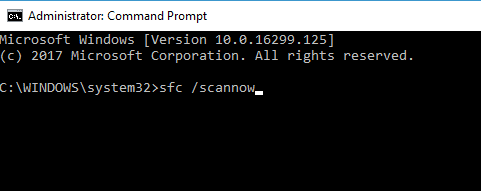
- The scan will now start and try to repair corrupted files. This process can take about 15 minutes, so don’t interrupt it.
Run the DISM scan
- Start Command Prompt as administrator.
- Enter the following command and press Enter to run it:
DISM /Online /Cleanup-Image /RestoreHealth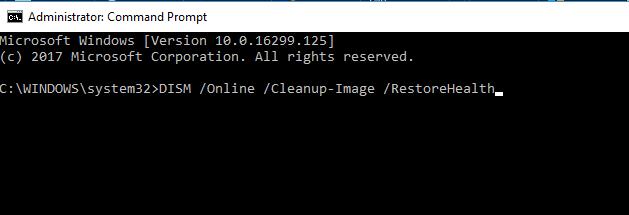
- The DISM scan will now start. This scan can take about 20 minutes or more, so don’t interrupt it.
7. Create a new user account
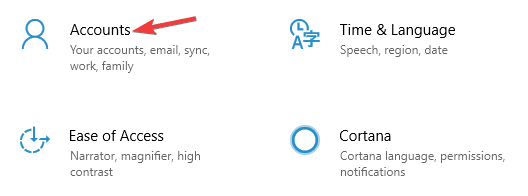
- Open the Settings app and go to the Accounts section.
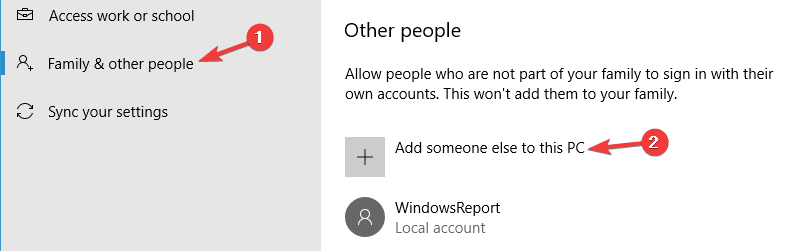
- Choose Family & other people from the menu on the left. Now select Add someone else to this PC.
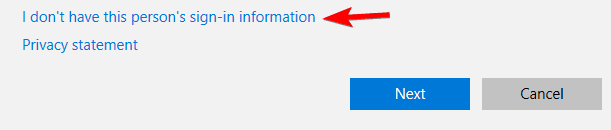
- Choose I don’t have this person’s sign-in information.
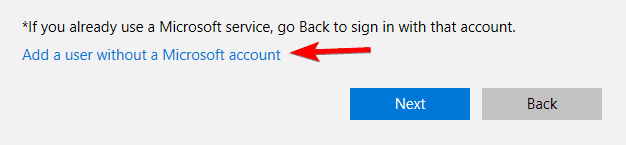
- Click Add a user without a Microsoft account.
- Enter the username for the new account and click Next.
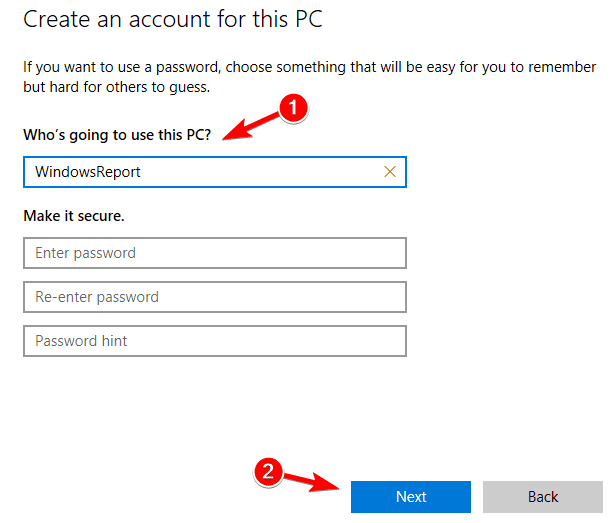
Once you create a new user account, switch to it and check if the problem appears. If not, it means that your old user account is corrupted, so we advise you to move all your personal files to the new account and start using it instead of the old one.
Those are a few fixes for error 1079. If you still need to fix Bluetooth, check out this expert guide for further detail.
If you’re facing other problems with your computer or software, you’re going to find a solution in our Tech Troubleshooting section.
News, guides, and tips, you can find all on our Windows 10 Hub.

Newsletter
by Matthew Adams
Matthew is a freelancer who has produced a variety of articles on various topics related to technology. His main focus is the Windows OS and all the things… read more
Updated on January 14, 2022
- The Bluetooth support service error 1079 can appear when you are trying to connect or pair a Bluetooth device with your computer.
- This Bluetooth error can become a complete nuisance but you can fix them easily using this guide.
-
Make sure your drivers are up to date and uncorrupted. You can do this manually and with dedicated software.
-
Other options are to use the troubleshooter, switch your devices to discovery mode, install the latest updates, and more.
XINSTALL BY CLICKING THE DOWNLOAD FILE
- Download Restoro PC Repair Tool that comes with Patented Technologies (patent available here).
- Click Start Scan to find Windows 10 issues that could be causing PC problems.
- Click Repair All to fix issues affecting your computer’s security and performance
- Restoro has been downloaded by 0 readers this month.
The Bluetooth support service error 1079 states: Error 1079: The account specified for this service is different from the account specified for the other services running in the same process.
Are you getting that error when trying to connect, or pair, Bluetooth devices? If that’s so, it could have something to do with the Local System account starting the services or driver incompatibility.
Bluetooth support service error 1079 can cause many problems on your PC, and speaking of Bluetooth errors, here are some common issues that users reported:
- Bluetooth support service stopped Windows 7 – This problem can affect almost any version of Windows, and even if you don’t use Windows 10, you should be able to fix this problem using one of our solutions.
- Error 1068 Bluetooth service – This is another Bluetooth error that you can encounter. This error is usually caused by your drivers, so be sure to keep them up to date.
- Bluetooth support service missing, disabled, stopped, grayed out – If you’re having problems with Bluetooth support service, you might be able to fix the issue by performing an SFC and DISM scans.
- Bluetooth support service the system cannot find the path specified – This is another common problem with Bluetooth, and you might be able to fix it simply by keeping your system up to date.
- Windows could not start the Bluetooth support service error 1079 – This issue can occur if Bluetooth Support service isn’t properly configured. Simply change the configuration of this service and the issue will be resolved.
- Bluetooth support service error 1053 – This is another common problem with Bluetooth, but you should be able to fix it using one of our solutions.
How do I fix Bluetooth support service error 1079?
1. Update the Bluetooth driver
- Press the Win + X keys and select Device Manager on the menu.
- Click on Bluetooth Radios listed in Device Manager.
- Right-click your Bluetooth adapter and select Update driver.
- Click the Search automatically for updated driver software option and then press the Next button (Windows will update the Bluetooth driver if there’s more update driver software).
Use a tool to upgrade the driver automatically
You can always download the missing driver quicker and easier using a third-party tool.
DriverFix allows you to download the missing drivers automatically with just a couple of clicks, so if you don’t want to manually search for drivers, be sure to try this tool.
Just download and install DriverFix and after you open it, it will automatically start to scan for problems with your drivers on your systems.
If you’re not used to updating your drivers too often, you will be surprised of how many problems this awesome tool will detect.
The only thing left to do is to decide whether you want to install the drivers one by one or all at once. For the first option you just tick the boxes for the individual drivers and for the second, you tick the Select All box on top.
DriverFix
Why would you bother installing the Bluetooth driver manually when with DriverFix you can do that automatically in just a few seconds?
2. Run the Hardware Troubleshooter
- Press Windows Key + I to open the Settings app.
- Go to Update & Security section.
- Select Troubleshoot from the menu on the left.
- Choose Hardware and Device from the list and click Run the troubleshooter.
3. Configure the Bluetooth Support Service
- Click the Cortana button on your taskbar and enter services into its search box.
- Select Services to open the window in the snapshot directly below.
- Double-click on the Bluetooth Support Service.
- If the Bluetooth Support Service is disabled, click the Startup type drop-down menu and select Manual from there.
- Click the Log On tab at the top of the window and select the This account radio button if the Local System account is currently selected.
- Now enter NT AUTHORITYLocalService in the This account text box. Leave both the Password and Confirm password text boxes blank.
- Press the Apply and OK buttons to confirm the new Bluetooth Support Service settings.
- Switch back to the General tab and press the Start button to restart the Bluetooth Support Service.
4. Switch the Bluetooth device to Discovery Mode
Some PC issues are hard to tackle, especially when it comes to corrupted repositories or missing Windows files. If you are having troubles fixing an error, your system may be partially broken.
We recommend installing Restoro, a tool that will scan your machine and identify what the fault is.
Click here to download and start repairing.
You should also switch on the Bluetooth device you’re attempting to pair with the desktop or laptop, and switch it to its discovery mode.
How you switch it to discovery mode depends largely on the device. Keyboards, mice, and headsets usually have a button you need to hold down for a few secs.
If you’re not sure how to switch a device to discovery mode, check its manual for further details.
5. Install the latest updates
- Open the Settings app.
- Go to the Update & Security section and click on the Check for updates button.
Note: If any updates are available, Windows will download them automatically in the background. Once the updates are downloaded, restart your PC to install them. After the latest updates are installed, check if the problem is still there.
6. Perform an SFC and DISM scan
Run the SFC scan
- Press Windows Key + X and select Command Prompt (Admin) from the list. If Command Prompt isn’t available, you can also use PowerShell (Admin).
- Type the sfc /scannow command and press Enter.
- The scan will now start and try to repair corrupted files. This process can take about 15 minutes, so don’t interrupt it.
Run the DISM scan
- Start Command Prompt as administrator.
- Enter the following command and press Enter to run it:
DISM /Online /Cleanup-Image /RestoreHealth - The DISM scan will now start. This scan can take about 20 minutes or more, so don’t interrupt it.
7. Create a new user account
- Open the Settings app and go to the Accounts section.
- Choose Family & other people from the menu on the left. Now select Add someone else to this PC.
- Choose I don’t have this person’s sign-in information.
- Click Add a user without a Microsoft account.
- Enter the username for the new account and click Next.
Once you create a new user account, switch to it and check if the problem appears. If not, it means that your old user account is corrupted, so we advise you to move all your personal files to the new account and start using it instead of the old one.
Those are a few fixes for error 1079. If you still need to fix Bluetooth, check out this expert guide for further detail.
If you’re facing other problems with your computer or software, you’re going to find a solution in our Tech Troubleshooting section.
News, guides, and tips, you can find all on our Windows 10 Hub.
Newsletter
Download PC Repair Tool to quickly find & fix Windows errors automatically
Suppose you find that one or more of the following specified services, i.e., Windows Time, Windows Event Log, Windows Firewall services, fail to start, with Error 1079, on your computer running Windows 11/10 or Windows Server. In that case, this article may interest you.
The services in question are:
- Windows Time (W32Time)
- Windows Event Log (eventlog)
- Windows Firewall (MpsSvc)
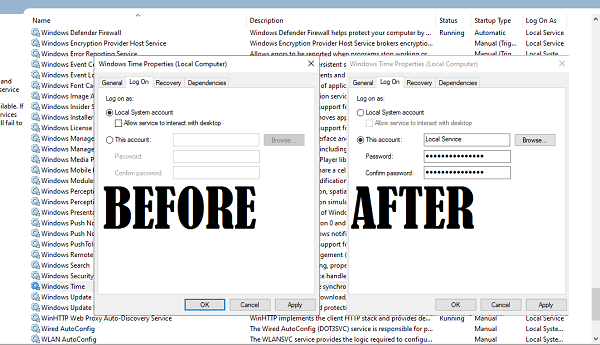
Every service, every process in Windows 10 has an account associated with it. For Services, it is a Local Service account. These accounts are used to manage system applications on the OS. It may so happen that the services we mentioned above are being managed by the Local System account instead of the Local Service account (NT AUTHORITYLocalService).
It fails because the Local System account doesn’t have sufficient permissions to start the service.
Error 1079, The account specified for this service is different
Moreover, when you try to start the service/s manually, you may receive the following error message:
Error 1079: The account specified for this service is different from the account specified for other services running in the same process.
In such a case, KB2478117 recommends that you ensure that the service is being started by the Local System account instead of by the Local Service account (NT AUTHORITYLocalService).
To do so, type services.msc in start search and hit Enter to open Windows Services.
Here is how to change the user for Windows Time Service:
- Locate and double-click on Windows Time service.
- Switch to the Log On tab
- It should be set to Local System account because of which it is failing.
- Switch to This account, and then type “NT AUTHORITYLocalService”
- You can also click on Browse > Advanced > Find Now and locate the Local Service user account.
- Leave both the Password fields blank.
- Click Apply and then OK.
To change it for the Firewall Service, scroll down to the service in question, say, Windows Firewall service, and double click on it to open its Properties box.
Click Log On tab, and under This account, type NT AUTHORITYLocalService. You may set both Password fields blank.
Click Apply/OK.
In the case of Windows Firewall service, repeat this step for the Base Filtering Engine service, too, as BFE is a service that manages firewall and Internet Protocol security.
Similarly, do so for the Event Log Service.
Now you will be able to start the Services.
How do you set any service/dependent services to run under the NT Authority Local Service account?
It can be done by changing the Log On settings of any service properties. Open Services panel, right-click on any service and select Properties. Then switch to Log On tab and select the This account radio button. Then click on the Browse button, and select the NT Authority Local Service account button. Apply the changes. Next time the service starts, it will run under the NT Authority Local Service account.

Anand Khanse is the Admin of TheWindowsClub.com, a 10-year Microsoft MVP (2006-16) & a Windows Insider MVP (2016-2022). Please read the entire post & the comments first, create a System Restore Point before making any changes to your system & be careful about any 3rd-party offers while installing freeware.
Download PC Repair Tool to quickly find & fix Windows errors automatically
Suppose you find that one or more of the following specified services, i.e., Windows Time, Windows Event Log, Windows Firewall services, fail to start, with Error 1079, on your computer running Windows 11/10 or Windows Server. In that case, this article may interest you.
The services in question are:
- Windows Time (W32Time)
- Windows Event Log (eventlog)
- Windows Firewall (MpsSvc)
Every service, every process in Windows 10 has an account associated with it. For Services, it is a Local Service account. These accounts are used to manage system applications on the OS. It may so happen that the services we mentioned above are being managed by the Local System account instead of the Local Service account (NT AUTHORITYLocalService).
It fails because the Local System account doesn’t have sufficient permissions to start the service.
Error 1079, The account specified for this service is different
Moreover, when you try to start the service/s manually, you may receive the following error message:
Error 1079: The account specified for this service is different from the account specified for other services running in the same process.
In such a case, KB2478117 recommends that you ensure that the service is being started by the Local System account instead of by the Local Service account (NT AUTHORITYLocalService).
To do so, type services.msc in start search and hit Enter to open Windows Services.
Here is how to change the user for Windows Time Service:
- Locate and double-click on Windows Time service.
- Switch to the Log On tab
- It should be set to Local System account because of which it is failing.
- Switch to This account, and then type “NT AUTHORITYLocalService”
- You can also click on Browse > Advanced > Find Now and locate the Local Service user account.
- Leave both the Password fields blank.
- Click Apply and then OK.
To change it for the Firewall Service, scroll down to the service in question, say, Windows Firewall service, and double click on it to open its Properties box.
Click Log On tab, and under This account, type NT AUTHORITYLocalService. You may set both Password fields blank.
Click Apply/OK.
In the case of Windows Firewall service, repeat this step for the Base Filtering Engine service, too, as BFE is a service that manages firewall and Internet Protocol security.
Similarly, do so for the Event Log Service.
Now you will be able to start the Services.
How do you set any service/dependent services to run under the NT Authority Local Service account?
It can be done by changing the Log On settings of any service properties. Open Services panel, right-click on any service and select Properties. Then switch to Log On tab and select the This account radio button. Then click on the Browse button, and select the NT Authority Local Service account button. Apply the changes. Next time the service starts, it will run under the NT Authority Local Service account.
Anand Khanse is the Admin of TheWindowsClub.com, a 10-year Microsoft MVP (2006-16) & a Windows Insider MVP (2016-2022). Please read the entire post & the comments first, create a System Restore Point before making any changes to your system & be careful about any 3rd-party offers while installing freeware.
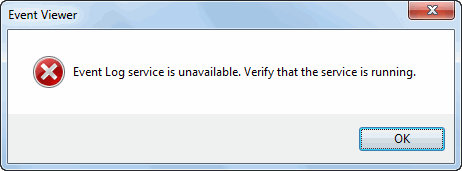
При запуске средства просмотра событий может отображаться следующее сообщение об ошибке.
Служба журнала событий недоступна. Убедитесь, что служба работает.
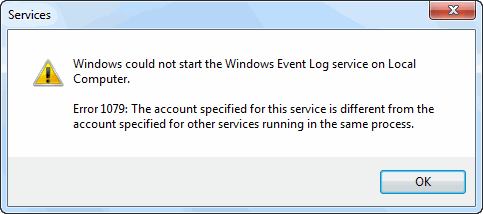
Любые попытки запустить службу журнала событий приводят к следующей ошибке:
Windows не удалось запустить службу журнала событий Windows на локальном компьютере.
Ошибка 1079: учетная запись, указанная для этой службы, отличается от учетной записи, указанной для других служб, работающих в том же процессе.
Так как служба журнала событий Windows не работает, запуск планировщика заданий приводит к следующей ошибке:
Windows не удалось запустить службу планировщика заданий на локальном компьютере.
Ошибка 1068: не удалось запустить службу или группу зависимостей.
Об этой проблеме сообщил один из наших читателей по электронной почте, и она была исправлена. Ошибка запуска службы 1079 возникает, если учетная запись для входа в систему установлена неправильно. Обычно это решается путем исправления учетной записи для входа в службу (с помощью вкладки «Вход в систему» в окне свойств) через MMC служб (services.msc).
Это невозможно сделать в случае журнала событий Windows, где элементы управления вкладки «Вход в систему» по умолчанию остаются серыми.

Итак, нам нужно изменить значение реестра ObjectName в следующем месте:
HKEY_LOCAL_MACHINE SYSTEM CurrentControlSet Services EventLog
Запустите редактор реестра (Regedit.exe) и перейдите к вышеуказанной ветви:
Дважды щелкните значение ObjectName и установите его данные как NT AUTHORITY LocalService {для Windows Vista Windows 7}
Дважды щелкните значение ObjectName и установите его данные как LocalSystem {для Windows XP}
Перезагрузите Windows.
Исправление реестра
Чтобы автоматизировать вышеуказанную настройку, загрузите eventlog-svc-fix.zip и запустите файл REG, подходящий для вашей операционной системы. В zip-файле содержатся исправления REG для Windows XP и Windows 7 / Vista. Перезагрузите Windows после применения исправления.
Если вы обнаружите, что одна из следующих указанных служб, т.е. Windows Time, журнал событий Windows, службы брандмауэра Windows не запускаются на вашем компьютере под управлением Windows 10/8/7/Vista или Windows Server, поэтому эта статья может вас заинтересовать.
Рассматриваемые услуги:
- Windows Time (W32Time)
- Журнал событий Windows (журнал событий)
- Брандмауэр Windows (MpsSvc)
Не удается запустить службы Windows Time, Event Log, Firewall
Кроме того, при попытке запуска службы/служб вручную может появиться следующее сообщение об ошибке:
Ошибка 1079: учетная запись, указанная для этой службы, отличается от учетной записи, указанной для других служб, работающих в том же процессе.
В этом случае KB2478117 рекомендует убедиться, что служба запускается с помощью учетной записи локальной системы, а не учетной записи локальной службы (NT AUTHORITY LocalService).
Для этого введите services.msc в начале поиска и нажмите Enter, чтобы открыть службы Windows.
Прокрутите вниз до рассматриваемой службы, скажем, службы Брандмауэр Windows , и дважды щелкните ее, чтобы открыть окно свойств.

Перейдите на вкладку “Вход в систему” и в разделе Эта учетная запись введите NT AUTHORITY LocalService . Вы можете установить оба поля пароля пустыми.
Нажмите Применить/ОК.
В случае службы брандмауэра Windows повторите этот шаг и для службы Базовое ядро фильтрации , поскольку BFE – это служба, которая управляет безопасностью брандмауэра и Интернет-протокола.
Теперь вы сможете запускать Сервисы.