Any error, starting with 87DDXXXX message in Xbox is typical of a network error. Your gaming session might experience issues or get interrupted by unknown error codes, preventing you from continuing your gameplay. For example, when attempting to sign in, an Xbox user might receive the error 0x87dd0005 or 0x87DD0006 with the following message:
There was a problem. We couldn’t sign you in. Try again in a few minutes or check your account by signing in to account.live.com. Sign in: 0x87dd0005 or 0x87DD0006.
Whenever you come across such an instance, try these troubleshooting steps!
The message with the error code 0x87DD0006 or 0x87DD0005 represents a typical network error that shows up randomly. At other times, the user can sign in to Xbox and proceed normally. Here’s what you should do-
- Check the Xbox Live service status
- Disconnect and reconnect the Xbox
- Restart your console or PC
- Update your console
- Delete and download your profile
Let’s walk you through the above steps in detail.
1] Check the Xbox Live service status
To check the status of Xbox Live, just go to the Xbox Live Service Status page – The page will display the status of your account, Xbox Video, Apps, and more.
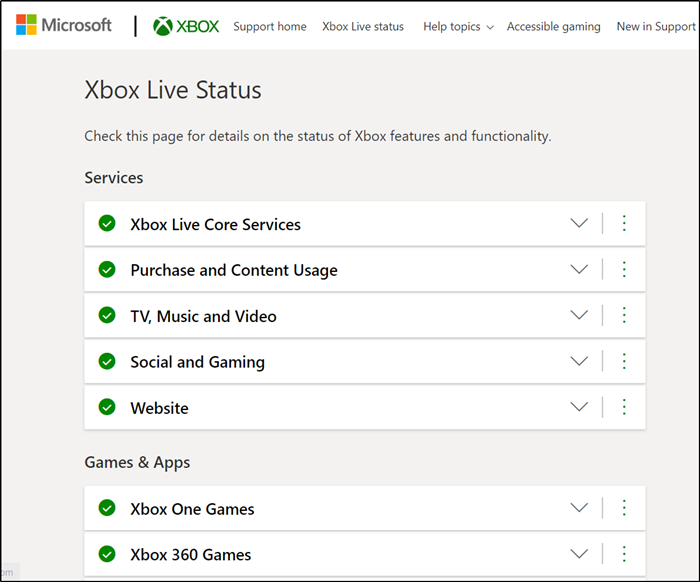
You can verify if the Xbox Live servers are working properly when you see a green checkmark against them.
If the page shows a red exclamation point, details related to the error will be shown. If you see any alerts, wait until the service is up and running and then try again.
Check the Xbox Live Status Page again to see if the issue has been resolved
2] Disconnect and reconnect the Xbox
Switch off the Xbox console.
Unplug the device and wait for 15 seconds.
Now, switch ‘On’ the Xbox console again and sign-in back to your Xbox Live account.
3] Restart your console or PC
On your Xbox One Console, press and hold the Xbox button in the center of your Xbox One controller.
This will open the ‘Power Center’.
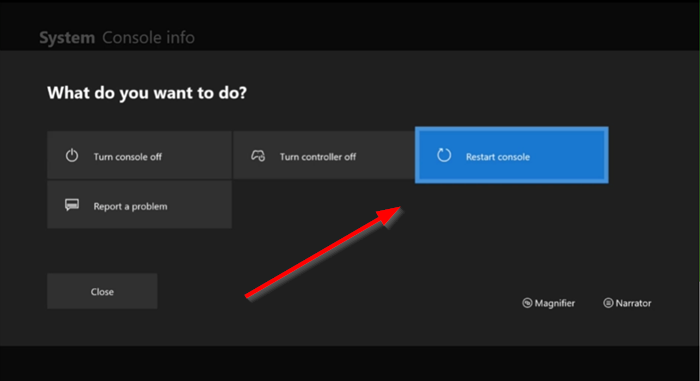
Here, select ‘Restart console’.
Choose ‘Restart’.
On your PC
Press the Windows button.
Then, click the Windows key, choose ‘Power’ > ‘Restart’ option.
Related read: How to fix Xbox Error Code 0x800c000B.
4] Update your console
Many times, we get an error since we keep running an outdated version of the firmware. As such, make sure that you regularly update your console in order to install the latest system improvements. For this,
Open ‘Guide’ and go to ‘Settings’.
Then, navigate to ‘All settings’ and select ‘System’.
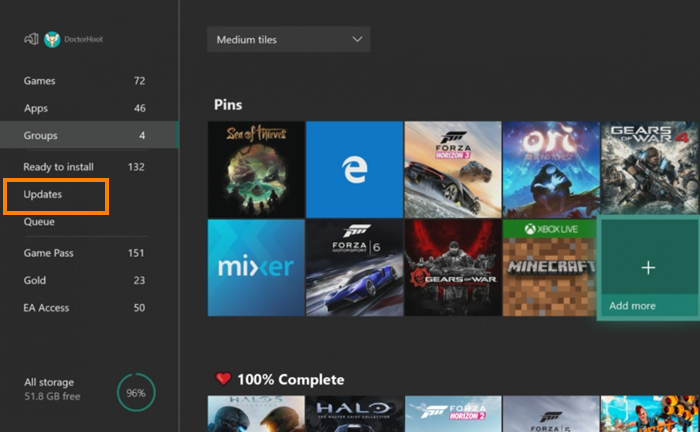
Next, choose ‘Updates’ > ‘Update console’ and see if there’s any notification regarding an update, ready for download.
5] Delete and download your profile
Sometimes your profile becomes corrupt and so, this can be a cause of 0x87dd0006 error. The right approach during such an event is to delete your profile and download it again. Do the following,
Go to the Home screen and open ‘Guide’.
Select ‘Settings’ > ‘All Settings’.
Now, navigate to ‘Account’ and select ‘Remove accounts’.
Choose the desired account to remove and once you’re done, select the ‘Close’ option.
Now, add your account again by following these steps:
Open ‘Guide’ choose ‘Profile & System’ > ‘Add or switch’ > ‘Add new’.
Enter the email address for the Microsoft account that you want to add, and then select Enter.
Thereafter, follow the instructions on the screen to configure ‘Sign-in & Security’ preferences and add your Microsoft account to your Xbox One console.
That’s all!
Any error, starting with 87DDXXXX message in Xbox is typical of a network error. Your gaming session might experience issues or get interrupted by unknown error codes, preventing you from continuing your gameplay. For example, when attempting to sign in, an Xbox user might receive the error 0x87dd0005 or 0x87DD0006 with the following message:
There was a problem. We couldn’t sign you in. Try again in a few minutes or check your account by signing in to account.live.com. Sign in: 0x87dd0005 or 0x87DD0006.
Whenever you come across such an instance, try these troubleshooting steps!
The message with the error code 0x87DD0006 or 0x87DD0005 represents a typical network error that shows up randomly. At other times, the user can sign in to Xbox and proceed normally. Here’s what you should do-
- Check the Xbox Live service status
- Disconnect and reconnect the Xbox
- Restart your console or PC
- Update your console
- Delete and download your profile
Let’s walk you through the above steps in detail.
1] Check the Xbox Live service status
To check the status of Xbox Live, just go to the Xbox Live Service Status page – The page will display the status of your account, Xbox Video, Apps, and more.
You can verify if the Xbox Live servers are working properly when you see a green checkmark against them.
If the page shows a red exclamation point, details related to the error will be shown. If you see any alerts, wait until the service is up and running and then try again.
Check the Xbox Live Status Page again to see if the issue has been resolved
2] Disconnect and reconnect the Xbox
Switch off the Xbox console.
Unplug the device and wait for 15 seconds.
Now, switch ‘On’ the Xbox console again and sign-in back to your Xbox Live account.
3] Restart your console or PC
On your Xbox One Console, press and hold the Xbox button in the center of your Xbox One controller.
This will open the ‘Power Center’.
Here, select ‘Restart console’.
Choose ‘Restart’.
On your PC
Press the Windows button.
Then, click the Windows key, choose ‘Power’ > ‘Restart’ option.
Related read: How to fix Xbox Error Code 0x800c000B.
4] Update your console
Many times, we get an error since we keep running an outdated version of the firmware. As such, make sure that you regularly update your console in order to install the latest system improvements. For this,
Open ‘Guide’ and go to ‘Settings’.
Then, navigate to ‘All settings’ and select ‘System’.
Next, choose ‘Updates’ > ‘Update console’ and see if there’s any notification regarding an update, ready for download.
5] Delete and download your profile
Sometimes your profile becomes corrupt and so, this can be a cause of 0x87dd0006 error. The right approach during such an event is to delete your profile and download it again. Do the following,
Go to the Home screen and open ‘Guide’.
Select ‘Settings’ > ‘All Settings’.
Now, navigate to ‘Account’ and select ‘Remove accounts’.
Choose the desired account to remove and once you’re done, select the ‘Close’ option.
Now, add your account again by following these steps:
Open ‘Guide’ choose ‘Profile & System’ > ‘Add or switch’ > ‘Add new’.
Enter the email address for the Microsoft account that you want to add, and then select Enter.
Thereafter, follow the instructions on the screen to configure ‘Sign-in & Security’ preferences and add your Microsoft account to your Xbox One console.
That’s all!
Я только что закончил добавлять код поддержки Xbox в свой проект и столкнулся как минимум с двумя проблемами.
Первый включает в себя синхронизацию данных сохранения, которая работает нормально, однако, когда игра считывает данные входа пользователя в Windows, она ведет себя так, как будто вход не был завершен — в углу не отображается тег игрока, а поставщик входа выдает ошибку 0x87DD0005 независимо от количество повторных попыток.
Выполнение кода на Xbox работает нормально — похоже, это влияет только на Windows. Я также изначально нацелен на витрину создателя (или, по крайней мере, до тех пор, пока я не доберусь до места, где я буду готов к следующему запуску на ID @ Xbox), поэтому достижения и тому подобное сейчас не являются проблемой.
Ниже приведен код, который я использую (и в произвольном порядке):
public void doStartup()
{
   getData(-1);
   for (int i = 0; i <= 5; i++)
   {
      getData(i);
   }
   ContentViewport.Source = new Uri("ms-appx-web:///logo.html");
}

public async void getData(int savefileId)
{
   var users = await Windows.System.User.FindAllAsync();

   string c_saveBlobName = "Advent";
   //string c_saveContainerDisplayName = "GameSave";
   string c_saveContainerName = "file" + savefileId;
   if (savefileId == -1) c_saveContainerName = "config";
   if (savefileId == 0) c_saveContainerName = "global";
   GameSaveProvider gameSaveProvider;

   GameSaveProviderGetResult gameSaveTask = await GameSaveProvider.GetForUserAsync(users[0], "00000000-0000-0000-0000-00006d0be05f");
   //Parameters
   //Windows.System.User user
   //string SCID

   if (gameSaveTask.Status == GameSaveErrorStatus.Ok)
   {
      gameSaveProvider = gameSaveTask.Value;
   }
   else
   {
      return;
      //throw new Exception("Game Save Provider Initialization failed");;
   }

   //Now you have a GameSaveProvider
   //Next you need to call CreateContainer to get a GameSaveContainer

   GameSaveContainer gameSaveContainer = gameSaveProvider.CreateContainer(c_saveContainerName);
   //Parameter
   //string name (name of the GameSaveContainer Created)

   //form an array of strings containing the blob names you would like to read.
   string[] blobsToRead = new string[] { c_saveBlobName };

   // GetAsync allocates a new Dictionary to hold the retrieved data. You can also use ReadAsync
   // to provide your own preallocated Dictionary.
   GameSaveBlobGetResult result = await gameSaveContainer.GetAsync(blobsToRead);

   string loadedData = "";

   //Check status to make sure data was read from the container
   if (result.Status == GameSaveErrorStatus.Ok)
   {
      //prepare a buffer to receive blob
      IBuffer loadedBuffer;

      //retrieve the named blob from the GetAsync result, place it in loaded buffer.
      result.Value.TryGetValue(c_saveBlobName, out loadedBuffer);

      if (loadedBuffer == null)
      {

         //throw new Exception(String.Format("Didn't find expected blob "{0}" in the loaded data.", c_saveBlobName));

      }
      DataReader reader = DataReader.FromBuffer(loadedBuffer);
      loadedData = reader.ReadString(loadedBuffer.Length);
      if (savefileId == -1)
      {
         try
         {
            System.IO.File.WriteAllText(ApplicationData.Current.TemporaryFolder.Path + "\config.json", loadedData);
         }
         catch { }
      }
      else if (savefileId == 0)
      {
         try
         {
            System.IO.File.WriteAllText(ApplicationData.Current.TemporaryFolder.Path + "\global.json", loadedData);
         }
         catch { }
      }
      else
      {
         try
         {
            System.IO.File.WriteAllText(ApplicationData.Current.TemporaryFolder.Path + "\file" + savefileId + ".json", loadedData);
         }
         catch { }

      }

   }
}
public async void InitializeXboxGamer()
{
   try
   {
      XboxLiveUser user = new XboxLiveUser();
      if (user.IsSignedIn == false)
      {
         SignInResult result = await user.SignInSilentlyAsync(Window.Current.Dispatcher);
         if (result.Status == SignInStatus.UserInteractionRequired)
         {
            result = await user.SignInAsync(Window.Current.Dispatcher);
         }
      }
      System.IO.File.WriteAllText(ApplicationData.Current.TemporaryFolder.Path + "\curUser.txt", user.Gamertag);
      doStartup();
   }
   catch (Exception ex)
   {
      // TODO: log an error here
   }
}
1 ответ
Лучший ответ
Мне наконец удалось понять, почему Xbox работает, а Windows — нет: это проблема поддержки платформы. На панели управления создателя игры для Xbox Live есть окно настроек, которое позволяет определить поддержку игры. Поскольку изначально у меня были отдельные сборки для Xbox и Windows, проверялся только элемент поддержки Xbox, поэтому я пошел дальше и также отметил поддержку рабочего стола. После сохранения изменений я повторно представил новую конфигурацию, и теперь она работает правильно.
1
Jeffrey Davis
3 Ноя 2020 в 02:12
- Remove From My Forums
-
Question
-
Hi Everybody!!!!
I have a problem. I don’t really need a solution but I thought about raising it to the forum in case the referred functionality becomes a requirement to publish a game within the Creator’s program
In a nutshell, I was able to download the XBOX LIVE SDK, I compiled one of the samples that use DirectX and ran it. I thought I was kind of able to log on into Xbox Live but then I got an error (code 0x87DD0005), saying that it couldn’t
sign me into Xbox Live.Now, I know that it is not my account for I can log on to Xbox Live using the Xbox app that comes included in Windows 10. However, I don’t own an Xbox One yet (I’m in the process of buying one) so that could be the source of my problem.
Any light into the issue is greatly appreciated!!!!
Manuel
Tarh ik
Answers
-
My guess is that you haven’t configured your machine into developer mode. Double check these steps: https://developer.microsoft.com/en-us/games/xbox/docs/xboxlive/get-started/creators/step-by-step-guide-to-integrate-xbox-live
Also, if you are running the samples in the Xbox Live SDK, you need to be in the sample sandbox — XDKS.1 — instead of the developer sandbox for your game.
-
Marked as answer by
Friday, March 10, 2017 9:13 PM
-
Marked as answer by