0x800f0986 — ошибка, возникающая в Центре обновления Windows 10 во время загрузки и установки кумулятивных апдейтов для ОС. Крайне серьезная проблема, потому как пользователь теряет доступ к новым разработкам Майкрософт, однако ее относительно просто решить, воспользовавшись давно известными фиксами. В сегодняшней статье мы посмотрим с вами на эти фиксы.
Содержание
- Как исправить ошибку обновления 0x800f0986
- Проверка службы Центра обновления
- Запуск средства устранения неполадок
- Удаление содержимого папки SoftwareDistribution
- Сброс Центра обновления
- Установка проблемного обновления вручную
Как исправить ошибку обновления 0x800f0986
Проверка службы Центра обновления
- Нажмите клавиши WINDOWS+R, чтобы вызвать окошко «Выполнить».
- Вставьте в доступную строчку «services.msc» (без кавычек, разумеется) и нажмите ENTER.
- Опуститесь вниз списка, найдите «Центр обновления Windows» и дважды кликните на эту службу ЛКМ.
- В ниспадающем меню типа запуска выберите опцию «Автоматически».
- Нажмите «Запустить», «Применить» и «OK».
Запуск средства устранения неполадок
- Кликните ПКМ на Пуск в углу экрана и выберите «Параметры».
- Найдите в списке раздел «Обновление и безопасность» и перейдите в него.
- Далее перейдите в подраздел (или вкладку) «Устранение неполадок».
- Чуть ниже в окне вы увидите пункт «Дополнительные средства устранения неполадок» — кликните на него.
- Выберите «Центр обновления Windows» (один из первых в списке) и нажмите на кнопку «Запустить средство устранения неполадок».
- Следуйте инструкциям на экране, чтобы устранить потенциальные неполадки в Центре обновления.
- Перезагрузите ПК.
Удаление содержимого папки SoftwareDistribution
- Кликните на службу «Центр обновления Windows» ПКМ и выберите «Остановить».
- Откройте Проводник и перейдите по пути:
- C:/Windows/SoftwareDistribution/Download
- Оказавшись в папке «Download», нажмите комбинацию CTRL+A, затем — SHIFT+DELETE.
- Перезагрузите ПК.
Сброс Центра обновления
- Нажмите ПКМ на меню Пуск и выберите «Командная строка (администратор).
- Выполните в консоли следующий ряд команд:
- net stop bits
- net stop wuauserv
- net stop cryptsvc
- Del “%ALLUSERSPROFILE%Application DataMicrosoftNetworkDownloaderqmgr*.dat”
- Ren %Systemroot%SoftwareDistributionDataStore DataStore.bak
- Ren %Systemroot%SoftwareDistributionDownload Download.bak
- Ren %Systemroot%System32catroot2 catroot2.bak
- sc.exe sdset bits D:(A;;CCLCSWRPWPDTLOCRRC;;;SY)(A;;CCDCLCSWRPWPDTLOCRSDRCWDWO;;;BA)(A;;CCLCSWLOCRRC;;;AU)(A;;CCLCSWRPWPDTLOCRRC;;;PU)
- sc.exe sdset wuauserv D:(A;;CCLCSWRPWPDTLOCRRC;;;SY)(A;;CCDCLCSWRPWPDTLOCRSDRCWDWO;;;BA)(A;;CCLCSWLOCRRC;;;AU)(A;;CCLCSWRPWPDTLOCRRC;;;PU)
- cd /d %windir%system32
- regsvr32.exe atl.dll
- regsvr32.exe urlmon.dll
- regsvr32.exe mshtml.dll
- regsvr32.exe shdocvw.dll
- regsvr32.exe browseui.dll
- regsvr32.exe jscript.dll
- regsvr32.exe vbscript.dll
- regsvr32.exe scrrun.dll
- regsvr32.exe msxml.dll
- regsvr32.exe msxml3.dll
- regsvr32.exe msxml6.dll
- regsvr32.exe actxprxy.dll
- regsvr32.exe softpub.dll
- regsvr32.exe wintrust.dll
- regsvr32.exe dssenh.dll
- regsvr32.exe rsaenh.dll
- regsvr32.exe gpkcsp.dll
- regsvr32.exe sccbase.dll
- regsvr32.exe slbcsp.dll
- regsvr32.exe cryptdlg.dll
- regsvr32.exe oleaut32.dll
- regsvr32.exe ole32.dll
- regsvr32.exe shell32.dll
- regsvr32.exe initpki.dll
- regsvr32.exe wuapi.dll
- regsvr32.exe wuaueng.dll
- regsvr32.exe wuaueng1.dll
- regsvr32.exe wucltui.dll
- regsvr32.exe wups.dll
- regsvr32.exe wups2.dll
- regsvr32.exe wuweb.dll
- regsvr32.exe qmgr.dll
- regsvr32.exe qmgrprxy.dll
- regsvr32.exe wucltux.dll
- regsvr32.exe muweb.dll
- regsvr32.exe wuwebv.dll
- netsh winsock reset
- net start bits
- net start wuauserv
- net start cryptsvc
- Закройте Командную строку и перезагрузите ПК.
Заметка: как альтернатива, можете воспользоваться особой утилитой Мануэля Гиля, которую можно скачать на официальном сайте разработчика. Установите утилиту на системный раздел диска и запустите с правами админ-аккаунта — это обязательно! Появится окошко Командной строки — выберите нужный язык и следуйте дальнейшим инструкциям.
Установка проблемного обновления вручную
Если никакие из вышеуказанных методов не помогли вам избавиться от ошибки 0x800f0986, то мы рекомендуем всецело обойти ее, установив проблемное обновление вручную через каталог Центра обновления Майкрософт. Главное — найти подходящую для своей ОС версию обновления, и запустить установщик от имени администратора, чтобы избежать потенциальный проблем.
Хочется верить, что хоть какой-то из методов помог вам избавиться от ошибки 0x800f0986.
Corrupt files are a likely culprit for encountering this issue
by Matthew Adams
Matthew is a freelancer who has produced a variety of articles on various topics related to technology. His main focus is the Windows OS and all the things… read more
Updated on January 17, 2023
Reviewed by
Vlad Turiceanu

Passionate about technology, Windows, and everything that has a power button, he spent most of his time developing new skills and learning more about the tech world. Coming… read more
- The 0x800f0986 error will prevent you from installing the latest updates and enjoying the new features and security improvements.
- In this article, you will find out how to get rid of this error code once and for all.
- Make sure the Update Service is enabled and let the system troubleshoot the problem.
XINSTALL BY CLICKING THE DOWNLOAD FILE
- Download Restoro PC Repair Tool that comes with Patented Technologies (patent available here).
- Click Start Scan to find broken files that are causing the problems.
- Click Repair All to fix issues affecting your computer’s security and performance
- Restoro has been downloaded by 0 readers this month.
Microsoft put a huge emphasis on improving their operating system with regular content patches. On the second Tuesday of each month, the company releases updates that include fixes and sometimes new additions.
Usually, Windows will automatically search and upgrade itself once a patch is officially released. However, the process doesn’t always go as planned, which usually results in failure or other problems.
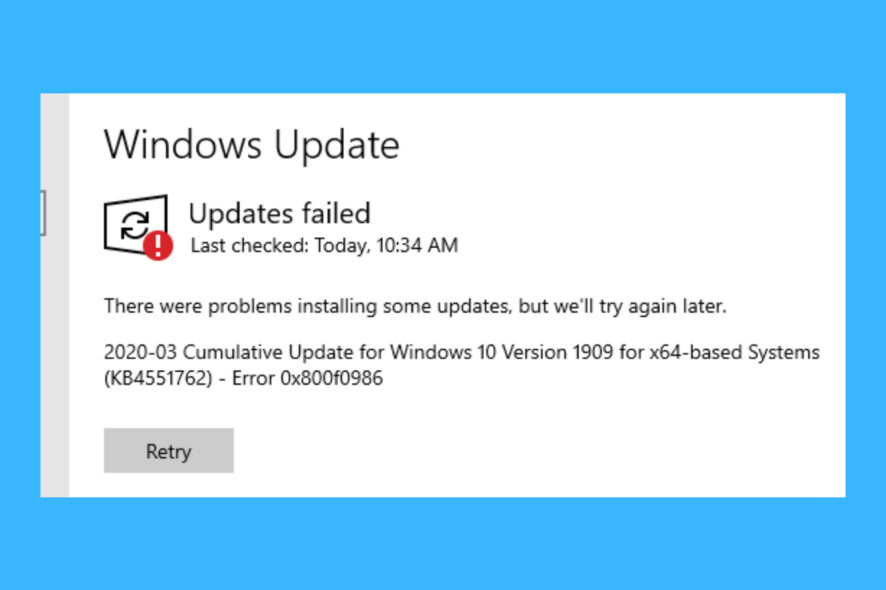
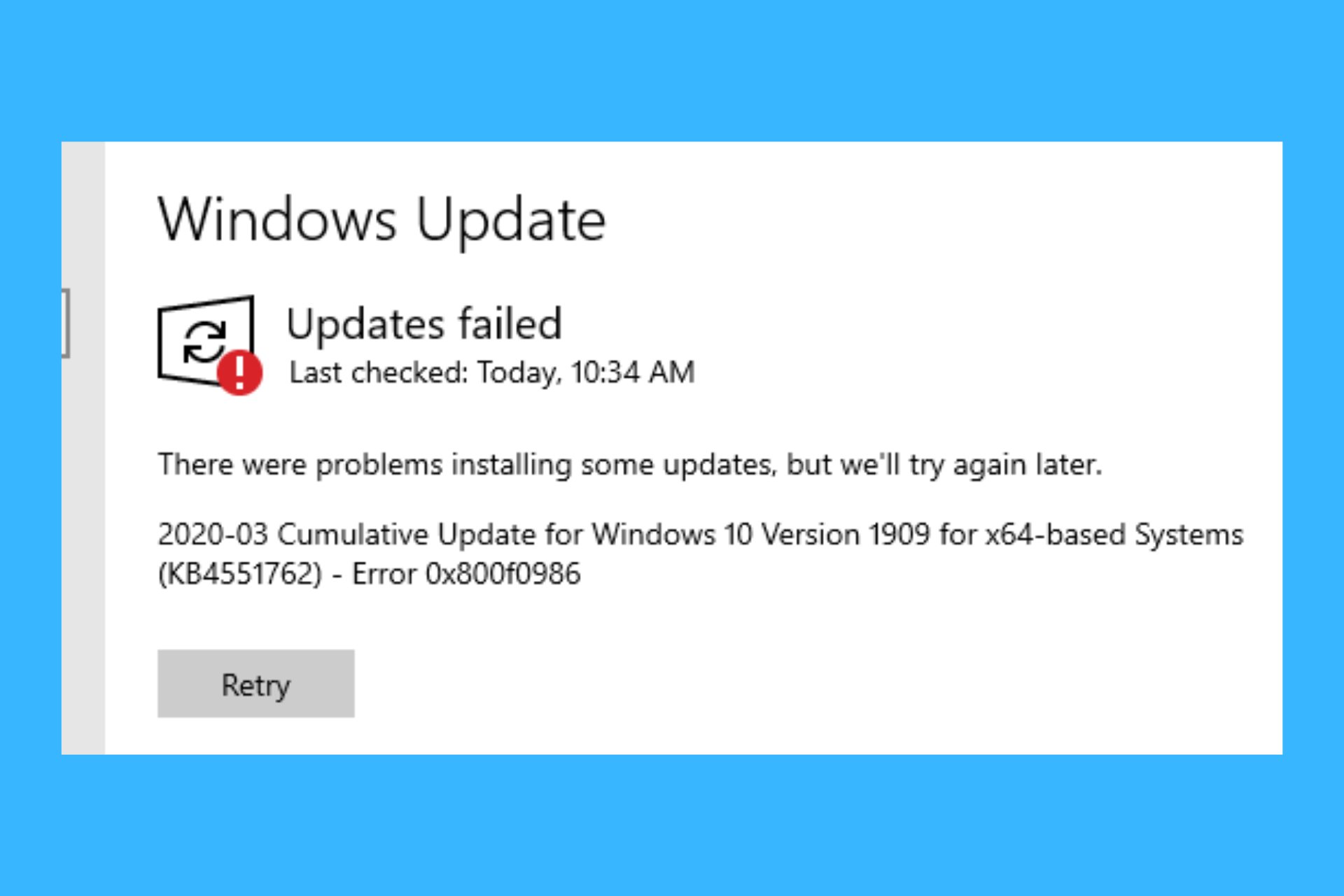
The 0x800f0986 Windows Update error is just an example. This issue arises when you try to download cumulative patch updates via Settings in Windows 10 1909.
Instead of downloading the updates, you get an Updates failed error message with the 0x800f0986 code. Consequently, you can’t download various patch updates for Windows 10.
How do I fix the Windows Update error 0x800f0986 ?
- How do I fix the Windows Update error 0x800f0986 ?
- 1. Check if the Windows Update service is enabled
- 2. Use the Windows Update troubleshooter
- 3. Clear out the SoftwareDistribution folder
- 4. Reset Windows Update
- 5. Reset Windows 10
- Why should I update my Windows?
- How to check if there is an update available?
- The Microsoft Update Catalog
- What are the benefits of resetting the OS?
- Are feature updates worth it?
1. Check if the Windows Update service is enabled
- Press the Windows key + R keyboard shortcut.
- Type in services.msc and press Enter.

- Double-click Windows Update to open its properties window.
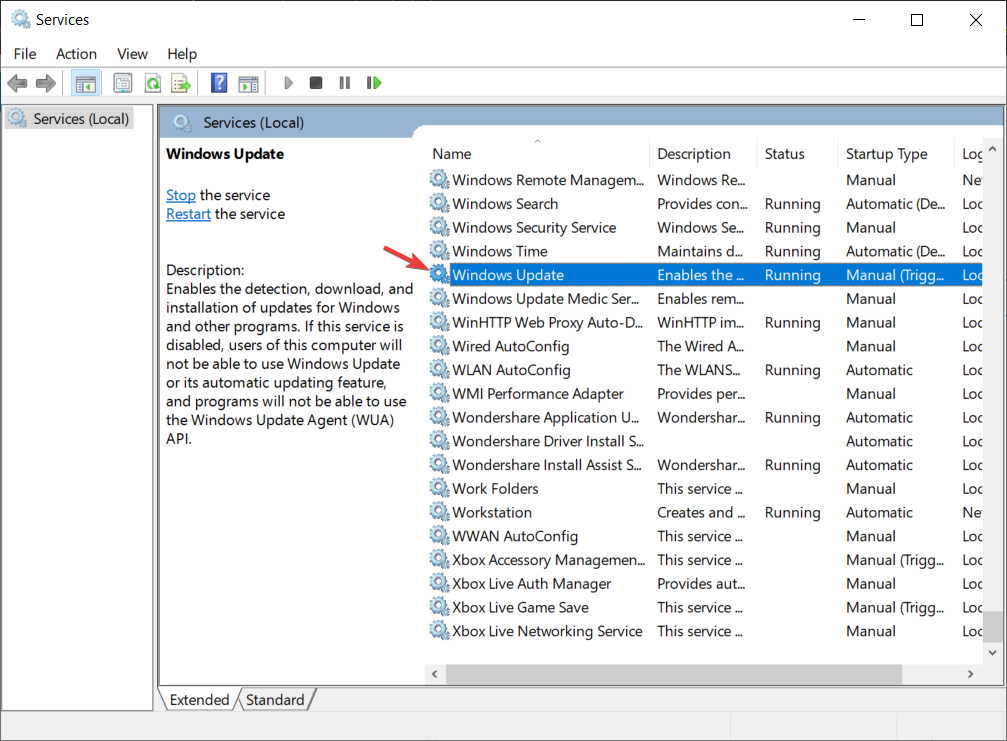
- Click the Startup type drop-down menu to select Automatic.

- Up next, click the Start button on the properties window.
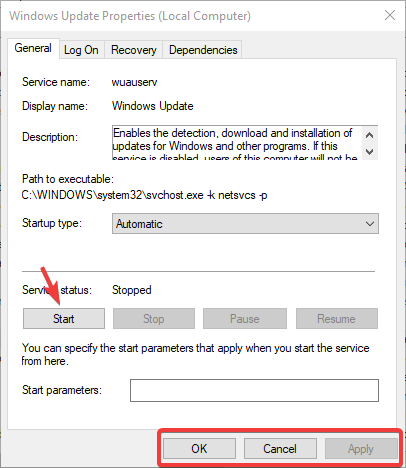
- Click Apply, then OK to exit the window.
2. Use the Windows Update troubleshooter
- Press the Windows Key + S and type troubleshoot in the search utility.
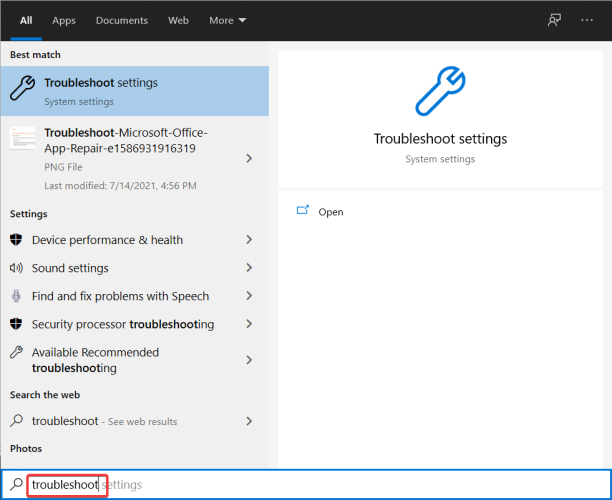
- Click Troubleshoot settings, then select Troubleshoot.
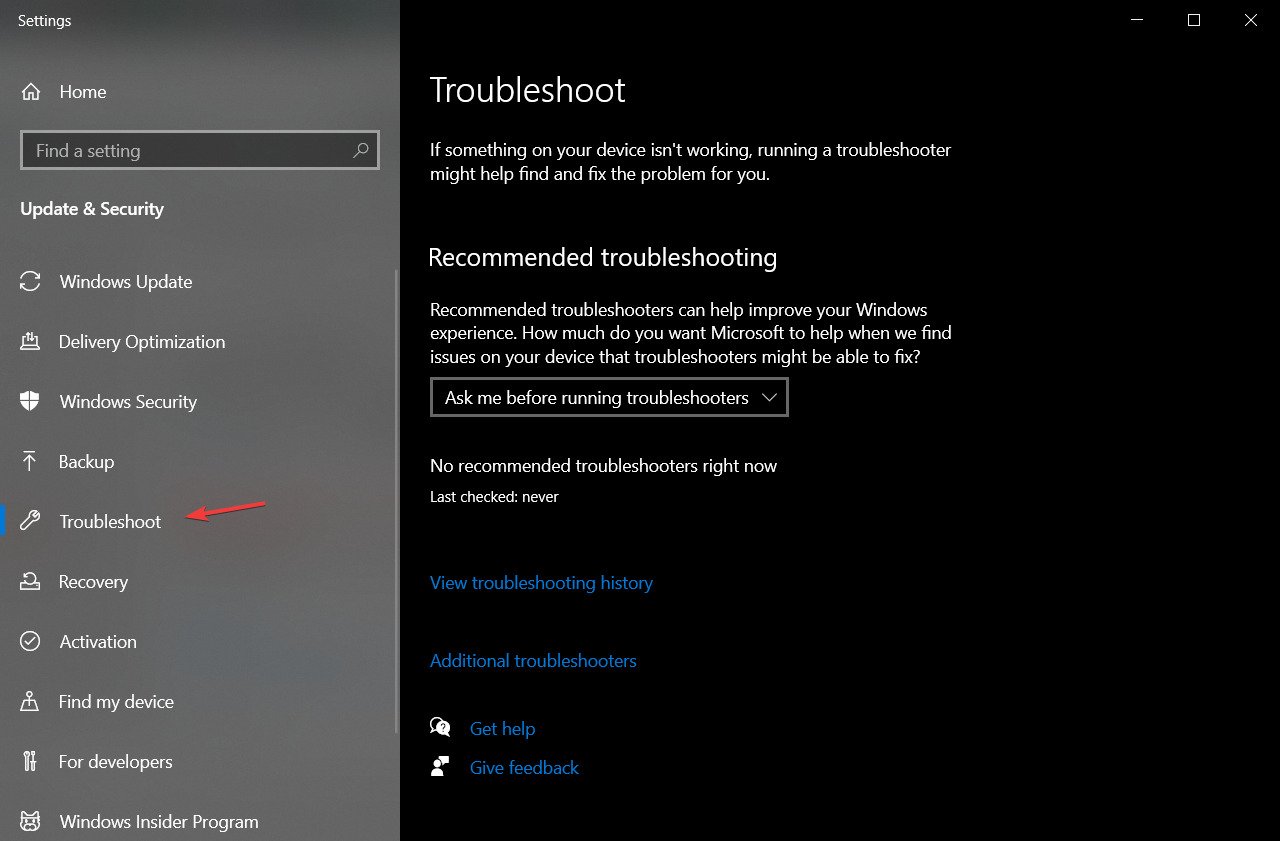
- Select Additional troubleshooters, then Windows Update.
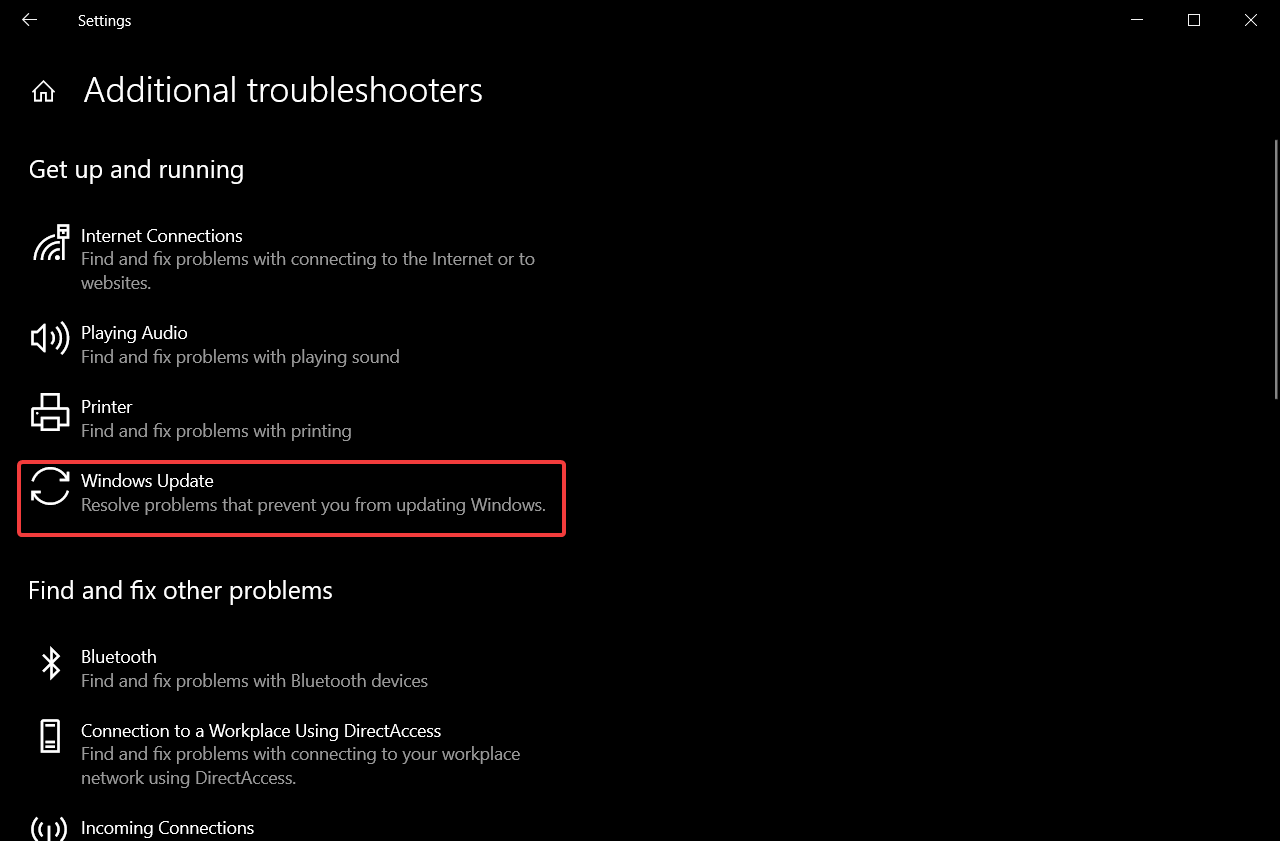
- Click the Run the troubleshooter button to open the window in the snapshot directly below.

- After the troubleshooting process is complete, restart your PC.
The real cause of the error might also be related to some corrupted system files. If that is the case, you need to replace them.
Even if Windows Troubleshooter is great at solving problems, it’s not the best tool out there, so you might need to repair them using other ways.
We recommend using a professional automatic registry cleaner called Restoro since it’s designed to fix Windows errors and keep your OS in optimal condition, reducing the risk of getting error codes when you perform an update.
Certain issues can affect your PC’s security as well, so an all-in-one program with protection-oriented features is ideal.
3. Clear out the SoftwareDistribution folder
- Stop the Windows Update service by pressing the Stop button on its properties window.
- Click the File Explorer button on the taskbar, then open this folder path:
C:/Windows/SoftwareDistribution/Download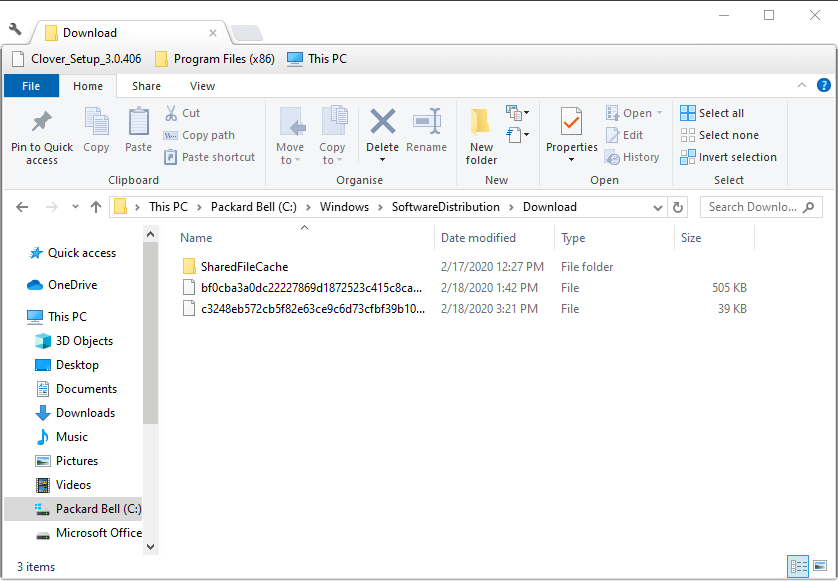
- Press the Ctrl + A hotkey to select all contents in that folder.
- Up next, press the Delete button.
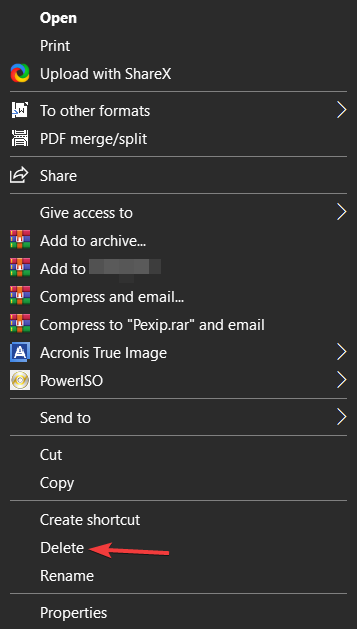
- Now, restart your device.
4. Reset Windows Update
- Open the search box with the Windows key + S hotkey, and type in cmd.
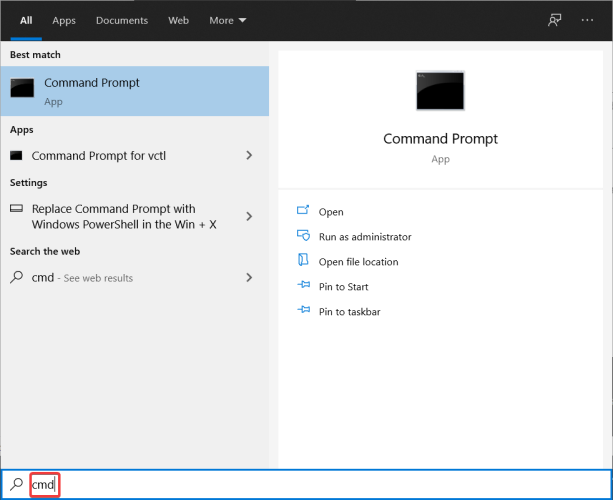
- Input these separate commands into the Command Prompt’s window:
Net stop wuauservNet stop cryptSvcNet stop bitsNet stop msiserver - Then, enter the following line in the Command Prompt, and press Backspace:
Ren C:WindowsSoftwareDistribution SoftwareDistribution.old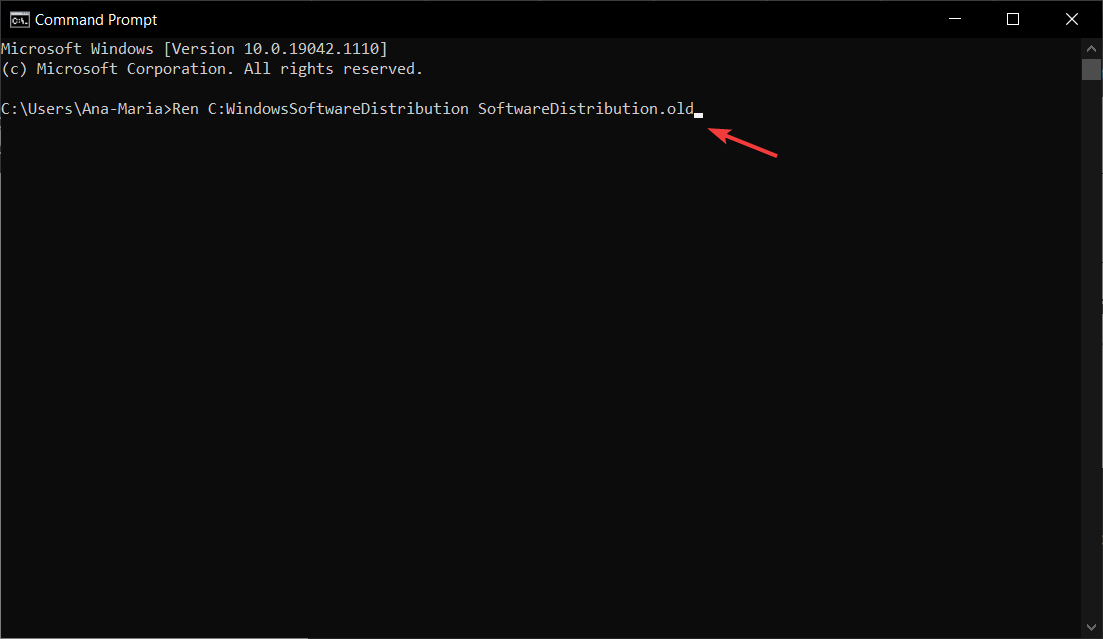
- Next, type another command and press Enter:
Ren C:WindowsSystem32catroot2 Catroot2.old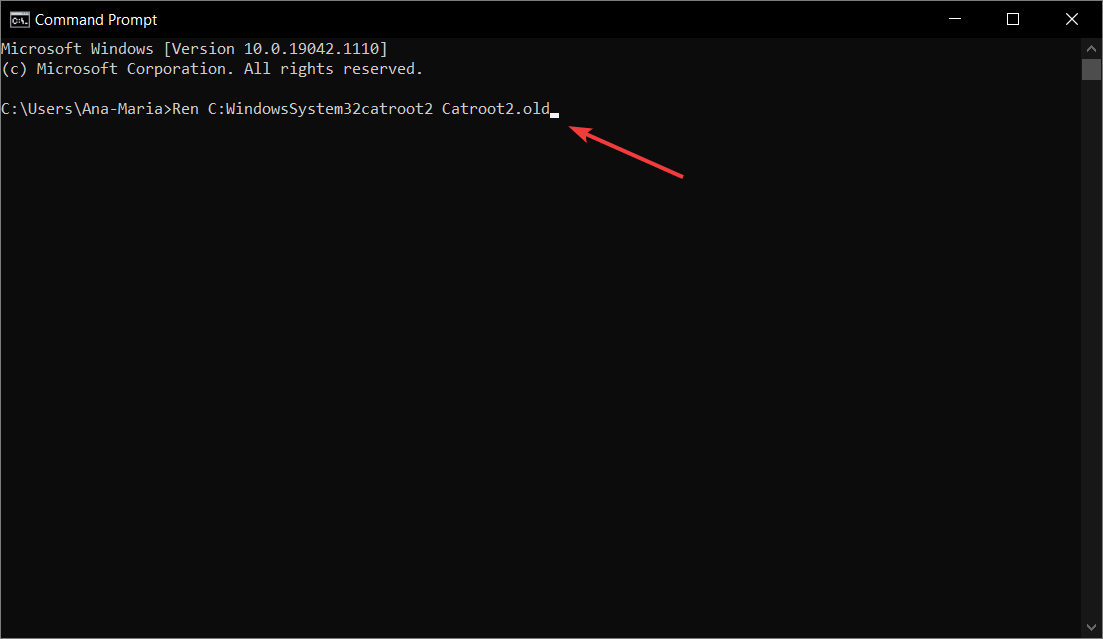
- Thereafter, input these separate commands:
Net start wuauservNet start cryptSvcNet start bitsNet start msiserver - Reboot your device afterward.
5. Reset Windows 10

NOTE
This method has the highest success rate of fixing pretty much any Windows 10 issue. However, it comes with the drawback of deleting all of your data. Thus, it is good to create a backup before proceeding.
- Press the Windows Key + S and type in reset.
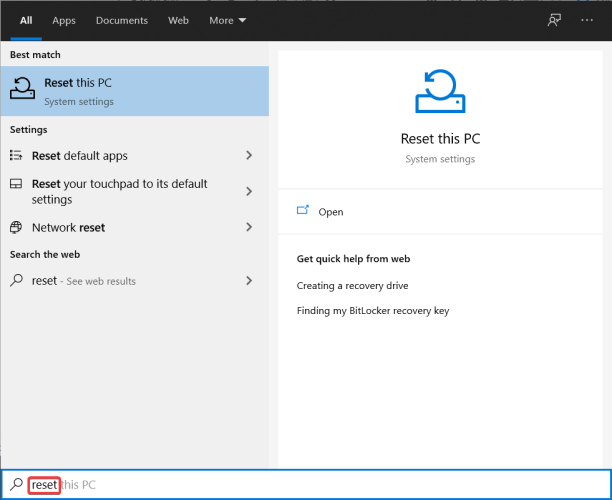
- Select Reset this PC to open the Recovery tab in Settings.
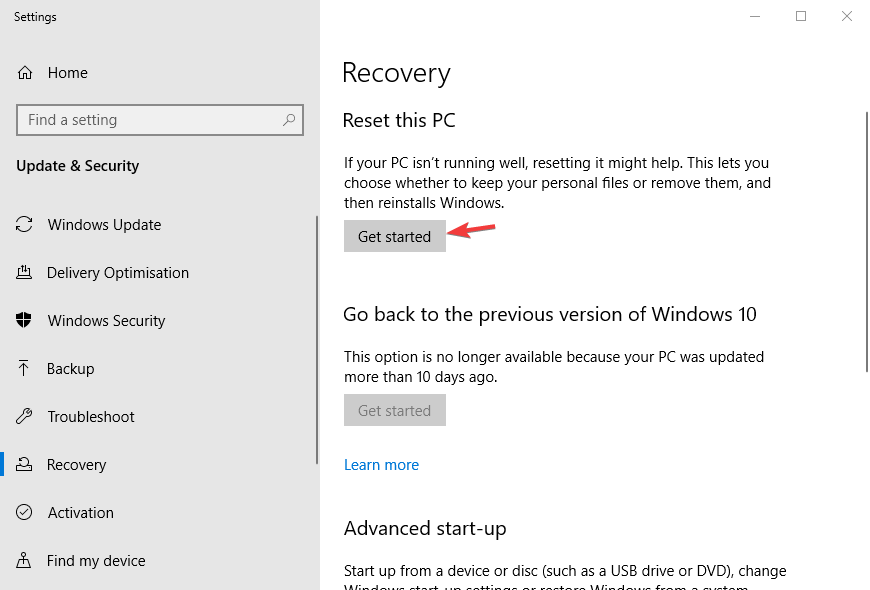
- Click the Get Started button to open Reset this PC.
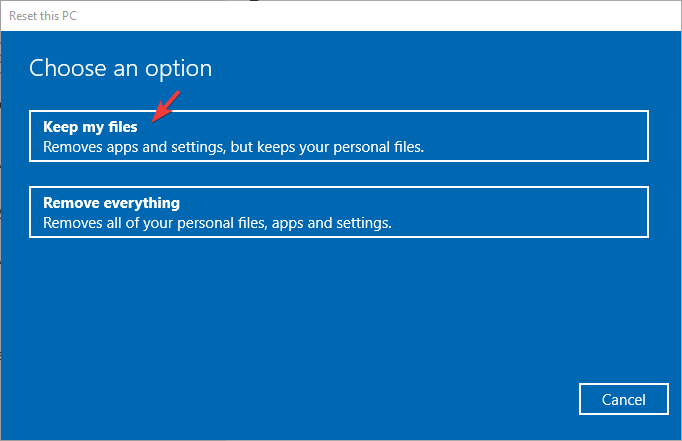
- Select the Keep my files option.
- Press the Next button to continue.
- Click Reset to confirm.
- Fix update error 0x800f0988 on Windows 11 & 10
- Windows Store Code: 0x87AF0813 [Solved]
Why should I update my Windows?
Microsoft is constantly working to improve its operating system with new features and tools. You can only get these additions by updating the OS.
Additionally, the company releases frequent security updates that patch breaches or weak spots in the system to prevent cyberattacks from compromising the device or stealing your data.
If you don’t update Windows for a long time, the system will slowly become insecure.
How to check if there is an update available?
Usually, Windows will notify you if there is an update that needs to be installed, but there is a way to manually check that as well.
- Press the Windows Key + X and select Settings.
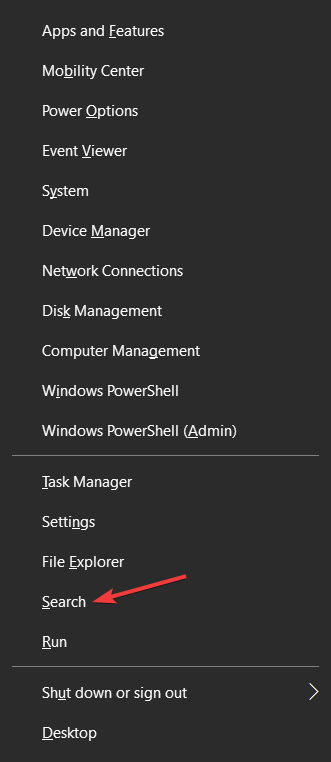
- Then, go to Update & Security.

- In the Windows Update window, select Check for updates.
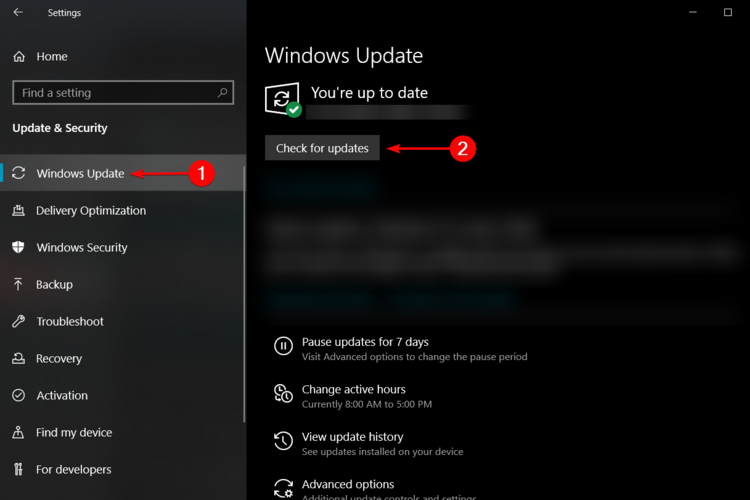
- If there are updates available, that’s what you’ll see:

Knowing how important it really is to update your PC, it’s time to apply some quick solutions and get rid of the Updates failed error message right away.
The Microsoft Update Catalog
Some PC issues are hard to tackle, especially when it comes to corrupted repositories or missing Windows files. If you are having troubles fixing an error, your system may be partially broken.
We recommend installing Restoro, a tool that will scan your machine and identify what the fault is.
Click here to download and start repairing.
Microsoft created a web-based service called the Windows Update Catalog, containing a list of drivers and updates for Windows or other software related to the OS and Microsoft itself.
They should be distributed over corporate networks, but can also be used by home users. You can search the title of the update and its description. When doing so for hardware updates, type in the model, manufacturer, and other details.
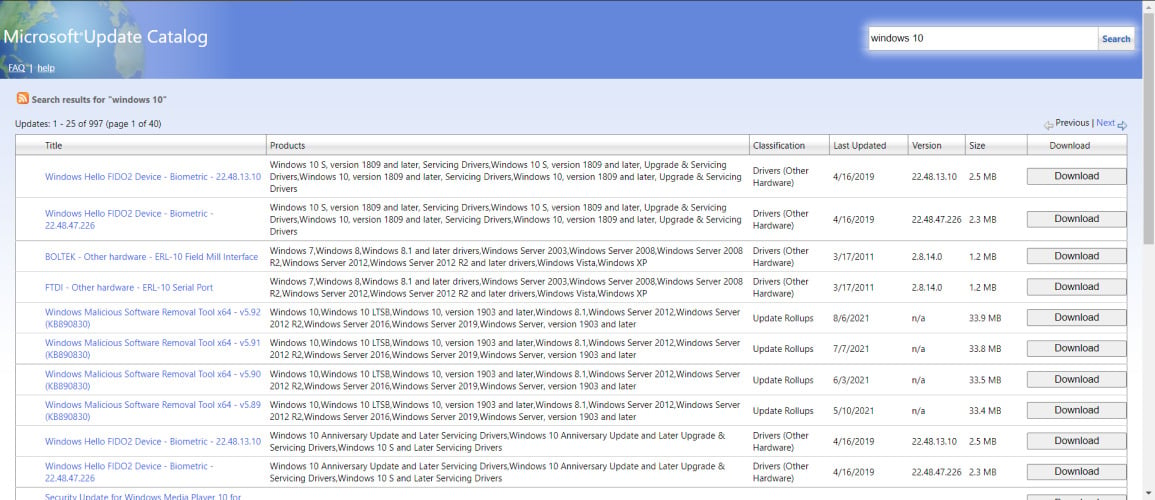
You can find important, recommended, and optional updates on the website:
- Important updates – provide significant benefits like improved security and reliability
- Optional updates – may include new or update driver software for your devices
- Recommended updates – are usually a mix of both
With the Microsoft Update Catalog, you won’t have to rely on the operating system to update automatically.
What are the benefits of resetting the OS?
Resetting the operating system is really useful when you don’t know the exact cause of a problem. Since you have the option to keep the files in storage, there’s no risk of losing precious data or progress.
The only downside is the fact that you will need to configure the general settings. There is also the option to completely delete all the settings, apps, and stored files on the device and install a fresh copy of the system.
Are feature updates worth it?
Microsoft decided to focus on constantly improving Windows 10. Twice a year, they release massive content updates that add new features and overhaul existing ones.
Since there is so much emphasis on them, the Redmond company is pouring all of its resources into developing new tools.
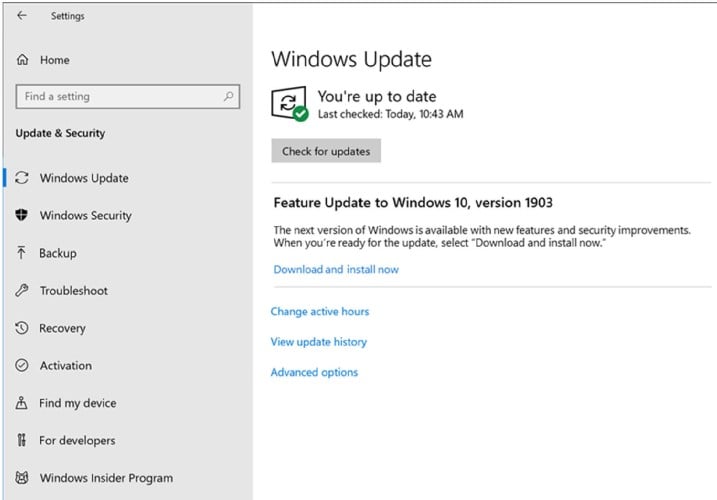
Most of the time, the updates will include quality-of-life changes that were asked by the community, so it’s worth installing them right away.
Don’t worry about possible issues. All builds are going through testing before they are officially released, in order to fix any bugs.
Hopefully, by following these steps, you managed to get rid of the Windows Update error 0x800f0986. If you have problems with the updating process but you are using a newly installed operating system, there are many ways to solve them.
Moreover, if the error 0xc1900204 blocks Windows 10 updates, try running the Windows Update troubleshooter, and keep in mind that we’ve also prepared a detailed guide to help you in this regard.
Which one of the solutions written above worked best for you in solving the 0x800f0986 Windows Update error? Feel free to ask anything or talk about the subject in the comments section below. We’re eager to hear you out.

Newsletter
Corrupt files are a likely culprit for encountering this issue
by Matthew Adams
Matthew is a freelancer who has produced a variety of articles on various topics related to technology. His main focus is the Windows OS and all the things… read more
Updated on January 17, 2023
Reviewed by
Vlad Turiceanu
Passionate about technology, Windows, and everything that has a power button, he spent most of his time developing new skills and learning more about the tech world. Coming… read more
- The 0x800f0986 error will prevent you from installing the latest updates and enjoying the new features and security improvements.
- In this article, you will find out how to get rid of this error code once and for all.
- Make sure the Update Service is enabled and let the system troubleshoot the problem.
XINSTALL BY CLICKING THE DOWNLOAD FILE
- Download Restoro PC Repair Tool that comes with Patented Technologies (patent available here).
- Click Start Scan to find broken files that are causing the problems.
- Click Repair All to fix issues affecting your computer’s security and performance
- Restoro has been downloaded by 0 readers this month.
Microsoft put a huge emphasis on improving their operating system with regular content patches. On the second Tuesday of each month, the company releases updates that include fixes and sometimes new additions.
Usually, Windows will automatically search and upgrade itself once a patch is officially released. However, the process doesn’t always go as planned, which usually results in failure or other problems.
The 0x800f0986 Windows Update error is just an example. This issue arises when you try to download cumulative patch updates via Settings in Windows 10 1909.
Instead of downloading the updates, you get an Updates failed error message with the 0x800f0986 code. Consequently, you can’t download various patch updates for Windows 10.
How do I fix the Windows Update error 0x800f0986 ?
- How do I fix the Windows Update error 0x800f0986 ?
- 1. Check if the Windows Update service is enabled
- 2. Use the Windows Update troubleshooter
- 3. Clear out the SoftwareDistribution folder
- 4. Reset Windows Update
- 5. Reset Windows 10
- Why should I update my Windows?
- How to check if there is an update available?
- The Microsoft Update Catalog
- What are the benefits of resetting the OS?
- Are feature updates worth it?
1. Check if the Windows Update service is enabled
- Press the Windows key + R keyboard shortcut.
- Type in services.msc and press Enter.
- Double-click Windows Update to open its properties window.
- Click the Startup type drop-down menu to select Automatic.
- Up next, click the Start button on the properties window.
- Click Apply, then OK to exit the window.
2. Use the Windows Update troubleshooter
- Press the Windows Key + S and type troubleshoot in the search utility.
- Click Troubleshoot settings, then select Troubleshoot.
- Select Additional troubleshooters, then Windows Update.
- Click the Run the troubleshooter button to open the window in the snapshot directly below.
- After the troubleshooting process is complete, restart your PC.
The real cause of the error might also be related to some corrupted system files. If that is the case, you need to replace them.
Even if Windows Troubleshooter is great at solving problems, it’s not the best tool out there, so you might need to repair them using other ways.
We recommend using a professional automatic registry cleaner called Restoro since it’s designed to fix Windows errors and keep your OS in optimal condition, reducing the risk of getting error codes when you perform an update.
Certain issues can affect your PC’s security as well, so an all-in-one program with protection-oriented features is ideal.
3. Clear out the SoftwareDistribution folder
- Stop the Windows Update service by pressing the Stop button on its properties window.
- Click the File Explorer button on the taskbar, then open this folder path:
C:/Windows/SoftwareDistribution/Download - Press the Ctrl + A hotkey to select all contents in that folder.
- Up next, press the Delete button.
- Now, restart your device.
4. Reset Windows Update
- Open the search box with the Windows key + S hotkey, and type in cmd.
- Input these separate commands into the Command Prompt’s window:
Net stop wuauservNet stop cryptSvcNet stop bitsNet stop msiserver - Then, enter the following line in the Command Prompt, and press Backspace:
Ren C:WindowsSoftwareDistribution SoftwareDistribution.old - Next, type another command and press Enter:
Ren C:WindowsSystem32catroot2 Catroot2.old - Thereafter, input these separate commands:
Net start wuauservNet start cryptSvcNet start bitsNet start msiserver - Reboot your device afterward.
5. Reset Windows 10
NOTE
This method has the highest success rate of fixing pretty much any Windows 10 issue. However, it comes with the drawback of deleting all of your data. Thus, it is good to create a backup before proceeding.
- Press the Windows Key + S and type in reset.
- Select Reset this PC to open the Recovery tab in Settings.
- Click the Get Started button to open Reset this PC.
- Select the Keep my files option.
- Press the Next button to continue.
- Click Reset to confirm.
- Fix update error 0x800f0988 on Windows 11 & 10
- Windows Store Code: 0x87AF0813 [Solved]
- Can I Close my Laptop While Updating? [Answered]
Why should I update my Windows?
Microsoft is constantly working to improve its operating system with new features and tools. You can only get these additions by updating the OS.
Additionally, the company releases frequent security updates that patch breaches or weak spots in the system to prevent cyberattacks from compromising the device or stealing your data.
If you don’t update Windows for a long time, the system will slowly become insecure.
How to check if there is an update available?
Usually, Windows will notify you if there is an update that needs to be installed, but there is a way to manually check that as well.
- Press the Windows Key + X and select Settings.
- Then, go to Update & Security.
- In the Windows Update window, select Check for updates.
- If there are updates available, that’s what you’ll see:
Knowing how important it really is to update your PC, it’s time to apply some quick solutions and get rid of the Updates failed error message right away.
The Microsoft Update Catalog
Some PC issues are hard to tackle, especially when it comes to corrupted repositories or missing Windows files. If you are having troubles fixing an error, your system may be partially broken.
We recommend installing Restoro, a tool that will scan your machine and identify what the fault is.
Click here to download and start repairing.
Microsoft created a web-based service called the Windows Update Catalog, containing a list of drivers and updates for Windows or other software related to the OS and Microsoft itself.
They should be distributed over corporate networks, but can also be used by home users. You can search the title of the update and its description. When doing so for hardware updates, type in the model, manufacturer, and other details.
You can find important, recommended, and optional updates on the website:
- Important updates – provide significant benefits like improved security and reliability
- Optional updates – may include new or update driver software for your devices
- Recommended updates – are usually a mix of both
With the Microsoft Update Catalog, you won’t have to rely on the operating system to update automatically.
What are the benefits of resetting the OS?
Resetting the operating system is really useful when you don’t know the exact cause of a problem. Since you have the option to keep the files in storage, there’s no risk of losing precious data or progress.
The only downside is the fact that you will need to configure the general settings. There is also the option to completely delete all the settings, apps, and stored files on the device and install a fresh copy of the system.
Are feature updates worth it?
Microsoft decided to focus on constantly improving Windows 10. Twice a year, they release massive content updates that add new features and overhaul existing ones.
Since there is so much emphasis on them, the Redmond company is pouring all of its resources into developing new tools.
Most of the time, the updates will include quality-of-life changes that were asked by the community, so it’s worth installing them right away.
Don’t worry about possible issues. All builds are going through testing before they are officially released, in order to fix any bugs.
Hopefully, by following these steps, you managed to get rid of the Windows Update error 0x800f0986. If you have problems with the updating process but you are using a newly installed operating system, there are many ways to solve them.
Moreover, if the error 0xc1900204 blocks Windows 10 updates, try running the Windows Update troubleshooter, and keep in mind that we’ve also prepared a detailed guide to help you in this regard.
Which one of the solutions written above worked best for you in solving the 0x800f0986 Windows Update error? Feel free to ask anything or talk about the subject in the comments section below. We’re eager to hear you out.
Newsletter
- Remove From My Forums
-
Вопрос
Ответы
-
-
Помечено в качестве ответа
10 июня 2020 г. 12:49
-
Помечено в качестве ответа
-
Здравствуйте,
Пробовали отключить Защитник Windows и SuperFetch. Ошибка
0x800f0986
Мнения, высказанные здесь, являются отражением моих личных взглядов, а не позиции корпорации Microsoft. Вся информация предоставляется «как есть» без каких-либо гарантий. Не забывайте помечать сообщения как ответы и полезные,
если они Вам помогли.-
Предложено в качестве ответа
Vasilev VasilMicrosoft contingent staff
23 апреля 2020 г. 6:22 -
Помечено в качестве ответа
Vasilev VasilMicrosoft contingent staff
24 апреля 2020 г. 5:18
-
Предложено в качестве ответа

Многочисленные пользователи разместили на форуме Microsoft о 0x800f0986 Windows Обновить ошибка. Эта ошибка возникает, когда они пытаются загрузить накопительные обновления патчей через Настройки в Windows 10 1909
Вместо загрузки обновлений в настройках отображается Не удалось обновить сообщение об ошибке с кодом 0x800f0986. Следовательно, пользователи не могут загружать различные обновления патчей для Windows 10.
1. Проверить Windows Служба обновления включена
- Нажмите Windows клавиша + сочетание клавиш R.
- вход services.msc в поле Открыть и нажмите Enter кнопку.
- Двойной клик Windows Обновите, чтобы открыть окно его свойств.

- Нажмите раскрывающееся меню Тип запуска, чтобы выбрать Автоматически.
- Нажмите Начать кнопка в окне свойств.
- Нажмите Применитьи нажмите OK выйти из окна.
2. Откройте Windows Обновление устранения неполадок
- Откройте Windows 10окно поиска.
- Введите ключевое слово устранение неполадок в поисковой утилите.
- Нажмите Параметры устранения неполадок, который откроет приложение «Настройки», как показано ниже.

- Выберите Windows Обновление устранения неполадок.
- Нажмите Запустить средство устранения неполадок Кнопка, чтобы открыть окно в снимке прямо под.

- Выберите Применить это исправление вариант для любых предложенных решений.
3. Очистите папку SoftwareDistribution
- Остановить Windows Обновите сервис, нажав кнопку Stop кнопка в окне его свойств.
- Нажмите Проводник кнопка на панели задач.
- Откройте этот путь к папке:
- C:> Windows > Распространение программного обеспечения> Скачать.

- C:> Windows > Распространение программного обеспечения> Скачать.
- Нажмите сочетание клавиш Ctrl + A, чтобы выбрать все содержимое в этой папке.
- Нажмите Удалить кнопку.
- Нажмите Начать Кнопка на Windows Окно свойств сервиса обновления.
- Перезагрузка Windows.
4. Сброс Windows Обновить
- Откройте окно поиска с Windows клавиша + горячая клавиша S.
- вход CMD в окне поиска.
- Щелкните правой кнопкой мыши Командная строка и Запуск от имени администратора чтобы открыть его с повышенными правами пользователя.
- Введите эти отдельные команды в окно командной строки:
- Сетевая остановка wuauerv
- Чистая остановка cryptSvc
- Чистые стоповые бит
- Чистый стоп-сервер
- Введите следующую строку в командной строке и нажмите кнопку возврата на клавиатуре.
- Рен С:WindowsSoftwareDistribution SoftwareDistribution.old

- Рен С:WindowsSoftwareDistribution SoftwareDistribution.old
- Введите Рен С:WindowsSystem32catroot2 Catroot2.old команду и нажмите кнопку ввода.
- После этого введите эти отдельные команды:
- Net start wuauserv
- Чистый старт cryptSvc
- Чистые стартовые биты
- Чистый старт msiserver
- Перезагружать ваш рабочий стол или ноутбук.
5. Отключите сторонние антивирусные утилиты
Ошибка 0x800f0986 может быть связана с сторонние антивирусные утилиты блокировка накопительных обновлений. Таким образом, отключение антивирусного программного обеспечения может исправить ошибку.
Для этого щелкните правой кнопкой мыши значок антивируса на панели задач, чтобы открыть контекстное меню, в котором вы часто можете выбрать параметр, который отключит программное обеспечение.
Вы также можете удалить антивирусную утилиту при запуске системы на Диспетчер задачвкладка «Автозагрузка», поэтому она не начинается с Windows 10, Затем попробуйте загрузить обновления патча с отключенным антивирусным программным обеспечением.

Антивирусная программа может предоставить вам защиту от вредоносных программ, поэтому ознакомьтесь с этой статьей на предмет лучших.
6. Сброс Windows 10
- Введите ключевое слово сброс в окне поиска платформы.
- Нажмите Сбросить этот ПК открыть вкладку «Восстановление» в настройках.

- Нажмите начало кнопку, чтобы открыть Сброс этого ПК.

- Выберите Сохраняйте мои файлы опцию.
- Нажмите Далее Кнопка продолжить.
- Нажмите Сброс , чтобы подтвердить.
Примечание: Этот метод имеет самый высокий уровень успеха исправления практически любой Windows 10 проблемы. Тем не менее, это связано с недостатком удаления всех ваших данных. Таким образом, это хорошо, чтобы создать резервная копия прежде чем продолжить с этим решением.
Выполнив следующие действия, вы сможете избавиться от Windows Обновите ошибку 0x800f0986 в кратчайшие сроки.

Многие пользователи Windows часто сталкиваются с проблемами при выполнении определенных обновлений на своих устройствах, поэтому им требуется помощь в их устранении. Поэтому сегодня мы расскажем вам, как исправить ошибку обновления 0x800f0986 в Центре обновления Windows простым способом и всего за несколько шагов. Но прежде исправить ошибки Центра обновления Windows , давайте разберемся, почему возникают эти сбои при попытке обновления.
Обычно это происходит, когда мы пытаемся выполнить загрузку, обновления накопительного пакета обновлений с использованием конфигураций под Windows 10. И вместо загрузки обновления программа показывает нам сообщение «Ошибка обновления 0x800f0986».
Как только мы поймем, почему появляется ошибка обновления 0x800f0986 , ниже мы разберем, как исправить ошибки обновления в Windows 10.
Исправить ошибку обновления 0x800f0986 в Центре обновления Windows
Тогда мы поможем вам исправить эту ошибку это не позволяет вам вводить необходимые обновления для оптимальной работы вашей операционной системы.
- Убедитесь, что служба обновления Windows активен :
- Выберите клавишу Win + R.
- В командном окне «CMD» введите «Services.msc», затем нажмите «ОК».
- Появится список служб, в котором нужно выбрать «Центр обновления Windows» и дважды щелкнуть.
- Затем окно » Свойства Центра обновления Windows » будет появляться .
- На вкладке «Общие» необходимо выбрать место, где написано «Тип запуска», затем «Автоматически».
- Затем вам нужно выбрать, где написано «Старт», и дождаться завершения сканирования.
- Наконец, выберите «Применить», затем «ОК», чтобы закрыть вкладку.

- Активируйте средство устранения неполадок Центра обновления Windows.
- Зайдем в поисковик, который находится на Барре из задачи с нашего ПК.
- Мы скопируем следующие слова «Решить проблемы с активацией»
- Затем мы выбираем его, и он отправляет нас в окно «Настройки».
- На левой панели выбираем » Решать проблему Потом где написано «Центр обновления Windows».
- Мы получим вариант «Запустить средство решения проблем» и выберем его.
- Затем появится окно, в котором выполняется анализ текущих проблем.
- И, наконец, выбираем «Применить это уведомление» и все.
Другие шаги по исправлению ошибки обновления 0x800f0986 в Центре обновления Windows
Чтобы исправить ошибку Центра обновления Windows Lorsque Vous не обновляйте Windows 10; Нам необходимо предпринять следующие действия, которые мы укажем ниже.
- Очистить папку » Распределение программного обеспечения »
- Перейдите на вкладку «Свойства Центра обновления Windows».
- Выберите опцию «Остановить обновления».
- Тогда выбирай » Проводник На панели задач.
- После подключения скопируйте этот путь: C:> Windows> Распространение программного обеспечения> Загрузить.
- Нажмите клавиши «CTRL + A», чтобы получить все содержимое этого файла.
- Затем нужно нажать «Удалить».
- Затем мы нажимаем «Пуск» на вкладке свойств Центра обновления Windows.
- И, наконец, выберем «Возобновить».
- Сбросим обновление Windows
- В Finder на панели задач введите «CMD».
- Где написано » Командная строка «, Выберите« Запуск от имени администратора ».
- Затем в окне введите эти команды отдельно:
- «Чистая остановка вуауерв».
- «Чистая остановка cryptSvc».
- «Стоп-биты сети».
- «Чистая остановка мссервер».
- Затем введите следующую команду и выберите «Вернуться».
- «Ren C: Распространение программного обеспечения для Windows, Software Distribution.old».
- Тогда вам придется введите эти команды , по одному:
- «Чистый старт вуаусерв».
- «Чистый запуск cryptSvc».
- «Сетевые загрузочные биты».
- «Чистый запуск msiserver».
- И, наконец, перезагрузите компьютер.

- Отключите сторонние антивирусные утилиты:
Вы можете получить ошибку 0x800f0986, сторонние антивирусные утилиты , который блокирует обновления, необходимые вашему обновлению Windows. По этой причине мы можем отключить стороннее антивирусное программное обеспечение, чтобы исправить ошибку Центра обновления Windows 0x800f0986.
Давайте перезапустим Windows 10
На последнем этапе мы будем перезапустите нашу Windows 10 , чтобы выполнить изменения, внесенные на нашем ПК, выполните следующие действия:
- В поисковике вводим » Сбросить этот компьютер И выберите его.
- В конфигурации откроется вкладка с надписью «Восстановление».
- Выбираем «Пуск», затем «Сохранить мои файлы».
- Затем нажмите «Далее» и «Перезагрузить».
Готовы, таким образом вы можете исправить ошибку обновления Обновление Windows 0x800f0986 за несколько простых шагов.

Содержание
- Fix: Error 0x800f0986 Windows 11/10 Update
- Error 0x800f0986 Solutions
- 1] Make sure Windows Update service is enabled
- 2] Run Windows Update troubleshooter
- Windows 10
- Windows 11
- 3] Download the most recent Servicing Stack Update
- 4] Wipe out the SoftwareDistribution folder
- 5] Reset Windows Update component
- 6] Restrict Antivirus programs to fix error 0x800f0986
- Disable built-in Windows Security
- Disable third-party antivirus
- 7] Get the most recent KB manually
- 8] Settle Windows file corruption
- 9] Disable Proxy server
- 10] Perform Clean boot to fix error 0x800f0986
- 11] Reset Windows
- 12] Perform an in-place upgrade to fix error 0x800f0986
- FIX: Windows Update error 0x800f0986 in Windows 10
- Why should I update my Windows?
- How to check if there is an update available?
- 1. Check if the Windows Update service is enabled
- 2. Use the Windows Update troubleshooter
- 3. Clear out the SoftwareDistribution folder
- 4. Reset Windows Update
- 5. Reset Windows 10
- The Microsoft Update Catalog
- Run a System Scan to discover potential errors
- What are the benefits of resetting the OS?
- Are feature updates worth it?
- Как исправить ошибку 0x800f0922 при установке накопительных обновлений Windows 10
- Как исправить ошибку 0x800f0922
- Ошибка обновления Windows 0x800f0982 в Windows 10 [TECHNICIAN FIX]
- Проверьте эти возможные исправления для ошибки 0x800f0982
- 1. Запустите средство устранения неполадок Центра обновления Windows.
- 2. Запустите службу установщика модулей Windows.
- 3. Очистите папку SoftwareDistribution
- 4. Загрузите необходимые обновления из каталога Центра обновления Майкрософт
- Как исправить ошибку Центра обновления Windows 0x800f0984
- Что такое ошибка Центра обновления Windows 0x800f0984
- Скачать средство восстановления Windows
- 1. Воспользуйтесь средством устранения неполадок Центра обновления Windows
- 2. Запустите сканирование с помощью средства проверки системных файлов (SFC).
- 3. Запустите DISM
- 4. Отключите / удалите стороннее ПО.
- 5. Установите необходимое обновление в безопасном режиме.
- 6. Перезапустите компоненты и Службу обновления Windows.
- 7. Попробуйте загрузить конфликтующее обновление из каталога Microsoft.
- 8. Используйте Media Creation Tool.
- Заключение
Fix: Error 0x800f0986 Windows 11/10 Update
How to solve Error 0x800f0986 Windows 11 and 10 Update.
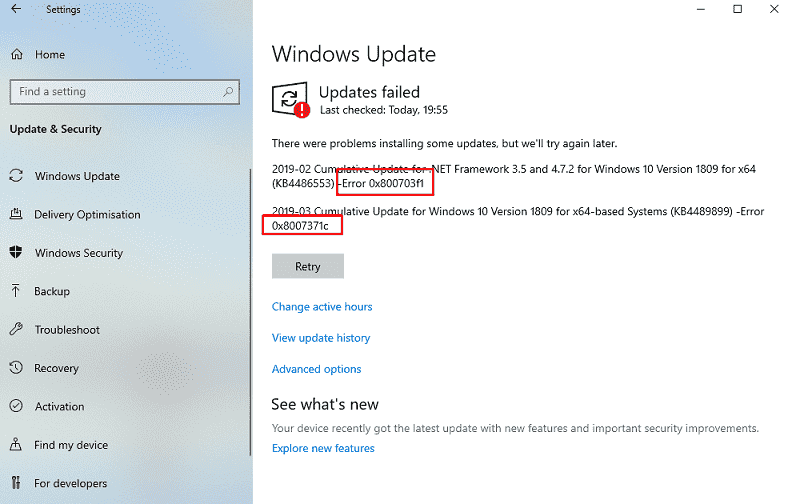
Windows 10 or 11 cumulative updates and Feature updates ensure the best performance of a system and new specialties. While attempting to get such patch or build through Windows settings app, error 0x800f0986 may appear that prevent the system from downloading it. The reasons behind this issue could be corruption in update components, misconfigured proxy settings, security application interruption, or third party services and programs.
0x800f0986 stops the updates all of a sudden and displays the error code under the Check for updates button. We have found some effective workarounds for the same as follow –
Error 0x800f0986 Solutions
Here is how to fix Error 0x800f0986 Windows 11/10 Update –
1] Make sure Windows Update service is enabled
Disabled Windows update related services often lead the system to prevent downloading update files. This configuration is mainly responsible to show error codes in Windows 11 and 10. To rectify the issue, you will have to make sure the Windows update service running. For that –
2] Run Windows Update troubleshooter
Microsoft came up with this built-in troubleshooter to find out the corruption obstructing Windows update. The utility not only detects the problem causing the problem 0x800f0986 but also puts forward an automatic solution for the same. To run the tool –
Windows 10
Windows 11
3] Download the most recent Servicing Stack Update
Before proceeding to get the latest SSU, you must know whether you use 32-bit or 64-bit Windows. To do so –
As of now you know the system architecture, let’s see how to get SSU –
4] Wipe out the SoftwareDistribution folder
System stores essential Windows Updates files in the SoftwareDistribution folder momentarily. Anything wrong with the same is largely responsible to bring forth update errors in Windows 10 and 11. To fix this kind of issue, either delete the folder or rename the same. Steps are as followed –
Note – If you are afraid of losing data, simply rename the folder instead of deleting.
5] Reset Windows Update component
If error 0x800f0986 still exists after deleting the SoftwareDistribution folder, there is a high chance that Catroot2 is creating the issue. Resetting the update component may help in such a case. Here is how to proceed –
net stop wuauserv
net stop cryptSvc
net stop bits
net stop msiserver
ren C:WindowsSoftwareDistribution SoftwareDistribution.old
ren C:WindowsSystem32catroot2 Catroot2.old
net start wuauserv
net start cryptSvc
net start bits
net start msiserver
6] Restrict Antivirus programs to fix error 0x800f0986
Though antimalware programs work to keep our system safe from hazardous threats, often it can end up causing error 0x800f0986. It happens when the security program mistakes update file for malware and obstruct the downloading process immediately. If the same happens with you, disable built-in antivirus along with third-party one. Here is the process –
Disable built-in Windows Security
Disable third-party antivirus
7] Get the most recent KB manually
If a specific feature update is generating error 0x800f0986, try to download it manually. Here’s how –
8] Settle Windows file corruption
Corrupted or missing system components related to Windows update often generates error 0x800f0986. To recover corruption, you will have to run both DISM and SFC command-line utility. Steps to do so are as followed –
dism /online /cleanup-image /restorehealth
9] Disable Proxy server
Misconfigured proxy settings are one of the main causes to generate error 0x800f0986 Windows Update error. Hence, you need to correct them by following below steps –
10] Perform Clean boot to fix error 0x800f0986
When you power on your Windows device, multiple numbers of services start and they keep running until you turn the system off. Though some services are necessary to run the PC smoothly, many of them can cause an issue while updating Windows. Mainly, third-party ones are responsible for this.
Clean boot allows you to run Windows machines with basic services provided by Microsoft. This way, you can be sure if any third-party service is causing error 0x800f0986. According to reports, when you perform a clean boot, errors related to Windows update goes away. So, let’s give it a try –
11] Reset Windows
There is a time when Windows device doesn’t perform the way it should be and throws unexpected error codes. This mostly happens after making any changes in the system. It’s hard to find out which change went against, hence, reset is the only option. Here is the process –
12] Perform an in-place upgrade to fix error 0x800f0986
If error 0x800f0986 stubborn enough and any resolution from above couldn’t solve it, the last thing you can do is updating Windows 10 or 11 through the Media creation tool. here’s how –
Источник
FIX: Windows Update error 0x800f0986 in Windows 10


Microsoft put a huge emphasis on improving their operating system with regular content patches. On the second Tuesday of each month, the company releases updates that include fixes and sometimes new additions.
Usually, Windows will automatically search and upgrade itself once a patch is officially released. However, the process doesn’t always go as planned, which usually results in failure or other problems.
The 0x800f0986 Windows Update error is just an example. This issue arises when you try to download cumulative patch updates via Settings in Windows 10 1909.
Instead of downloading the updates, you get an Updates failed error message with the 0x800f0986 code. Consequently, you can’t download various patch updates for Windows 10.

Why should I update my Windows?
Microsoft is constantly working to improve its operating system with new features and tools. You can only get these additions by updating the OS.
Additionally, the company releases frequent security updates that patch breaches or weak spots in the system to prevent cyberattacks from compromising the device or stealing your data.
If you don’t update Windows for a long time, the system will slowly become insecure.
How to check if there is an update available?
Usually, Windows will notify you if there is an update that needs to be installed, but there is a way to manually check that as well.
Knowing how important it really is to update your PC, it’s time to apply some quick solutions and get rid of the Updates failed error message right away.
1. Check if the Windows Update service is enabled
2. Use the Windows Update troubleshooter
The real cause of the error might also be related to some corrupted system files. If that is the case, you need to replace them.
Even if Windows Troubleshooter is great at solving problems, it’s not the best tool out there, so you might need to repair them using other ways.
We recommend using a professional automatic registry cleaner called Restoro since it’s designed to fix Windows errors and keep your OS in optimal condition, reducing the risk of getting error codes when you perform an update.
Certain issues can affect your PC’s security as well, so an all-in-one program with protection-oriented features is ideal.
3. Clear out the SoftwareDistribution folder
4. Reset Windows Update
5. Reset Windows 10
The Microsoft Update Catalog
Run a System Scan to discover potential errors


Click Start Scan to find Windows issues.

Click Repair All to fix issues with Patented Technologies.
Microsoft created a web-based service called the Windows Update Catalog, containing a list of drivers and updates for Windows or other software related to the OS and Microsoft itself.
They should be distributed over corporate networks, but can also be used by home users. You can search the title of the update and its description. When doing so for hardware updates, type in the model, manufacturer, and other details.

You can find important, recommended, and optional updates on the website:
With the Microsoft Update Catalog, you won’t have to rely on the operating system to update automatically.
What are the benefits of resetting the OS?
Resetting the operating system is really useful when you don’t know the exact cause of a problem. Since you have the option to keep the files in storage, there’s no risk of losing precious data or progress.
The only downside is the fact that you will need to configure the general settings. There is also the option to completely delete all the settings, apps, and stored files on the device and install a fresh copy of the system.
Are feature updates worth it?
Microsoft decided to focus on constantly improving Windows 10. Twice a year, they release massive content updates that add new features and overhaul existing ones.
Since there is so much emphasis on them, the Redmond company is pouring all of its resources into developing new tools.

Most of the time, the updates will include quality-of-life changes that were asked by the community, so it’s worth installing them right away.
Don’t worry about possible issues. All builds are going through testing before they are officially released, in order to fix any bugs.
Hopefully, by following these steps, you managed to get rid of the Windows Update error 0x800f0986. If you have problems with the updating process but you are using a newly installed operating system, there are many ways to solve them.
Moreover, if the error 0xc1900204 blocks Windows 10 updates, try running the Windows Update troubleshooter, and keep in mind that we’ve also prepared a detailed guide to help you in this regard.
Which one of the solutions written above worked best for you? Feel free to ask anything or talk about the subject in the comments section below. We’re eager to hear you out.
Restoro has been downloaded by 0 readers this month.
Источник
Как исправить ошибку 0x800f0922 при установке накопительных обновлений Windows 10
Обновление KB5003173 было выпущено во «Вторник Патчей», 11 мая 2022 года и предназначается для Windows 10, версий 21H1, 20H2 и 2004. Данное обновление включает улучшения безопасности для операционной системы. Microsoft приводит список из четырех известных проблем для данного обновления, но все они затрагивают также и предыдущие версии ОС.
При этом ошибка 0x800f0922 в списке известных проблем на странице поддержки не фигурирует. Обычным пользователям будет сложно установить, почему эта ошибка возникает во время установки обновления.
Специалисты немецкого портала Deskmodder обнаружили, что ошибка часто возникает в системах, в которых был удален Microsoft Edge на Chromium, чтобы вернуть доступ к классической версии Edge.
Накопительное обновление пытается установить Microsoft Edge на устройство, но процесс завершается сбоем при обнаружении папки C:Program Files (x86)MicrosoftEdge, даже если эта папка пуста. Папка останется в системе, если путь в команде удаления был указан без кавычек.
Следующая команда является корректной:
А при использовании такой команды остается пустая папка:
Как исправить ошибку 0x800f0922
Решение предельно простое: проверьте, существует ли папка и является ли она пустой. Если папка присутствует в системе, удалите ее и перезапустите обновление с помощью Центра обновления Windows.
Другое решение – установить Microsoft Edge на Chromium вручную перед запуском обновления. Оба решения должны устранить ошибку при установке накопительного обновления для Windows 10.
Скорее всего, проблема не является широко распространенной, учитывая, что она возникает только в системах, в которых системный администратор удалил Microsoft Edge некорректной командой.
Источник
Ошибка обновления Windows 0x800f0982 в Windows 10 [TECHNICIAN FIX]
Как исправить ошибку Windows Update 0x800f0982 в Windows 10? Во-первых, запустите средство устранения неполадок Центра обновления Windows. Встроенное средство устранения неполадок обычно работает со всеми видами кодов ошибок обновления. Или запустите службу установщика модулей Windows через командную строку или очистите папку SoftwareDistribution.
Прочитайте подробные инструкции ниже.
Проверьте эти возможные исправления для ошибки 0x800f0982
1. Запустите средство устранения неполадок Центра обновления Windows.
2. Запустите службу установщика модулей Windows.
Служба установки модулей Windows должна быть включена, чтобы пользователи могли обновлять платформу. Таким образом, некоторым пользователям может потребоваться включить установщик модулей Windows, чтобы исправить ошибку 0x800f0982. Вот как пользователи могут запускать WMI.
3. Очистите папку SoftwareDistribution
Папка SoftwareDistribution может содержать поврежденные компоненты обновления. Очистка этой папки обновит компоненты обновления и потенциально исправит ошибку 0x800f0982. Так пользователи могут очистить папку SoftwareDistribution.
4. Загрузите необходимые обновления из каталога Центра обновления Майкрософт
Это скорее обходной путь, чем разрешение, но пользователи также могут вместо этого загрузить определенные обновления из каталога Центра обновления Microsoft и установить их вручную.
Откройте страницу каталога Центра обновления Майкрософт и введите номер обновления, для которого возникла ошибка 0x800f0922, в поле поиска. Затем вы можете загрузить совместимое обновление, которое соответствует введенному поисковому слову. После загрузки щелкните файл MSU обновления, чтобы установить его.
Существует большая вероятность, что одно из приведенных выше решений исправит ошибку 0x800f0982 для большинства пользователей. Однако некоторые из разрешений в этом посте также могут помочь вам в устранении ошибки 0x800f0982.
Источник
Как исправить ошибку Центра обновления Windows 0x800f0984
Что такое ошибка Центра обновления Windows 0x800f0984

Скачать средство восстановления Windows

Существуют специальные утилиты восстановления для Windows, которые могут решить проблемы, связанные с повреждением реестра, неисправностью файловой системы, нестабильностью драйверов Windows. Мы рекомендуем использовать Advanced System Repair, чтобы исправить «ошибку Центра обновления Windows 0x800f0984» в Windows 10.
1. Воспользуйтесь средством устранения неполадок Центра обновления Windows
2. Запустите сканирование с помощью средства проверки системных файлов (SFC).
Как мы упоминали во введении к этой статье, некоторые проблемы с обновлением могут быть вызваны отсутствующими или поврежденными файлами. Обычно эти файлы являются важными компонентами системы, обеспечивающими надлежащую связь между различными процессами в системе. Если некоторые из этих файлов отсутствуют, то скорее всего, это вызовет ошибку. Ниже воспользуемся средством проверки системных файлов (SFC) и DISM, которые помогут обнаружить и восстановить отсутствующие компоненты. Вот как:
После того, как вы закончите этот шаг, попробуйте снова установить обновление. Если ошибка по-прежнему напоминает о себе, попробуйте сканирование DISM ниже.
3. Запустите DISM
Обслуживание образов развертывания и управление ими (DISM) аналогично запуску сканирования SFC. Однако оно использует разные алгоритмы для поиска проблемы и исправления поврежденных данных, которые SFC может пропустить. Поэтому давайте попробуем запустить этуо сканирование с помощью командной строки, как мы это уже делали.
4. Отключите / удалите стороннее ПО.
Стороннее ПО, такое как антивирус, склонно вызывать сбои в работе некоторых служб. Оно может заподозрить и ошибочно принять какой-то процесс за нечто подозрительное. По какой-то причине даже службы Windows могут быть занесены в черный список и ограничены антивирусным ПО. Поскольку мы не знаем, так ли это на самом деле, попробуйте отключить сторонний антивирус, если он у вас установлен. Помимо того, что антивирус является виновником таких ошибок, нежелательные или вредоносные программы также могут привести к тем же последствиям. Если вы помните, как недавно устанавливали что-то новое, попробуйте удалить это и посмотреть изменилось ли что-то. Возможно, это решит проблему. Если вы не знаете, как правильно удалять вредоносные программы, рекомендуем вам загрузить отличный и проверенный антивирус от MalwareBytes (используйте кнопку ниже).
5. Установите необходимое обновление в безопасном режиме.
Вместо удаления стороннего ПО, которое вызывает конфликт с обновлениями Windows, вы можете запустить свой компьютер в безопасном режиме. Эта функция загрузит вашу систему только с настройками конфигурации по умолчанию, что предотвратит взаимодействие сторонних программ с процессами Windows. Вот как:
6. Перезапустите компоненты и Службу обновления Windows.
Этот метод поможет вам сбросить настройки Центра обновления Windows. Вся процедура включает перезапуск служб BITS, Cryptographic, MSI Installer и Windows Update, а также переименование некоторых папок обновлений (SoftwareDistribution и Catroot2). Эти папки содержат специальные подписи для обновлений Windows. Исходя из этого, мы заставим Windows удалить поврежденные элементы и создать компоненты обновления с нуля. Для этого мы воспользуемся консолью, чтобы выполнить необходимые нам команды. Это более сложный вариант, но для его выполнения не потребуется много времени и знаний. Просто следуйте инструкциям ниже:
net stop wuauserv
net stop cryptSvc
net stop bits
net stop msiserver
ren C:WindowsSoftwareDistribution SoftwareDistribution.old
ren C:WindowsSystem32catroot2 Catroot2.old
net start wuauserv
net start cryptSvc
net start bits
net start msiserver
7. Попробуйте загрузить конфликтующее обновление из каталога Microsoft.
Если у вас возникла проблема с получением КБ обновлений, то вы можете попробовать установить их вручную. Перед тем как это сделать, нам нужно будет запомнить, какое обновление вам необходимо установить. Для этого:
Заключение
Мы рады сообщить, что вы подошли к кону данного руководства. Уверенны, что по крайней мере одно из перечисленных решений помогло решить возникающую проблему. Надеемся, что это так, и вас больше не беспокоят навязчивые предупреждения об ошибках. На нашем веб-сайте вы также можете найти статьи, помогающие бороться с вредоносным ПО, потенциально нежелательными программами и другими ошибками, связанными с Windows, которые появляются у множества пользователей.
Источник
-
#1
Устанавливала январское кумулятивное обновление KB5022286 на сервера Windows Server 2019 Datacener и почти на все сервера оно встало без проблем (в том числе и на Core).
Но на двух Core-серверах оно отказалось устанавливаться. И через WSUS и вручную выдает ошибку 0x800f0986
Что характерно, оба этих сервера — контроллеры домена DC01 и DC02, хотя не понимаю как это может быть связано.
Ни одно из решений найденных в гугле не помогло:
1. Остановка службы (net stop wuauserv) и переименование/удаление содержимого папки SoftwareDistribution
2. Сброс настроек Windows Update вручную
3. Сброс настроек Windows Update с помощью скрипта ResetWUEng
4. Скачивание кумулятива и попытка установить его вручную тоже выпадает в такую же ошибку
5. Запуск SFC /scannow ничего не находит
6. Repair-WindowsImage -Online –ScanHealth говорит что требуется восстановление, но dism /Online /Cleanup-Image /RestoreHealth на полпути сбрасывается так как не видит путь к файлам.
Причем другие обновления устанавливаются и вручную и через WSUS, ошибку выдает только кумулятивное.
Кто-нибудь сталкивался с подобным?
Последнее редактирование: Вторник в 08:02

-
#4
Проблема у меня оказывается была в том, что я отключил Защитник Windows и SuperFetch чтоб не грузили систему. Включив их обновление прошло успешно!
А такое пробовали ?
-
#5
Команда
sc query WinDefend — выдает что защитник windows включен и работает….
Код:
SERVICE_NAME: WinDefend
        TYPE               : 10  WIN32_OWN_PROCESS
        STATE              : 4  RUNNING
                                (STOPPABLE, NOT_PAUSABLE, ACCEPTS_SHUTDOWN)
        WIN32_EXIT_CODE    : 0  (0x0)
        SERVICE_EXIT_CODE  : 0  (0x0)
        CHECKPOINT         : 0x0
        WAIT_HINT          : 0x0
Последнее редактирование: Четверг в 13:32
-
#6
Команда
sc query WinDefend — выдает что защитник windows включен и работает….SERVICE_NAME: WinDefend
TYPE : 10 WIN32_OWN_PROCESS
STATE : 4 RUNNING
(STOPPABLE, NOT_PAUSABLE, ACCEPTS_SHUTDOWN)
WIN32_EXIT_CODE : 0 (0x0)
SERVICE_EXIT_CODE : 0 (0x0)
CHECKPOINT : 0x0
WAIT_HINT : 0x0
По идее ошибка говорит о повреждении системных файлов, а если явно отсюда поставить, тоже эффекта не будет ?
Последнее редактирование модератором: Среда в 17:51
-
#7
По идее ошибка говорит о повреждении системных файлов
, а если явно отсюда поставить, тоже эффекта не будет ?
Да, именно отсюда я скачивала кумулятивное обновление и пробовала установить вручную — ошибка такая же.
Повреждение системный файлов определенно есть, о чем говорит статус Repairable:
Код:
PS C:Usersadmin> Repair-WindowsImage -Online -ScanHealth

Path             :
Online           : False
ImageHealthState : Repairable
RestartNeeded    : False
Только вот Repair-WindowsImage -Online -RestoreHealth не исправляет файлы — говорит что не найден путь к файлам. И если пытаюсь указать путь на скачанный с сайта Microsoft образ с Windows Server 2019, тоже самое. Видимо версия отличается.
Последнее редактирование: Четверг в 12:29
Windows 10 or 11 cumulative updates and Feature updates ensure the best performance of a system and new specialties. While attempting to get such patch or build through Windows settings app, error 0x800f0986 may appear that prevent the system from downloading it. The reasons behind this issue could be corruption in update components, misconfigured proxy settings, security application interruption, or third party services and programs.
0x800f0986 stops the updates all of a sudden and displays the error code under the Check for updates button. We have found some effective workarounds for the same as follow –
Error 0x800f0986 Solutions
Here is how to fix Error 0x800f0986 Windows 11/10 Update –
1] Make sure Windows Update service is enabled
Disabled Windows update related services often lead the system to prevent downloading update files. This configuration is mainly responsible to show error codes in Windows 11 and 10. To rectify the issue, you will have to make sure the Windows update service running. For that –
- Press Windows and R keys at one go.
- Type services.msc in the command box and press Enter.
- Locate Windows Update.
- Once found, double-click the same to open its properties window.
- Click the down arrow icon located beside Startup type and opt for Automatic.
- Hit the Start button.
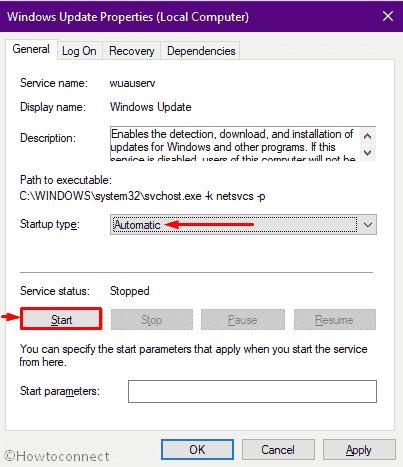
- Click Apply followed by OK to exit the window.
2] Run Windows Update troubleshooter
Microsoft came up with this built-in troubleshooter to find out the corruption obstructing Windows update. The utility not only detects the problem causing the problem 0x800f0986 but also puts forward an automatic solution for the same. To run the tool –
Windows 10
- Press Win+I to bring the Settings app on the computer screen.
- Click on Update & Security.
- Choose Troubleshoot from the left sidebar.
- Shift to the right pane and click Windows update.
- Hit the button Run the troubleshooter.
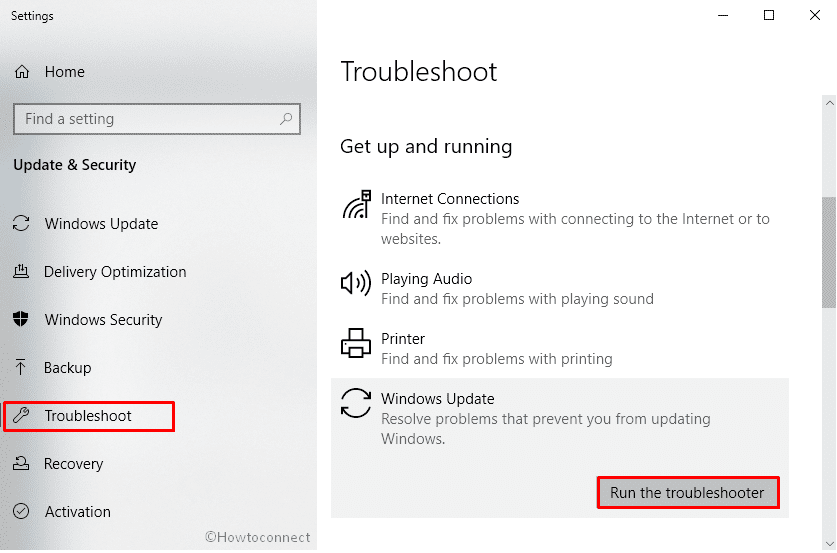
- Click Apply a fix when the troubleshooter recommends a resolution.
- To complete the process, go along with the on-screen guideline.
Windows 11
- Right-click Start button and choose – Settings.
- Move to the right of appearing window.
- Scroll down a bit and select – Troubleshoot.
- Click – Other troubleshooters.
- From the next page, hit Run present next to Windows update.
3] Download the most recent Servicing Stack Update
Before proceeding to get the latest SSU, you must know whether you use 32-bit or 64-bit Windows. To do so –
- Right-click on Start button and select Settings.
- Click System.
- Select About from the left column. In case of Windows 11, choose About from right.
- Check System type.
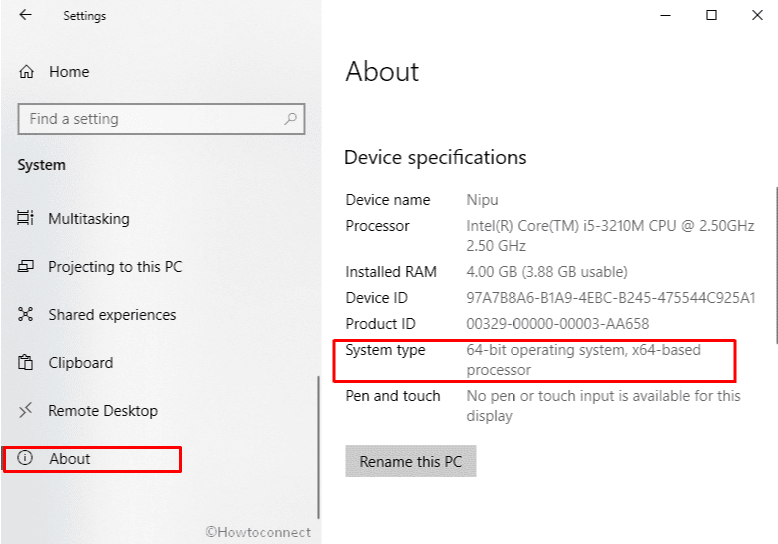
As of now you know the system architecture, let’s see how to get SSU –
- Visit the official webpage of Servicing Stack Updates.
- From the available products, pick out the compatible one and download the same.
- After downloading, install the product in the usual way.
- Reboot Windows.
- Once the system powers up, check for update.
4] Wipe out the SoftwareDistribution folder
System stores essential Windows Updates files in the SoftwareDistribution folder momentarily. Anything wrong with the same is largely responsible to bring forth update errors in Windows 10 and 11. To fix this kind of issue, either delete the folder or rename the same. Steps are as followed –
- Click on the taskbar search icon and type in services.msc.
- Hit Enter key.
- Look for Windows Update present under the Name list.
- Once found, right-click on the same and select Stop.
- Later on, press Win+E at once and navigate C:Windows.
- Locate SoftwareDistribution folder.
- Right-click on the folder then opt for Delete.
Note – If you are afraid of losing data, simply rename the folder instead of deleting.
- Whatever you do, the system will re-create the same folder automatically after a reboot.
- In the end, Restart Windows Update Service and try to get the patch.
5] Reset Windows Update component
If error 0x800f0986 still exists after deleting the SoftwareDistribution folder, there is a high chance that Catroot2 is creating the issue. Resetting the update component may help in such a case. Here is how to proceed –
- Press Win+S simultaneously and type in cmd.exe.
- Select the option Run as administrator.
- When a UAC prompts, click Yes button.
- Insert the below commands one by one and hit Enter after each –
net stop wuauserv
net stop cryptSvc
net stop bits
net stop msiserver
- Execute the following command in the same way –
ren C:WindowsSoftwareDistribution SoftwareDistribution.old
ren C:WindowsSystem32catroot2 Catroot2.old
- After completion, restart the services you have stopped in earlier commands –
net start wuauserv
net start cryptSvc
net start bits
net start msiserver
- Close the Command Prompt and thereafter restart your device.
6] Restrict Antivirus programs to fix error 0x800f0986
Though antimalware programs work to keep our system safe from hazardous threats, often it can end up causing error 0x800f0986. It happens when the security program mistakes update file for malware and obstruct the downloading process immediately. If the same happens with you, disable built-in antivirus along with third-party one. Here is the process –
Disable built-in Windows Security
- Press – Windows + S.
- Type – Virus & threat protection.
- Hit – Enter.
- Move to the right pane of appearing window.
- Click the link says Manage settings.
- Turn on the toggle button of Real-time protection.
Disable third-party antivirus
- Right-click on the antivirus icon located on the system tray. If you don’t get the icon here, click up arrow sign to find it.
- Choose Disable or anything identical.
- It may ask to choose a time interval after which the program will turn on automatically. Select accordingly.
7] Get the most recent KB manually
If a specific feature update is generating error 0x800f0986, try to download it manually. Here’s how –
- Visit the official webpage of Microsoft Update Catalog.
- Use its search bar to find out the KB number you are having trouble with.
- After getting the same, download the package compatible with your Windows 11 or 10 and install it.
8] Settle Windows file corruption
Corrupted or missing system components related to Windows update often generates error 0x800f0986. To recover corruption, you will have to run both DISM and SFC command-line utility. Steps to do so are as followed –
- Press Win+X and opt for Run.
- Type cmd.exe in the text bar and press Ctrl+Shift+Enter altogether.
- Click Yes for the UAC.
- Copy the below command and paste it after blinking cursor –
dism /online /cleanup-image /restorehealth
- Hit Enter to run the command.
- Once the DISM command finishes the scanning process, execute the below command in the same elevated Command Prompt –
sfc /scannow
9] Disable Proxy server
Misconfigured proxy settings are one of the main causes to generate error 0x800f0986 Windows Update error. Hence, you need to correct them by following below steps –
- Open Run Dialog box.
- Put inetcpl.cpl in the command box and hit Enter.
- Move to Connections tab.
- Click LAN settings button from the bottom.
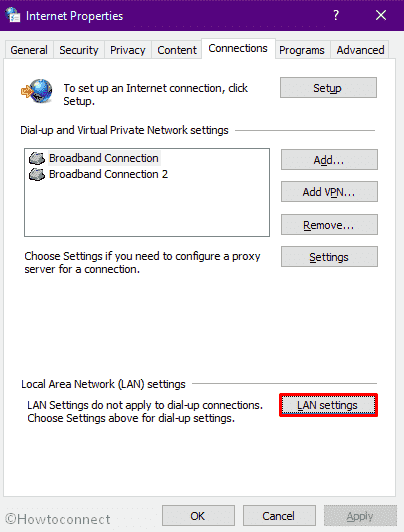
- Check the box set for Automatically detect settings.
- Also, make sure the box assigned for Use a proxy server for your LAN (These settings will not apply to dial-up or VPN connections) is unchecked.
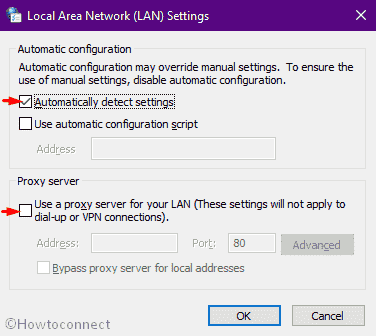
- Click the OK button to save the changes.
- Reboot Windows machine and attempt to download the update.
10] Perform Clean boot to fix error 0x800f0986
When you power on your Windows device, multiple numbers of services start and they keep running until you turn the system off. Though some services are necessary to run the PC smoothly, many of them can cause an issue while updating Windows. Mainly, third-party ones are responsible for this.
Clean boot allows you to run Windows machines with basic services provided by Microsoft. This way, you can be sure if any third-party service is causing error 0x800f0986. According to reports, when you perform a clean boot, errors related to Windows update goes away. So, let’s give it a try –
- Press Win+S and type in msconfig.
- Press Enter key When you see System Configuration at top of the search result.
- Click the radio button of Selective startup.
- Make sure the checkbox of Load startup items is ticked.
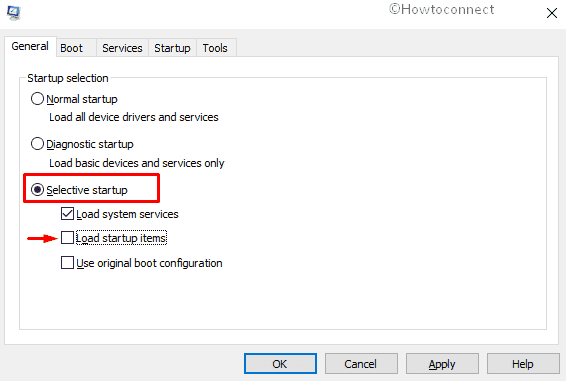
- Shift to Services tab.
- Click on the checkbox set aside Hide all Microsoft services.
- Hit Disable all button.
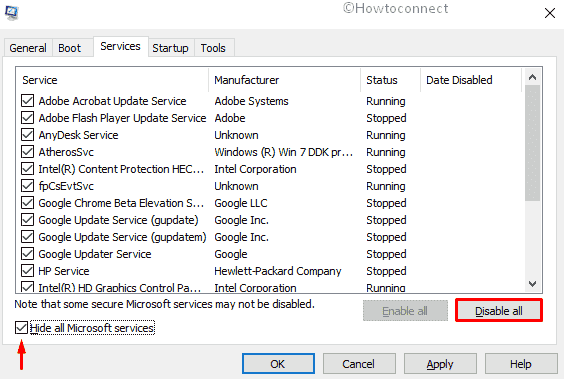
- Head over Startup tab then.
- Click the link Open Task Manager.
- When Task Manager appears, right-click on each program present there one after another and chooses Disable for all.
- Return to System Configuration wizard and click on Apply followed by OK.
11] Reset Windows
There is a time when Windows device doesn’t perform the way it should be and throws unexpected error codes. This mostly happens after making any changes in the system. It’s hard to find out which change went against, hence, reset is the only option. Here is the process –
- Press Windows key and type Reset this PC.
- Hit – Enter.
- Move to right pane and click the button Get Started or Reset PC located under Reset this PC.
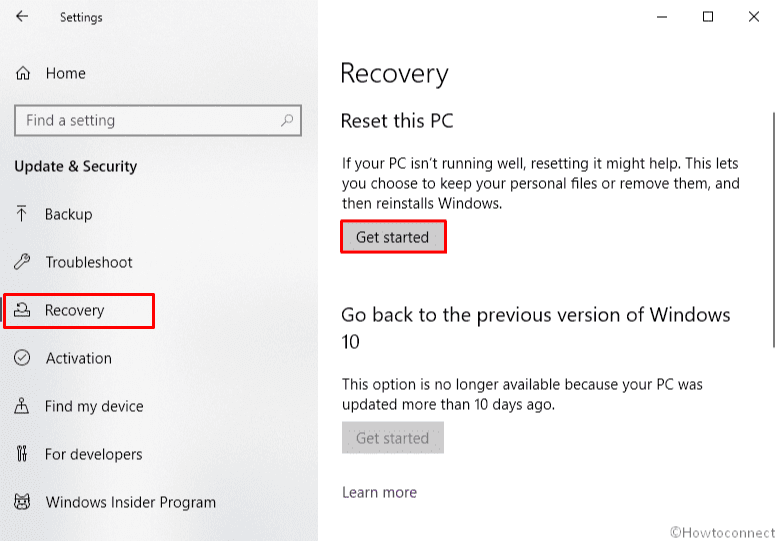
- Choose the option Keep my files.
- Click Next button for the pop-up shows which apps will be wiped out during the process.
- Hit Reset button to give final consent.
- Hold your patient as this process may take one hour or more.
12] Perform an in-place upgrade to fix error 0x800f0986
If error 0x800f0986 stubborn enough and any resolution from above couldn’t solve it, the last thing you can do is updating Windows 10 or 11 through the Media creation tool. here’s how –
- Visit the official page of the Microsoft Website.
- Click Download tool now.
- Double-click on the downloaded file.
- When a UAC prompts, hit Yes to continue.
- Click the Accept button to once you see Windows Setup wizard.
- From the subsequent page, choose Create installation media (USB flash drive, DVD, or ISO file) for another PC and then hit Next.
- Make sure Language, Edition, and Architecture is correctly selected. Thereafter, hit Next.
- Click the radio button set for ISO file and click on Next.
- After choosing the directory where you want to store the file, hit Save button.
- Once the downloading process is done, click Finish.
- Finish the procedure by installing the file.
Methods:
1] Make sure Windows Update service is enabled
2] Run Windows Update troubleshooter
3] Download the most recent Servicing Stack Update
4] Wipe out the SoftwareDistribution folder
5] Reset Windows Update component
6] Restrict Antivirus programs
7] Get the most recent KB manually
8] Settle Windows file corruption
9] Disable Proxy server
10] Perform Clean boot
11] Reset Windows
12] Perform an in-place upgrade
That’s all!!
Repair any Windows problems such as Blue/Black Screen, DLL, Exe, application, Regisrty error and quickly recover system from issues using Reimage.