Ошибка 0x80073d0d возникает у тех, кто использует Microsoft Store в своей Windows 10 для загрузки игр и приложений. Она может мешать установке практически всех приложений, но часто пользователи ссылаются на Forza 7 Ultimate Edition. К счастью, у проблемы есть вполне понятная причина и простой способ исправления, который работает практически у всех.
Причина ошибки 0x80073d0d
Проблема заключается в том, что у вас есть несколько жестких дисков или SSD. Подключение дополнительных устройств приводит к нарушению реестра в отношении пути установки. Даже несмотря на попытки изменить путь инсталляции, порой это не срабатывает и приходится принудительно все менять через редактор реестра.
Как исправить ошибку с кодом 0x80073d0d?
Самое эффективное решение – зайти в реестр и вручную поработать с адресами. Более простое исправление – через «Параметры» системы изменить путь для установки приложений. Если их подкорректировать, установка и обновление любых приложений должно пройти успешно. Конечно же, все решения подразумевают, что на выбранном диске достаточно места.
Инструкция:
- Нажимаем комбинацию Win + R, вводим в строку regedit и жмем Enter.
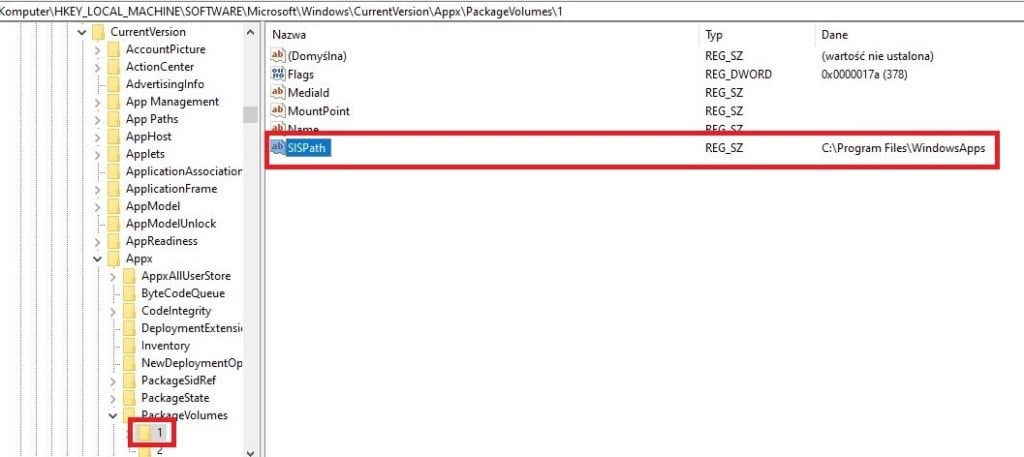
- Идем по пути HKEY_LOCAL_MACHINESOFTWAREMicrosoftWindowsCurrentVersionAppxPackageVolumes.
- Проверяем параметры, в которых есть ссылки на несуществующий том памяти (обычно это подключаемый диск). Когда такие найдутся, их можно удалить.
Еще один вариант – изменить папку установки через параметры системы на новый диск. Там должно быть сгенерировано несколько папок, в том числе WindowsApps и ее содержимое. Можно ее скопировать и вставить с заменой на старый диск, а также изменить путь обратно.
Подобные процедуры можно выполнить и с помощью командной строки. Вам потребуется 3 команды, вводите их последовательно, после каждой нажимая Enter:
Get-AppXPackage -AllUsers -Name Microsoft.WindowsStore | Foreach {Add-AppxPackage -DisableDevelopmentMode -Register “$($_.InstallLocation)AppXManifest.xml” -Verbose}
Get-AppXPackage | Foreach {Add-AppxPackage -DisableDevelopmentMode -Register “$($_.InstallLocation)AppXManifest.xml”}
PowerShell -ExecutionPolicy Unrestricted -Command “& {$manifest = (Get-AppxPackage Microsoft.WindowsStore).InstallLocation + ‘AppxManifest.xml’ ; Add-AppxPackage -DisableDevelopmentMode -Register $manifest}”
Надеемся, что эта статья помогла вам исправить ошибку 0x80073d0d в Windows 10 при работе с Microsoft Store вне зависимости от наличия подписки Xbox Game Pass. Однако мы нуждаемся в ваших откликах, чтобы узнать больше об ошибке. Так мы вместе придем к самому эффективному и быстрому решению ошибки.
As a Windows 11 or Windows 10 PC user, you’re bound to occasionally run into Microsoft Store errors like Error Code(s) 0x8D050002, 0x80073d0a, 0x00000190, 0x87E10BD0, 0x80073D12, 0x80004003, and so on. In this post, we provide the most suitable solutions to successfully fix Microsoft Store Error Code 0x80073D0D when you try to download and install a game or app on your device.
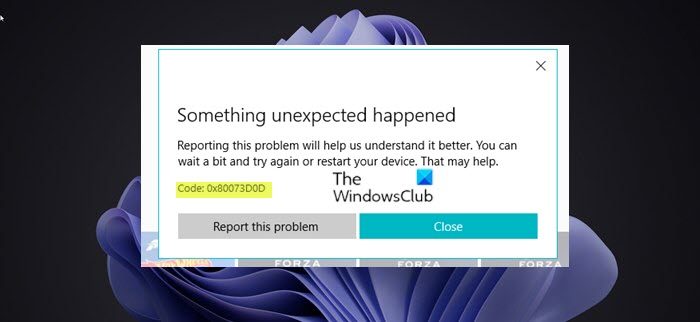
Similar to Error code 0x80073cf4, you may also encounter this error code when you’re trying to move inbuilt system apps from one location to another.
If you have encountered the Microsoft Store Error Code 0x80073D0D when trying to download or install apps on Windows 11/10, you can try our recommended solutions below in no particular order and see if that helps to resolve the issue on your device.
- Run Windows Store Apps Troubleshooter
- Repair or Reset Microsoft Store
- Reinstall Windows Store using PowerShell
- Repair Windows Store and update components.
Let’s take a look at the description of the process involved concerning each of the listed solutions.
Before you proceed with the solutions below, keep in mind that this error could be due to a transient issue at Microsoft end – so, as suggested on the error prompt, you can wait a while and then try again or restart your PC and make sure there are no connectivity issues.
1] Run Windows Store Apps Troubleshooter
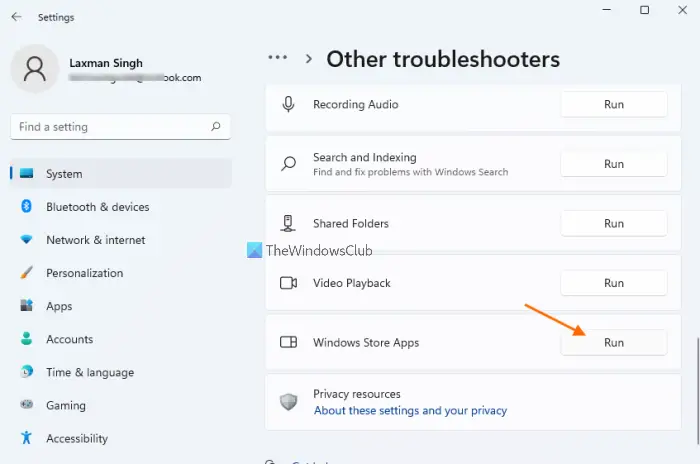
You can begin troubleshooting to fix the Microsoft Store Error Code 0x80073D0D that occurred on your Windows 11/10 PC by running the Windows Store Apps Troubleshooter and see if that helps.
To run Windows Store Apps Troubleshooter on your Windows 11 device, do the following:
- Press Windows key + I to open Settings app.
- Navigate to System > Troubleshoot > Other troubleshooters.
- Under the Other section, find Windows Store Apps.
- Click Run button.
- Follow on-screen instructions and apply any recommended fixes.
To run the Windows Store Apps Troubleshooter on your Windows PC, do the following:
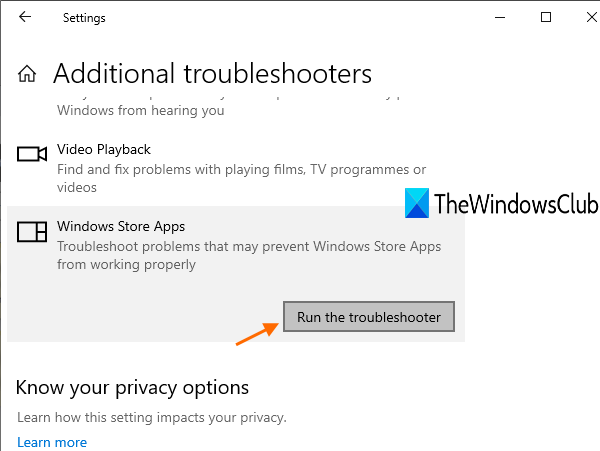
- Press Windows key + I to open Settings app.
- Go to Update and Security.
- Click the Troubleshooter tab.
- Scroll down and click on Windows Store Apps.
- Click the Run the troubleshooter button.
- Follow on-screen instructions and apply any recommended fixes.
2] Repair or Reset Microsoft Store
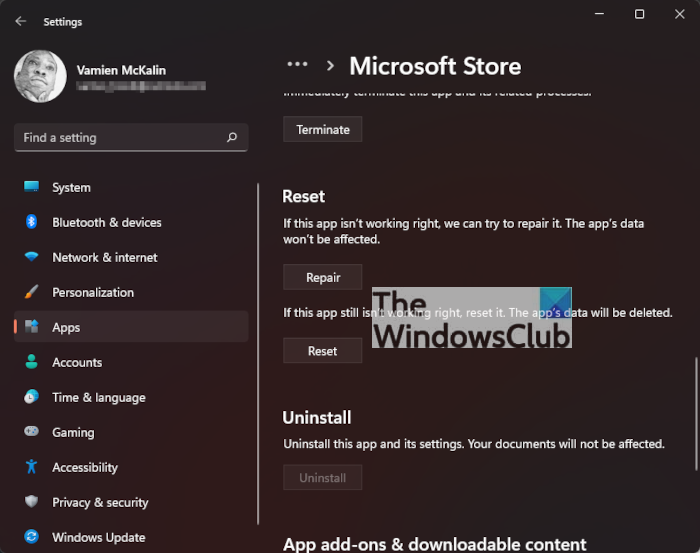
You may Repair or Reset Microsoft Store via Settings.
2] Reinstall Windows Store using PowerShell
To reinstall Windows Store using PowerShell on your Windows 11/10 computer, do the following:
- Press Windows key + X to open Power User Menu.
- Tap A on the keyboard to launch PowerShell (Windows Terminal) in admin/elevated mode.
- In the PowerShell console, type or copy and paste in the command below and hit Enter.
Get-AppxPackage -allusers Microsoft.WindowsStore | Foreach {Add-AppxPackage -DisableDevelopmentMode -Register “$($_.InstallLocation)\AppXManifest.xml”}
After the command executes, restart your computer and on boot, try opening Microsoft Store and see if the error reoccurs when you try to download/install a game/app. If so, try the next solution.
4] Repair Windows Store and update components
To repair Windows Store and update components on your Windows 11/10 device, do the following:
- Launch PowerShell (Windows Terminal) in admin/elevated mode.
- In the PowerShell console, type or copy and paste in the commands below and hit Enter after each line.
net stop bits
net stop wuauserv
net stop appidsvc
net stop cryptsvc
Del "%ALLUSERSPROFILE%Application DataMicrosoftNetworkDownloader*.*"
rmdir %systemroot%SoftwareDistribution /S /Q
rmdir %systemroot%system32catroot2 /S /Q
regsvr32.exe /s atl.dll
regsvr32.exe /s urlmon.dll
regsvr32.exe /s mshtml.dll
netsh winsock reset
netsh winsock reset proxy
net start bits
net start wuauserv
net start appidsvc
net start cryptsvc
- Once done restart PC.
On boot, check if the issue in hand is resolved.
Any of these solutions should work for you!
Why is my Microsoft Store saying error?
There could be a number of reasons why you’re encountering Microsoft Store errors on your Windows 11/10 device. The error code/message normally helps to narrow it down and as well determine the most appropriate solutions which generally includes checking for connection problems and making sure that you’re signed in with a Microsoft account and Windows is updated.
Why can’t I install from Microsoft Store?
If you’re having issues installing games or apps from Microsoft Store on your PC, you can try the following suggestions:
- Try running the Windows Store apps Troubleshooter at Settings > Update & Security > Troubleshoot.
- Try resetting the Store cache.
- Go to Settings > Apps and highlight Microsoft Store, choose Advanced Settings, then Reset. After the app resets, restart the PC.
Is Microsoft App Store safe?
Yes. Apps are safe because they are approved by a team of developers and engineers at Microsoft. If you submit an app, the functioning, code, and other usability aspects will be verified by the team. Moreover, apps are also checked for the presence of harmful viruses.
Why does my Microsoft Store not download?
The most common and root cause of the app download failure you’re experiencing on the Microsoft Store on your Windows 11/10 PC is an outdated or bug-ridden Windows version/build. So make sure you install the latest update on your computer; go to Settings > Update & Security > Windows Update and click Check for Updates.
As a Windows 11 or Windows 10 PC user, you’re bound to occasionally run into Microsoft Store errors like Error Code(s) 0x8D050002, 0x80073d0a, 0x00000190, 0x87E10BD0, 0x80073D12, 0x80004003, and so on. In this post, we provide the most suitable solutions to successfully fix Microsoft Store Error Code 0x80073D0D when you try to download and install a game or app on your device.
Similar to Error code 0x80073cf4, you may also encounter this error code when you’re trying to move inbuilt system apps from one location to another.
If you have encountered the Microsoft Store Error Code 0x80073D0D when trying to download or install apps on Windows 11/10, you can try our recommended solutions below in no particular order and see if that helps to resolve the issue on your device.
- Run Windows Store Apps Troubleshooter
- Repair or Reset Microsoft Store
- Reinstall Windows Store using PowerShell
- Repair Windows Store and update components.
Let’s take a look at the description of the process involved concerning each of the listed solutions.
Before you proceed with the solutions below, keep in mind that this error could be due to a transient issue at Microsoft end – so, as suggested on the error prompt, you can wait a while and then try again or restart your PC and make sure there are no connectivity issues.
1] Run Windows Store Apps Troubleshooter
You can begin troubleshooting to fix the Microsoft Store Error Code 0x80073D0D that occurred on your Windows 11/10 PC by running the Windows Store Apps Troubleshooter and see if that helps.
To run Windows Store Apps Troubleshooter on your Windows 11 device, do the following:
- Press Windows key + I to open Settings app.
- Navigate to System > Troubleshoot > Other troubleshooters.
- Under the Other section, find Windows Store Apps.
- Click Run button.
- Follow on-screen instructions and apply any recommended fixes.
To run the Windows Store Apps Troubleshooter on your Windows PC, do the following:
- Press Windows key + I to open Settings app.
- Go to Update and Security.
- Click the Troubleshooter tab.
- Scroll down and click on Windows Store Apps.
- Click the Run the troubleshooter button.
- Follow on-screen instructions and apply any recommended fixes.
2] Repair or Reset Microsoft Store
You may Repair or Reset Microsoft Store via Settings.
2] Reinstall Windows Store using PowerShell
To reinstall Windows Store using PowerShell on your Windows 11/10 computer, do the following:
- Press Windows key + X to open Power User Menu.
- Tap A on the keyboard to launch PowerShell (Windows Terminal) in admin/elevated mode.
- In the PowerShell console, type or copy and paste in the command below and hit Enter.
Get-AppxPackage -allusers Microsoft.WindowsStore | Foreach {Add-AppxPackage -DisableDevelopmentMode -Register “$($_.InstallLocation)\AppXManifest.xml”}
After the command executes, restart your computer and on boot, try opening Microsoft Store and see if the error reoccurs when you try to download/install a game/app. If so, try the next solution.
4] Repair Windows Store and update components
To repair Windows Store and update components on your Windows 11/10 device, do the following:
- Launch PowerShell (Windows Terminal) in admin/elevated mode.
- In the PowerShell console, type or copy and paste in the commands below and hit Enter after each line.
net stop bits
net stop wuauserv
net stop appidsvc
net stop cryptsvc
Del "%ALLUSERSPROFILE%Application DataMicrosoftNetworkDownloader*.*"
rmdir %systemroot%SoftwareDistribution /S /Q
rmdir %systemroot%system32catroot2 /S /Q
regsvr32.exe /s atl.dll
regsvr32.exe /s urlmon.dll
regsvr32.exe /s mshtml.dll
netsh winsock reset
netsh winsock reset proxy
net start bits
net start wuauserv
net start appidsvc
net start cryptsvc
- Once done restart PC.
On boot, check if the issue in hand is resolved.
Any of these solutions should work for you!
Why is my Microsoft Store saying error?
There could be a number of reasons why you’re encountering Microsoft Store errors on your Windows 11/10 device. The error code/message normally helps to narrow it down and as well determine the most appropriate solutions which generally includes checking for connection problems and making sure that you’re signed in with a Microsoft account and Windows is updated.
Why can’t I install from Microsoft Store?
If you’re having issues installing games or apps from Microsoft Store on your PC, you can try the following suggestions:
- Try running the Windows Store apps Troubleshooter at Settings > Update & Security > Troubleshoot.
- Try resetting the Store cache.
- Go to Settings > Apps and highlight Microsoft Store, choose Advanced Settings, then Reset. After the app resets, restart the PC.
Is Microsoft App Store safe?
Yes. Apps are safe because they are approved by a team of developers and engineers at Microsoft. If you submit an app, the functioning, code, and other usability aspects will be verified by the team. Moreover, apps are also checked for the presence of harmful viruses.
Why does my Microsoft Store not download?
The most common and root cause of the app download failure you’re experiencing on the Microsoft Store on your Windows 11/10 PC is an outdated or bug-ridden Windows version/build. So make sure you install the latest update on your computer; go to Settings > Update & Security > Windows Update and click Check for Updates.
Windows 10: Forza Horizon 4 installing error Code: 0x80073D0D
Discus and support Forza Horizon 4 installing error Code: 0x80073D0D in Windows 10 Installation and Upgrade to solve the problem; I´ve first downloaded Forza Horizon 4 to my external SSD drive to save storage on my Laptop I have a Surface Book 2 with 256 GB. I didn´t have any…
Discussion in ‘Windows 10 Installation and Upgrade’ started by Julian Wolff, Mar 4, 2020.
-
Forza Horizon 4 installing error Code: 0x80073D0D
I´ve first downloaded Forza Horizon 4 to my external SSD drive to save storage on my Laptop I have a Surface Book 2 with 256 GB. I didn´t have any problems with downloading and insalling the game, but when I started it I just saw the loading screen and then it closed after a few moments without any report what happend or something else.
I then talked to a friend if he also had the problem and when we tried to install ist on my Surface directly. Now it crashes after downloading and won´t install… When press the retry symbol in the store it starts to download again about 40mb and then try to install. After about 10 secounds the installing process crashes and shows «error» more options show me the code «0x80073D0D».
So I started some research and tried many methods to solve the problem. I saw a few similiar posts here in the forum but none of the solutions from there worked.. I tried to reset the store and I also tried every method fromthis YouTube video… My pc found some damaged files and repaired it but that´s everything. A troubleshoot analysis said I have to sign in, in a Microsoft account which is weird because i´m already signed in…
So for now my options are gone and I really don´t have any idea what my problem could fix.
Do anyone had the same problems and successfully fixed it?
🙂
-
Forza Horizon 4 installing error (Code: 0x80073D0D)
I´ve first downloaded Forza Horizon 4 to my external SSD drive to save storage on my Laptop (I have a Surface Book 2 with 256 GB). I didn´t have any problems with downloading and insalling the game, but when I started it I just saw the loading screen and
then it closed after a few moments without any report what happend or something else.I then talked to a friend if he also had the problem and when we tried to install ist on my Surface directly. Now it crashes after downloading and won´t install… When press the retry symbol in the store it starts to download again about 40mb and then try
to install. After about 10 secounds the installing process crashes and shows «error» (more options show me the code «0x80073D0D»).So I started some research and tried many methods to solve the problem. I saw a few similiar posts here in the forum but none of the solutions from there worked.. I tried to reset the store and I also tried every method from
YouTube video… My pc found some damaged files and repaired it but that´s everything. A troubleshoot analysis said I have to sign in, in a Microsoft account (which is weird because i´m already signed in..).
So for now my options are gone and I really don´t have any idea what my problem could fix.
Do anyone had the same problem(s) and successfully fixed it?
-
error code 0x80073d0d on the windows store trying to download forza horizon 3
Hello. I am trying to download Forza Horizon 3 but I keep getting error code 0x80073d0d on the windows store. I have tried using a different windows account on my PC but that hasnt fixed anything. thank you
-
Forza Horizon 4 installing error Code: 0x80073D0D
saving forza horizon 4
Hi,
Thank you for writing to Microsoft Community Forums.
I understand how difficult it can be when the feature does not work the way it is supposed to.
I would suggest you to post Forza Horizon 4 query on Forza Horizon 4 forum. Please post this question in the
Forza Horizon forum, where we have the engineers with the expertise to provide solutions for this issue.
Aditya Roy
Microsoft Community — Moderator
Forza Horizon 4 installing error Code: 0x80073D0D
-
Forza Horizon 4 installing error Code: 0x80073D0D — Similar Threads — Forza Horizon installing
-
Forza Horizon 4 not installing
in Windows 10 Gaming
Forza Horizon 4 not installing: Hello, i bought forza horizon for over 3 months now and i tried installing it from microsoft store several times. Usually it takes some hours to download the full 79 gb game but at the end it would give an error and have to do it again only to see the same error. Today i… -
Forza Horizon 4 stuck on installing, then erroring.
in Windows 10 Gaming
Forza Horizon 4 stuck on installing, then erroring.: I’m using the Microsoft Store on my Windows 10 Desktop with Windows 20H2, and build 19042.804.
When I am installing the last 47 MB of data it goes to my local restore point, then when it tries to finish downloading I get «error» with code 0x80073D0D.I’ve tried resetting the…
-
Error code during installing Forza Horizon 4
in Windows 10 Gaming
Error code during installing Forza Horizon 4: I’ve bought Forza Horizon 4 but it keep having the error code of 0x803FB107during installing the game, I’ve tried all the solution appeared on the Microsoft community, but still cannot solve the problem, I feel really frustrated that I cannot play the game even though I paid… -
Error on Installing Forza Horizon 4
in Windows 10 Gaming
Error on Installing Forza Horizon 4: Split from this thread.Install Forza Horizon 4 — error code FH601 Windows media components is required pc
https://answers.microsoft.com/en-us/windows/forum/all/error-on-installing-forza-horizon-4/7a573415-dc98-485c-8413-c8f046d7e5d6
-
Forza Horizon 4 Install Error 0x80073D0D
in Microsoft Windows 10 Store
Forza Horizon 4 Install Error 0x80073D0D: When I’m trying to install Forza Horizon 4, it gives me this error «0x80073D0D». I’ve tried everything from msreset to dism. The error occurs when it downloads all 76.89 GB of data and right when it goes into the installing phase. I’m installing this on my E drive HDD, since… -
Forza Horizon 4 error 0x80073D0D
in Microsoft Windows 10 Store
Forza Horizon 4 error 0x80073D0D: So I have FH4 and I have tried ever possible conceivable option from WSreset-anything short of an OS reinstall. no matter what I do when the base game installs it may happen when it tries to download or when it is installing but forza just will not install. it happened almost… -
Forza Horizon 4 installing error Code: 0x80073D0D
in Windows 10 Gaming
Forza Horizon 4 installing error Code: 0x80073D0D: I´ve first downloaded Forza Horizon 4 to my external SSD drive to save storage on my Laptop I have a Surface Book 2 with 256 GB. I didn´t have any problems with downloading and insalling the game, but when I started it I just saw the loading screen and then it closed after a… -
Forza Horizon 4 cannot be downloaded due to Microsoft Store download error 0x80073D0D.
in Microsoft Windows 10 Store
Forza Horizon 4 cannot be downloaded due to Microsoft Store download error 0x80073D0D.: Hello,A few days ago, I switched out my HDD to an SSD on my laptop, then I wanted to redownload all the games and apps from my previous hard disk. When I tried to download Forza Horizon 4 to my new SSD, the error «0x80073D0D» popped up. And it only happens on this app and…
-
Forza Horizon 4 not installing
in Windows 10 Gaming
Forza Horizon 4 not installing: I just bought FH4 from the Microsoft Store but I can`t install it. When I click the Install button on the game page it does the animation but it doesn`t start, I tried doing a Clean Boot and reloging into the MS Store account but none of those two worked. I don`t know if it…
Users found this page by searching for:
-
0x80073d0d
,
-
fh4 0x80073d0d
,
-
0x80073d0d changing drive

Ну если это лицензия, то проверь место мб его не хватает, а если пиратка то скорей всего просто установку другую надо, а ваще вот так пробуй делать:
Как исправить ошибку с кодом 0x80073d0d?
Самое эффективное решение – зайти в реестр и вручную поработать с адресами. Более простое исправление – через «Параметры» системы изменить путь для установки приложений. Если их подкорректировать, установка и обновление любых приложений должно пройти успешно. Конечно же, все решения подразумевают, что на выбранном диске достаточно места.
Инструкция:
- Нажимаем комбинацию Win + R, вводим в строку regedit и жмем Enter.
- Идем по пути HKEY_LOCAL_MACHINESOFTWAREMicrosoftWindowsCurrentVersionAppxPackageVolumes.
- Проверяем параметры, в которых есть ссылки на несуществующий том памяти (обычно это подключаемый диск). Когда такие найдутся, их можно удалить.
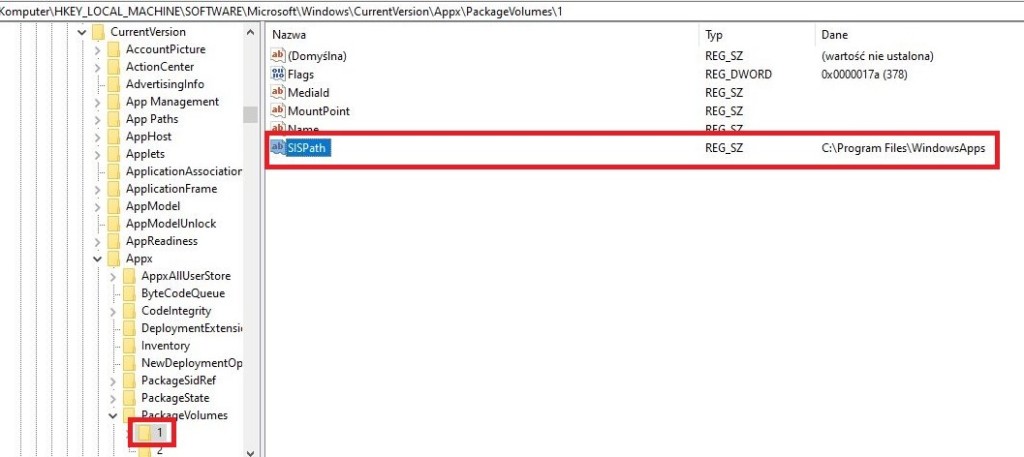
Еще один вариант – изменить папку установки через параметры системы на новый диск. Там должно быть сгенерировано несколько папок, в том числе WindowsApps и ее содержимое. Можно ее скопировать и вставить с заменой на старый диск, а также изменить путь обратно.
Подобные процедуры можно выполнить и с помощью командной строки. Вам потребуется 3 команды, вводите их последовательно, после каждой нажимая Enter:
Как пользователь ПК с Windows 11 или Windows 10, вы должны время от времени сталкиваться с ошибками Microsoft Store, такими как коды ошибок 0x8D050002, 0x80073d0a, 0x00000190, 0x87E10BD0, 0x80073D12, 0x80004003 и так далее. В этом посте мы предлагаем наиболее подходящие решения для успешного исправления кода ошибки Microsoft Store 0x80073D0D при попытке загрузить и установить игру или приложение на свое устройство.
Подобно коду ошибки 0x80073cf4, вы также можете столкнуться с этим кодом ошибки, когда пытаетесь переместить встроенные системные приложения из одного места в другое.
Если вы столкнулись с Код ошибки магазина Microsoft 0x80073D0D при попытке загрузить или установить приложения в Windows 11/10 вы можете попробовать наши рекомендуемые ниже решения в произвольном порядке и посмотреть, поможет ли это решить проблему на вашем устройстве.
- Запустите средство устранения неполадок приложений Магазина Windows
- Восстановить или сбросить Microsoft Store
- Переустановите Магазин Windows с помощью PowerShell.
- Восстановите Магазин Windows и обновите компоненты.
Давайте взглянем на описание процесса, связанного с каждым из перечисленных решений.
Прежде чем приступить к приведенным ниже решениям, имейте в виду, что эта ошибка может быть связана с временной проблемой на стороне Microsoft, поэтому, как предлагается в сообщении об ошибке, вы можете немного подождать, а затем повторить попытку или перезагрузить компьютер и убедиться, проблем с подключением нет.
1]Запустите средство устранения неполадок приложений Магазина Windows.
Вы можете приступить к устранению неполадок, чтобы исправить Код ошибки магазина Microsoft 0x80073D0D которые произошли на вашем ПК с Windows 11/10, запустив средство устранения неполадок приложений Магазина Windows, и посмотрите, поможет ли это.
Чтобы запустить средство устранения неполадок приложений Магазина Windows на устройстве с Windows 11, выполните следующие действия:
- Нажмите клавишу Windows + I, чтобы открыть приложение «Настройки».
- Перейдите в Система > Устранение неполадок > Другие средства устранения неполадок.
- В разделе «Другое» найдите «Приложения Магазина Windows».
- Нажмите кнопку «Выполнить».
- Следуйте инструкциям на экране и примените все рекомендуемые исправления.
Чтобы запустить средство устранения неполадок приложений Магазина Windows на ПК с Windows, выполните следующие действия:
- Нажмите клавишу Windows + I, чтобы открыть приложение «Настройки».
- Перейдите в «Обновление и безопасность».
- Перейдите на вкладку «Устранение неполадок».
- Прокрутите вниз и нажмите Приложения Магазина Windows.
- Нажмите кнопку Запустить средство устранения неполадок.
- Следуйте инструкциям на экране и примените все рекомендуемые исправления.
2]Восстановить или сбросить Microsoft Store
Вы можете восстановить или сбросить Microsoft Store через настройки.
2]Переустановите Магазин Windows с помощью PowerShell.
Чтобы переустановить Магазин Windows с помощью PowerShell на компьютере с Windows 11/10, выполните следующие действия:
Get-AppxPackage -allusers Microsoft.WindowsStore | Foreach {Add-AppxPackage -DisableDevelopmentMode -Register «$($_.InstallLocation)AppXManifest.xml»}
После выполнения команды перезагрузите компьютер и при загрузке попробуйте открыть Microsoft Store и посмотреть, повторяется ли ошибка при попытке загрузить/установить игру/приложение. Если это так, попробуйте следующее решение.
4]Восстановите Магазин Windows и обновите компоненты
Чтобы восстановить Магазин Windows и обновить компоненты на вашем устройстве с Windows 11/10, выполните следующие действия:
- Запустите PowerShell (терминал Windows) в режиме администратора/повышенных прав.
- В консоли PowerShell введите или скопируйте и вставьте приведенные ниже команды и нажимайте Enter после каждой строки.
стоповые биты сети чистая остановка wuauserv чистая остановка appidsvc чистая остановка cryptsvc Del «%ALLUSERSPROFILE%Application DataMicrosoftNetworkDownloader*.*» rmdir %systemroot%SoftwareDistribution /S /Q rmdir %systemroot%system32catroot2 / S /Q regsvr32.exe /s atl.dll regsvr32.exe /s urlmon.dll regsvr32.exe /s mshtml.dll netsh winsock reset netsh winsock reset прокси-сервер net start bits net start wuauserv net start appidsvc net start cryptsvc
При загрузке проверьте, решена ли проблема. Если нет, попробуйте следующее решение.
Любое из этих решений должно работать для вас!
Почему мой Microsoft Store говорит об ошибке?
Может быть несколько причин, по которым вы сталкиваетесь с ошибками Microsoft Store на своем устройстве с Windows 11/10. Код/сообщение об ошибке обычно помогает сузить область поиска, а также определить наиболее подходящие решения, которые обычно включают проверку наличия проблем с подключением и проверку того, что вы вошли в систему с учетной записью Microsoft и обновлена Windows.
Почему я не могу установить из Microsoft Store?
Если у вас возникли проблемы с установкой игр или приложений из Microsoft Store на ваш компьютер, вы можете попробовать следующие предложения:
- Попробуйте запустить средство устранения неполадок приложений Магазина Windows в меню «Настройки» > «Обновление и безопасность» > «Устранение неполадок».
- Попробуйте сбросить кеш Магазина.
- Перейдите в «Настройки» > «Приложения» и выделите Microsoft Store, выберите «Дополнительные настройки», затем «Сброс». После сброса приложения перезагрузите компьютер.
Безопасен ли магазин приложений Microsoft?
да. Приложения безопасны, потому что они одобрены командой разработчиков и инженеров Microsoft. Если вы отправляете приложение, его функционирование, код и другие аспекты удобства использования будут проверены командой. Кроме того, приложения также проверяются на наличие вредоносных вирусов.
Почему мой Microsoft Store не загружается?
Наиболее распространенной и основной причиной сбоя загрузки приложения, с которым вы сталкиваетесь в Microsoft Store на ПК с Windows 11/10, является устаревшая или содержащая ошибки версия/сборка Windows. Поэтому убедитесь, что вы установили последнее обновление на свой компьютер; перейдите в «Настройки» > «Обновление и безопасность» > «Центр обновления Windows» и нажмите «Проверить наличие обновлений».
Пользователи Windows 10 сообщают, что не могут переместить игры на другой диск из-за ошибки 0x80073d0b при использовании функции «Переместить» в настройках приложений и игр. Это сообщение об ошибке сопровождается раздражающим приглашением «Попробуйте позже», только чтобы получить тот же результат.
Судя по описанию проблемы, похоже, что это новая ошибка Windows 10, но Microsoft еще не признала ее. Служба поддержки компании не смогла предложить решение этой проблемы, предоставив только ссылку, совершенно не связанную с ошибкой, описанной пользователями.
Пользователи Windows 10 жалуются на ошибку 0x80073d0b
Я получаю сообщение «Мы не смогли переместить Halo 5: Forge» с кодом ошибки 0x80073d0b после попытки перенести игру на другой диск. Я использую функцию «переместить» в настройках приложений и игр. Если бы кто-нибудь мог помочь, я был бы признателен.

«Решение», предложенное службой поддержки Microsoft, за которым последовало внезапное молчание, когда пользователи настаивали на том, что ответ не связан с проблемой, заставили пользователей Windows 10 потерять надежду, что эта ошибка может быть исправлена в ближайшее время.
Я подозреваю, что это еще одна ошибка Windows 10, и она, вероятно, займет Microsoft несколько недель, если не месяцев, чтобы исправить. Между тем, похоже, что единственный вариант — это удалить игру, а затем переустановить ее, указав место хранения на том диске, на котором вы хотите его разместить, поскольку я не помню, чтобы магазин спрашивал меня, где я хотел, когда я его скачивал. ,
Ошибка 0x80073d0b не связана только с конкретным названием игры. Пользователи подтвердили, что столкнулись с этой ошибкой при попытке переместить другие игры, такие как Forza Horizon 3 , ReCore или Gears of War 4 .
Если вы нашли обходной путь для этой проблемы, вы можете перечислить шаги по устранению неполадок в разделе комментариев ниже.
СВЯЗАННЫЕ ИСТОРИИ, КОТОРЫЕ ВЫ ДОЛЖНЫ ПРОВЕРИТЬ:
- 100+ лучших игр для Windows 10 в магазине
- 10 лучших гоночных игр для Windows 10
- 7 лучших словесных игр для Windows 10