Резюме: В этом блоге вы узнаете, как исправить ошибку Outlook 0x80040900, используя как ручные, так и профессиональные методы. Мы проведем вас через пошаговую процедуру, которую вы можете применить для устранения ошибки Outlook 0x80040900 с минимальными усилиями.
Microsoft Outlook — самое популярное и распространенное почтовое приложение во всем мире. Несмотря на наличие множества дополнительных функций, у него есть и некоторые недостатки. Иногда пользователи могут столкнуться с множеством проблем при отправке или получении электронных писем в Outlook. Одна из наиболее распространенных ошибок, всплывающих на экране пользователя, — «Ошибка Outlook 0x80040900». Посмотрите точное сообщение об ошибке, приведенное ниже:
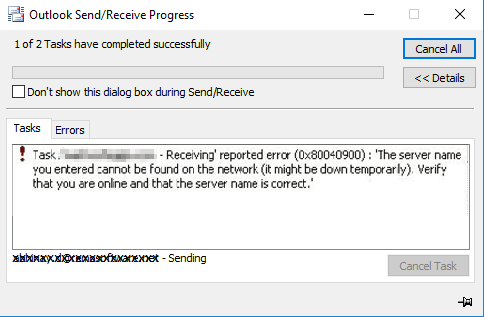
Может быть много различных причин, которые могут привести к отправке сообщения об ошибке 0x80040900. Некоторые из них обсуждаются здесь.
1: Из-за проблем с сетевым подключением: Плохое или нестабильное сетевое соединение не позволяет пользователям получать доступ к файлам данных Outlook, расположенным на сетевом сервере. Это также может привести к сбою оборудования, что приведет к недоступности файлов PST.
2: Наличие антивируса и межсетевых экранов: Антивирусная программа, имеющая функции сканирования электронной почты, может вызывать проблемы, которые могут привести к ошибке Outlook «0x80040900». Эта ошибка также может возникнуть, если порты вашего сервера блокируются в настройках брандмауэра.
3: Неправильные настройки учетной записи Outlook: Код ошибки Outlook 0x80040900 может возникнуть, если вы допустили некоторые ошибки в имени сервера входящей / исходящей почты, номере порта или аутентификации сервера.
4: Тайм-аут сервера из-за негабаритных файлов: По умолчанию время ожидания подключения к серверу в Outlook составляет 1 минуту. Если вы попытаетесь отправить электронные письма с вложениями большого размера, они могут застрять в папке «Исходящие» из-за недостаточного тайм-аута сервера по умолчанию.
5: поврежденный PST: Файлы Outlook PST могут быть повреждены по многим причинам, таким как вирусная атака, заражение вредоносным ПО и т. Д.
Важные советы, чтобы избежать ошибки Outlook 0x80040900 Код
- Убедитесь, что ваше интернет-соединение активно.
- Отключите сторонний антивирус.
- Проверьте настройки брандмауэра.
- Регулярно обновляйте Windows.
Как исправить ошибку Outlook 0x80040900 вручную?
1. Настройте правильные параметры Outlook
Прежде всего, убедитесь, что вы указали правильные настройки для своей учетной записи электронной почты Outlook. Посмотрите, что для этого нужно сделать:
Примечание: Для выполнения этих шагов вам потребуются права администратора.
- Запустите приложение Outlook.
- Щелкните Файл >> Настройки учетной записи.
- Щелкните вкладку «Электронная почта» в диалоговом окне «Параметры учетной записи».
- Дважды щелкните свою учетную запись электронной почты, чтобы просмотреть или изменить настройки учетной записи.
- Проверьте правильность имен серверов входящей и исходящей почты.
- Затем нажмите «Дополнительные настройки».
- В диалоговом окне «Параметры электронной почты Интернета» установите флажок «Мой сервер исходящей почты (SMTP) требует проверки подлинности».
- Щелкните вкладку «Дополнительно» и убедитесь, что вы указали правильные номера портов входящего и исходящего трафика и настройки SSL.
- Нажмите ОК и закройте все открытые окна.
Перезапустите приложение Outlook и проверьте, решена ли проблема.
2: изменить длительность тайм-аута Outlook Server
Иногда увеличение значения тайм-аута сервера может помочь исправить ошибку отправки или получения Outlook 0x80040900. Выполните следующие действия, чтобы изменить продолжительность работы сервера Outlook.
- Откройте приложение Outlook.
- Щелкните Файл >> Настройки учетной записи.
- В диалоговом окне «Параметры учетной записи» нажмите «Изменить».
- В диалоговом окне «Изменить учетную запись» нажмите «Дополнительные настройки».
- На экране появится всплывающее окно, в этом окне щелкните вкладку «Дополнительно» и увеличьте время ожидания сервера.
3. Запустите инструмент восстановления папки «Входящие»
Используйте встроенную утилиту восстановления Microsoft (Scanpst.exe).
- Закройте Microsoft Outlook и запустите Scanpst.exe.
- Теперь найдите файлы Outlook PST, которые нужно восстановить.
- Щелкните по кнопке Пуск. Если утилита обнаруживает ошибку, файл предлагает начать процесс восстановления.
- Нажмите кнопку «Восстановить», и инструмент начнет процесс восстановления.
Основным недостатком этой утилиты восстановления Microsoft является то, что она не может обрабатывать большие и сильно поврежденные файлы PST. В этом случае вам необходимо использовать сторонний инструмент, который поможет вам преодолеть ограничения Scanpst.exe.
Мгновенное решение для исправления ошибки Outlook 0x80040900
Вот лучшее решение, которое предпочитает большинство профессиональных пользователей. PST Repair — это приложение, которое занимается устранением всех видов повреждений PST. Это предотвращает дальнейшее повреждение путем разделения и сжатия файлов PST большого размера. Основная функциональность инструмента заключается в том, что он обеспечивает быстрый и расширенный режим сканирования для восстановления сильно поврежденных файлов.
Последние мысли
В этом блоге рассматривается одна из наиболее частых проблем, возникающих в Outlook. Т.е. Код ошибки Outlook 0x80040900. Обычно это происходит при отправке или получении электронного письма по нескольким причинам. Чтобы избежать дальнейших проблем, необходимо немедленно исправить этот код ошибки. Поэтому мы упомянули как ручные, так и автоматизированные методы исправления кода ошибки 0x80040900 в Outlook.
 |
Номер ошибки: | Ошибка 0x80040900 |
| Название ошибки: | The server name you entered can not be found on the network (it might be down temporarily) | |
| Описание ошибки: | Task ‘pop.isot.com — Receiving’ reported error (0x80040900) : ‘The server name you entered can not be found on the network (it might be down temporarily). Please verify that you are online and that the server name is correct.’. Incorrect account settings. | |
| Разработчик: | Microsoft Corporation | |
| Программное обеспечение: | Microsoft Outlook | |
| Относится к: | Windows XP, Vista, 7, 8, 10, 11 |
Оценка «The server name you entered can not be found on the network (it might be down temporarily)»
«The server name you entered can not be found on the network (it might be down temporarily)» часто называется ошибкой во время выполнения (ошибка). Разработчики программного обеспечения, такие как Microsoft Corporation, обычно принимают Microsoft Outlook через несколько уровней отладки, чтобы сорвать эти ошибки перед выпуском для общественности. Тем не менее, возможно, что иногда ошибки, такие как ошибка 0x80040900, не устранены, даже на этом этапе.
«Task ‘pop.isot.com — Receiving’ reported error (0x80040900) : ‘The server name you entered can not be found on the network (it might be down temporarily). Please verify that you are online and that the server name is correct.’. Incorrect account settings.» может возникнуть у пользователей Microsoft Outlook даже при нормальном использовании приложения. В случае обнаруженной ошибки 0x80040900 клиенты могут сообщить о наличии проблемы Microsoft Corporation по электронной почте или сообщать об ошибках. Команда программирования может использовать эту информацию для поиска и устранения проблемы (разработка обновления). Следовательно, разработчик будет использовать пакет обновления Microsoft Outlook для устранения ошибки 0x80040900 и любых других сообщений об ошибках.
В чем причина ошибки 0x80040900?
В большинстве случаев вы увидите «The server name you entered can not be found on the network (it might be down temporarily)» во время загрузки Microsoft Outlook. Мы рассмотрим основные причины ошибки 0x80040900 ошибок:
Ошибка 0x80040900 Crash — программа обнаружила ошибку 0x80040900 из-за указанной задачи и завершила работу программы. Обычно это происходит, когда Microsoft Outlook не может обрабатывать предоставленный ввод или когда он не знает, что выводить.
Утечка памяти «The server name you entered can not be found on the network (it might be down temporarily)» — ошибка 0x80040900 утечка памяти приводит к тому, что Microsoft Outlook использует все больше памяти, что делает ваш компьютер запуск медленнее и замедляет вывод системы. Возможные причины из-за отказа Microsoft Corporation девыделения памяти в программе или когда плохой код выполняет «бесконечный цикл».
Ошибка 0x80040900 Logic Error — Логические ошибки проявляются, когда пользователь вводит правильные данные, но устройство дает неверный результат. Обычные причины этой проблемы связаны с ошибками в обработке данных.
Большинство ошибок The server name you entered can not be found on the network (it might be down temporarily) являются результатом отсутствия или повреждения версии файла, установленного Microsoft Outlook. Как правило, решить проблему можно заменой файла Microsoft Corporation. Кроме того, регулярная очистка и оптимизация реестра Windows предотвратит создание неправильных ссылок на пути к файлам Microsoft Corporation, поэтому мы настоятельно рекомендуем регулярно выполнять сканирование реестра.
Классические проблемы The server name you entered can not be found on the network (it might be down temporarily)
Частичный список ошибок The server name you entered can not be found on the network (it might be down temporarily) Microsoft Outlook:
- «Ошибка приложения The server name you entered can not be found on the network (it might be down temporarily).»
- «The server name you entered can not be found on the network (it might be down temporarily) не является программой Win32. «
- «Возникла ошибка в приложении The server name you entered can not be found on the network (it might be down temporarily). Приложение будет закрыто. Приносим извинения за неудобства.»
- «Файл The server name you entered can not be found on the network (it might be down temporarily) не найден.»
- «The server name you entered can not be found on the network (it might be down temporarily) не найден.»
- «Ошибка запуска в приложении: The server name you entered can not be found on the network (it might be down temporarily). «
- «Не удается запустить The server name you entered can not be found on the network (it might be down temporarily). «
- «Отказ The server name you entered can not be found on the network (it might be down temporarily).»
- «The server name you entered can not be found on the network (it might be down temporarily): путь приложения является ошибкой. «
Проблемы The server name you entered can not be found on the network (it might be down temporarily) с участием Microsoft Outlooks возникают во время установки, при запуске или завершении работы программного обеспечения, связанного с The server name you entered can not be found on the network (it might be down temporarily), или во время процесса установки Windows. Отслеживание того, когда и где возникает ошибка The server name you entered can not be found on the network (it might be down temporarily), является важной информацией при устранении проблемы.
The server name you entered can not be found on the network (it might be down temporarily) Истоки проблем
Большинство проблем The server name you entered can not be found on the network (it might be down temporarily) связаны с отсутствующим или поврежденным The server name you entered can not be found on the network (it might be down temporarily), вирусной инфекцией или недействительными записями реестра Windows, связанными с Microsoft Outlook.
В основном, осложнения The server name you entered can not be found on the network (it might be down temporarily) связаны с:
- Недопустимая или поврежденная запись The server name you entered can not be found on the network (it might be down temporarily).
- Зазаражение вредоносными программами повредил файл The server name you entered can not be found on the network (it might be down temporarily).
- The server name you entered can not be found on the network (it might be down temporarily) злонамеренно удален (или ошибочно) другим изгоем или действительной программой.
- Другая программа, конфликтующая с The server name you entered can not be found on the network (it might be down temporarily) или другой общей ссылкой Microsoft Outlook.
- Поврежденная установка или загрузка Microsoft Outlook (The server name you entered can not be found on the network (it might be down temporarily)).
Продукт Solvusoft
Загрузка
WinThruster 2022 — Проверьте свой компьютер на наличие ошибок.
Совместима с Windows 2000, XP, Vista, 7, 8, 10 и 11
Установить необязательные продукты — WinThruster (Solvusoft) | Лицензия | Политика защиты личных сведений | Условия | Удаление
| Summary: MS Outlook is the most popular email client, but it is not devoid of errors. ‘Outlook Error 0x80040900’ is one such error code that you may encounter when trying to send or receive emails through your Outlook application. |
|---|

Table of Content:
- What Causes Outlook Error 0x80040900, and its Solutions?
- Network Connectivity Issue
- Oversized or Corrupt PST
- Issue with Anti-virus and Firewall Settings
- Incorrect Email Account Settings
- Lower Server Timeout
- FAQ
This is one instance of Outlook error 0x80040900, including but not limited to undetected server issues. Let’s look at the most common causes that may result in ‘Outlook Error 0x80040900’, and it’s corresponding solutions:

What Causes Outlook Error 0x80040900, and its Solutions?
1 – Network Connectivity Issue
Poor or no network connection can make it difficult for you to access your Outlook data files. Essentially, the PST file is located on a network server, and a bad network connection can result in hardware failure resulting in inaccessible PST files.
Solution – Make sure that your Internet connection is active and strong.
Sometimes, simply restarting your internet connection might also help fix the problem.
2 – Oversized or Corrupt PST
When the PST file exceeds the set size limit (i.e. 50GB), the file may become corrupt and result in the send-receive error ‘0x80040900’.
Solution – Use Microsoft’s built-in repair utility (Scanpst.exe) to fix PST file corruption. But, keep in mind, the Microsoft repair utility cannot handle large-sized and severely corrupt PST files. In that case, Stellar Repair for Outlook Technician can help you overcome the Scanpst.exe limitations, as the software helps:
- Fix severely corrupt PST files
- Prevent further corruption by splitting and compacting large-sized PST files.
Also, read – How to Repair PST when ScanPST is not responding?
3 – Issue with Anti-virus and Firewall Settings
Sometimes, an anti-virus software with email scanning features can cause issues that may result in Outlook ‘0x80040900’ error. This error may also occur in case your server ports are getting blocked by Firewall settings.
Solution – Temporarily disable the anti-virus and Firewall settings and check if it resolves the problem.
Ensure you enable anti-virus and Firewall settings after you resolve the issue.
4 – Incorrect Email Account Settings
Outlook Error 0x80040900 can be caused by an error in your email client program setup. Essentially, a mistake in the incoming/outgoing server’s name, port number, or server authentication can result in the error ‘0x80040900’.
Solution – In addition, Verify that you have specified the correct settings for your Outlook email account. To do so, follow these steps:
NOTE: You need admin rights to perform these steps.
Additional help, How to Fix Outlook Not Responding Error?
5 – Lower Server Timeout
The server connection timeout duration in Outlook is 1 min, by default. So, if you will try to send emails with large-size attachments, the emails may get stuck in Outbox due to insufficient default server timeout.
Solution – Increasing the Server timeout value may help you fix Outlook send/receive ‘0x80040900’ error. Follow the steps below to change the Outlook server timeout duration:
- Start Outlook
- Click on File -> Account Settings -> Account Settings
- Account Settings dialog box, click on Change
- Change the Account dialog box, click on More Settings
- From the window that pops up, click on the Advanced tab and increase the Server timeout.

Conclusion
Outlook Error 0x80040900 can occur due to several reasons, but the most prevalent is a bad network connection and over-size PST files, which results in PST file corruption. However, you can use the Microsoft Inbox Repair utility or Stellar Outlook Repair Tool to fix corrupt PST files. In case the PST file is not corrupt, check other plausible causes such as antivirus conflict, email account setting, and server timeout value, as outlined in this post.
FAQ
How to solve the outlook send-receive error?
Microsoft Outlook users often encounter the dreaded Send-Receive Error, which puts all communication on hold. Fortunately, there are some solutions to resolve this issue such as trying common fixes and repairing PST files. However, if those don’t work then third-party tools like Stellar Repair for Outlook can help get rid of the troublesome problem once and for all!
What causes Outlook “send/receive” progress stuck in windows 11?
Struggling with your Outlook’s send/receive progress getting stuck? It might be due to faulty add-ins, a corrupt profile, or an unreliable connection. You can try disabling the add-ins and reconfiguring profiles but if that isn’t enough, reach for either scanpst.exe or the PST repair Tool – both of which are inbuilt solutions specifically designed to help restore damaged Outlook files!
- Remove From My Forums

Outlook 2010 not updating inbox — unknown error 0x80040900
-
Question
-
Hello all,
We have a big problem that is affecting about 10 new users per day in a 2000 user company. Several hundred have already experienced this problem over the past few months. Any ideas would be greatly appreciated!
Problem summary:
- Outlook 2010 client setup to use cache-mode on Windows 7 laptop and connecting to Exchange 2007.
- Client stops updating users inbox.
- Outlook connection status is “connected to Microsoft Exchange” but update status will say “last updated <%previous_date%>”.
- Selecting Send/Receive tab while inbox is highlighted and clicking on “Update Folder” results in error message that reads “Unknown error 0x80040900”
- User can use OWA to see new email in their inbox. Mail is also delivered to Blackberry, Good, and ActiveSync mobile clients with no issue.
- Only known resolution is to close Outlook, rename the users OST file and reopen Outlook which creates a new OST file for the user
- OST files vary in size – from 500 MB to over 2 GB
- Some users have experienced this issue several times while others have seen it once and it doesn’t reoccur
- We have been unable to replicate the problem on demand
- Most of the users affected work remotely over VPN on occasion
Additional environment information:
- Running Exchange 2007 (version 8.3 – build 83.6)
- Server OS is Windows Server 2008 R2 Enterprise for all Exchange servers in Org
- Outlook 2010 client has the following add-ins:
- Symantec EV
- Office Communicator 2007
- Cisco Webex
- Microsoft OneNote
- Outlook is configured to Negotiate Authentication in users profile
- All laptops are also running the following software:
- Office Communicator 2007 R2 client v3.5.6907.261
- Websense Endpoint v7.6 build 1246
- Trend Micro OfficeScan Client v10.5.1997
- Riverbed Steelhead Mobile client v3.1.3d #133_17
- Mapi optimization has been disabled on all Riverbed appliances and software clients
- Cisco VPN client v5.0.07.0440
- OST files are saved in the default directory
- C:Users%username%AppDataLocalMicrosoftOutlook
- Symantec EV email archiving is in use
- Mail is stubbed after 90 days and archived after 6 months
Steps we have taken so far:
- OCAT tool run on several affected machines – no relevant alerts have been found
- Disabled virus scanning on OST, PST and LOG files on all users workstations
- Verified max MAPI connections on Exchange servers – currently set to 100
- Check open MAPI connections for affected users – found between 20 to 30
- Ran cmdlet «Get-LogonStatistics <username> | Measure-Object
- Worked with Riverbed support team
- Provided several client logs to their support team – no relevant issue found
- Updated Riverbed client to the version in use today (listed above)
- Disabled MAPI optimization on all appliances and on mobile client
- Max MAPI sessions on Riverbed set to 1500
- Connection lan keep-alive on appliances changed from 2400 to 60 minutes
- Disabled MAPI pre-population setting on appliances
-
Moved by
Monday, February 18, 2013 3:33 AM
legcy server
Answers
-
-
Marked as answer by
Fiona_LiaoModerator
Tuesday, February 26, 2013 1:13 AM
-
Marked as answer by
- Remove From My Forums
Outlook 2010 not updating inbox — unknown error 0x80040900
-
Question
-
Hello all,
We have a big problem that is affecting about 10 new users per day in a 2000 user company. Several hundred have already experienced this problem over the past few months. Any ideas would be greatly appreciated!
Problem summary:
- Outlook 2010 client setup to use cache-mode on Windows 7 laptop and connecting to Exchange 2007.
- Client stops updating users inbox.
- Outlook connection status is “connected to Microsoft Exchange” but update status will say “last updated <%previous_date%>”.
- Selecting Send/Receive tab while inbox is highlighted and clicking on “Update Folder” results in error message that reads “Unknown error 0x80040900”
- User can use OWA to see new email in their inbox. Mail is also delivered to Blackberry, Good, and ActiveSync mobile clients with no issue.
- Only known resolution is to close Outlook, rename the users OST file and reopen Outlook which creates a new OST file for the user
- OST files vary in size – from 500 MB to over 2 GB
- Some users have experienced this issue several times while others have seen it once and it doesn’t reoccur
- We have been unable to replicate the problem on demand
- Most of the users affected work remotely over VPN on occasion
Additional environment information:
- Running Exchange 2007 (version 8.3 – build 83.6)
- Server OS is Windows Server 2008 R2 Enterprise for all Exchange servers in Org
- Outlook 2010 client has the following add-ins:
- Symantec EV
- Office Communicator 2007
- Cisco Webex
- Microsoft OneNote
- Outlook is configured to Negotiate Authentication in users profile
- All laptops are also running the following software:
- Office Communicator 2007 R2 client v3.5.6907.261
- Websense Endpoint v7.6 build 1246
- Trend Micro OfficeScan Client v10.5.1997
- Riverbed Steelhead Mobile client v3.1.3d #133_17
- Mapi optimization has been disabled on all Riverbed appliances and software clients
- Cisco VPN client v5.0.07.0440
- OST files are saved in the default directory
- C:Users%username%AppDataLocalMicrosoftOutlook
- Symantec EV email archiving is in use
- Mail is stubbed after 90 days and archived after 6 months
Steps we have taken so far:
- OCAT tool run on several affected machines – no relevant alerts have been found
- Disabled virus scanning on OST, PST and LOG files on all users workstations
- Verified max MAPI connections on Exchange servers – currently set to 100
- Check open MAPI connections for affected users – found between 20 to 30
- Ran cmdlet «Get-LogonStatistics <username> | Measure-Object
- Worked with Riverbed support team
- Provided several client logs to their support team – no relevant issue found
- Updated Riverbed client to the version in use today (listed above)
- Disabled MAPI optimization on all appliances and on mobile client
- Max MAPI sessions on Riverbed set to 1500
- Connection lan keep-alive on appliances changed from 2400 to 60 minutes
- Disabled MAPI pre-population setting on appliances
-
Moved by
Monday, February 18, 2013 3:33 AM
legcy server
Answers
-
-
Marked as answer by
Fiona_LiaoModerator
Tuesday, February 26, 2013 1:13 AM
-
Marked as answer by
Outlook «0x80040900» error commonly occurs when you have specified incorrect the mail server name (or ports) at Outlook Account settings, or, if you cannot reach the mail server due to Internet connections problems. In all that cases, you will receive the following notification error message during Outlook send/receive operation: «Task ‘example@server.com’ – Receiving reported error (0x80040900) : The server name you entered cannot be found on the network (it might be down temporarily) Verify that you are online and that the server name is correct».
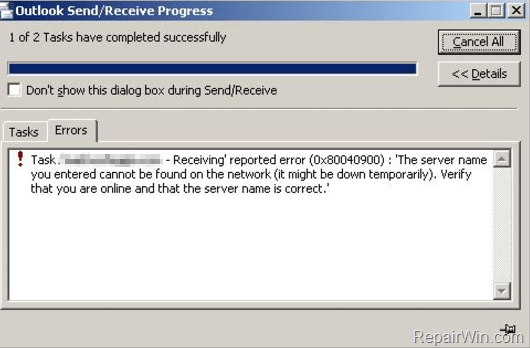
This tutorial contains instructions to resolve the Outlook error 0x80040900, during Send/Receive.
How to solve 0x80040600 error code in Outlook 2003, 2007, 2010 or 2013.
Method-1. Check your Internet Connection.
Open your Internet browser and visit any website to ensure that your Internet connection is working.
Method-2. Check Mail Server settings.
Step-1. According to your email provider, find the required settings to properly setup your email account in Outlook. Here’s what you need to know:
- Incoming Mail Server’s type: POP3 or IMAP
- Incoming Mail Server’s Name/Address
- Outgoing Mail Server Name/Address
- Incoming Mail Server Port number.
- Outgoing Mail Server Port number
- If the Outgoing Mail Server requires Authentication.
- Are the Mail Servers uses SSL?
Step-2. After getting the required information, open Outlook Account Settings and verify that you have specified the correct settings for your email account: To do that:
1. Open Outlook.
2. Go to File –> Account Settings.

3. In Email tab, double click at your email account, to modify/view its settings.
4a. Verify that you have set the correct Incoming and Outgoing Server name(s) at the corresponding boxes.

4b. Then press More Settings.
4c. At Outgoing Server tab: Place a checkmark at the corresponding box, If your Outgoing Mail Server requires authentication.
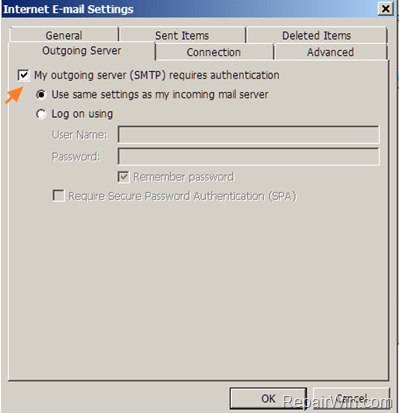
4d. Then select the Advanced tab and verify the you have specified the correct ports and SSL settings.

5. When done click OK and then close all open windows.
6. Test Outlook again.
Method-3. Check your Antivirus & Firewall settings.
If you ‘re using an antivirus program with email scanning features, try to temporarily disable it and check Outlook again. Additionally, check your Firewall settings and ensure that the email server ports that you ‘re using doesn’t blocked from the Firewall program. More specifically, at your Firewall settings:
A. Enable the following files to access the Internet:
- Outlook.exe
B. Enable the following ports to access the Internet:
- Port 110 (If you ‘re using a POP3 Incoming Mail Server without encrypted connection) *
- Port 995 (If you ‘re using a POP3 Incoming Mail Server with encrypted connection (SSL Enabled)
- Port 143 (if you ‘re using an IMAP Incoming Mail Server without encrypted connection)
- Port 993 (if you ‘re using an IMAP Incoming Mail Server with encrypted connection (SSL Enabled)
- Port 25 If your SMTP Outgoing Mail server doesn’t use SSL. *
- Port 465 or 587 if your SMTP Outgoing Mail server uses SSL
* Note: By default, port 25 is for outgoing access, and port 110 is for incoming access. If you are not sure about the ports, contact your ISP or system administrator.
Method-4. Restart your Router.
The next method to resolve the Outlook 0x80040900 error, is to restart your Internet router and then to test Outlook again.
Additional help: If the above methods doesn’t help you, then try the following:
A. Remove and Add your Email account again.
B. Repair the Outlook PST data file.
C. Repair Office Installation. To do that:
-
- Navigate to Windows Control Panel > Programs and features.
- Locate and select the MS Office application and then click Change.
- Then select the Repair option.
That’s all! Did it work for you?
Please leave a comment in the comment section below or even better: like and share this blog post in the social networks to help spread the word about this solution.
If this article was useful for you, please consider supporting us by making a donation. Even $1 can a make a huge difference for us.


File ManagementOutlook Error
Microsoft Outlook is an amazing email client offering various services to the users. Its hassle-free solutions help organizations and individuals to carry forward email communication across the globe. Using Outlook, users can share all the mailbox items like emails, events, journals, calendars, tasks, contacts, etc. But, there are some sorts of errors in every email client and hence in Outlook also. Here, we’ll carry forward our discussion about Outlook error 0x80040900 which occurs during send/receive operations.
What is Outlook error code 0x80040900- An Overview
It is one of the errors that appear in a frequent manner. It may appear even due to a small issue. However, it mainly arises while performing send/receive operations in Outlook. It throws the error message when the ports or mail server are specified incorrectly in the Account settings of Outlook. The error message code 0x80040900 is displayed as:
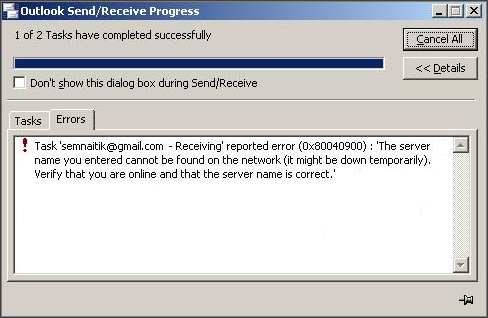
Causes behind the Outlook error 0x80040900
There are a variety of factors that can make the occurrence of Outlook 0x80040900 runtime error. Some of them are as under:
- Windows registry corruption due to installation or uninstallation of Outlook-related software.
- Corruption in system files of Windows due to Malware or Virus infection.
- Improper installation or corrupt download of MS Outlook software.
- Corruption in PST file of Outlook.
Symptoms of Outlook Send Receive Error
- The system periodically freezes for some time.
- Window crashes after the appearance of error 0x80040900.
- Windows become sluggish and slow to keyboard and mouse input.
- An error message “The server name you entered cannot be found on the network (it might be down temporarily)” is encountered.
The error message 0x80040900 may be encountered during installation of the program, during abrupt shutdown or startup of Windows, or due to improper installation of Windows OS. You need to troubleshoot error in Microsoft Outlook to resolve the send/receive error.
Solutions to resolve the Outlook error 0x80040900
#1 Check your internet connection
Many users just start executing various troubleshooting process and forget to check whether they are connected to internet or not. So, be ensured that you are connected to a network connection and then proceed. You can do so by simply opening the browser and making a search for a website.
#2 Check Firewall and Antivirus settings
Sometimes, Antivirus application or Windows firewall blocks the email server, and due to which the error appears. So, you need to disable the firewall settings and turn off the Antivirus application so that you’ll be sure that no email server ports are blocked.
#3 Check the settings of Mail Server
You need to follow the below-mentioned settings to successfully set up an email account.
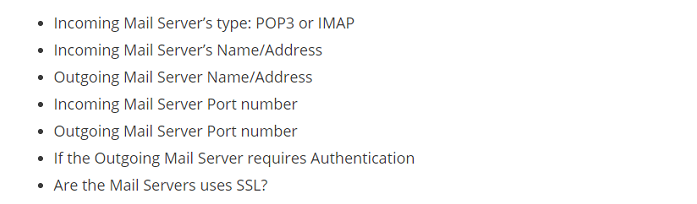
Now, open the Account settings in Outlook and verify that the email account settings specified by you are correct by following the below steps:
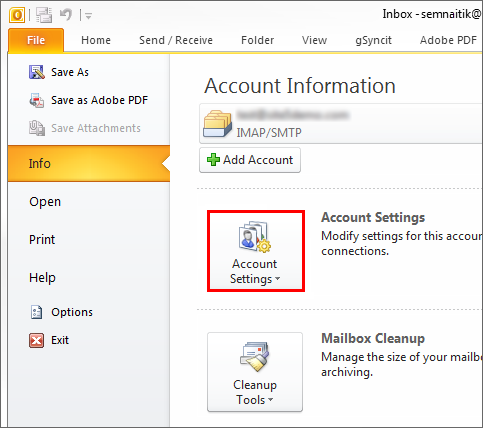
- First, Run the Outlook. Go to File ⇒ Info ⇒ Account Settings.
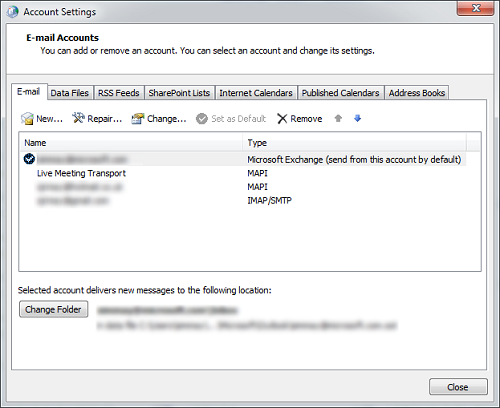
- Click the Email Tab under the Account settings and double-click on your email account.
- Ensure that you have specified the correct incoming and outgoing email server settings. Further, hit a click on the More settings option.
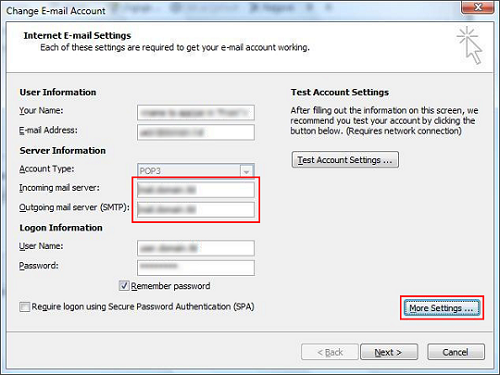
- Internet email settings window prompt will be opened. Click on the tab of Outgoing server. Click on the checkbox of Outgoing server requires authentication accordingly.
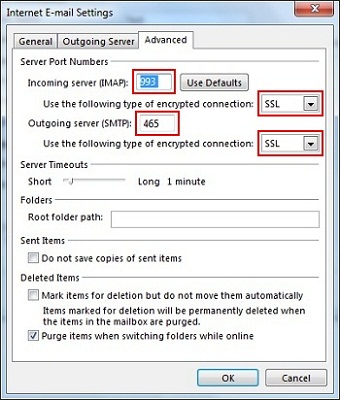
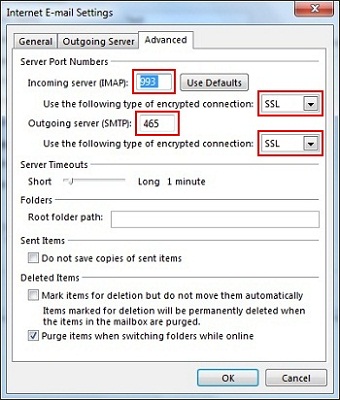
- Now, go to Advanced tab and verify all your SSL and ports settings and click OK.
Additional method
If the issues are still not resolved, try out these solutions:
- Remove your email account and then recreate it.
- Repair the installation of MS Office. For doing this, go through these steps:
- Navigate to Control Panel ⇒ Programs and Features.
- Right-click on the MS Office installation and hit a click on Change button.
- At last, click on the Repair option.
If the methods which have been explained above do not work, there are high chances that your Outlook profile is corrupt. To fix it, you need to repair the Outlook PST file. You can do so by using an inbox repair tool that is provided by Microsoft for free. It is also called ScanPST.exe. But, remember that scanpst.exe is applicable only for minor corruptions in the PST file. If there are severe corruptions in the Outlook profile, the inbox repair tool may not be helpful. In that scenario, you need to use a professional solution.
#4 Using professional Outlook repair solution
If nothing works, you can simply opt for an Outlook PST Repair software tool. It can repair your corrupted PST file irrespective of the severity of corruption because of its sophisticated algorithm. Also, the interface is quite intuitive and user-friendly so that it can easily be operated by both technical and non-technical users. It is available as a demo version for a free evaluation.
Bottom Lines
All the manual methods have been explained. Use them and if you are not able to fix the Outlook error 0x80040900, go for third-party Outlook PST Repair software. Thanks for reading this technical blog. I hope you found it useful and interesting.
Related Post