После аварийного отключения физического сервера с ролью контроллера домена Active Directory при загрузке сервера столкнулись с BSOD ошибкой stop code 0x00002e2. Данная ошибка указывает на то, что база Active Directory (файл NTDS.DIT) повреждена. В этой статье мы разберемся, как исправить файл ntds.dit и запустить контроллер домена (в нашем примере это сервер с Windows Server 2016).
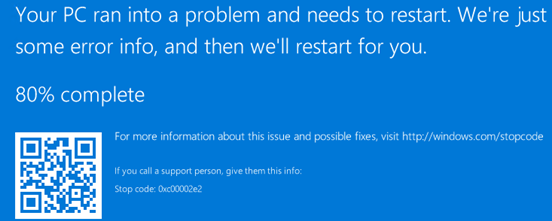
В предыдущих версиях Windows Server эта же ошибка выглядит так:
STOP c000002e2 Directory Services could not start because of the following error:
A device attached to the system is not functioning.
Error Status: 0xc0000001
Please shutdown this system and reboot into Directory Services Restore Mode, check the event log for more detailed information.
Итак, Windows Server на контроллере домена не загружается с ошибкой 0xc00002e2. После трех перезагрузок сервера он автоматически перейдет в режим восстановления WinRE (или нажмите F8 при загрузке). Вам нужно запустить Windows в режиме восстановления службы каталогов (DSRM).
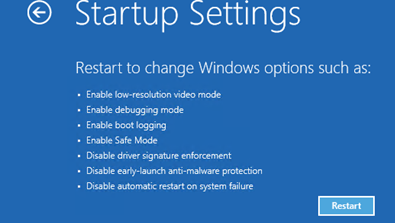
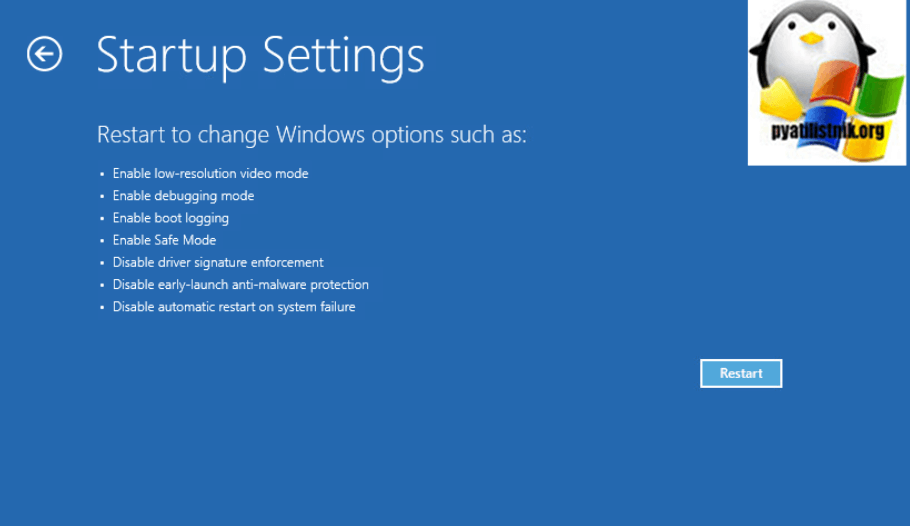
Выберите Startup Settings -> Restart.
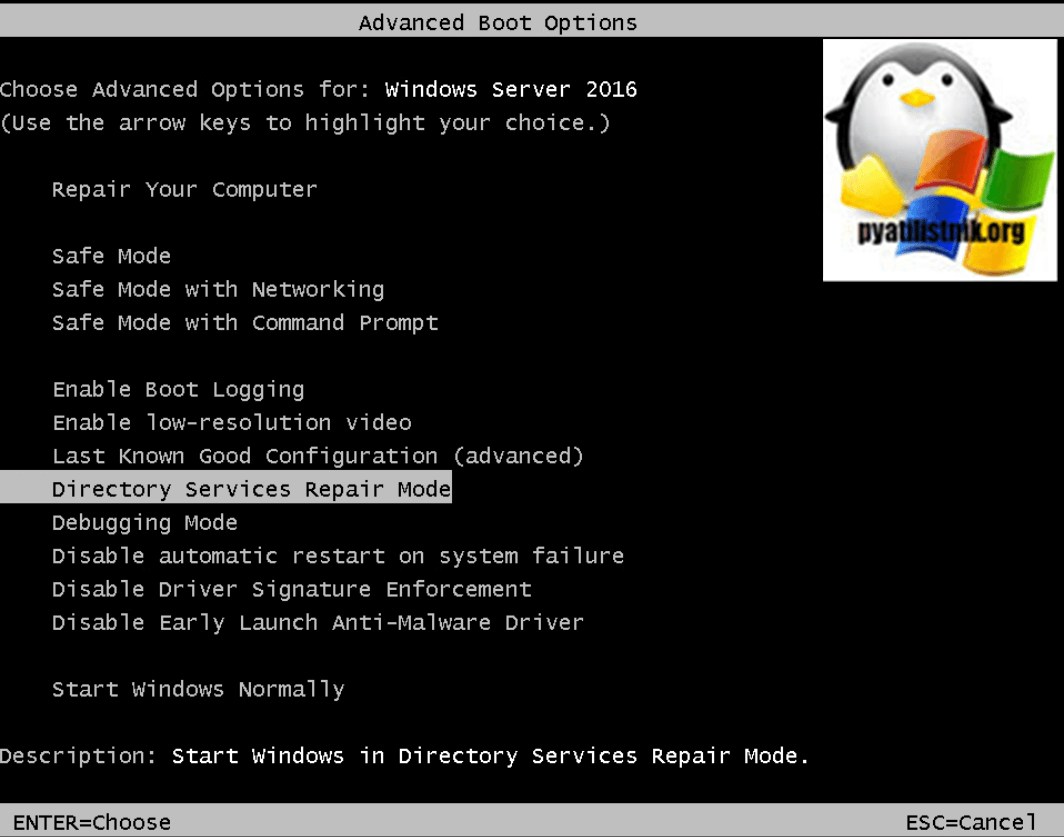
Затем после загрузки выберите Directory Services Restore Mode в меню расширенных опций загрузки.
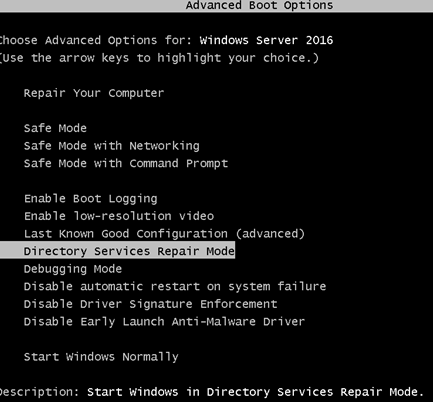
При загрузке сервера в режиме DSRM вы сможете войти на него под локальным администратором. На контроллере домена единственная локальная учетная запись — администратор DSRM. Вы задаете его пароль при установке роли контроллера домена ADDS на сервере (SafeModeAdministratorPassword).
Если вы не знаете пароль администратора DSRM, можно сбросить его с помощью любой утилиты с загрузочного диска или загрузочного диска MsDART.
После входа на рабочий стол DC запустите командную строку. На этом этапе нужно убедиться, на месте ли все каталоги и файлы службы каталога.
Выполните команды:
NTDSUTIL
activate instance ntds
Files
Info
Убедитесь, что каталог с файлом NTDS (по умолчанию C:WindowsNTDS) и сам файл ntds.dit находятся по указанным путям и не удалены.
Попробуем проверить целостность базы данных AD:
integrity
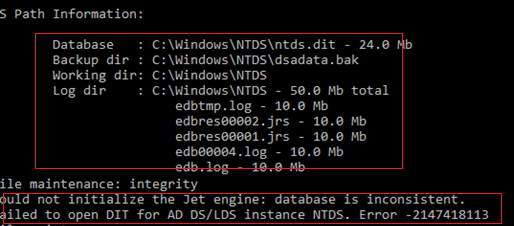
В моем случае команда вернула, что база повреждена:
Could not initialize the Jet engine: database is inconsistent.
Failed to open DIT for AD DS/LDS instance NTDS. Error -2147418113
Нам придется исправить файл с базой AD с помощью утилиты esentutl. Утилита должна быть хорошо знакома администраторам Exchange. Также мы показывали, как использовать esentutl, чтобы уменьшить размер индексного файла службы поиска Windows.edb. Но сначала сделайте резервную копию содержимого каталога NTDS:
mkdir c:ntds_bak
xcopy c:WindowsNTDS*.* c:ntds_bak
Проверим целостность файла ntds.dit:
esentutl /g c:windowsntdsntds.dit
Утилита определила, что база AD повреждена:
The database is not up-to-date. This operation may find that this database is corrupted because data from the log files has not yet to be placed in the database.
To ensure the database is up-to-date please use the Recovery operation.
Integrity check completed. Database is CORRUPTED.
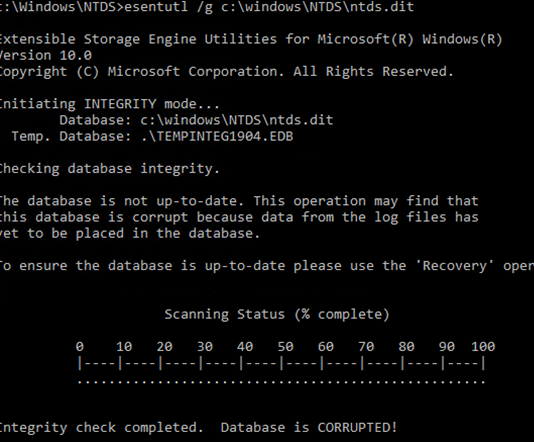
Попробуйте исправить ошибки в базе данных с помощью команды:
esentutl /p c:windowsntdsntds.dit
Если ошибки исправлены, должно появится сообщение:
Operation completed successfully in xx seconds.
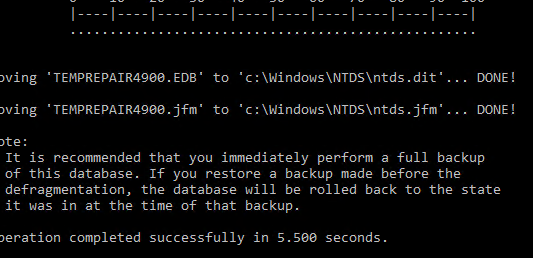
Еще раз проверьте целостность с помощью
esentutl /g
.
Integrity test successful.
It is recommended you to run semantic database analysis to ensure semantic database consistence as well.
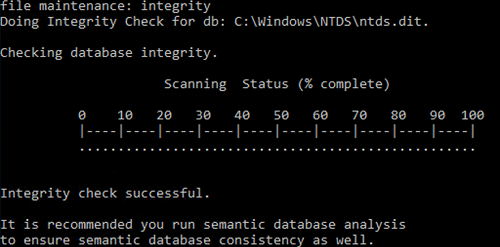
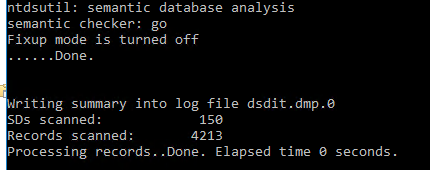
Выполните анализ семантики базы с помощью ntdsutil:
ntdsutil
activate instance ntds
semantic database analysis
go
Если семантические ошибки найдены, чтобы исправить их выполните:
go fixup
Теперь можно сжать файл ntds.dit:
activate instance ntds
files
compact to C:WindowsNTDSTEMP
Замените оригинальный файл ntds.dit:
copy C:WindowsNTDSTEMPntds.dit C:WindowsNTDSntds.dit
Удалите все лог файлы из каталога NTDS:
Del C:WindowsNTDS*.log
Перезагрузите сервер в обычном режиме. Убедитесь, что службы ADDS стартовали и контроллер домена доступен по сети. Проверьте здоровье контроллера домена и состояние репликации Active Directory.
Обновлено 06.05.2022

Добрый день! Уважаемые читатели и гости одного из крупнейших IT блогов Pyatilistnik.org. В прошлый раз мы с вами рассматривали менеджер пакетов Winget, который позволяет с помощью PowerShell много чего устанавливать. В сегодняшней статье я буду бороться с пресловутым синим экраном 0xc00002e2, который я поймал на одном из контроллеров домена. Что ж не приятно, но не смертельно, давайте выходить из этой ситуации.
❌Описание ситуации с BSOD 0xc00002e2 на контроллере домена
И так есть Active Directory состоящий из леса и трех доменов, в одном из доменов есть четыре контроллера домена. Один из них в какой-то момент перестал отвечать в системе мониторинга. Это была виртуальная машина на базе Vmware ESXI. Подключившись к консольному подключению я увидел вот такую картину:

После перезагрузки сервер опять выпадал в BSOD, и далее по циклу. В логах вы можете потом обнаружить, если доберетесь:
STOP c000002e2 Directory Services could not start because of the following error:
A device attached to the system is not functioning.
Error Status: 0xc0000001
Please shutdown this system and reboot into Directory Services Restore Mode, check the event log for more detailed information.
Как исправить синий экран 0xc00002e2
Надеюсь, что у вас это не последний контроллер домена в сети, поэтому самый простой способ это:
- Восстановить из резервной копии данный контроллер, при условии, что его копия не старше дня, чтобы не было проблем с репликацией
- Полностью удалить недоступный контроллер домена и заменить его на новый. Если на сервере были роли FSMO, то их сначала нужно захватить и перенести.
- Но если решились восстанавливать то давайте приступать, может, что и получиться.
Когда вы раза три увидите синий экран с кодом 0xc00002e2, то сервер загрузиться в режиме восстановления WinPE, его при желании можно вызвать клавишей F8 при загрузке. У любого контроллера домена есть специальный режим восстановления службы каталогов (Directory Services Repair Mode — DSRM).
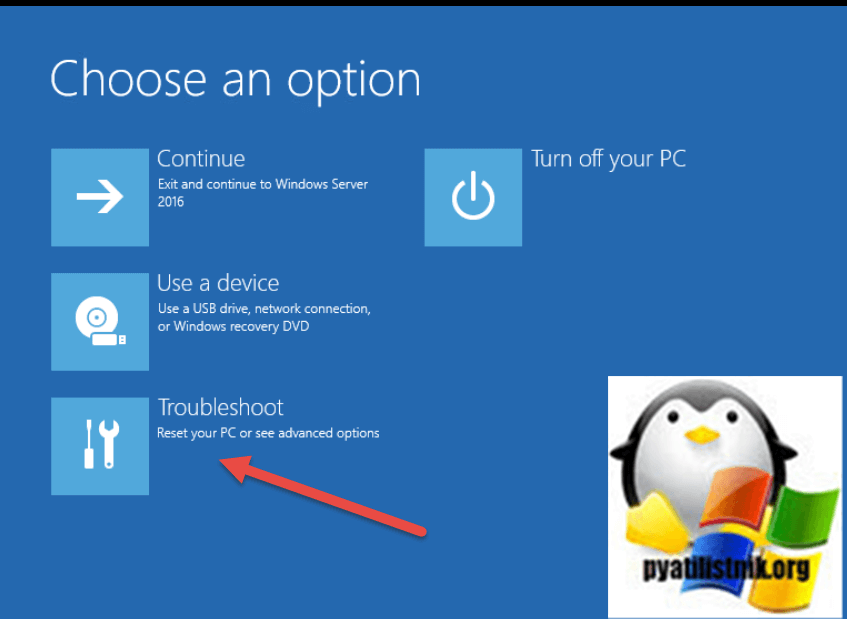
На экране «Choose an option» выберите пункт «Troubleshoot«.
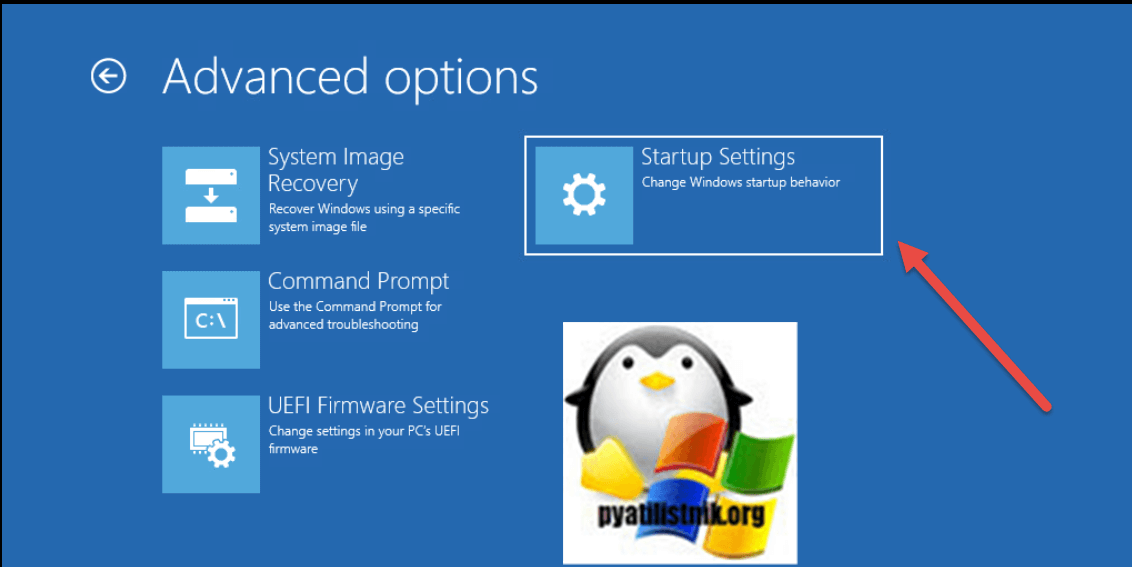
Далее выбираем пункт «Startup Settings«.
Перезагружаем сервер.
Далее при загрузке найдите пункт «Directory Services Repair Mode»
Начнется загрузка DSRM, по сути вы увидите привычную загрузку Windows, в которую вы сможете войти под локальным администратором DSRM, он задается при настройке.
Если вы не помните пароль от Администратора DSRM, то придется его сбрасывать, например через MsDART или любой другой загрузочный диск
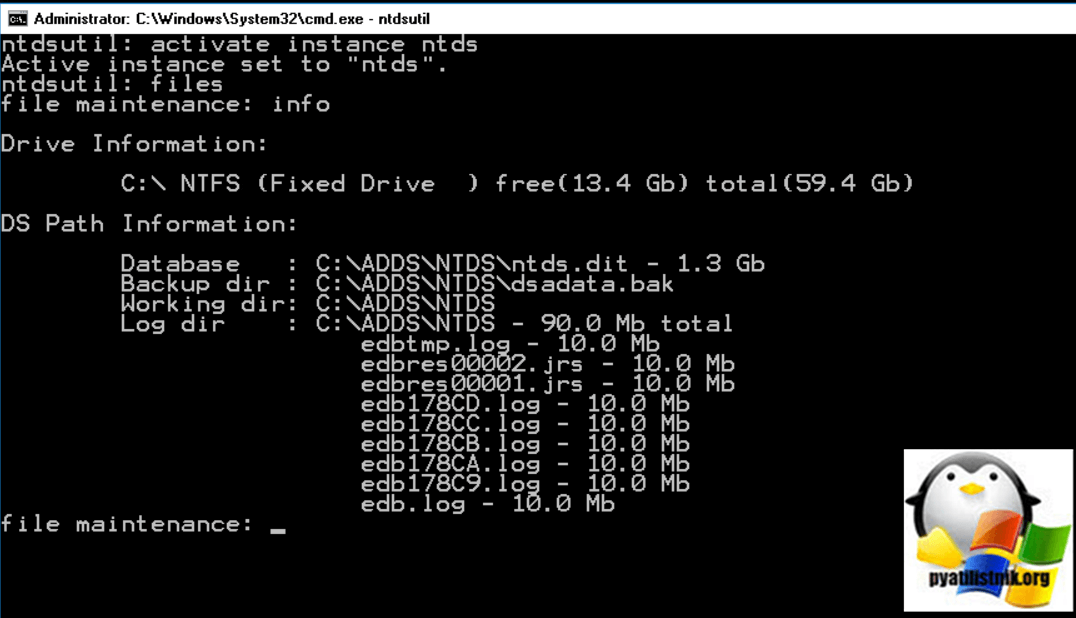
Попав в систему вы первым делом должны запустить командную строку от имени администратора, и далее нам понадобиться одна из самых важных утилит в Active Directory ntdsutil. Вводим команды:
- Ntdsutil (Запускаем саму утилиту)
- activate instance ntds (Подключаемся к активной БД Active Directory)
- Files (Делаем запрос к файлам. где лежит БД)
- Info (Смотрим все файлы и их расположение)
(по умолчанию это будет директория C:WindowsNTDS)
В моем случае это нестандартный каталог, у меня все лежит в папке C:ADDSNTDS. Тут же вы можете посмотреть размер файла БД NTDS.dit.
Теперь попробуйте проверить целостность базы данных, для этого вводим:
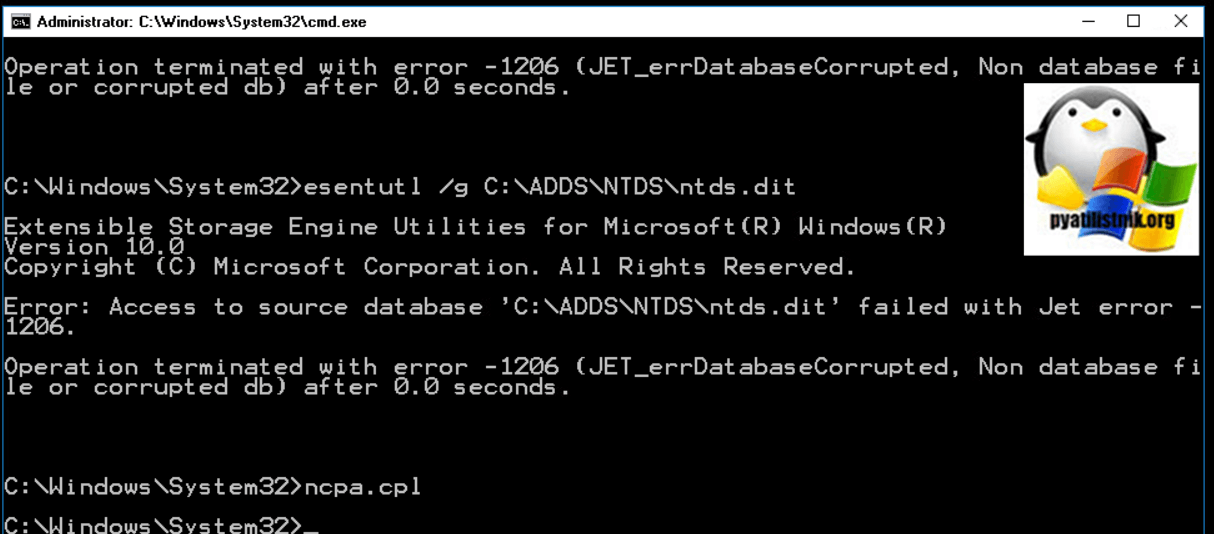
У меня выскочила ошибка:
Error: Access to source database ‘C:ADDSNTDSntds.dit’ failed with Jet error — 1206. Operation terminated with error — 1206 (Jet_errDatabaseCorrupted, Non database file or corrupted db) after 0.0 seconds
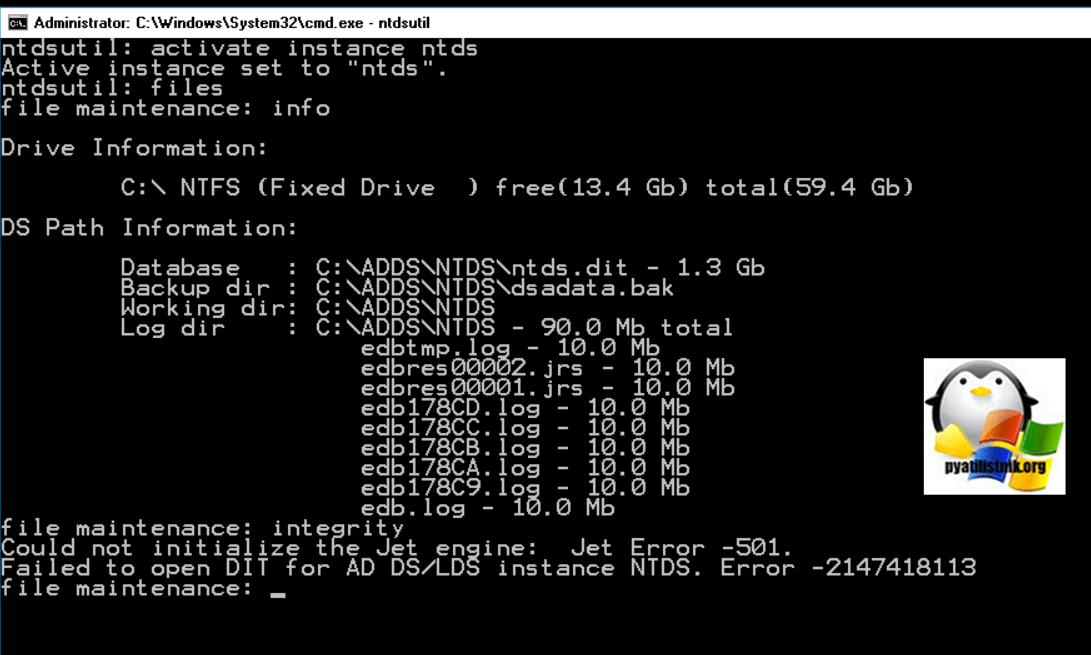
Или еще распространенная ошибка:
Could not initialize the Jet engine: database is inconsistent.
Failed to open DIT for AD DS/LDS instance NTDS. Error -2147418113
Попробуем восстановить целостность Базы данных Active Directory, для этого есть всем известная утилита esentutl, она очень часто используется при работе с почтовым сервером Exchange. Перед любыми работами всегда нужно сделать резервную копию данных, для этого:
mkdir c:ntds_backup — Создаем папку для резервных копий
xcopy c:ADDSNTDS*.* c:ntds_backup — Копируем содержимое c:ADDSNTDS в c:ntds_backup
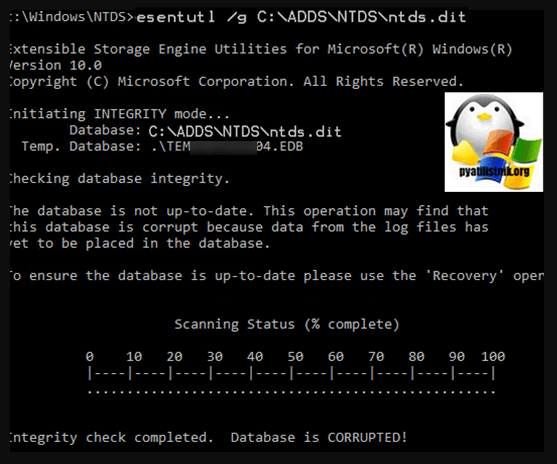
Проверим целостность файла ntds.dit:
esentutl /g c:ADDSNTDSntds.dit
Утилита вам сообщит. что с базой не все хорошо и она повреждена:
The database is not up-to-date. This operation may find that this database is corrupted because data from the log files has not yet to be placed in the database. To ensure the database is up-to-date please use the Recovery operation. Integrity check completed. Database is CORRUPTED.
После чего начнется процесс восстановления, а может и не начаться и вы легко можете опять получить ошибку Jet error — 1206.
Первый процесс закончен, попробуем исправить найденные ошибки, для этого выполните команду:
esentutl /p c:ADDSNTDS\ntds.dit
Если все хорошо, то вы должны получить сообщение «Operation completed successfully in xx seconds«.
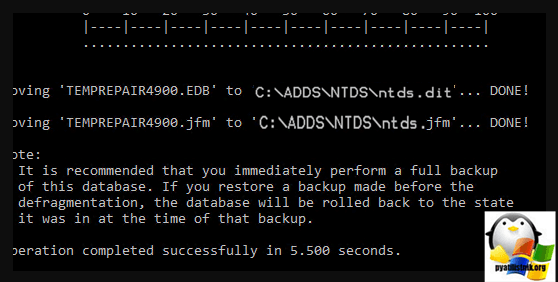
Обязательно еще раз проверьте в целостности базы данных, выполните:
должно появиться сообщение:
Integrity test successful. It is recommended you to run semantic database analysis to ensure semantic database consistence as well.
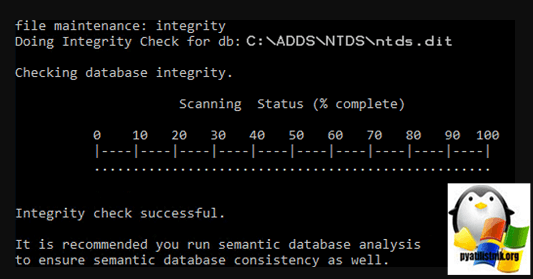
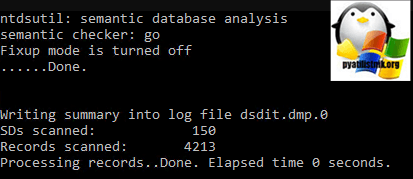
теперь выполним семантический анализ, для этого:
ntdsutil
activate instance ntds
semantic database analysis
go
При обнаружении семантических ошибок примените ключ fixup:
Произведем сжатие БД ntds.dit:
activate instance ntds
files
compact to c:ADDSNTDSTemp
Перезапишем оригинальный файл ntds.dit:
copy c:ADDSNTDSTempntds.dit c:ADDSNTDSntds.dit
Удалите все лог файлы из каталога NTDS:
Перезагрузка
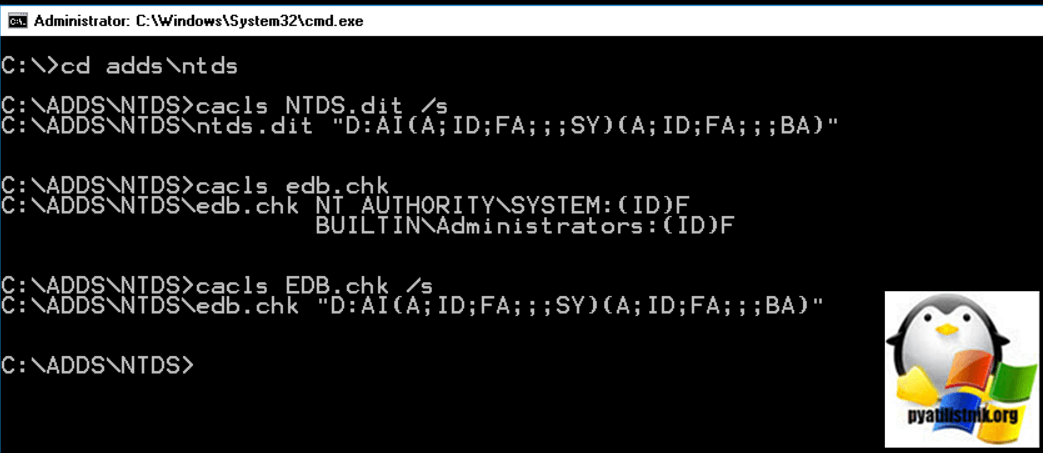
Проверка прав на файлы NTDS
Еще очень важно проверить не сброшены ли были чем-то права на файлы из папки NTDS. Для этого в командной строке введите предварительно попав нужный каталог:
Должны быть права NT AUTHORITYSYSTEM: (ID) F и BUILTINAdministrators: (id) f
Должны быть D:AI(A;ID;FA;;;SY)(A;ID;FA;;;BA)
Должно быть NT AUTHORITYSYSTEM: (ID) F и BUILTINAdministrators: (id) f
Должно быть D:AI (A; ID; FA;;; SY) (A; ID; FA;;; BA)
Надеюсь, что было полезно. С вам был Иван Сёмин, автор и создатель IT проекта Pyatilistnik.org.
| title | description | ms.date | author | ms.author | manager | audience | ms.topic | ms.prod | localization_priority | ms.reviewer | ms.custom | ms.technology |
|---|---|---|---|---|---|---|---|---|---|---|---|---|
|
c00002e2 error occurs |
Helps to fix the error c00002e2 or «Choose an option» when Domain controller does not start. |
10/09/2020 |
Deland-Han |
delhan |
dcscontentpm |
itpro |
troubleshooting |
windows-server |
medium |
kaushika, nedpyle |
sap:active-directory-backup-restore-or-disaster-recovery, csstroubleshoot |
windows-server-active-directory |
Domain controller does not start, c00002e2 error occurs, or «Choose an option» is displayed
This article helps to fix the error c00002e2 or «Choose an option» when Domain controller does not start.
Applies to: Windows Server 2019, Windows Server 2016, Windows Server 2012 R2
Original KB number: 2737463
Symptoms
A domain controller does not start or does not display the logon screen. After you restart the domain controller and watch the start process, you notice the following symptoms, according to your operating system.
Windows Server 2008 R2 or Windows Server 2008
-
At startup, the server experiences a Stop error and briefly displays the following error message:
STOP: c00002e2 Directory Services could not start because of the following error:
The specified procedure could not be found
Error status: 0xc000007a. -
The server then switches to the startup menu for recovery or for a regular startup.
Windows Server 2012 and later versions
At startup, the server switches to the Choose an option menu that offers to continue or troubleshoot.
Cause
This issue happens because the Active Directory Domain Services role was removed from a domain controller without first demoting it. Using Dism.exe, Pkgmgr.exe, or Ocsetup.exe to remove the DirectoryServices-DomainController role will succeed, but these servicing tools do not validate whether the computer is a domain controller.
Resolution
[!NOTE]
These steps assume that you have other working domain controllers, and you only want to remove Active Directory Domain Services from this server. If you do not have other working domain controllers, and this is the only domain controller in the domain, you must restore an earlier system state backup.
Windows Server 2008 R2 or Windows Server 2008
-
Restart the server while you hold Shift+F8.
-
Select Directory Services Repair Mode (DSRM), and then log on by using the DSRM account.
-
Validate that the role was removed. For example, to do it on Windows Server 2008 R2, use the following command:
dism.exe /online /get-features -
Add the DirectoryServices-DomainController role back to the server. For example, to do it on Windows Server 2008 R2, use the following command:
dism.exe /online /enable-feature /featurename:DirectoryServices-DomainController -
Restart and select Directory Services Restore Mode again.
-
Apply a /forceremoval parameter to remove Active Directory Domain Services from the domain controller. To do it, run the following command:
dcpromo.exe /forceremoval -
To remove the domain controller metadata, use the ntdsutil.exe or dsa.msc tool.
Windows Server 2012 and later versions
-
From the Choose an option menu, select Troubleshoot, click Startup Settings, and then click Restart.
-
Select Directory Services Repair Mode (DSRM), and then log on by using the DSRM password.
-
Validate that the role was removed. To do it, use the following command:
dism.exe /online /get-features -
Add the DirectoryServices-DomainController role back to the server. To do it, use the following command:
dism.exe /online /enable-feature /featurename:DirectoryServices-DomainController -
Restart, select Directory Services Restore Mode again, and log on by using the DSRM account.
-
Use Server Manager or Windows PowerShell, and apply a -ForceRemoval parameter to remove Active Directory Domain Services from the domain controller. To do it, run the following command:
Uninstall-AddsDomaincontroller -ForceRemoval
-
To remove the domain controller metadata, use the ntdsutil.exe or dsa.msc tool.
More information
Always use Server Manager or the ServerManager Windows PowerShell module to remove the Active Directory Domain Services role binaries. These tools validate whether a server is an active domain controller and do not let you remove critical files.
For more information about how to remove domain controller metadata, go to the following Microsoft TechNet website:
Clean Up Server Metadata
If it is the only server domain in the domain, do not remove the Active Directory Domain Services from the server. Instead, restore its system state from the most recent backup.
Yesterday morning I discovered that my Synology NAS had an unexpected shutdown in the middle of the night while my homelab VMs/workloads were still running. This caused both of my Domain Controllers databases to become corrupt resulting in being unable to boot those machines. When attempting to boot them, they would get stuck in a BSOD boot-loop and would display a Stop Error Code of 0x00002e2.
.
After some research I was able to figure out how to recover my VMs and get them to boot up again. This had happened to me once before sometime earlier this year and luckily I remembered that I had taken some notes on how to fix it so I figured this time I would put together a formal “How To:” guide to have it documented for myself and hopefully to help others facing this issue as well. So without further adieu…let’s get to it!
.
To start, you will need to power-on the machine and then keep pressing the F8 key to bring up the “Advanced Boot Options” boot menu. Navigate down to Directory Services Repair Mode enter press Enter to boot you into Safe Mode.

When you reach the login screen, log in with the Local Administrator account since Active Directory Domain Services are obviously unavailable.

Once at the Desktop, open an elevated Command Prompt window.

As a best practice, I feel it is always wise and important to make a backup of the files before doing any modifications. Since we will be backing up the NTDS directory, create a directory at your preferred location to store the backup files. I chose to make a backup folder on the root of “C:” and a sub-directory with the name/date of the directory I am backing up.
md C:BackupNTDS_11122017
Then copy everything from the “C:WindowsNTDS” directory to this new location using xcopy.
xcopy C:WindowsNTDS* C:BackupNTDS_11122017 /E /Y /V /C /I

Once done, let’s rename any .log file extensions in the NTDS directory to .log.old
cd C:WindowsNTDS

ren *.log *.log.old

Now, this is where we get to the good stuff!
First, run the following command to repair the database.
esentutl /p "C:WindowsNTDSntds.dit"

This will display the following warning message, click “OK“

Let it do its thing and you will see the following once complete.

Now we need to use the NTDS Utility (ntdsutil.exe) to activate the NTDS instance and compact the DB to a new file which will then be used to overwrite the original. I will be compacting it to a new TEMP directory within the NTDS directory. The command will automatically create the new directory if it’s not already present. Enter the following commands.
ntdsutil

activate instance ntds

files

compact to C:WindowsNTDSTEMP
If successful, you will be presented with instructions to copy the newly compacted file to the NTDS directory, overwriting the original, and also to delete any .log files in the NTDS directory. Before we can do that we need to exit out of the ntdsutil. Type quit twice to exit.
quit

quit

Let’s follow those instructions and also delete the *.log.old files we renamed earlier.
copy "C:WindowsNTDSTEMPntds.dit" "C:WindowsNTDSntds.dit"

Yes
Ensure you are still in the NTDS directory before entering the following delete commands.
del *.log

del *.log.old

The hard part is now over! Let’s go ahead and reboot the machine normally.

If all goes well and as expected, your machine will boot successfully and you can log in again with an Active Directory Domain Admin account.


Awesome! Well, I hope you’ve found this guide useful. Please feel free to share this and provide me some feedback/comments below. Thanks for reading!
-virtualex-


Fixing A Corrupt Domain Controller – Stop Code 0x00002e2 by virtualex is licensed under a Creative Commons Attribution-NonCommercial-ShareAlike 4.0 International License.
День добрый.
подскажите пожалуйста по такой проблеме .
есть домен на 2х контроллерах Win srv 2012 r2 .
один не смог загрузиться из-за переполнения диска где лежит журнал AD. вываливается теперь с
Server 2012 CRASH – ERROR 0XC00002E2
нормально грузится в режиме восстановления . файл базы сначало вообще не давал ничего с собой делать через ntdsutil. ругался что не может запустить JET .
журналы переименовывал (как одно из средств восстановления, создаются по новой.)
после Esentutl с разными ключами , база начала хоть как то дефрагментироваться
и проверяться. но есть ошибка:
_____________________________
ntdsutil: Activate Instance NTDS
Активный экземпляр — «NTDS».
ntdsutil: files
file maintenance: Compact to c:temptempNTDS
Запуск режима ДЕФРАГМЕНТАЦИИ…
Исходная база данных: C:WindowsNTDSntds.dit
Конечная база данных: c:temptempNTDSntds.dit
Defragmentation Status (% complete)
0 10 20 30 40 50 60 70 80 90 100
|—-|—-|—-|—-|—-|—-|—-|—-|—-|—-|
………………………………………….Операция прекращена с
ошибкой -1605( JET_errKeyDuplicate, Illegal duplicate key ).
______________________________
проверял все доступы к папкам журнала и базы . все нормально.
recover проходит без ошибок. а вот
—————————————
file maintenance: integrity
Выполнение проверки целостности для базы данных: C:WindowsNTDSntds.dit.
Checking database integrity.
Scanning Status (% complete)
0 10 20 30 40 50 60 70 80 90 100
|—-|—-|—-|—-|—-|—-|—-|—-|—-|—-|
……………………………………………
Integrity check completed. Database is CORRUPTED!
Операция прекращена с ошибкой -1206( JET_errDatabaseCorrupted, Non database file
or corrupted db ).
———————————————————
вопроса 2 :
— в домене трудится второй контроллер — с него как то можно взять файл базы или синхронизировать ?
— можно сломанный сервер освободить от роли AD загрузиться в нормальном режиме и опять развернуть службу AD — домен его как » страый «второй КД подхватит?
-
Изменено
20 июля 2016 г. 6:53
Hi,
I am experiencing an issue with a windows server 2016 machine where upon reboot I receive the error code 0xc00002e2.
This error seems to be related to the DS but although I have tried the various ways to resolve it with guides found here: https://enterinit.com/windows-domain-controller-fix-error-0xc00002e2/ and here: https://support.hostway.com/hc/en-us/articles/360001126259-How-to-fix-Error-0xc00002e2-after-rebooting-Windows-Domain-Controller I am still unable to make it work. Already tried removing log files, repairing database, rebooting.
One of the critical errors I see when logging in as a local Admin in directory repair service (safe mode) is:
«Designated Active Directory controller cannot be contacted, one or more services are not running»
System restore isn’t working, neither startup repair. I have also tried repairing the Windows from bootable media, no luck either.
Is there a way to reinstall DS without data loss? I would like to avoid reinstalling Windows from scratch.
Any suggestions?
There are several reasons you may get get this error. The most common being a corrupt Active Directory database (NTDS.DIT). I know this sounds detrimental, but it’s actually easy to fix this blue screen.
*** This is the Active Directory Database we’re talking about here, so make sure you have a good backup of the server, in case this doesn’t work***
This Stop code is only seen on a system with Active Directory on it. You notice it when the server is booting. You’ll get a blue screen and an error code, like the following:
STOP: c00002e2 Directory Services could not start because of the following error:
A device attached to the system is not functioning.
Error Status: 0xc0000001.
Please shutdown this system and reboot into Directory Services Restore Mode, check the event log for more detailed information.

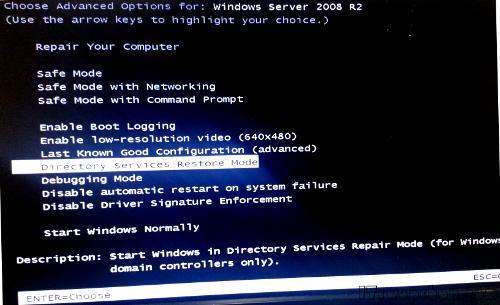
To begin, do as the message says, and boot into Directory Services Restore Mode. When the server powers on, press F8 before the OS begins to load. You should see a selection screen like this. Choose Directory Services Restore Mode:
Once in Directory Services Restore Mode, you can check if there is a problem with the database by running the following commands:
ntdsutil.exe
activate instance ntds
files
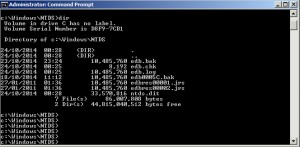
If there is a problem with it, you’ll see something like this returned:
Could not initialize the Jet engine: Jet Error -501. Failed to open DIT for AD DS/LDS instance NTDS. Error -2147418113
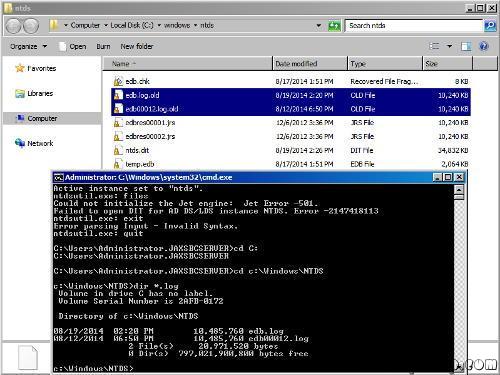
To fix, just rename all of the .log files located in C:windowsntds to .log.old, or anything else, so they can be recreated.
Now reboot the server. For most people, this fixed the database, and the server booted up. For others, it still blue screened after this. If you continue to get a blue screen, run the following command in Directory Services Restore Mode, and then reboot:
esentutl /p “c:windowsntdsntds.dit”
—– Same instruction above in details —
STOP: c00002e2 Directory Services could not start because of the following error: A device attached to the system is not functioning.
Error Status: 0xc0000001. Please shutdown this system and reboot into Directory Services Restore Mode, check the event log for more detailed information.
- Restart the server and press F8 key, select Directory Services restore mode.
- Log in with the local administrator username and password
- Type: cd windowssystem32
- Type: NTDSUTIL
- Type: activate instance NTDS
- Type: files
- If you encounter an error stating that the Jet engine could not be initialized exit out of ntdsutil.
- Type: cd
- Type: md backupad
- Type: cd windowsntds
- Type: copy ntds.dit c:backupad
- Type: cd windowssystem32
- Type: esentutl /g c:windowsntdsntds.dit
- This will perform an integrity check, (the results indicate that the jet database is corrupt)
- Type: esentutl /p c:windowsntdsntds.dit
- Agree with the prompt
- Type: cd windowsntds
- Type: move *.log c:backupad (or just delete the log files)
This should complete the repair. To verify that the repair has worked successfully:
- Type: cd windowssystem32
- Type: ntdsutil
- Type: activate instance ntds
- Type: files (you should no longer get an error when you do this)
- Type: info (file info should now appear correctly)
I then rebooted and windows started normally.