На чтение 2 мин Просмотров 9к. Опубликовано 13.11.2021
Обновление для системы безопасности Windows, выпущенное в октябре, вызвало широко распространенные проблемы с Windows 10 и Windows 11. И многие пользователи стали получать ошибку 0x0000007c при печати или добавлении сетевого принтера. В этой статье я расскажу как исправить данную ошибку печати.
Корпорация Майкрософт часто выпускает пакеты безопасности для диспетчера очереди печати, после того, как начиная с июня были раскрыты уязвимости Windows, известные как «PrintNightmare».
Однако эти исправления безопасности привели к массовым проблемам с сетевой печатью Windows, в результате чего крупные и мелкие организации, а так же обычные пользователи сталкиваются с ошибками и не могут печатать на своих принтерах.
В октябре 2021 года, Microsoft выпустила обязательное накопительное обновление KB5006670 с обновлениями безопасности для двух уязвимостей (CVE-2021-36970 и CVE-2021-41332). Эти исправления вызвали широкий спектр проблем с сетевой печатью и пользователи Windows начали получать ошибки 0x00000709 и 0x0000007c.
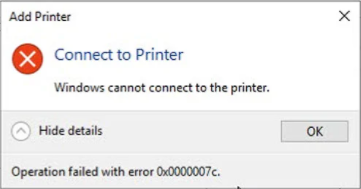
Если при печати или добавлении сетевого принтера, вы получили ошибку «Windows не может подключиться к принтеру. Операция завершилась с ошибкой 0x0000007c», скачайте файл исправления реестра, согласно версии вашей операционной системы и запустите его.
Скачать исправление реестра для Windows 10 2004, 20H2, 21H1 и 21H2 или внести изменения вручную можно в ветке:
Windows Registry Editor Version 5.00
[HKEY_LOCAL_MACHINESYSTEMCurrentControlSetPoliciesMicrosoftFeatureManagementOverrides]
«713073804»=dword:00000000
Скачать исправление реестра для Windows Windows 10 1909 или внести изменения вручную можно в ветке:
Windows Registry Editor Version 5.00
[HKEY_LOCAL_MACHINESYSTEMCurrentControlSetPoliciesMicrosoftFeatureManagementOverrides]
«1921033356»=dword:00000000
Скачать исправление реестра для Windows 10 1809 и Windows Server 2019 или внести изменения вручную можно в ветке:
Windows Registry Editor Version 5.00
[HKEY_LOCAL_MACHINESYSTEMCurrentControlSetPoliciesMicrosoftFeatureManagementOverrides]
«3598754956»=dword:00000000
Ожидается, что исправления этой ошибки будет выпущено в декабре 2021 года и должно исправить проблемы с печатью.
Если вы не можете дождаться декабря, когда проблемы с принтером будут устранены, вы можете использовать приведенные выше значения реестра для исправления ошибок прямо сейчас.
После внесения изменений в реестр, не забудьте перезагрузиться!

Администратор
«Админы делятся на тех, кто не делает бэкапы, и тех, кто уже делает». Народная мудрость.
Обновление безопасности Windows, выпущенное в октябре, вызвало широко распространенные проблемы с Windows 10 и Windows 11, когда пользователи сталкивались с ошибками 0x0000007c при добавлении сетевых принтеров или печати на них. В этой статье описывается исправление, которое можно использовать для ошибок печати 0x0000007c.
Microsoft выпускает постоянный поток обновлений безопасности диспетчера очереди печати после того, как в июне были обнаружены уязвимости диспетчера очереди печати Windows, известные как «PrintNightmare».
Однако эти исправления безопасности привели к серьезным проблемам с сетевой печатью Windows, в результате чего большие и малые организации перестали правильно печатать.
Во вторник октября 2021 года Microsoft выпустила обязательное накопительное обновление KB5006670 с обновлениями безопасности для двух уязвимостей (CVE-2021-36970 и CVE-2021-41332) в диспетчере очереди печати Windows.
И снова эти исправления вызвали широкий спектр проблем сетевой печати, из-за которых пользователи Windows начали получать ошибки 0x00000709 и 0x0000007c при попытке печати.
«Windows не может подключиться к принтеру. Операция завершилась неудачно, возникла ошибка 0x0000007c», — гласит одна из ошибок.
На этой неделе Microsoft начала делиться исправлением ошибок печати 0x0000007c при обращениях в службу поддержки отчаявшимся администраторам Windows.
Microsoft теперь частным образом распространяет исправления с помощью установщиков ADMX. Однако эти пакеты просто вручную используют исправления отката известных проблем (KIR), которые добавляют новое значение реестра Windows для отключения проблемных изменений с октября.
Исправления KIR обычно устанавливаются через Центр обновления Windows, чтобы отменить проблемные изменения кода, включая обновления безопасности, которые приводят к ошибкам для многих пользователей Windows.
Ниже приведены изменения реестра, добавленные этими исправлениями, которые необходимо добавить для устранения ошибок сетевой печати 0x0000007c.
Эти значения реестра следует добавлять к клиенту Windows, а не к серверу печати, и они различны для каждой версии Windows, как показано ниже. Также необходимо перезагрузить устройство после добавления значения реестра, чтобы изменения вступили в силу.
Ниже приведены значения реестра для Windows 10 2004+, Windows 1909 и Windows 10 1809. Мы также предоставили готовые файлы реестра, которые могут добавить вам новое значение.
Значение реестра, которое нужно добавить для Windows 10 2004, 20H2, 21H1 и 21H2:
Редактор реестра Windows версии 5.00
[HKEY_LOCAL_MACHINE SYSTEM CurrentControlSet Policies Microsoft FeatureManagement Overrides] «713073804» = dword: 00000000
Значение реестра, которое нужно добавить для Windows 10 1909:
Редактор реестра Windows версии 5.00
[HKEY_LOCAL_MACHINE SYSTEM CurrentControlSet Policies Microsoft FeatureManagement Overrides] «1921033356» = dword: 00000000
Значение реестра, которое нужно добавить для Windows 10 1809 и Windows Server 2019:
Редактор реестра Windows версии 5.00
[HKEY_LOCAL_MACHINE SYSTEM CurrentControlSet Policies Microsoft FeatureManagement Overrides] «3598754956» = dword: 00000000
Ожидается, что эти исправления будут доступны всем во вторник, декабрь 2021 года. Однако неясно, снизит ли их включение сейчас защиту, обеспечиваемую обновлениями безопасности, выпущенными в октябре.
Если вы не можете дождаться до декабря, пока проблемы с вашим принтером не будут исправлены, вы можете использовать указанные выше значения реестра, чтобы исправить ошибки прямо сейчас.
К сожалению, это исправление не устраняет ошибки печати 0x00000709, которые продолжают беспокоить пользователей Windows при печати на сетевые принтеры.
Последнее обновление 05.01.2023
If Windows cannot add/connect to shared printer with error «Operation Failed with error 0x0000007c: Windows Cannot Connect to the Printer», or if the installed shared printer is not responding when you try to print in Windows 10, continue reading below to fix the problem.
In the last few months, September and October 2021, Microsoft has been continuously releasing security updates that cause problems installing or printing to shared printers. Microsoft says it is working to resolve these issues, but once again many users are experiencing a lot of network printing problems after installing the Windows 10 Cumulative Update 2021-10 (KB5006670). & the November 9, 2021—KB5007186 updates.
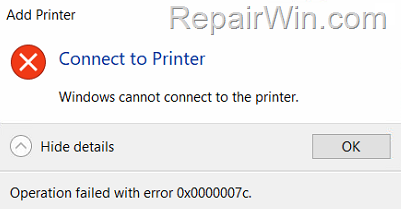
This tutorial contains instructions to resolve the following network printing errors on Windows 10:
-
«Windows Cannot Connect to the Printer: Operation failed with error 0x0000007c», when trying to add a shared network printer.
-
«Printer Not Responding» when you try to print on a network printer.
-
0x000006e4 (RPC_S_CANNOT_SUPPORT)
-
0x0000007c (ERROR_INVALID_LEVEL)
-
0x00000709 (ERROR_INVALID_PRINTER_NAME)
FIX: Error 0x0000007c – Cannot Add a Network or a Shared Printer.
Method 1. Install KB5007253 update.
The first method to resolve the above mentioned errors is to install KB5007253 from the Microsoft Update Catalog. *
* Important: Before installing the update first download and install the latest Servicing Stack Update according your Windows 10 version (if the latest SSU is not already installed).
Method 2. FIX 0x0000007c error in Network Printing by Modifying Registry (FIX No1).
1. Open Command Prompt as Administrator.
2. In command prompt give the corresponding command below according your Windows 10 version:
Windows 10 versions 2004, 20H2, 21H1 and 21H2:
- reg add HKEY_LOCAL_MACHINESYSTEMCurrentControlSetPoliciesMicrosoftFeatureManagementOverrides /v 713073804 /t REG_DWORD /d 0 /f
Windows 10 version 1909:
- reg add HKEY_LOCAL_MACHINESYSTEMCurrentControlSetPoliciesMicrosoftFeatureManagementOverrides /v 1921033356 /t REG_DWORD /d 0 /f
Windows version 1809 and Windows Server 2019:
- reg add HKEY_LOCAL_MACHINESYSTEMCurrentControlSetPoliciesMicrosoftFeatureManagementOverrides /v 3598754956 /t REG_DWORD /d 0 /f
3. Restart your computer and check if the printing problem has been resolved.
Method 3. FIX Network Printing Error 0x0000007c by Modifying Registry (FIX No2).
Since after applying the latest Windows 10 updates, administrative credentials are required to install or print to shared printers, go ahead and add the following registry entries to your system: *
1. Open Command Prompt as Administrator
2. Give the following command in order (press Enter after each command):
- reg add «HKEY_LOCAL_MACHINESoftwarePoliciesMicrosoftWindows NTPrintersPointAndPrint» /v RestrictDriverInstallationToAdministrators /t REG_DWORD /d 0 /f
- reg add «HKEY_LOCAL_MACHINESoftwarePoliciesMicrosoftWindows NTPrintersPointAndPrint» /v UpdatePromptSettings /t REG_DWORD /d 0 /f
- reg add «HKEY_LOCAL_MACHINESoftwarePoliciesMicrosoftWindows NTPrintersPointAndPrint» /v NoWarningNoElevationOnInstall /t REG_DWORD /d 0 /f
3. Restart your PC and try to print.
* Note: For Domain Computers (workstations), you have to modify the Domain Group Policy to allow the installation of shared printers without administrative credentials needed. To do that:
1. Open the Group Policy Management.
2. Right click on the Default Domain Policy and select Edit.
3. Navigate to: Computer Configuration > Policies > Administrative Templates > Printers > Point and Print Restrictions.
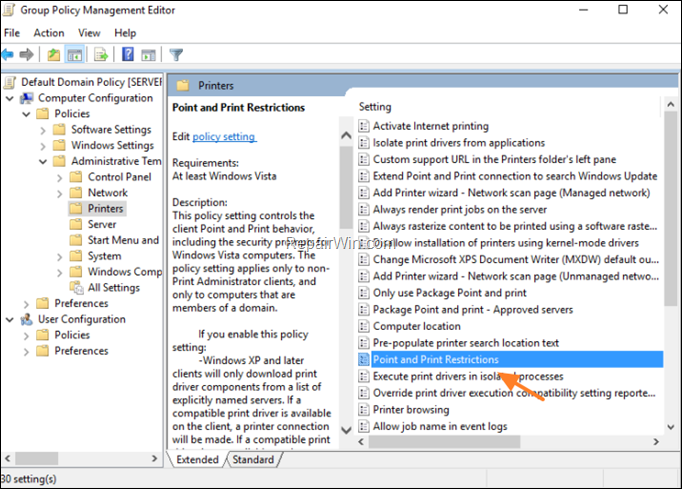
4. Set the Point and Print Restrictions policy to Disabled and click OK.
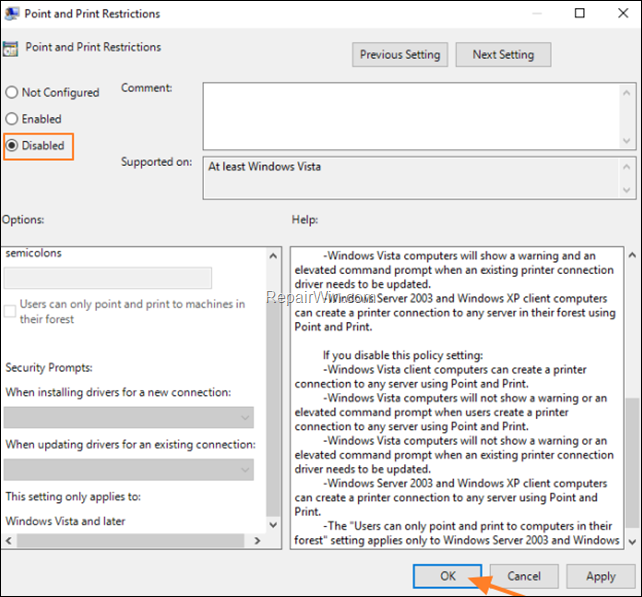
5. Close the Group Policy Editor and give this command to apply the change.
- gpupdate /force
6. Now proceed and install the shared printer(s) on workstations.
7. After installation to keep your network secure, configure the Point and Print Restrictions policy as follows:
a. Set the Point and Print Restrictions Group Policy setting to Enabled.
b. Select Users can only point and print to these servers and type below the names of the print servers.
c. At When installing drivers for a new connection, select Show warning and elevation prompt.
d. At When updating drivers for an existing connection, select Show warning and elevation prompt.
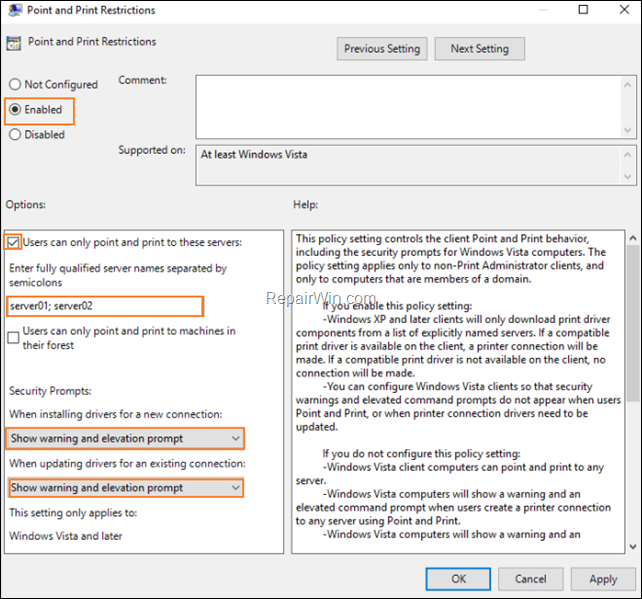
e. Click OK and close the Group Policy Editor.
f. Run the «gpupdate /force» command to update the Domain Policy.
Method 4. FIX 0x0000007c Network Printing error by Removing KB5006670, KB5007186 & KB5008212 Updates.
If your shared printer is not responding when printing on it, or you cannot install a network printer with error 0000007c after installing KB5006670 or KB5007186, proceed and apply the following simple steps:
-
Uninstall the KB5007186 and/or KB5006670, KB5008212 updates.
-
Prevent KB5007186 & KB5006670 update to be installed again until Microsoft fixes the problem on a future update.
Step 1. Uninstall KB5006670, KB5007186, KB5008212 from Windows 10:
1. Open Command Prompt as Administrator.
2. In command prompt give the following commands and press Enter:
- wusa /uninstall /kb:55007186
-
wusa /uninstall /kb:5006670
- wusa /uninstall /kb:5008212
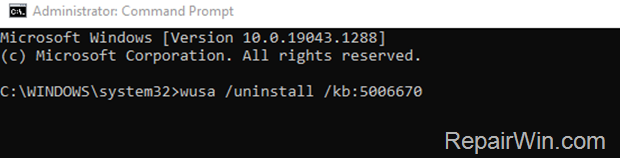
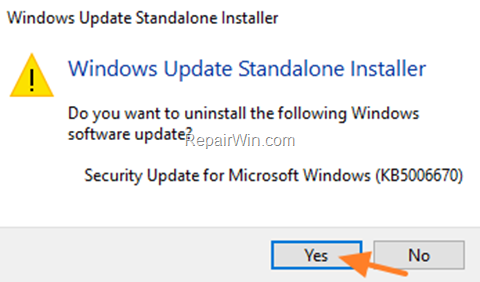
3. Click Yes to remove the update.
4. When the uninstall process is complete, restart your PC.
5. After restart proceed to install your printer.
Step 2. Prevent KB5006670 Update Installation.
1. Download the Show or Hide updates tool «wushowhide.diagcab» tool from: https://www.majorgeeks.com/files/details/wushowhide.html
2. Run the tool, click Next and then select Hide updates.
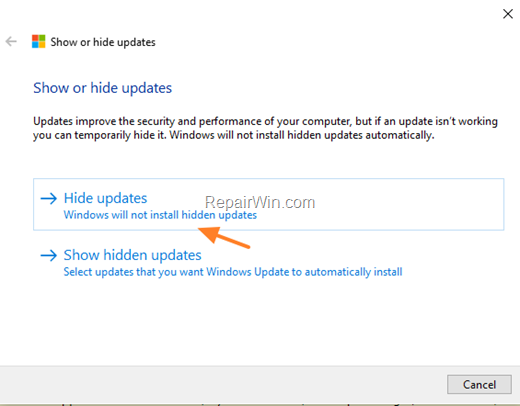
3. Let the tool to find the available update and when this done, select the 2021-10 Cumulative Update for Windows 10 (KB5006670) or the KB5007186 or the KB5008212 and click Next.
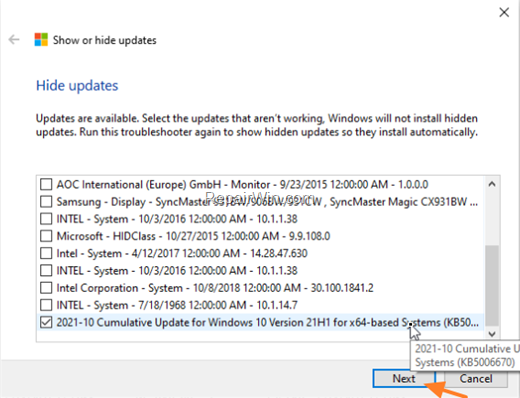
4. When the troubleshooting is complete close the troubleshooter and restart your PC.
That’s all folks! Which method worked for you?
Please leave a comment in the comment section below or even better: like and share this blog post in the social networks to help spread the word about this.
If this article was useful for you, please consider supporting us by making a donation. Even $1 can a make a huge difference for us.
