#
Error
Description
code
4501 —
Excessive leakage current detect-
4509
ed for head [1…9]
Printhead failing
Replace printed [1…9]
4551 —
Head defective during printing
4559
4571 —
Head too hot during printing
4579
4581 —
Head [1….9] keeps heating
4589
4951 —
WOM memory failure for head
4959
[ 1……9]
4961 —
Heating of head [1……9] failed
4969
Customer action
Replace the printhead by using the
wizard.
Note:
Never re-insert a printhead
that has caused this problem.
Printhead is probably not placed
correctly. Remove and re-insert the
printhead at the original position.
Note:
If the problem persists you
must replace the printhead.
You can ignore this problem by
pushing the ‘OK’ button.
Note:
If the problem re-occurs after
a short time you must re-
place the printhead.
Replace the printhead by using the
wizard.
Service warning only. No customer
intervention needed.
Continue printing until the message
‘Replace printhead’ displays on the
user panel.
Then replace the printhead by using
the wizard.
Chapter 8 — System messages and solutions
Overview
299
 Loading…

Administration guide
PlotWave — ColorWave Systems
Security information

Copyright
© 2014, Océ
All rights reserved. No part of this work may be reproduced, copied, adapted, or transmitted in any form or by any means without written permission from Océ.
Océ makes no representation or warranties with respect to the contents hereof and specifically disclaims any implied warranties of merchantability or fitness for any particular purpose.
Further, Océ reserves the right to revise this publication and to make changes from time to time in the content hereof without obligation to notify any person of such revision or changes.
Trademarks
Océ, and its wide-format printing systems are registered trademarks of Océ.
Microsoft®, Windows®, Windows XP®, Windows XP® embedded, Windows Server® 2003, Windows® Vista™, Windows Server® 2008, Windows ® 7, Windows 8, Windows Server 2012, Windows Embedded Standard® 2009 are either registered trademarks or trademarks of Microsoft® Corporation in the United States and/or other countries.
Linux® is a registered trademark of Linus Torvalds.
McAfee is a registered trademark or trademark of McAfee, Inc. or its subsidiaries in the United States and other countries.
Symantec and Norton are trademarks or registered trademarks of Symantec Corporation or its affiliates in the U.S. and other countries. Other names may be trademarks of their respective owners.
Products in this publication are referred to by their general trade names. In most, if not all cases, these designations are claimed as trademarks or registered trademarks of their respective companies.

Contents
Contents
|
Chapter 1 |
|
|
Océ Security policy………………………………………………………………………………………………. |
9 |
|
The Océ Security policy ……………………………………………………………………………………………………………….. |
10 |
|
Downloads and support for your product………………………………………………………………………………………. |
12 |
|
Overview of the security features available per Océ System ………………………………………………………….. |
13 |
Chapter 2
Security on Océ PlotWave 300/350, PlotWave 750, PlotWave 900 and ColorWave 300
|
………………………………………………………………………………………………………………………….. |
17 |
|
Security on Océ PlotWave 300/350, PlotWave 900 R1.x and ColorWave 300……………………………………. |
18 |
|
Overview………………………………………………………………………………………………………………………………… |
18 |
|
Security overview for the Océ PlotWave 300, the Océ PlotWave 350, the Océ PlotWave 900 |
|
|
R1.x and the Océ ColorWave 300 systems …………………………………………………………………………. |
18 |
|
System and Network security………………………………………………………………………………………………….. |
19 |
|
Ports — Protocols………………………………………………………………………………………………………………… |
19 |
|
Security Patches……………………………………………………………………………………………………………….. |
24 |
|
Security levels…………………………………………………………………………………………………………………… |
26 |
|
Prevent any outgoing connection to the Internet ……………………………………………………………….. |
29 |
|
Security of the USB connection (Océ PlotWave 300/350, Océ ColorWave 300)……………………… |
30 |
|
Antivirus ………………………………………………………………………………………………………………………….. |
31 |
|
Roles and Passwords………………………………………………………………………………………………………… |
32 |
|
Data Security …………………………………………………………………………………………………………………………. |
35 |
|
E-Shredding……………………………………………………………………………………………………………………… |
35 |
|
IPsec (on Océ PlotWave 300/350, Océ PlotWave 900 1.2 and higher 1.x, Océ ColorWave 300)…. |
|
|
38 |
|
|
Prevent USB Direct Print and Scan to USB (Océ PlotWave 300/350, Océ ColorWave 300)……… |
54 |
|
HTTPS with Océ PlotWave 900 R1.x…………………………………………………………………………………… |
56 |
|
Smart Inbox management…………………………………………………………………………………………………. |
60 |
|
Security on Océ PlotWave 750 and Océ PlotWave 900 R2.x ……………………………………………………………. |
61 |
|
Overview………………………………………………………………………………………………………………………………… |
61 |
|
Security overview for the Océ PlotWave 750 and the Océ PlotWave 900 R2.x systems…………. |
61 |
|
System and Network security………………………………………………………………………………………………….. |
62 |
|
Ports — Protocols………………………………………………………………………………………………………………… |
62 |
|
Security Patches……………………………………………………………………………………………………………….. |
67 |
|
Security levels…………………………………………………………………………………………………………………… |
70 |
|
Prevent any outgoing connection to the Internet ……………………………………………………………….. |
72 |
|
Antivirus ………………………………………………………………………………………………………………………….. |
73 |
|
Roles and Passwords………………………………………………………………………………………………………… |
74 |
|
Audit log…………………………………………………………………………………………………………………………… |
76 |
|
Data Security …………………………………………………………………………………………………………………………. |
77 |
|
E-Shredding……………………………………………………………………………………………………………………… |
77 |
|
IPsec ………………………………………………………………………………………………………………………………… |
80 |
|
HTTPS (on Océ PlotWave 750 and PlotWave 900 R2.x)……………………………………………………….. |
86 |
|
Smart Inbox management and job management………………………………………………………………… |
93 |
|
Chapter 3 |
|
|
Security on Océ PlotWave 500 and PlotWave 340/360…………………………………………. |
95 |
|
Overview……………………………………………………………………………………………………………………………………… |
96 |
|
Security overview for the Océ PlotWave 500 and PlotWave 340/360 systems…………………………….. |
96 |
5

|
Contents |
|
|
System and Network security……………………………………………………………………………………………………….. |
97 |
|
Ports — Protocols……………………………………………………………………………………………………………………… |
97 |
|
Applications, protocols and ports used in the Océ PlotWave 500 and PlotWave 340/360 |
|
|
systems…………………………………………………………………………………………………………………………….. |
97 |
|
Security Patches……………………………………………………………………………………………………………………. |
101 |
|
Install the Océ Remote patch……………………………………………………………………………………………. |
101 |
|
Protocol protection……………………………………………………………………………………………………………….. |
103 |
|
Network protocols protection ………………………………………………………………………………………….. |
103 |
|
Prevent any outgoing connection to the Internet ……………………………………………………………………. |
105 |
|
Security of the USB connection …………………………………………………………………………………………….. |
106 |
|
The USB connection on the printer user interface ……………………………………………………………. |
106 |
|
Antivirus ………………………………………………………………………………………………………………………………. |
107 |
|
Roles and Passwords…………………………………………………………………………………………………………….. |
108 |
|
Roles and profiles……………………………………………………………………………………………………………. |
108 |
|
Passwords policy and behaviour in the Océ PlotWave 500 and PlotWave 340/360 systems… |
109 |
|
Access control………………………………………………………………………………………………………………………. |
111 |
|
Audit log………………………………………………………………………………………………………………………………. |
112 |
|
Data security………………………………………………………………………………………………………………………………. |
113 |
|
E-Shredding in Océ PlotWave 500 and PlotWave 340/360 systems………………………………………….. |
113 |
|
E-shredding presentation…………………………………………………………………………………………………. |
113 |
|
Enable the e-shredding in Océ Express WebTools…………………………………………………………….. |
114 |
|
E-shredding process and system behaviour……………………………………………………………………… |
116 |
|
IPsec ……………………………………………………………………………………………………………………………………. |
117 |
|
IPsec presentation ………………………………………………………………………………………………………….. |
117 |
|
Configure the IPsec settings in the Océ controller …………………………………………………………….. |
119 |
|
Configure the IPsec settings on a workstation or a print server………………………………………….. |
121 |
|
Troubleshooting: Disable ‘Access control’ and IPsec (Océ PlotWave 500 and PlotWave 340/360 |
|
|
systems)…………………………………………………………………………………………………………………………. |
130 |
|
HTTPS (for Océ PlotWave 500 and PlotWave 340/360)…………………………………………………………….. |
132 |
|
Encrypt print data and manage the system configuration using HTTPS……………………………… |
132 |
|
Request and import a CA-signed certificate………………………………………………………………………. |
137 |
|
Prevent ‘Print from USB’ and/or ‘Scan to USB’ on Océ PlotWave 500 and PlotWave 340/360……. |
143 |
|
How to prevent ‘Print from USB’ and/or ‘Scan to USB’……………………………………………………… |
143 |
|
Smart Inbox management and job management……………………………………………………………………. |
144 |
|
Chapter 4 |
|
|
Security on Océ ColorWave 550/600/650 (and Poster Printer)……………………………. |
145 |
|
Security on Océ ColorWave 550, ColorWave 600 (Poster Printer), ColorWave 650 R2.x (Poster Printer) |
|
|
………………………………………………………………………………………………………………………………………………….. |
146 |
|
Overview………………………………………………………………………………………………………………………………. |
146 |
|
Security overview for the Océ ColorWave 600/650 (Poster Printer) and the Océ ColorWave 550 |
|
|
systems…………………………………………………………………………………………………………………………… |
146 |
|
System and Network security………………………………………………………………………………………………… |
148 |
|
Ports — Protocols………………………………………………………………………………………………………………. |
148 |
|
Security Patches……………………………………………………………………………………………………………… |
151 |
|
Protocol protection………………………………………………………………………………………………………….. |
153 |
|
Prevent any outgoing connection to the Internet ……………………………………………………………… |
154 |
|
Security of the USB connection ………………………………………………………………………………………. |
155 |
|
Operating System and software protection………………………………………………………………………. |
156 |
|
Roles and Passwords………………………………………………………………………………………………………. |
157 |
|
Access control…………………………………………………………………………………………………………………. |
159 |
|
Data Security………………………………………………………………………………………………………………………… |
160 |
|
E-Shredding on Océ ColorWave 600 and Océ ColorWave 650 (PP) and Océ ColorWave 550.. 160 |
|
|
IPsec on Océ ColorWave 550 v2.3.1 and higher and Océ ColorWave 650 (PP) v2.3.1 and higher |
|
|
……………………………………………………………………………………………………………………………………….. |
163 |
|
How to prevent ‘Print from USB’ on Océ ColorWave 550/650 (and PP) ………………………………. |
176 |
|
Smart Inbox management and job management………………………………………………………………. |
177 |
|
Security on Océ ColorWave 650 R3.x…………………………………………………………………………………………… |
178 |
|
Overview………………………………………………………………………………………………………………………………. |
178 |
6

|
Contents |
|
|
Security overview for the Océ ColorWave 650 R3.x system……………………………………………….. |
178 |
|
System and Network security………………………………………………………………………………………………… |
179 |
|
Ports — Protocols………………………………………………………………………………………………………………. |
179 |
|
Security Patches……………………………………………………………………………………………………………… |
182 |
|
Protocol protection………………………………………………………………………………………………………….. |
184 |
|
Prevent any outgoing connection to the Internet ……………………………………………………………… |
186 |
|
Security of the USB connection ………………………………………………………………………………………. |
187 |
|
Antivirus ………………………………………………………………………………………………………………………… |
188 |
|
Roles and Passwords………………………………………………………………………………………………………. |
189 |
|
Access control…………………………………………………………………………………………………………………. |
191 |
|
Audit log…………………………………………………………………………………………………………………………. |
192 |
|
Data security…………………………………………………………………………………………………………………………. |
193 |
|
E-Shredding……………………………………………………………………………………………………………………. |
193 |
|
IPsec ………………………………………………………………………………………………………………………………. |
194 |
|
HTTPS (on Océ ColoWave 650 R3.x)…………………………………………………………………………………. |
199 |
|
How to prevent ‘Print from USB’ on Océ ColorWave 550/650 (and PP) ………………………………. |
206 |
|
Smart Inbox management and job management………………………………………………………………. |
207 |
|
Index………………………………………………………………………………………………………………… |
209 |
7

Contents
8
Chapter 1
Océ Security policy

The Océ Security policy
The Océ Security policy
Definition
At Océ, security is an integral part of system development, and the company is taking a proactive approach to the improvement of security-related issues. Océ is working to address security requirements across all of its digital document systems.
For its printing systems connected to the network, Océ strives to ensure the:
—Security of the system on the network
—Security of the data sent to the printers, with a focus on protecting sensitive documents from being captured by un-authorised persons
—Security of the configuration and data on the controller
NOTE
See the Table of the security features on page 13 to get an overview of the security features available per Océ system.
System security and security on the network
Faced with system vulnerabilities, viruses, worms and in order to maximise the protection of the Océ print systems from hackers and networking attacks, Océ has reinforced the security of the Océ systems by:
•Introducing the Océ Security levels to offer network security protection against virus / worm attacks or system vulnerabilities (on Windows Operating Systems).
Once the Security Interface is activated, you can define the level of security according to your system needs. Notice that the higher level of security you set, the fewer printing and scanning functionalities you get.
•Implementing network protocols protection features (by use of the Océ Security levels filtering or by configuring each network protocol for firewall filtering)
•Protecting the system roles and passwords. The main network and system settings are protected against change. Only authorised users can configure or change these settings
•Regularly checking the relevance of Microsoft flaws and delivering security patches whenever it is necessary.
•Providing OS and software protection mechanism. The internal system software is protected against alteration
•Make the USB connection secure (on systems with USB slot)
•Restricting the access to the printer to allowed stations only
•Allowing the installation of an Antivirus software on the Océ system controller
•Being compliant with IPv6 and then benefiting from IPv6 secured assets
NOTE
The availability of the security features depends on the products. See the Overview of the security features available per Océ System on page 13.
Data security on the network
To ensure the security of the print data sent on the network, Océ has implemented:
•The HTTPS (HTTP over SSL) protocol to encrypt the configuration management data, submitted print data and saved scan data:
Find all information about Use the Océ self-signed certificate with Internet Explorer on page 56.
10 Chapter 1 — Océ Security policy

The Océ Security policy
•The e-shredding feature to overwrite any user data (print/copy/scan) when it is deleted from the system.
This feature prevents the recovery of any deleted user data.
•The IPsec configuration, that provides authentication, data confidentiality and integrity in the network communication between devices.
A strong mechanism of encryption guarantees the confidentiality of the user print and scan data on the network.
•The Smart Inbox and Job protection by:
—Limiting and restricting the access to the print and scan job data with the Smart Inbox management capability
—Managing the visibility of jobs and their availability through job submission tools with the job management settings
|
Chapter 1 — Océ Security policy |
11 |

Downloads and support for your product
Downloads and support for your product
Downloads
User guides, printer drivers and other resources can change without prior notice. To stay up-to- date, you are advised to download the latest resources from:
«http://downloads.oce.com»
Before you use your product, you must always download the latest safety information for your product: make sure that you read and understand all safety information in the manual entitled ‘Safety Guide‘ .
Support
For support information please contact your Canon local representative.
Find your local contact for support from:
«http://www.canon.com/support/»
12 Chapter 1 — Océ Security policy

Overview of the security features available per Océ System
Overview of the security features available per Océ System
Security features in the Océ PlotWave and Océ ColorWave 300 systems
|
Océ PlotWave 300 |
Océ PlotWave 340 |
Océ PlotWave 750 |
||
|
Océ PlotWave 350 |
Océ PlotWave 360 |
Océ PlotWave 900 |
||
|
Océ PlotWave 900 |
Océ PlotWave 500 |
R2.x |
||
|
R1.x |
||||
|
Océ ColorWave 300 |
||||
|
Operating System |
Windows Embedded |
Windows Embedded |
Windows Embedded |
|
|
Standard 2009 |
Standard 7 SP1 |
Standard 7 SP1 |
||
|
or |
||||
|
Windows XP embed- |
||||
|
ded SP3 |
||||
|
See Security overview |
||||
|
on page 18 |
||||
|
Firewall |
Yes |
Yes |
Yes |
|
|
MS Security flaws / |
Yes |
Yes |
Yes |
|
|
Security patches |
||||
|
Network protocols |
Océ Security levels — 3 |
Yes. Protection config- |
Océ Security levels — 4 |
|
|
protection |
levels |
urable per protocol |
levels |
|
|
OS and software in |
— |
— |
— |
|
|
tegrity mechanism |
||||
|
Antivirus |
Compatible with 2 an- |
Compatible with 2 an- |
Compatible with 2 an- |
|
|
tivirus brands |
tivirus brands |
tivirus brands |
||
|
IPv6 |
Yes (IPV6 and IPV4 |
Yes (IPv6 only or IPv6 |
Yes (IPv6 only or IPv6 |
|
|
combination) |
and IPv4 combination) |
and IPv4 combination) |
||
|
SMB authentication |
NTLMV1 |
NTLMV2 |
NTLMV2 |
|
|
Feature to encrypt da |
IPsec for: |
— IPsec |
— IPsec |
|
|
ta on the network |
Océ PlotWave 300 |
— HTTPS |
— HTTPS |
|
|
Océ PlotWave 350 |
||||
|
Océ PlotWave 900 1.2 |
||||
|
and higher |
||||
|
Océ ColorWave 300 |
||||
|
HTTPS for: |
||||
|
Océ PlotWave 900 |
||||
|
Password protection |
Yes for: |
Yes for: |
Yes for: |
|
|
— User settings |
— User settings |
— User settings |
||
|
— Administration set- |
— Administration set- |
— Administration set- |
||
|
tings |
tings |
tings |
||
|
— Settings on the print- |
— Settings on the print- |
— Settings on the print- |
||
|
er user panel |
er user panel |
er user panel |
||
|
Data overwrite |
E-shredding |
E-shredding |
E-shredding |
|
|
4 |
||||
|
Access control |
— |
IP filtering |
— |
|
|
Chapter 1 — Océ Security policy |
13 |

Overview of the security features available per Océ System
|
Smart Inbox manage |
— Smart Inbox restric- |
— Smart Inbox capabili- |
— Smart Inbox capabili- |
|
ment |
tion |
ty can be disabled |
ty can be disabled |
|
— Remote view restric- |
— Remote view restric- |
— Remote view restric- |
|
|
tion (except Océ Plot- |
tion |
tion |
|
|
Wave 900) |
|||
|
Océ Publisher Express |
— |
Access restriction |
Access restriction |
|
access |
|||
|
Actions on jobs |
— |
Remote action restric- |
Remote action restric- |
|
tion |
tion |
||
Security features in the Océ ColorWave systems (except Océ ColorWave 300)
|
Océ ColorWave 600 (PP) |
Océ ColorWave 650 R3.x |
||
|
Océ ColorWave 650 R2.x |
|||
|
Océ ColorWave 650 PP |
|||
|
Océ ColorWave 550 |
|||
|
Operating System |
Linux and WES 2009 for: |
Windows Embedded Standard 7 |
|
|
— Océ ColorWave 650 (multifunc- |
SP1 |
||
|
tional) |
|||
|
— Océ ColorWave 550 (multifunc- |
|||
|
tional) |
|||
|
Linux for: |
|||
|
— Océ ColorWave 650 (printer only) |
|||
|
— Océ ColorWave 550 (printer only) |
|||
|
— Océ ColorWave 600 (PP) |
|||
|
— Océ ColorWave 650 PP |
|||
|
Firewall |
Yes |
Yes |
|
|
MS Security flaws / |
Yes for Océ ColorWave 650 / 550 |
Yes |
|
|
Security patches |
(multifunctional) |
||
|
N/A for Océ ColorWave 600 (PP), |
|||
|
ColorWave 650 PP, Océ Color- |
|||
|
Wave 650 (printer only) and Océ |
|||
|
ColorWave 550 (printer only) |
|||
|
Network protocols |
Yes. Protection configurable per |
Yes. Protection configurable per |
|
|
protection |
protocol |
protocol |
|
|
OS and software in |
Yes |
— |
|
|
tegrity mechanism |
|||
|
Antivirus |
— |
Compatible with 2 antivirus |
|
|
brands |
|||
|
IPv6 |
Yes (IPv6 only or IPv6 and IPv4 |
Yes (IPv6 only or IPv6 and IPv4 |
|
|
combination) |
combination) |
||
|
SMB authentication |
NTLMV1 |
NTLMV2 or NTLMV1 (can be set in |
|
|
Océ Express WebTools) |
4 |
||
14 Chapter 1 — Océ Security policy

Overview of the security features available per Océ System
|
Feature to encrypt da |
IPsec for: |
— IPsec |
|
ta on the network |
Océ ColorWave 550 v2.3.1 and |
— HTTPS |
|
higher |
||
|
Océ ColorWave 650 v2.3.1 and |
||
|
higher |
||
|
Océ ColorWave 650 PP v2.3.1 and |
||
|
higher |
||
|
Password protection |
Yes for: |
Yes for: |
|
— User settings |
— User settings |
|
|
— Administration settings |
— Administration settings |
|
|
— Settings on the printer user panel |
— Settings on the printer user panel |
|
|
Data overwrite |
E-shredding for: |
E-shredding |
|
Océ ColorWave 650 2.0.1 and |
||
|
higher |
||
|
Océ ColorWave 650 PP 2.1 and |
||
|
higher |
||
|
Océ ColorWave 600 1.5 and higher |
||
|
Océ ColorWave 600 PP 1.6.1 and |
||
|
higher |
||
|
Océ ColorWave 550 2.2 and higher |
||
|
Access control |
Access restriction to the printer |
IP filtering |
|
for: |
||
|
Océ ColorWave 550 v2.3.1 and |
||
|
higher |
||
|
Océ ColorWave 650 v2.3.1 and |
||
|
higher |
||
|
Océ ColorWave 650 PP v2.3.1 and |
||
|
higher |
||
|
Smart Inbox manage |
— |
— Smart Inbox capability can be |
|
ment |
disabled |
|
|
— Remote view restriction |
||
|
Océ Publisher Express |
— |
Access restriction |
|
access |
||
|
Actions on jobs |
Remote action restriction |
Remote action restriction |
|
Chapter 1 — Océ Security policy |
15 |

Overview of the security features available per Océ System
16 Chapter 1 — Océ Security policy
Chapter 2
Security on Océ PlotWave 300/350, PlotWave 750, PlotWave 900 and ColorWave 300

Security on Océ PlotWave 300/350, PlotWave 900 R1.x and ColorWave 300
Security on Océ PlotWave 300/350, PlotWave 900 R1.x and ColorWave 300
Overview
Security overview for the Océ PlotWave 300, the Océ PlotWave 350, the Océ PlotWave 900 R1.x and the Océ ColorWave 300 systems
Introduction
The Océ PlotWave 300, the Océ PlotWave 350, the Océ PlotWave 900 R1.x and Océ ColorWave 300 are equipped with the following security features:
Security overview
|
Operating System |
— Windows XP Service Pack 3 for all versions of |
|
Océ PlotWave 300, Océ PlotWave 350, and Océ |
|
|
ColorWave 300 prior to R1.5 and Océ PlotWave |
|
|
900 R1.x |
|
|
— Windows Embedded Standard 2009 for Océ |
|
|
PlotWave 300 R1.5, Océ PlotWave 350 R1.5, |
|
|
Océ ColorWave 300 R1.5 and higher versions |
|
|
Firewall |
Yes |
|
Network protocols protection |
3 Océ Security Levels |
|
MS Security patches |
Océ released patches |
|
Antivirus |
Compatible with 2 Antivirus brands |
|
IPV6 |
Yes |
|
Data encryption on the network |
— IPsec for Océ PlotWave 300, Océ PlotWave |
|
350, Océ PlotWave 900 from R1.2, and Océ Col- |
|
|
orWave 300 |
|
|
— HTTPS for Océ PlotWave 900 |
|
|
Data overwrite |
E-shredding |
|
Password protection |
Yes for: |
|
— User settings |
|
|
— Administration settings |
|
|
— Settings on the printer user panel* |
|
* Except on Océ PlotWave 900 R1.2.
18 Chapter 2 — Security on Océ PlotWave 300/350, PlotWave 750, PlotWave 900 and ColorWave 300

System and Network security
System and Network security
Ports — Protocols
Applications, protocols and ports used in the Océ PlotWave 300, the Océ PlotWave 350, the Océ PlotWave 900 R1.x and Océ ColorWave 300 systems
Printing applications: security levels, ports and protocols used by the Océ systems
|
Application /Function |
System |
Supported security lev |
Port used on the |
|||
|
ality |
els (x) and open port |
controller: protocol |
||||
|
N* |
M* |
H* |
||||
|
Océ Wide-format |
Océ PlotWave 300/ |
x |
x(1) |
x(2) |
TCP 515: LPR |
|
|
Printer Driver for Mi- |
PlotWave 350/ Plot- |
TCP 515 |
TCP |
TCP |
TCP 65200: Océ |
|
|
crosoft Windows |
Wave 900 R1.x |
TCP |
515 |
515 |
back-channel(**) |
|
|
(WPD or WPD2) |
Océ ColorWave 300 |
65200 |
TCP |
TCP 80: HTTP (for |
||
|
TCP 80 |
65200 |
advanced account- |
||||
|
UDP |
TCP 80 |
ing) |
||||
|
515 |
UDP 515: Océ proto- |
|||||
|
col (for printer dis- |
||||||
|
covery) |
||||||
|
Océ Adobe® Post- |
Océ PlotWave 300/ |
x |
x |
x |
TCP 515: LPR |
|
|
Script® 3™ driver |
PlotWave 350/ Plot- |
TCP 515 |
TCP |
TCP |
||
|
Wave 900 R1.x |
515 |
515 |
||||
|
Océ ColorWave 300 |
||||||
|
Océ Publisher Express |
Océ PlotWave 300/ |
x |
x |
TCP 80: HTTP |
||
|
PlotWave 350/ Plot- |
TCP 80 |
TCP 80 |
||||
|
Wave 900 R1.x |
||||||
|
Océ ColorWave 300 |
||||||
|
Océ Publisher Express |
Océ PlotWave 900 |
x |
x |
x |
TCP 443: HTTPS |
|
|
over SSL |
TCP 443 |
TCP |
TCP |
|||
|
443 |
443 |
|||||
|
Océ Publisher Select |
Océ PlotWave 300/ |
x |
x |
TCP 80: HTTP |
||
|
PlotWave 350/ Plot- |
TCP 515 |
TCP |
TCP 65200: Océ |
|||
|
Wave 900 R1.x |
TCP |
515 |
back-channel(**) |
|||
|
Océ ColorWave 300 |
65200 |
TCP |
TCP 515: LPR |
|||
|
TCP 80 |
65200 |
UDP 515: Océ proto- |
||||
|
UDP |
TCP 80 |
col (for printer dis- |
||||
|
515 |
covery) |
4 |
||||
|
Chapter 2 — Security on Océ PlotWave 300/350, PlotWave 750, PlotWave 900 and ColorWave 300 |
19 |

Applications, protocols and ports used in the Océ PlotWave 300, the Océ PlotWave 350, the Océ PlotWave 900 R1.x and Océ ColorWave 300 systems
|
Application /Function |
System |
Supported security lev |
Port used on the |
||
|
ality |
els (x) and open port |
controller: protocol |
|||
|
N* |
M* |
H* |
|||
|
Océ Publisher Mobile |
Océ PlotWave 300/ |
x |
TCP 515: LPR (3) |
||
|
PlotWave 350/ Plot- |
TCP 515 |
TCP 21: FTP (4) |
|||
|
Wave 900 R1.x |
TCP |
TCP 4242: FTP pas- |
|||
|
Océ ColorWave 300 |
4242 |
sive mode(6) |
|||
|
ICMP |
ICMP: ping |
||||
|
UDP |
|||||
|
UDP 515: Océ proto- |
|||||
|
515 |
|||||
|
col (for printer dis- |
|||||
|
TCP 21 |
|||||
|
covery) |
|||||
|
(4) |
|||||
|
Océ Mobile WebTools |
Océ PlotWave 350 |
x |
x |
TCP 80: HTTP |
|
|
Océ PlotWave 900 |
TCP 80 |
TCP 80 |
|||
|
R1.2 and higher |
|||||
|
Océ ReproDesk Studio |
Océ PlotWave 300/ |
x |
x |
TCP 515: LPR |
|
|
PlotWave 350/ Plot- |
TCP 515 |
TCP |
TCP 65200: Océ |
||
|
Wave 900 R1.x |
TCP |
515 |
back-channel(**) |
||
|
Océ ColorWave 300 |
65200 |
TCP |
|||
|
65200 |
|||||
|
Novell NDPS printing |
Océ PlotWave 300/ |
x |
x |
x |
TCP 515: LPR |
|
PlotWave 350/ Plot- |
TCP 515 |
TCP |
TCP |
||
|
Wave 900 R1.x |
515 |
515 |
|||
|
Océ ColorWave 300 |
|||||
|
LPR printing (com- |
Océ PlotWave 300/ |
x |
x |
x |
TCP 515: LPR |
|
mand line) |
PlotWave 350/ Plot- |
TCP 515 |
TCP |
TCP |
|
|
Wave 900 R1.x |
515 |
515 |
|||
|
Océ ColorWave 300 |
|||||
|
FTP printing |
Océ PlotWave 300/ |
x |
x(5) |
TCP 21: FTP |
|
|
PlotWave 350/ Plot- |
TCP 21 |
TCP 21 |
TCP 4242: FTP (6) |
||
|
Wave 900R1.x |
TCP |
||||
|
Océ ColorWave 300 |
4242 |
||||
Notes:
•* Levels: N: Normal — M: Medium — H: High
•(**) Océ back-channel is an Océ proprietary protocol used to retrieve information from the printer (status, media loaded…) and to display it in the application or driver.
•(1) LPR printing with back-channel and advanced accounting
•(2) LPR printing. No back-channel. No advanced accounting
•(3) Océ Publisher Mobile v 2.2 and later for Android, and for Océ Publisher Mobile v 2.3 and later for iOS
•(4) Only for Océ Publisher Mobile v 2.0 to v 2.2 for iOS
•(5) FTP active mode only
•(6) Data channel for FTP passive mode
20 Chapter 2 — Security on Océ PlotWave 300/350, PlotWave 750, PlotWave 900 and ColorWave 300

Applications, protocols and ports used in the Océ PlotWave 300, the Océ PlotWave 350, the Océ PlotWave 900 R1.x and Océ ColorWave 300 systems
Scanning / copying applications: security levels, ports and protocols used by the Océ systems
|
Application /Function |
System |
Supported security lev |
Port used on the |
|||
|
ality |
els (x) and open port |
controller: protocol |
||||
|
N* |
M* |
H* |
||||
|
Scan to File Remote |
Océ PlotWave 300/ |
x |
— |
|||
|
SMB |
PlotWave 350 |
|||||
|
Océ ColorWave 300 |
||||||
|
Océ PlotWave 900 |
x |
x |
x |
— |
||
|
R1.x |
||||||
|
Scan to File Remote |
Océ PlotWave 300/ |
x |
x(1) |
x(1) |
— |
|
|
FTP |
PlotWave 350/ Plot- |
|||||
|
Wave 900 R1.x |
||||||
|
Océ ColorWave 300 |
||||||
|
Scan data retrieval by |
Océ PlotWave 300/ |
x |
x(2) |
TCP 21: FTP |
||
|
FTP |
PlotWave 350/ Plot- |
TCP 21 |
TCP 21 |
TCP 4242: FTP (3) |
||
|
Wave 900 R1.x |
TCP |
|||||
|
Océ ColorWave 300 |
4242 |
|||||
|
Scan data retrieval |
Océ PlotWave 300/ |
x |
x |
TCP 80: HTTP |
||
|
from Smart Inbox |
PlotWave 350/ Plot- |
TCP 80 |
TCP 80 |
|||
|
(Scans) |
Wave 900 R1.x |
|||||
|
Océ ColorWave 300 |
||||||
|
Scan data retrieval |
Océ PlotWave 900 |
x |
x |
x |
TCP 443: HTTPS |
|
|
from Smart Inbox |
R1.x |
TCP 443 |
TCP |
TCP |
||
|
(Scans) over SSL |
443 |
443 |
||||
|
Océ Matrix Logic |
Océ PlotWave 900 |
x |
x |
x |
TCP 80: HTTP |
|
|
R1.x |
TCP 80 |
TCP 80 |
TCP |
TCP 443: HTTPS |
||
|
TCP 443 |
TCP |
443 |
||||
|
443 |
||||||
Notes:
•* Levels: N: Normal — M: Medium — H: High
•(1) FTP passive mode only: the FTP server on the remote workstation must support FTP passive mode
•(2) FTP active mode only
•(3) Data channel for FTP passive mode
Control management: security levels, ports and protocols used by the Océ systems
|
Application /Function |
System |
Supported security lev |
Port used on the |
|||
|
ality |
els (x) and open port |
controller: protocol |
||||
|
N* |
M* |
H* |
||||
|
PING |
Océ PlotWave 300/ |
x |
x |
x |
ICMP |
|
|
PlotWave 350/ Plot- |
||||||
|
Wave 900 R1.x |
||||||
|
Océ ColorWave 300 |
4 |
|||||
|
Chapter 2 — Security on Océ PlotWave 300/350, PlotWave 750, PlotWave 900 and ColorWave 300 |
21 |

Applications, protocols and ports used in the Océ PlotWave 300, the Océ PlotWave 350, the Océ PlotWave 900 R1.x and Océ ColorWave 300 systems
|
Application /Function |
System |
Supported security lev |
Port used on the |
|||
|
ality |
els (x) and open port |
controller: protocol |
||||
|
N* |
M* |
H* |
||||
|
SNMP based applica- |
Océ PlotWave 300/ |
x |
UDP 161: SNMP |
|||
|
tions |
PlotWave 350/ Plot- |
UDP |
||||
|
Wave 900 R1.x |
161 |
|||||
|
Océ ColorWave 300 |
||||||
|
WSD |
Océ PlotWave 350 |
x |
x |
x |
TCP 80: HTTP |
|
|
TCP 80 |
TCP 80 |
TCP |
UDP 3702: WSD dis- |
|||
|
UDP |
UDP |
80 |
covery |
|||
|
3702 |
3702 |
UDP |
||||
|
3702 |
||||||
|
Océ Express WebT- |
Océ PlotWave 300/ |
x |
x |
TCP 80: HTTP |
||
|
ools |
PlotWave 350/ Plot- |
TCP 80 |
TCP 80 |
|||
|
Wave 900 R1.x |
||||||
|
Océ ColorWave 300 |
||||||
|
Océ Express WebT- |
Océ PlotWave 900 |
x |
x |
x |
TCP 443: HTTPS |
|
|
ools over SSL |
R1.x |
TCP 443 |
TCP |
TCP |
||
|
443 |
443 |
|||||
|
Name resolution(**) |
Océ PlotWave 300/ |
x |
Outgoing connec- |
|||
|
PlotWave 350 |
tion: |
|||||
|
Océ ColorWave 300 |
— local port (on con- |
|||||
|
troller): UDP(/TCP) |
||||||
|
Océ PlotWave 900 |
x |
x |
x |
|||
|
<dynamic value> |
||||||
|
R1.x |
||||||
|
— remote port (on |
||||||
|
DNS server): UDP(/ |
||||||
|
TCP) 53 |
||||||
|
DHCP |
Océ PlotWave 300/ |
x |
x |
x |
Outgoing connec- |
|
|
PlotWave 350/ Plot- |
tion: |
|||||
|
Wave 900 R1.x |
— local port (on con- |
|||||
|
Océ ColorWave 300 |
troller) : UDP 68 |
|||||
|
— remote port (on |
||||||
|
DNS server): UDP 67 |
||||||
|
Océ Account Center |
Océ PlotWave 300/ |
x |
x |
TCP 80: HTTP |
||
|
Advanced accounting |
PlotWave 350/ Plot- |
TCP 80 |
TCP 80 |
|||
|
(WPD) |
Wave 900 R1.x |
|||||
|
Océ ColorWave 300 |
||||||
|
Accounting informa- |
Océ PlotWave 300/ |
x |
x(1) |
TCP 21: FTP |
||
|
tion retrieval by FTP |
PlotWave 350/ Plot- |
TCP 21 |
TCP 21 |
TCP 4242: FTP (2) |
||
|
Wave 900 R1.x |
TCP |
|||||
|
Océ ColorWave 300 |
4242 |
|||||
|
Browse Océ systems |
Océ PlotWave 300/ |
x |
UDP 137: NetBios |
|||
|
on the network with |
PlotWave 350/ Plot- |
UDP |
over TCP/IP |
|||
|
Windows network |
Wave 900 R1.x |
137 |
||||
|
neighbourhood |
Océ ColorWave 300 |
4 |
||||
22 Chapter 2 — Security on Océ PlotWave 300/350, PlotWave 750, PlotWave 900 and ColorWave 300

Applications, protocols and ports used in the Océ PlotWave 300, the Océ PlotWave 350, the Océ PlotWave 900 R1.x and Océ ColorWave 300 systems
|
Application /Function |
System |
Supported security lev |
Port used on the |
||
|
ality |
els (x) and open port |
controller: protocol |
|||
|
N* |
M* |
H* |
|||
|
Océ Service Logic |
Océ PlotWave 300/ |
x |
x(1) |
TCP 21: FTP |
|
|
PlotWave 350/ Plot- |
TCP 21 |
TCP 21 |
TCP 4242: FTP (2) |
||
|
Wave 900 R1.x |
TCP |
||||
|
Océ ColorWave 300 |
4242 |
||||
|
IPsec |
Océ PlotWave 300/ |
x |
UDP 500 |
||
|
PlotWave 350 |
UDP |
UDP 4500 |
|||
|
Océ ColorWave 300 |
500 |
||||
|
Océ PlotWave 900 |
UDP |
||||
|
R1.2 and higher |
4500 |
||||
|
Océ Remote Meter |
Océ PlotWave 300/ |
x |
UDP 161: SNMP |
||
|
Reading Manager |
PlotWave 350/ Plot- |
UDP |
|||
|
Wave 900 R1.x |
161 |
||||
|
Océ ColorWave 300 |
|||||
|
Océ Remote Service |
Océ PlotWave 300 |
x |
x |
x |
HTTPS outgoing |
|
R1.5 and higher |
connection required: |
||||
|
PlotWave 350 R1.5 |
TCP/IP port 443 (3) |
||||
|
and higher |
|||||
|
Océ PlotWave 900 |
|||||
|
R1.x |
|||||
|
Océ ColorWave 300 |
|||||
|
R1.5 and higher |
|||||
Notes:
•* Levels: N: Normal — M: Medium — H: High
•(**) The name resolution is mainly used to determine the IP address of the scan destination during Scan fo File operation
•(1) FTP active mode only
•(2) Data channel for FTP passive mode
•(3) TCP/IP port 443 must be opened and must allow response back on the IT infrastructure firewall.
|
Chapter 2 — Security on Océ PlotWave 300/350, PlotWave 750, PlotWave 900 and ColorWave 300 |
23 |

Security Patches
Security Patches
Install the Océ Remote patch (on Océ PlotWave 300/350, PlotWave 900 R1.x and Océ ColorWave 300)
Introduction
You can install the Océ Remote patches (Security patches) in the following versions of the systems:
•Océ PlotWave 300 1.2.1 and higher
•Océ PlotWave 350 1.0 and higher
•Océ PlotWave 900 1.x
•Océ ColorWave 300 1.2.1 and higher
Before you begin
Find the Océ Security patch from the Océ Downloads website on http://downloads.oce.com:
Open the product page and go to the Security tab to download the available security patches.
Install the Océ Remote patch
Procedure
1.Open the Océ Express Webtools
2.Open the ‘Support’ tab
3.Select ‘Update’
The Authentication window opens.
24 Chapter 2 — Security on Océ PlotWave 300/350, PlotWave 750, PlotWave 900 and ColorWave 300

Install the Océ Remote patch (on Océ PlotWave 300/350, PlotWave 900 R1.x and Océ ColorWave 300)
4.Log in as the System administrator or Power user
All the patches successfully applied (when any) are displayed
5.Click on the ‘Update’ icon (top right corner) to open the wizard
6.Click OK
7. Browse to the Océ Remote patch and click OK to install it
8.Click OK to confirm the update
The system restarts to apply the patch.
|
Chapter 2 — Security on Océ PlotWave 300/350, PlotWave 750, PlotWave 900 and ColorWave 300 |
25 |

Security levels
Security levels
Security levels presentation
Introduction
Océ defined 3 levels of security according to the customer needs. The presentation below can help you to select the most suitable level.
High security level
The High level is the most secure mode for printing and scanning.
The compliant applications are based on:
•the LPR protocol for printing
•the HTTPS protocol (Océ PlotWave 900 only) for printing
•the FTP protocol for scanning.
Target:
•This level provides you the most secure mode while using the basic feature for printing and scanning. Only some Océ applications are available. See the security levels supported per application/functionality on page 19.
•This security level may also be used when you want to be protected whenever a vulnerability has been discovered and the corresponding patch cannot be yet installed. As soon as the patch can be installed, you can go back to the original security level.
Medium security level
The Medium level is compliant with all the Océ applications available for printing and scanning which do not present a high risk (as reported by most popular network scanners).
Target:
This level is recommended if you need to be secured while you want to use the Océ applications for printing and/or scanning (you can use the system including more functions than with the High security level).
Normal security level
This mode offers all the functionalities.
Target:
•You can select this level if you want to use some features not covered by MEDIUM security level.
•This level is more dedicated for small network infrastructure where security is less required versus features.
Set the security level in Océ PlotWave 300, Océ PlotWave 350 and Océ ColorWave 300
Introduction
The [Security] wizard on the printer user panel gives the option to check or change the security level of the system.
26 Chapter 2 — Security on Océ PlotWave 300/350, PlotWave 750, PlotWave 900 and ColorWave 300

Protect the security level by a password
Before you begin
The System Administrator or a Power User can protect the security settings with a password.
When the protection is activated, you must type the password in the printer user panel before you can change the security level.
Procedure
1.From the [HOME] screen select the [System] tab.
2.Select the [Setup] tab.
3.Use the scroll wheel to go to the [Security]([Configure settings]) wizard.
4.Open this section with the confirmation button.
5.The screen displays the security level and the active network access options:
6.Two options are possible:
•Press the [Back] key in case you only want to check the security settings.
•Press the [Next >] key in case you want to adapt the security level.
Enter the password if requested and follow the wizard to adapt the security level.
Protect the security level by a password
Procedure
1.Open the Océ Express Webtools in a web browser (http://Printer IP address or hostname)
2.In the ‘Preferences’ tab, select ‘System settings’
3.In the ‘Printer Properties’, goes to ‘Password to change security level’
4.Click on the value to edit it
5.Log in as the System Administrator or as a Power User
6.Select ‘New’
7.Type and re-type a numeric password
8.Confirm to activate the password.
|
Chapter 2 — Security on Océ PlotWave 300/350, PlotWave 750, PlotWave 900 and ColorWave 300 |
27 |

Set the security level in Océ PlotWave 900 R1.1 and higher R1.x versions
Result
You must type the password in the printer user panel when you want change the security level.
Set the security level in Océ PlotWave 900 R1.1 and higher R1.x versions
Introduction
The security user interface is available through the Océ Express WebTools application.
NOTE
You need to be logged on as the System Administrator to access the security level interface and change the security levels.
Procedure
1.Open the Océ Express Webtools in a web browser (http://Printer IP address or hostname)
2.On the [Configuration] tab, select [Connectivity]
3.Go to the Security section
4.Click on ‘Edit’ or double click on the value to open the [Security level] window
5.Set the security level and click ‘OK’
6.Restart the printer when prompted
Result
After you set the Security level to ‘High’, you must open Océ Express Web Tools by means of the HTTPS protocol: type https://Printer IP address or hostname in the web browser.
28 Chapter 2 — Security on Océ PlotWave 300/350, PlotWave 750, PlotWave 900 and ColorWave 300

Prevent any outgoing connection to the Internet
Prevent any outgoing connection to the Internet
Introduction
Some features of the following systems allow or request a connection over the Internet to work properly:
•Océ PlotWave 300 R1.5 and higher
•Océ PlotWave 350 R1.5 and higher
•Océ ColorWave 300 R1.5 and higher
When the Security Policy in a company prevents any outgoing network traffic over the Internet, perform all the following actions in Express WebTools:
|
St |
In the Express WebT |
Action |
Detail |
|
|
ep |
ools section |
|||
|
1 |
Support — Remote Serv- |
Stop the Remote assistance if is ac- |
Click ‘Stop remote assis- |
|
|
ice — Remote assistance |
tivated |
tance’ until it changes into |
||
|
‘Allow remote assistance’ . |
||||
|
The two blinking arrows |
||||
|
on the right side disap- |
||||
|
pear. |
||||
|
2 |
Preferences — System |
Disable Online Services |
Set ‘Océ Online Services |
|
|
Defaults — Service rela- |
connection enabled’ to |
|||
|
ted information |
‘Disabled’ |
|||
|
3 |
Configuration — Scan |
Delete any scan destination going to |
Uncheck ‘Scan destination |
|
|
destination [X] |
the Internet: |
[X]: enabled’ |
||
|
FTP sites reachable through the In- |
||||
|
ternet |
||||
|
4 |
Support — About — Shut- |
Restart the system |
||
|
down — Restart |
||||
|
Chapter 2 — Security on Océ PlotWave 300/350, PlotWave 750, PlotWave 900 and ColorWave 300 |
29 |

Security of the USB connection (Océ PlotWave 300/350, Océ ColorWave 300)
Security of the USB connection (Océ PlotWave 300/350, Océ ColorWave 300)
The USB connection on the Local user interface
Introduction
A USB connection is available on the Océ PlotWave 300, Océ PlotWave 350 and Océ ColorWave 300 Local user interface.
This USB connection is used to:
•Install and upgrade the controller software
•Backup and restore the controller configuration
•Scan to the USB storage device
•Print from the USB storage device
Security on the USB port
General USB port protection:
•Booting from the USB device is not possible.
•Executing any programme present on the USB device is not possible
The Autorun is disabled and no operation on the controller can execute a programme on the USB device.
•Propagating on network any infected file present on the USB device plugged on the USB port is not possible
Read from / write to USB device protection
•Protection of the USB READ operation:
— when restoring a controller configuration from the Local User Interface.
In that case, any file infected by a virus appears as an invalid backup file. The controller software detects it and rejects the restore operation.
— when printing from the USB device.
Any print file infected by a virus will never compromise controller’s software integrity.
•Protection of the USB WRITE operation:
— during the backup of the controller configuration, from the Local User Interface.
The backup is performed by the internal controller software. It cannot contaminate the USB device by any threat.
— when making a Scan To File to the USB device:
The Scan To File operation to USB device is performed by the internal controller software. It cannot contaminate the USB device by any threat.
Disable the USB features
You can disable:
•The direct printing operation from USB. See How to prevent ‘Print from USB’ on page 54
•The scanning operation to USB. See 1- Disable any ‘USB stick’ scan destination on page 54
30 Chapter 2 — Security on Océ PlotWave 300/350, PlotWave 750, PlotWave 900 and ColorWave 300

Antivirus
Antivirus
Compatibility and recommendations
The following 2 antivirus programmes can be installed on your Océ systems:
•Symantec AntiVirus Endpoint Protection
•McAfee VirusScan Enterprise Edition / ePolicy Orchestrator for AntiVirus update
Contact your Canon representative to know which antivirus version to install on your Océ systems and get the installation procedure.
NOTE
Canon/Océ shall not be liable for damages of any kind attributable to the use of an antivirus on its controllers.
|
Chapter 2 — Security on Océ PlotWave 300/350, PlotWave 750, PlotWave 900 and ColorWave 300 |
31 |

Roles and Passwords
Roles and Passwords
Roles and profiles in the Océ PlotWave 300/350, Océ Plotwave 900 R1.x and Océ ColorWave 300
Roles description
In the system, the main network and system settings are protected against change. Only authorised users can configure/change these settings.
4 roles are available:
•Key operator:
The Key operator can manage the jobs and the device settings
•System administrator
The System administrator can manage the Configuration settings such as the Network settings, scan destinations settings, security settings (e-shredding, IPsec), and the hardware/software configuration settings…
•Power user
The Power user has both the rights of the Key operator and the System administrator
•Service
This role is used exclusively by the Canon Service technician
Passwords policy and behaviour in the Océ PlotWave 300/350 and Océ ColorWave 300
Introduction
There are 2 groups of passwords:
•The passwords used in Océ Express WebTools
•The passwords used in the printer user panel (also named Local User Interface)
Passwords used in Océ Express WebTools
In Océ Express WebTools the passwords protect:
•The roles
•The Scan to File remote user name
•The security settings (preshared key for IPsec)
Password modification table for Océ PlotWave 300/350 and Océ ColorWave 300
|
Password for |
Can be changed by |
|
Key operator |
Key operator or Power user |
|
System administrator |
System administrator or Power user |
|
Power user |
Power user |
|
Any ScanToFile remote user name |
System administrator or Power user |
|
Any preshared key for IPsec |
System administrator or Power user |
|
Mobile printing with Océ Mobile WebTools |
System administrator or Power user |
Password policy
A password can be made of 256 characters maximum.
32 Chapter 2 — Security on Océ PlotWave 300/350, PlotWave 750, PlotWave 900 and ColorWave 300

Passwords policy and behaviour in the Océ PlotWave 300/350 and Océ ColorWave 300
For Océ PlotWave 300 v1.2.1 and higher, Océ PlotWave 350 and Océ ColorWave 300 1.2.1 and higher, all MS Windows characters are allowed in a password.
For previous versions of Océ PlotWave 300 and Océ ColorWave 300 the passwords can be made of:
•Any number [0-9]
•Any letter lowercase/uppercase [a-z][A-Z]
•the following special characters:
|
_ |
— |
~ |
! |
@ |
# |
$ |
% |
^ |
* |
? |
{ |
} |
|
( |
) |
= |
+ |
, |
. |
; |
: |
[ |
] |
/ |
| |
|
Passwords used on the Océ printer user panel (Océ Plotwave 300/350 and Océ ColorWave 300)
Important: These passwords can only be made of numbers.
NOTE
Keep these passwords. The loss of these passwords may require the intervention of Canon Service.
Printer panel passwords modification table for Océ PlotWave 300/350 and Océ ColorWave 300
|
Printer user panel password for |
Can be changed by |
|
|
Change of the Network Settings |
||
|
Change of the security level |
||
|
Clear of the system |
System administrator or Power user |
|
|
Print of demo and test prints |
||
|
Change of the hardware/software configuration |
||
|
Start of the scanner calibration |
||
Password backup/restore policy with the ‘Save Set’/’Open Set’ features
Some passwords are stored into the backup set made with the ‘Save Set’ feature of Océ Express WebTools (the passwords for the printer panel)
Password backup table for Océ PlotWave 300/350 and Océ ColorWave 300
|
Password / pincode for |
Backup with ‘Save set’? |
Restore with ‘Open set’? |
|
|
Change of the Network Settings |
Yes, encrypted (1) |
Yes(2) |
|
|
Change of the security level |
Yes, encrypted(1) |
Yes(2) |
|
|
Clear of the system |
Yes, encrypted(1) |
Yes(2) |
|
|
Print of demo and test prints |
Yes, encrypted(1) |
Yes(2) |
|
|
Change of the hardware/software configu- |
Yes, encrypted(1) |
Yes(2) |
|
|
ration |
|||
|
Start of the scanner calibration |
Yes, encrypted(1) |
Yes(2) |
|
|
Any preshared key for IPsec |
No |
— |
|
|
Mobile printing with Océ Mobile WebTools |
No |
— |
|
|
4 |
|||
|
Any ScanToFile remote user name |
No |
— |
|
|
Chapter 2 — Security on Océ PlotWave 300/350, PlotWave 750, PlotWave 900 and ColorWave 300 |
33 |

Passwords policy and behaviour in the Océ PlotWave 900 R1.x
|
Password / pincode for |
Backup with ‘Save set’? |
Restore with ‘Open set’? |
|
Key operator |
No |
— |
|
System administrator |
No |
— |
|
Power user |
No |
— |
(1):
—When a password is configured as ‘No password’, the information ‘Auto’ (meaning ‘No password’) is stored in the backup file. It is not encrypted
—The passwords are stored in the backup file whatever the login used when making the ‘Save Set’ operation (System administrator, the Key operator, or the Power user)
(2)
—The passwords are restored only when the System administrator or the Power user makes the ‘Open Set’ operation
—When a password has been stored with ‘Auto’ value, it is restored with the ‘No password’ value
Passwords policy and behaviour in the Océ PlotWave 900 R1.x
Passwords used in Océ Express WebTools
In Océ Express WebTools the passwords protect:
•The roles
•The Scan to File remote user name
Password modification table for Océ PlotWave 900 R1.x
|
Password for |
Can be changed by |
|
Key operator |
Key operator or Power user |
|
System administrator |
System administrator or Power user |
|
Power user |
Power user |
|
Any ScanToFile remote user name |
System administrator or Power user |
|
Any preshared key for IPsec |
System administrator or Power user |
|
Mobile printing with Océ Mobile WebTools |
System administrator or Power user |
|
Remote Service proxy setting |
System administrator or Power user |
Password policy
•256 characters maximum
•Any ‘Microsoft Windows’ characters
Password backup/restore policy with the ‘Save Set’/’Open Set’ features
None of the passwords for Power user, System administrator, Key operator, ScanToFile remote user, Preshared key, Mobile printing or Remote Service proxy setting is stored in the back up file with the ‘Save Set’ feature.
34 Chapter 2 — Security on Océ PlotWave 300/350, PlotWave 750, PlotWave 900 and ColorWave 300

Data Security
Data Security
E-Shredding
E-shredding presentation
Introduction
The e-shredding feature is a security feature which allows to overwrite any user data (print/copy/ scan) when it is deleted from the system.
This feature prevents the recovery of any deleted user data (files’ content and attributes)
A deleted job is a job that cannot be retrieved from any user interface.
When is a job deleted?
A job is deleted either:
•When it is manually deleted from a Smart Inbox
•After it was successfully printed and was not saved in a Smart Inbox (‘Save printed jobs in a Smart Inbox’ system setting is disabled in the Océ Express Webtools)
•After a ‘ScanToFile to remote destination’ has been successfully performed
•After a ‘ScanToFile to USB stick’ has been performed successfully or not (only on Océ PlotWave 300/350 and Océ ColorWave 300)
•When it is automatically deleted after a timeout:
—When the end of the job lifetime in the Smart Inbox is reached (‘Save printed jobs in a Smart Inbox’ system setting is enabled in the Océ Express Webtools and the ‘Printed jobs in Smart Inbox: job lifetime’ is set)
—When the time for the cleanup of the ‘Scans in Smart Inbox’ is reached
•When a ‘Clear system Remove all jobs’ is performed on the printer local interface
E-shredding algorithms
Select one of the three e-shredding behaviours:
•DOD 5220.22-M: 3-pass overwriting algorithm (compliant with the US Department of Defense directive):
•Gutmann: 35-pass overwriting algorithm with random data
•Custom: set the number of passes, from 1 to 35.
NOTE
The e-shredding feature has been designed to minimise impact of the global system performance.
However the more passes selected, the more impact it has on general performance.
It is recommended to minimise the number of passes when document production is required.
Enable the e-shredding
Before you begin
You must be logged as a System Administrator or a Power user.
|
Chapter 2 — Security on Océ PlotWave 300/350, PlotWave 750, PlotWave 900 and ColorWave 300 |
35 |

Enable the e-shredding
NOTE
When you enable the e-shredding, the system automatically disables the ‘Save printed jobs in a Smart Inbox’ setting. The jobs previously printed and stored in the Smart Inbox are deleted. They are not e-shredded.
Enable/disable the e-shredding (Océ Express WebTools)
Procedure
1.Open a web browser and enter the system URL: http://<hostname>, to open the Océ Express WebTools
2.Open the ‘Configuration’ — ‘Connectivity’ page and select the ‘E-shredding’ section
3.Click Edit
4.Check ‘E-shredding’ feature to enable it
5.Select the algorithm.
When you select ‘Custom’, set the number of passes
Result
When the E-shredding feature is enabled, an indication is displayed at 2 locations in the system:
•On the printer user panel (Océ PlotWave 300/350 and Océ ColorWave 300), an indication is displayed in the System menu: ‘E-shredding enabled’
•In the Océ Express WebTools window, a new icon is added to the list of icons (bottom right)
Each time data (file’s content or attributes) is deleted from the system, the e-shredding process occurs.
For a while, the E-shredding feedback returns as ‘busy’:
•On the printer user panel (Océ PlotWave 300/350 and Océ ColorWave 300), an indication is displayed in the System menu: ‘E-shredding busy’
•In the Océ Express WebTools window, roll the mouse over the e-shredding icon to display the ‘E-shredding busy’ status
Once the e-shredding data processed is complete, the status comes back to:
•‘E-shredding enabled’ in the printer user panel (Océ PlotWave 300/350 and Océ ColorWave 300)
•‘E-shredding ready’ in the Océ Express WebTools (roll over the icon)
36 Chapter 2 — Security on Océ PlotWave 300/350, PlotWave 750, PlotWave 900 and ColorWave 300

E-shredding process and system behaviour
NOTE
In case some scanned files have a ‘Scan destination file name’ composed of more than 256 characters, on the controller or on the remote destination, they will be deleted, but they will not be e-shredded (too long name).
E-shredding process and system behaviour
When you enable the e-shredding
When you enable the e-shredding, the system starts the e-shredding process for all print/scan jobs that will be deleted.
E-shredding process will occur as a background task.
All processed jobs will be e-shredded as soon as they are deleted:
—After a manual deletion from the Smart Inbox
—After an automatic deletion of the print and scan jobs by the system (timeout, disabled Smart Inbox, cleanup)
When you disable the e-shredding
When you disable the e-shredding, the system:
•Terminates the e-shredding process for files which are being e-shredded
•Will not e-shred the new deleted files
Make sure all the scan/copy/print jobs are completely e-shredded
Once a batch of scan/copy/print jobs has been processed, perform the following actions to make sure all the files are e-shredded:
1- Unplug the system from the network
2- Check that ‘Saved print jobs in Smart Inbox’ is disabled 3- Delete any job from the ‘Scans’ Smart Inbox
4- Make a ‘Clear System’ on the Printer User interface
5- Wait until the e-shredder status comes back to ‘Ready’ (in Océ Express WebTools) 6- Restart the system
7- Wait until the e-shredder status displays ‘Ready’ (in Océ Express WebTools)
|
Chapter 2 — Security on Océ PlotWave 300/350, PlotWave 750, PlotWave 900 and ColorWave 300 |
37 |

IPsec (on Océ PlotWave 300/350, Océ PlotWave 900 1.2 and higher 1.x, Océ ColorWave 300)
IPsec (on Océ PlotWave 300/350, Océ PlotWave 900 1.2 and higher 1.x, Océ ColorWave 300)
IPsec presentation
Introduction
IPsec is a protocol that provides authentication, data confidentiality and integrity in the network communication between devices.
A strong mechanism of encryption guarantees the confidentiality of the user print and scan data on the network.
IPsec is particularly suitable in a configuration where you need to create a dedicated secure link between the printer/copier system and a workstation which can be dedicated as a Print Server (or a Scan Server).
You can connect up to 5 IPsec stations to the printer/copier system.
In this configuration below:
•The printer/copier system is physically connected to the network but communicates only with a dedicated station (a Print Server or Scan Server for example)
•The Print Server receives the print request from the workstations via IP on the network
•The Print Server send the print requests to the printer/copier system via IPsec
•The workstations cannot communicate directly with the printer/copier system
NOTE
In this configuration, the back-channel communication between a workstation and the printer is unavailable (the back-channel information is not displayed in the Océ WPD driver).
NOTE
IPsec is compatible with IPv4 only.
Make sure IPv6 is ‘Disabled’ before you configure IPsec on the controller.
38 Chapter 2 — Security on Océ PlotWave 300/350, PlotWave 750, PlotWave 900 and ColorWave 300

IPsec presentation
Illustration
IPsec parameters in the Océ Express WebTools (EWT)
The following IPsec parameters are available in the Océ Express WebTools :
IPsec Generic section:
|
IPSec |
General setting to enable or disable IPsec. |
|
Enabled/Disabled |
Once enable, only the network traffic defined by the IPsec configuration |
|
rules is authorised. |
|
|
Failsafe option |
Keep this option enabled during the IPsec configuration, until the com- |
|
Enabled/Disabled |
plete and successful IPsec communication between the printer/copier |
|
system and the configured station. |
|
|
— When the option is Enabled (with IPsec enabled), only the network |
|
|
traffic defined by IPsec configuration rules is authorised. |
|
|
All other network traffic is denied except the HTTP traffic* for Océ Ex- |
|
|
press WebTools with any workstation: this allows to change some IP- |
|
|
sec settings via Océ Express WebTools, from any workstation. |
|
|
— When the option is Disabled (with IPsec enabled): only the network |
|
|
traffic defined by the IPsec configuration rules is authorised. All other |
|
|
network traffic is denied. |
|
|
Default preshared key |
You can define a default preshared key that will be used for all the sta- |
|
tions connected by IPsec to the printer/scanner system. |
|
|
Other settings |
You can display the other IPsec generic settings (‘See all’). |
|
Keep them unchanged. |
|
* and HTTPS traffic for Océ Plotwave 900.
IPsec stations section:
You can configure a maximum of 5 IPsec communications between the printer/copier system and 5 workstations.
|
Chapter 2 — Security on Océ PlotWave 300/350, PlotWave 750, PlotWave 900 and ColorWave 300 |
39 |

Configure the IPsec settings on the Océ controller
Enable and configure the parameters for each required station.
The parameters can be different for each different workstation:
—the IP address
—the preshared key (keep the generic default one or set a custom one)
Configure the IPsec settings on the Océ controller
Before you begin
You must be logged as a System Administrator or a Power user.
Activate and configure IPsec on the printer/scanner controller
Procedure
1.Open a web browser and enter the system URL: http://<hostname>, to open the Océ Express WebTools
2.Open the ‘Configuration’ — ‘Connectivity’ page
3.In ‘IPsec generic’ section, click ‘Edit’
4.Check ‘IPsec’
5.Keep ‘Failsafe option’ checked during the phase you configure the IPSec.
In case of need, this allows to be able to connect to the Océ Express WebTools from any workstation in order to be able to change parameters.
6.Keep the other parameters as they are.
40 Chapter 2 — Security on Océ PlotWave 300/350, PlotWave 750, PlotWave 900 and ColorWave 300

Configure the IPsec settings on the Océ controller
7.In the ‘IPsec stations’ section, click ‘Edit’
8.Select ‘»IPsec station 1: Enable’
9.Enter the ‘IPsec station 1: IP address’ of the workstation
10.Create and enter the ‘IPsec station 1: Preshared key’ using the following policy:
•256 characters maximum
•Any number [0-9]
•Any letter lowercase/upper-case [a-z][A-Z]
•the following special characters:
|
_ |
— |
~ |
! |
@ |
# |
$ |
% |
^ |
* |
? |
{ |
} |
|
( |
) |
= |
+ |
, |
. |
; |
: |
[ |
] |
/ |
| |
|
NOTE
Write it down, this preshared key will be required during the IPsec configuration on the workstation.
NOTE
In the ‘TCP/IP: IPv6’ section, make sure TCP/IP (IPv6) is disabled.
Result
The IPsec settings are configured on the controller for a connection to a workstation (which can be a print server).
|
Chapter 2 — Security on Océ PlotWave 300/350, PlotWave 750, PlotWave 900 and ColorWave 300 |
41 |

Configure the IPsec settings on a workstation or a print server
Configure the IPsec settings on a workstation or a print server
When to do
After the IPsec configuration on the controller.
Pre-requisites
Log on the workstation with the Administration rights.
Purpose
Complete the IPsec configuration for a secure connection between the printer/copier system and a workstation.
On the workstation, perform the 6 following actions:
1- Add the security snap-in on page 42
2- Create the security policy on page 43
3- Create the filter list on page 44
4- Define the filter actions and security negotiation on page 46
5- Define the security rule on page 47
6- Assign the security policy on page 49
NOTE
The procedure below shows the configuration steps on Windows server 2008.
The procedure is similar on other Operating Systems (Windows Server 2003, Windows XP, Windows Vista, Windows 7)
Add the security snap-in
Procedure
1. In the ‘Start’ — ‘Run’ window, enter ‘mmc’ to open the management console
2.In the top menu select ‘File’ — ‘Add/Remove Snap-in’
3.Select ‘IP Security Policy Management’ and click ‘Add’ to add it to the root console
42 Chapter 2 — Security on Océ PlotWave 300/350, PlotWave 750, PlotWave 900 and ColorWave 300

Create the security policy
4.Keep ‘Local computer’ checked and click ‘Finish’ The security snap-in is added, click ‘OK’
Create the security policy
Procedure
1.In the console, right click on ‘IP Security Policies on local Computer’ and select ‘Create IP Security Policy’
2.Click ‘Next’ to open the wizard
3.Enter the name for the policy and click ‘Next’
|
Chapter 2 — Security on Océ PlotWave 300/350, PlotWave 750, PlotWave 900 and ColorWave 300 |
43 |

Create the filter list
4. Uncheck ‘Activate the default response rule’
5. Uncheck ‘Edit properties’ and click ‘Finish’
Create the filter list
Procedure
1.In the console, right click on ‘IP Security Policies on local Computer’ and select ‘Manage IP filter lists and filter actions…’
2. In the ‘Manage IP filter lists’ tab click ‘Add’
44 Chapter 2 — Security on Océ PlotWave 300/350, PlotWave 750, PlotWave 900 and ColorWave 300

Create the filter list
3. Enter a filter name and a description and click ‘Add’
4.Click ‘Next’ to open the wizard
5.Check the ‘Mirrored’ checkbox and click ‘Next’
6.Select ‘My IP address’ as the ‘Source address and click ‘Next’
7.Select ‘A specific IP address or subnet’ as ‘Destination address’ and enter the IP address of the controller
8. Select ‘Any’ as the ‘IP Protocol Type’ and click ‘Next’
|
Chapter 2 — Security on Océ PlotWave 300/350, PlotWave 750, PlotWave 900 and ColorWave 300 |
45 |

Define the filter actions and security negotiation
9.Click ‘Finish’
10.In the ‘IP filter list’ window, click OK The filter list is set
Define the filter actions and security negotiation
Procedure
1. Open the ‘Manage Filter Actions’ tab and click ‘Add’ to open the wizard.
2.Click ‘Next’
3.Give a name to the filter actions and click ‘Next’
4. Select ‘Negotiate security’ and click ‘Next’
46 Chapter 2 — Security on Océ PlotWave 300/350, PlotWave 750, PlotWave 900 and ColorWave 300

Define the security rule
5.Select ‘Allow unsecured communication if a secure connection cannot be established’ or ‘Fall back to unsecured communication’ (depending on the Operating System) and click ‘Next’
6.Select ‘Custom’ and click on the ‘Settings…’ button
7. Configure the settings as below
8. Click ‘OK’ and ‘Next’, then ‘Finish’
Define the security rule
Procedure
1.In the console, right click on the IP security policy just created and select ‘Properties’ to open the wizard
(On Windows 7, a new window opens: check that «Use Add Wizard» is checked, then click on «Add»)
2.Click ‘Next’
3.Select ‘This rule does not specify a tunnel’, and click ‘Next’
|
Chapter 2 — Security on Océ PlotWave 300/350, PlotWave 750, PlotWave 900 and ColorWave 300 |
47 |

Define the security rule
4. As the Network type, select ‘All network connections’ and click ‘Next’
5. Select the filter previously created then click ‘Next’
6. Select the filter action previously created then click ‘Next’
7.In the ‘Authentication method’ window, check ‘Use this string to protect the key exchange (preshared key)’
48 Chapter 2 — Security on Océ PlotWave 300/350, PlotWave 750, PlotWave 900 and ColorWave 300

Assign the security policy
8.Enter the preshared key you set in Express WebTools (see Configure the IPsec settings on the Océ controller on page 40), then click ‘Next’
9.Click ‘Finish’
10.Click ‘OK’ to validate the Security rule
Assign the security policy
Procedure
1. In the console, right click on the security policy just created and select ‘Assign’
The configuration is activated on the IPsec station (workstation):
|
Chapter 2 — Security on Océ PlotWave 300/350, PlotWave 750, PlotWave 900 and ColorWave 300 |
49 |

The impact of IPsec when you print using Océ WPD through a print server
2.To test the configuration, open a ‘command’ window and issue a ‘ping’ command from this IPsec station to the printer/scanner controller
When the test works properly it is recommended to disable the ‘Failsafe mode’ on the printer/ scanner controller. So, only the IPsec station is allowed to communicate with the printer/scanner system.
NOTE
In case you use the WPD driver, see The impact of IPsec when you print using Océ WPD through a print server on page 50.
The impact of IPsec when you print using Océ WPD through a print server
Introduction
When you use WPD on a print server, with advanced accounting activated, the use of IPsec has an impact on the workflow.
When the following conditions are gathered:
•A print server is configured as an IPsec station. Océ WPD is installed on the print server.
•IPsec is activated and the ‘Failsafe mode’ is disabled on the printer controller.
•The client workstation is not configured as an IPsec station.
•The client workstation uses the Océ WPD shared driver installed on the print server (Point & Print) to print jobs.
Pre-requisites
When advanced accounting is required, make sure you configured Account Center BEFORE disabling the ‘Failsafe mode’ on the printer controller.
Consequences of the IPsec configuration on the client workstation:
The back-channel information (printer status, feed data) is not retrieved from the printer. It is not displayed in the driver interface.
On the workstation, when the job is sent with Océ WPD:
•The required accounting information is not requested when submitting the job.
•The submitted job is stored in the Smart Inbox. It is not printed since accounting information is missing.
Open the Inbox in Océ Express WebTools (on an IPsec station) to enter the required accounting information and print the job.
NOTE
To be able to enter the accounting information and print directly from the workstation, enable the ‘Failsafe mode’ on the controller.
Then, the accounting window will be displayed on the client workstation, and the accounting information can be entered to print the job.
Troubleshooting: emergency procedure to disable IPsec
Introduction
In the following case:
•IPsec is enabled and activated on the printer/scanner controller and
50 Chapter 2 — Security on Océ PlotWave 300/350, PlotWave 750, PlotWave 900 and ColorWave 300

|
Экстренный ремонт и тестирование всей периферии – принтеров, ксероксов, сканеров, широкоформатных печатающих устройств, МФУ, плоттеров; всех моделей – Brother, Lexmark, Konica Minolta, Panasonic, Epson, Kyocera, HP, Oki, Xerox, Ricoh, Mutoh, Canon, Samsung, Mimaki, Encad; с продолжительной гарантией и приездом квалифицированного сотрудника по Вашему адресу – в офис, на дом, в квартиру! |
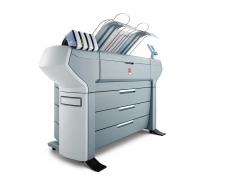
- Тестирование плоттера OCE ColorWave 300 P2R – не тарифицируется.
- Выезд мастера – за счет компании.
- Цена устранения поломки плоттера OCE ColorWave 300 P2R – от трехсот рублей.
- Многочисленные скидки от 5% (получение купона).
- Многочисленные виды оплаты.
- Детали по минимальной стоимости.
В офисе пришел в негодность плоттер или иная офисная техника? Можно попробовать восстановить это устройство, к примеру, плоттер OCE ColorWave 300 P2R самостоятельно или сразу купить новое устройство.
Но проще не тратить время и просто позвонить в компанию КомпсХелп!
- Оперативно, через один-два часа квалифицированный сотрудник прибудет по указанному Вами адресу и тут же решит вопросы с профилактикой плоттера OCE ColorWave 300 P2R!
- Вам не нужно переплачивать – выезд сотрудника компании и поиск дефекта осуществляется за счет компании!
- Не придется долго ожидать – опытный сотрудник прибудет вскоре после оформления заявки!
- Не имеет значения, в каком месте Вы проживаете – наши мастера приедут в любую точку столицы и области!
- После ремонта аппаратура, например, плоттер OCE ColorWave 300 P2R прослужит еще не один год – мы предоставляем гарантию на свои услуги на 3 года.
- У Вас не возникнет вопросов с процессом оплаты – доступны все виды расчетов, включая электронные деньги.
- Безразлично, какая техника пришла в негодность – мы восстанавливаем аппараты любых видов (МФУ, плоттеры, сканеры, принтеры, ксероксы) и марок (Epson, Mutoh, HP, Encad, Mimaki, Canon).
- Ничего страшного, если поломка будет слишком серьезной – квалифицированные профессионалы устранят любую неисправность. В особых ситуациях аппаратура бесплатно доставляется в нашу мастерскую для выполнения глубокой диагностики и капитального ремонта.
Не дожидайтесь, пока Ваша офисная техника, к примеру, плоттер OCE ColorWave 300 P2R окажется неисправной – тестирование и регулярное техобслуживание обойдутся в несколько раз эффективнее!
Остались вопросы?
Просто перезвоните
по (495)966-23-92
или оформите заказ онлайн,
и наши консультанты предоставят Вам любую информацию.
Порядок оказания услуг в КомпсХелп
Ваша оргтехника снова станет работоспособной после того как:
- Вы оставите заявку.
- К Вам приедет мастер или Вы привозите технику в наш сервисный центр.
- Специалист проведет диагностику оборудования и определит стоимость ремонта.
- Мастер починит Вашу аппаратуру и оформит все необходимые документы.
Чаще всего наши клиенты задают следующие вопросы:
-
Долго ли придется ждать мастера?
Мастер подъедет в любое назначенное Вами время или через час после оформления заказа.
-
Действительно ли, что за выезд специалиста и диагностику не надо
платить?Да, действительно. Диагностика и выезд мастера – полностью бесплатны. Но если Вы откажетесь от
выполнения работ, то диагностику оборудования придется оплатить согласно прайсу (от 400 рублей). -
Какие гарантии предоставляет компания?
На все отремонтированную технику выдается гарантия сроком до трёх лет.
-
Почему именно КомсХелп?
Потому что у нас быстро, профессионально, недорого!
Потому что у нас работают самые квалифицированные и опытные специалисты.
Потому что мы напрямую работаем с поставщиками оборудования, и поэтому можем предложить самые
качественные детали по самым низким ценам.
Закажите сейчас и получите скидку:
Москва: (495)966-23-92
заказать онлайн
Прайс-лист на основные услуги:
| наименование услуги | цена | гарантия | срок | |
|---|---|---|---|---|
|
Диагностика плоттера Диагностика плоттера
|
Бесплатно (в случае выполнения работ). от 1500 рублей в случае отказа от выполнения работ | 1 мес. | 1 час | Заказать мастера |
|
Профилактическая очистка плоттера Профилактическая очистка плоттера
|
Акция! 6000 руб. от 2000 руб. |
3 мес. | 2 часа | Заказать мастера |
|
Обслуживание элементов печати (в т.ч. печатающих головок) Обслуживание элементов печати (в т.ч. печатающих головок)
|
от 2500 руб. | 6 мес. | 1 час | Заказать мастера |
Прайс-лист на запасные части и комплектующие:
| Наименование услуги | цена |
|---|---|
| Элементы печати ColorWave 300 P2R (Печатающие головки, переходники, демперы, «ролики», запчасти каретки плоттера, ножи и аксессуары) | от 900 руб. |
| Картриджи, тонеры, чернила, СНПЧ и комплектующие плоттера ColorWave 300 P2R (Широкий выбор для любых плоттеров) | от 1000 руб. |
| Элементы механизма подачи бумаги, рулона ColorWave 300 P2R (Новые и б.у. запчасти на складе и под заказ для плоттера ColorWave 300 P2R) | от 1200 руб. |
| Электронные компоненты ColorWave 300 P2R (Материнские платы, сетевые платы, блоки управления, блоки питания в наличии и под заказ для плоттера ColorWave 300 P2R) | от 1500 руб. |
услуги
|
Почему выгодно и удобно отремонтировать плоттер в Compshelp?Уже через несколько часов опытный мастер подъедет по указанному Вами адресу и оперативно решит все проблемы с ремонтом! Вам не придется переплачивать – выезд специалиста и диагностика неисправной техники производится бесплатно! Бесплатная доставка плоттера в ремонт Срочный ремонт Бесплатная диагностика Современное оборудование для ремонта Квалифицированные мастера Большой выбор оригинальных запчастей в наличии и на заказ |
Контакты сервисного центра:
Москва: (495)966-23-92
заказать онлайн
Ремонт других моделей
-
PlotWave 900 P4R
-
TDS750P2R1S
-
TCS500P3R
-
TCS500P2R
-
TCS500P1R
-
PlotWave 350 P1R
-
PlotWave 300 P2R
-
Plotwave 300 P1R
-
CS2436
-
CS2424
-
ColorWave 650 P2R
-
ColorWave 600 Poster Printer P2R
-
ColorWave 600 P4R
-
ColorWave 600 P2R
-
ColorWave 600
-
ColorWave 300