I want to import sklearn but there is no module apparently:
ModuleNotFoundError: No module named 'sklearn'
I am using Anaconda and Python 3.6.1; I have checked everywhere but still can’t find answers.
When I use the command:
conda install scikit-learn should this not just work?
Where does anaconda install the package?
I was checking the frameworks in my python library and there was nothing about sklearn only numpy and scipy.
Please help, I am new to using python packages especially via anaconda.

asked Sep 8, 2017 at 9:56

1
You can just use pip for installing packages, even when you are using anaconda:
pip install -U scikit-learn scipy matplotlib
This should work for installing the package.
And for Python 3.x just use pip3:
pip3 install -U scikit-learn scipy matplotlib

MBT
19.9k19 gold badges81 silver badges102 bronze badges
answered Sep 8, 2017 at 10:00

mrCarnivoremrCarnivore
3,9772 gold badges11 silver badges29 bronze badges
6
Will leave below two options that may help one solve the problem:
-
Using
conda -
Using
pip
One might want to consider the notes at the end, specially before resorting to the 2nd option.
Option 1
If one wants to install it in the root and one follows the requirements — (Python (>= 2.7 or >= 3.4), NumPy (>= 1.8.2), SciPy (>= 0.13.3).) — the following should solve the problem
conda install scikit-learn
Alternatively, as mentioned here, one can specify the channel as follows
conda install -c anaconda scikit-learn
Let’s say that one is working in the environment with the name ML.
Then the following should solve one’s problem:
conda install -n ML scikit-learn

# or

conda install -n ML -c anaconda scikit-learn
Option 2
If the above doesn’t work, on Anaconda Prompt one can also use pip (here’s how to pip install scikit-learn), so the following may help
pip install scikit-learn
However, consider the last note below before proceeding.
Notes:
-
When using Anaconda, one needs to be aware of the environment that one is working.
Then, in Anaconda Prompt, one needs to run the following
conda $command -n $ENVIRONMENT_NAME $IDE/package/module$command — Command that one intends to use (consult documentation for general commands)
$ENVIRONMENT NAME — The name of one’s environment (if one is working in the root,
conda $command $IDE/package/moduleis enough)$IDE/package/module — The name of the IDE or package or module
-
If one needs to install/update packages, the logic is the same as mentioned in the introduction. If you need more information on Anaconda Packages, check the documentation.
-
What is the flag
-c. -
pipdoesn’t manage dependencies the same waycondadoes and can, potentially, damage one’s installation.
answered Sep 26, 2018 at 15:21
Gonçalo PeresGonçalo Peres
10.2k3 gold badges49 silver badges75 bronze badges
If you are using Ubuntu 18.04 or higher with python3.xxx then try this command
$ sudo apt install python3-sklearn
then try your command. hope it will work

answered Sep 20, 2019 at 13:29

I did the following:
import sys
!{sys.executable} -m pip install sklearn
answered Jun 30, 2020 at 21:35

cesareressacesareressa
3172 silver badges9 bronze badges
1
I’ve tried a lot of things but finally, including uninstall with the automated tools. So, I’ve uninstalled manually scikit-learn.
sudo rm -R /home/ubuntu/.local/lib/python3.6/site-packages/sklearn
sudo rm -R /home/ubuntu/.local/lib/python3.6/site-packages/scikit_learn-0.20.0-py3.6.egg-info
And re-install using pip
sudo pip3.6 install -U scikit-learn
Hope that can help someone else!
answered Oct 21, 2018 at 9:01

Claude COULOMBEClaude COULOMBE
3,3082 gold badges34 silver badges38 bronze badges
This happened to me, I tried all the possible solutions with no luck!
Finaly I realized that the problem was with Jupyter notebook environment, not with sklearn!
I solved the problem by re-installing Jupyter at the same environment as sklearn
the command is: conda install -c anaconda ipython. Done…
answered Dec 25, 2018 at 11:52
Mohammad ElNesrMohammad ElNesr
2,4174 gold badges28 silver badges44 bronze badges
1
The other name of sklearn in anaconda is scikit-learn. simply open your anaconda navigator, go to the environments, select your environment, for example tensorflow or whatever you want to work with, search for scikit_learn in the list of uninstalled packages, apply it and then you can import sklearn in your jupyter.
answered Jul 19, 2020 at 18:01

SasanSasan
1312 bronze badges
SOLVED:
The above did not help. Then I simply installed sklearn from within Jypyter-lab, even though sklearn 0.0 shows in ‘pip list’:
!pip install sklearn
import sklearn
What I learned later is that pip installs, in my case, packages in a different folder than Jupyter. This can be seen by executing:
import sys
print(sys.path)
Once from within Jupyter_lab notebook, and once from the command line using ‘py notebook.py’.
In my case Jupyter list of paths where subfolders of ‘anaconda’ whereas Python list where subfolders of c:users[username]…
answered Feb 2, 2021 at 21:08

ZviZvi
2,2342 gold badges24 silver badges37 bronze badges
On Windows, I had python 3+ version. pip version — 22.3.1
I had installed:
pip install sklearn
But, it seems it is deprecated with scikit-learn.
So, I did:
pip install scikit-learn
And, it worked!!!
answered Dec 8, 2022 at 7:58

KnockingHeadsKnockingHeads
1,1961 gold badge17 silver badges38 bronze badges
Cause
Conda and pip install scikit-learn under ~/anaconda3/envs/$ENV/lib/python3.7/site-packages, however Jupyter notebook looks for the package under ~/anaconda3/lib/python3.7/site-packages.
Therefore, even when the environment is specified to conda, it does not work.
conda install -n $ENV scikit-learn # Does not work
Solution
pip 3 install the package under ~/anaconda3/lib/python3.7/site-packages.
Verify
After pip3, in a Jupyter notebook.
import sklearn
sklearn.__file__
~/anaconda3/lib/python3.7/site-packages/sklearn/init.py’
answered May 8, 2019 at 7:02

monmon
16.2k14 gold badges96 silver badges173 bronze badges
1
I had the same problem.
The issue is when we work on multiple anaconda environments, not all packages are installed in all environments.
you can check your conda environment by writing the following code in anaconda prompt:
conda env list
then you can check the packages installed in each environment :
conda list -n NAME_OF_THE_ENVIRONMENT
for me, the environment that I was working with , was missing sklearn, although the package was installed in the other environments.
therefore, I just simply installed sklearn package in that particular environment
conda install -n NAME_OF_THE_ENVIRONMENT scikit-learn
and the issue was resolved
answered Jan 12, 2022 at 2:57

install these ==>> pip install -U scikit-learn scipy matplotlib
if still getting the same error then ,
make sure that your imoprted statment should be correct. i made the mistike while writing ensemble so ,(check spelling)
its
should be >>> from sklearn.ensemble import RandomForestClassifier
answered Jul 2, 2020 at 18:10

Akash DesaiAkash Desai
4765 silver badges11 bronze badges
I had the same issue as the author, and ran into the issue with and without Anaconda and regardless of Python version. Everyone’s environment is different, but after resolving it for myself I think that in some cases it may be due to having multiple version of Python installed. Each installed Python version has its own Libsite-packages folder which can contain a unique set of modules for that Python version, and where the IDE looks into folder path that doesn’t have scikit-learn in it.
One way to try solve the issue: you might clear your system of all other Python versions and their cached/temp files/system variables, and then only have one version of Python installed anywhere. Then install the dependencies Numpy and Scipy, and finally Scikit-learn.
More detailed steps:
- Uninstall all Python versions and their launchers (e.g. from Control Panel in Windows) except the one version you want to keep. Delete any old Python version folders in the Python directory —uninstalling doesn’t remove all files.
- Remove other Python versions from your OS’ Environment Variables (both under the system and user variables sections)
- Clear temporary files. For example, for Windows, delete all AppData Temp cache files (in C:UsersYourUserNameAppDataLocalTemp). In addition, you could also do a Windows disk cleanup for other temporary files, and then reboot.
- If your IDE supports it, create a new virtual environment in Settings, then set your only installed Python version as the interpreter.
- In your IDE, install the dependencies Scipy and Numpy from the module list first, then install Scikit-Learn.
As some others have suggested, the key is making sure your environment is set up correctly where everything points to the correct library folder on your computer where the Sklearn package is located. There are a few ways this can be resolved. My approach was more drastic, but it turns out that I had a very messy Python setup on my system so I had to start fresh.
answered Nov 1, 2020 at 15:54

Using Anaconda-navigator UI environment
When running Anaconda-navigator:
-
Choose the ‘Environments’ tab on the left and create a new environment (e.g. ML — see Gonçalo Peres answer above, I made one called ‘CourseraML’).
-
Set Python version 3.7 (for Coursera course Applied Machine Learning in Python). Also include R.
-
Then find modules to install using the ‘not installed’ drop-down menu item. Search for each module needed in the search bar and select. sklearn is part of scikit-learn. Select it and install (it should find all relevant dependencies). Modules needed for Applied ML course: seaborn, numpy, scikit-learn, pandas, matplotlib
-
You’ll need to restart Jupyter Notebook and reopen your file.
Command line version of above:
conda install -n CourseraML seaborn scikit-learn pandas numpy matplotlib graphviz
answered May 4, 2021 at 7:37

AntCAntC
766 bronze badges
Causes
-your jupyter notebook might be importing the sklearn and other libraries from the
another the location(path) than the libraries from conda or pip.
MY Problem
In my case, My jupyter notebook was importing the libraries for snap manager. Since, I install jupyter using the snap instead of other ways.
You can check where other libraries are being imported in jupyter using code:
import cv2 as cv
print(cv.__file__)
Solution
So , I uninstall jupyter notebook and then install notebook using conda.
sudo snap remove jupyter
conda install -c conda-forge notebook
answered May 28, 2021 at 15:28

The Python error “ModuleNotFoundError: No module named ‘sklearn’” is caused by attempting to import sklearn without installing the required package first. Fix this by running pip or pip3 install scikit-learn
The sklearn or scikit-learn package is a machine learning package available for Python. Compared to TensorFlow, it’s more high-level and does a lot for you. It’s a great package. I’m very new to machine learning but I’m very impressed with this one. TensorFlow can be a bit challenging if you’re not 100% familiar with building your own models yet.
That being said, you have to have it installed before you can use it!
❌ Problem: the scikit-learn package is not installed
Let’s make a test script to see if we have what we need to start using sklearn.
Example:
import sklearn

print("Test")
Now, let’s try to run it:
Traceback (most recent call last):
  File "/home/user/main.py", line 1, in <module>
    import sklearn
ModuleNotFoundError: No module named 'sklearn'
Nope! Looks like it’s not installed yet. Let’s fix that!
✅ Fix: install the scikit-learn package
To install sklearn, you have to install the scikit-learn package. While it’s true you can also install sklearn (it refers to the same package), that’s not actually what the package is called and it won’t work if you try to uninstall sklearn, because it’ll install as scikit-learn instead. To avoid confusion, let’s just do what the authors of this package want us to 😉
Here’s how you install it:
Note: it might be pip3 install scikit-learn on your machine. Depends how your Python is installed!
Once you run this, you should see pip spit out some text like so:
Collecting scikit-learn
  Downloading scikit_learn-1.1.2-cp310-cp310-manylinux_2_17_x86_64.manylinux2014_x86_64.whl (30.5 MB)
     ━━━━━━━━━━━━━━━━━━━━━━━━━━━━━━━━━━━━━━━━ 30.5/30.5 MB 4.3 MB/s eta 0:00:00
Collecting joblib>=1.0.0
  Downloading joblib-1.2.0-py3-none-any.whl (297 kB)
     ━━━━━━━━━━━━━━━━━━━━━━━━━━━━━━━━━━━━━━━━ 298.0/298.0 KB 3.8 MB/s eta 0:00:00
Collecting scipy>=1.3.2
  Downloading scipy-1.9.2-cp310-cp310-manylinux_2_17_x86_64.manylinux2014_x86_64.whl (33.7 MB)
     ━━━━━━━━━━━━━━━━━━━━━━━━━━━━━━━━━━━━━━━━ 33.7/33.7 MB 2.0 MB/s eta 0:00:00
Collecting threadpoolctl>=2.0.0
  Downloading threadpoolctl-3.1.0-py3-none-any.whl (14 kB)
Collecting numpy>=1.17.3
  Downloading numpy-1.23.3-cp310-cp310-manylinux_2_17_x86_64.manylinux2014_x86_64.whl (17.1 MB)
     ━━━━━━━━━━━━━━━━━━━━━━━━━━━━━━━━━━━━━━━━ 17.1/17.1 MB 2.0 MB/s eta 0:00:00
Installing collected packages: threadpoolctl, numpy, joblib, scipy, scikit-learn
Successfully installed joblib-1.2.0 numpy-1.23.3 scikit-learn-1.1.2 scipy-1.9.2 threadpoolctl-3.1.0
You’ll notice it’s also installing some other packages:
- joblib
- scipy
- threadpoolctl
- numpy
Some of those look familiar? They should! They’re very popular among data scientists like yourself, and they’re used internally by sklearn. In fact, if you already have those installed, you might not see pip install any of them. Don’t worry about that. Just try running your Python program again and make sure it doesn’t throw any errors now that we have sklearn installed.
Conclusion
That’s all there is to it! In this article, we covered what causes “ModuleNotFoundError: No module named ‘sklearn’” and how to fix it. In a nutshell, it’s caused by not having the scikit-learn Python package installed. You can fix that by simply running pip install scikit-learn. This will also install several other dependencies that are needed by sklearn.
Hope that helps! Happy coding.
For all Windows Users,
this commands are needed and python needs to be installed with adding a path variable (nor manually steps required, just call the customize installation, then it comes to that point where a mark needs to be set)
And for all who have forgotten every thing about command lines,
- click start
- write ‘cmd’
- enter
there will be no more than one icon, click on it.
In case the directory needs to changed its ‘cd’, like: C:UsersYourName> cd C:
Changes to:
C:>
write: C:> cd C:Windows
changes to:
C;Windows>
And This might be the most called page : [https://www.tensorflow.org/install/install_windows)]
At the end it comes to a # shell: «Invoke python from your shell as follows:», means:
- click start
- write «pyth»
- within the first icons should be some called IDLE Python blabla
- and this is how it looks
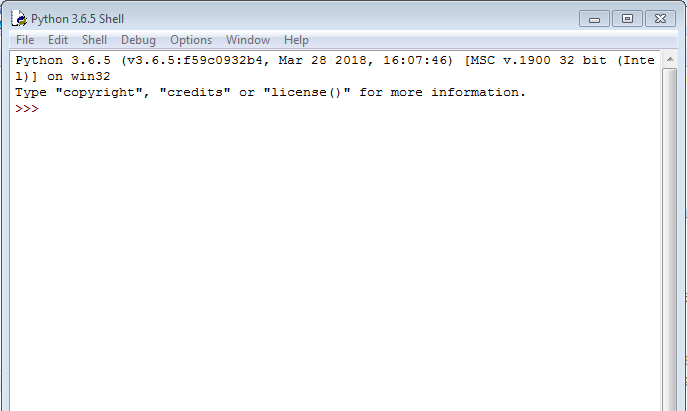
I describe it so detailed, because, it tooks me 3 weeks, just to come to his point, of course not 12 hours a day, but enough. 3 Weeks what for? Just to have now this command lines. Which I consider as nothing but something to know, Something to know, nothing to analyze, nothing to think through, just some to know. Considering AI, I hope for nothing so deeply, as to get rid of being forced to study a lot of other topics before I can start with, in this case, a first machine learning program
Here the command lines:
python -m pip install -U pip
(wait for what happend)
pip install numpy
(wait for what happend)
pip install scipy
(wait for what happend)
pip install -U scikit-learn
(wait for what happend)
Whats still left is, cant import ‘sklearn’

- Causes of
ImportError: No module named sklearnin Python - Fix
ImportError: No module named sklearnin Python - Installation of
sklearnModule UsingPIPin Python - Installation of
sklearnModule UsingConda - Import
sklearnand Check Its Version in Python - Conclusion

In Python, sklearn is used as a machine learning tool for creating programs on regression, cluster, etc. A lot of times, importing it throws an error — No module named sklearn.
This means the system cannot find it due to a bad installation, invalid Python or pip version, or other problems.
Causes of ImportError: No module named sklearn in Python
Suppose we install sklearn or any Python library into the system. The system says that the library has been installed successfully.
But when we import the library, we see the error — No module named 'sklearn'.
This can happen for mainly two reasons.
- The library did not get installed successfully.
- It was installed into an unknown directory that the system cannot find.
This article explains how to install sklearn into the system correctly.
Fix ImportError: No module named sklearn in Python
Installing sklearn into the Windows system is one of the methods through which we can solve the ImportError: No module named sklearn error in Python. There are two prerequisites for it.
- Python
pip
Knowing the pip and Python versions beforehand is not only helpful but advantageous. Bad installation happens when the Python version does not match the pip version inside the system.
There are three different ways to install Python on Windows, whichever seems suitable.
- Installing from an executable (
.exe) installer - Getting it from the Microsoft store
- Getting a subsystem Linux distro inside Windows
Only the first two alternatives, the most common installation techniques in a Windows system, will be the subject of this section. There are differences between the two official Python installers for Windows and some significant restrictions on the Microsoft Store bundle.
Installation From the Microsoft Store
The Microsoft Store bundle is the greatest option for a hassle-free setup. This has two main steps.
-
Search for Python
Search for Python through the Microsoft Store application. Several versions will likely be encountered that can be installed.
To access the installation screen, choose Python 3.8 or the highest version number found in the installer.
Another way is to launch PowerShell and enter the following command.
Pressing Enter will launch the Microsoft Store and direct the browser to the most recent version of Python available if it is not installed on the computer.
-
Install the Python app.
Once the version is chosen, the steps to finish the installation are as follows.
-
Select
Get. -
Await the download of the application. The
Install on my devicesbutton will appear in place of theGetbutton once the download is complete. -
Select the devices you want to finish installing, then click
Install on my devices. -
To begin the installation, click
Install Nowand thenOK. -
If the installation was successful, the Microsoft Store page will display
"This product is installed"at the top.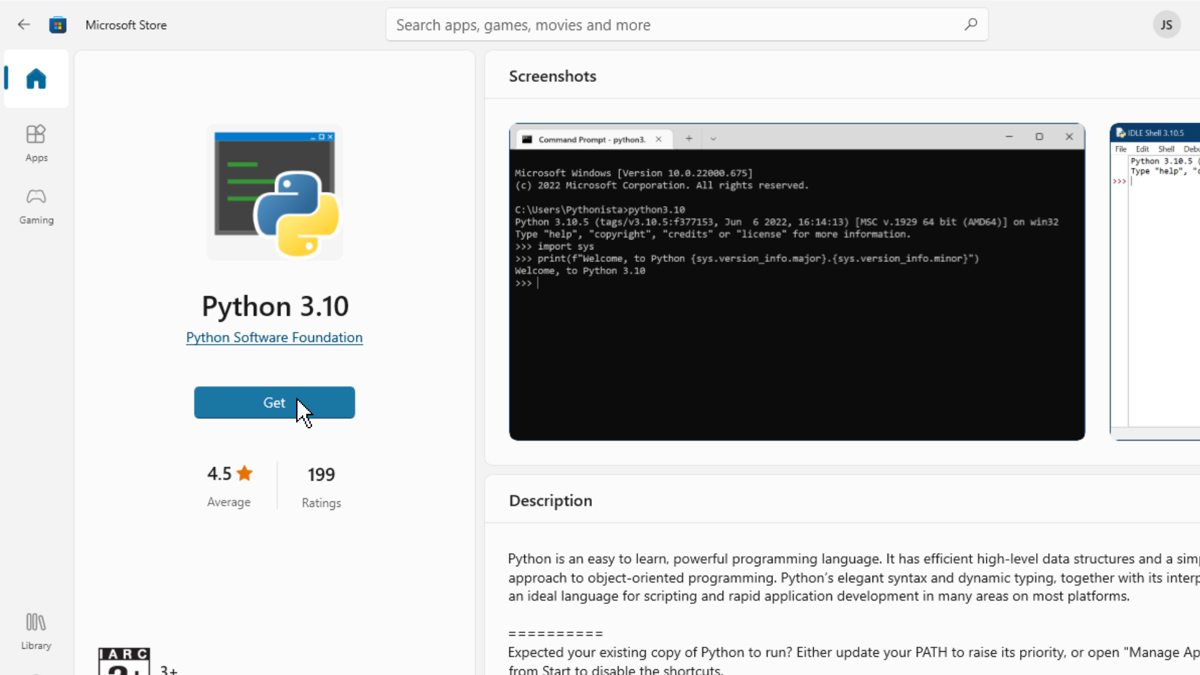
Installation Using an Executable Installer
- Download the Full Installer
To download the whole installer, adhere to the following steps.
- Go to the Python.org Downloads page for Windows by opening a browser window.
- Click the link for the Most Recent Python 3 Release — Python 3.x.x under the “Python Releases for Windows” category. Python 3.10.5 was the most recent version as of this writing.
- Either choose Windows x86-64 executable installer for 64-bit or Windows x86 executable installer for 32-bit by scrolling to the bottom.
Go to the next step after the installer has finished downloading.
- Run the installer
After selecting and downloading an installer, double-click the downloaded file to launch it. You’ll see a dialogue box similar to the one below.

There are four things to notice about this dialog box.
-
The standard Windows user’s
AppData/directory contains the default install path. -
The
pipand IDLE installation locations and extra features can be altered using theCustomize installationbutton. -
The default checkbox next to
Install launcher for all users (recommended)is selected. This implies that thepy.exelauncher will be accessible to all users on the system.To make the installation available just for the current user, uncheck the option.
-
The
Add Python 3.10 to PATHcheckbox is not selected. Make sure you understand the ramifications before checking this box because there are several reasons why you would not want Python onPATH.
The installation process using the full installer gives complete control over it. Following these steps will install Python on the system.
Now the installation of sklearn can be initiated to solve the No module named 'sklearn' error.
Installation of sklearn Module Using PIP in Python
Launch a command-line runner like PowerShell or the command prompt to install sklearn this way.
How to start PowerShell is as follows:
- Go to start by hitting the Windows button.
- Type
PowerShell(or Command prompt/cmd, if PowerShell is not installed). - Click on it or press the Enter key.
PowerShell can be accessed as an alternative by right-clicking and selecting Open here as an administrator.
Inside the command line runner, the first step is to install pip.
Pip is a Python package manager that downloads and installs Python libraries inside the system. To install pip, type the command:
Once Python and pip are set up, sklearn can be installed. Type the command:
pip3 install scikit-learn
This will install the scikit-learn directory from the pip repositories.
If the system already has an older version of Python, or sklearn is required for a previous version like Python2, use the command:
pip2 install scikit-learn
If all the steps are executed correctly, the No module named 'sklearn' error would be resolved.
Once it is installed successfully, we can check its version by using:
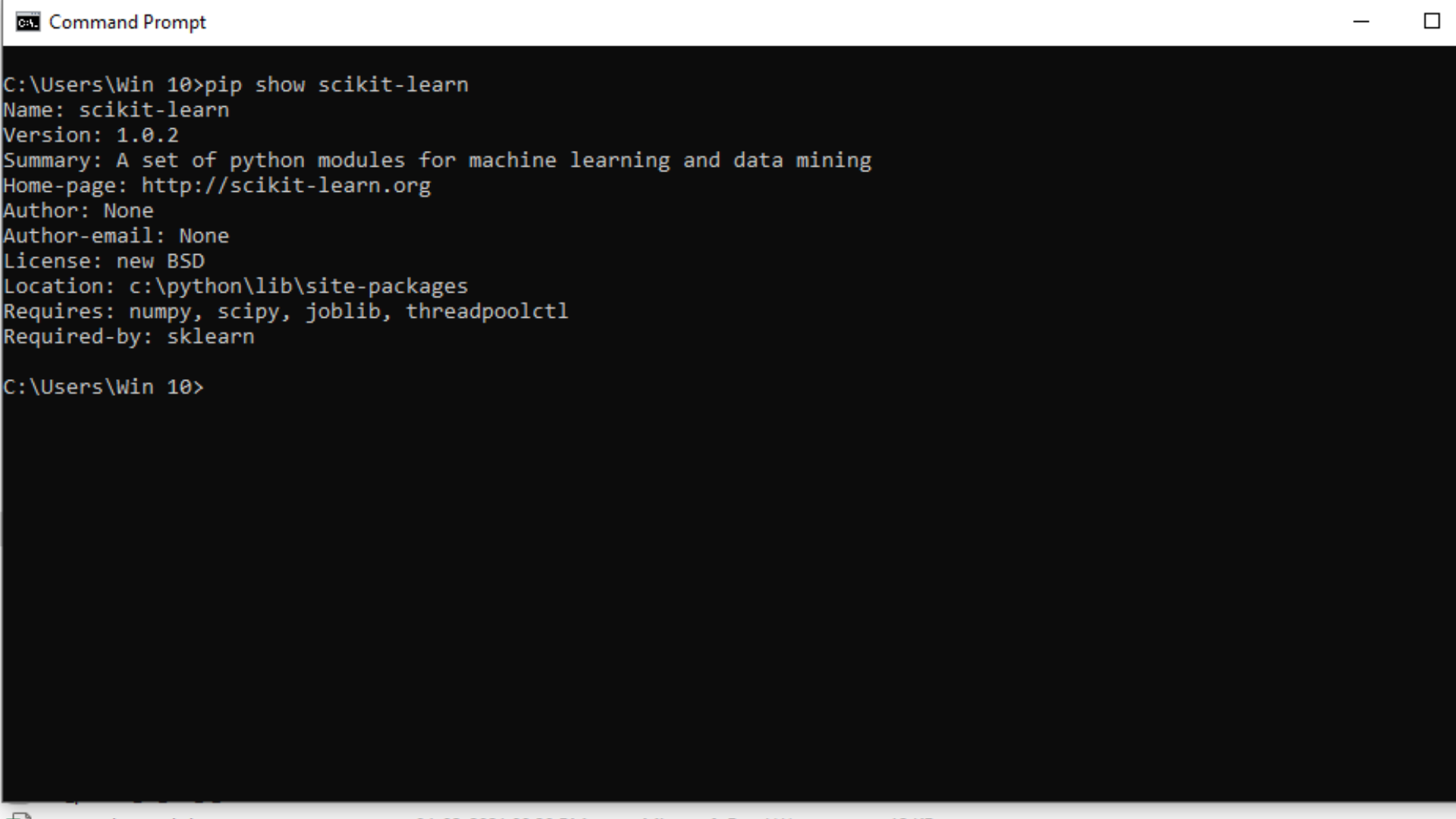
It can be seen in the above image that the system can detect sklearn, which means our error — No module named 'sklearn' now stands resolved, and now it can be imported.
Installation of sklearn Module Using Conda
Anaconda is a Python distribution that executes Python scripts inside a virtual environment. It can also install and manage Python library packages using conda, an alternative to pip.
This is an alternative method to install sklearn into the system in a targeted environment to resolve the No module named 'sklearn' issue.
To install sklearn in Anaconda, open Anaconda3 in an administrative mode. After Anaconda is launched, open a command line prompt like cmd or PowerShell from inside Anaconda.
Opening a command line runner will load it inside a virtual environment of Anaconda, and all the packages installed will be made exclusively available for Anaconda only.
There are a few checkpoints that need to be ensured to install sklearn, which are:
- Checking
conda’s version - Updating
conda - Installing
sklearn - Creating and activating a
sklearnvirtual environment.
Inside the prompt, write the command:
conda -V
This will display the current version of conda. Then it needs to be updated using the command:
conda update conda
It asks for a y/n after displaying the list of packages that need to be installed. To proceed, type y and press Enter.
Conda will update itself with all the necessary packages.
Now, to install sklearn, use the command:
conda create -n sklearn-env -c conda-forge scikit-learn
The above command directs the prompt to create a virtual environment named sklearn-env and install scikit learn and all the dependencies within its virtual environment.
In Python, a virtual environment is simply an isolated directory that stores specific libraries and a version of Python so that it does not interfere with other libraries and other Python versions.
Entering the above command will display a list of available packages with sklearn that must be downloaded and installed. It asks for a y/n prompt, and entering y will install all the displayed packages.
After completing it, scikit learn gets downloaded and installed into the Anaconda.
Note: A
condaHTTP error might occur while installing one of the above packages if the download timeouts from the server. This specifically happens while Python gets downloaded.
The prompt displays the file path of the bad installation; go to the file path, delete the directory with the faulty download, and retry the above command.
This time it will get completed successfully.
Though sklearn is installed, it cannot be directly used. The reason behind it is that it was installed inside a virtual environment that needs to be activated before.
Type the command:
conda activate sklearn-env
This will activate the sklearn virtual environment, and now sklearn can be imported and used. If all the steps are correctly followed, the No module named 'sklearn' error would be resolved by now.
In the next section, we will check sklearn’s version and import it.
Import sklearn and Check Its Version in Python
To check the version of sklearn, type the command:
conda list scikit-learn

To check all the installed packages, use the command:
conda list
To check the version of sklearn along with its dependencies, type:
python -c "import sklearn; sklearn.show_versions()"
Now we know that sklearn is installed and working successfully, we can import it by:
import sklearn

If it shows no errors, that means sklearn is working correctly.
If you again get the error — No module named 'sklearn', remove the virtual environment and packages, restart your system and repeat the above steps once again to get it installed correctly.
Conclusion
This article explains various methods to install sklearn into the system and resolve the No module named 'sklearn' error in Python. After reading this article, the reader will be able to install sklearn easily in different kinds of systems and setups.
It is hoped that this article helped in your learning journey.