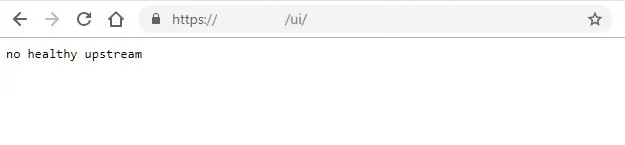
After upgrading to vCenter 7 Update 1 , when I tried to browse vCenter HTML5 UI, I faced “no healthy upstream” error. I could access to vCenter Management Interface (VAMI) https://vCenter-IPaddress:5480 without any issues. I could also connect to vCenter Server through SSH but I realized couple of vCenter Server services could not start.
You can also check the details status of services by connecting to vCenter through SSH and run the following command:
#service-control --list Then I tried to force to start services by below commands:
#service-control --start --all
#service-control –-start {service-name}
After waiting for a while, I got the underneath error.
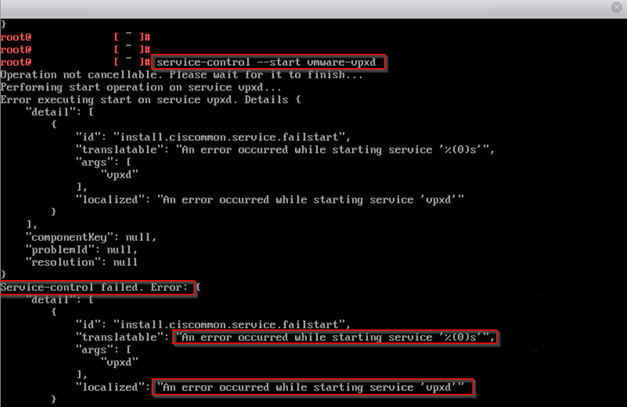
After spending couple of hours reading logs and a bit of googling, I have been pointed towards different answers. First of all I went through all DNS, NTP and IP checks and in my case everything was working as it should.
In my scenario, vCenter’s SSL certificate were
replaced with a valid signed certificate and it was one of the reason that
points me to check certification validity. Beside this SSL certificate, there
are couple of other certificates that vCenter server uses. To get familiar with
vSphere certificates you can read the following vSphere documentation:
https://docs.vmware.com/en/VMware-vSphere/7.0/com.vmware.vsphere.authentication.doc/GUID-3AF7757E-A30E-4EEC-8A41-28DA72102520.html
In my case “Trusted root certificate, Machine SSL Certificate and SMS” were still valid . But ” Machine, vpxd, vpxd-extension and vsphere-webclient” were expired.
You can check the validity of each certificate by running below commands in vCenter server:
# /usr/lib/vmware-vmafd/bin/vecs-cli entry list --store TRUSTED_ROOTS --text | less
# /usr/lib/vmware-vmafd/bin/vecs-cli entry list --store MACHINE_SSL_CERT --text | less
# /usr/lib/vmware-vmafd/bin/vecs-cli entry list --store SMS --text | less
# /usr/lib/vmware-vmafd/bin/vecs-cli entry list --store machine --text | less
# /usr/lib/vmware-vmafd/bin/vecs-cli entry list --store vpxd --text | less
# /usr/lib/vmware-vmafd/bin/vecs-cli entry list --store vpxd-extension --text | less
# /usr/lib/vmware-vmafd/bin/vecs-cli entry list --store vsphere-webclient --text | less
Below you can find the expired certificate screen shot:

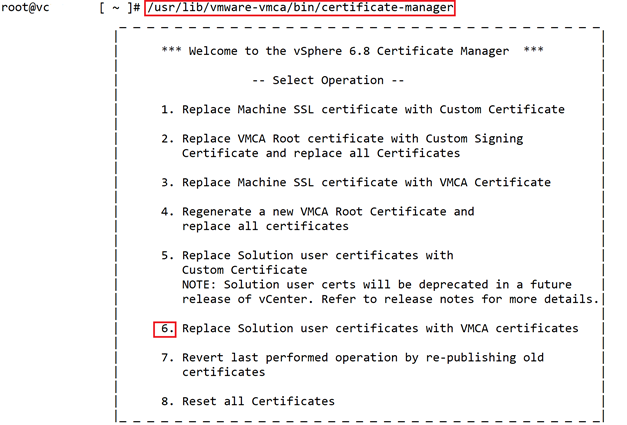
In this case you need to update the expired certificates with use of vCenter certificate manager through running following command on vCenter CLI.
#/usr/lib/vmware-vmca/bin/certificate-managerchoose number 6 to replace Solution User certificates.
Then you need to answer the required information
- Do you wish to generate all certificates using configuration file : Option[Y/N] ? : Y
- Please provide valid SSO and VC privileged user credential to perform certificate operations.Enter username [Administrator@vsphere.local]:
Note: this is an example how to address each question you need to fill it out based on your environment.
- Enter proper value for ‘Country’ [Default value : US] :US
- Enter proper value for ‘Name’ [Default value : CA] : CA
- Enter proper value for ‘Organization’ [Default value : VMware] : “ vElements lab”
- Enter proper value for ‘OrgUnit’ [Default value : VMware Engineering] : VELEMENTSIT
- Enter proper value for ‘State’ [Default value : California]: California
- Enter proper value for ‘Locality’ [Default value : Palo Alto] : Palo Alto
- Enter proper value for ‘IPAddress’ (Provide comma separated values for multiple IP addresses) [optional] : you can press Enter or provide the required information
- Enter proper value for ‘Email’ [Default value : email@acme.com] : Press Enter
- Enter proper value for ‘Hostname’ (Provide comma separated values for multiple Hostname entries) [Enter valid Fully Qualified DomainName(FQDN), For Example : example.domain.com] : vc.velements.net
- Enter proper value for VMCA ‘Name’ : vc.velements.net You are going to regenerate Solution User Certificates using VMCA
- Continue operation : Option[Y/N] ? : Y
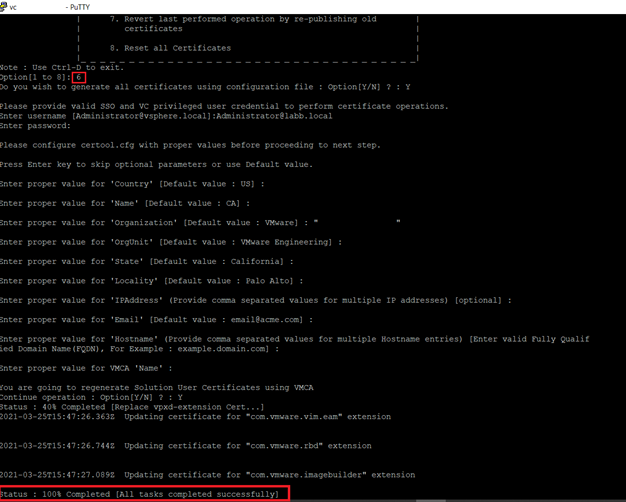
After I successfully updated the certificates , vCenter
services got started and I could reach the vCenter UI.
Below you can also find other solutions I found
when I was googling
Suggested answers to check
- Upgrade VMware Hardware version and choose the
correct OS for vCenter
Note: Take a snapshot from
vCenter Server VM before hardware version upgrade, as it’s none reversible task to previous versions.
- Shutdown the vCenter > right click on the VM
> Compatibility > Upgrade VM Compatibility. - Right click on the vCenter and choose Edit
settings > VM Options > General Options > Select VMware Photon OS - Check DNS (you should be able to resolve FQDN
names from vCenter) - Check NTP (Time should be synced and correct
between ESXi hosts and vCenter Server) - vCenter Server IP address should be set Static
All of the services which are set to Automatic start are running without any errors or warnings. Hopefully this will help you to solve your issue.
When you encounter no healthy upstream error, it means that the vCenter is not up and ready yet. Just wait a few minutes before connecting to vCenter via a web browser.
But every no healthy upstream error is because of an unprepared vCenter. There might be some issue that does not allow the services of vCenter to be running properly.
There is another guide to help you fix no healthy upstream error of vCenter 7. It might be occurred after upgrading vCenter 6.7 to vCenter 7.
- Shutdown the vCenter
- Upgrade the VM hardware version
- Edit settings > VM Options > General Options > Select VMware Photon OS
Note: make sure you have allocated enough memory and CPU for the vCenter 7 virtual machine. The vCenter 7 is CPU and memory hungry.
Read the related community post on vMware forum.
Related article: Setup a Penetration Testing Lab.
Hardware Requirements for the vCenter Server Appliance
When you deploy the vCenter Server appliance, you can select to deploy an appliance that is suitable for the size of your vSphere environment. The option that you select determines the number of CPUs and the amount of memory for the appliance. The hardware requirements for a vCenter Server appliance depend on the size of your vSphere inventory.
The upgrade of the appliance is a migration of the old version to the new version, which includes deploying a new appliance of version 7.0. You can deploy the new vCenter Server appliance on an ESXi host 6.5 or later, or on a vCenter Server instance 6.5 or later. Your system must also meet specific software and hardware requirements.
Hardware Requirements for a vCenter Server Appliance
| Number of vCPUs | Memory | |
|---|---|---|
| Tiny environment (up to 10 hosts or 100 virtual machines) | 2 | 12 GB |
| Small environment (up to 100 hosts or 1,000 virtual machines) | 4 | 19 GB |
| Medium environment (up to 400 hosts or 4,000 virtual machines) | 8 | 28 GB |
| Large environment (up to 1,000 hosts or 10,000 virtual machines) | 16 | 37 GB |
| X-Large environment (up to 2,500 hosts or 45,000 virtual machines) | 24 | 56 GB |
Note: If you want to add an ESXi host with more than 512 LUNs and 2,048 paths to the vCenter Server inventory, you must deploy a vCenter Server appliance for a large or x-large environment.
Let us know if you still have issues with vCenter no healthy upstream.
VMware vCenter server Error no healthy upstream
March 13, 2021 06:51PM
After completing VMware vCenter server appliance (vcsa) installation and configuration, when tested vCenter UI url https://vcenter:443/ui, I was receiving below error. I restarted vCenter server vcsa multiple times, checked if DNS entries (A host record and PTR pointer record) exists in DNS server for vCenter server, but this error didn’t go away.
no healty upstream
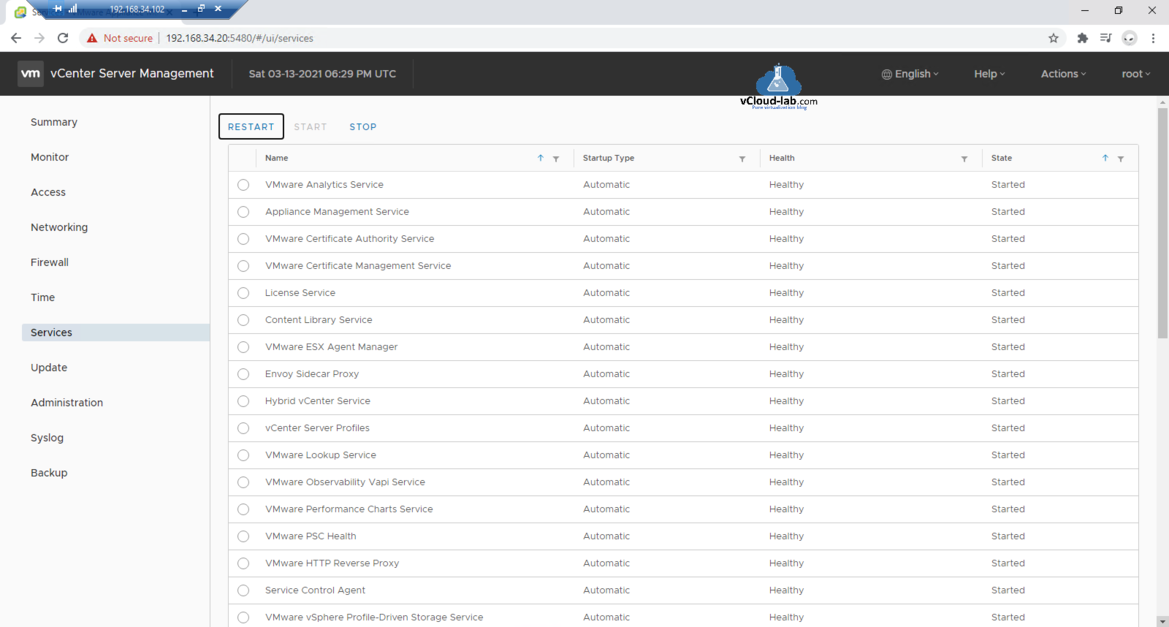
To resolve the issue further I checked all the services status, under vCenter server management 5480 vami portal, Restarted couple of services, Checked server health in Monitor, all was good, but still no luck.
Next I found one of the settings which I configured and documented in Unable to save IP settings Install Stage 2 Set up vCenter Server configuration where I had configured vCenter server to obtain IP address from DHCP. I reverted IP address setting from DHCP to static with below steps. Before making any changes make sure you backup vCenter server or take snapshot.
Log in to VMware Server Managment vami portal with 5480 port, go to Networking section and click EDIT. I have only one network adapter and it already selected, click Next.
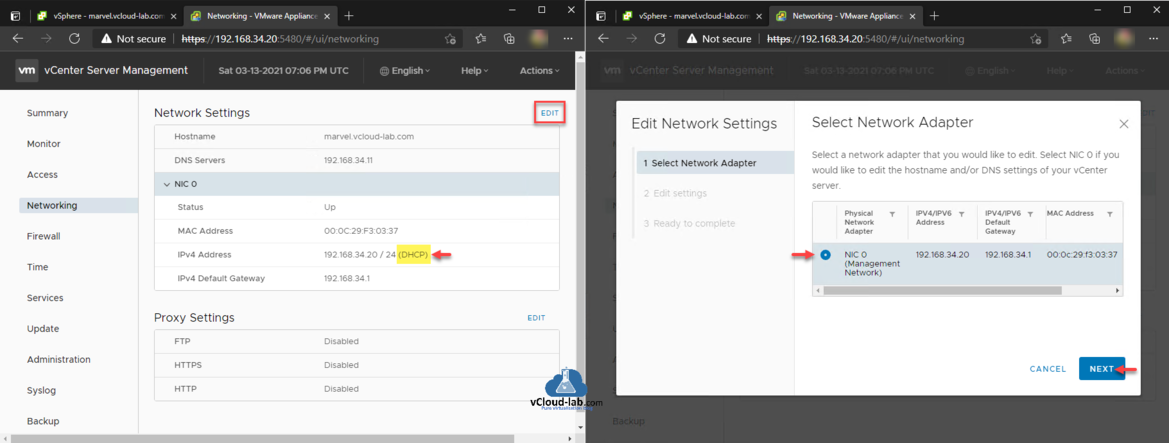
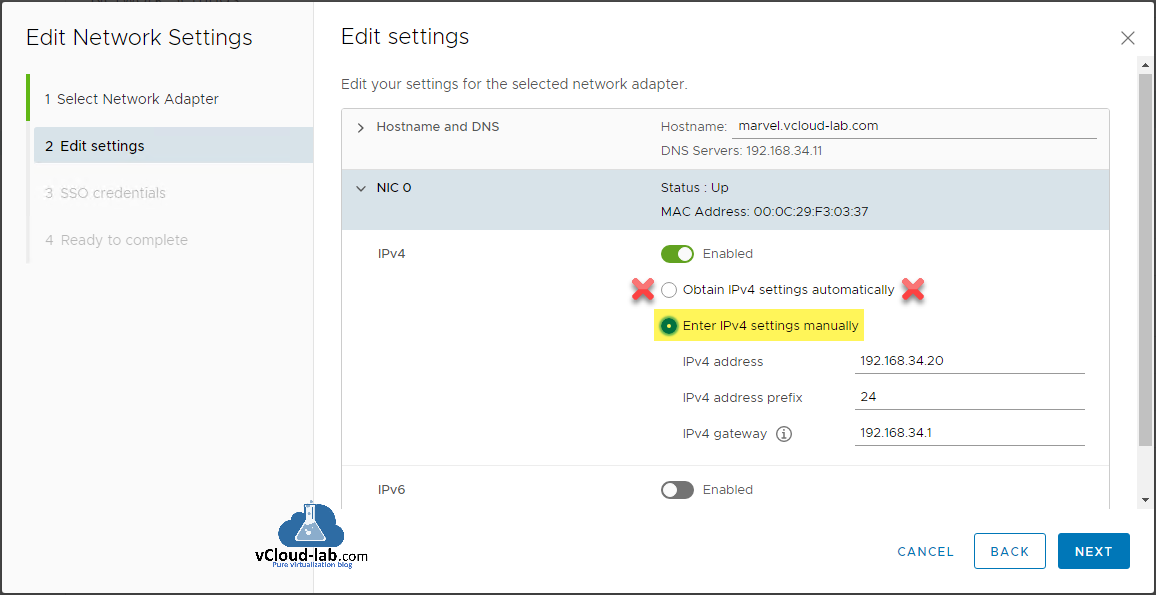
In the Edit Settings change the setting from Obtain IPv4 settings automatically to Enter IPv4 settings manually and click Next button.
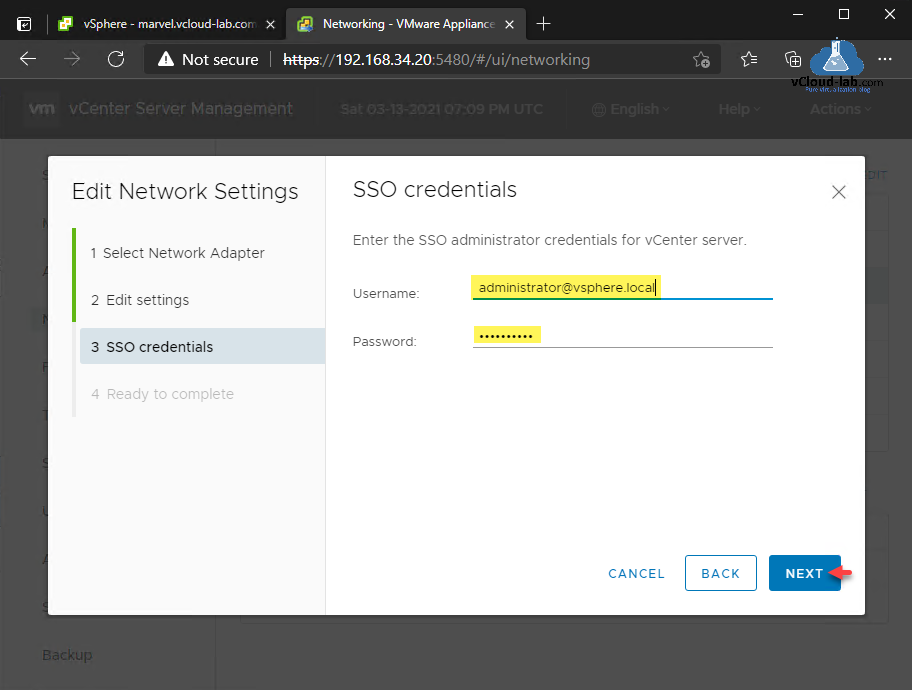
Provide SSO administrator credentials for vCenter server click Next button. (Username: administrator@vsphere.local).
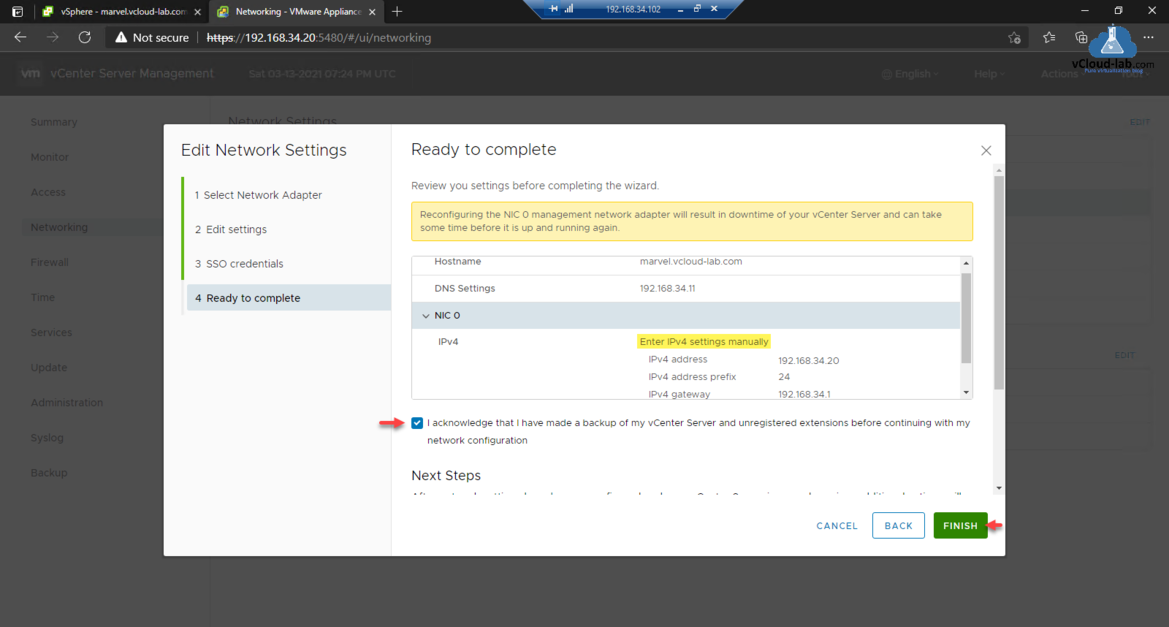
In last, Ready to complete page verify the settings to be done. Click the checkbox to acknowledge that you have made a backup of your vCenter server and unregistered extensions before continuing with your network configuration.
After network settings have been reconfigured and your vCenter server is up and running, additional actions will be required.
1. All deployed plug-ins will need to be reregistered.
2. All custom certififcates will need to be regenerated.
3. vCenter HA will need to be reconfigured.
4. Hybrid Link with Cloud vCenter server will need to be recreated.
5. Active Directory will need to be rejoined.
Click Finish button.
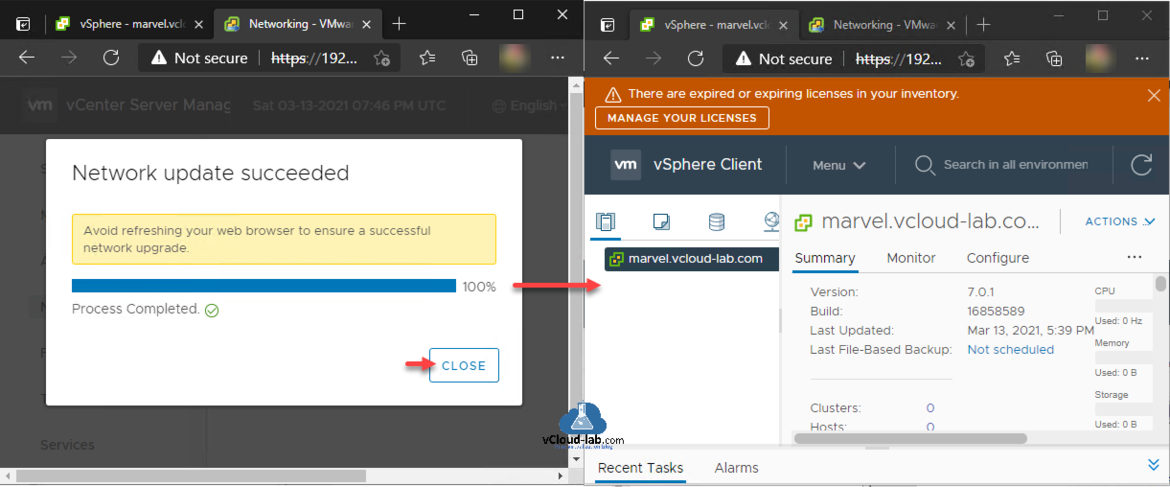
Avoid refreshing your web browser to ensure a successful network upgrade. Once update is 100% completed close the window and test vCenter server url https://vcenter/ui. All looks good.
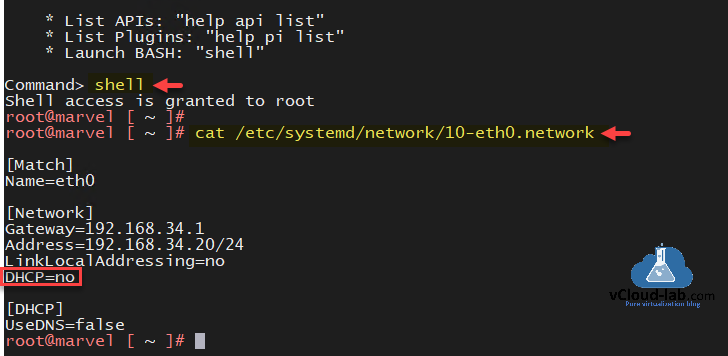
If you want to change the same gui setting through vCenter Server SSH. Open shell and change DHCP=no in the file /etc/systemd/network/10-eth0.network as shown on Unable to save IP settings Install Stage 2 Set up vCenter Server configuration.
Enable Access to the VCSA Bash shell or Appliance Shell
Useful Article
How to import default vCenter server appliance VMCA root certificate and refresh CA certificate on ESXi
How to replace default vCenter VMCA certificate with Microsoft CA signed certificate
Managing ESXi SSL certificate properties from vCenter server
Forward vCenter Server Appliance logs to syslog server
Patching the vCenter Server Appliance VCSA
Install and Configure VMware UMDS on Linux
VMware vCenter Server Management Exception in invoking authentication handler user password expired
vCenter ui sorry this website doesn’t exist 404 not found
Go Back
Получение сообщения об ошибке «Нет работоспособного восходящего потока» никогда не бывает приятным. Все, что вам нужно сделать, это сесть, расслабиться и получать удовольствие от использования вашего любимого веб-сайта.
Однако ваши планы могут быть разрушены, когда вы получите это сообщение. Это проблема, связанная с сервером, и чтение этой статьи даст вам больше информации об альтернативе Windows вашему существующему серверу.
Если вы задавались вопросом, как исправить эту ошибку, вам повезло. Ниже приведены несколько общих решений, которые помогут вам навсегда исправить эту ошибку.
Что означает отсутствие здорового восходящего потока?
Восходящий поток определяется в разработке программного обеспечения как действие по отправке исправления или пакета администратору для включения в кодовую базу этого программного обеспечения.
Даже если вы столкнулись с этим сообщением об ошибке на своем компьютере, вы можете даже не знать об этом.
Ошибка «No Healthy Upstream» начинается как программная ошибка, которая препятствует работе определенного приложения.
Как я могу исправить ошибку отсутствия работоспособного восходящего потока?
1. Очистите кеш в браузере вашего компьютера
- В браузере нажмите CTRL+ SHIFT+ DEL.

- Отметьте только кешированные изображения и файлы и нажмите очистить данные.

Для более глубокой очистки браузера используйте CCleaner. Он сканирует ваш браузер, делит ваши данные на более конкретные категории и дает вам обзор всего, что можно безопасно удалить.
2. Перезагрузите компьютер
- Щелкните значок «Пуск».
- Нажмите на значок питания.

- Нажмите «Перезагрузить».

Нет работоспособной ошибки восходящего потока в vCenter
Если нет исправной ошибки восходящего потока, vCenter еще не приспособлен для использования. Поэтому лучше подождать несколько минут, прежде чем получить доступ к vCenter из браузера вашего компьютера.
Недостаточно подготовленный vCenter виноват в большинстве ошибок, связанных с неработоспособным восходящим потоком. Возможно, возникла проблема, которая препятствует правильной работе служб vCenter.
Вы можете исправить эту ошибку в Center следующим образом:
- Выключение Vcenter
- Обновление аппаратной версии виртуальной машины.
- Редактирование настроек Центра. Вы можете сделать это, нажав кнопку параметров виртуальной машины, щелкнув Общие параметры и выбрав ОС VMware Photon.
Убедитесь, что виртуальные машины V7 имеют соответствующую память и вычислительную мощность. Например, vCenter 7 потребляет много ресурсов ЦП и памяти.
Нет здоровой ошибки восходящего потока eBay
В 1995 году американский предприниматель Пьер Омидьяр основал eBay, глобальную онлайн-аукционную и торговую платформу. Ни для кого не секрет, что eBay была одной из первых организаций, запустивших онлайн-рынок, объединяющий потребителей и продавцов.
Малые предприятия и отдельные продавцы одинаково пользуются услугами этого глобального центра электронной коммерции.
Тем не менее, несколько пользователей столкнулись с ошибкой неработоспособного исходящего потока на eBay.
Эта ошибка на компьютере чаще всего вызвана техническими проблемами на eBay и может быть устранена только ими.
Нет здоровой ошибки восходящего потока Spotify
Приложения для потоковой передачи музыки на мобильные устройства стали чрезвычайно интенсивными, но Spotify был на вершине кучи с 2008 года.
Однако даже у Spotify иногда могут возникнуть проблемы.
Если в Spotify нет здоровой ошибки восходящего потока, вот как это исправить.
- Новая поисковая система или сеанс инкогнито/приватный браузер.
- Проверьте, установлена ли последняя версия браузера на вашем компьютере.
- Перезагрузите маршрутизатор.
- Попробуйте другую сеть. Не стесняйтесь связаться с поставщиком услуг предыдущей сети, если он не загружается при вашем новом соединении.
- Услуги могут быть ограничены в общедоступных или совместно используемых сетях (например, в школе или на работе). Вы можете получить дополнительную информацию о сети, связавшись с ответственными за нее людьми.
- Файл вашего хоста также может нуждаться в очистке.
Что такое тайм-аут восходящего потока?
Восходящий поток — это термин компьютерной сети, который относится к передаче данных с локального компьютера или клиента на удаленный хост или сервер.
Вы получаете тайм-аут восходящего потока, когда передача занимает слишком много времени, и система интерпретирует запрос как неудачный.
Мы надеемся, что вы нашли некоторое просветление с этой частью. Пожалуйста, поделитесь своими мыслями в разделе комментариев ниже.