При разработке веб-сайтов и веб-приложений можно столкнуться с ошибкой 500 internal server error. Сначала она может испугать и ввести в заблуждение, поскольку обычно веб-сервер выдает более конкретные ошибки, в которых указана точная причина проблемы, например, превышено время ожидания, неверный запрос или файл не найден, а тут просто сказано что, обнаружена внутренняя ошибка.
Но не все так страшно и в большинстве случаев проблема вполне решаема и очень быстро. В этой статье мы разберем как исправить ошибку Internal server error в Nginx.
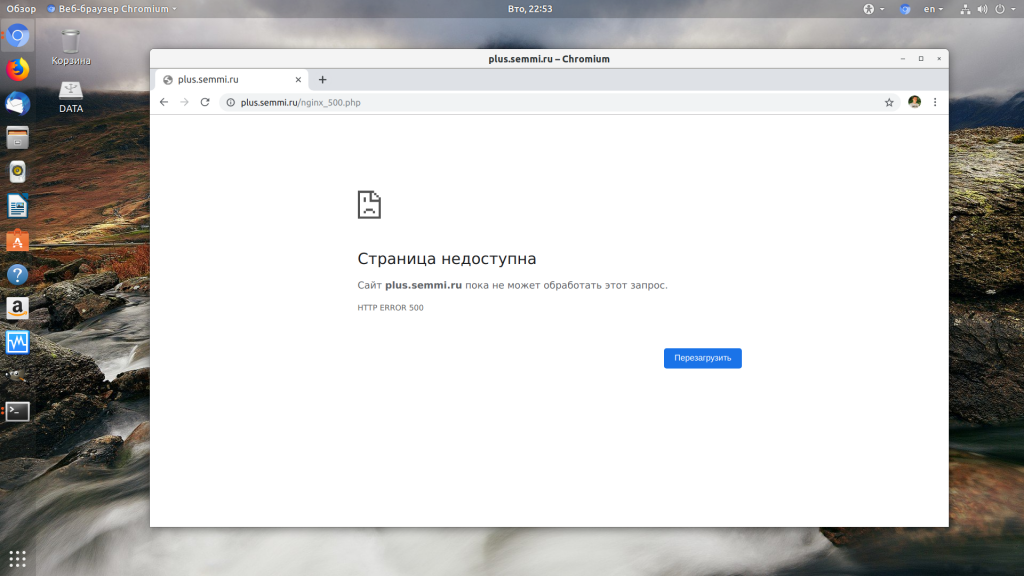
Дословно Internal server error означает внутренняя ошибка сервера. И вызвать её могут несколько проблем. Вот основные из них:
- Ошибки в скрипте на PHP — одна из самых частых причин;
- Превышено время выполнения PHP скрипта или лимит памяти;
- Неправильные права на файлы сайта;
- Неверная конфигурация Nginx.
А теперь рассмотрим каждую из причин более подробно и разберем варианты решения.
1. Ошибка в скрипте PHP
Мы привыкли к тому, что если в PHP скрипте есть ошибки, то сразу же видим их в браузере. Однако на производственных серверах отображение сообщений об ошибках в PHP отключено, чтобы предотвратить распространение информации о конфигурации сервера для посторонних. Nginx не может отобразить реальную причину ошибки, потому что не знает что за ошибка произошла, а поэтому выдает универсальное сообщение 500 internal server error.
Чтобы исправить эту ошибку, нужно сначала понять где именно проблема. Вы можете включить отображение ошибок в конфигурационном файле php изменив значение строки display_errors с off на on. Рассмотрим на примере Ubuntu и PHP 7.2:
vi /etc/php/7.2/php.ini
display_errors = On
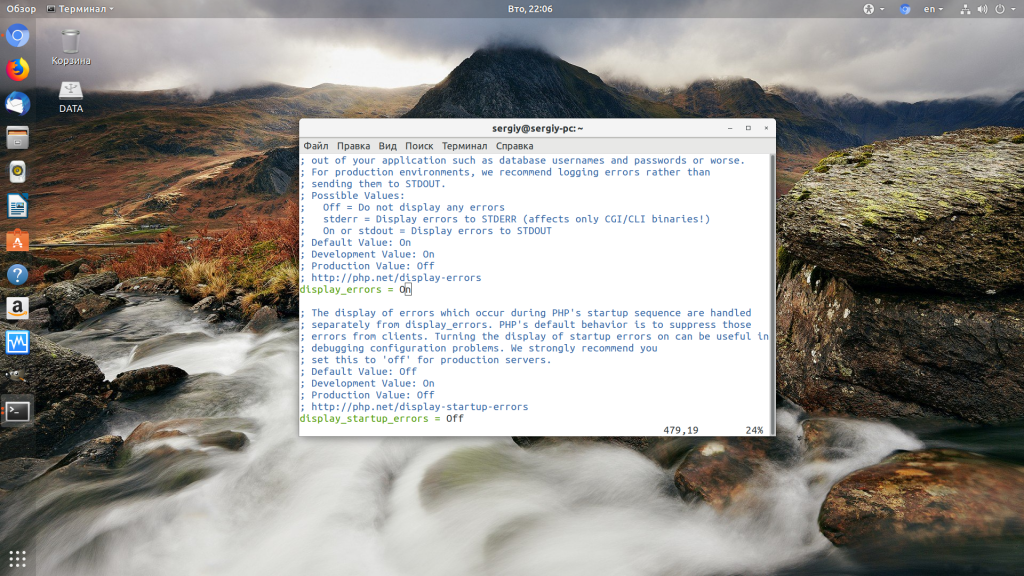
Перезапустите php-fpm:
sudo systemctl restart php-fpm
Затем обновите страницу и вы увидите сообщение об ошибке, из-за которого возникла проблема. Далее его можно исправить и отключить отображение ошибок, тогда все будет работать. Ещё можно посмотреть сообщения об ошибках PHP в логе ошибок Nginx. Обычно он находится по пути /var/log/nginx/error.log, но для виртуальных доменов может настраиваться отдельно. Например, смотрим последние 100 строк в логе:
tail -n 100 -f /var/log/nginx/error.log
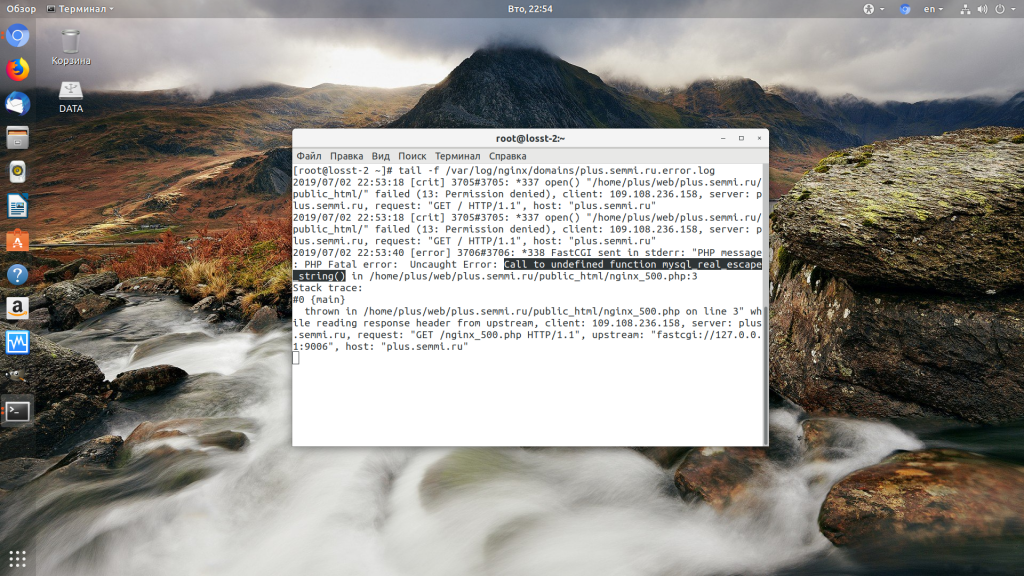
Теперь аналогично, исправьте ошибку и страница будет загружаться нормально, без ошибки 500.
2. Превышено время выполнения или лимит памяти
Это продолжение предыдущего пункта, так тоже относится к ошибкам PHP, но так, как проблема встречается довольно часто я решил вынести её в отдельный пункт. В файле php.ini установлены ограничения на время выполнения скрипта и количество оперативной памяти, которую он может потребить. Если скрипт потребляет больше, интерпретатор PHP его убивает и возвращает сообщение об ошибке.
Также подобная ошибка может возникать, если на сервере закончилась свободная оперативная память.
Если же отображение ошибок отключено, мы получаем error 500. Обратите внимание, что если время ожидания было ограничено в конфигурационном файле Nginx, то вы получите ошибку 504, а не HTTP ERROR 500, так что проблема именно в php.ini.
Чтобы решить проблему увеличьте значения параметров max_execution_time и memory_limit в php.ini:
sudo vi /etc/php/7.2/php.ini
max_execution_time 300

memory_limit 512M
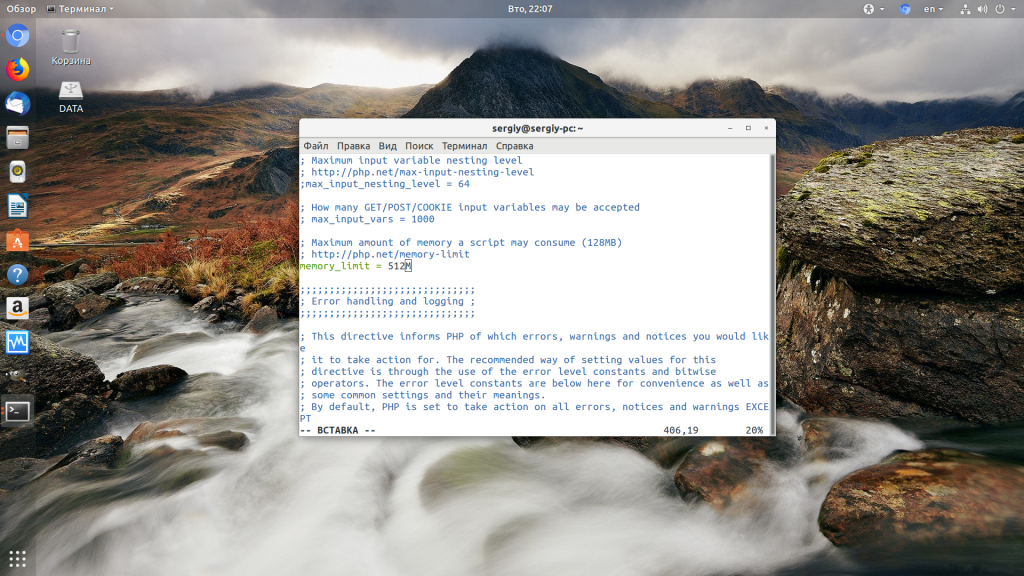
Также проблема может быть вызвана превышением других лимитов установленных для скрипта php. Смотрите ошибки php, как описано в первом пункте. После внесения изменений в файл перезапустите php-fpm:
sudo systemctl restart php-fpm
3. Неверные права на файлы
Такая ошибка может возникать, если права на файлы, к которым обращается Nginx установлены на правильно. Сервисы Nginx и php-fpm должны быть запущены от имени одного и того же пользователя, а все файлы сайтов должны принадлежать этому же пользователю. Посмотреть от имени какого пользователя запущен Nginx можно командой:
nginx -T | grep user
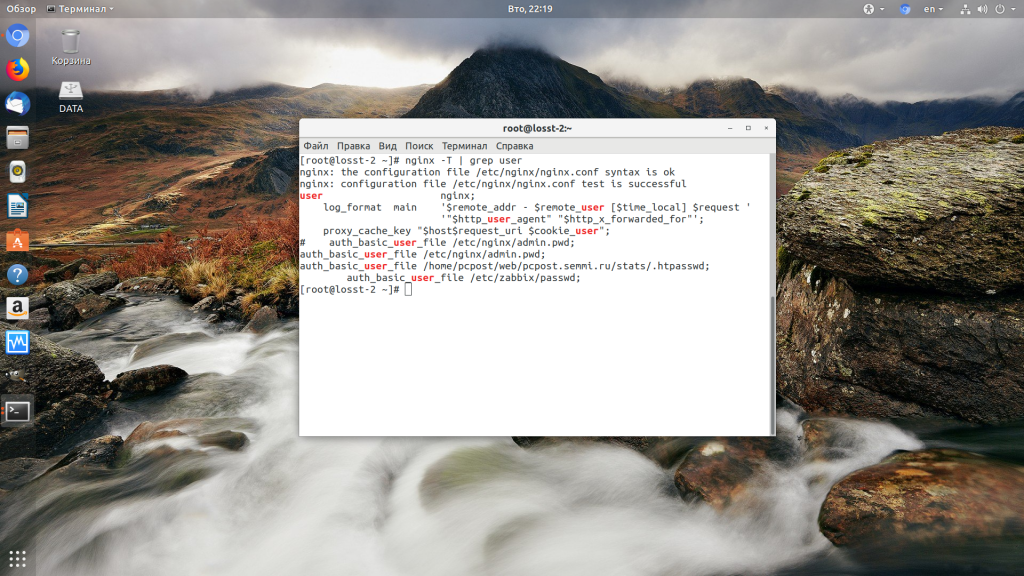
Чтобы узнать от какого пользователя запущен php-fpm посмотрите содержимое конфигурационного файла используемого пула, например www.conf:
sudo vi /etc/php-fpm.d/www.conf
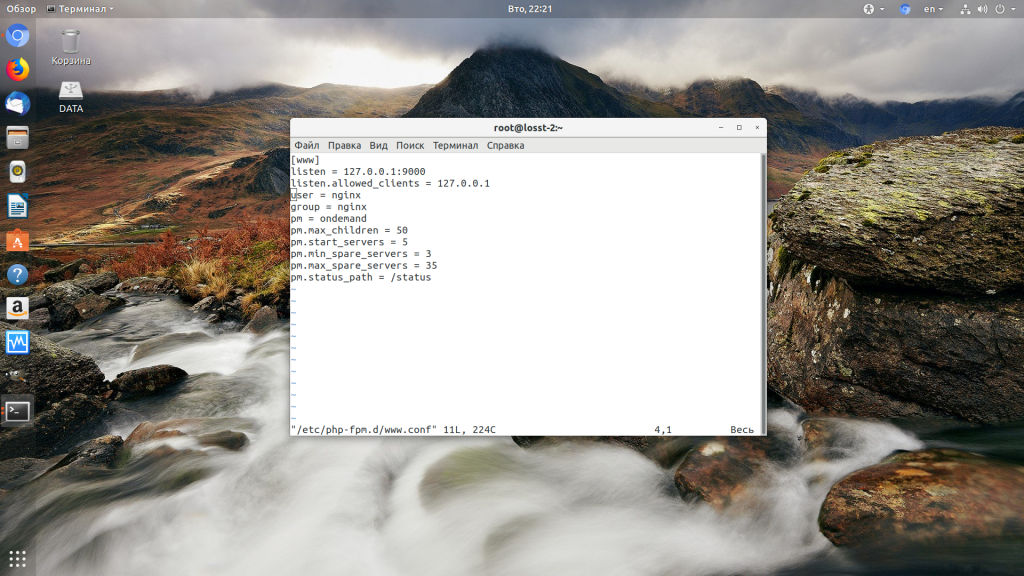
В моем случае это пользователь nginx. Теперь надо убедится, что файлы сайта, к которым вы пытаетесь обратиться принадлежат именно этому пользователю. Для этого используйте команду namei:
namei -l /var/www/site
Файлы сайта должны принадлежать пользователю, от имени которого запущены сервисы, а по пути к каталогу с файлами должен быть доступ на чтение для всех пользователей. Если файлы принадлежат не тому пользователю, то вы можете все очень просто исправить:
sudo chown nginx:nginx -R /var/www/site
Этой командой мы меняем владельца и группу всех файлов в папке на nginx:nginx. Добавить права на чтение для всех пользователей для каталога можно командой chmod. Например:
sudo chmod o+r /var/www/
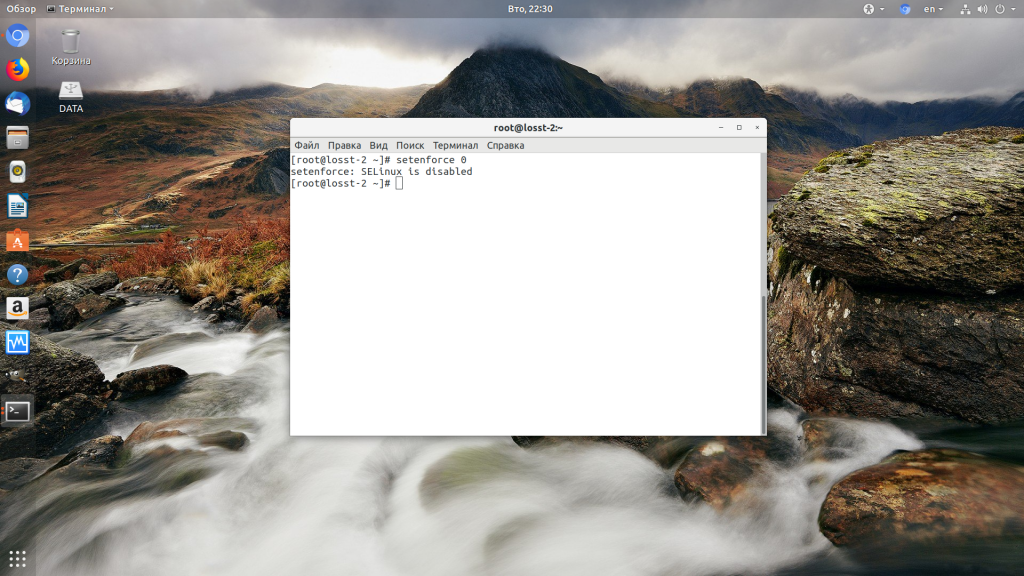
Далее все должно работать. Также, проблемы с правами может вызывать SELinux. Настройте его правильно или отключите:
setenforce 0
Выводы
В этой статье мы разобрали что делать если на вашем сайте встретилась ошибка 500 internal server error nginx. Как видите проблема вполне решаема и в большинстве случаев вам помогут действия описанные в статье. А если не помогут, напишите свое решение в комментариях!

Статья распространяется под лицензией Creative Commons ShareAlike 4.0 при копировании материала ссылка на источник обязательна .
I am running nginx with PHP-FPM. My nginx configuration for handling php files looks like this:
location  ~ .php$ {
            set $php_root /home/me/www;
            fastcgi_pass   127.0.0.1:9000;
            fastcgi_index  index.php;
            fastcgi_param  SCRIPT_FILENAME  $php_root$fastcgi_script_name;
            include /etc/nginx/fastcgi_params;
        }
Now, I have a simple php file like this:
<?php
     ech "asd"
     asd""
?>
Yes, with an obvious error. When I try accessing the php file, instead of tracing a syntax error, I always get a HTTP 500 Internal Server Error.I tried using error_reporting(-1); but still it always returns HTTP 500. How do I get PHP to print the exact error instead of returning a generic HTTP 500?
asked Feb 9, 2010 at 5:57

3
Try to find the following line in your php.ini:
display_errors = Off
then make it on
answered Feb 9, 2010 at 6:22

YoungYoung
7,7967 gold badges42 silver badges64 bronze badges
5
To post a more complete answer, I had used a production version of php.ini which has display_errors = Off. Instead of turning it on globally, what I do now is, for files which I need error reporting on, I use ini_set('display_errors', 'On'); at the beginning of the file.
answered Mar 15, 2010 at 9:19
ErJabErJab
5,9119 gold badges40 silver badges53 bronze badges
2
Also I met the problem, and I set display_errors = Off in php.ini but it not works. Then I found the php[display_errors]=off in php-fpm.conf, and it will override the value of php.ini and it works.

kaiser
21.4k16 gold badges87 silver badges109 bronze badges
answered Mar 25, 2012 at 14:17

yaronliyaronli
6794 silver badges10 bronze badges
1
Display errors will only affect the fact that the errors are printed to output or not.
If you have log errors turned on, the errors will still be missing from log unless display is off, which isn’t the expected behavior.
The expected behavior is if log is on, errors are found there. If display is on, errors are found on screen/output. If both are on erros are found on both.
Current versions have a bug that forfeits that.
answered Aug 22, 2012 at 10:14

1
For Ubuntu 12.10, in php-fpm-pool-config file:
php_flag[display_errors] = on
In php.ini file:
display_errors = On
kaiser
21.4k16 gold badges87 silver badges109 bronze badges
answered Jan 24, 2013 at 21:33

you can display errors by this way: go to php.ini and find display_errors, you should see display_errors = Off, just replace Off to On, restart php and run again.
answered Apr 9, 2019 at 4:32
If you install from Remi repo php72. It come default user and group with apache|
go to your www.conf file it locate /etc/opt/remi/php72/php-fpm.d/www.conf
and change
user=nginx
group=nginx
before restart your php fpm
systemctl restart php72-php-fpm
CENTOS REMI PHP7.2
answered Oct 13, 2018 at 7:17

Turan ZamanlıTuran Zamanlı
3,7481 gold badge15 silver badges21 bronze badges
Содержание
- Ошибка 500 internal server error Nginx
- Как исправить 500 internal server error Nginx
- 1. Ошибка в скрипте PHP
- 2. Превышено время выполнения или лимит памяти
- 3. Неверные права на файлы
- Выводы
- Похожие записи
- Оцените статью
- Об авторе
- 2 комментария к “Ошибка 500 internal server error Nginx”
- Ошибка 500 Internal Server Error
- How to Fix 500 Internal Server Error in NGINX
- What is 500 Internal Server Error in NGINX
- How to Fix 500 Internal Server Error in NGINX
- 1. Hard Refresh
- 2. Examine Server Logs
- 3. Examine Your Script
- 4. Check File/Folder Permission
- 5. Check redirections
- 6. Increase Script Timeout
- Как исправить ошибку 500 ? (Php7.2 и nginx)
- 🙂 Я больше так не буду, честно-честно. Психанула ….
Ошибка 500 internal server error Nginx
При разработке веб-сайтов и веб-приложений можно столкнуться с ошибкой 500 internal server error. Сначала она может испугать и ввести в заблуждение, поскольку обычно веб-сервер выдает более конкретные ошибки, в которых указана точная причина проблемы, например, превышено время ожидания, неверный запрос или файл не найден, а тут просто сказано что, обнаружена внутренняя ошибка.
Но не все так страшно и в большинстве случаев проблема вполне решаема и очень быстро. В этой статье мы разберем как исправить ошибку Internal server error в Nginx.
Как исправить 500 internal server error Nginx
Дословно Internal server error означает внутренняя ошибка сервера. И вызвать её могут несколько проблем. Вот основные из них:
- Ошибки в скрипте на PHP — одна из самых частых причин;
- Превышено время выполнения PHP скрипта или лимит памяти;
- Неправильные права на файлы сайта;
- Неверная конфигурация Nginx.
А теперь рассмотрим каждую из причин более подробно и разберем варианты решения.
1. Ошибка в скрипте PHP
Мы привыкли к тому, что если в PHP скрипте есть ошибки, то сразу же видим их в браузере. Однако на производственных серверах отображение сообщений об ошибках в PHP отключено, чтобы предотвратить распространение информации о конфигурации сервера для посторонних. Nginx не может отобразить реальную причину ошибки, потому что не знает что за ошибка произошла, а поэтому выдает универсальное сообщение 500 internal server error.
Чтобы исправить эту ошибку, нужно сначала понять где именно проблема. Вы можете включить отображение ошибок в конфигурационном файле php изменив значение строки display_errors с off на on. Рассмотрим на примере Ubuntu и PHP 7.2:
sudo systemctl restart php-fpm
Затем обновите страницу и вы увидите сообщение об ошибке, из-за которого возникла проблема. Далее его можно исправить и отключить отображение ошибок, тогда все будет работать. Ещё можно посмотреть сообщения об ошибках PHP в логе ошибок Nginx. Обычно он находится по пути /var/log/nginx/error.log, но для виртуальных доменов может настраиваться отдельно. Например, смотрим последние 100 строк в логе:
tail -n 100 -f /var/log/nginx/error.log
Теперь аналогично, исправьте ошибку и страница будет загружаться нормально, без ошибки 500.
2. Превышено время выполнения или лимит памяти
Это продолжение предыдущего пункта, так тоже относится к ошибкам PHP, но так, как проблема встречается довольно часто я решил вынести её в отдельный пункт. В файле php.ini установлены ограничения на время выполнения скрипта и количество оперативной памяти, которую он может потребить. Если скрипт потребляет больше, интерпретатор PHP его убивает и возвращает сообщение об ошибке.
Также подобная ошибка может возникать, если на сервере закончилась свободная оперативная память.
Если же отображение ошибок отключено, мы получаем error 500. Обратите внимание, что если время ожидания было ограничено в конфигурационном файле Nginx, то вы получите ошибку 504, а не HTTP ERROR 500, так что проблема именно в php.ini.
Чтобы решить проблему увеличьте значения параметров max_execution_time и memory_limit в php.ini:
sudo vi /etc/php/7.2/php.ini
max_execution_time 300
memory_limit 512M
Также проблема может быть вызвана превышением других лимитов установленных для скрипта php. Смотрите ошибки php, как описано в первом пункте. После внесения изменений в файл перезапустите php-fpm:
sudo systemctl restart php-fpm
3. Неверные права на файлы
Такая ошибка может возникать, если права на файлы, к которым обращается Nginx установлены на правильно. Сервисы Nginx и php-fpm должны быть запущены от имени одного и того же пользователя, а все файлы сайтов должны принадлежать этому же пользователю. Посмотреть от имени какого пользователя запущен Nginx можно командой:
nginx -T | grep user
Чтобы узнать от какого пользователя запущен php-fpm посмотрите содержимое конфигурационного файла используемого пула, например www.conf:
sudo vi /etc/php-fpm.d/www.conf
В моем случае это пользователь nginx. Теперь надо убедится, что файлы сайта, к которым вы пытаетесь обратиться принадлежат именно этому пользователю. Для этого используйте команду namei:
namei -l /var/www/site
Файлы сайта должны принадлежать пользователю, от имени которого запущены сервисы, а по пути к каталогу с файлами должен быть доступ на чтение для всех пользователей. Если файлы принадлежат не тому пользователю, то вы можете все очень просто исправить:
sudo chown nginx:nginx -R /var/www/site
Этой командой мы меняем владельца и группу всех файлов в папке на nginx:nginx. Добавить права на чтение для всех пользователей для каталога можно командой chmod. Например:
sudo chmod o+r /var/www/
Далее все должно работать. Также, проблемы с правами может вызывать SELinux. Настройте его правильно или отключите:
Выводы
В этой статье мы разобрали что делать если на вашем сайте встретилась ошибка 500 internal server error nginx. Как видите проблема вполне решаема и в большинстве случаев вам помогут действия описанные в статье. А если не помогут, напишите свое решение в комментариях!
Похожие записи
Нет похожих записей.
Оцените статью
Об авторе
Основатель и администратор сайта losst.ru, увлекаюсь открытым программным обеспечением и операционной системой Linux. В качестве основной ОС сейчас использую Ubuntu. Кроме Linux, интересуюсь всем, что связано с информационными технологиями и современной наукой.
2 комментария к “Ошибка 500 internal server error Nginx”
Чушь.
1. header(«http/1.1 500 Internal Server Error») ;
И логи не помогут.
2. Если скрипт превышает лимиты, то, вероятнее всего, в коде что-то не так. Бесконечный цикл, например. С ним, кстати, и увеличение этих лимитов не спасёт.
статья однобока. проблема к nginx вряд ли имеет отношение, зря в заголовок вынесено название этого великолепного сервера. nginx может работать, и работает, в связке не только с PHP. а на PHP свет клином не сошёлся. если уж пишете о PHP то и выносите в заголовок PHP, а не nginx.
инициировать такую ошибку можно элементарно. например, отключаем сервис PostgreSQL и вуаля. Welcome home, dear!
Источник
Ошибка 500 Internal Server Error

Технический редактор Highload


В большинстве случаев ошибка Internal Server Error вызвана неверной конфигурацией Nginx. Так что используйте лучшие практики по настройке веб-сервера. И не забудьте включить логирование ошибок – обычно Nginx подсказывает причину ошибку в журнале.

Собираем на дрон для штурмовиков Николаевской области. Он поможет найти и уничтожить врага
Но есть и не очевидная причина проблемы. Если Nginx работает вместе с PHP-FPM (через модуль FastCGI), то ошибку 500 сервера могут вызывать ошибки выполнения PHP, если отключена директива display_errors .
Для начала проверьте лог php-fpm :
tail -f /var/log/php-fpm/www-error.log
## Выводит 10 последних строчек лога
А затем проверьте файл конфигурации /etc/php-fpm.d/www.conf :
**display_errors = on**
## Уточните указанные параметры и включить отображение ошибок
Еще одна возможная причина ошибки – скрипт пытается использовать больше памяти, чем позволяет директива memory_limit . На ошибку укажет лог PHP-FPM, а увеличить лимит можно все в том же файле конфигурации /etc/php-fpm.d/www.conf .
Собираем на дрон для штурмовиков Николаевской области. Он поможет найти и уничтожить врага
Источник
How to Fix 500 Internal Server Error in NGINX
Sometimes NGINX server may give 500 Internal Server Error due to various reasons. In this article we will look at what does 500 Internal Server Error mean in NGINX and how to fix 500 Internal Server Error in NGINX.
What is 500 Internal Server Error in NGINX
NGINX gives 500 Internal Server Error when there is a server-side error that prevents NGINX from returning a proper response. It can be due to many different reasons such as faulty script, missing files referenced by code, inadequate file permissions, etc. NGINX is typically used as a reverse proxy server, so the most common reason for 500 Internal server is an error in one of its web servers like Apache that has encountered an issue and returned a 500 error response to NGINX, which is then returned to client browsers. There are various ways to fix internal server error in NGINX.
How to Fix 500 Internal Server Error in NGINX
Here are the steps to fix 500 Internal Server Error in NGINX on localhost, CPanel, PHP, Ubuntu and other platforms.
1. Hard Refresh
Sometimes you may get 500 internal server error in NGINX because your server is being restarted at that moment, or there are too many requests for web server to handle.
So it doesn’t have enough resources to serve your request.
In such cases, you can simply do a hard refresh of your page to force the browser to get latest web page version and fix 500 internal server error in NGINX. You can do this by pressing
- Windows: Ctrl + F5
- Mac: Apple + R or Cmd + R
- Linux: F5
2. Examine Server Logs
Open your server log in a text editor to analyze the most recent requests. Every server log contains information about requested URLs and response code for each request.
Find out which requests result in 500 internal server error. It may be that only one page, or a few pages give this error while others work fine.
Find out which requests cause 500 internal server error. Once you have identified the problematic URLs, open a browser and request them again to confirm that is indeed the case.
3. Examine Your Script
Next, analyze the script to process the problematic requests. Is it actually present at the right location? Are you referencing it properly, in your URL mapping/routing file?
If your script refers to another file, find out if that file path is correct. If you have referenced any program/function, have you called it correctly?
4. Check File/Folder Permission
This can also be due to improper file/folder permissions. Did you add/modify any file/folder recently?
Typically, files need a 644 permission and folders need a 755 permission. You can use FileZilla (Windows) and Chmod (Linux) to modify file permissions.
You can also look at the permissions of other files & folders in your code and update the same for your files/folders accordingly.
5. Check redirections
If you have incorrectly setup any redirections in web server, it can give 500 internal server error. For example, if you use Apache web server, make sure you have properly configured mod_rewrite module and .htaccess file.
Also use a third-party tool to check the syntax of redirection/URL rewrite rules in your server configuration file.
6. Increase Script Timeout
You may also get 500 internal server error in NGINX if your web server (e.g Apache) is timing out on the request. In such cases, increase your web server (not NGINX) timeout value so that it stays connected to NGINX longer, and returns a proper response.
Hopefully, the above tips will help you fix 500 internal server error in NGINX.
Ubiq makes it easy to visualize data in minutes, and monitor in real-time dashboards. Try it Today!
Источник
Как исправить ошибку 500 ? (Php7.2 и nginx)
Доброе время суток. Уважаемые форумчане, понимаю что задача элементарная и выполняется в течении нескольких минут, но у меня возникли проблемы. Не могу понять причины по которым возникает ошибка 500. Характеристики: Система:
Distributor ID: Ubuntu
Description: Ubuntu 16.04.5 LTS
Release: 16.04
Codename: xenial
Задача собрать простейший LAMP.
1. Добавили и обновили репозитории;
sudo apt install nginx.[br] Thanks for using nginx!
3. Установили php;
test.php (Содержит )
$ php test.php (выполняется в командной строке)
3. Установка php прошла успешно.
http://localhost/phpinfo.php выдает ошибку 500 Internal Server Error
Почему возникает эта ошибка? Как её исправить?

Логи нжинкса (и логи пыха) про ошибку 500 в студию.

И да, nginx тут не при чем, это твой скрипт его валит.
выдает ошибку 500 Internal Server Error:
🙂 Я больше так не буду, честно-честно. Психанула ….
Файла fastcgi-php.conf нигде нет . совсем.
А нужен error.log
А созданный файл это test.php
Нужно создавать отдельный файл хоста и там заниматься всей порнографией, а не колупать основные файлы настроек нжинкса. Файл хоста выглядит как-то так:
Файла fastcgi-php.conf нигде нет . совсем.
apt-get —search php7-fpm ?
И да, тема должна быть в Job
apt-get —search php7-fpm нет такого :).
apt-get — интерфейс командной строки для получения пакетов, информации из доверенных источников, а также установки, обновления и удаления пакетов вместе с их зависимостями.
Основные команды: update — получить новые списки пакетов
upgrade — выполнить обновление
install — установить новые пакеты (на месте пакета указывается имя пакета (libc6, а не имя файла libc6.deb)
remove — удалить пакеты
purge — удалить пакеты вместе с их файлами настройки
autoremove — автоматически удалить все неиспользуемые пакеты
dist-upgrade — обновить всю систему, подробнее в apt-get(8)
dselect-upgrade — руководствоваться выбором, сделанным в dselect
build-dep — настроить всё необходимое для сборки пакета из исходного кода
clean — удалить скачанные файлы архивов
autoclean — удалить старые скачанные файлы архивов
check — проверить наличие нарушенных зависимостей
source — скачать архивы с исходным кодом
download — скачать двоичный пакет в текущий каталог
changelog — скачать и показать файл изменений заданного пакета
Какой search. 0_o
Источник
Sometimes NGINX server may give 500 Internal Server Error due to various reasons. In this article we will look at what does 500 Internal Server Error mean in NGINX and how to fix 500 Internal Server Error in NGINX.
NGINX gives 500 Internal Server Error when there is a server-side error that prevents NGINX from returning a proper response. It can be due to many different reasons such as faulty script, missing files referenced by code, inadequate file permissions, etc. NGINX is typically used as a reverse proxy server, so the most common reason for 500 Internal server is an error in one of its web servers like Apache that has encountered an issue and returned a 500 error response to NGINX, which is then returned to client browsers. There are various ways to fix internal server error in NGINX.
Bonus Read : How To Fix 504 Gateway Timeout Error in NGINX
How to Fix 500 Internal Server Error in NGINX
Here are the steps to fix 500 Internal Server Error in NGINX on localhost, CPanel, PHP, Ubuntu and other platforms.
1. Hard Refresh
Sometimes you may get 500 internal server error in NGINX because your server is being restarted at that moment, or there are too many requests for web server to handle.
So it doesn’t have enough resources to serve your request.
In such cases, you can simply do a hard refresh of your page to force the browser to get latest web page version and fix 500 internal server error in NGINX. You can do this by pressing
- Windows: Ctrl + F5
- Mac: Apple + R or Cmd + R
- Linux: F5
Bonus Read : How to Fix 502 Bad Gateway Error in NGINX
2. Examine Server Logs
Open your server log in a text editor to analyze the most recent requests. Every server log contains information about requested URLs and response code for each request.
Find out which requests result in 500 internal server error. It may be that only one page, or a few pages give this error while others work fine.
Find out which requests cause 500 internal server error. Once you have identified the problematic URLs, open a browser and request them again to confirm that is indeed the case.
Bonus Read : How to Increase Request Timeout in NGINX
3. Examine Your Script
Next, analyze the script to process the problematic requests. Is it actually present at the right location? Are you referencing it properly, in your URL mapping/routing file?
If your script refers to another file, find out if that file path is correct. If you have referenced any program/function, have you called it correctly?
4. Check File/Folder Permission
This can also be due to improper file/folder permissions. Did you add/modify any file/folder recently?
Typically, files need a 644 permission and folders need a 755 permission. You can use FileZilla (Windows) and Chmod (Linux) to modify file permissions.
You can also look at the permissions of other files & folders in your code and update the same for your files/folders accordingly.
Bonus Read : How to Increase File Upload Size in NGINX
5. Check redirections
If you have incorrectly setup any redirections in web server, it can give 500 internal server error. For example, if you use Apache web server, make sure you have properly configured mod_rewrite module and .htaccess file.
Also use a third-party tool to check the syntax of redirection/URL rewrite rules in your server configuration file.
6. Increase Script Timeout
You may also get 500 internal server error in NGINX if your web server (e.g Apache) is timing out on the request. In such cases, increase your web server (not NGINX) timeout value so that it stays connected to NGINX longer, and returns a proper response.
Hopefully, the above tips will help you fix 500 internal server error in NGINX.
Ubiq makes it easy to visualize data in minutes, and monitor in real-time dashboards. Try it Today!
Related posts:
- About Author

Nginx is giving me a 500 error that’s driving me crazy. First of all I have a personalsite.conf archive inside /etc/nginx/conf.d/ where I have my server block.
This is my server block configuration:
server {
    listen       80;
    server_name  personalsite.me;

    charset UTF-8;
    access_log  /var/log/nginx/personalsite.access.log  main;
    error_log /var/log/nginx/personalsite.error.log;

    root   /usr/share/nginx/html/personalsite;
    index index.php index.html index.htm;

    error_page 404 /404.html;
    error_page 500 502 503 504 /50x.html;
    location = /50x.html {
        root /usr/share/nginx/html/;
    }

    location ~ .php$ {
        try_files $uri =404;
        include fastcgi_params;
        fastcgi_pass unix:/var/run/php-fpm/php-fpm.sock;
        fastcgi_index index.php;
        fastcgi_param SCRIPT_FILENAME $document_root$fastcgi_script_name;
    }
}
Plus nginx user have its proper permissions asigned over /usr/share/nginx/html/personalsite/.
The thing is Nginx is giving me a 500 error when I try to browse personalsite.me, and the funny thing is that I know that because I checked the personalsite.access.log and see it, because the brower just goes blank. By unknown reasons Nginx is unable to show me its 500 error page, properly declared in the server block as you can see.
Another odd thing is that personalsite.error.log is in blank, it records nothing.
Also I have that domain declared with its IP in my /etc/hosts archive. So I really have no idea what’s happening here.
Everything is running CentOS 7 over a Digital Ocean VPS.
When accessing some PHP scripts on my website, I’m getting the dreaded 500 error message. I’d like to know what’s wrong to fix it, but Nginx isn’t logging any PHP errors in the log file I have specified. This is my server block:
server {
    listen 80;
    server_name localhost;
    access_log /home/whitey/sites/localhost/logs/access.log;
    error_log /home/whitey/sites/localhost/logs/error.log error;
    root /home/whitey/sites/localhost/htdocs;
    index index.html index.php /index.php;

    location / {

    }

    location ~ .php$ {
        fastcgi_pass unix:/tmp/phpfpm.sock;
        fastcgi_param SCRIPT_FILENAME  $document_root$fastcgi_script_name;
        include fastcgi_params;
    }

    location ~* .(?:ico|css|js|gif|jpe?g|png)$ {
        expires max;
    }
}
Note that some PHP scripts work fine, and others don’t. So there isn’t a global problem with PHP, there’s just something in these scripts that’s causing Nginx to throw the 500 error.
How can I get to the bottom of this? The only thing in error.log is an error about favicon.ico not being found.
asked Aug 13, 2012 at 18:30

4
You have to add the following to your php-fpm pool configurations:
catch_workers_output = 1
You have to add this line to each defined pool!
answered Aug 20, 2012 at 23:21

FleshgrinderFleshgrinder
3,7082 gold badges16 silver badges20 bronze badges
1
I had a similar issue.
I tried deploy phpMyAdmin with php-fpm 7.0 and nginx on CentOS7. Nginx showed me 500.html but there was not errors in any log file.
I did all of this
catch_workers_output = 1
and
display_errors = On
Either nginx log or php-fpm log did not contained any error string.
And when I commented this line in nginx.conf I was able to see in browser page things that was wrong.
#    error_page 500 502 503 504 /50x.html;
#    location = /50x.html {
#    }
That was what helped me understand troubles.
answered Jul 13, 2017 at 12:20

venoelvenoel
1837 bronze badges
php-fpm throws everything in /var/log/php5-fpm.log
or similar.
answered Aug 13, 2012 at 18:37

erickzettaerickzetta
5892 silver badges4 bronze badges
6
Look in your nginx.conf for an error_log definition. Maybe nginx writes something in this error log.
You might also enable logging to file on PHP.
answered Aug 13, 2012 at 18:36

1
For me, this seemed to be a problem with upstart, which was routing the logs for php-fpm to it’s own custom location, e.g.:
/var/log/upstart/php5-fpm.log
There’s also some bugginess with ubuntu Precise, 12.04 that may contribute to the lack of logging ability: https://bugs.php.net/bug.php?id=61045 If you’re still running that version.
answered Jul 21, 2015 at 16:55

KzqaiKzqai
1,2784 gold badges18 silver badges32 bronze badges
When PHP display_errors are disabled, PHP errors can return Nginx 500 error.
You should take a look to your php-fpm logs, i’m sure you’ll find the error there. With CentOS 7 :
tail -f /var/log/php-fpm/www-error.log
You can also show PHP errors. In your php.ini, change :
display_errors = Off
to :
display_errors = On
Hope it helps.
answered Jan 22, 2016 at 0:34

This is what happened to me:
When I deleted my error log, nginx noticed that it was no longer missing. When I recreated this file nginx would no longer recognise that it existed, therefore not writing to the file.
To fix this, run these commands (I’m on Ubuntu 14.04 LTS):
sudo service nginx reload
If that doesn’t work, then try:
sudo service nginx restart
answered Aug 12, 2015 at 7:22

dspacejsdspacejs
1111 silver badge3 bronze badges
4